> ## Documentation Index
> Fetch the complete documentation index at: https://zuperinc-section23.mintlify.site/llms.txt
> Use this file to discover all available pages before exploring further.
# Managing your invoices
Efficient invoice management is essential for maintaining accurate financial records and ensuring timely payments. Zuper provides a comprehensive platform to create, track, and manage invoices seamlessly. With robust features, businesses can streamline their billing processes, monitor payment statuses, and maintain transparency in financial transactions.
By centralizing invoice management, you can efficiently handle customer billing, track outstanding balances, and ensure smooth cash flow. This guide will help you understand how to access the Invoices listing page, perform key actions, and manage invoice details effectively.
**Navigation**: *Accounting ->Invoices -> Invoices listing page* -> *Invoice Details*
## Accessing the Invoices listing page
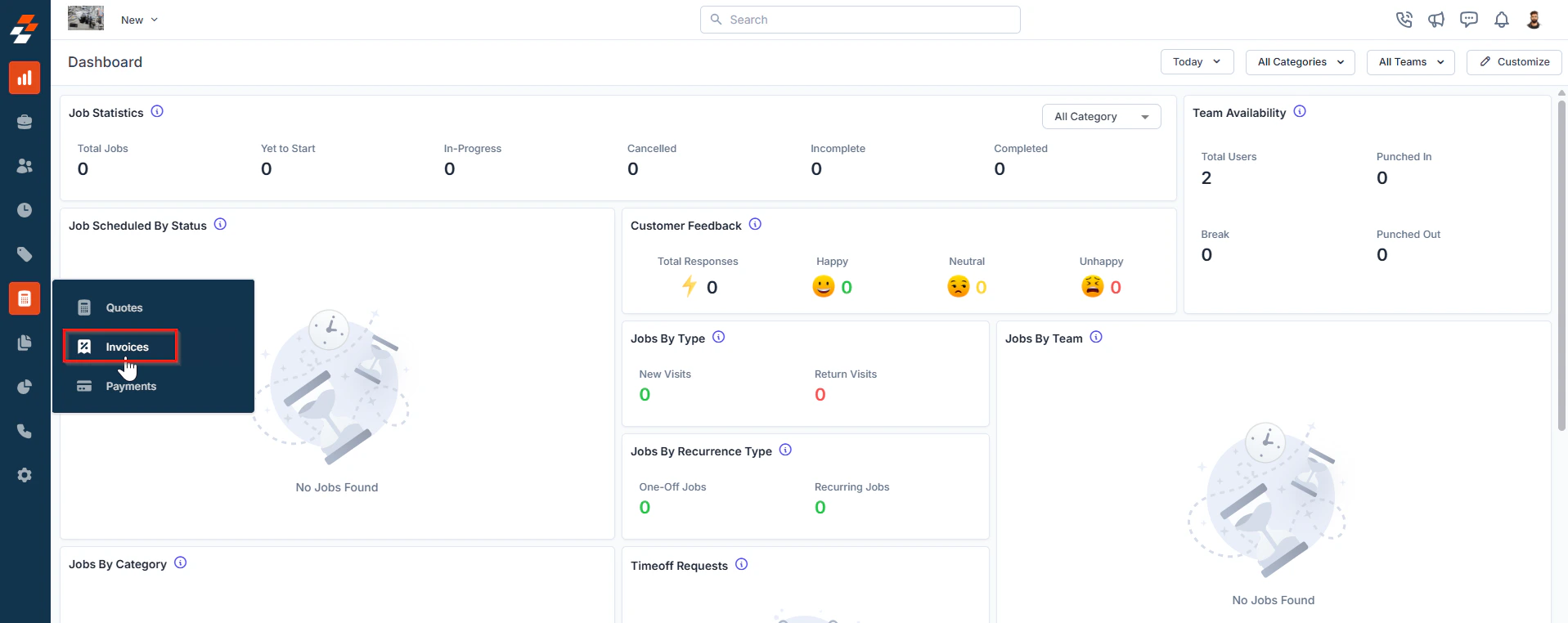
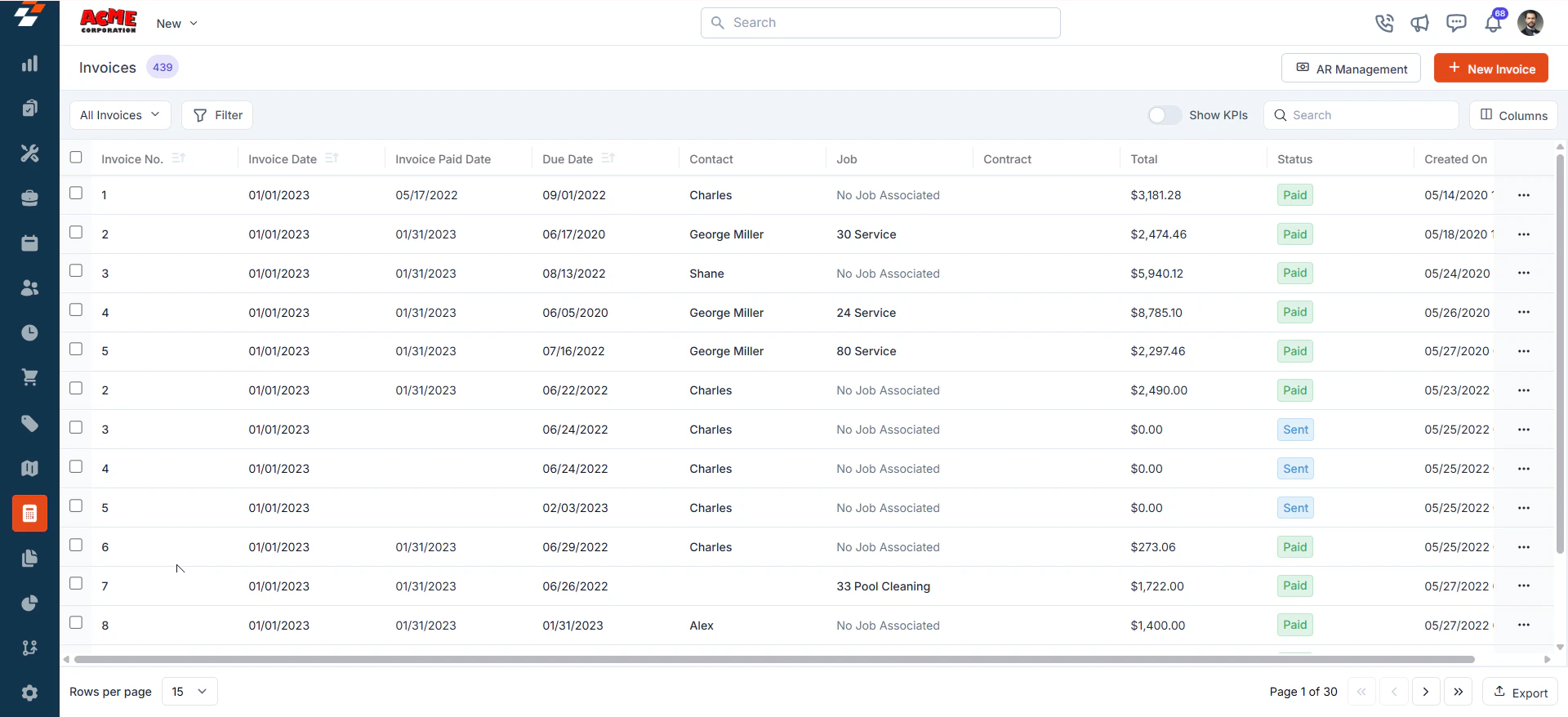
* Select the “**Accounting**” module from the left navigation menu and choose “**Invoices**.” You will land on the invoices listing page.
* On the **Invoices Listing** page, you can view an overview of existing invoices, including **Invoice No., Invoice Date, Due Date,** and more, based on the period selected at the top right corner of the page.
 ### Exploring the listing page
The invoices listing page is designed to help you stay organized and quickly access the information you need.
**Summary Cards:** On the top of the listing page, you’ll see summary cards displaying high-level information about your invoices. Each card highlights details such as:
* Total number of invoices
* Sent, paid invoices, and their total value
* Overdue, Partially Paid, and Bad Debt.
### Exploring the listing page
The invoices listing page is designed to help you stay organized and quickly access the information you need.
**Summary Cards:** On the top of the listing page, you’ll see summary cards displaying high-level information about your invoices. Each card highlights details such as:
* Total number of invoices
* Sent, paid invoices, and their total value
* Overdue, Partially Paid, and Bad Debt.
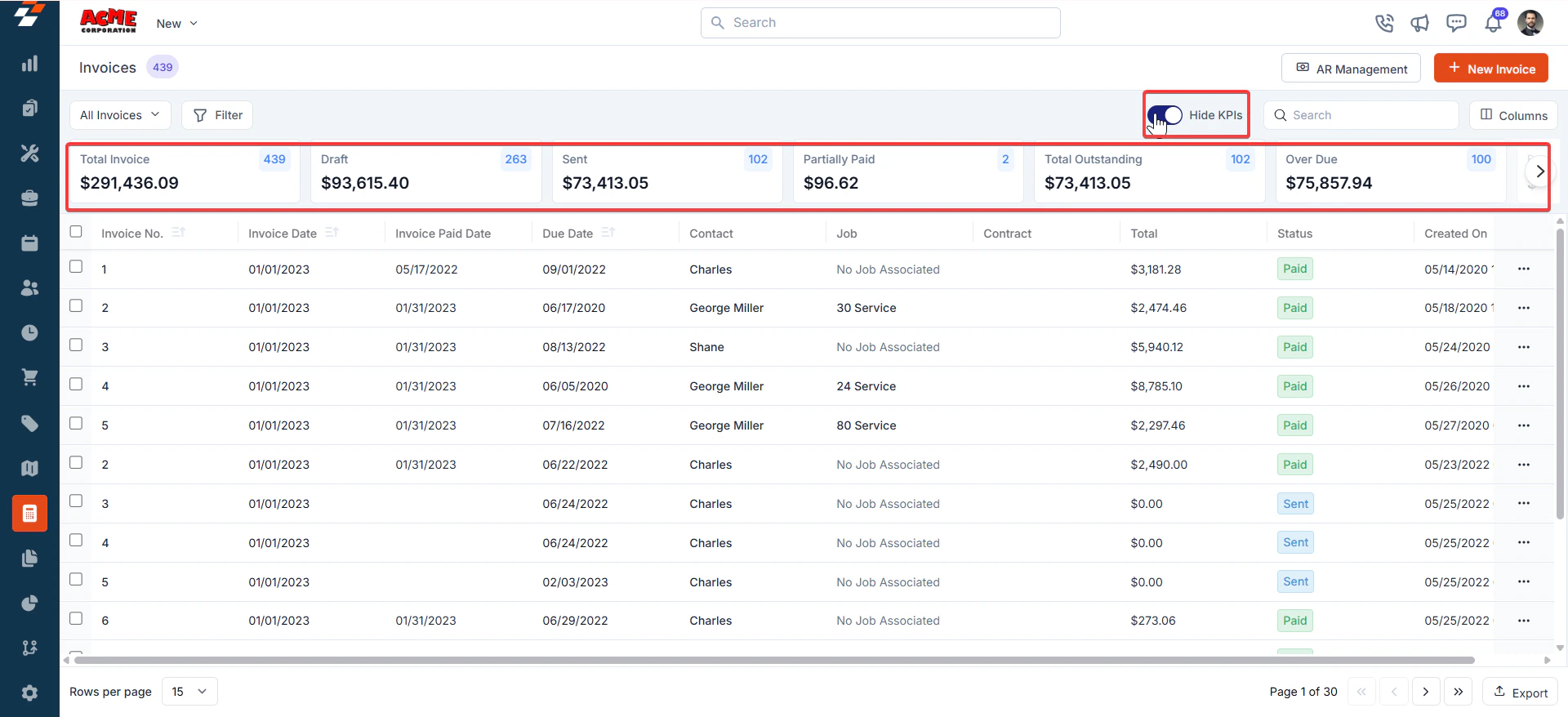 Use the "**Hide or Show KPIs**" option.
These cards provide a quick overview of your progress and help you identify areas that may need attention.
## Invoice Listing Views
Customize the Invoices listing by adding/removing or reordering columns, then Update View to overwrite or save it as a new view. Control visibility and sharing.
**Update View**
* Click Update View to modify the current view after changes.
**Save as a new view**
* Use the dropdown beside Update View → Save as new view.
**Create View dialog**
* Enter the View Name (mandatory), choose Share with (User/Team) and add users, toggle Visibility to all users, and click Create.
**Reset View**
* Click Reset View to restore the current view to the default.
**Permissions**
* **Edit**: Add/remove/reorder columns; save as new or overwrite existing views.
* **View-only**: Apply views but can’t edit; can Save as new view to copy without altering the original.
* **Manage view**: Rename, adjust Visibility (Only Me/User/Team or global toggle), Duplicate, or Delete (creator only; reverts to default/another saved view).
## Pinned filters
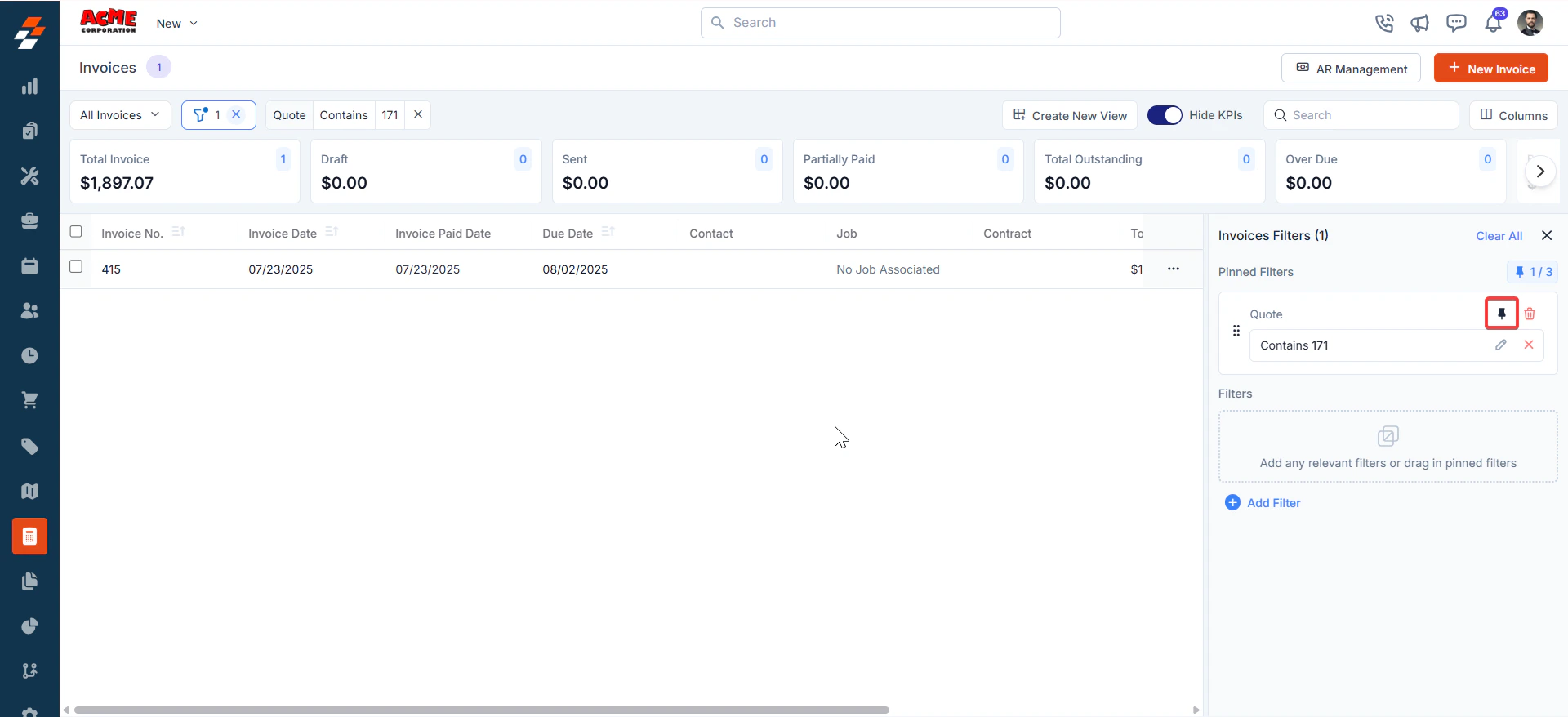
Zuper's Invoices module lets you use pinned filters to streamline your filter experience. Pinned filters keep your most-used criteria readily accessible for quick application.
Pin up to 3 filters in any module.
**Navigation**: *Accounting ->Invoices -> Filters -> Pinned Filters*
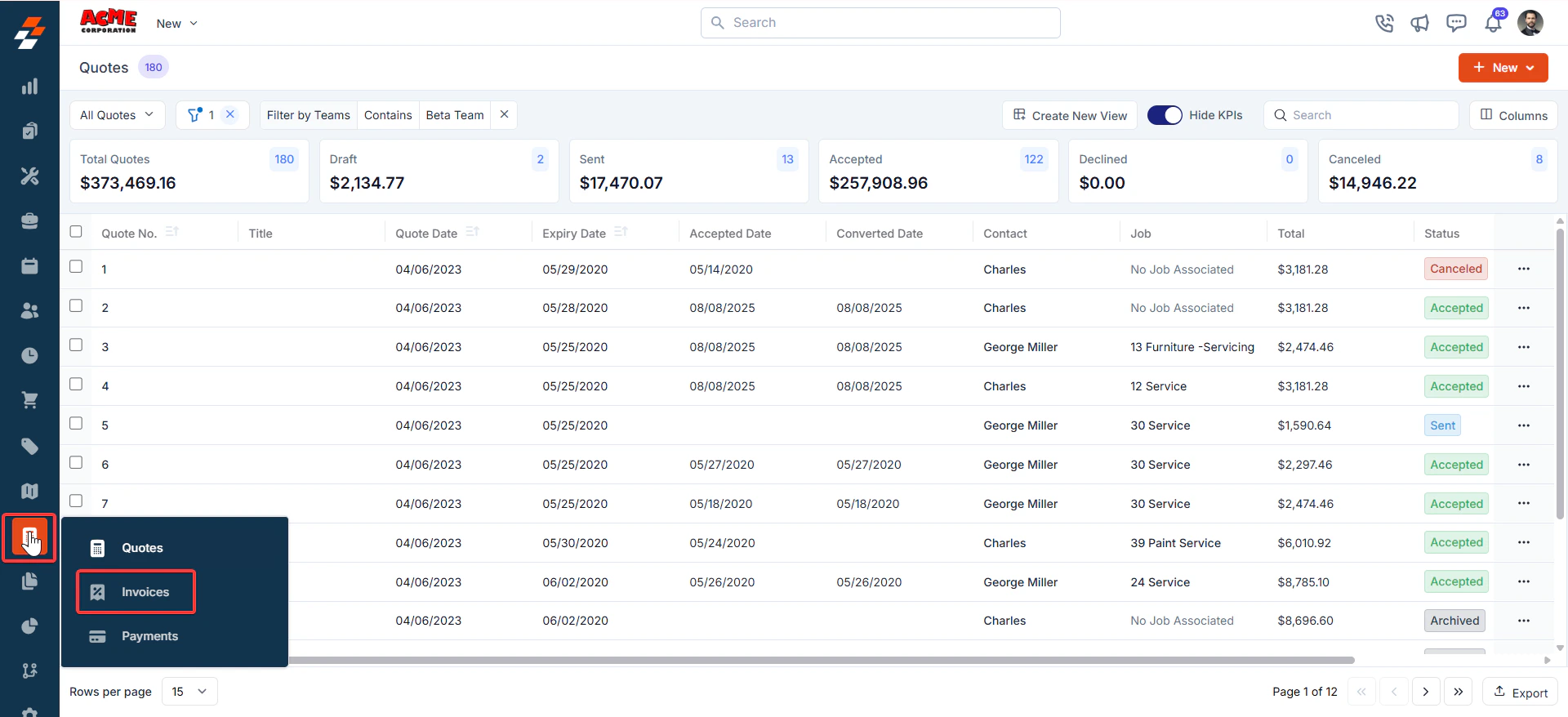
1. Select the “**Accounting**” module from the left navigation menu and choose “**Invoices**.”
Use the "**Hide or Show KPIs**" option.
These cards provide a quick overview of your progress and help you identify areas that may need attention.
## Invoice Listing Views
Customize the Invoices listing by adding/removing or reordering columns, then Update View to overwrite or save it as a new view. Control visibility and sharing.
**Update View**
* Click Update View to modify the current view after changes.
**Save as a new view**
* Use the dropdown beside Update View → Save as new view.
**Create View dialog**
* Enter the View Name (mandatory), choose Share with (User/Team) and add users, toggle Visibility to all users, and click Create.
**Reset View**
* Click Reset View to restore the current view to the default.
**Permissions**
* **Edit**: Add/remove/reorder columns; save as new or overwrite existing views.
* **View-only**: Apply views but can’t edit; can Save as new view to copy without altering the original.
* **Manage view**: Rename, adjust Visibility (Only Me/User/Team or global toggle), Duplicate, or Delete (creator only; reverts to default/another saved view).
## Pinned filters
Zuper's Invoices module lets you use pinned filters to streamline your filter experience. Pinned filters keep your most-used criteria readily accessible for quick application.
Pin up to 3 filters in any module.
**Navigation**: *Accounting ->Invoices -> Filters -> Pinned Filters*
1. Select the “**Accounting**” module from the left navigation menu and choose “**Invoices**.”
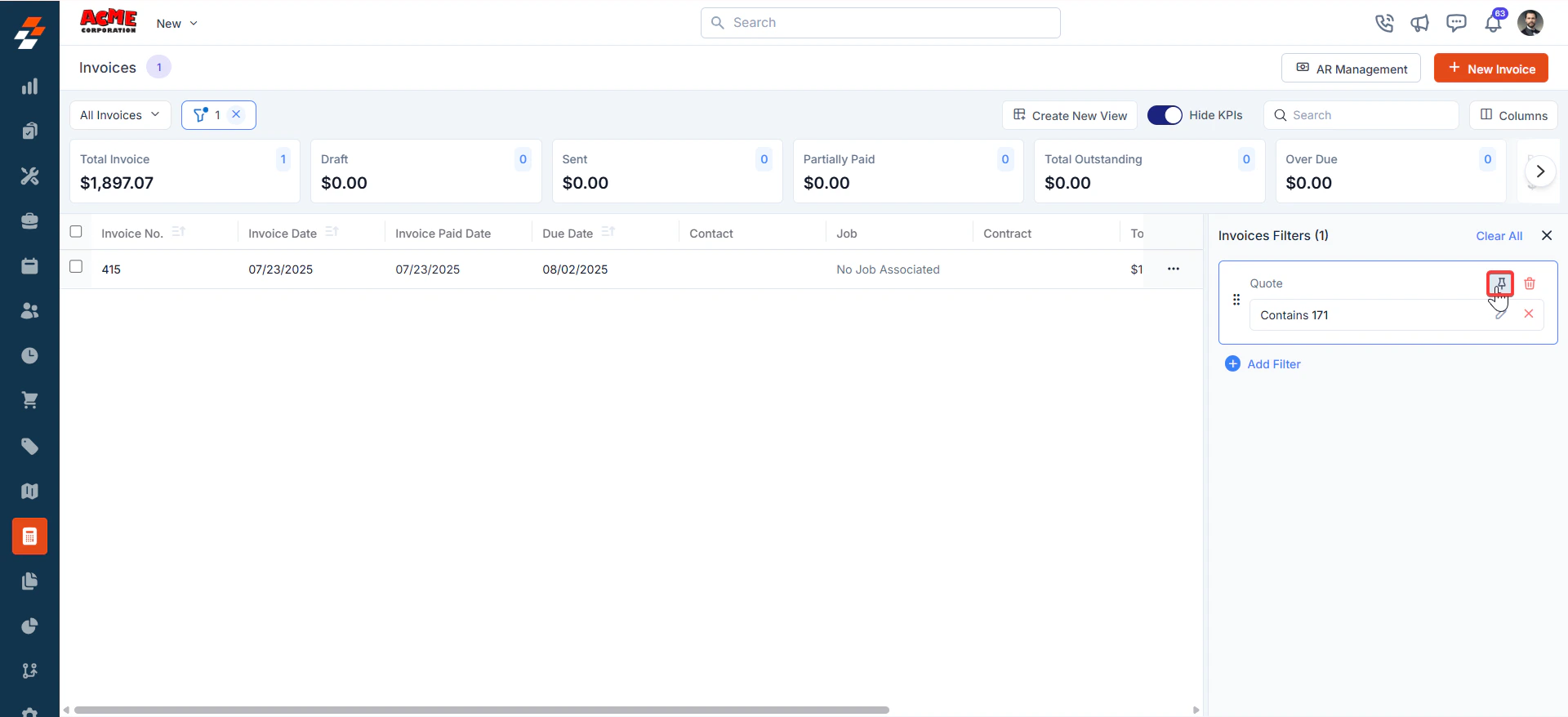
 2. **Pin Filters for Quick Access**
* Once your filters are set, click the **Pin Filters** button in the dialog box to save them as pinned.
* Pinned filters appear in the dialog box's "**Pinned Filters**" section, allowing you to apply them with one click in future sessions.
2. **Pin Filters for Quick Access**
* Once your filters are set, click the **Pin Filters** button in the dialog box to save them as pinned.
* Pinned filters appear in the dialog box's "**Pinned Filters**" section, allowing you to apply them with one click in future sessions.
 3. To Unpin the filter:
* To unpin, select a pinned filter and click **Remove**.
* To apply pinned or default filters, open the dialog box and select them.
* Use **Clear All** to remove active filters.
3. To Unpin the filter:
* To unpin, select a pinned filter and click **Remove**.
* To apply pinned or default filters, open the dialog box and select them.
* Use **Clear All** to remove active filters.
 **Open invoice details**
* After filtering, click an Invoice Number or Invoice Title to view and manage details.
**Note**
* Item/service changes within an invoice apply only to that specific invoice and will not be added to the master list.
**Open invoice details**
* After filtering, click an Invoice Number or Invoice Title to view and manage details.
**Note**
* Item/service changes within an invoice apply only to that specific invoice and will not be added to the master list.
 ## Managing invoice details
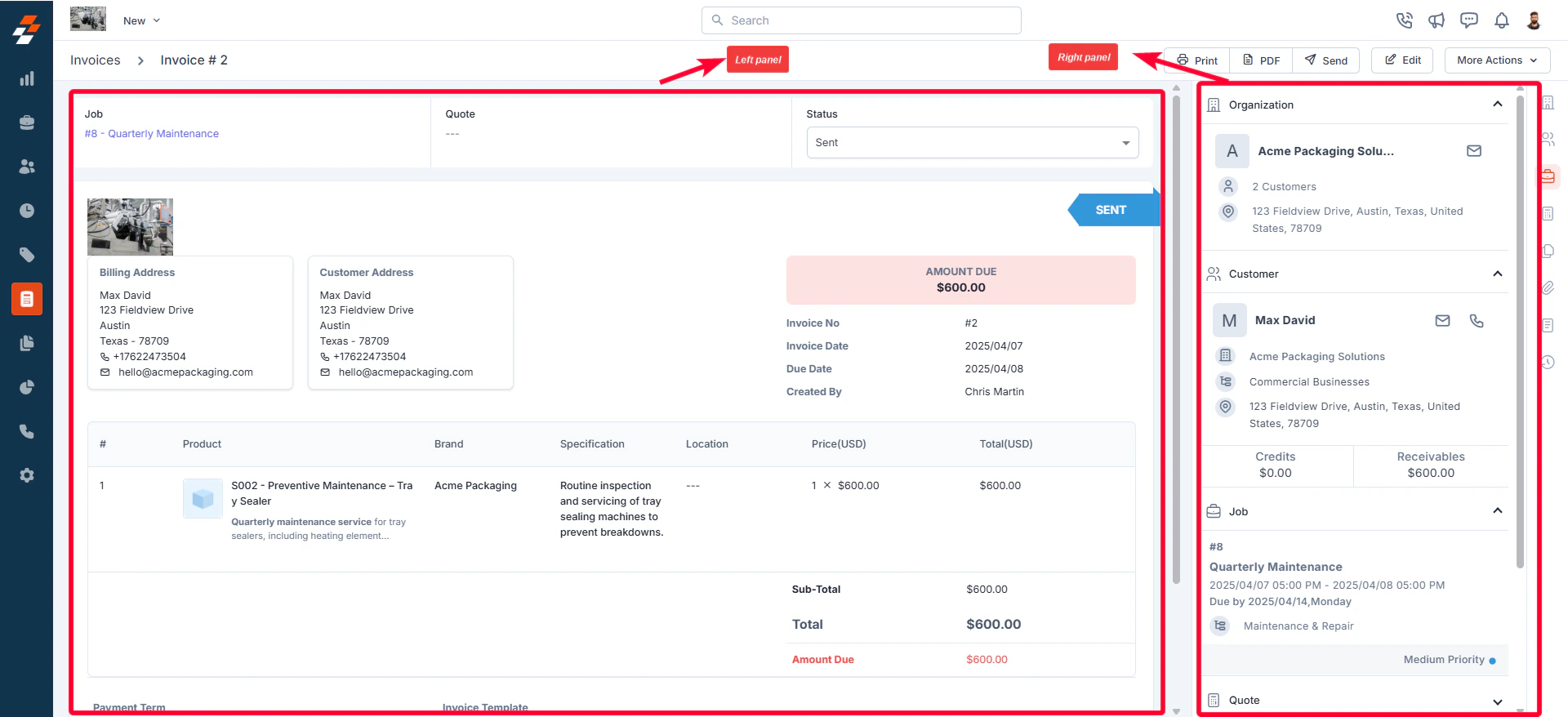
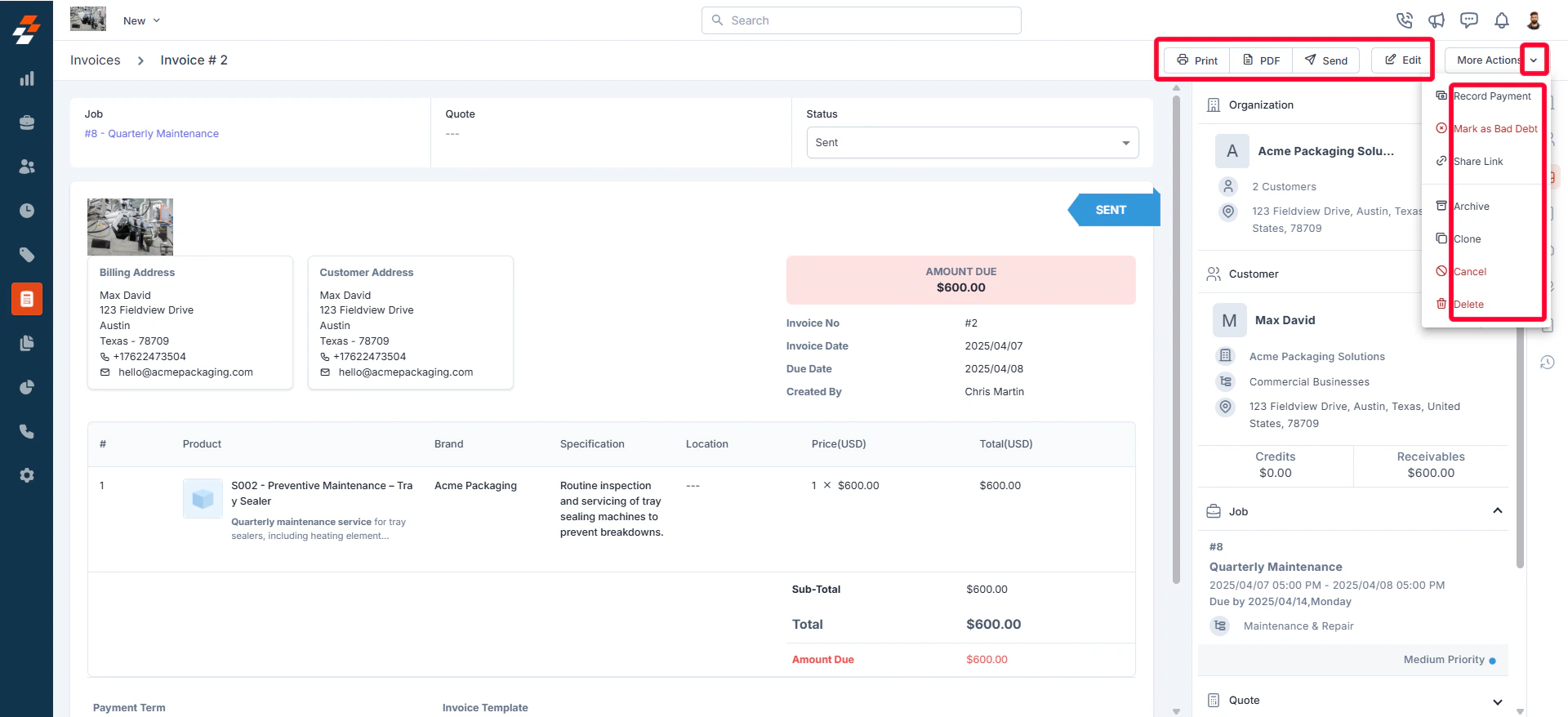
Once an invoice is created or accessed from the listing page, the **Invoice Details Page** becomes your central hub for managing its lifecycle. The page follows a two-column layout—**the left panel** displays primary details, while **the right panel** provides contextual insights and quick actions for efficient invoice management.
## Managing invoice details
Once an invoice is created or accessed from the listing page, the **Invoice Details Page** becomes your central hub for managing its lifecycle. The page follows a two-column layout—**the left panel** displays primary details, while **the right panel** provides contextual insights and quick actions for efficient invoice management.
 ### **Left Panel**
The left panel is the primary section where details are displayed. It includes the following elements
* **Customer information**: You can view the billing details of the customer, including address and contact person's details.
* **Associated Records:** View the **Job and Quote** linked to the invoice.
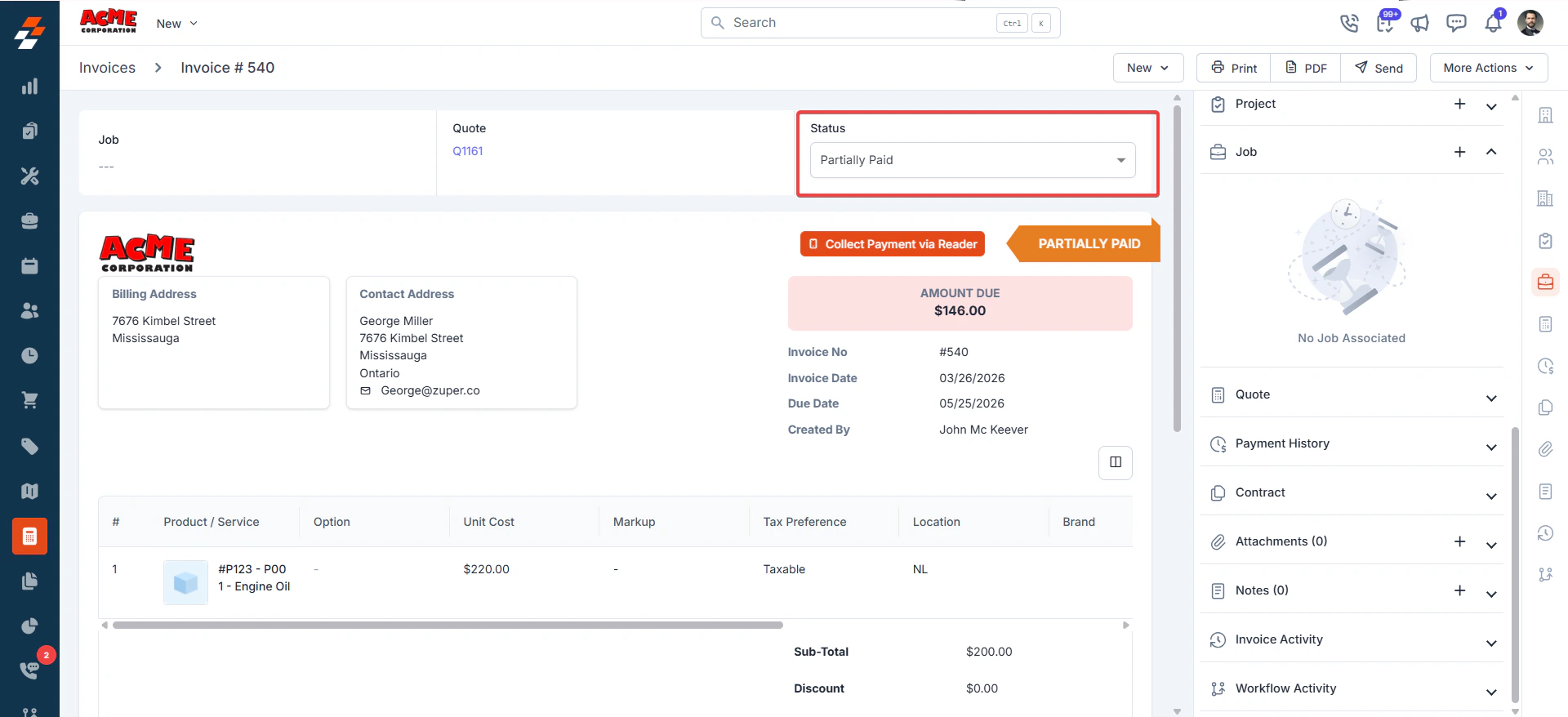
* **Invoice Status:** Check and update the invoice status as needed.
* **Addresses:** Access the **Billing Address** and **Customer Address**.
* **Invoice Details:** View key invoice information such as **Total Invoice Amount, Invoice No., Invoice Date,** and **Due Date**.
* **View Parts Consumed:** Review the parts used for job completion, along with any applicable taxes, discounts, and payment terms.
### Right Panel
The **Right Panel** provides contextual information and quick actions related to the invoices. It is divided into collapsible sections for better organization:
**Organization and Contact**
* **Organization**: Displays the company name and location associated with the invoice.
* **Contact**: Displays the main contact person’s details, including their address, contact information, and credits & receivables.
**Payment History**
The Payment History section provides a detailed record of all payments associated with an invoice. It includes essential details such as:
* **Payer Information** – The name of the person or organization that made the payment.
* **Date & Time** – The exact date and time when the payment was recorded.
* **Payment Method** – The mode of payment used (e.g., credit card, bank transfer, cash, etc.).
* **Payment Status** – The current status of the payment (e.g., Success, Pending, Failed, and Voided).
Note: The invoice status is not updated immediately when a refund is initiated. The Partially Paid status will appear on the invoice only after the refund has been successfully transmitted to the customer's bank account in real time.
### **Left Panel**
The left panel is the primary section where details are displayed. It includes the following elements
* **Customer information**: You can view the billing details of the customer, including address and contact person's details.
* **Associated Records:** View the **Job and Quote** linked to the invoice.
* **Invoice Status:** Check and update the invoice status as needed.
* **Addresses:** Access the **Billing Address** and **Customer Address**.
* **Invoice Details:** View key invoice information such as **Total Invoice Amount, Invoice No., Invoice Date,** and **Due Date**.
* **View Parts Consumed:** Review the parts used for job completion, along with any applicable taxes, discounts, and payment terms.
### Right Panel
The **Right Panel** provides contextual information and quick actions related to the invoices. It is divided into collapsible sections for better organization:
**Organization and Contact**
* **Organization**: Displays the company name and location associated with the invoice.
* **Contact**: Displays the main contact person’s details, including their address, contact information, and credits & receivables.
**Payment History**
The Payment History section provides a detailed record of all payments associated with an invoice. It includes essential details such as:
* **Payer Information** – The name of the person or organization that made the payment.
* **Date & Time** – The exact date and time when the payment was recorded.
* **Payment Method** – The mode of payment used (e.g., credit card, bank transfer, cash, etc.).
* **Payment Status** – The current status of the payment (e.g., Success, Pending, Failed, and Voided).
Note: The invoice status is not updated immediately when a refund is initiated. The Partially Paid status will appear on the invoice only after the refund has been successfully transmitted to the customer's bank account in real time.
 **Associated Records**
You can view or associate various modules with the invoice. These include Property, Project, Job, and more. To associate a module, use the “**+**” icon next to the desired module.
## More Actions
Managing invoices doesn’t stop at viewing details. You can take various actions to keep things moving. Things you can do are:
**Associated Records**
You can view or associate various modules with the invoice. These include Property, Project, Job, and more. To associate a module, use the “**+**” icon next to the desired module.
## More Actions
Managing invoices doesn’t stop at viewing details. You can take various actions to keep things moving. Things you can do are:
 To create a new job directly from the invoice to address additional service requests or follow-ups, use the "**New**" button at the top right of the details page.
Note: If a job is already associated with the invoice, the "New" button will not be visible. Instead, you can view the associated job under the Job section.
For step-by-step instructions on how to create a new job, see the [Creating a new job](https://docs.zuper.co/Work_Order_Management/Jobs/creating_a_new_job) article.
Use the "**Print**" button at the top right of the page to generate a physical copy of the invoice for record-keeping or customer reference.
To download or share the invoice as a PDF document, use the "**PDF**" button.
To email the invoice directly to the customer, use the "**Send**" button at the top right of the details page.
To modify invoice details if any updates are required, use the "**Edit**" button at the top right of the page.
To log received payments and update the invoice status, click the "**More Actions**" button at the top right corner of the page and select "**Record Payment**." For more details, see the [Recording Payments article](https://docs.zuper.co/Accounting/Invoices/Recording_payments).
If an invoice remains unpaid after being sent to the customer, you can mark it as bad debt for accounting purposes. To do this, click the "**More Actions**" button at the top right corner of the page and select the "**Mark as Bad Debt**" option.
To generate and share a payment or invoice link to the customer for easy online transactions, follow these steps:
* Click the "**More Actions**" button at the top right corner of the page and select the "**Share Link"** option.
* A dialog will appear with the **Invoice Link** and **Payment Link** (available after the invoice has been sent to the customer). You can copy and share the link or send it using third-party apps.
You can also archive an invoice to retain its record while moving it to archives. If the invoice is no longer valid, you can cancel it. If removal is necessary, you can permanently delete the invoice using the desired options under the "**More Actions**" button.
To create a new job directly from the invoice to address additional service requests or follow-ups, use the "**New**" button at the top right of the details page.
Note: If a job is already associated with the invoice, the "New" button will not be visible. Instead, you can view the associated job under the Job section.
For step-by-step instructions on how to create a new job, see the [Creating a new job](https://docs.zuper.co/Work_Order_Management/Jobs/creating_a_new_job) article.
Use the "**Print**" button at the top right of the page to generate a physical copy of the invoice for record-keeping or customer reference.
To download or share the invoice as a PDF document, use the "**PDF**" button.
To email the invoice directly to the customer, use the "**Send**" button at the top right of the details page.
To modify invoice details if any updates are required, use the "**Edit**" button at the top right of the page.
To log received payments and update the invoice status, click the "**More Actions**" button at the top right corner of the page and select "**Record Payment**." For more details, see the [Recording Payments article](https://docs.zuper.co/Accounting/Invoices/Recording_payments).
If an invoice remains unpaid after being sent to the customer, you can mark it as bad debt for accounting purposes. To do this, click the "**More Actions**" button at the top right corner of the page and select the "**Mark as Bad Debt**" option.
To generate and share a payment or invoice link to the customer for easy online transactions, follow these steps:
* Click the "**More Actions**" button at the top right corner of the page and select the "**Share Link"** option.
* A dialog will appear with the **Invoice Link** and **Payment Link** (available after the invoice has been sent to the customer). You can copy and share the link or send it using third-party apps.
You can also archive an invoice to retain its record while moving it to archives. If the invoice is no longer valid, you can cancel it. If removal is necessary, you can permanently delete the invoice using the desired options under the "**More Actions**" button.