> ## Documentation Index
> Fetch the complete documentation index at: https://zuperinc-section23.mintlify.site/llms.txt
> Use this file to discover all available pages before exploring further.
# Payments Overview
The Payments module in Zuper helps you track & manage payments you received across invoices & quote deposits through the platform
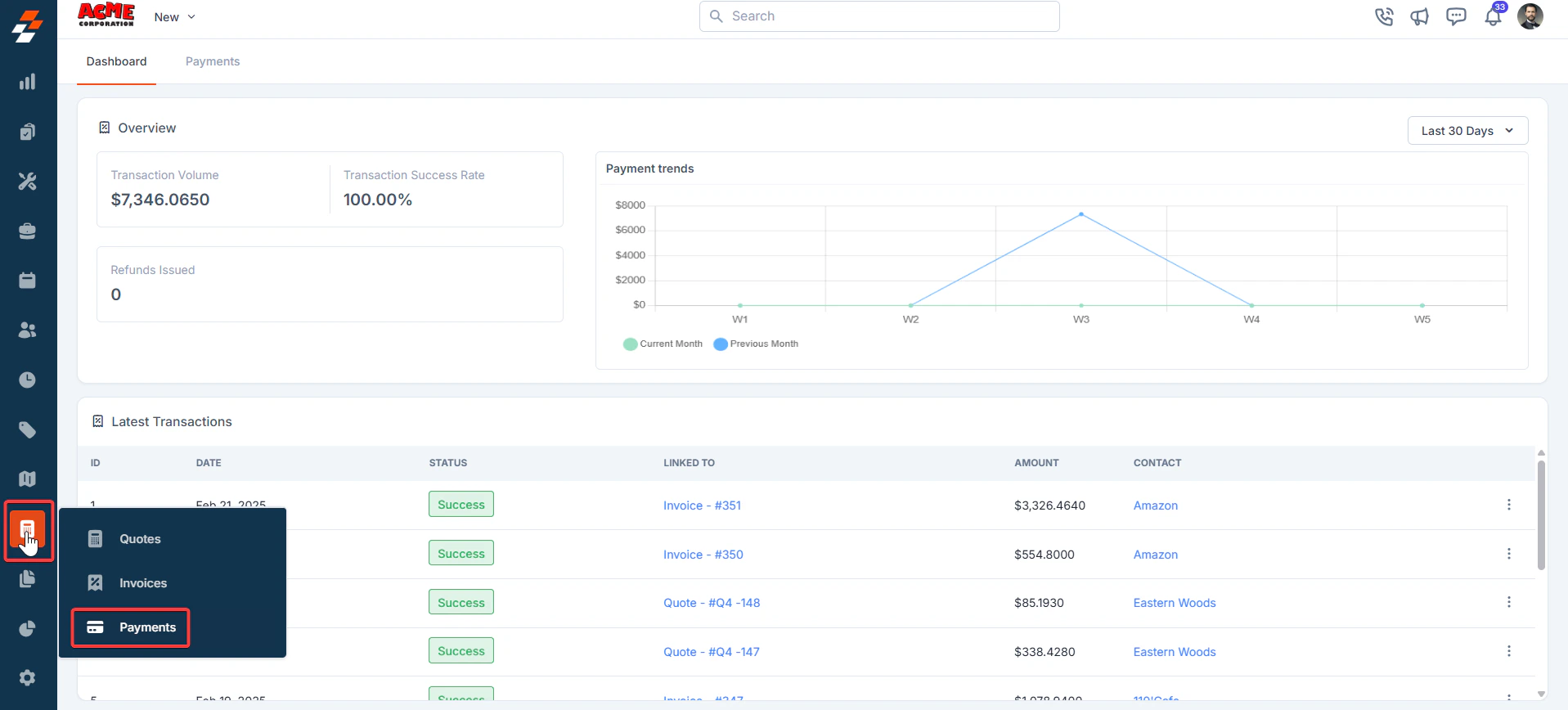
**Navigation**: *Accounting* -> *Payments*
1. Click the “**Accounting**” module from the left navigation menu and select "**Payments.**"
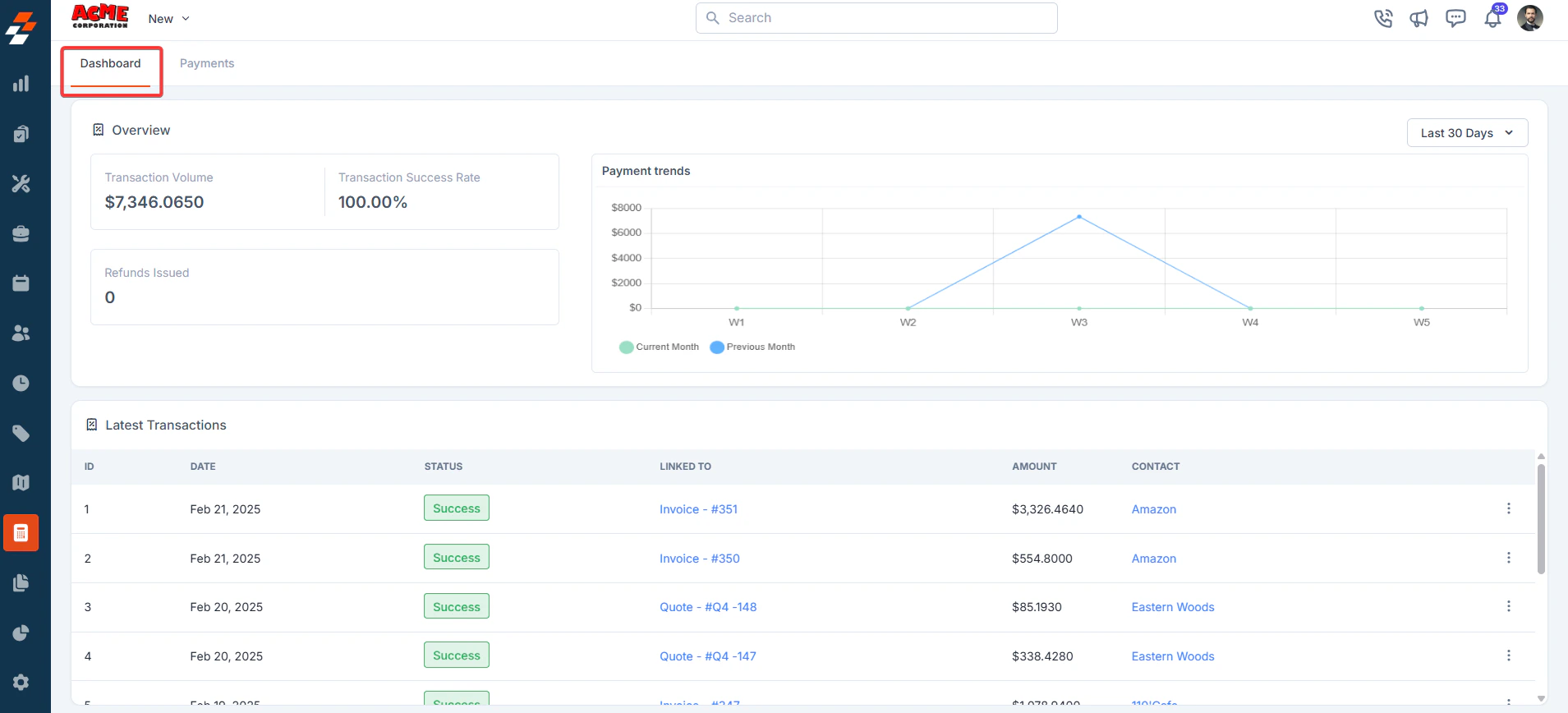
 2. Under the"**Payments**" module, let us explore the "**Dashboard**."
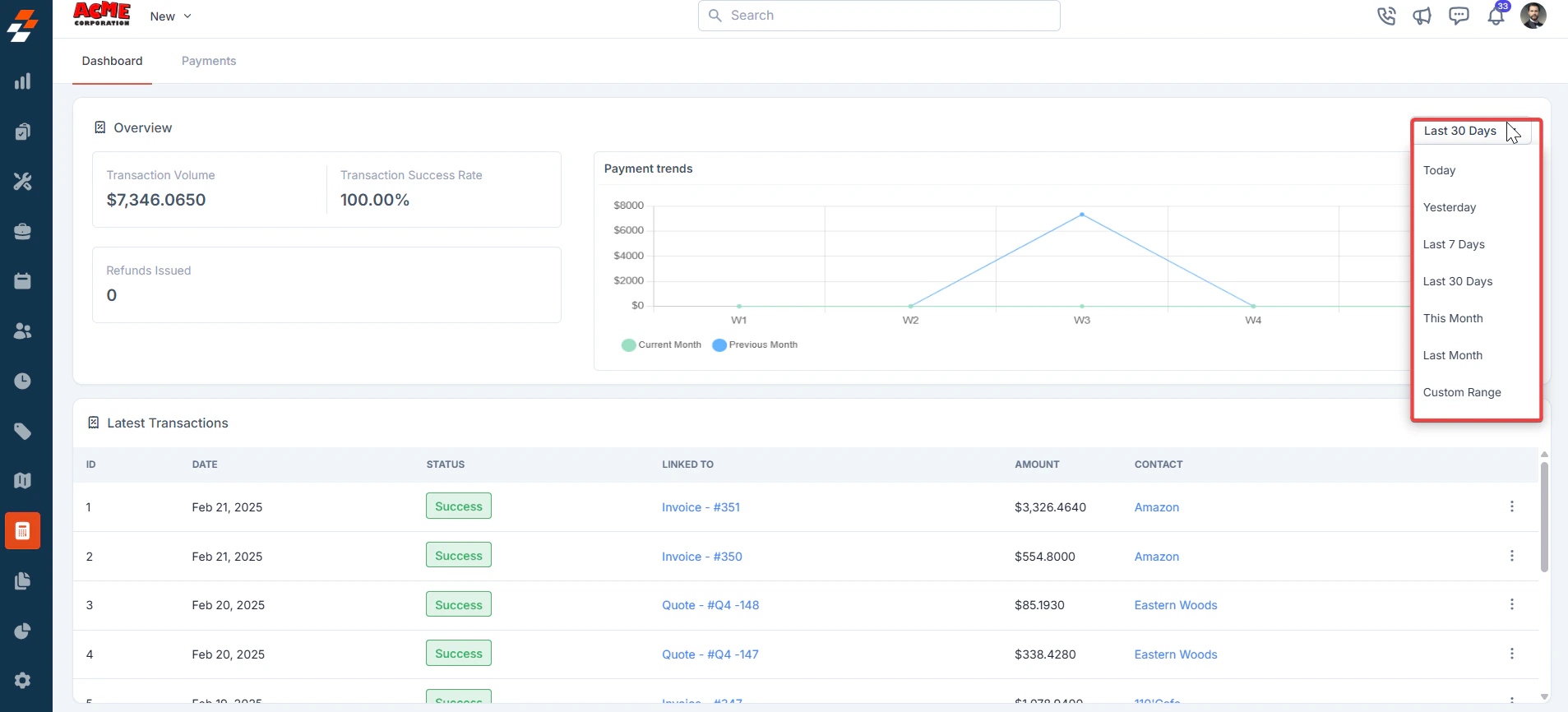
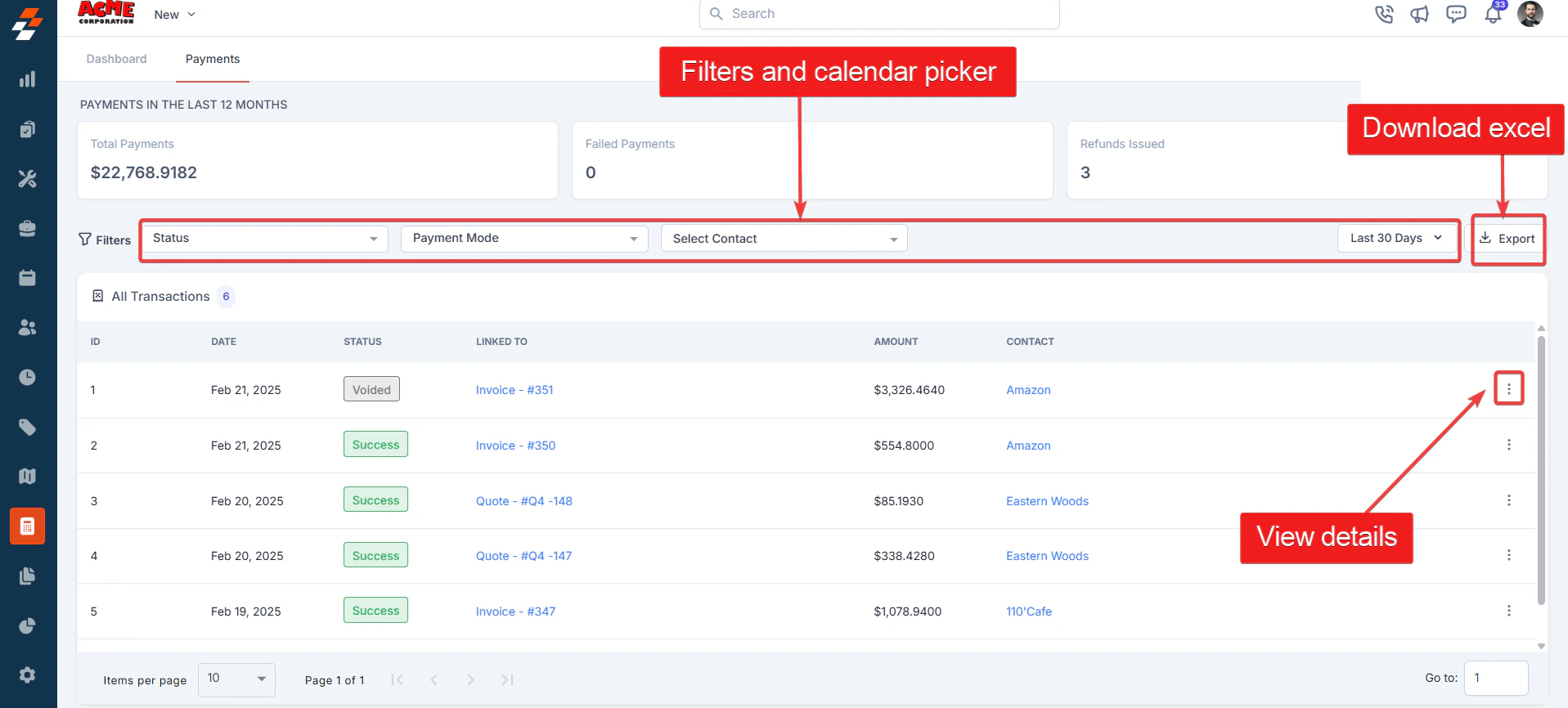
 3. Use the "**Calendar Picker**" to select a date range. The latest transactions are displayed based on that date range.
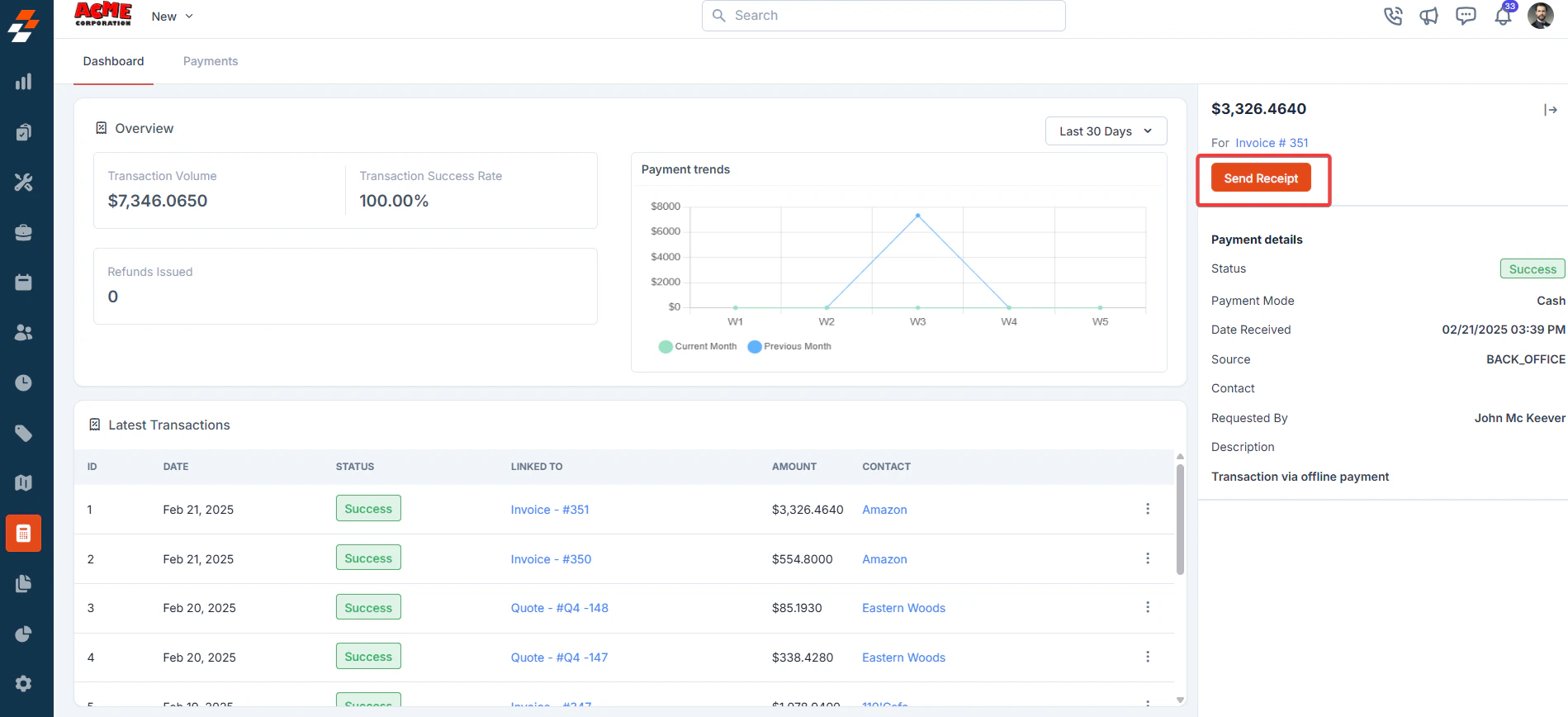
 4. Use the icon to view the transaction details.
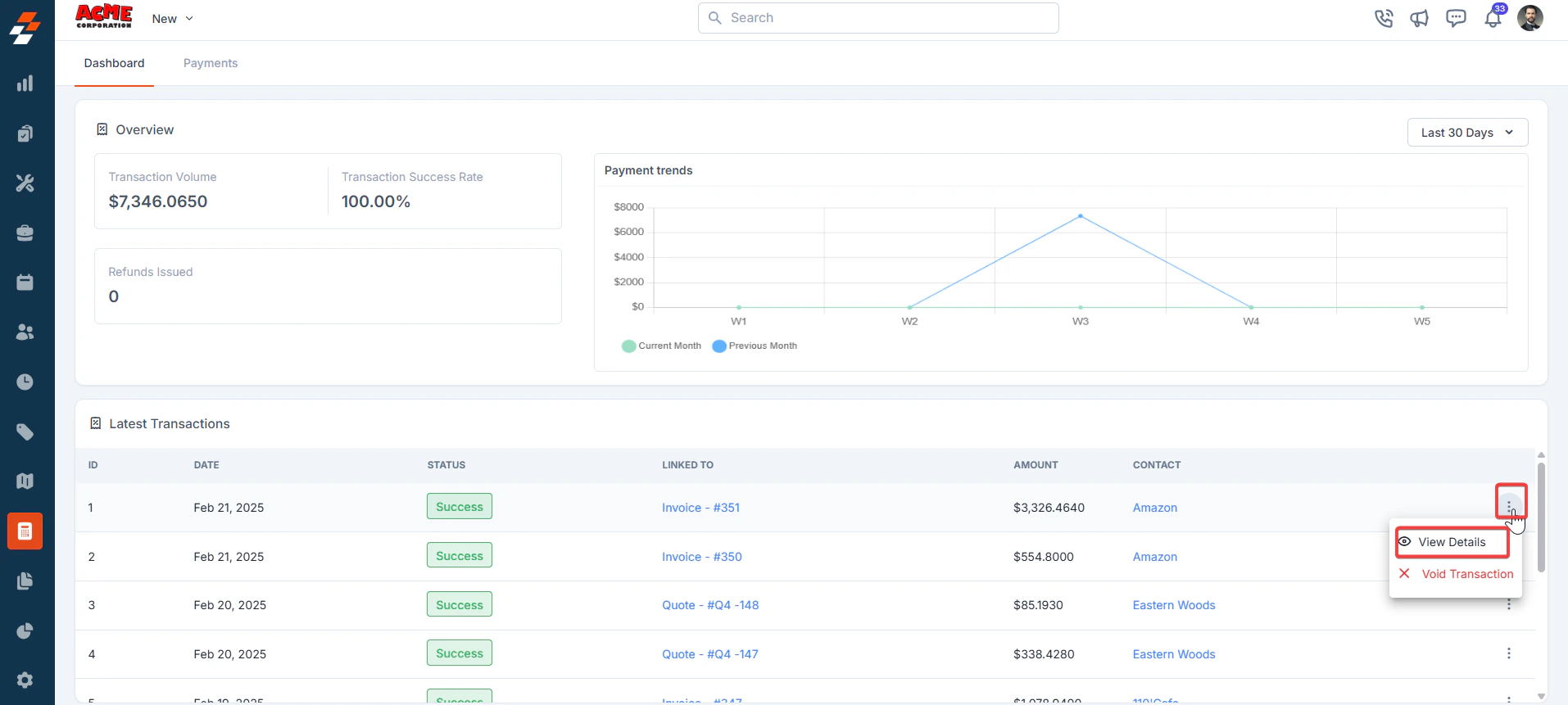 5. The transaction details are displayed.
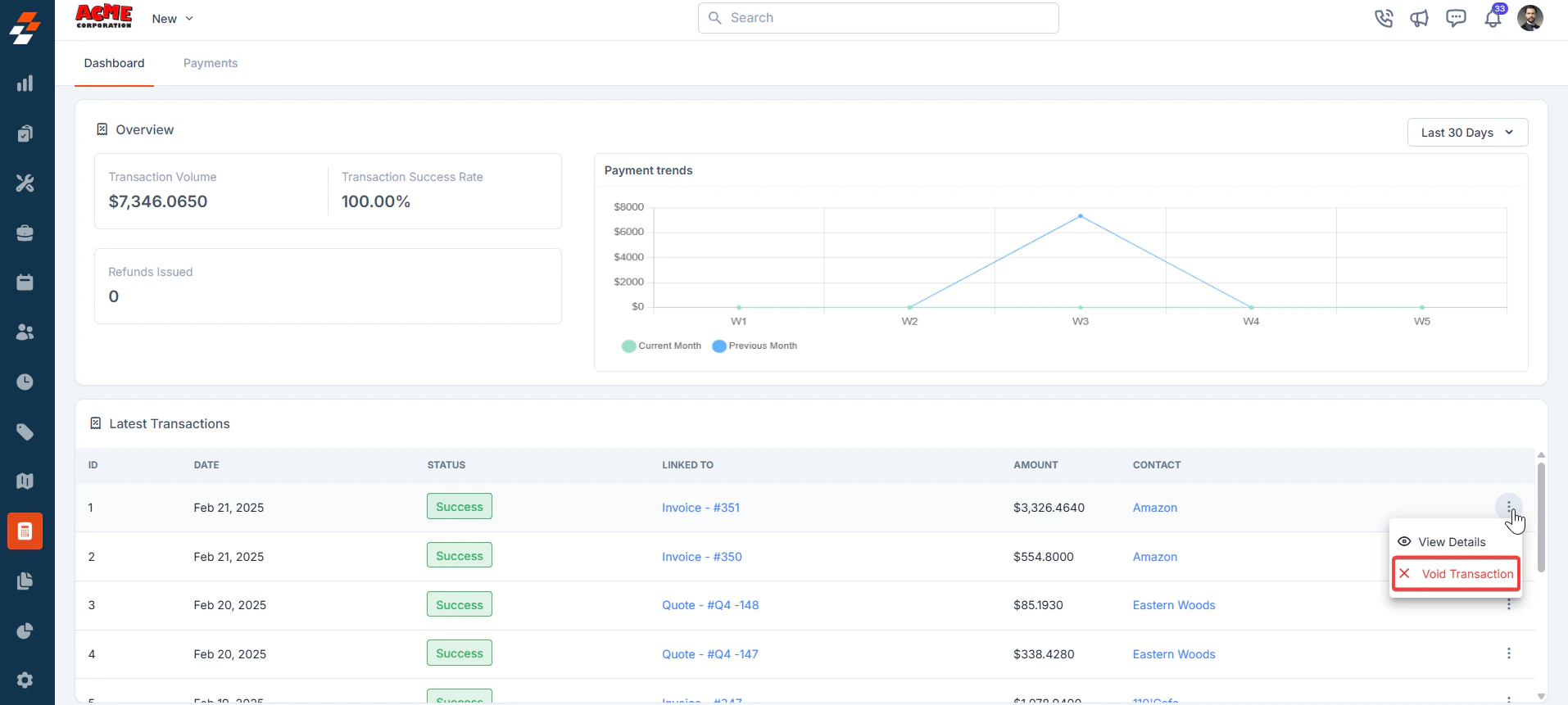
 6. Click the "**Void Transaction**" button.
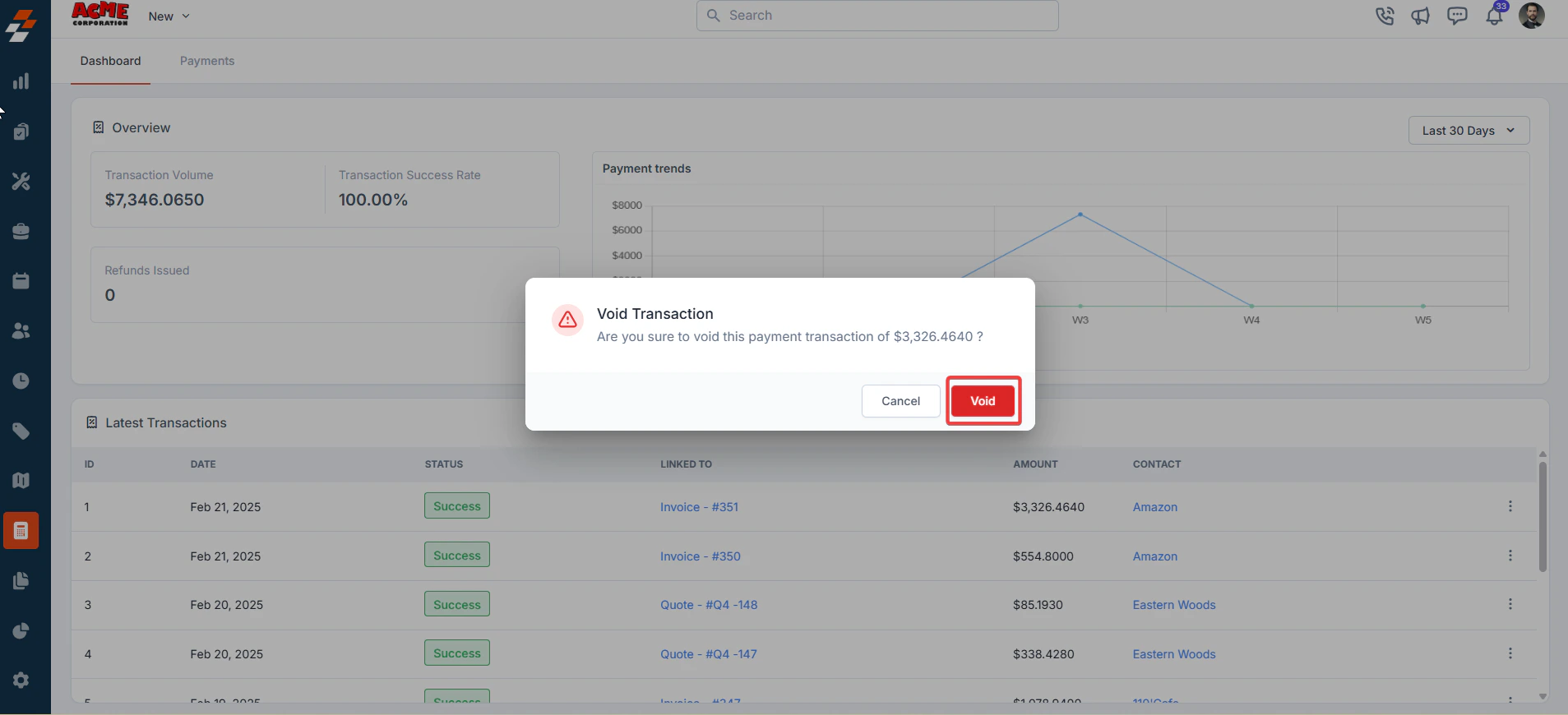
 7. Click the "**Void**" button to void the transaction.
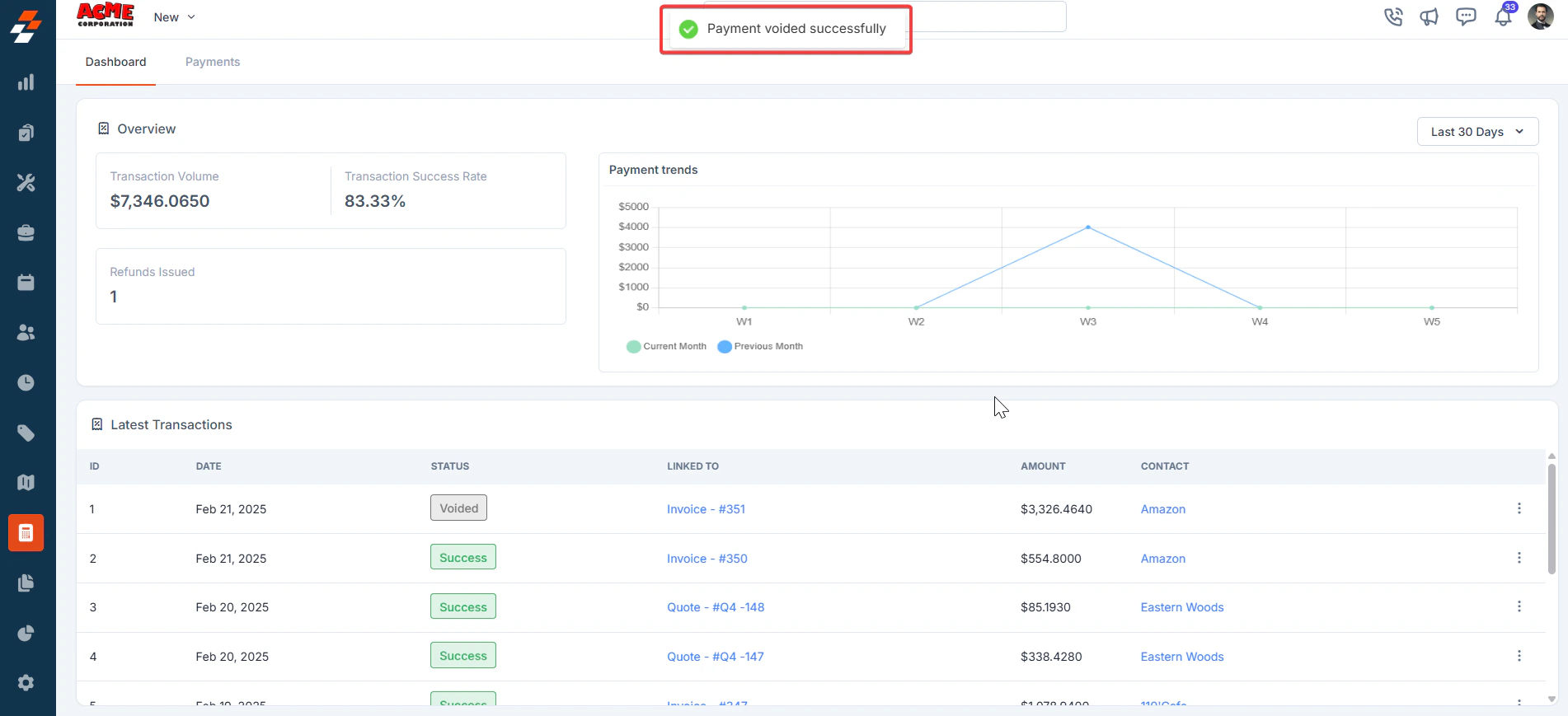
 8. The payment is canceled successfully.
 * Switch to the "**Payment**s" tab. Then, use the "**Filters and Calendar Picker**" to view the details according to your selected criteria.
* Click the "**Export**" button to download Excel.
* Use the icon to view the transaction details.
* Switch to the "**Payment**s" tab. Then, use the "**Filters and Calendar Picker**" to view the details according to your selected criteria.
* Click the "**Export**" button to download Excel.
* Use the icon to view the transaction details.
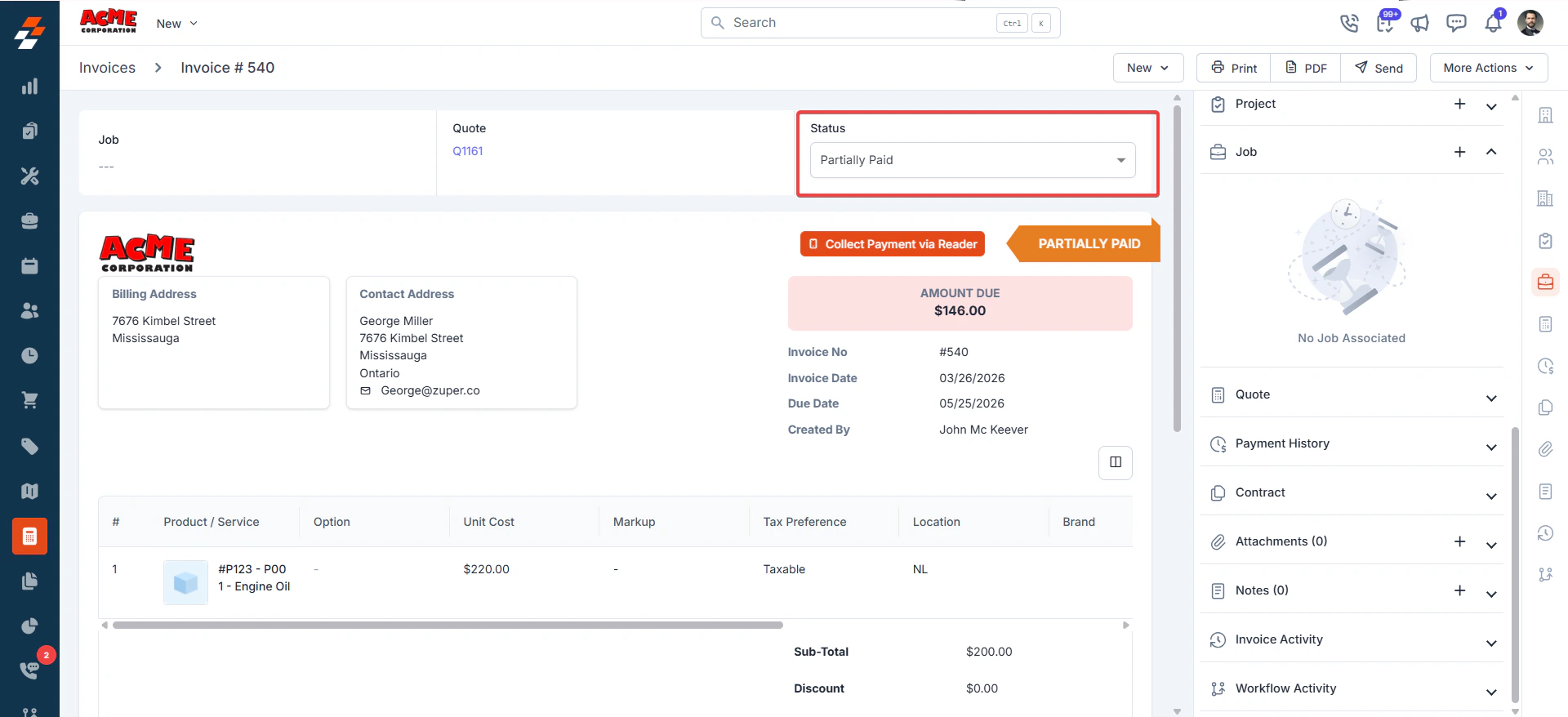
 Note: The invoice status is not updated immediately when a refund is initiated. The Partially Paid status will appear on the invoice only after the refund has been successfully transmitted to the customer's bank account in real time.
 The Payments module in Zuper provides a seamless way to track and manage payments received across invoices and quote deposits, ensuring better financial transparency and control. By centralizing payment processing within the platform, businesses can streamline transactions, reduce manual efforts, and improve cash flow management.
If you are looking for a comprehensive Account Receivables (AR) management, please check out our [AR Management Guide](https://docs.zuper.co/Accounting/Invoices/AR_management)
The Payments module in Zuper provides a seamless way to track and manage payments received across invoices and quote deposits, ensuring better financial transparency and control. By centralizing payment processing within the platform, businesses can streamline transactions, reduce manual efforts, and improve cash flow management.
If you are looking for a comprehensive Account Receivables (AR) management, please check out our [AR Management Guide](https://docs.zuper.co/Accounting/Invoices/AR_management)