> ## Documentation Index
> Fetch the complete documentation index at: https://zuperinc-section23.mintlify.site/llms.txt
> Use this file to discover all available pages before exploring further.
# Sections
## Overview
Sections replace the **Headers** label across **Service Packages**, **Proposals**, **Quotes**, **Invoices**, and **Job** line items.
With Sections, you can control what customers see, from individual line-item details to whether a section appears at all.
## How sections work?
* When you add a section to a quote, invoice, or proposal, all line items inside it are treated as a group. Reordering a section moves every item in it together — you do not need to reorder each item individually.
* Each section has its own configuration settings that control what your customer sees in PDFs, public links, previews, and presentation mode.
* You can add line items directly to a section.
**Note**: If you do not use sections, Zuper places any line items you add using the **Add** button in the last section.
## Section configuration
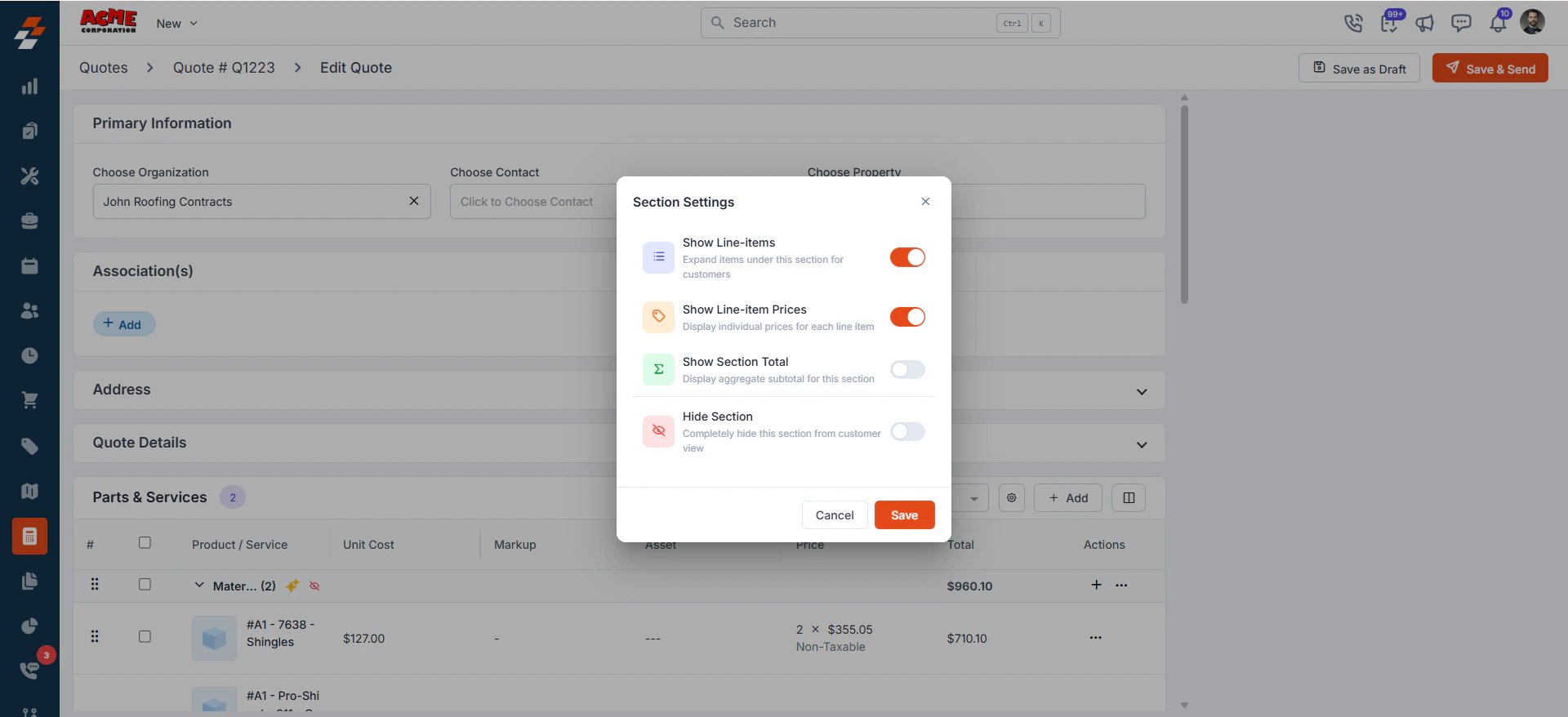
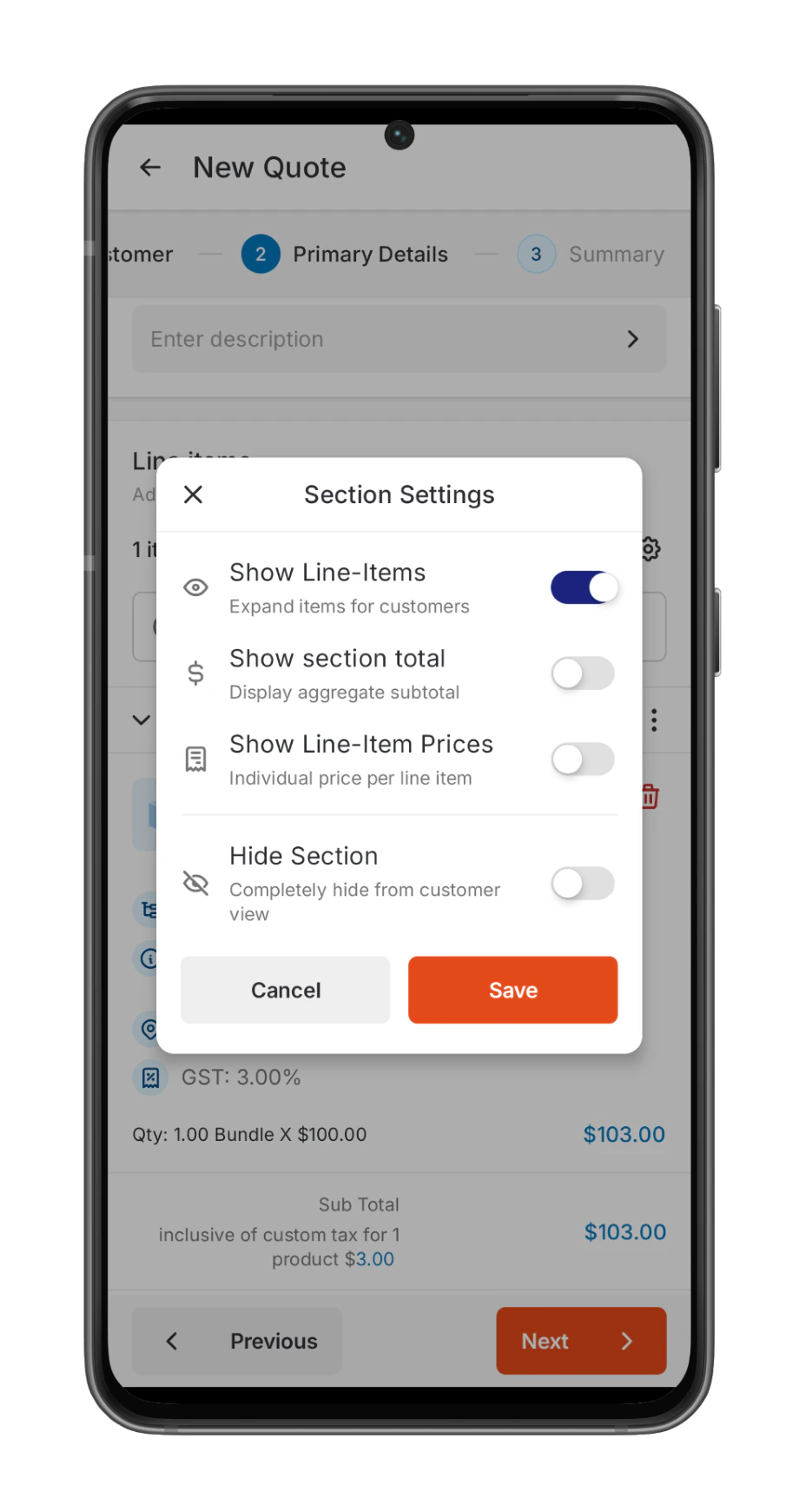
Each section has four settings that control how it appears to the customer, in the PDFs, Public links, previews, and presentation mode.
When a new section is added, it inherits the configuration of the previous section.
| Setting | What it does | Default |
| ------------------------- | ---------------------------------------------------------------------------------- | ------- |
| **Show Line Items** | Displays individual line items to the customer within the section. | On |
| **Show Line-Item Prices** | Shows the unit cost, markup, and price for each individual line item in a section. | On |
| **Show Section Total** | Displays the sum of the section total. | Off |
| **Hide Section** | Completely hides the section and all its items from the customer. | Off |
 Zuper carries over the section configuration when:
* You create a quote from a proposal option.
* You generate an invoice from a quote or job.
* You create a job from a quote or invoice.
## Key points to note on hiding a Section
* Customers cannot see hidden sections or their line items in PDFs, public links, or presentation mode.
* Hidden line items still count toward the overall estimated total.
* You can hide multiple sections at once.
* When you enable Hide Section, Zuper turns off the Price toggle in **Proposal Layout** → **Estimate Options** to keep pricing accurate.
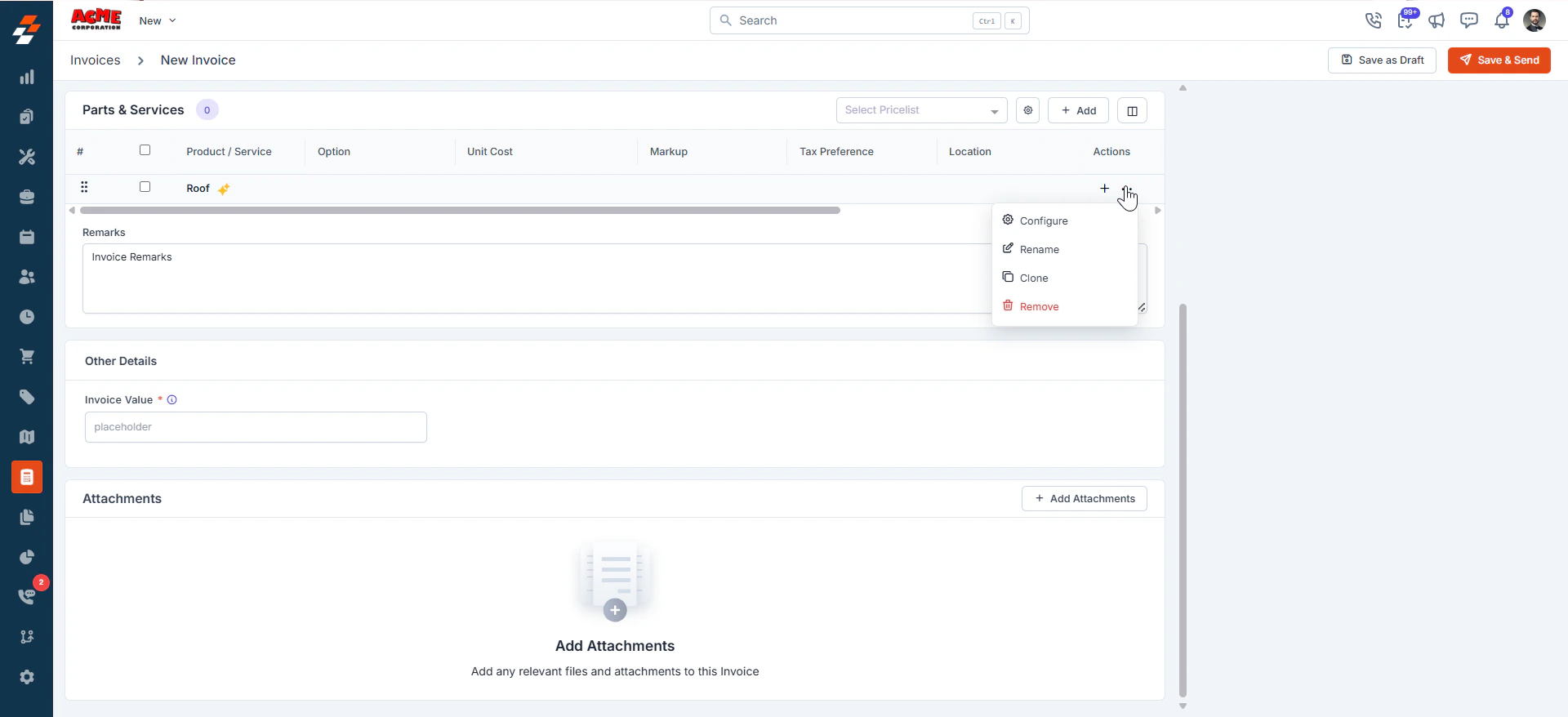
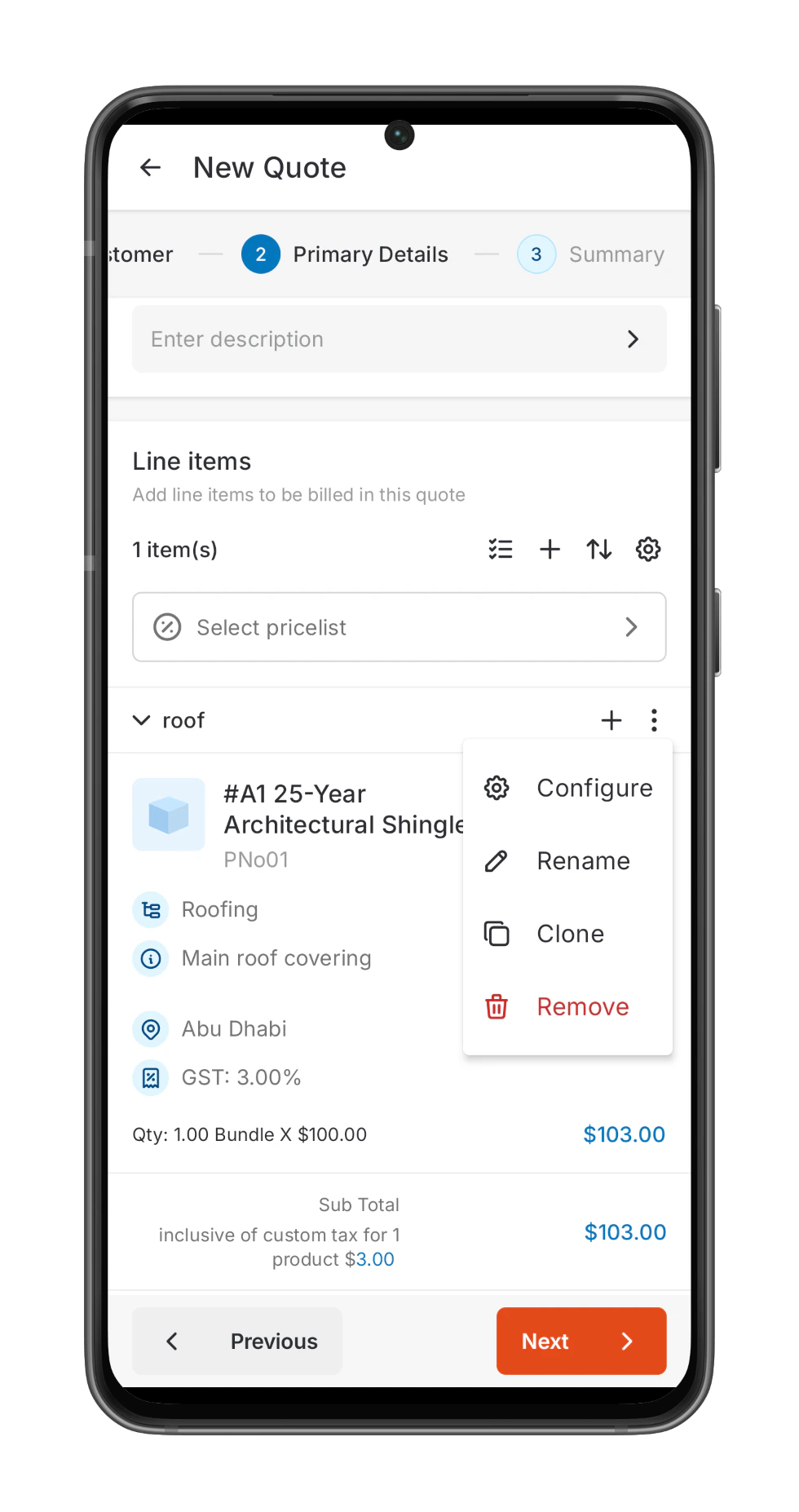
## Section actions
* Configure — Controls how line items and prices appear within the section.
* Rename — Changes the section name.
* Clone — Duplicates the section and all its line items.
* Remove — Deletes the section. Select one of the following options:
* Remove header only — Deletes the section but keeps the line items.
* Remove section and all items — Deletes the section and all line items within it.
Zuper carries over the section configuration when:
* You create a quote from a proposal option.
* You generate an invoice from a quote or job.
* You create a job from a quote or invoice.
## Key points to note on hiding a Section
* Customers cannot see hidden sections or their line items in PDFs, public links, or presentation mode.
* Hidden line items still count toward the overall estimated total.
* You can hide multiple sections at once.
* When you enable Hide Section, Zuper turns off the Price toggle in **Proposal Layout** → **Estimate Options** to keep pricing accurate.
## Section actions
* Configure — Controls how line items and prices appear within the section.
* Rename — Changes the section name.
* Clone — Duplicates the section and all its line items.
* Remove — Deletes the section. Select one of the following options:
* Remove header only — Deletes the section but keeps the line items.
* Remove section and all items — Deletes the section and all line items within it.
 ### Moving line items between sections:
You can move any line item out of a section or into a section.
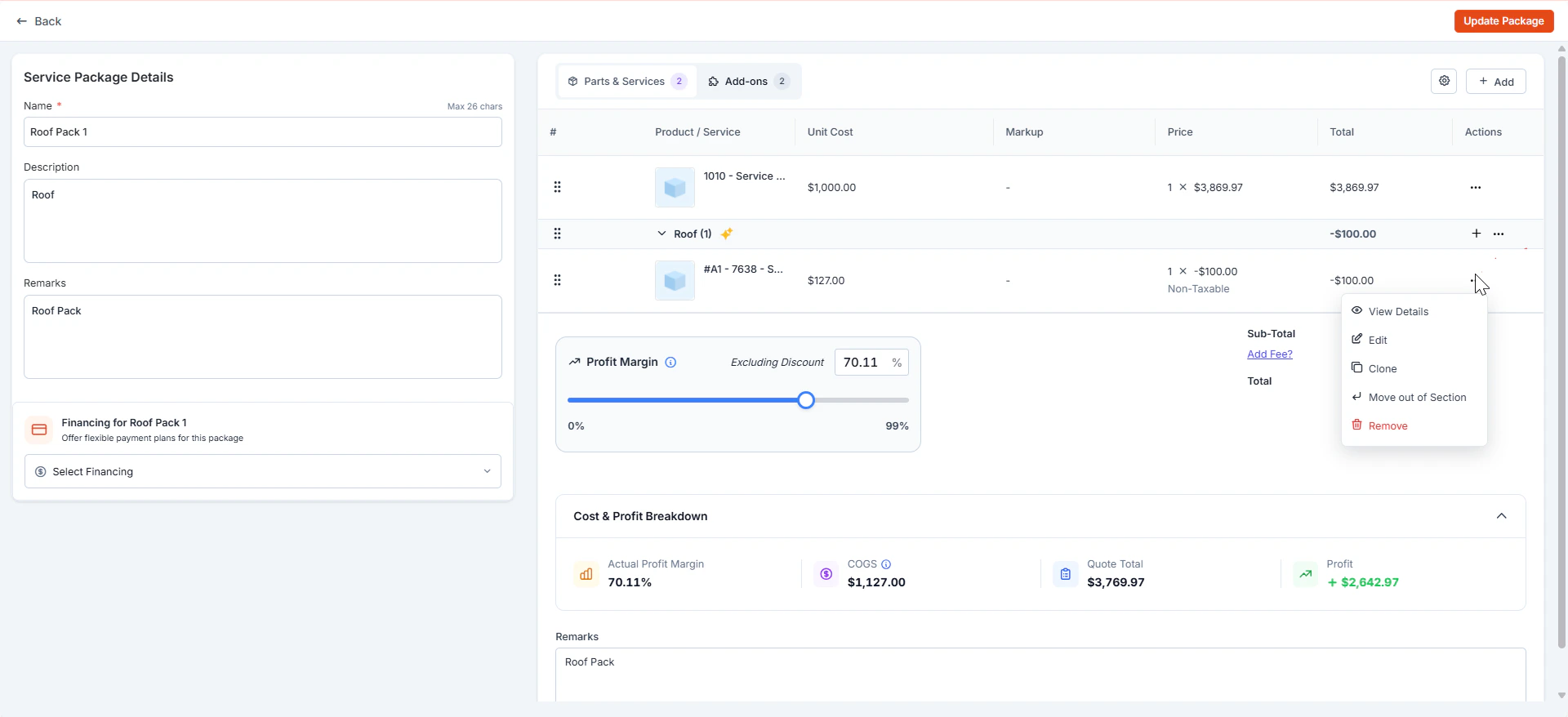
* **Move out of Section** — Removes the item from its current section and places it at the top above all sections, ungrouped.
### Moving line items between sections:
You can move any line item out of a section or into a section.
* **Move out of Section** — Removes the item from its current section and places it at the top above all sections, ungrouped.
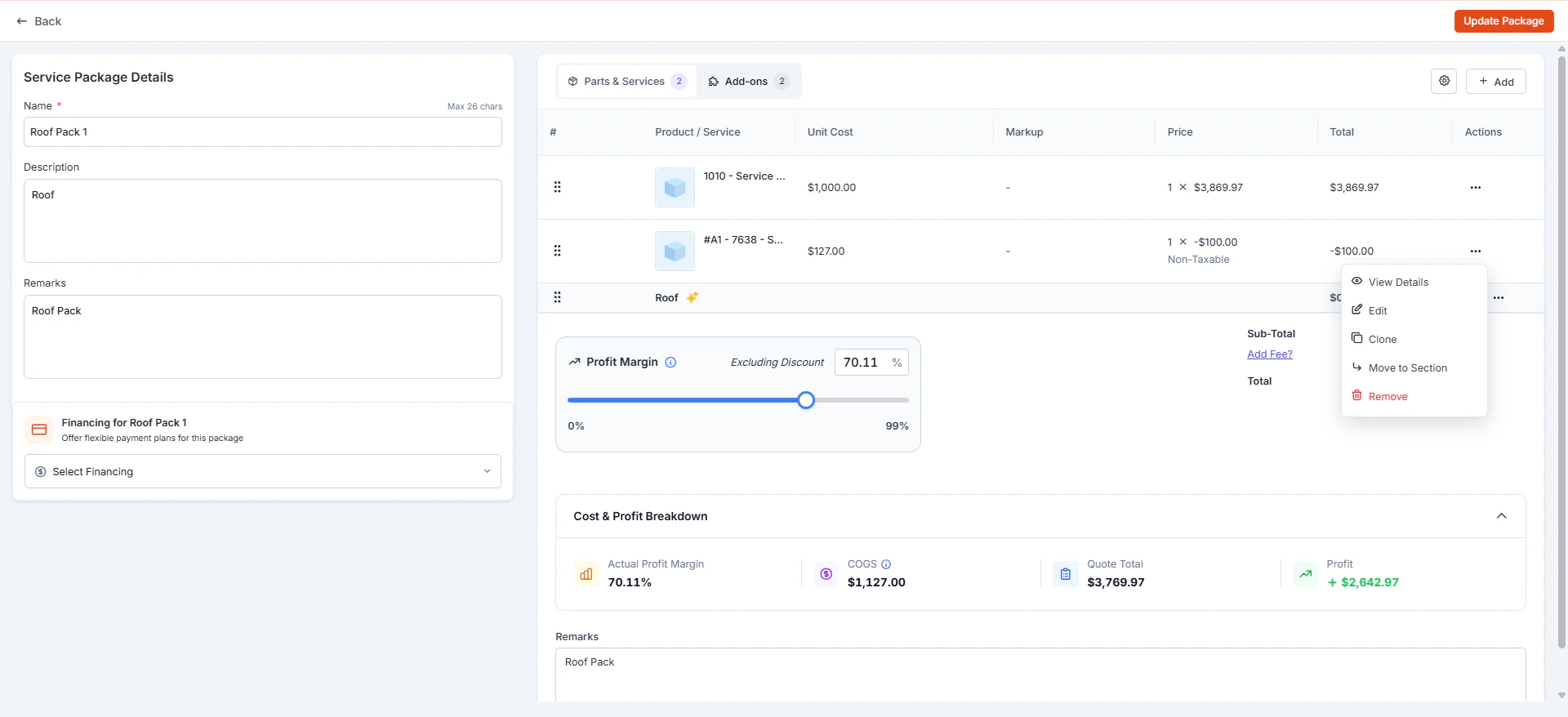
 * **Move to Section** — Move a line item from a section or an ungrouped item to a preferred section.
 ### To move a line item
Locate the line item in the **Parts & Services** section.
* Click the "**Action Items**," Select [**Move out of section**](https://docs.zuper.co/Accounting/Sections#moving-line-items-between-the-sections) or [**Move to section**](https://docs.zuper.co/Accounting/Sections#moving-line-items-between-the-sections) from the line-item actions, depending on the item's current position.
* If moving to a section, select the destination section from the list.
## Important note
This update affects both native and custom quote, proposal, and invoice templates, as existing templates do not support Sections.
**Native Templates**\
If you are using native templates, you will need to create new templates to fully support Sections.
**Custom Templates**\
If you are using custom templates, you need to update them to enable support for Sections. Please reach out to our support team at [**support@zuper.co**](mailto:support@zuper.co) for assistance.
## **When will you see an impact?**
You will notice changes only if you configure Sections to hide:
* Line items
* Line item prices
* Entire sections
If you continue using the default [configuration](https://docs.zuper.co/Accounting/Sections#section-configuration) (where section totals are hidden, but line items and prices are visible), the behavior will remain similar to Headers, and your existing templates will continue to work as expected.
## Sections in transactions
The web platform supports Jobs, Quotes, Invoices, Proposals, and CPQ, while the mobile app covers Quotes, Invoices, and Proposals.
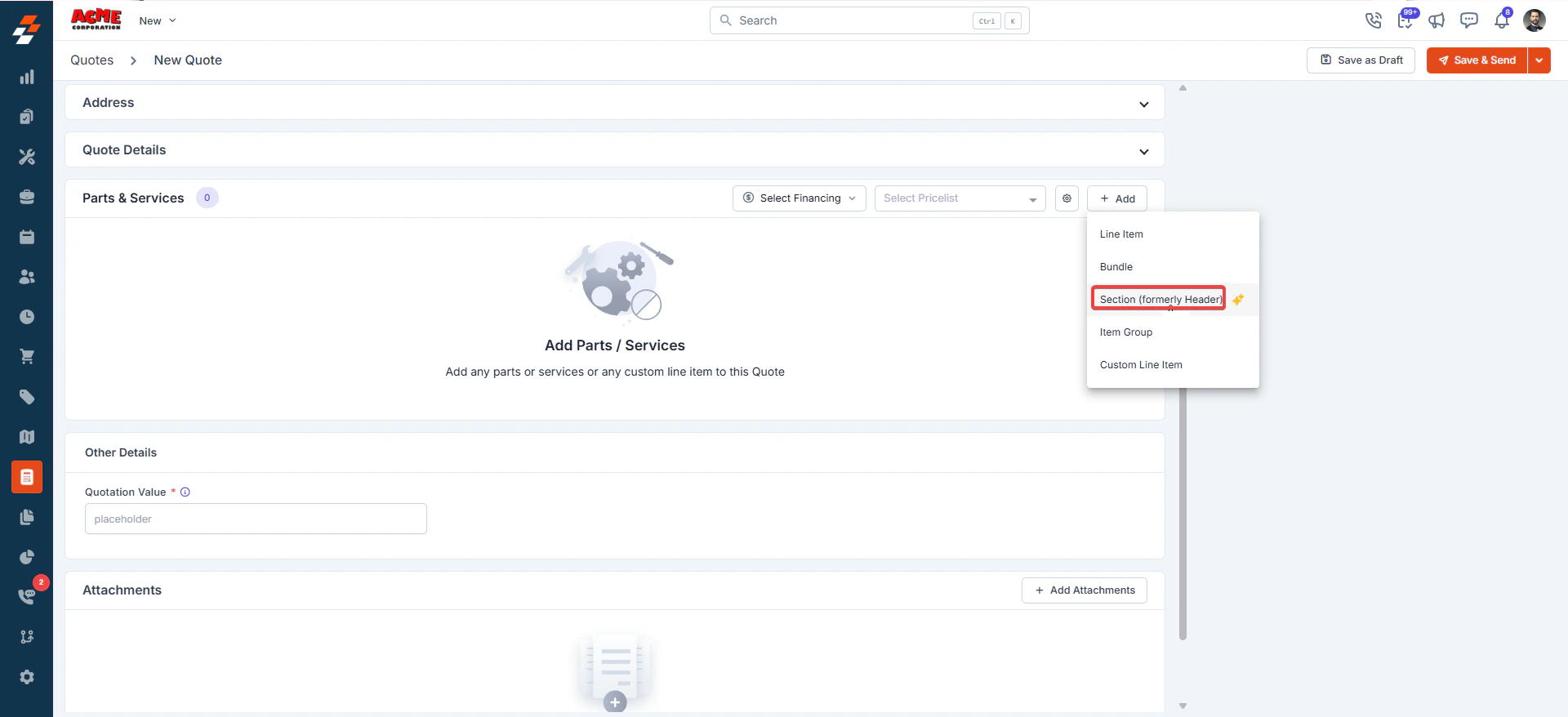
1. Use the “**+ Add**” button to add the Section:
### To move a line item
Locate the line item in the **Parts & Services** section.
* Click the "**Action Items**," Select [**Move out of section**](https://docs.zuper.co/Accounting/Sections#moving-line-items-between-the-sections) or [**Move to section**](https://docs.zuper.co/Accounting/Sections#moving-line-items-between-the-sections) from the line-item actions, depending on the item's current position.
* If moving to a section, select the destination section from the list.
## Important note
This update affects both native and custom quote, proposal, and invoice templates, as existing templates do not support Sections.
**Native Templates**\
If you are using native templates, you will need to create new templates to fully support Sections.
**Custom Templates**\
If you are using custom templates, you need to update them to enable support for Sections. Please reach out to our support team at [**support@zuper.co**](mailto:support@zuper.co) for assistance.
## **When will you see an impact?**
You will notice changes only if you configure Sections to hide:
* Line items
* Line item prices
* Entire sections
If you continue using the default [configuration](https://docs.zuper.co/Accounting/Sections#section-configuration) (where section totals are hidden, but line items and prices are visible), the behavior will remain similar to Headers, and your existing templates will continue to work as expected.
## Sections in transactions
The web platform supports Jobs, Quotes, Invoices, Proposals, and CPQ, while the mobile app covers Quotes, Invoices, and Proposals.
1. Use the “**+ Add**” button to add the Section:
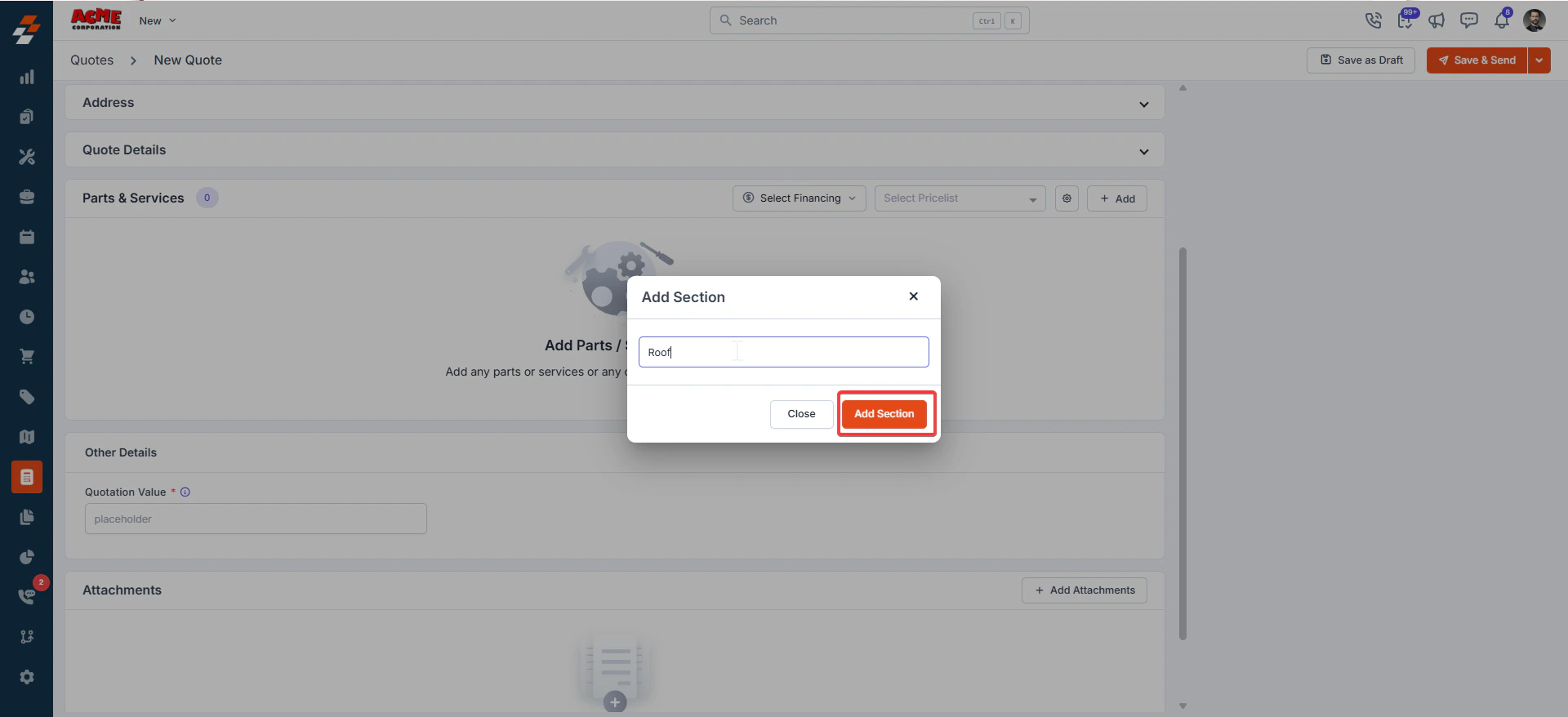
 2. Enter the section name and click the “**Add Section**” button.
 3. Under “**Actions**,” select the meatballs menu. Choose “[**Configure**](https://docs.zuper.co/Accounting/Sections#section-configuration)” to access the section settings.
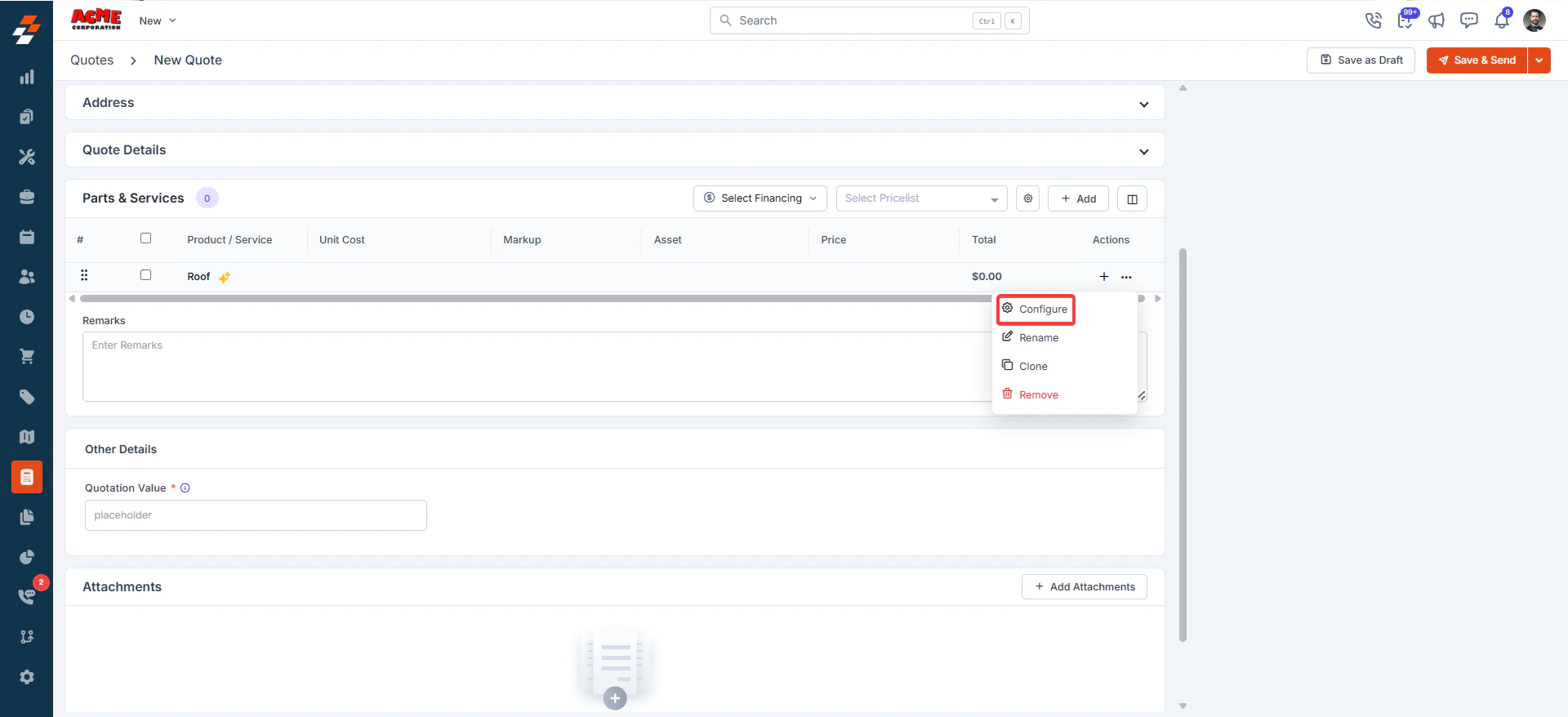 Note: Similarly, you can edit the section as well after creating the Quote.
## Customer view
* When **Show Section Total** is enabled, the customer sees only the section total. Individual line items and their prices stay hidden.
Note: Similarly, you can edit the section as well after creating the Quote.
## Customer view
* When **Show Section Total** is enabled, the customer sees only the section total. Individual line items and their prices stay hidden.
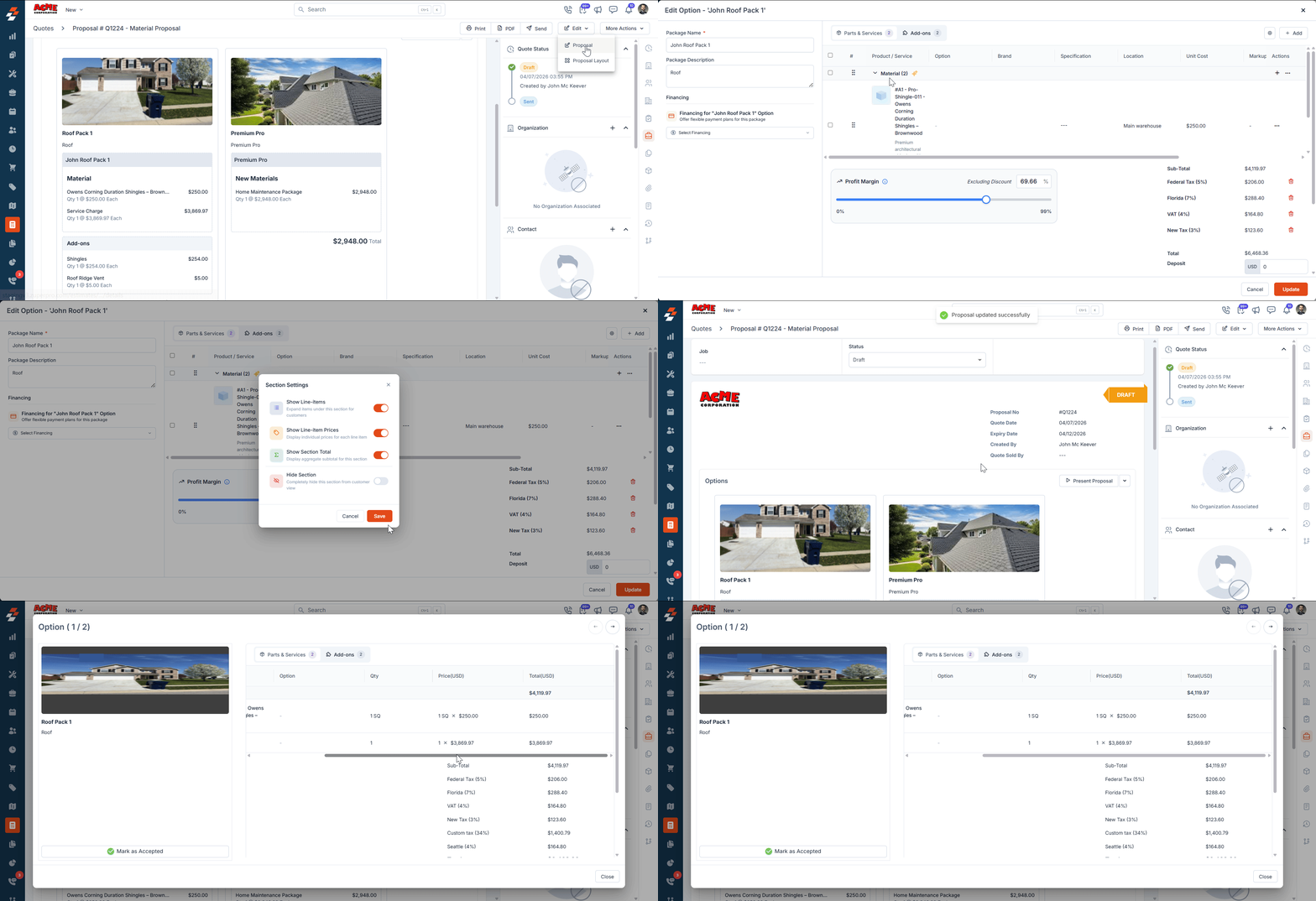
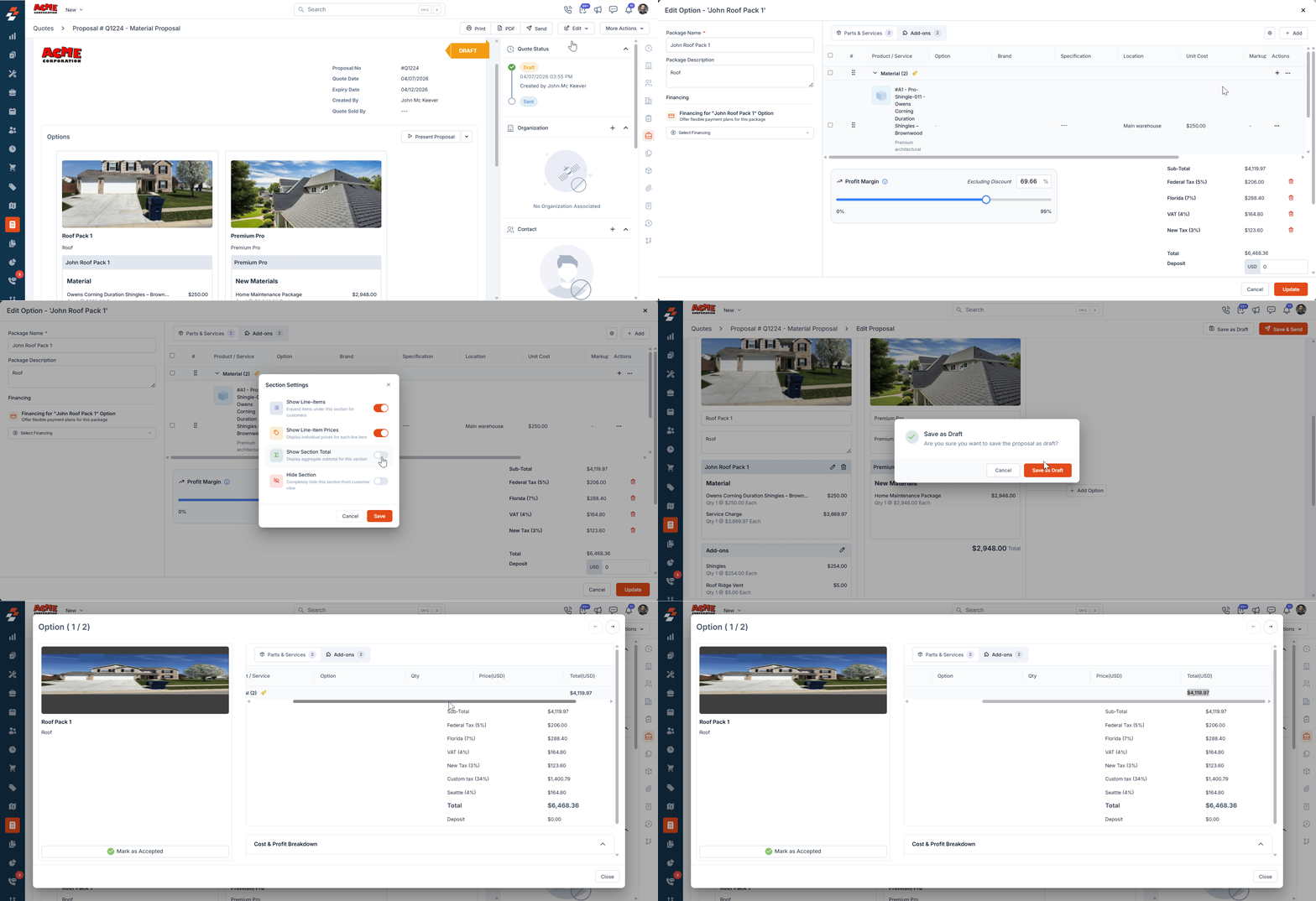 * When **Show Line Items**, **Show Line-Item Prices**, and **Show Section Total** are all enabled, the customer sees each line item, its unit cost, markup, and price. The section total also appears below the items.
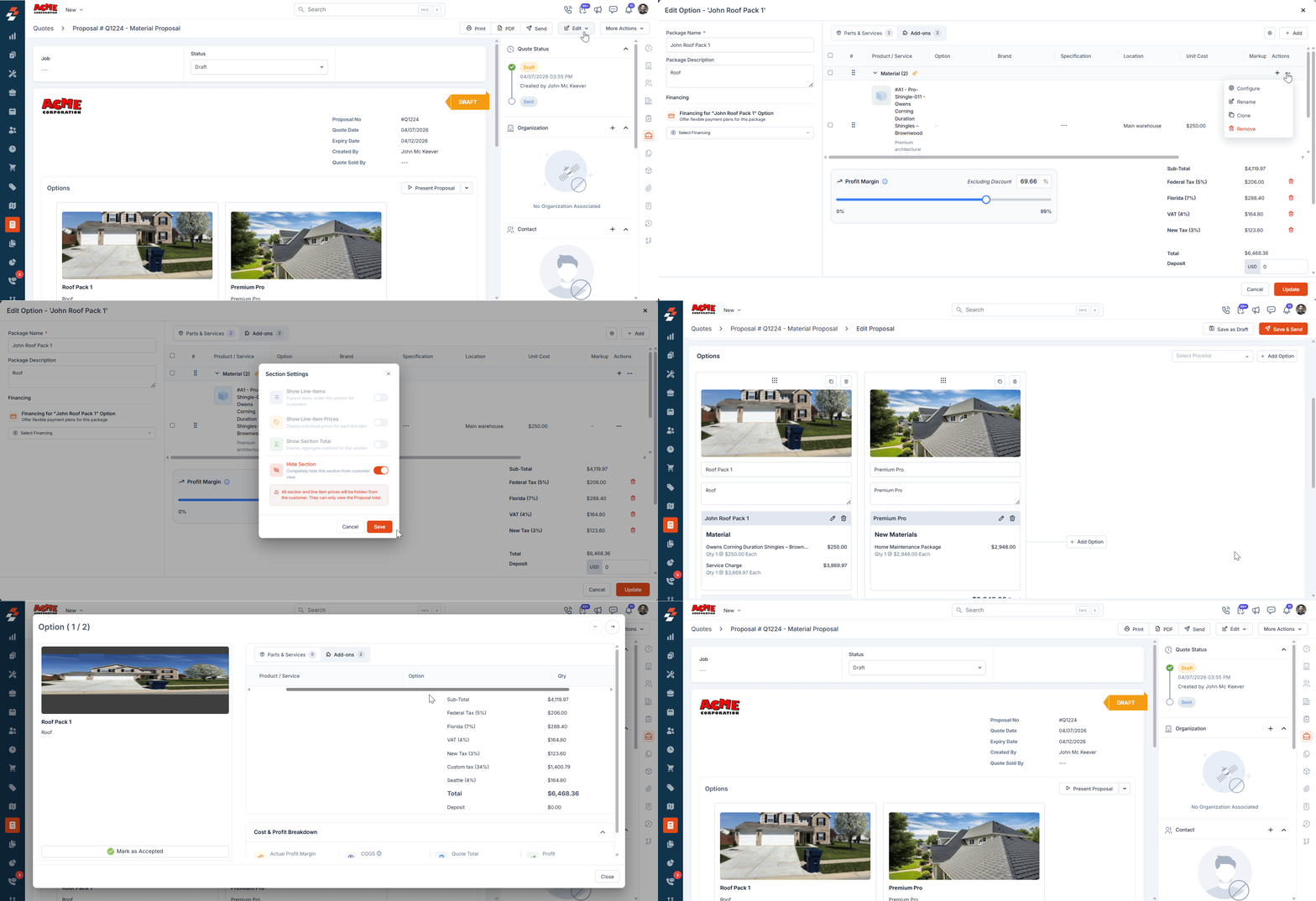
 * When **Hide Section** is enabled, the customer does not see the prices or any of the line items.
 ## **Important note on templates**
**No changes required if:**
* You continue using the default configuration (where line items and prices are visible and section totals are hidden), your existing templates — both native and custom — will continue to work as expected.
\
If you use **new Section v**isibility options (for example, hiding line items, prices, or entire sections)**:**
* **Proposals:** No impact. Sections are supported by default.
* **Quotes & Invoices (Native Templates):** You will need to create new templates to use these capabilities. Check out how to create [quote templates](https://docs.zuper.co/Settings/Modules/Quotes-Invoices/Quotes-Invoices-Settings#quotes-%26-invoices-templates) and [invoice templates](https://docs.zuper.co/Settings/Modules/Quotes-Invoices/Quotes-Invoices-Settings#quotes-%26-invoices-templates).
* **Quotes & Invoices (Custom Templates):** Updates are required to support these capabilities. Please reach out to [**support@zuper.co**](mailto:support@zuper.co) for assistance.
## **Important note on templates**
**No changes required if:**
* You continue using the default configuration (where line items and prices are visible and section totals are hidden), your existing templates — both native and custom — will continue to work as expected.
\
If you use **new Section v**isibility options (for example, hiding line items, prices, or entire sections)**:**
* **Proposals:** No impact. Sections are supported by default.
* **Quotes & Invoices (Native Templates):** You will need to create new templates to use these capabilities. Check out how to create [quote templates](https://docs.zuper.co/Settings/Modules/Quotes-Invoices/Quotes-Invoices-Settings#quotes-%26-invoices-templates) and [invoice templates](https://docs.zuper.co/Settings/Modules/Quotes-Invoices/Quotes-Invoices-Settings#quotes-%26-invoices-templates).
* **Quotes & Invoices (Custom Templates):** Updates are required to support these capabilities. Please reach out to [**support@zuper.co**](mailto:support@zuper.co) for assistance.