> ## Documentation Index
> Fetch the complete documentation index at: https://zuperinc-section23.mintlify.site/llms.txt
> Use this file to discover all available pages before exploring further.
# Messages
The Chat module includes helpful message actions that make conversations easy to manage and follow. You can edit or delete messages, pin important updates, mark messages as unread, add attachments, react to messages, and reply in threads to keep discussions organized across channels and direct messages.
# Editing a Message
If you’ve made a typo or need to update the content, you can edit any message you’ve sent.
**Note**: Channel Managers and Admins cannot edit messages sent by other users.
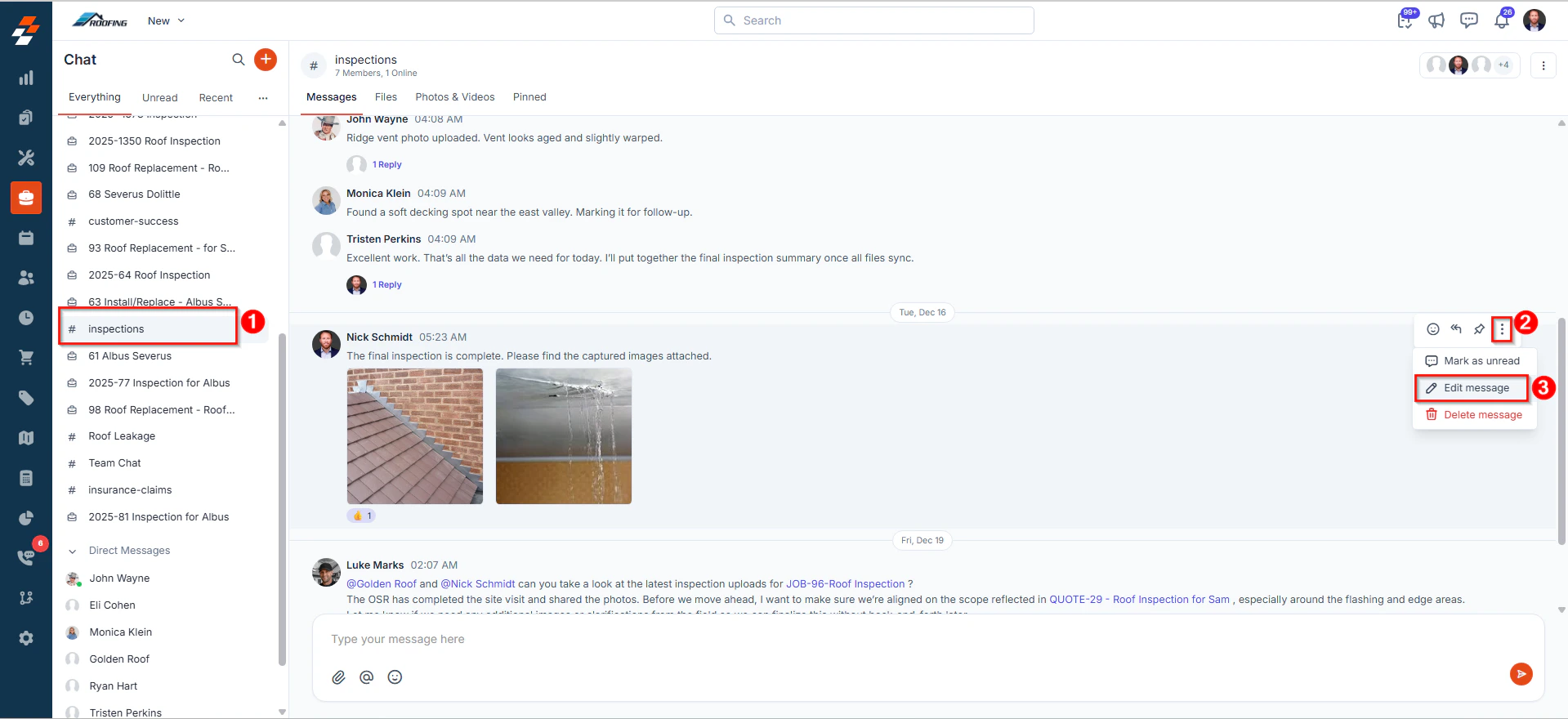
* Open the channel or DM from the sidebar
* Hover over the message you want to edit.
* Click the More Actions () icon.
* Select **Edit message**.
* Make your changes, then click the paper plane icon to send your updated message.
 * Open the channel or DM from the home page.
* Tap and hold the message you want to change.
* Select **Edit Message** from the pop-up menu.
* Make your edits and then tap the paper plane icon to send the updated message.
* Open the channel or DM from the home page.
* Tap and hold the message you want to change.
* Select **Edit Message** from the pop-up menu.
* Make your edits and then tap the paper plane icon to send the updated message.
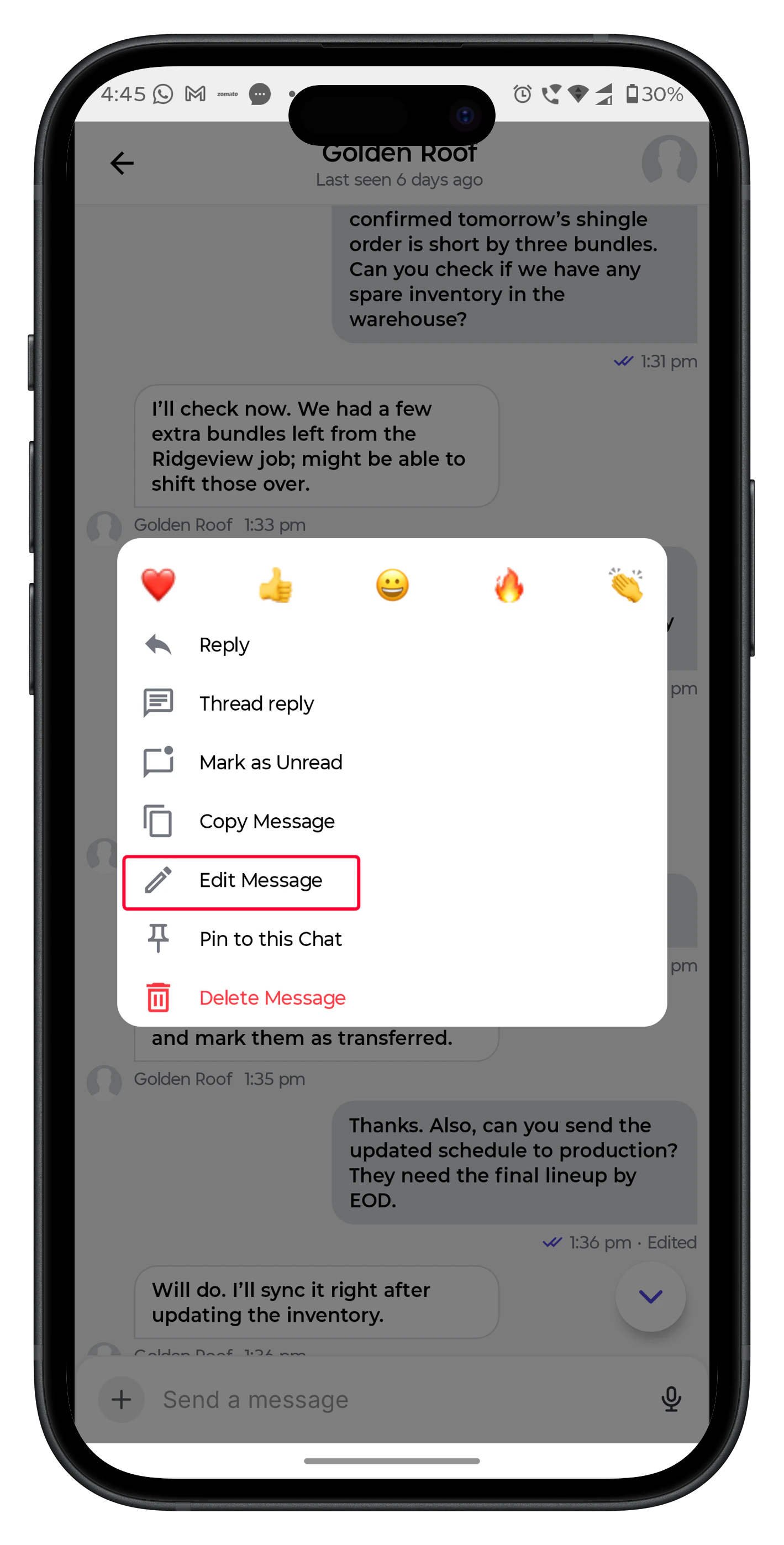 Note: If you need to copy any message from a direct message chat to reuse or reference it elsewhere, select **Copy Message** from the menu. The text will be copied to your clipboard for reuse.
# Deleting a Message
If you no longer want a message to appear in a conversation, you can delete it.
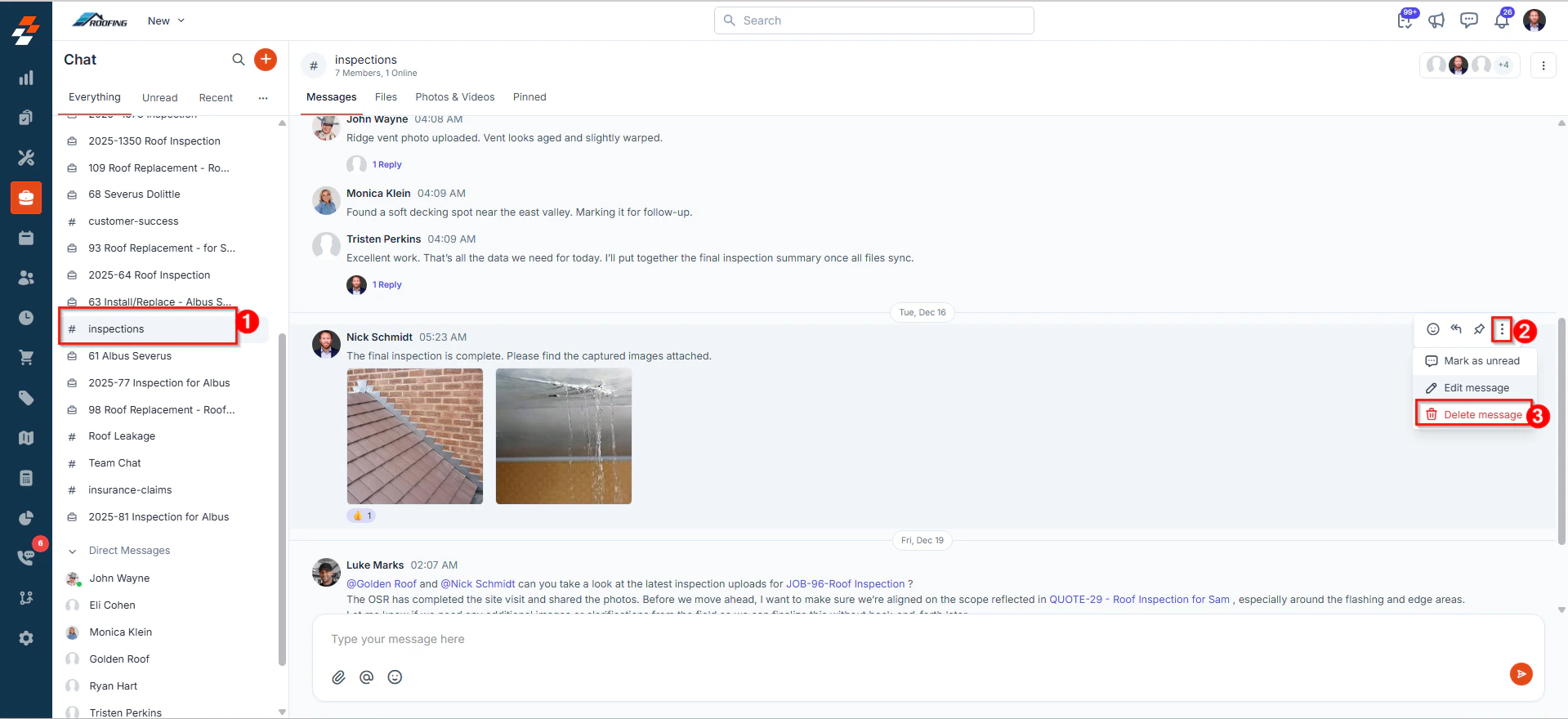
* Open the channel or DM.
* Hover over the message you want to delete.
* Click the More Actions () icon.
* Select **Delete message**.
* Click **Delete** again to confirm.
Note: If you need to copy any message from a direct message chat to reuse or reference it elsewhere, select **Copy Message** from the menu. The text will be copied to your clipboard for reuse.
# Deleting a Message
If you no longer want a message to appear in a conversation, you can delete it.
* Open the channel or DM.
* Hover over the message you want to delete.
* Click the More Actions () icon.
* Select **Delete message**.
* Click **Delete** again to confirm.
 * Open the channel or DM.
* Tap and hold the message you want to delete.
* Select **"Delete Message"** from the pop-up menu, and then confirm by tapping **"OK"**.
* Open the channel or DM.
* Tap and hold the message you want to delete.
* Select **"Delete Message"** from the pop-up menu, and then confirm by tapping **"OK"**.
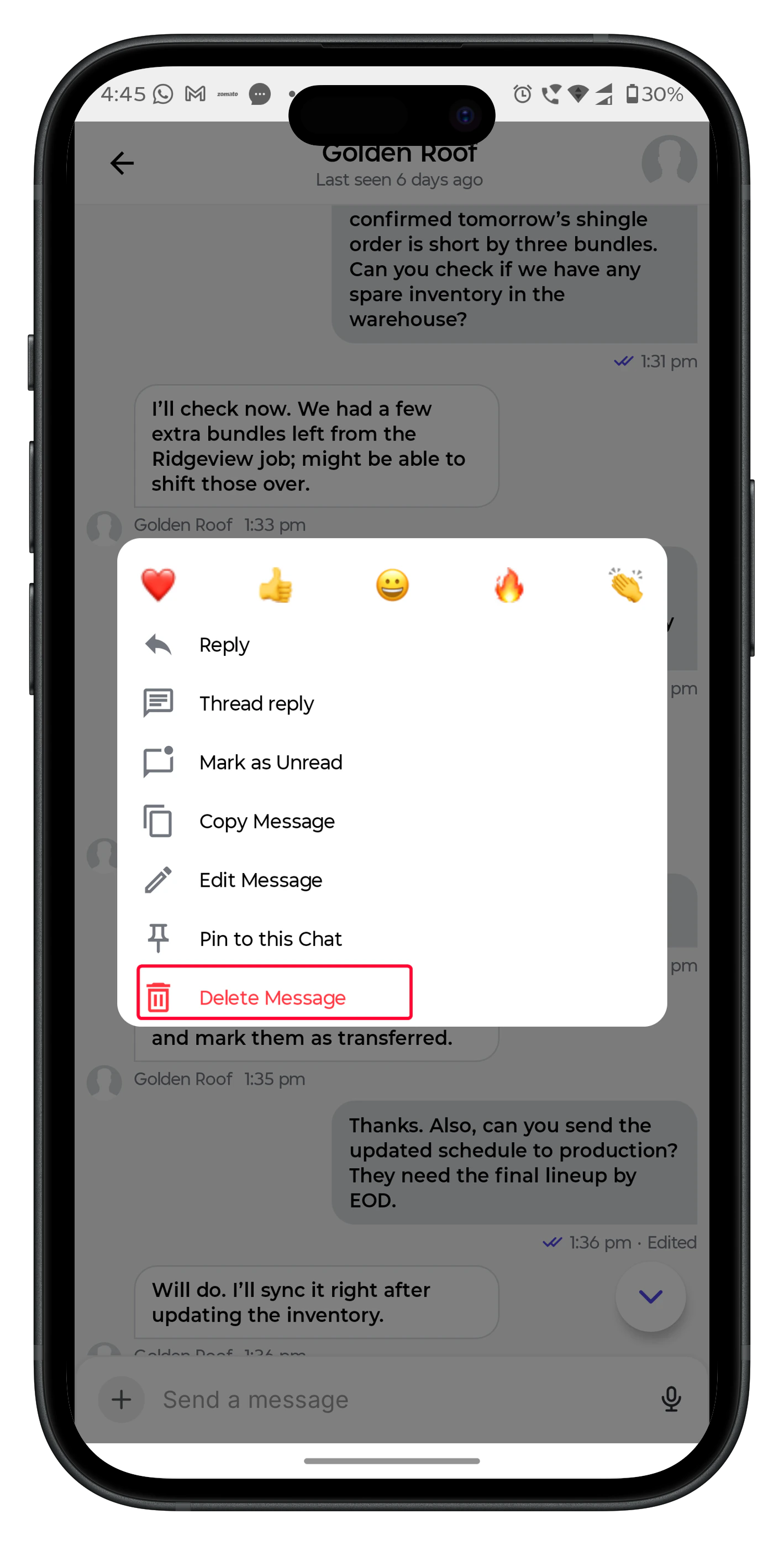 Note: Deleting a message is a permanent action that removes it for everyone in the channel or direct message. Channel Managers and Admins can delete messages of other users in a channel.
# Pinning a Message
Pinning a message allows you to highlight key information, such as important updates, links, or attachments, so that team members can easily refer to them later.
* Open a channel or DM.
* Hover over the message you want to pin and click the "**Pin**" icon.
* The message will now appear under the **Pinned** tab in the conversation header for all members to view.
* Open the channel or DM.
* Tap and hold the message you want to pin. A pop-up menu appears.
* Select **Pin to this Chat**.
* You can then view the pinned message by tapping the channel or user name at the top of the chat window and selecting **Pinned messages**.
# Marking Messages as Unread
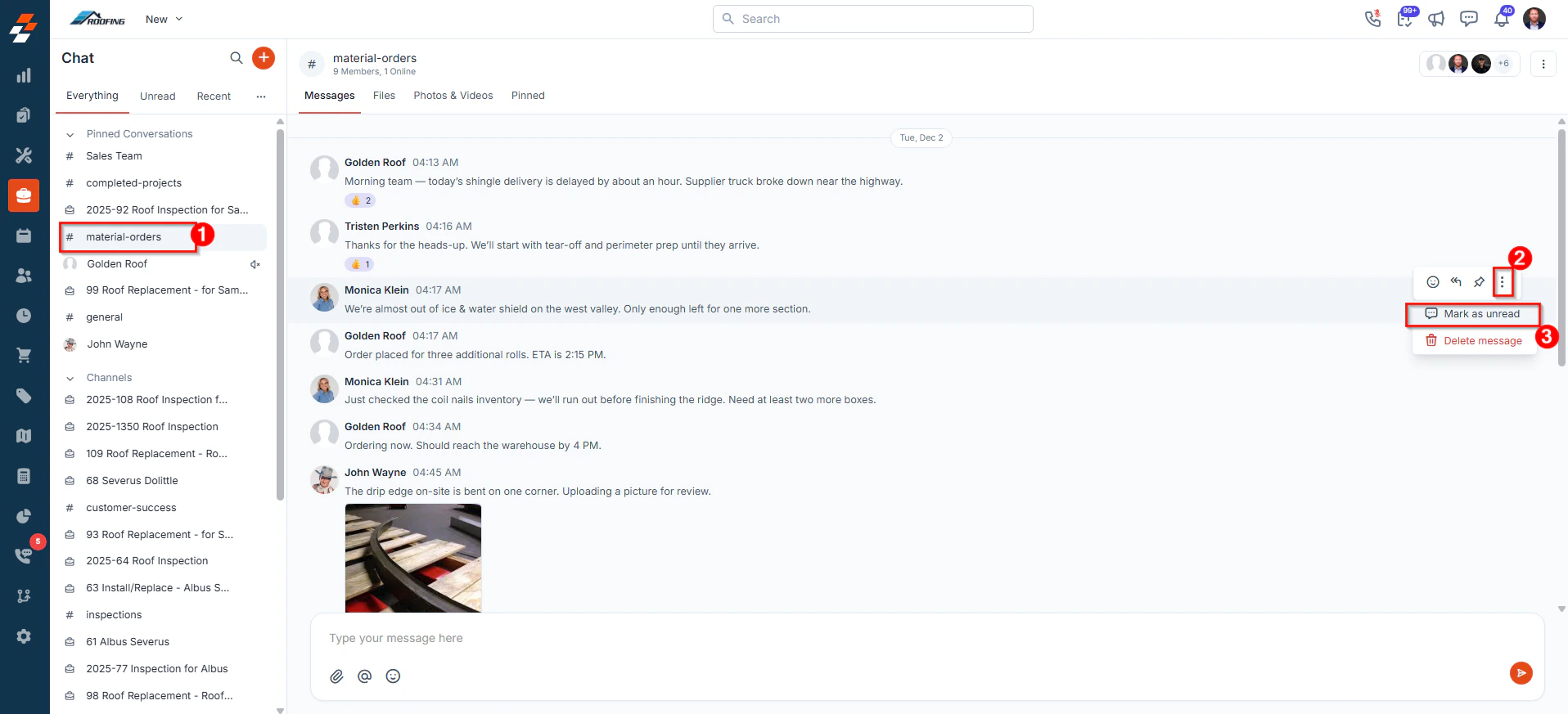
If you want to revisit a message later, you can mark any message as unread. This helps you stay organized by treating the message and the following messages as new until you’re ready to respond.
* Open a channel or DM.
* Hover over the message you want to mark as unread.
* Click the More actions ( ) icon.
* Select **Mark as Unread**.
Note: Deleting a message is a permanent action that removes it for everyone in the channel or direct message. Channel Managers and Admins can delete messages of other users in a channel.
# Pinning a Message
Pinning a message allows you to highlight key information, such as important updates, links, or attachments, so that team members can easily refer to them later.
* Open a channel or DM.
* Hover over the message you want to pin and click the "**Pin**" icon.
* The message will now appear under the **Pinned** tab in the conversation header for all members to view.
* Open the channel or DM.
* Tap and hold the message you want to pin. A pop-up menu appears.
* Select **Pin to this Chat**.
* You can then view the pinned message by tapping the channel or user name at the top of the chat window and selecting **Pinned messages**.
# Marking Messages as Unread
If you want to revisit a message later, you can mark any message as unread. This helps you stay organized by treating the message and the following messages as new until you’re ready to respond.
* Open a channel or DM.
* Hover over the message you want to mark as unread.
* Click the More actions ( ) icon.
* Select **Mark as Unread**.
 * Open the channel or DM.
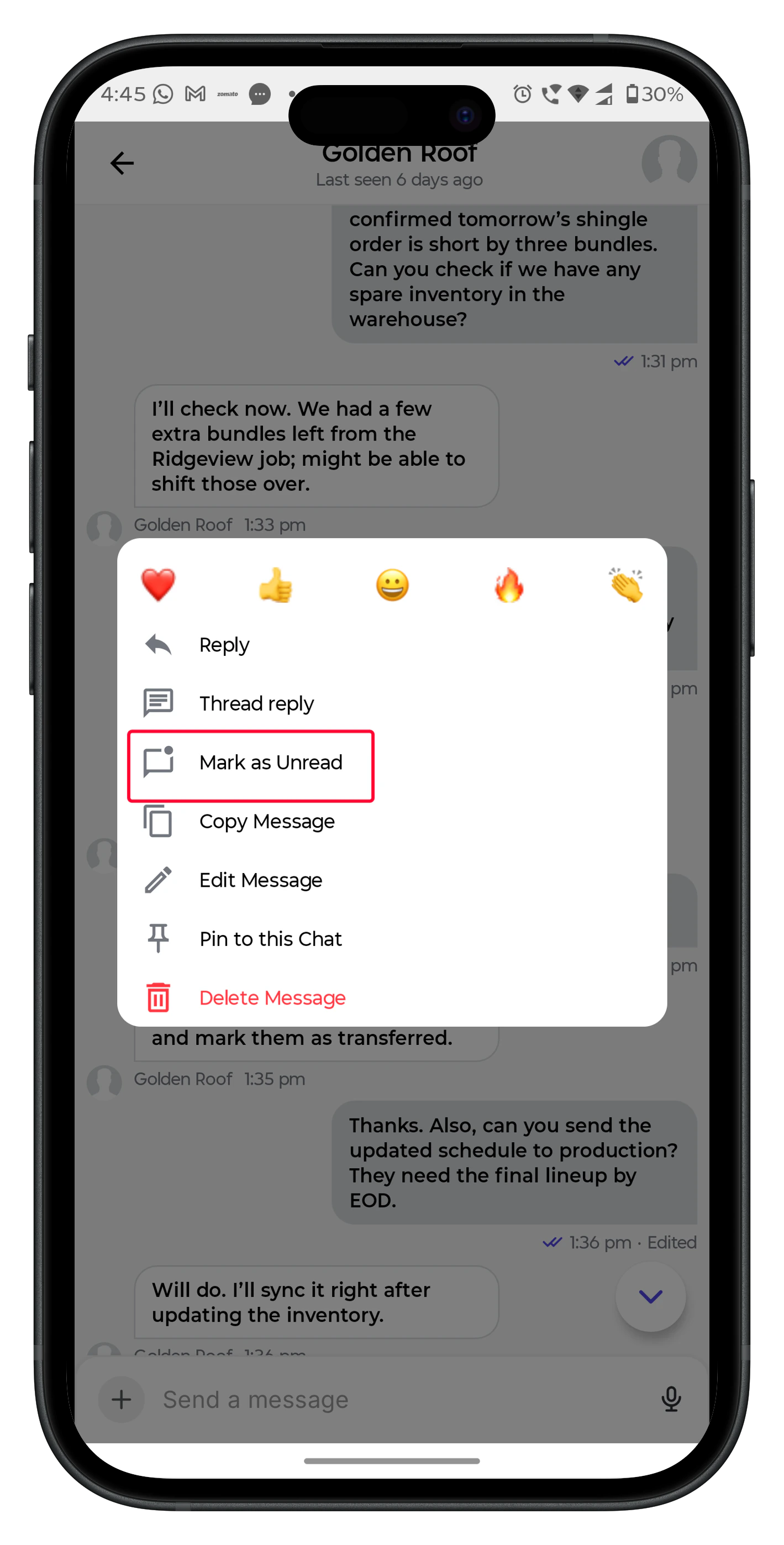
* Tap and hold the message you want to mark as unread. A pop-up menu appears.
* Select **Mark as Unread**.
The message will then be highlighted as unread, making it easy for you to find later.
* Open the channel or DM.
* Tap and hold the message you want to mark as unread. A pop-up menu appears.
* Select **Mark as Unread**.
The message will then be highlighted as unread, making it easy for you to find later.
 # Viewing Unread Messages
You can easily access all messages you haven’t opened or have marked as unread from the sidebar or home.
* Navigate to the **Unread** tab in the Chat sidebar.
* You can view all conversations (DMs and Channels) with unread messages.
* On the chat home screen, tap the **Unread** tab.
* This opens a feed of all unread messages, including DMs and channel messages.
* Tap a message to open it in the chat window.
**Note**: Once an unread message is opened, it is automatically marked as read.
# Adding Attachments
You can add attachments in Chat to share important files, images, or videos with your team, whether it’s a project brief, invoice copy, or photos from the field.
You can easily access attachments in a conversation from the ‘**Files**’ and ‘**Photos** and **Videos**’ sections within a conversation.
* Click the paper clip icon in the message composer.
* Upload the necessary file(s) from your computer.
* Click the paper plane icon to send the message with the attachment.
* Open the channel or direct message.
* Tap the **+** (plus) icon next to the message field.
* Choose from the available options:
1. **Take a picture**: Capture and attach a photo instantly using your mobile camera.
2. **Record a video**: Record a short video clip and share it directly in the chat.
3. **Choose from gallery**: Select an existing photo or video from your device’s gallery.
4. **Upload a file**: Attach documents, spreadsheets, PDFs, or other files stored on your device.
5. **Scan a document**: Use your camera to scan and upload physical documents as images or PDFs.
Once you’ve added the desired attachment, tap the paper plane icon to share it in the conversation.
# Using Emoji and Reactions
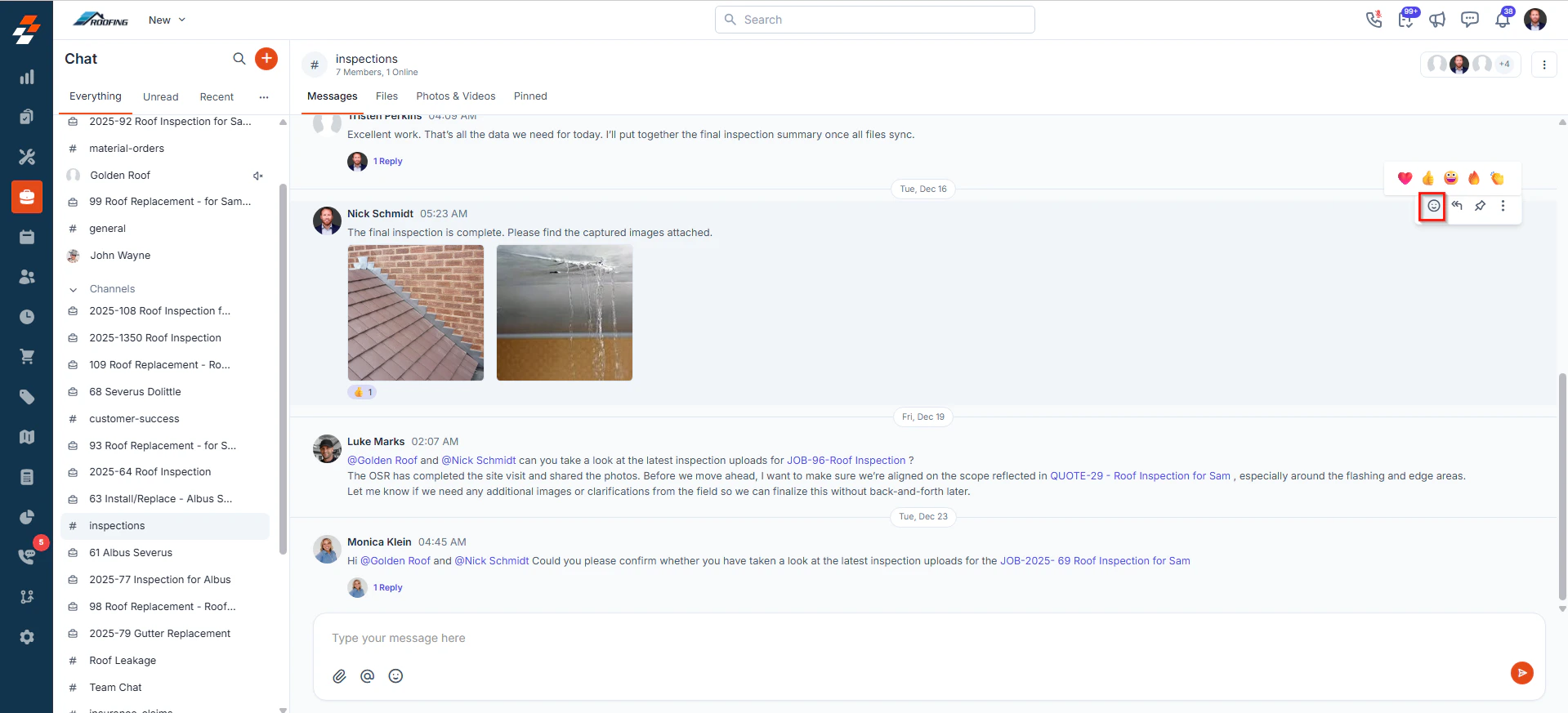
Emoji reactions let you respond quickly without sending another message.
* Hover over the message and click the emoji icon.
* Select an emoji from the menu to send.
* To remove a reaction, click it again.
# Viewing Unread Messages
You can easily access all messages you haven’t opened or have marked as unread from the sidebar or home.
* Navigate to the **Unread** tab in the Chat sidebar.
* You can view all conversations (DMs and Channels) with unread messages.
* On the chat home screen, tap the **Unread** tab.
* This opens a feed of all unread messages, including DMs and channel messages.
* Tap a message to open it in the chat window.
**Note**: Once an unread message is opened, it is automatically marked as read.
# Adding Attachments
You can add attachments in Chat to share important files, images, or videos with your team, whether it’s a project brief, invoice copy, or photos from the field.
You can easily access attachments in a conversation from the ‘**Files**’ and ‘**Photos** and **Videos**’ sections within a conversation.
* Click the paper clip icon in the message composer.
* Upload the necessary file(s) from your computer.
* Click the paper plane icon to send the message with the attachment.
* Open the channel or direct message.
* Tap the **+** (plus) icon next to the message field.
* Choose from the available options:
1. **Take a picture**: Capture and attach a photo instantly using your mobile camera.
2. **Record a video**: Record a short video clip and share it directly in the chat.
3. **Choose from gallery**: Select an existing photo or video from your device’s gallery.
4. **Upload a file**: Attach documents, spreadsheets, PDFs, or other files stored on your device.
5. **Scan a document**: Use your camera to scan and upload physical documents as images or PDFs.
Once you’ve added the desired attachment, tap the paper plane icon to share it in the conversation.
# Using Emoji and Reactions
Emoji reactions let you respond quickly without sending another message.
* Hover over the message and click the emoji icon.
* Select an emoji from the menu to send.
* To remove a reaction, click it again.
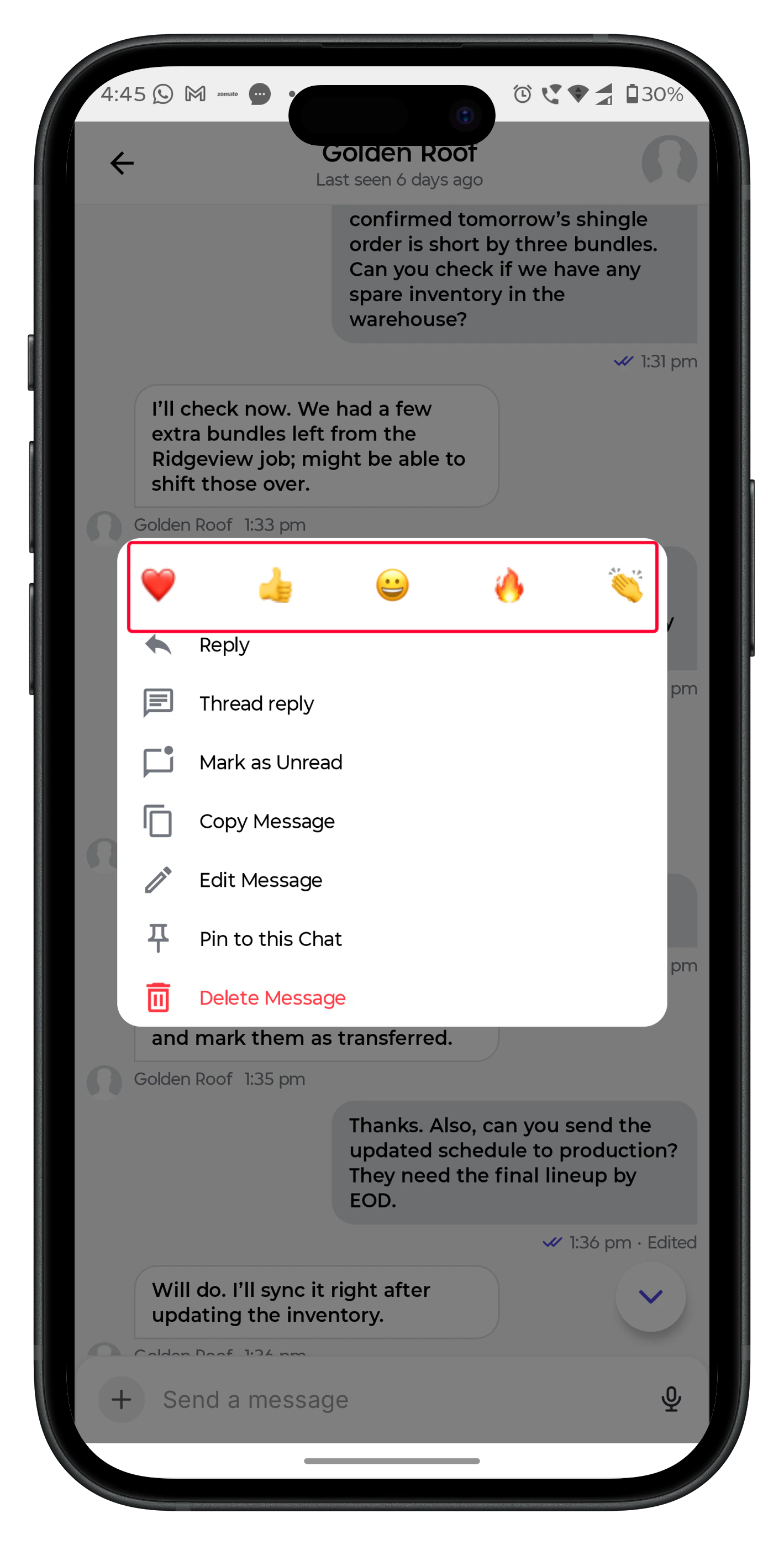
 * Tap and hold the message you want to react to. A pop-up menu appears.
* Tap the emoji you want to react with.
* Tap and hold the message you want to react to. A pop-up menu appears.
* Tap the emoji you want to react with.
 # Mentioning Users & Entities
You can mention Users or share entities such as Jobs, Customers, Projects, Quotes, and Invoices directly in your messages.
* In the message composer, type @ or click on the icon.
* Select a user or entity from the list that appears or type the name to search.
* You can mention multiple users or share multiple entities in the same message.
* You can click the entity mentioned to open its details page for a complete view.
* Tap the icon in the message composer.
* Select a user or entity from the list that appears, or type the name to search.
* You can mention multiple users or entities in the same message.
* You can click the entity mentioned to open its details page for a complete view.
Note: Mentioned users are notified and can access the messages in which they are mentioned from the "Mentions" tab in the Sidebar (web) and from Home (mobile).
# Threads
Threads help keep conversations organized by allowing you to reply directly to a specific message instead of starting a new conversation in the main chat. This makes it easier to follow discussions and maintain context within busy channels.
### Viewing Threads
* To view all your active or unread threads, click the **Ellipsis** (⋯) icon at the top right of the chat sidebar.
* Select **Threads** to open a list of all ongoing threaded conversations.
* Click any thread to open it directly in the chat window and view the complete discussion.
* On the chat home screen, tap the **Threads** tab.
* This opens a feed of all your active and unread threads.
* Tap any thread to open it and view the full conversation.
### Replying to Threads
* Open the specific channel or DM.
* Hover over the message you want to reply to.
* Click the thread reply icon.
* A **Thread Reply** panel opens on the right side of the chat window.
* Type your reply in the message field. You can also add attachments, mentions, or emojis if needed.
* Click the paper plane icon to send your threaded reply.
* Open the specific channel or DM.
* Tap and hold the message you want to reply to.
* Select **Thread reply** from the pop-up menu.
* A thread view opens where you can type your reply. Add attachments and mentions as needed.
* Tap the paper plane icon to send your reply.
# Notifications
You will be notified about new messages and mentions in DMs and Channels you are a member of.
Notifications can be accessed from the Chat Notification centre in the web app.
# Mentioning Users & Entities
You can mention Users or share entities such as Jobs, Customers, Projects, Quotes, and Invoices directly in your messages.
* In the message composer, type @ or click on the icon.
* Select a user or entity from the list that appears or type the name to search.
* You can mention multiple users or share multiple entities in the same message.
* You can click the entity mentioned to open its details page for a complete view.
* Tap the icon in the message composer.
* Select a user or entity from the list that appears, or type the name to search.
* You can mention multiple users or entities in the same message.
* You can click the entity mentioned to open its details page for a complete view.
Note: Mentioned users are notified and can access the messages in which they are mentioned from the "Mentions" tab in the Sidebar (web) and from Home (mobile).
# Threads
Threads help keep conversations organized by allowing you to reply directly to a specific message instead of starting a new conversation in the main chat. This makes it easier to follow discussions and maintain context within busy channels.
### Viewing Threads
* To view all your active or unread threads, click the **Ellipsis** (⋯) icon at the top right of the chat sidebar.
* Select **Threads** to open a list of all ongoing threaded conversations.
* Click any thread to open it directly in the chat window and view the complete discussion.
* On the chat home screen, tap the **Threads** tab.
* This opens a feed of all your active and unread threads.
* Tap any thread to open it and view the full conversation.
### Replying to Threads
* Open the specific channel or DM.
* Hover over the message you want to reply to.
* Click the thread reply icon.
* A **Thread Reply** panel opens on the right side of the chat window.
* Type your reply in the message field. You can also add attachments, mentions, or emojis if needed.
* Click the paper plane icon to send your threaded reply.
* Open the specific channel or DM.
* Tap and hold the message you want to reply to.
* Select **Thread reply** from the pop-up menu.
* A thread view opens where you can type your reply. Add attachments and mentions as needed.
* Tap the paper plane icon to send your reply.
# Notifications
You will be notified about new messages and mentions in DMs and Channels you are a member of.
Notifications can be accessed from the Chat Notification centre in the web app.