> ## Documentation Index
> Fetch the complete documentation index at: https://zuperinc-section23.mintlify.site/llms.txt
> Use this file to discover all available pages before exploring further.
# Applying credits
Zuper Credits feature allows users to manage and apply credits across modules, where payments can be obtained, such as Invoices, Quotes, and Customer Profiles. Credits can be added, applied, or voided, providing flexibility in payment processing.
**Navigation**: *Clients --> Customers / Contacts --> Select a Customer / Contact --> Credits --> +*
## **Adding credits**
1. Select the “**Clients**” module from the left navigation menu. Choose "**Customers/Contacts**.”
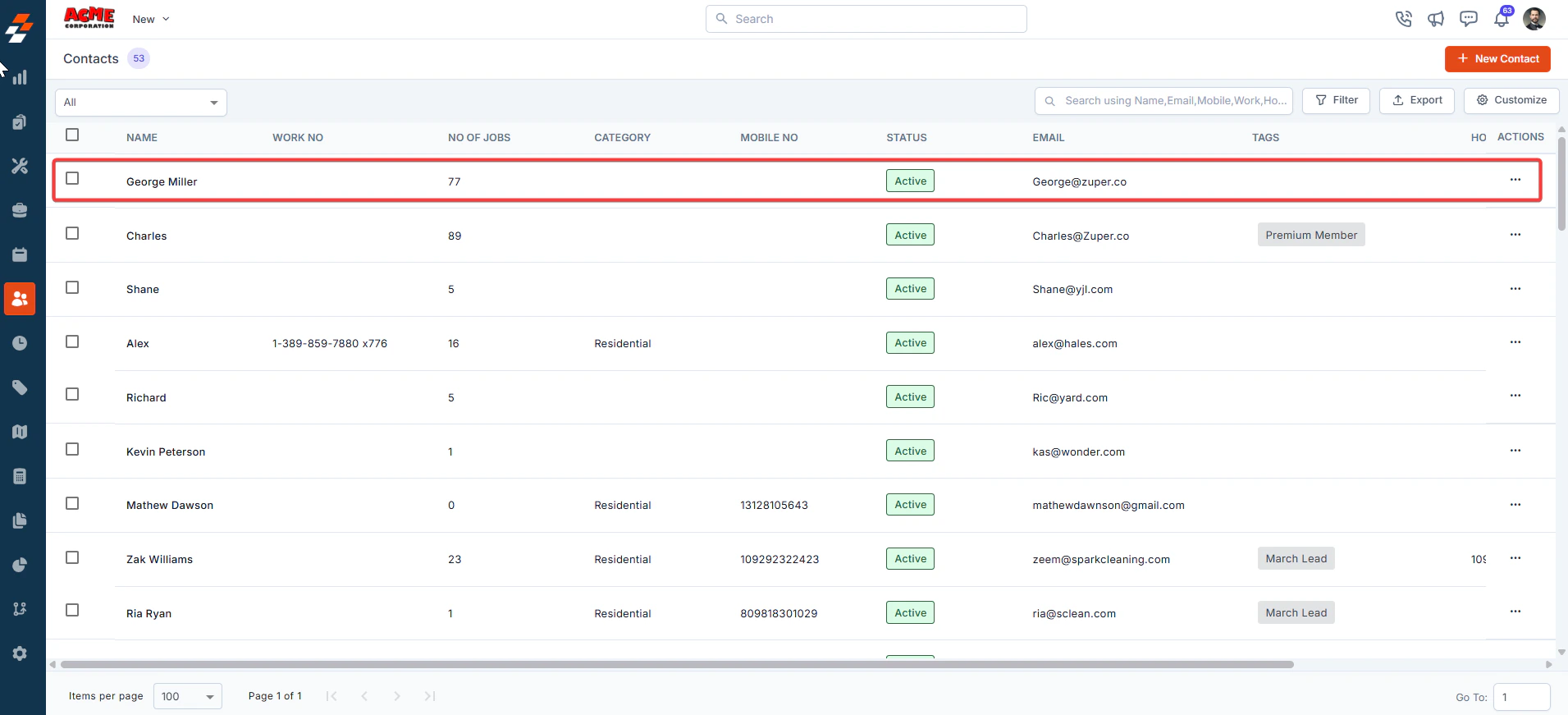
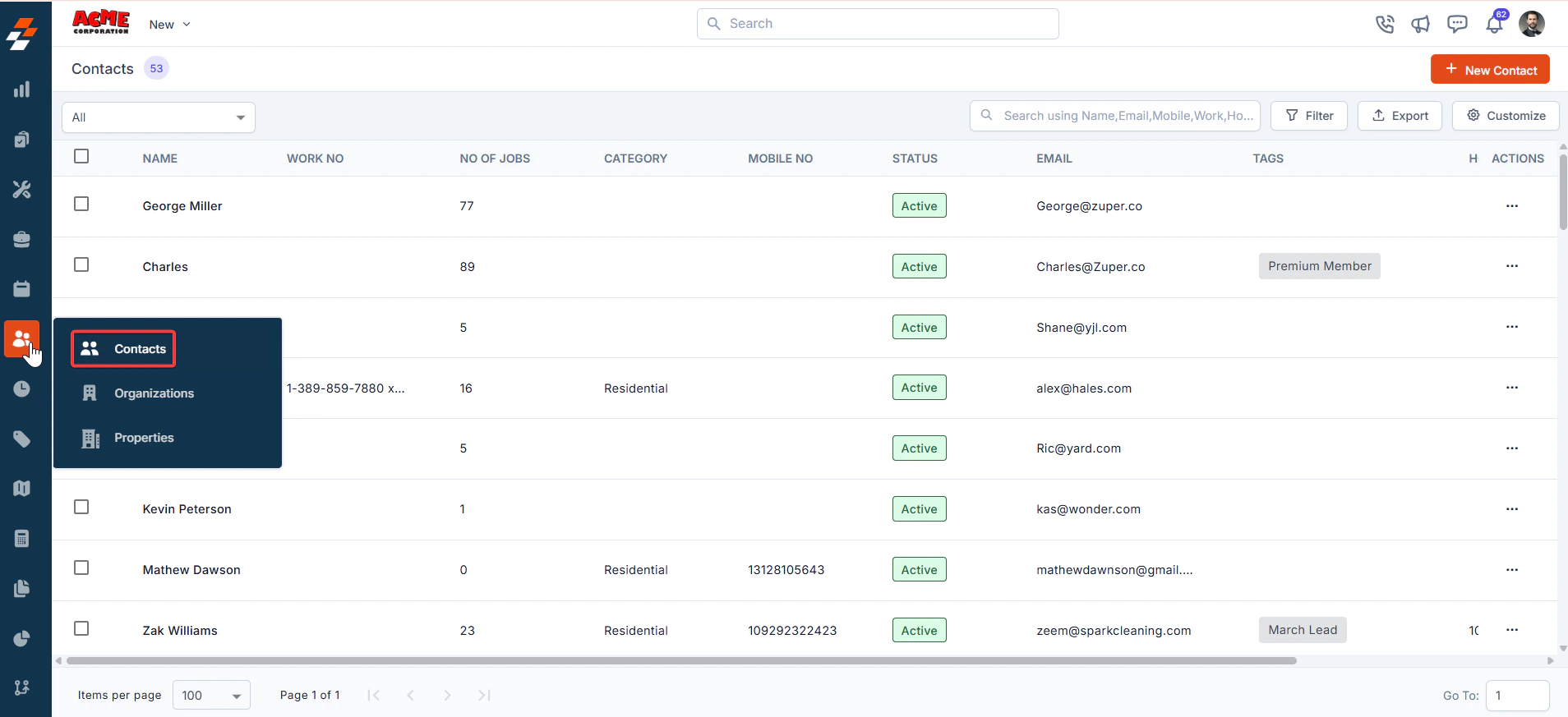 2. Click any of the customers/contacts to view the details page.
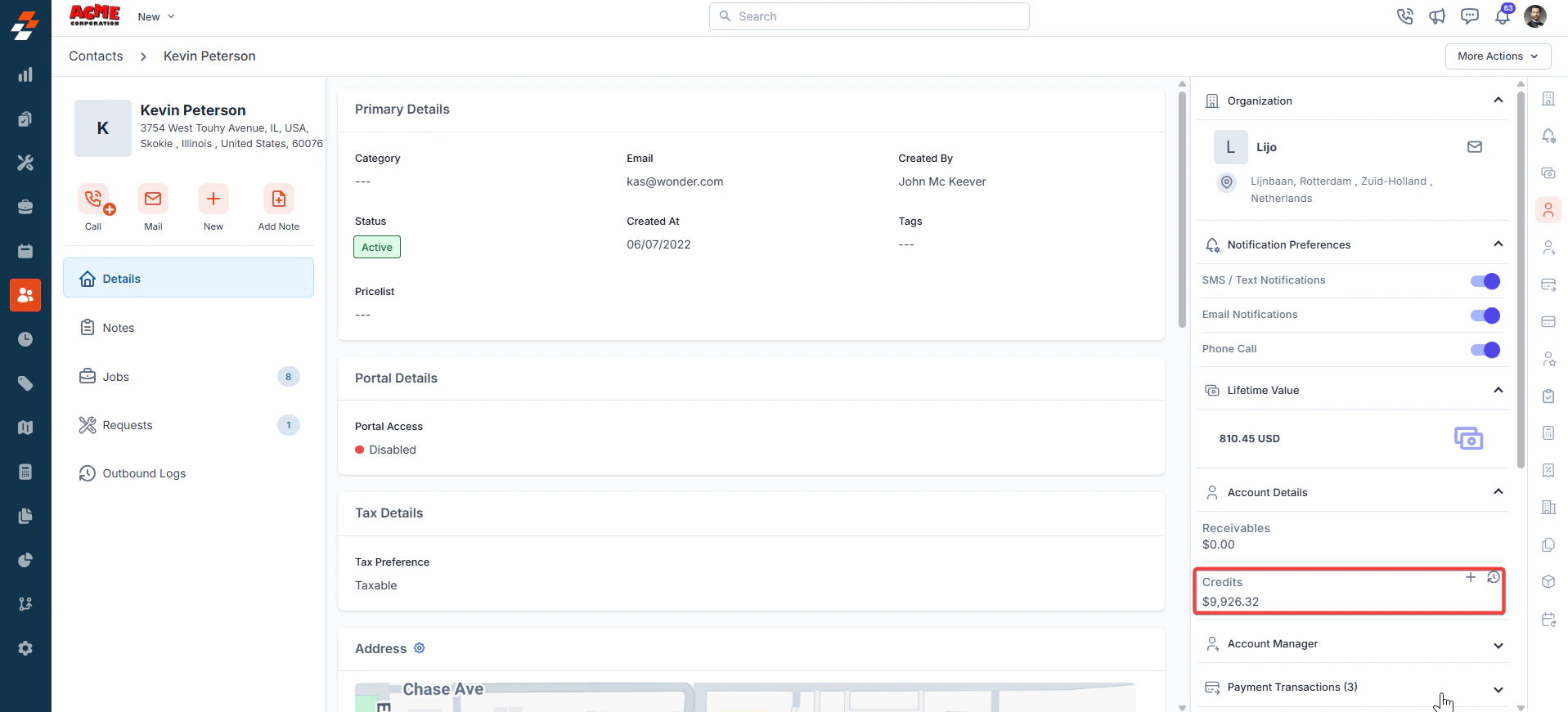
 3. Navigate to the customers/contacts details and click the "**+**" button to add the credits.
 * Enter the **Credit Date** - The date on which the credit note needs to be created.
* **Credit Amount -** Enter the credit amount. (e.g., USD 450).
* **Payment Method** - The mode of payment through which the payment was obtained. (e.g., Check).
* **Remarks** - Additional comments (e.g., pre-payment for services).
* Enter the **Credit Date** - The date on which the credit note needs to be created.
* **Credit Amount -** Enter the credit amount. (e.g., USD 450).
* **Payment Method** - The mode of payment through which the payment was obtained. (e.g., Check).
* **Remarks** - Additional comments (e.g., pre-payment for services).
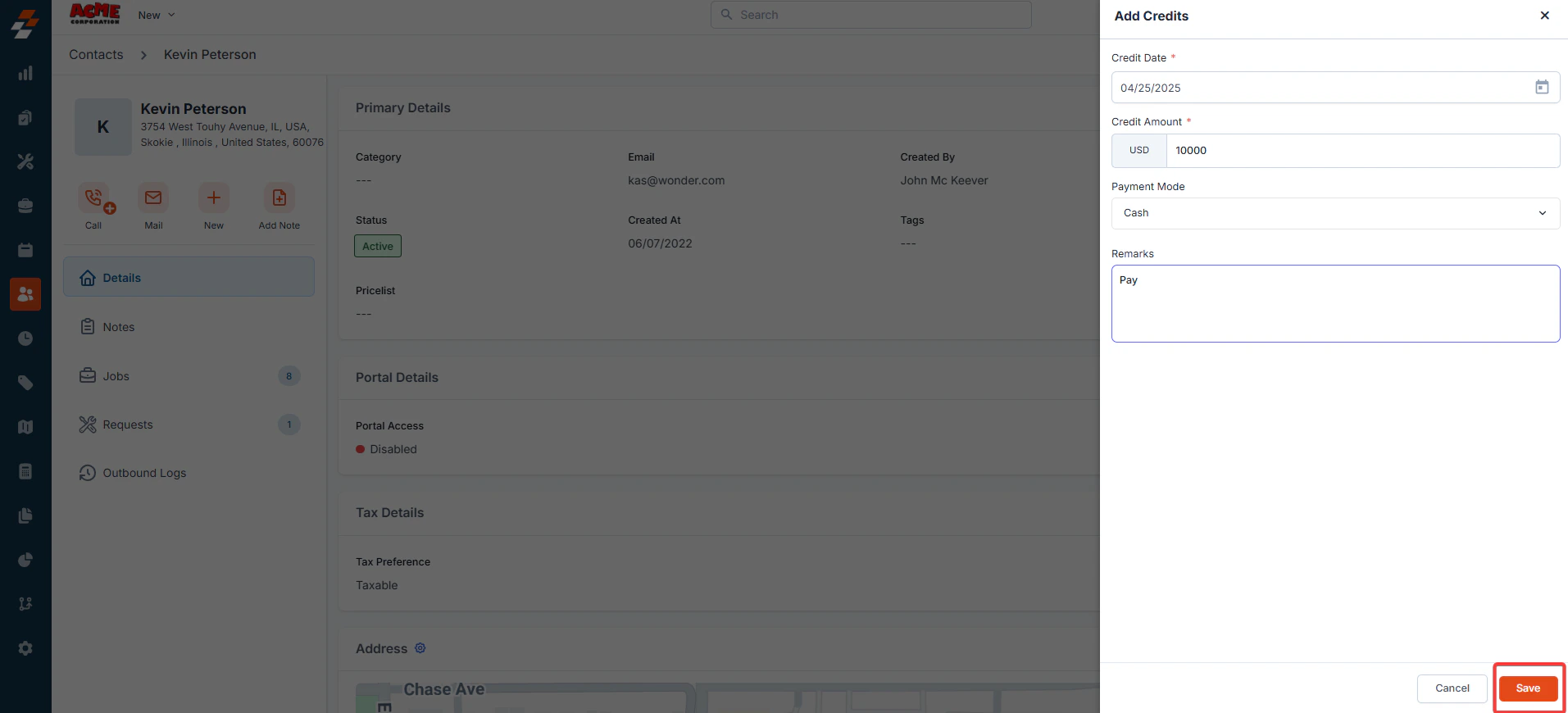 * Click the “**Save**” button to save the credit note for the specified amount against the customer’s profile.
## Applying Credits
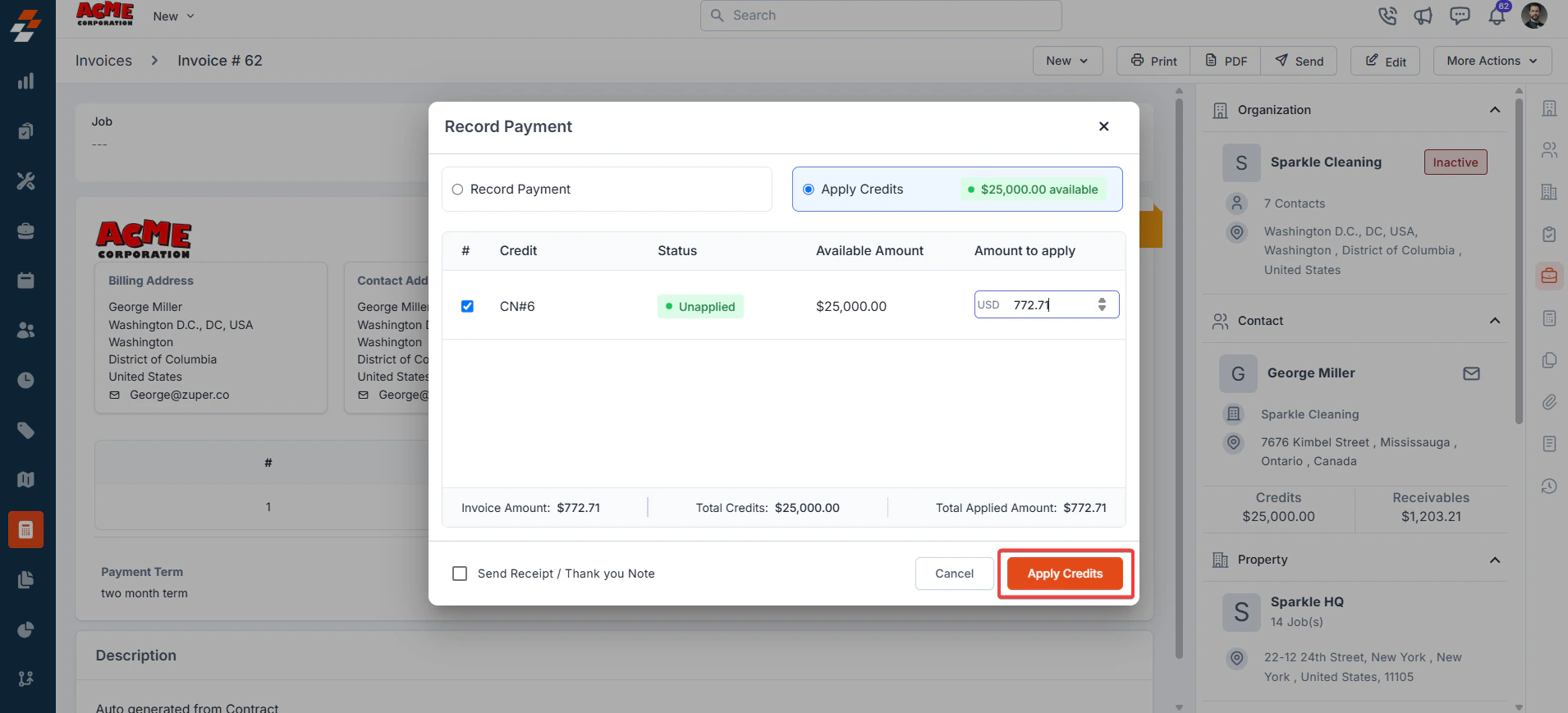
* **On Invoices/Quotes**: The "**Apply Credits**" tab displays available credit when you Record Payment for an unpaid invoice. Click the radio button by "**Apply Credits**" to view credit notes with a positive balance. Check the boxes to choose which credit notes to use and adjust the amounts if needed; the invoice amount should exceed the available credit in each note.
* The **Invoice Amount** is the total cost billed to the customer for the goods or services provided, including any taxes or additional fees.
* The **Total Credits** represent the cumulative sum of credits available to the customer, which can be used on the invoice or deposit payments on quotes.
* The **Total Applied Amount** is the portion of the available credits that has been used (or is being applied) to use against the current invoice.
* Click the “**Save**” button to save the credit note for the specified amount against the customer’s profile.
## Applying Credits
* **On Invoices/Quotes**: The "**Apply Credits**" tab displays available credit when you Record Payment for an unpaid invoice. Click the radio button by "**Apply Credits**" to view credit notes with a positive balance. Check the boxes to choose which credit notes to use and adjust the amounts if needed; the invoice amount should exceed the available credit in each note.
* The **Invoice Amount** is the total cost billed to the customer for the goods or services provided, including any taxes or additional fees.
* The **Total Credits** represent the cumulative sum of credits available to the customer, which can be used on the invoice or deposit payments on quotes.
* The **Total Applied Amount** is the portion of the available credits that has been used (or is being applied) to use against the current invoice.
 ## **Viewing Credits**
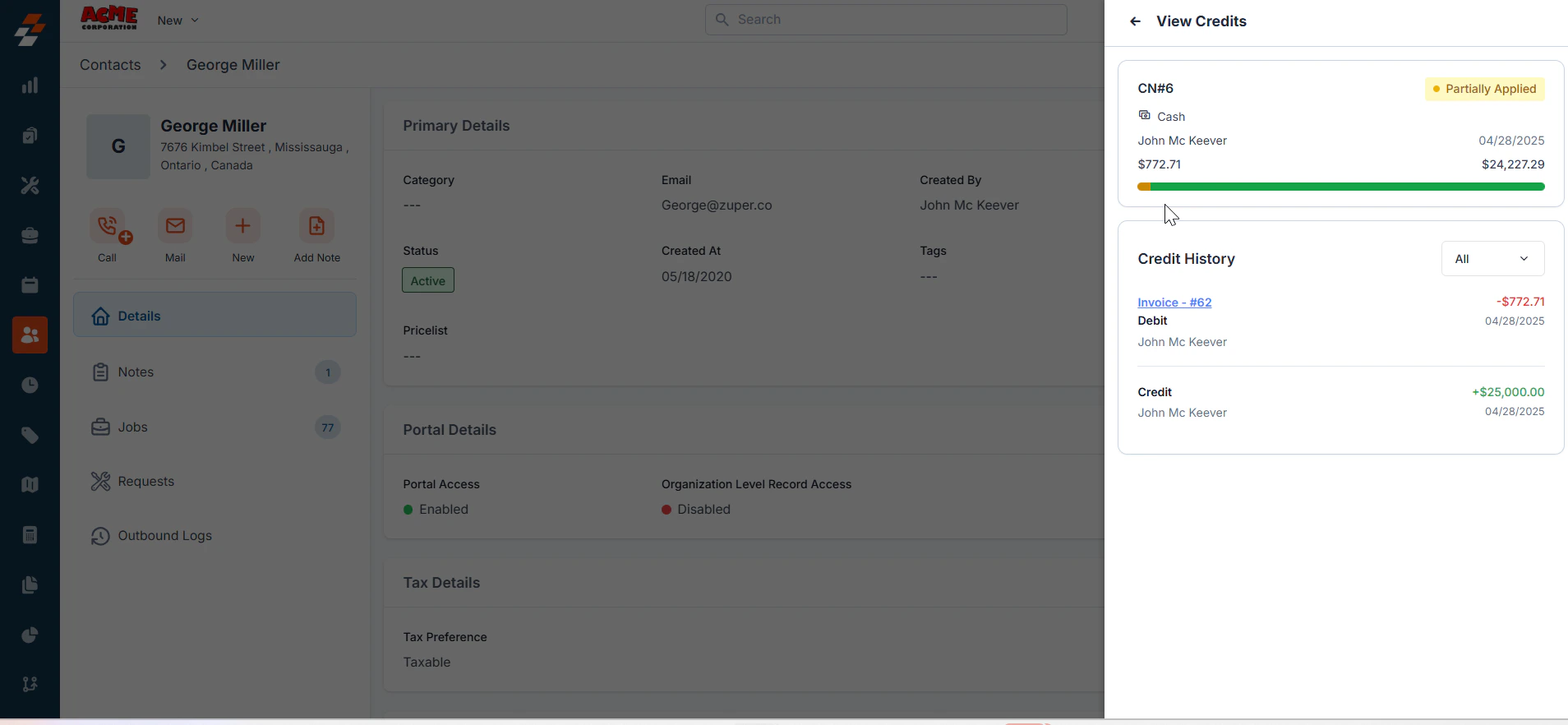
* In the Customer Profile, click "**View Credits**" to see credit memos with details like **Credit Name**, **Available Credit**, and **Status** (Unapplied, Partially Applied, Applied).
* **Unapplied** - The credit note has not been used to make any payments.
* **Partially applied** - The credit note has been applied to a payment, but the remaining amount can be used.
* **Applied**- The credit note has no remaining balance and has been fully utilized to make payments.
## **Viewing Credits**
* In the Customer Profile, click "**View Credits**" to see credit memos with details like **Credit Name**, **Available Credit**, and **Status** (Unapplied, Partially Applied, Applied).
* **Unapplied** - The credit note has not been used to make any payments.
* **Partially applied** - The credit note has been applied to a payment, but the remaining amount can be used.
* **Applied**- The credit note has no remaining balance and has been fully utilized to make payments.
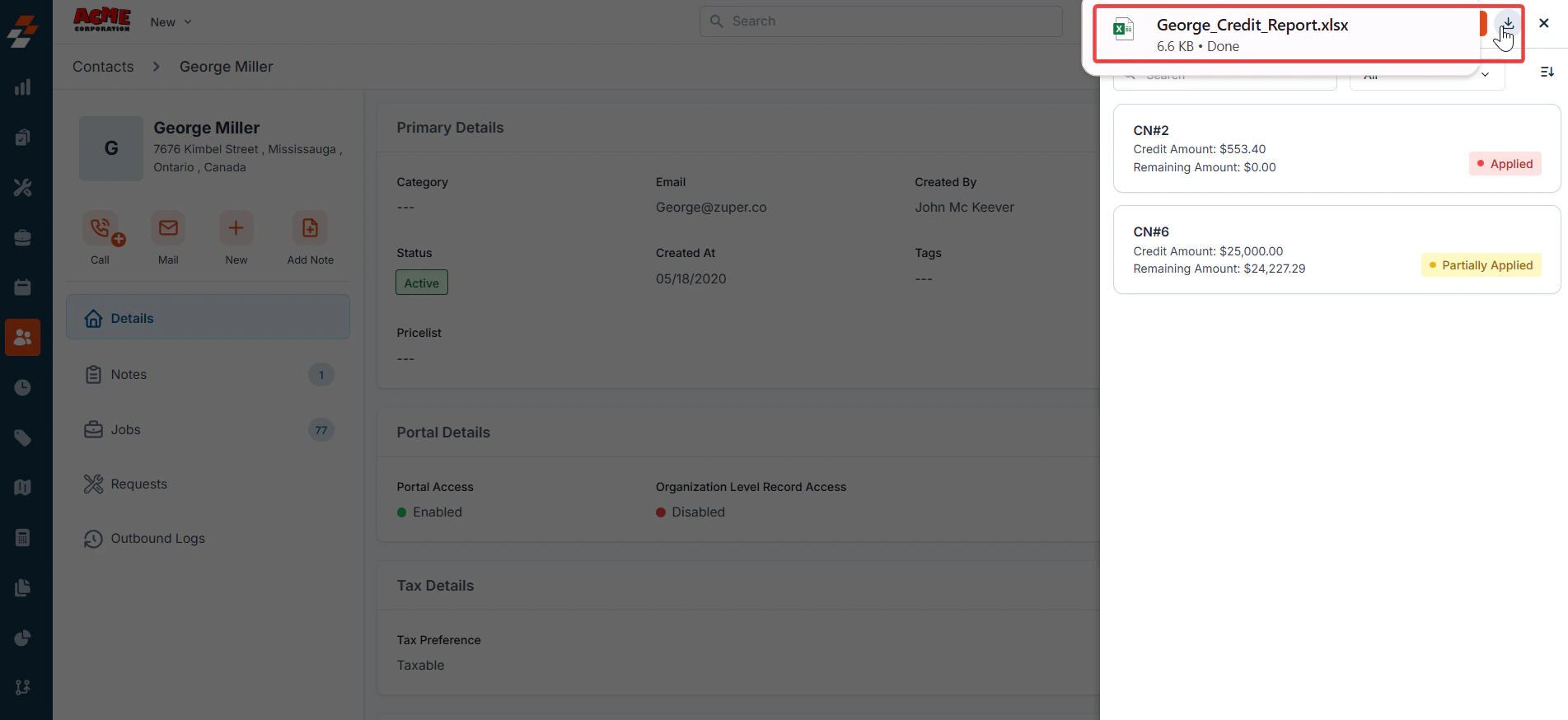
 * Click "**View History**" to view the table showing **Credit Name**, **Available Credit**, **Used Credit**, **Amount Credited**, and **Status**.
 ## **Refunds and void**
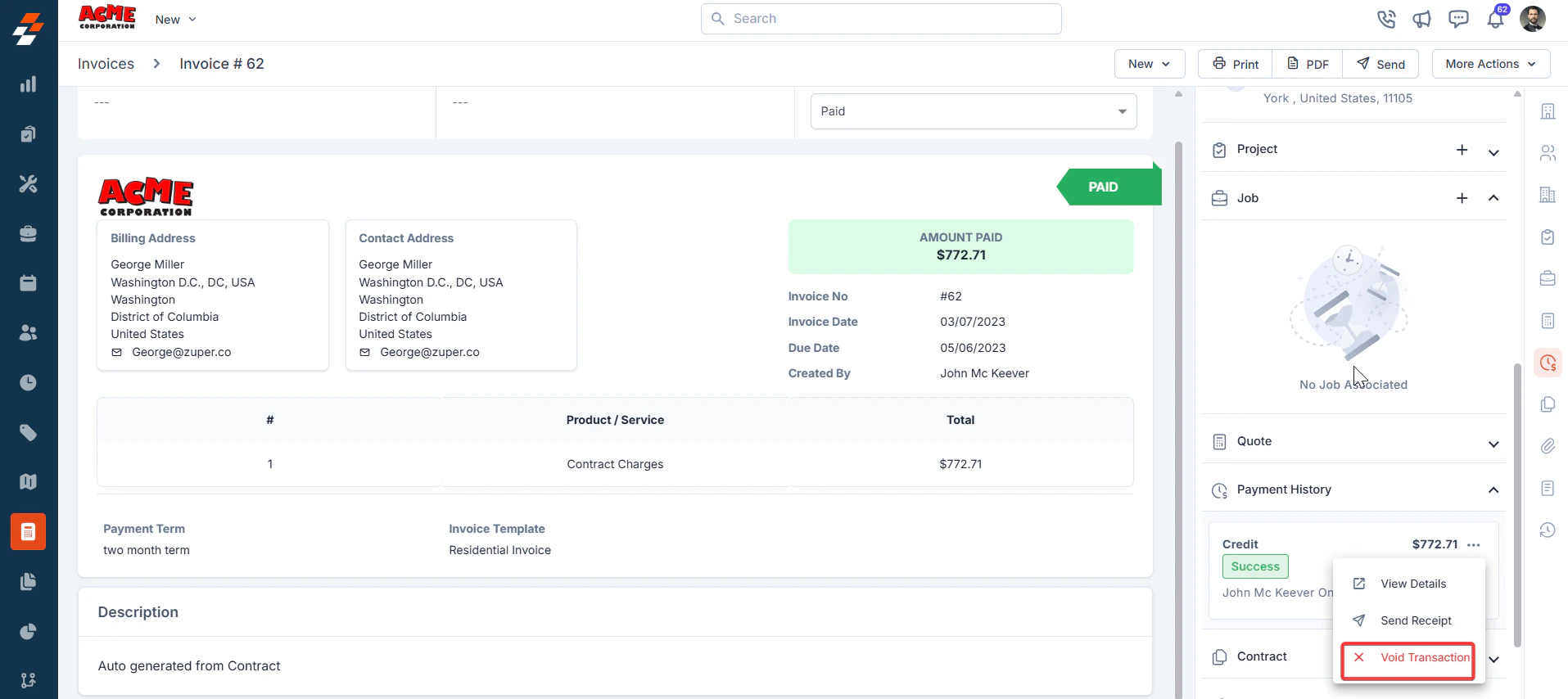
* For non-Zuper Pay customers, clicking the kebab menu displays three options: View Details, which takes you to the transaction details; Void, which allows you to void the Payment; and Refund Transaction, which enables you to create a credit note for the customer.
**Note:** When you refund a customer, the payment status is switched to partially refunded, and the invoice status changes to partially paid.
### **For Zuper Pay Customers**
If Zuper Pay is enabled, you can initiate full or partial refunds directly from an Invoice or payment transaction. You can issue a credit note against this payment. A credit note is created from the customer’s profile.
## **Refunds and void**
* For non-Zuper Pay customers, clicking the kebab menu displays three options: View Details, which takes you to the transaction details; Void, which allows you to void the Payment; and Refund Transaction, which enables you to create a credit note for the customer.
**Note:** When you refund a customer, the payment status is switched to partially refunded, and the invoice status changes to partially paid.
### **For Zuper Pay Customers**
If Zuper Pay is enabled, you can initiate full or partial refunds directly from an Invoice or payment transaction. You can issue a credit note against this payment. A credit note is created from the customer’s profile.
 ## **Reporting**
Credit History Report: This report is exportable and has the following columns: Credit Note Number, Opening Balance, Closing Balance, Applied Amount, Transaction, Action, Credited, Remarks, and Date.
## **Notifications**
* Customers receive notifications via a dialog box when credits are added, deleted, or refunded.
## **Permissions**
* Only an Admin user has permission to create and apply credit notes.
## **Impact across modules**
* Invoices: The "**Record Payment**" button offers conventional payment methods and credit application tabs.
* **Quotes**: The Record Payment button offers payment methods and credit application tabs.
**Customers**: Edit screen includes fields for **Credit Name**, **Date**, **Payment Method**, **Amount**, and **Remarks**. A "**Download**" button generates a report.
## **Payment listing**
Payments made with credits have the payment mode as Credits.
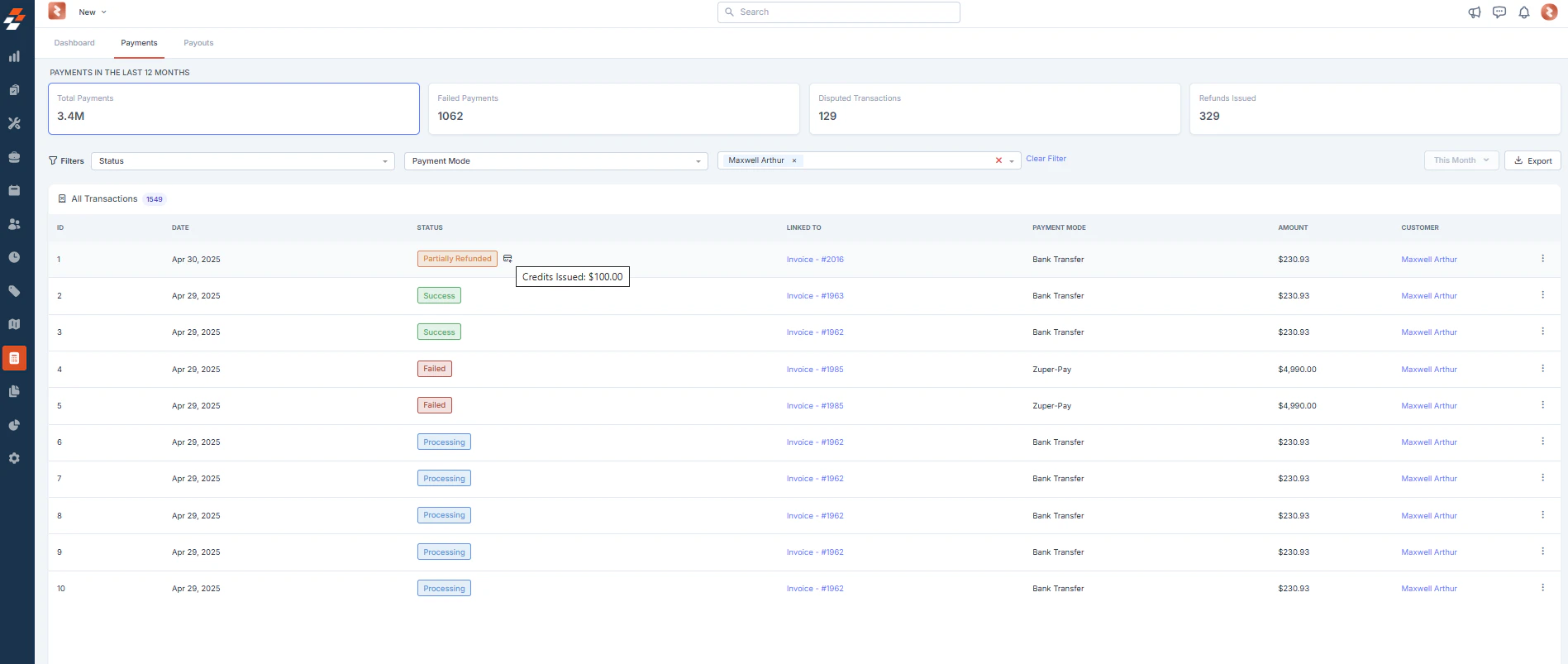
There is a credit note beside the status for partially refunded transactions. The status of such transactions would be partially refunded.
## **Reporting**
Credit History Report: This report is exportable and has the following columns: Credit Note Number, Opening Balance, Closing Balance, Applied Amount, Transaction, Action, Credited, Remarks, and Date.
## **Notifications**
* Customers receive notifications via a dialog box when credits are added, deleted, or refunded.
## **Permissions**
* Only an Admin user has permission to create and apply credit notes.
## **Impact across modules**
* Invoices: The "**Record Payment**" button offers conventional payment methods and credit application tabs.
* **Quotes**: The Record Payment button offers payment methods and credit application tabs.
**Customers**: Edit screen includes fields for **Credit Name**, **Date**, **Payment Method**, **Amount**, and **Remarks**. A "**Download**" button generates a report.
## **Payment listing**
Payments made with credits have the payment mode as Credits.
There is a credit note beside the status for partially refunded transactions. The status of such transactions would be partially refunded.