> ## Documentation Index
> Fetch the complete documentation index at: https://zuperinc-section23.mintlify.site/llms.txt
> Use this file to discover all available pages before exploring further.
# Managing the contact detail
Effectively managing contact information is vital for delivering personalized communication, enhancing customer engagement, and ensuring smooth field operations. Zuper provides a centralized platform to create, organize, and maintain detailed contact profiles that serve as the primary touchpoints for customer interactions.
By consolidating key details such as phone numbers, email addresses, associated organizations or properties, tax preferences, and portal access, Zuper enables your team to interact with the right person at the right time, ensuring faster resolutions and stronger relationships.
This guide will walk you through how to access the Contacts module and efficiently manage contact-related data.
## Accessing the contacts listing page
**Navigation**: Clients -> *Contacts -> Contacts listing page*
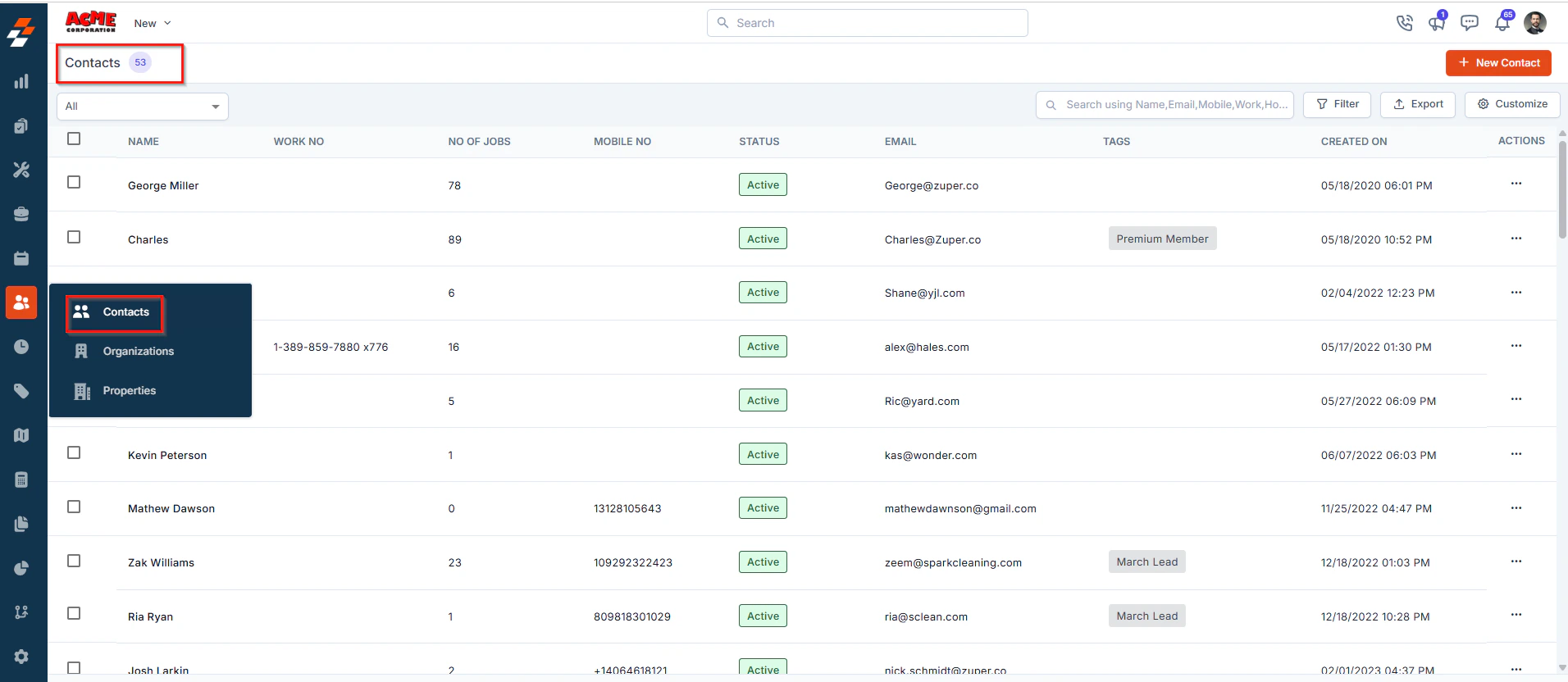
* Select the “**Client**” module from the left navigation menu and choose “**Contacts**.”
* You will land on the Listing page, which provides a comprehensive view of all your contacts with key information such as *Contact Name, Status, Email, Work number*, and more.
 ## **Exploring the listing page**
The Customer/Contact Listing Page layout in Zuper includes view management, column selection, views, and saving customized views. This process is performed directly on the module’s listing page.
**Default Listing Behavior**
The system retains its existing default listing behavior, ensuring that pre-set configurations or default views are preserved. When you first access the Customer/Contact Module Listing Page, you’ll see the default view with columns such as Customer/Contact Number, Customer/Contact Address, Customer/Contact Tags, and Customer/Contact Status.
## **Create View Configuration**
**Selecting Columns**
You can choose which columns to display to focus on relevant data:
1. Select the “**Customer/Contacts**” module from the left navigation menu. You can view the listing page.
## **Exploring the listing page**
The Customer/Contact Listing Page layout in Zuper includes view management, column selection, views, and saving customized views. This process is performed directly on the module’s listing page.
**Default Listing Behavior**
The system retains its existing default listing behavior, ensuring that pre-set configurations or default views are preserved. When you first access the Customer/Contact Module Listing Page, you’ll see the default view with columns such as Customer/Contact Number, Customer/Contact Address, Customer/Contact Tags, and Customer/Contact Status.
## **Create View Configuration**
**Selecting Columns**
You can choose which columns to display to focus on relevant data:
1. Select the “**Customer/Contacts**” module from the left navigation menu. You can view the listing page.
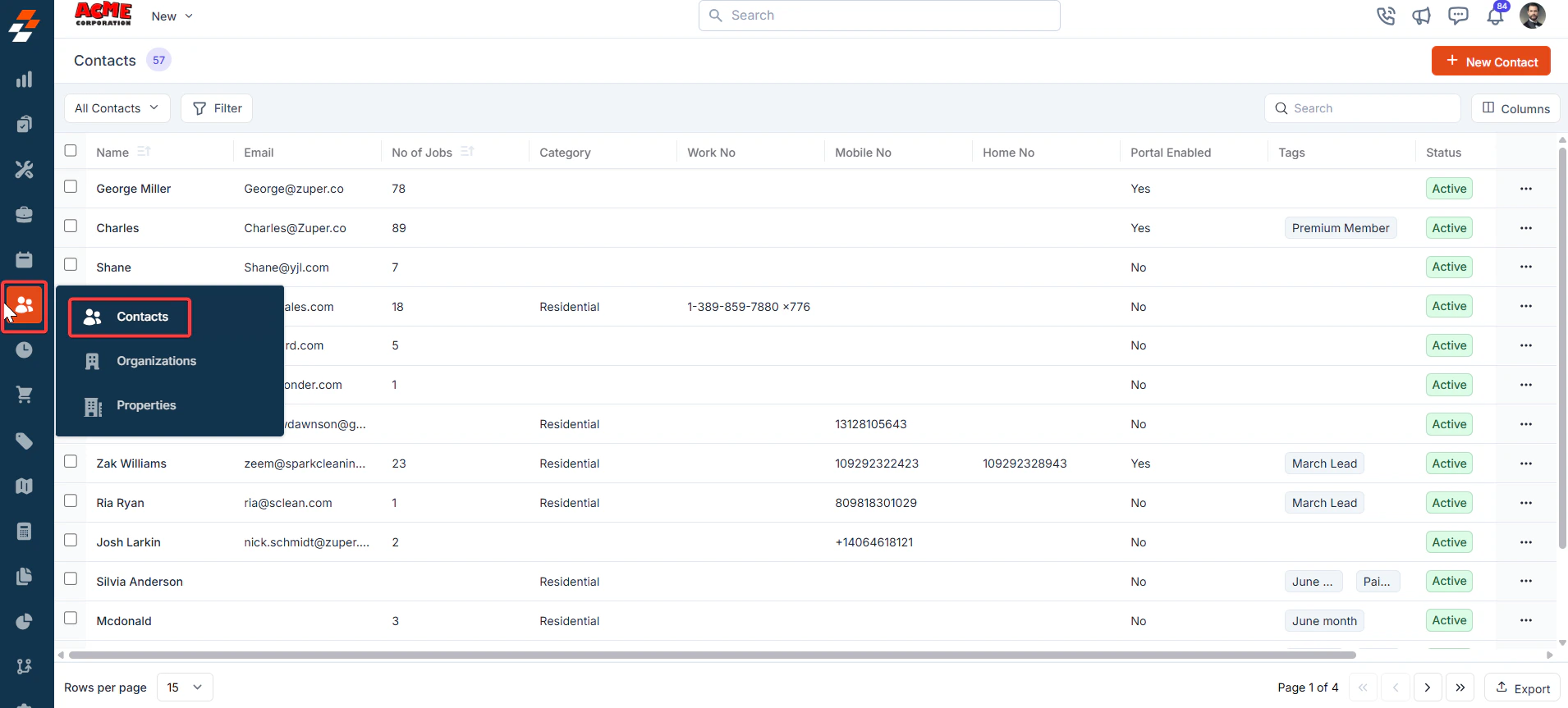 2. From the “Views” list, click “**+Create new view**.”
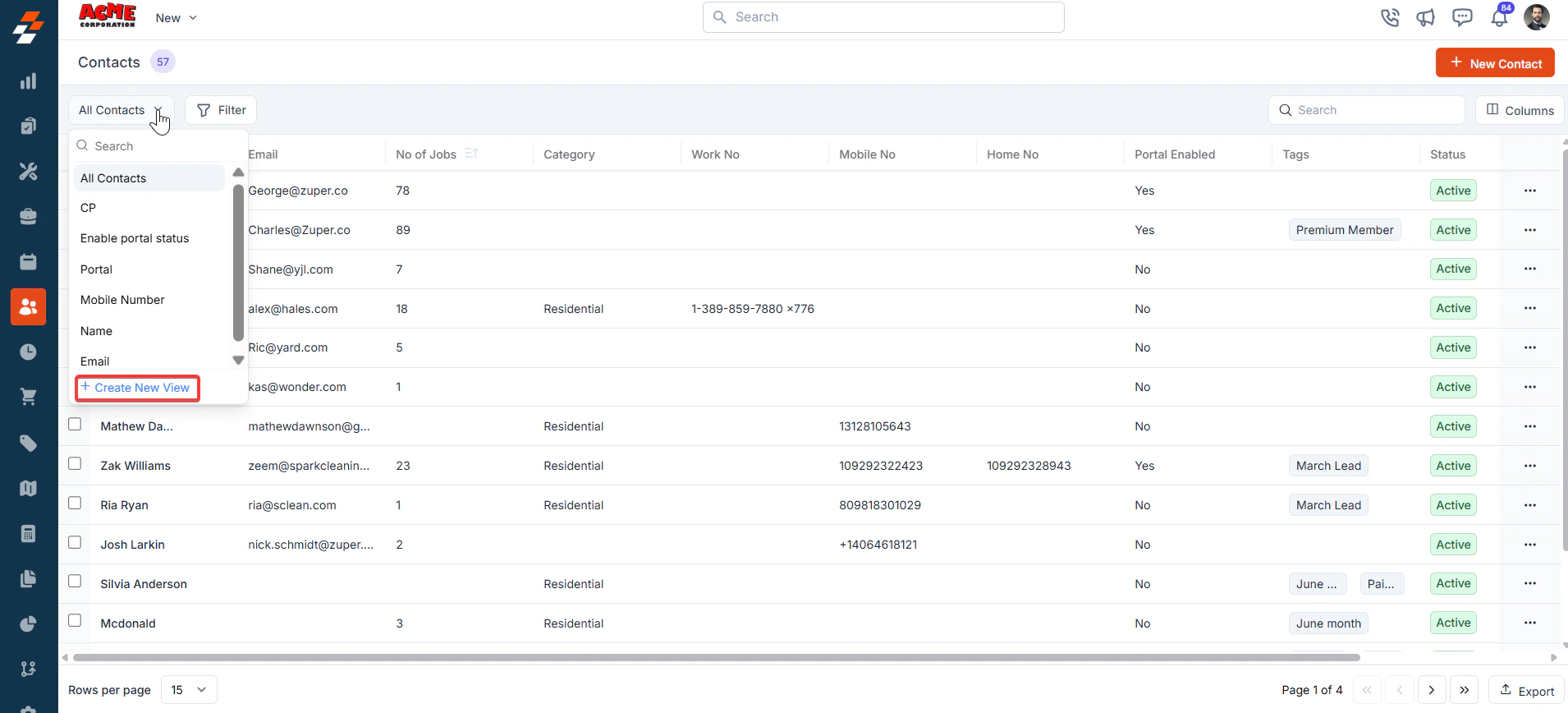 3. A “**Create View**” dialog box appears.
View Name (**Mandatory**) – Enter the view name.
Share with - Select any one of the options (User, Team), and you can add the relevant users.
Visibility to all users – Toggle on to make this view visible.
Click "**Create**" to create a new view.
3. A “**Create View**” dialog box appears.
View Name (**Mandatory**) – Enter the view name.
Share with - Select any one of the options (User, Team), and you can add the relevant users.
Visibility to all users – Toggle on to make this view visible.
Click "**Create**" to create a new view.
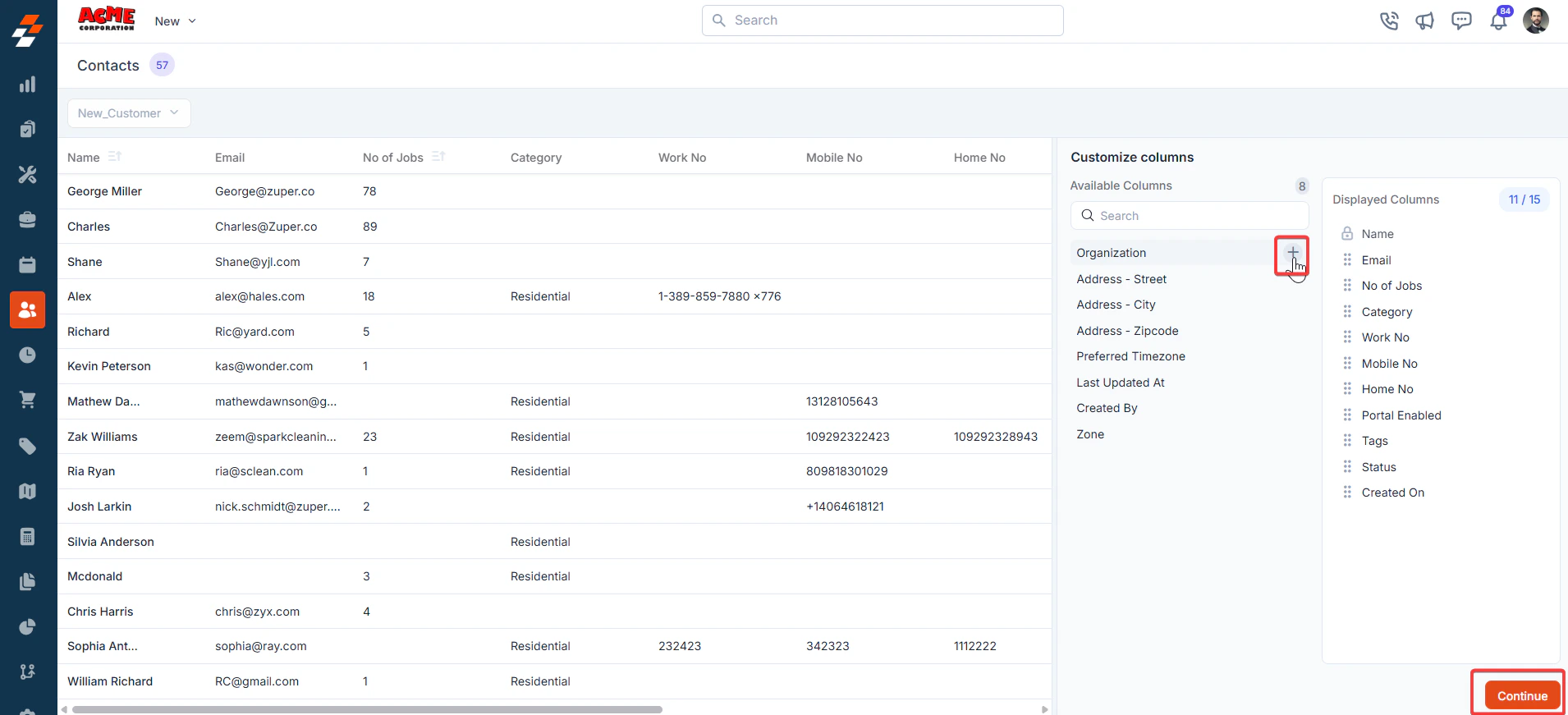
 4. Once you click “**Create**,” the **Columns** sidebar appears, showing “**Available Columns**” and “**Displayed Columns**.” To add a column, drag it from the “**Available Columns**” list on the left to the “**Displayed Columns**” list on the right. You can click “**Continue**.”
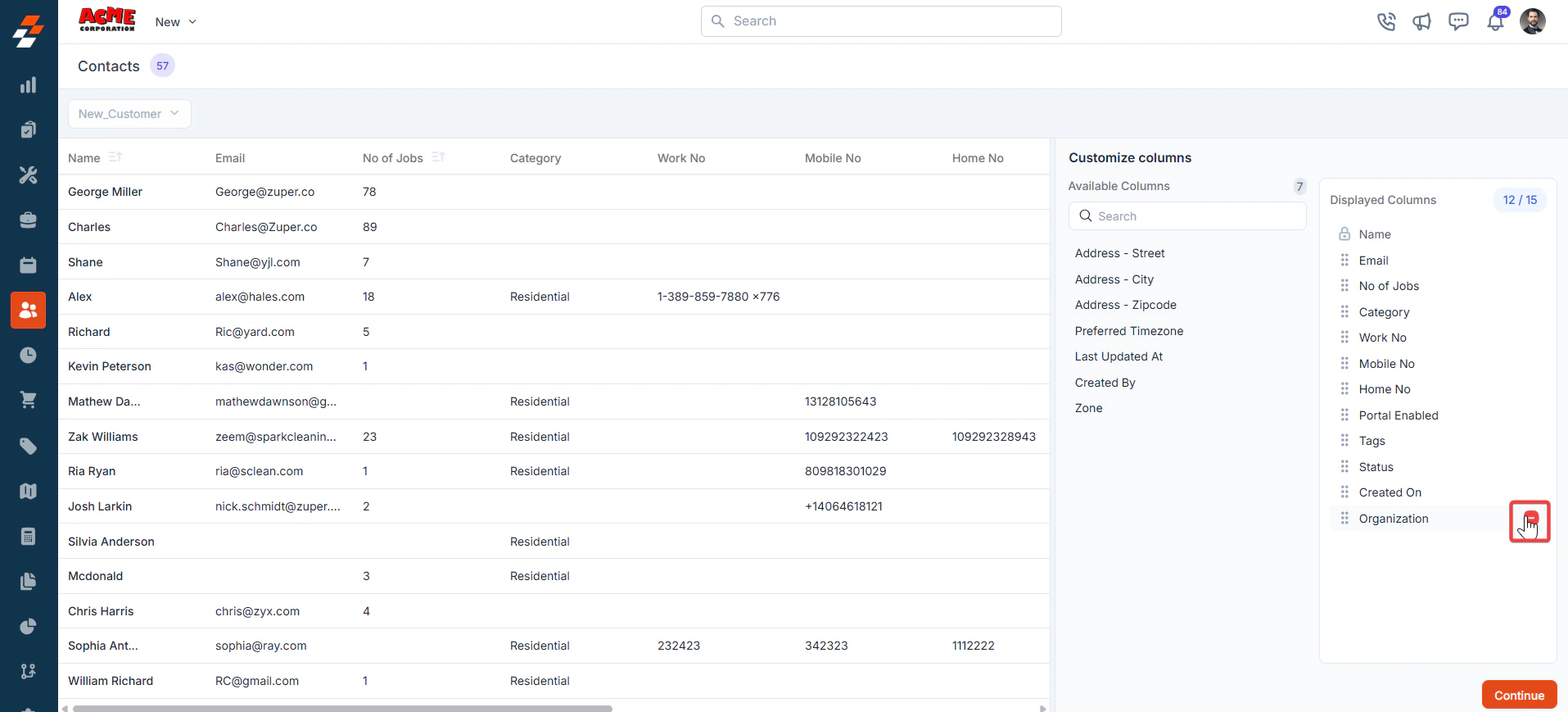
 5. To remove a column, drag it from the “**Displayed Columns**” list back to the “**Available Columns**” list or click the **-** next to the column name. Click **Continue** to apply the changes.
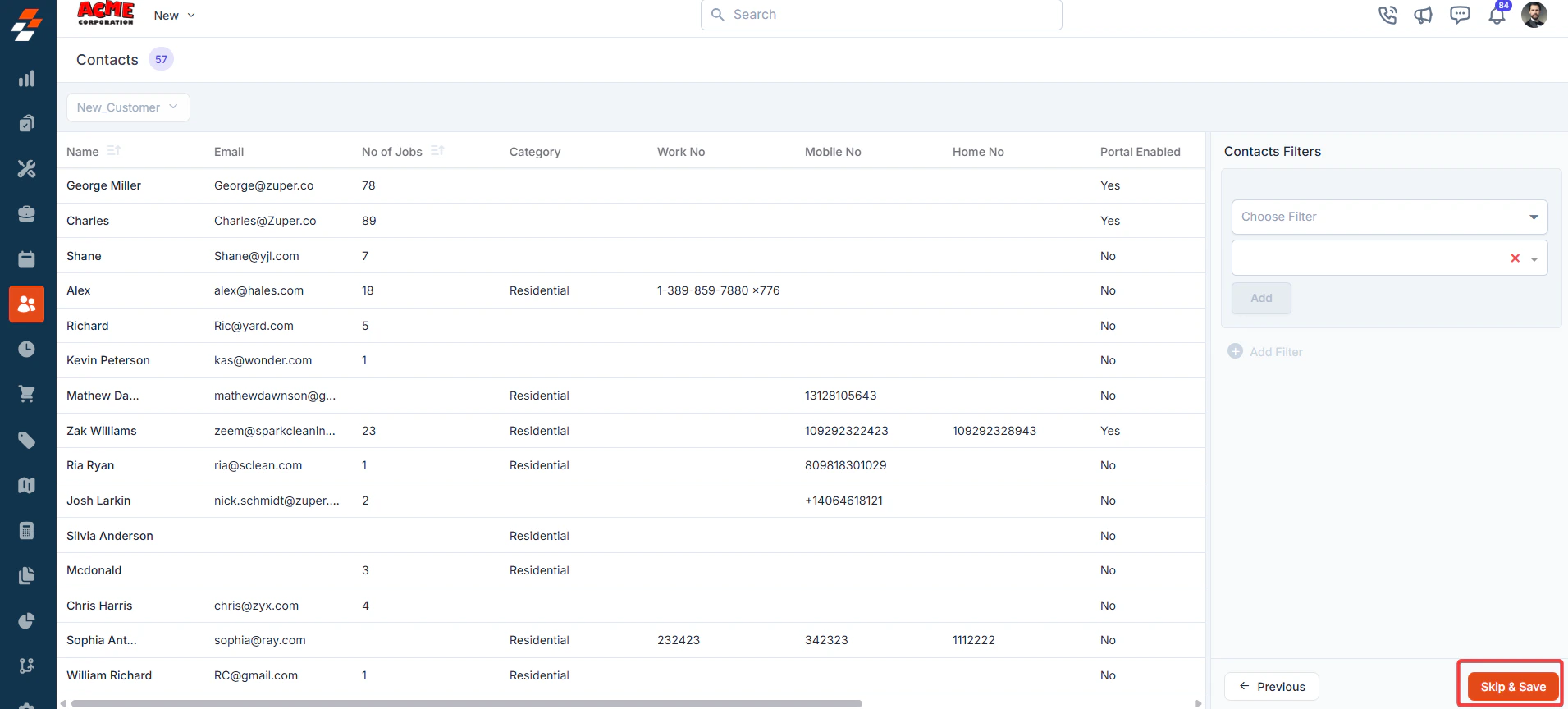
 6. If you wish not to add any filter, click “**Skip and Save**” to create the view.
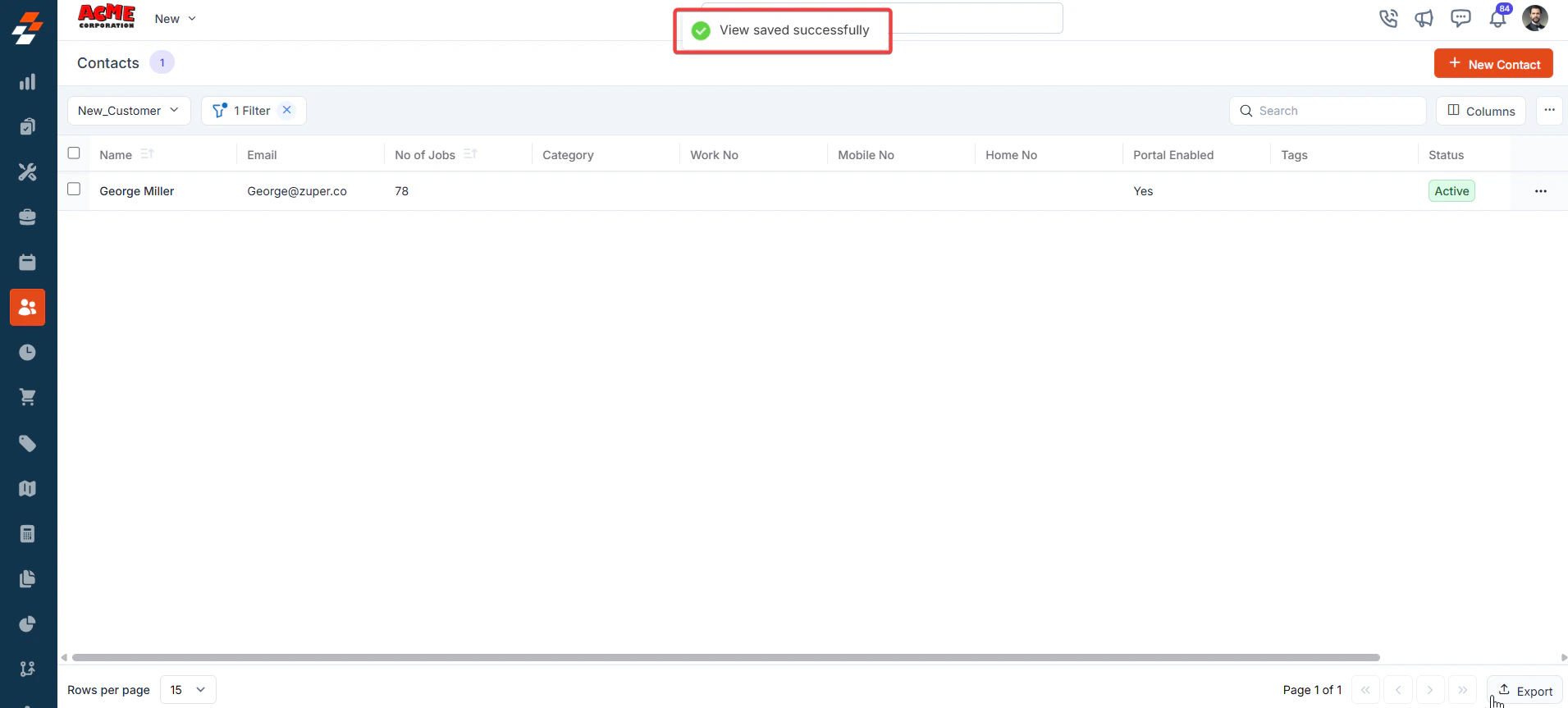
 7. The view is saved successfully.
 ## **Applying filters**
The Filter feature lets you refine your view by applying multiple filters based on available attributes. For example, you can select an attribute like "**Customer/Contact Status Type**," choose conditions such as "**Equal to**," "**Contains**," or "**Does Not Contain**," and choose the desired value. Once the filter is applied, the results will update to show only the Customer/Contacts that meet your criteria, making it easier to find and manage relevant Customer/Contacts.
1. Click "**Filter"** at the top left of the page. Choose the attributes you want to filter by, apply the desired conditions, and click the "**Add"** button to view the results.
## **Applying filters**
The Filter feature lets you refine your view by applying multiple filters based on available attributes. For example, you can select an attribute like "**Customer/Contact Status Type**," choose conditions such as "**Equal to**," "**Contains**," or "**Does Not Contain**," and choose the desired value. Once the filter is applied, the results will update to show only the Customer/Contacts that meet your criteria, making it easier to find and manage relevant Customer/Contacts.
1. Click "**Filter"** at the top left of the page. Choose the attributes you want to filter by, apply the desired conditions, and click the "**Add"** button to view the results.
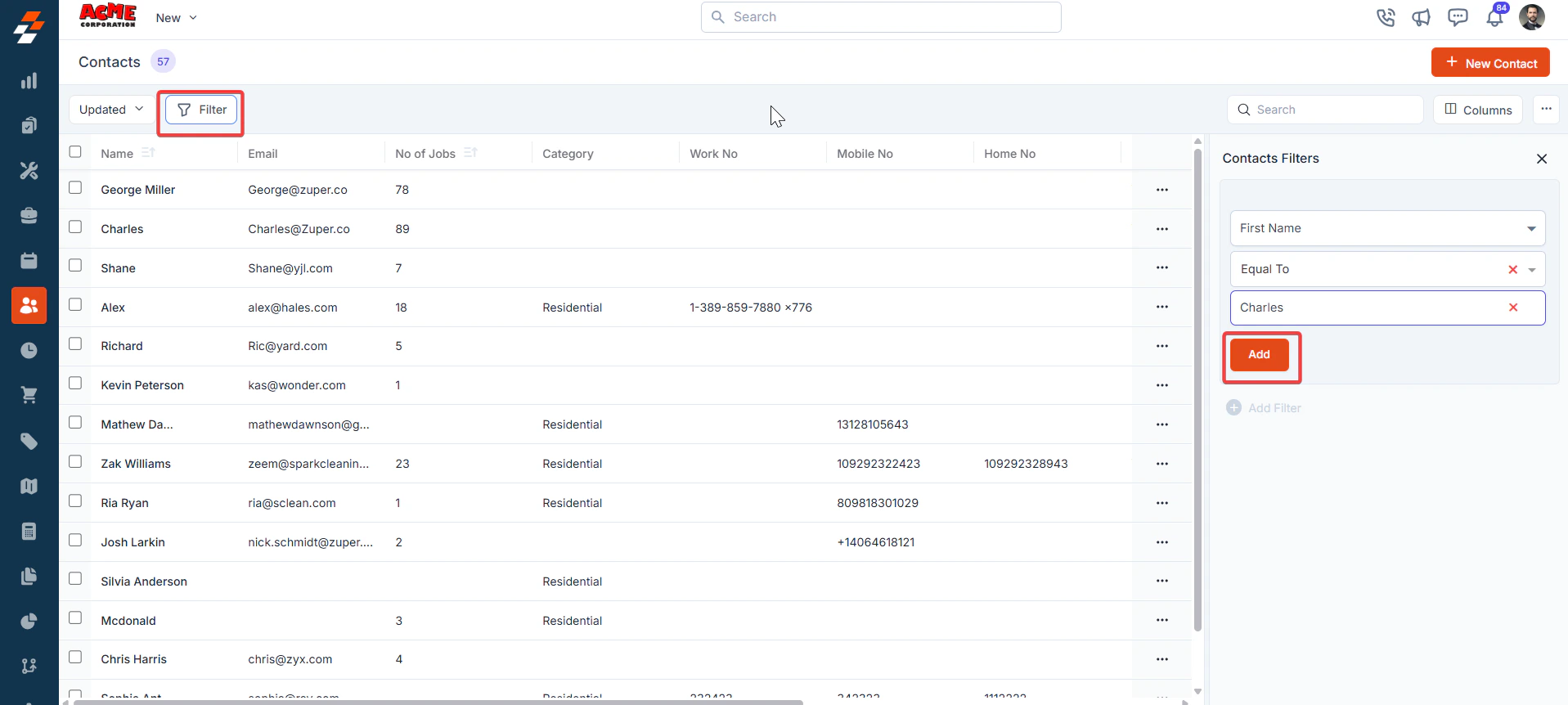 2. Click “**Update View**” to modify the existing view.
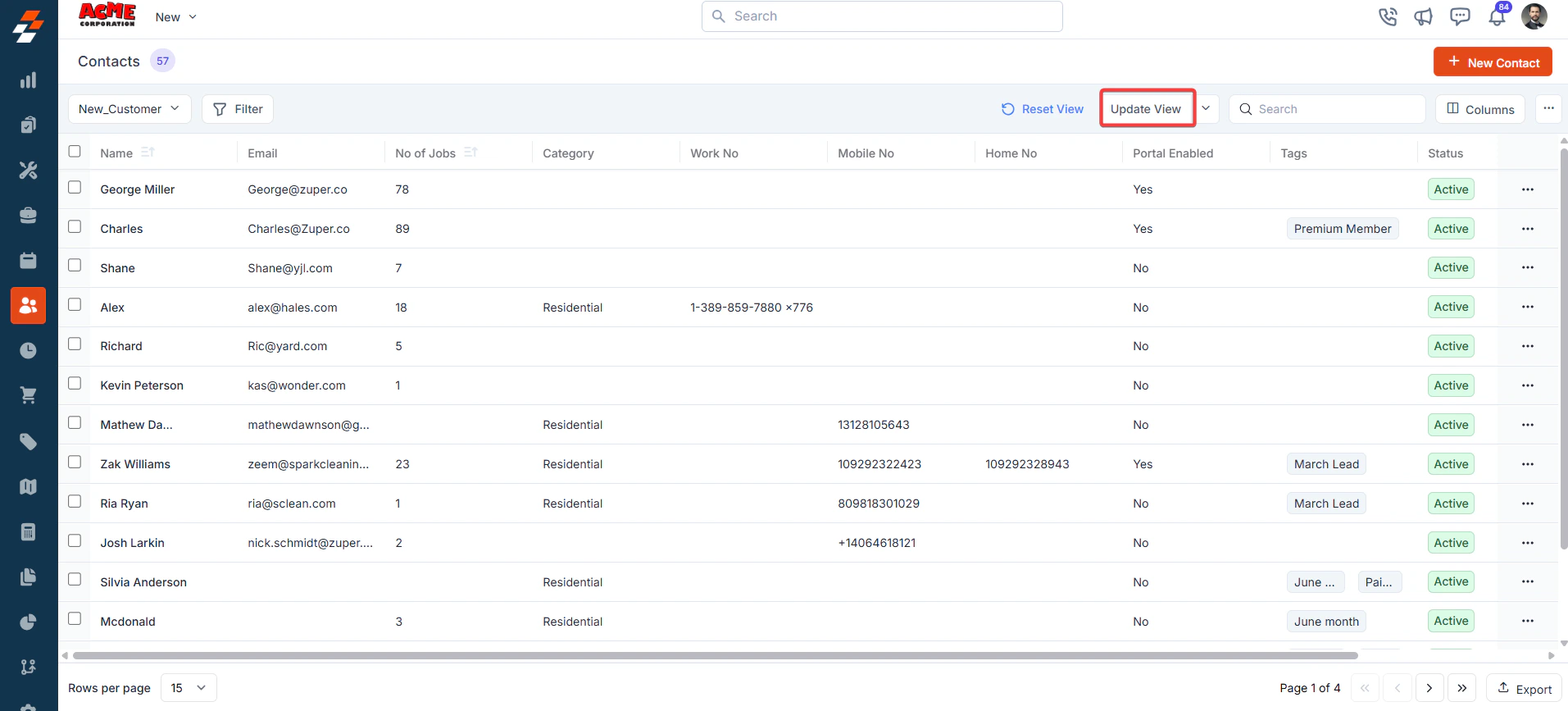 3. The new view is set successfully with the filter. You can view the filter created and the filter name from the view list.
## **Update View**
An update view allows you to modify the current display settings of the "**Customer/Contacts**" section. After making changes, you can save the updated configuration to the existing one or name it a new view.
1. Add/remove the existing columns and click “**Update View**” to modify the existing view.
2. The view is updated successfully.
3. The new view is set successfully with the filter. You can view the filter created and the filter name from the view list.
## **Update View**
An update view allows you to modify the current display settings of the "**Customer/Contacts**" section. After making changes, you can save the updated configuration to the existing one or name it a new view.
1. Add/remove the existing columns and click “**Update View**” to modify the existing view.
2. The view is updated successfully.
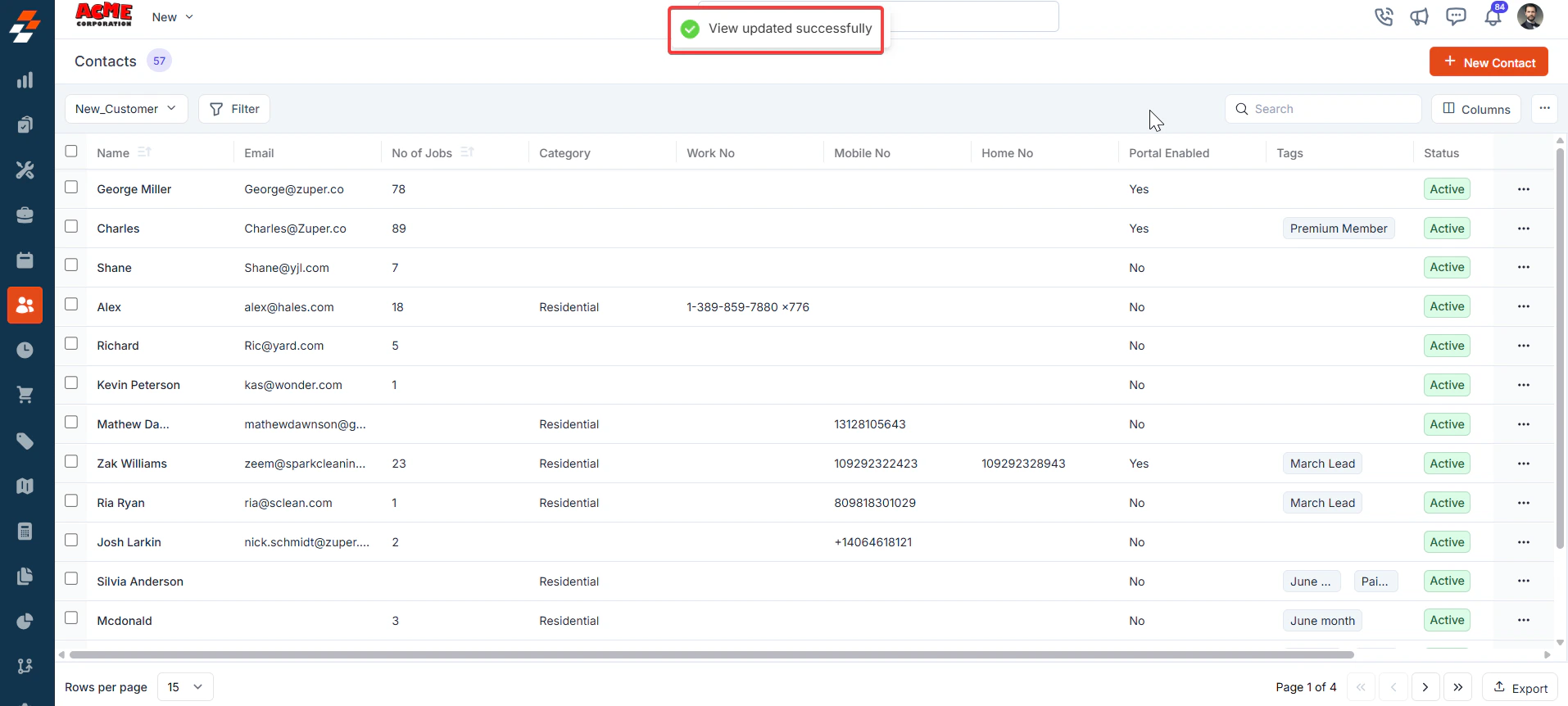 3. Click the down arrow below the “**Update View**” to create a new view by clicking “**Save as new view**.”
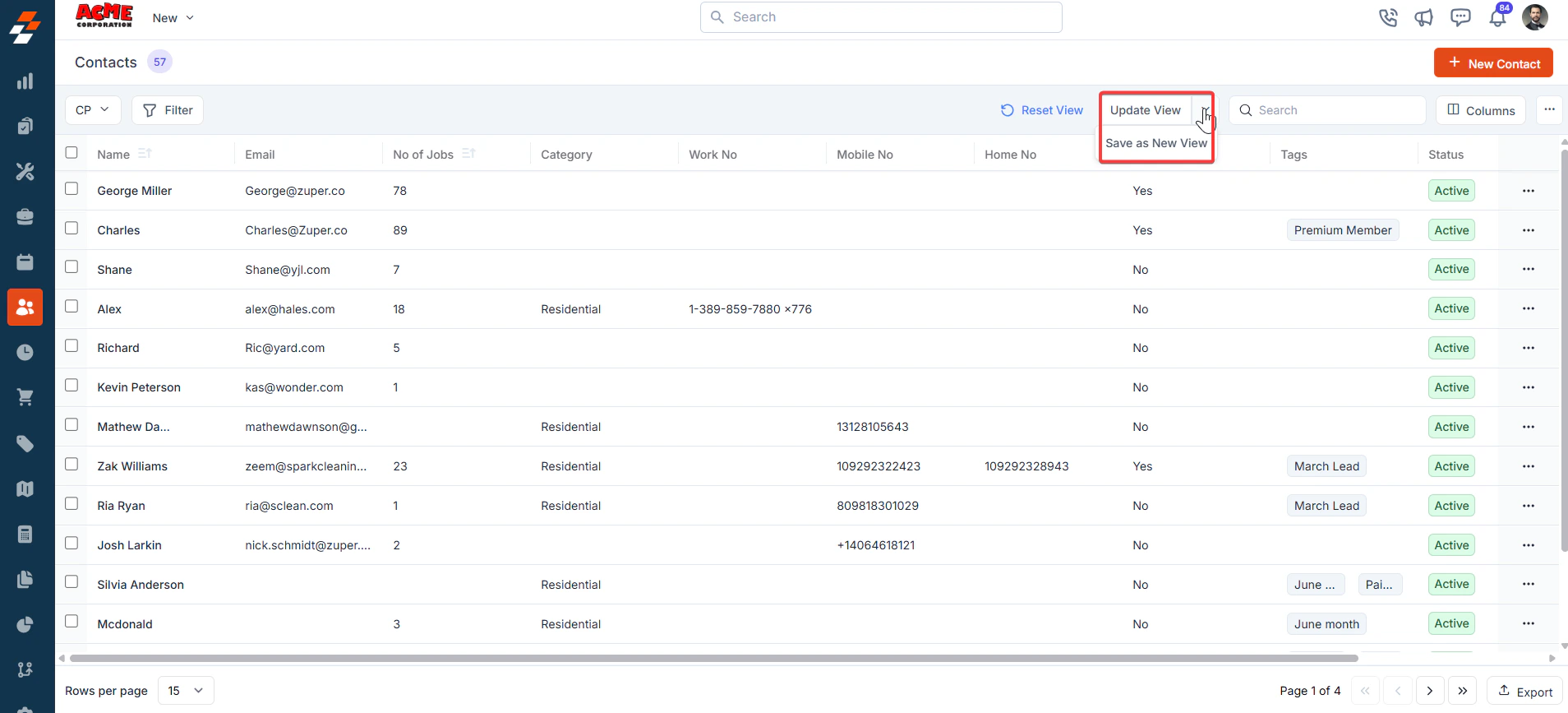 4. A “**Create View**” dialog box appears.
* View Name (**Mandatory**) – Enter the view name.
* Share with - Select any one of the options (User, Team), and you can add the relevant users.
* Visibility to all users – Toggle on to make this view visible.
Click “**Create**” to create the new view.
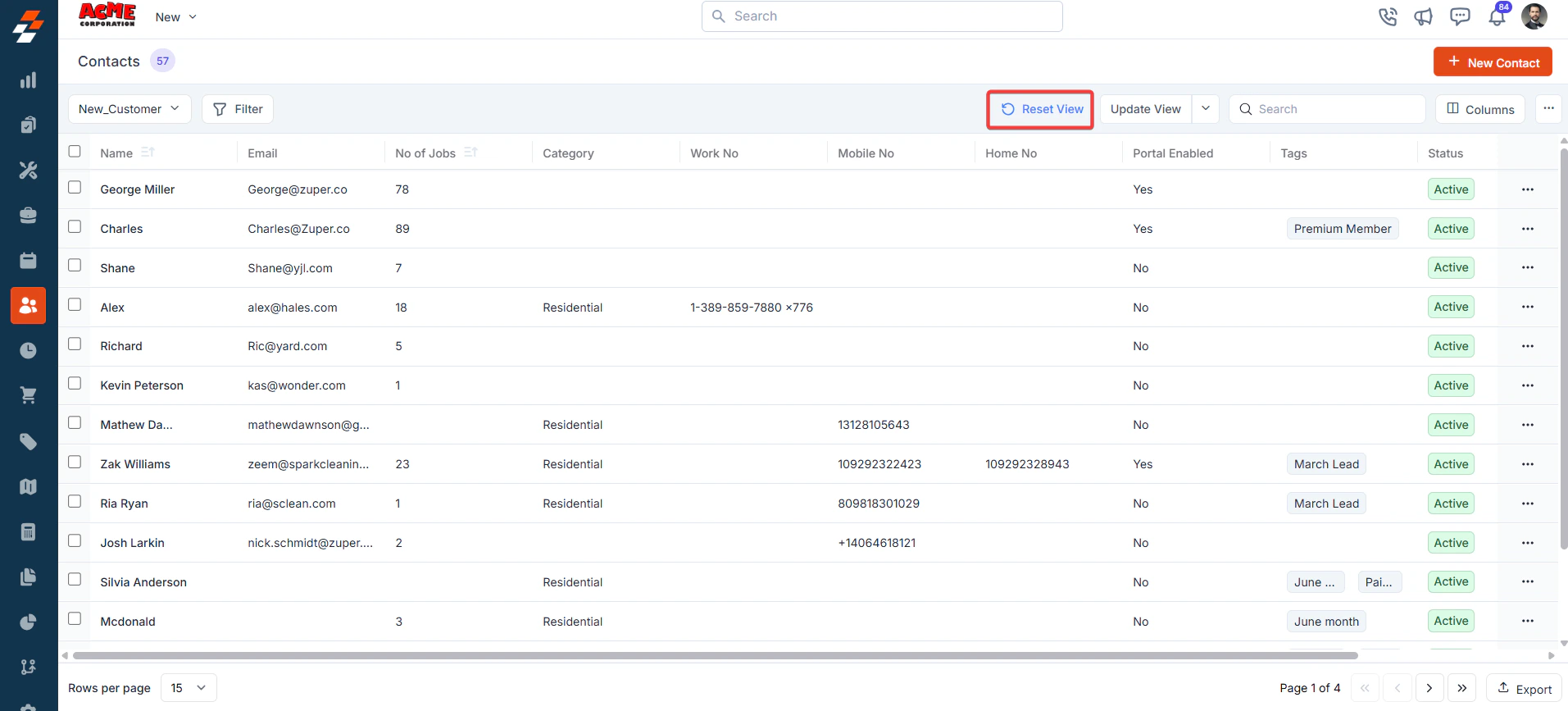
5. Click “**Reset View**” to reset the current view.
4. A “**Create View**” dialog box appears.
* View Name (**Mandatory**) – Enter the view name.
* Share with - Select any one of the options (User, Team), and you can add the relevant users.
* Visibility to all users – Toggle on to make this view visible.
Click “**Create**” to create the new view.
5. Click “**Reset View**” to reset the current view.
 ## **Setting Permissions for Views**
### **Edit Permissions**
Users with edit permissions can modify the layout:
* They can add/remove columns, reorder them, and adjust views as described above.
* If permission is given, changes can be saved as a new view or overwritten as an existing one.
### **View Permissions**
Users with view-only permissions can see the layout but cannot make changes:
* They can view the customized columns and filters but cannot edit them. To ensure consistency for viewers, they can save them as a new “**View**.”
### **Make changes to the view**
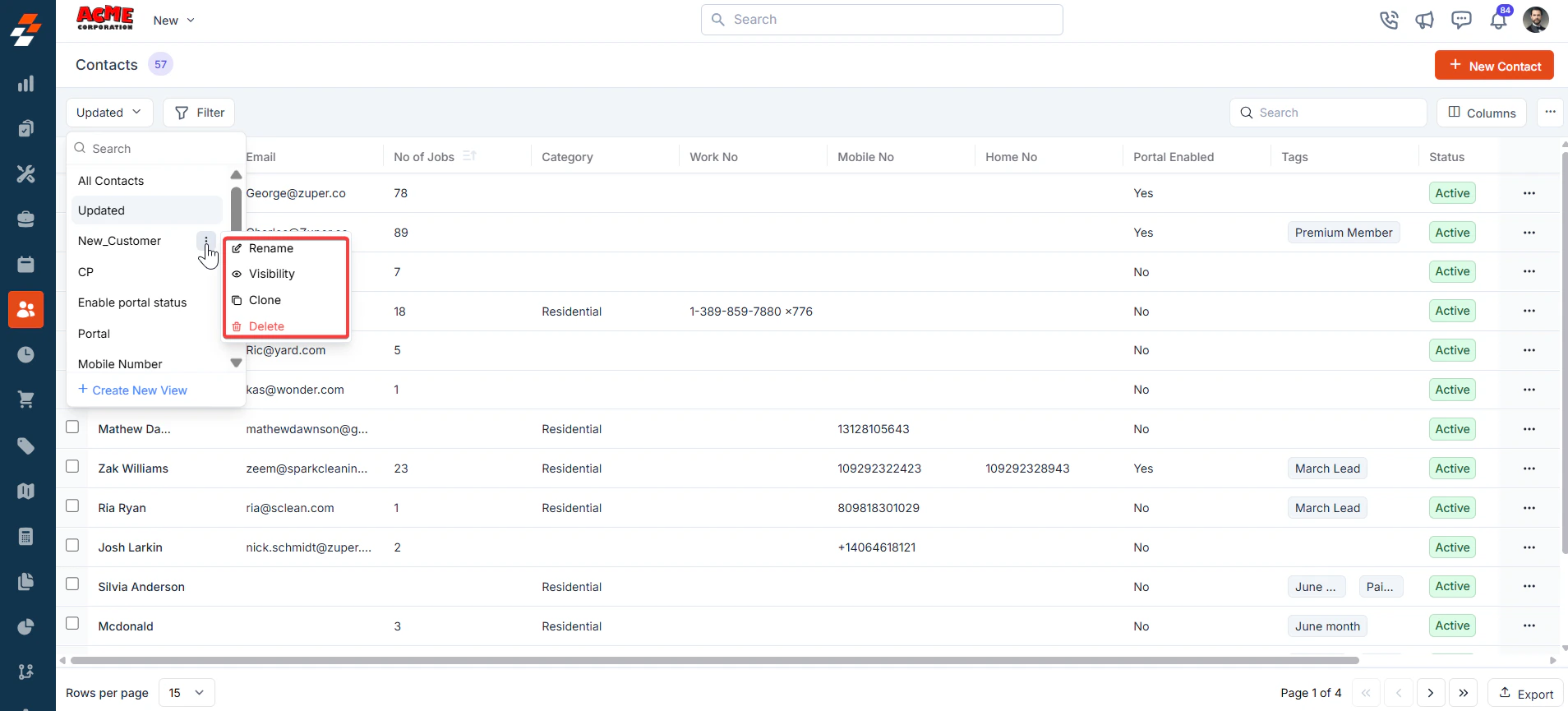
* **Rename**: This option allows you to change the view's name (e.g., from “New\_Customer” to something else).
* **Visibility**: This lets you adjust who can see the view. Options include sharing with a user or team or keeping it private (“Only Me”), as well as toggling visibility for all users in Zuper (as shown in the “Create a View” dialog in prior images).
* **Duplicate**: This function creates a copy of the “New\_Customer” view, allowing you to modify the duplicate without affecting the original.
* **Delete**: Removes the view entirely. Since this is a custom view, deleting it would revert the listing to the default view or another saved view. Only the created user can delete the view.
## **Setting Permissions for Views**
### **Edit Permissions**
Users with edit permissions can modify the layout:
* They can add/remove columns, reorder them, and adjust views as described above.
* If permission is given, changes can be saved as a new view or overwritten as an existing one.
### **View Permissions**
Users with view-only permissions can see the layout but cannot make changes:
* They can view the customized columns and filters but cannot edit them. To ensure consistency for viewers, they can save them as a new “**View**.”
### **Make changes to the view**
* **Rename**: This option allows you to change the view's name (e.g., from “New\_Customer” to something else).
* **Visibility**: This lets you adjust who can see the view. Options include sharing with a user or team or keeping it private (“Only Me”), as well as toggling visibility for all users in Zuper (as shown in the “Create a View” dialog in prior images).
* **Duplicate**: This function creates a copy of the “New\_Customer” view, allowing you to modify the duplicate without affecting the original.
* **Delete**: Removes the view entirely. Since this is a custom view, deleting it would revert the listing to the default view or another saved view. Only the created user can delete the view.
 The Customer/Contact Module Listing Page in Zuper allows for flexible layout customization directly on the listing page. You can select and reorder columns, apply views, save customized views, and set permissions to ensure the right level of access for your team. Use the steps above to tailor the view to your workflow and save it for future use.
## Pinned filters
Zuper's Customers module lets you use pinned filters to streamline your filter experience. Pinned filters keep your most-used criteria readily accessible for quick application.
Pin up to 3 filters in any module.
Navigation: *Clients -> Customers -> Filters -> Pinned Filter*
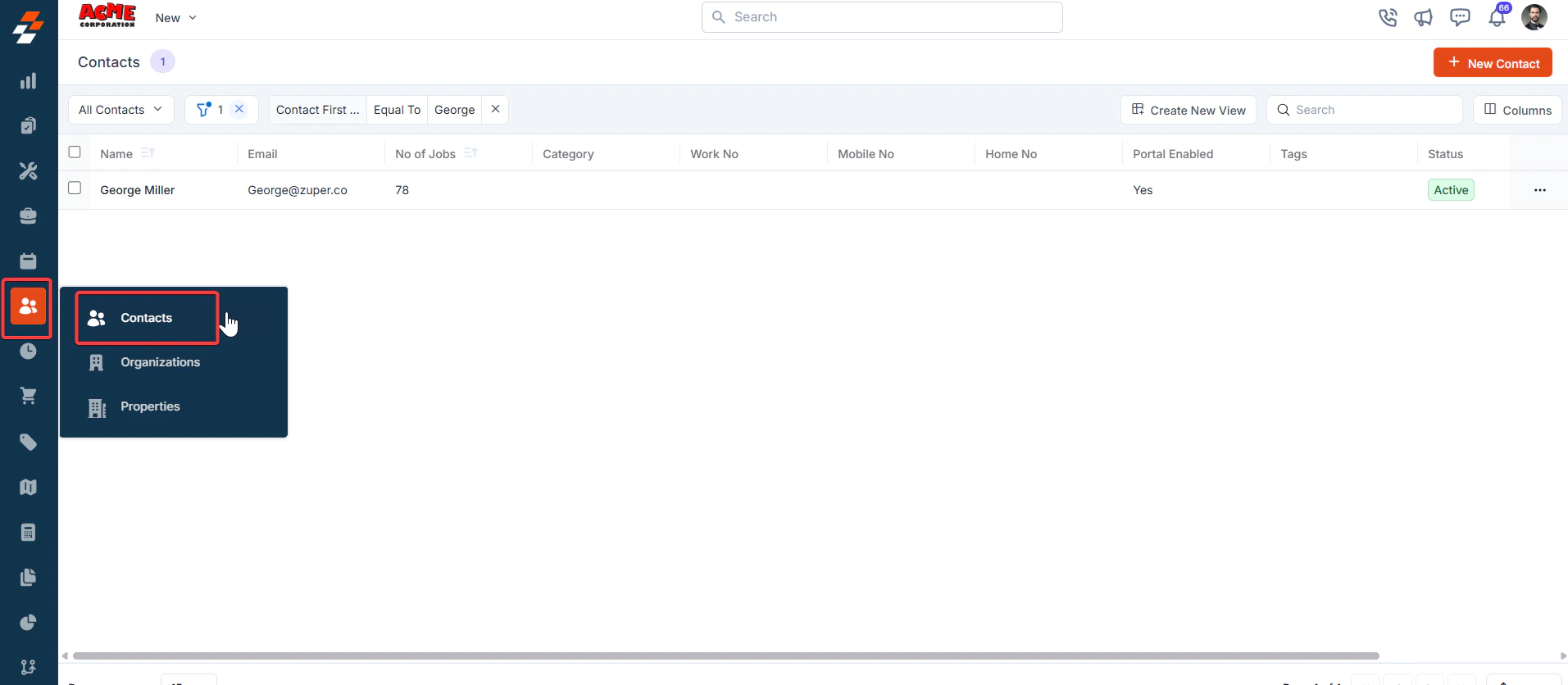
1. Select the “**Clients**” module from the left navigation menu. Choose the “**Customers/Contacts**.”
The Customer/Contact Module Listing Page in Zuper allows for flexible layout customization directly on the listing page. You can select and reorder columns, apply views, save customized views, and set permissions to ensure the right level of access for your team. Use the steps above to tailor the view to your workflow and save it for future use.
## Pinned filters
Zuper's Customers module lets you use pinned filters to streamline your filter experience. Pinned filters keep your most-used criteria readily accessible for quick application.
Pin up to 3 filters in any module.
Navigation: *Clients -> Customers -> Filters -> Pinned Filter*
1. Select the “**Clients**” module from the left navigation menu. Choose the “**Customers/Contacts**.”
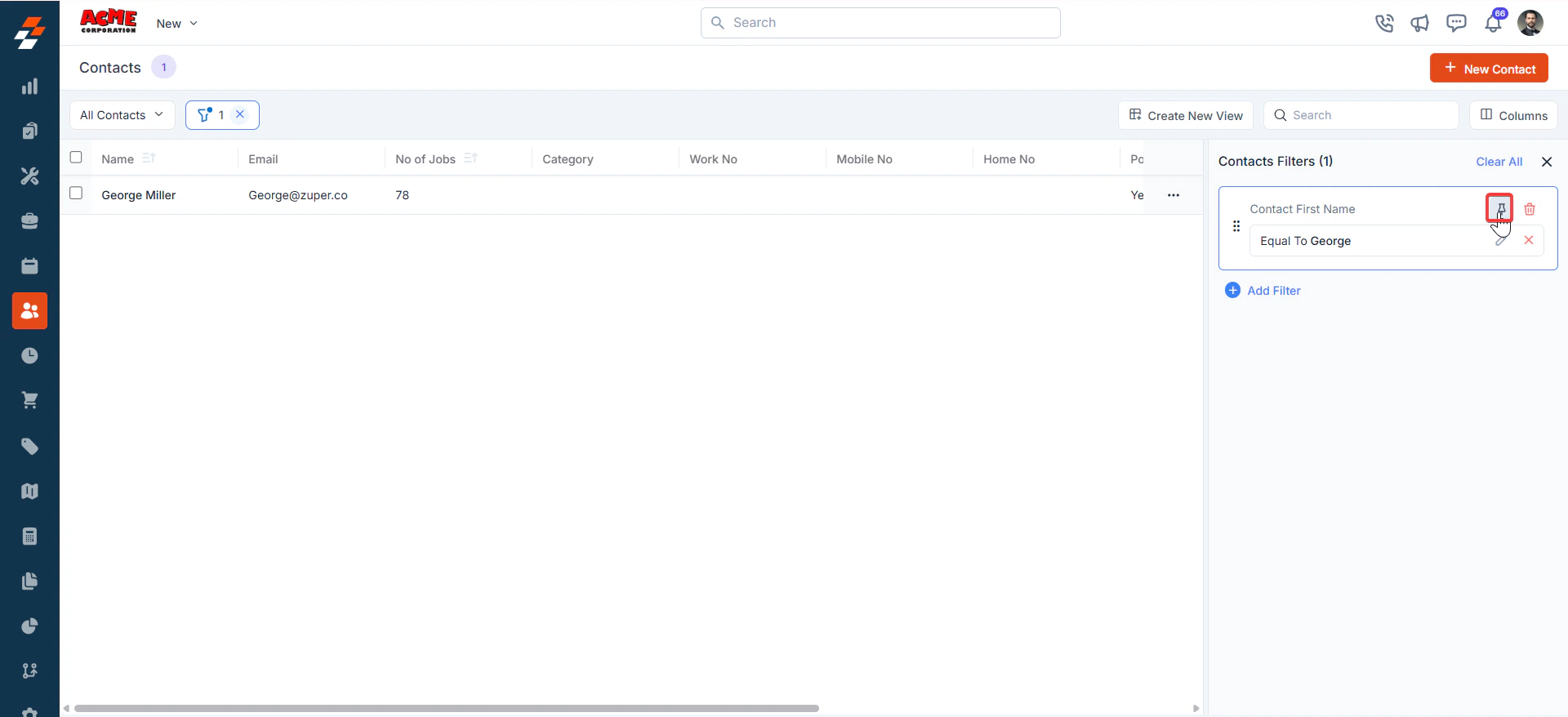
 2. **2. Pin Filters for Quick Access**
* Once your filters are set, click the **Pin Filters** button in the dialog box to save them as pinned.
* Pinned filters appear in the dialog box's "**Pinned Filters**" section, allowing you to apply them with one click in future sessions.
2. **2. Pin Filters for Quick Access**
* Once your filters are set, click the **Pin Filters** button in the dialog box to save them as pinned.
* Pinned filters appear in the dialog box's "**Pinned Filters**" section, allowing you to apply them with one click in future sessions.
 3. To Unpin the filter:
* To unpin, select a pinned filter and click **Remove**.
* To apply pinned or default filters, open the dialog box and select them.
* Use **Clear All** to remove active filters.
3. To Unpin the filter:
* To unpin, select a pinned filter and click **Remove**.
* To apply pinned or default filters, open the dialog box and select them.
* Use **Clear All** to remove active filters.
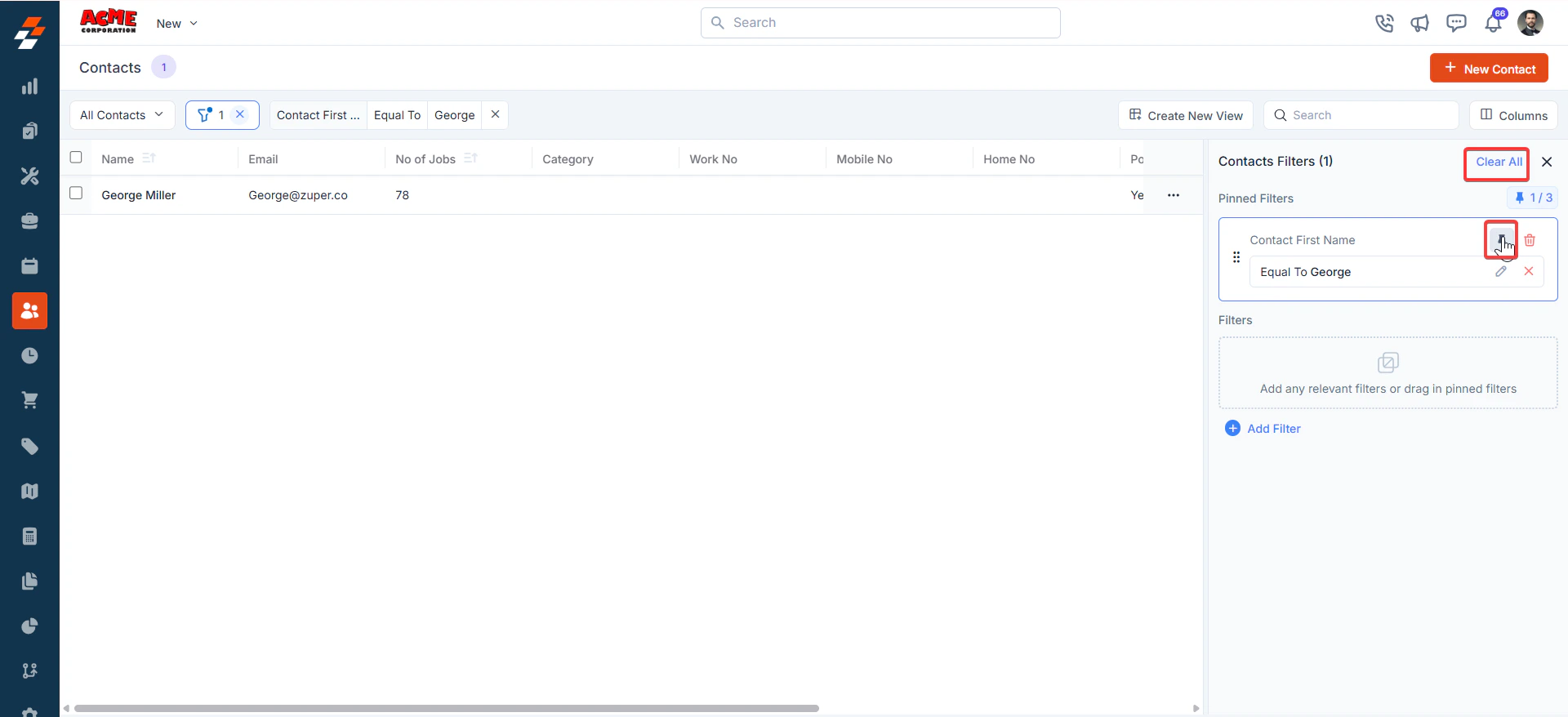 After filtering a specific Customer/Contact, click the “**Name**” on the listing page to view and manage its details on the Customer/Contact details page.
### Creating a new contact
You can quickly create a new contact directly from the listing page.
1. Click the "**+ New Contact**" button in the top right corner.
2. Fill in the required fields such as Contact Name, Contact Information, Tax Details, and Service Addresses.
3. For a step-by-step walkthrough, refer to the [Creating a new contact](https://docs.zuper.co/Client/Contact/Create_contact) article.
After filtering a specific Customer/Contact, click the “**Name**” on the listing page to view and manage its details on the Customer/Contact details page.
### Creating a new contact
You can quickly create a new contact directly from the listing page.
1. Click the "**+ New Contact**" button in the top right corner.
2. Fill in the required fields such as Contact Name, Contact Information, Tax Details, and Service Addresses.
3. For a step-by-step walkthrough, refer to the [Creating a new contact](https://docs.zuper.co/Client/Contact/Create_contact) article.
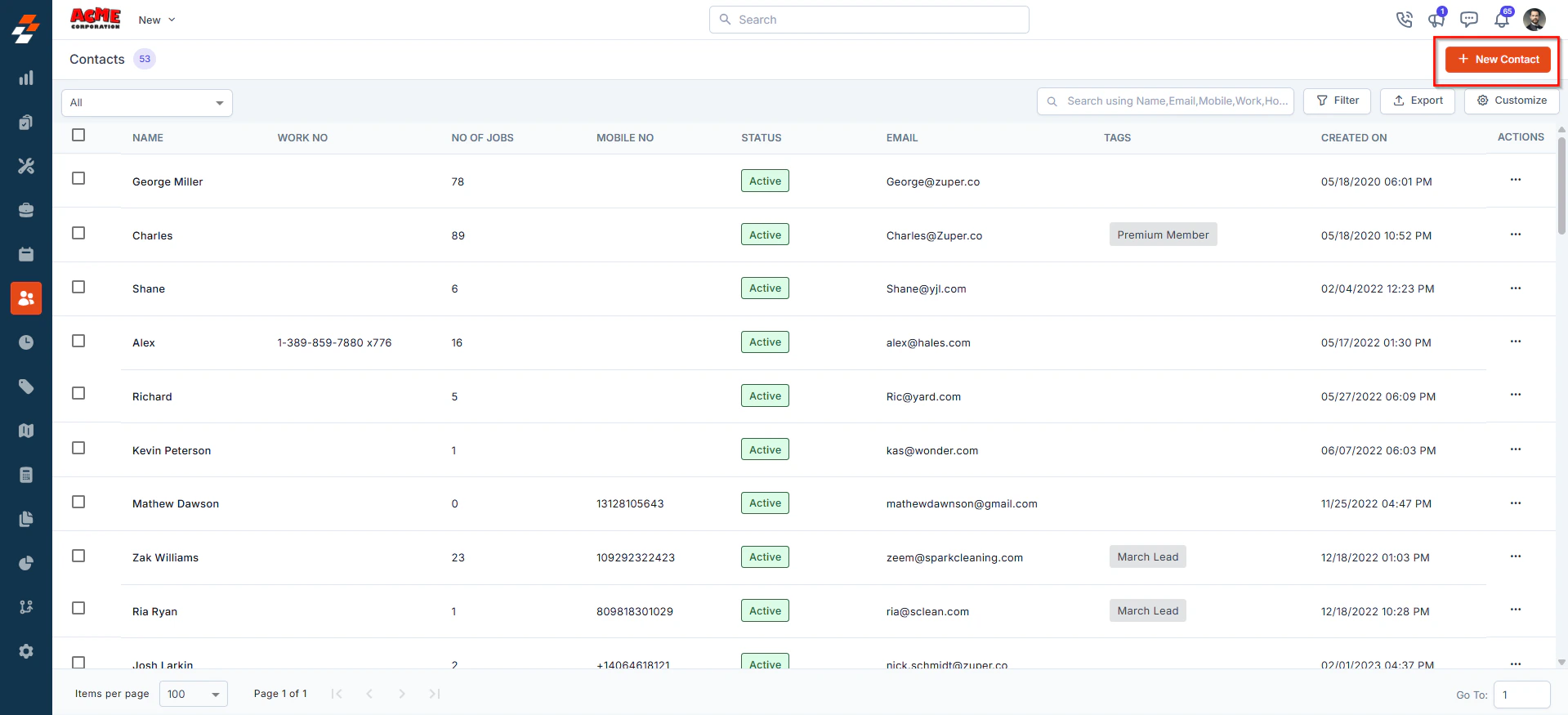 ## **Managing contact details**
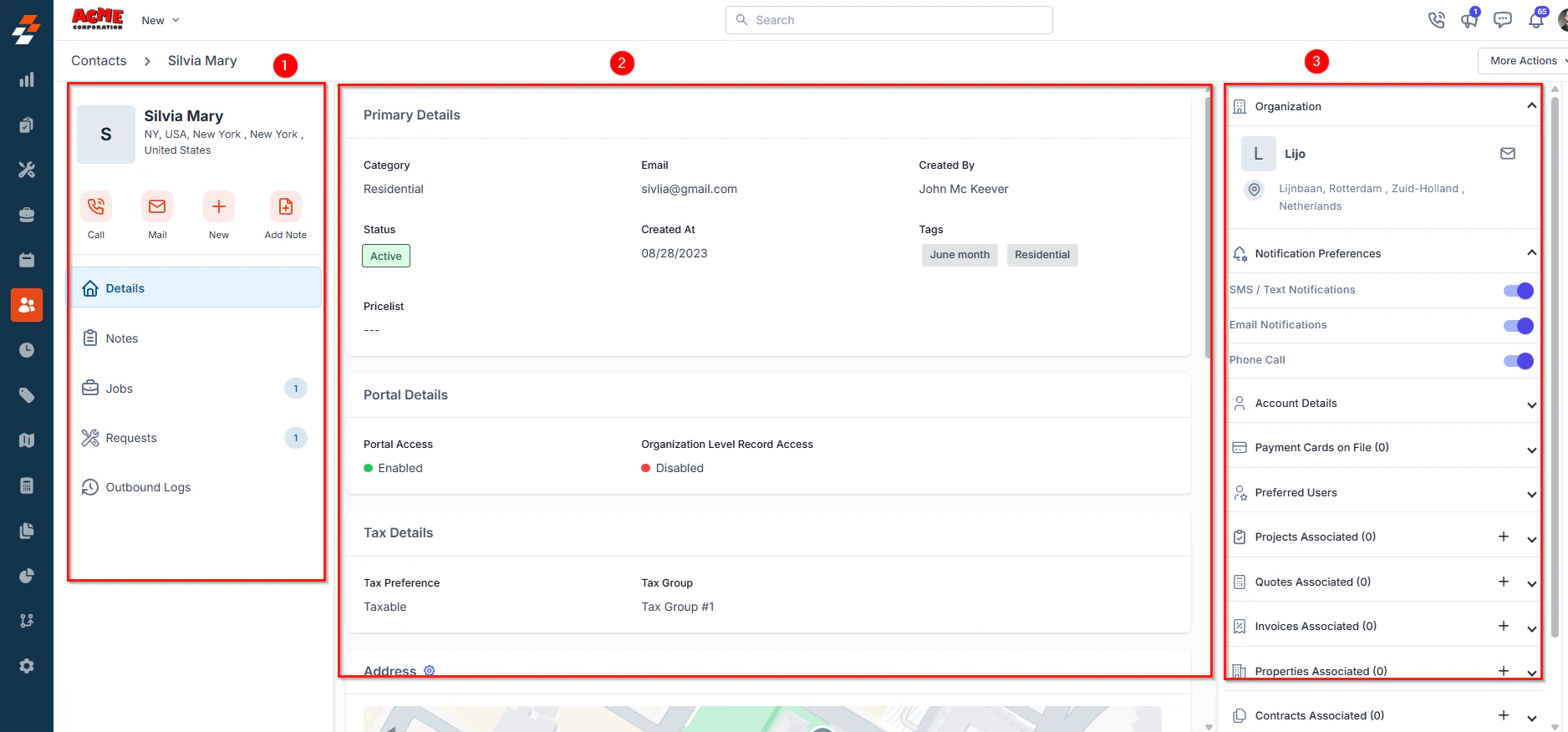
Once a contact is created, the contact details page becomes your go-to space for managing its lifecycle. The page follows a three-column layout, the left panel displays the contact primary details, while the right panel provides contextual insights and quick actions for efficient contact management.
## **Managing contact details**
Once a contact is created, the contact details page becomes your go-to space for managing its lifecycle. The page follows a three-column layout, the left panel displays the contact primary details, while the right panel provides contextual insights and quick actions for efficient contact management.
 ### Left Panel
The left panel displays contact-related details such as the contact's name and address. Below this, you'll find the quick actions bar, which offers contextual buttons to call or email the contact, create a new project, job, request, proposal, or quote, and add notes.
### Left Panel
The left panel displays contact-related details such as the contact's name and address. Below this, you'll find the quick actions bar, which offers contextual buttons to call or email the contact, create a new project, job, request, proposal, or quote, and add notes.
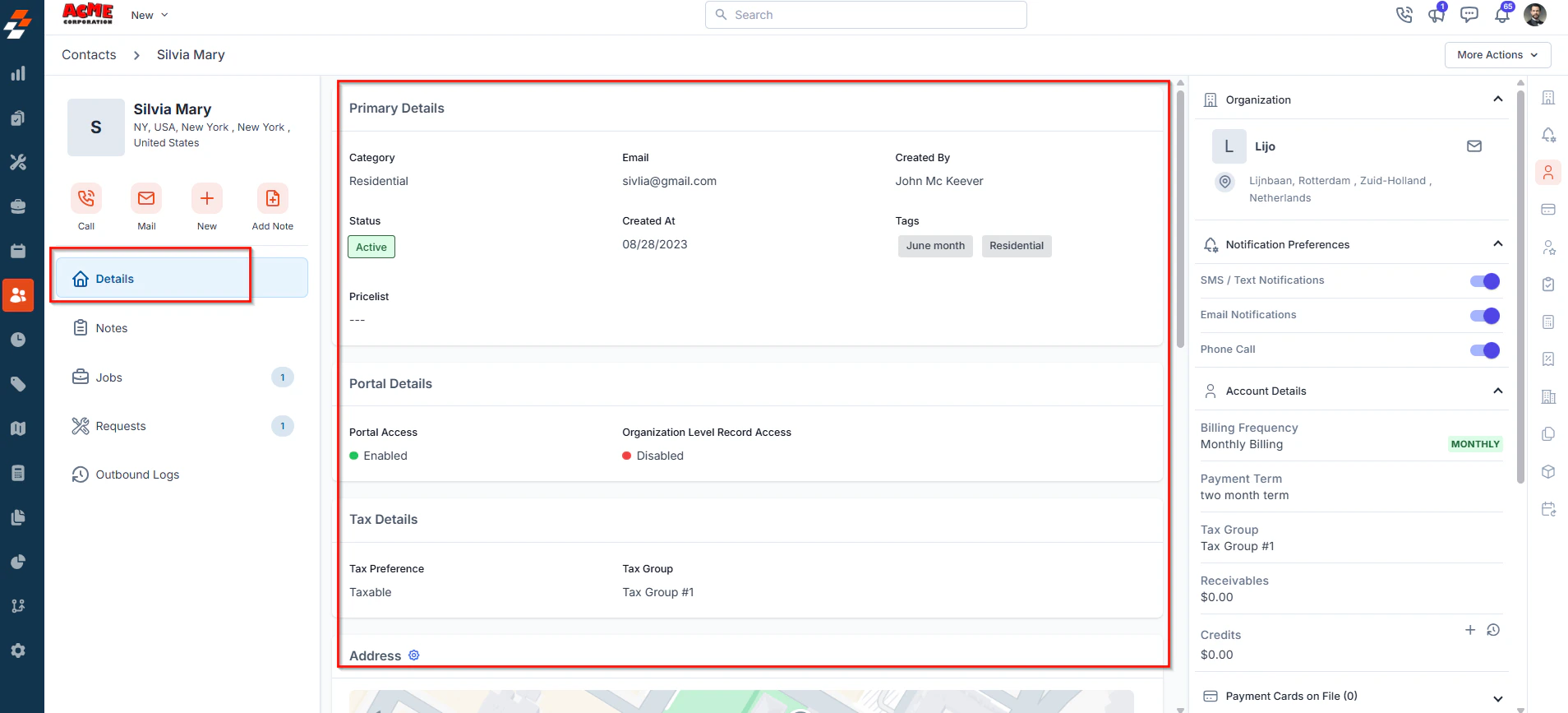
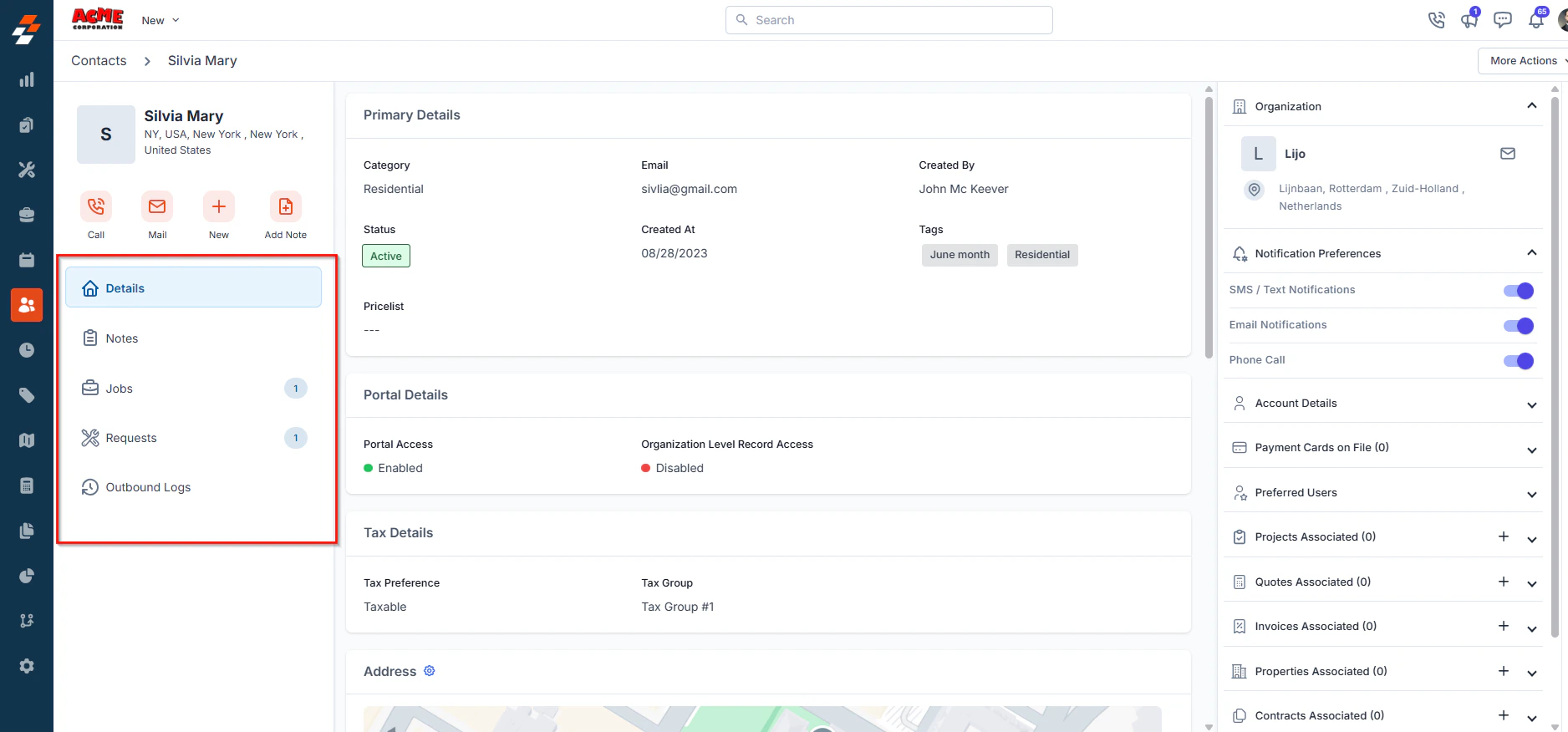 The contact's details section offers a comprehensive overview of the contact.
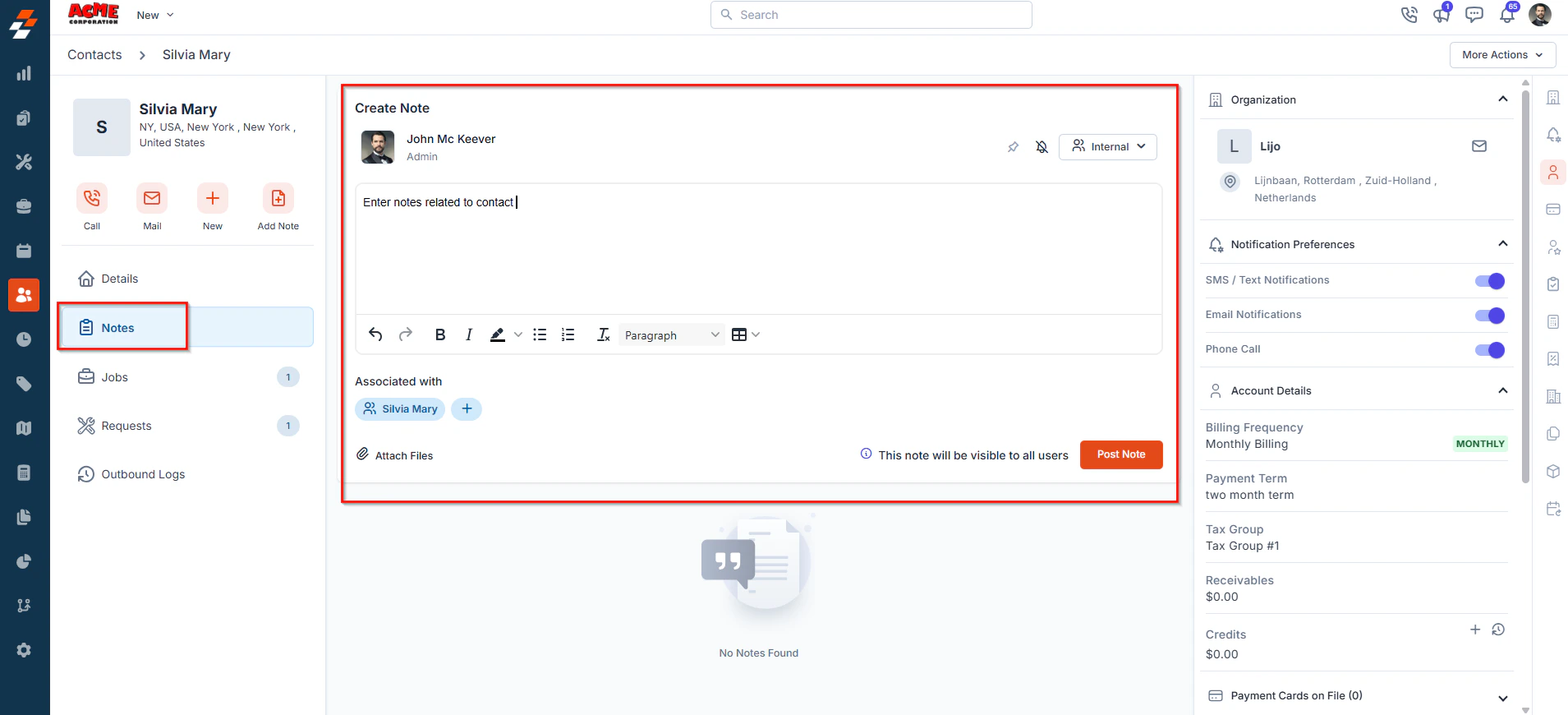
 The Notes section allows you to view, add, and manage notes related to the contact. From here, you can use the rich text editor to add any new note. To tag a user to a note, you can use @ and key in the name to tag the user.
You can attach multimedia files such as images, audio, video, and documents related to the contact. Use the "**+**" option to associate the notes with other modules such as property, organization, etc.
The Notes section allows you to view, add, and manage notes related to the contact. From here, you can use the rich text editor to add any new note. To tag a user to a note, you can use @ and key in the name to tag the user.
You can attach multimedia files such as images, audio, video, and documents related to the contact. Use the "**+**" option to associate the notes with other modules such as property, organization, etc.
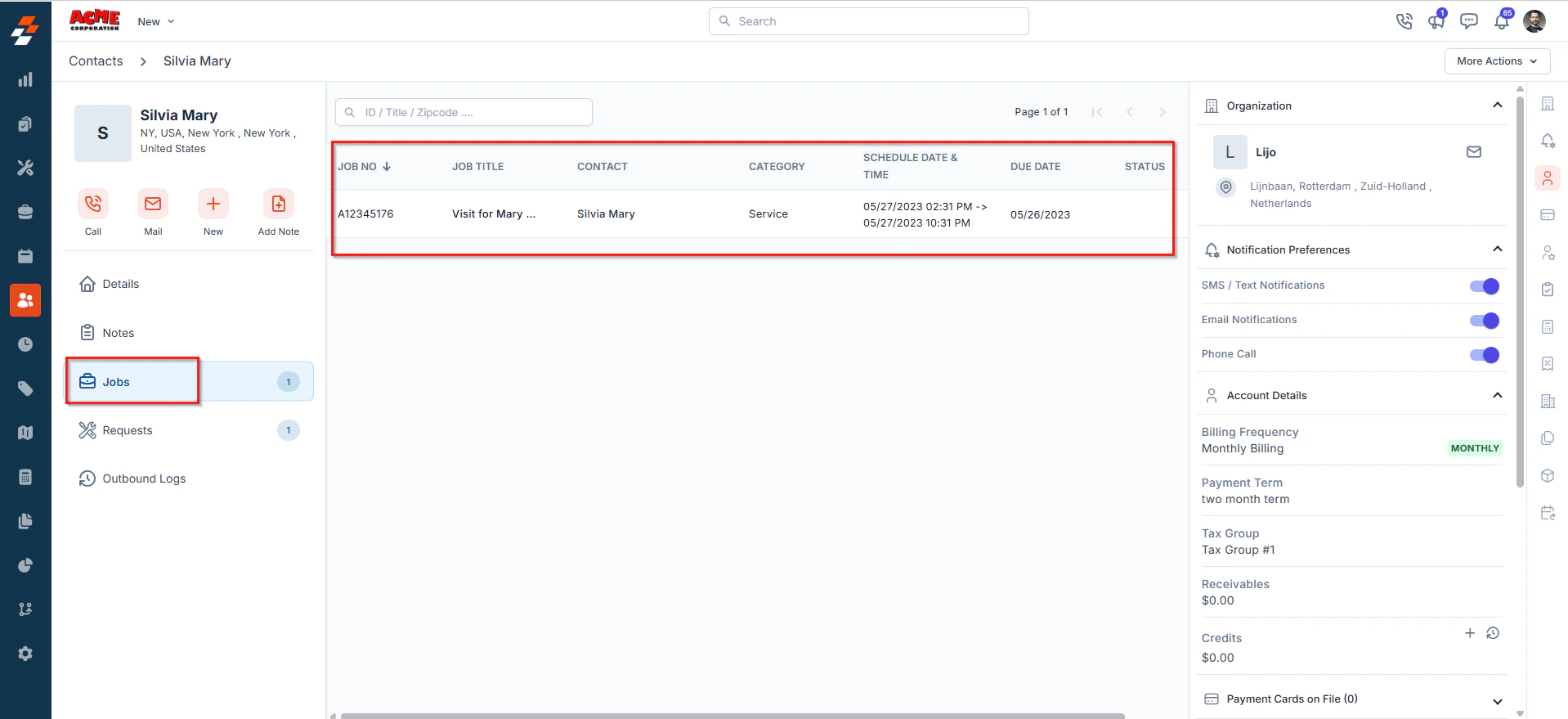
 The Jobs section allows you to view all jobs associated with the contact. This includes both ongoing and completed jobs, providing you with a comprehensive overview of job statuses, schedule, and related details.
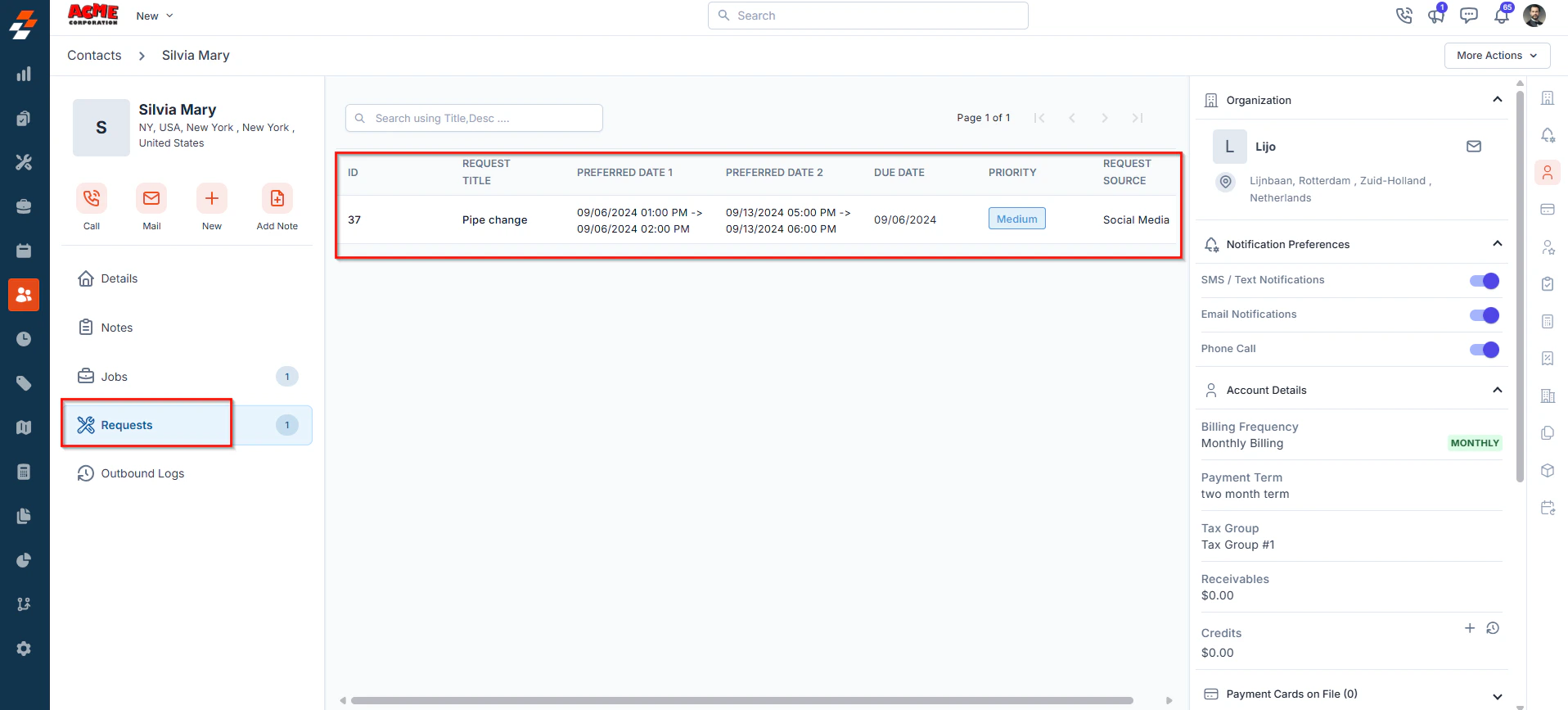
 The Requests section displays all service requests linked to the contact. This includes open, in-progress, and closed requests, allowing you to track customer inquiries or service needs from initiation to resolution.
 Zuper Connect is seamlessly integrated with the Contacts Module, enabling you to initiate conversations and connect with customers directly from their profile. Every call and message is automatically linked to the customer record, providing complete communication context without the need to search through separate chat apps or call logs.
**Key Benefits:**
* **Seamless workflow** – Stay within the customer record while communicating. No context switching means faster response times and fewer missed details.
* **Organized communication** – All calls and messages are tracked in one place, ensuring better visibility and more efficient collaboration.
#### To use Zuper Connect from contact:
* Navigate to the **Contact Details Page**.
* In the **left pane**, click **Zuper Connect**.
Zuper Connect is seamlessly integrated with the Contacts Module, enabling you to initiate conversations and connect with customers directly from their profile. Every call and message is automatically linked to the customer record, providing complete communication context without the need to search through separate chat apps or call logs.
**Key Benefits:**
* **Seamless workflow** – Stay within the customer record while communicating. No context switching means faster response times and fewer missed details.
* **Organized communication** – All calls and messages are tracked in one place, ensuring better visibility and more efficient collaboration.
#### To use Zuper Connect from contact:
* Navigate to the **Contact Details Page**.
* In the **left pane**, click **Zuper Connect**.
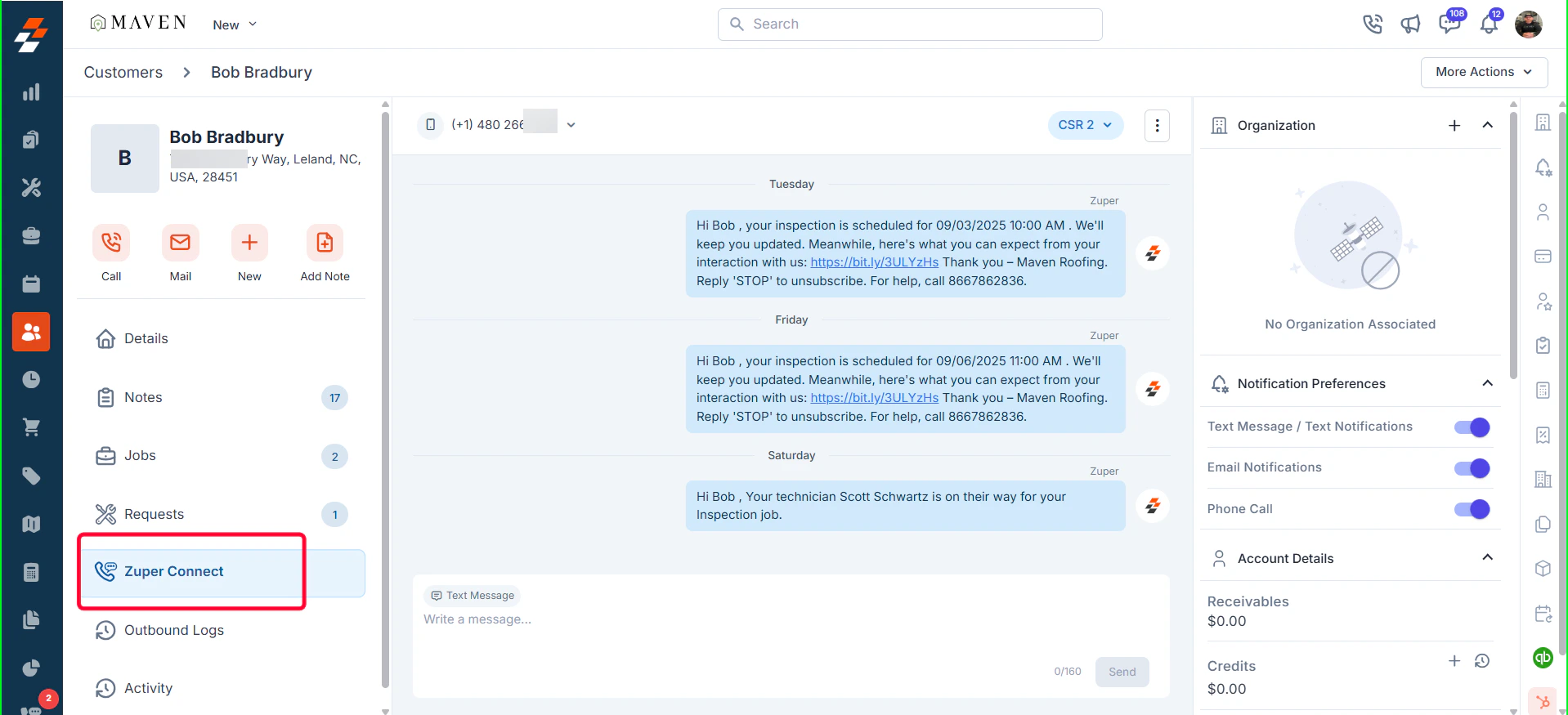 * From this section, you can:
1. **Start a new conversation** with the contact using your configured Zuper Connect numbers.
2. **View existing conversation history** linked to the customer’s contact numbers (Work, Mobile, and Home), along with a complete timeline of all interactions across jobs and projects. This includes discussions, call details, and the team members involved, displayed in chronological order.
3. **Mark a conversation as read or unread** by clicking the **ellipsis (**)**icon** on the right.
* From this section, you can:
1. **Start a new conversation** with the contact using your configured Zuper Connect numbers.
2. **View existing conversation history** linked to the customer’s contact numbers (Work, Mobile, and Home), along with a complete timeline of all interactions across jobs and projects. This includes discussions, call details, and the team members involved, displayed in chronological order.
3. **Mark a conversation as read or unread** by clicking the **ellipsis (**)**icon** on the right.
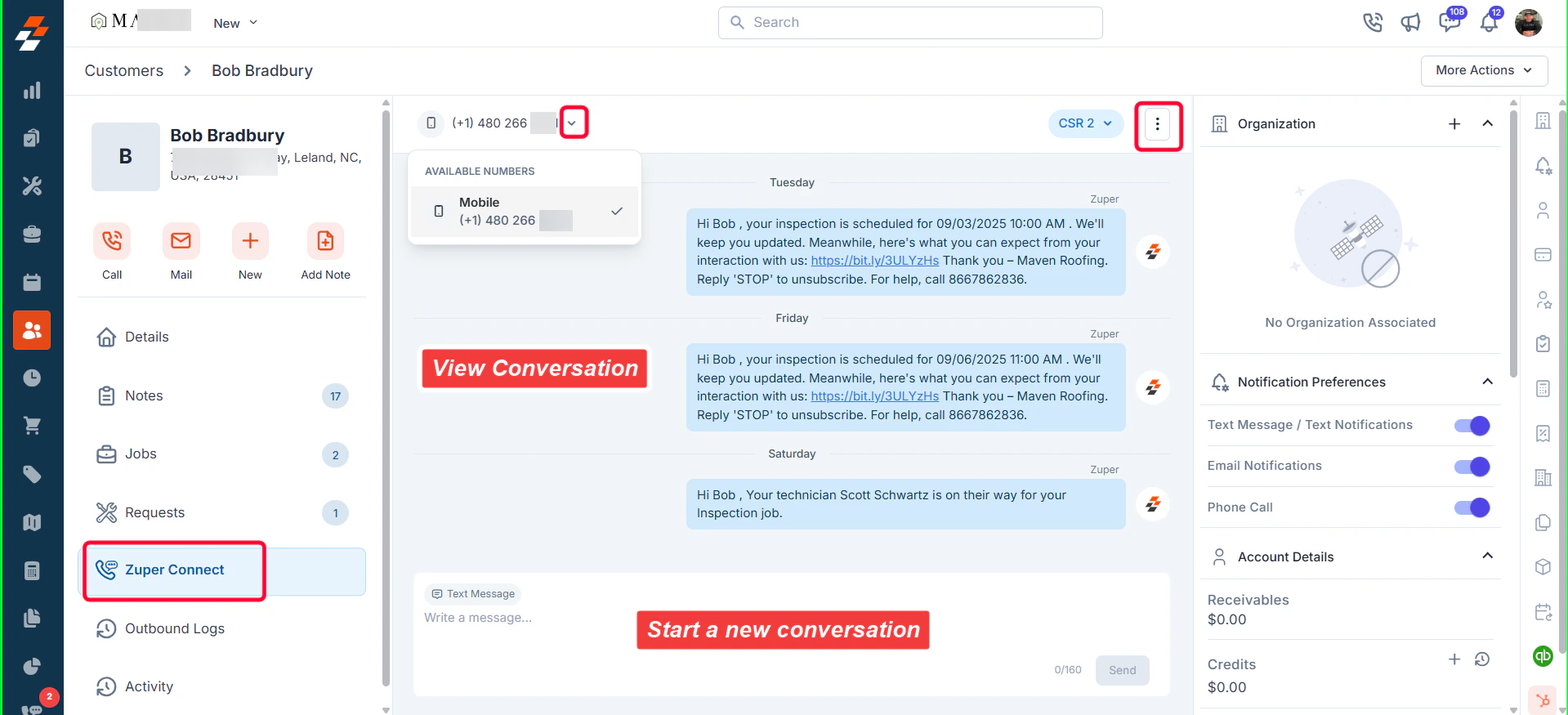 This streamlined communication capability allows you to provide timely updates, respond to customer inquiries, and maintain complete visibility into all interactions. Every exchange is automatically logged and accessible for future reference, ensuring accuracy and accountability.
For detailed instructions on how to view and manage conversations in **Zuper Connect**, please refer to the documentation here: [**Viewing and Managing Conversation Details**](https://docs.zuper.co/Zuper_Connect/View_Manage_Web_Conversations#viewing-and-managing-conversation-details).
**Note**: To view and manage conversations, your organization must have **Zuper Connect** purchased and enabled.
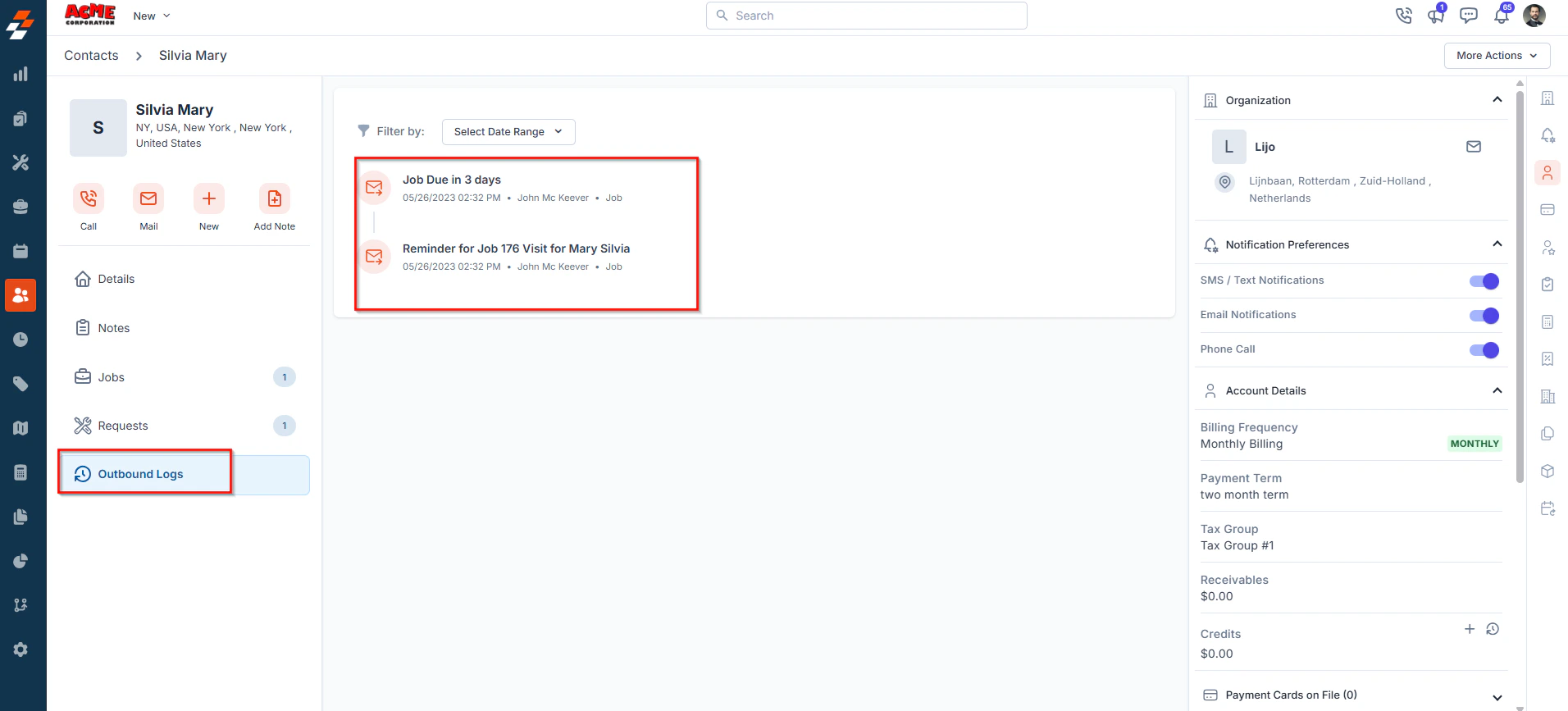
The Outbound Logs section provides a record of all outbound communications made to the contact. This includes phone calls, emails, and SMS messages initiated from the system.
This streamlined communication capability allows you to provide timely updates, respond to customer inquiries, and maintain complete visibility into all interactions. Every exchange is automatically logged and accessible for future reference, ensuring accuracy and accountability.
For detailed instructions on how to view and manage conversations in **Zuper Connect**, please refer to the documentation here: [**Viewing and Managing Conversation Details**](https://docs.zuper.co/Zuper_Connect/View_Manage_Web_Conversations#viewing-and-managing-conversation-details).
**Note**: To view and manage conversations, your organization must have **Zuper Connect** purchased and enabled.
The Outbound Logs section provides a record of all outbound communications made to the contact. This includes phone calls, emails, and SMS messages initiated from the system.
 The activity section on the details page displays a log or timeline of all actions and updates related to this contact, helping you stay informed about recent changes.
### Right panel
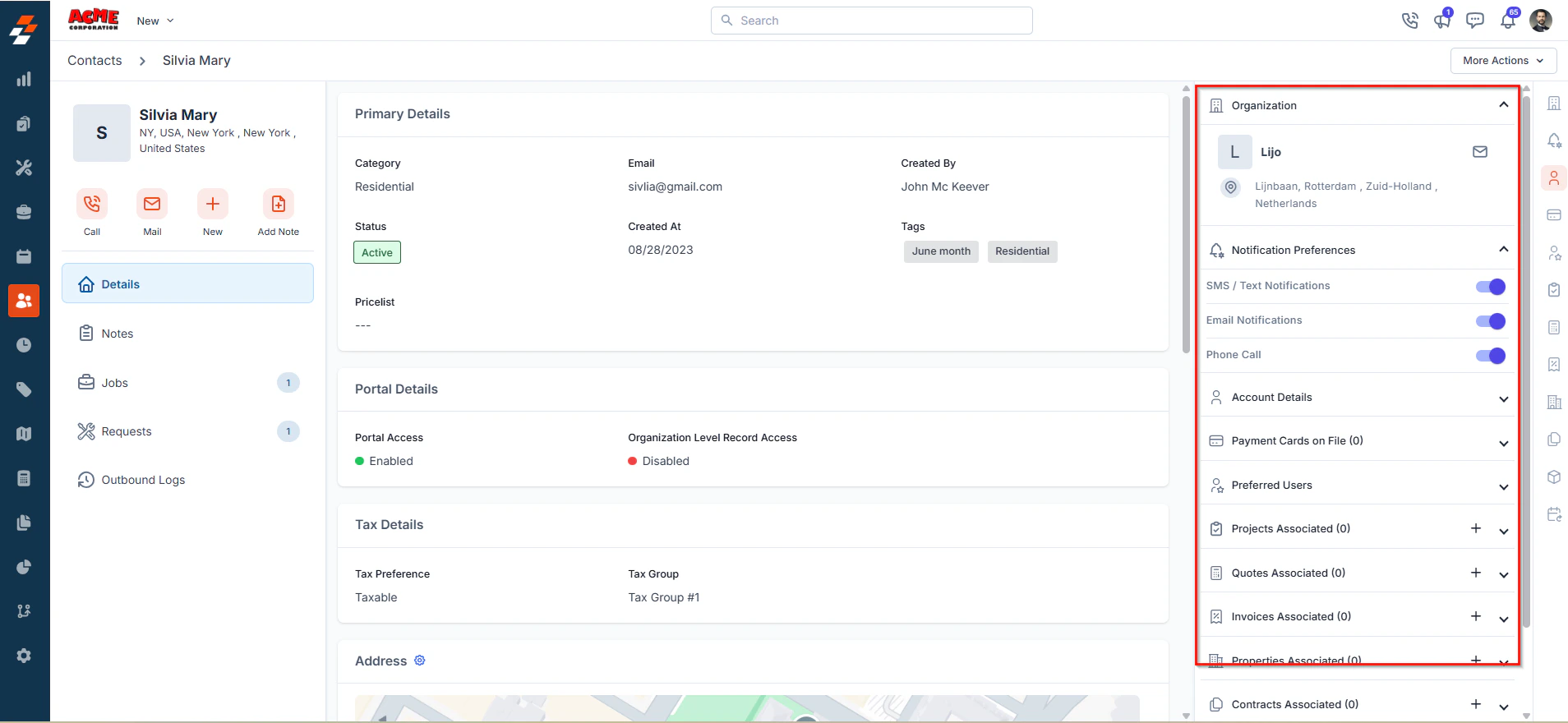
The right panel of the contact details page offers a snapshot of all key information and associated modules linked to the contact. It provides quick access to related data and helps streamline decision-making by presenting everything in one place.
Here’s what you can find in the right panel:
* **Associated Organization**: Displays the organization the contact is linked to, along with key details such as organization name and address.
* **Notification Preferences**: View and manage the contact’s preferred communication channels, including SMS/Text, Email, and Phone Calls.
* **Account Details**: Displays billing frequency (e.g., monthly), payment terms, and assigned tax group for accurate financial handling.
* **Financial Summary**: Includes current receivables, available credits, and any saved payment cards on file.
* **Preferred Users**: Lists the internal team members preferred by the contact, if any.
* **Associated Modules**: Quickly view counts and access details of linked projects, quotes, invoices, properties, contracts, and assets.
* **Recurring Job Schedules**: Indicates whether any recurring jobs are scheduled for the contact.
The activity section on the details page displays a log or timeline of all actions and updates related to this contact, helping you stay informed about recent changes.
### Right panel
The right panel of the contact details page offers a snapshot of all key information and associated modules linked to the contact. It provides quick access to related data and helps streamline decision-making by presenting everything in one place.
Here’s what you can find in the right panel:
* **Associated Organization**: Displays the organization the contact is linked to, along with key details such as organization name and address.
* **Notification Preferences**: View and manage the contact’s preferred communication channels, including SMS/Text, Email, and Phone Calls.
* **Account Details**: Displays billing frequency (e.g., monthly), payment terms, and assigned tax group for accurate financial handling.
* **Financial Summary**: Includes current receivables, available credits, and any saved payment cards on file.
* **Preferred Users**: Lists the internal team members preferred by the contact, if any.
* **Associated Modules**: Quickly view counts and access details of linked projects, quotes, invoices, properties, contracts, and assets.
* **Recurring Job Schedules**: Indicates whether any recurring jobs are scheduled for the contact.
 ## More actions
Managing a contact goes beyond simply viewing their details. Zuper allows you to take additional actions that help maintain data accuracy and enhance communication. By clicking the **"More Actions"** button at the top-right corner of the Contact Details page, you can access a range of options, including:
## More actions
Managing a contact goes beyond simply viewing their details. Zuper allows you to take additional actions that help maintain data accuracy and enhance communication. By clicking the **"More Actions"** button at the top-right corner of the Contact Details page, you can access a range of options, including:
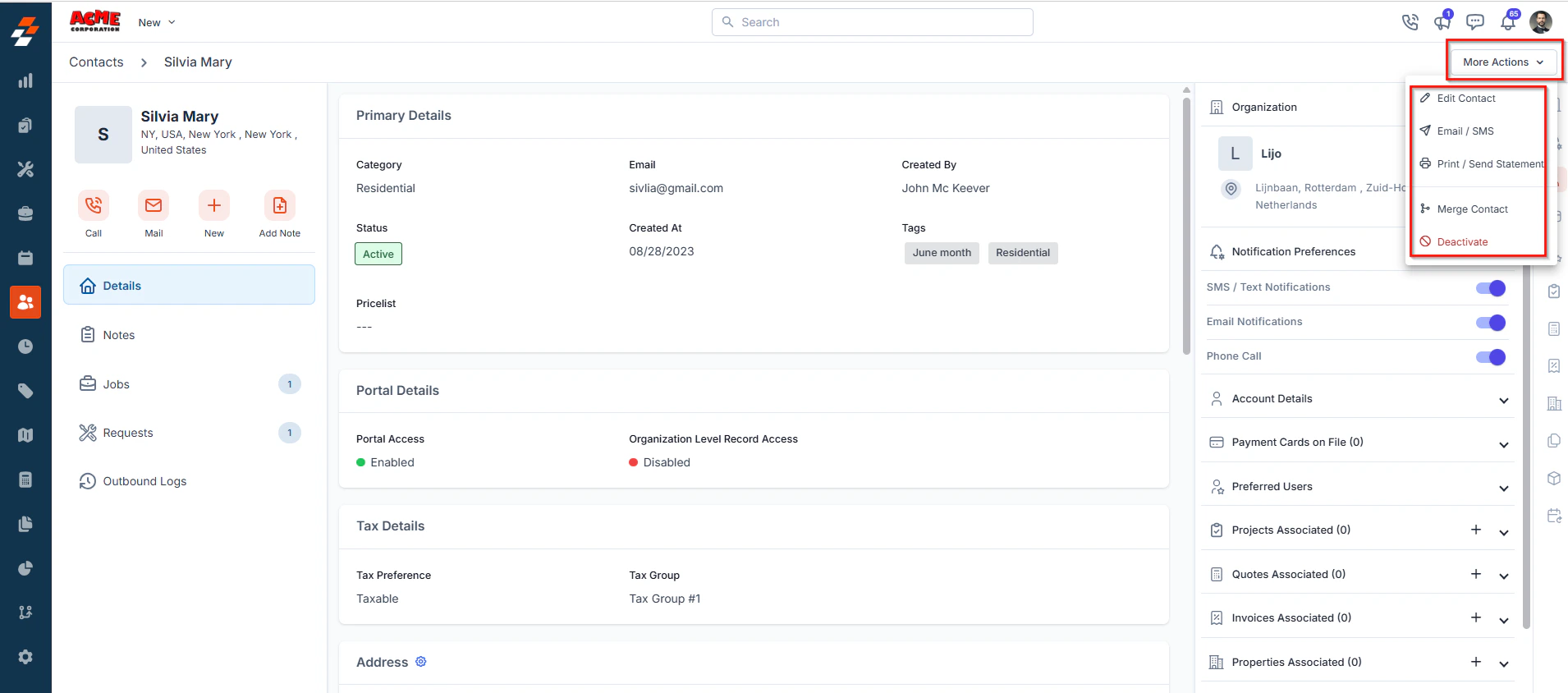 Update the contact’s information, such as name, email, phone numbers, or associated organization.
Instantly send an email or SMS to the contact directly from the system for quick communication.
Generate and share a print-friendly version of the contact’s financial statement, including invoices and payment history.
Combine duplicate contacts into a single profile to avoid redundancy and maintain clean records.
Temporarily disable a contact without deleting their data, preserving historical information for future reference. Once deactivated, you will have the option to activate or delete the conta
Update the contact’s information, such as name, email, phone numbers, or associated organization.
Instantly send an email or SMS to the contact directly from the system for quick communication.
Generate and share a print-friendly version of the contact’s financial statement, including invoices and payment history.
Combine duplicate contacts into a single profile to avoid redundancy and maintain clean records.
Temporarily disable a contact without deleting their data, preserving historical information for future reference. Once deactivated, you will have the option to activate or delete the conta