> ## Documentation Index
> Fetch the complete documentation index at: https://zuperinc-section23.mintlify.site/llms.txt
> Use this file to discover all available pages before exploring further.
# Managing your assets
Efficient asset management ensures operational efficiency and extends equipment lifespan. Zuper’s unified platform enables seamless asset creation, tracking, and management. With centralized control, businesses can monitor asset status, track history, and streamline maintenance.
This guide covers accessing the Assets listing page, key actions, and managing asset details effectively.
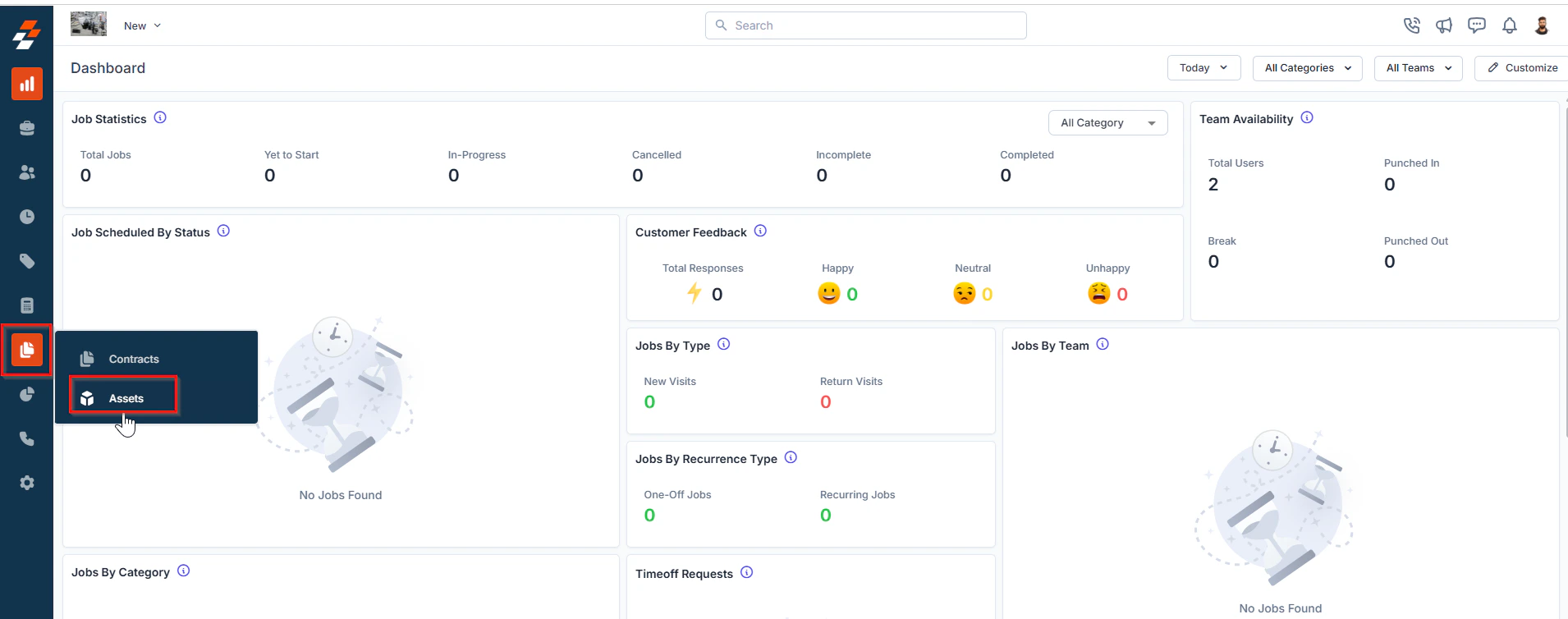
**Navigation**: *Contracts and Assets Management module -> Assets-> Assets listing page -> Asset Details*
## Accessing the assets listing page
The asset listing page is designed to help you stay organized by providing a centralized view of all assets and enabling quick access to critical asset details. The page includes several key features to streamline asset management:
 ## Listing View
Customize the Assets listing by adding/removing or reordering columns, then Update View to overwrite or save it as a new view.
**Update View**
Click Update View to modify the current view after changes.
**Save as a new view**
Use the dropdown beside Update View → Save as new view.
**Create View dialog**
Enter the View Name (mandatory), choose Share with (User/Team) and add users, toggle Visibility to all users, and click Create.
**Reset View**
Click Reset View to restore the current view to the default.
**Permissions**
* **Edit**: Add/remove/reorder columns; save as new or overwrite existing views.
* **View-only**: Apply views but can’t edit; can Save as new view to copy without altering the original.
* **Manage view**: Rename, adjust Visibility (Only Me/User/Team or global toggle), Duplicate, or Delete (creator only; reverts to default/another saved view).
## Pinned filters
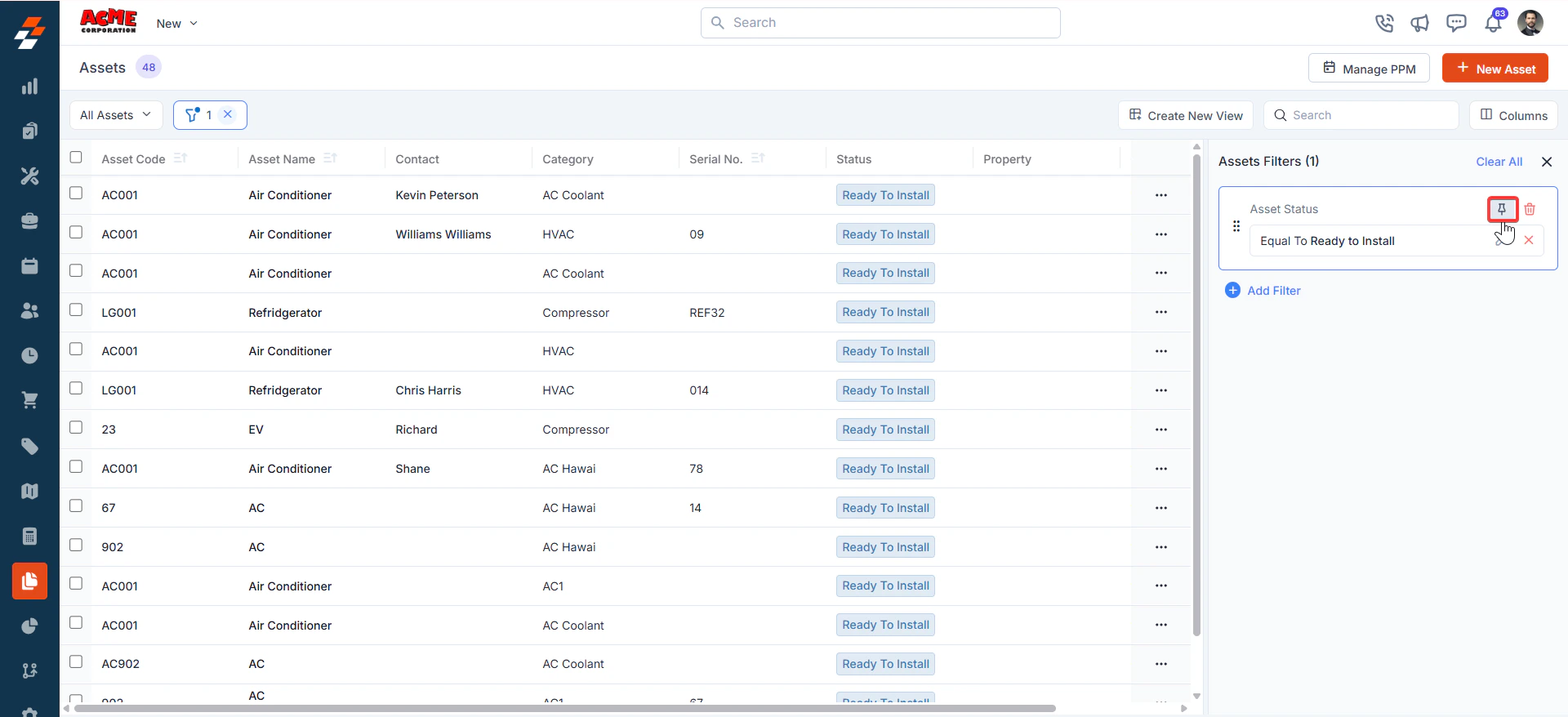
Zuper's Assets module lets you use pinned filters to streamline your filter experience. Pinned filters keep your most-used criteria readily accessible for quick application.
1. **Pin Filters for Quick Access**
* Once your filters are set, click the **Pin Filters** button in the dialog box to save them as pinned.
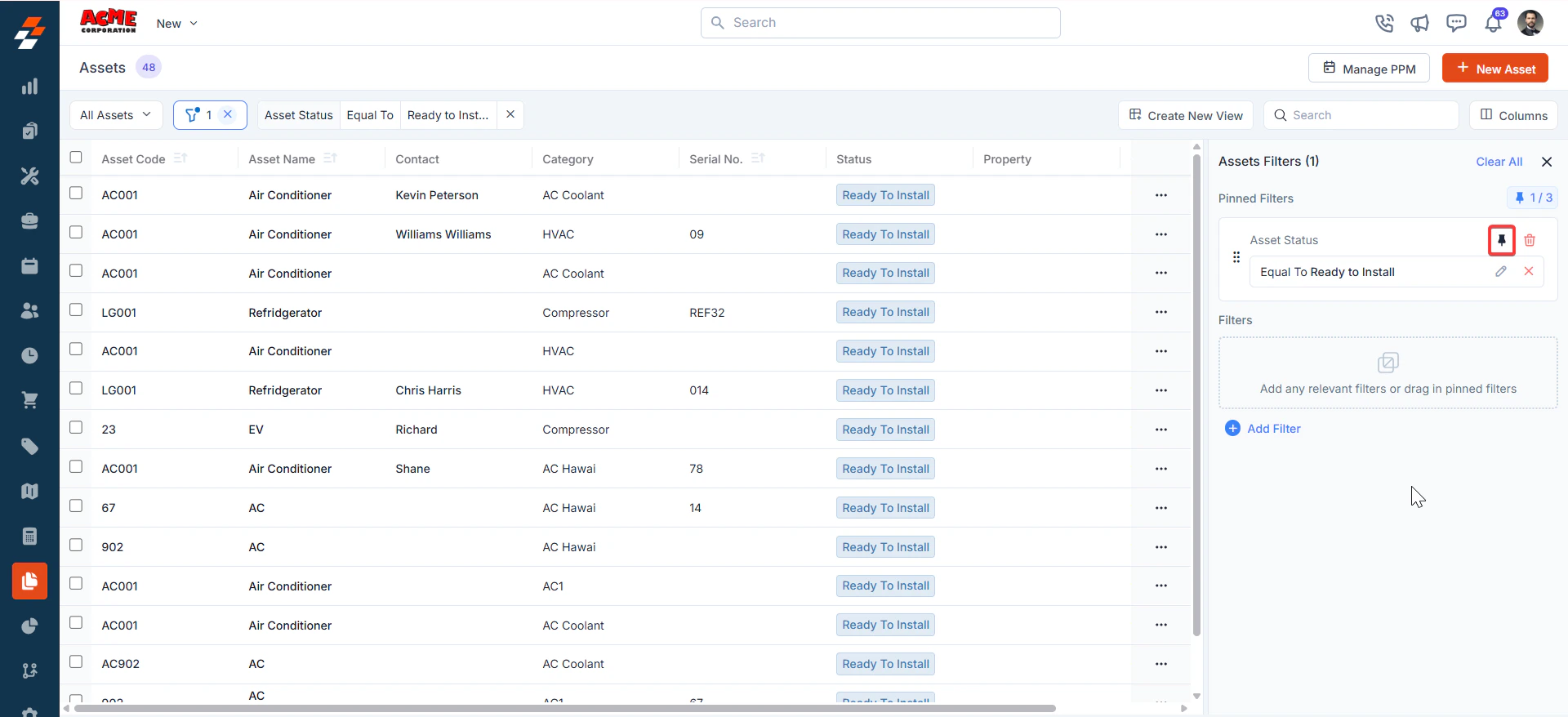
* Pinned filters appear in the dialog box's "**Pinned Filters**" section, allowing you to apply them with one click in future sessions.
## Listing View
Customize the Assets listing by adding/removing or reordering columns, then Update View to overwrite or save it as a new view.
**Update View**
Click Update View to modify the current view after changes.
**Save as a new view**
Use the dropdown beside Update View → Save as new view.
**Create View dialog**
Enter the View Name (mandatory), choose Share with (User/Team) and add users, toggle Visibility to all users, and click Create.
**Reset View**
Click Reset View to restore the current view to the default.
**Permissions**
* **Edit**: Add/remove/reorder columns; save as new or overwrite existing views.
* **View-only**: Apply views but can’t edit; can Save as new view to copy without altering the original.
* **Manage view**: Rename, adjust Visibility (Only Me/User/Team or global toggle), Duplicate, or Delete (creator only; reverts to default/another saved view).
## Pinned filters
Zuper's Assets module lets you use pinned filters to streamline your filter experience. Pinned filters keep your most-used criteria readily accessible for quick application.
1. **Pin Filters for Quick Access**
* Once your filters are set, click the **Pin Filters** button in the dialog box to save them as pinned.
* Pinned filters appear in the dialog box's "**Pinned Filters**" section, allowing you to apply them with one click in future sessions.
 2. To Unpin the filter:
* To unpin, select a pinned filter and click **Remove**.
* To apply pinned or default filters, open the dialog box and select them.
* Use **Clear All** to remove active filters.
2. To Unpin the filter:
* To unpin, select a pinned filter and click **Remove**.
* To apply pinned or default filters, open the dialog box and select them.
* Use **Clear All** to remove active filters.
 **Open asset details**
After filtering, click an Asset Number or Asset ID to view and manage details in the Zuper Assets Module.
**Open asset details**
After filtering, click an Asset Number or Asset ID to view and manage details in the Zuper Assets Module.
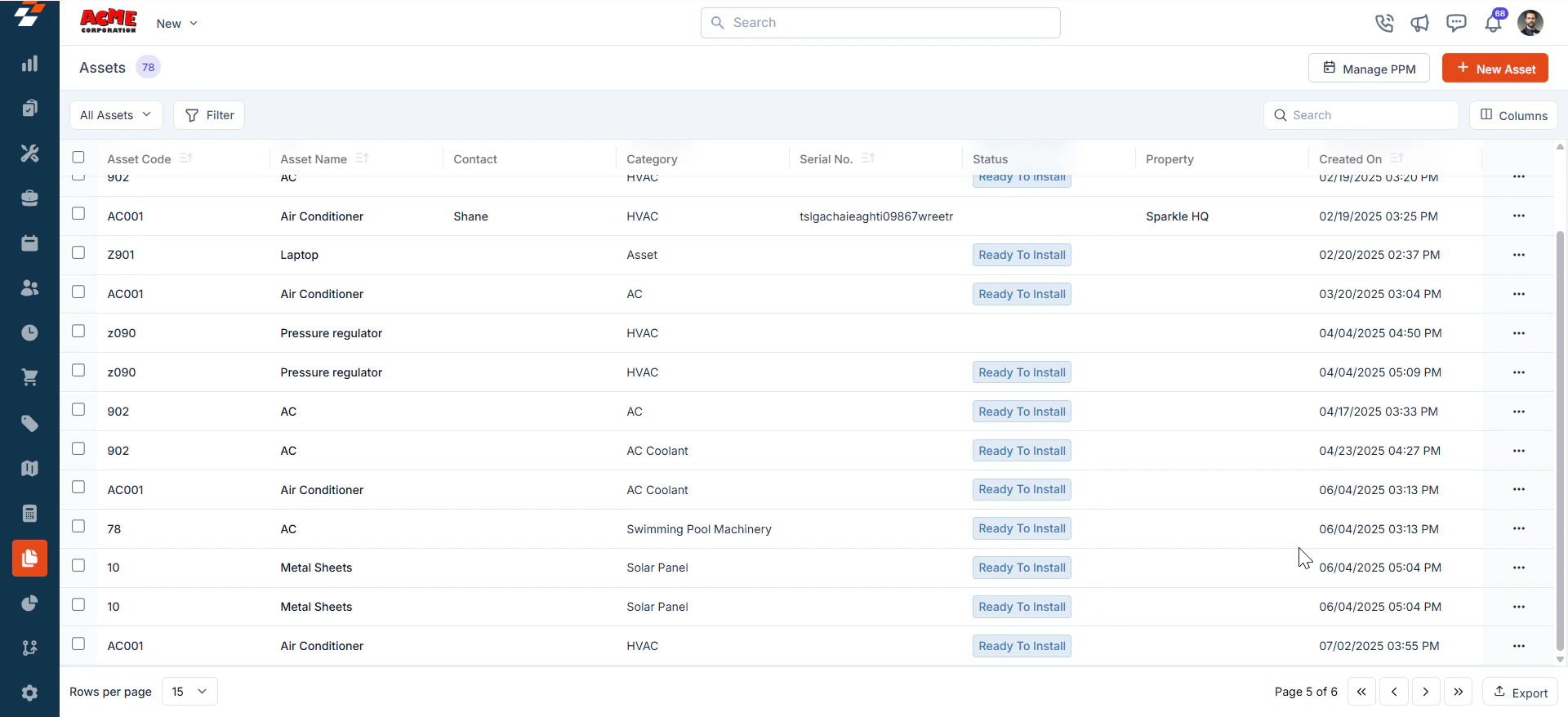 ### Bulk Action:
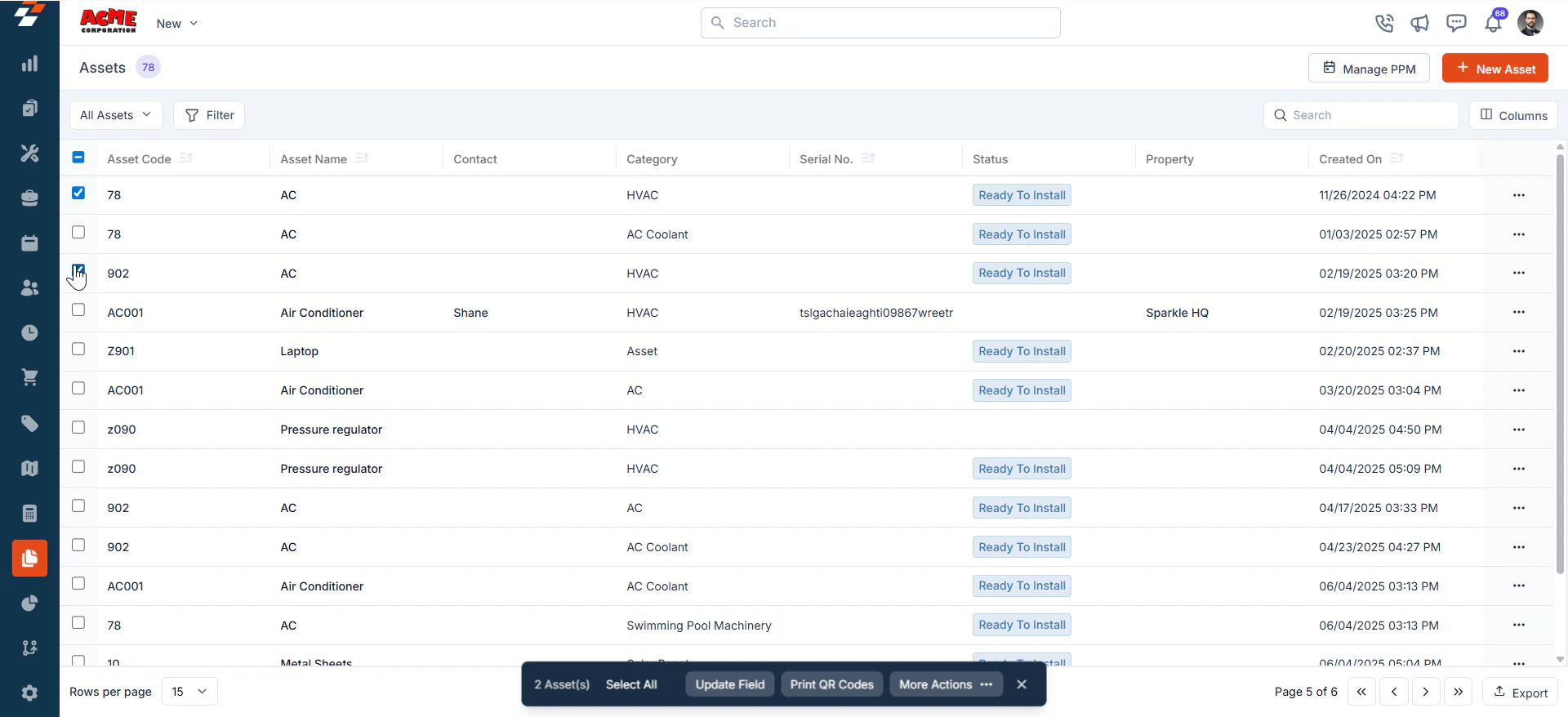
The bulk printing of QR codes on the Assets is possible. With this, Assets can get their QR code printed in size.
1. Select the list of assets you want to bulk update and choose the option “**Print QR Code.**”
### Bulk Action:
The bulk printing of QR codes on the Assets is possible. With this, Assets can get their QR code printed in size.
1. Select the list of assets you want to bulk update and choose the option “**Print QR Code.**”
 2. The QR Codes are successfully printed in bulk.
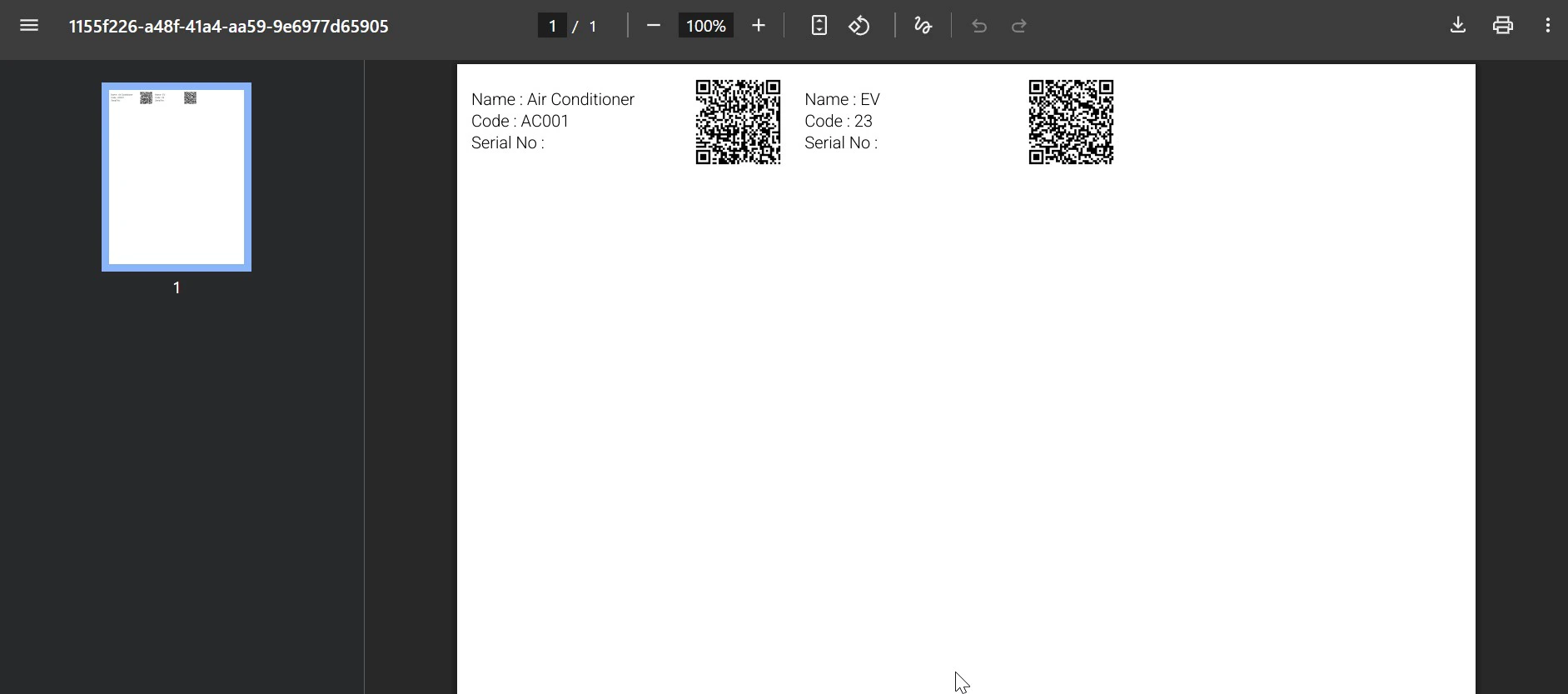 **Note:** The Bulk Print QR code is available for less than **100** assets at a time; if more than **100** assets are selected, the PDF is generated and sent over email. We can print the QR code using any printer.
**Compatibility:**
**The exported PDF will print to 1” x 2 5/8” sized labels—this format prints on the Avery Template Presta 94200 template.**
With this new feature, businesses can save time by updating the asset status and asset fields for multiple assets with a single click.
The assets will have a QR code for identification for internal purposes, and a list of QR codes will be sent to field executives during field service. This bulk option helps them print multiple QR codes easily.
### **Manage PPM** (Planned Preventive Maintenance)
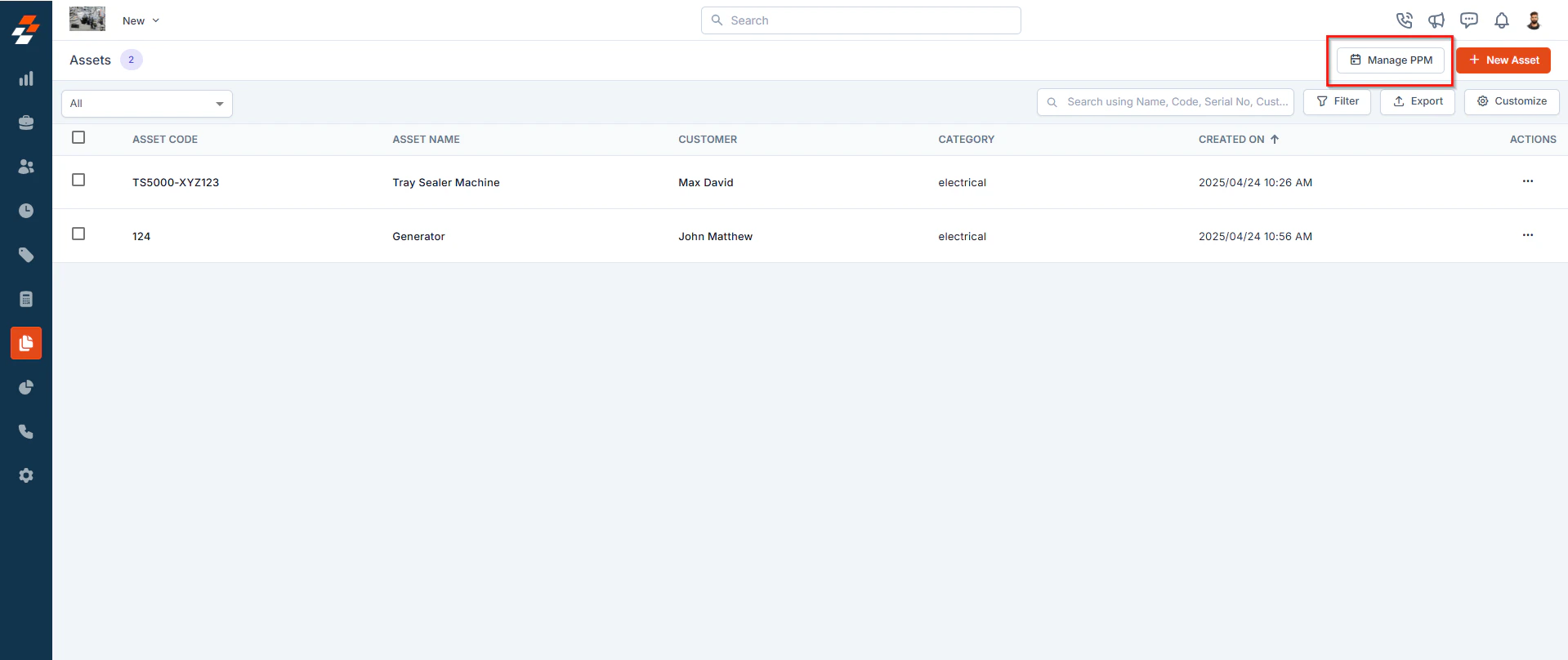
Easily oversee and manage planned preventive maintenance schedules for assets to ensure timely servicing and reduce unexpected breakdowns. To do this, click the "**Manage PPM**" button at the top right of the listing page. For a more detailed guide on how to manage PPM, see the Creating and Managing PPM article.
**Note:** The Bulk Print QR code is available for less than **100** assets at a time; if more than **100** assets are selected, the PDF is generated and sent over email. We can print the QR code using any printer.
**Compatibility:**
**The exported PDF will print to 1” x 2 5/8” sized labels—this format prints on the Avery Template Presta 94200 template.**
With this new feature, businesses can save time by updating the asset status and asset fields for multiple assets with a single click.
The assets will have a QR code for identification for internal purposes, and a list of QR codes will be sent to field executives during field service. This bulk option helps them print multiple QR codes easily.
### **Manage PPM** (Planned Preventive Maintenance)
Easily oversee and manage planned preventive maintenance schedules for assets to ensure timely servicing and reduce unexpected breakdowns. To do this, click the "**Manage PPM**" button at the top right of the listing page. For a more detailed guide on how to manage PPM, see the Creating and Managing PPM article.
 ### **New asset creation**
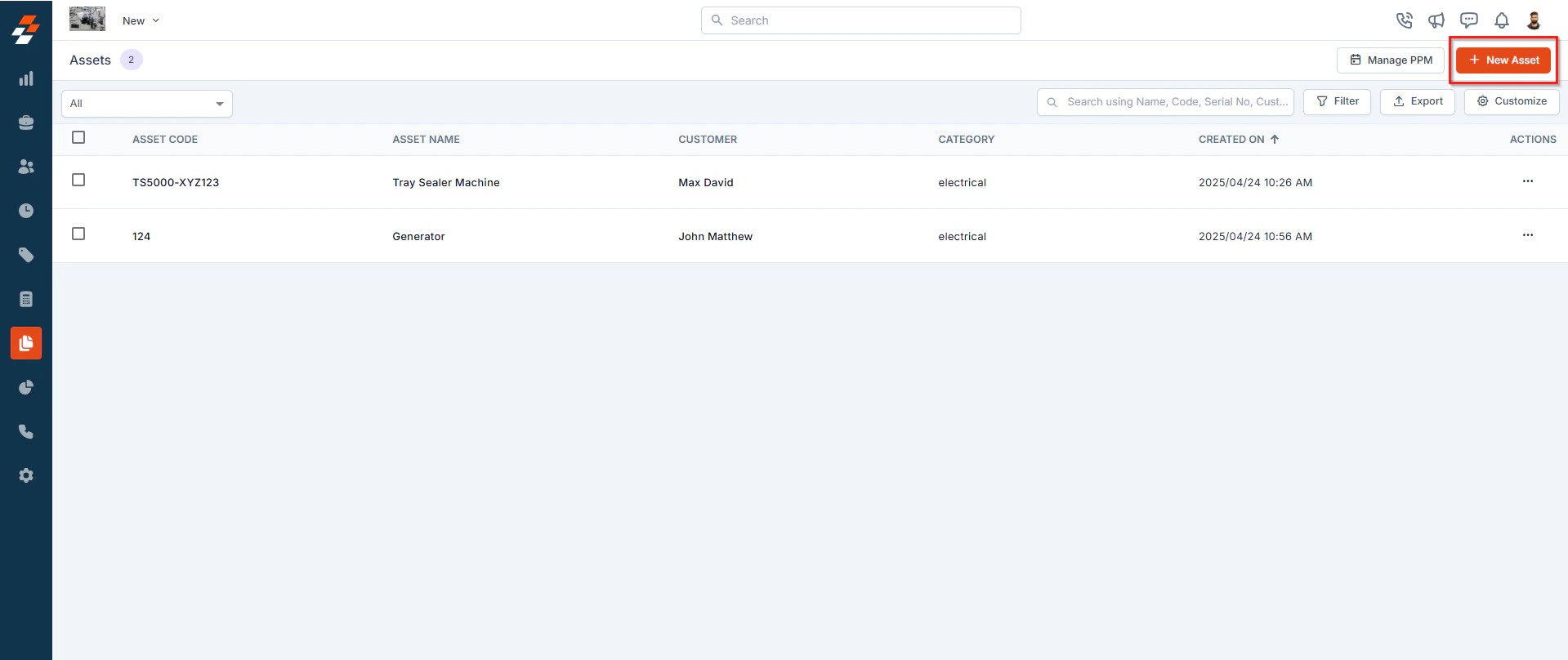
Quickly create new assets directly from the listing page, streamlining asset management. To do this, click the "**+ New Asset**" button at the top right corner. For more detailed guide on how to create a new asset, see creating a new asset article.
### **New asset creation**
Quickly create new assets directly from the listing page, streamlining asset management. To do this, click the "**+ New Asset**" button at the top right corner. For more detailed guide on how to create a new asset, see creating a new asset article.
 ### **Filter assets**
Refine your asset view by applying multiple filters based on predefined criteria such as **Asset Type, Status, Location, Warranty Expiry**, and more. Click [here](https://docs.zuper.co/Work_Order_Management/Jobs/managing_your_jobs#applying-filters) for more details on how to apply multiple filters and find specific assets quickly.
### **Filter assets**
Refine your asset view by applying multiple filters based on predefined criteria such as **Asset Type, Status, Location, Warranty Expiry**, and more. Click [here](https://docs.zuper.co/Work_Order_Management/Jobs/managing_your_jobs#applying-filters) for more details on how to apply multiple filters and find specific assets quickly.
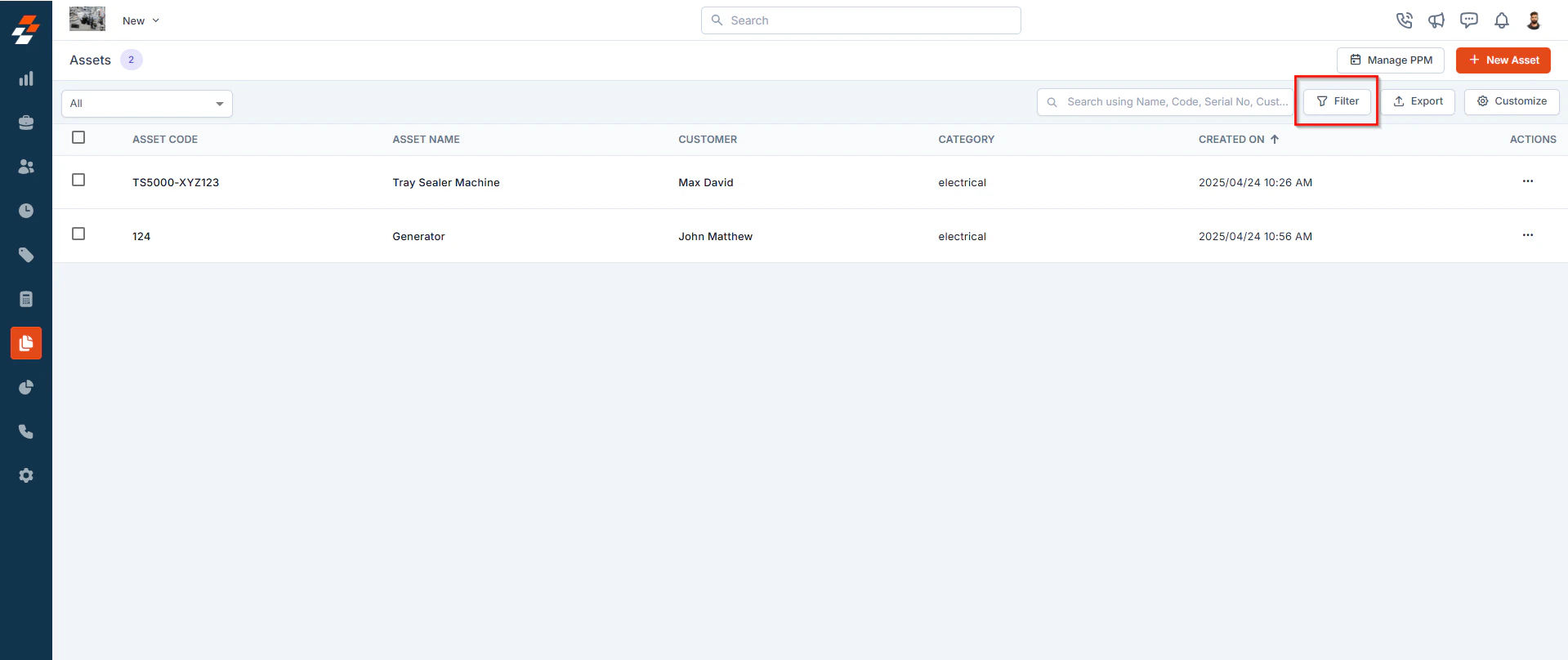 After filtering an asset, click the “**Asset Name**” or “**Asset Code**” to view and manage its details.
## Managing Asset Details
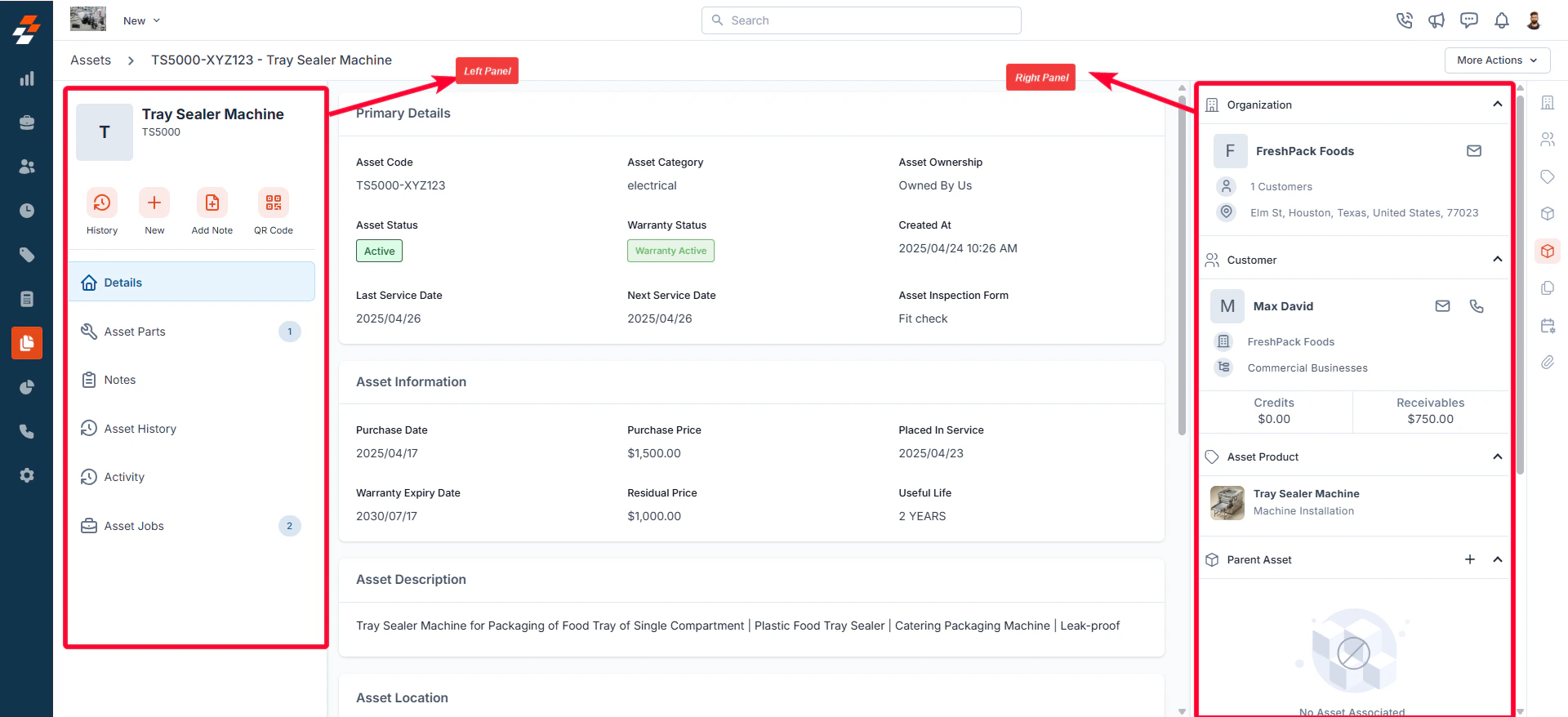
Once an asset is created or accessed from the listing page, the **Asset Details Page** becomes your central hub for managing its lifecycle. The page follows a three-column layout, the left panel displays the asset's primary details, while the right panel provides contextual insights and quick actions for efficient asset management.
After filtering an asset, click the “**Asset Name**” or “**Asset Code**” to view and manage its details.
## Managing Asset Details
Once an asset is created or accessed from the listing page, the **Asset Details Page** becomes your central hub for managing its lifecycle. The page follows a three-column layout, the left panel displays the asset's primary details, while the right panel provides contextual insights and quick actions for efficient asset management.
 ## Left panel
The left panel contains asset-related details such as the asset name and code. Below this, you will find the quick actions bar, which provides contextual action buttons, including options to view the history of performed actions, create a new job or project, add notes, and view the asset's QR code (which can be printed and affixed to the physical asset for tracking and identification purposes).
From here, you also have quick access to view information such as asset details, associated parts, notes, history, activity, and jobs.
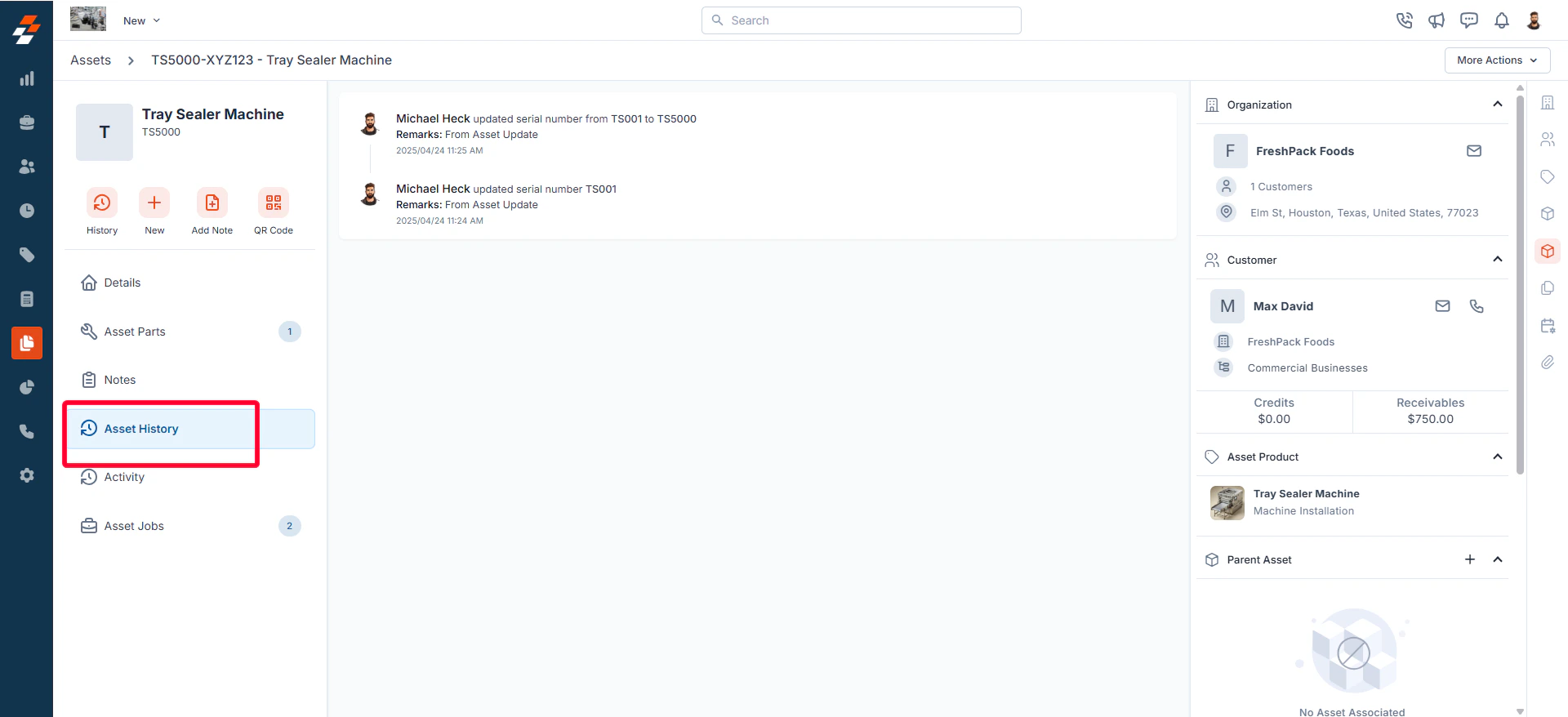
Use the " **History"** button to view a chronological log of all actions performed on the asset. This includes Status updates (e.g., asset activation, deactivation, or maintenance), Job and project associations, Parts added, and more.
## Left panel
The left panel contains asset-related details such as the asset name and code. Below this, you will find the quick actions bar, which provides contextual action buttons, including options to view the history of performed actions, create a new job or project, add notes, and view the asset's QR code (which can be printed and affixed to the physical asset for tracking and identification purposes).
From here, you also have quick access to view information such as asset details, associated parts, notes, history, activity, and jobs.
Use the " **History"** button to view a chronological log of all actions performed on the asset. This includes Status updates (e.g., asset activation, deactivation, or maintenance), Job and project associations, Parts added, and more.
 Use the “**+ New**” button to create a new job or a project for the asset, if required.
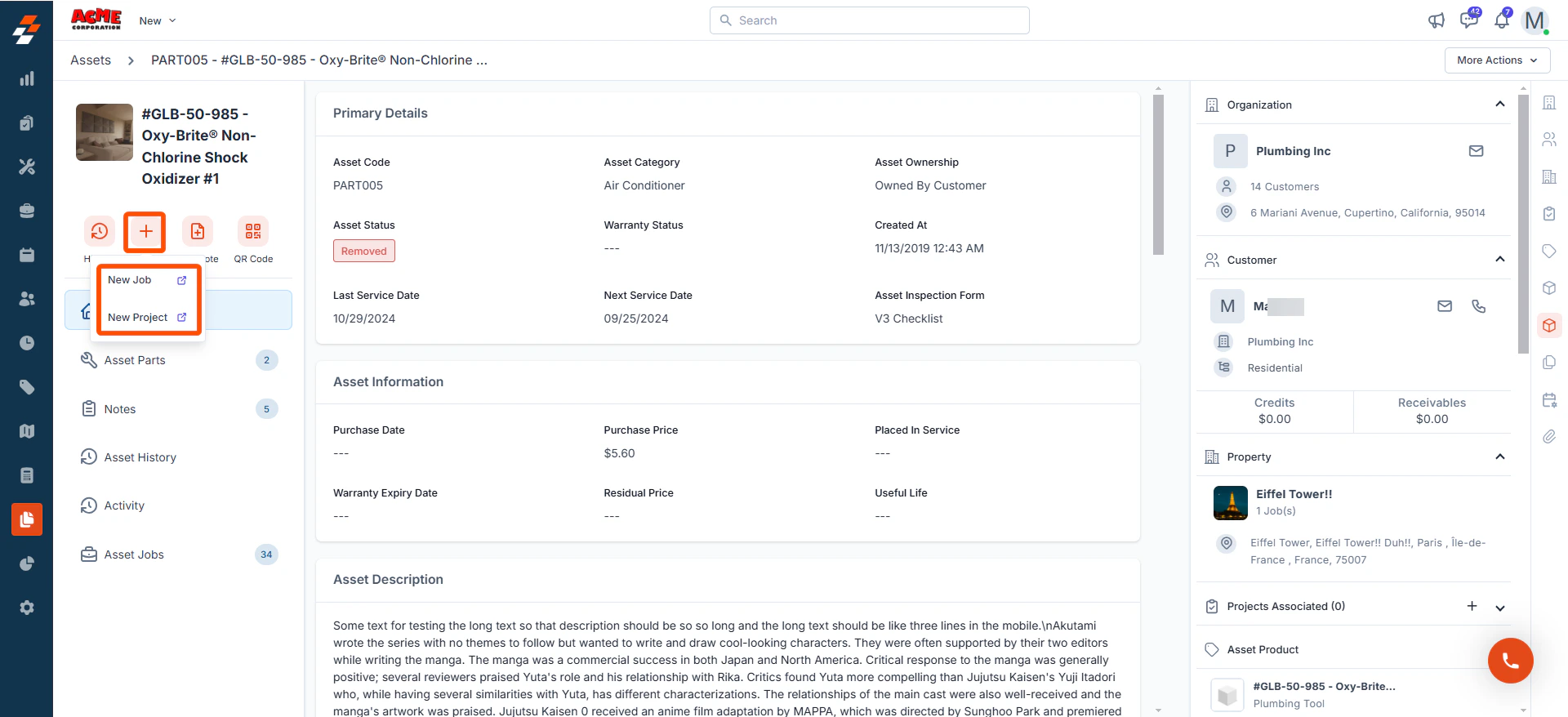 * For step-by-step instructions on how to create a new job, see the [Creating a new job](https://zuperinc.mintlify.app/Work_Order_Management/Jobs/creating_a_new_job) article.
* For step-by-step instructions on how to create a new project, see the [Creating a new project](https://docs.zuper.co/Projects/Creating_a_new_project) article.
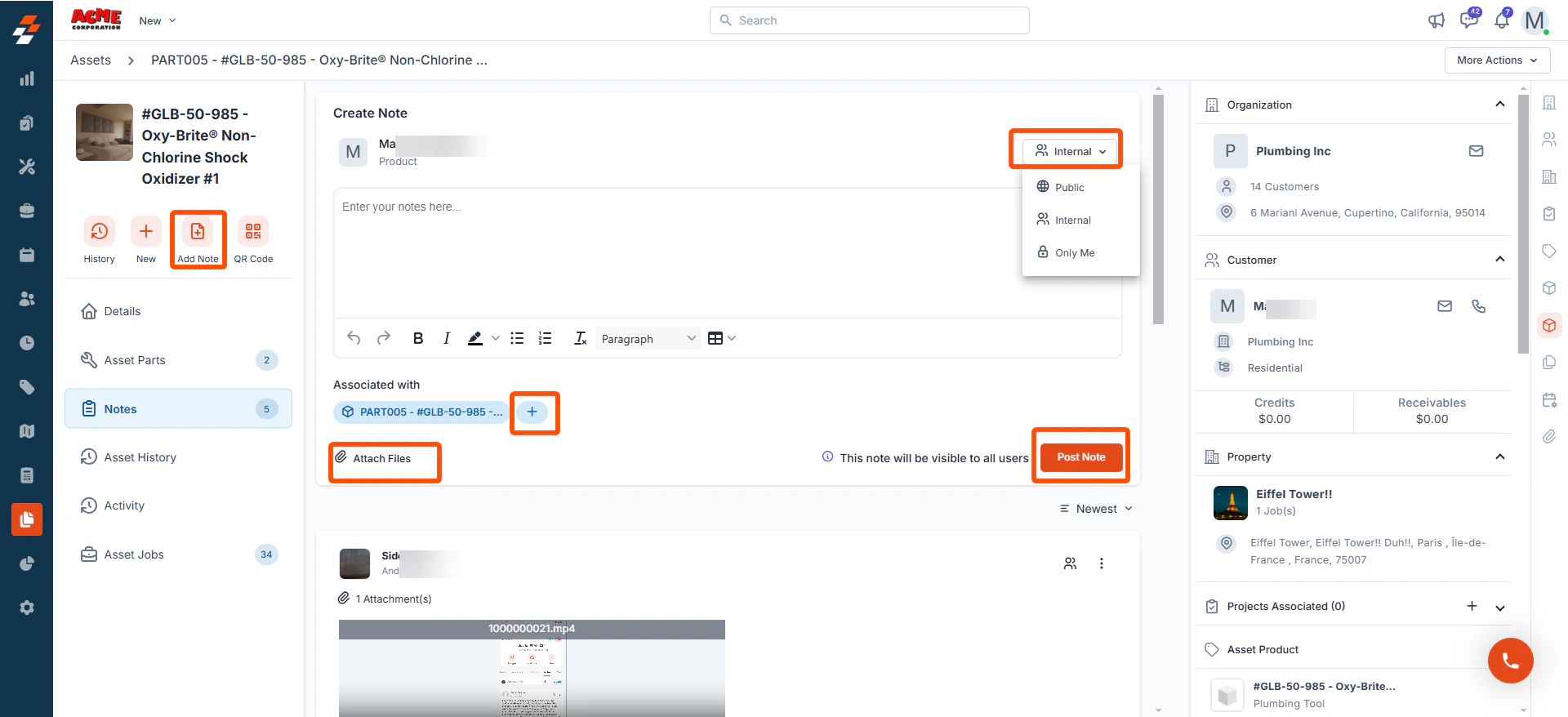
Use the "**+ Add Note**" button to create a new note. Notes are comments or information added to an asset over its course. Your notes can be anything ranging from a simple text reminder to an image of the item, service, video, or document. All added notes can be viewed under the **Notes** Section.
* For step-by-step instructions on how to create a new job, see the [Creating a new job](https://zuperinc.mintlify.app/Work_Order_Management/Jobs/creating_a_new_job) article.
* For step-by-step instructions on how to create a new project, see the [Creating a new project](https://docs.zuper.co/Projects/Creating_a_new_project) article.
Use the "**+ Add Note**" button to create a new note. Notes are comments or information added to an asset over its course. Your notes can be anything ranging from a simple text reminder to an image of the item, service, video, or document. All added notes can be viewed under the **Notes** Section.
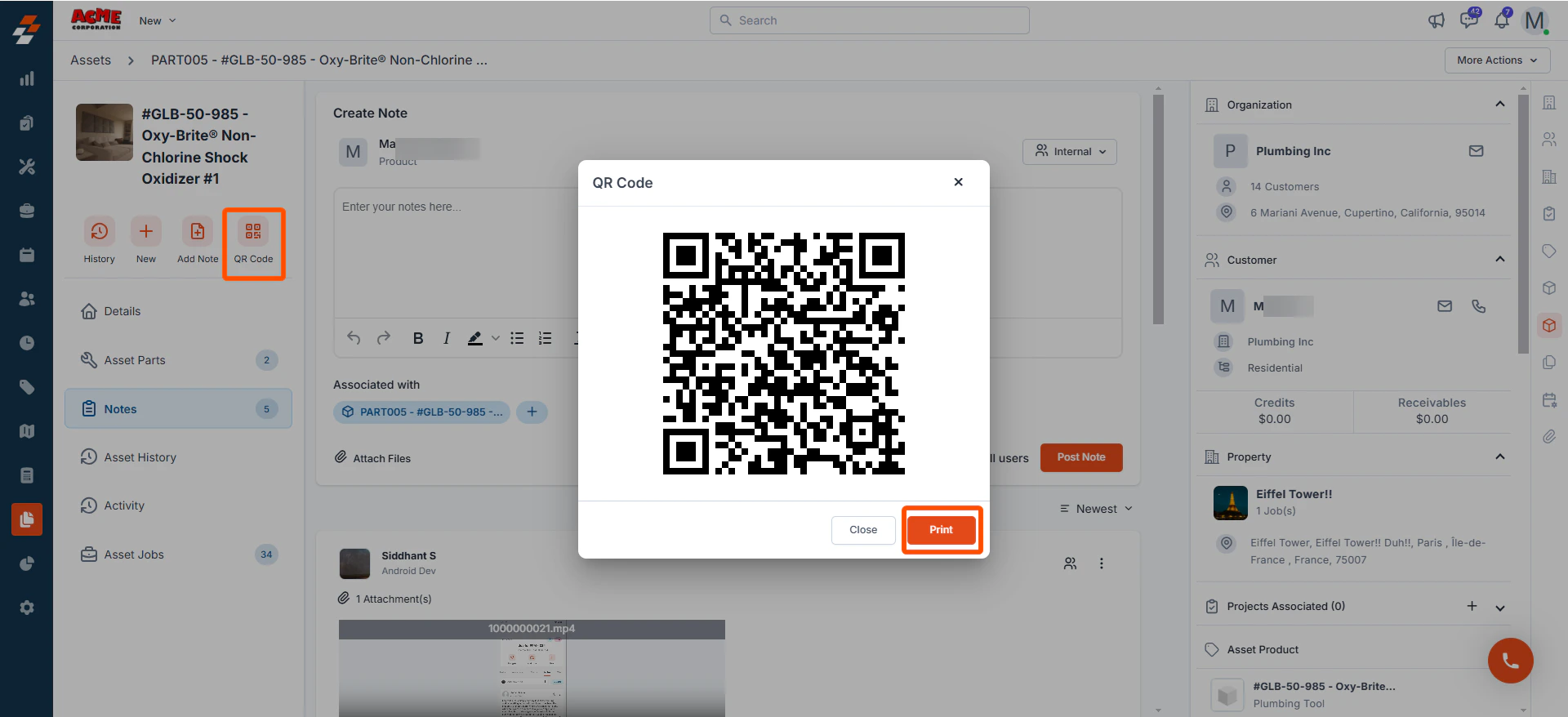
 Use the " **QR Code**" button to view and print the asset’s QR code, which can be attached to the physical asset for streamlined tracking and identification.
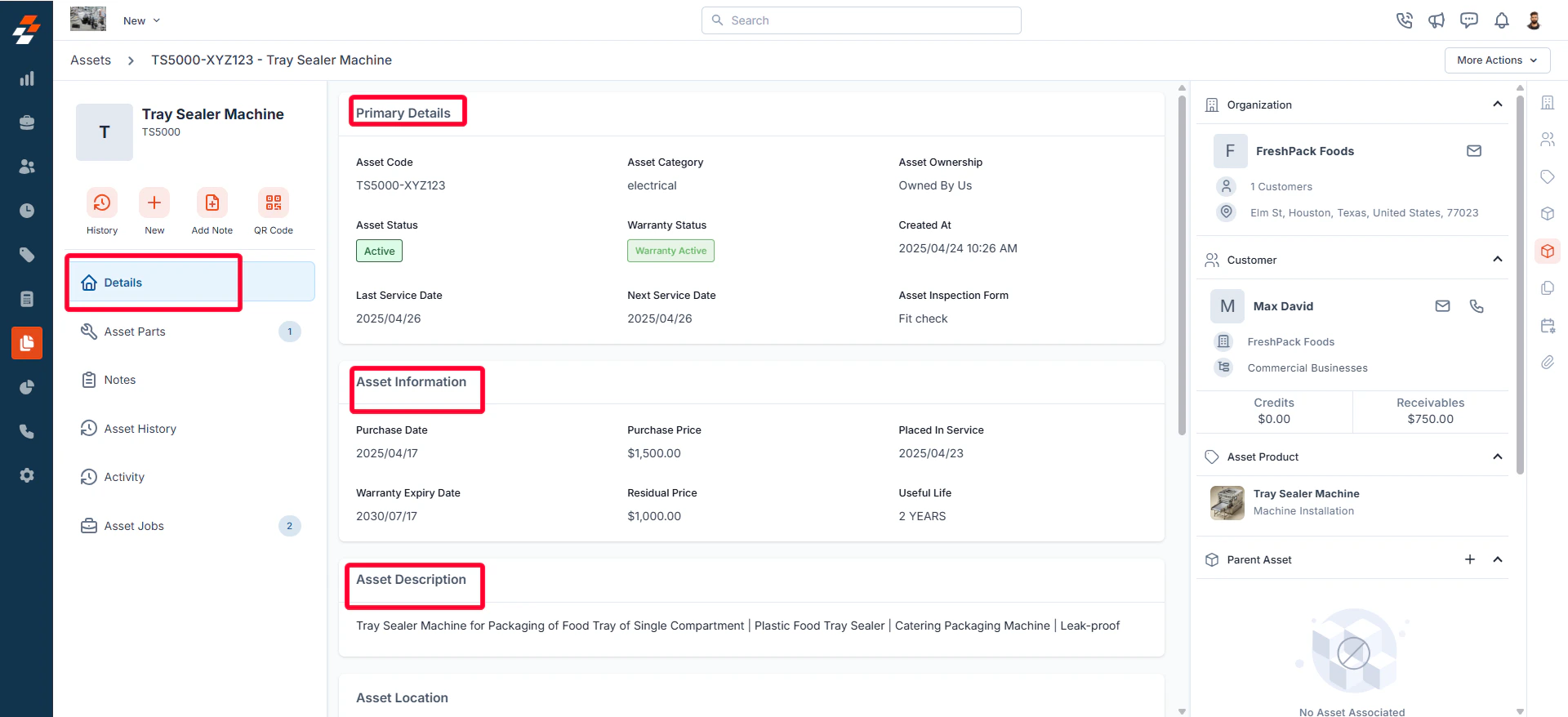
 The asset details section offers a comprehensive overview of the asset, including its code, ownership, status, warranty status, last service date, purchase date, price, location, description, and other relevant details.
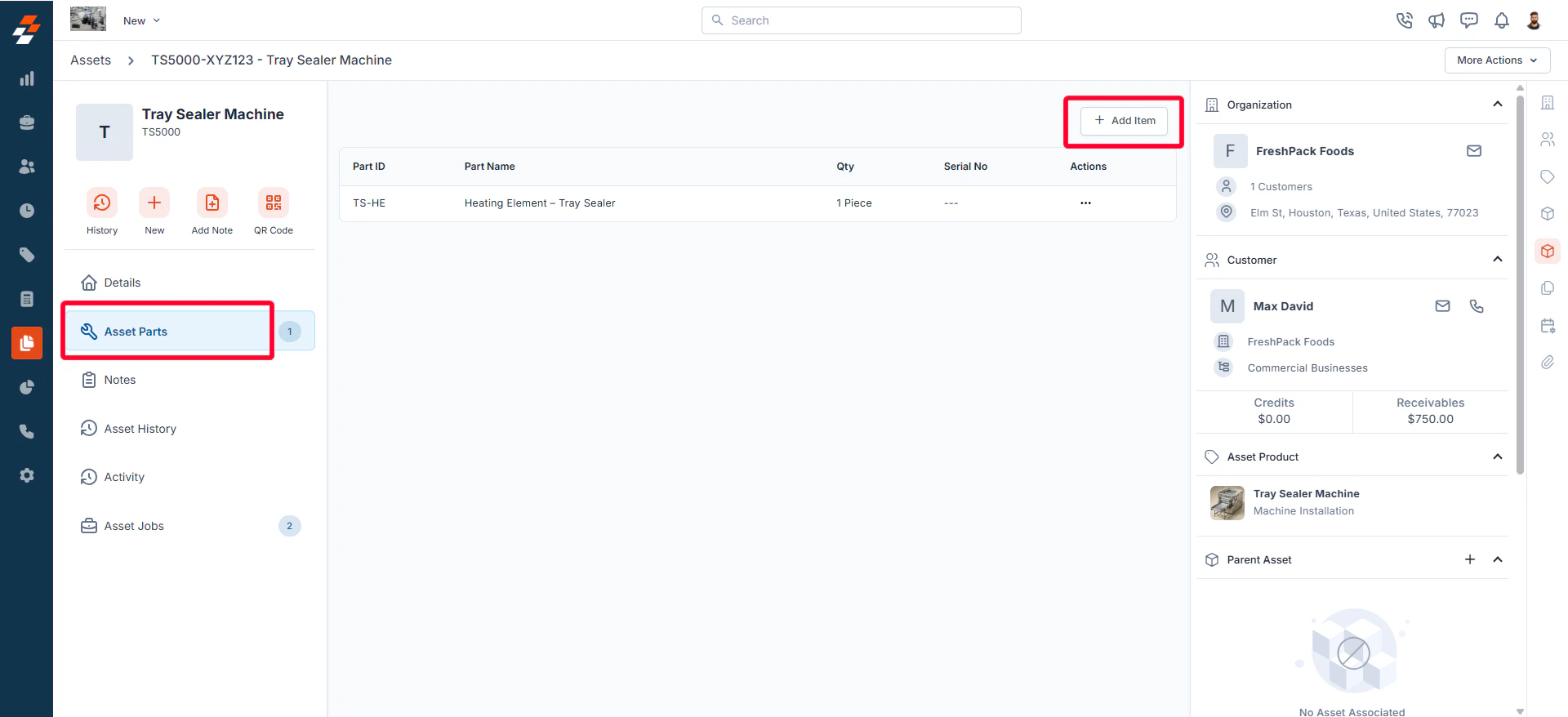
 1. This section allows you to view all the parts associated with the asset. To add new parts to the asset, click the "**+ Add item**" button at the top right of the page.
 2. Select the parts with quantity and click "**Add Part.**" The parts will be updated successfully to the asset.
1. The Notes section allows you to view, add, and manage notes related to the asset. From here, you can use the rich text editor to add any new note. To tag a user to a note, you can use @ and key in the name to tag the user.
2. You can attach multimedia files such as images, audio, video, and documents related to the contract. Use the “**+**” option to associate the notes with other modules such as customer, property, etc.
3. You can also choose one of the following options for how you’d like the notes to be visible:
* **Public**- This privacy setting will help you make the note public to all, including the customer.
* **Internal**(Default) – This privacy setting will help you make the note visible to all your Zuper users in your account.
* **Only me**– This note is visible only to the user who created the note.
After adding the notes, click the “**Post Note**” button to post the notes.
1. Once the notes have been posted, you can sort them based on the newest or oldest.
**Note**: Asset notes can be edited or deleted only by the user who created them.
The asset history section allows you to view a chronological log of all actions performed on the asset.
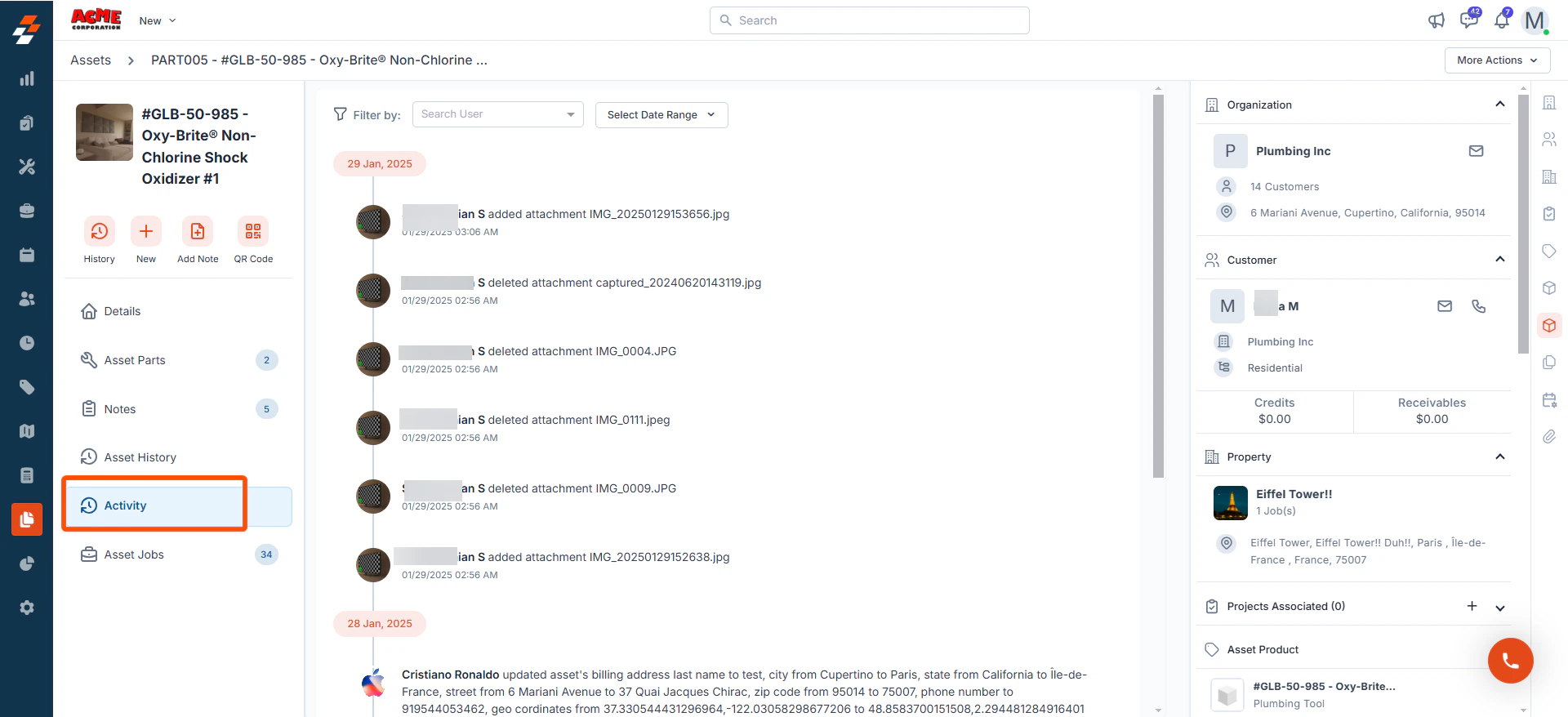
The activity section on the details page displays a log or timeline of all actions and updates related to this asset, helping you stay informed about recent changes and track the asset’s status.
2. Select the parts with quantity and click "**Add Part.**" The parts will be updated successfully to the asset.
1. The Notes section allows you to view, add, and manage notes related to the asset. From here, you can use the rich text editor to add any new note. To tag a user to a note, you can use @ and key in the name to tag the user.
2. You can attach multimedia files such as images, audio, video, and documents related to the contract. Use the “**+**” option to associate the notes with other modules such as customer, property, etc.
3. You can also choose one of the following options for how you’d like the notes to be visible:
* **Public**- This privacy setting will help you make the note public to all, including the customer.
* **Internal**(Default) – This privacy setting will help you make the note visible to all your Zuper users in your account.
* **Only me**– This note is visible only to the user who created the note.
After adding the notes, click the “**Post Note**” button to post the notes.
1. Once the notes have been posted, you can sort them based on the newest or oldest.
**Note**: Asset notes can be edited or deleted only by the user who created them.
The asset history section allows you to view a chronological log of all actions performed on the asset.
The activity section on the details page displays a log or timeline of all actions and updates related to this asset, helping you stay informed about recent changes and track the asset’s status.
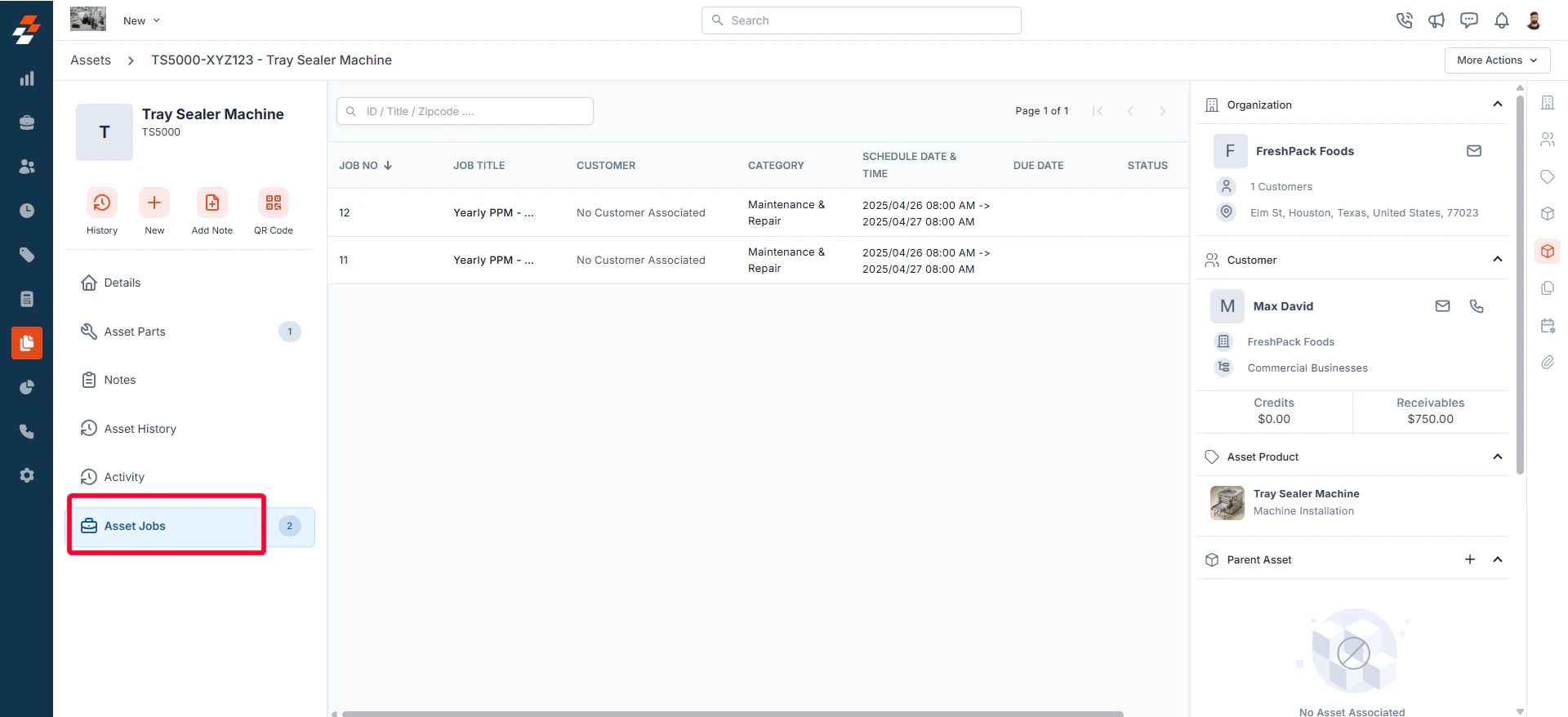
 The asset jobs section allows you to view all jobs associated with the asset. This includes new, ongoing and completed jobs, providing you with a comprehensive overview of job statuses, schedule, and related details.
 ## Right panel
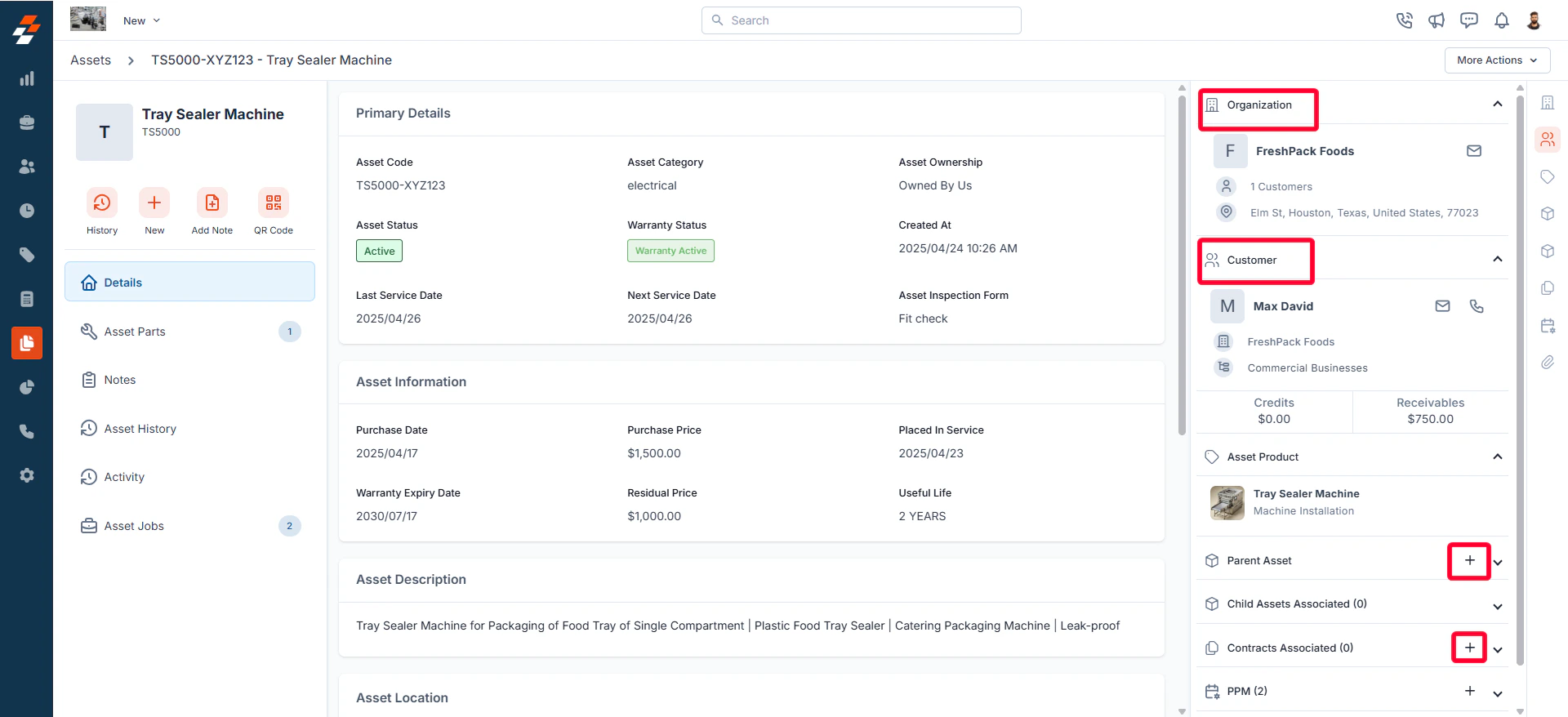
In the right panel, view the organization or contact information associated with the asset, and manage its links to various modules, such as properties, projects, contracts, organizations, PPM, and more. To associate a module, click the “**+**” icon next to the desired module.
## Right panel
In the right panel, view the organization or contact information associated with the asset, and manage its links to various modules, such as properties, projects, contracts, organizations, PPM, and more. To associate a module, click the “**+**” icon next to the desired module.
 ## More actions
Managing assets doesn’t stop at viewing details—you can perform various actions such as editing, cloning, printing, sharing, and deactivating the asset. To do this, click the "**More Actions**" button at the top right corner of the page and select the desired option.
## More actions
Managing assets doesn’t stop at viewing details—you can perform various actions such as editing, cloning, printing, sharing, and deactivating the asset. To do this, click the "**More Actions**" button at the top right corner of the page and select the desired option.
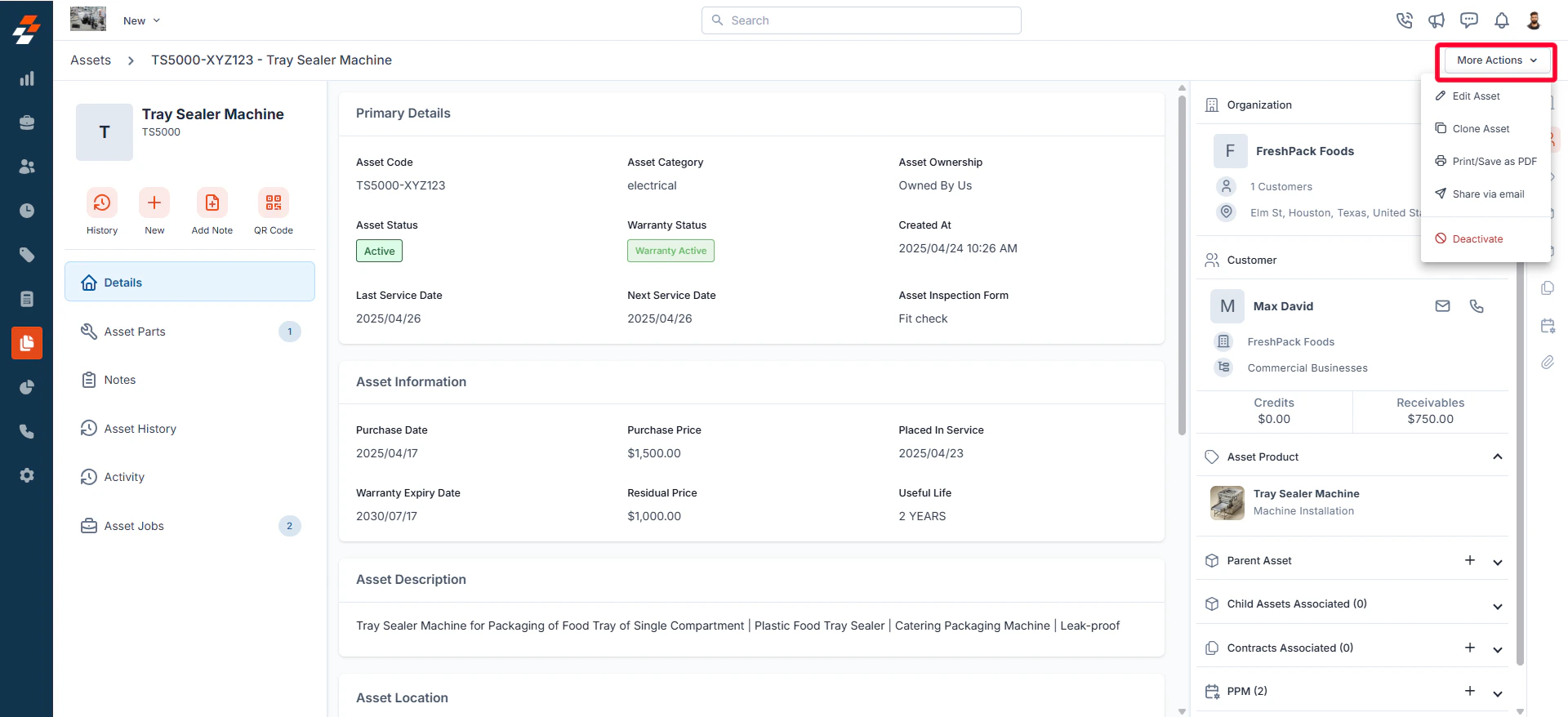 Use the **Edit Asset** option to modify existing asset details as needed.
Use the **Clone** **Asset option** to quickly create a replica of an existing asset, saving time. The current asset details will be duplicated onto a new asset page, where you can make any necessary edits before saving.
Use this option to print the asset details or save them as a PDF for documentation purposes.
This option enables you to share asset details via email directly from the platform.
Use the Deactivate option to disable the asset. Once deactivated, you will have the option to **delete** the asset, if needed.
Managing assets efficiently is crucial for ensuring their optimal usage, tracking their status, and maintaining accurate records. With Zuper, you have a centralized platform to oversee all asset-related activities—from creation and modification to tracking history, managing associated parts, and linking jobs or projects.
Use the **Edit Asset** option to modify existing asset details as needed.
Use the **Clone** **Asset option** to quickly create a replica of an existing asset, saving time. The current asset details will be duplicated onto a new asset page, where you can make any necessary edits before saving.
Use this option to print the asset details or save them as a PDF for documentation purposes.
This option enables you to share asset details via email directly from the platform.
Use the Deactivate option to disable the asset. Once deactivated, you will have the option to **delete** the asset, if needed.
Managing assets efficiently is crucial for ensuring their optimal usage, tracking their status, and maintaining accurate records. With Zuper, you have a centralized platform to oversee all asset-related activities—from creation and modification to tracking history, managing associated parts, and linking jobs or projects.