> ## Documentation Index
> Fetch the complete documentation index at: https://zuperinc-section23.mintlify.site/llms.txt
> Use this file to discover all available pages before exploring further.
# Adding and Managing Cards in Your Wallet
This guide explains how to add, manage, and use payment cards in the Customer Portal's Wallet. The Wallet saves up to five cards on file for quick and secure payments, eliminating the need to re-enter card details for every transaction.
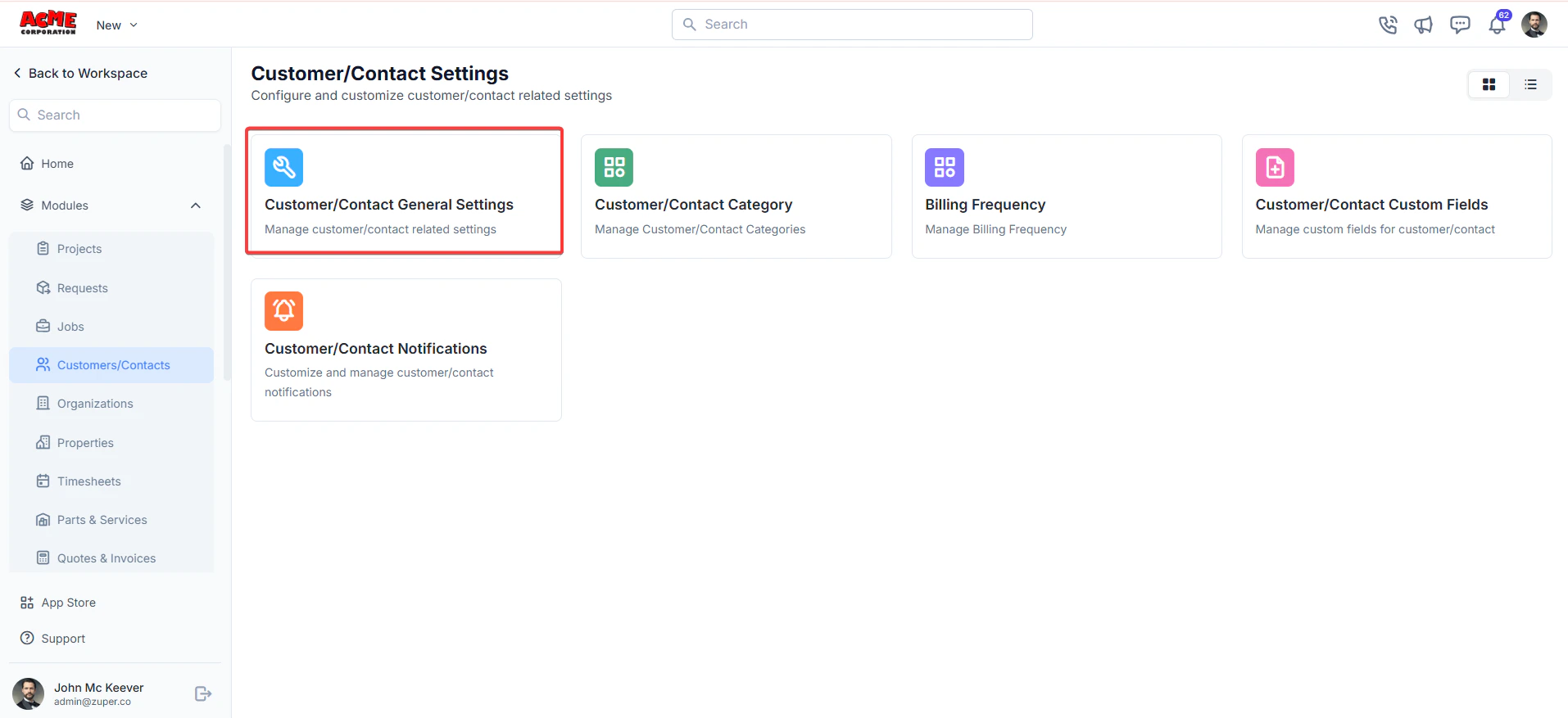
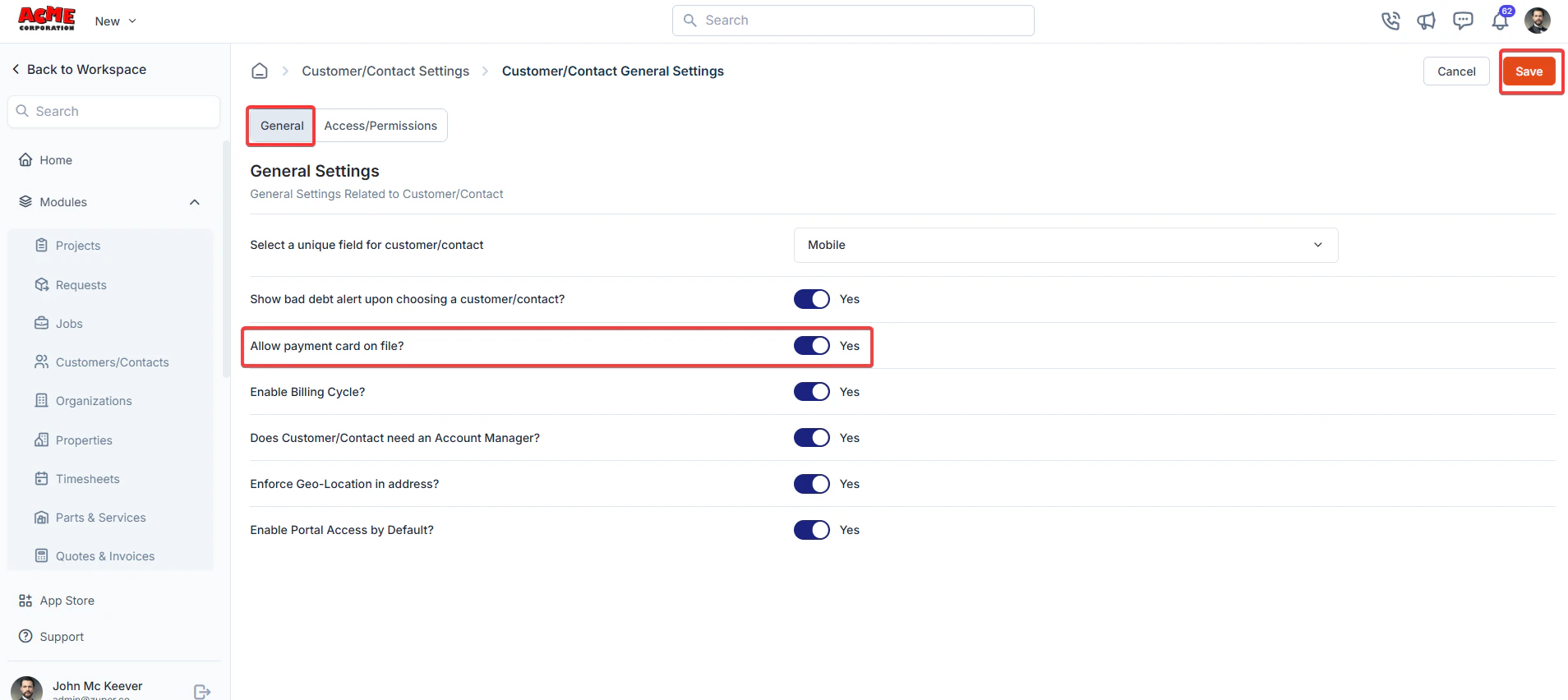
**Navigation**: *Settings -> Customer/Contact Settings -> Allow Payment Card on File*.
## **For Business:**
### **Pre-requisites**
1. Select the “**Settings**” module from the left panel. Under the “**Modules**,” choose the “**Customer/Contact**.” Select the “**Customer/Contact General Settings**.”
 2. **Allow payment card on file?**
 ## **For Customers:**
**Navigation**: *Customer Portal* *-> Cards*
### **Accessing the Wallet**
1. Log in to the Customer Portal. If the business has enabled the card addition option, you’ll see a **Wallet** menu item in the navigation.
## **For Customers:**
**Navigation**: *Customer Portal* *-> Cards*
### **Accessing the Wallet**
1. Log in to the Customer Portal. If the business has enabled the card addition option, you’ll see a **Wallet** menu item in the navigation.
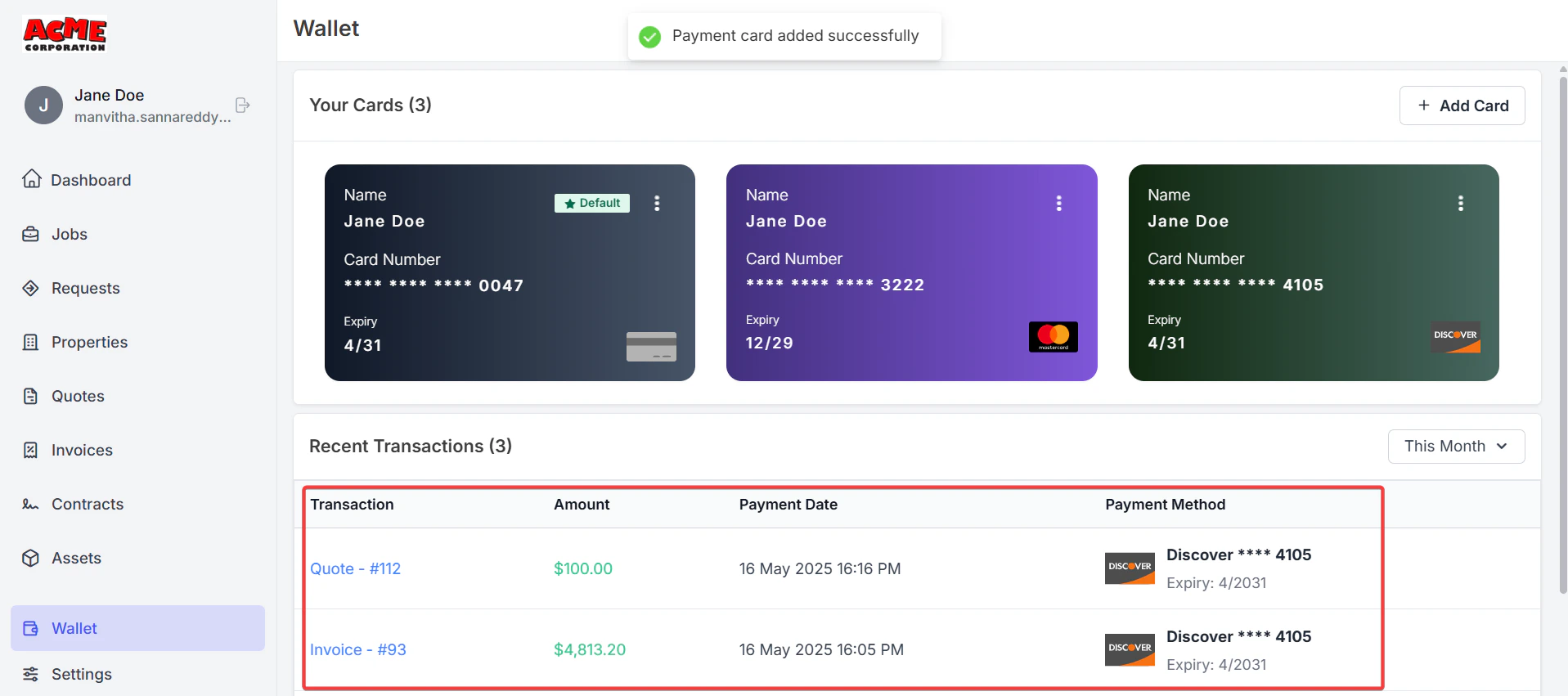
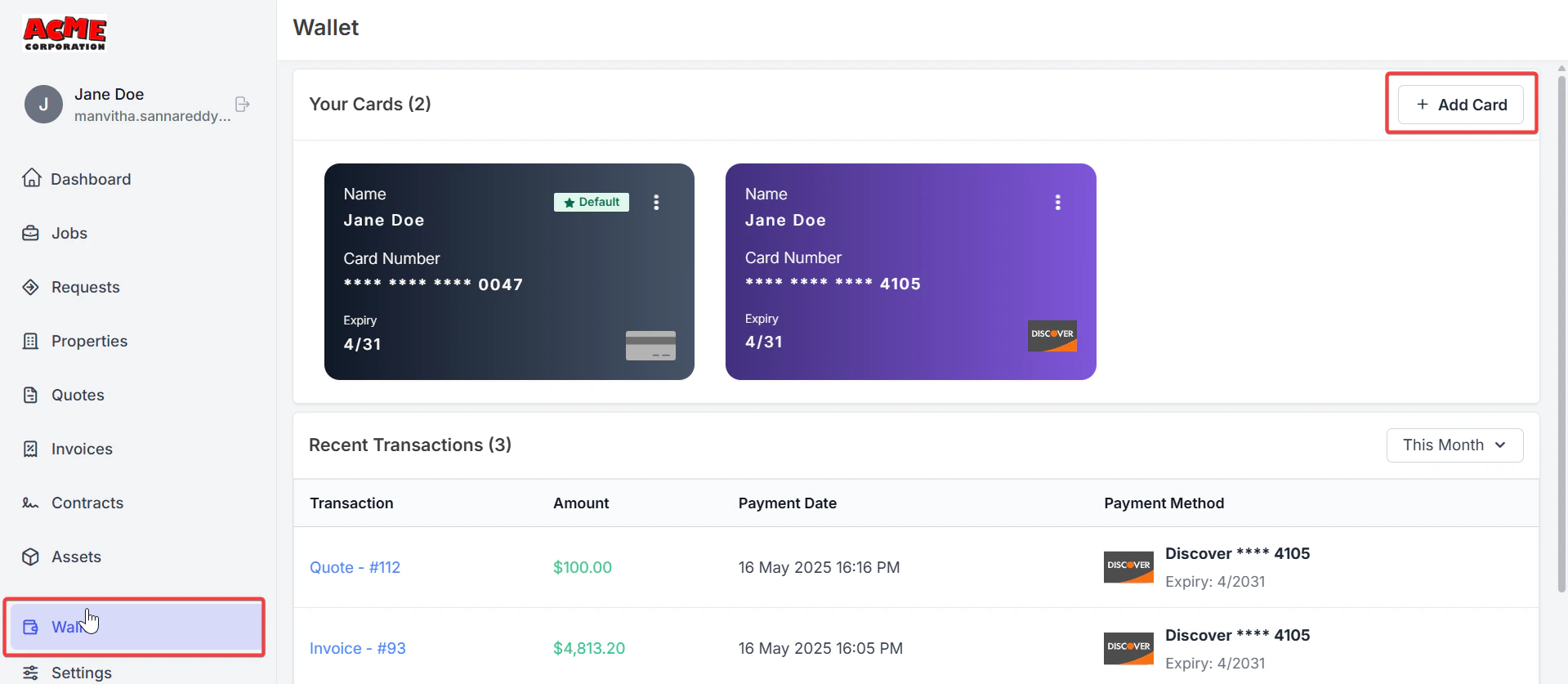 2. Click **Wallet** to view your saved cards and Transaction history.
 ### **Adding a Card to Your Wallet**
You can add up to five cards to your Wallet, including any cards added during previous transactions with the business. Follow these steps to add a card:
1. Navigate to the **Wallet** section in the Customer Portal.
2. Click the **Add Card** button.
* Enter the card details in the provided fields, Card number
* Expiration date
* CVC code
* Country
* Zip code
### **Adding a Card to Your Wallet**
You can add up to five cards to your Wallet, including any cards added during previous transactions with the business. Follow these steps to add a card:
1. Navigate to the **Wallet** section in the Customer Portal.
2. Click the **Add Card** button.
* Enter the card details in the provided fields, Card number
* Expiration date
* CVC code
* Country
* Zip code
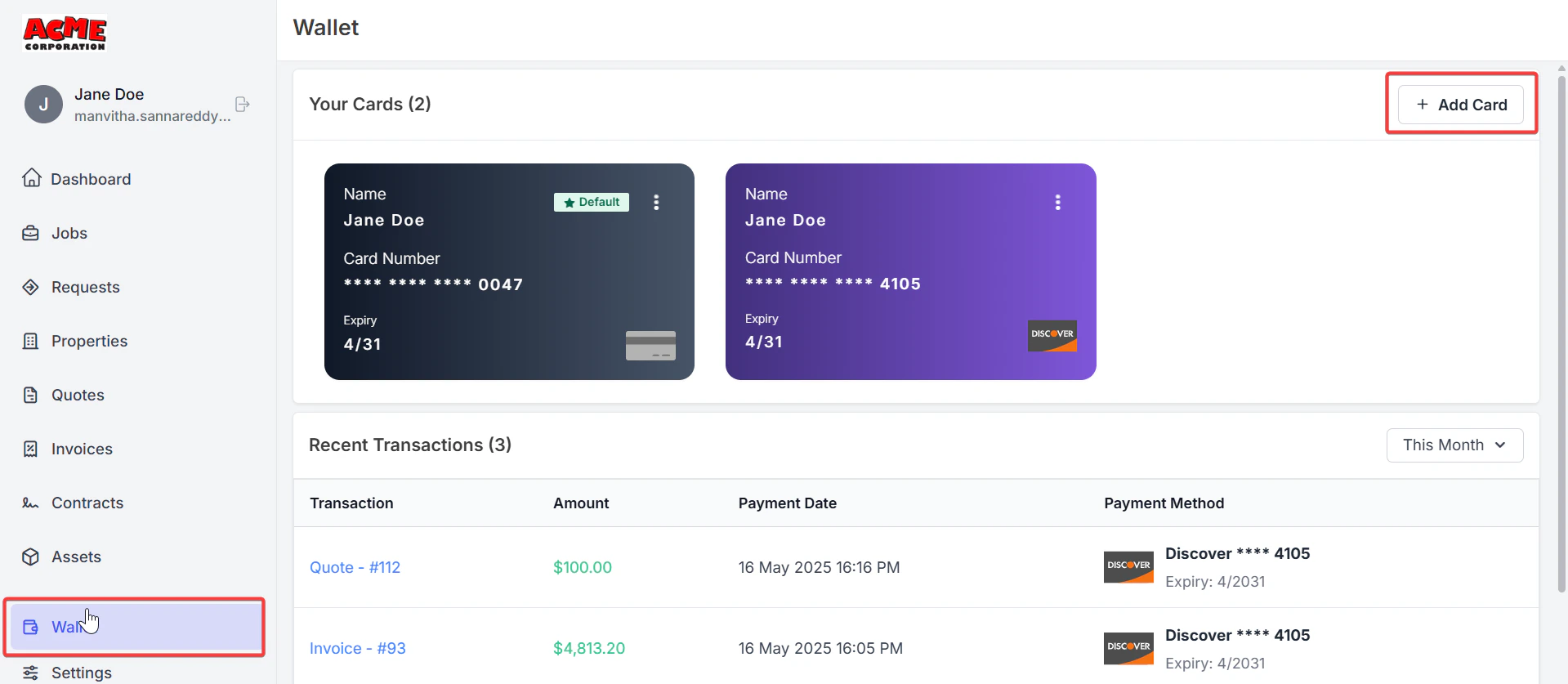 3. If you want the new card to be your primary card, check the **Set as primary card** checkbox. (See the details of the “**Setting a Primary Card**” section below.) Click **Save** to add the card.
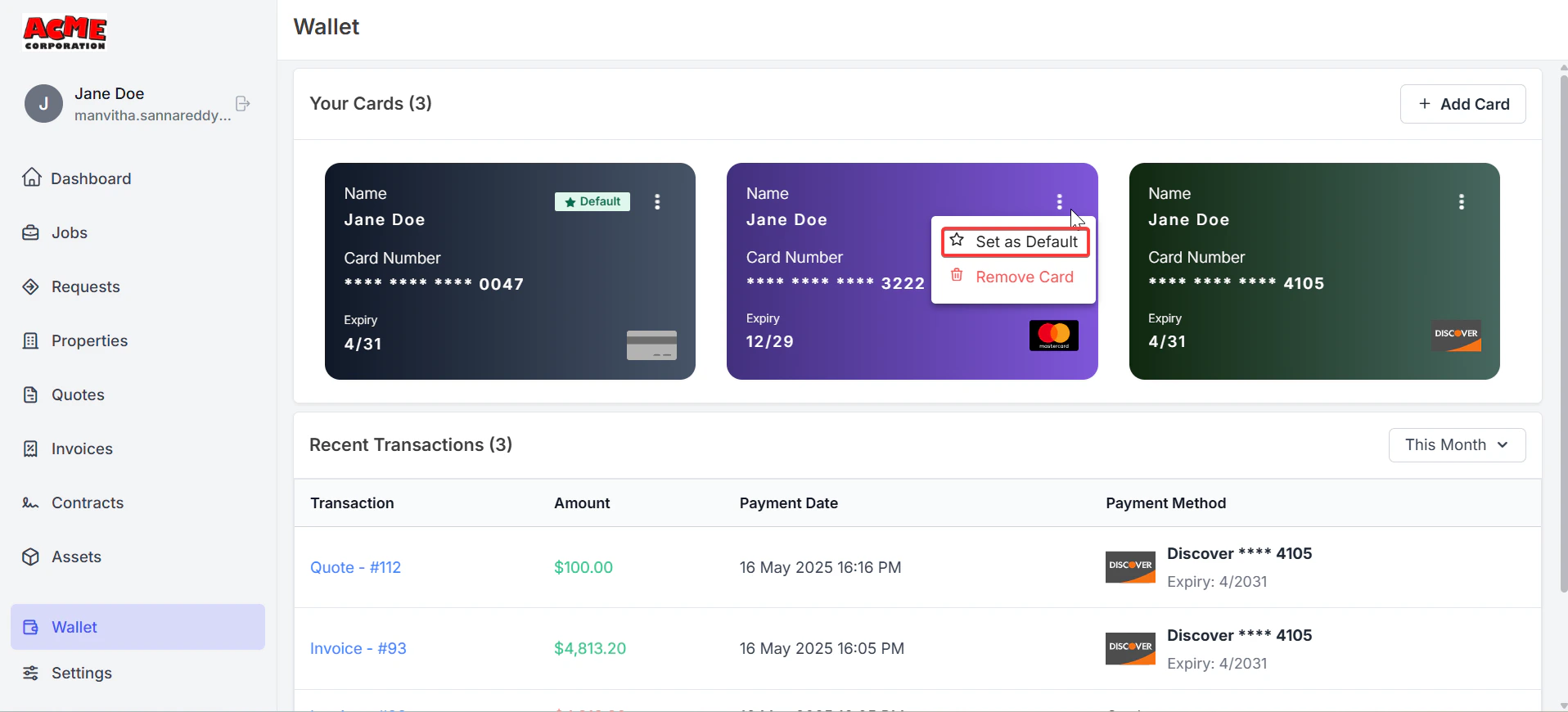 **Actions You Can Take:**
* **Set as Default**: Select a card and click **Set as Default** to make it the payment default.
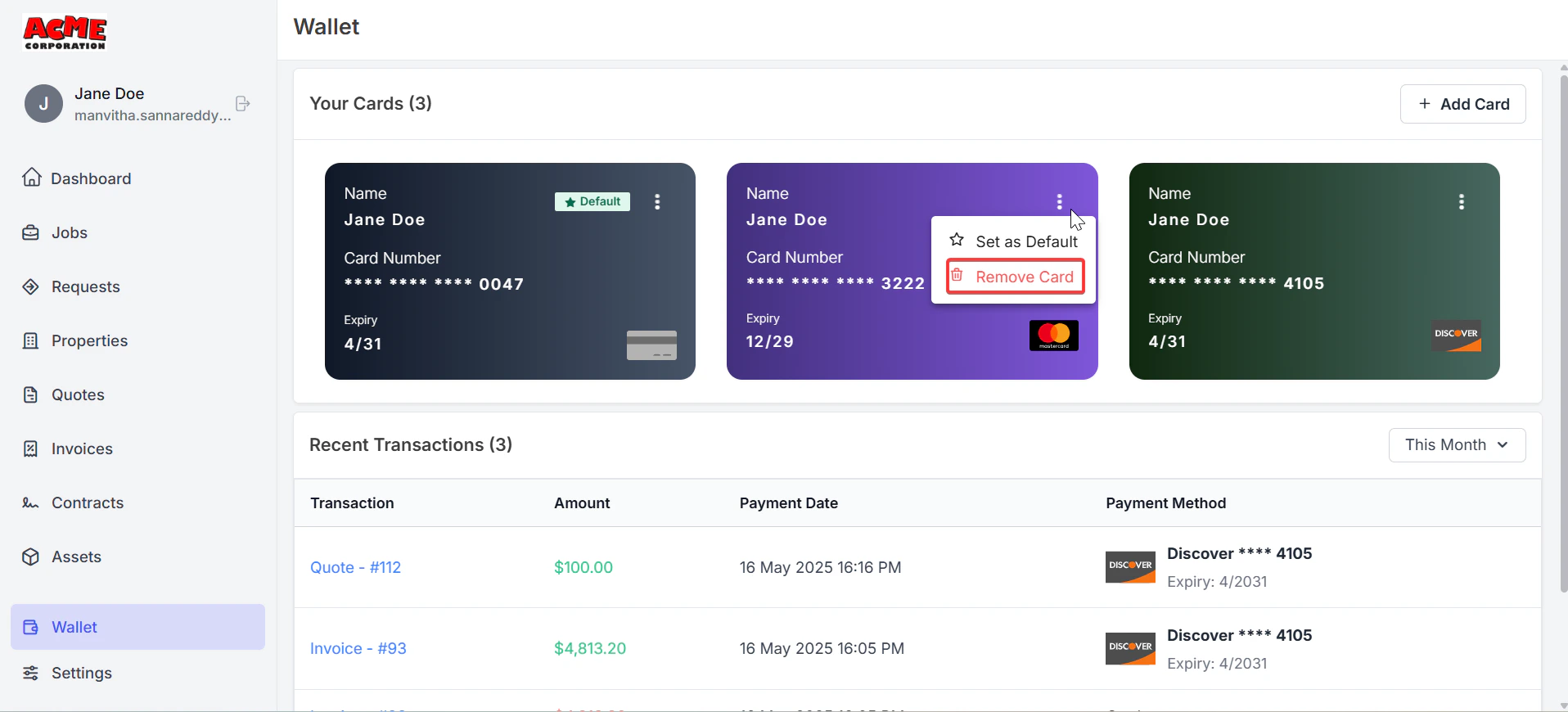
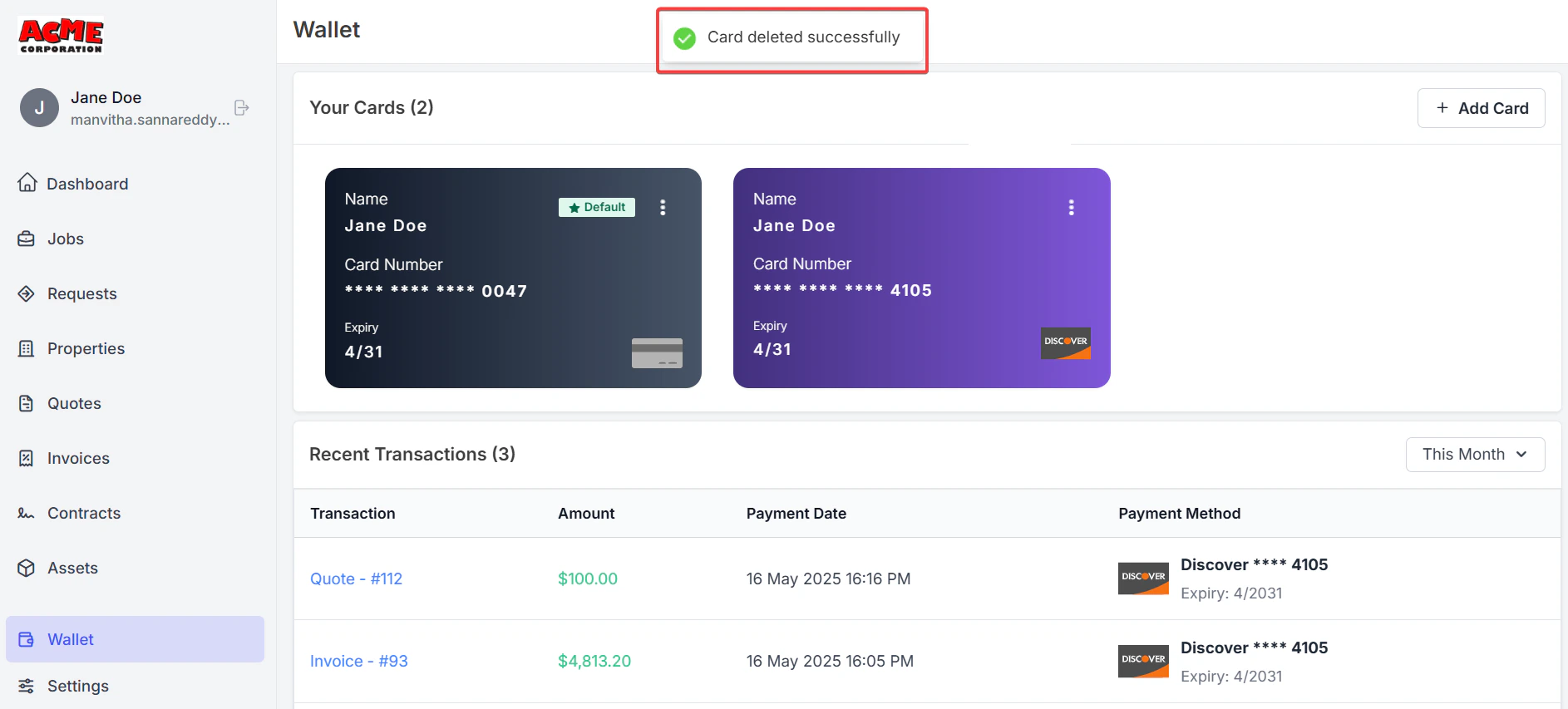
* **Delete a Card**: Select a card and click **Delete**. If it’s the Default card and you have other cards, you’ll be prompted to choose a new Default card.
* **View Details**: See card details like the brand and last four digits (full card numbers are never shown for security).
The Default card is the default card used for payments during checkout. Here’s how Default cards work:
* **One Default Card**: Only one card can be set as Default.
* **Mandatory Default Card**: A Default card must be set if you have at least one card.
* If you have only one card, it is automatically set as the Default card.
* If you have multiple cards, the first added card is the default, but you can change it.
* **Setting a Default Card**:
* When adding a new card, check the **Set as Default card** checkbox to make it the Default card.
* To change the Default card, go to the Wallet, select a different card, and click **Set as Default**.
* During Checkout, when using a new card to pay, a Set as default card checkbox appears (unchecked by default). Check it to set the new card as the Default.
* **Deleting a Default Card**: If you delete the Default card and have two or more remaining cards, you’ll be prompted to select a new Default card.
If you have only one card, you can delete it even if it is the Default card.
**Managing Cards in Your Wallet**
In the Wallet, you can view and manage all cards saved on file, including those added by the business. Each card displays:
* Card brand (e.g., Visa, Mastercard).
* Last four digits.
* Expiration date.
* Default card status (if applicable).
**Actions You Can Take:**
* **Set as Default**: Select a card and click **Set as Default** to make it the payment default.
* **Delete a Card**: Select a card and click **Delete**. If it’s the Default card and you have other cards, you’ll be prompted to choose a new Default card.
* **View Details**: See card details like the brand and last four digits (full card numbers are never shown for security).
The Default card is the default card used for payments during checkout. Here’s how Default cards work:
* **One Default Card**: Only one card can be set as Default.
* **Mandatory Default Card**: A Default card must be set if you have at least one card.
* If you have only one card, it is automatically set as the Default card.
* If you have multiple cards, the first added card is the default, but you can change it.
* **Setting a Default Card**:
* When adding a new card, check the **Set as Default card** checkbox to make it the Default card.
* To change the Default card, go to the Wallet, select a different card, and click **Set as Default**.
* During Checkout, when using a new card to pay, a Set as default card checkbox appears (unchecked by default). Check it to set the new card as the Default.
* **Deleting a Default Card**: If you delete the Default card and have two or more remaining cards, you’ll be prompted to select a new Default card.
If you have only one card, you can delete it even if it is the Default card.
**Managing Cards in Your Wallet**
In the Wallet, you can view and manage all cards saved on file, including those added by the business. Each card displays:
* Card brand (e.g., Visa, Mastercard).
* Last four digits.
* Expiration date.
* Default card status (if applicable).
 ## **Using a Saved Card During Checkout**
You can use saved cards to make payments quickly during checkout in the Customer Portal. Here’s how:
1. Proceed to the checkout page.
2. Your default card is selected by default in the payment section.
3. Select a different saved card from the list of saved cards to use.
4. The selected card’s details (e.g., card number, expiration date) are pre-filled for convenience.
5. Complete the payment.
**Notes:**
* **Disabled Card Types**: You cannot select those cards during checkout if the business disables a card type or brand.
**Using a New Card**: If you pay with a new card instead of a saved one, you’ll see a **Save card for future payments** checkbox. Check it to add the card to your Wallet. A Set as Default card checkbox appears (unchecked by default) if checked. \
\
**Invoice Payments:**
1. Click any one of the invoices to view the details.
## **Using a Saved Card During Checkout**
You can use saved cards to make payments quickly during checkout in the Customer Portal. Here’s how:
1. Proceed to the checkout page.
2. Your default card is selected by default in the payment section.
3. Select a different saved card from the list of saved cards to use.
4. The selected card’s details (e.g., card number, expiration date) are pre-filled for convenience.
5. Complete the payment.
**Notes:**
* **Disabled Card Types**: You cannot select those cards during checkout if the business disables a card type or brand.
**Using a New Card**: If you pay with a new card instead of a saved one, you’ll see a **Save card for future payments** checkbox. Check it to add the card to your Wallet. A Set as Default card checkbox appears (unchecked by default) if checked. \
\
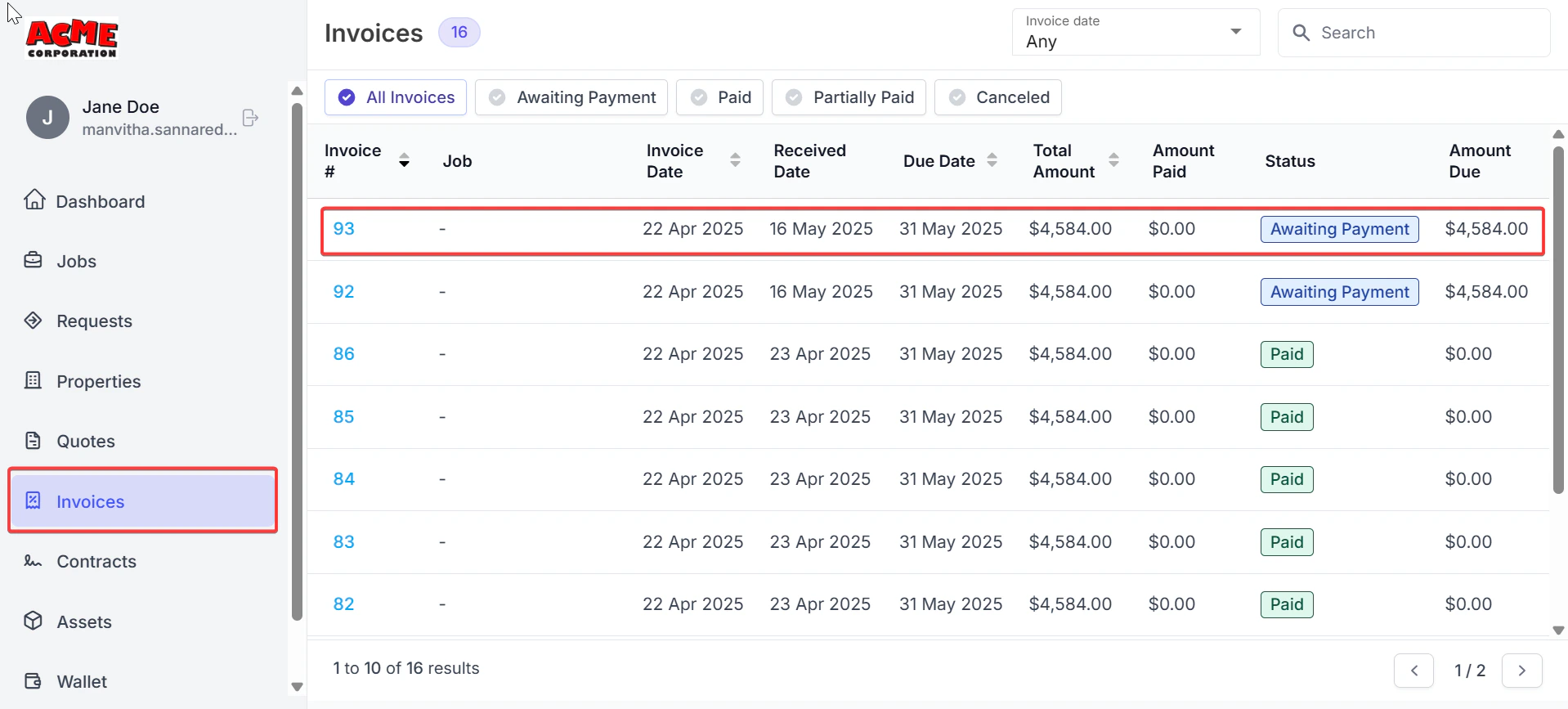
**Invoice Payments:**
1. Click any one of the invoices to view the details.
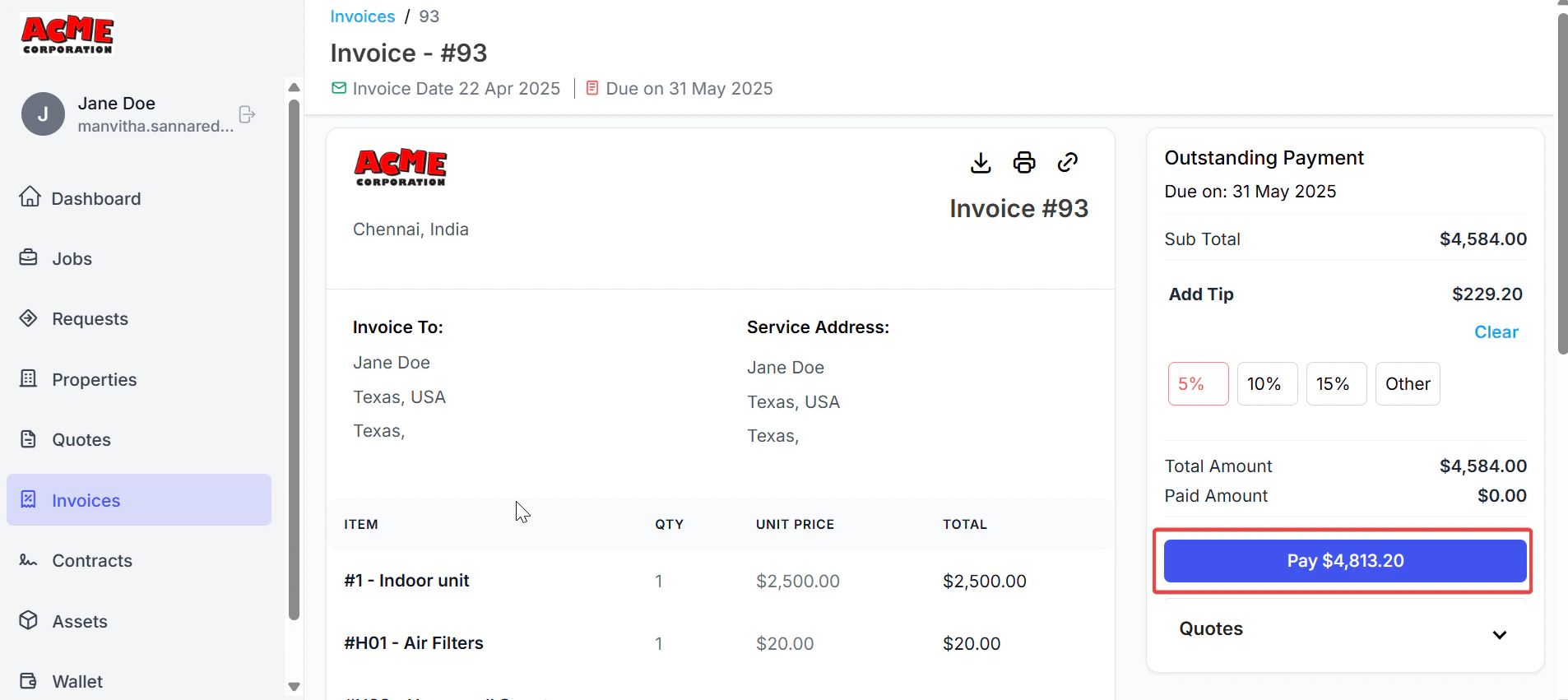
 2. Click the “**Pay**” button to pay for the invoice.
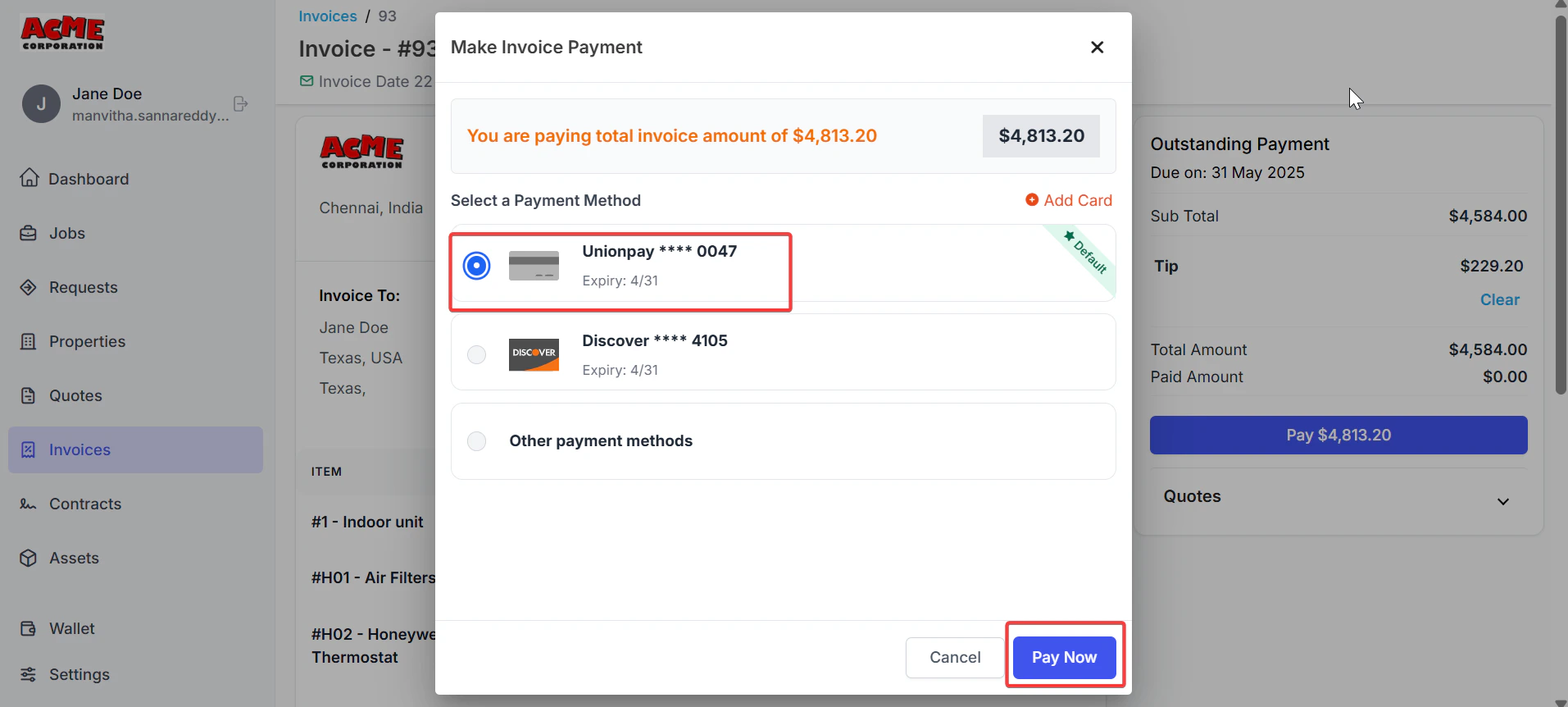
 3. Select the payment method and click “**Pay Now**.”
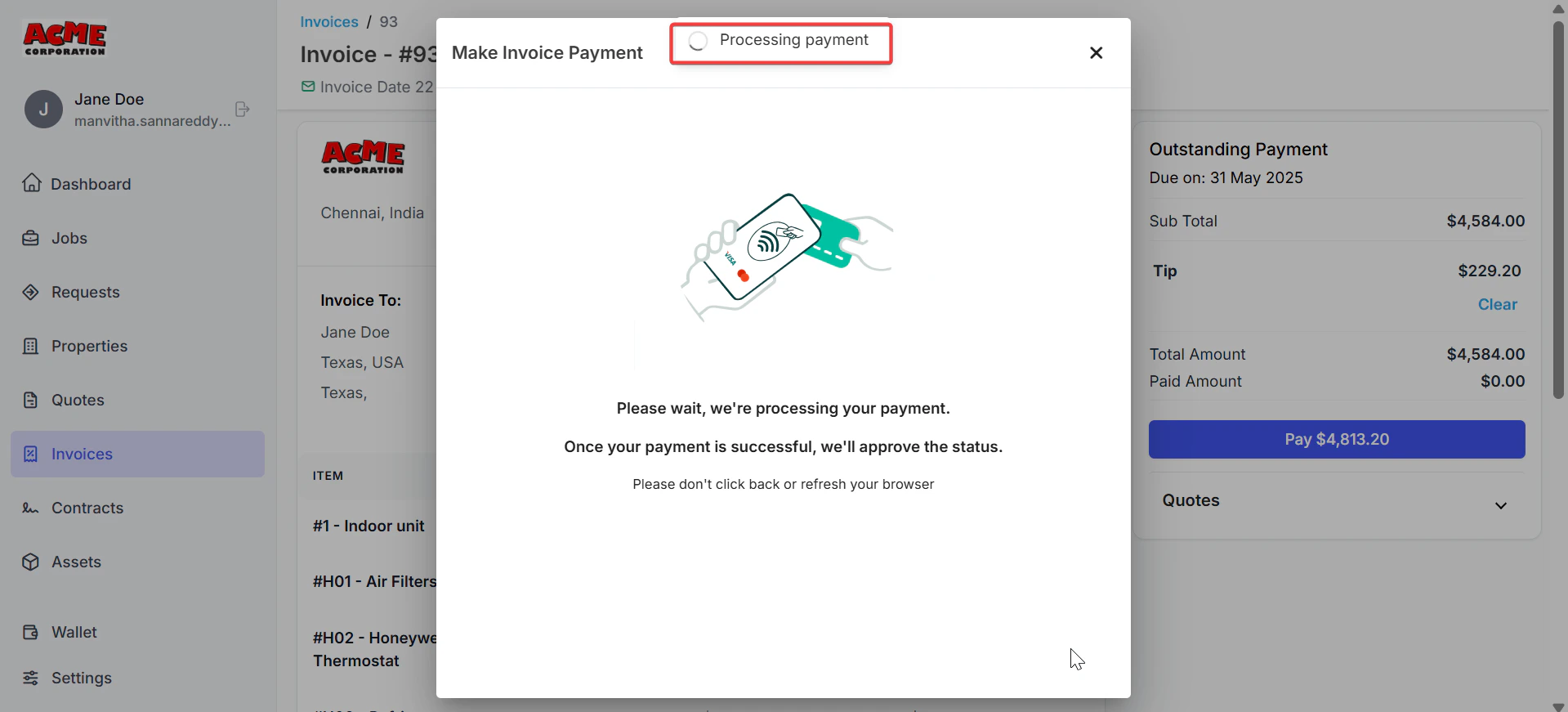
 4. The payment is successfully done.
 ## **Quote Payments:**
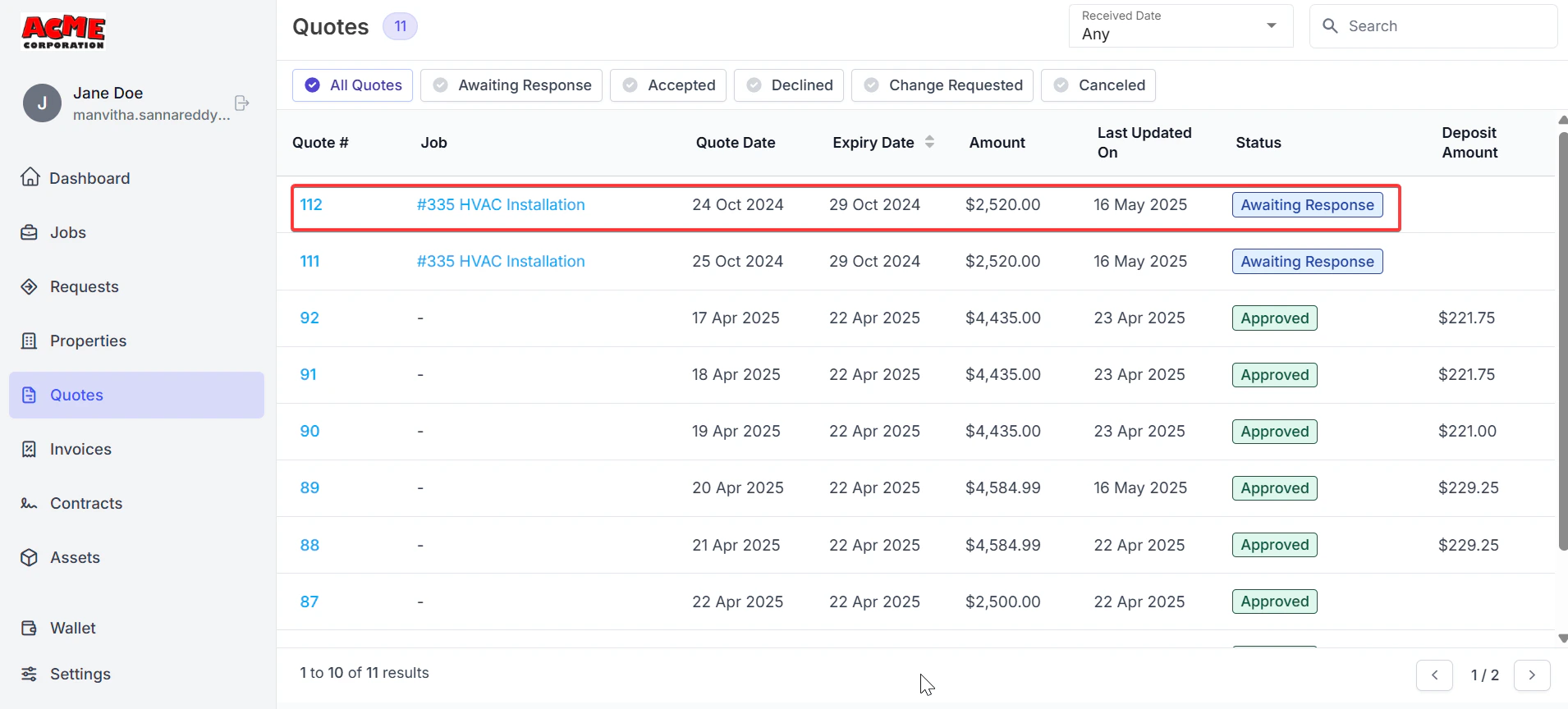
1. Click any one of the quotes to view the details.
## **Quote Payments:**
1. Click any one of the quotes to view the details.
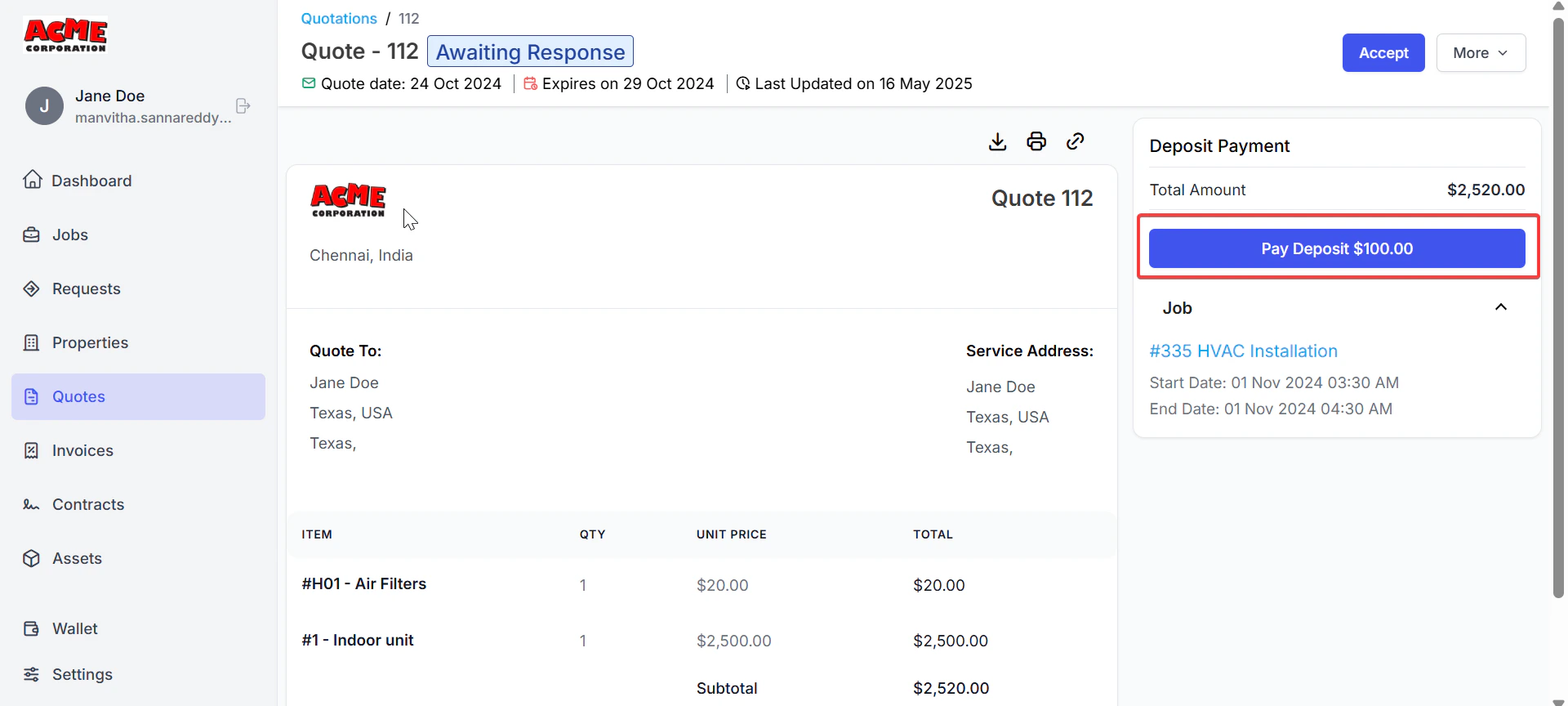
 2. Click the “**Pay Deposit**” button to pay for the quote.
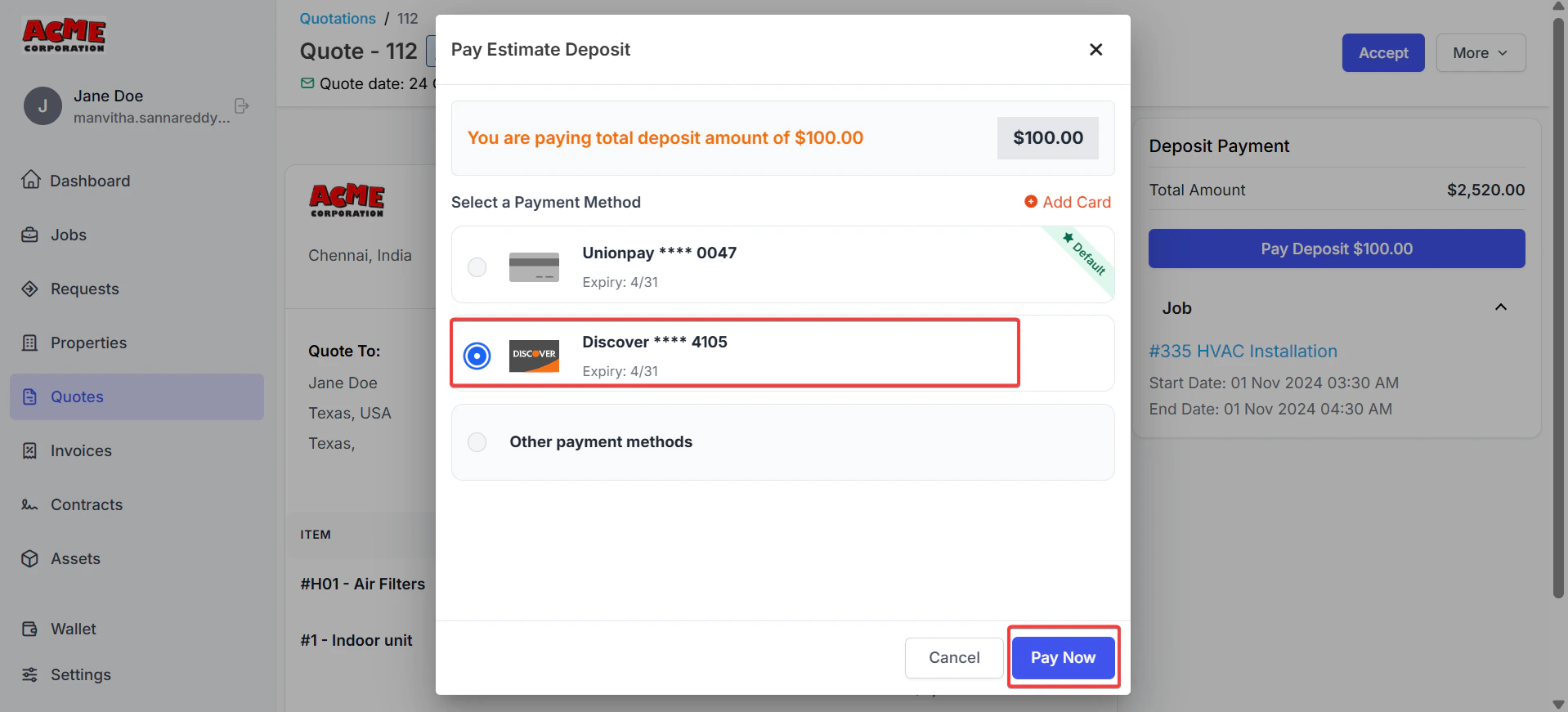
 3. Select the payment method and click “**Pay Now**.”
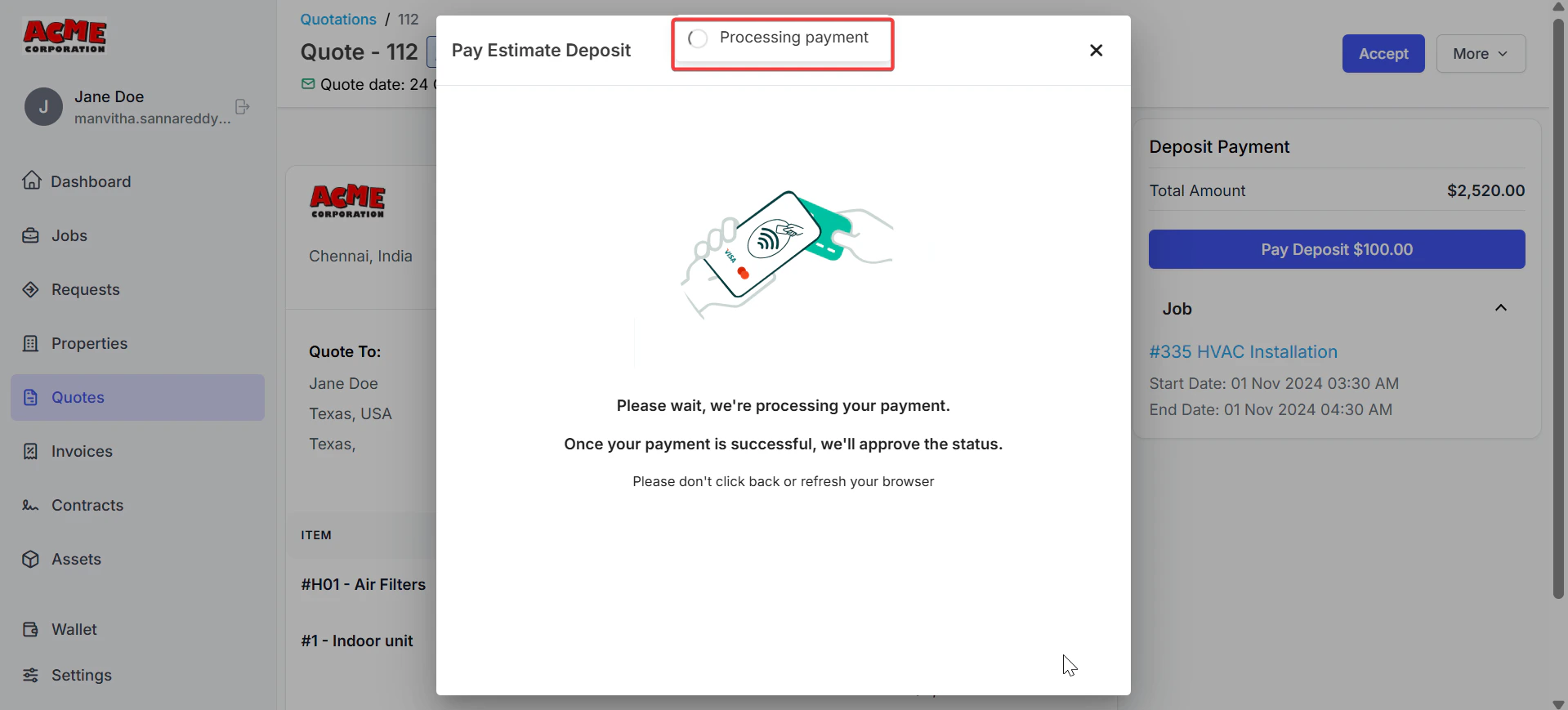
 4. The payment is successfully done.
 ## **Frequently Asked Questions**
**Why can’t I see the Wallet in the Customer Portal?**
The Wallet is only visible if the business has enabled the “Allow customers to add cards on file” setting. Contact the business to confirm.
**How secure is my card information?**
Stripe, a trusted payment processor, encrypts and securely stores your card details. Neither the business, Zuper, nor any other intermediaries can access your card information.
**Can I add more than five cards?**
No, a customer record is limited to five saved cards, including those added by the business. However, if the business has your cards saved for future transactions, they will be reflected, even if there are more than five.
**What happens if I delete my only card?**
You can delete your only card, but you must add a new card or enter payment details manually for future transactions.
**How do I know when my saved card is charged?**
You’ll receive an email notification whenever a saved card is charged for approved work.
## Customer Portal User Manual link
[Customer Portal Settings](https://docs.zuper.co/Settings/Customer_Portal/Customer_Portal)
[**Login to your customer portal**](https://docs.zuper.co/Customer_Portal/Login_to_customer_portal)
To learn more about the Customer Portal usage, click [here](https://drive.google.com/file/d/10KQUozMwYmoUhS7GEsjY0QG_ACSIz2Ib/view?usp=sharing)
## **Frequently Asked Questions**
**Why can’t I see the Wallet in the Customer Portal?**
The Wallet is only visible if the business has enabled the “Allow customers to add cards on file” setting. Contact the business to confirm.
**How secure is my card information?**
Stripe, a trusted payment processor, encrypts and securely stores your card details. Neither the business, Zuper, nor any other intermediaries can access your card information.
**Can I add more than five cards?**
No, a customer record is limited to five saved cards, including those added by the business. However, if the business has your cards saved for future transactions, they will be reflected, even if there are more than five.
**What happens if I delete my only card?**
You can delete your only card, but you must add a new card or enter payment details manually for future transactions.
**How do I know when my saved card is charged?**
You’ll receive an email notification whenever a saved card is charged for approved work.
## Customer Portal User Manual link
[Customer Portal Settings](https://docs.zuper.co/Settings/Customer_Portal/Customer_Portal)
[**Login to your customer portal**](https://docs.zuper.co/Customer_Portal/Login_to_customer_portal)
To learn more about the Customer Portal usage, click [here](https://drive.google.com/file/d/10KQUozMwYmoUhS7GEsjY0QG_ACSIz2Ib/view?usp=sharing)