> ## Documentation Index
> Fetch the complete documentation index at: https://zuperinc-section23.mintlify.site/llms.txt
> Use this file to discover all available pages before exploring further.
# Login to your customer portal
The customer portal is your one-stop solution for viewing your field service-related activities. You must log in and provide your user ID and password to enter our portal, or you can use your email ID and OTP.
## Pre-Requisites
To do the setup correctly, use the link below:
[**Customer Portal**](https://docs.zuper.co/Settings/Customer_Portal/Customer_Portal)
## **Login via Password**
1. Enter the URL:
`{{company-login-name}}.stagingzuperhub.com` -> Staging\
`{{company-login-name}}.zuperhub.com` -> Live
Login to Zuper customer portal account. Enter the "**Email ID**" and click next.
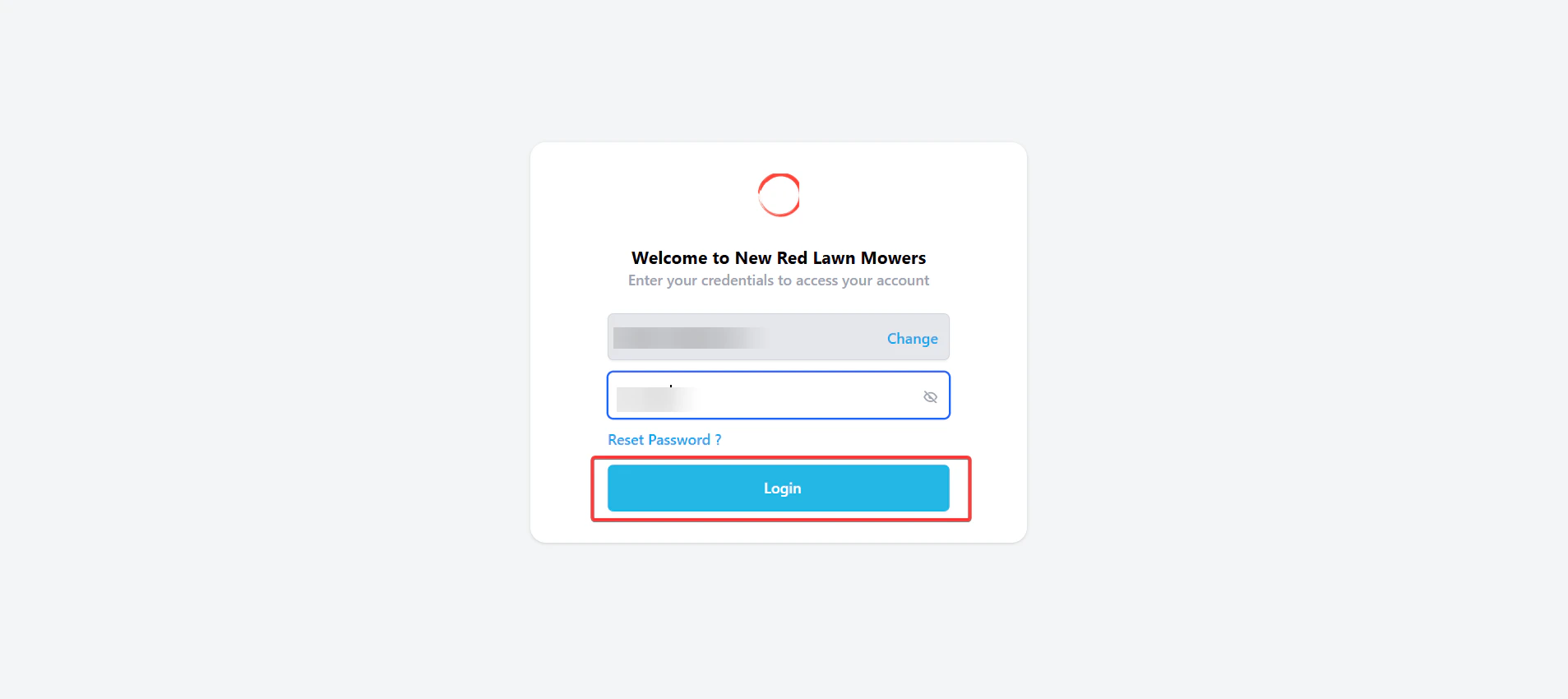
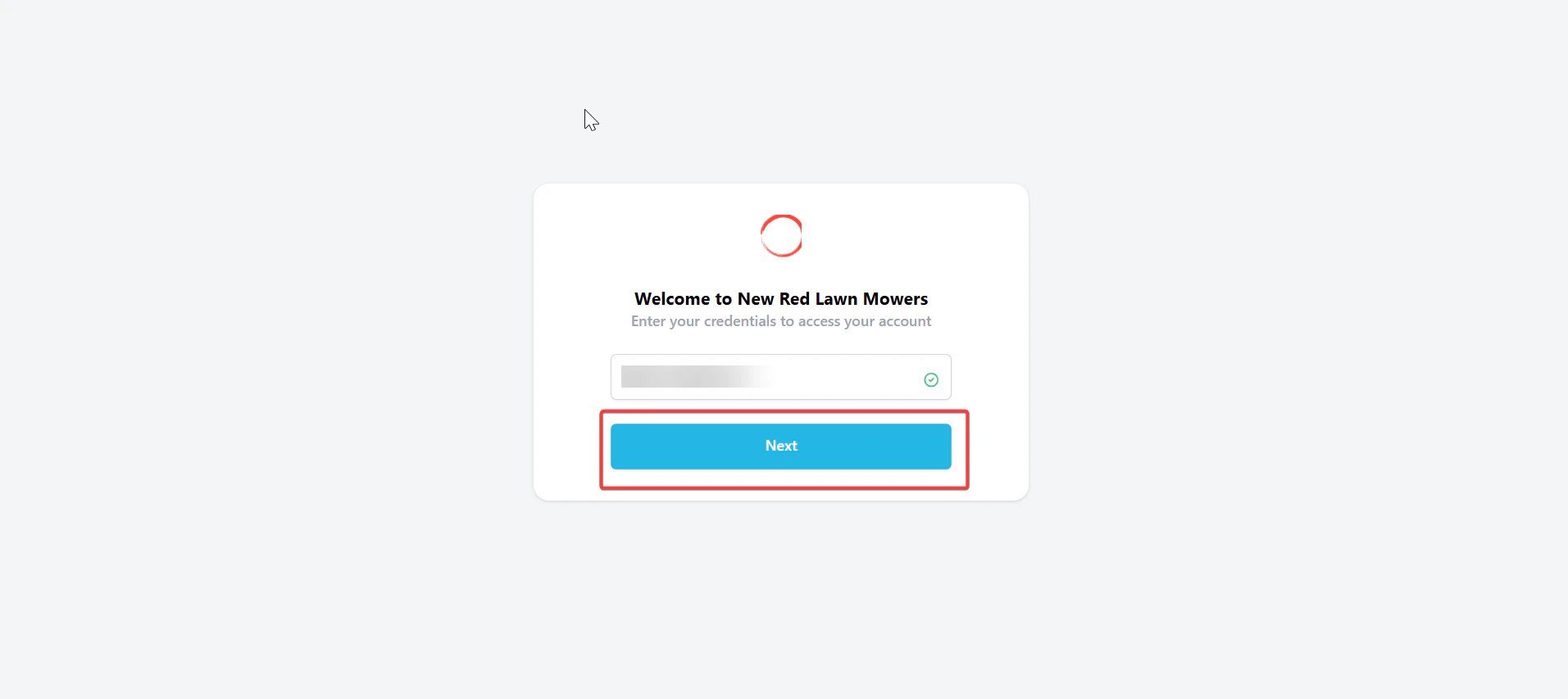 2. Enter the email ID and password. (Note: this is applicable if you have opted for a user ID and a password.)
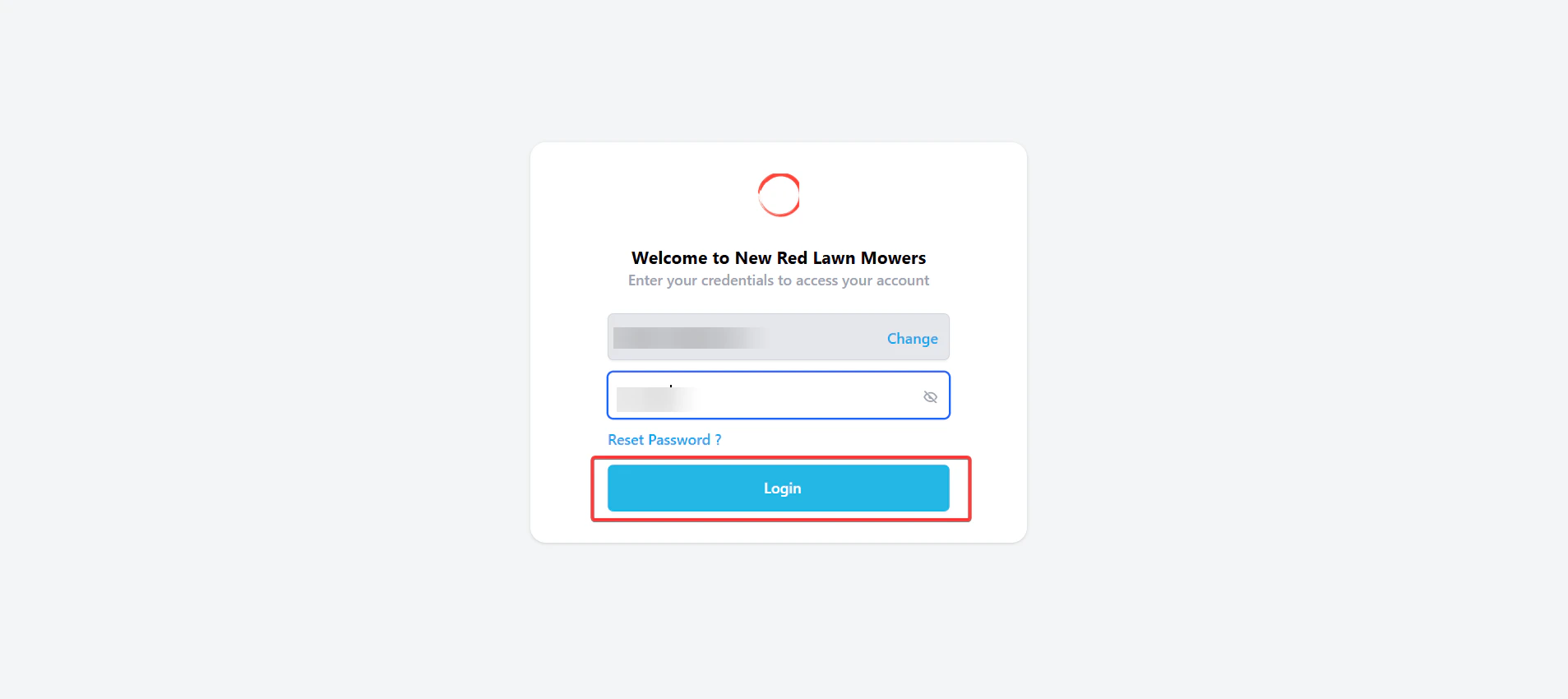
Click the "**Login**" button.
2. Enter the email ID and password. (Note: this is applicable if you have opted for a user ID and a password.)
Click the "**Login**" button.
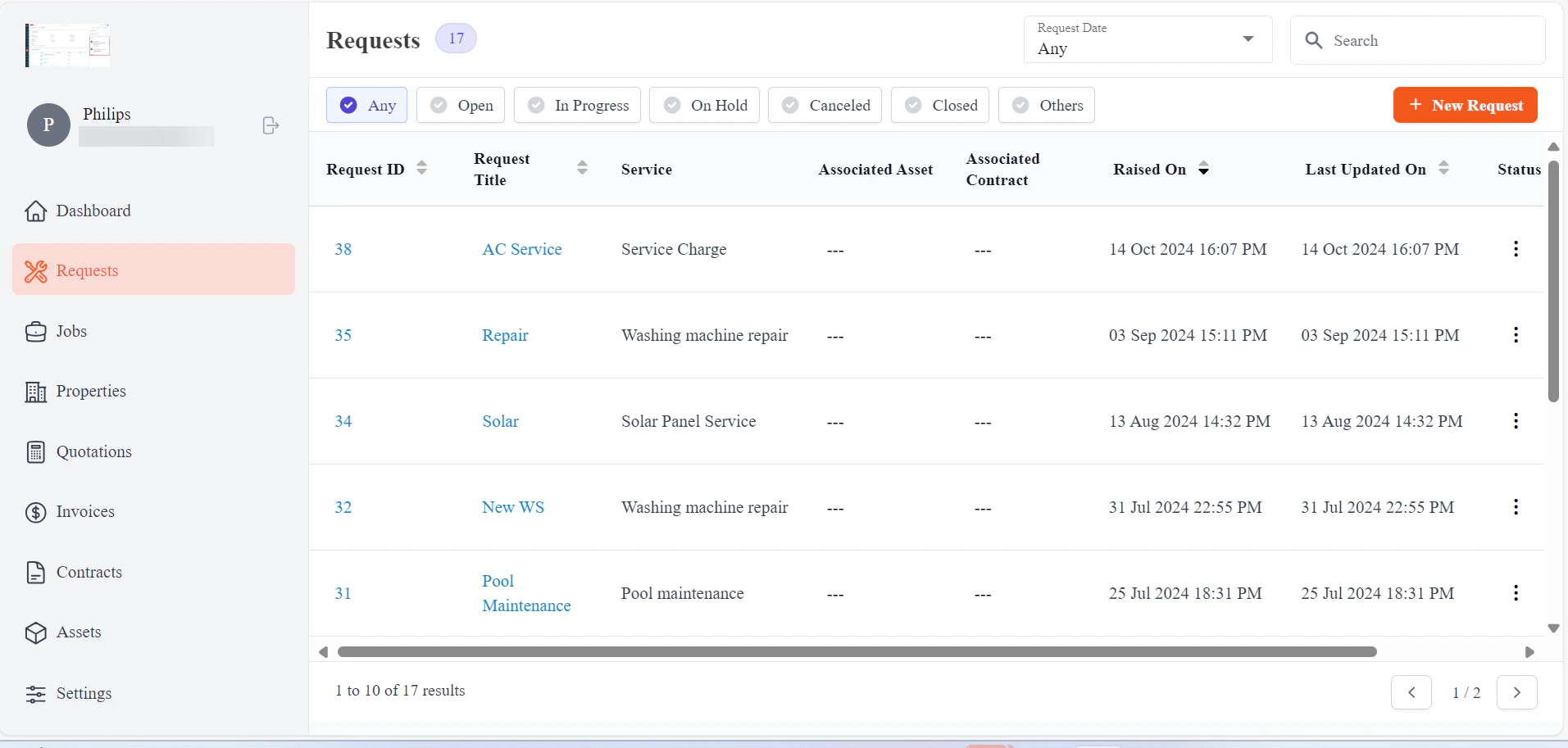
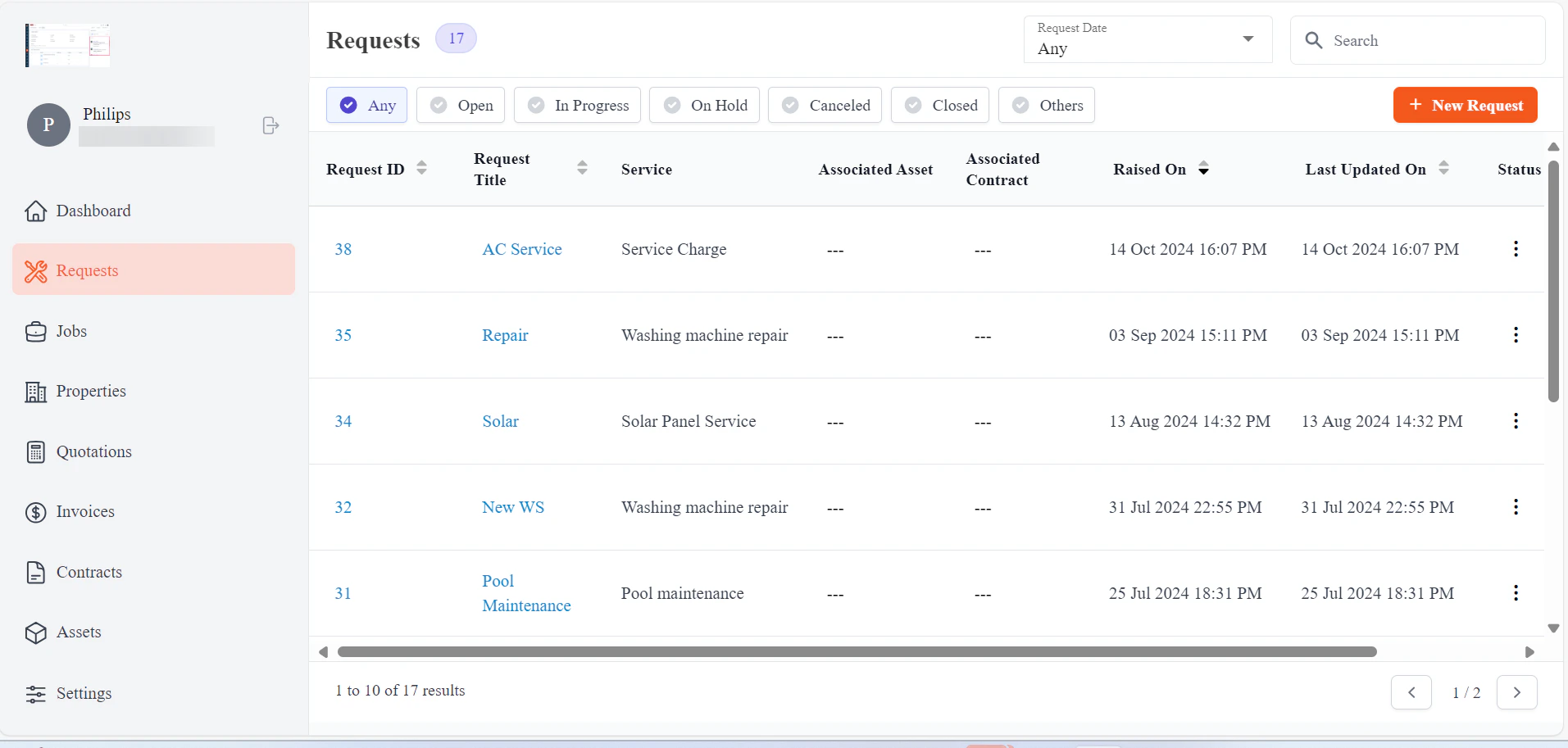
 3. The login is successful.
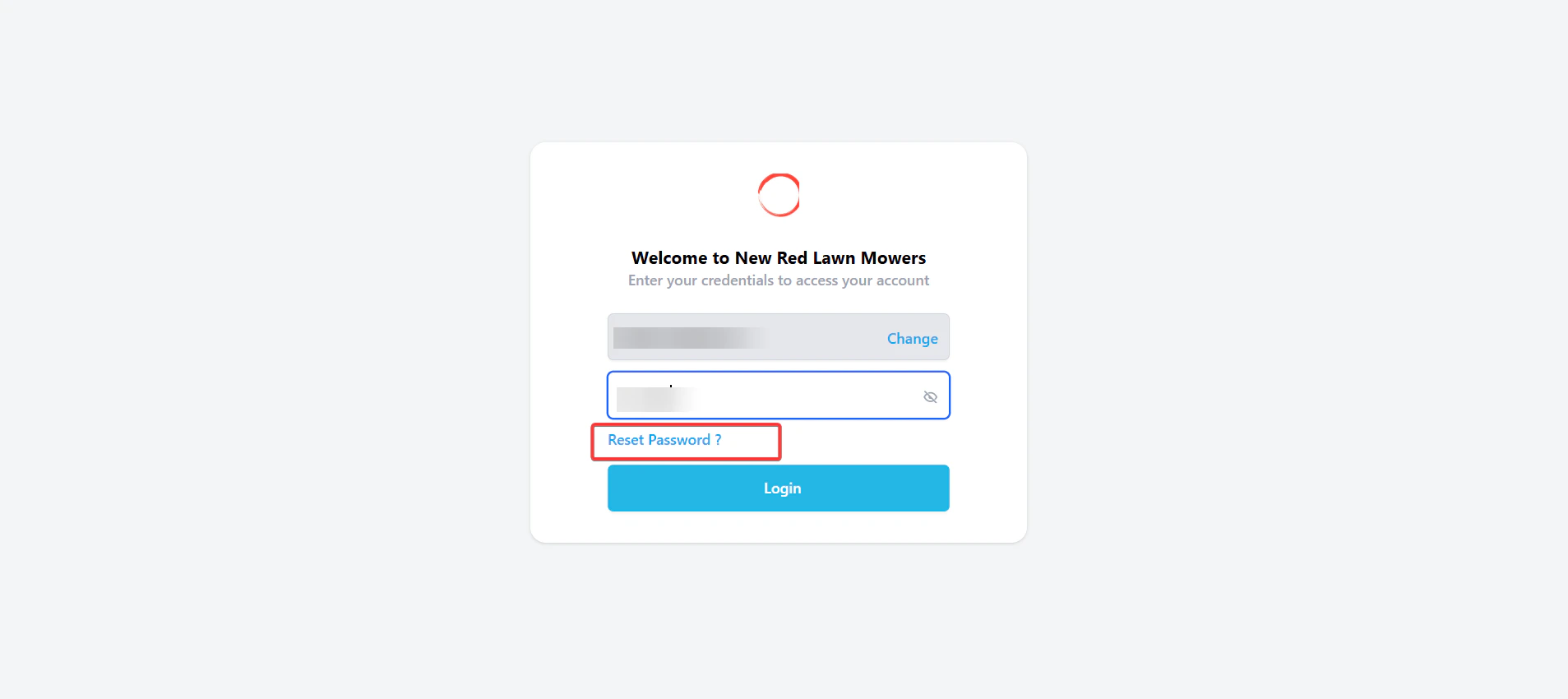
 4. To change your password, click the "**Reset Password**" button.
 5. The password reset email will be sent to the registered email ID.
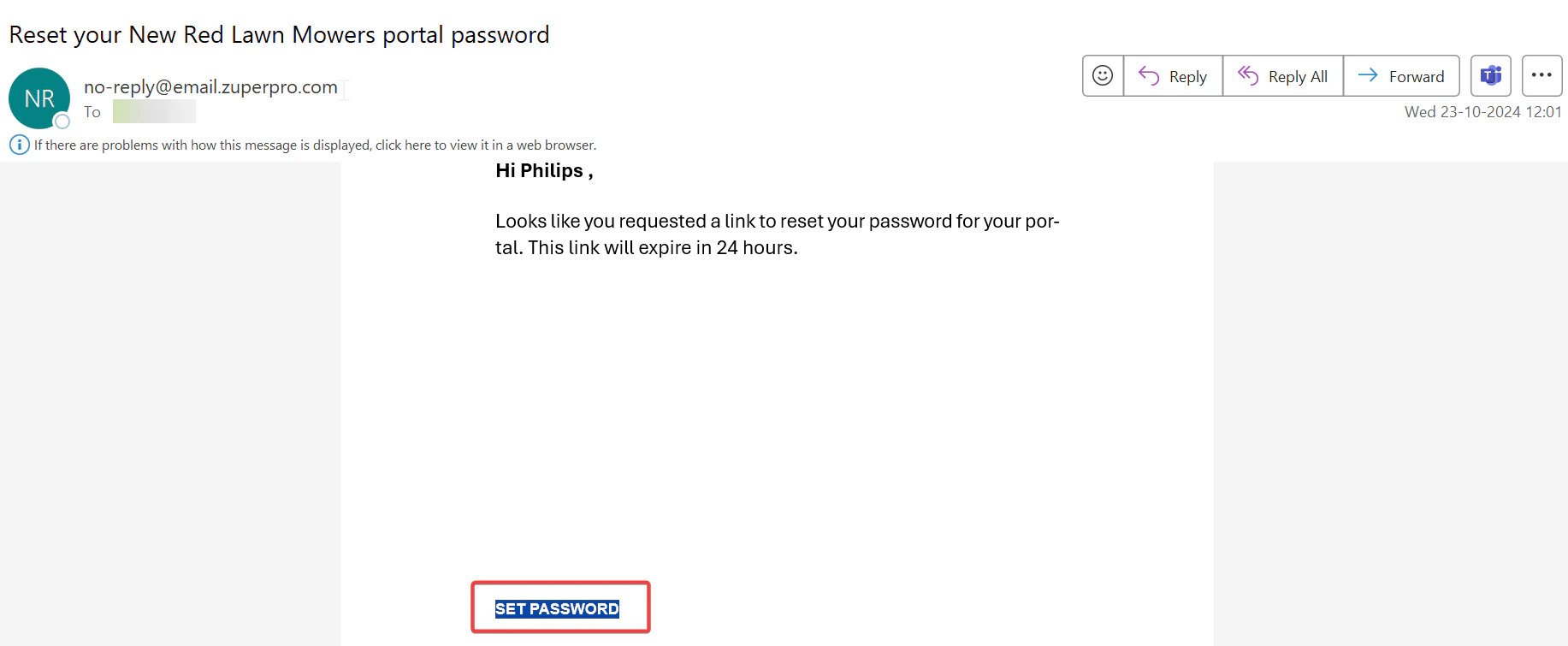
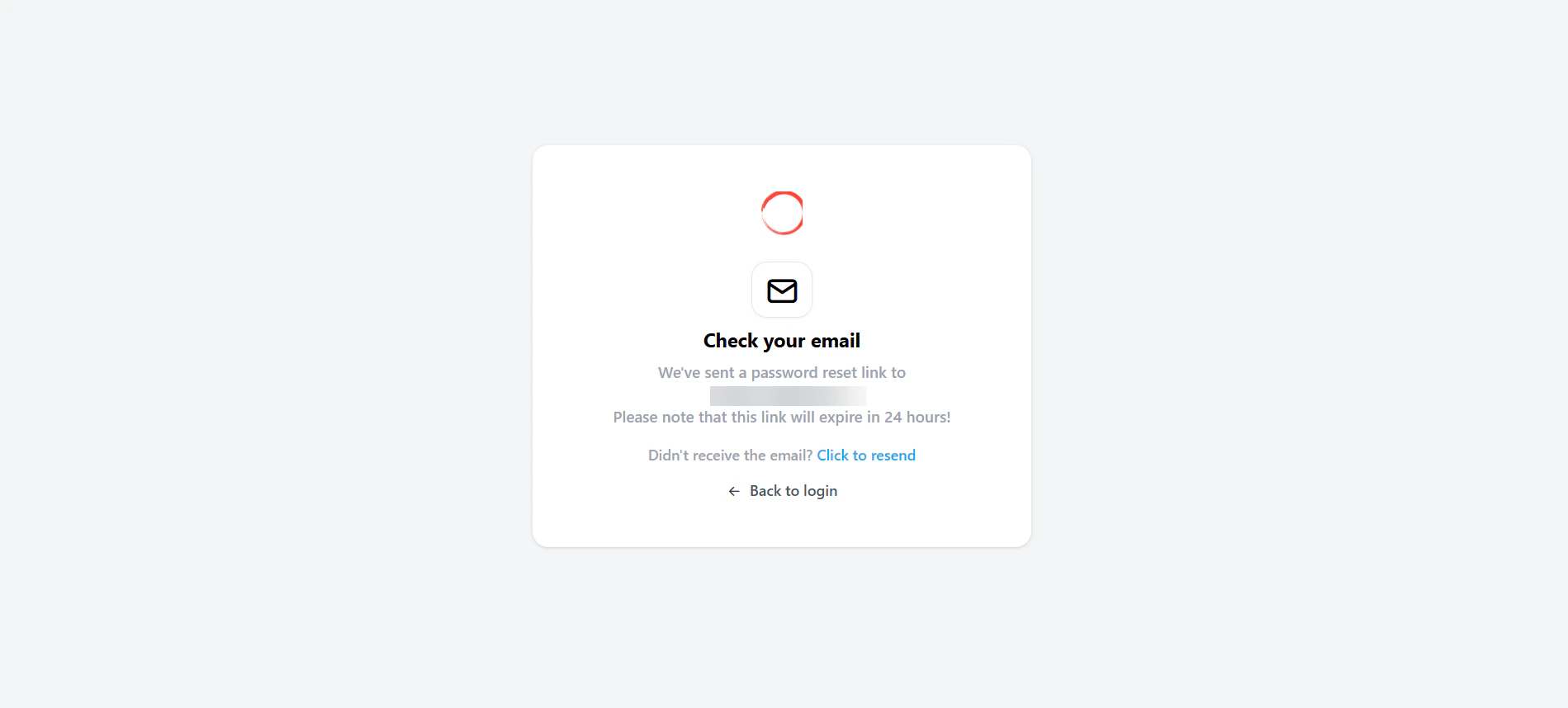 6. Check the registered email. Click the "**Set Password**" button.
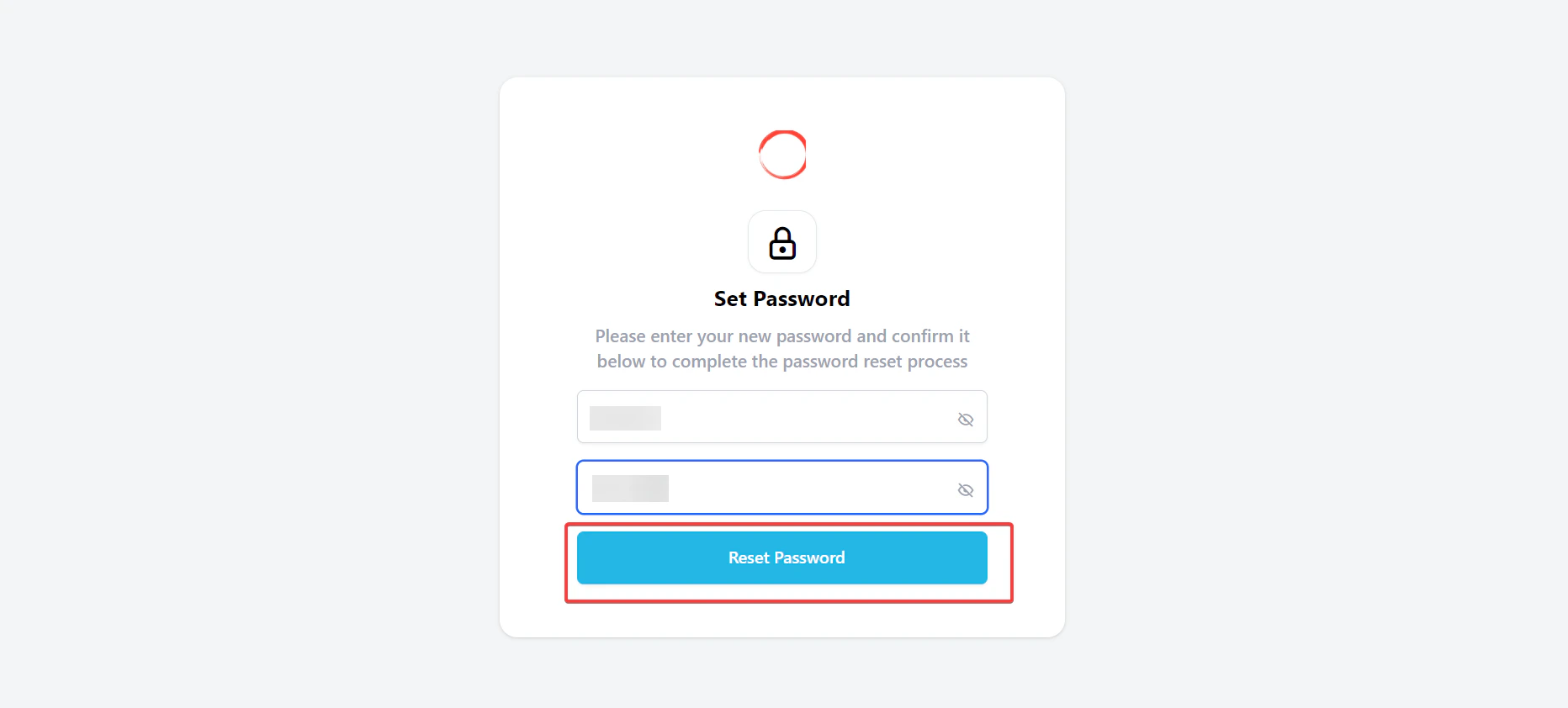
 7. Enter the password and reconfirm the password.
Click the "**Reset Password**" button.
7. Enter the password and reconfirm the password.
Click the "**Reset Password**" button.
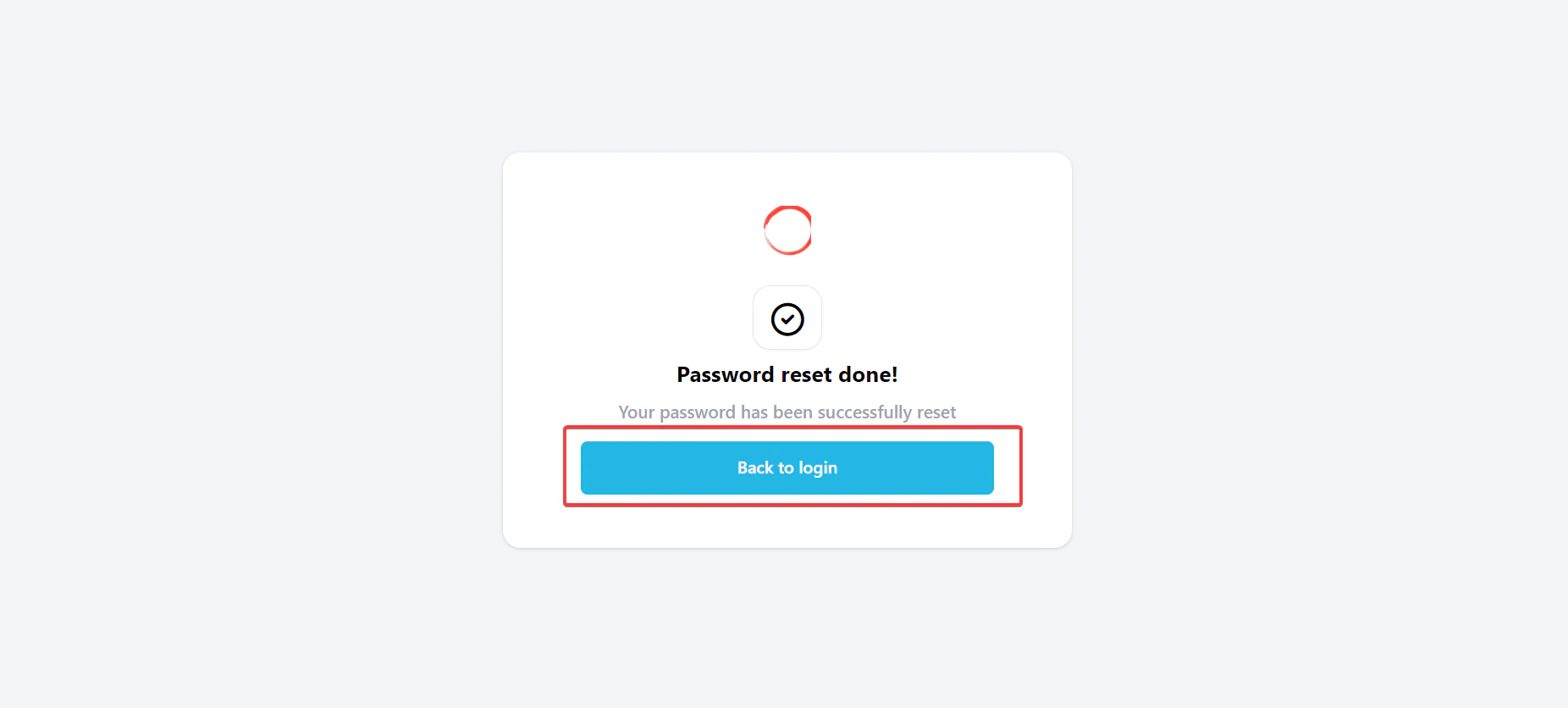
 8. The password is reset successfully.
 9. Enter the email ID and password. (Note: this is applicable if you have opted for a user ID and a password.)
Click the "**Login**" button.
9. Enter the email ID and password. (Note: this is applicable if you have opted for a user ID and a password.)
Click the "**Login**" button.
 10. The login is successful.
 ## **Login via OTP**
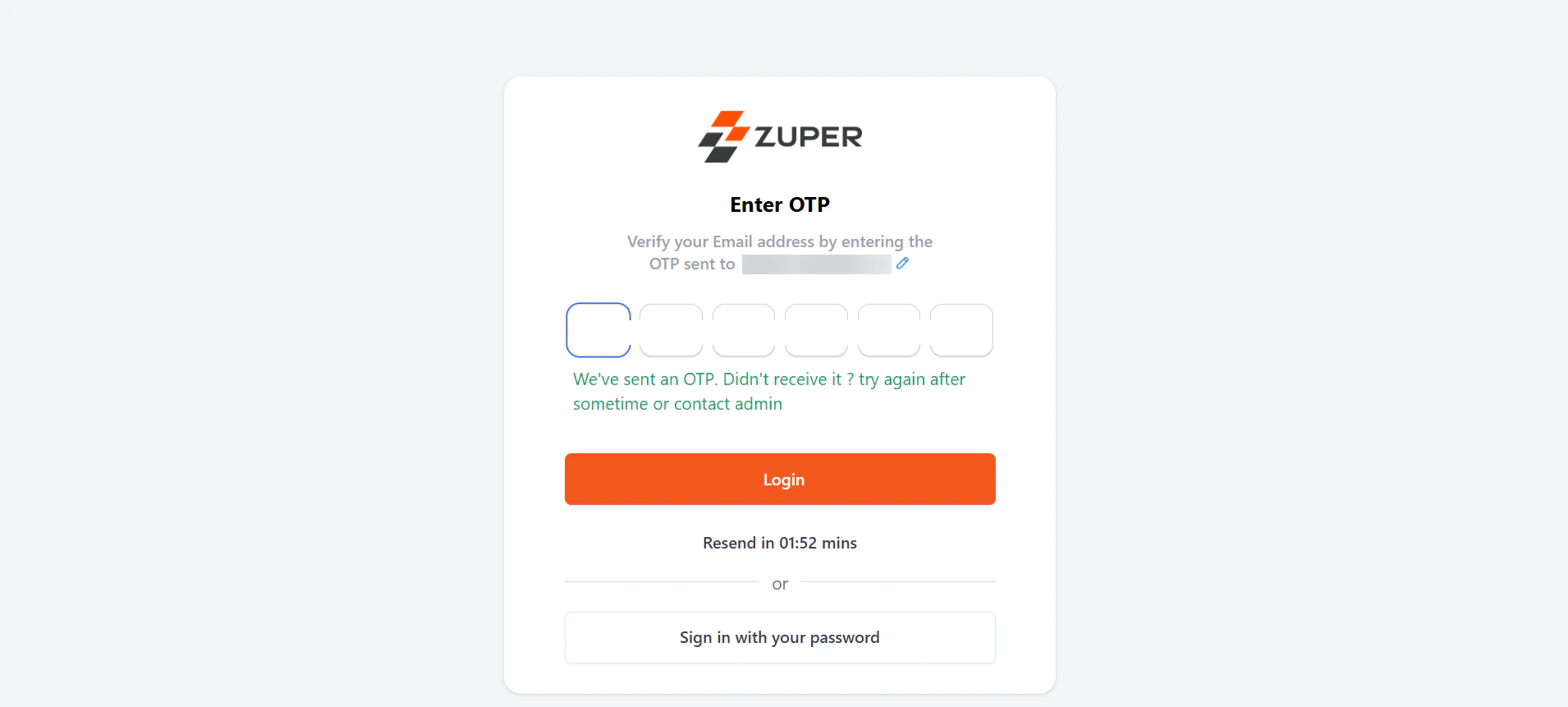
Alternatively, you can login using your email ID and the OTP received in your email ID.
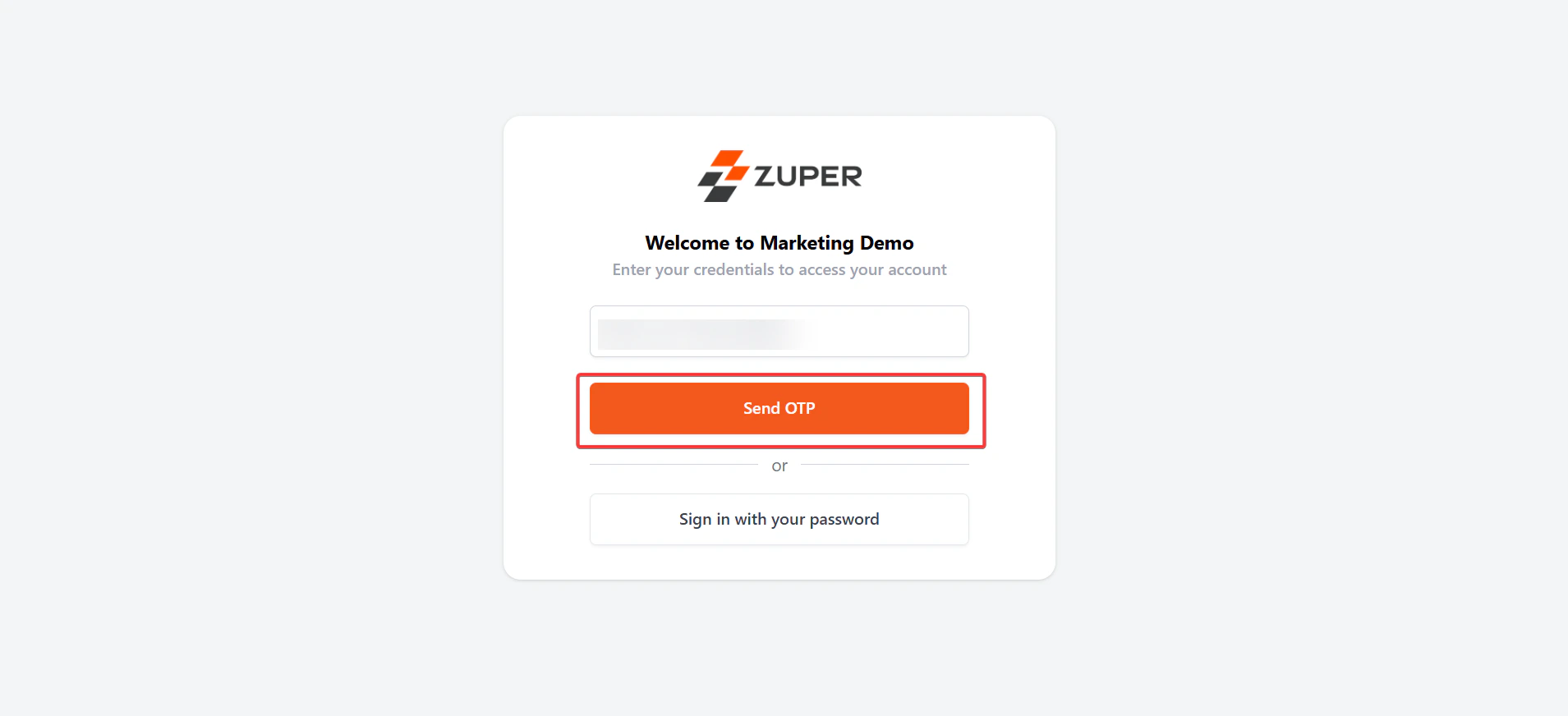
1. Login to the Zuper customer portal account. Enter the "**Email ID**" and click "**Send OTP**."
## **Login via OTP**
Alternatively, you can login using your email ID and the OTP received in your email ID.
1. Login to the Zuper customer portal account. Enter the "**Email ID**" and click "**Send OTP**."
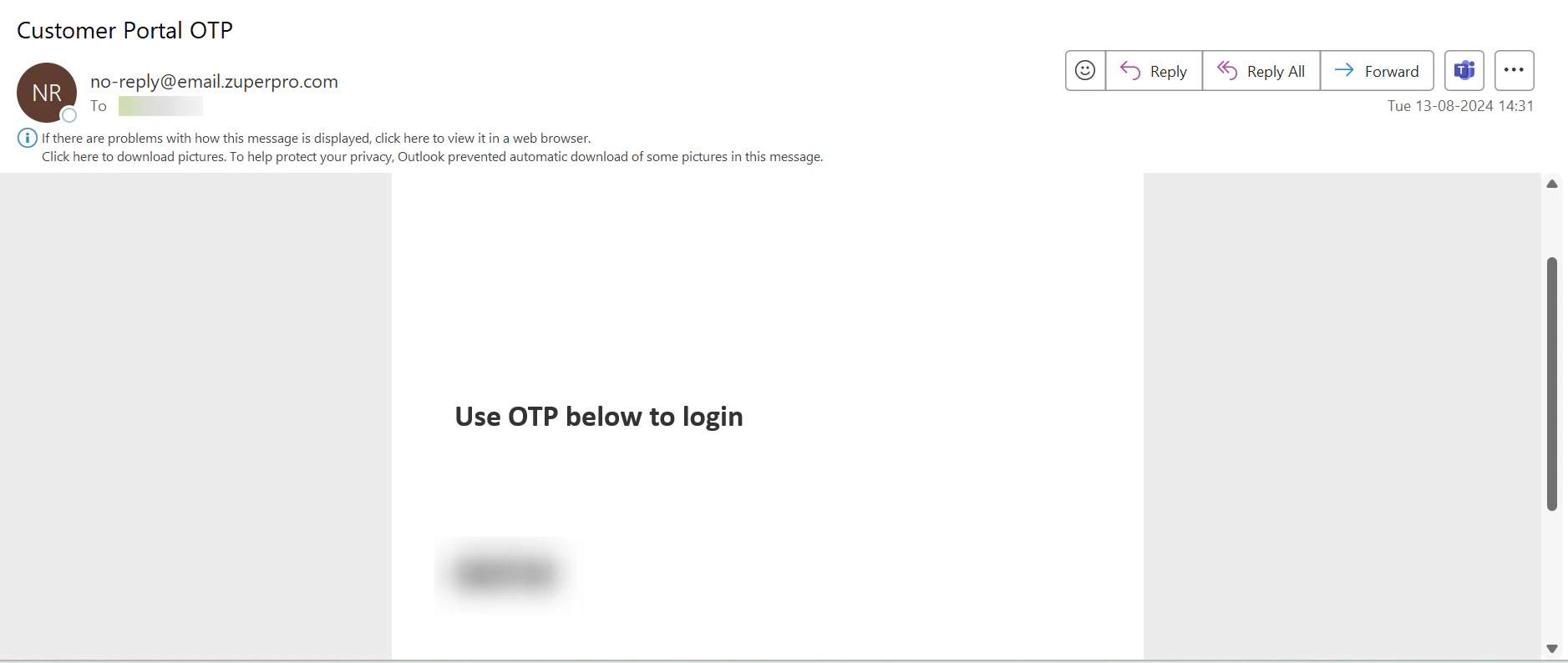
 2. Check the email to get the "**OTP**."
 3. Enter the OTP received and select the “**Sign in**” button.
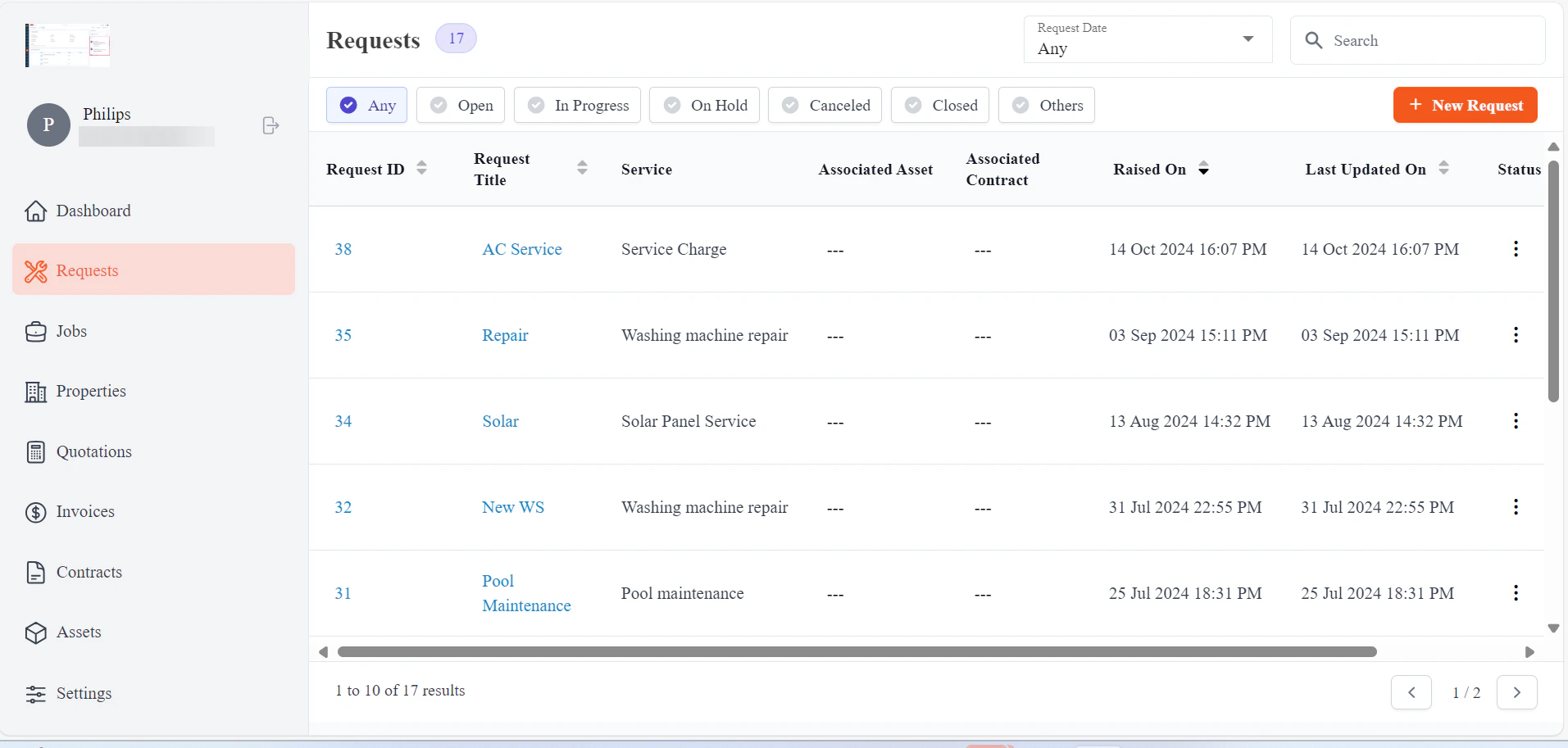
 4. The login is successful.
 ## Customer Portal User Manual link
[Customer Portal Settings](https://docs.zuper.co/Settings/Customer_Portal/Customer_Portal)
[**Adding and Managing Cards in Your Wallet**](https://docs.zuper.co/Customer_Portal/Cards)
To learn more about the Customer Portal usage, click [here](https://drive.google.com/file/d/10KQUozMwYmoUhS7GEsjY0QG_ACSIz2Ib/view?usp=sharing)
A secure login process safeguards your personal and financial information on a customer portal. It allows only authorized users to access sensitive data, such as account details, billing information, and order history.
## Customer Portal User Manual link
[Customer Portal Settings](https://docs.zuper.co/Settings/Customer_Portal/Customer_Portal)
[**Adding and Managing Cards in Your Wallet**](https://docs.zuper.co/Customer_Portal/Cards)
To learn more about the Customer Portal usage, click [here](https://drive.google.com/file/d/10KQUozMwYmoUhS7GEsjY0QG_ACSIz2Ib/view?usp=sharing)
A secure login process safeguards your personal and financial information on a customer portal. It allows only authorized users to access sensitive data, such as account details, billing information, and order history.