> ## Documentation Index
> Fetch the complete documentation index at: https://zuperinc-section23.mintlify.site/llms.txt
> Use this file to discover all available pages before exploring further.
# Find Live Nearest Technicians & Nearby Jobs
In a fast-paced field service environment, time and precision are everything. As a dispatcher, you’re expected to make quick decisions that impact not only your team’s productivity but also customer satisfaction. That’s why Zuper's **Nearby** feature on the Dispatch Board is designed to take the guesswork out of technician assignment.
Instead of manually cross-referencing schedules, skills, and distances, you can now find the right technician, at the right time, closest to the job location, all in a few clicks. Whether it's a high-priority repair or an urgent maintenance task, this tool helps you optimize technician dispatching based on live location, skill compatibility, and shift availability.
### Why use the Nearby feature?
* **Faster Response Time**: You can quickly locate technicians who are physically closest to the job site, minimizing travel time.
* **Skill-Based Matching**: You can ensure only qualified technicians are considered for the job based on skill tags.
* **Conflict-Free Scheduling**: You can avoid overlaps and double bookings by checking real-time availability and shift status.
* **Smart Resource Allocation**: You can reallocate ground teams efficiently to handle high-impact jobs with minimal downtime.
## How to find live technicians nearest to a job
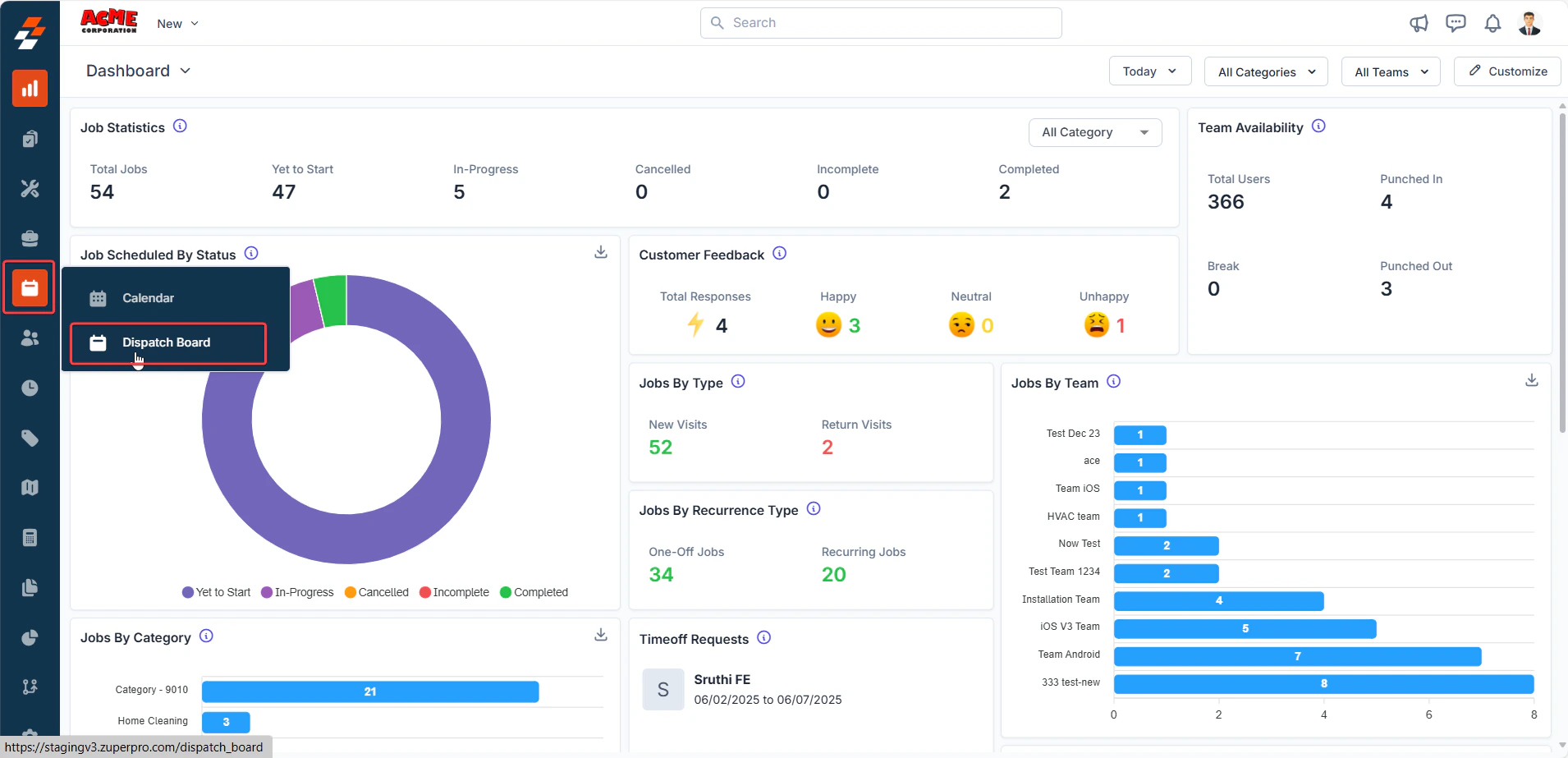
1. Click the **Scheduling and Dispatching** module from the left navigation menu and select “**Dispatch Board**”.
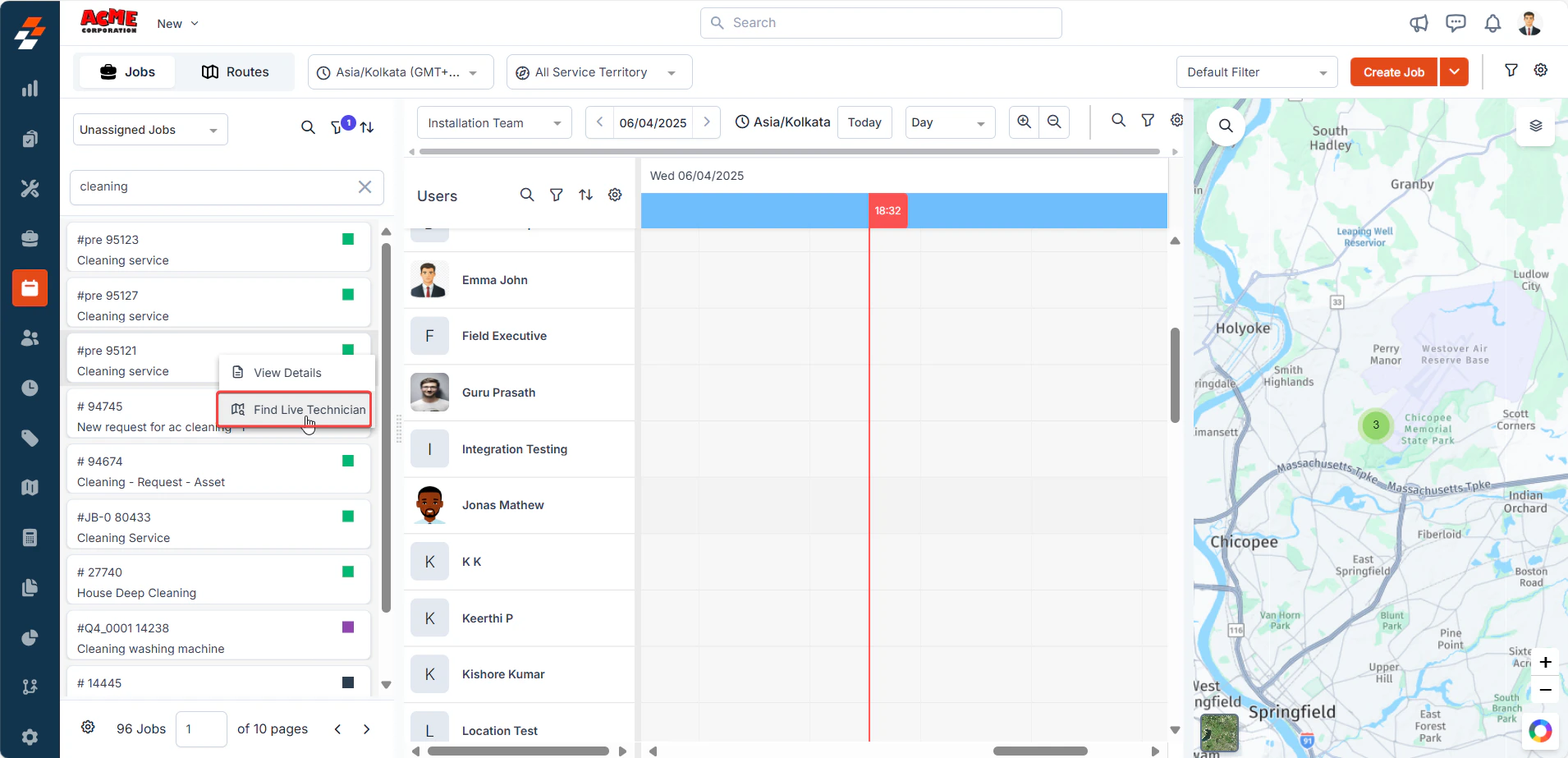
 2. Right-click on a *job* card in the **Dispatcher Queue**.
3. Choose **“Find Live Technician”** from the context menu.
2. Right-click on a *job* card in the **Dispatcher Queue**.
3. Choose **“Find Live Technician”** from the context menu.
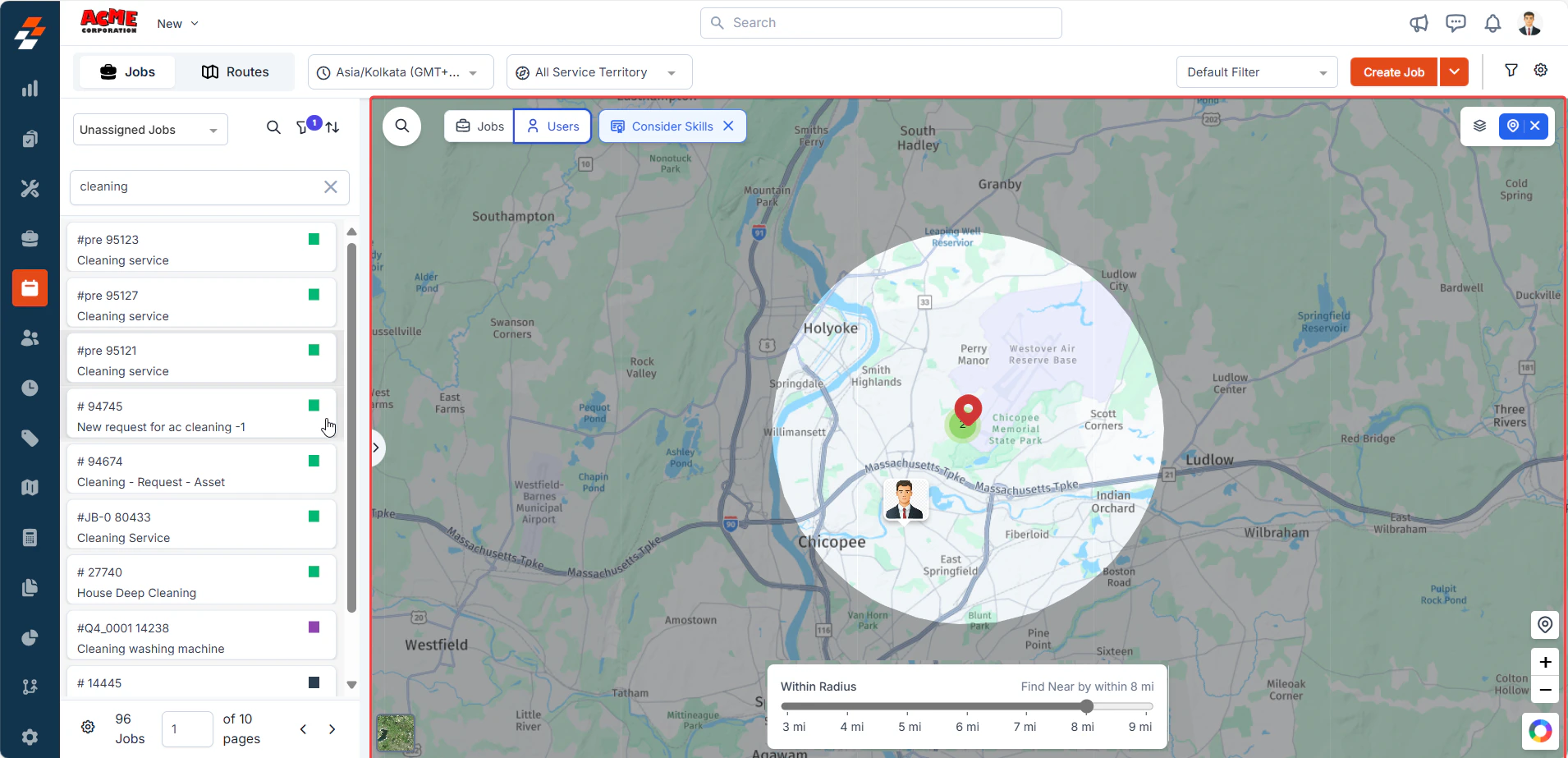
 4. Zuper will now switch to the **Map & Nearby mode**, displaying a radius circle around the job location.
5. Use the **radius slider** at the bottom of the screen to define how far you'd like to search for available technicians.
4. Zuper will now switch to the **Map & Nearby mode**, displaying a radius circle around the job location.
5. Use the **radius slider** at the bottom of the screen to define how far you'd like to search for available technicians.
 6. The system will automatically:
* Filter live (punched-in) technicians.
* Check for skill match (you can toggle this filter off).
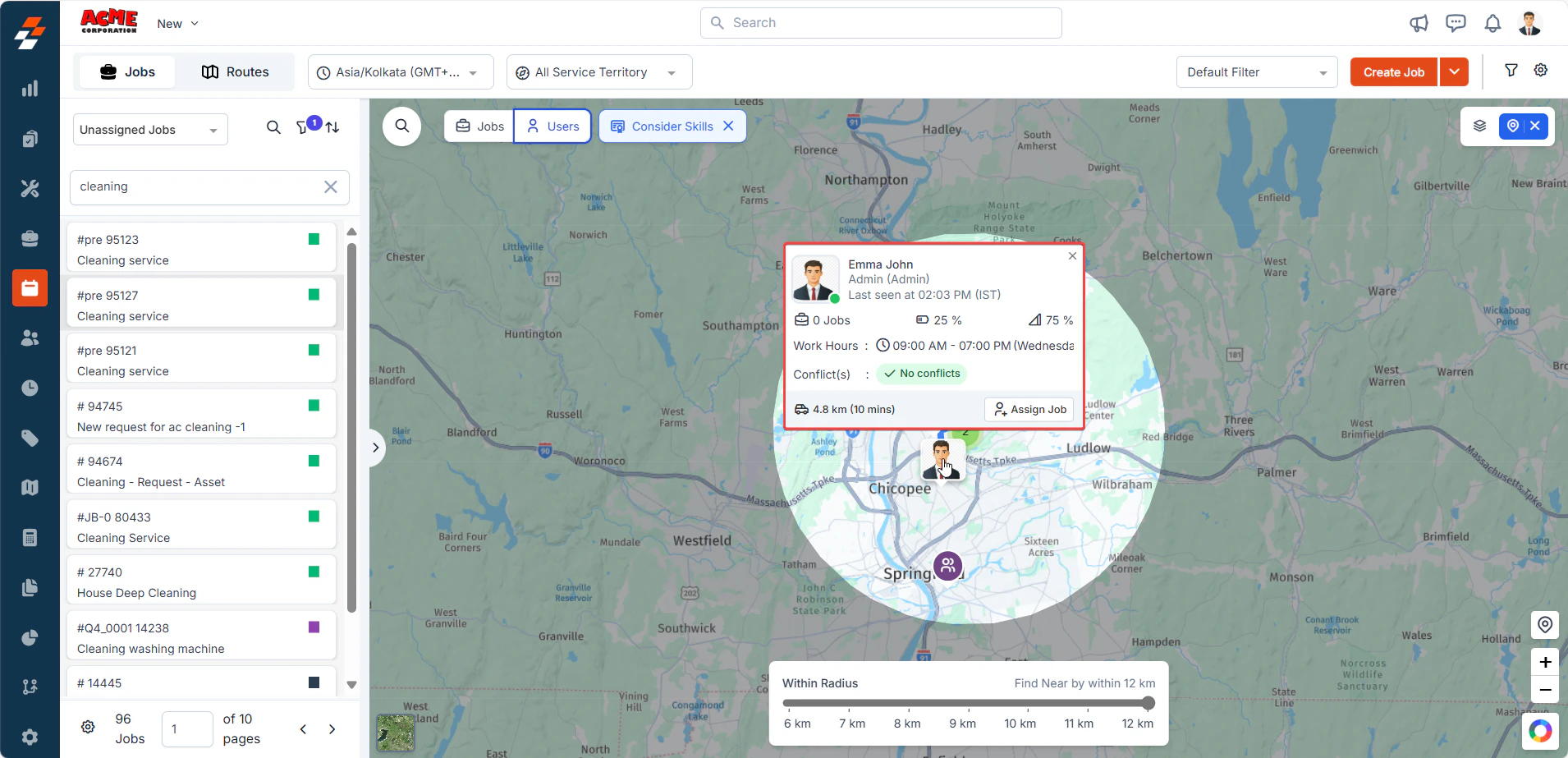
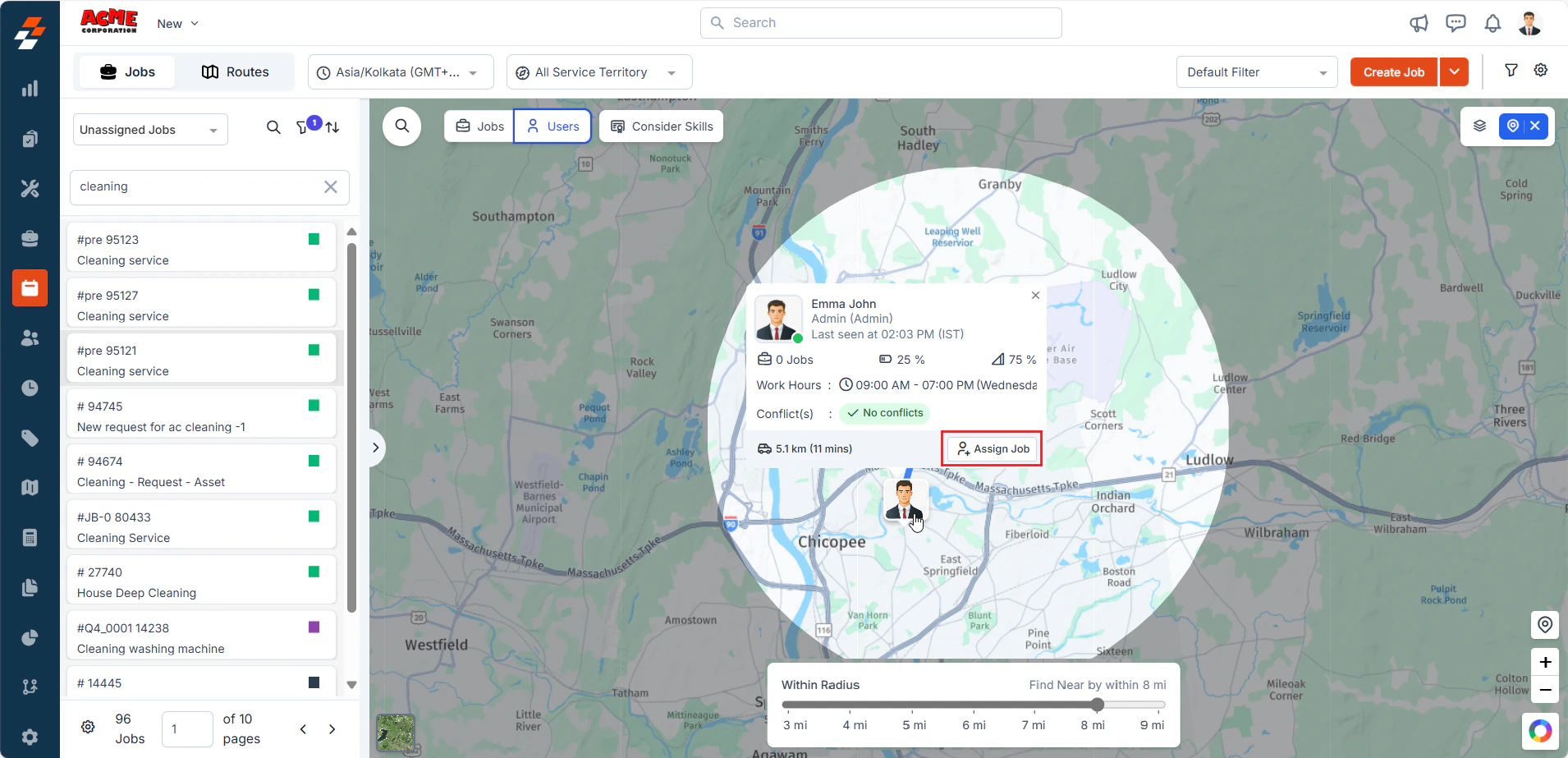
7. Hover over a technician’s avatar on the map to view:
* Distance and estimated travel time.
* Shift hours and availability.
* Any scheduling conflicts, like ongoing jobs or time-offs.
6. The system will automatically:
* Filter live (punched-in) technicians.
* Check for skill match (you can toggle this filter off).
7. Hover over a technician’s avatar on the map to view:
* Distance and estimated travel time.
* Shift hours and availability.
* Any scheduling conflicts, like ongoing jobs or time-offs.
 **Tip**: If you’ve moved the map around and want to quickly return to the original job’s location, just click the “****Pin to Nearby****” button or the job locator icon.
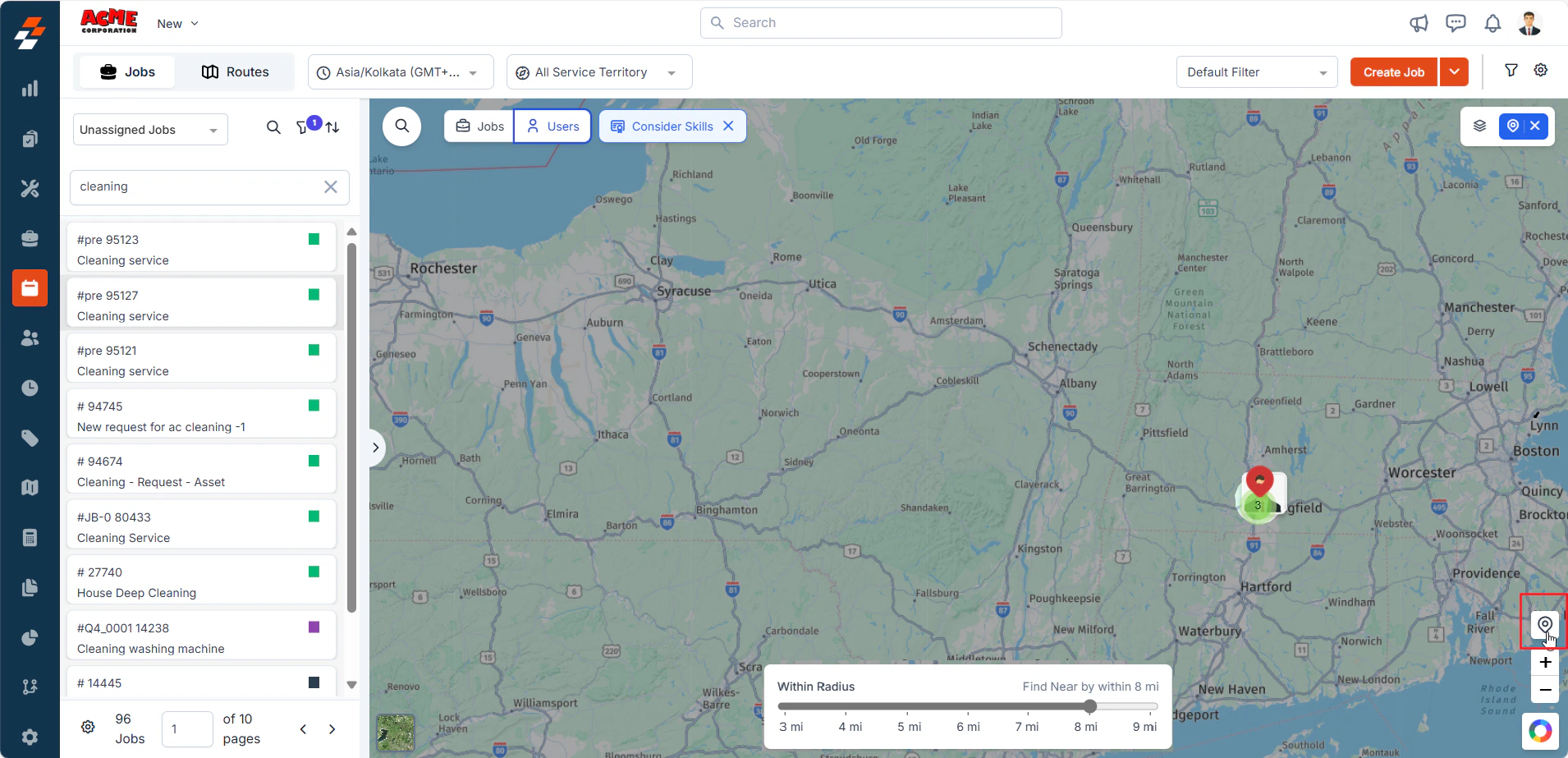 8. Once you’ve found the best-fit technician, click on the avatar and choose **“Assign Job”**.
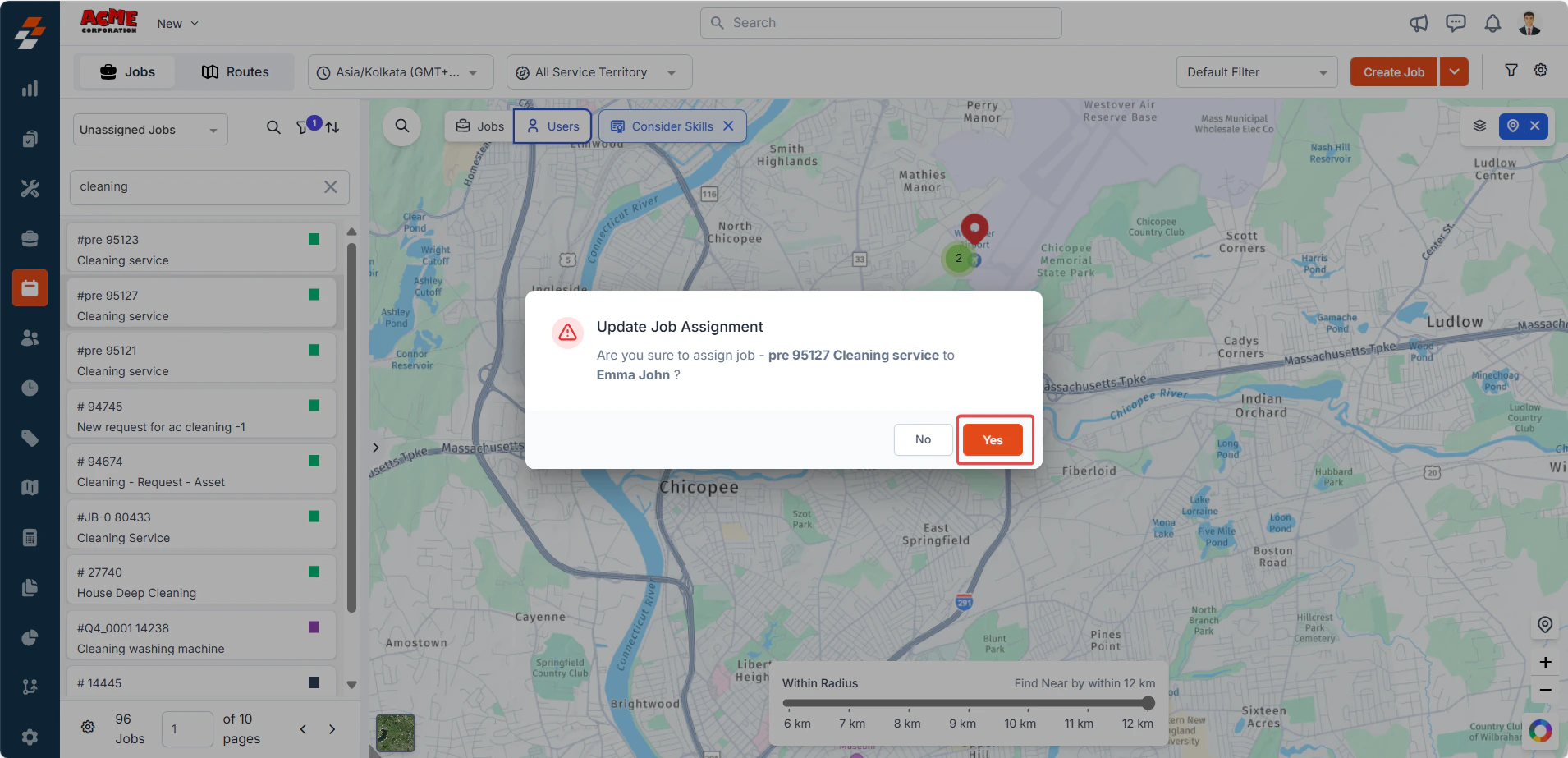
 9. Select “**Yes**” to confirm the job assignment to the technician.
 **Note**: Assigning the job here does not schedule or reschedule; it only links the technician to the job.
The technician receives a notification (based on your organization’s settings), and the job appears in their schedule.
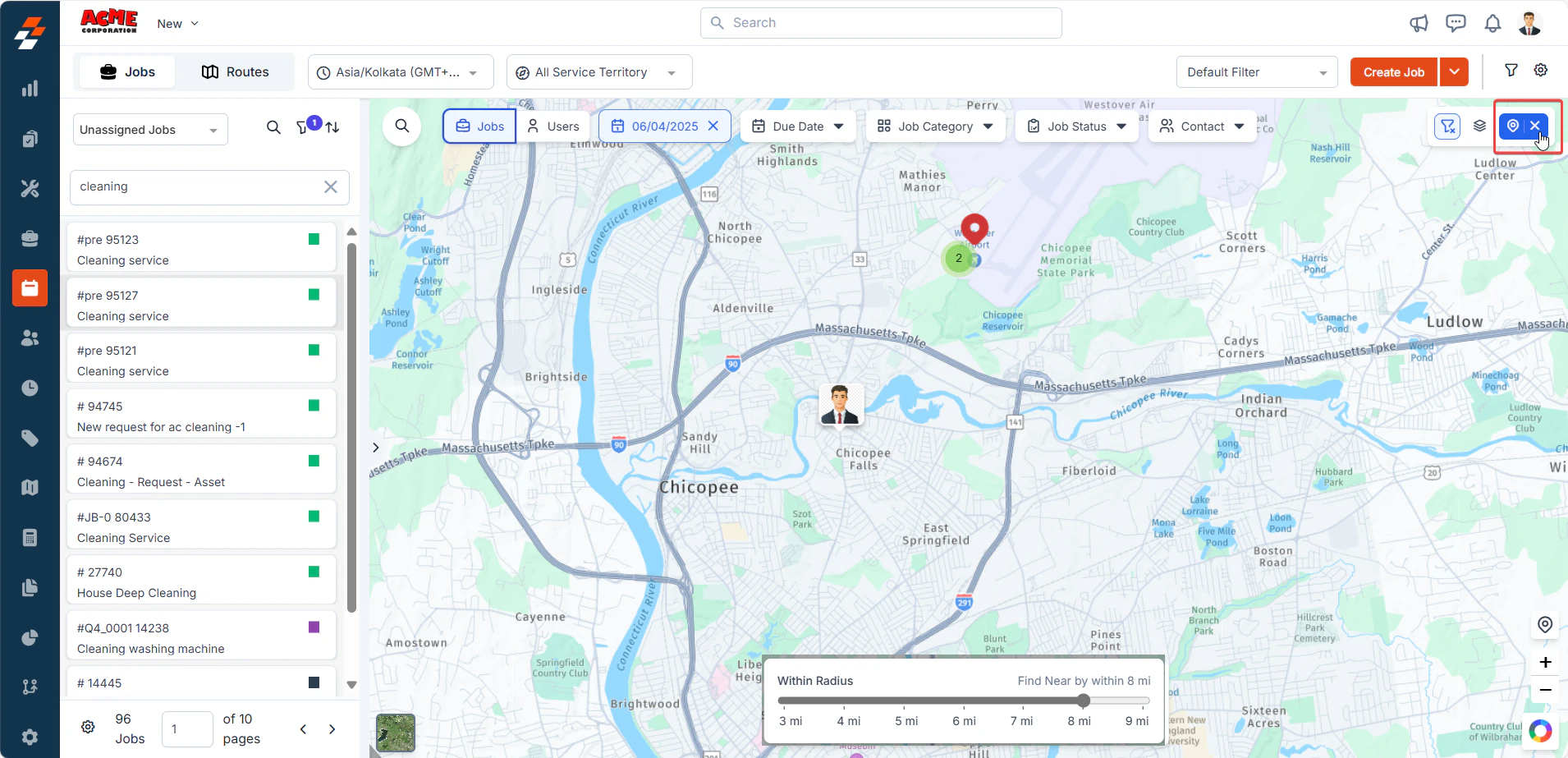
10. Click **“Switch off Nearby Mode”** to return to the standard Dispatch Board view, or click another job on the map to continue technician assignment.
**Note**: Assigning the job here does not schedule or reschedule; it only links the technician to the job.
The technician receives a notification (based on your organization’s settings), and the job appears in their schedule.
10. Click **“Switch off Nearby Mode”** to return to the standard Dispatch Board view, or click another job on the map to continue technician assignment.
 ## How to find nearby jobs within a geo radius
Sometimes, while searching for a technician, you might notice other jobs nearby. The **Nearby Jobs** view allows you to explore them without leaving the map.
1. While in **Nearby Mode**, switch to the **‘Jobs’ tab** on the top panel (next to ‘Users’).
## How to find nearby jobs within a geo radius
Sometimes, while searching for a technician, you might notice other jobs nearby. The **Nearby Jobs** view allows you to explore them without leaving the map.
1. While in **Nearby Mode**, switch to the **‘Jobs’ tab** on the top panel (next to ‘Users’).
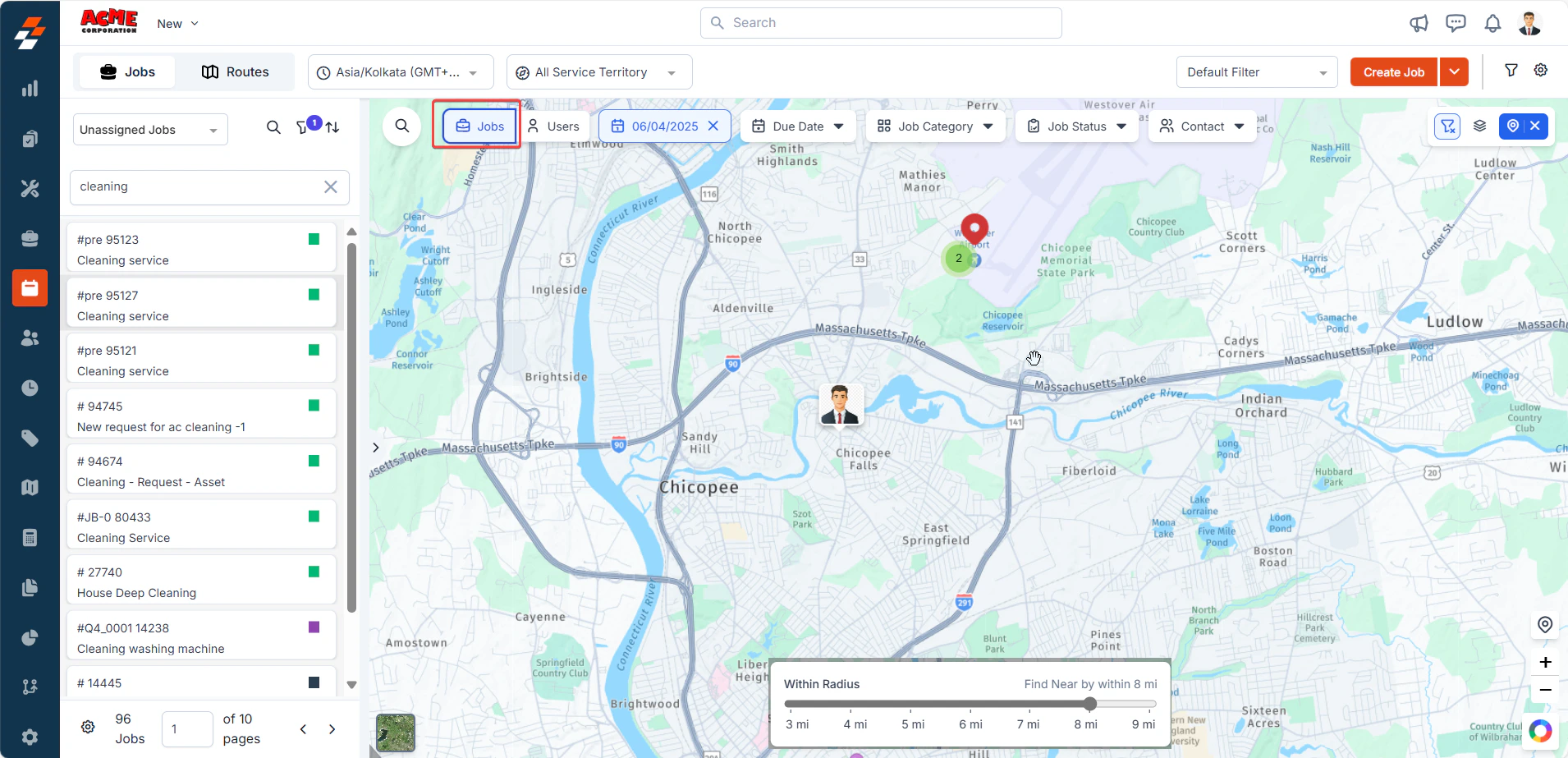 2. This view shows all jobs **scheduled for today** within your selected radius.
3. Use filters to refine the list based on:
* Schedule Date
* Job category
* Due date
* Job Status
* Contact
2. This view shows all jobs **scheduled for today** within your selected radius.
3. Use filters to refine the list based on:
* Schedule Date
* Job category
* Due date
* Job Status
* Contact
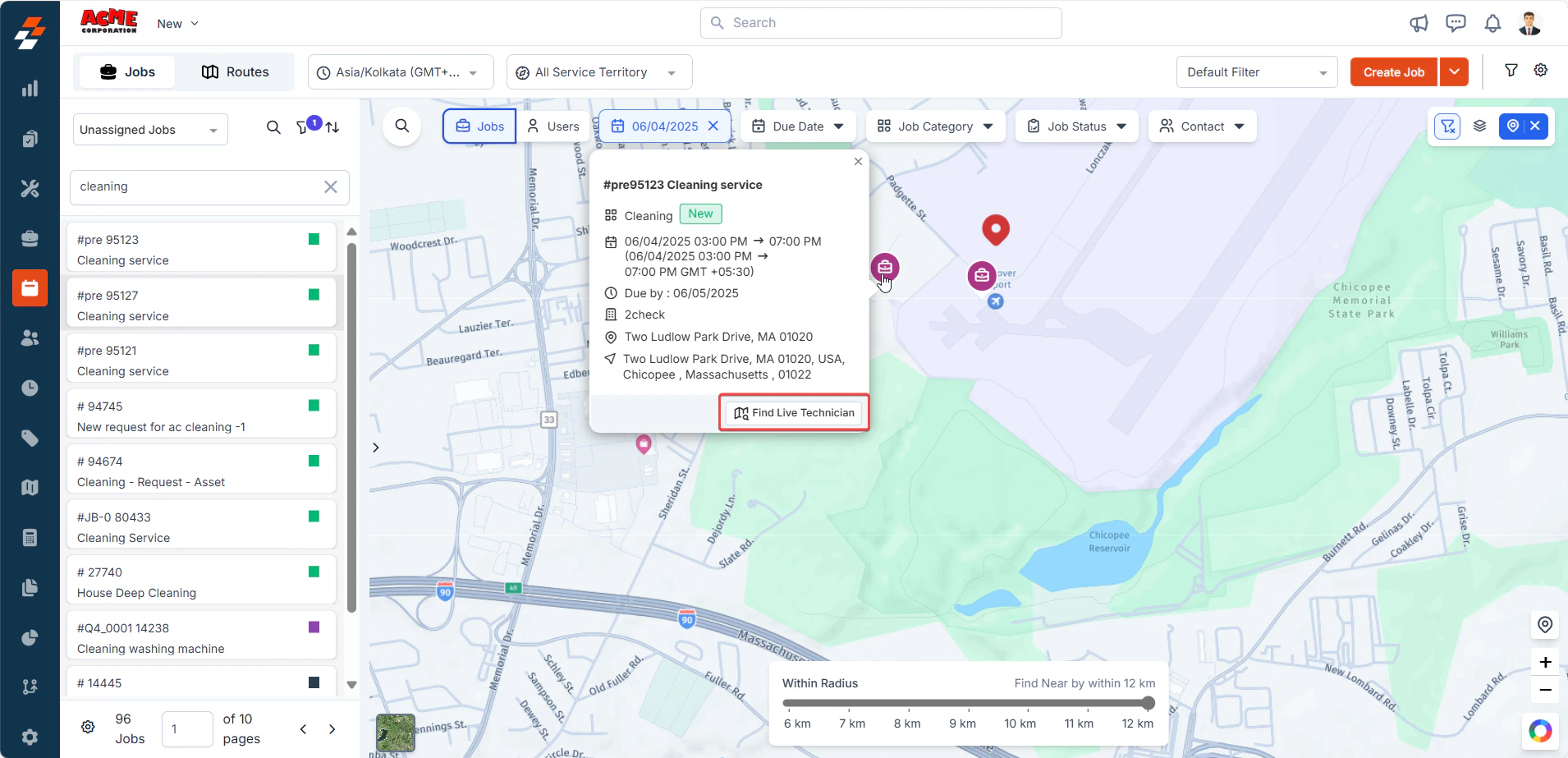
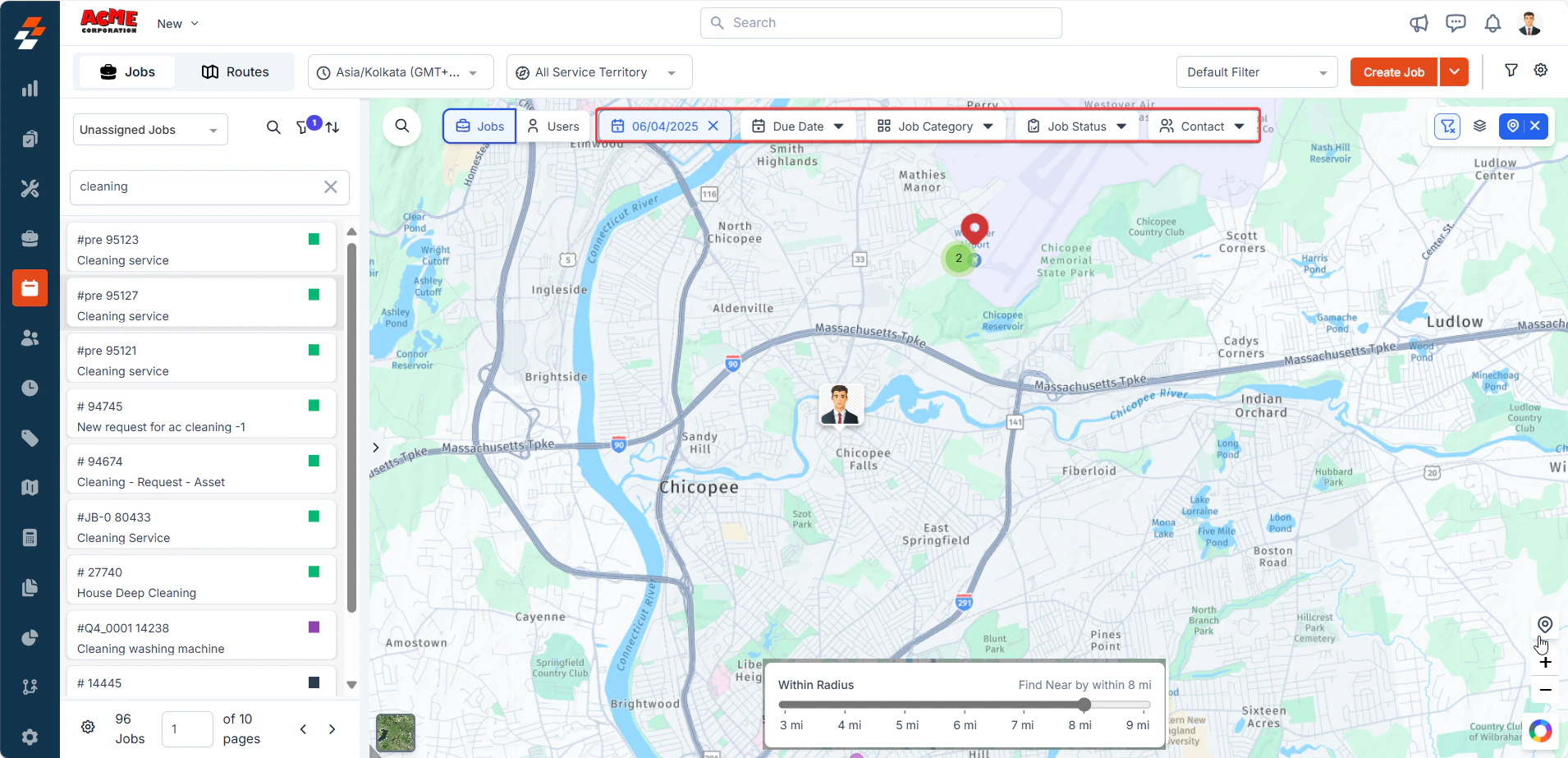 4. Click on any job pin on the map to access its tooltip.
5. Choose **“Find Live Technician”** again to reset the radius with the newly selected job as the center point.
4. Click on any job pin on the map to access its tooltip.
5. Choose **“Find Live Technician”** again to reset the radius with the newly selected job as the center point.
 With the ability to factor in location, skill match, and schedule availability, all in one view, you’ll transform your dispatching process from reactive to proactive.