> ## Documentation Index
> Fetch the complete documentation index at: https://zuperinc-section23.mintlify.site/llms.txt
> Use this file to discover all available pages before exploring further.
# Avalara
## Overview
Avalara AvaTax is a cloud-based solution that automates transaction tax calculations and tax filing. It provides real-time tax calculations using tax content from over 12,000 U.S. taxing jurisdictions and 200+ countries, ensuring compliance with current tax rules. By integrating AvaTax with Zuper, businesses can eliminate manual tax calculations, automatically retrieve accurate tax rates, and apply exemption rules for transactions.
## Prerequisites
* **Active Account**: An active Avalara AvaTax account is required.
* **Geographic Restriction**: Avalara integration is available only for organizations in the U.S.
## Installing AvaTax in Zuper
To enable the AvaTax integration, contact Zuper’s support team at [**support@zuper.co**](mailto:support@zuper.co) for initial configuration. Once configured, follow these steps:
1. Go to **Settings** > **Configuration Settings** > **Quotes and Invoices** > **Taxes**.
2. Click **Use Avalara** on the Taxes configuration page.
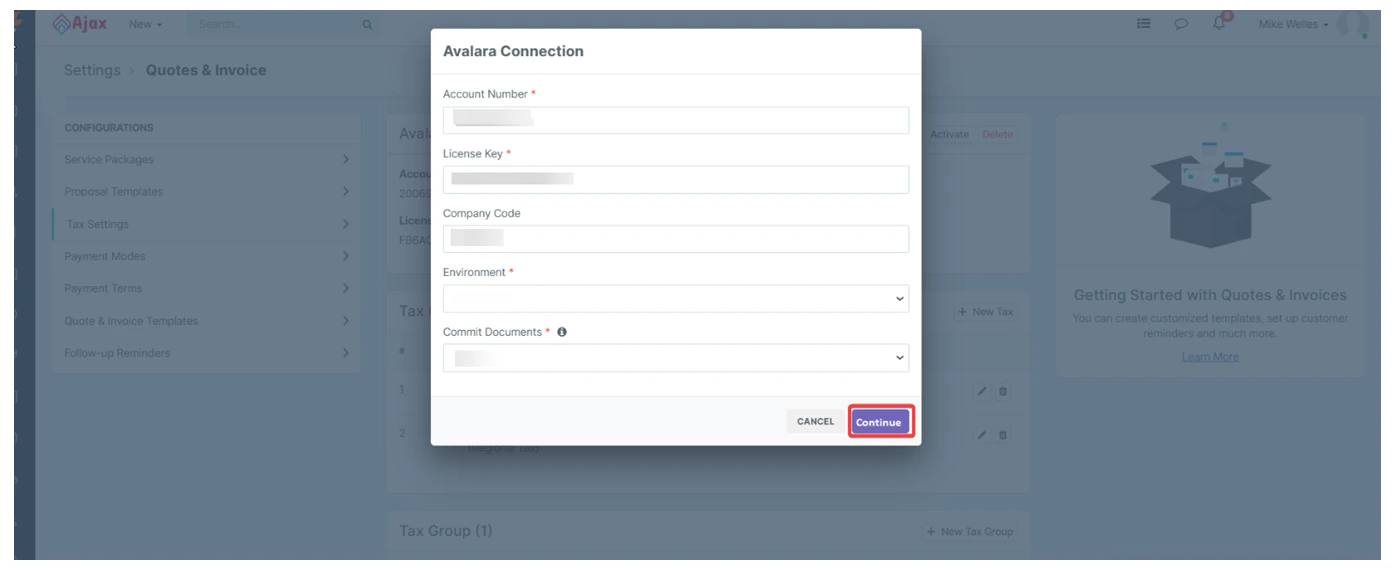
3. **Enter AvaTax Credentials**:
* **Account Number**: Provided during AvaTax account activation.
* **License Key**: Provided during AvaTax account activation.
* **Company Code/ID**: Your company identifier in the AvaTax Admin Console.
* **Environment**: Select either "Sandbox" or "Production."
**Note**: Zuper’s sandbox environment can only connect to Avalara’s Sandbox account.
* **Commit Documents**: Enable to submit tax documents to AvaTax for record-keeping. If disabled, sales tax is retrieved but not recorded in AvaTax for compliance reporting.
4. Click **Continue** to proceed further.
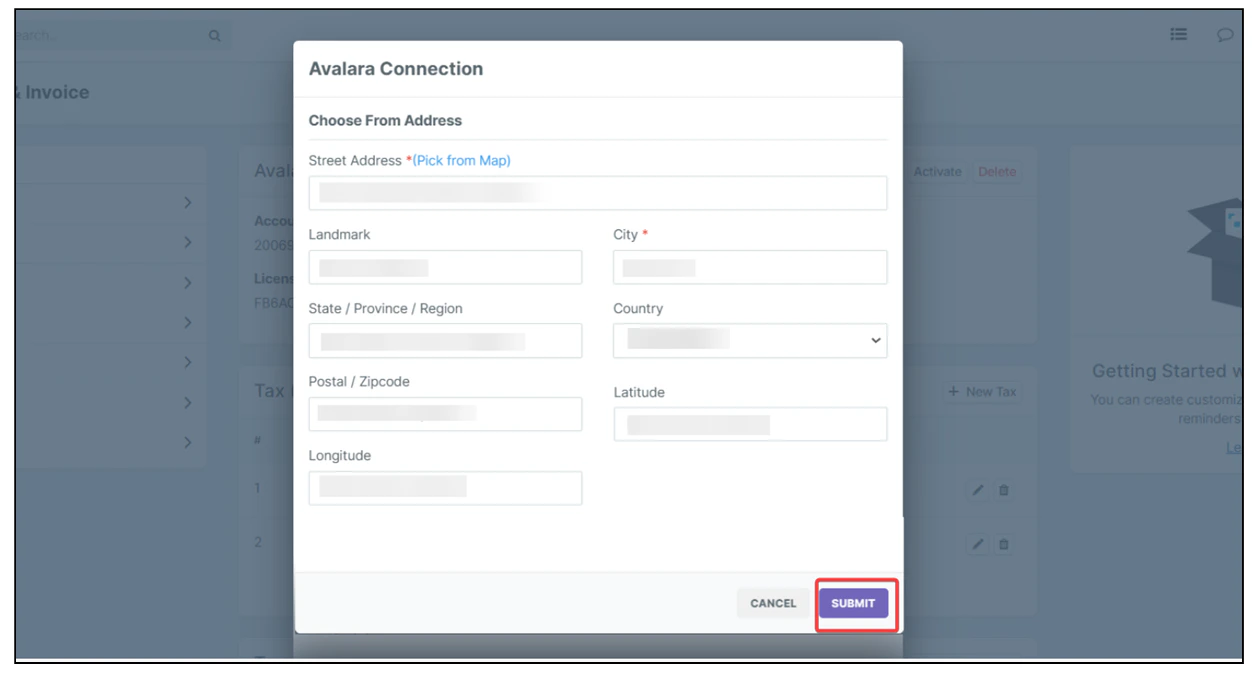
 5. In the **Avalara Connection** dialog box, select the exact address using the **Pick from Map** button.
**Note**: The address, country, and AvaTax credentials will be shared with Avalara during setup.
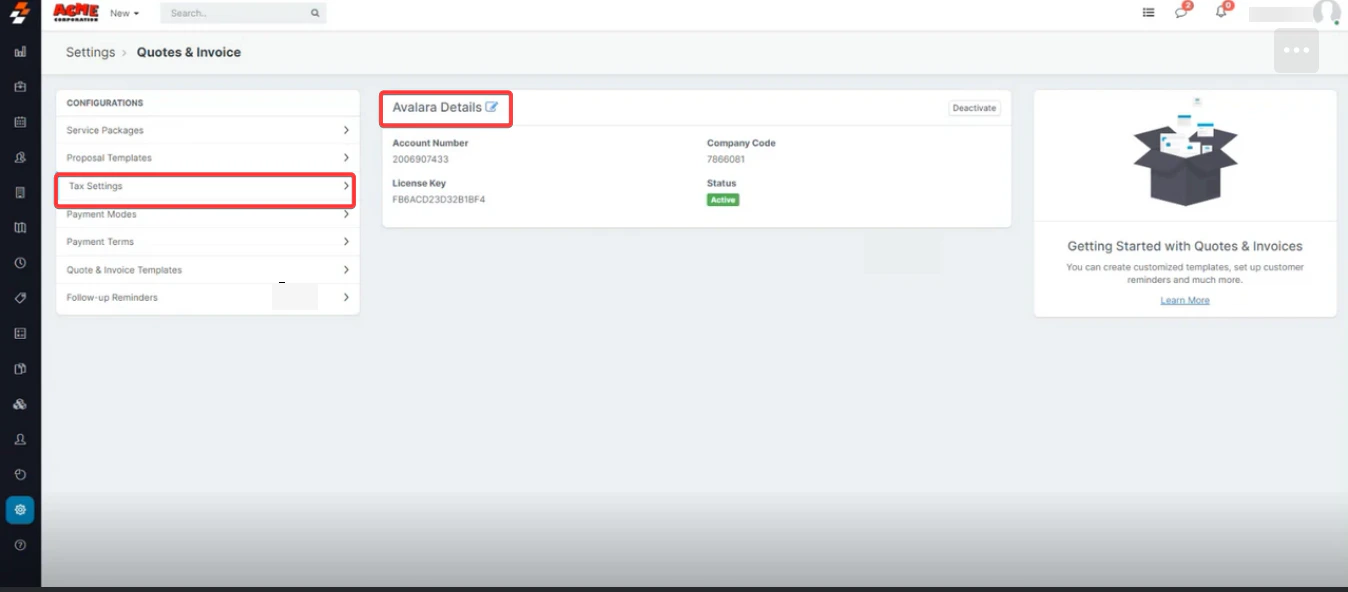
6. Click the “**Submit**” button to complete the settings.
5. In the **Avalara Connection** dialog box, select the exact address using the **Pick from Map** button.
**Note**: The address, country, and AvaTax credentials will be shared with Avalara during setup.
6. Click the “**Submit**” button to complete the settings.
 ## Configuring Organizations, Customers, and Properties
To ensure accurate tax calculations, configure the following modules with valid addresses and tax exemption details:
### Organizations
1. Navigate to **Organizations** > **+ New Organization**.
2. Enter customer details for the organization.
3. Add valid **service** and **billing addresses** using the address picker to ensure accurate geolocation data for Avalara.
4. For tax-exempt organizations:
* Mark as **Tax-Exempt**.
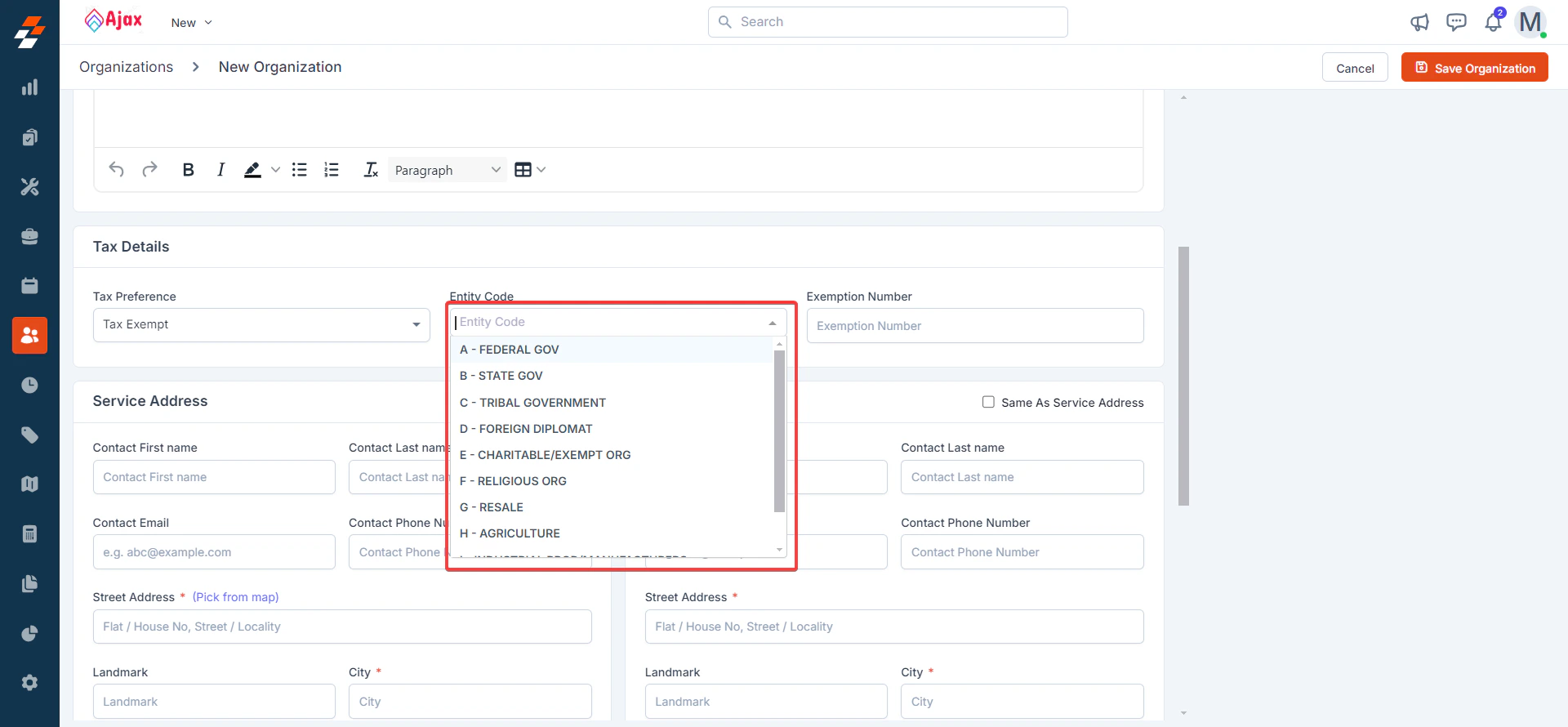
* Select the appropriate **Entity Code** (e.g., for religious or charitable organizations) or provide an **Exemption Number** issued by the government.
5. Click **Save**.
## Configuring Organizations, Customers, and Properties
To ensure accurate tax calculations, configure the following modules with valid addresses and tax exemption details:
### Organizations
1. Navigate to **Organizations** > **+ New Organization**.
2. Enter customer details for the organization.
3. Add valid **service** and **billing addresses** using the address picker to ensure accurate geolocation data for Avalara.
4. For tax-exempt organizations:
* Mark as **Tax-Exempt**.
* Select the appropriate **Entity Code** (e.g., for religious or charitable organizations) or provide an **Exemption Number** issued by the government.
5. Click **Save**.
 ### Customers
1. Navigate to **Customers** > **+ New Customer**.
2. Enter customer details.
3. Add valid **service** and **billing addresses** using the address picker.
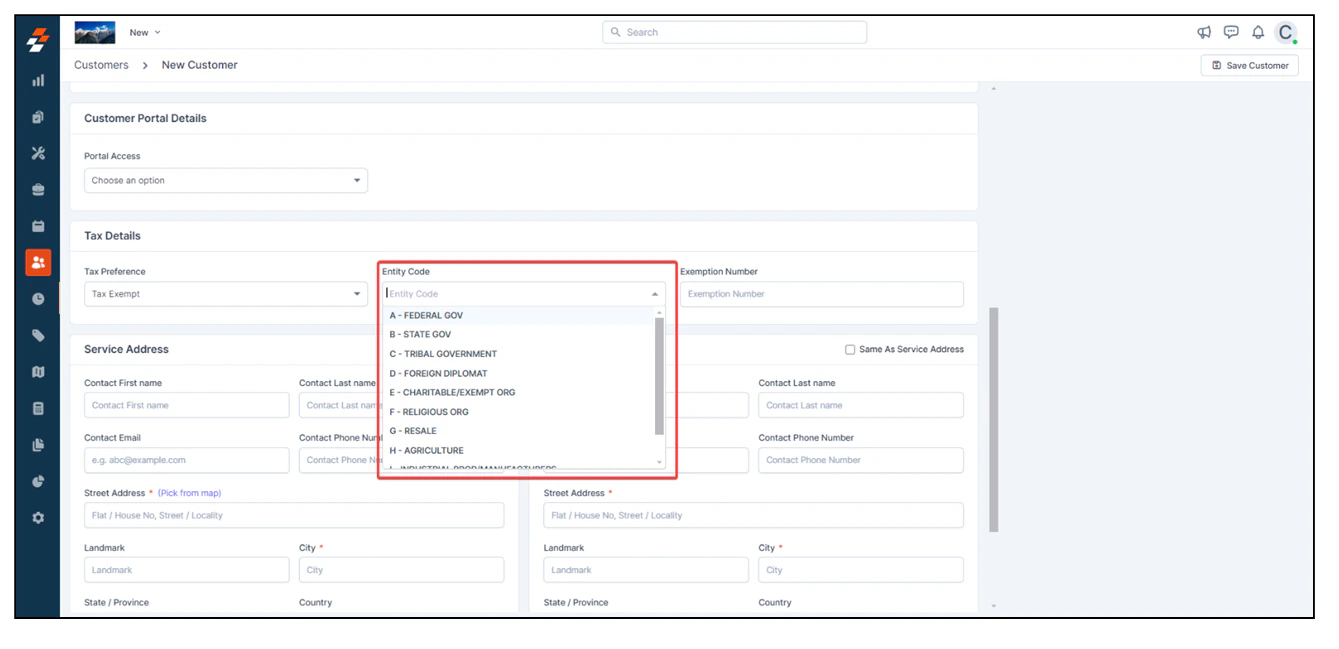
4. For tax-exempt customers:
* Mark as **Tax-Exempt**.
* Select the appropriate **Entity Code** or provide an **Exemption Number**.
5. Click **Save**.
### Customers
1. Navigate to **Customers** > **+ New Customer**.
2. Enter customer details.
3. Add valid **service** and **billing addresses** using the address picker.
4. For tax-exempt customers:
* Mark as **Tax-Exempt**.
* Select the appropriate **Entity Code** or provide an **Exemption Number**.
5. Click **Save**.
 ### Properties
1. Navigate to **Properties** > **+ New Property**.
2. Enter property details.
3. Add valid **service** and **billing addresses** using the address picker.
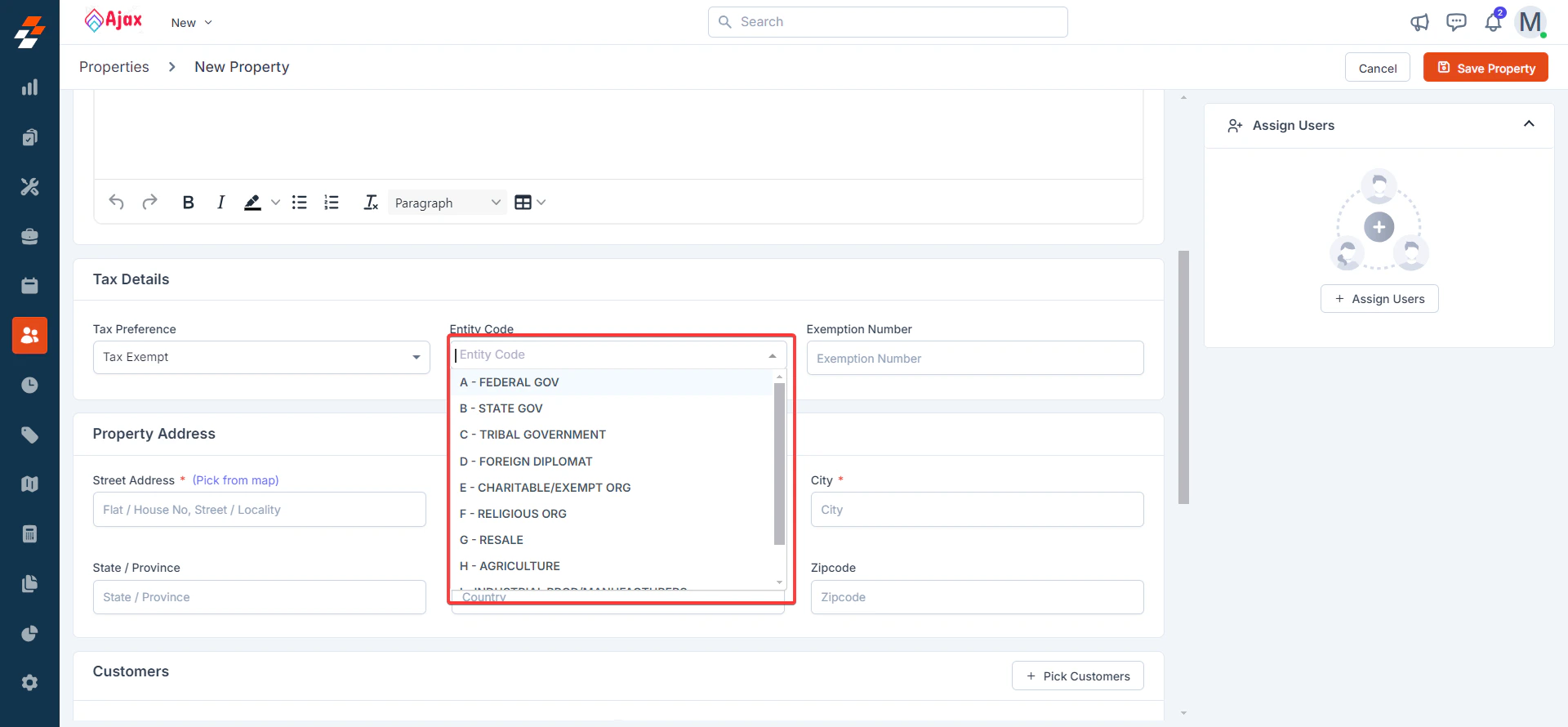
4. For tax-exempt properties:
* Mark as **Tax-Exempt**.
* Select the appropriate **Entity Code** or provide an **Exemption Number**.
5. Click **Save**.
### Properties
1. Navigate to **Properties** > **+ New Property**.
2. Enter property details.
3. Add valid **service** and **billing addresses** using the address picker.
4. For tax-exempt properties:
* Mark as **Tax-Exempt**.
* Select the appropriate **Entity Code** or provide an **Exemption Number**.
5. Click **Save**.
 **Notes**:
* Taxes are calculated based on the property’s address if the organization, customer, and property are taxable.
* Accurate geolocation data from the address picker is critical for Avalara to fetch the correct tax details.
## Configuring Parts and Services
To apply the correct tax codes for items:
1. Navigate to **Parts and Services** from the left menu.
2. Select a product to open its details.
3. Click **More Actions** > **Edit Parts/Services**.
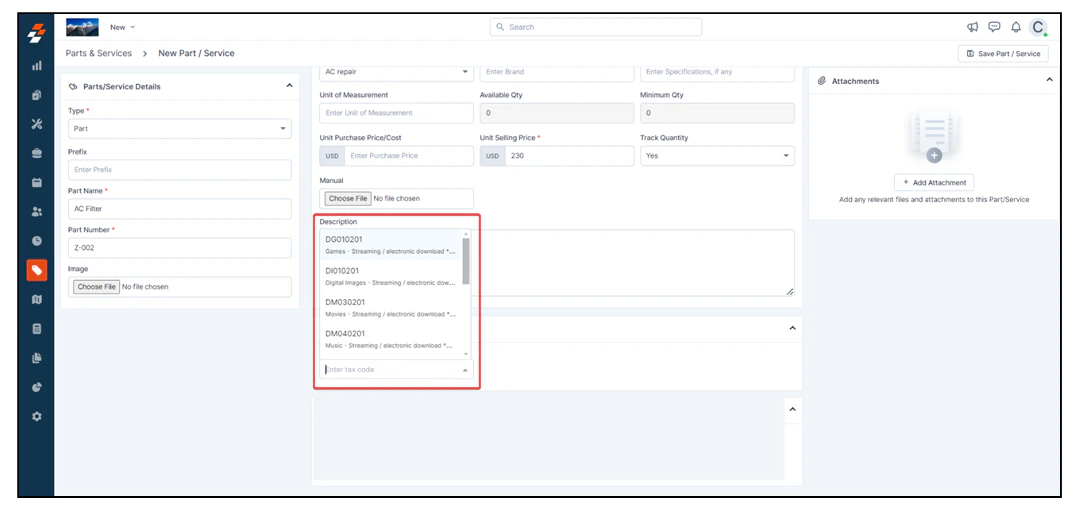
4. Enter the applicable **AvaTax System Tax Code** in the **Tax Code** field.
* **Note**: View available tax codes at [taxcode.avatax.avalara.com](https://taxcode.avatax.avalara.com/).
5. Click **Save**.
6. **Tax Calculation**: Avalara combines the tax code and the customer’s address to determine taxability (exempt, partially taxable, or fully taxable).the submission of
7. **Optional**: Add or edit tax codes for items directly in the **Tax Code** field when creating a transaction.
**Notes**:
* Taxes are calculated based on the property’s address if the organization, customer, and property are taxable.
* Accurate geolocation data from the address picker is critical for Avalara to fetch the correct tax details.
## Configuring Parts and Services
To apply the correct tax codes for items:
1. Navigate to **Parts and Services** from the left menu.
2. Select a product to open its details.
3. Click **More Actions** > **Edit Parts/Services**.
4. Enter the applicable **AvaTax System Tax Code** in the **Tax Code** field.
* **Note**: View available tax codes at [taxcode.avatax.avalara.com](https://taxcode.avatax.avalara.com/).
5. Click **Save**.
6. **Tax Calculation**: Avalara combines the tax code and the customer’s address to determine taxability (exempt, partially taxable, or fully taxable).the submission of
7. **Optional**: Add or edit tax codes for items directly in the **Tax Code** field when creating a transaction.
 ## Managing Transactions (Quotes and Invoices)
When creating quotes or invoices, AvaTax automates tax calculations:
1. Navigate to **Quotes** > **+ New Quote** or **Invoices** > **+ New Invoice**.
2. Fill in the required details.
3. Add discounts or fees via:
* **Settings** > **Configuration Settings** > **Parts and Services** > **Discounts and Fees**, or
* Directly on the parts and services in the transaction.
4. Save the transaction as a draft to trigger AvaTax to:
* Identify tax applicability for parts and services in the customer’s geographic area.
* Assess the customer’s taxability.
* Retrieve accurate tax rates based on local governing authorities.
5. **Note**: Taxes are applied based on the billing or service address configured in **Organization Settings** > **Misc Settings** > **Tax Settings**.
6. **Discounts**:
* Transaction-level discounts are applied proportionately to all items.
* Line-item discounts are applied only to specific items.
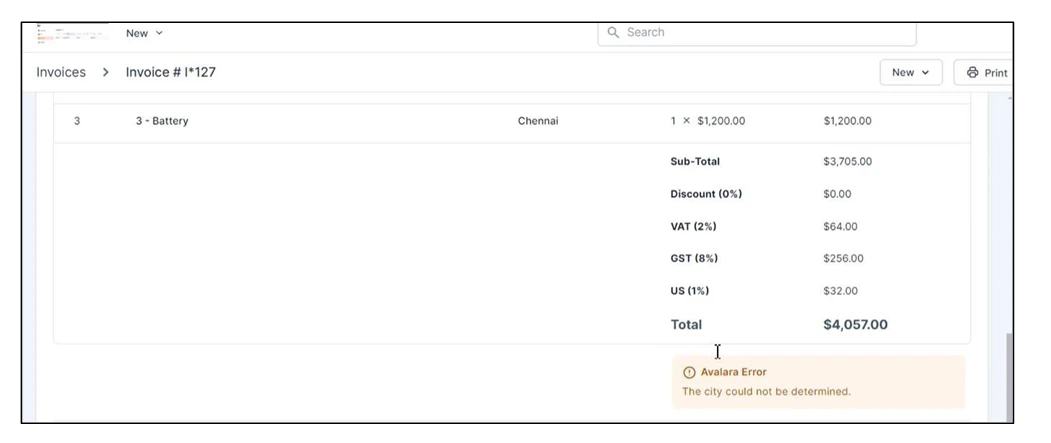
7. **Errors**: Any errors returned by Avalara will be displayed on the transaction details page.
## Managing Transactions (Quotes and Invoices)
When creating quotes or invoices, AvaTax automates tax calculations:
1. Navigate to **Quotes** > **+ New Quote** or **Invoices** > **+ New Invoice**.
2. Fill in the required details.
3. Add discounts or fees via:
* **Settings** > **Configuration Settings** > **Parts and Services** > **Discounts and Fees**, or
* Directly on the parts and services in the transaction.
4. Save the transaction as a draft to trigger AvaTax to:
* Identify tax applicability for parts and services in the customer’s geographic area.
* Assess the customer’s taxability.
* Retrieve accurate tax rates based on local governing authorities.
5. **Note**: Taxes are applied based on the billing or service address configured in **Organization Settings** > **Misc Settings** > **Tax Settings**.
6. **Discounts**:
* Transaction-level discounts are applied proportionately to all items.
* Line-item discounts are applied only to specific items.
7. **Errors**: Any errors returned by Avalara will be displayed on the transaction details page.
 ## Disabling AvaTax Integration
To disable the AvaTax integration:
1. Navigate to **Settings** > **Configuration Settings** > **Quotes and Invoices** > **Taxes**.
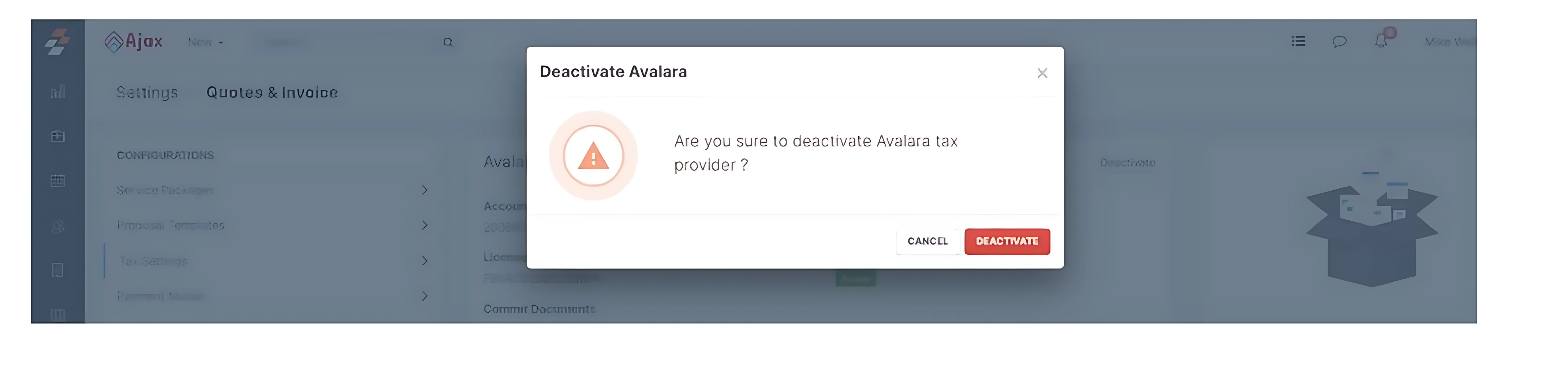
2. Select the **Deactivate** option.
3. Confirm the deactivation to disable the integration.
## Disabling AvaTax Integration
To disable the AvaTax integration:
1. Navigate to **Settings** > **Configuration Settings** > **Quotes and Invoices** > **Taxes**.
2. Select the **Deactivate** option.
3. Confirm the deactivation to disable the integration.
 Integrating Avalara AvaTax with Zuper enables automated, accurate, and compliant tax calculations, reducing manual effort and ensuring seamless tax management.