> ## Documentation Index
> Fetch the complete documentation index at: https://zuperinc-section23.mintlify.site/llms.txt
> Use this file to discover all available pages before exploring further.
# Sage Intacct
The bi-directional integration between **Zuper** and **Sage Intacct** allows seamless synchronization of data between the two systems.
You can transfer **invoices and customer information** from Zuper to Sage Intacct and import **inventory and payment details** from Sage Intacct to Zuper.
This integration enhances accuracy, reduces manual effort, and ensures your accounting and field operations stay in sync.
The following sections explain how to:\
A. Connect Sage Intacct with Zuper\
B. Understand how the integration works\
C. Uninstall Sage Intacct from Zuper
### **A. How to Connect Sage Intacct with Zuper**
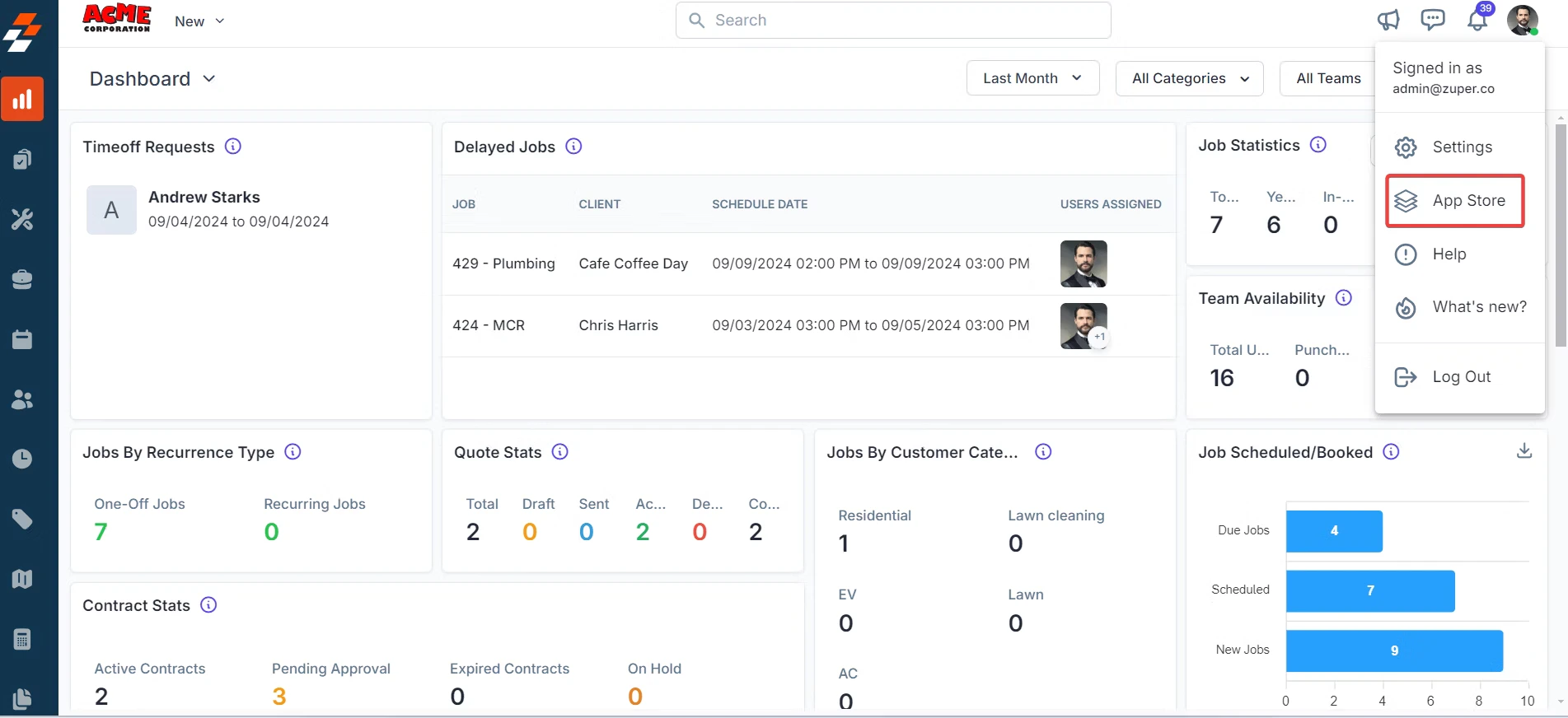
1. **Open Zuper App Store**
* Log in to your Zuper account.
* Click your **Profile Picture** in the top-right corner and select **App Store**.
 2. **Select the Sage Intacct App**
* Under **Browse by Category**, choose **Accounting and Payments**.
* Locate **Sage Intacct**.
2. **Select the Sage Intacct App**
* Under **Browse by Category**, choose **Accounting and Payments**.
* Locate **Sage Intacct**.
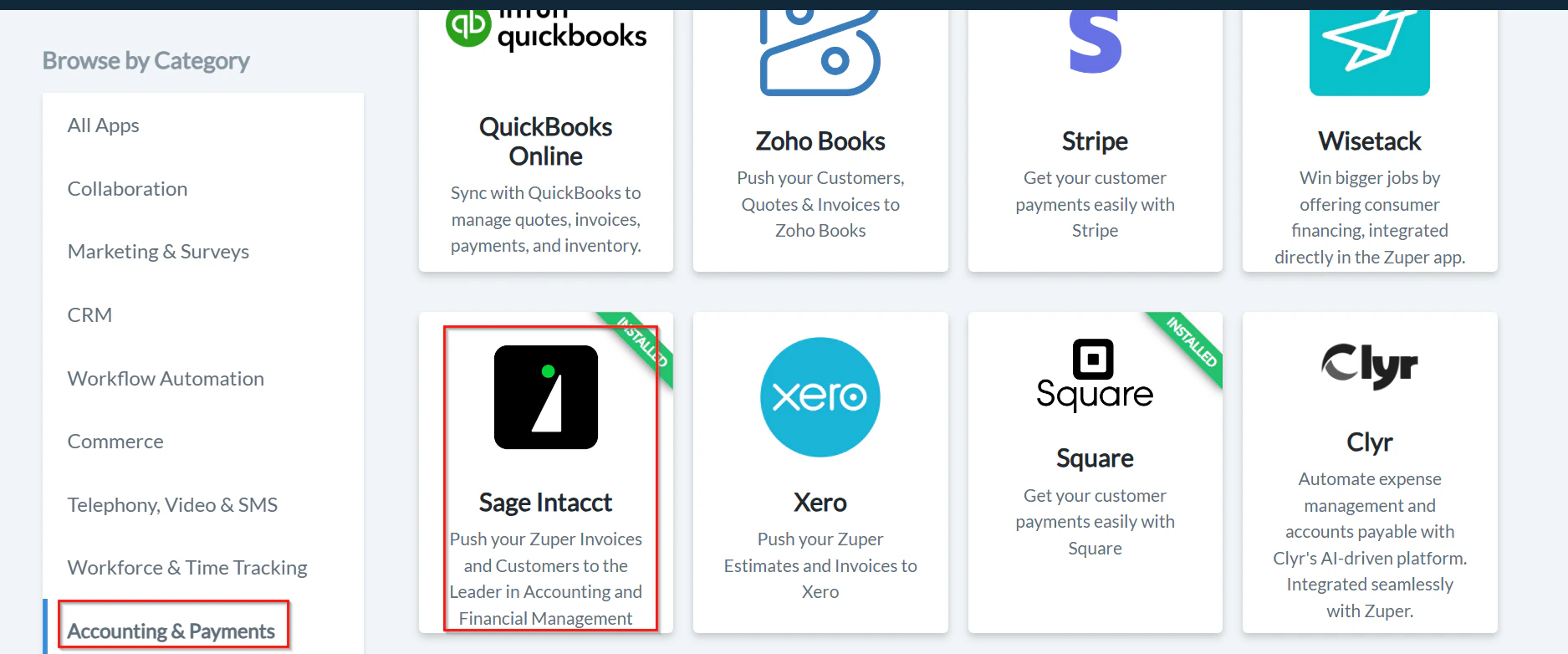 * Click **Configure Settings**.
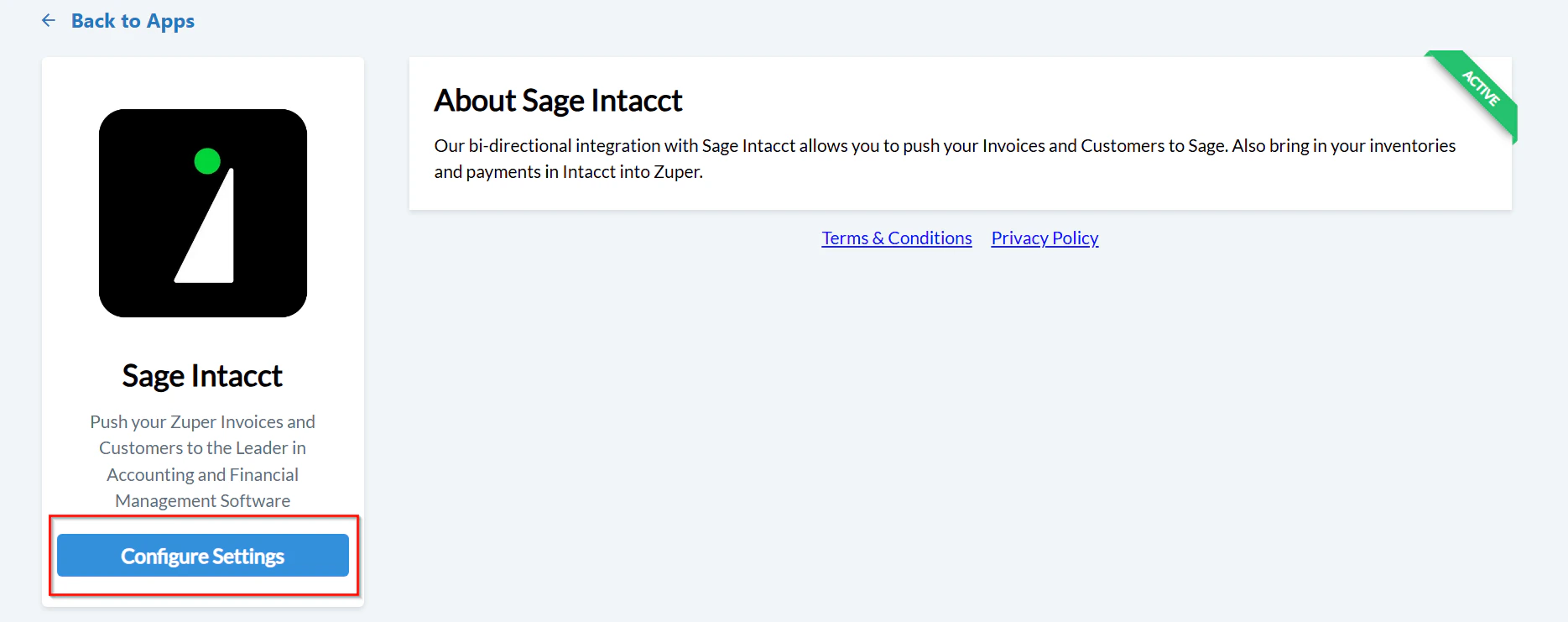 Note: Keep both the Zuper and Sage Intacct tabs open during setup for quick switching between
systems.
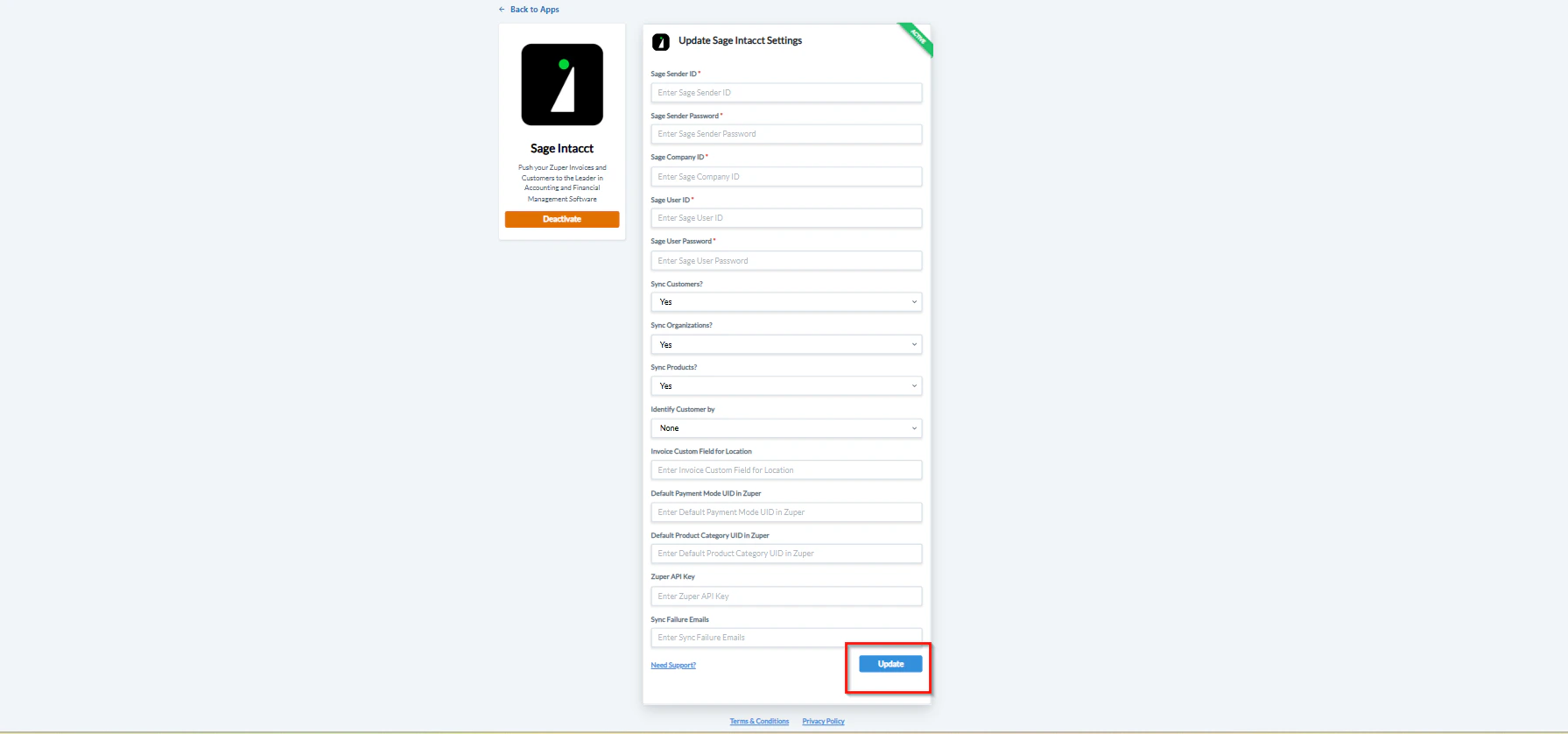
3. **Update Zuper Settings**\
Configure the following fields under Sage Intacct settings:
| Field | Description |
| :---------------------------------------: | :--------------------------------------------------------------------: |
| **Sage Sender ID** *(Mandatory)* | Enter the Sender ID from Sage Intacct. |
| **Sage Sender Password** *(Mandatory)* | Enter the corresponding sender password. |
| **Sage Company ID** *(Mandatory)* | Enter the Company ID from Sage’s login page. |
| **Sage User ID** | Enter the User ID from Sage’s login page. |
| **Sage User Password** *(Mandatory)* | Enter the user password. |
| **Sync Customers** | Select **Yes** or **No** to sync customers from Zuper. |
| **Sync Organizations** | Select **Yes** or **No** to sync organizations from Zuper. |
| **Sync Products** | Select **Yes** or **No** to sync products from Sage. |
| **Identify Customer By** | Choose **None**, **Name**, or **Email** to identify customers. |
| **Invoice Custom Field for Location** | Enter the Invoice Custom Field from Sage’s Accounts Receivable module. |
| **Default Payment Mode UID in Zuper** | Contact Zuper Support to obtain this UID. |
| **Default Product Category UID in Zuper** | Contact Zuper Support to obtain this UID. |
| **Zuper API Key** | Enter your Zuper API key. [Learn how to generate an API key.](#) |
| **Sync Failure Emails** | Enter email addresses to receive sync failure notifications. |
4. Click **Update** to complete the connection between Zuper and Sage Intacct.
Note: Keep both the Zuper and Sage Intacct tabs open during setup for quick switching between
systems.
3. **Update Zuper Settings**\
Configure the following fields under Sage Intacct settings:
| Field | Description |
| :---------------------------------------: | :--------------------------------------------------------------------: |
| **Sage Sender ID** *(Mandatory)* | Enter the Sender ID from Sage Intacct. |
| **Sage Sender Password** *(Mandatory)* | Enter the corresponding sender password. |
| **Sage Company ID** *(Mandatory)* | Enter the Company ID from Sage’s login page. |
| **Sage User ID** | Enter the User ID from Sage’s login page. |
| **Sage User Password** *(Mandatory)* | Enter the user password. |
| **Sync Customers** | Select **Yes** or **No** to sync customers from Zuper. |
| **Sync Organizations** | Select **Yes** or **No** to sync organizations from Zuper. |
| **Sync Products** | Select **Yes** or **No** to sync products from Sage. |
| **Identify Customer By** | Choose **None**, **Name**, or **Email** to identify customers. |
| **Invoice Custom Field for Location** | Enter the Invoice Custom Field from Sage’s Accounts Receivable module. |
| **Default Payment Mode UID in Zuper** | Contact Zuper Support to obtain this UID. |
| **Default Product Category UID in Zuper** | Contact Zuper Support to obtain this UID. |
| **Zuper API Key** | Enter your Zuper API key. [Learn how to generate an API key.](#) |
| **Sync Failure Emails** | Enter email addresses to receive sync failure notifications. |
4. Click **Update** to complete the connection between Zuper and Sage Intacct.
 ### **B. How the Zuper – Sage Intacct Integration Works**
Once connected, data synchronization between Zuper and Sage Intacct works in both directions — based on the configured modules.
#### **i. Zuper as a Source**
Data flows from Zuper to Sage Intacct.
* **Organizations → Customers**\
Any new or updated organization in Zuper automatically syncs with the **Customers** module in Sage.\
The synced record includes a **Sage Customer ID** visible in the organization’s details in Zuper.
* **Customers → Contacts**\
Customer information from Zuper syncs with the **Contacts** module in Sage Intacct, keeping customer details consistent across both systems.
* **Invoices → Sales Invoices**\
Invoice creation or updates in Zuper automatically sync with the **Sage Invoices** module in Sage.\
You can view the **Sage Invoice ID** under the Zuper Invoice details.
#### **ii. Sage as a Source**
Data flows from Sage Intacct to Zuper.
* **Items → Products**\
Any new or updated item in Sage Intacct syncs automatically with the **Products** module in Zuper.
* **Payments → Payments**\
Payments recorded or updated in Sage Intacct sync seamlessly with the **Payments** module in Zuper.
Note: This two-way integration ensures that accounting and operational data remain synchronized, reducing manual entries and improving accuracy.
### **C. How to Uninstall Sage Intacct from Zuper**
1. **Open Zuper App Store**
* Log in to your Zuper account.
* Click your **Profile Picture** → **App Store**.
2. **Locate the App**
* Under **Browse by Category**, select **Accounting and Payments**.
* Choose **Sage Intacct** from the list.
3. **Uninstall the App**
* Click **Deactivate**.
### **B. How the Zuper – Sage Intacct Integration Works**
Once connected, data synchronization between Zuper and Sage Intacct works in both directions — based on the configured modules.
#### **i. Zuper as a Source**
Data flows from Zuper to Sage Intacct.
* **Organizations → Customers**\
Any new or updated organization in Zuper automatically syncs with the **Customers** module in Sage.\
The synced record includes a **Sage Customer ID** visible in the organization’s details in Zuper.
* **Customers → Contacts**\
Customer information from Zuper syncs with the **Contacts** module in Sage Intacct, keeping customer details consistent across both systems.
* **Invoices → Sales Invoices**\
Invoice creation or updates in Zuper automatically sync with the **Sage Invoices** module in Sage.\
You can view the **Sage Invoice ID** under the Zuper Invoice details.
#### **ii. Sage as a Source**
Data flows from Sage Intacct to Zuper.
* **Items → Products**\
Any new or updated item in Sage Intacct syncs automatically with the **Products** module in Zuper.
* **Payments → Payments**\
Payments recorded or updated in Sage Intacct sync seamlessly with the **Payments** module in Zuper.
Note: This two-way integration ensures that accounting and operational data remain synchronized, reducing manual entries and improving accuracy.
### **C. How to Uninstall Sage Intacct from Zuper**
1. **Open Zuper App Store**
* Log in to your Zuper account.
* Click your **Profile Picture** → **App Store**.
2. **Locate the App**
* Under **Browse by Category**, select **Accounting and Payments**.
* Choose **Sage Intacct** from the list.
3. **Uninstall the App**
* Click **Deactivate**.
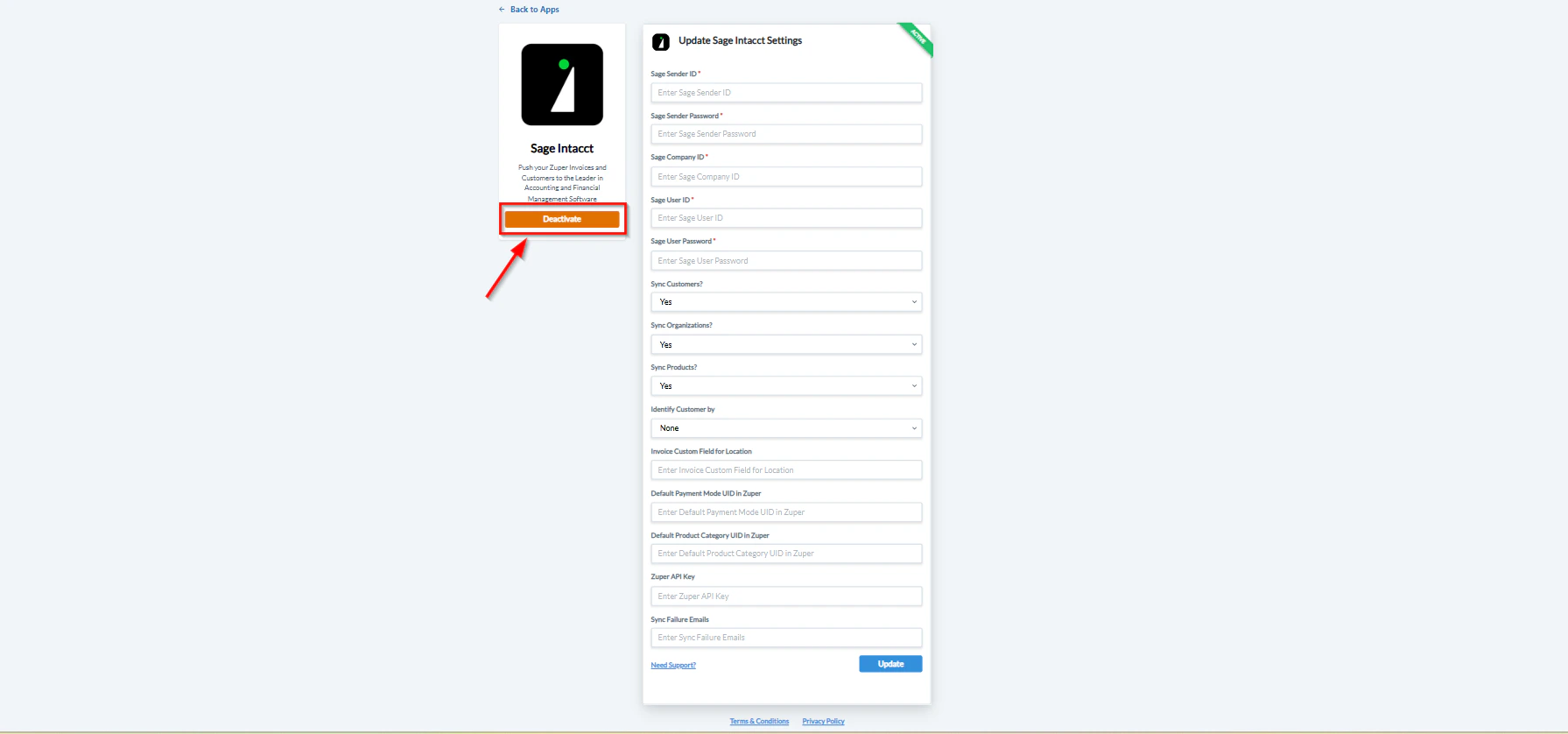 The Sage Intacct integration will be deactivated from your account.
The **Zuper–Sage Intacct Integration** provides a unified workflow between your field operations and financial system.\
By syncing customers, invoices, payments, and inventory in real time, this integration eliminates duplicate data entry, enhances visibility, and enables your back-office team to manage all accounting processes directly from Zuper.
The Sage Intacct integration will be deactivated from your account.
The **Zuper–Sage Intacct Integration** provides a unified workflow between your field operations and financial system.\
By syncing customers, invoices, payments, and inventory in real time, this integration eliminates duplicate data entry, enhances visibility, and enables your back-office team to manage all accounting processes directly from Zuper.