> ## Documentation Index
> Fetch the complete documentation index at: https://zuperinc-section23.mintlify.site/llms.txt
> Use this file to discover all available pages before exploring further.
# Square
**Square** is a popular point-of-sale (POS) system that enables merchants to accept credit and debit card payments through a mobile app or card reader. Known for its simple setup, quick deposits, and affordable transaction fees, Square is now integrated with **Zuper**, allowing you to collect full or partial payments for estimates and invoices directly from the app.
### A. Connecting Your Square Account
To connect your Square account, follow these steps:
1. **Log in** to your Square Developer Dashboard at [https://developer.squareup.com/apps](https://developer.squareup.com/apps).
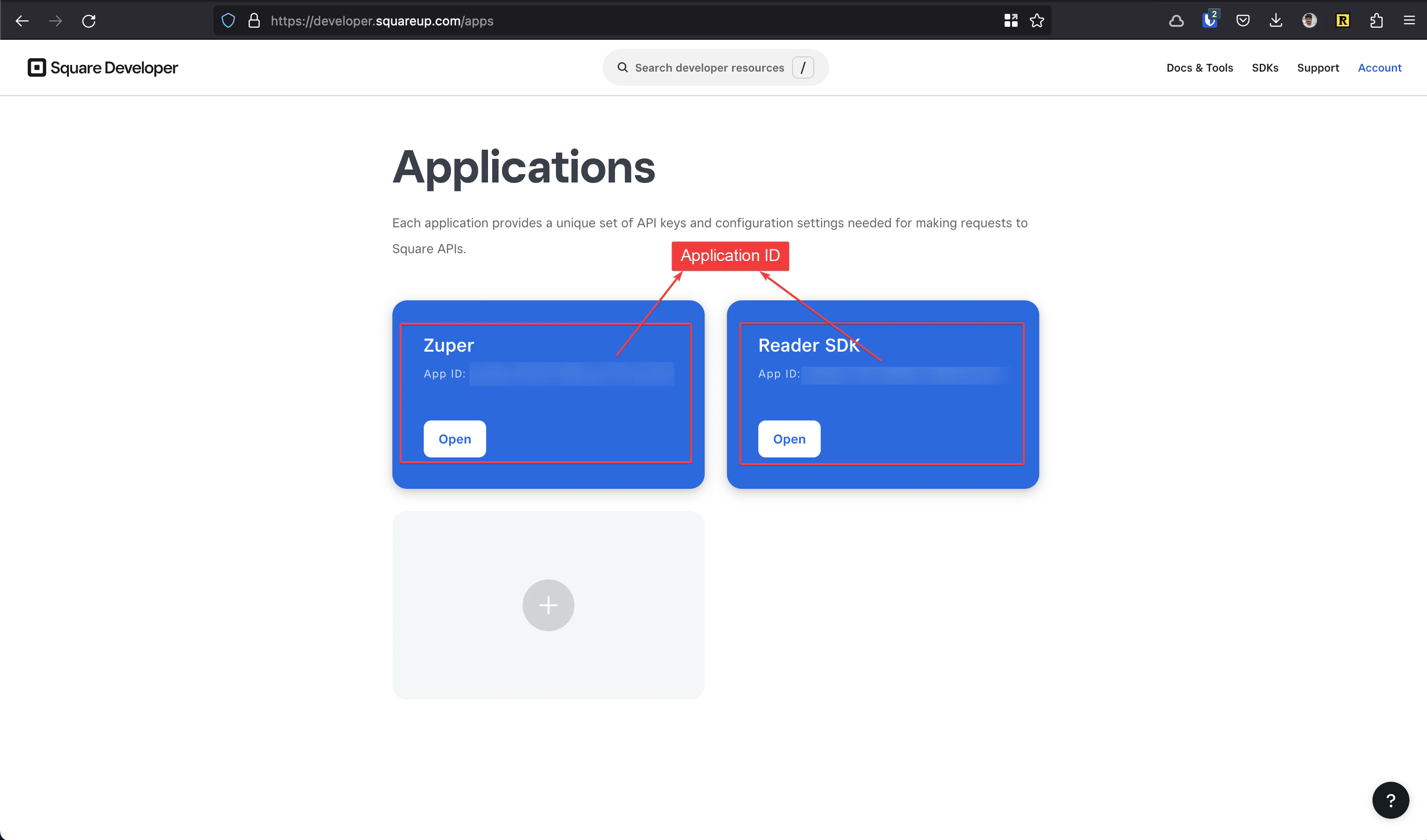
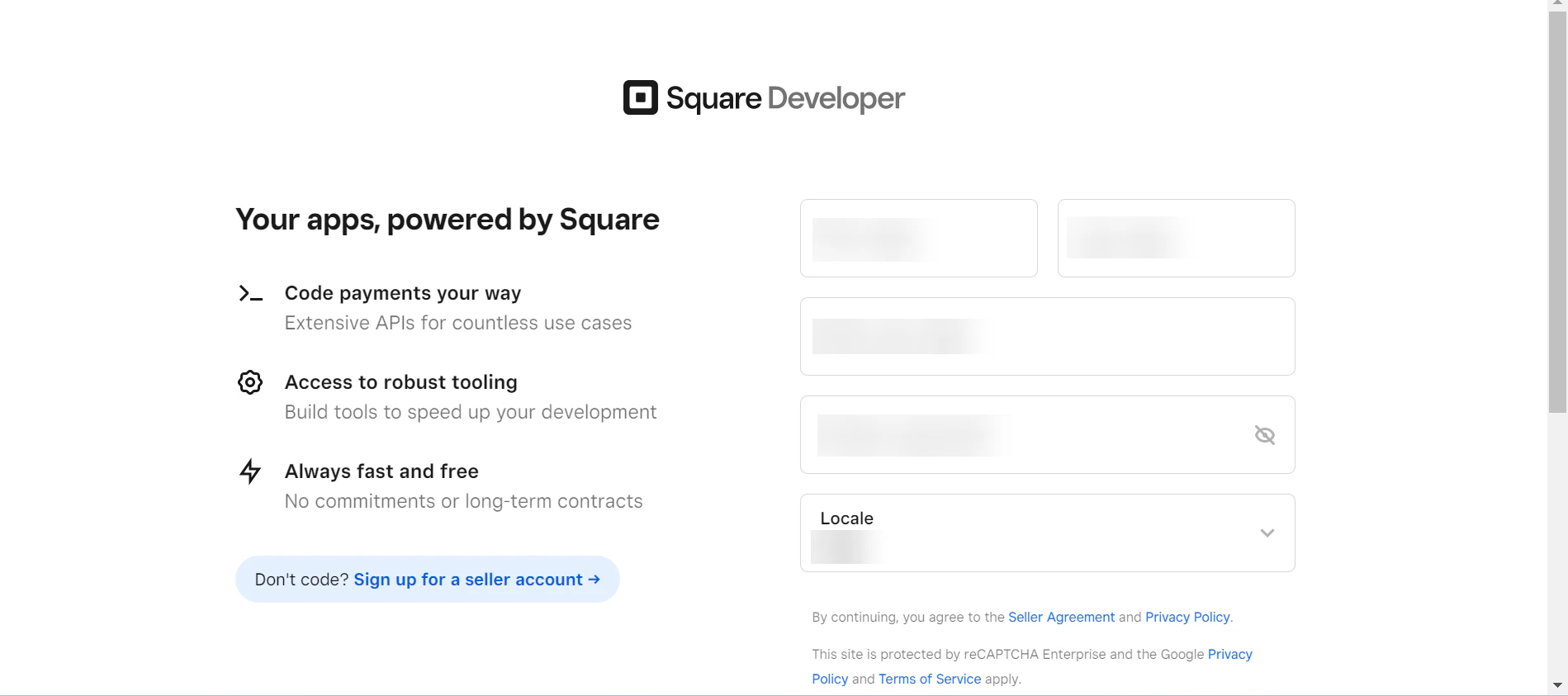 2. **Create a new developer application.**
* Once created, you can find your **App ID** on the application details page.
2. **Create a new developer application.**
* Once created, you can find your **App ID** on the application details page.
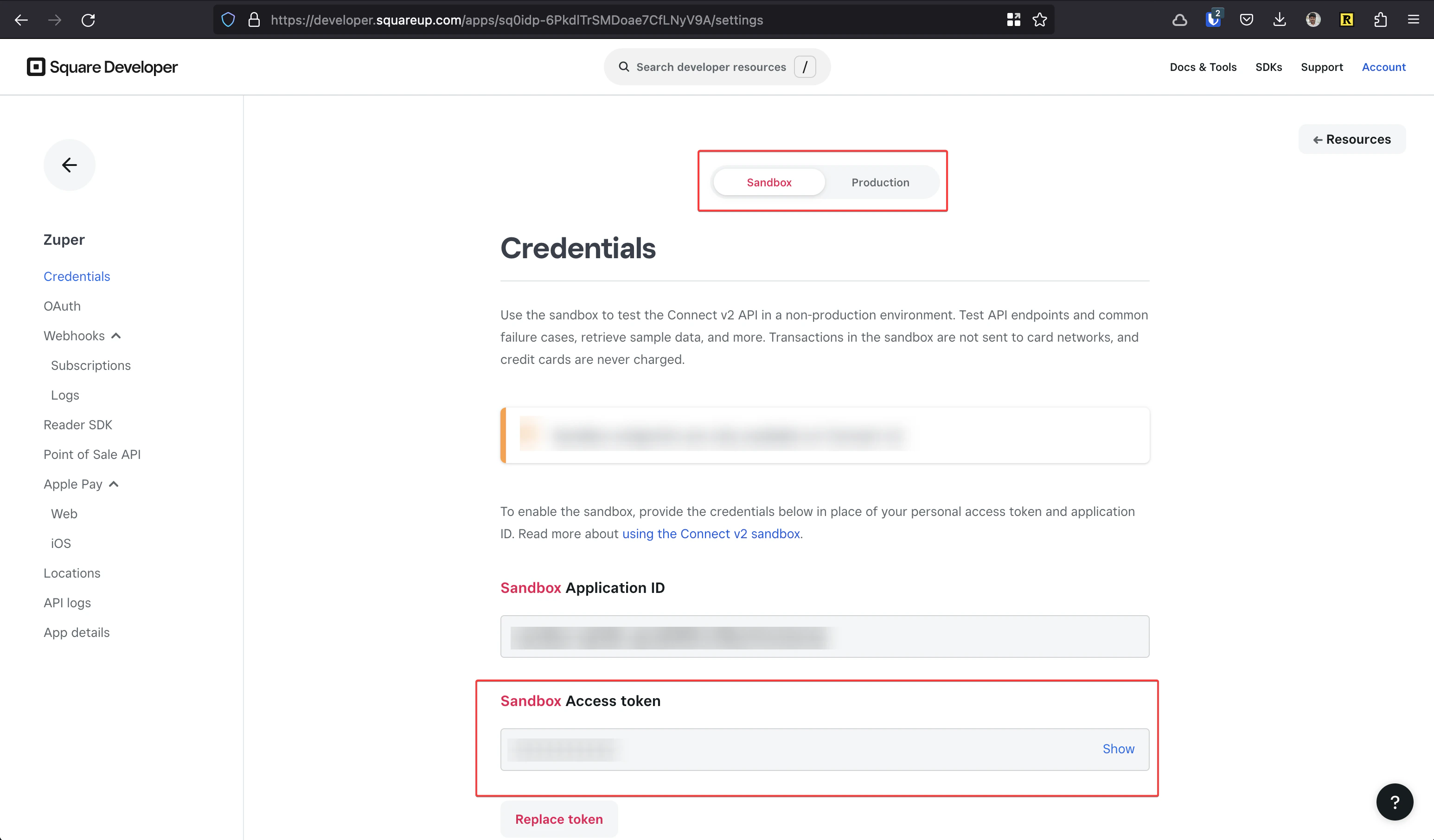
 3. **Generate an Access Token** from your **Sandbox** or **Production** environment.
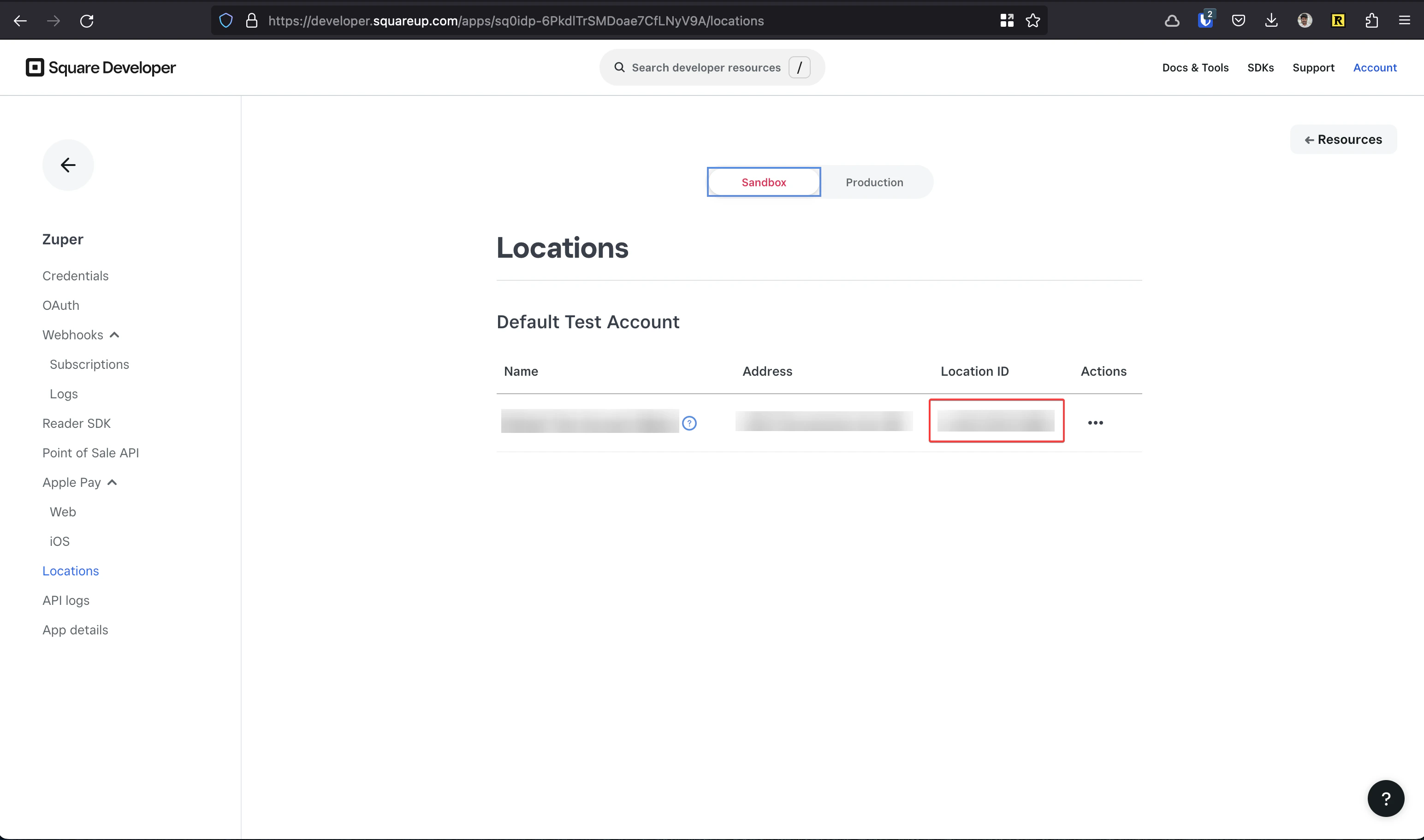
 4. **Locate your Location ID** from the **Locations** page.
 You will need the following three values to configure the integration in Zuper:
* **App ID**
* **Access Token**
* **Location ID**
### B. Integrating and Using Square with Zuper
#### I. How to Connect Square with Zuper
1. Log in to your **Zuper account**.
2. Click your **Profile Picture** (top-right corner) and select **App Store**.
You will need the following three values to configure the integration in Zuper:
* **App ID**
* **Access Token**
* **Location ID**
### B. Integrating and Using Square with Zuper
#### I. How to Connect Square with Zuper
1. Log in to your **Zuper account**.
2. Click your **Profile Picture** (top-right corner) and select **App Store**.
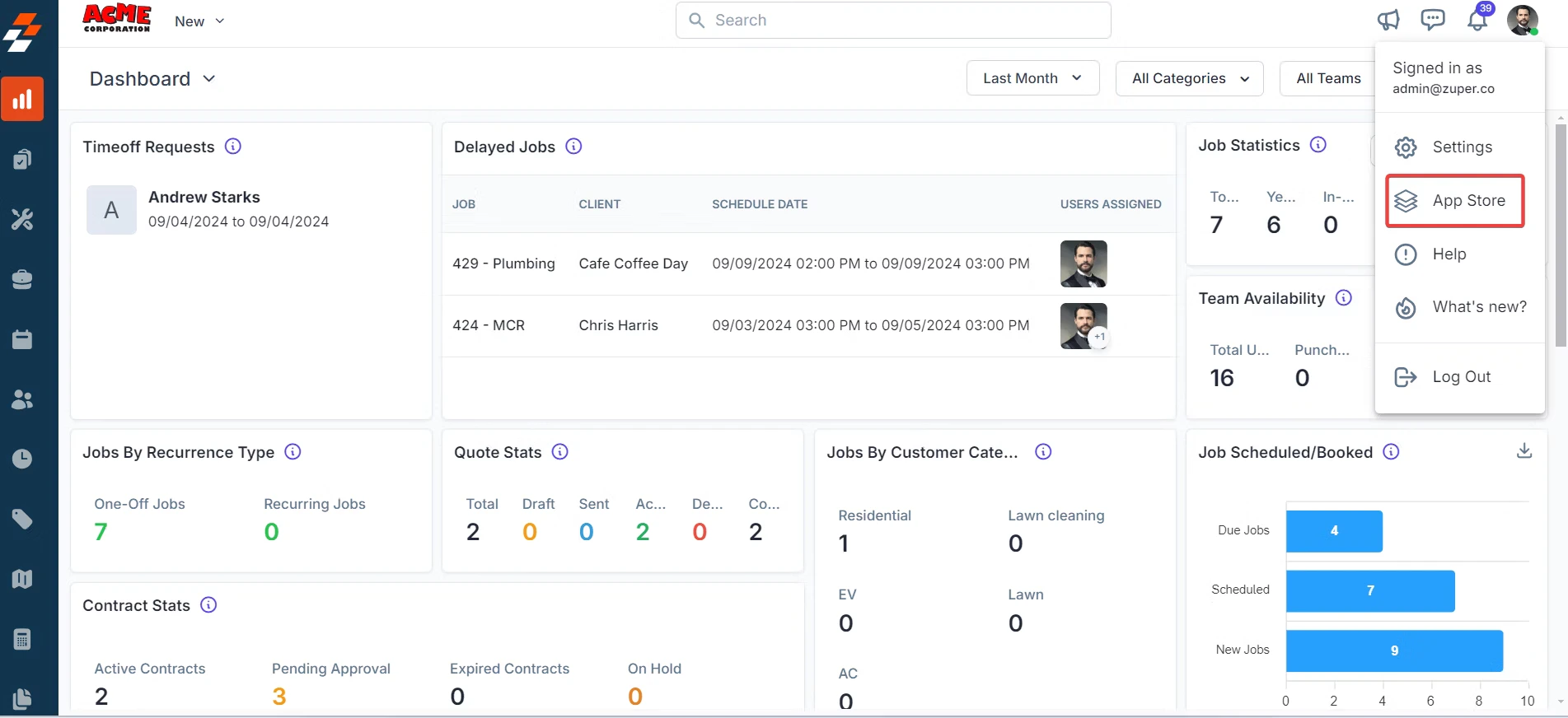 3. Under **Browse by Category**, choose **Accounting & payments** → select **Square**.
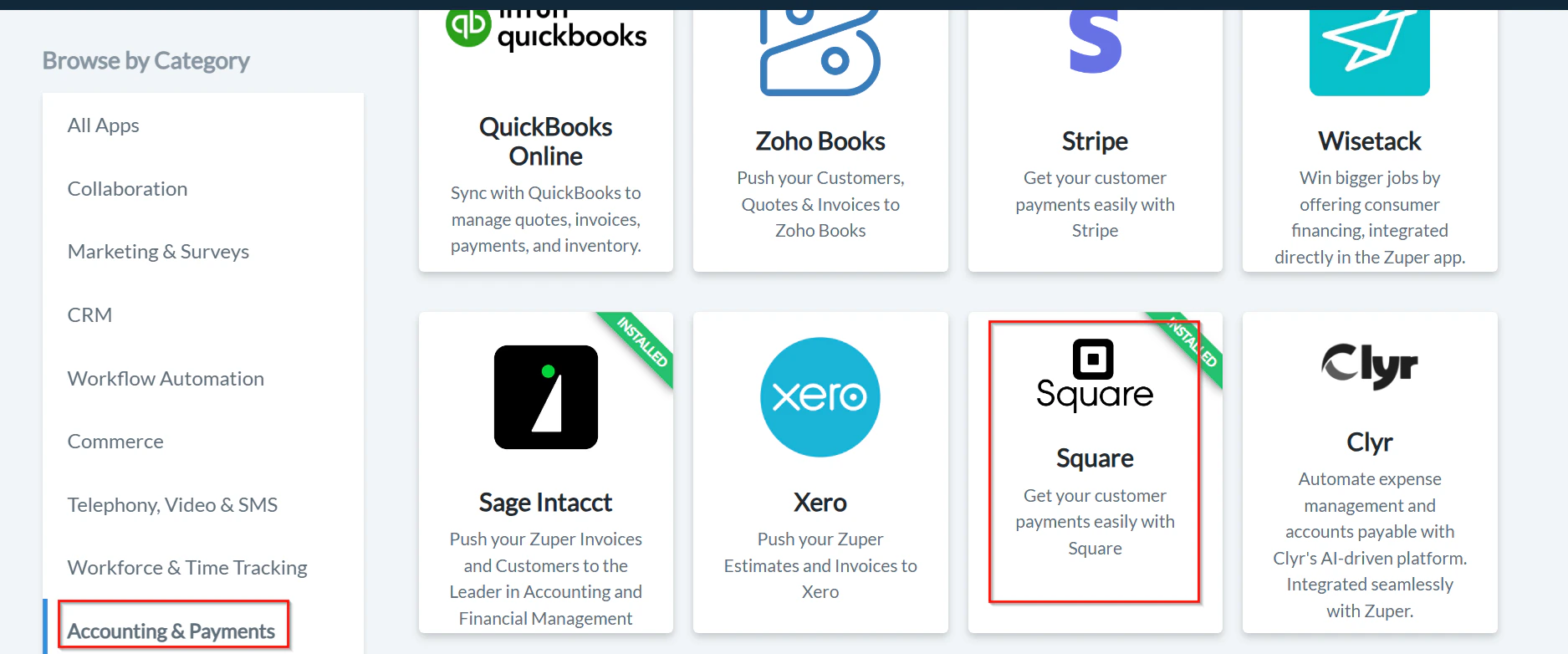 4. Click **Configure Settings**.
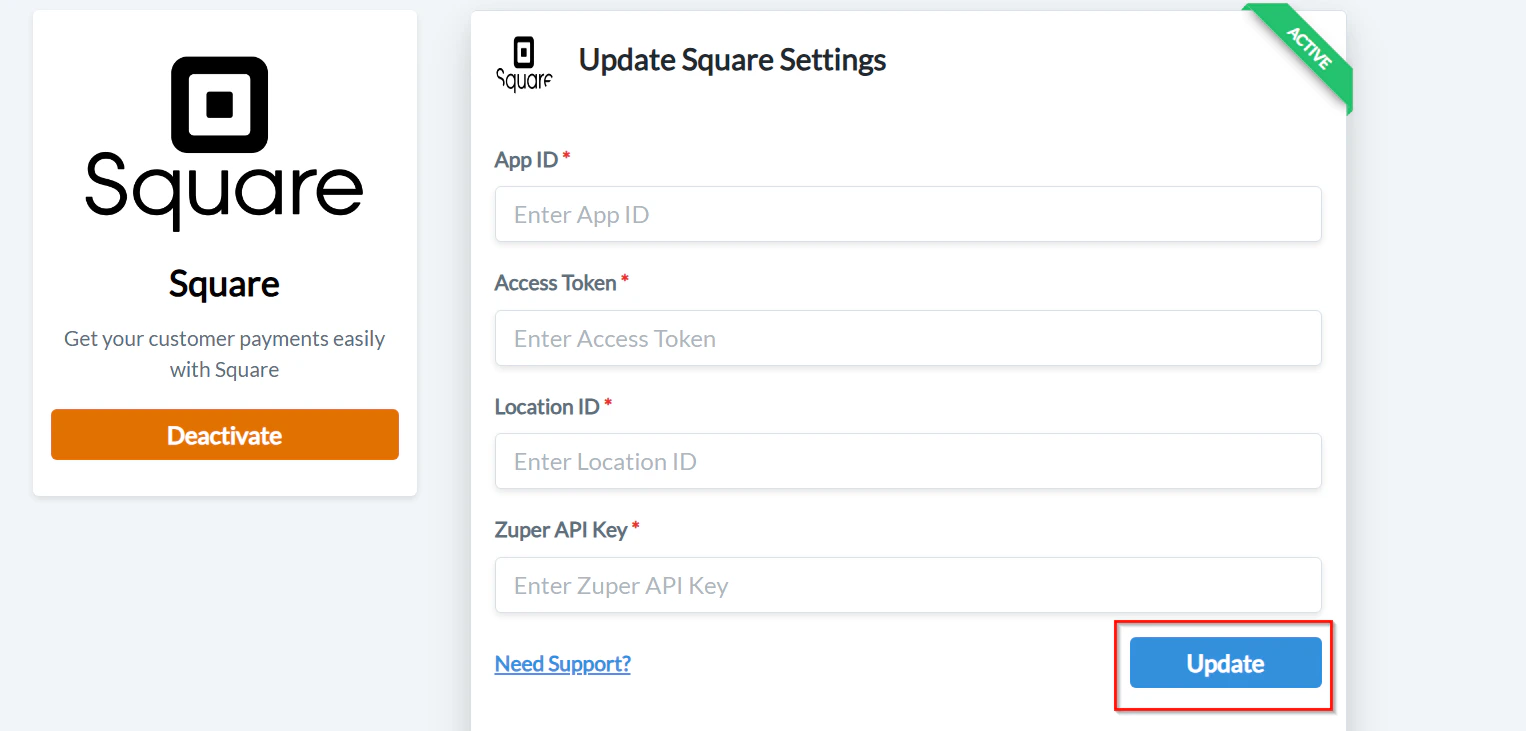
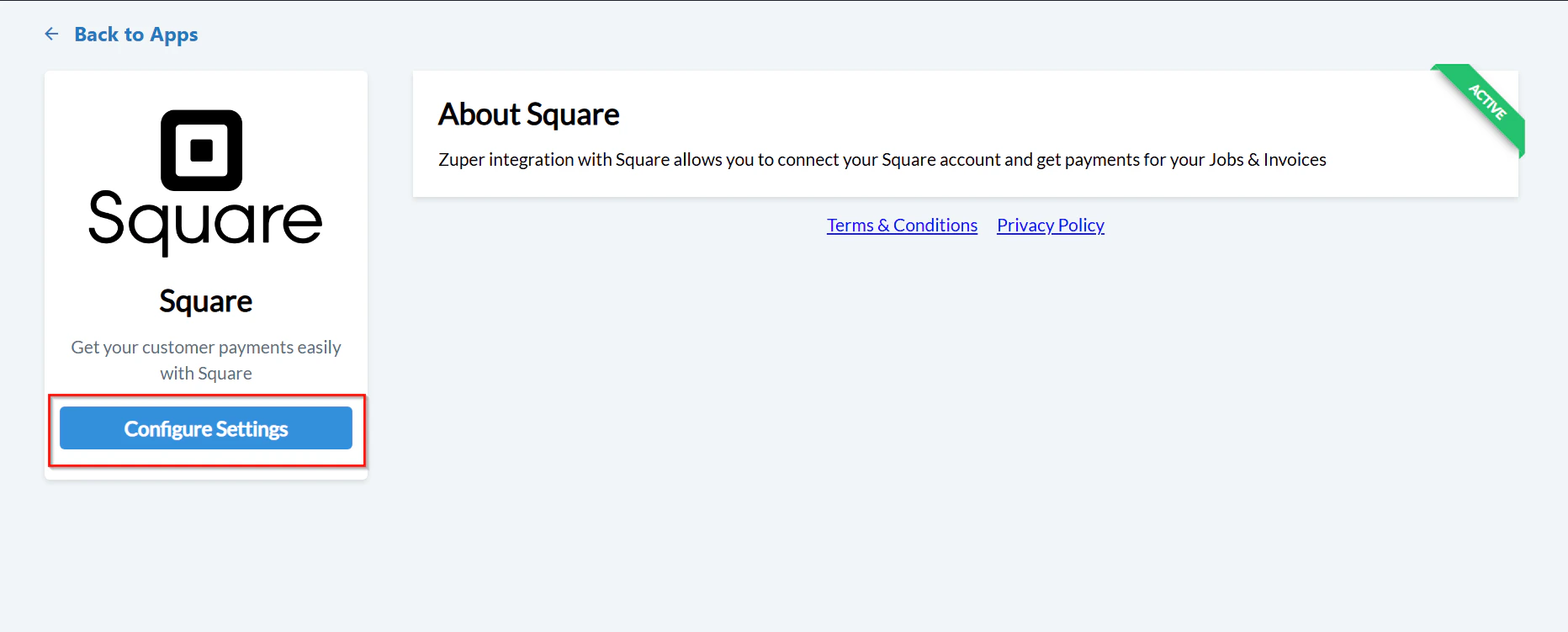 5. Fill in the configuration fields:
| **Field** | **Description** |
| :---------------------------: | :-----------------------------------------------------------------------------------------------------------: |
| **App ID (Mandatory)** | Enter the App ID from your Square Developer Application. |
| **Access Token (Mandatory)** | Enter the Access Token from the Credentials page. |
| **Location ID (Mandatory)** | Enter the Location ID from your Square Locations page. |
| **Zuper API Key (Mandatory)** | Enter your Zuper API key. [Learn how to generate it.](https://developers.zuper.co/reference/generate-api-key) |
6. Click **Update** to connect your Square app with Zuper.
5. Fill in the configuration fields:
| **Field** | **Description** |
| :---------------------------: | :-----------------------------------------------------------------------------------------------------------: |
| **App ID (Mandatory)** | Enter the App ID from your Square Developer Application. |
| **Access Token (Mandatory)** | Enter the Access Token from the Credentials page. |
| **Location ID (Mandatory)** | Enter the Location ID from your Square Locations page. |
| **Zuper API Key (Mandatory)** | Enter your Zuper API key. [Learn how to generate it.](https://developers.zuper.co/reference/generate-api-key) |
6. Click **Update** to connect your Square app with Zuper.
 Note: Ensure that the Zuper API key is linked to a dedicated account for smooth integration.
#### II. How the Zuper–Square Integration Works
Zuper integrates with Square to collect payments for **Jobs**, **Estimates**, and **Invoices**.
**Navigation**: Accounting → Quotations → Collect Deposit
Accounting → Invoices → Payment
**To collect a payment:**
1. Go to the **Quotes** module from the top-left menu.
2. Select the quote for which you want to collect a payment.
3. Click **Collect Deposit** → select **Credit/Debit Card**.
Note: Ensure that the Zuper API key is linked to a dedicated account for smooth integration.
#### II. How the Zuper–Square Integration Works
Zuper integrates with Square to collect payments for **Jobs**, **Estimates**, and **Invoices**.
**Navigation**: Accounting → Quotations → Collect Deposit
Accounting → Invoices → Payment
**To collect a payment:**
1. Go to the **Quotes** module from the top-left menu.
2. Select the quote for which you want to collect a payment.
3. Click **Collect Deposit** → select **Credit/Debit Card**.
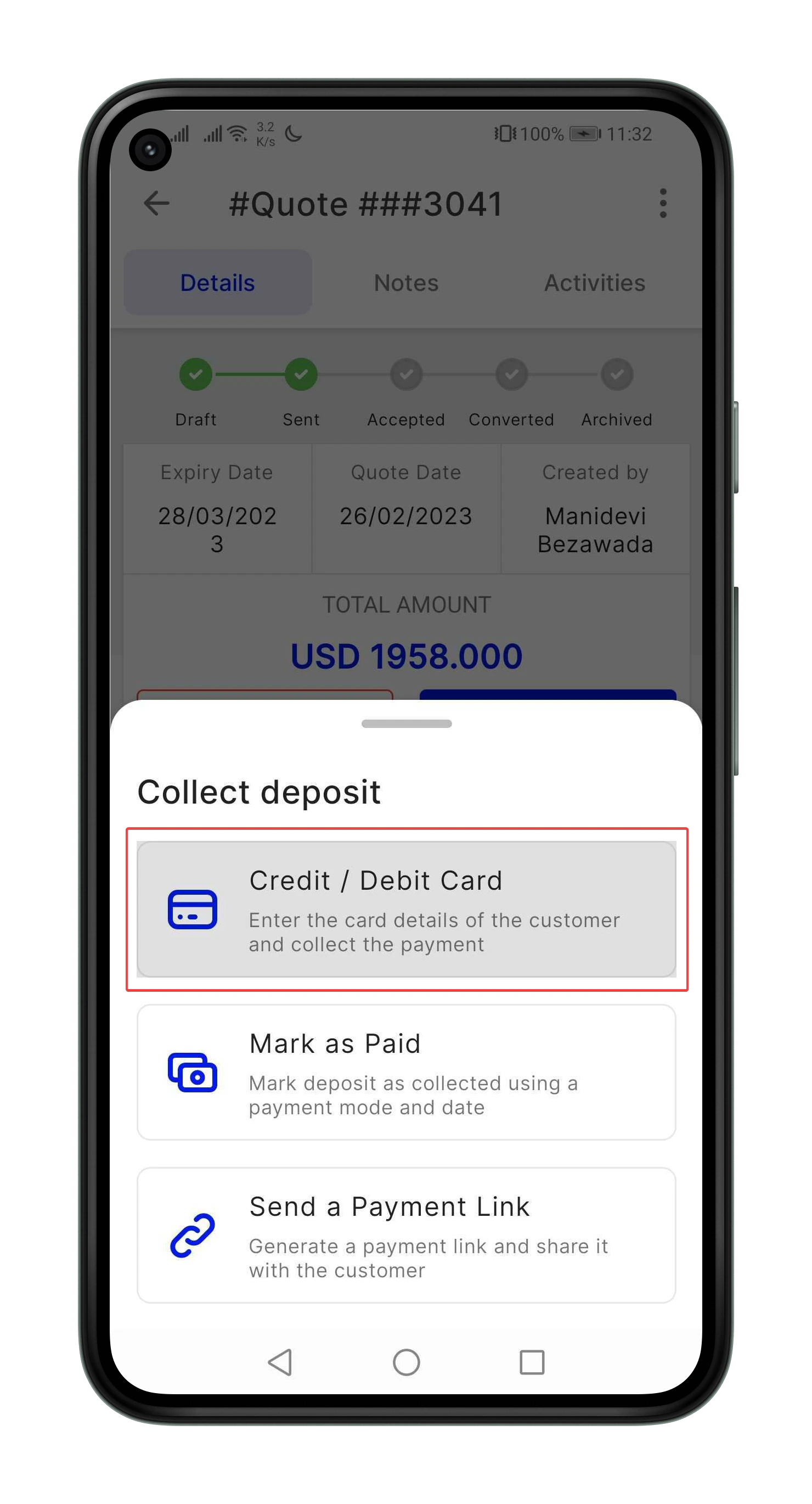 4. If the customer’s card is saved, you’ll see it listed. Otherwise, select **Add New Card**.
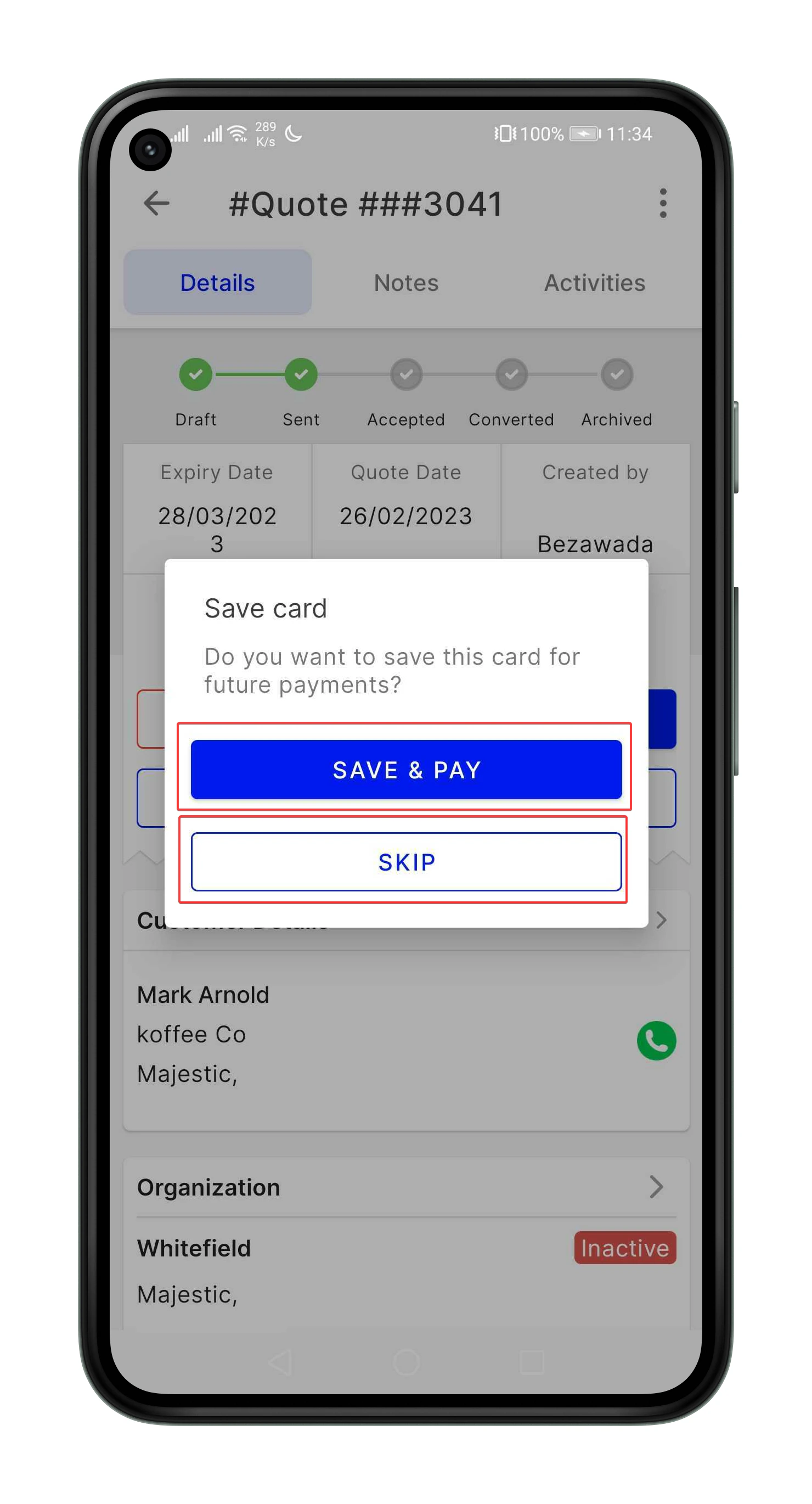
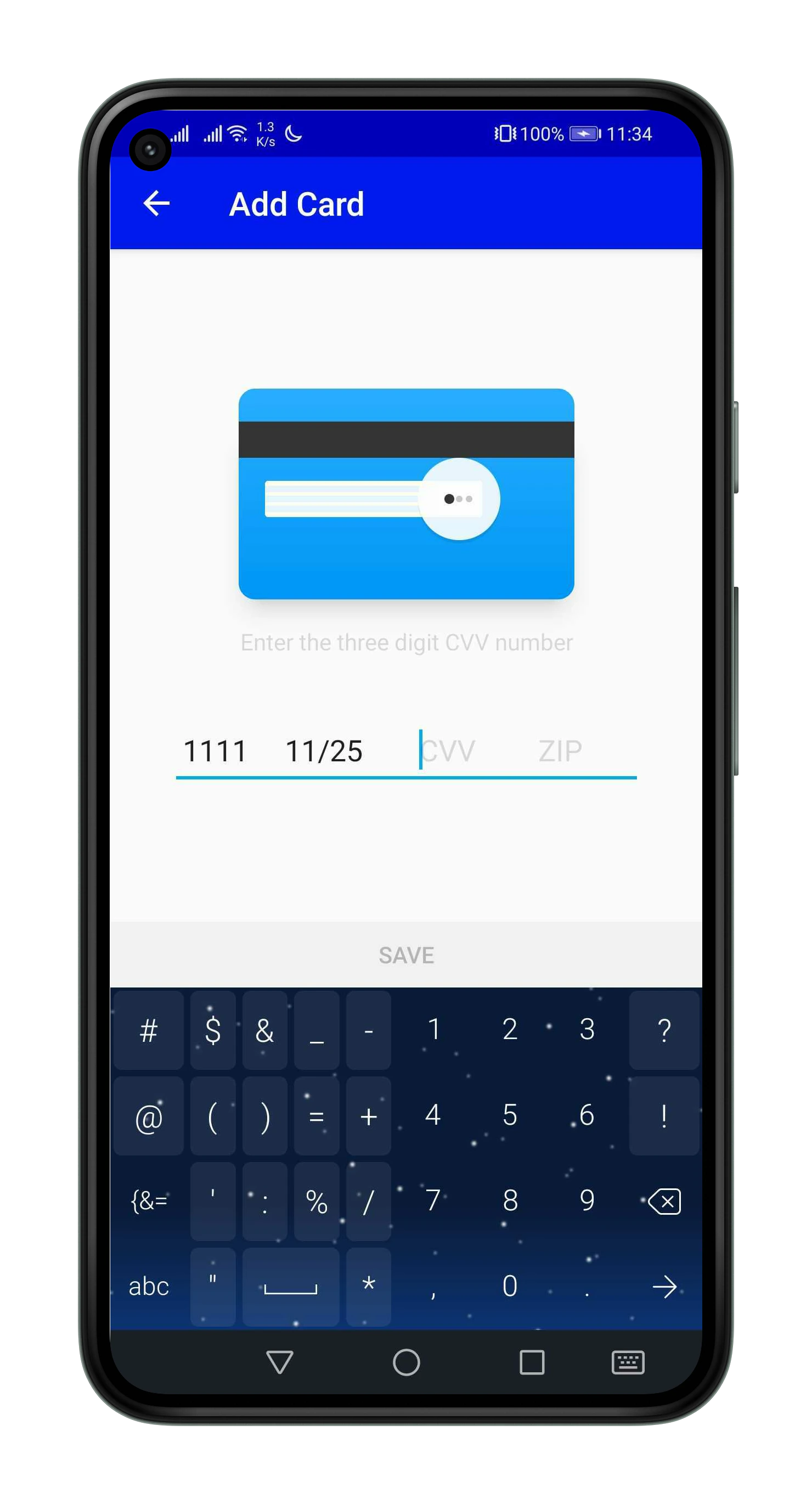 5. After entering new card details, the customer will be prompted to either:
* **Skip** (proceed to payment directly), or
* **Save and Pay** (save the card for future transactions).
5. After entering new card details, the customer will be prompted to either:
* **Skip** (proceed to payment directly), or
* **Save and Pay** (save the card for future transactions).
 Note: The same process applies when collecting payments for invoices.
With Square integrated, customers can securely pay and sign using the merchant’s mobile device, while merchants can process credit card payments effortlessly.
### C. Uninstalling the Integration
You can uninstall the integration from either **Zuper** or **Square**.
#### I. Uninstall Square from Zuper
1. Log in to your **Zuper account**.
2. Click your **Profile Picture** → select **App Store**.
3. Under **Accounting and Payments**, select **Square**.
4. Click **Deactivate**.
Note: The same process applies when collecting payments for invoices.
With Square integrated, customers can securely pay and sign using the merchant’s mobile device, while merchants can process credit card payments effortlessly.
### C. Uninstalling the Integration
You can uninstall the integration from either **Zuper** or **Square**.
#### I. Uninstall Square from Zuper
1. Log in to your **Zuper account**.
2. Click your **Profile Picture** → select **App Store**.
3. Under **Accounting and Payments**, select **Square**.
4. Click **Deactivate**.
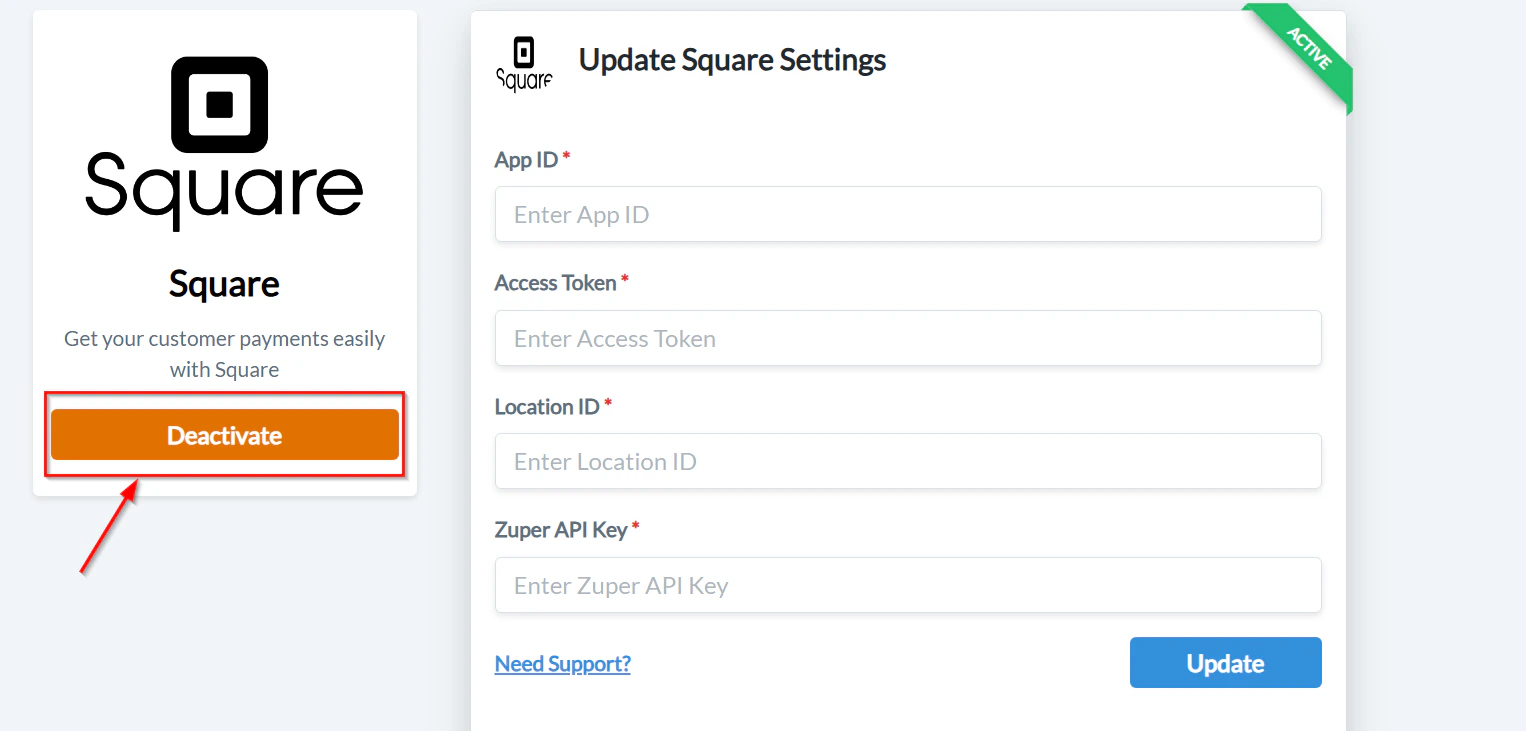 The Square integration will be deactivated successfully.
#### II. Uninstall Zuper from Square
1. Log in to your **Square account**.
2. Navigate to **Settings → App Integrations**.
3. Next to **Zuper**, click **Manage** to open the developer console: [https://developer.squareup.com/console/en/apps](https://developer.squareup.com/console/en/apps).
4. From the left menu, select **OAuth**.
The Square integration will be deactivated successfully.
#### II. Uninstall Zuper from Square
1. Log in to your **Square account**.
2. Navigate to **Settings → App Integrations**.
3. Next to **Zuper**, click **Manage** to open the developer console: [https://developer.squareup.com/console/en/apps](https://developer.squareup.com/console/en/apps).
4. From the left menu, select **OAuth**.
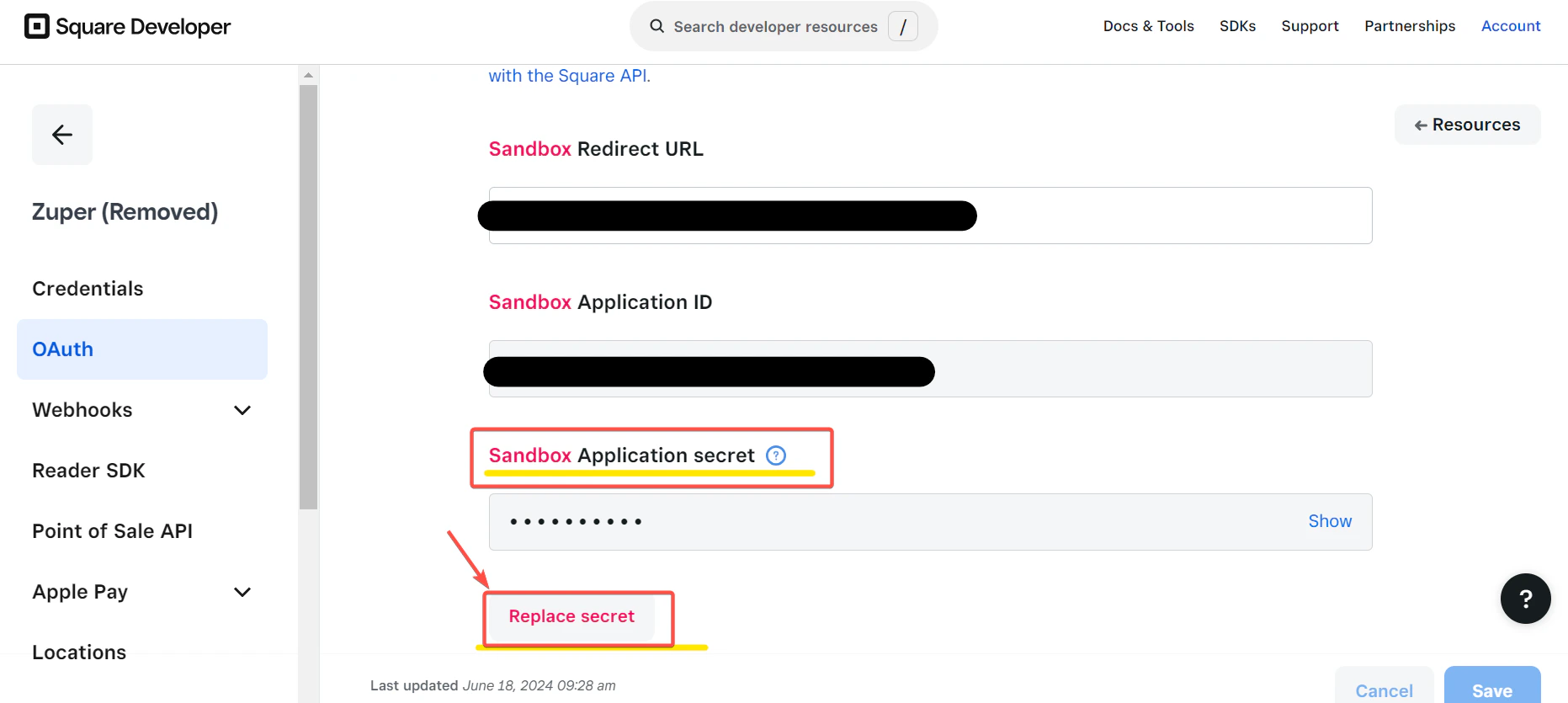
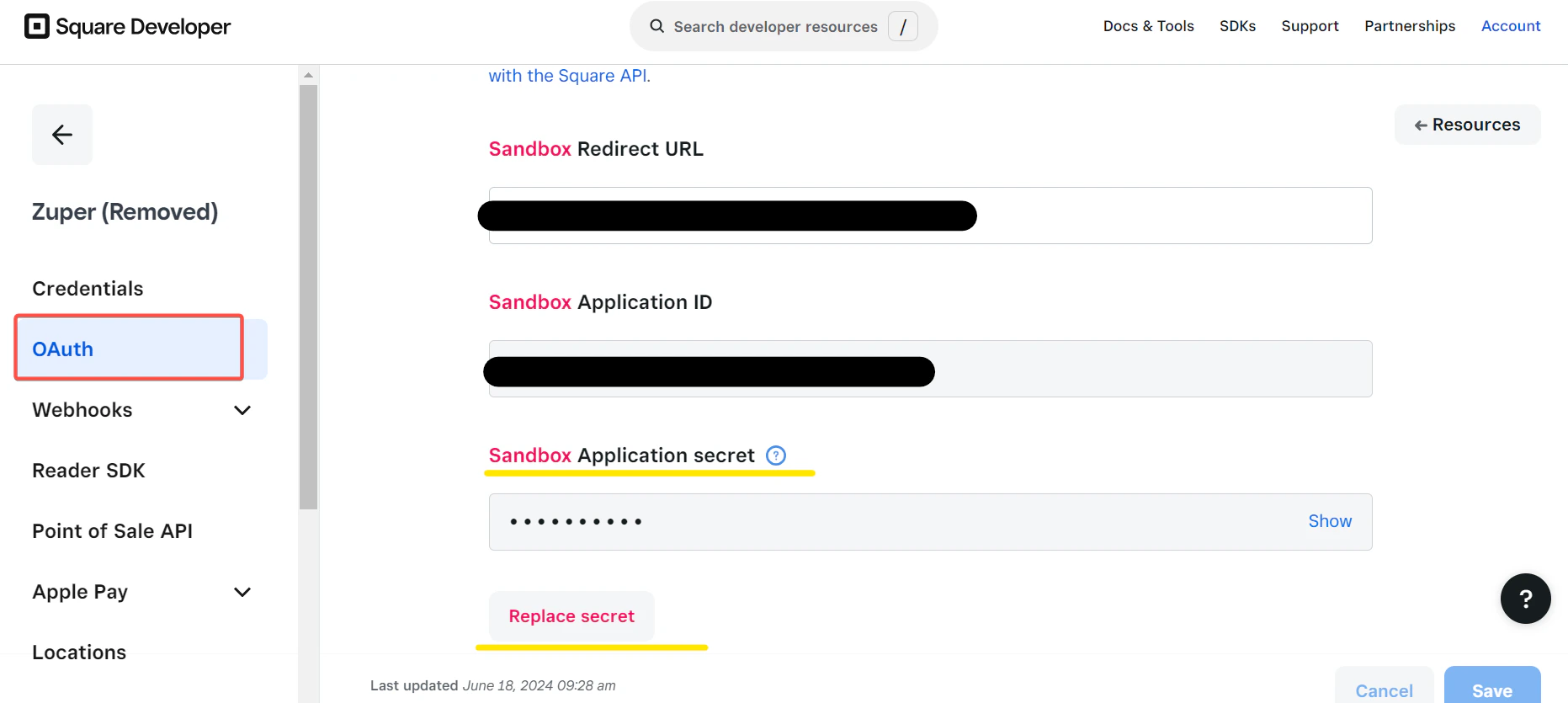 5. Click **Replace Secret** to regenerate your **Application Secret**.
 6. Return to **App Integrations**, click the **ellipsis (⋮)** icon next to Zuper, and select **Disconnect**.
Zuper will now be successfully disconnected from your Square account.
Once connected, the **Zuper–Square Integration** allows you to:
* Accept secure payments for estimates and invoices.
* Save customer cards for future use (with consent).
* Manage payments seamlessly from the Zuper mobile or web app.
6. Return to **App Integrations**, click the **ellipsis (⋮)** icon next to Zuper, and select **Disconnect**.
Zuper will now be successfully disconnected from your Square account.
Once connected, the **Zuper–Square Integration** allows you to:
* Accept secure payments for estimates and invoices.
* Save customer cards for future use (with consent).
* Manage payments seamlessly from the Zuper mobile or web app.