> ## Documentation Index
> Fetch the complete documentation index at: https://zuperinc-section23.mintlify.site/llms.txt
> Use this file to discover all available pages before exploring further.
# Xero
**Xero** is a cloud-based accounting software platform designed to help businesses manage invoicing, bank reconciliation, bookkeeping, and reporting.
The **Zuper–Xero Integration** is a **uni-directional** connection that pushes **estimates and invoices** from Zuper to Xero—streamlining financial operations between your service and accounting teams.
The following sections explain how to:
A. Connect Xero with Zuper\
B. Zuper–Xero Integration Works\
C. Uninstall Xero from Zuper
### **Pre-requisites**
Before you begin, ensure you have the following:
* **Zuper API Key**
* **Xero OAuth Access**
> When you click **Install** in the App Store, a permission screen will appear to authorize your Xero account. This process is known as **OAuth**.
### A. How to Connect Xero with Zuper
1. **Log in** to your Zuper account.
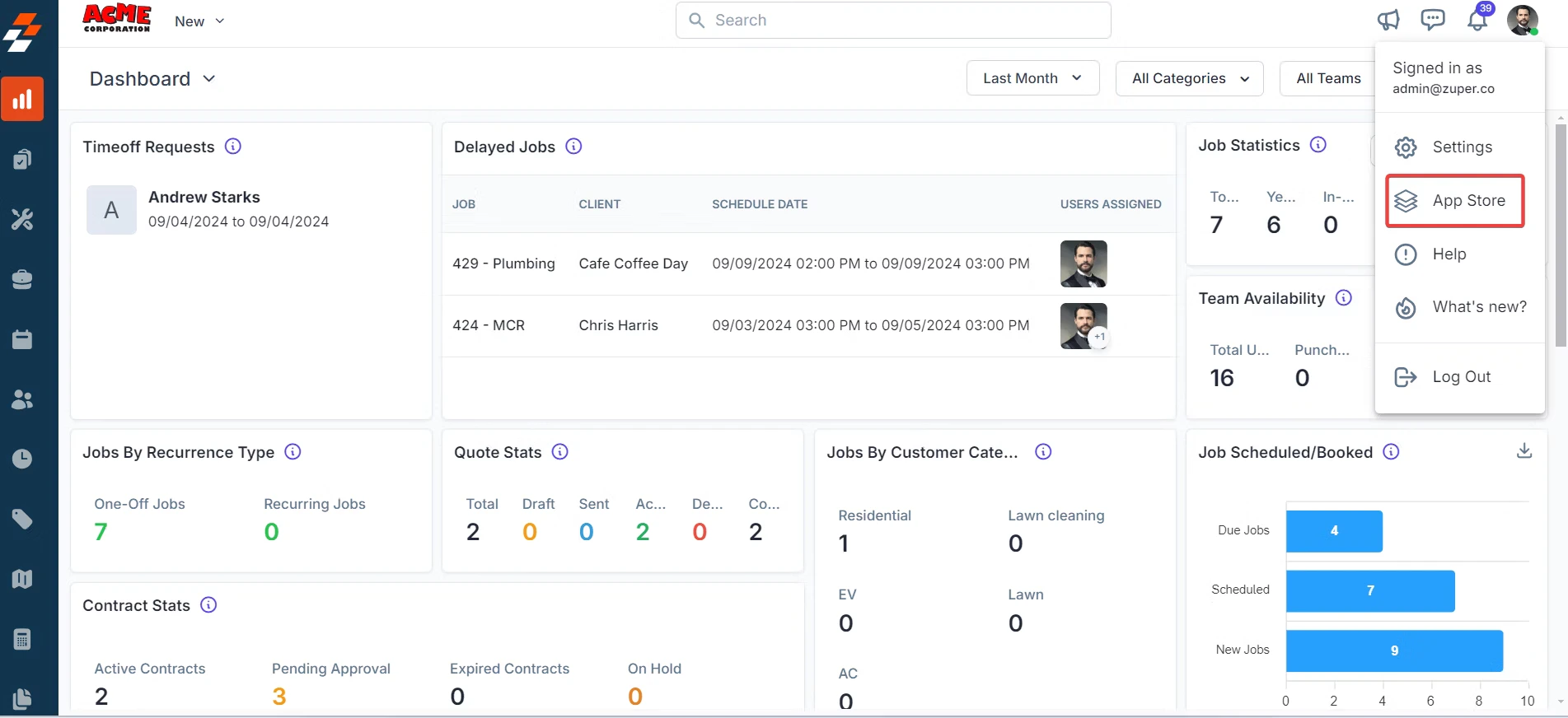
2. Click your **Profile Picture** (top-right corner) → select **App Store**.
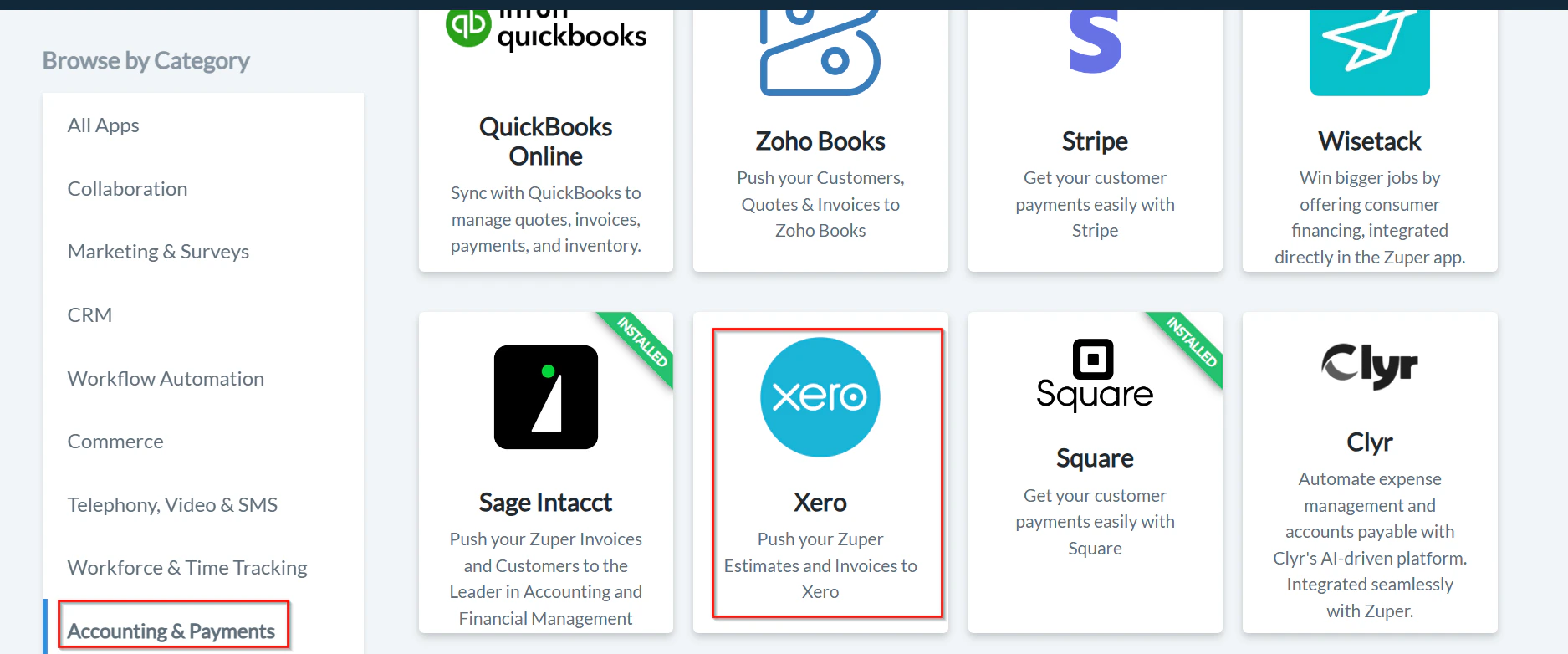
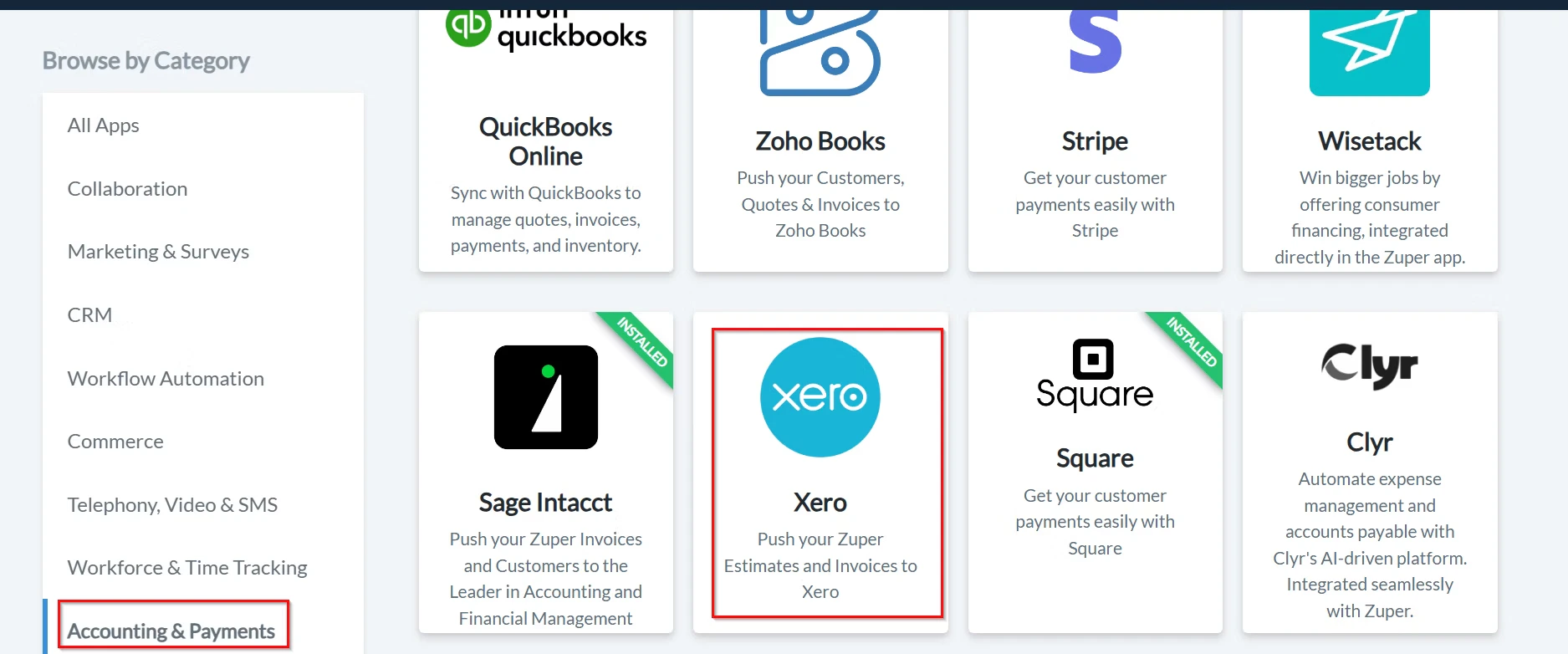
 3. Under **Browse by Category**, select **Accounting and Payments**, and choose **Xero**.
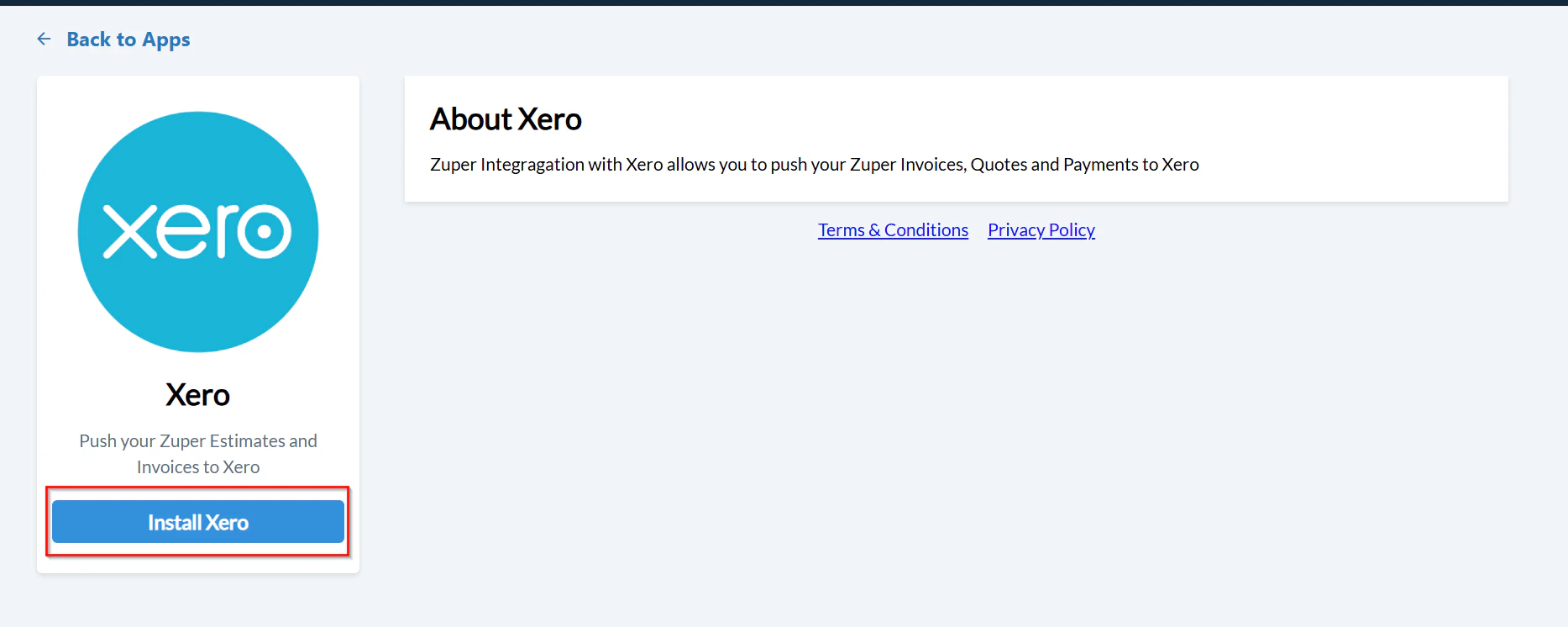
 4. Click **Install Xero**.
 Note: Keep both the Zuper and Xero tabs open for a smooth setup process.
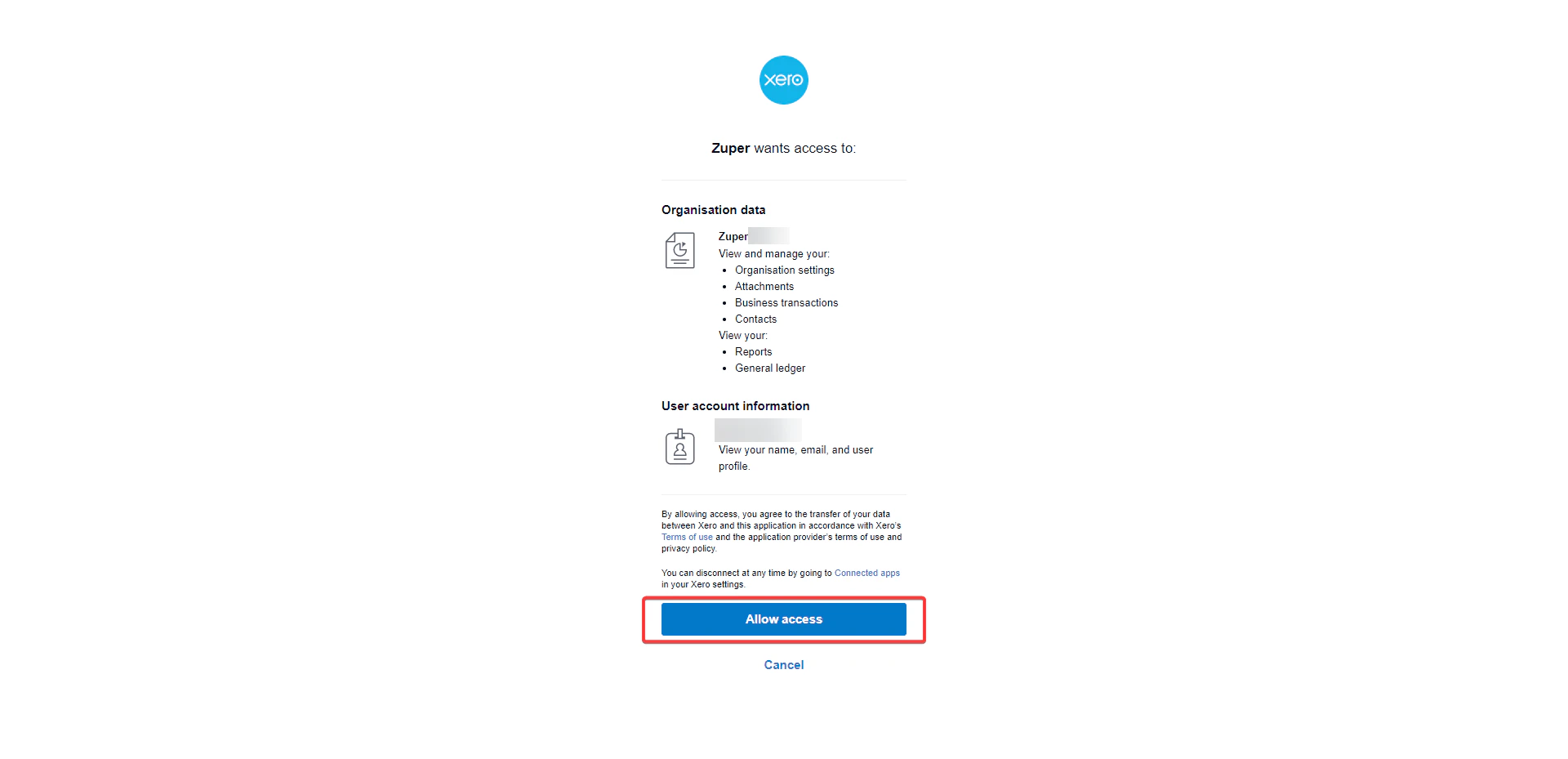
5. A pop-up will appear. Review the data access permissions and click **Allow Access**.
Note: Keep both the Zuper and Xero tabs open for a smooth setup process.
5. A pop-up will appear. Review the data access permissions and click **Allow Access**.
 6. Update **Xero Settings** by configuring the following fields:
| **Field** | **Description** |
| :-----------------------------------------------: | :-----------------------------------------------------------------------------------: |
| **Zuper API Key (Mandatory)** | Enter your Zuper API key. [Learn how to generate it.](#) |
| **Tenant Name (Mandatory)** | Enter the instance name of your Xero account (visible in the top-left corner). |
| **Estimate Sync (Mandatory)** | Select **Yes** or **No** to push quotations from Zuper to Xero. |
| **Invoice Sync (Mandatory)** | Select **Yes** or **No** to push invoices from Zuper to Xero. |
| **Use Zuper Estimate Number (Mandatory)** | Select **Yes** or **No** to use Zuper’s prefix quote number in Xero. |
| **Use Zuper Invoice Number (Mandatory)** | Select **Yes** or **No** to use Zuper’s prefix invoice number in Xero. |
| **Delete Cancelled Invoice/Estimate (Mandatory)** | Select **Yes** or **No** to automatically delete canceled invoices or quotes in Xero. |
| **Sync Tax Master (Mandatory)** | Select **Yes** or **No** to sync tax master data from Zuper to Xero. |
| **Line-Item Account Code (Mandatory)** | Enter the account code from Xero’s **Chart of Accounts** for product syncing. |
| **Payment Account Code (Mandatory)** | Enter the account code from Xero’s **Chart of Accounts** for payment syncing. |
Note: If the same account code is used for both product and payment, ensure the Enable Payments on this account checkbox is selected in Xero.
6. Update **Xero Settings** by configuring the following fields:
| **Field** | **Description** |
| :-----------------------------------------------: | :-----------------------------------------------------------------------------------: |
| **Zuper API Key (Mandatory)** | Enter your Zuper API key. [Learn how to generate it.](#) |
| **Tenant Name (Mandatory)** | Enter the instance name of your Xero account (visible in the top-left corner). |
| **Estimate Sync (Mandatory)** | Select **Yes** or **No** to push quotations from Zuper to Xero. |
| **Invoice Sync (Mandatory)** | Select **Yes** or **No** to push invoices from Zuper to Xero. |
| **Use Zuper Estimate Number (Mandatory)** | Select **Yes** or **No** to use Zuper’s prefix quote number in Xero. |
| **Use Zuper Invoice Number (Mandatory)** | Select **Yes** or **No** to use Zuper’s prefix invoice number in Xero. |
| **Delete Cancelled Invoice/Estimate (Mandatory)** | Select **Yes** or **No** to automatically delete canceled invoices or quotes in Xero. |
| **Sync Tax Master (Mandatory)** | Select **Yes** or **No** to sync tax master data from Zuper to Xero. |
| **Line-Item Account Code (Mandatory)** | Enter the account code from Xero’s **Chart of Accounts** for product syncing. |
| **Payment Account Code (Mandatory)** | Enter the account code from Xero’s **Chart of Accounts** for payment syncing. |
Note: If the same account code is used for both product and payment, ensure the Enable Payments on this account checkbox is selected in Xero.
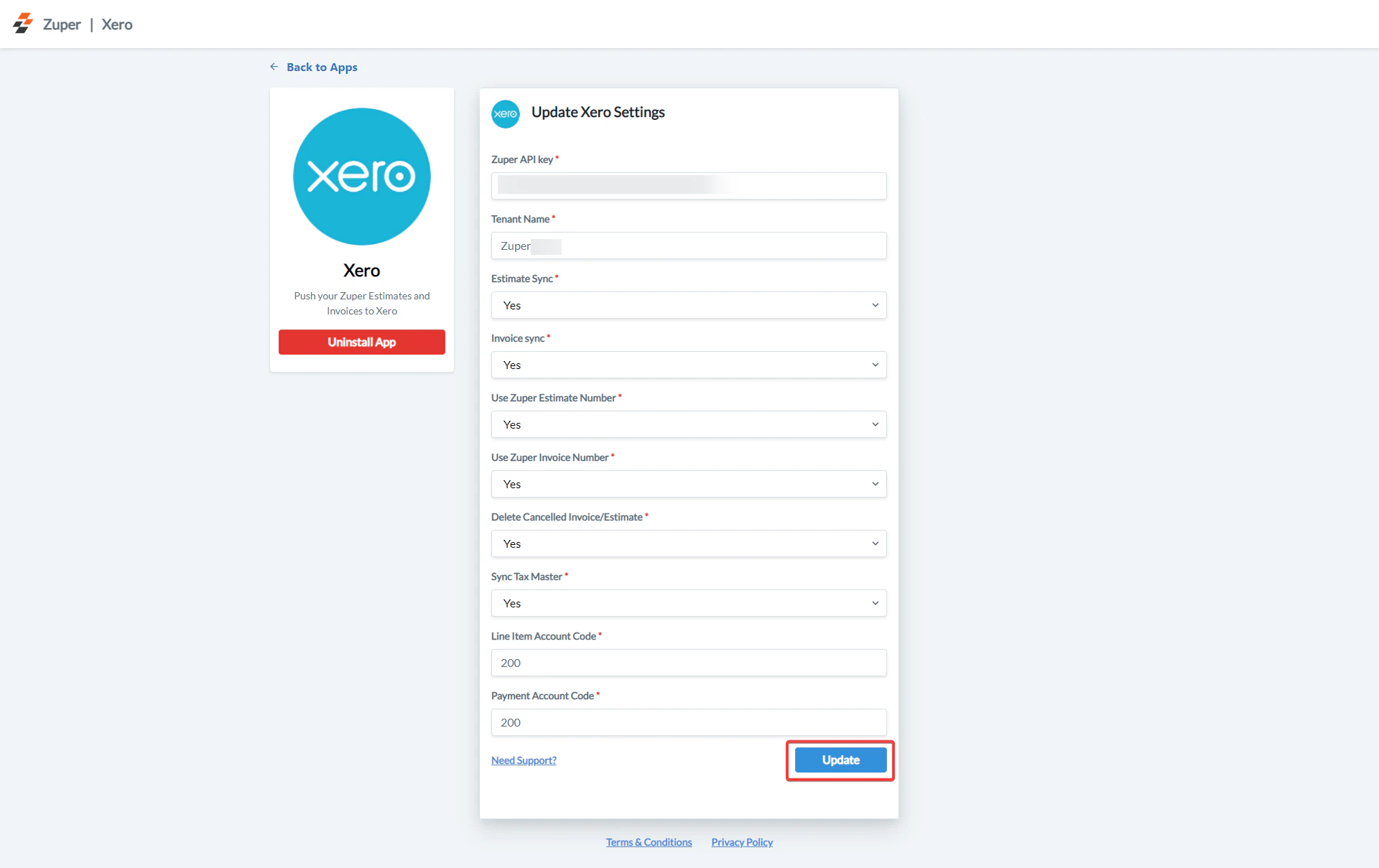 7. Click **Update** to complete the integration setup.
Important: Use a dedicated account with a valid Zuper API Key to ensure smooth synchronization between Zuper and Xero.
### B. How the Zuper–Xero Integration Works
Once connected, Zuper automatically pushes data from your **Estimates** and **Invoices** modules to Xero, based on your configuration.
#### 1. Estimate Sync
* When a **Quotation** is created in Zuper, it automatically syncs to Xero.
* Any changes or deletions in Zuper will be reflected in Xero based on integration settings.
**Example:**
* **Zuper:** New quotation created
* **Xero:** Quote reflected under the same customer account
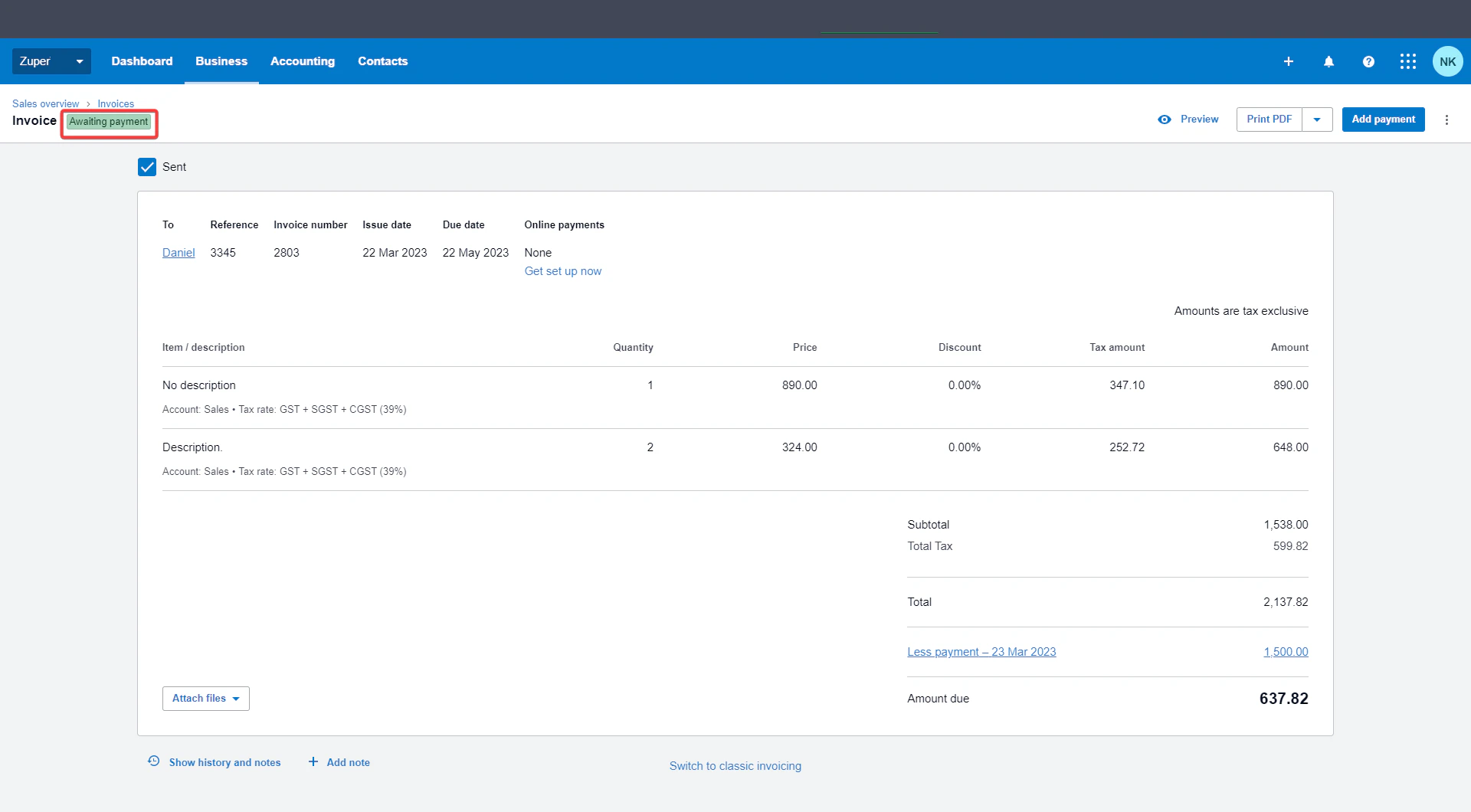
#### 2. Invoice Sync (Partial Payment)
* A partially paid invoice in Zuper will appear in Xero as **Awaiting Payment**.
**Example:**
* **Zuper:** Invoice status = *Partially Paid*
* **Xero:** Invoice status = *Awaiting Payment*
7. Click **Update** to complete the integration setup.
Important: Use a dedicated account with a valid Zuper API Key to ensure smooth synchronization between Zuper and Xero.
### B. How the Zuper–Xero Integration Works
Once connected, Zuper automatically pushes data from your **Estimates** and **Invoices** modules to Xero, based on your configuration.
#### 1. Estimate Sync
* When a **Quotation** is created in Zuper, it automatically syncs to Xero.
* Any changes or deletions in Zuper will be reflected in Xero based on integration settings.
**Example:**
* **Zuper:** New quotation created
* **Xero:** Quote reflected under the same customer account
#### 2. Invoice Sync (Partial Payment)
* A partially paid invoice in Zuper will appear in Xero as **Awaiting Payment**.
**Example:**
* **Zuper:** Invoice status = *Partially Paid*
* **Xero:** Invoice status = *Awaiting Payment*
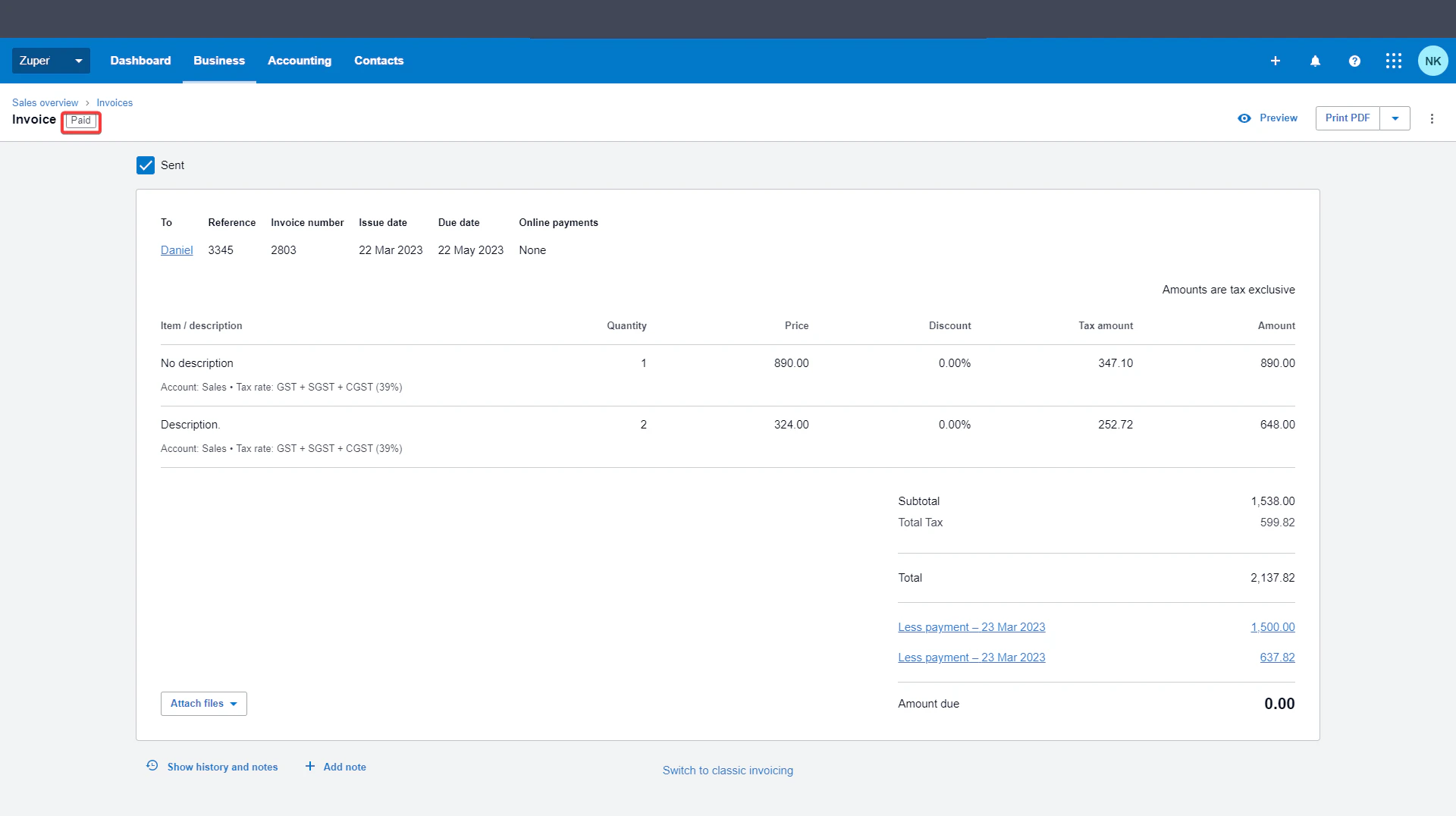
 #### 3. Invoice Sync (Full Payment)
* A fully paid invoice in Zuper will appear in Xero as **Paid**.
**Example:**
* **Zuper:** Invoice status = *Paid*
* **Xero:** Invoice status = *Paid*
#### 3. Invoice Sync (Full Payment)
* A fully paid invoice in Zuper will appear in Xero as **Paid**.
**Example:**
* **Zuper:** Invoice status = *Paid*
* **Xero:** Invoice status = *Paid*
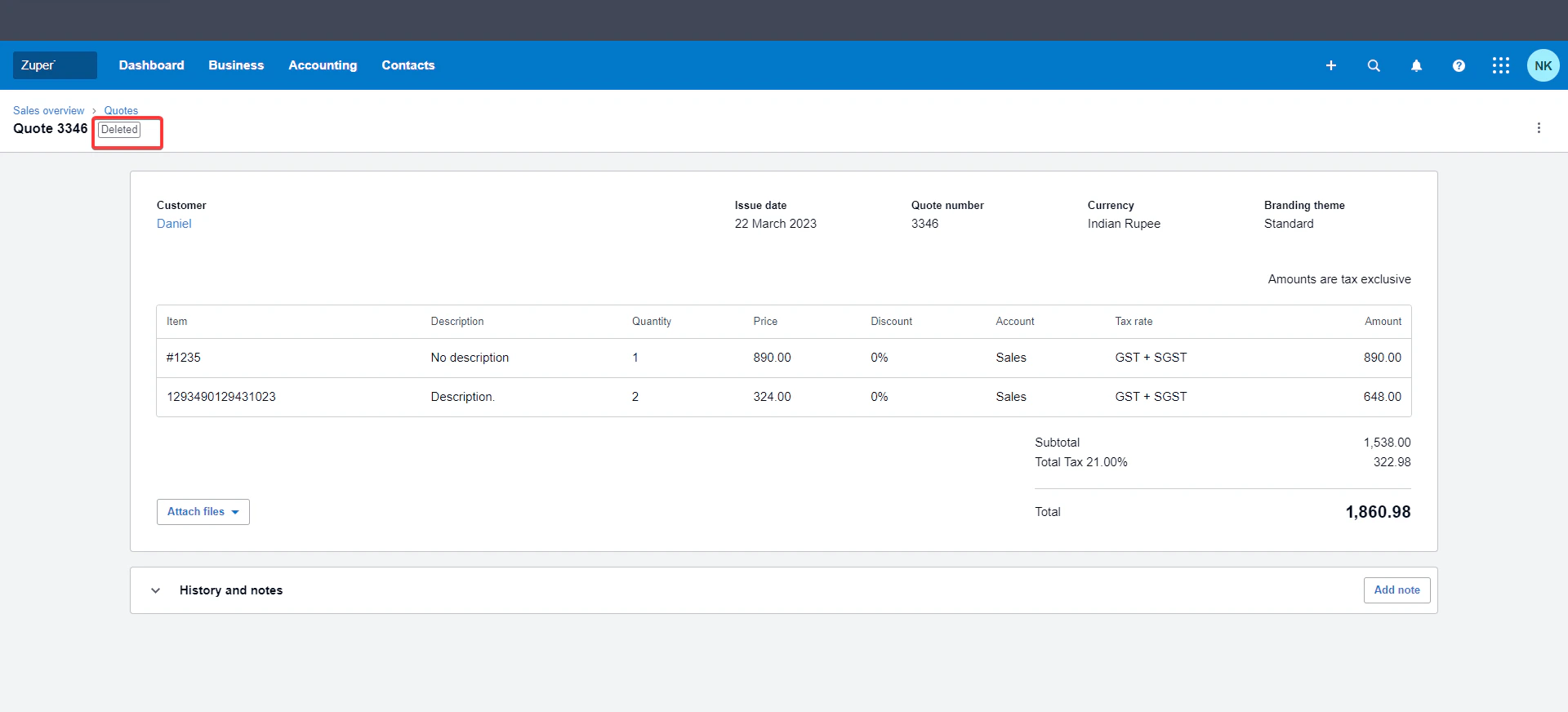
 #### 4. Cancelled Quotations
* When a quotation is cancelled in Zuper, it will automatically appear as **Deleted** in Xero.
**Example:**
* **Zuper:** Quote status = *Cancelled*
* **Xero:** Quote status = *Deleted*
#### 4. Cancelled Quotations
* When a quotation is cancelled in Zuper, it will automatically appear as **Deleted** in Xero.
**Example:**
* **Zuper:** Quote status = *Cancelled*
* **Xero:** Quote status = *Deleted*
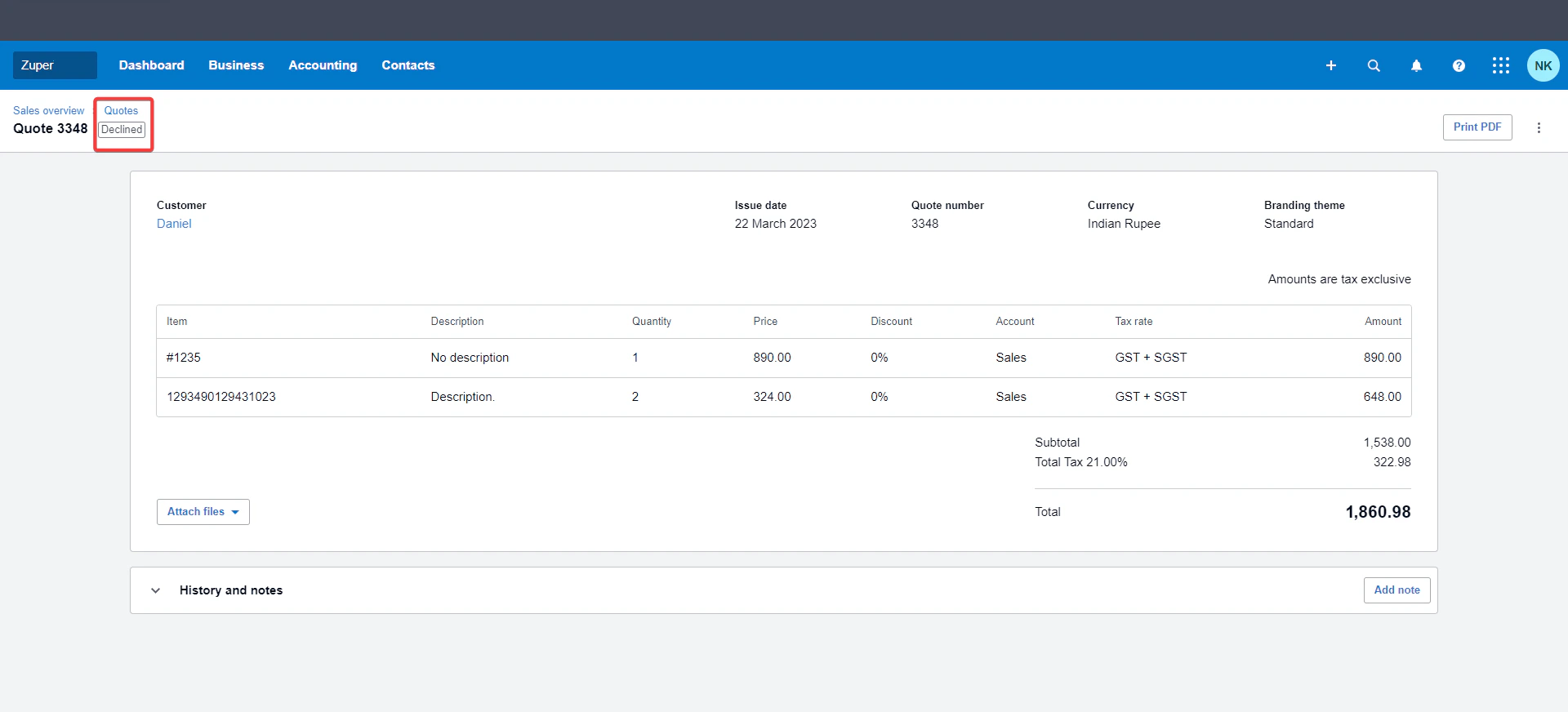
 #### 5. Declined Quotations
* Declined quotations in Zuper will reflect as **Declined** in Xero, maintaining consistency across both systems.
#### 5. Declined Quotations
* Declined quotations in Zuper will reflect as **Declined** in Xero, maintaining consistency across both systems.
 #### 6. Status Mapping Between Zuper and Xero
Field Equivalent Table- Quotation
| **Zuper Status** | **Xero Status** |
| :--------------: | :-------------: |
| Draft | Draft |
| Sent | Sent |
| Accepted | Approved |
| Declined | Declined |
| Converted | Converted |
Field Equivalent Table- Invoice
| **Zuper Status** | **Xero Status** |
| :--------------: | :---------------: |
| Draft | Draft |
| Sent | Awaiting Approval |
| Partially Paid | Awaiting Payment |
| Paid | Paid |
This mapping ensures real-time data consistency between both platforms.
### C. How to Uninstall Xero from Zuper
1. Log in to your **Zuper account**. Click your **Profile Picture** (top-right corner) → select **App Store**.
2. Under **Browse by Category**, select **Accounting and Payments**, then choose **Xero**. Click **Uninstall**.
#### 6. Status Mapping Between Zuper and Xero
Field Equivalent Table- Quotation
| **Zuper Status** | **Xero Status** |
| :--------------: | :-------------: |
| Draft | Draft |
| Sent | Sent |
| Accepted | Approved |
| Declined | Declined |
| Converted | Converted |
Field Equivalent Table- Invoice
| **Zuper Status** | **Xero Status** |
| :--------------: | :---------------: |
| Draft | Draft |
| Sent | Awaiting Approval |
| Partially Paid | Awaiting Payment |
| Paid | Paid |
This mapping ensures real-time data consistency between both platforms.
### C. How to Uninstall Xero from Zuper
1. Log in to your **Zuper account**. Click your **Profile Picture** (top-right corner) → select **App Store**.
2. Under **Browse by Category**, select **Accounting and Payments**, then choose **Xero**. Click **Uninstall**.
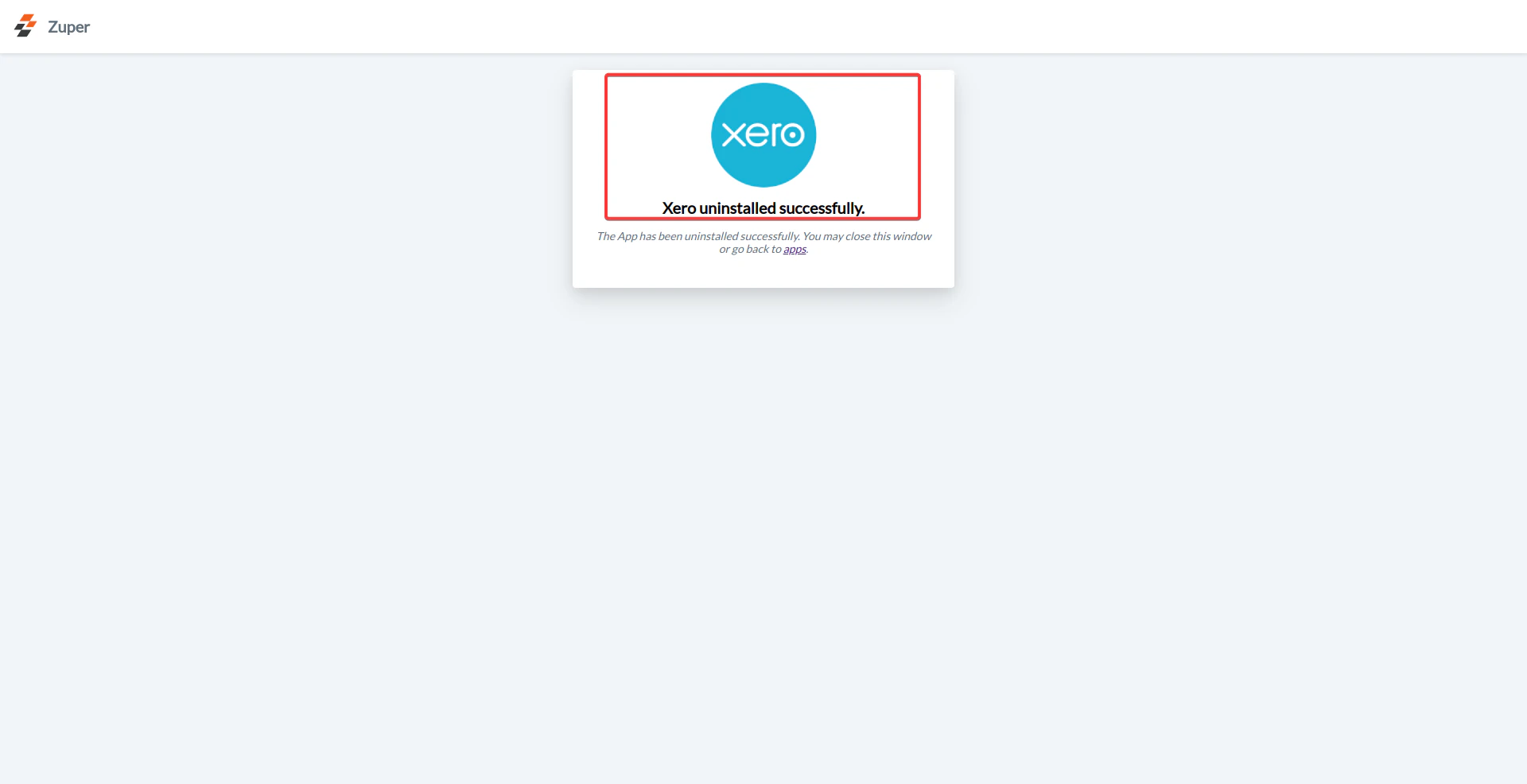
 3. The Xero integration will be successfully uninstalled from your account.
 The **Zuper–Xero Integration** enables seamless data flow between your field service operations and accounting platform by:
* Automatically syncing estimates and invoices from Zuper to Xero.
* Maintaining real-time payment status updates.
* Reducing manual data entry and financial errors.
This integration simplifies your financial management workflow, allowing your back-office team to work more efficiently within Zuper.
The **Zuper–Xero Integration** enables seamless data flow between your field service operations and accounting platform by:
* Automatically syncing estimates and invoices from Zuper to Xero.
* Maintaining real-time payment status updates.
* Reducing manual data entry and financial errors.
This integration simplifies your financial management workflow, allowing your back-office team to work more efficiently within Zuper.