> ## Documentation Index
> Fetch the complete documentation index at: https://zuperinc-section23.mintlify.site/llms.txt
> Use this file to discover all available pages before exploring further.
# Dear
With the help of our Zuper-DEAR Integration, the sales order created by DEAR will be produced as a new job in Zuper, and the stock gets made/updated from the DEAR e-commerce platform to Zuper. Majorly, Customers, Jobs, and Products get synced in Zuper-DEAR integration.
## How to connect your DEAR with Zuper?
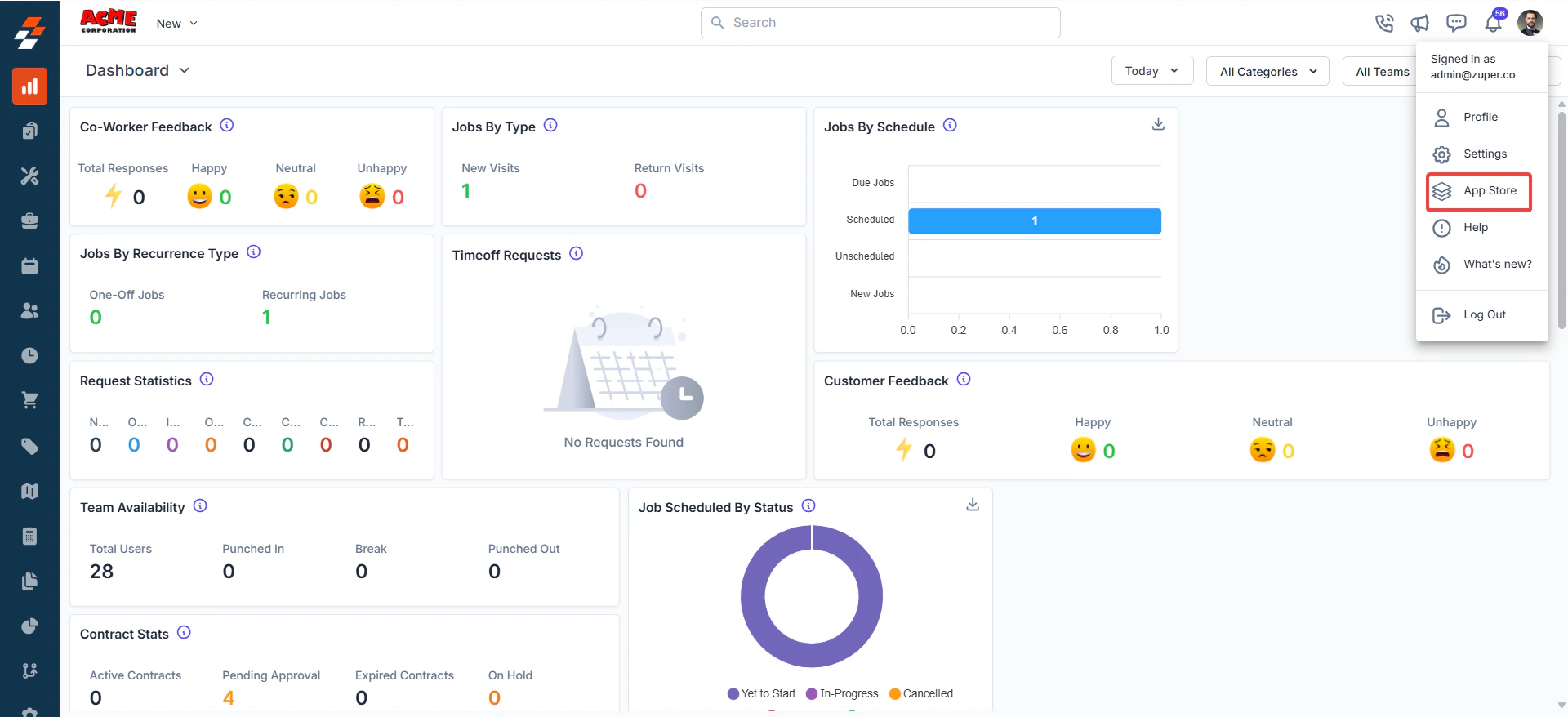
1. Open a new tab in your browser and once you are logged in to your Zuper Account, click on your Profile Picture on the top right corner of the screen & click on “**App Store**.”
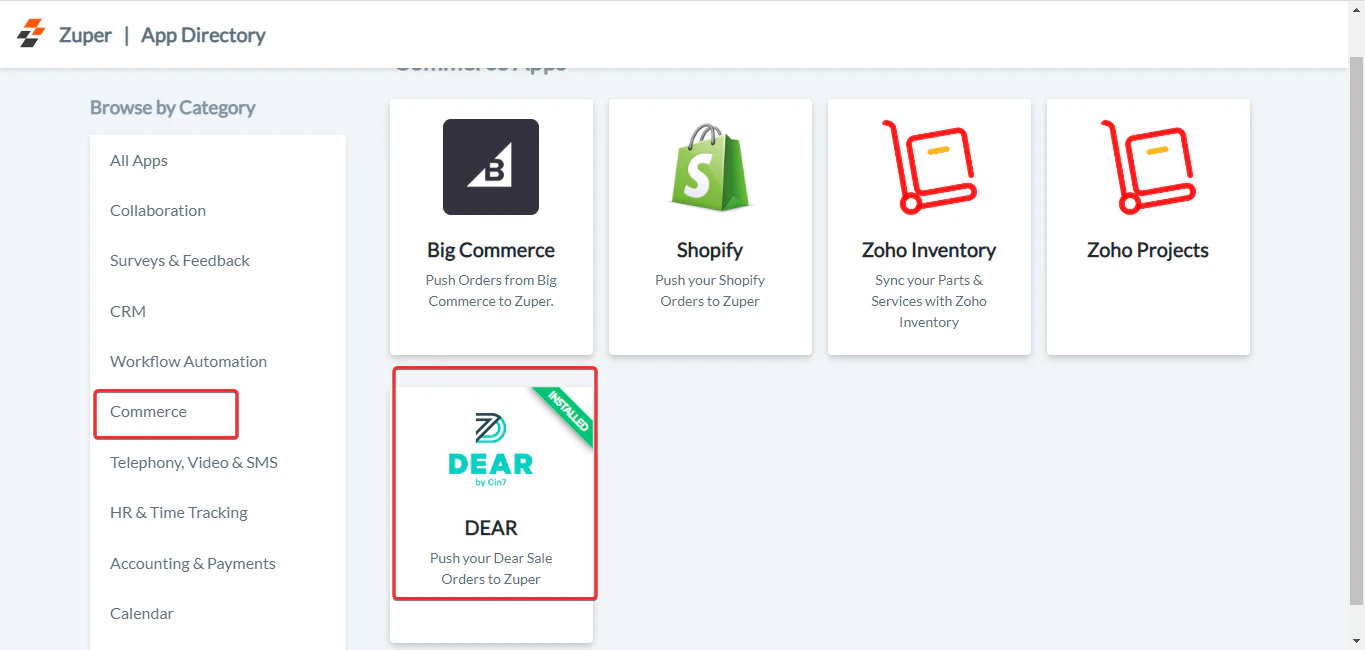
 2. Under the “**Browse by Category**,” select the “**Commerce**” option and choose “**DEAR**.”
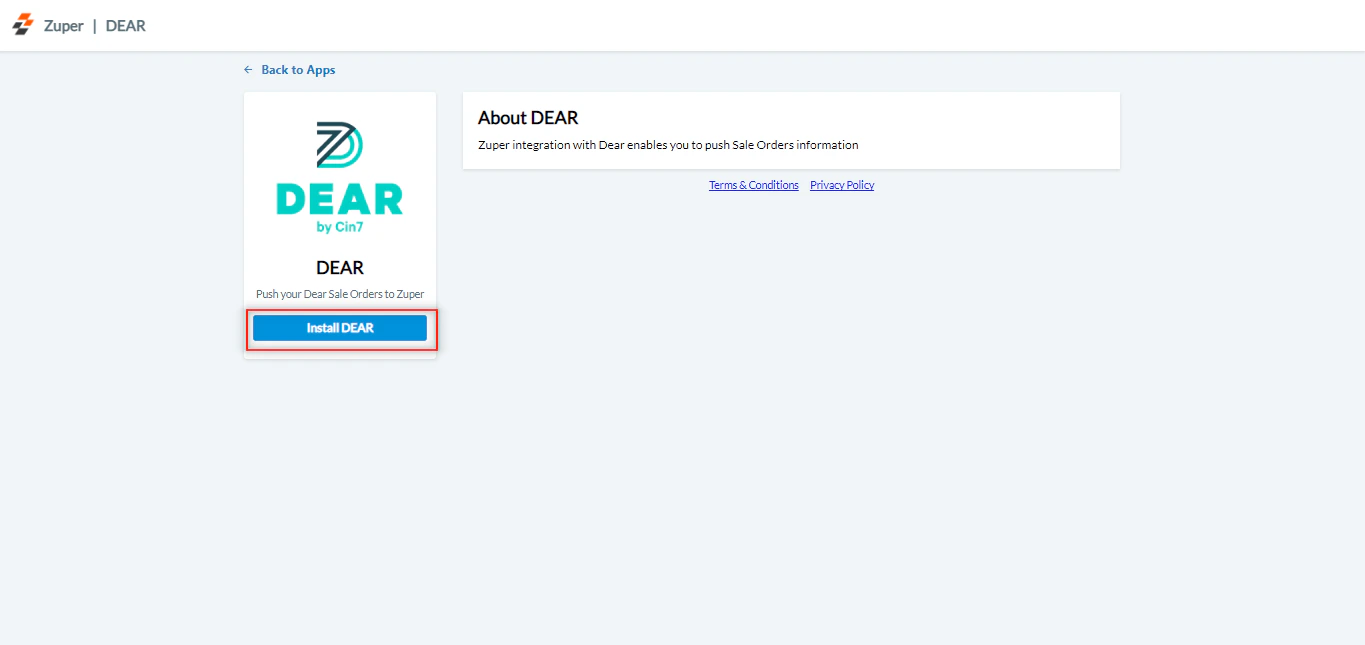
 3. Click the “**Install DEAR**” button.
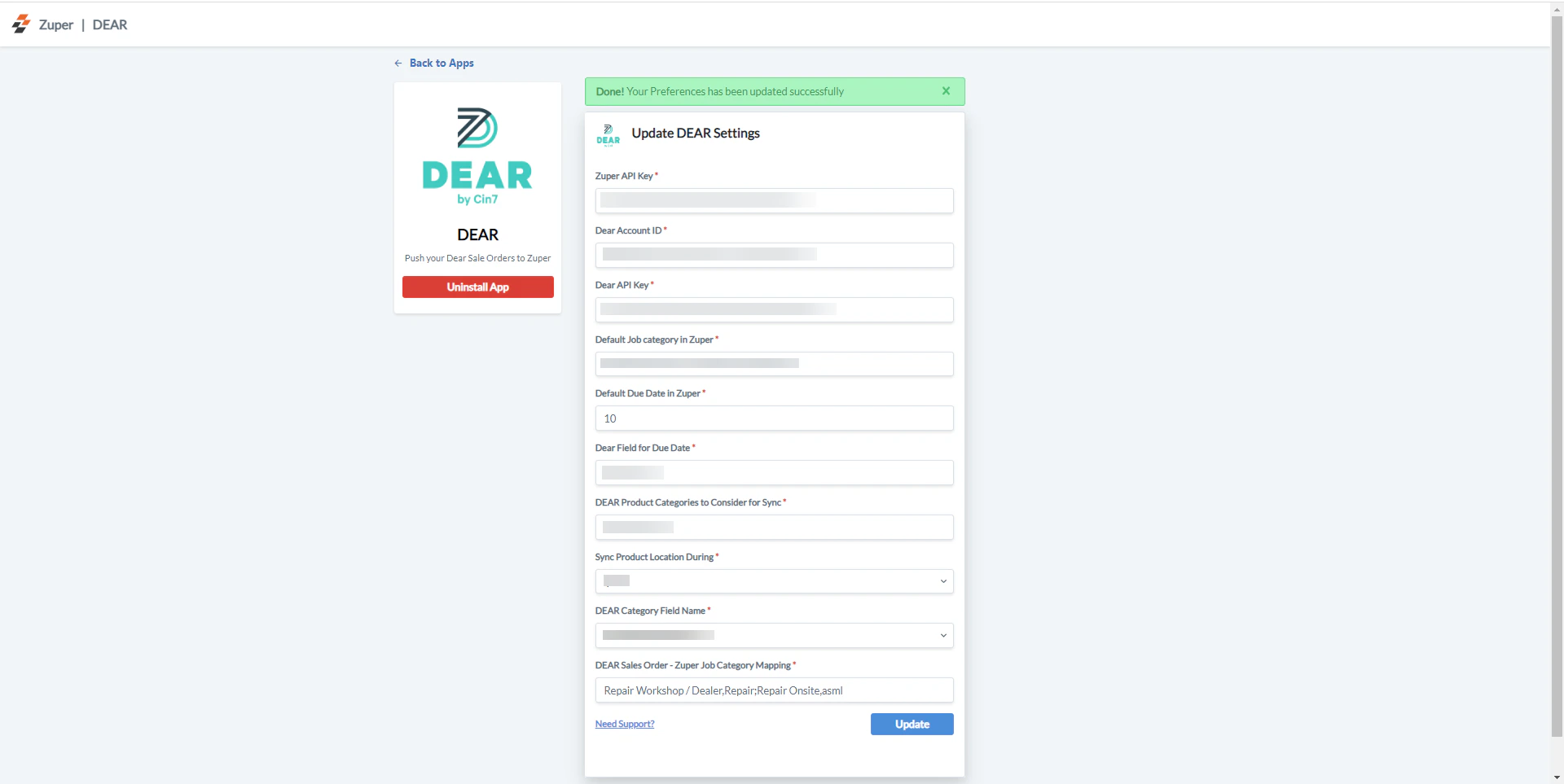
 4. Update DEAR Settings by configuring the following details:\
a. **Zuper API Key (Mandatory Field)** – Enter the Zuper API key [(Click here: How to generate Zuper API Key)](https://docs.zuper.co/Settings/Developer_Hub/API_Keys).
b. **DEAR Account ID (Mandatory Field)** – Enter the account ID of the DEAR. (You can get it from the DEAR account).
c. **DEAR API Key (Mandatory Field)** – Enter the API Key of the DEAR. (You can get it from the DEAR account).
d. \*\*Default Job Category in Zuper (Mandatory Field) \*\* – Enter the default job category in Zuper (In case of any assistance, contact Zuper’s support team: [email: support@zuper.co](mailto:support@zuper.co)).
e. **Default Due Date in Zuper (Mandatory Field)** – Enter the default due date in Zuper (A numerical number represents the days).
f. \*\*DEAR Field for Due Date (Mandatory Field) \*\*- Enter the field name of the DEAR for which the Due Date is synced.
g. **DEAR Product Categories to Consider for Sync (Mandatory Field)** – Enter the default Product Categories for Sync in Zuper based upon the product created on the DEAR. (In case of assistance, contact Zuper’s support team: [email: support@zuper.co](mailto:support@zuper.co)).
**Note:** For the Sale order, conversion from DEAR should have at least one product categorized and defined under the above field to be converted as a Zuper job.
h. **Sync Product Location During (Mandatory Field)** – Specify the Product location sync point. This can be either **Pick, Pack, or Ship.**
i. ******DEAR Category Field Name – AdditionalAttribute 1 up to 10, Custom fields from the DEAR are captured here as AdditionalAttribute, ranging from 1 to 10.******
j. **DEAR Sale Order** – Zuper Job Category Mapping – Based on the Attribute set above, the DEAR Sale Order and Zuper Job Category Mapping happen. For instance, "**Repair onsite**" in DEAR is known as "**Maintenance**" in Zuper.
Select the “**Update**” button to complete the integration of Zuper with DEAR.
4. Update DEAR Settings by configuring the following details:\
a. **Zuper API Key (Mandatory Field)** – Enter the Zuper API key [(Click here: How to generate Zuper API Key)](https://docs.zuper.co/Settings/Developer_Hub/API_Keys).
b. **DEAR Account ID (Mandatory Field)** – Enter the account ID of the DEAR. (You can get it from the DEAR account).
c. **DEAR API Key (Mandatory Field)** – Enter the API Key of the DEAR. (You can get it from the DEAR account).
d. \*\*Default Job Category in Zuper (Mandatory Field) \*\* – Enter the default job category in Zuper (In case of any assistance, contact Zuper’s support team: [email: support@zuper.co](mailto:support@zuper.co)).
e. **Default Due Date in Zuper (Mandatory Field)** – Enter the default due date in Zuper (A numerical number represents the days).
f. \*\*DEAR Field for Due Date (Mandatory Field) \*\*- Enter the field name of the DEAR for which the Due Date is synced.
g. **DEAR Product Categories to Consider for Sync (Mandatory Field)** – Enter the default Product Categories for Sync in Zuper based upon the product created on the DEAR. (In case of assistance, contact Zuper’s support team: [email: support@zuper.co](mailto:support@zuper.co)).
**Note:** For the Sale order, conversion from DEAR should have at least one product categorized and defined under the above field to be converted as a Zuper job.
h. **Sync Product Location During (Mandatory Field)** – Specify the Product location sync point. This can be either **Pick, Pack, or Ship.**
i. ******DEAR Category Field Name – AdditionalAttribute 1 up to 10, Custom fields from the DEAR are captured here as AdditionalAttribute, ranging from 1 to 10.******
j. **DEAR Sale Order** – Zuper Job Category Mapping – Based on the Attribute set above, the DEAR Sale Order and Zuper Job Category Mapping happen. For instance, "**Repair onsite**" in DEAR is known as "**Maintenance**" in Zuper.
Select the “**Update**” button to complete the integration of Zuper with DEAR.
 ## **How does Zuper – DEAR Integration work?**
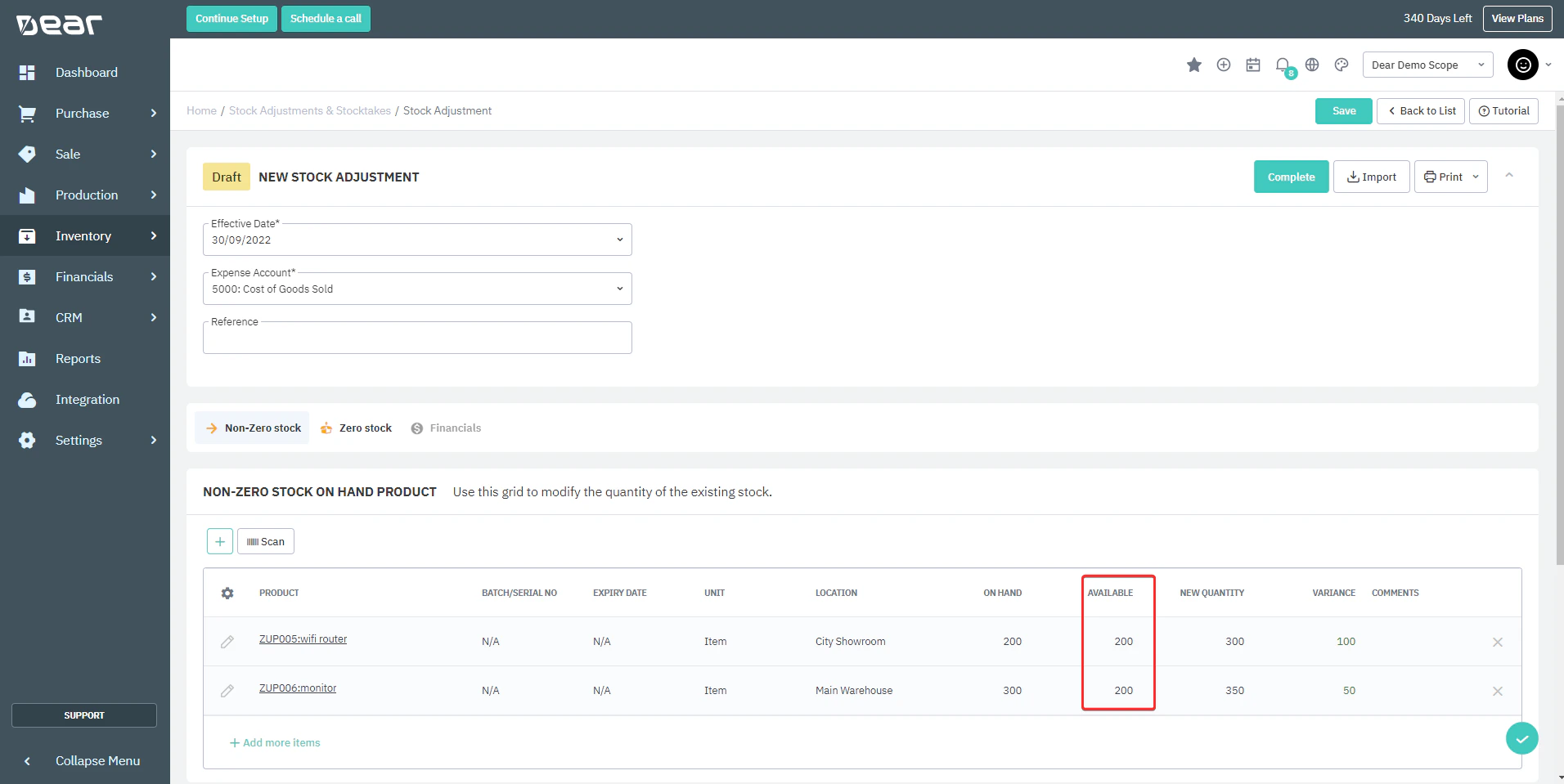
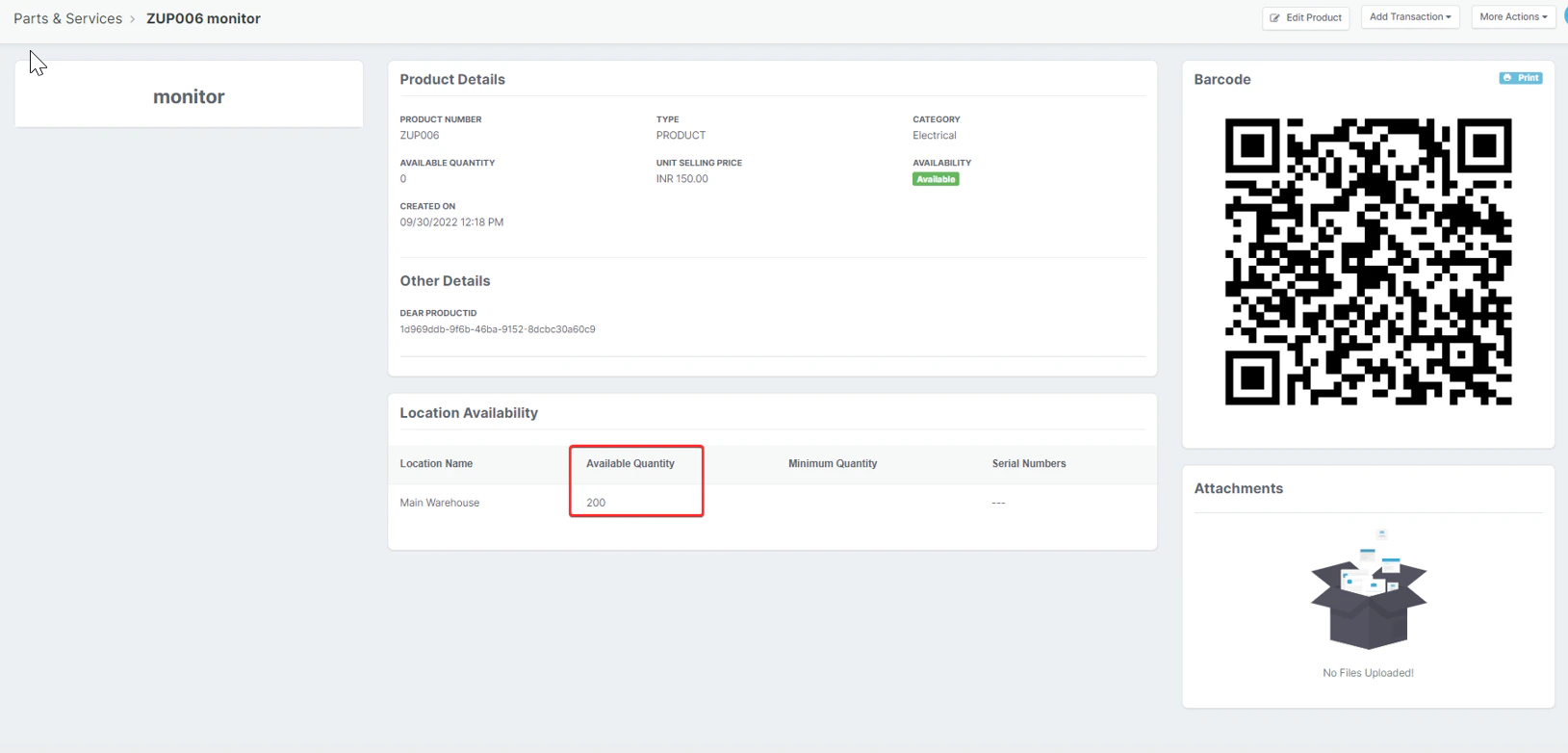
Zuper-DEAR integration is bi-directional; whenever the sale order is created and authorized by DEAR, a new job will be triggered in Zuper. The **new quantity** of the stocks updated in the DEAR integration will get updated as an **Available Quantity** in Zuper.
For the products in **DEAR**, they are captured as “**Parts and Services**” in Zuper.
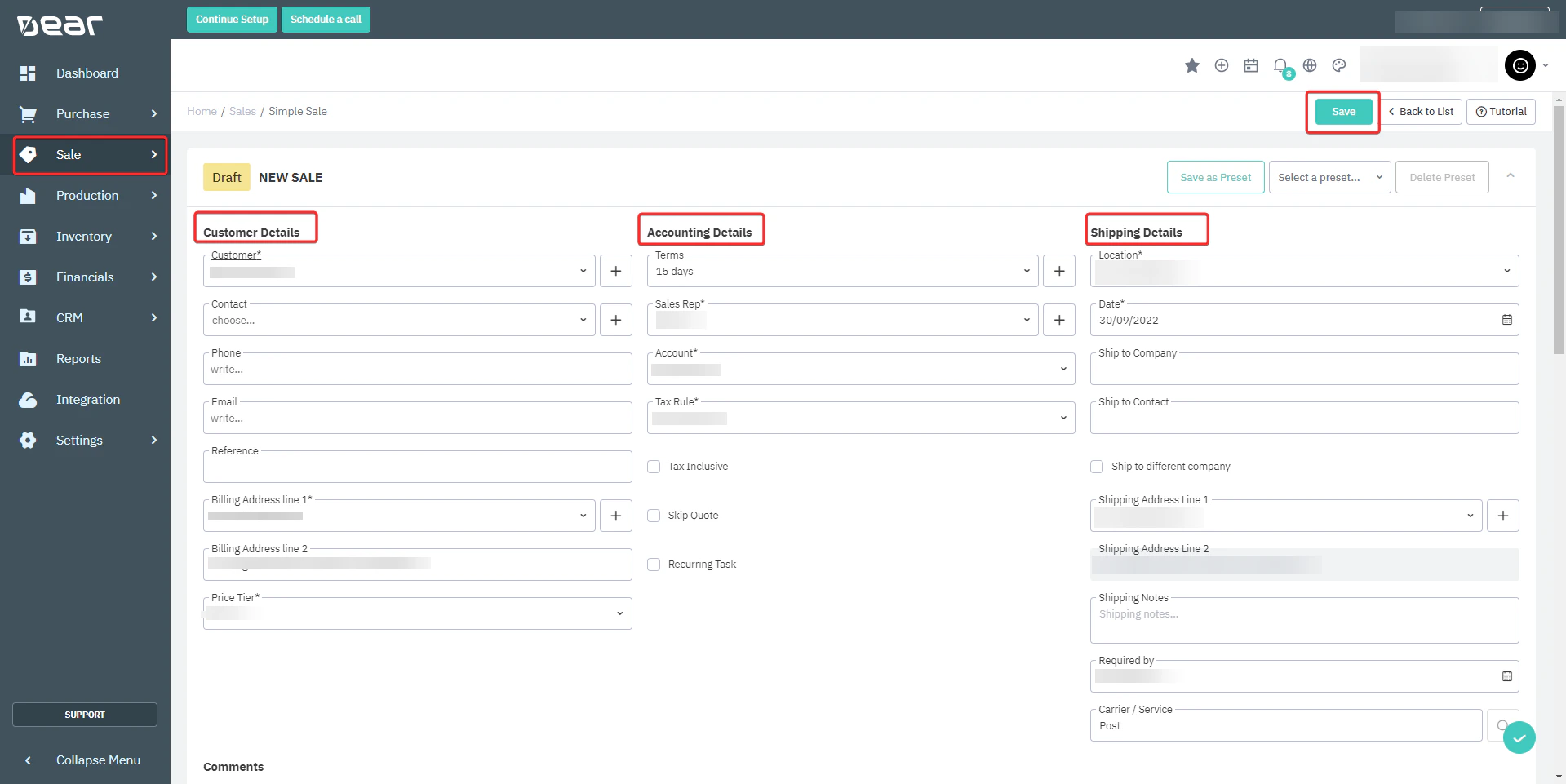
1. Select the “**Sales**” module from the left panel of DEAR and create a fresh sales order by entering the Customer details, accounting details, and shipping details, and save the draft.
## **How does Zuper – DEAR Integration work?**
Zuper-DEAR integration is bi-directional; whenever the sale order is created and authorized by DEAR, a new job will be triggered in Zuper. The **new quantity** of the stocks updated in the DEAR integration will get updated as an **Available Quantity** in Zuper.
For the products in **DEAR**, they are captured as “**Parts and Services**” in Zuper.
1. Select the “**Sales**” module from the left panel of DEAR and create a fresh sales order by entering the Customer details, accounting details, and shipping details, and save the draft.
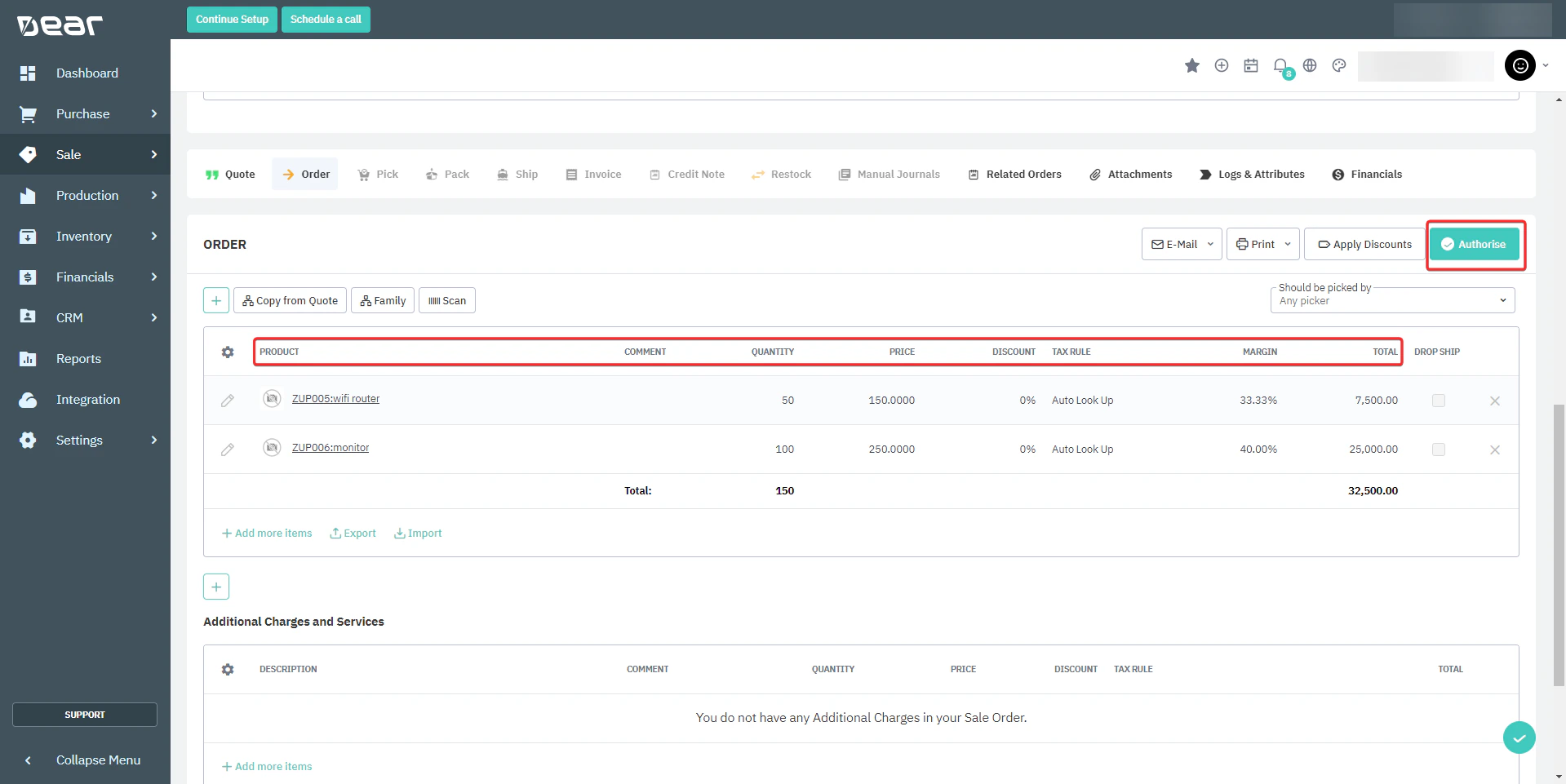
 2. Now add the necessary products and required details to the Quote. Once the quote is authorized and moves to the Order stage, select the “**Authorize**” button on “**DEAR**” to trigger the Job in Zuper.
 **Zuper:**
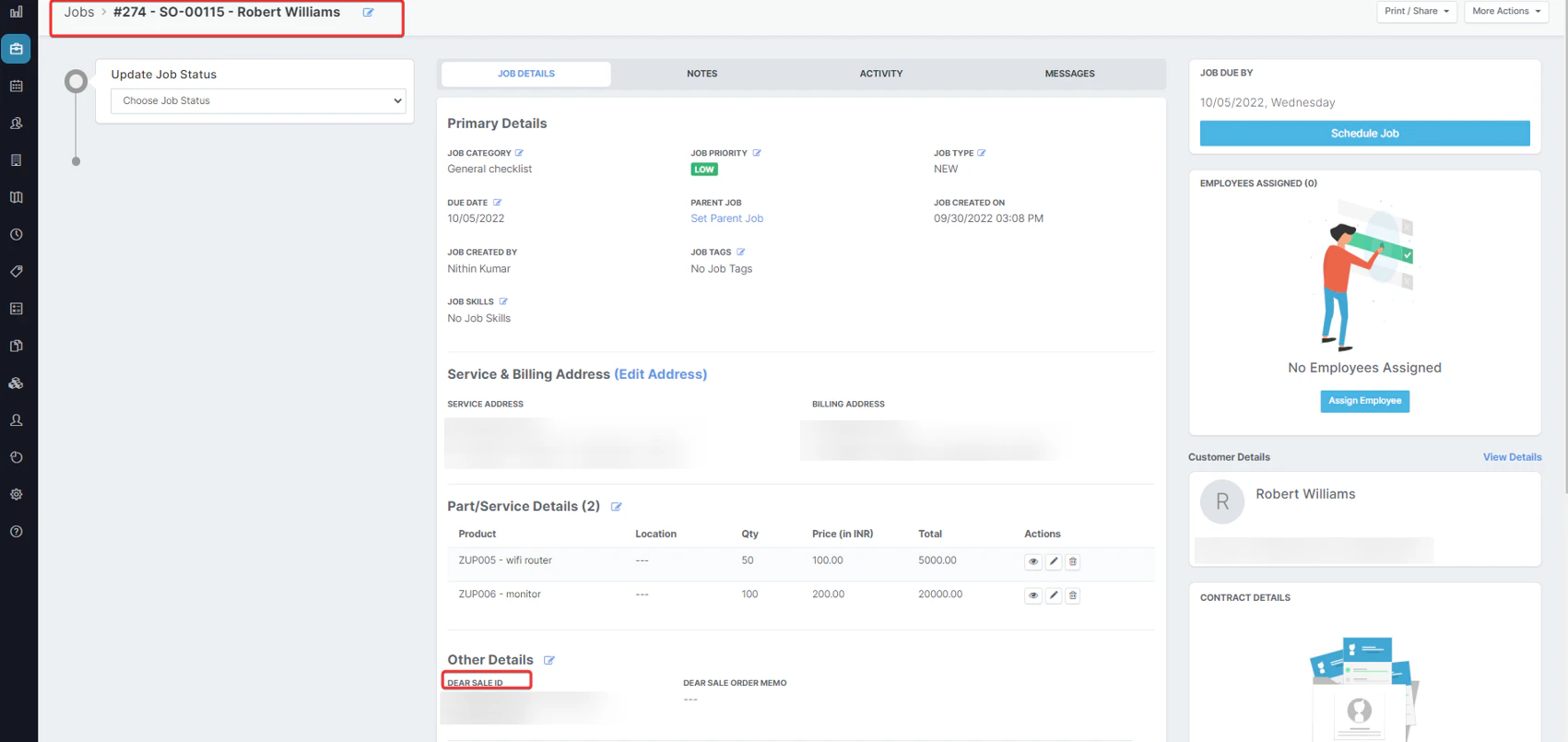
The new Job is created from a **DEAR sale**, and you can see the **DEAR Sale ID** on Zuper.
**Zuper:**
The new Job is created from a **DEAR sale**, and you can see the **DEAR Sale ID** on Zuper.
 3. You can modify the quantity on **DEAR**, which will be updated on Zuper.
 Zuper:
 A new set of enhancements has been added to Zuper-DEAR Integration.
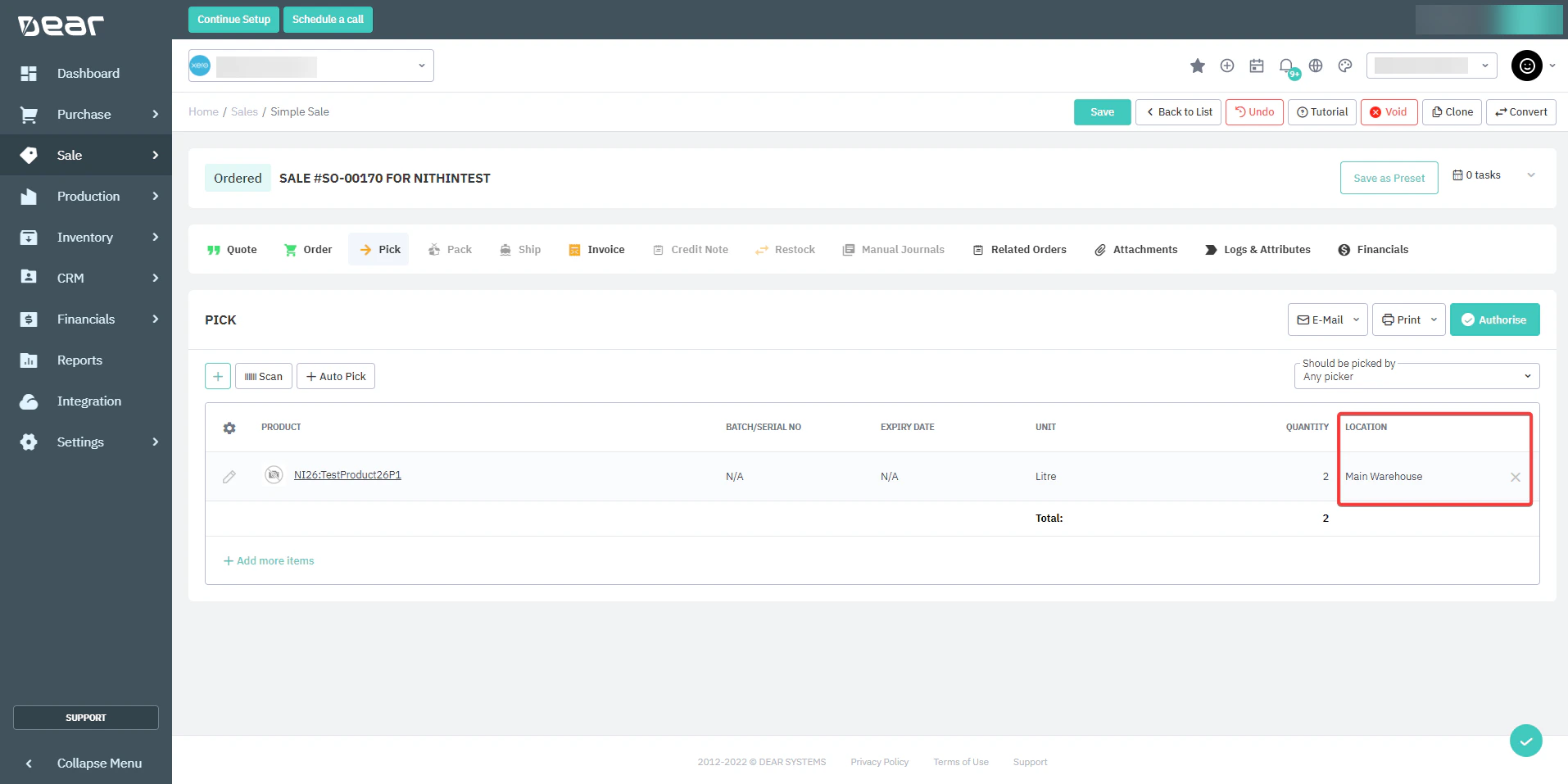
1. Select the “**Sales**” module from the left panel of **DEAR**. With the new update, you can now edit the product's location as part of Pick, Pack, or Ship actions, which will trigger a predefined webhook (installed during setup), and the location will be updated on the Zuper Job.
A new set of enhancements has been added to Zuper-DEAR Integration.
1. Select the “**Sales**” module from the left panel of **DEAR**. With the new update, you can now edit the product's location as part of Pick, Pack, or Ship actions, which will trigger a predefined webhook (installed during setup), and the location will be updated on the Zuper Job.
 2. Now, add the “**Manual Sync**” option available in Zuper whenever a sales order gets updated in DEAR. This helps to sync the **Parts and Services, Service Address, and Due date in Zuper.**
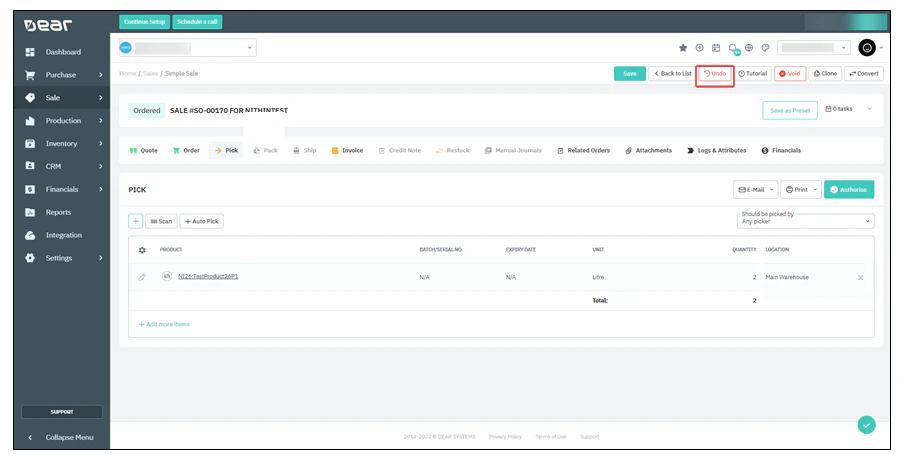
With the new update, the “**Undo**” option in the DEAR integration sale order helps delete the associated work orders for Zuper.
2. Now, add the “**Manual Sync**” option available in Zuper whenever a sales order gets updated in DEAR. This helps to sync the **Parts and Services, Service Address, and Due date in Zuper.**
With the new update, the “**Undo**” option in the DEAR integration sale order helps delete the associated work orders for Zuper.
 DEAR is an inventory master system that serves the users to manage the inventory and stocks. With Zuper integration, DEAR’s customers can automatically manage their field technicians to fulfill orders.