> ## Documentation Index
> Fetch the complete documentation index at: https://zuperinc-section23.mintlify.site/llms.txt
> Use this file to discover all available pages before exploring further.
# GAF Quick Measure
## Overview
The Zuper-GAF QuickMeasure integration allows roofing teams to order and manage roof measurement reports directly within Zuper. Key features include:
* Ordering new measurements from a Zuper job.
* Searching and integrating existing GAF QuickMeasure reports with Zuper jobs.
* Viewing, editing, and exporting measurement data.
* Central monitoring of measurements in Zuper's Measurements Tab.
This integration improves accuracy, efficiency, and workflow for roofing professionals.
## **Plan Availability**
* Available on **Zuper Core** and **Premium** plans.
## **Zuper Prerequisites**
* Jobs module activated in the settings.
* Applicable to Zuper Core and Premium plan users.
* The email ID used in Zuper should match the one used for the GAF quick measure to authenticate the account successfully.
## **Managing Measurement Tokens**
Measurement tokens represent specific data points (e.g., roof areas, pitches) imported from providers. Customize by enabling/disabling tokens in the Measurement object within job details. See [Configuring Measurements](https://docs.zuper.co/Settings/Modules/Jobs/Configuring_Measurements) for details.
## **How to Install the GAF QuickMeasure Integration?**
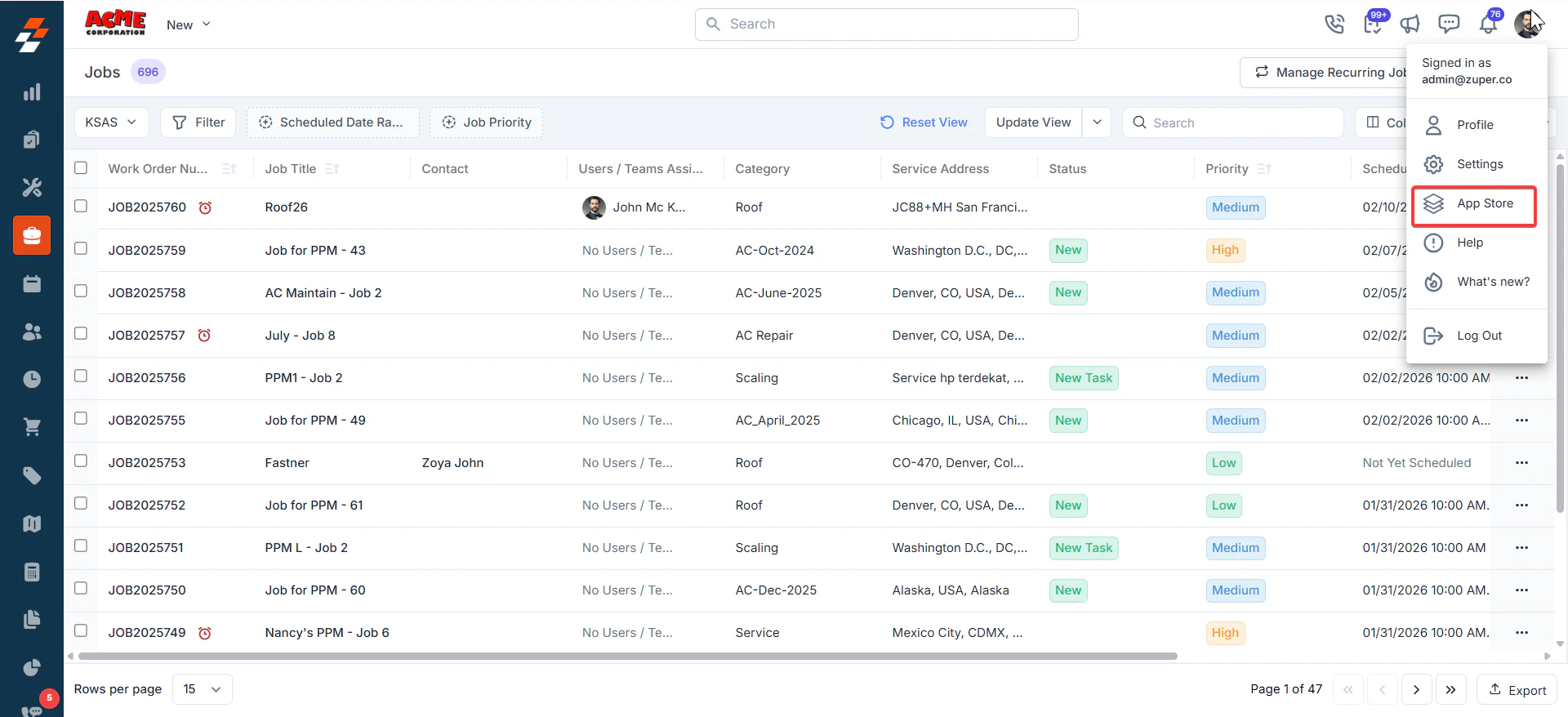
1. Log in to Zuper, click the **User** icon, and select **App Store**.
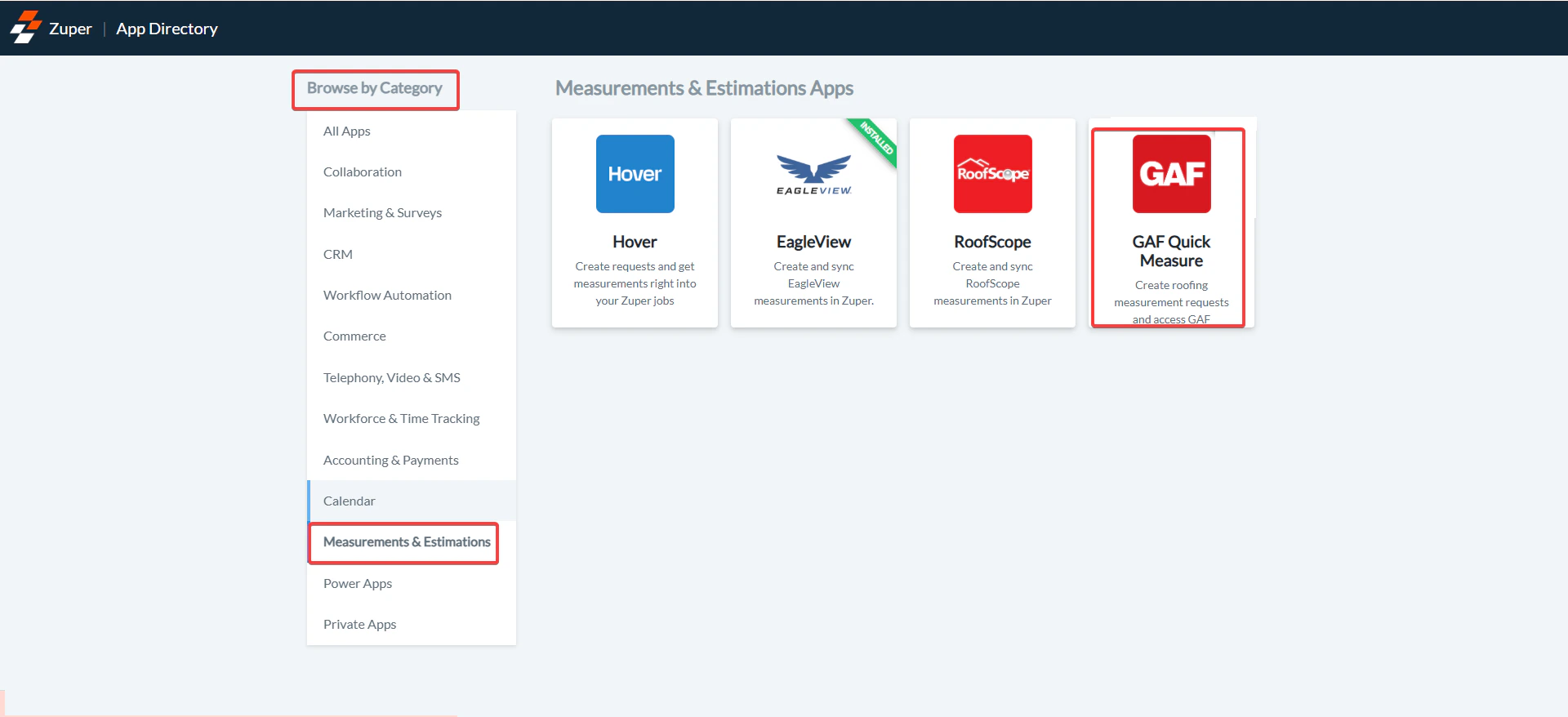
 2. In **Browse by Category**, navigate to **Measurements & Estimations** > **GAF QuickMeasure**.
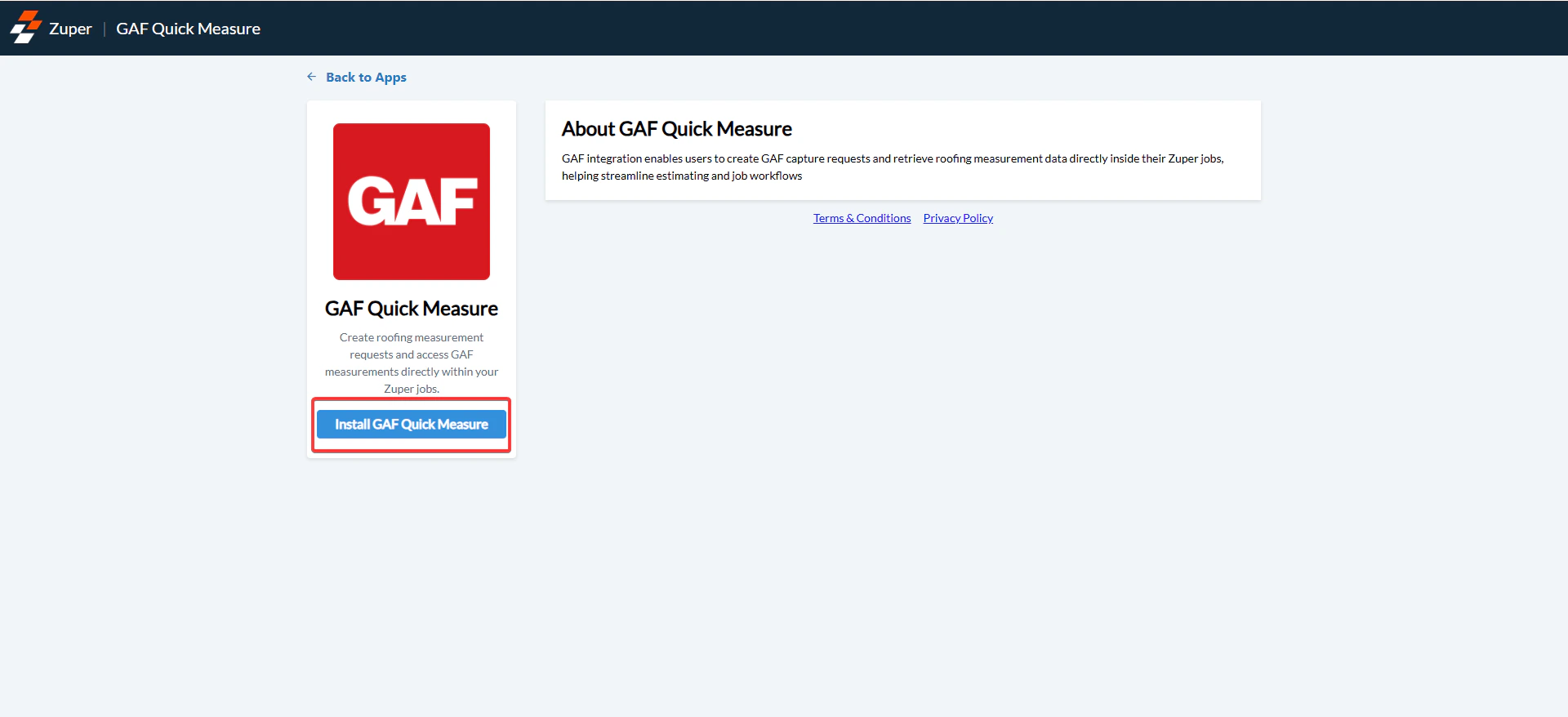
 3. On the app page, click **Install GAF QuickMeasure**.
 **How to Generate a Zuper API Key**
You need a Zuper API Key to complete GAF QuickMeasure setup:
Zuper API Keys are essential for securely authenticating and authorizing access to the Zuper API. These keys enable seamless integration with Zuper's services, allowing developers to build robust applications that leverage real-time data and functionality. Click [here](https://docs.zuper.co/Settings/Developer_Hub/API_Keys) to know more.
* Navigation: **Settings -> Developer Hub -> API Keys**
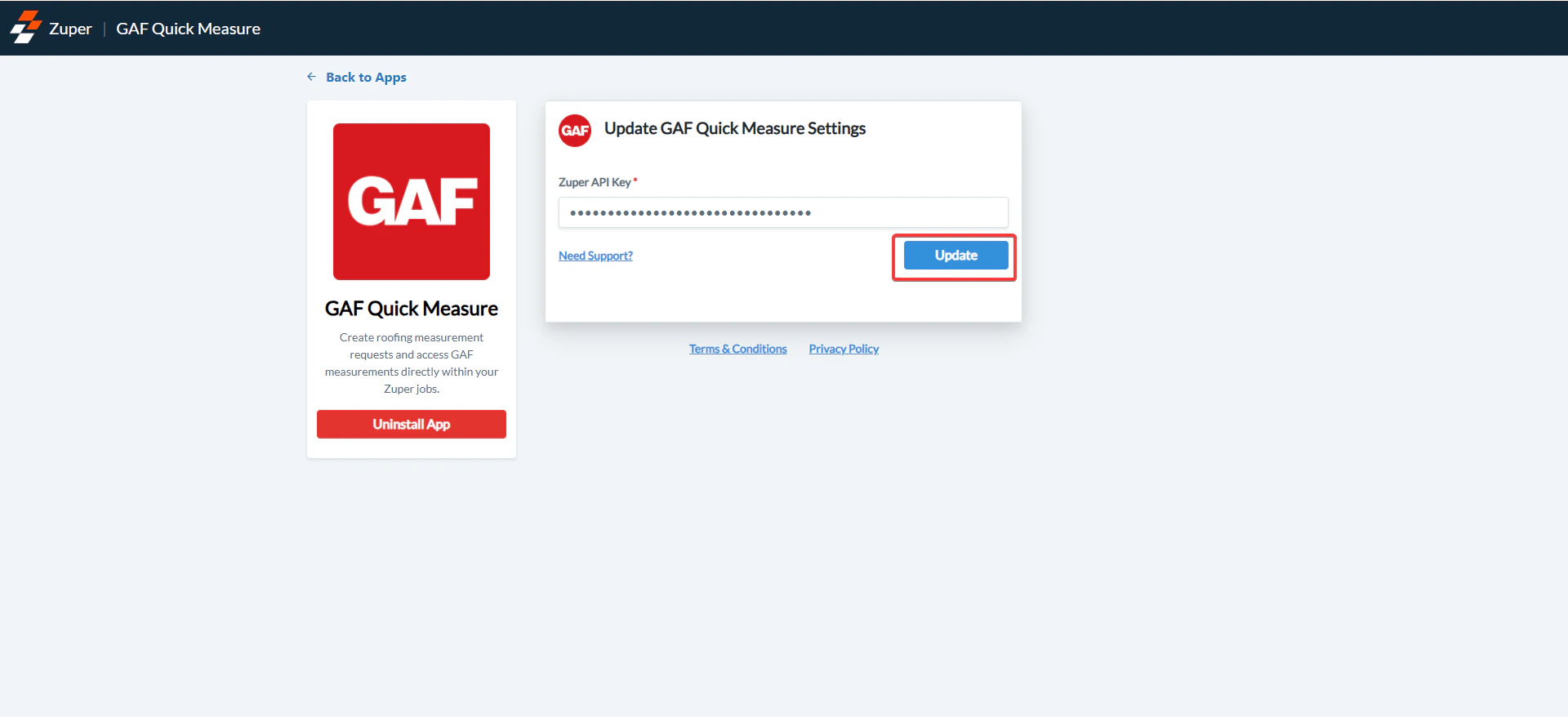
* Enter your Zuper API Key.
* Click "**Update**" to activate GAF QuickMeasure.
4. Enter the Zuper API Key.
Note: The email ID used in Zuper should match the one used for the GAF QuickMeasure to authenticate the account successfully.
**How to Generate a Zuper API Key**
You need a Zuper API Key to complete GAF QuickMeasure setup:
Zuper API Keys are essential for securely authenticating and authorizing access to the Zuper API. These keys enable seamless integration with Zuper's services, allowing developers to build robust applications that leverage real-time data and functionality. Click [here](https://docs.zuper.co/Settings/Developer_Hub/API_Keys) to know more.
* Navigation: **Settings -> Developer Hub -> API Keys**
* Enter your Zuper API Key.
* Click "**Update**" to activate GAF QuickMeasure.
4. Enter the Zuper API Key.
Note: The email ID used in Zuper should match the one used for the GAF QuickMeasure to authenticate the account successfully.
 ## **Order a New GAF QuickMeasure Measurement**
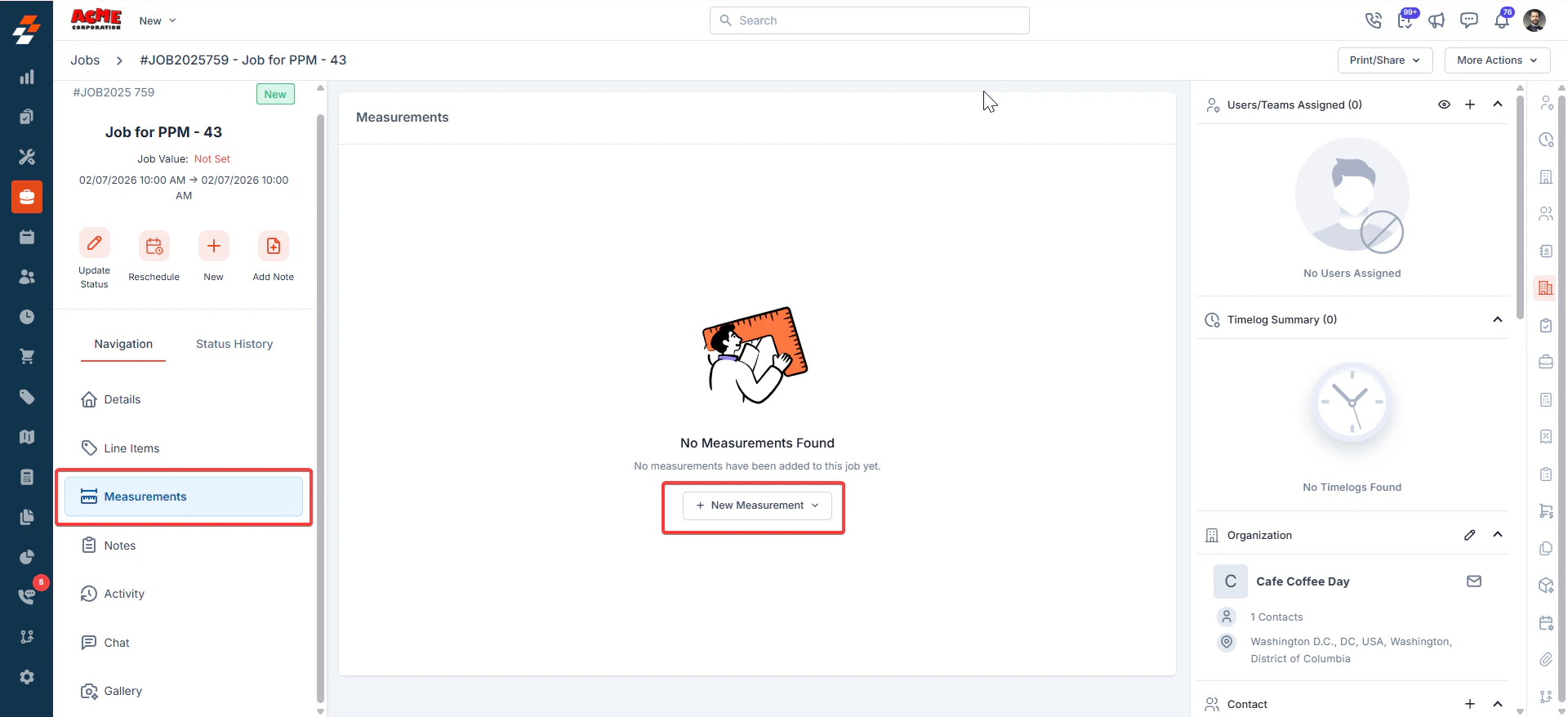
1. Access the **Job Details** page. Select the **Measurements** tab. Click **+ New Measurement** and choose GAF **QuickMeasure**.
## **Order a New GAF QuickMeasure Measurement**
1. Access the **Job Details** page. Select the **Measurements** tab. Click **+ New Measurement** and choose GAF **QuickMeasure**.
 ## **Order New Measurement Fields**
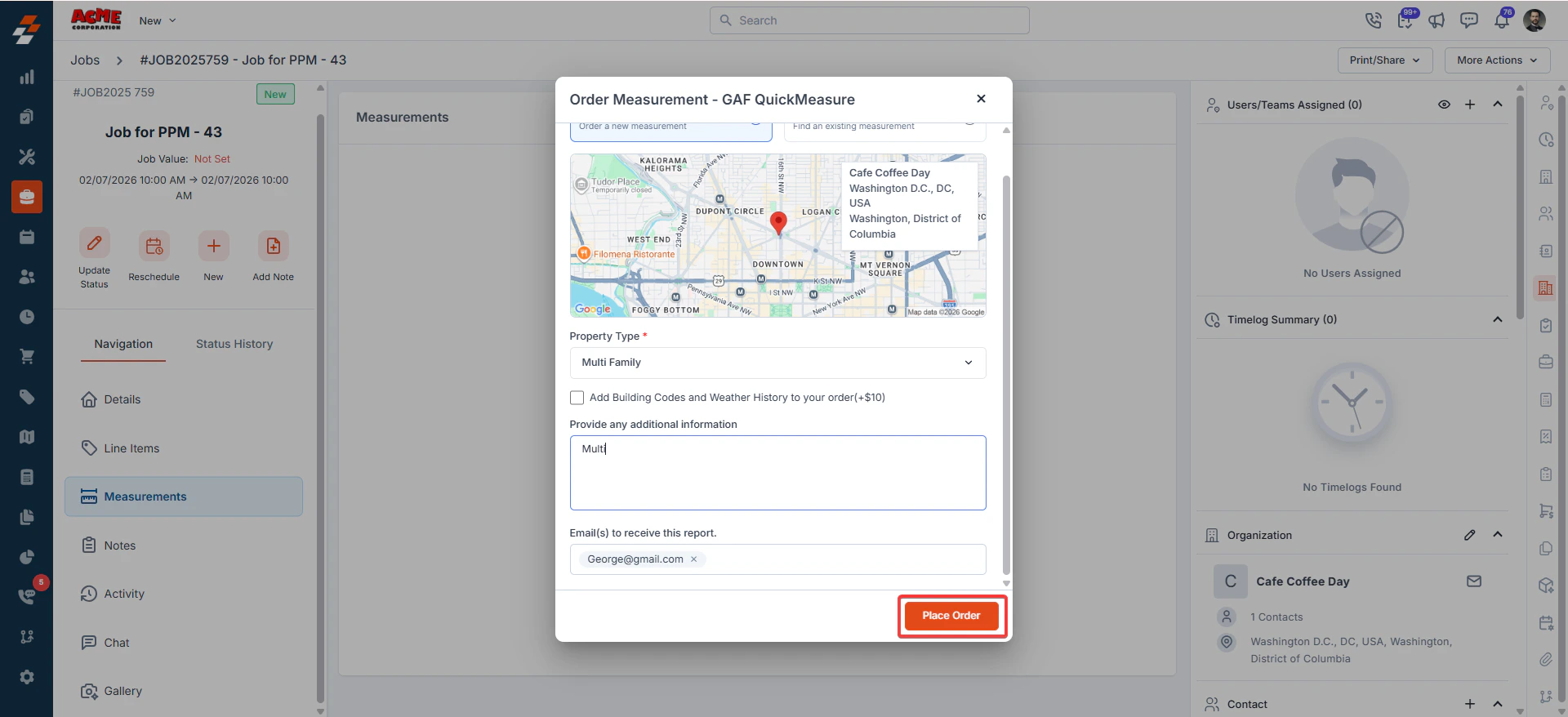
* **Property Type (Mandatory)**: Select from options: Single Family, Multiple Family, and Commercial.
* **What structures would you like included in your report? (Mandatory)**: Choose from Primary Structure Only, All Structures on Parcel, or All Structures except Primary Structure – **Applicable only for Single Family option.**
* **Include applicable codes and weather details in your order** – Add relevant compliance and historical data based on your project type:
* For **Single** and **Multiple** projects: Building Codes and Weather History.
* For **Commercial** projects: Design Criteria and Weather History.
This ensures your order includes the appropriate regulatory and weather-related information required for your project type.
* **Provide any additional information**: Enter notes or special instructions for the measurement.
* **Email(s) to receive this report**: Add email addresses (separate with commas) to send the report to.
* Click **Place Order** to submit.
## **Order New Measurement Fields**
* **Property Type (Mandatory)**: Select from options: Single Family, Multiple Family, and Commercial.
* **What structures would you like included in your report? (Mandatory)**: Choose from Primary Structure Only, All Structures on Parcel, or All Structures except Primary Structure – **Applicable only for Single Family option.**
* **Include applicable codes and weather details in your order** – Add relevant compliance and historical data based on your project type:
* For **Single** and **Multiple** projects: Building Codes and Weather History.
* For **Commercial** projects: Design Criteria and Weather History.
This ensures your order includes the appropriate regulatory and weather-related information required for your project type.
* **Provide any additional information**: Enter notes or special instructions for the measurement.
* **Email(s) to receive this report**: Add email addresses (separate with commas) to send the report to.
* Click **Place Order** to submit.
 ## **Select an Existing Project**
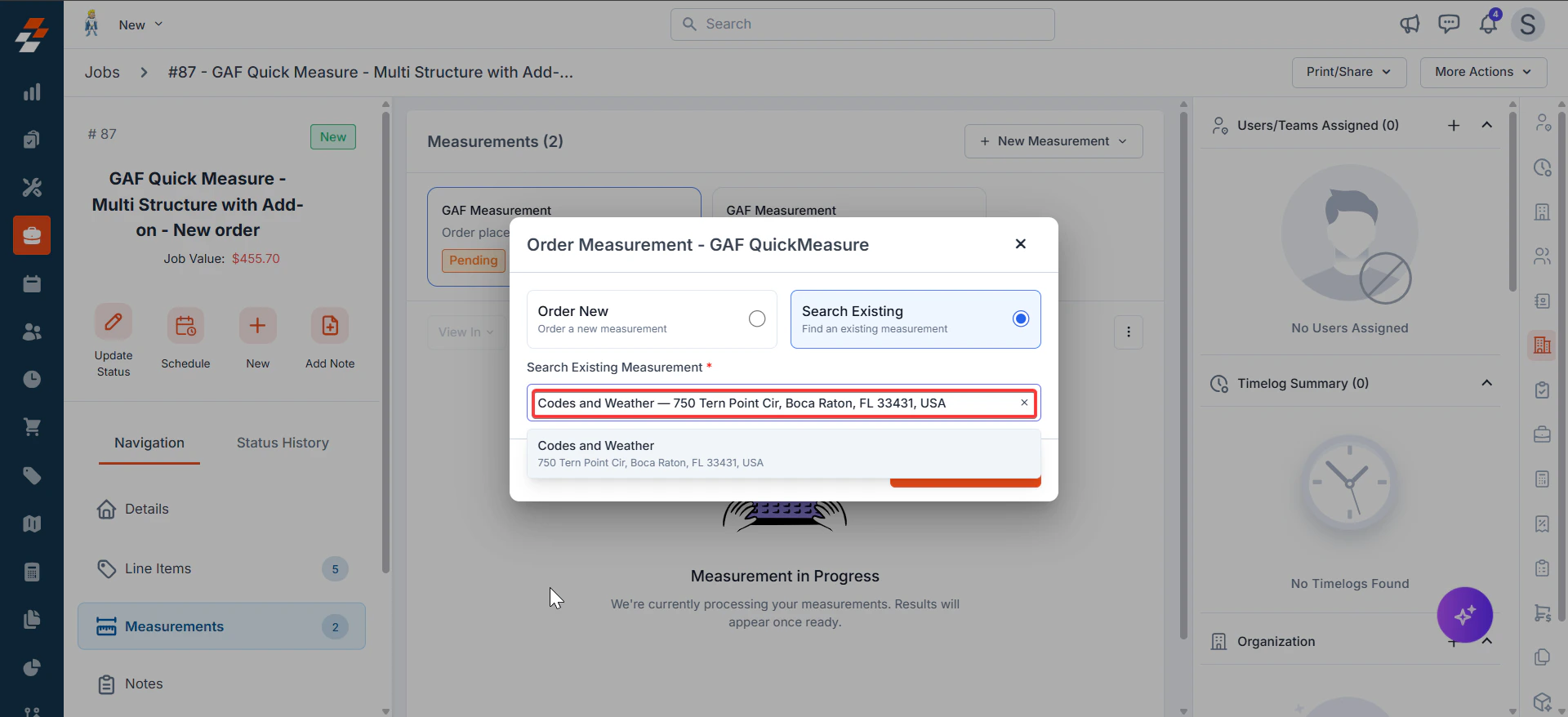
* The service address pre-fills in the search bar under the **Search Existing** tab.
* Results show matching GAF QuickMeasure reports for the address.
## **Select an Existing Project**
* The service address pre-fills in the search bar under the **Search Existing** tab.
* Results show matching GAF QuickMeasure reports for the address.
 * Select the desired report to sync it with the Zuper job.
* After creating the measurements, click **+ New Measurement** → **Choose Existing** to manually complete the sync.
* Select the desired report to sync it with the Zuper job.
* After creating the measurements, click **+ New Measurement** → **Choose Existing** to manually complete the sync.
 ## **Viewing Synced Measurements**
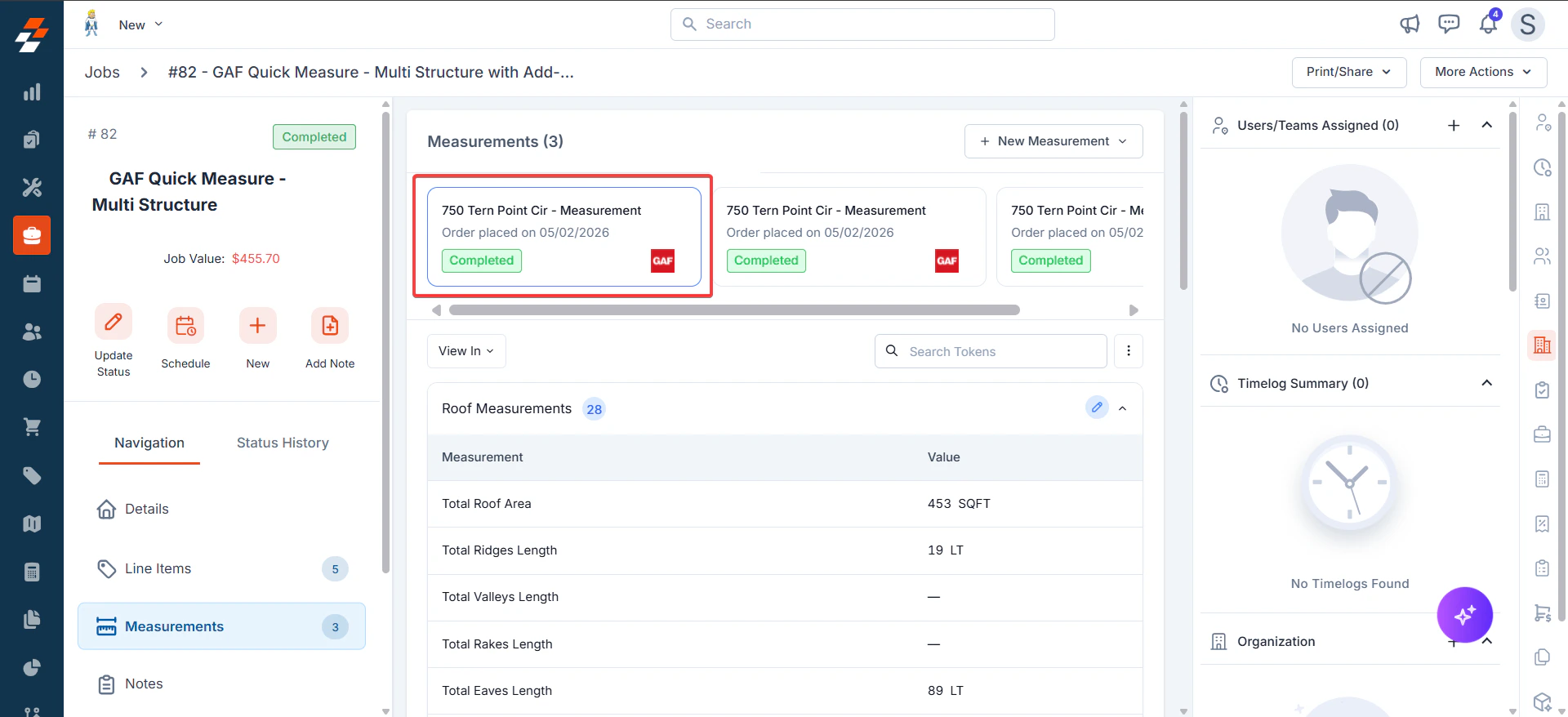
* Measurements automatically sync from GAF QuickMeasure.
* Appear in the **Measurements** tab as a **Completed Measurement Card**.
* Inspect values aligned with Zuper's standard measurement tokens.
**View PDF**
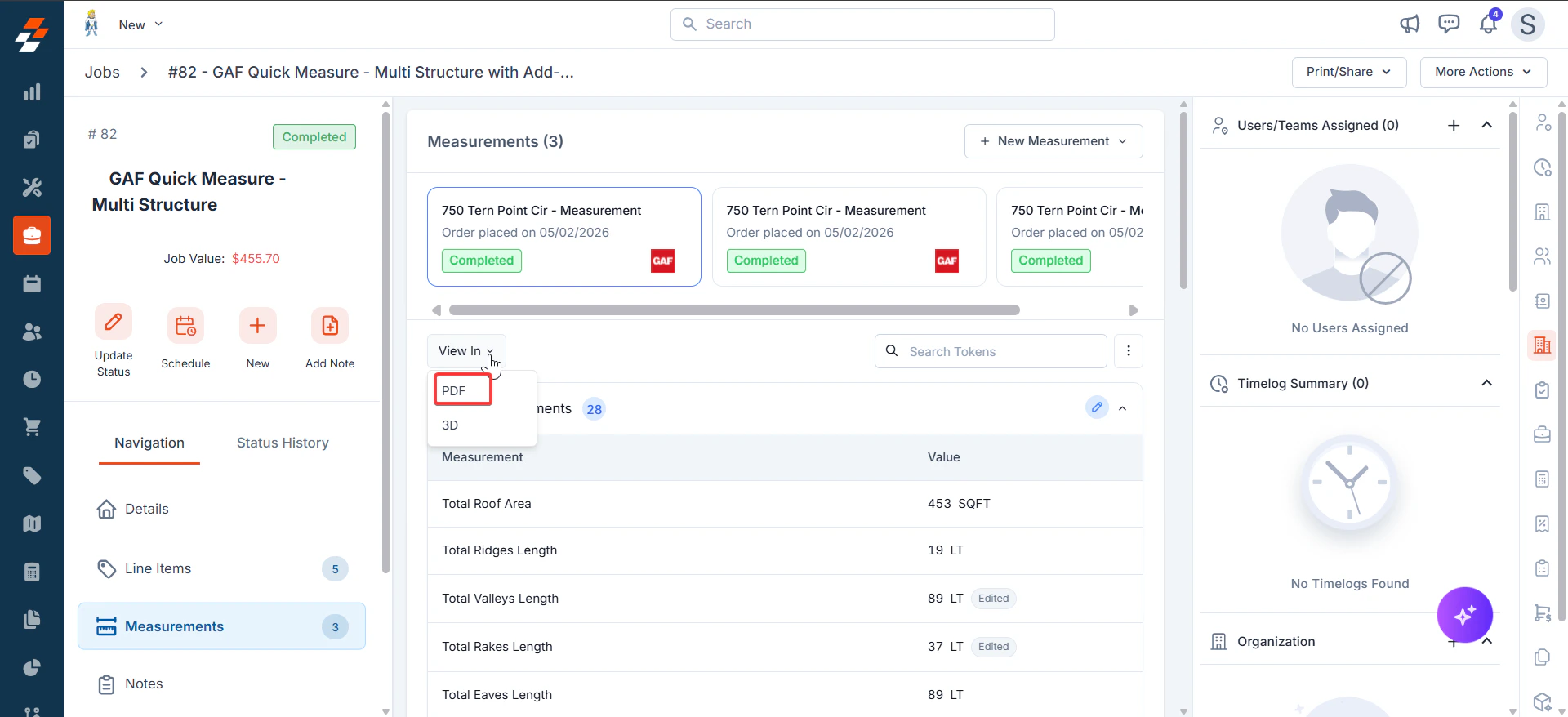
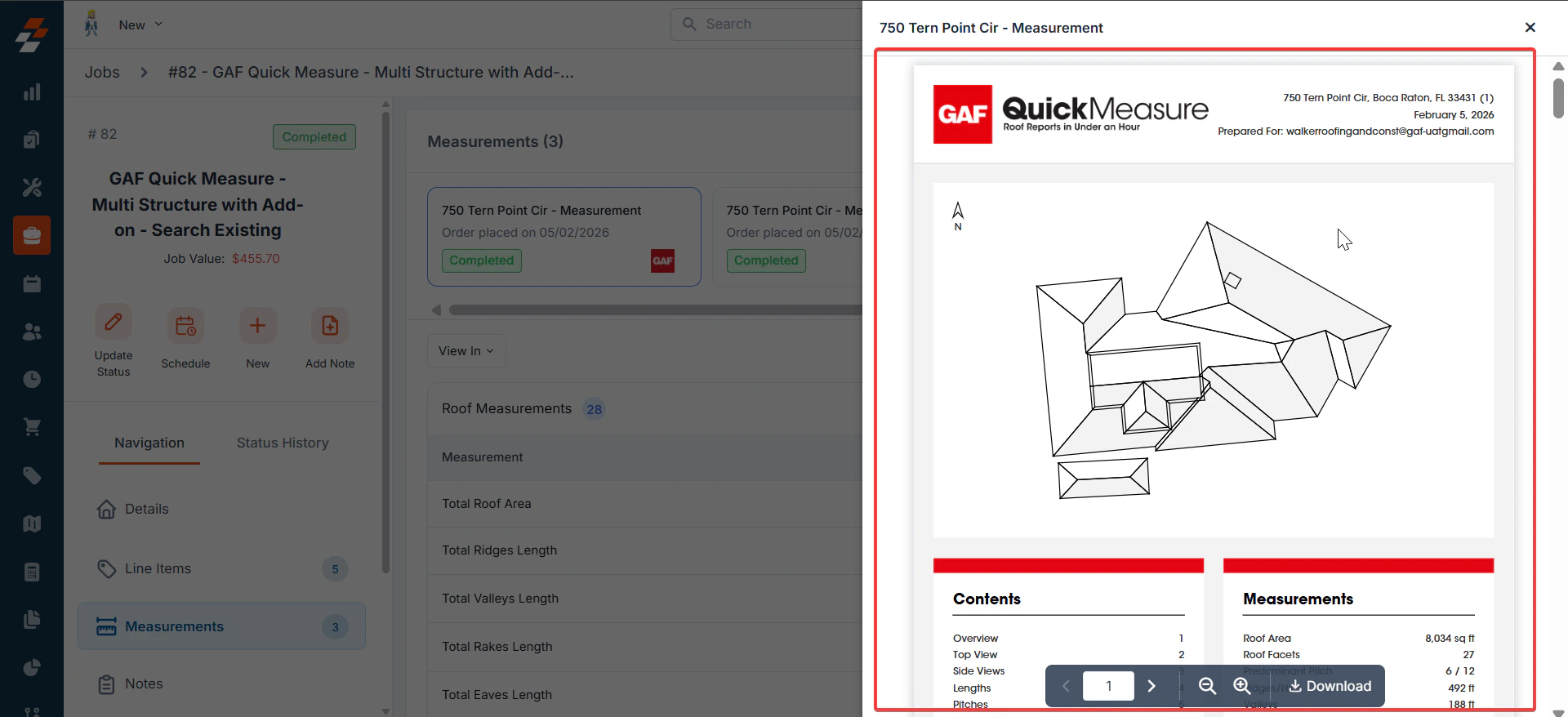
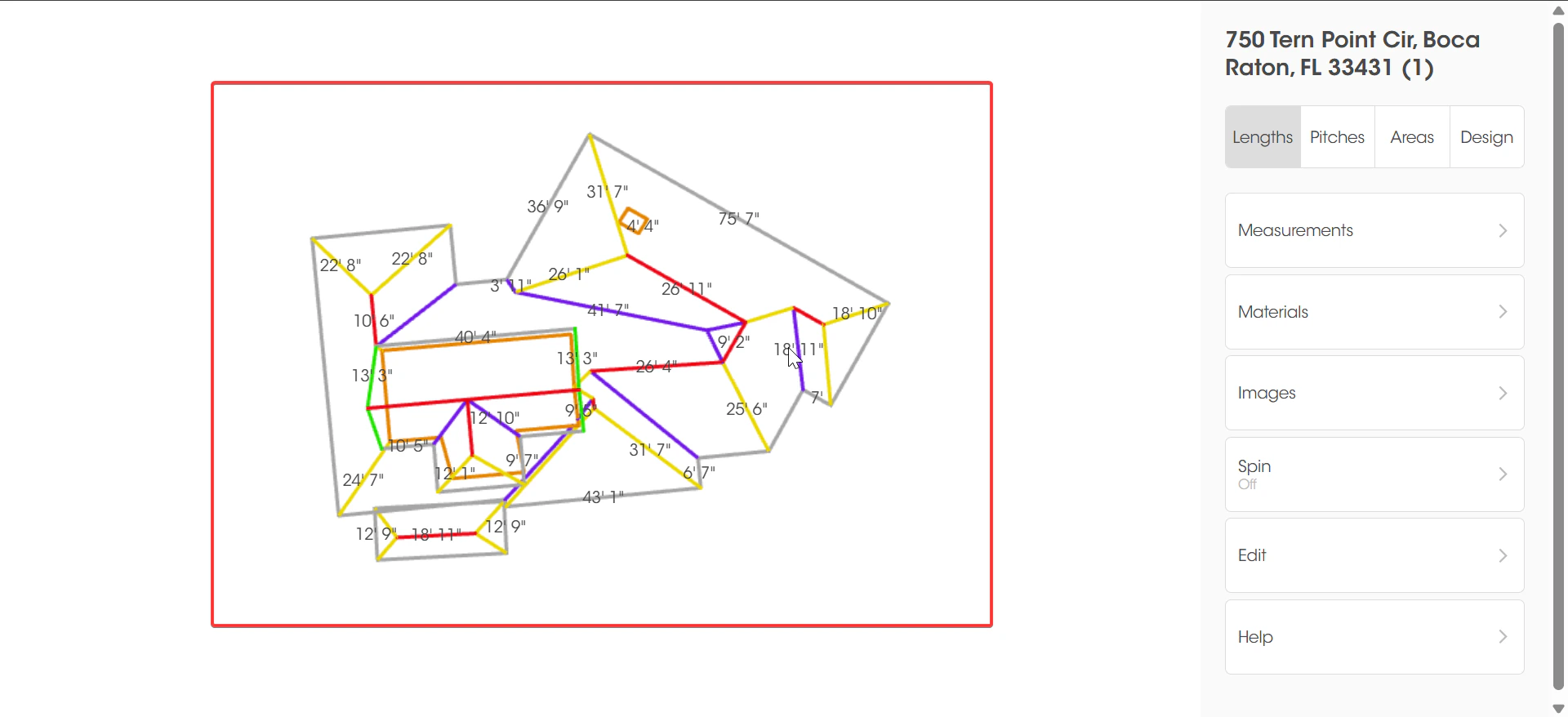
* Click "**View In**" to view the measurements in PDFs or as a 3D view.
## **Viewing Synced Measurements**
* Measurements automatically sync from GAF QuickMeasure.
* Appear in the **Measurements** tab as a **Completed Measurement Card**.
* Inspect values aligned with Zuper's standard measurement tokens.
**View PDF**
* Click "**View In**" to view the measurements in PDFs or as a 3D view.
 ## **Edit Measurements**
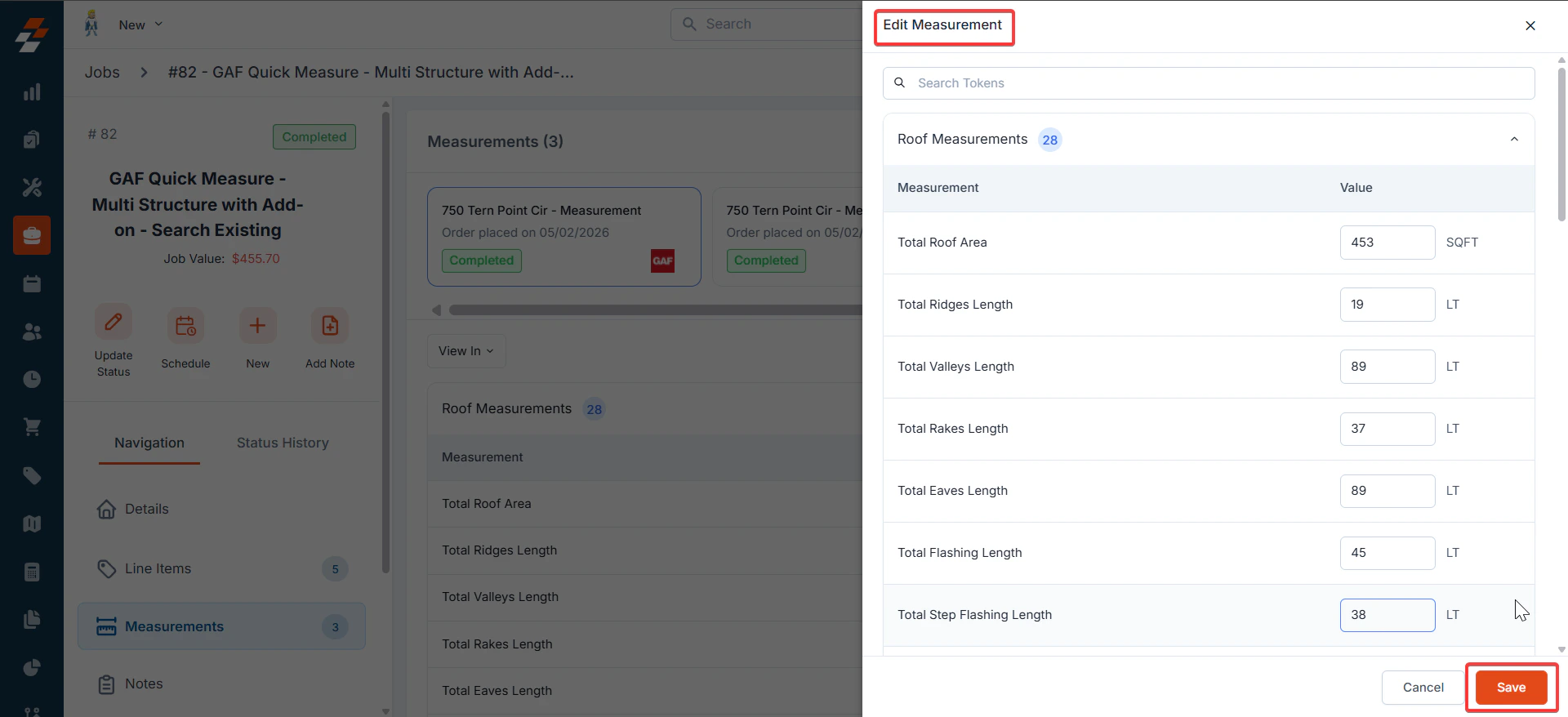
* Click the "**Kebab**" menu to edit the measurements.
## **Edit Measurements**
* Click the "**Kebab**" menu to edit the measurements.
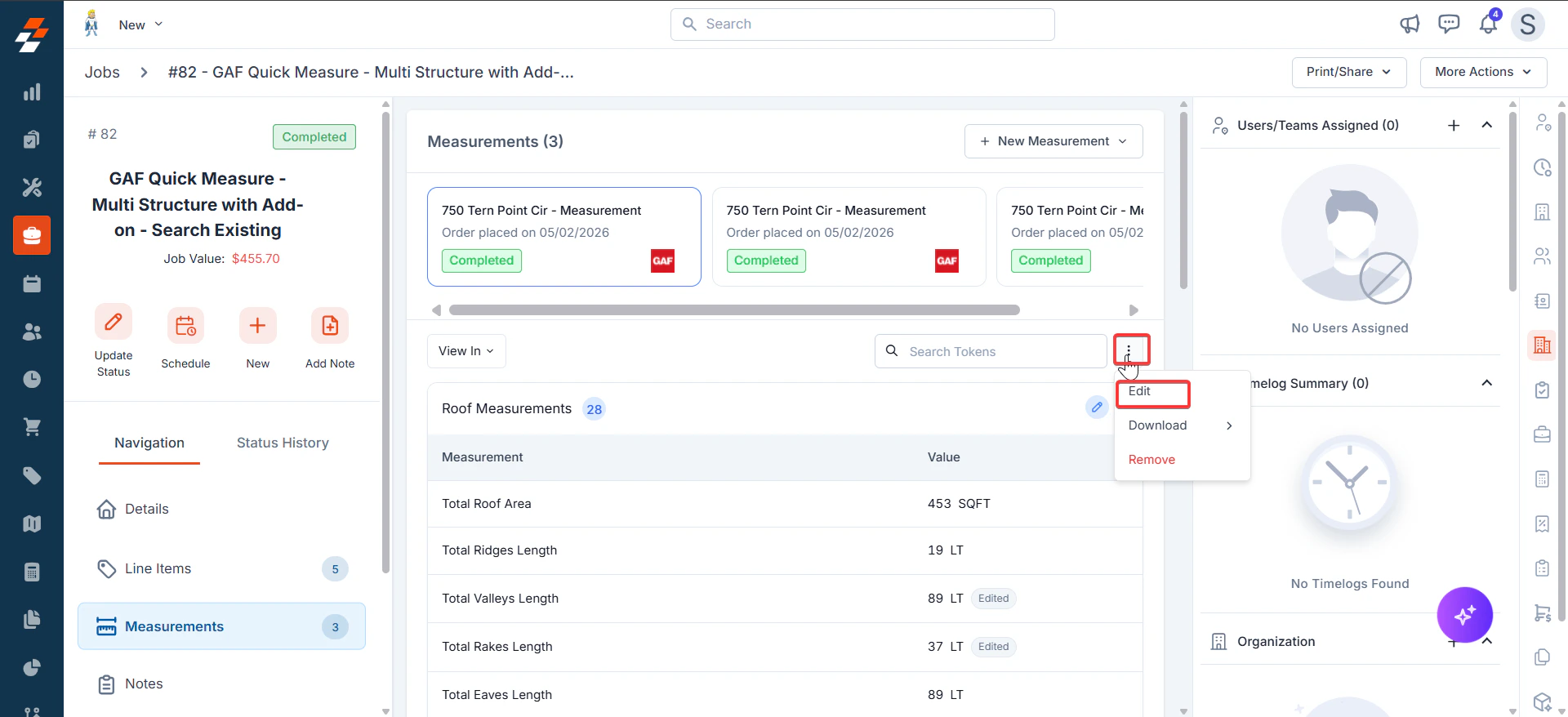 * Modify the measurements and click "**Save**."
 **Download PDF**
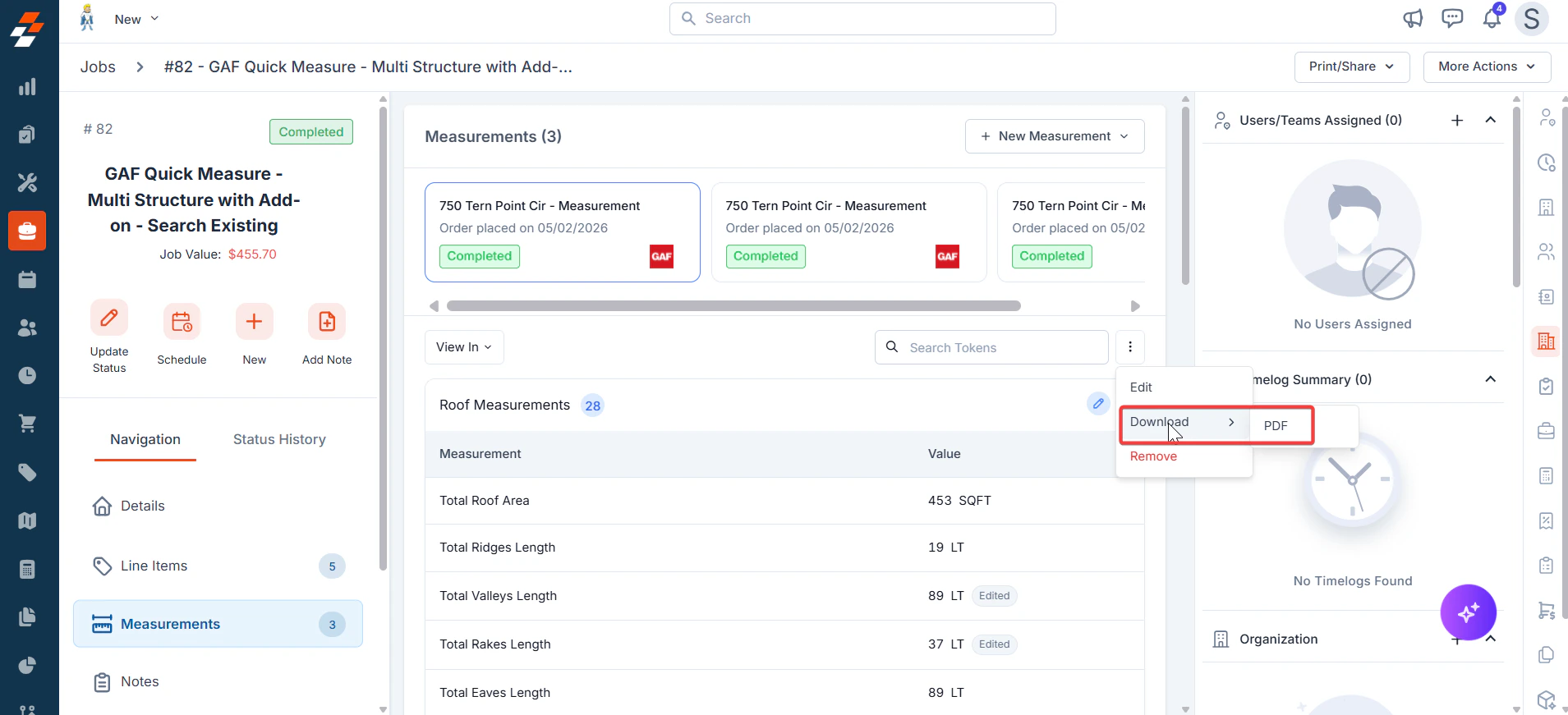
* Click the "**Kebab**" menu to download the PDF.
**Download PDF**
* Click the "**Kebab**" menu to download the PDF.
 **Removing Measurements**
* From the measurement card, click the **⋮ Menu** > **Remove**.
* Confirm the action.
**Removing Measurements**
* From the measurement card, click the **⋮ Menu** > **Remove**.
* Confirm the action.
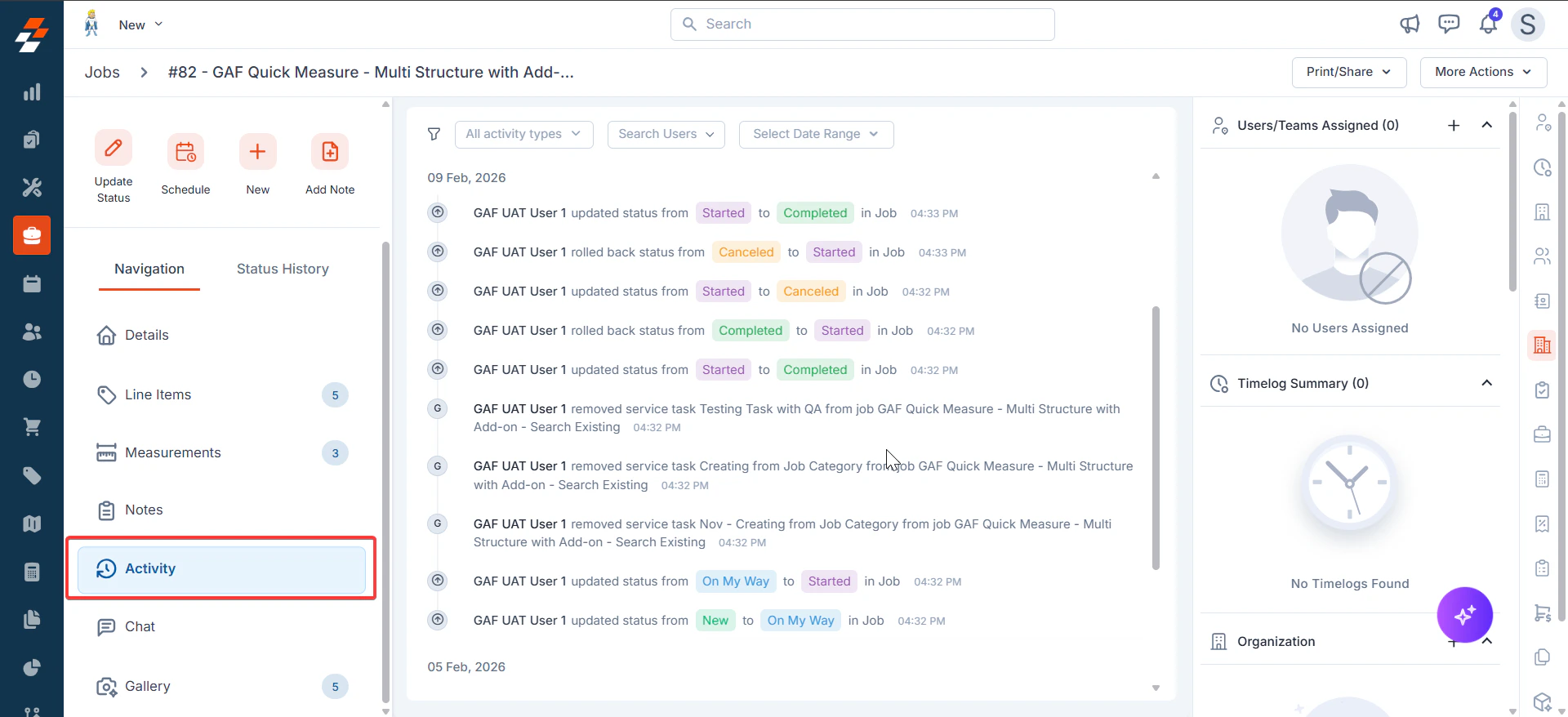
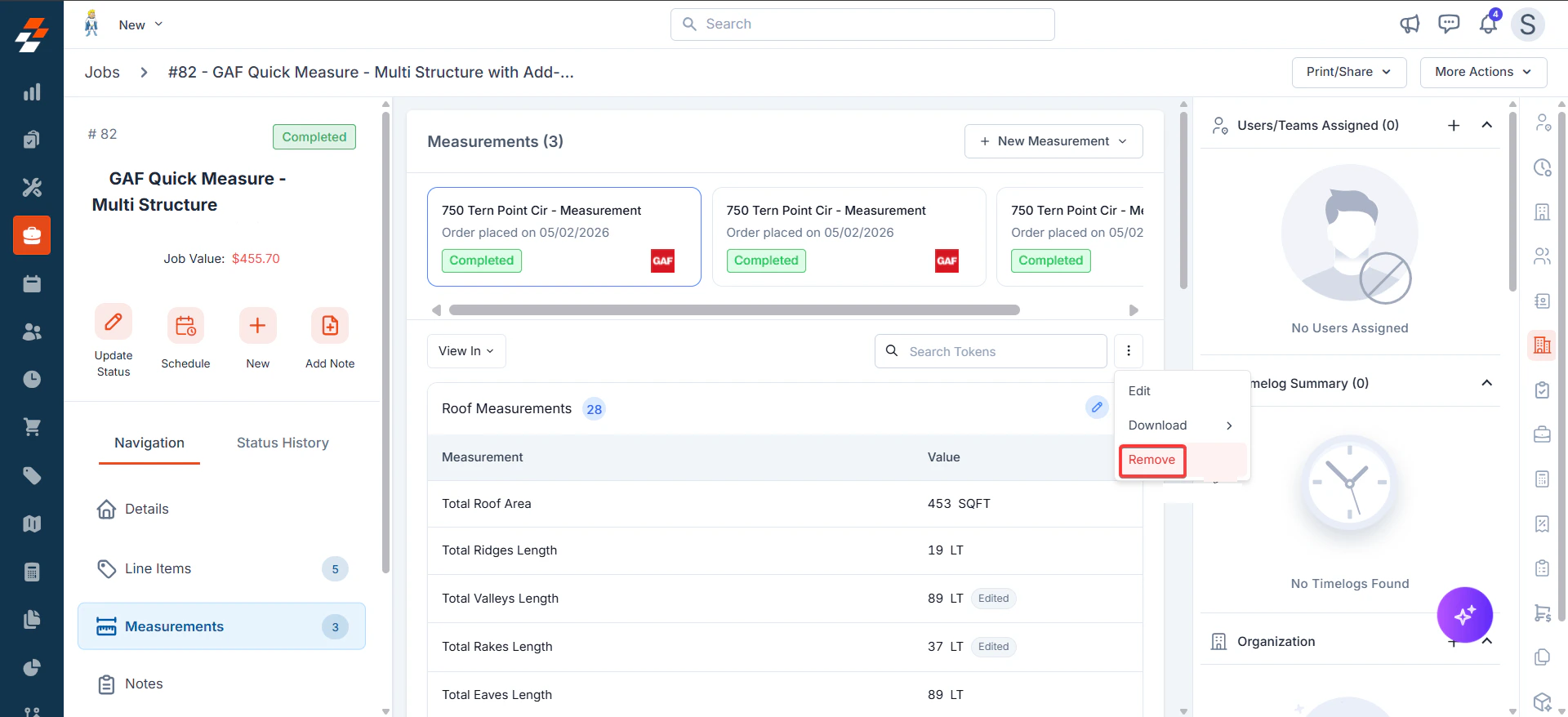 * The measurement is unlinked from the job, with the activity logged in **Job Activity**.
 * Images from the measurement can be viewed in the **Gallery** tab
## **Uninstall GAF QuickMeasure from Zuper**
1. Click **Profile Picture** > **App Store**.
2. Go to **Measurements and Estimations** > **GAF QuickMeasure**.
3. Click **Uninstall** **App**.
* Images from the measurement can be viewed in the **Gallery** tab
## **Uninstall GAF QuickMeasure from Zuper**
1. Click **Profile Picture** > **App Store**.
2. Go to **Measurements and Estimations** > **GAF QuickMeasure**.
3. Click **Uninstall** **App**.
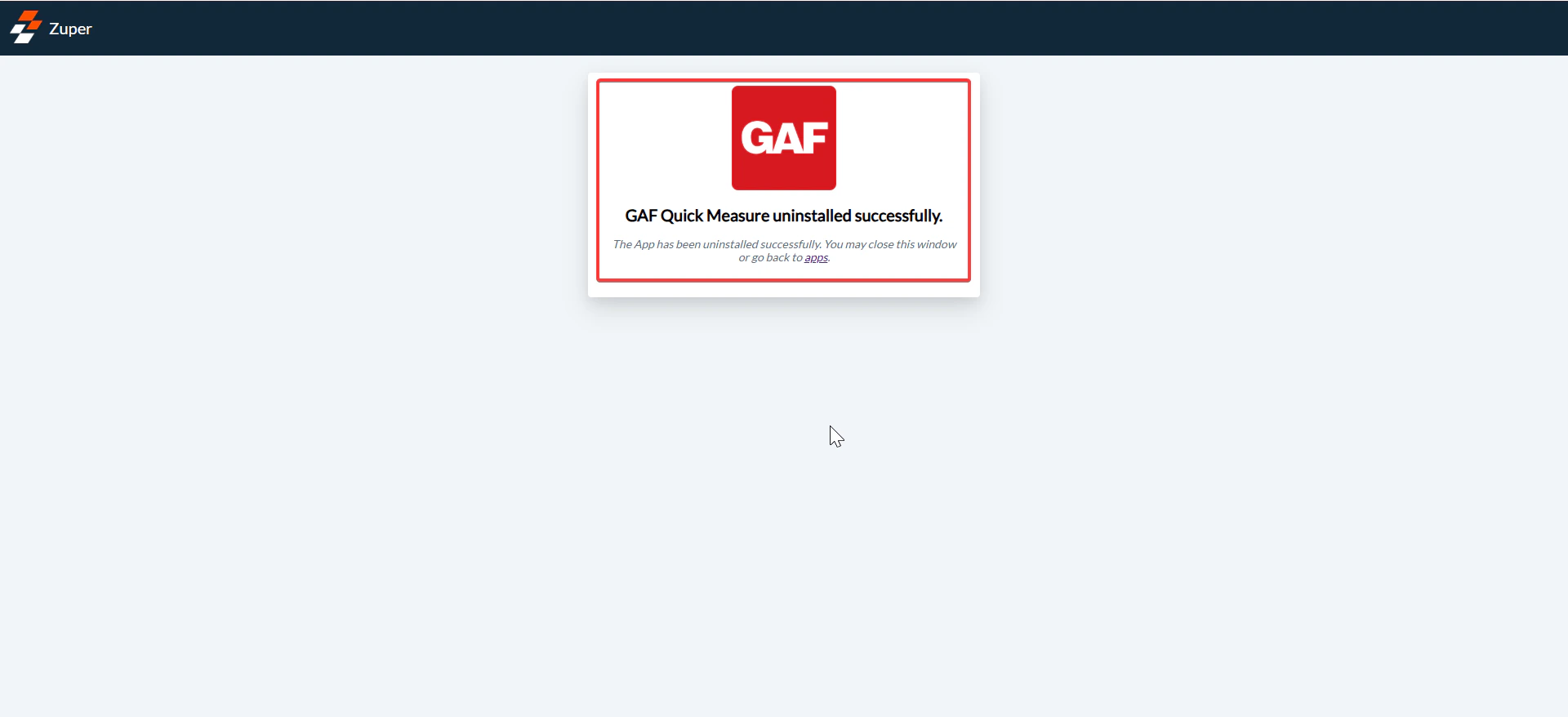
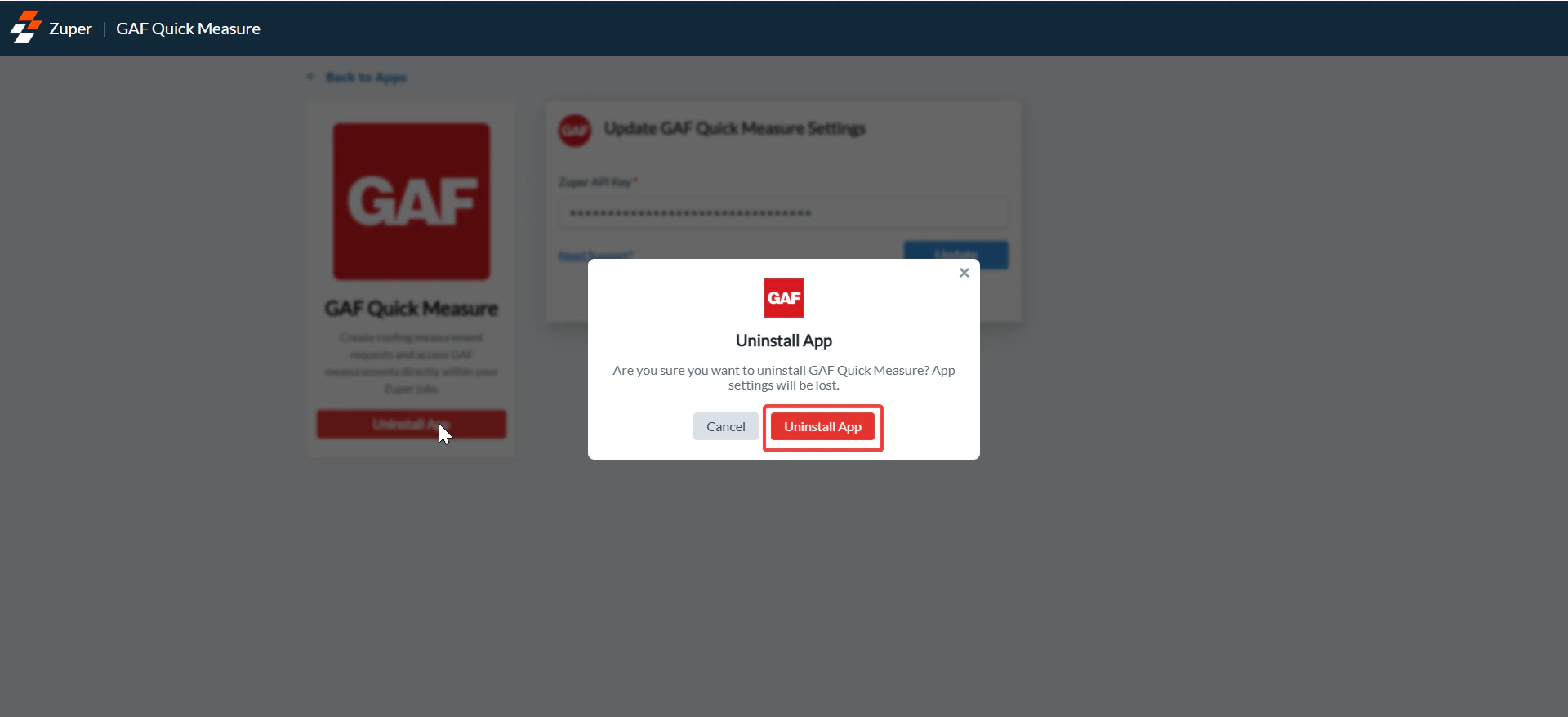 4. The integration is uninstalled.
 ## **Frequently Asked Questions (FAQs)**
**Q1: What if the API key or credentials are incorrect?**
Syncing will fail. Update them in **Settings > App Store > GAF QuickMeasure > Configure Settings** and save.
**Q2: Can multiple GAF QuickMeasure reports be linked to one Zuper job?**
Yes, you can link multiple GAF QuickMeasure reports to one Zuper job. This is particularly useful for complex roofing projects, such as those involving multiple structures.
**Q3: Why isn't my existing GAF QuickMeasure report appearing in search?**
Once a **GAF QuickMeasure** report has been completed and already added to a job, it will no longer appear in the search results.
**Q4: Do changes in Zuper update back to GAF QuickMeasure?**
No, changes made in Zuper do not sync or update back to GAF QuickMeasure. The integration is primarily one-way, allowing users to order and import measurement reports and data from GAF QuickMeasure directly into Zuper
**Q5: How to add weather code to job?**
When Add-ons are selected, the related criteria and weather code details will sync automatically.
After creating the measurements, click **+ New Measurement** → **Choose Existing** to manually complete the sync.
**Q6: Can field technicians order measurements?**
Yes, field technicians can order GAF QuickMeasure measurements directly within Zuper, provided they have the appropriate custom roles and permissions assigned in the system.
**Q7: I added the API Key, but still an error is coming**
The email ID used in Zuper should match the one used for the GAF QuickMeasure
## **Frequently Asked Questions (FAQs)**
**Q1: What if the API key or credentials are incorrect?**
Syncing will fail. Update them in **Settings > App Store > GAF QuickMeasure > Configure Settings** and save.
**Q2: Can multiple GAF QuickMeasure reports be linked to one Zuper job?**
Yes, you can link multiple GAF QuickMeasure reports to one Zuper job. This is particularly useful for complex roofing projects, such as those involving multiple structures.
**Q3: Why isn't my existing GAF QuickMeasure report appearing in search?**
Once a **GAF QuickMeasure** report has been completed and already added to a job, it will no longer appear in the search results.
**Q4: Do changes in Zuper update back to GAF QuickMeasure?**
No, changes made in Zuper do not sync or update back to GAF QuickMeasure. The integration is primarily one-way, allowing users to order and import measurement reports and data from GAF QuickMeasure directly into Zuper
**Q5: How to add weather code to job?**
When Add-ons are selected, the related criteria and weather code details will sync automatically.
After creating the measurements, click **+ New Measurement** → **Choose Existing** to manually complete the sync.
**Q6: Can field technicians order measurements?**
Yes, field technicians can order GAF QuickMeasure measurements directly within Zuper, provided they have the appropriate custom roles and permissions assigned in the system.
**Q7: I added the API Key, but still an error is coming**
The email ID used in Zuper should match the one used for the GAF QuickMeasure