> ## Documentation Index
> Fetch the complete documentation index at: https://zuperinc-section23.mintlify.site/llms.txt
> Use this file to discover all available pages before exploring further.
# Hover Mobile
## **Overview**
The Zuper Hover integration enables field technicians and users to order professional roof measurements seamlessly, directly from the Zuper mobile app. This enables quick capture of accurate measurements for roofing inspections, estimates, and job planning without manual entry. Once ordered, Hover processes the request, syncs the data back to Zuper, and provides a summary report with key metrics like roof area, ridge lengths, and more.
This mobile integration builds on the web-based setup, allowing on-the-go ordering and real-time viewing of synced measurements. Benefits include:
* Reduced errors in manual data entry.
* Instant access to Hover's 3D models and PDFs.
* Support for both new orders and linking existing Hover projects.
* Visual indicators for manual edits.
**Note:** The integration must be enabled via the Zuper web portal first (see [Zuper Hover Integration (Web)](https://docs.zuper.co/Integrations/Measurements_and_estimations/Zuper_Hover) for setup details).
## **Plan Requirements for Hover Integration**
To use Hover on mobile, ensure your Zuper and Hover subscriptions meet these requirements:
The minimum subscription requirement for Zuper is a **Professional** or **Enterprise** plan. For Hover, the minimum requirement is **Scale** or **Transform**.
## **How to Order a New Hover Measurement on Mobile**
From a job in the Zuper mobile app, add measurements using Hover's professional service.
### **Prerequisites**
* Active job with a service address.
* Hover integration is enabled via the web.
* Sufficient measurement tokens.
**Steps**
1. Open the job in the Zuper Mobile.
2. Tap **+ New Measurement** in the Measurements section.
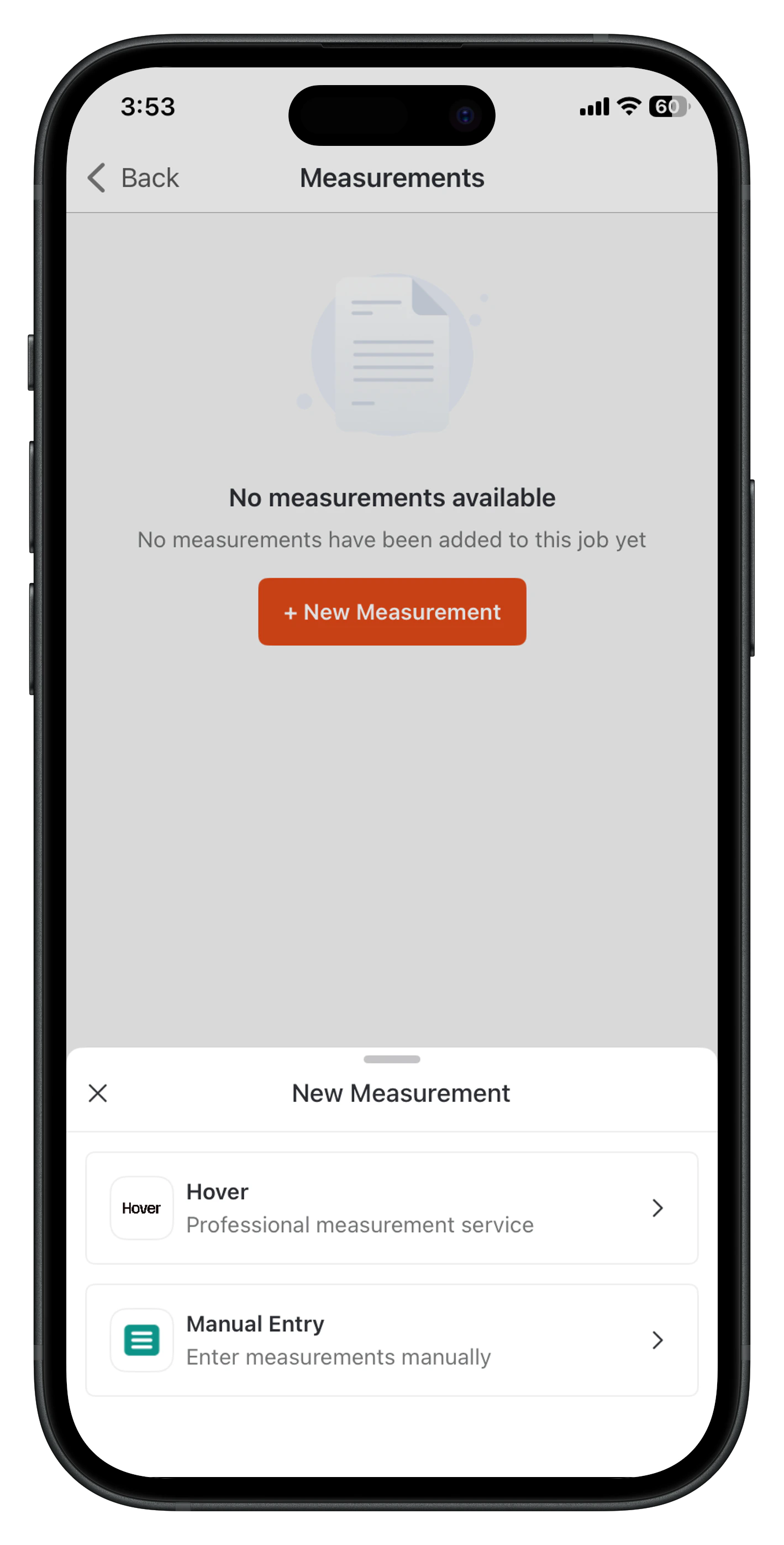
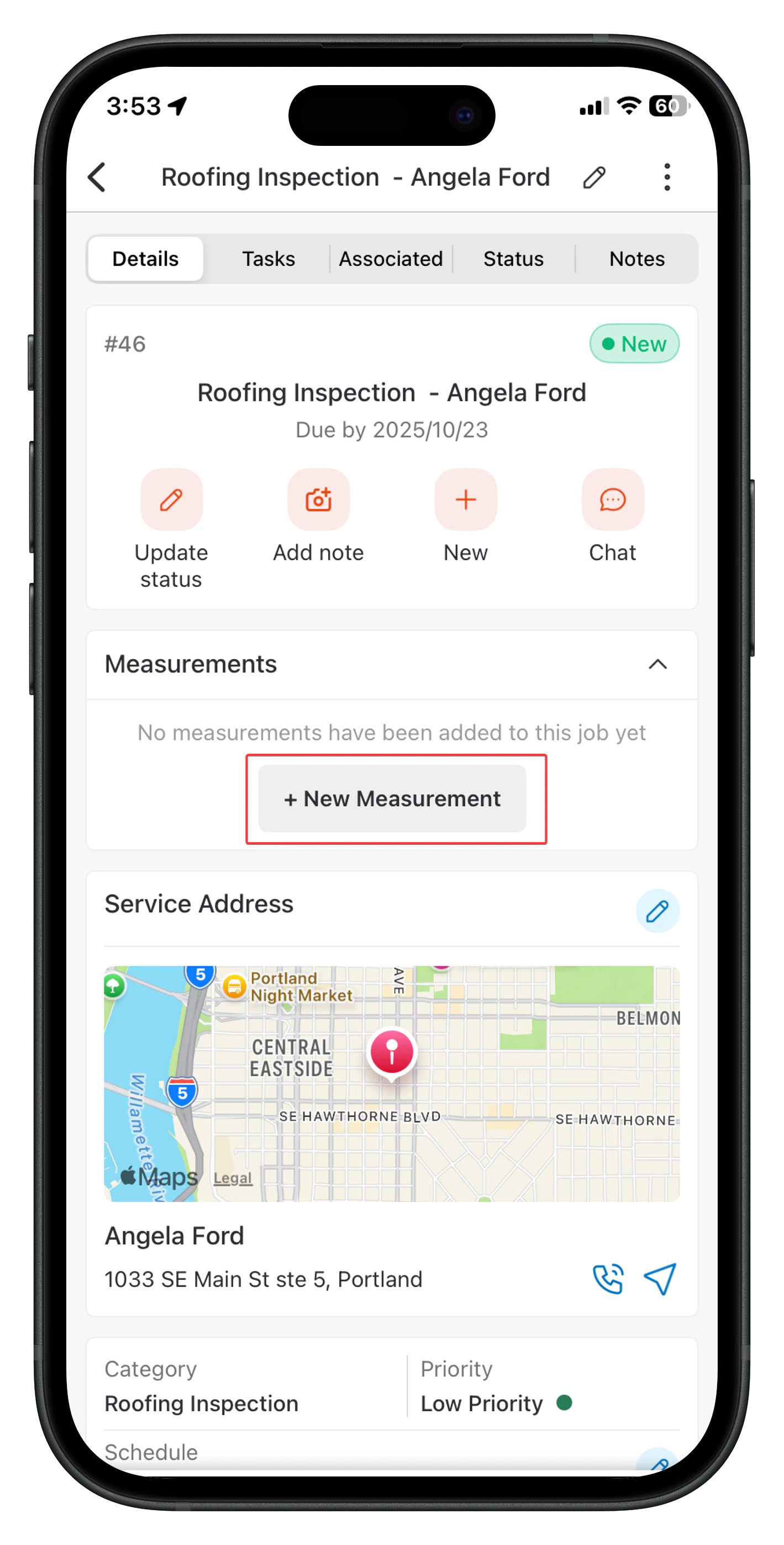 In the App, you can create a new measurement or search for an existing measurement.
**Create New**: Order a new Hover project.
**Search Existing**: Search by project name, ID, or street address, then select the project
### **Create New Measurement**
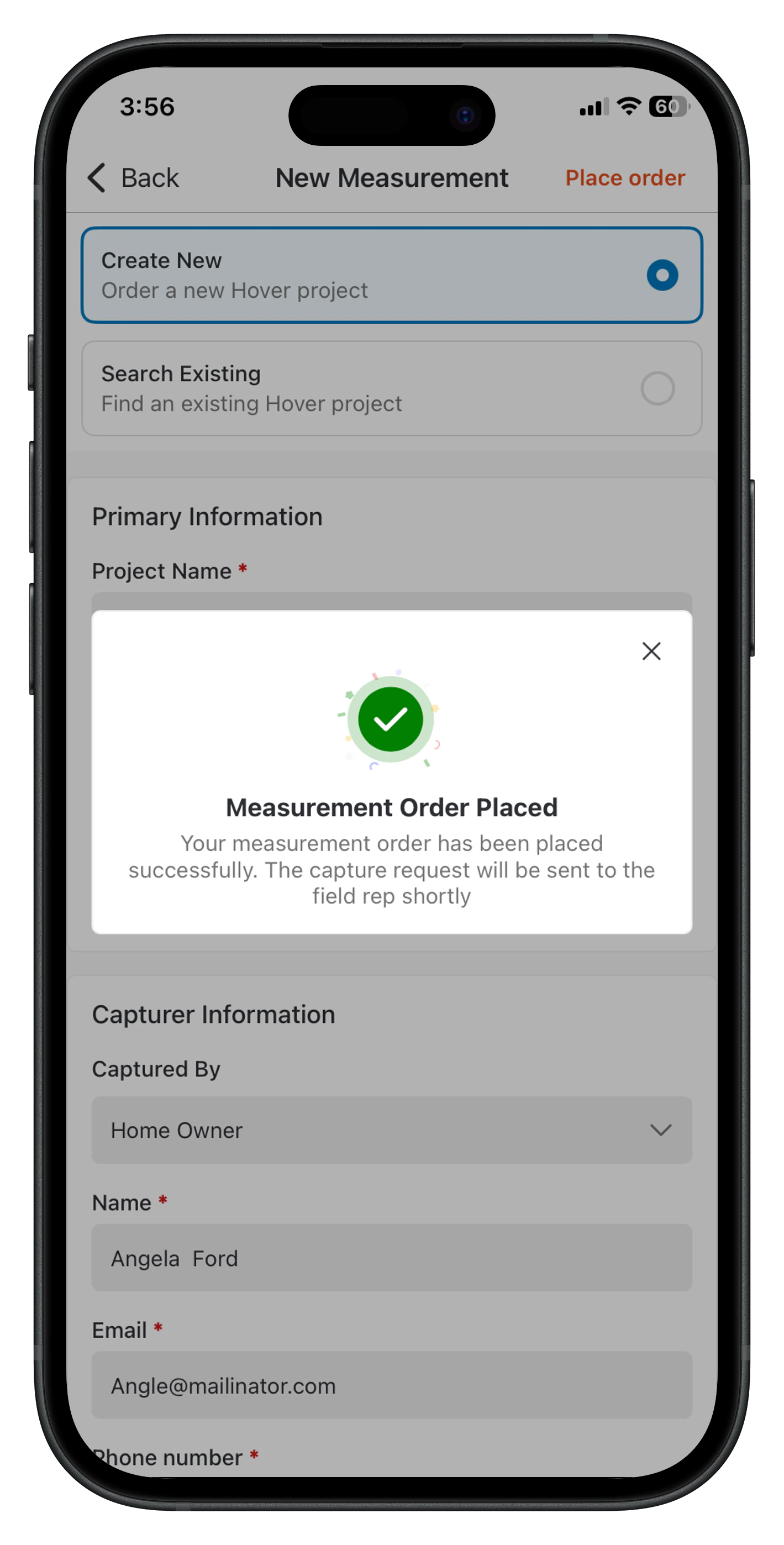
1. Select **Create New**.
2. Fill **Primary Information**:
* **Project Name** – Prefilled from the measurement.
* **Deliverable Type**
* **User Assigned** – Users from Hover.
3. Fill **Capturer Information**:
* **Captured By** – The person who captures the property image.
* **Name** – The name of the image capturer.
* **Email** – The Email ID of the capturer.
* **Phone Number** – The Phone number of the capturer.
4. Tap **Place Order**.
5. Once the order is placed, the field technician will receive the success message.
In the App, you can create a new measurement or search for an existing measurement.
**Create New**: Order a new Hover project.
**Search Existing**: Search by project name, ID, or street address, then select the project
### **Create New Measurement**
1. Select **Create New**.
2. Fill **Primary Information**:
* **Project Name** – Prefilled from the measurement.
* **Deliverable Type**
* **User Assigned** – Users from Hover.
3. Fill **Capturer Information**:
* **Captured By** – The person who captures the property image.
* **Name** – The name of the image capturer.
* **Email** – The Email ID of the capturer.
* **Phone Number** – The Phone number of the capturer.
4. Tap **Place Order**.
5. Once the order is placed, the field technician will receive the success message.
 ### **Select an Existing Project**
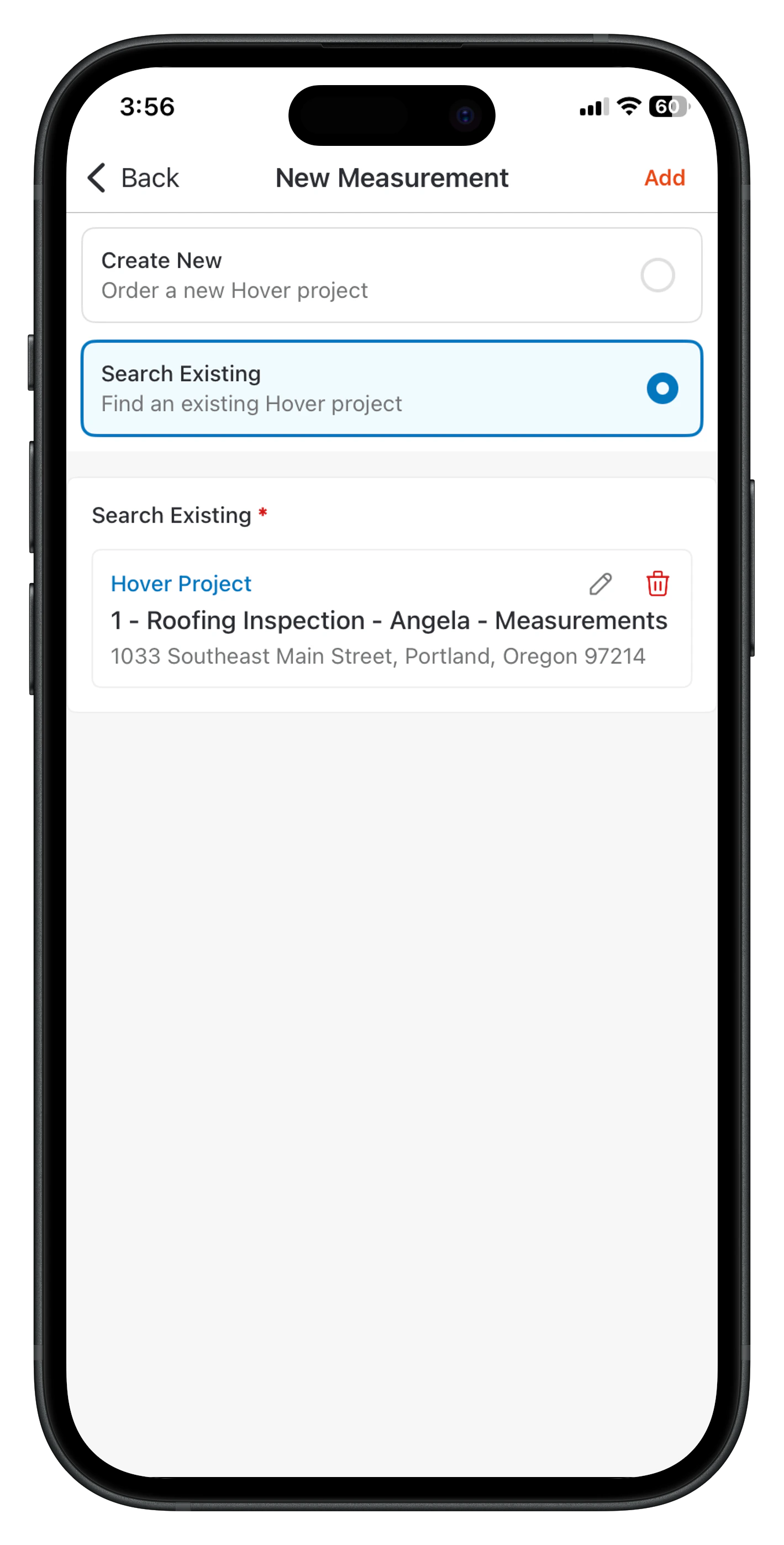
1. Select **Search Existing.**
2. Search by project name, ID, or street address in the search bar.
3. Select the project from the results.
Tap 'Add' to sync measurements and results automatically.
### **Select an Existing Project**
1. Select **Search Existing.**
2. Search by project name, ID, or street address in the search bar.
3. Select the project from the results.
Tap 'Add' to sync measurements and results automatically.
 ### **Viewing Synced Measurements**
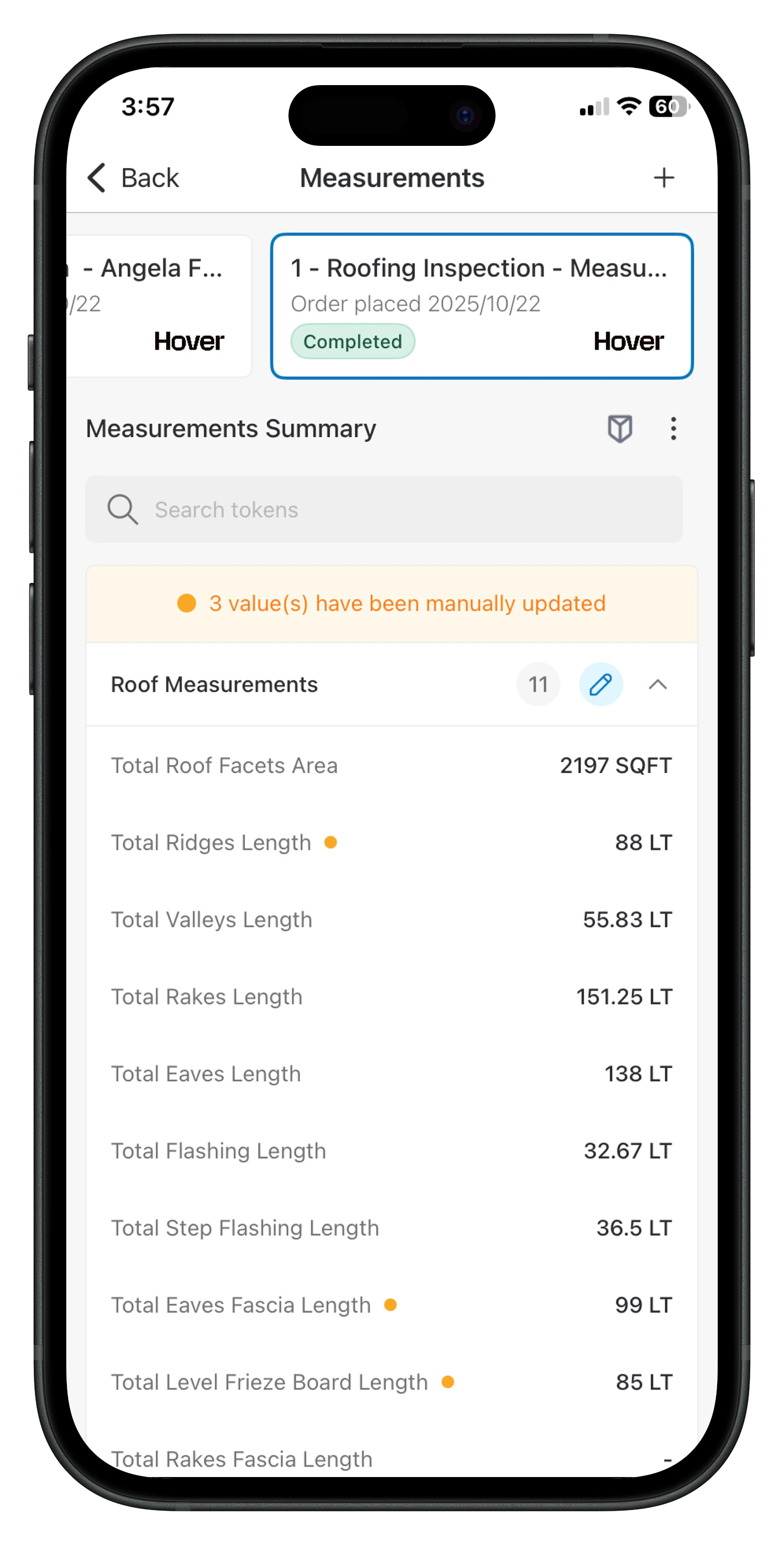
Once synced, view summaries directly on your mobile device, with options to search and filter tokens.
**Steps**
1. In the job, go to the **Measurements** section.
2. Tap the synced measurement.
3. In **Measurement Summary**:
* Use the search bar to filter tokens.
* View **Measurement Categories**.
* Check for manual update indicators: An orange indicator shows the manually updated values.
### **Viewing Synced Measurements**
Once synced, view summaries directly on your mobile device, with options to search and filter tokens.
**Steps**
1. In the job, go to the **Measurements** section.
2. Tap the synced measurement.
3. In **Measurement Summary**:
* Use the search bar to filter tokens.
* View **Measurement Categories**.
* Check for manual update indicators: An orange indicator shows the manually updated values.
 ### **Editing Synced Measurements**
Edit for accuracy post-sync; changes are flagged as manual updates.
**Steps**
1. In **Measurement Summary**, tap the pencil icon next to the **Measurement Category**.
2. In **Edit Measurements**, update fields.
3. Tap **Save**.
### **Editing Synced Measurements**
Edit for accuracy post-sync; changes are flagged as manual updates.
**Steps**
1. In **Measurement Summary**, tap the pencil icon next to the **Measurement Category**.
2. In **Edit Measurements**, update fields.
3. Tap **Save**.
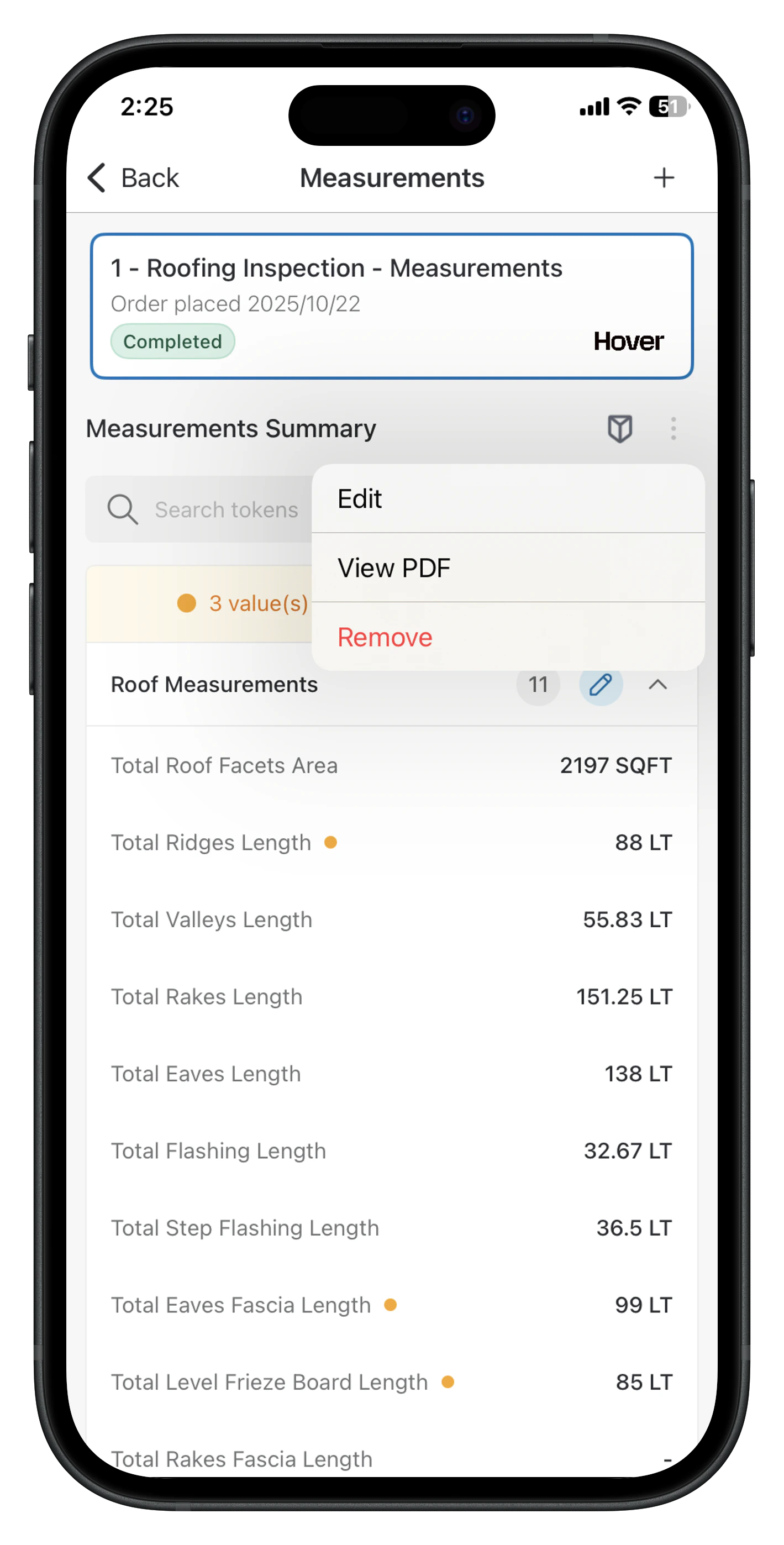 **Note**: Manual edits are flagged with orange dots (•) in the summary and contribute to the manual update count. They don't affect the original Hover data.
 **Downloading Files**
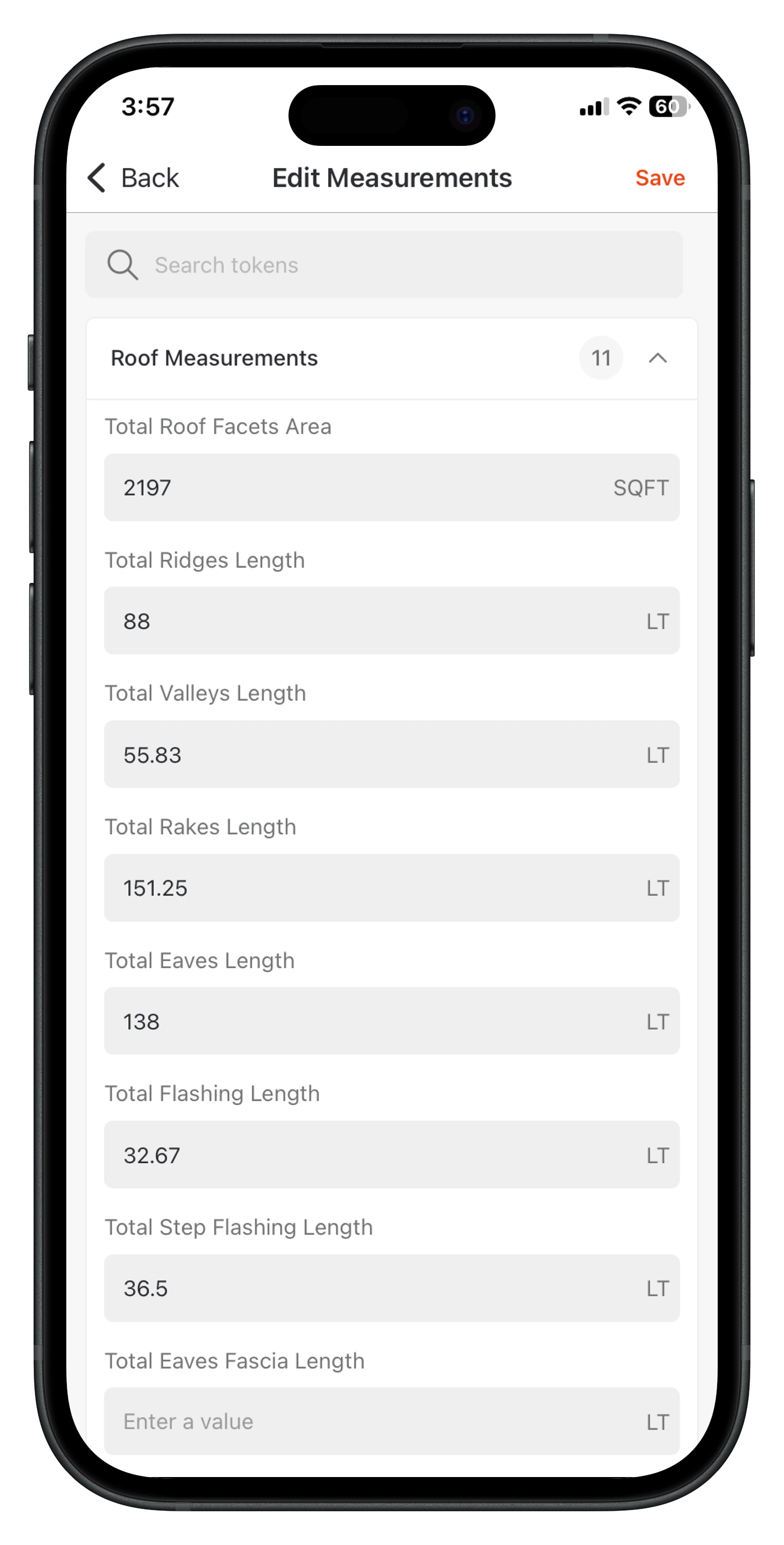
1. In **Measurement Summary**, click the Ellipsis icon (three vertical dots).
2. Select View PDF and save to files.
**Downloading Files**
1. In **Measurement Summary**, click the Ellipsis icon (three vertical dots).
2. Select View PDF and save to files.
 **Removing Measurements**
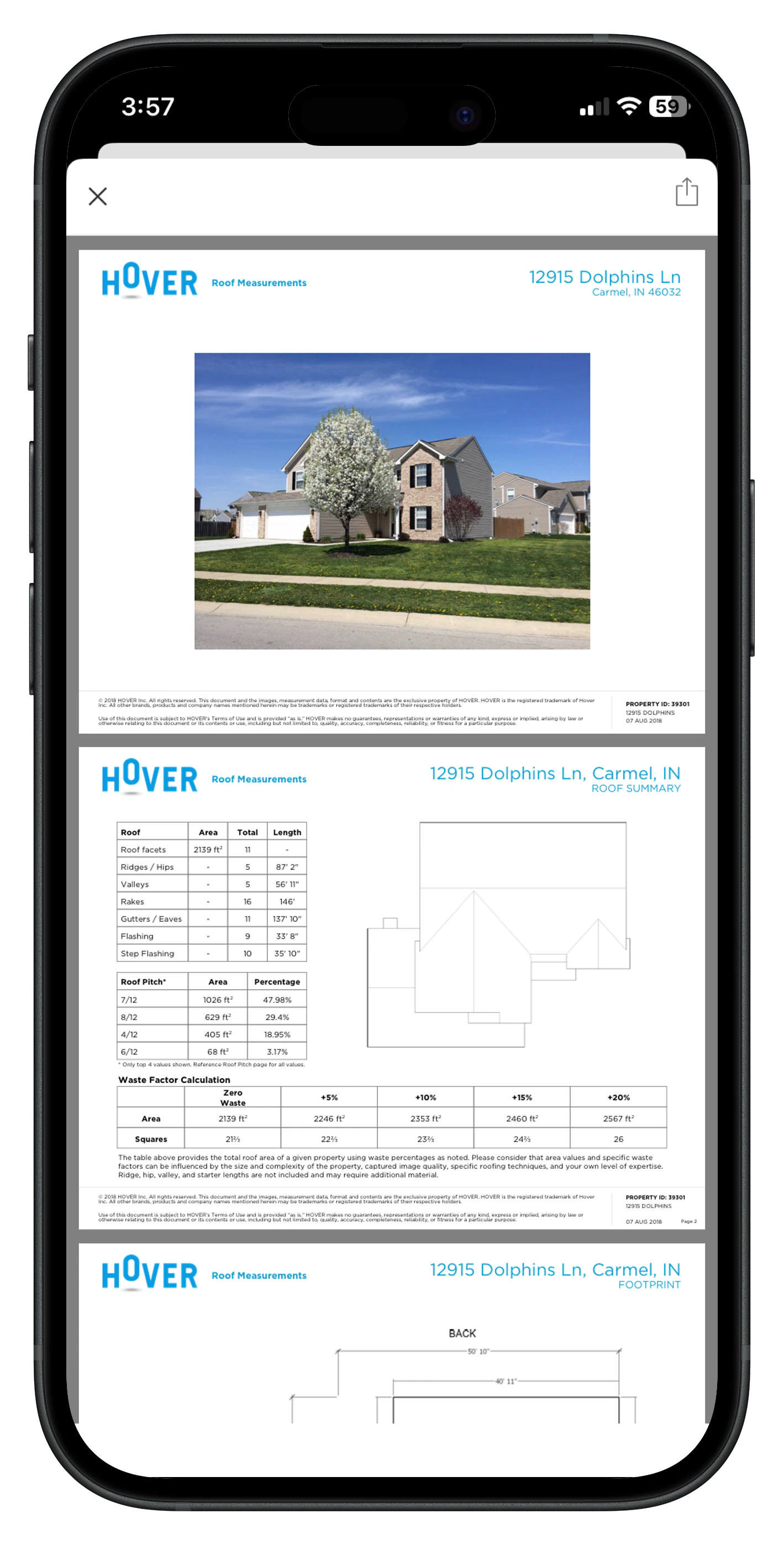
Remove synced measurements from the job without affecting the original Hover project.
**Steps**
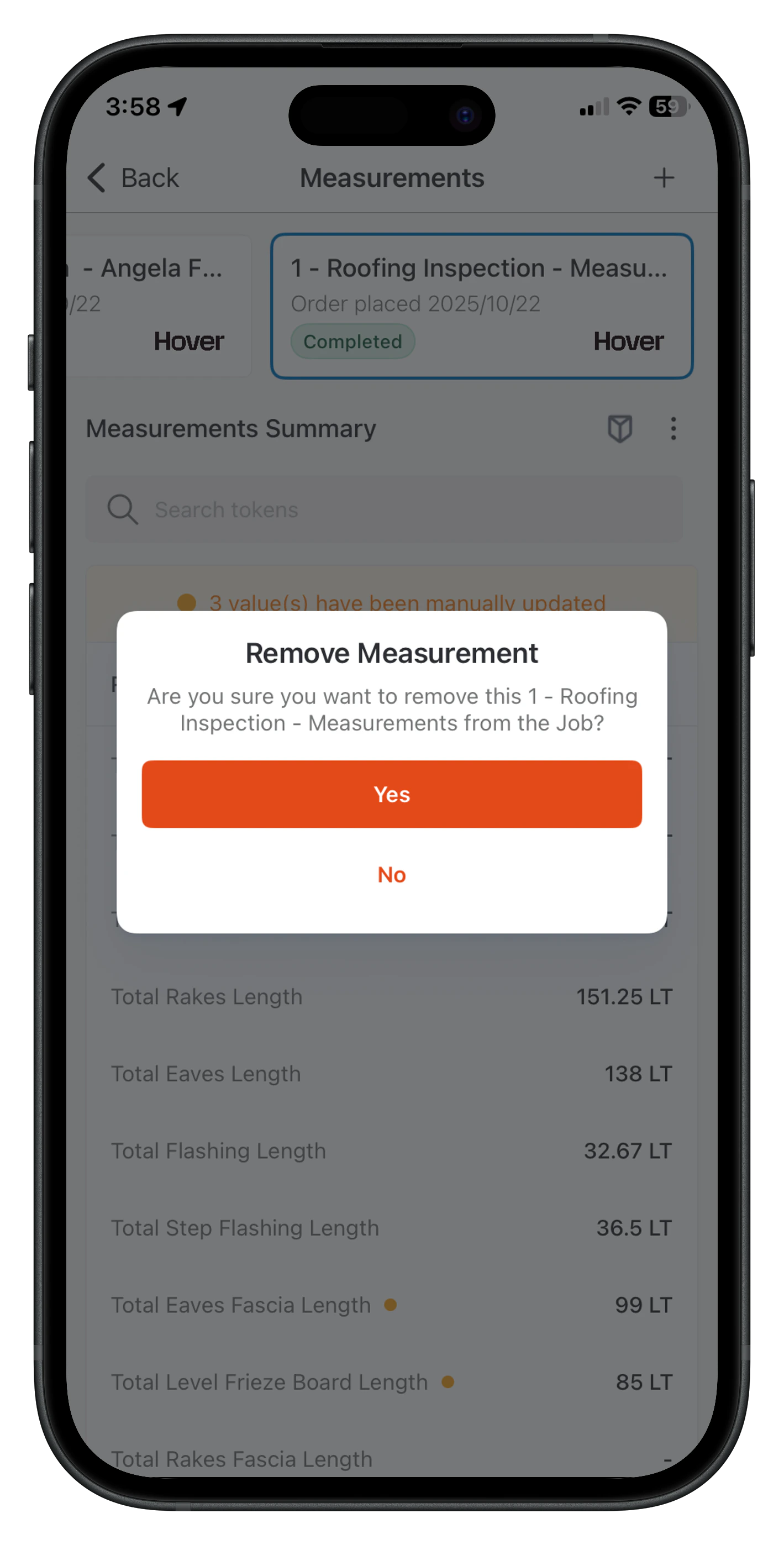
1. In the **Measurements** section, click the Ellipsis icon (three vertical dots) and select Remove.
2. On the confirmation dialog box, click **Yes** to remove the measurement from the job only.
**Removing Measurements**
Remove synced measurements from the job without affecting the original Hover project.
**Steps**
1. In the **Measurements** section, click the Ellipsis icon (three vertical dots) and select Remove.
2. On the confirmation dialog box, click **Yes** to remove the measurement from the job only.
 ## **Frequently Asked Questions (FAQs)**
**Q: How long does Hover syncing take on mobile?**
A: Check status badge.
**Q: Why are some values orange in the summary?**
A: Orange dots (•) and banners indicate manual edits post-sync (e.g., "3 value(s) have been manually updated").
**Q: How does token search work?**
A: Type keywords in the search bar to filter and show relevant metrics only (e.g., Total Valleys Length).
**Q: Does mobile support manual entry alongside Hover?**
A: Yes; select **Manual Entry** in the New Measurement modal for direct input.
**Q: How do I troubleshoot failed orders?**
A: Ensure the address is accurate; contact support if the status doesn't update.
For web setup or advanced config, refer to [Zuper Hover Integration (Web)](https://docs.zuper.co/Integrations/Measurements_and_estimations/Zuper_Hover). Contact [Zuper support ](support@zuper.co)for issues.
## **Frequently Asked Questions (FAQs)**
**Q: How long does Hover syncing take on mobile?**
A: Check status badge.
**Q: Why are some values orange in the summary?**
A: Orange dots (•) and banners indicate manual edits post-sync (e.g., "3 value(s) have been manually updated").
**Q: How does token search work?**
A: Type keywords in the search bar to filter and show relevant metrics only (e.g., Total Valleys Length).
**Q: Does mobile support manual entry alongside Hover?**
A: Yes; select **Manual Entry** in the New Measurement modal for direct input.
**Q: How do I troubleshoot failed orders?**
A: Ensure the address is accurate; contact support if the status doesn't update.
For web setup or advanced config, refer to [Zuper Hover Integration (Web)](https://docs.zuper.co/Integrations/Measurements_and_estimations/Zuper_Hover). Contact [Zuper support ](support@zuper.co)for issues.