> ## Documentation Index
> Fetch the complete documentation index at: https://zuperinc-section23.mintlify.site/llms.txt
> Use this file to discover all available pages before exploring further.
# RoofScope
## Overview
The Zuper and RoofScope integration enables roofing service teams to manage property measurements seamlessly, all within the Zuper platform. With this integration, you can:
* Order a new measurement directly from a Zuper job.
* Sync existing RoofScope projects to Zuper jobs.
* View, edit, and download measurement data.
* Track all measurements in Zuper’s Measurements Tab.
This integration enhances accuracy, visibility, and efficiency across your roofing workflow from measurement to execution.
## **Plans Applicable**
* You need to have a valid **Growth**, **Advantage**, or **Scale** plan in RoofScope to enable measurements in Zuper.
* The customers with **Core** or **Premium** plans on Zuper will have access to the RoofScope integration.
## **Zuper Prerequisites**
* Users must have the “**Order Measurements from External Provider**” role permission enabled to place measurement orders with RoofScope.
* Ensure your settings workspace is set up with the Jobs module enabled.
* For integrations, you will need an API Key and a Scope Token from RoofScope.
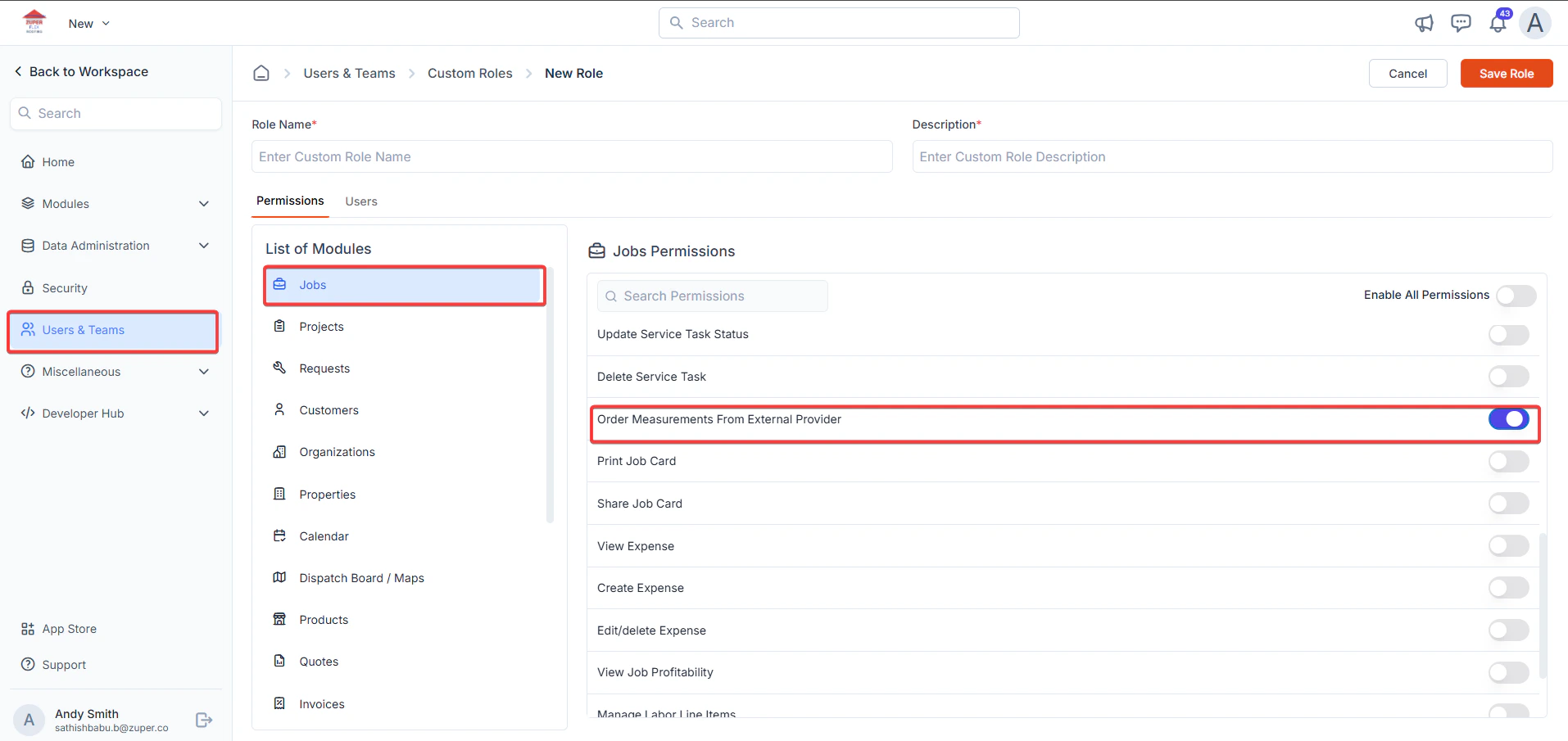 Once set, users with this role can initiate measurement orders from job details.
### **Managing Measurement Tokens**
Measurement tokens define the specific data points (e.g., lengths, areas) that Zuper pulls from external providers. You can enable or disable these to tailor what appears in your Measurement object in the job details page.
Read more [**here**](https://docs.zuper.co/Settings/Modules/Jobs/Configuring_Measurements)
## How to connect the RoofScope Integration?
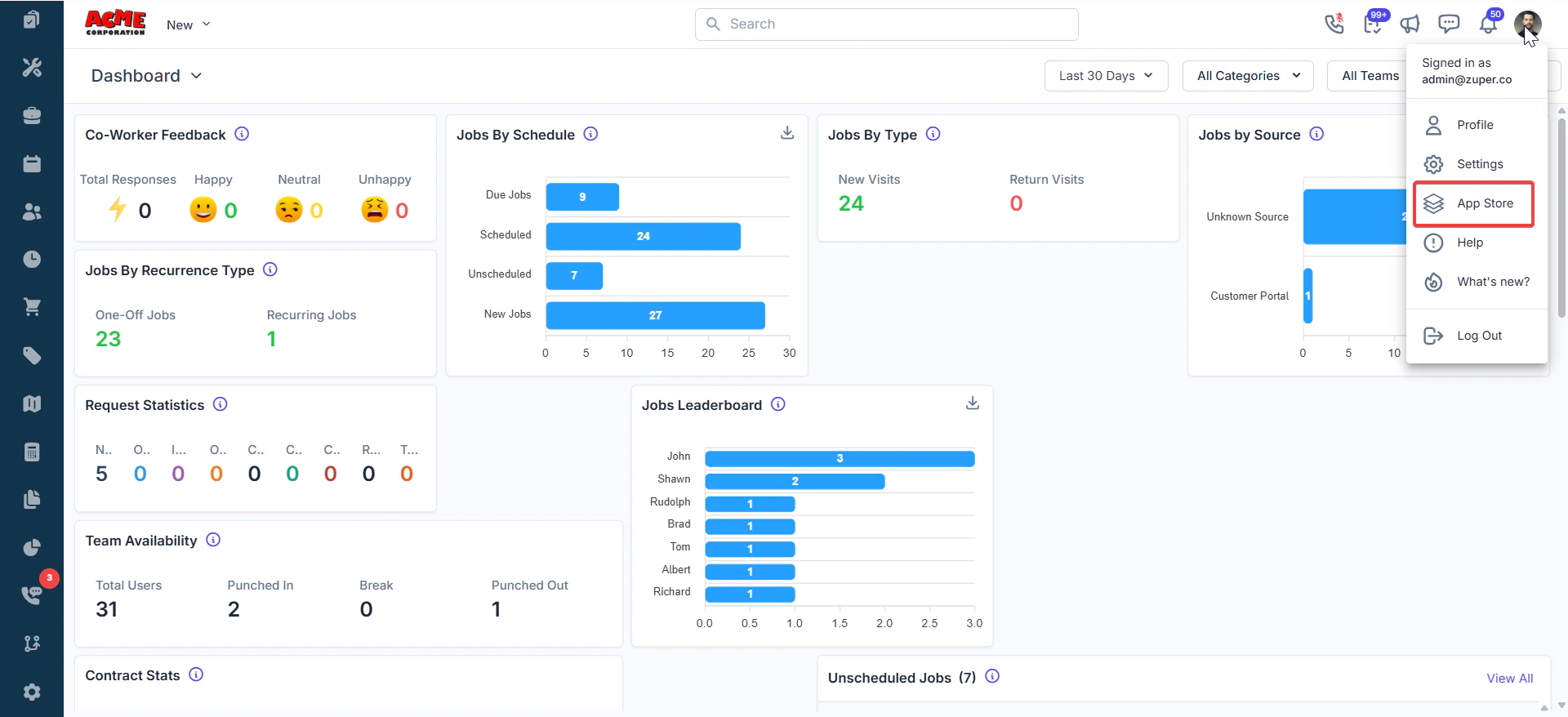
1. Log in to your Zuper app, click the **User** icon, and tap on the **App Store**.
Once set, users with this role can initiate measurement orders from job details.
### **Managing Measurement Tokens**
Measurement tokens define the specific data points (e.g., lengths, areas) that Zuper pulls from external providers. You can enable or disable these to tailor what appears in your Measurement object in the job details page.
Read more [**here**](https://docs.zuper.co/Settings/Modules/Jobs/Configuring_Measurements)
## How to connect the RoofScope Integration?
1. Log in to your Zuper app, click the **User** icon, and tap on the **App Store**.
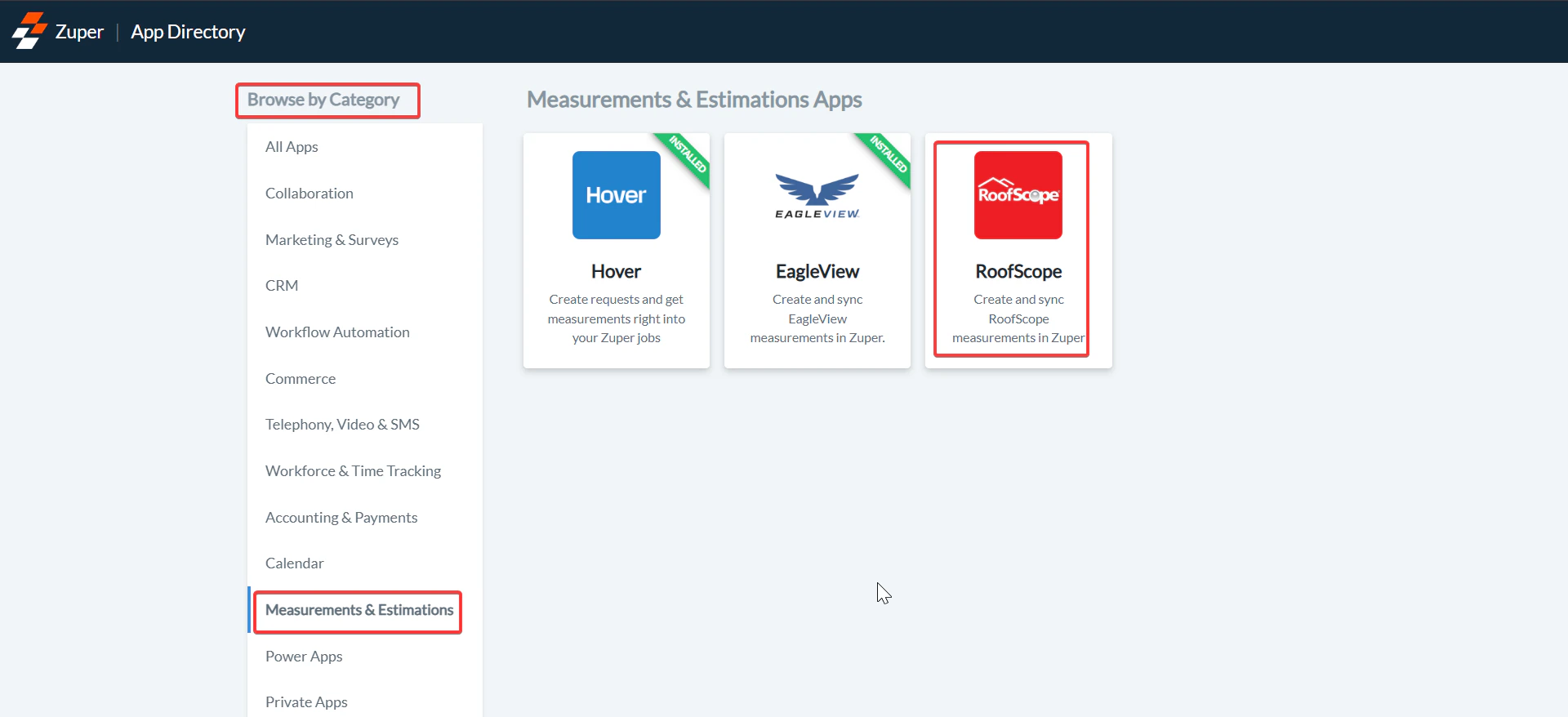
 2. Under the **Browse by Category**, select the **Measurements & Estimations** option and choose **RoofScope**.
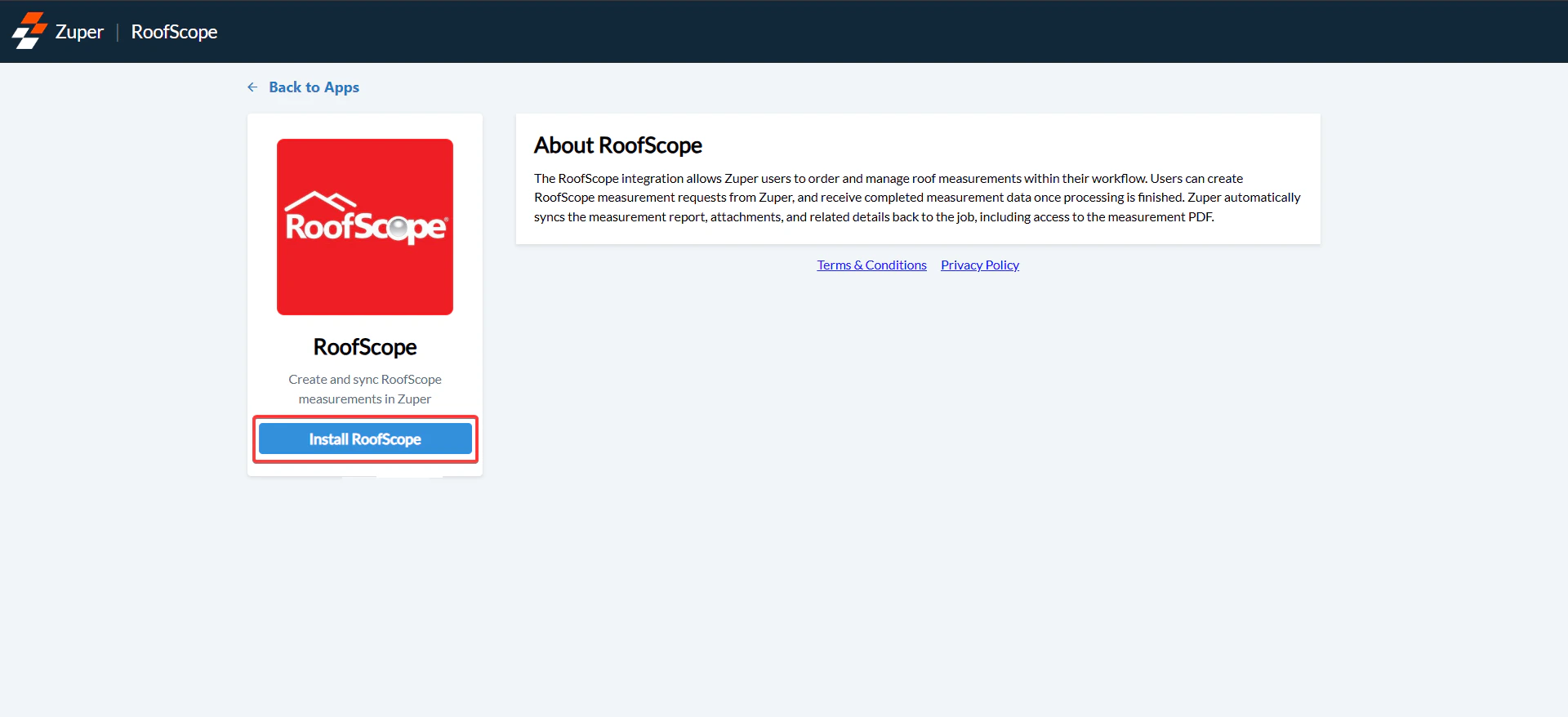
 3. On the RoofScope app page, click “**Configure Settings**.”
 4. Fill in the following details:
a. **RoofScope API Key** - To obtain an API key from RoofScope, email your request to [support@myscopetech.com](mailto:support@myscopetech.com).
b. **RoofScope Scope Token** – Login to RoofScope. From the top right corner, under “**My Details**,” copy the “**Scope API Token**.”
Note: The RoofScope token is valid for only one year.
c. **How to Generate a Zuper API Key**
You need a Zuper API Key to complete RoofScope setup:
Zuper API Keys are essential for securely authenticating and authorizing access to the Zuper API. These keys enable seamless integration with Zuper’s services, allowing developers to build robust applications that leverage real-time data and functionality. Click [**here**](https://docs.zuper.co/Settings/Developer_Hub/API_Keys) to know more.
4. **Navigation**: Settings -> Developer Hub -> API Keys
Enter your Zuper API Key.
Click “**Update**” to activate RoofScope.
4. Fill in the following details:
a. **RoofScope API Key** - To obtain an API key from RoofScope, email your request to [support@myscopetech.com](mailto:support@myscopetech.com).
b. **RoofScope Scope Token** – Login to RoofScope. From the top right corner, under “**My Details**,” copy the “**Scope API Token**.”
Note: The RoofScope token is valid for only one year.
c. **How to Generate a Zuper API Key**
You need a Zuper API Key to complete RoofScope setup:
Zuper API Keys are essential for securely authenticating and authorizing access to the Zuper API. These keys enable seamless integration with Zuper’s services, allowing developers to build robust applications that leverage real-time data and functionality. Click [**here**](https://docs.zuper.co/Settings/Developer_Hub/API_Keys) to know more.
4. **Navigation**: Settings -> Developer Hub -> API Keys
Enter your Zuper API Key.
Click “**Update**” to activate RoofScope.
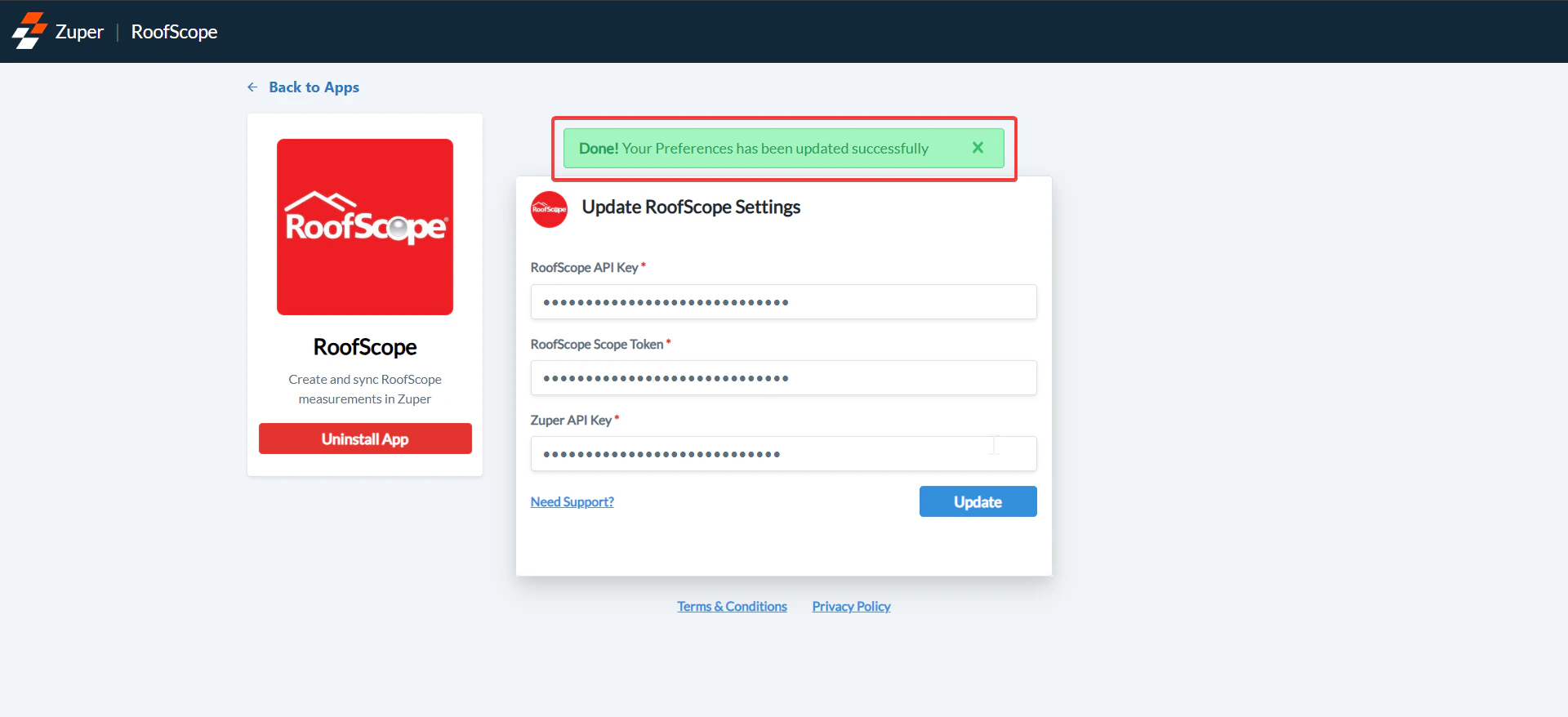 Your RoofScope integration is now active and ready to use!
## How to Order a New RoofScope Measurement?
* From any job in Zuper, you can request a new measurement:
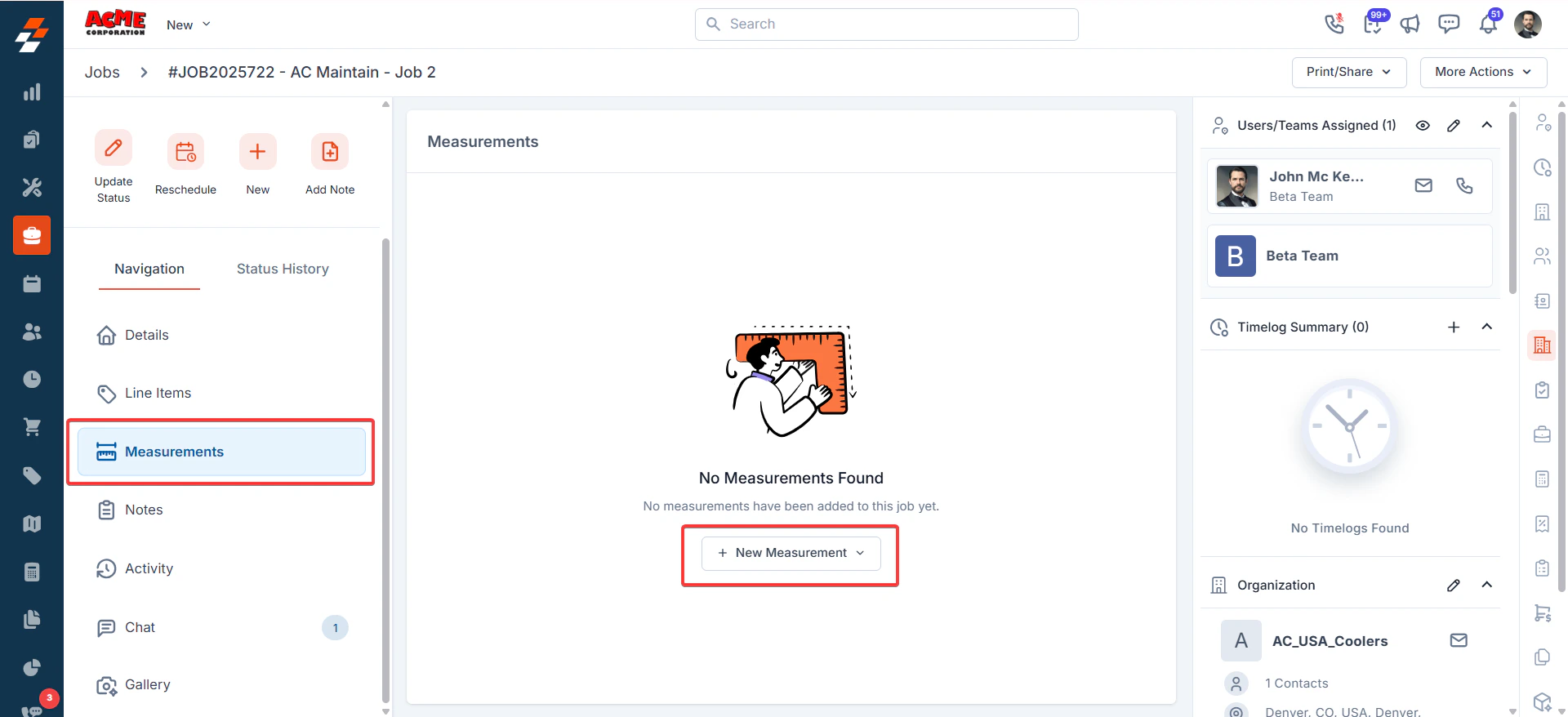
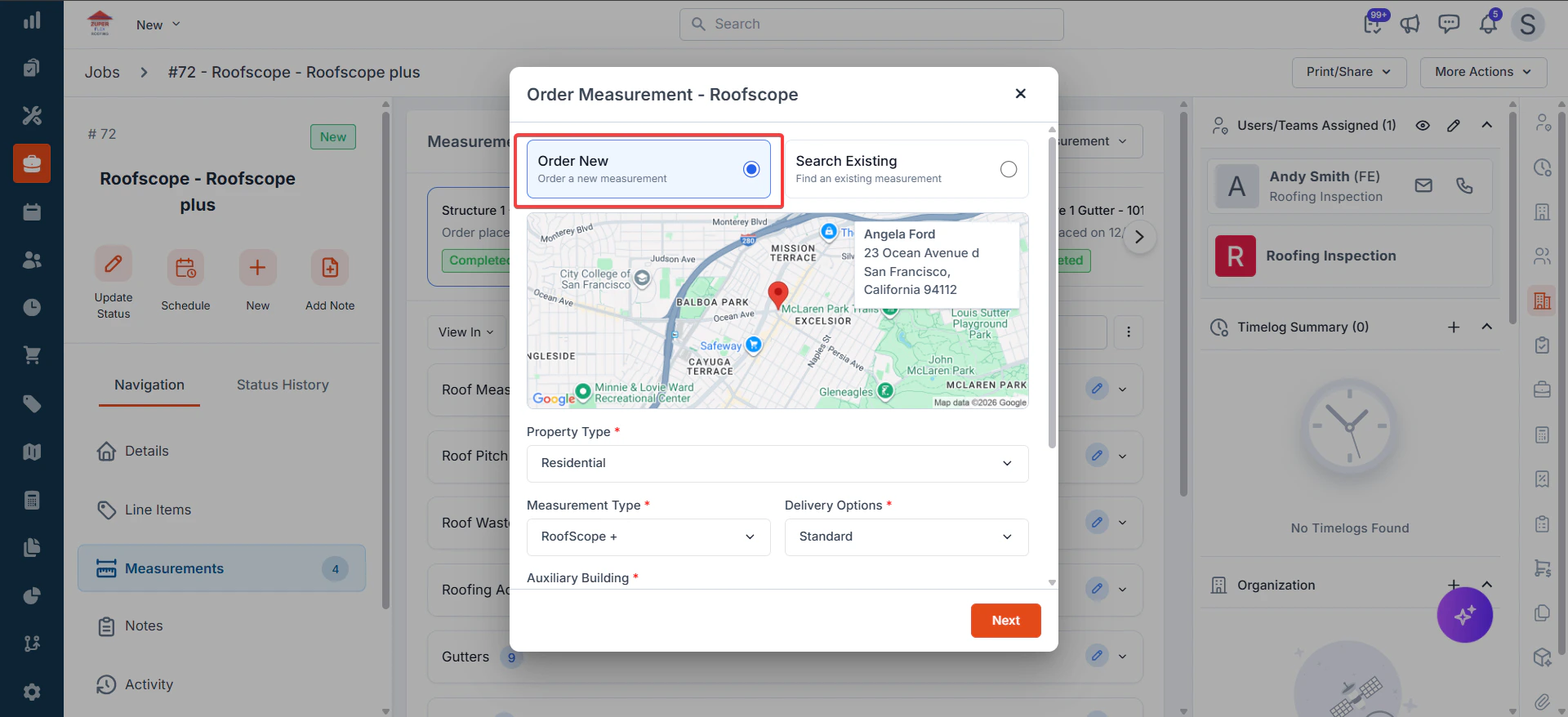
* Open the Job Details page. Go to the Measurement tab.
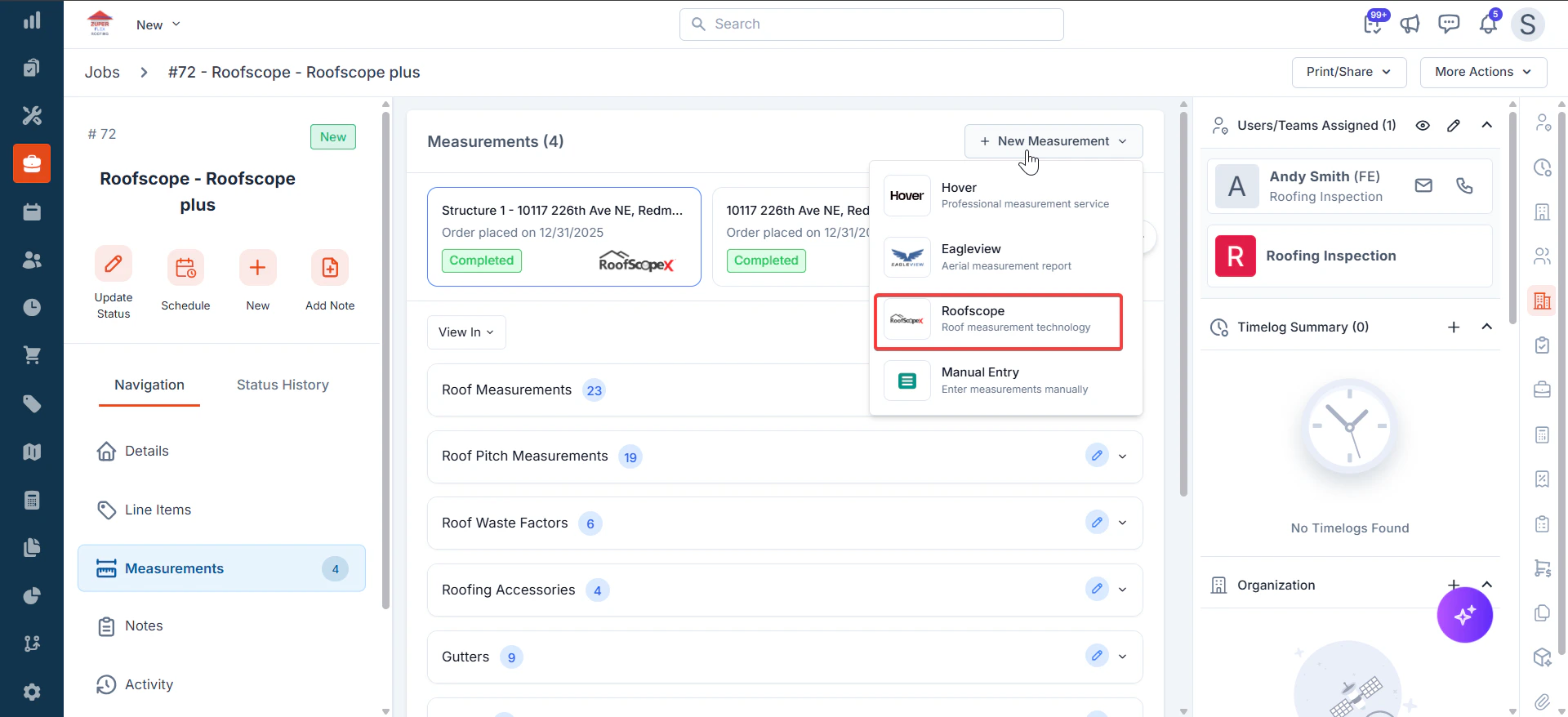
* Click + New Measurement and select “**RoofScope**” from the context menu.
Your RoofScope integration is now active and ready to use!
## How to Order a New RoofScope Measurement?
* From any job in Zuper, you can request a new measurement:
* Open the Job Details page. Go to the Measurement tab.
* Click + New Measurement and select “**RoofScope**” from the context menu.
 ### **Order New Measurement**
Fill in the following details:
* **Property Type (Mandatory) –** Choose the applicable property type from the dropdown - Residential or Commercial.
* **Measurement Type (Mandatory)** – Choose the type of measurement from the dropdown – **RoofscopeX**, **RoofScope**,**RoofScope +** , **GutterScope**, and **SidingScope**.
* **Deliverable Options (Mandatory)** – Select the delivery options from the dropdown: **Standard** and **Rush**.
* **Auxiliary Building (Mandatory)** – Enter the number of auxiliary buildings covered by this measurement.
* Additional Note for Technicians – Enter the additional information.
Click “**Next.**”
### **Order New Measurement**
Fill in the following details:
* **Property Type (Mandatory) –** Choose the applicable property type from the dropdown - Residential or Commercial.
* **Measurement Type (Mandatory)** – Choose the type of measurement from the dropdown – **RoofscopeX**, **RoofScope**,**RoofScope +** , **GutterScope**, and **SidingScope**.
* **Deliverable Options (Mandatory)** – Select the delivery options from the dropdown: **Standard** and **Rush**.
* **Auxiliary Building (Mandatory)** – Enter the number of auxiliary buildings covered by this measurement.
* Additional Note for Technicians – Enter the additional information.
Click “**Next.**”
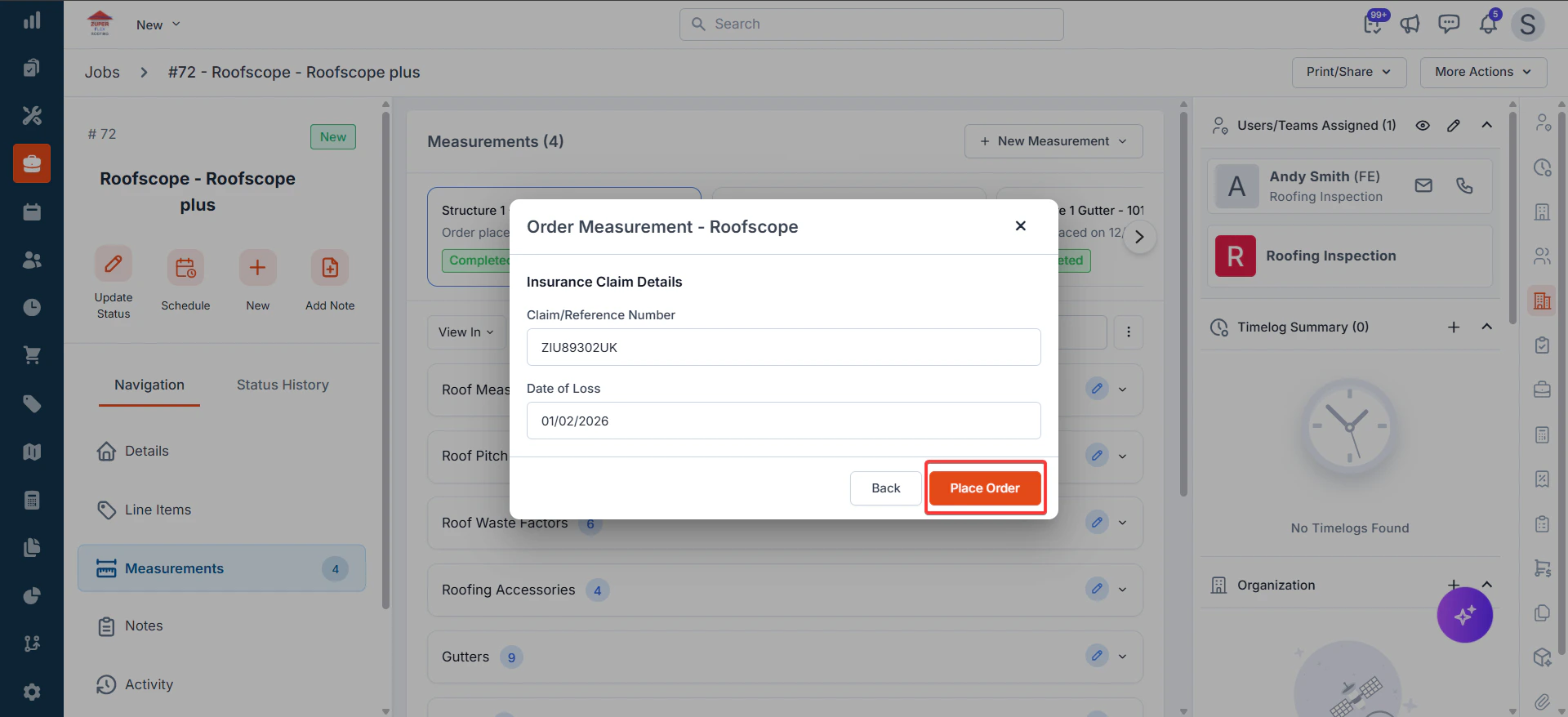
 ## Insurance Claim Details
* Claim / Reference Number – Enter the insurance claim number.
* Date of loss – Enter the date of damage.
After reviewing all fields, click **Place Order**.\
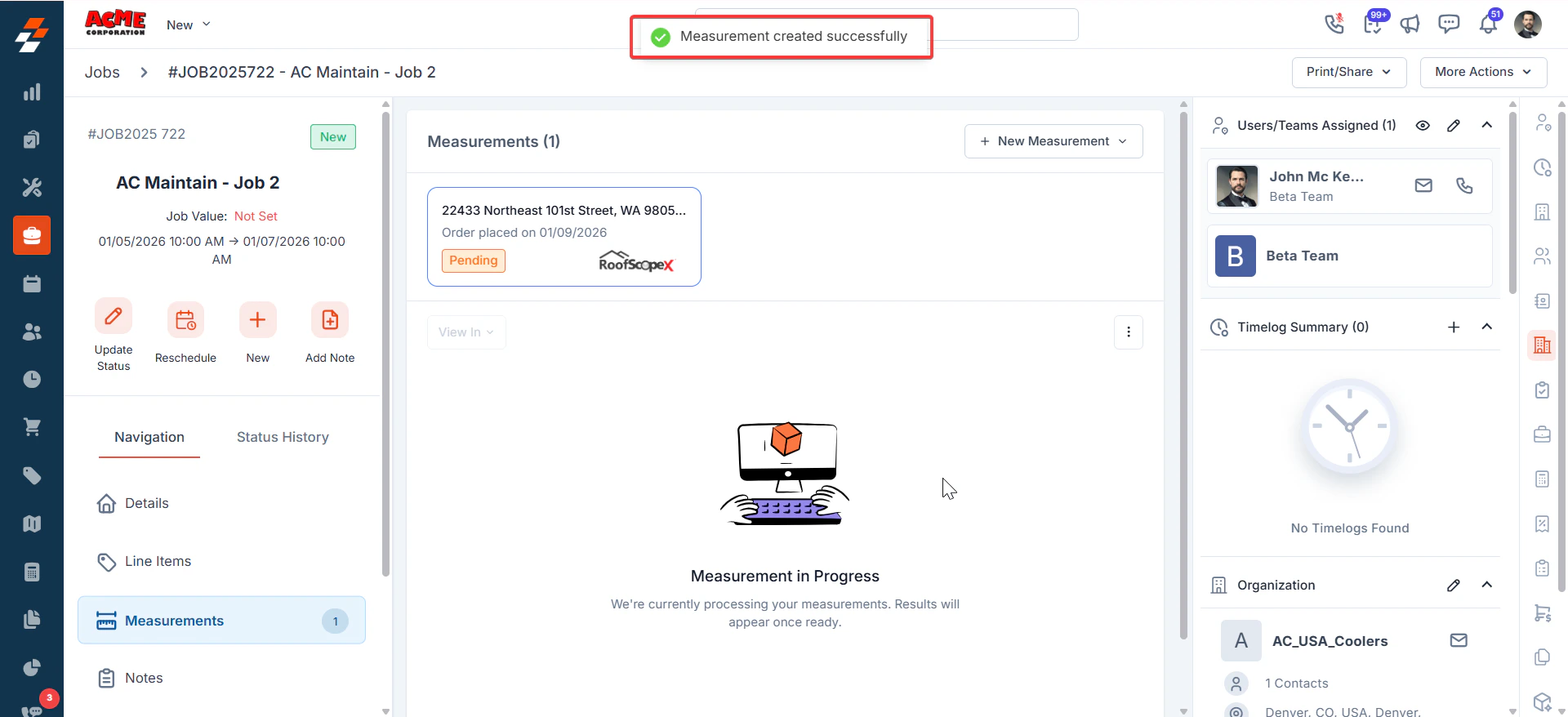
The new measurement request will appear in the Measurement tab as '**In Progress**' and will be moved to the '**Completed**' status.
## Insurance Claim Details
* Claim / Reference Number – Enter the insurance claim number.
* Date of loss – Enter the date of damage.
After reviewing all fields, click **Place Order**.\
The new measurement request will appear in the Measurement tab as '**In Progress**' and will be moved to the '**Completed**' status.
 ## **Select an Existing Project**
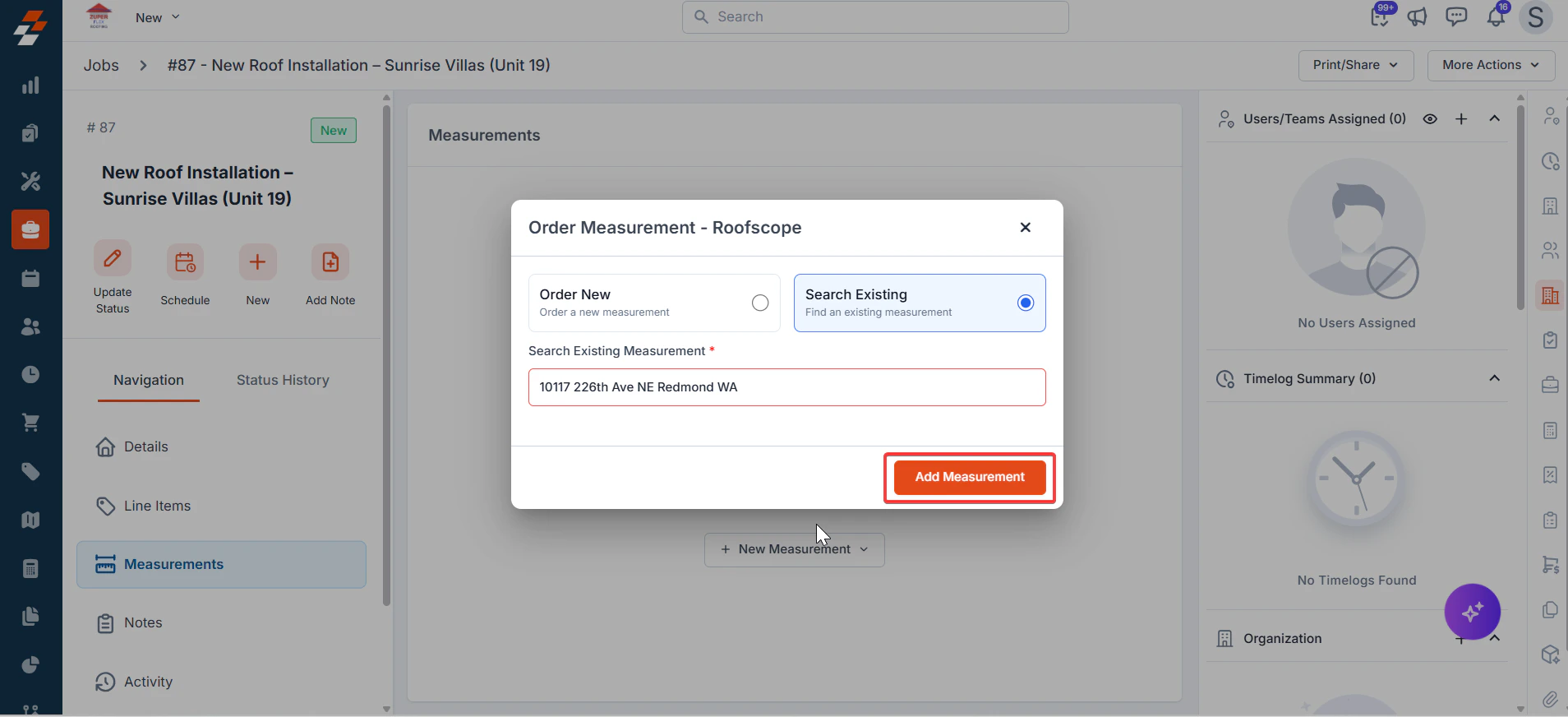
If you’ve already created a RoofScope project for the property, you can link it instead of starting fresh:
* The service address auto-fills in the search bar.
* RoofScope displays all matching measurements for that address.
* Select the desired measurement.
* It instantly syncs with the Zuper job.
## **Select an Existing Project**
If you’ve already created a RoofScope project for the property, you can link it instead of starting fresh:
* The service address auto-fills in the search bar.
* RoofScope displays all matching measurements for that address.
* Select the desired measurement.
* It instantly syncs with the Zuper job.
 ## Viewing Synced Measurements
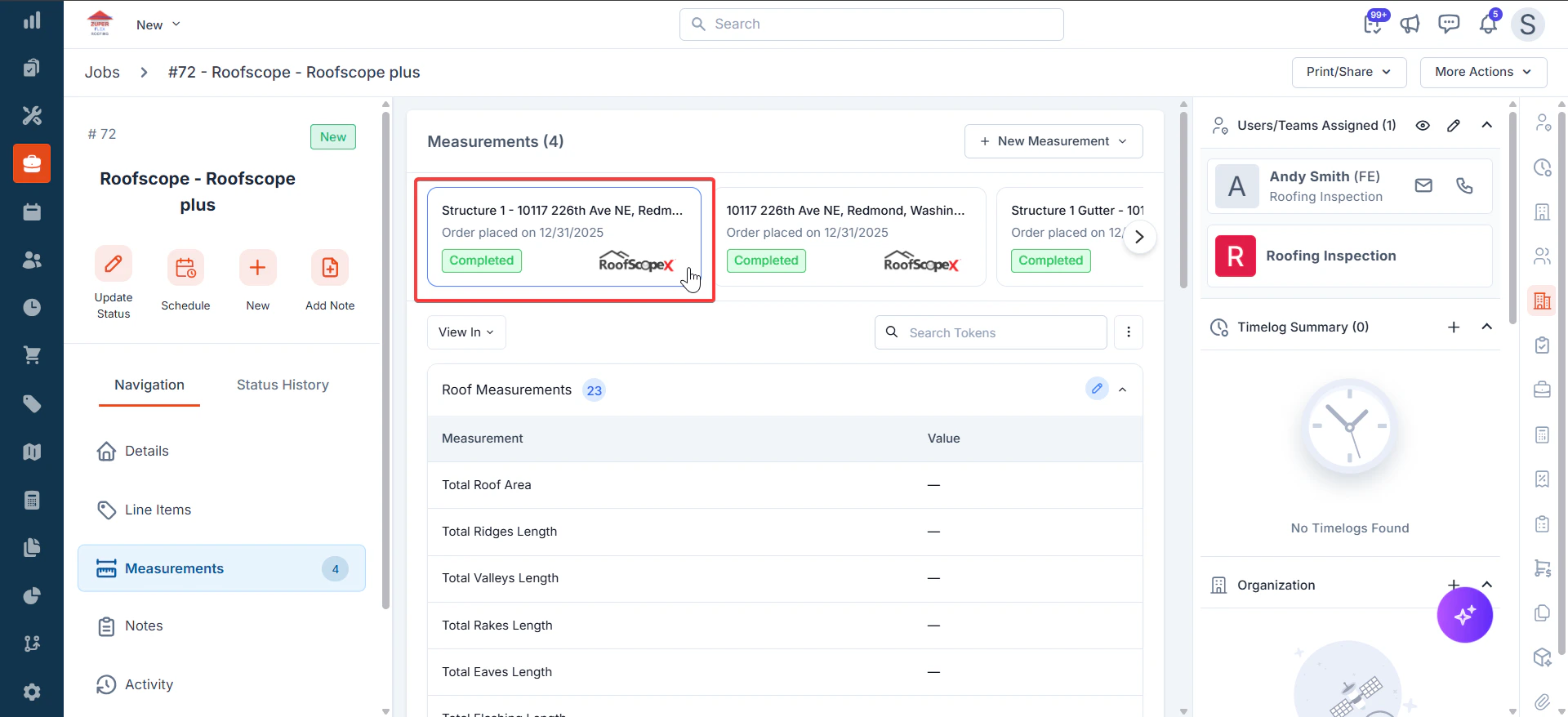
When RoofScope measurements are available, they automatically sync to Zuper.
Once measurements are synced back from RoofScope, you can view and manage them in Zuper.
**Viewing Synced Measurements**
* Go to the **Measurement** tab.
* Click the **Completed Measurement Card**.
* Review synced values mapped to Zuper’s standard measurement tokens.
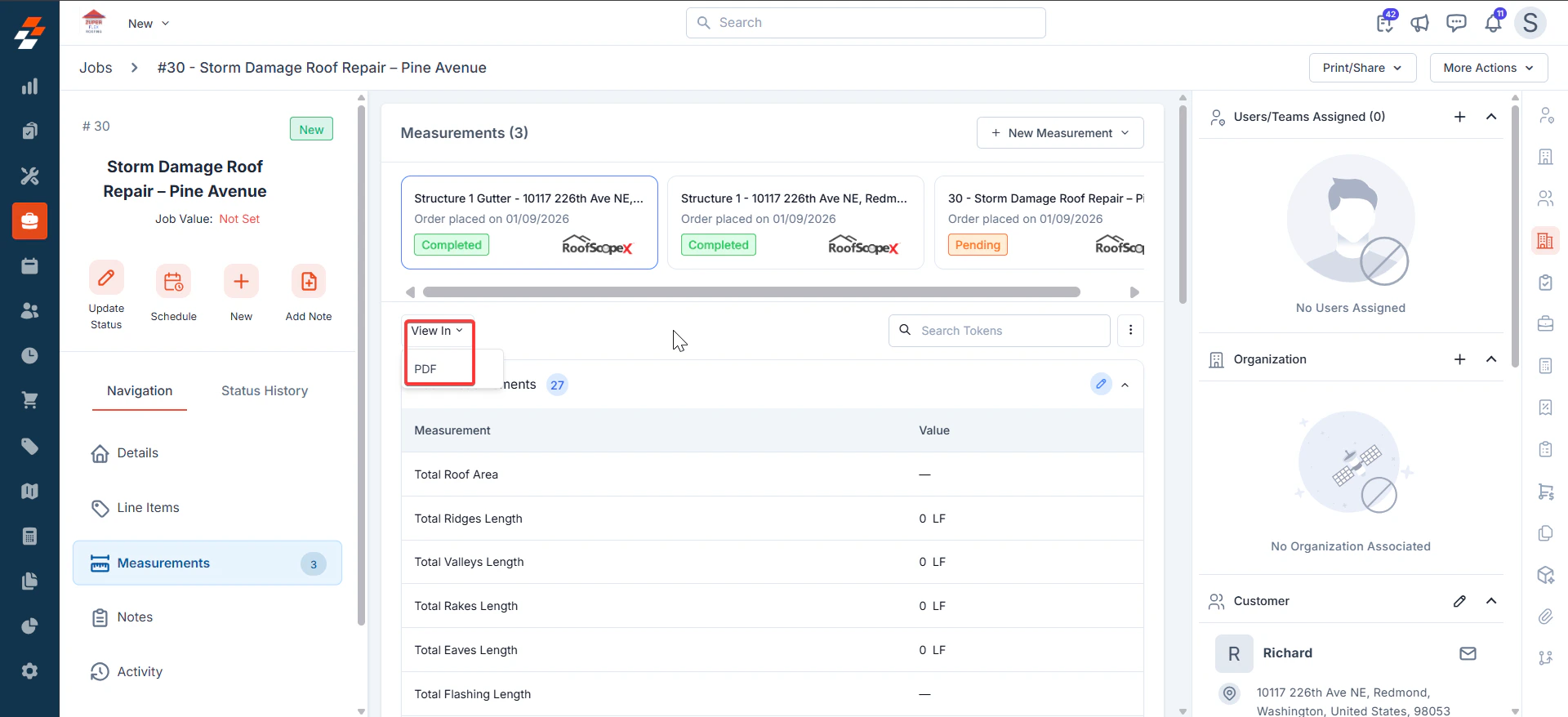
* Click "**View In**" and choose "**PDF**."
## Viewing Synced Measurements
When RoofScope measurements are available, they automatically sync to Zuper.
Once measurements are synced back from RoofScope, you can view and manage them in Zuper.
**Viewing Synced Measurements**
* Go to the **Measurement** tab.
* Click the **Completed Measurement Card**.
* Review synced values mapped to Zuper’s standard measurement tokens.
* Click "**View In**" and choose "**PDF**."
 Click the “**Kebab**” menu to “**Edit**” or “**Remove**” the measurement tokens.
### **Edit the synced measurements.**
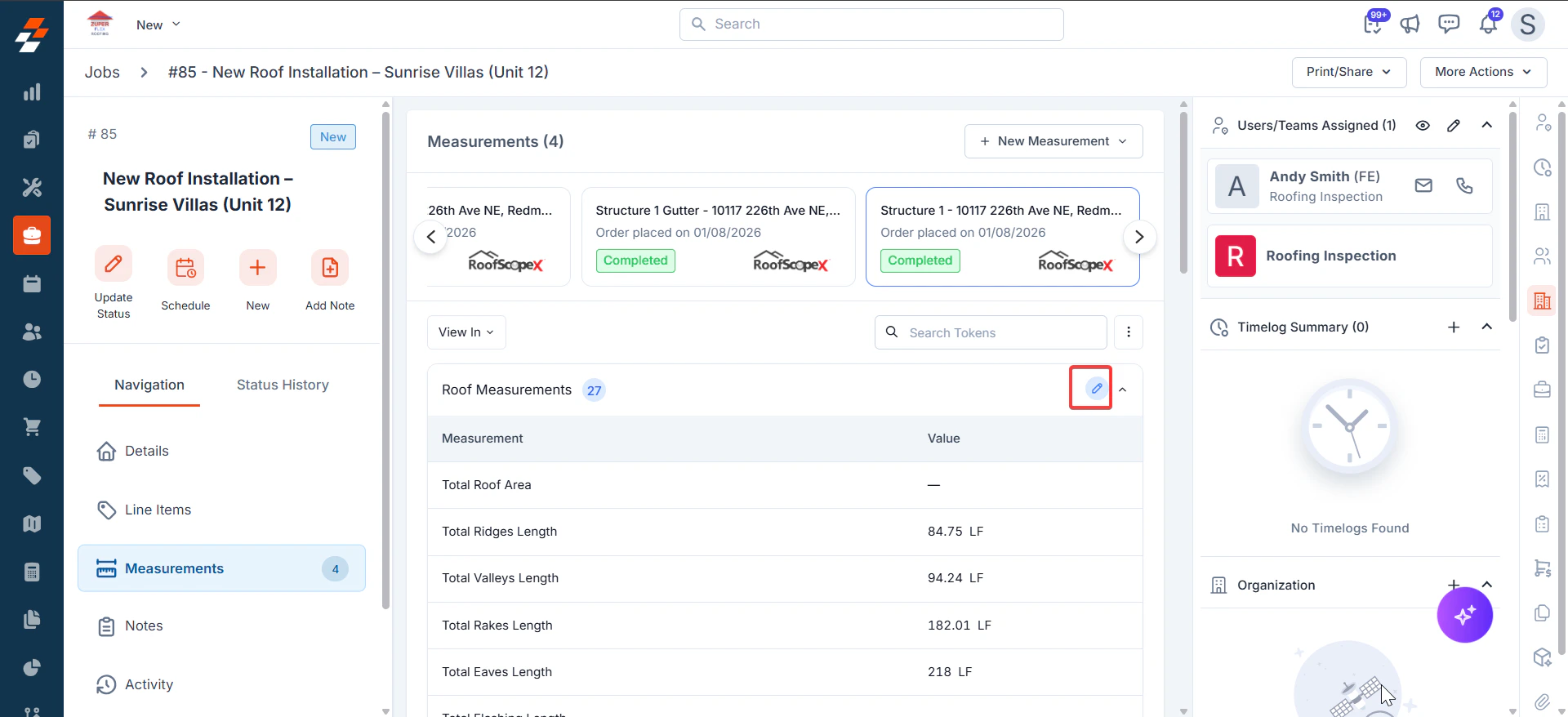
* Click the **✏️ Edit** icon or open the **⋮ menu → Edit**.
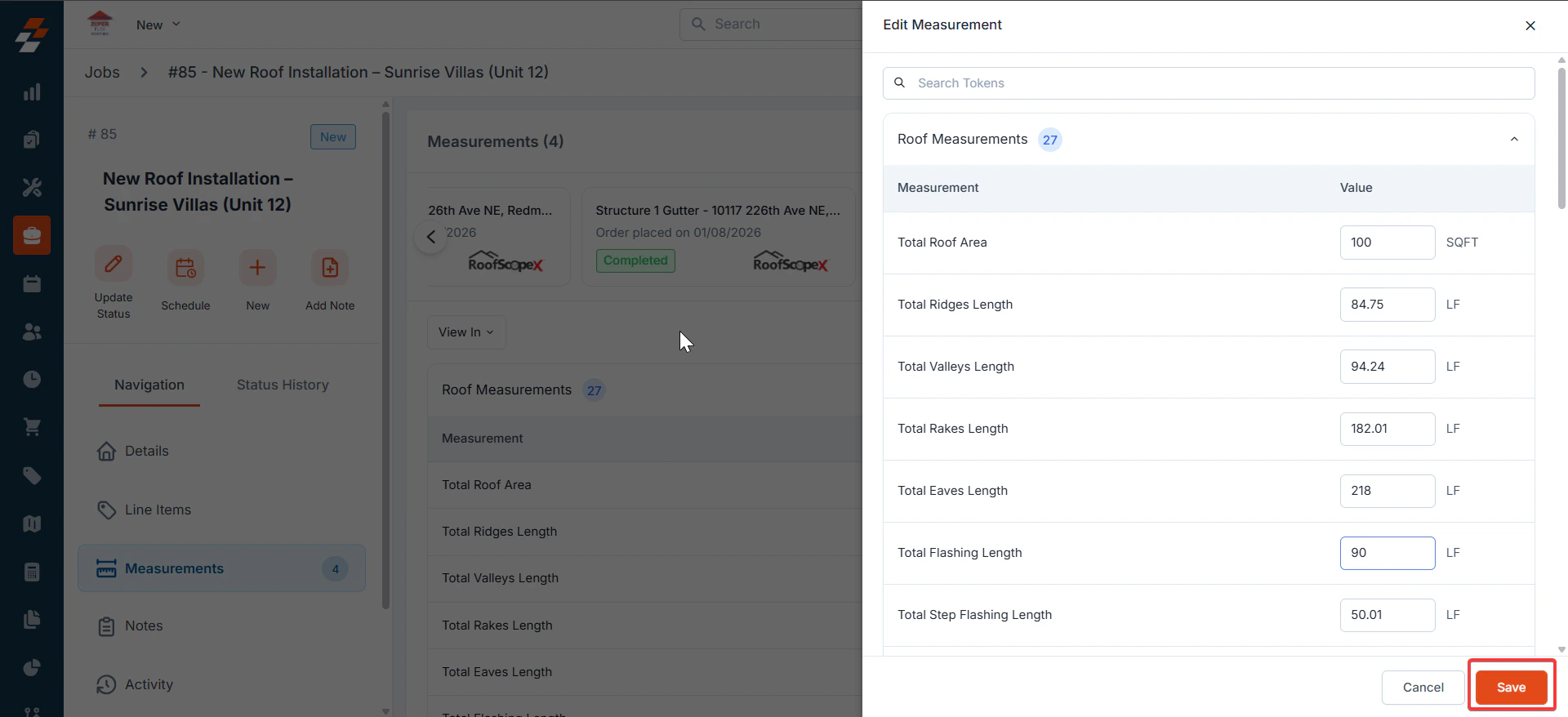
* Make your changes and save.
* Edited fields display an “Edited” label.
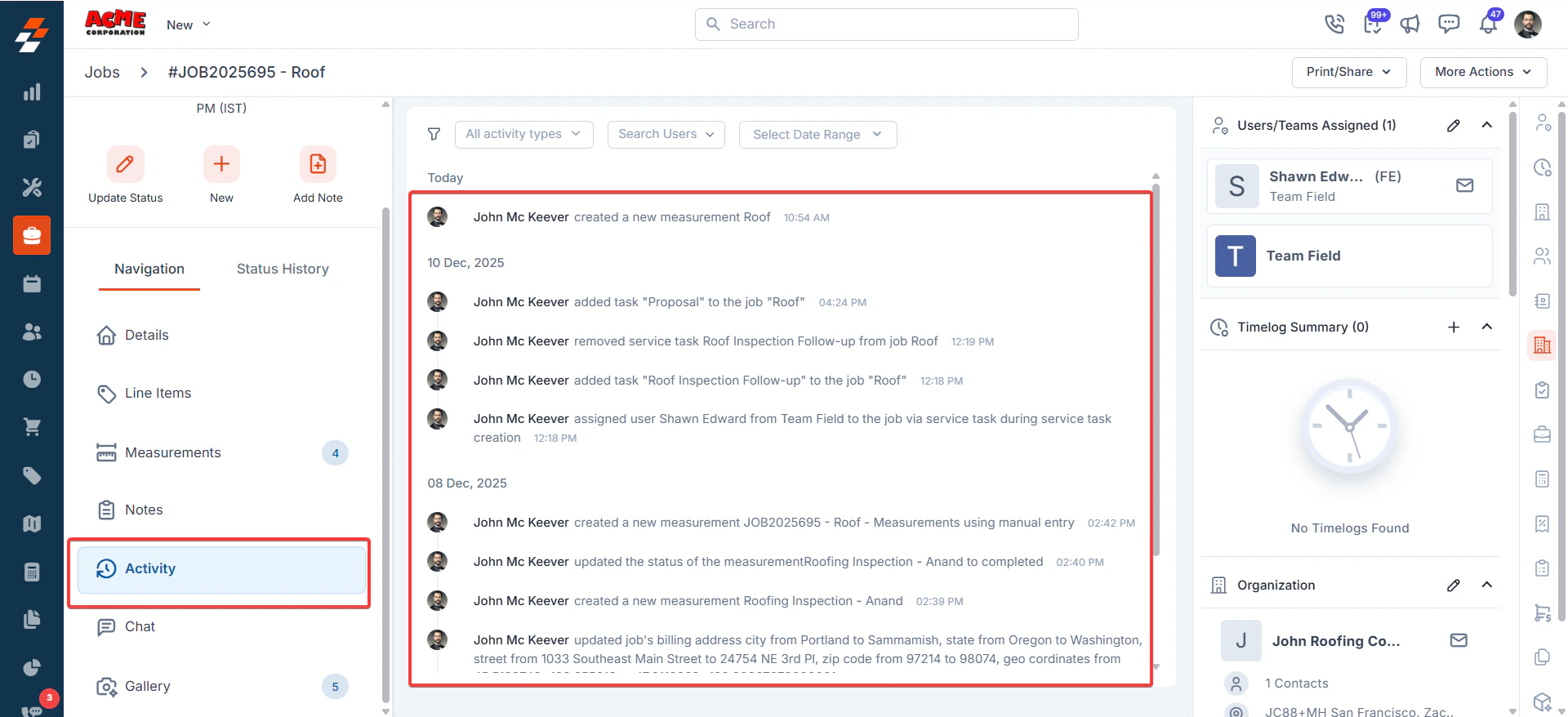
* All edits are logged in **Job Activity**.
Click the “**Kebab**” menu to “**Edit**” or “**Remove**” the measurement tokens.
### **Edit the synced measurements.**
* Click the **✏️ Edit** icon or open the **⋮ menu → Edit**.
* Make your changes and save.
* Edited fields display an “Edited” label.
* All edits are logged in **Job Activity**.
 ### **Removing Measurements**
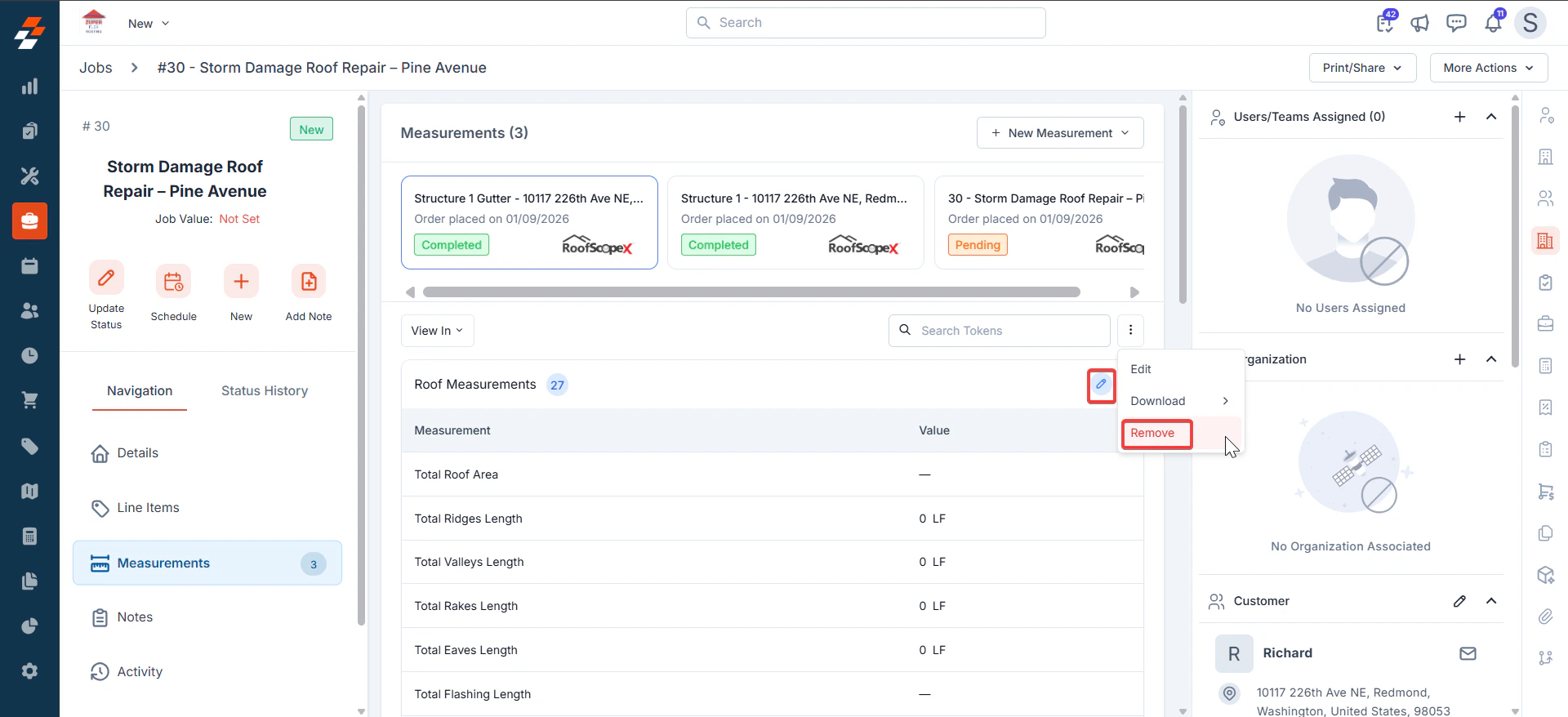
* Open the **⋮ Menu** → **Remove**.
* Confirm removal.
* Measurement is unlinked from the job, and the action is logged in **Job Activity**.
### **Removing Measurements**
* Open the **⋮ Menu** → **Remove**.
* Confirm removal.
* Measurement is unlinked from the job, and the action is logged in **Job Activity**.
 * Click the “**Activity**” tab to view all the measurement-related activities.
 ## How to Uninstall RoofScope from Zuper?
1. Click on your Profile Picture in the top right corner of the screen and select the “**App Store."**
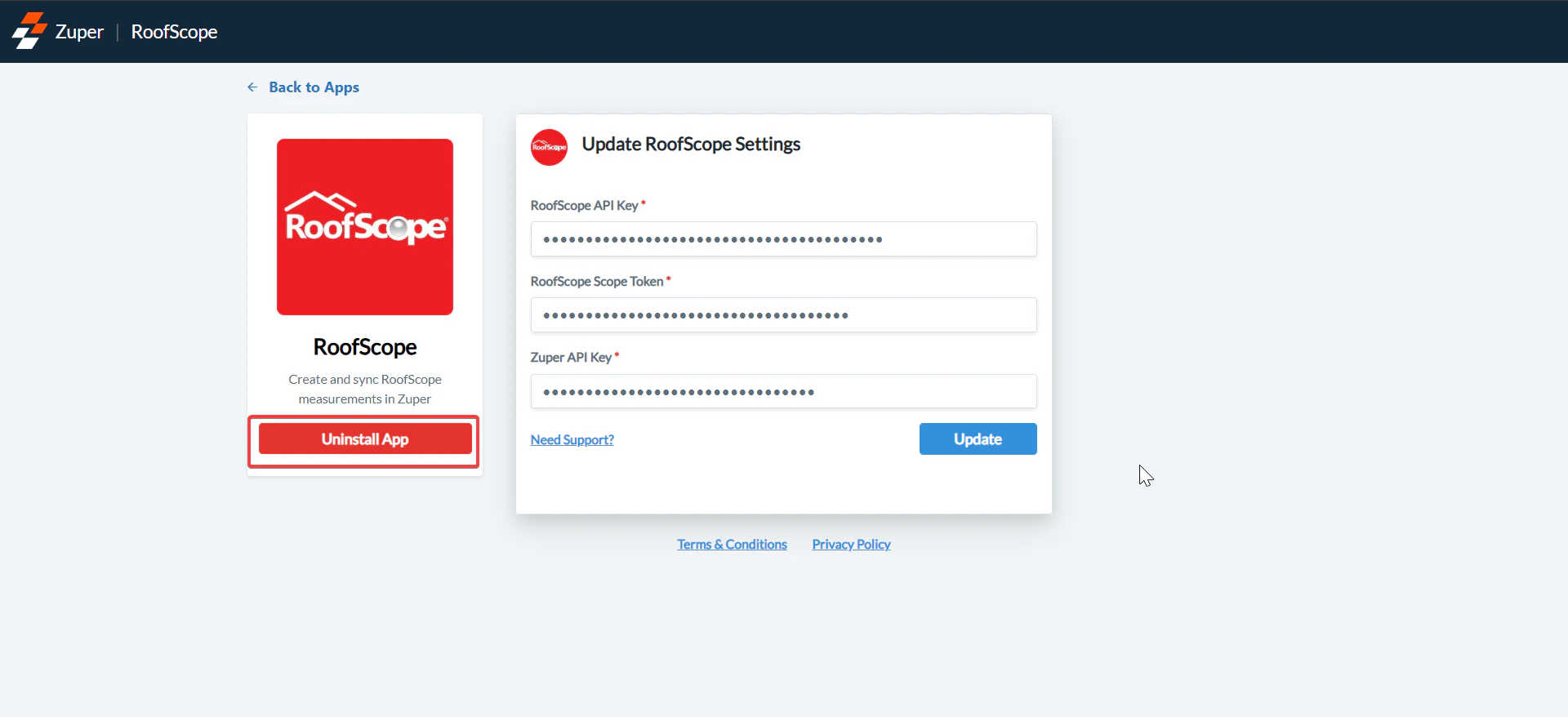
2. Under the “**Browse by Category**,” select the “**Measurements and Estimations**” option and choose “**RoofScope**.”
3. Click the “**Uninstall**” button. The uninstallation is successfully done.
## How to Uninstall RoofScope from Zuper?
1. Click on your Profile Picture in the top right corner of the screen and select the “**App Store."**
2. Under the “**Browse by Category**,” select the “**Measurements and Estimations**” option and choose “**RoofScope**.”
3. Click the “**Uninstall**” button. The uninstallation is successfully done.
 ### ❓ Frequently Asked Questions (FAQs)
**Q1: Who can install and configure the RoofScope integration in Zuper?**
Only Zuper users with Admin privileges can install apps from the App Store. Additionally, the user must be an Administrator in the RoofScope API Key and the RoofScope token to authenticate during setup.
**Q2: How do I get the RoofScope API key?**
To obtain a RoofScope API key, email your request to [support@myscopetech.com](mailto:support@myscopetech.com).\
Once RoofScope provisions the key, paste it in Zuper under App Store → RoofScope → Configure Settings → RoofScope API Key.
**Q3: How do I get the RoofScope Scope Token?**
* Log in to RoofScope.
* From the top-right menu, open My Details.
* Copy the Scope API Token.
* Paste it in Zuper under App Store → RoofScope → Configure Settings → RoofScope Scope Token.
**Q4**: What is the validity of the RoofScope Scope Token?
The RoofScope token is valid for one year.\
After it expires, syncing/ordering measurements may fail until you update the token in Zuper:
*Navigation: App Store → RoofScope → Configure Settings → Update*
**Q5: Do I need a Zuper API key for this integration? How do I generate it?**
Yes, Zuper requires a Zuper API key to complete the setup.
*Navigation: Settings → Developer Hub → API Keys*\
Generate/copy your API key and paste it into the RoofScope configuration screen in the Zuper App Store.
**Q6**: Which Zuper plans support the RoofScope integration?
Customers on Core or Premium plans in Zuper have access to the RoofScope integration.
**Q7**: Which RoofScope plans are required to use RoofScope measurements inside Zuper?
You need a valid Growth, Advantage, or Scale plan in RoofScope to enable measurements in Zuper.
**Q8: Can I link multiple RoofScope Order to a single Zuper job?**
You can link multiple RoofScope measurement projects to a single Zuper job.
**Q9**: Why don’t I see my existing RoofScope project when searching?
Ensure:
The service address in Zuper matches the address in RoofScope (including unit/apt #).
You’re logged into RoofScope with an account with access to that project.
**Q10**: Are edits made in Zuper synced back to RoofScope?
No. Edits in Zuper are local only and do not update the original RoofScope project.
**Q11**: What if a measurement stays “**In Progress**” for too long?
You need to reach out to RoofScope support.
**Q12: Can Field Executives order measurements, or only admins?**
Admins and users with custom role access can order measurements.
**Q13: Will removing a measurement in Zuper remove it in RoofScope?**
No. Removing a measurement in Zuper only unlinks it from the job. The project remains intact in RoofScope and can be re-linked later if needed.
### ❓ Frequently Asked Questions (FAQs)
**Q1: Who can install and configure the RoofScope integration in Zuper?**
Only Zuper users with Admin privileges can install apps from the App Store. Additionally, the user must be an Administrator in the RoofScope API Key and the RoofScope token to authenticate during setup.
**Q2: How do I get the RoofScope API key?**
To obtain a RoofScope API key, email your request to [support@myscopetech.com](mailto:support@myscopetech.com).\
Once RoofScope provisions the key, paste it in Zuper under App Store → RoofScope → Configure Settings → RoofScope API Key.
**Q3: How do I get the RoofScope Scope Token?**
* Log in to RoofScope.
* From the top-right menu, open My Details.
* Copy the Scope API Token.
* Paste it in Zuper under App Store → RoofScope → Configure Settings → RoofScope Scope Token.
**Q4**: What is the validity of the RoofScope Scope Token?
The RoofScope token is valid for one year.\
After it expires, syncing/ordering measurements may fail until you update the token in Zuper:
*Navigation: App Store → RoofScope → Configure Settings → Update*
**Q5: Do I need a Zuper API key for this integration? How do I generate it?**
Yes, Zuper requires a Zuper API key to complete the setup.
*Navigation: Settings → Developer Hub → API Keys*\
Generate/copy your API key and paste it into the RoofScope configuration screen in the Zuper App Store.
**Q6**: Which Zuper plans support the RoofScope integration?
Customers on Core or Premium plans in Zuper have access to the RoofScope integration.
**Q7**: Which RoofScope plans are required to use RoofScope measurements inside Zuper?
You need a valid Growth, Advantage, or Scale plan in RoofScope to enable measurements in Zuper.
**Q8: Can I link multiple RoofScope Order to a single Zuper job?**
You can link multiple RoofScope measurement projects to a single Zuper job.
**Q9**: Why don’t I see my existing RoofScope project when searching?
Ensure:
The service address in Zuper matches the address in RoofScope (including unit/apt #).
You’re logged into RoofScope with an account with access to that project.
**Q10**: Are edits made in Zuper synced back to RoofScope?
No. Edits in Zuper are local only and do not update the original RoofScope project.
**Q11**: What if a measurement stays “**In Progress**” for too long?
You need to reach out to RoofScope support.
**Q12: Can Field Executives order measurements, or only admins?**
Admins and users with custom role access can order measurements.
**Q13: Will removing a measurement in Zuper remove it in RoofScope?**
No. Removing a measurement in Zuper only unlinks it from the job. The project remains intact in RoofScope and can be re-linked later if needed.