> ## Documentation Index
> Fetch the complete documentation index at: https://zuperinc-section23.mintlify.site/llms.txt
> Use this file to discover all available pages before exploring further.
# Aircall
**Aircall** is a leading cloud-based phone system designed for businesses, especially sales and customer support teams. Based in Europe, it provides VoIP (Voice over Internet Protocol) services and supports communication across more than **160 countries**, including the USA, Canada, New Zealand, and Singapore.
The **Zuper–Aircall integration** enables your back-office teams to connect their Aircall account with Zuper, allowing them to make and receive calls, as well and send outbound text messages, directly from the Zuper web app. This integration enhances communication efficiency by bringing calling and messaging functions into a single platform.
## Field Mapping
When you integrate Aircall with Zuper, the following data sync occurs automatically:
| **Zuper Field** | **Aircall Field** |
| :-------------------------------------- | :---------------- |
| **Users** | **Users** |
| First Name | First Name |
| Last Name | Last Name |
| Email | Email |
| **Teams** | **Teams** |
| Team Name | Team Name |
| **Customers** | **Customers** |
| First Name | First Name |
| Last Name | Last Name |
| Email | Email |
| Mobile Number, Home Number, Work Number | Phone Numbers |
| Organization | Company Name |
***
## A. Setting up your Aircall account
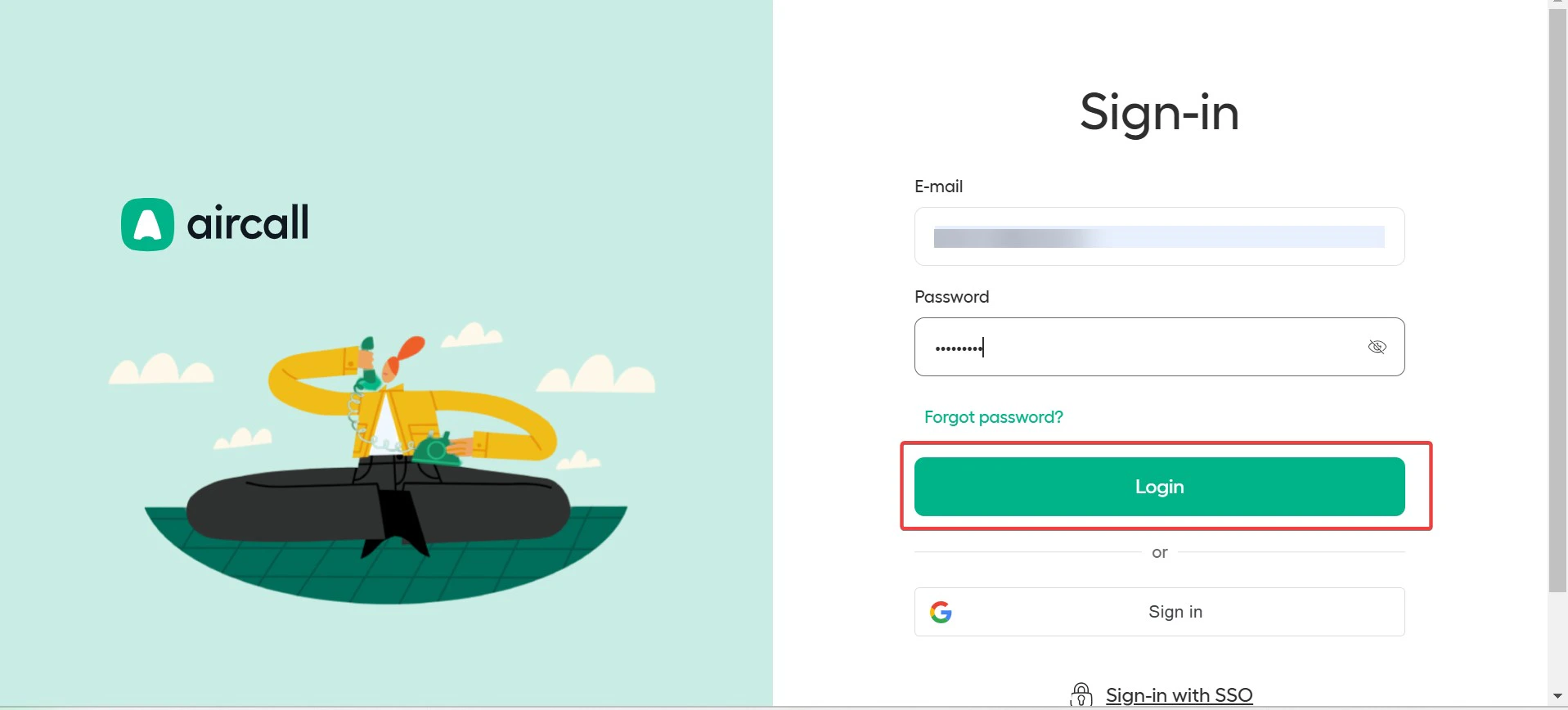
1. Log in to your **Aircall** account using your registered **Email ID** and **Password**.
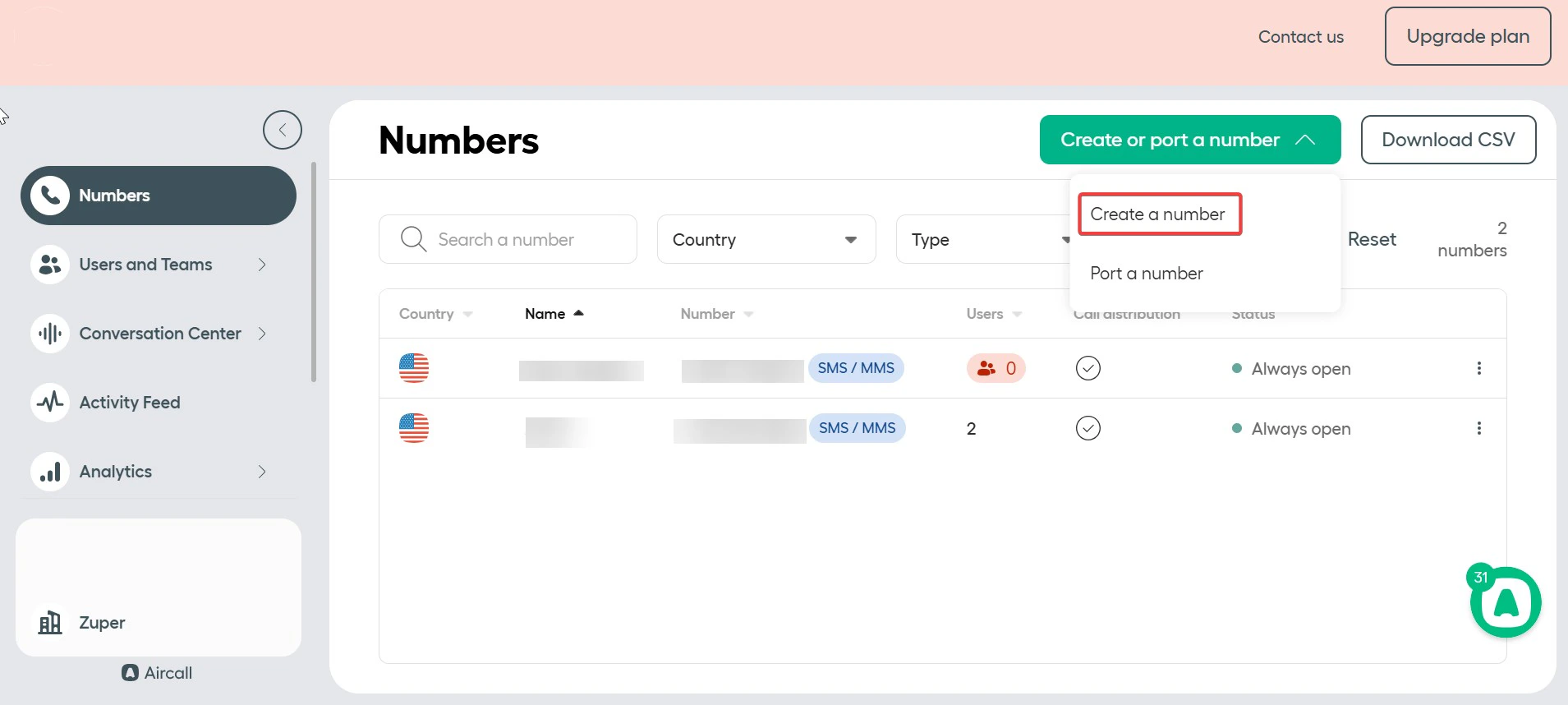
 2. Click **"Create" or "Port a Number"** to add a new number to your Aircall account.
 ## B. Connecting Aircall with Zuper
The **Zuper–Aircall integration** lets you connect your Aircall account with Zuper to make and receive calls, as well as send outbound text messages through your Aircall number.
#### **Step 1: Access the App Store**
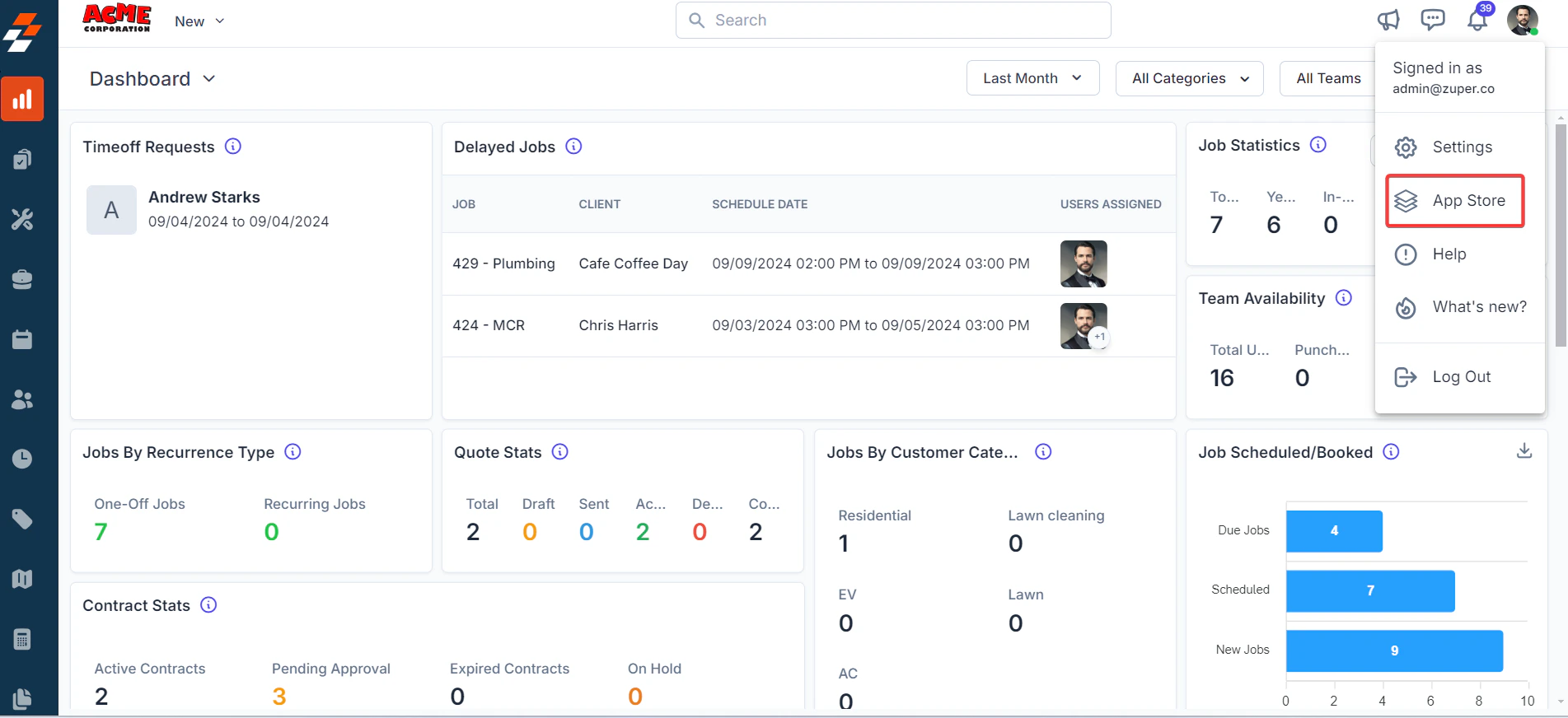
1. Log in to your **Zuper web app**. Click your **Profile Picture** in the top-right corner. Select **App Store** from the dropdown menu.
## B. Connecting Aircall with Zuper
The **Zuper–Aircall integration** lets you connect your Aircall account with Zuper to make and receive calls, as well as send outbound text messages through your Aircall number.
#### **Step 1: Access the App Store**
1. Log in to your **Zuper web app**. Click your **Profile Picture** in the top-right corner. Select **App Store** from the dropdown menu.
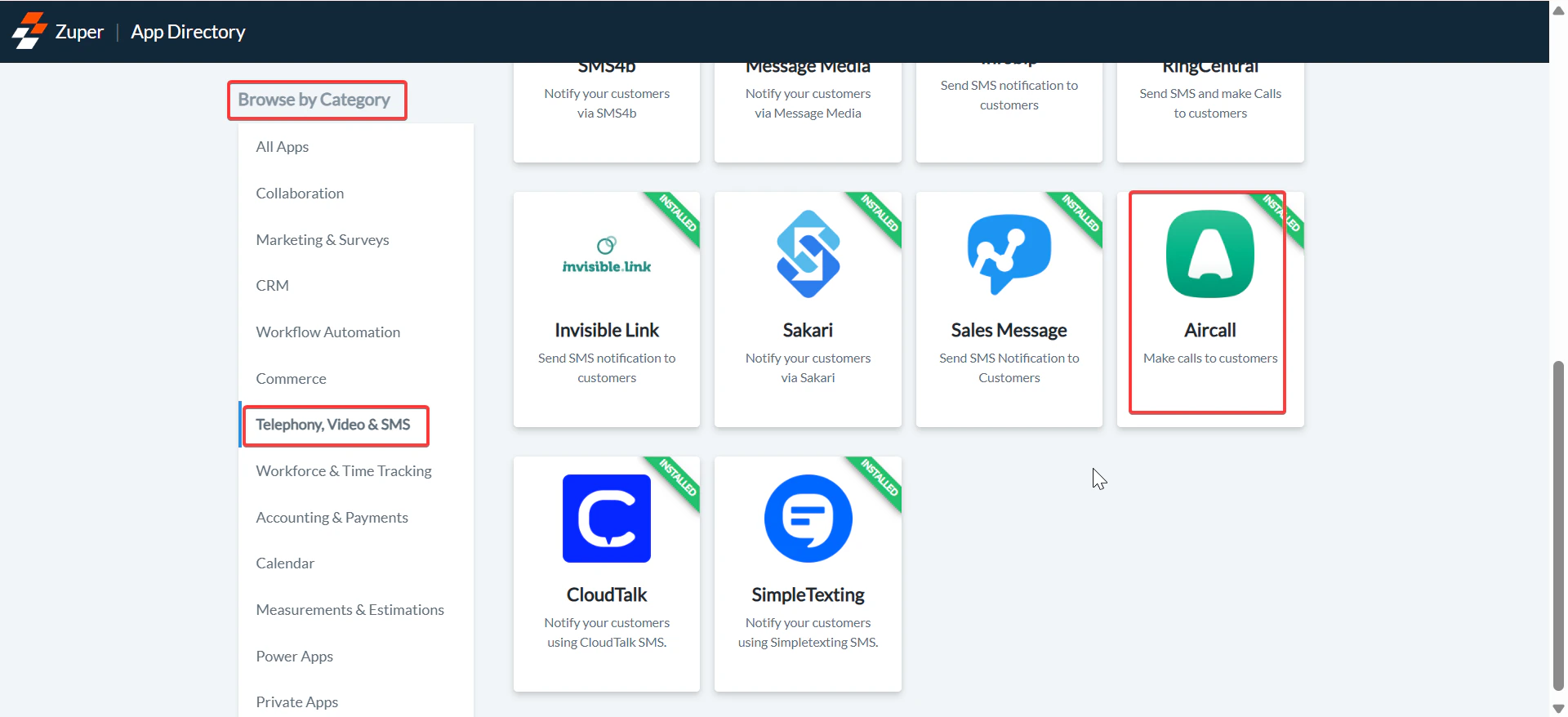
 2. Under **Browse by Category**, select **Telephony, Video & SMS**, and choose **Aircall**.
 Note: Ensure that the Phone Call option is enabled for your contacts.
Navigation: Contacts → Edit Contact → Notification Preferences
#### **Step 2: Authorize and Configure Integration Settings**
1. Click "**Install Aircall**" to allow Zuper to access information from your Aircall account.
Note: Ensure that the Phone Call option is enabled for your contacts.
Navigation: Contacts → Edit Contact → Notification Preferences
#### **Step 2: Authorize and Configure Integration Settings**
1. Click "**Install Aircall**" to allow Zuper to access information from your Aircall account.
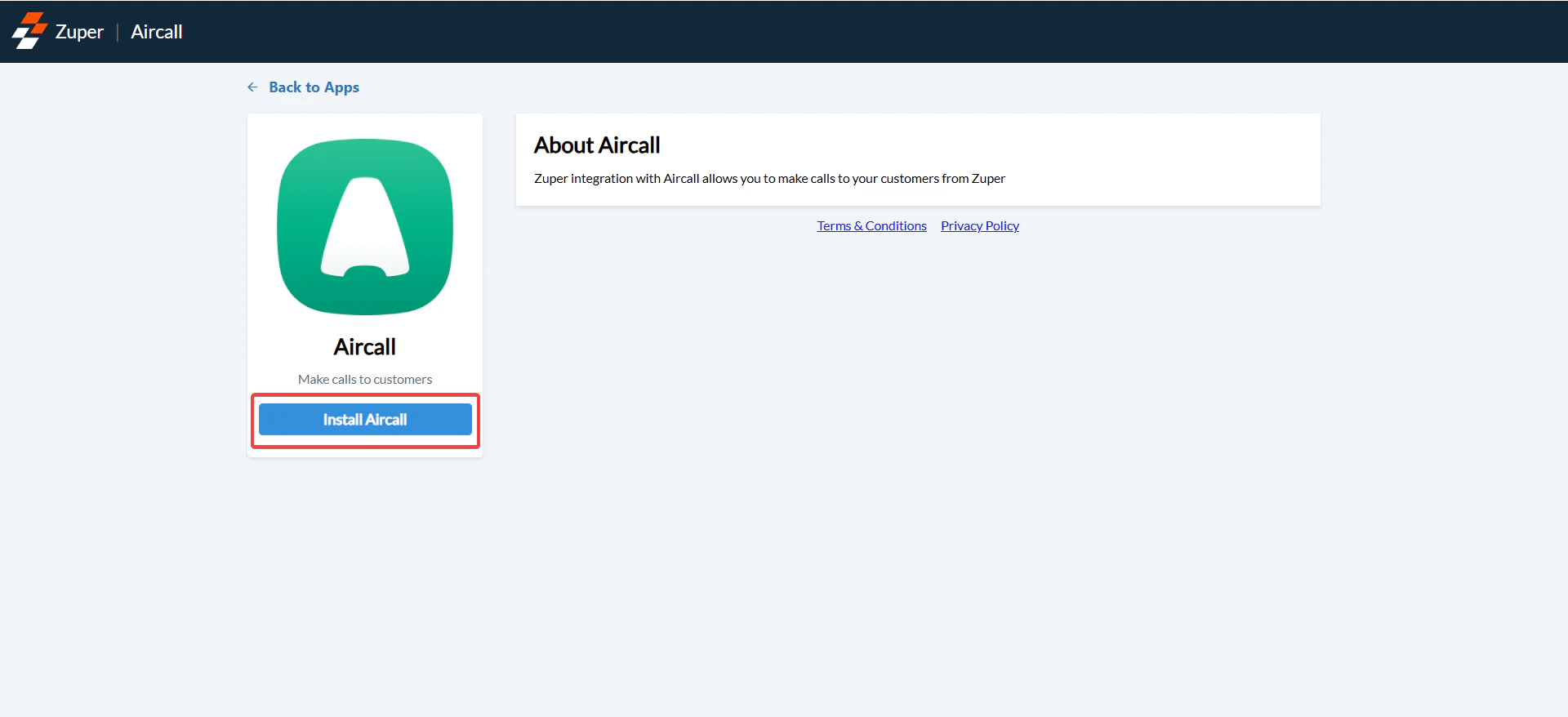 2. Configure the following fields:
| **Field** | **Description** | **Where to Find** |
| :---------------------------------: | :-------------------------------------------------------------------------------------------------------------------------------------------------: | :---------------------------------------------------------------------------------------------------------: |
| **Zuper API Key (Mandatory)** | Enter your Zuper API Key to authenticate the integration. | \[Refer: [How to generate a Zuper API Key](https://docs.zuper.co/Settings/Developer_Hub/API_Keys#api-keys)] |
| **Sync Customers (Mandatory)** | Choose **Yes** to sync customer data from Zuper to Aircall; choose **No** to disable syncing. | Available in Aircall Integration Settings in Zuper |
| **Sync Teams (Mandatory)** | Choose **Yes** to sync team data from Zuper to Aircall; choose **No** to disable syncing. | Available in Aircall Integration Settings in Zuper |
| **Sync Users (Mandatory)** | Choose **Yes** to sync user details from Zuper to Aircall; choose **No** to disable syncing. | Available in Aircall Integration Settings in Zuper |
| **Aircall From Number (Mandatory)** | Enter your registered 10-digit Aircall number. This number must be SMS-enabled and compliant with regional regulations (e.g., A2P10DLC in the USA). | Aircall → Numbers → Active Numbers |
2. Configure the following fields:
| **Field** | **Description** | **Where to Find** |
| :---------------------------------: | :-------------------------------------------------------------------------------------------------------------------------------------------------: | :---------------------------------------------------------------------------------------------------------: |
| **Zuper API Key (Mandatory)** | Enter your Zuper API Key to authenticate the integration. | \[Refer: [How to generate a Zuper API Key](https://docs.zuper.co/Settings/Developer_Hub/API_Keys#api-keys)] |
| **Sync Customers (Mandatory)** | Choose **Yes** to sync customer data from Zuper to Aircall; choose **No** to disable syncing. | Available in Aircall Integration Settings in Zuper |
| **Sync Teams (Mandatory)** | Choose **Yes** to sync team data from Zuper to Aircall; choose **No** to disable syncing. | Available in Aircall Integration Settings in Zuper |
| **Sync Users (Mandatory)** | Choose **Yes** to sync user details from Zuper to Aircall; choose **No** to disable syncing. | Available in Aircall Integration Settings in Zuper |
| **Aircall From Number (Mandatory)** | Enter your registered 10-digit Aircall number. This number must be SMS-enabled and compliant with regional regulations (e.g., A2P10DLC in the USA). | Aircall → Numbers → Active Numbers |
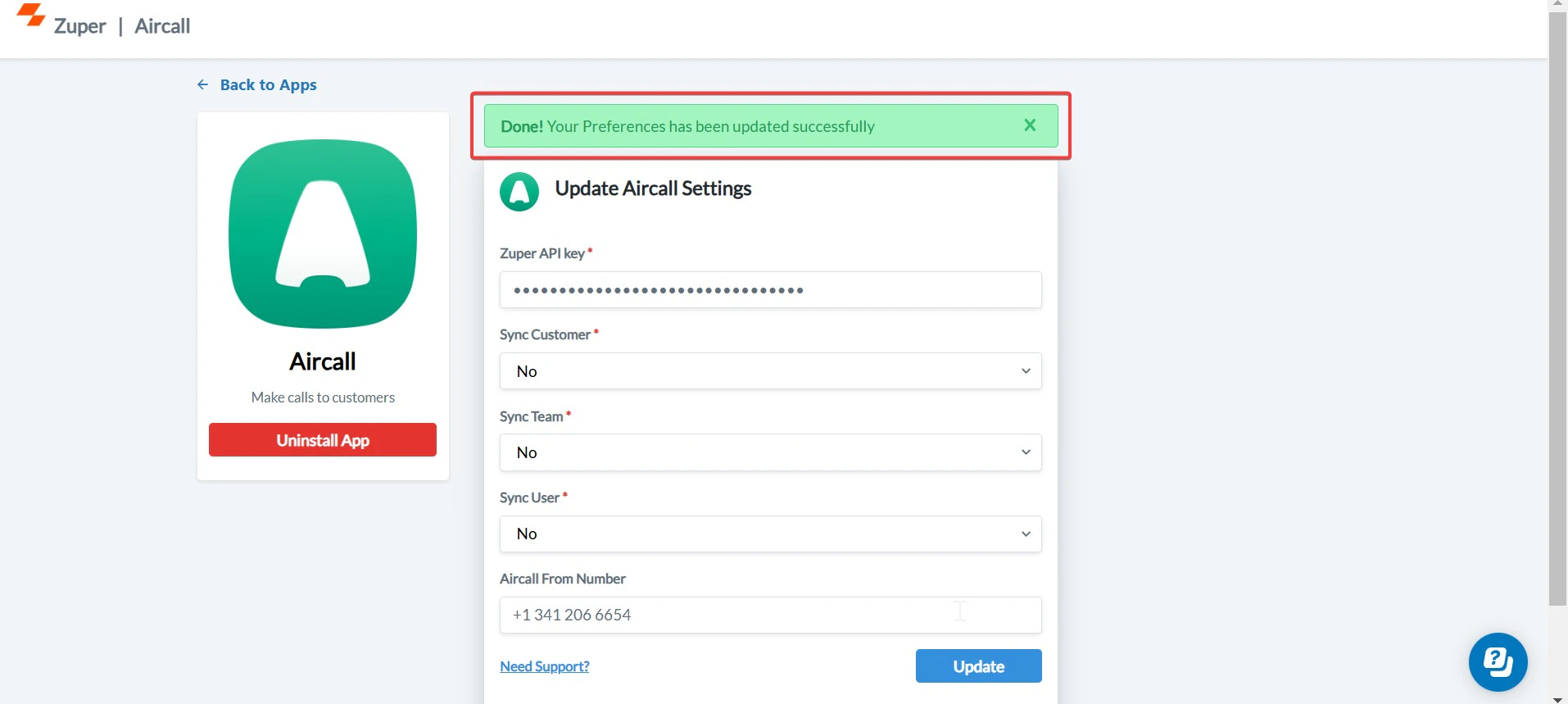 Click **Update** to complete the integration setup.
## C. Using the Zuper–Aircall Integration
#### **1. Making and Receiving Calls**
1. Click the **Sign In** button on the **Aircall widget** (displayed at the bottom-right of the Zuper web app).
2. Select the preferred number from your available Aircall numbers.
3. Use the **Aircall Dial Pad** to make outgoing calls or receive incoming calls directly within Zuper.
Click **Update** to complete the integration setup.
## C. Using the Zuper–Aircall Integration
#### **1. Making and Receiving Calls**
1. Click the **Sign In** button on the **Aircall widget** (displayed at the bottom-right of the Zuper web app).
2. Select the preferred number from your available Aircall numbers.
3. Use the **Aircall Dial Pad** to make outgoing calls or receive incoming calls directly within Zuper.
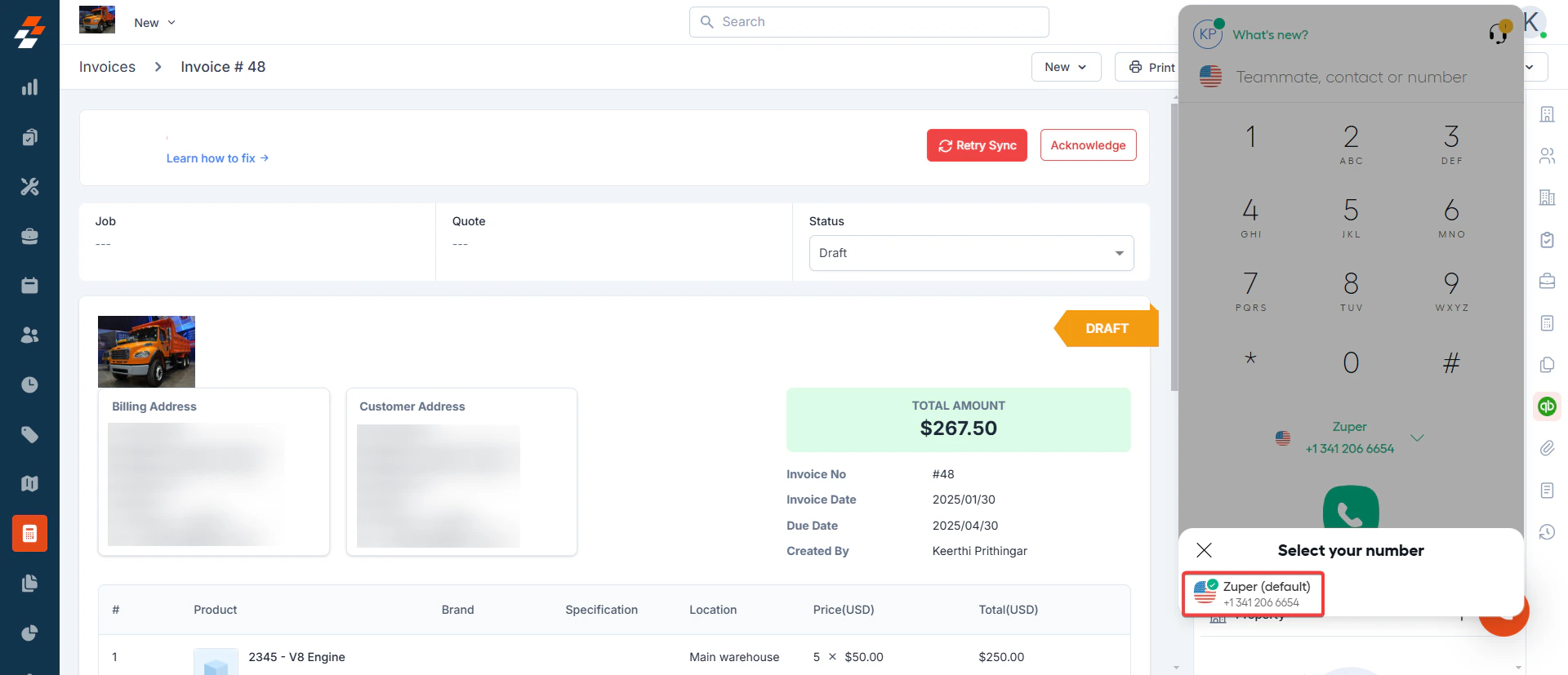 Note: The Aircall widget remains active while navigating across Zuper pages. To enable the Aircall integration on your account, contact our Support Team at [support@zuper.co](mailto:support@zuper.co).
#### **2. Sending Text Messages via Aircall**
1. Navigate to **Contacts** from the left navigation panel. Select the contact you want to notify from the listing page to open its details.
Note: The Aircall widget remains active while navigating across Zuper pages. To enable the Aircall integration on your account, contact our Support Team at [support@zuper.co](mailto:support@zuper.co).
#### **2. Sending Text Messages via Aircall**
1. Navigate to **Contacts** from the left navigation panel. Select the contact you want to notify from the listing page to open its details.
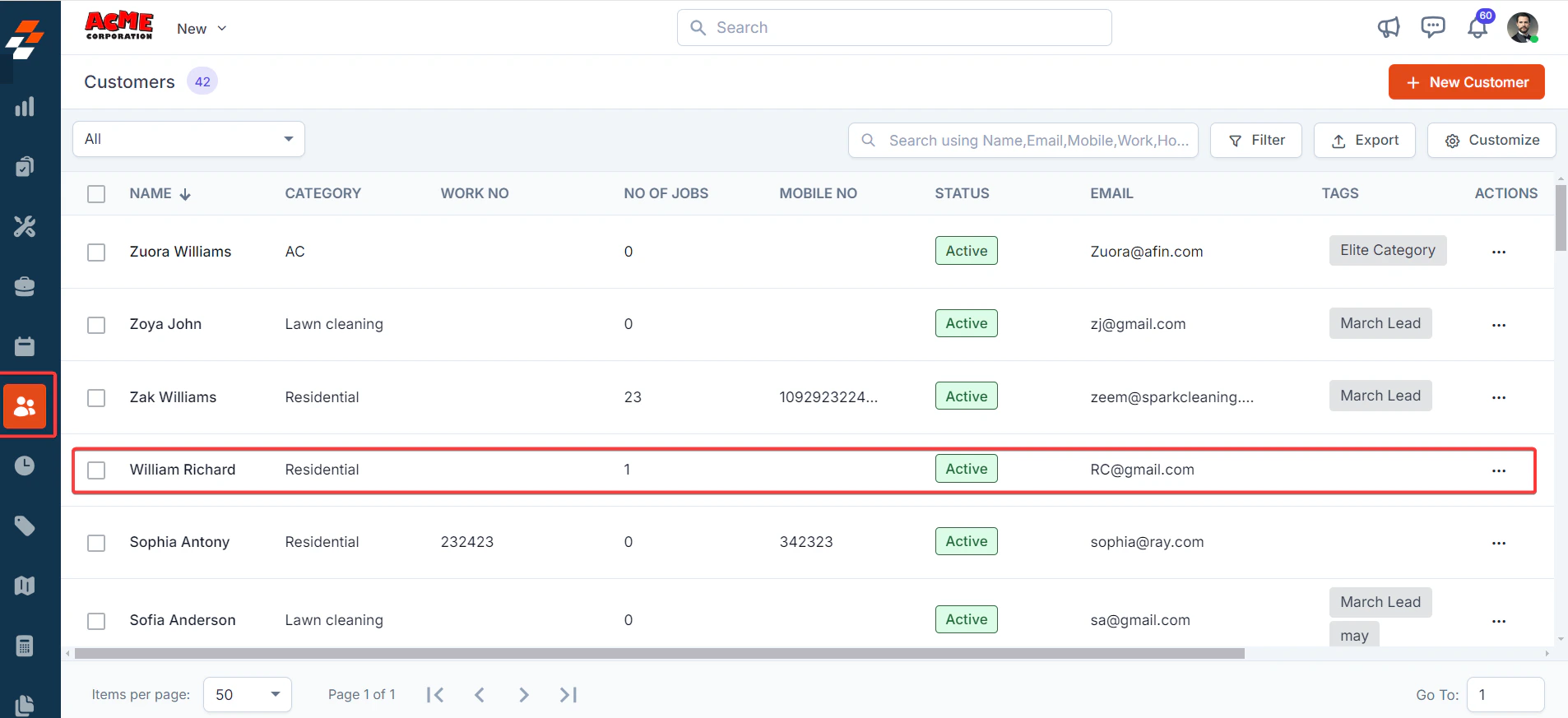 2. On the **Contact Details** page, click **More Actions → Email/Text Message**.
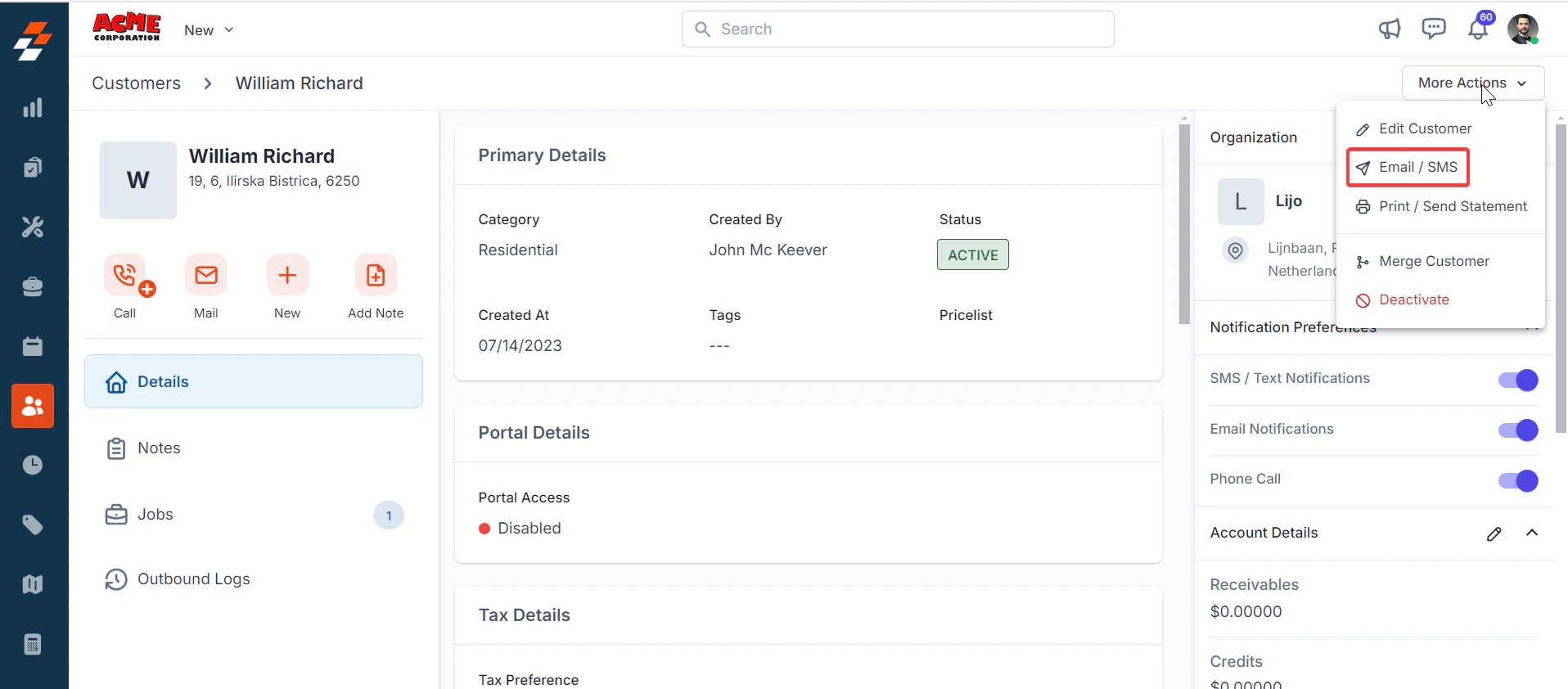 3. Configure the following fields:
| **Field** | **Description** |
| :----------------------------: | :-------------------------------------------------------------: |
| **Contact Via (Mandatory)** | Select **SMS** to send the notification. |
| **Contact Number (Mandatory)** | Choose the contact number for which the message should be sent. |
| **Message Body (Mandatory)** | Enter the text message content. |
3. Configure the following fields:
| **Field** | **Description** |
| :----------------------------: | :-------------------------------------------------------------: |
| **Contact Via (Mandatory)** | Select **SMS** to send the notification. |
| **Contact Number (Mandatory)** | Choose the contact number for which the message should be sent. |
| **Message Body (Mandatory)** | Enter the text message content. |
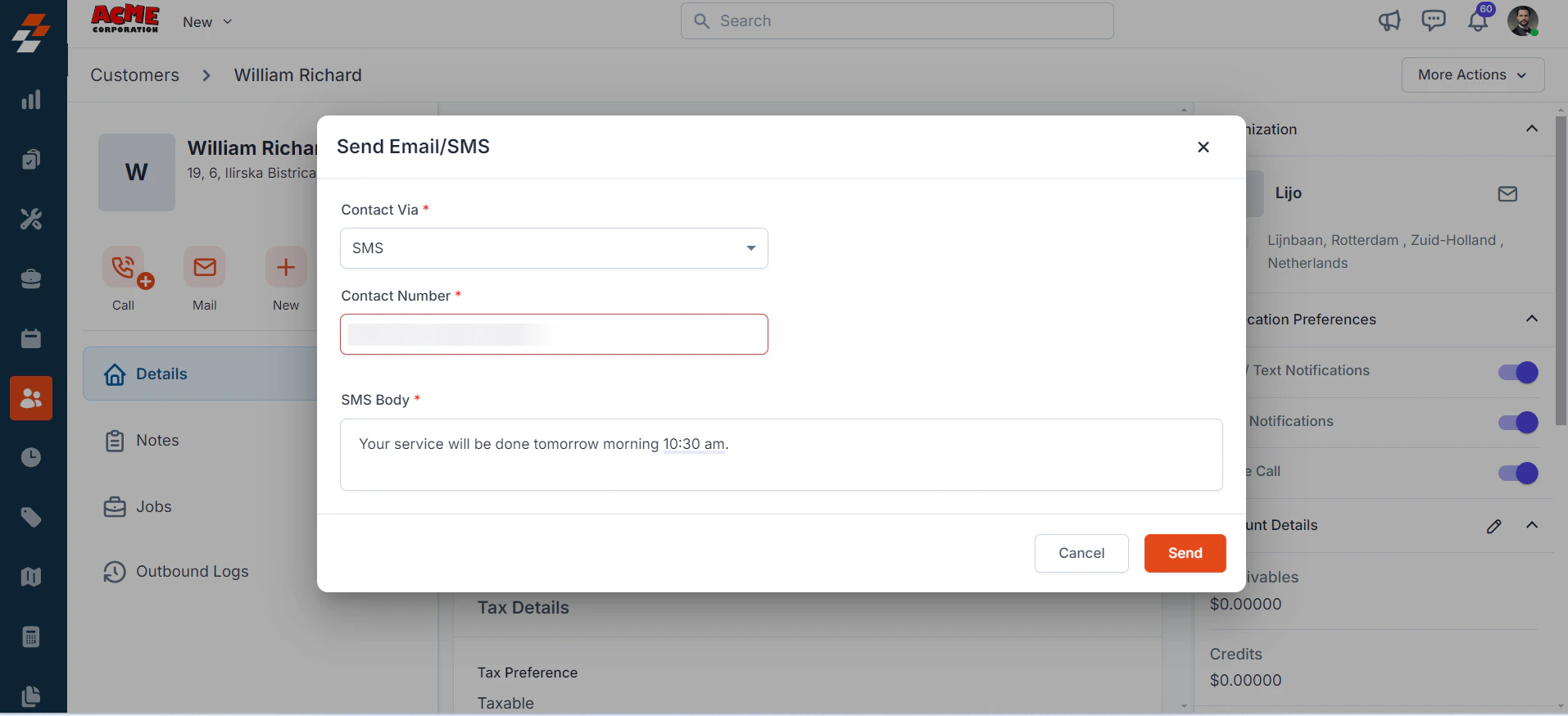 Click **Send** to deliver the text message via Aircall.
## D. Uninstalling Aircall from Zuper
1. If you no longer need the integration, follow the steps below to uninstall the Aircall app.
Log in to your **Zuper web app**. Click your **Profile Picture** in the top-right corner. Select **App Store**.
Click **Send** to deliver the text message via Aircall.
## D. Uninstalling Aircall from Zuper
1. If you no longer need the integration, follow the steps below to uninstall the Aircall app.
Log in to your **Zuper web app**. Click your **Profile Picture** in the top-right corner. Select **App Store**.
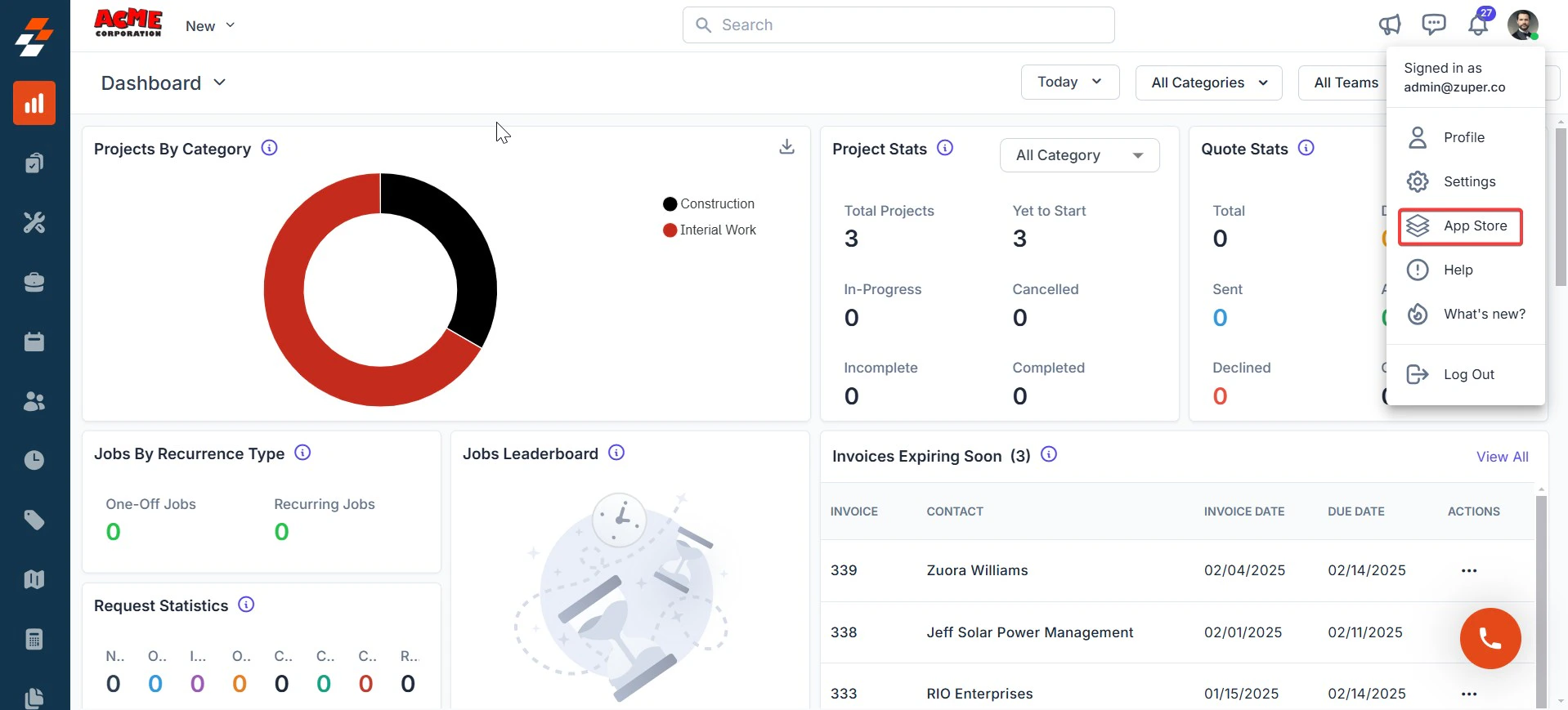 2. Under **Browse by Category**, select **Telephony, Video & SMS**. Choose **Aircall**. Click **Uninstall**.
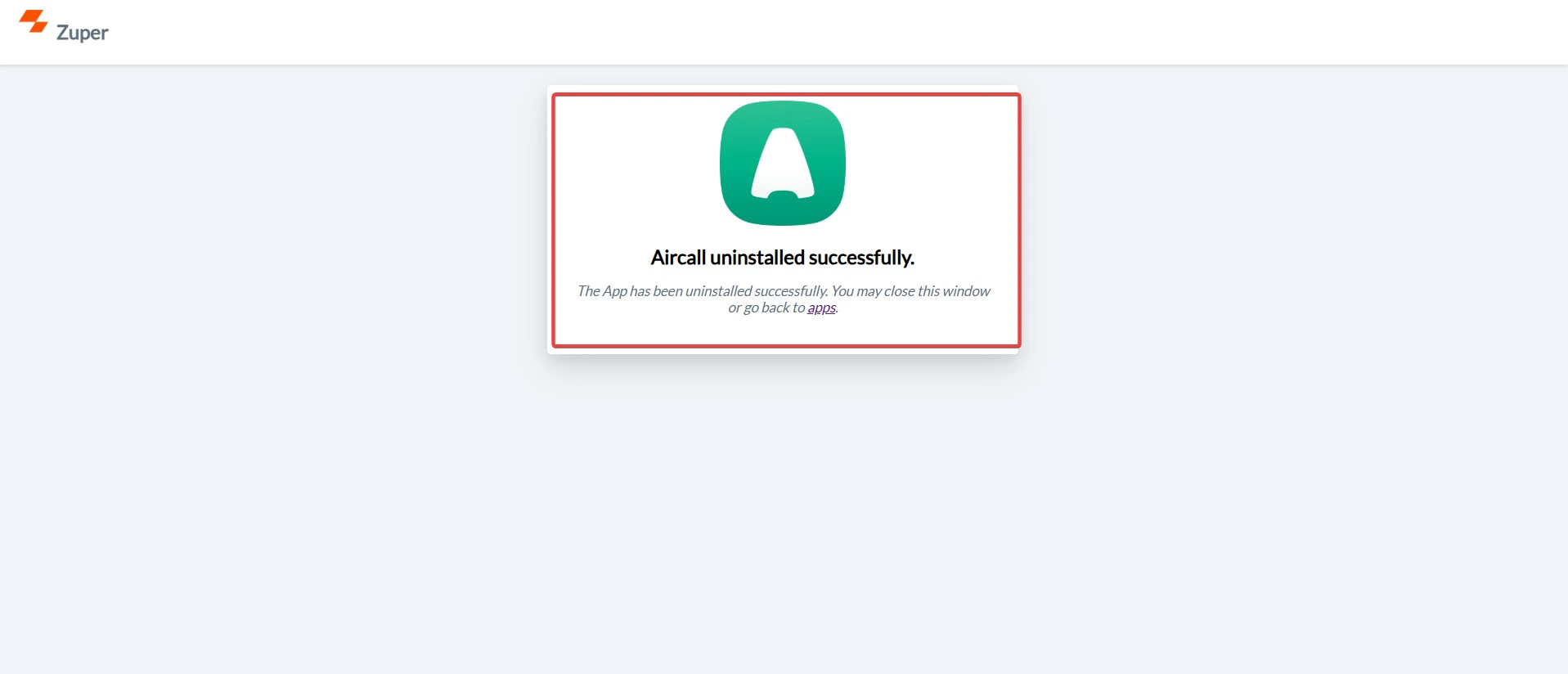
3. The Aircall is uninstalled successfully.
2. Under **Browse by Category**, select **Telephony, Video & SMS**. Choose **Aircall**. Click **Uninstall**.
3. The Aircall is uninstalled successfully.
 The **Zuper–Aircall integration** streamlines communication for customer-facing teams by enabling call management and SMS directly within Zuper.
\
With this cloud-based, one-way integration, data flows from Zuper to Aircall, allowing users to efficiently handle calls, respond to inquiries, and send real-time text notifications.
\
This integration ensures better customer engagement, faster service resolution, and an enhanced support experience.
The **Zuper–Aircall integration** streamlines communication for customer-facing teams by enabling call management and SMS directly within Zuper.
\
With this cloud-based, one-way integration, data flows from Zuper to Aircall, allowing users to efficiently handle calls, respond to inquiries, and send real-time text notifications.
\
This integration ensures better customer engagement, faster service resolution, and an enhanced support experience.