> ## Documentation Index
> Fetch the complete documentation index at: https://zuperinc-section23.mintlify.site/llms.txt
> Use this file to discover all available pages before exploring further.
# Infobip
With the help of our Zuper-Infobip Integration, business owners can send SMS notifications to their customers with regular updates and reminders for their requested work orders.
## A. How to connect your Infobip with Zuper?
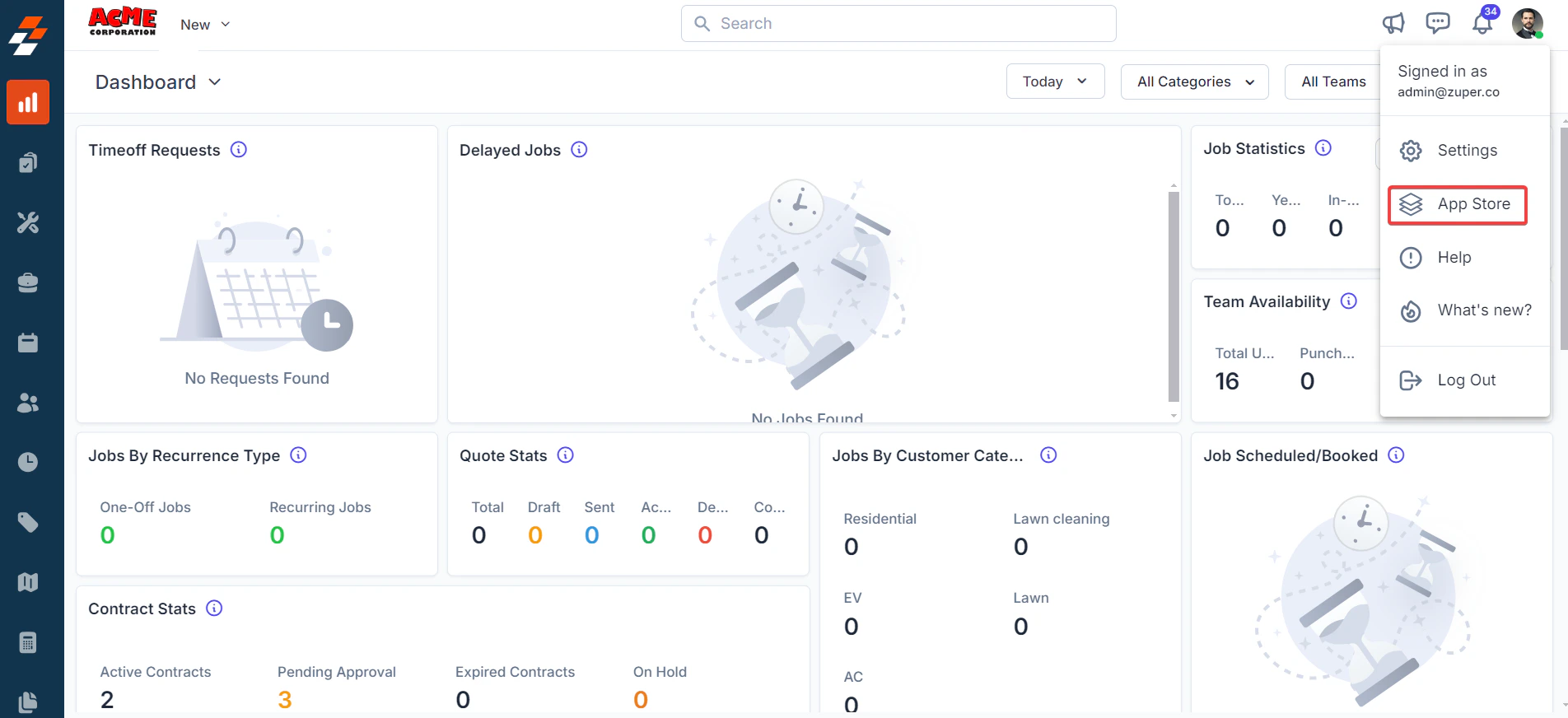
1. Open a new tab in your browser and log in to your Zuper Account. Click on your Profile Picture on the top right corner of the screen & select the “**App Store**.”
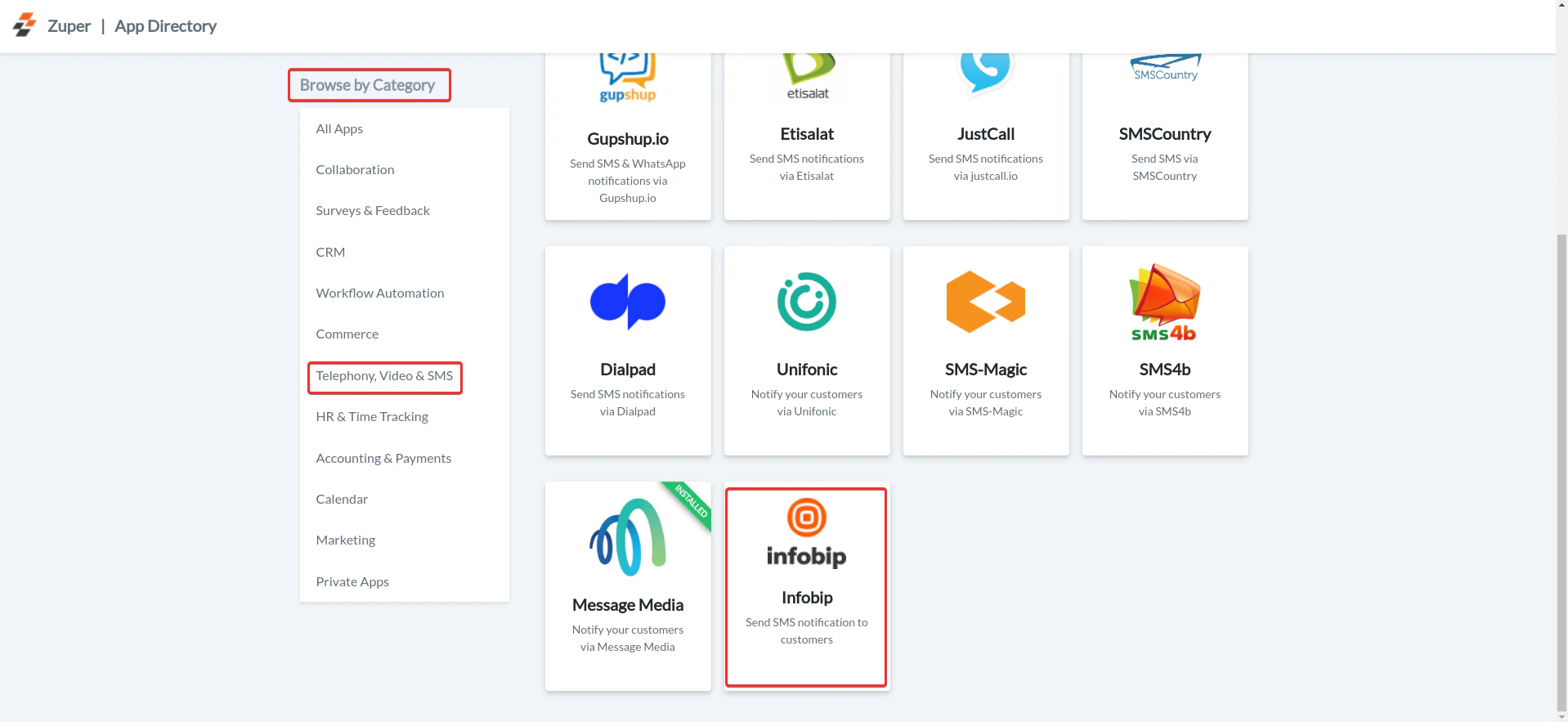
 2. Under the “\*\*Browse by Category,” \*\*select the “**Telephony, Video & SMS**” option and choose “**Infobip**.”
 3. Click on the “**Install Infobip**” button.
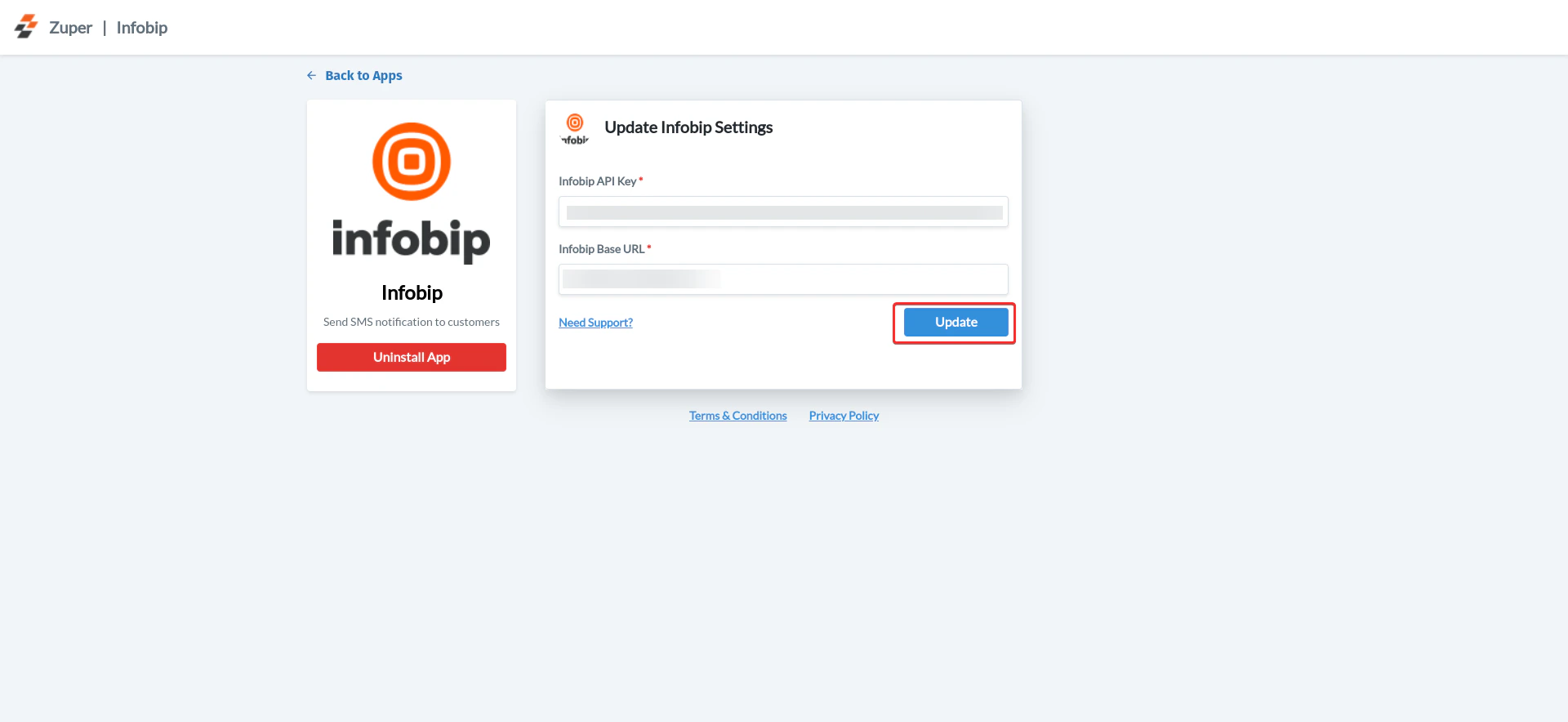 **Note**: Please keep *Zuper and Infobip* tabs open; you can switch between the tabs for integration.
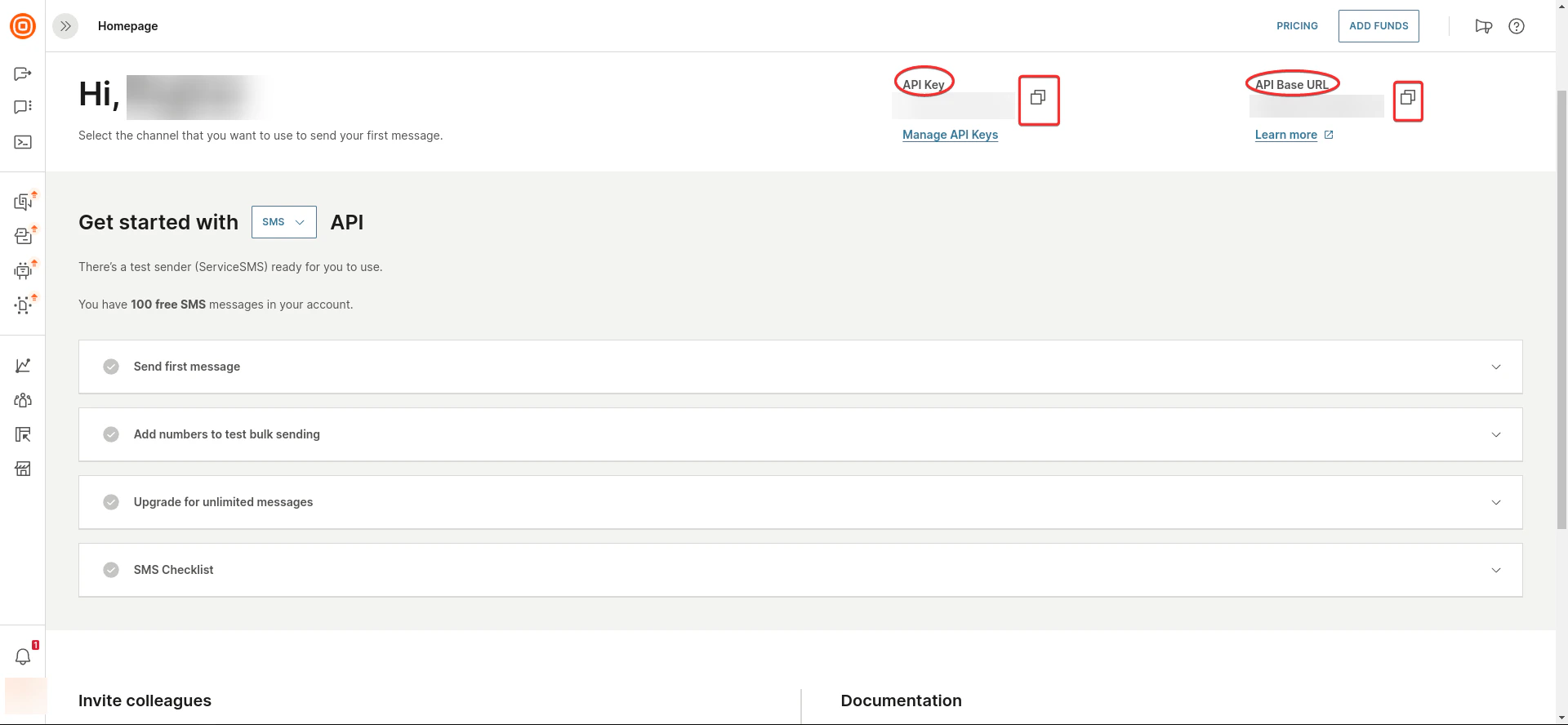
4. Switch to the Infobip tab on your browser and log in to your Infobip account.
Using the copy icon, copy the API key and API Base URL from the Infobip home page.
**Note**: Please keep *Zuper and Infobip* tabs open; you can switch between the tabs for integration.
4. Switch to the Infobip tab on your browser and log in to your Infobip account.
Using the copy icon, copy the API key and API Base URL from the Infobip home page.
 ## B. Using the Zuper–Infobip Integration
Once the integration is configured, you can send **Text Messages** directly from Zuper using your SimpleTexting number.
1. Navigate to the **Contacts** module from the left panel. Select a contact on the listing page to open its details.
## B. Using the Zuper–Infobip Integration
Once the integration is configured, you can send **Text Messages** directly from Zuper using your SimpleTexting number.
1. Navigate to the **Contacts** module from the left panel. Select a contact on the listing page to open its details.
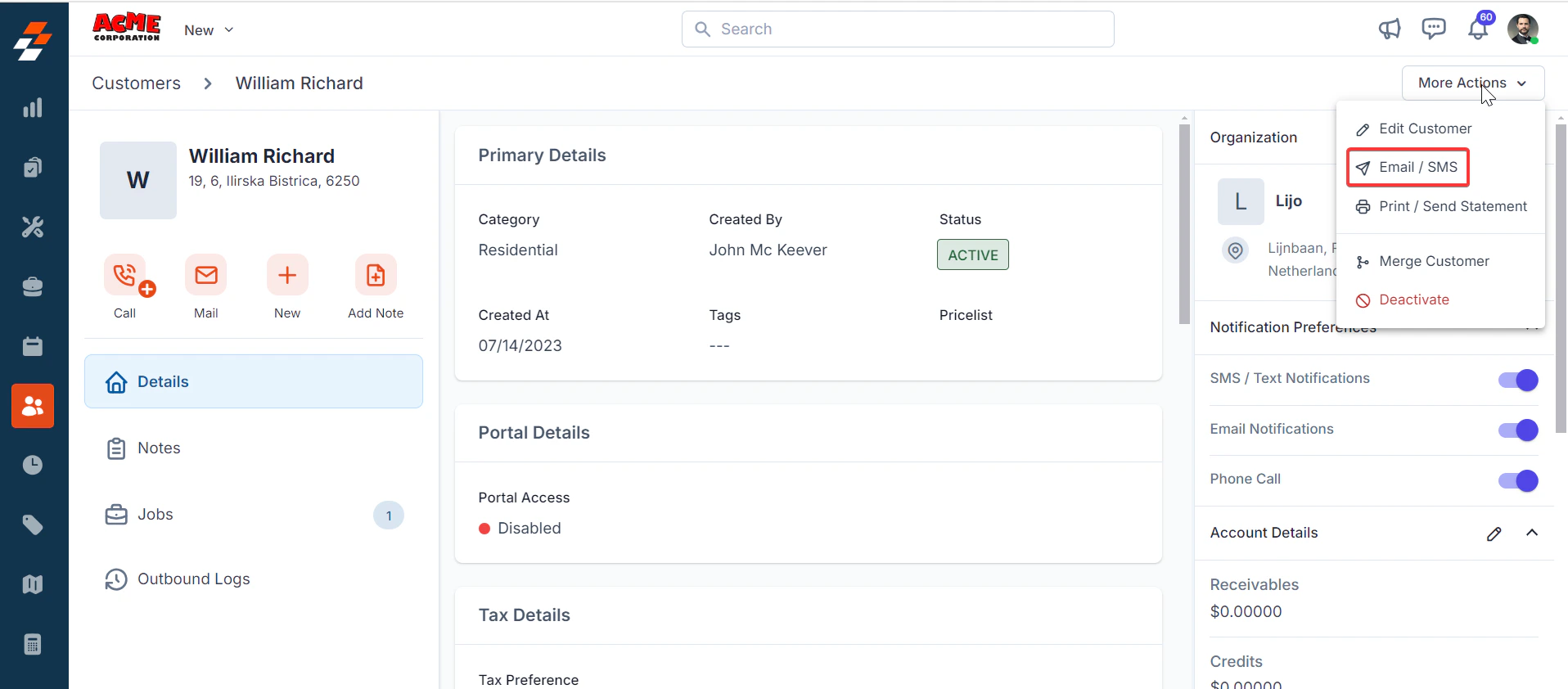 2. On the **Contact Details** page, click **More Actions** (top-right corner) and select **Email/Text Message** from the dropdown menu.
Fill in the following fields:
| **Field** | **Description** |
| :----------------------------: | :------------------------------------: |
| **Contact Via (Mandatory)** | Select **SMS** to send a notification. |
| **Contact Number (Mandatory)** | Choose the contact’s phone number. |
| **Message Body (Mandatory)** | Enter the message content. |
2. On the **Contact Details** page, click **More Actions** (top-right corner) and select **Email/Text Message** from the dropdown menu.
Fill in the following fields:
| **Field** | **Description** |
| :----------------------------: | :------------------------------------: |
| **Contact Via (Mandatory)** | Select **SMS** to send a notification. |
| **Contact Number (Mandatory)** | Choose the contact’s phone number. |
| **Message Body (Mandatory)** | Enter the message content. |
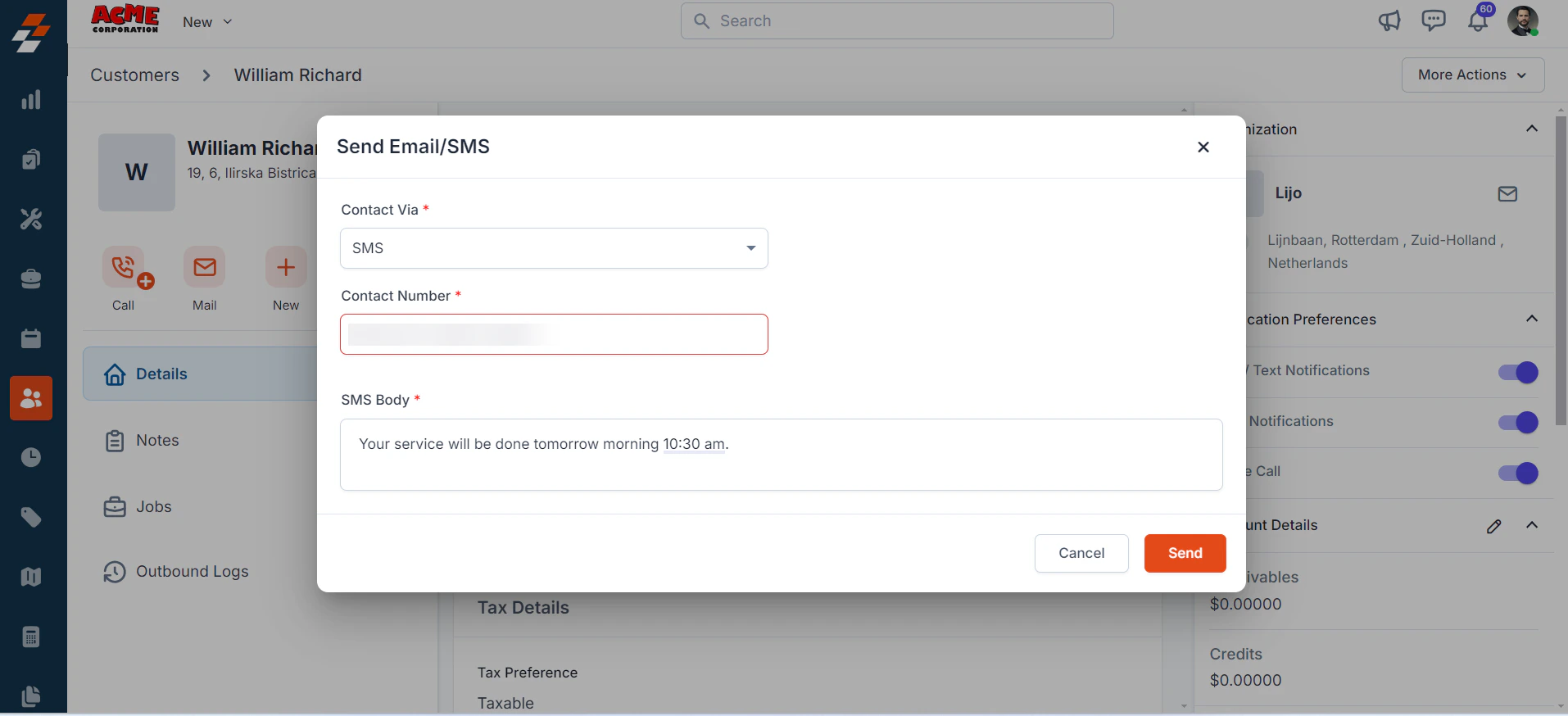 Click **Send** to deliver the text message via SimpleTexting.
Note: You can trigger messages via the Contacts module, Bulk Text Message action, or Workflow automation.
## C. Uninstalling Infobip from Zuper
If you no longer need the integration, follow the steps below to uninstall the Infobip app.
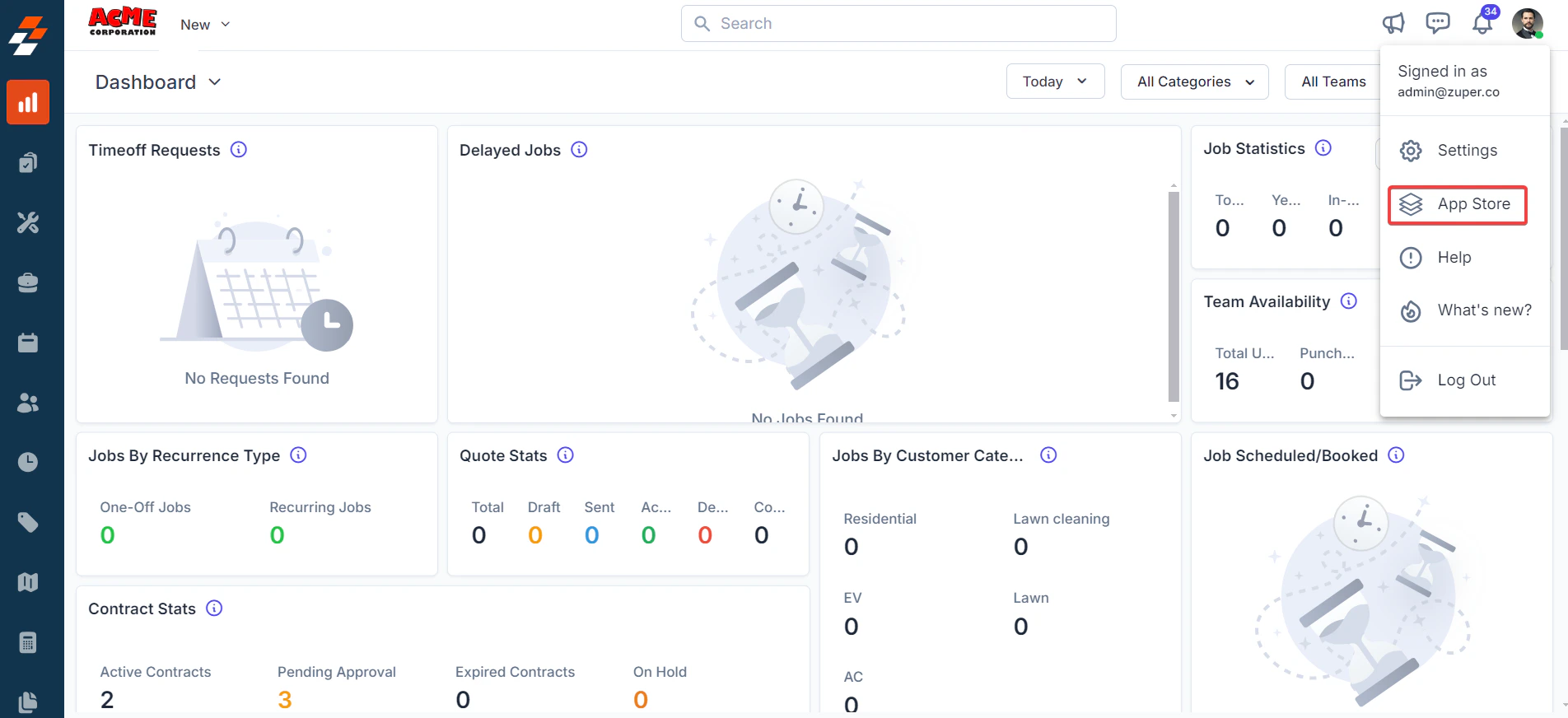
1. Log in to your **Zuper web app**. Click your **Profile Picture** in the top-right corner. Select **App Store**
Click **Send** to deliver the text message via SimpleTexting.
Note: You can trigger messages via the Contacts module, Bulk Text Message action, or Workflow automation.
## C. Uninstalling Infobip from Zuper
If you no longer need the integration, follow the steps below to uninstall the Infobip app.
1. Log in to your **Zuper web app**. Click your **Profile Picture** in the top-right corner. Select **App Store**
 2. Under **Browse by Category**, select **Telephony, Video & SMS**. Choose **Infobip.** you have the option to Uninstall **Infobip**.
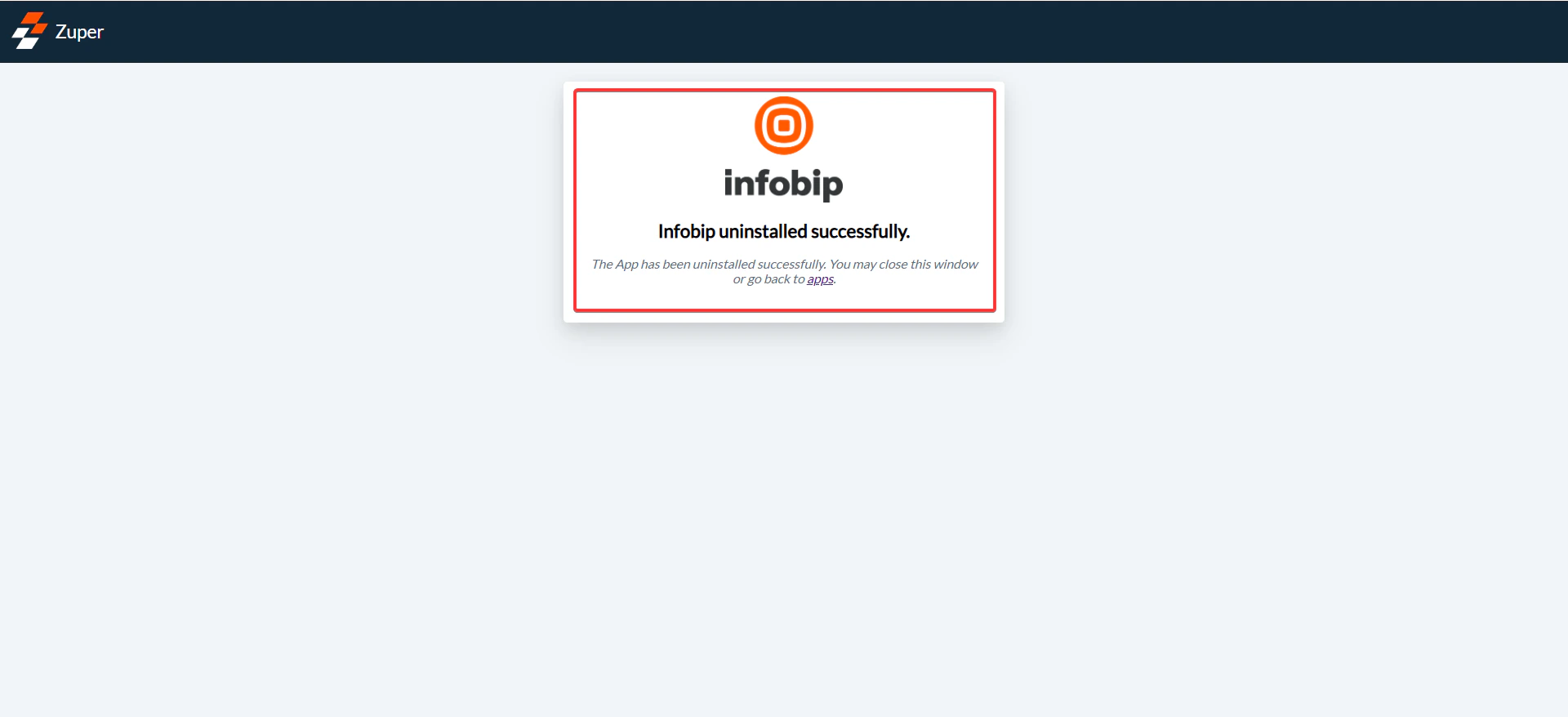
3. The Infobip is uninstalled successfully.
2. Under **Browse by Category**, select **Telephony, Video & SMS**. Choose **Infobip.** you have the option to Uninstall **Infobip**.
3. The Infobip is uninstalled successfully.
 With this one-way integration, data flows from **Zuper to Infobip**, ensuring that customers.