> ## Documentation Index
> Fetch the complete documentation index at: https://zuperinc-section23.mintlify.site/llms.txt
> Use this file to discover all available pages before exploring further.
# Invisible Link
Invisible Link is a widely used SMS application based in the European region, trusted for reliable message delivery and easy integration with business workflows.
The Zuper–Invisible Link SMS integration enables seamless communication by connecting your Invisible Link account with Zuper. Once integrated, you can automatically send outbound Email/Text Messages directly through your Invisible Link number, keeping your contacts informed about pending items, job updates, or service notifications in real time.
Note:
* This integration is available to all users with an active Invisible Link plan, regardless of your location.
* Ensure that **Text Message/Text Notifications** are enabled for your contacts.\
\
**Navigation:** Contacts → Contacts Listing page → Edit (via three-dot icon) → Edit Contact page → Notification Preferences
## A. Connecting Invisible Link SMS with Zuper
Follow the steps below to integrate your Invisible Link account with Zuper.
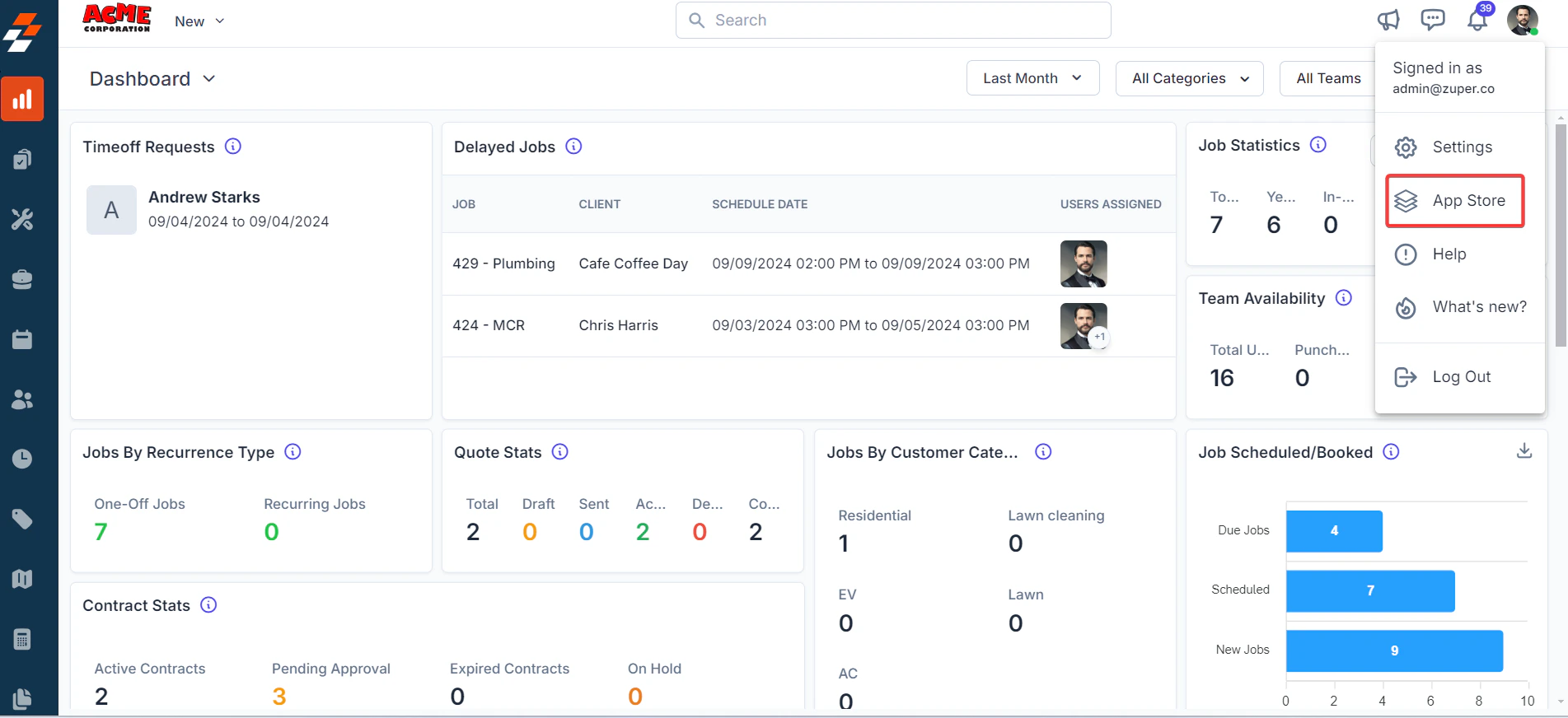
1. Log in to your **Zuper web app**. Click your **Profile Picture** in the top-right corner. Select **App Store** from the dropdown menu.
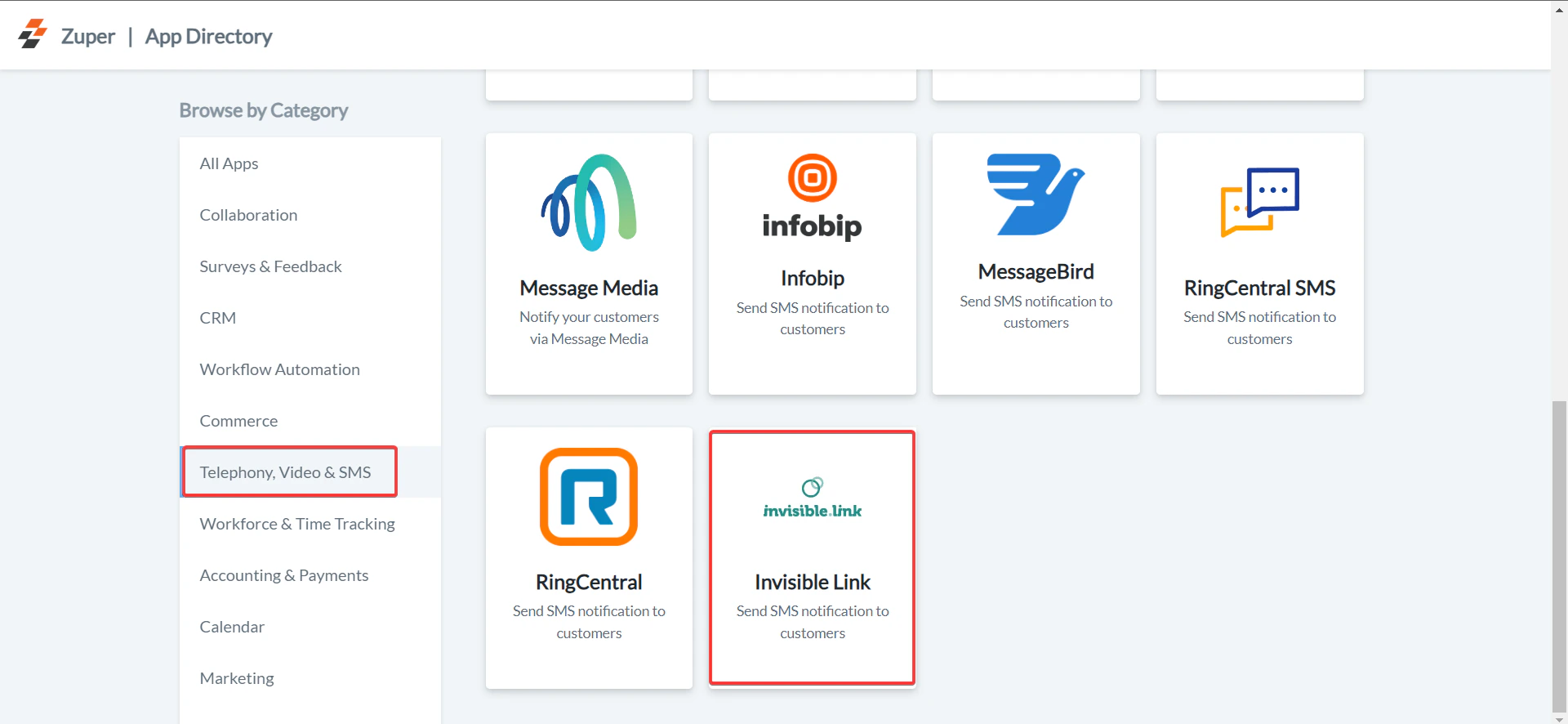
 2. Under **Browse by Category**, select **Telephony, Video & SMS**. Choose **Invisible Link** from the list of available integrations.
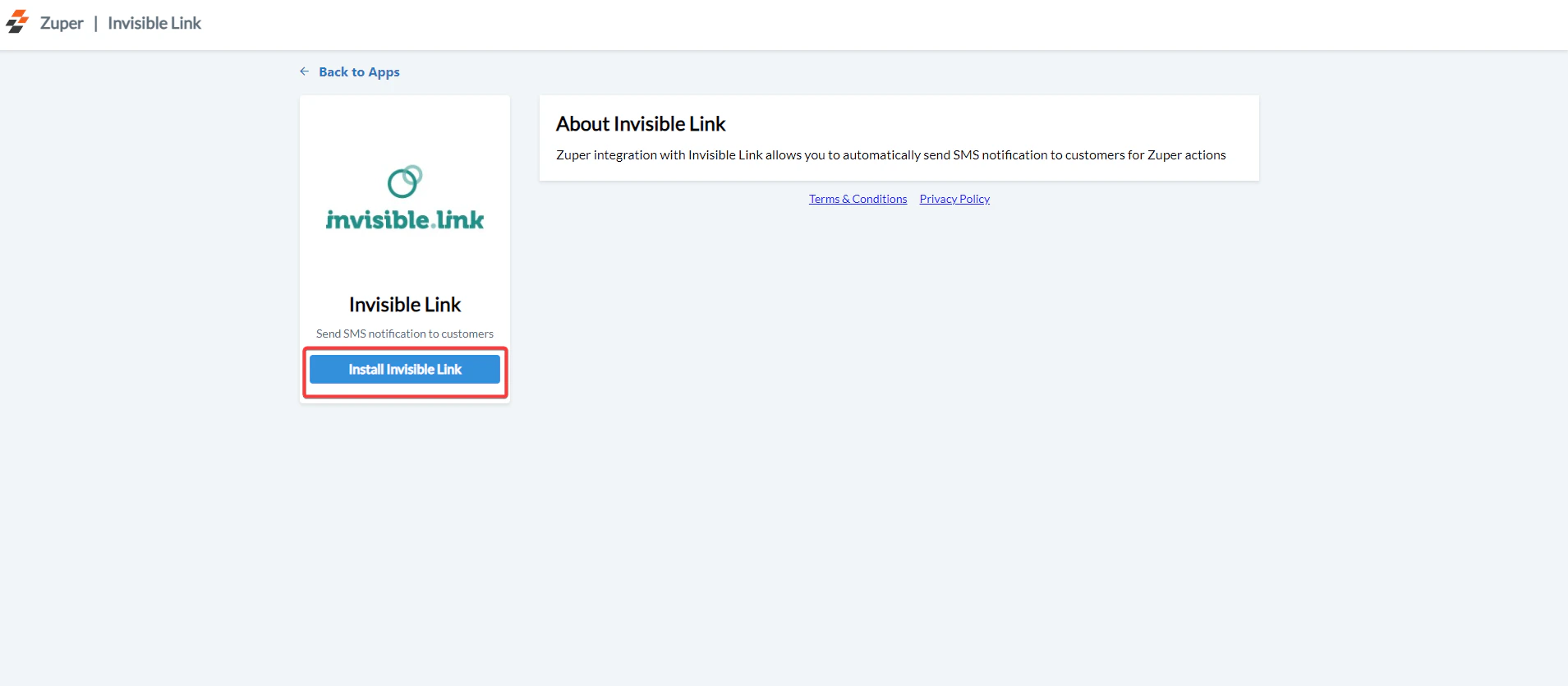
 3. Click **Install Invisible Link**.
 Tip: Keep both Zuper and Invisible Link tabs open during setup to switch between accounts easily.
4. Update the following fields with details from your Invisible Link account:
| Field | Description | Where to Find |
| :------------------------------------------------ | :------------------------------------------------------------- | :------------------------------------------------------------------------------------- |
| **Invisible API Key (Mandatory)** | Enter the Invisible Link API key. | Go to **Settings → Developer Section → API Key → Generate API Key** on Invisible Link. |
| **Invisible Link User Name (Mandatory)** | Enter the login name used for Invisible Link. | Use your login username from the Invisible Link login page. |
| **Invisible Link Sender Name/Number (Mandatory)** | Enter the sender name/number from which messages will be sent. | Go to **Send → Single SMS → Alphanumeric Sender** on Invisible Link. |
Tip: Keep both Zuper and Invisible Link tabs open during setup to switch between accounts easily.
4. Update the following fields with details from your Invisible Link account:
| Field | Description | Where to Find |
| :------------------------------------------------ | :------------------------------------------------------------- | :------------------------------------------------------------------------------------- |
| **Invisible API Key (Mandatory)** | Enter the Invisible Link API key. | Go to **Settings → Developer Section → API Key → Generate API Key** on Invisible Link. |
| **Invisible Link User Name (Mandatory)** | Enter the login name used for Invisible Link. | Use your login username from the Invisible Link login page. |
| **Invisible Link Sender Name/Number (Mandatory)** | Enter the sender name/number from which messages will be sent. | Go to **Send → Single SMS → Alphanumeric Sender** on Invisible Link. |
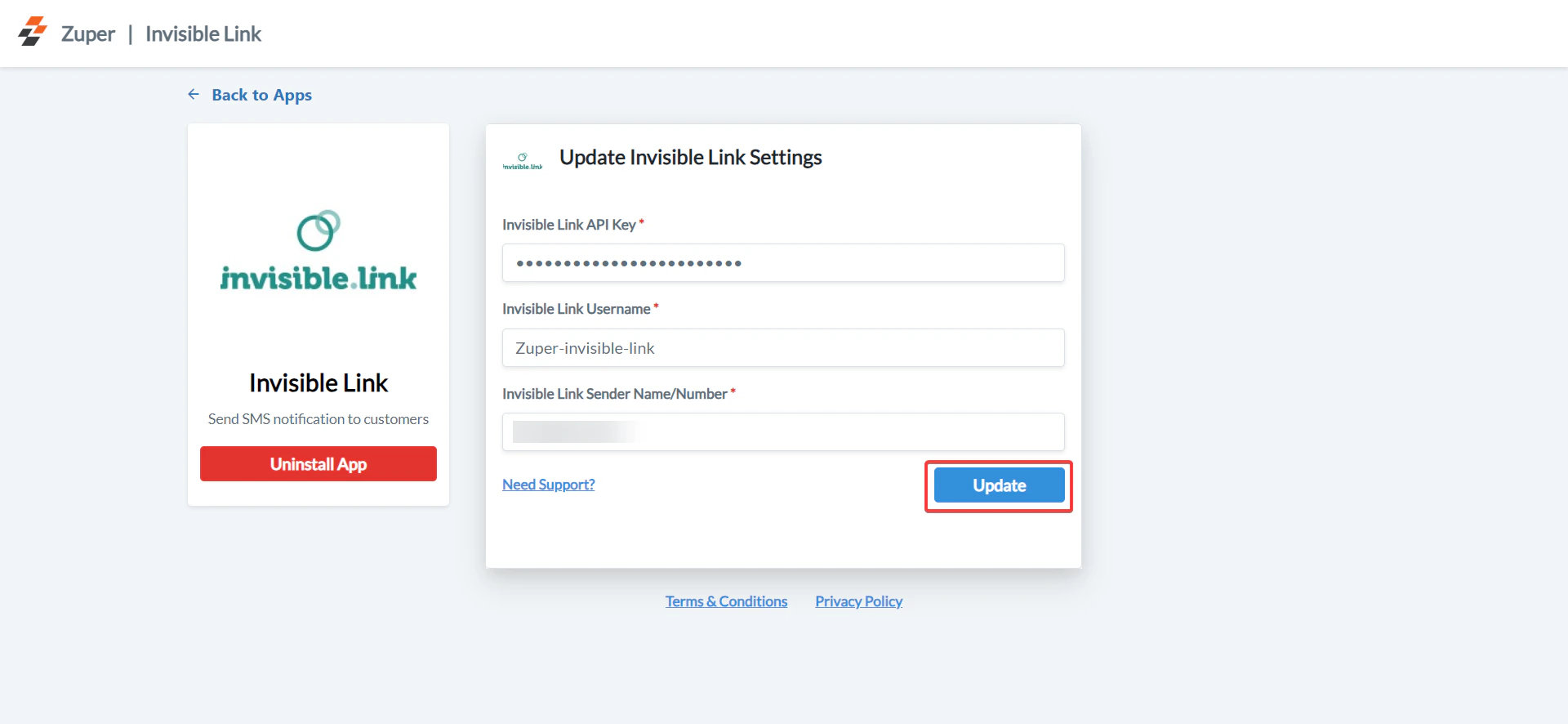 Click **Update** to complete the integration.
## B. Using the Zuper–Invisible Link SMS Integration
Once integrated, you can send **Email/Text Messages** directly from Zuper.
1. Navigate to the **Contacts** module from the left panel.
Click **Update** to complete the integration.
## B. Using the Zuper–Invisible Link SMS Integration
Once integrated, you can send **Email/Text Messages** directly from Zuper.
1. Navigate to the **Contacts** module from the left panel.
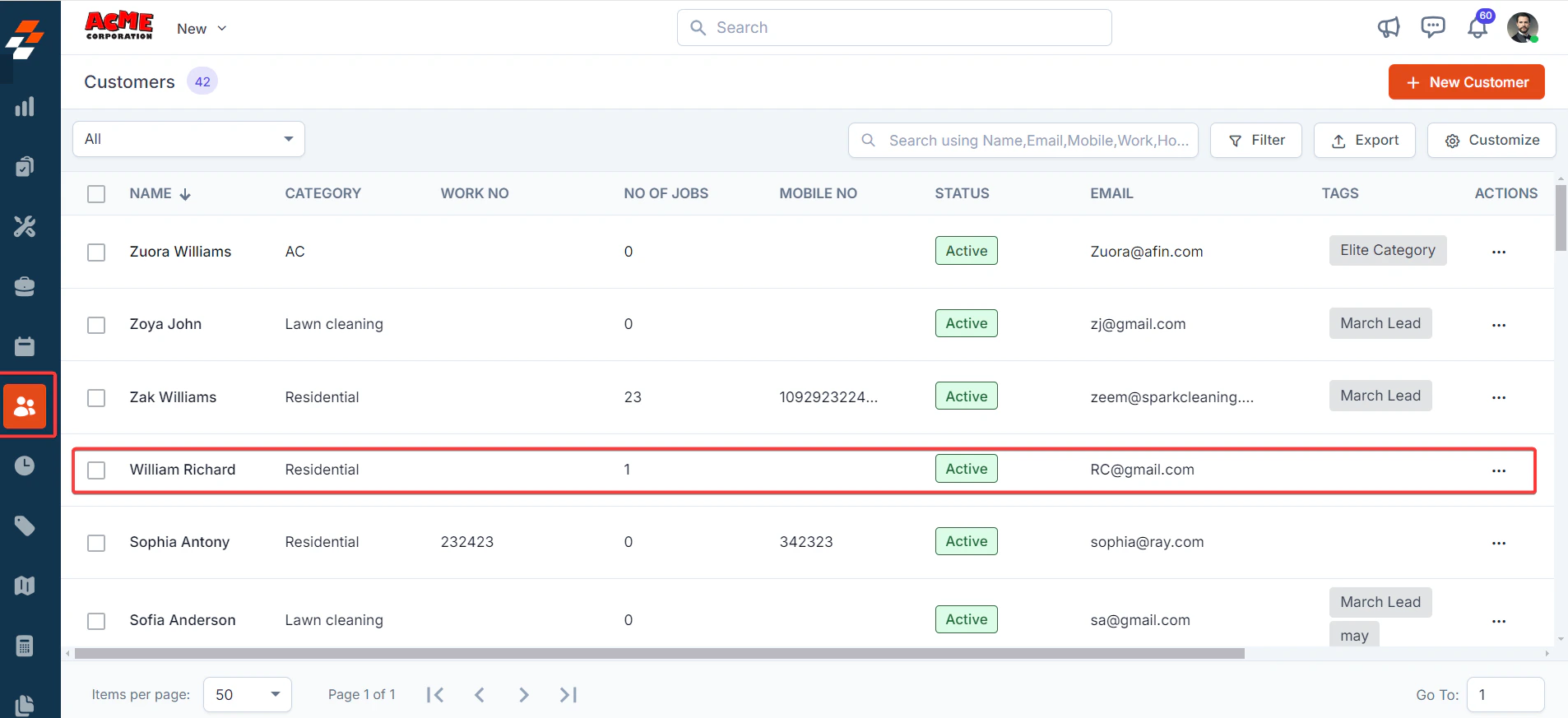 2. Select a **contact** from the listing page to open its details.
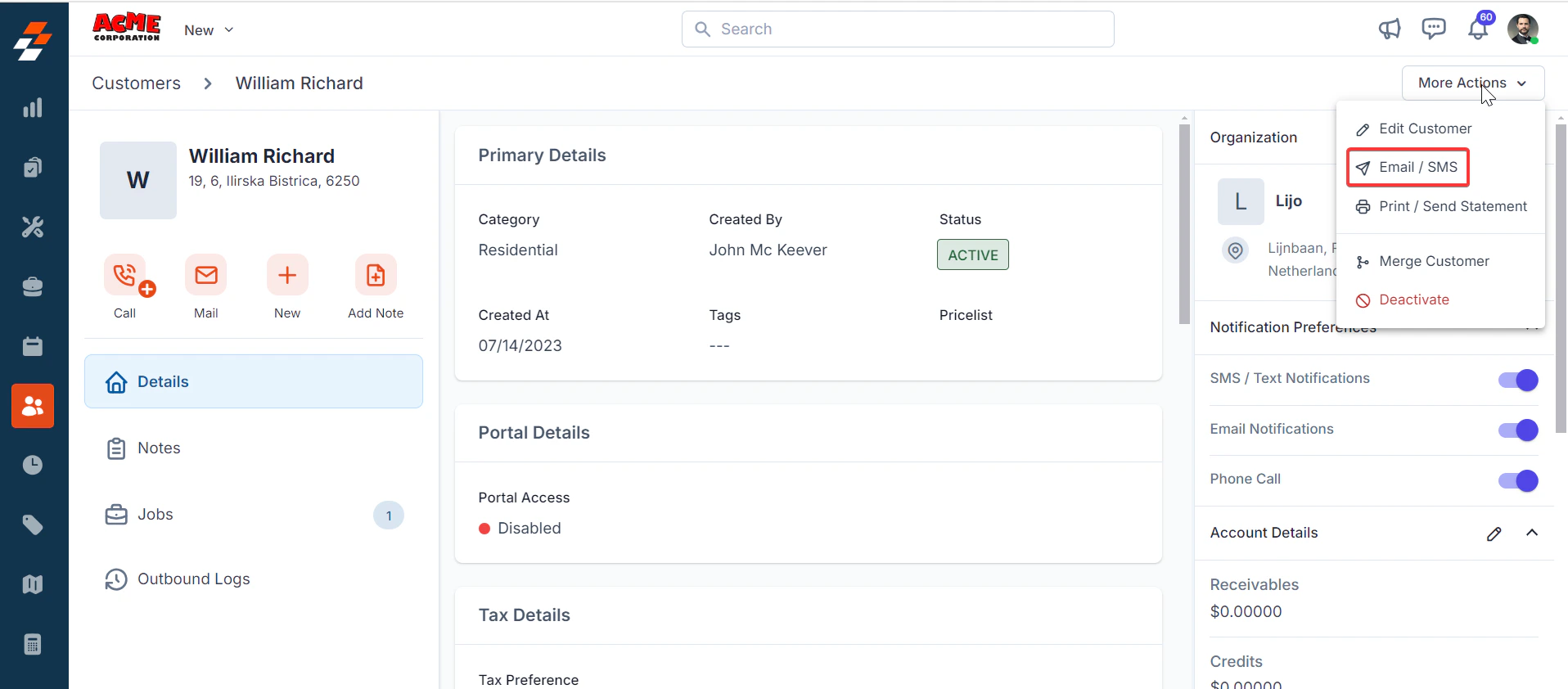
On the **Contact Details** page, click ****More Actions (at the top right corner) and selectEmail/Text Message**** from the dropdown menu.
2. Select a **contact** from the listing page to open its details.
On the **Contact Details** page, click ****More Actions (at the top right corner) and selectEmail/Text Message**** from the dropdown menu.
 3. Fill in the following fields:
| Field | Description |
| :----------------------------- | :---------------------------------------------- |
| **Contact Via (Mandatory)** | Select **Text Message** to send a notification. |
| **Contact Number (Mandatory)** | Choose the contact’s phone number. |
| **Message Body (Mandatory)** | Enter the message content. |
3. Fill in the following fields:
| Field | Description |
| :----------------------------- | :---------------------------------------------- |
| **Contact Via (Mandatory)** | Select **Text Message** to send a notification. |
| **Contact Number (Mandatory)** | Choose the contact’s phone number. |
| **Message Body (Mandatory)** | Enter the message content. |
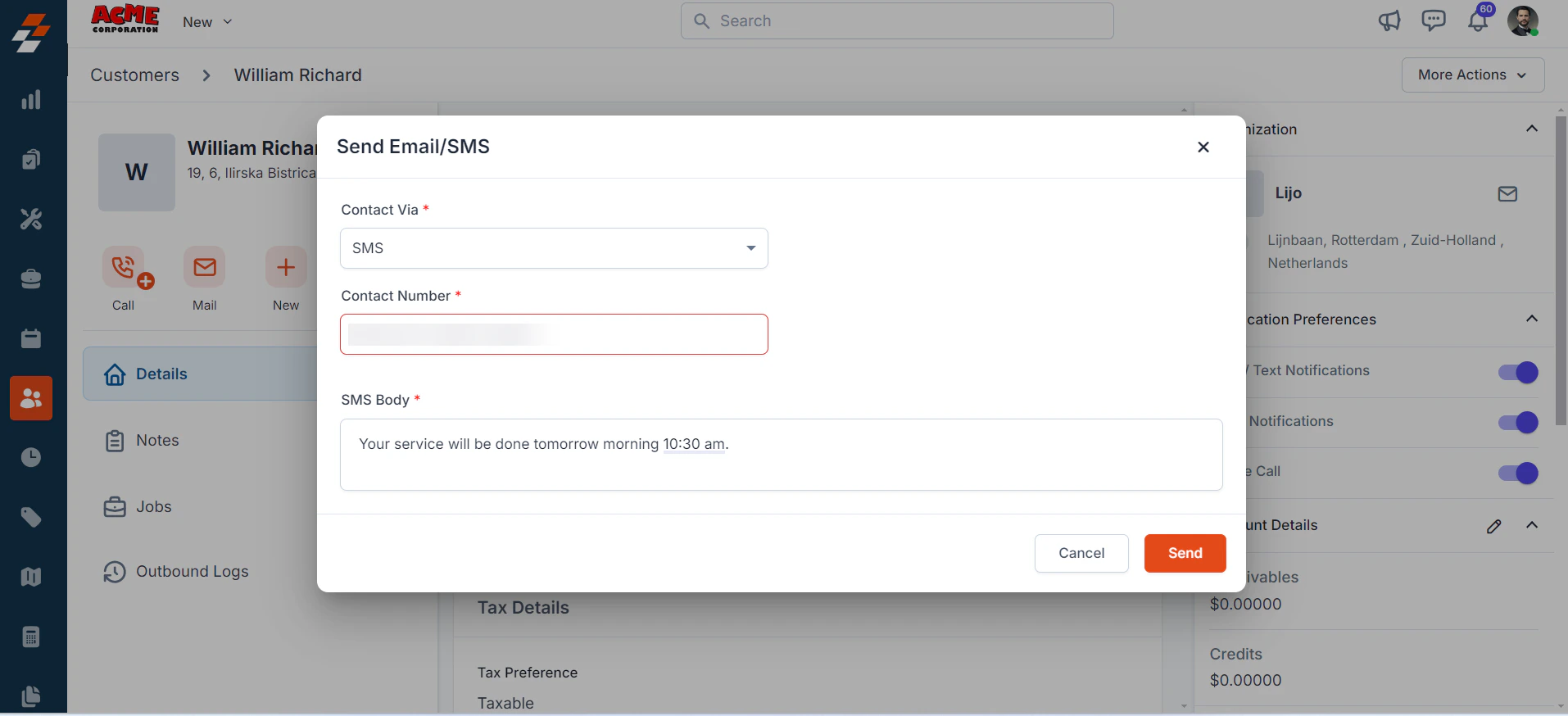 Click **Send** to deliver the text message via Invisible Link.
Note: You can trigger messages via the Contacts module, Bulk Text Message action, or Workflow automation.
## C. Uninstalling Invisible Link from Zuper
If you no longer need the integration, follow the steps below to uninstall the Invisible Link app.
1. Log in to your **Zuper web app**. Click your **Profile Picture** in the top-right corner. Select **App Store**.
2. Under **Browse by Category**, select **Telephony, Video & SMS**. Choose **Invisible Link**. You have the option to Uninstall **Invisible Link**.
3. The Invisible Link is uninstalled successfully.
Click **Send** to deliver the text message via Invisible Link.
Note: You can trigger messages via the Contacts module, Bulk Text Message action, or Workflow automation.
## C. Uninstalling Invisible Link from Zuper
If you no longer need the integration, follow the steps below to uninstall the Invisible Link app.
1. Log in to your **Zuper web app**. Click your **Profile Picture** in the top-right corner. Select **App Store**.
2. Under **Browse by Category**, select **Telephony, Video & SMS**. Choose **Invisible Link**. You have the option to Uninstall **Invisible Link**.
3. The Invisible Link is uninstalled successfully.
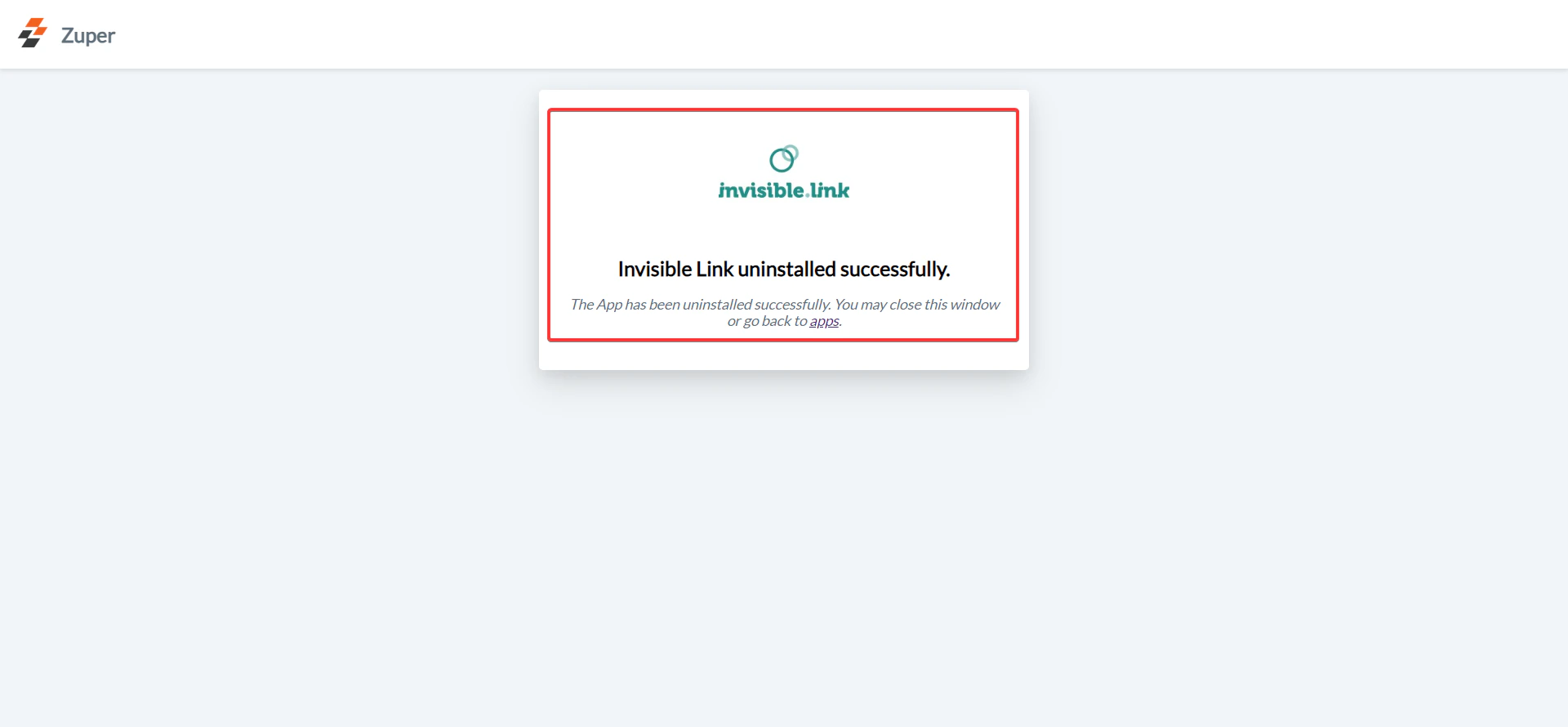 A confirmation message will appear once **Invisible Link** has been successfully uninstalled.