> ## Documentation Index
> Fetch the complete documentation index at: https://zuperinc-section23.mintlify.site/llms.txt
> Use this file to discover all available pages before exploring further.
# Message Media
The **Zuper–Message Media integration** enables you to send outbound **Text Message/Text Notifications** to your contacts directly from Zuper using your Message Media account. This ensures customers receive instant updates on pending items, job progress, or service alerts.
Note:
1. To enable the Message Media integration on your account, contact our Support Team at [support@zuper.co](mailto:support@zuper.co).
2. Ensure that Text Message/Text Notifications are enabled for your contacts.
Navigation: Contacts → Contacts Listing page → Edit (via three-dot icon) → Edit Contact page → Notification Preferences
3. The Zuper–Message Media integration currently supports the following countries: Australia, Canada, New Zealand, the UK, and the US.
## A. Connecting Message Media with Zuper
Follow the steps below to integrate your Message Media account with Zuper.
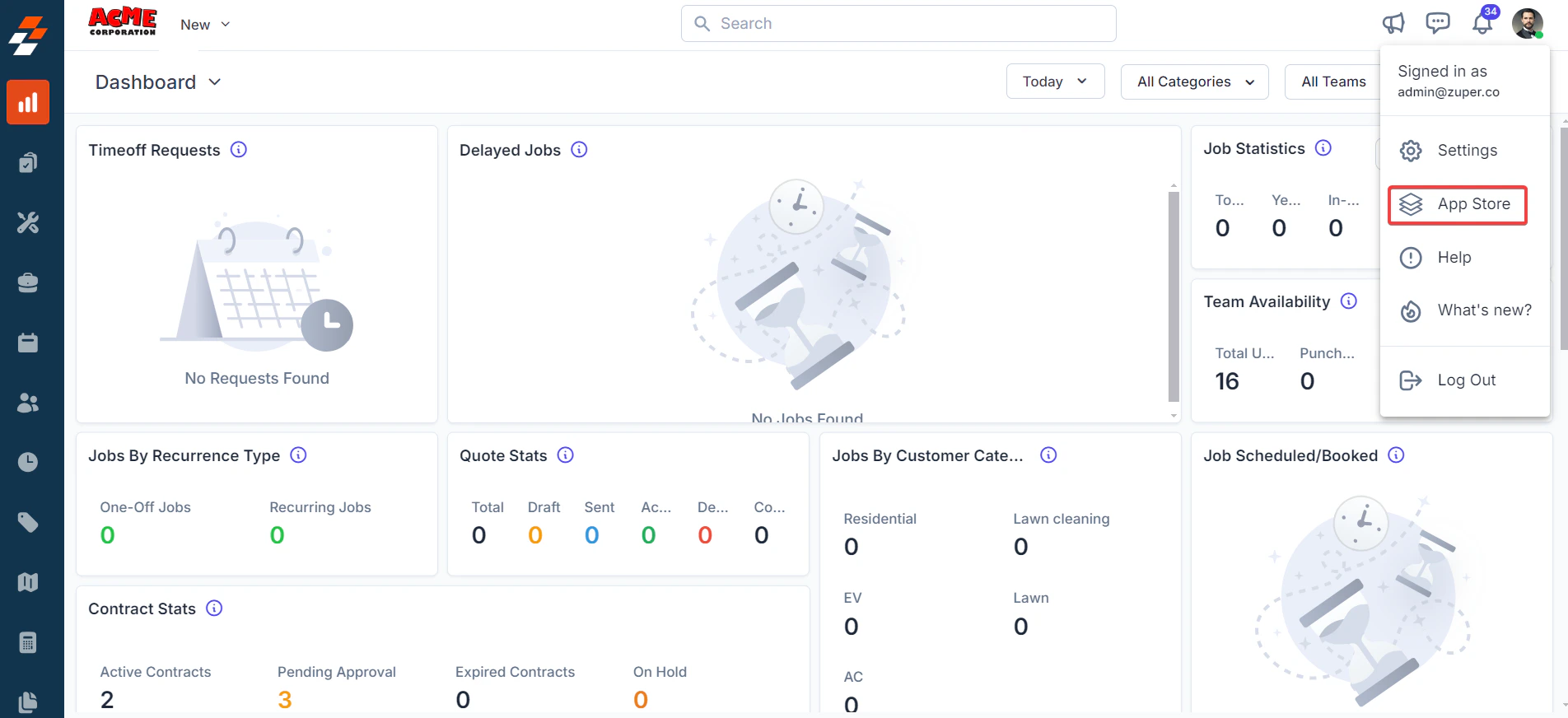
1. Log in to your **Zuper web app**. Click your **Profile Picture** in the top-right corner. Select **App Store** from the dropdown menu.
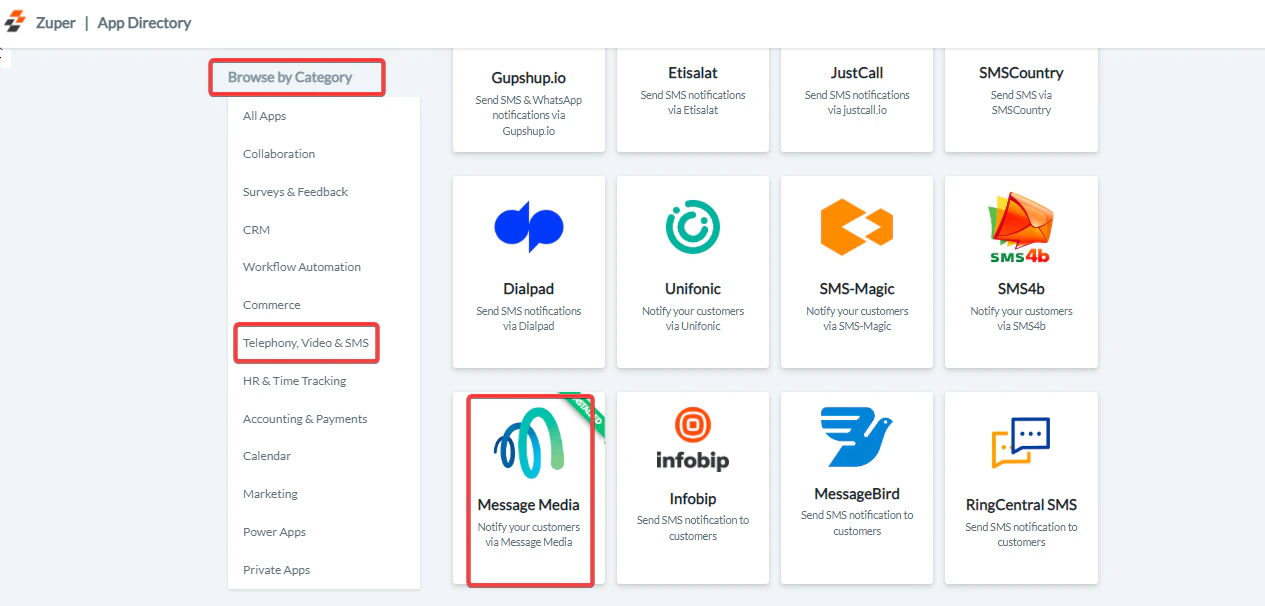
 2. Under **Browse by Category**, select **Telephony, Video & SMS**. Choose **Message Media** from the list of available integrations. Click **Install Message Media**.
 Tip: Keep both the Zuper and Message Media tabs open during setup to switch between them easily.
###
In the configuration window, fill in the following details:
| Field | Description |
| :------------------------------------ | :-------------------------------------------------------------------- |
| **Authentication Method (Mandatory)** | Select the authentication method – either **Basic Auth** or **HMAC**. |
| **Auth Username (Mandatory)** | Enter your Message Media authentication username. |
| **Auth Password (Mandatory)** | Enter your Message Media authentication password. |
| **Enable SMS Notification** | Select **Yes** to enable Text Message notifications. |
Tip: Keep both the Zuper and Message Media tabs open during setup to switch between them easily.
###
In the configuration window, fill in the following details:
| Field | Description |
| :------------------------------------ | :-------------------------------------------------------------------- |
| **Authentication Method (Mandatory)** | Select the authentication method – either **Basic Auth** or **HMAC**. |
| **Auth Username (Mandatory)** | Enter your Message Media authentication username. |
| **Auth Password (Mandatory)** | Enter your Message Media authentication password. |
| **Enable SMS Notification** | Select **Yes** to enable Text Message notifications. |
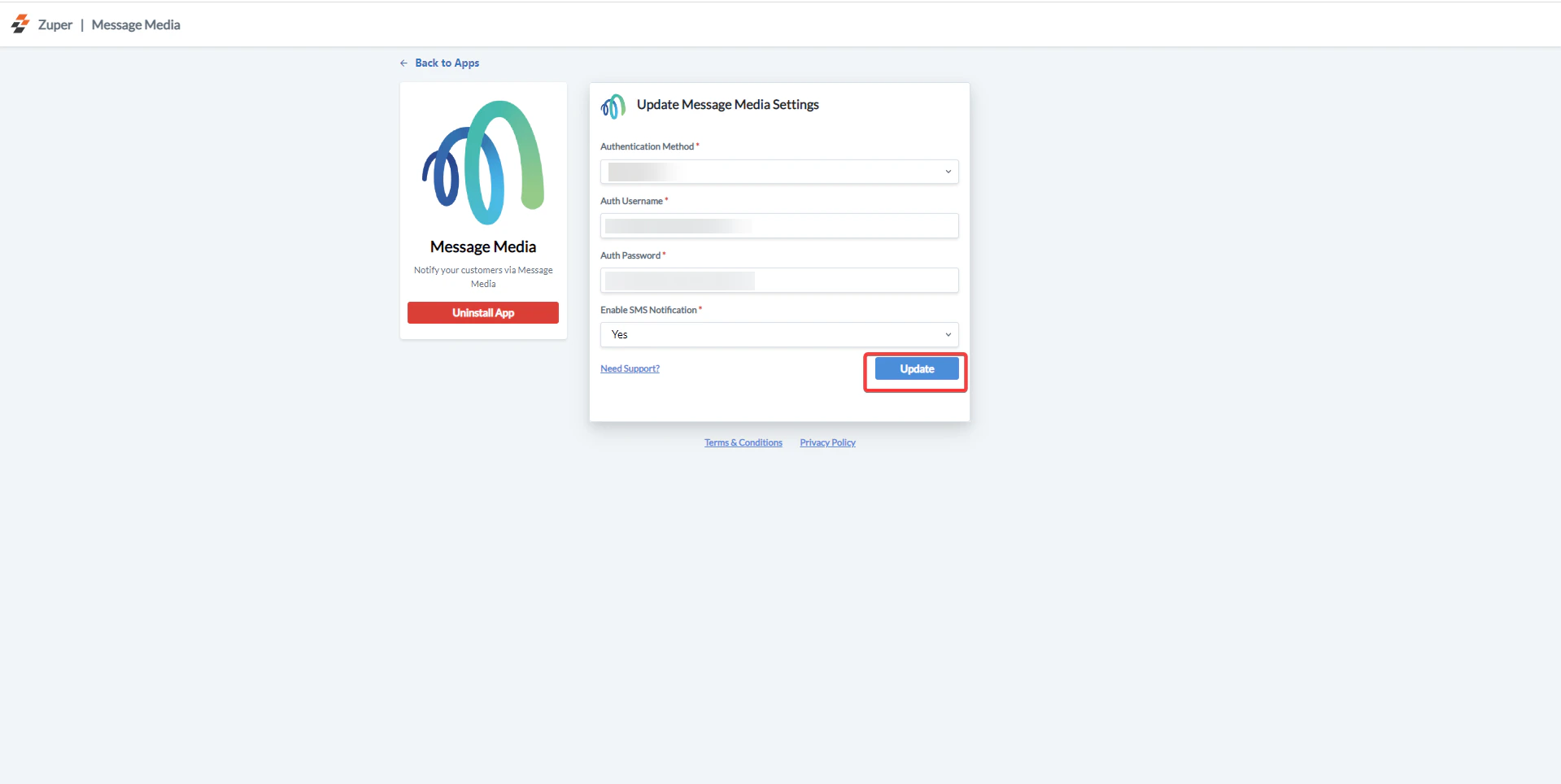 Click **Update** to complete the integration setup.
## B. Using the Zuper–Message Media Integration
Once integrated, you can send Text Messages directly from Zuper through Message Media.
1. Navigate to the **Contacts** module from the left navigation menu. Select a contact on the listing page to open its details.
Click **Update** to complete the integration setup.
## B. Using the Zuper–Message Media Integration
Once integrated, you can send Text Messages directly from Zuper through Message Media.
1. Navigate to the **Contacts** module from the left navigation menu. Select a contact on the listing page to open its details.
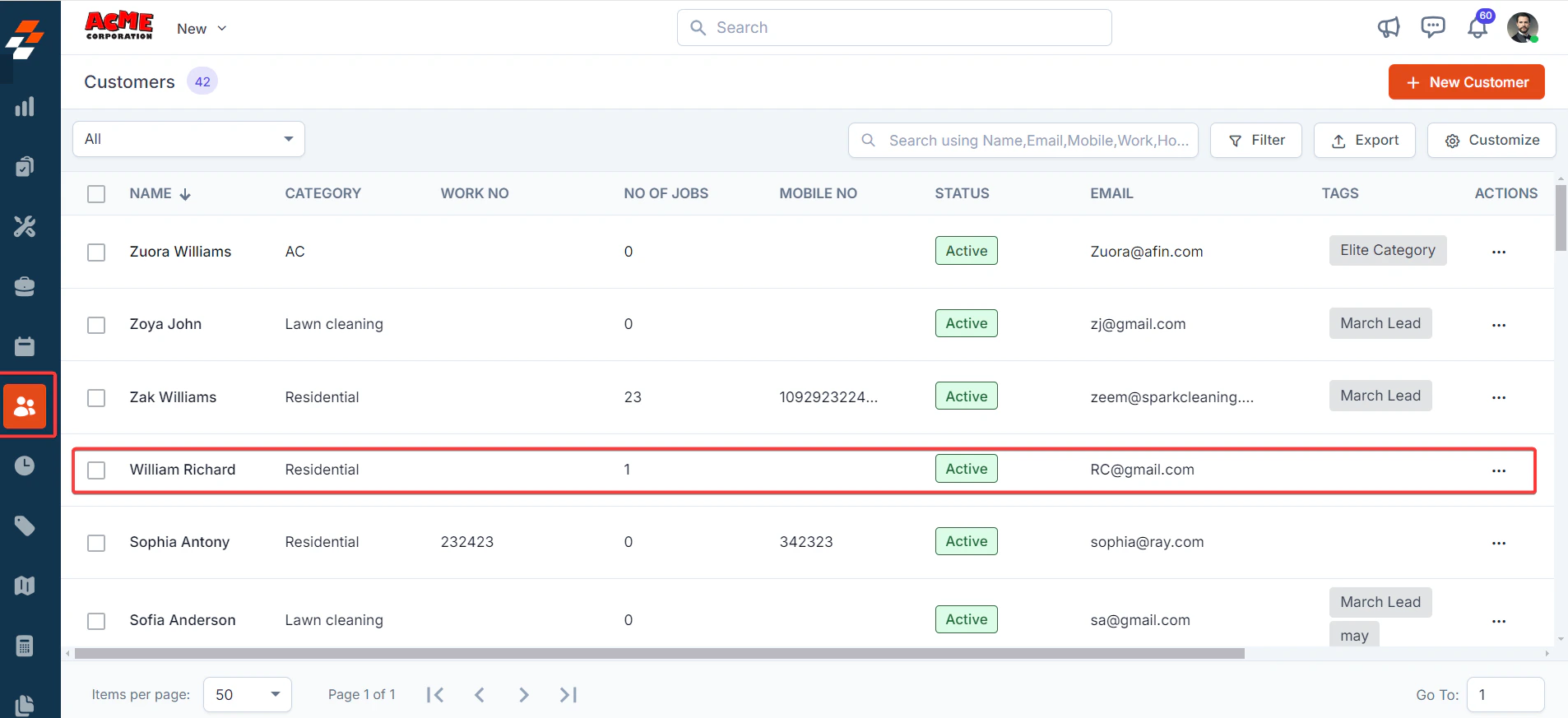 3. On the **Contact Details** page, click **More Actions** on the top right corner and select Email/Text Message from the dropdown menu.
Fill in the following fields:
| Field | Description |
| :----------------------------- | :---------------------------------------------- |
| **Contact Via (Mandatory)** | Select **Text Message** to send a notification. |
| **Contact Number (Mandatory)** | Choose the contact’s phone number. |
| **Message Body (Mandatory)** | Enter the text message content. |
3. On the **Contact Details** page, click **More Actions** on the top right corner and select Email/Text Message from the dropdown menu.
Fill in the following fields:
| Field | Description |
| :----------------------------- | :---------------------------------------------- |
| **Contact Via (Mandatory)** | Select **Text Message** to send a notification. |
| **Contact Number (Mandatory)** | Choose the contact’s phone number. |
| **Message Body (Mandatory)** | Enter the text message content. |
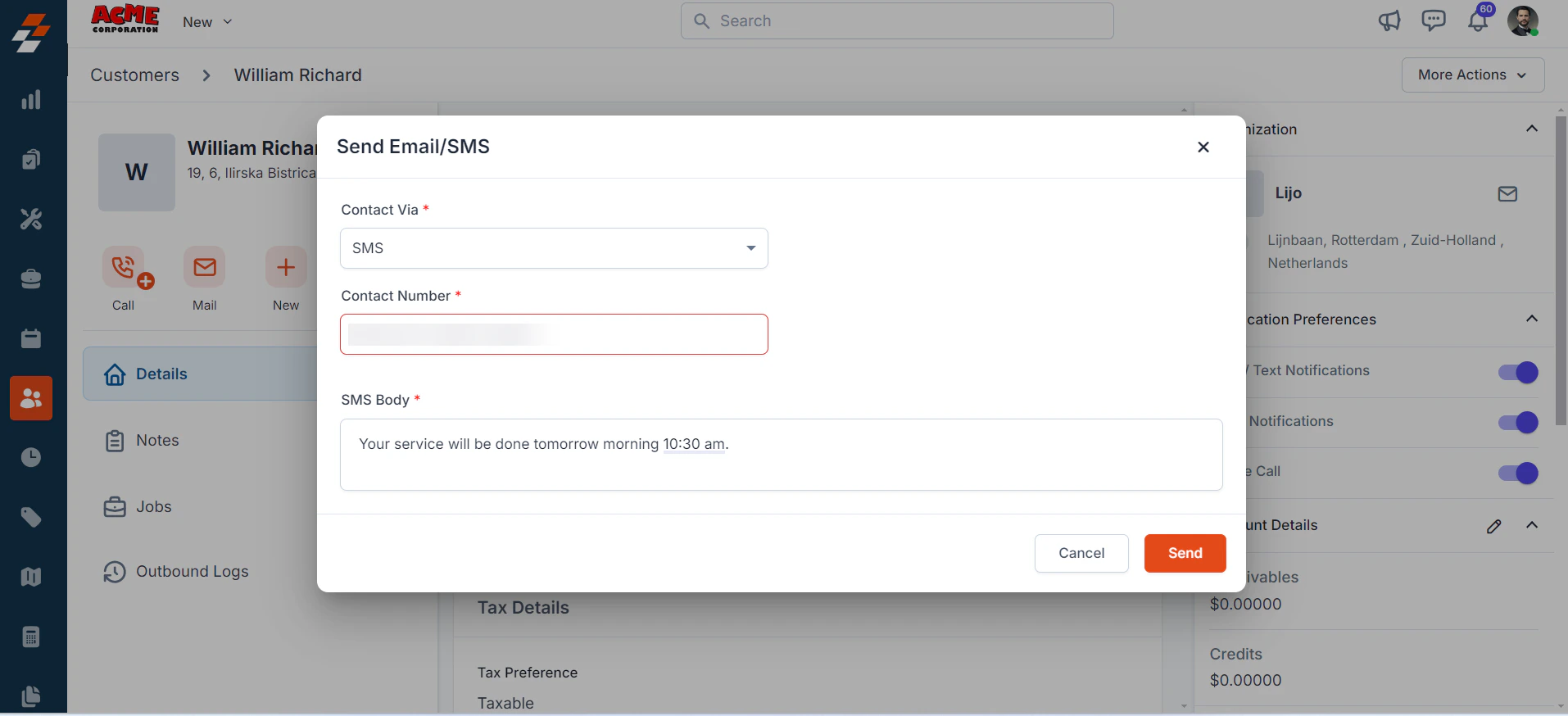 Click **Send** to deliver the text message via Message Media.
Note: You can trigger Text Messages via the Contacts module, Bulk Text Message action, or Workflow automation.
## C. Uninstalling Message Media from Zuper
If you no longer need the integration, follow the steps below to uninstall the Message Media app.
1. Log in to your **Zuper web app**. Click your **Profile Picture** in the top-right corner. Select **App Store**.
2. Under **Browse by Category**, select **Telephony, Video & SMS**. Choose **Message Media**. Click **Deactivate**. You have the option to Uninstall **Message Media**.
3. The Message Media is uninstalled successfully.
Click **Send** to deliver the text message via Message Media.
Note: You can trigger Text Messages via the Contacts module, Bulk Text Message action, or Workflow automation.
## C. Uninstalling Message Media from Zuper
If you no longer need the integration, follow the steps below to uninstall the Message Media app.
1. Log in to your **Zuper web app**. Click your **Profile Picture** in the top-right corner. Select **App Store**.
2. Under **Browse by Category**, select **Telephony, Video & SMS**. Choose **Message Media**. Click **Deactivate**. You have the option to Uninstall **Message Media**.
3. The Message Media is uninstalled successfully.
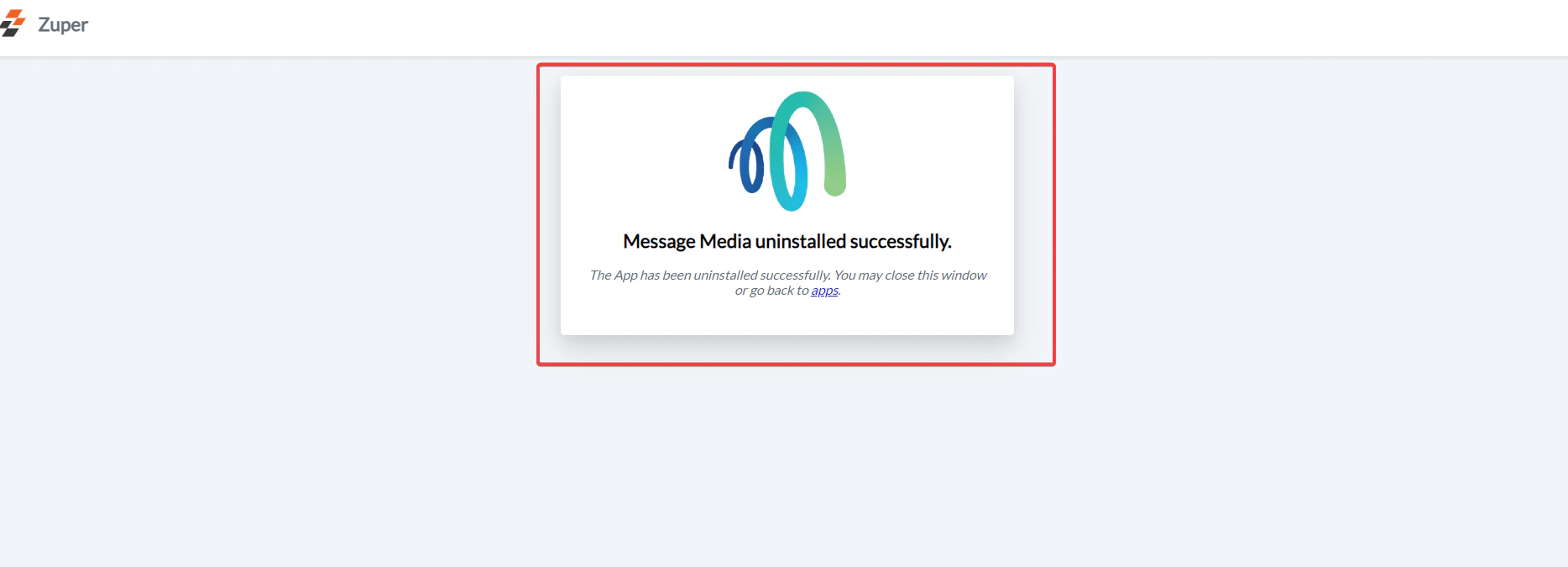 A confirmation message will appear once **Message Media** has been successfully uninstalled.