> ## Documentation Index
> Fetch the complete documentation index at: https://zuperinc-section23.mintlify.site/llms.txt
> Use this file to discover all available pages before exploring further.
# FieldNation
FieldNation is an on-demand field workforce platform that connects businesses with skilled technicians. This guide outlines how to integrate FieldNation with Zuper, a work order management platform, to enable seamless bi-directional synchronization of job-related information.
The integration allows users to:
* Push work order details from Zuper to FieldNation.
* Sync status updates, notes, and attachments from FieldNation to Zuper.
* Track FieldNation job details directly from Zuper.
## Installing FieldNation in Zuper
Follow these steps to install and configure the FieldNation app in Zuper:
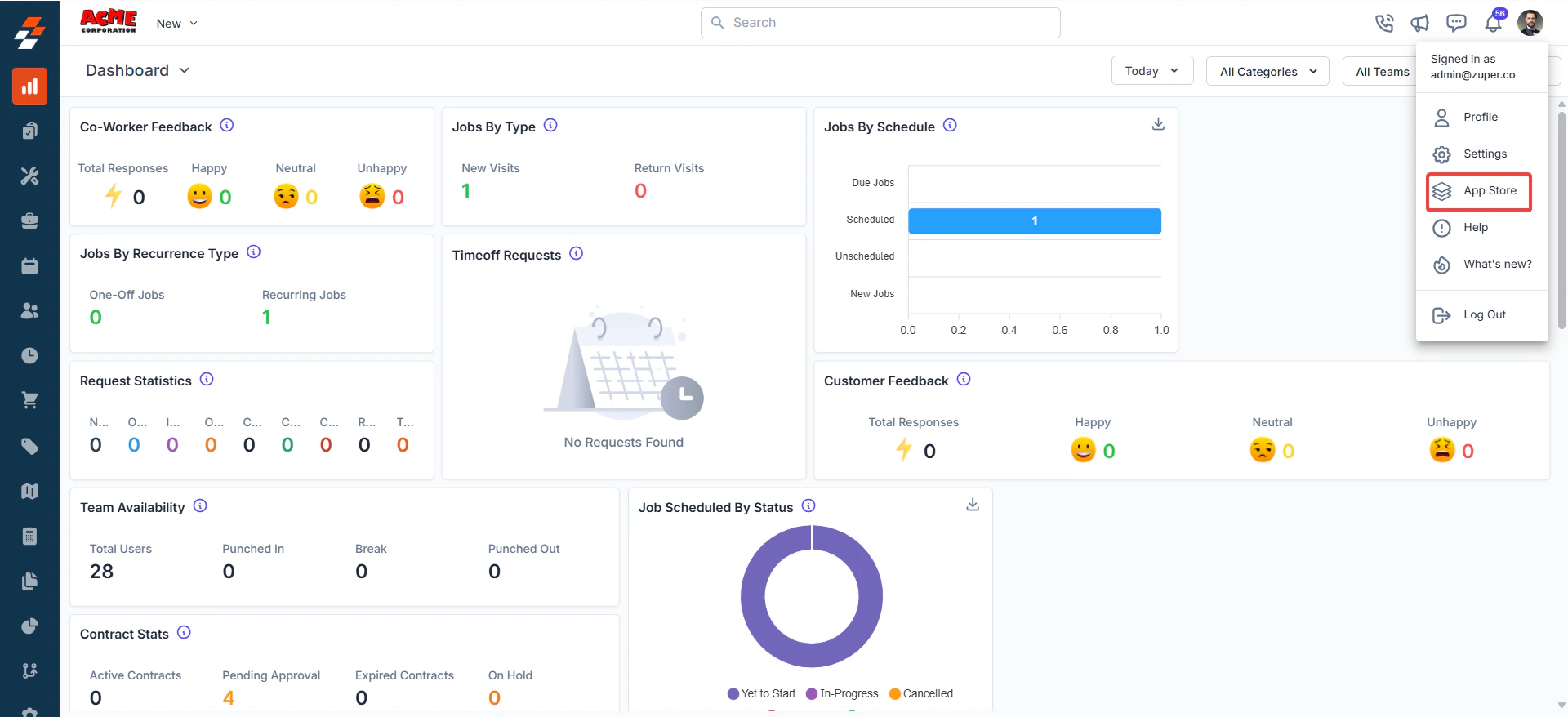
1. Once you are logged in to your Zuper Account, click on your profile picture in the top right corner of the screen and click on “**App Store**.”
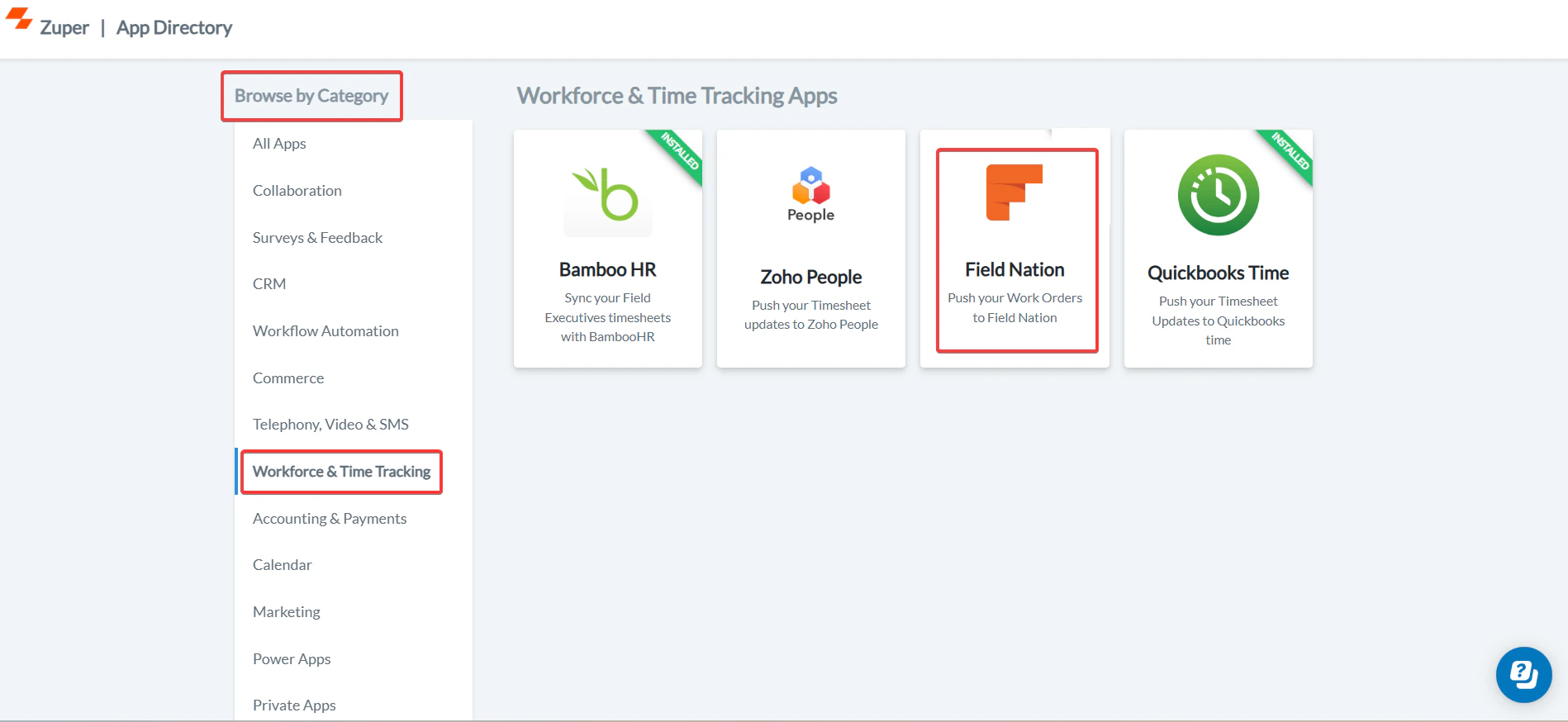
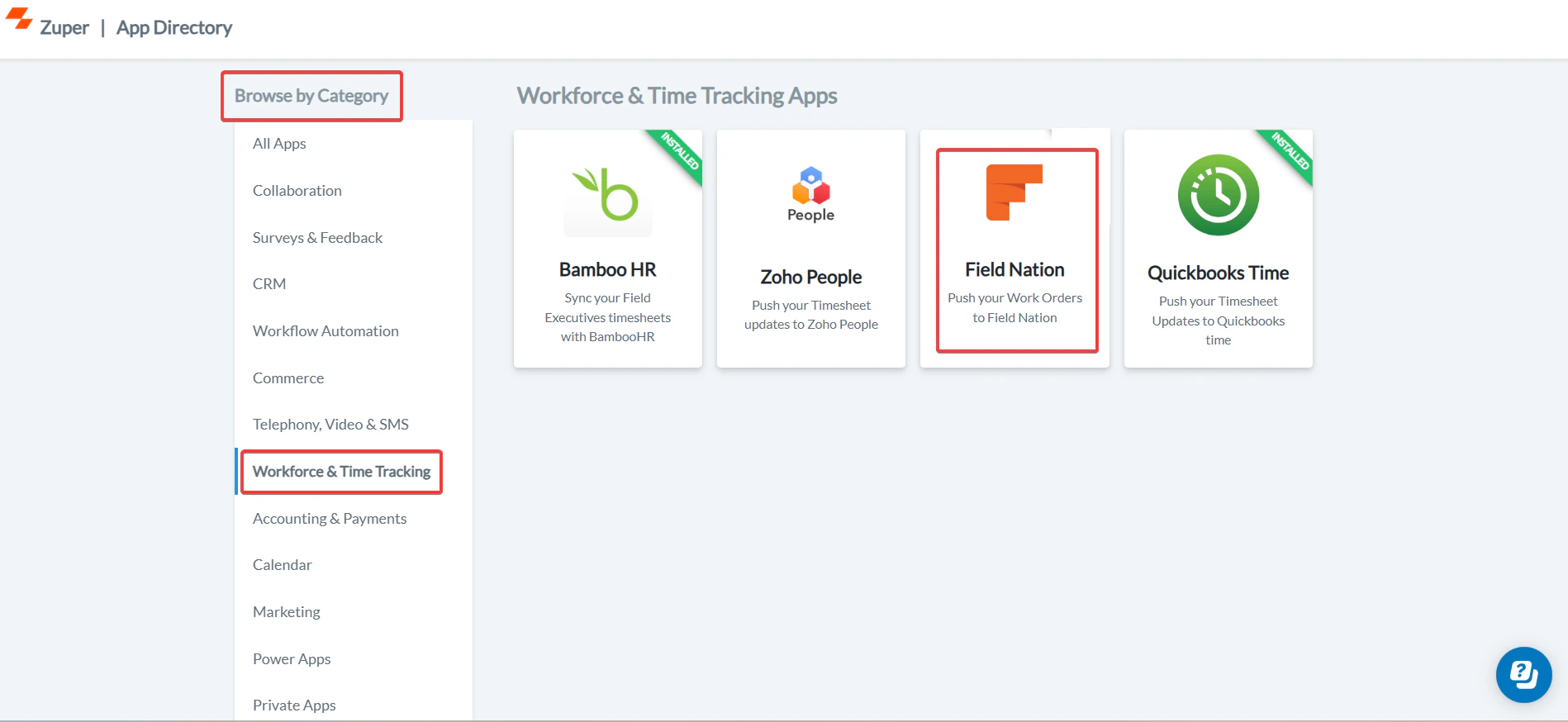
 2. Select the "**Workforce and Time Tracking**" option and choose “**FieldNation**.” Select the “****Install App” button.****
 * Fill in the following fields to connect Zuper and Fieldnation.
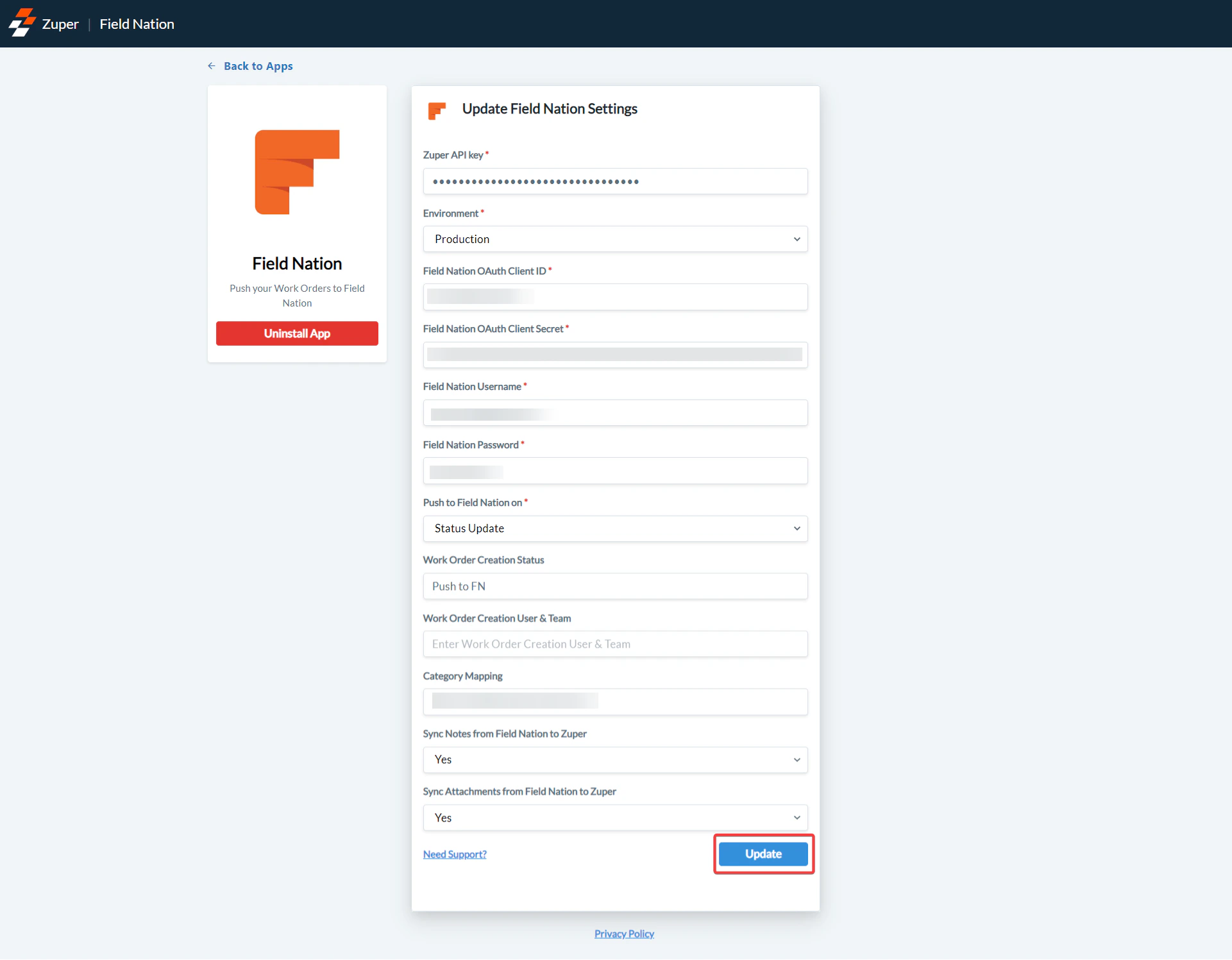
* **Zuper API Key** (Mandatory Field) - Enter the Zuper API key. Refer to [How to Generate a Zuper API Key](https://docs.zuper.co/Settings/Developer_Hub/API_Keys#api-keys) for guidance.
* **Environment** (Mandatory Field) – Enter Zuper’s Environment name. This can be either "**Sandbox**" or " **Production**."
* **Field Nation OAuth Client ID** (Mandatory Field) - Enter the OAuth Client ID from the Field Nation account.
* **Field Nation OAuth Client Secret** (Mandatory Field) - Enter the OAuth Client Secret from the Field Nation account.
* Fill in the following fields to connect Zuper and Fieldnation.
* **Zuper API Key** (Mandatory Field) - Enter the Zuper API key. Refer to [How to Generate a Zuper API Key](https://docs.zuper.co/Settings/Developer_Hub/API_Keys#api-keys) for guidance.
* **Environment** (Mandatory Field) – Enter Zuper’s Environment name. This can be either "**Sandbox**" or " **Production**."
* **Field Nation OAuth Client ID** (Mandatory Field) - Enter the OAuth Client ID from the Field Nation account.
* **Field Nation OAuth Client Secret** (Mandatory Field) - Enter the OAuth Client Secret from the Field Nation account.
 **Note**: You must have a FieldNation account with REST API and Webhooks enabled to obtain the OAuth Client ID and Client Secret.
**Important**: Click **Generate New Secret** in FieldNation to obtain a new Client ID and Client Secret. Copy these from the pop-up and update them in Zuper, replacing any existing credentials. The "**Copy link**" button in the FieldNation REST API will not work.
**Note**: You must have a FieldNation account with REST API and Webhooks enabled to obtain the OAuth Client ID and Client Secret.
**Important**: Click **Generate New Secret** in FieldNation to obtain a new Client ID and Client Secret. Copy these from the pop-up and update them in Zuper, replacing any existing credentials. The "**Copy link**" button in the FieldNation REST API will not work.
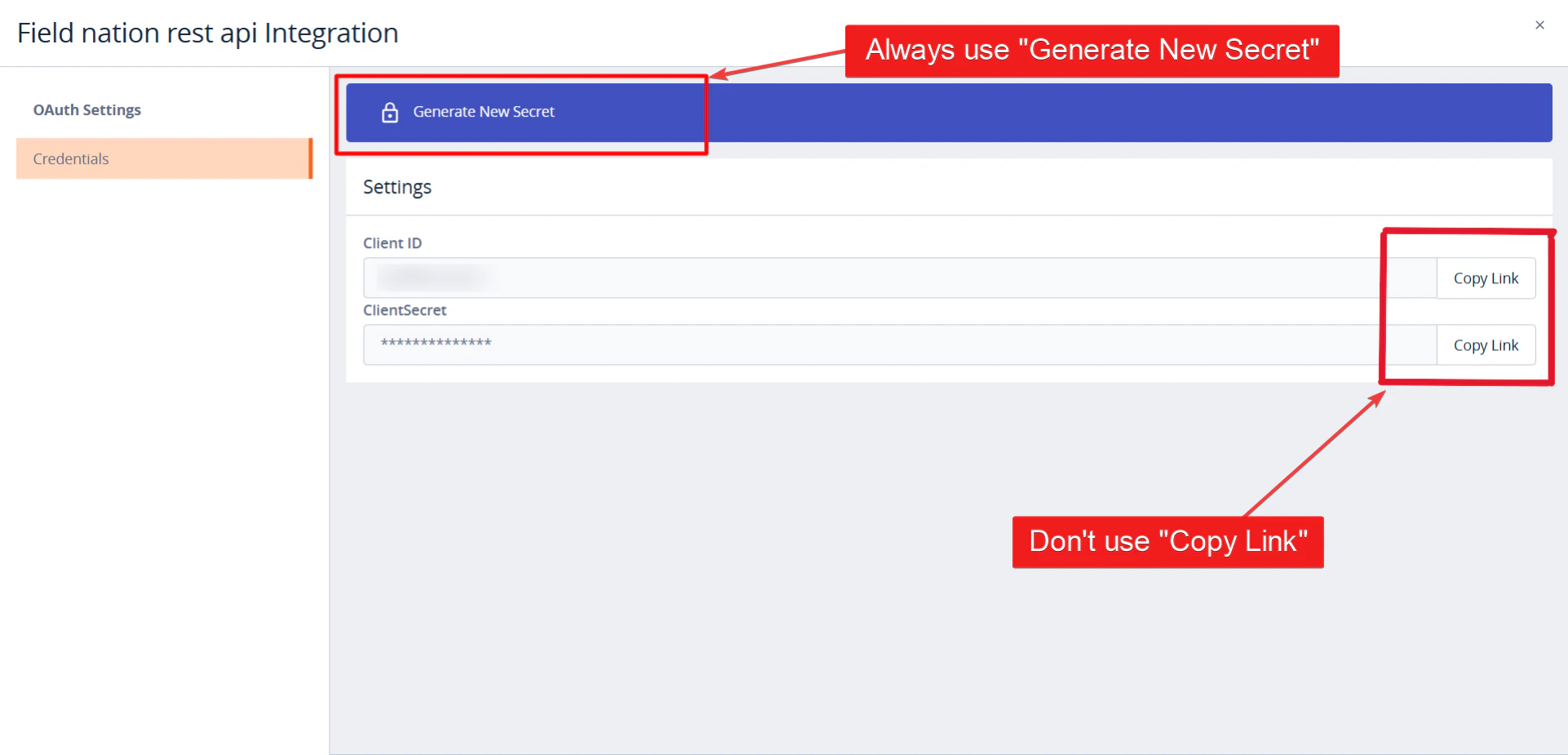 **Warning**: The old "**Client ID and Client Secret**" should be replaced with the existing copied Client ID and client secret, respectively.
* **Field Nation User Name** (Mandatory Field) – Enter the user name of the Field Nation.
* **Field Nation Password** (Mandatory Field) – Enter the password of the Field Nation.
* **Push to Field Nation on** (Mandatory Field) – The action to push data to Field Nation whenever "**Status Update**," "Assignment," or "**Status Update and Assignment**."
**Note**: If selecting "Status Update" or "Status Update and Assignment," ensure an active "Status" is configured for the job category in Zuper.
* **Work Order Creation Status** – Enter the status of the work order from Field Nation.
* **Work Order Creation User and Team** – Enter the user and team responsible for work order creation. The recommended format for the input: User and Team should have "**:**" Colon separator, followed by "**;**" semi-colon, and select "**No**" to avoid syncing the next set. (A sample format: Alex: Team California; Peter: Team NewYork).
* **Category Mapping**– Map FieldNation categories to Zuper categories, separated by the “**Semi-Colon**”(;).
* **Sync Notes from Field Nation to Zuper** – Select "**Yes**" to sync notes from Field Nation to Zuper, and select "No" to avoid syncing notes from Field Nation to Zuper.
* **Sync attachments from Field Nation to Zuper**– Select "**Yes**" to sync attachments from Field Nation to Zuper, and select "**No**" to avoid syncing attachments from Field Nation to Zuper.
* Select the “**Update**” button to integrate Zuper with Field Nation.
**Warning**: The old "**Client ID and Client Secret**" should be replaced with the existing copied Client ID and client secret, respectively.
* **Field Nation User Name** (Mandatory Field) – Enter the user name of the Field Nation.
* **Field Nation Password** (Mandatory Field) – Enter the password of the Field Nation.
* **Push to Field Nation on** (Mandatory Field) – The action to push data to Field Nation whenever "**Status Update**," "Assignment," or "**Status Update and Assignment**."
**Note**: If selecting "Status Update" or "Status Update and Assignment," ensure an active "Status" is configured for the job category in Zuper.
* **Work Order Creation Status** – Enter the status of the work order from Field Nation.
* **Work Order Creation User and Team** – Enter the user and team responsible for work order creation. The recommended format for the input: User and Team should have "**:**" Colon separator, followed by "**;**" semi-colon, and select "**No**" to avoid syncing the next set. (A sample format: Alex: Team California; Peter: Team NewYork).
* **Category Mapping**– Map FieldNation categories to Zuper categories, separated by the “**Semi-Colon**”(;).
* **Sync Notes from Field Nation to Zuper** – Select "**Yes**" to sync notes from Field Nation to Zuper, and select "No" to avoid syncing notes from Field Nation to Zuper.
* **Sync attachments from Field Nation to Zuper**– Select "**Yes**" to sync attachments from Field Nation to Zuper, and select "**No**" to avoid syncing attachments from Field Nation to Zuper.
* Select the “**Update**” button to integrate Zuper with Field Nation.
 #### Field Nation and FieldNation and Zuper Status Mapping
The following table maps equivalent statuses between FieldNation and Zuper:
| **Field Nation** | **Zuper** |
| ---------------- | --------- |
| On My Way | On My Way |
| Work Done | Completed |
| Postponed | On Hold |
| Canceled | Canceled |
| Checked-In | Started |
## How the Zuper-FieldNation Integration Works
The integration enables bi-directional synchronization between Zuper and FieldNation, ensuring seamless data flow for work orders.
**Sync Work orders from the Zuper to FieldNation:**
1. The type of work and the payment details are updated in Zuper and synced with FieldNation based on the category mapping.
#### Field Nation and FieldNation and Zuper Status Mapping
The following table maps equivalent statuses between FieldNation and Zuper:
| **Field Nation** | **Zuper** |
| ---------------- | --------- |
| On My Way | On My Way |
| Work Done | Completed |
| Postponed | On Hold |
| Canceled | Canceled |
| Checked-In | Started |
## How the Zuper-FieldNation Integration Works
The integration enables bi-directional synchronization between Zuper and FieldNation, ensuring seamless data flow for work orders.
**Sync Work orders from the Zuper to FieldNation:**
1. The type of work and the payment details are updated in Zuper and synced with FieldNation based on the category mapping.
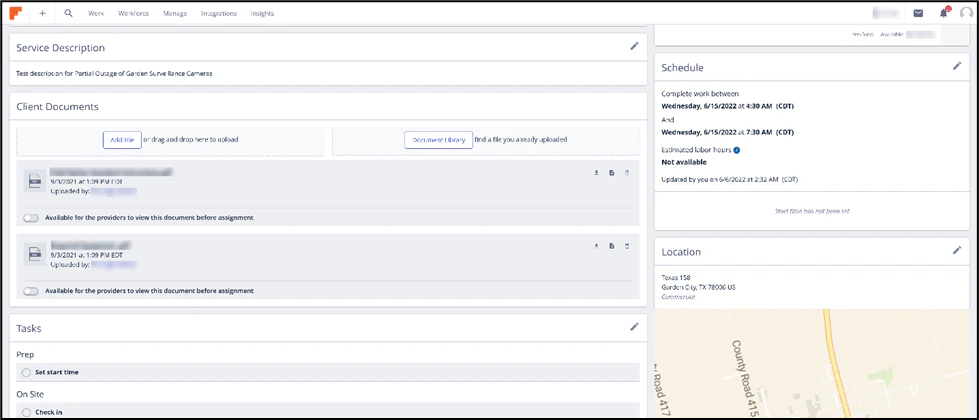
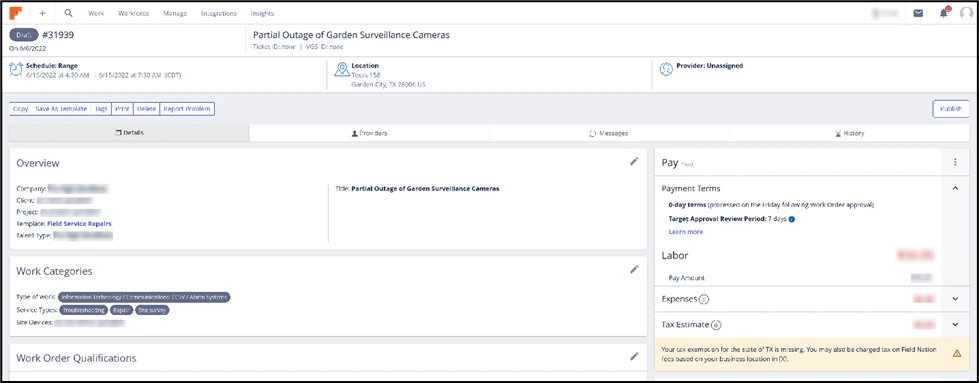 2. The schedule details and attachments on FieldNation are updated on Zuper.
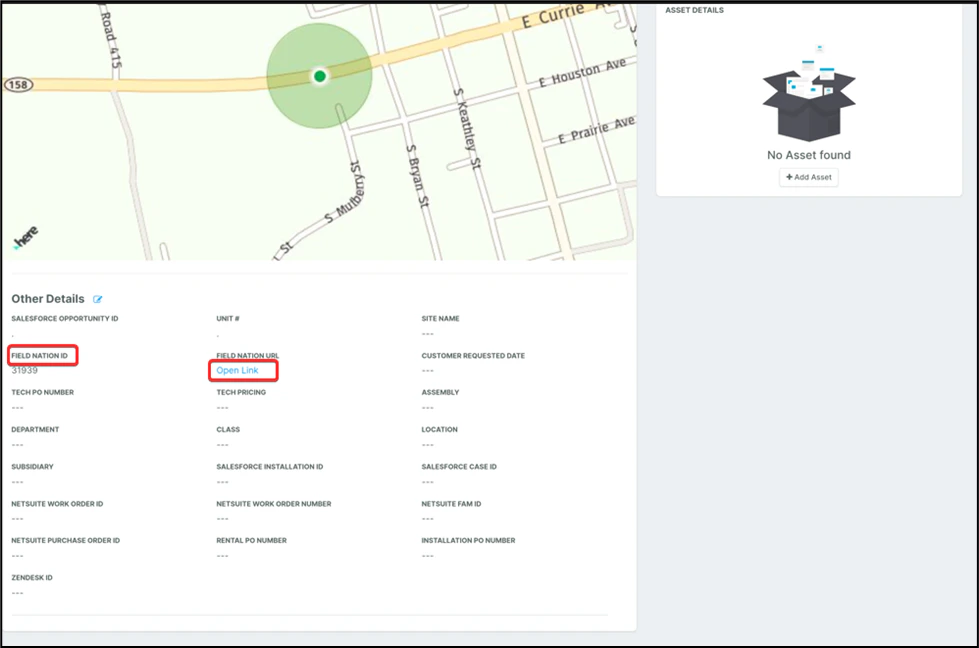
 3. FieldNation job details can be tracked from the Zuper Job module in a single click. Under the **Other Details** section, locate the FieldNation ID and click **Open Link** to view the work order in FieldNation.
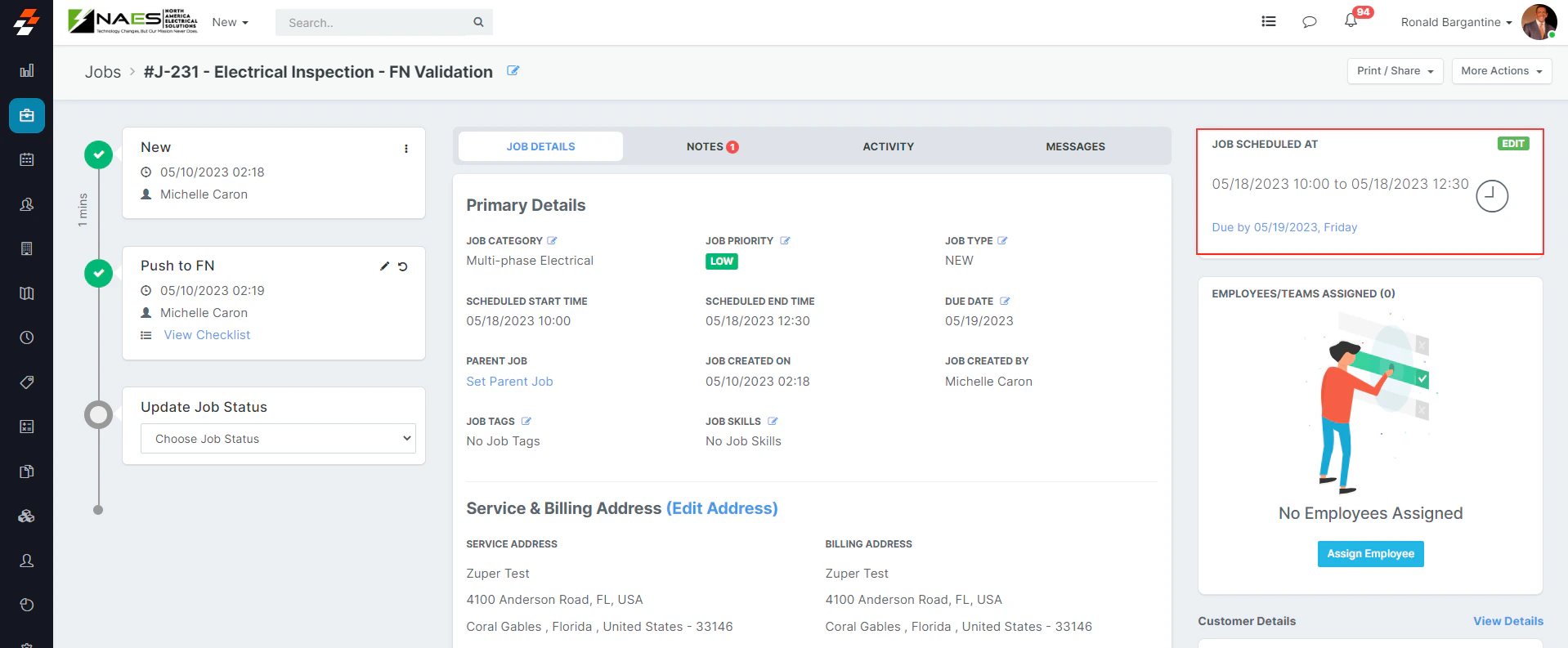
 4. Track scheduled job times directly within Zuper.
 ## Uninstalling FieldNation from Zuper
To remove the FieldNation integration from Zuper:
1. Once you are logged in to your Zuper Account, click on your Profile Picture on the top right corner of the screen & click on “**App Store**.”
2. Select the "**Workforce and Time Tracking**" option and choose “**FieldNation**.” Select the “****Install App” button.****
## Uninstalling FieldNation from Zuper
To remove the FieldNation integration from Zuper:
1. Once you are logged in to your Zuper Account, click on your Profile Picture on the top right corner of the screen & click on “**App Store**.”
2. Select the "**Workforce and Time Tracking**" option and choose “**FieldNation**.” Select the “****Install App” button.****
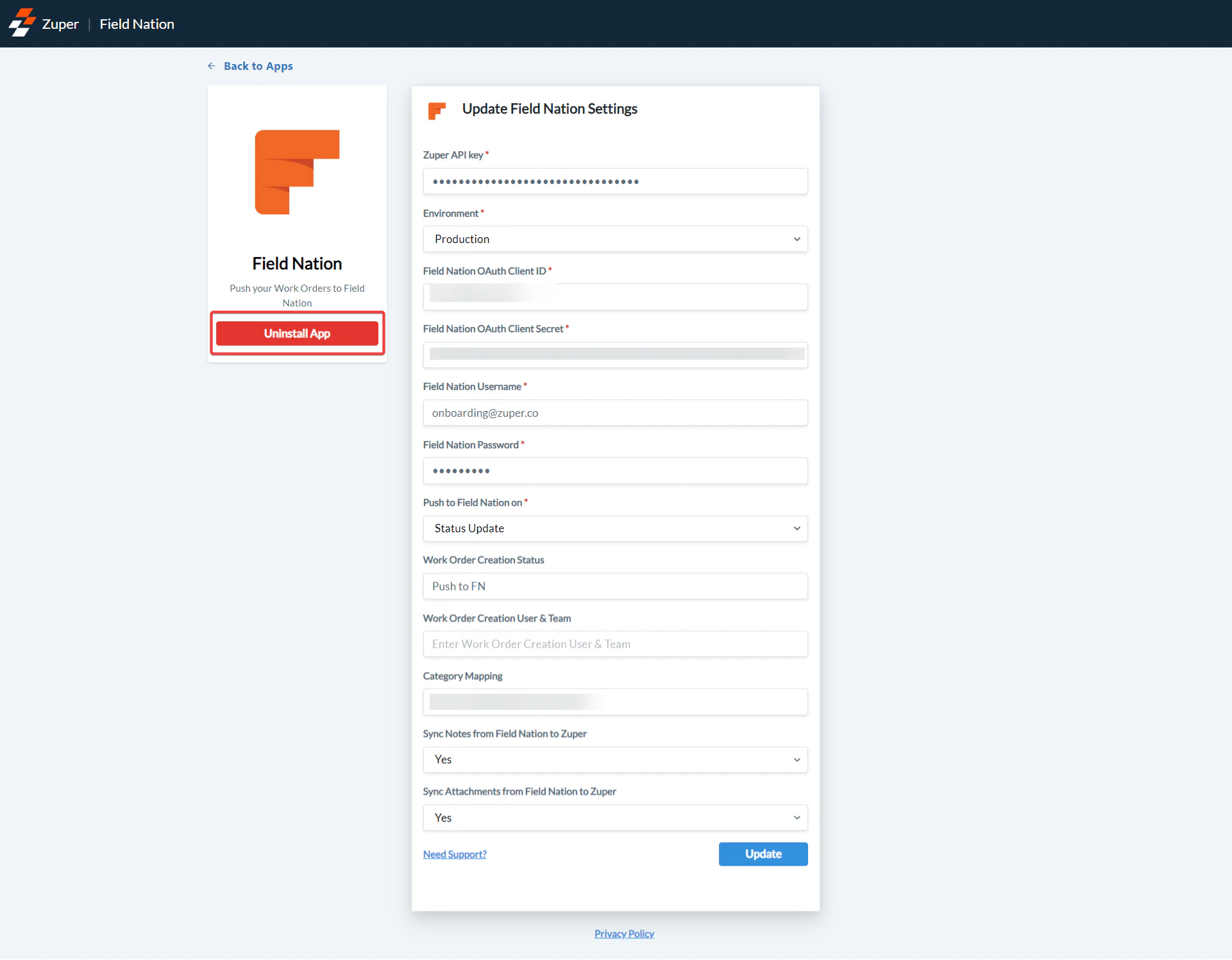
 3. Click on the “**Uninstall App**” button.
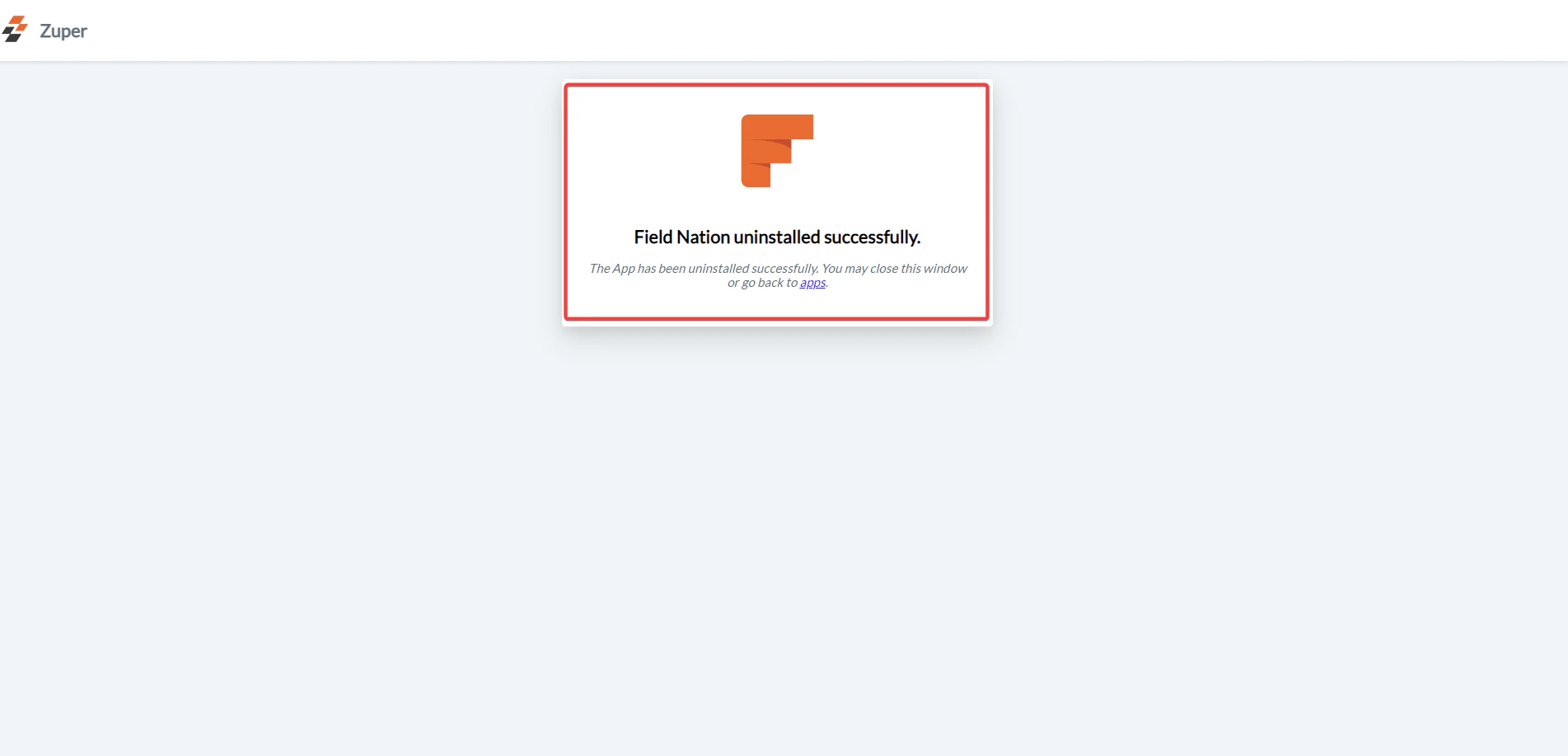
 4. The FieldNation app will be uninstalled successfully.
 The business can easily ensure that the work order gets updated on Zuper in sync with FieldNation. In addition, with the bi-directional data flow, job details get updated on both apps (FieldNation & Zuper).