> ## Documentation Index
> Fetch the complete documentation index at: https://zuperinc-section23.mintlify.site/llms.txt
> Use this file to discover all available pages before exploring further.
# QuickBooks Time
QuickBooks Time, formerly known as tsheets, is an application that provides Employee Time Tracking, Scheduling, and Payroll Management features.
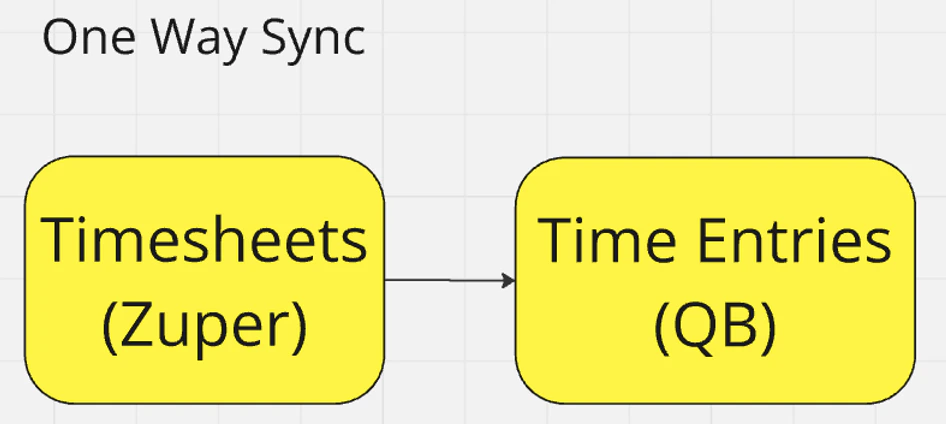
Zuper’s integration with QuickBooks Time syncs entries from the Timesheets module on Zuper to the Time entries module on QuickBooks Time.
The integration offers a unidirectional sync between the modules:
 Note: We currently sync time entries from all Zuper users to QuickBooks Time. There are no restrictions based on role.
## Installation
1. Open a new tab in your browser once logged in to your Zuper Account. Click on your Profile Picture in the top right corner of the screen and select the “**App Store**.”
Note: We currently sync time entries from all Zuper users to QuickBooks Time. There are no restrictions based on role.
## Installation
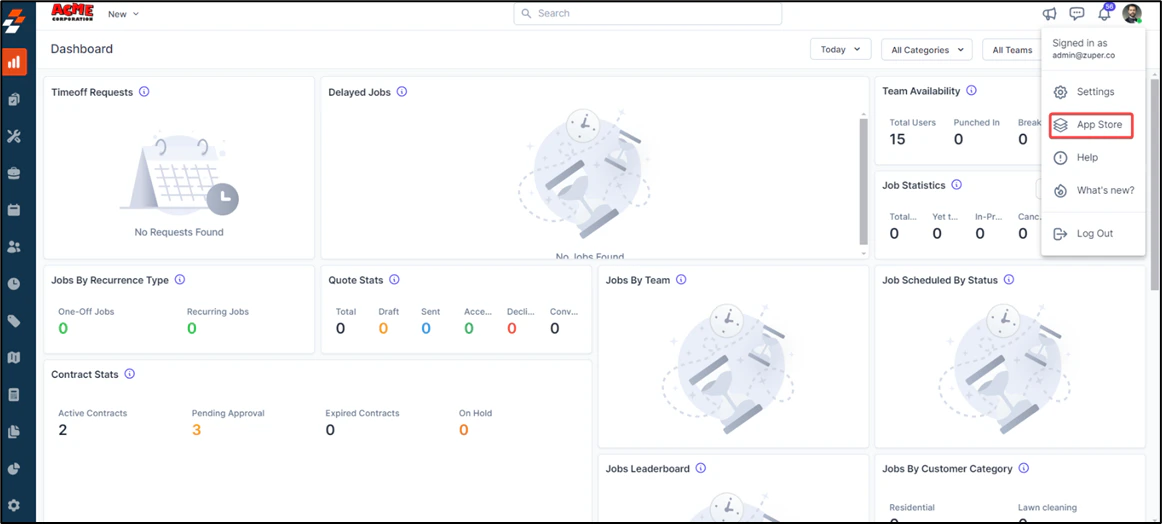
1. Open a new tab in your browser once logged in to your Zuper Account. Click on your Profile Picture in the top right corner of the screen and select the “**App Store**.”
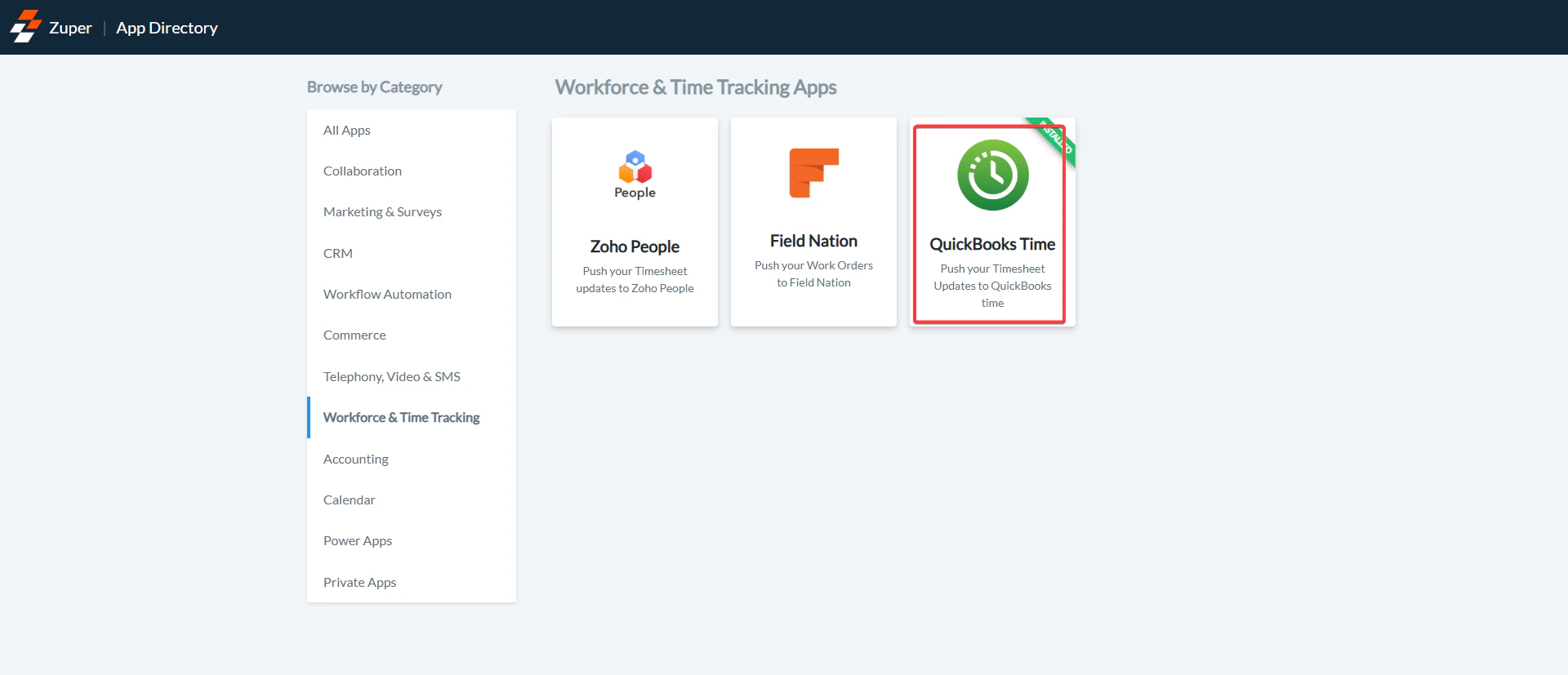
 2. Under the “**Browse by Category**,” select the “**Workforce & Time Tracking**” option and choose “**QuickBooks Time**.”
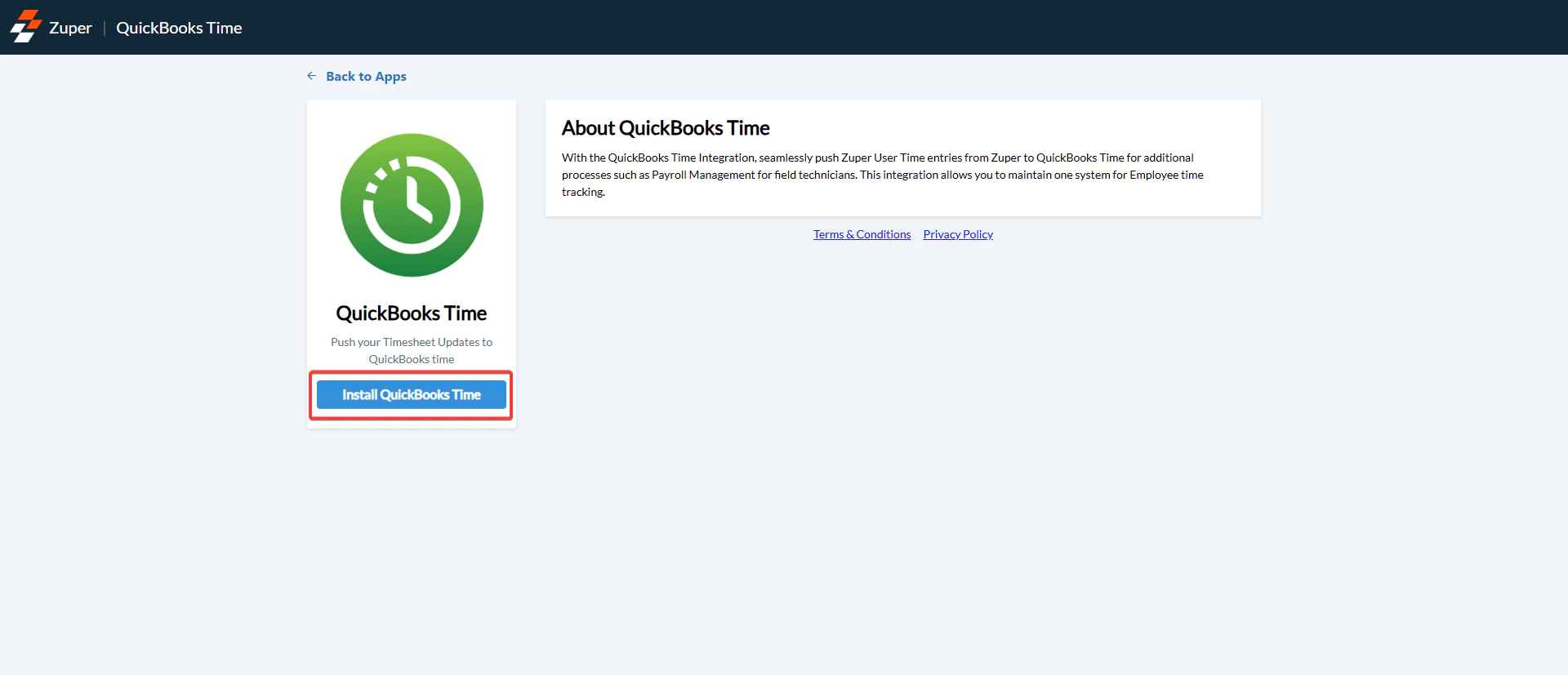
 3. Click on the “**Install QuickBooks Time**” button.
 2. Update Zuper Settings by configuring the following fields:
* **Zuper API Key** (Mandatory) – To create the **Zuper API,** refer to the article ([How do I create an API Key for my Zuper account?](https://docs.zuper.co/Settings/Developer_Hub/API_Keys#api-keys)).
* **QuickBooks Time Token** (Mandatory) – Enter the QuickBooks Time Token. The token should be taken from QuickBooks Time.
1. Under "**QuickBooks Time**" Choose the "**Feature Add-ons**" and select the "**Manage Add-ons.**"
2. Update Zuper Settings by configuring the following fields:
* **Zuper API Key** (Mandatory) – To create the **Zuper API,** refer to the article ([How do I create an API Key for my Zuper account?](https://docs.zuper.co/Settings/Developer_Hub/API_Keys#api-keys)).
* **QuickBooks Time Token** (Mandatory) – Enter the QuickBooks Time Token. The token should be taken from QuickBooks Time.
1. Under "**QuickBooks Time**" Choose the "**Feature Add-ons**" and select the "**Manage Add-ons.**"
 2. Install the "API".
 3. After installing the "**API,**" click the "**Add a new application.**"
 4. Add the "**Name**", "**Description**","**Technical Contact**", and "**OAuth Redirect URL**".
 5. Kindly use the OAuth Redirect URL in QuickBooks Time - [https://apps.zuperpro.com/app/quickbooks\_time/oauth/callback](https://apps.zuperpro.com/app/quickbooks_time/oauth/callback) 4. Click "**Add Token**" and enter the "**User Name**" and "**Expiry Date**."
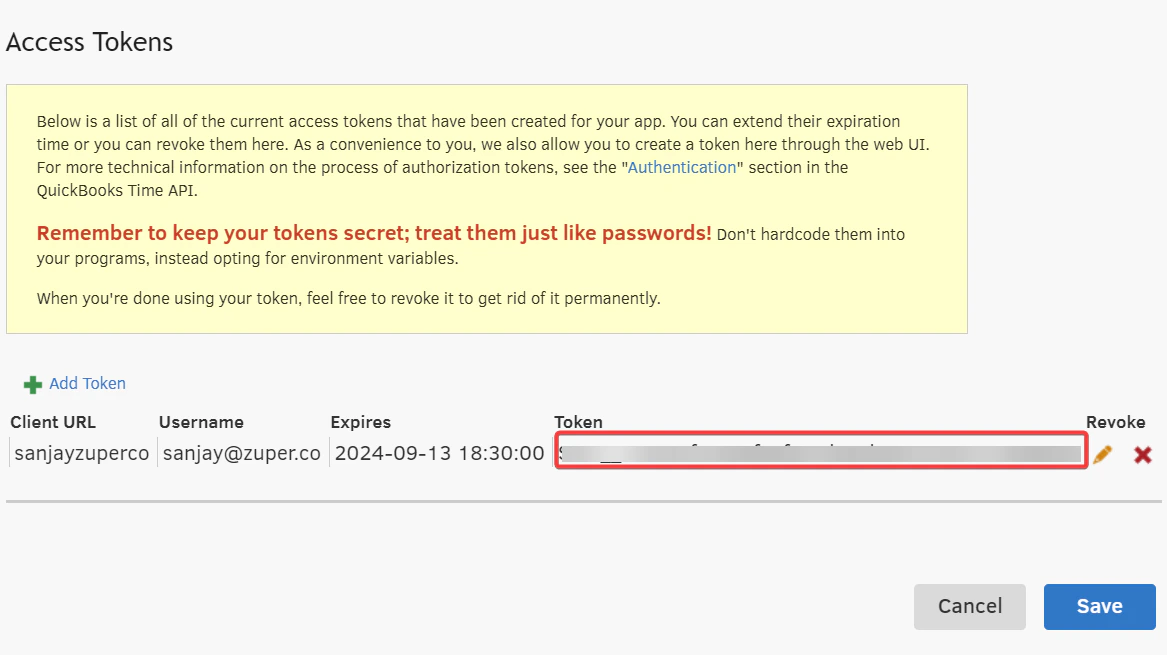
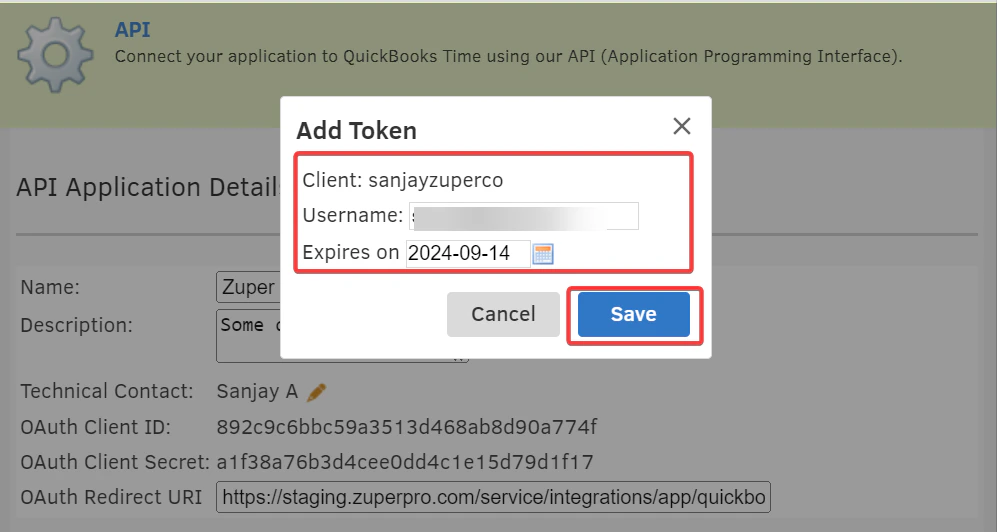 The token is added successfully. Copy the token from QuickBooks Time and add it to the "**QuickBooks Time Token**" in Zuper.
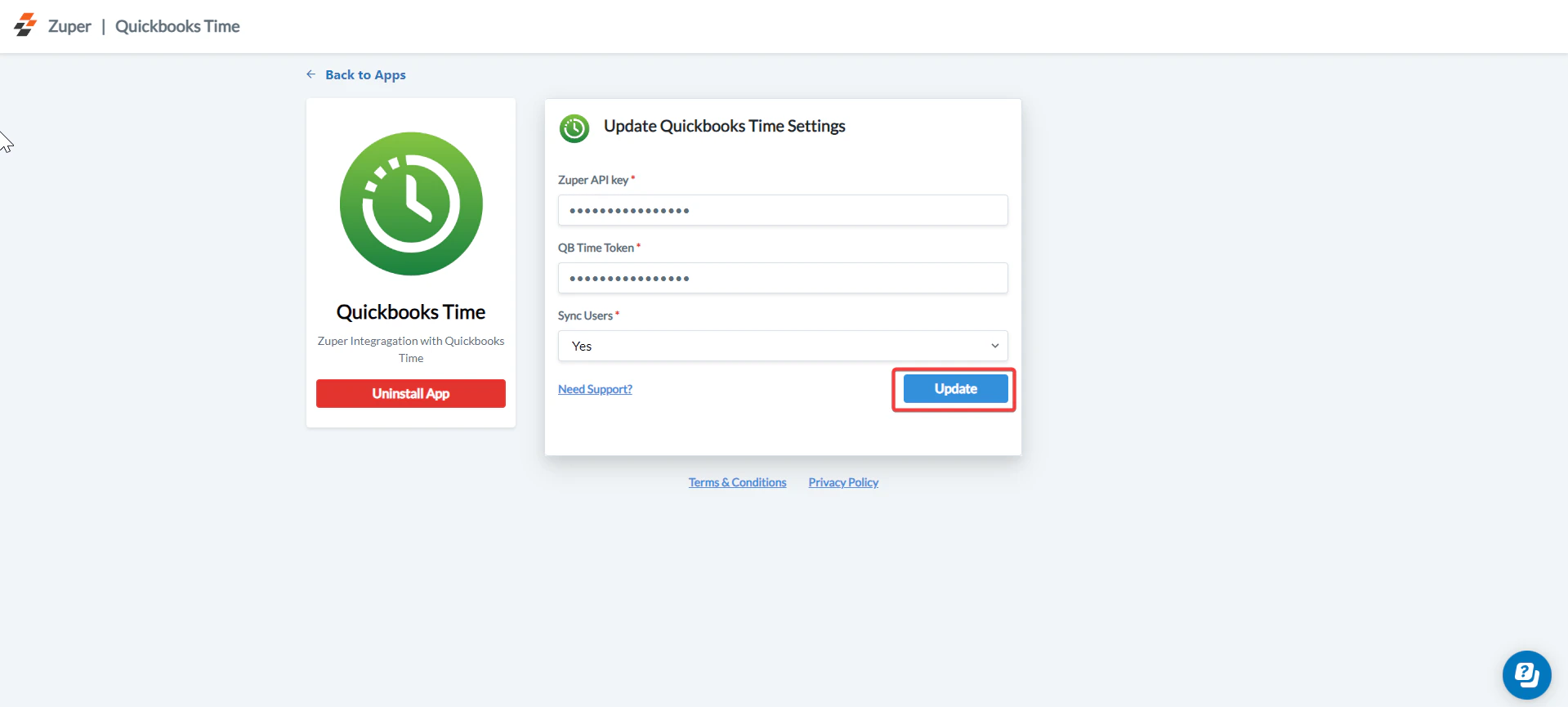
 * **Sync Users**(Mandatory)—Enter the QuickBooks Desktop Connector Username. If you select "**Yes**," Users will be pushed one-way from Zuper to QuickBooks Time. If you choose “**No**,” then the User sync will not happen from Zuper to QuickBooks Time.
* Click the “**Update**” button to save the settings.
* **Sync Users**(Mandatory)—Enter the QuickBooks Desktop Connector Username. If you select "**Yes**," Users will be pushed one-way from Zuper to QuickBooks Time. If you choose “**No**,” then the User sync will not happen from Zuper to QuickBooks Time.
* Click the “**Update**” button to save the settings.
 ## **Uninstallation**
1. Open a new tab in your browser once logged in to your Zuper Account. Click on your Profile Picture in the top right corner of the screen and select the “**App Store**.”
2. Under the “**Browse by Category**,” select the “**Workforce & Time Tracking**” option and choose “**QuickBooks Time**.”
3. Click the “**Uninstall App**” button.
## **Uninstallation**
1. Open a new tab in your browser once logged in to your Zuper Account. Click on your Profile Picture in the top right corner of the screen and select the “**App Store**.”
2. Under the “**Browse by Category**,” select the “**Workforce & Time Tracking**” option and choose “**QuickBooks Time**.”
3. Click the “**Uninstall App**” button.
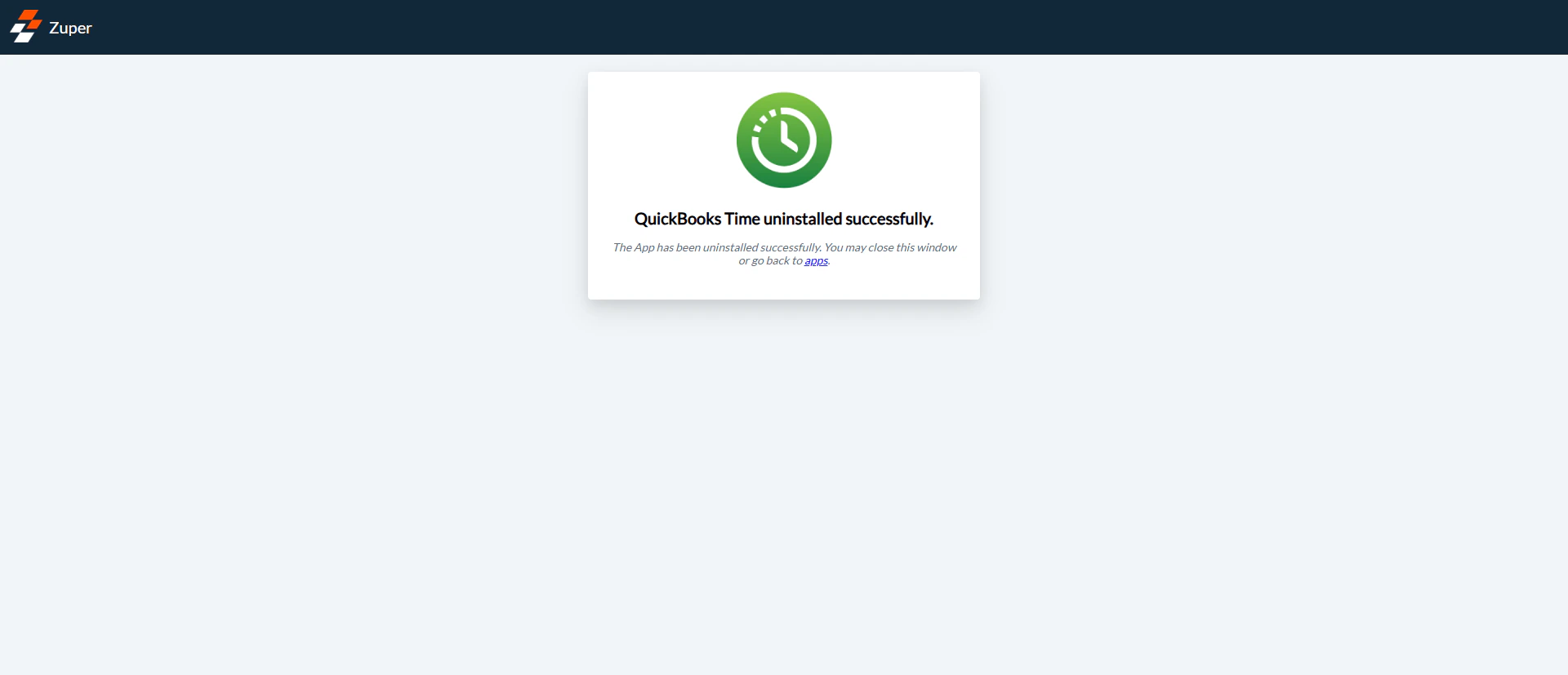
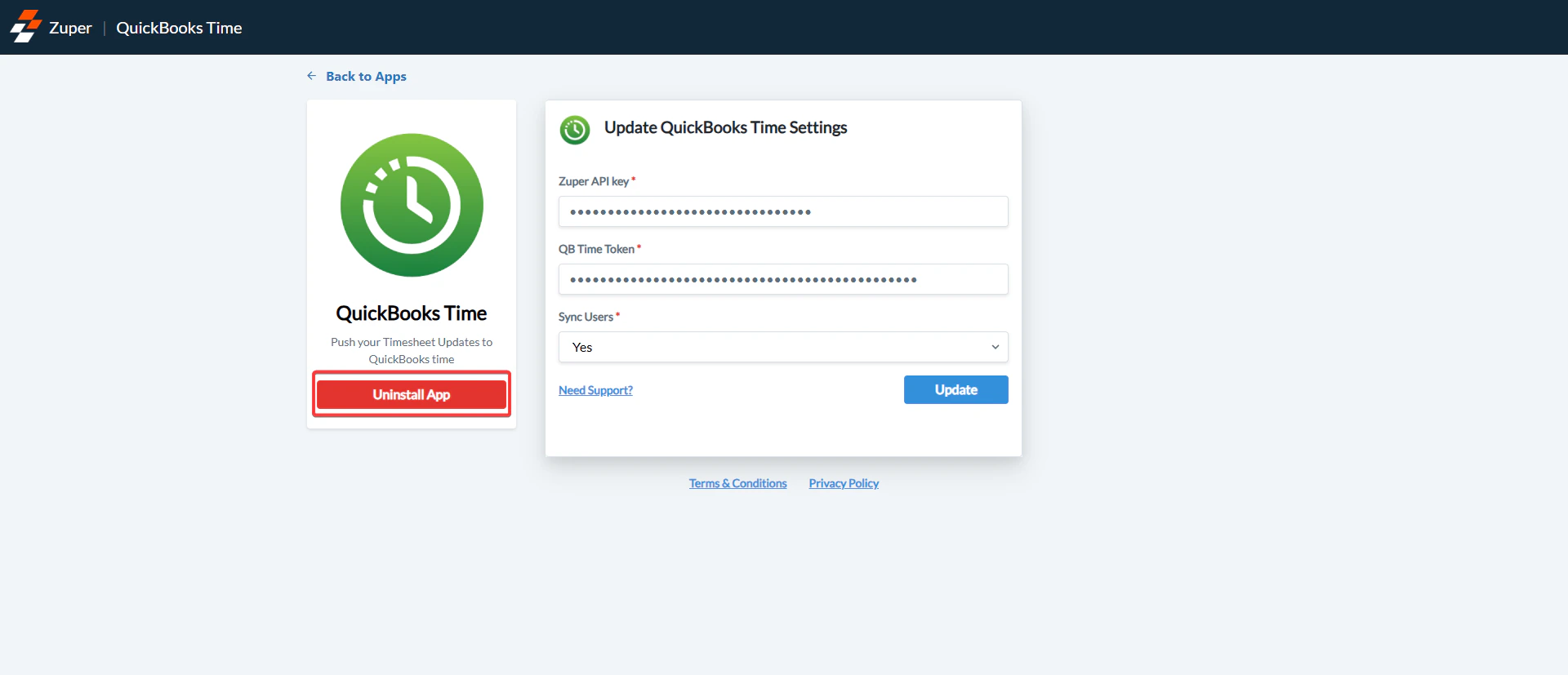 4. The App is uninstalled successfully.
 **Important Points:**
1. The integration doesn’t support the syncing of job codes or customers associated with Time Entries.
2. Locations are currently not supported and will always be tagged as ‘**Zuper**. '
**Important Points:**
1. The integration doesn’t support the syncing of job codes or customers associated with Time Entries.
2. Locations are currently not supported and will always be tagged as ‘**Zuper**. '