> ## Documentation Index
> Fetch the complete documentation index at: https://zuperinc-section23.mintlify.site/llms.txt
> Use this file to discover all available pages before exploring further.
# Product/Item Groups
A **Product/Item Group** is used to categorize and organize items such as parts, services, and products to streamline inventory management and job planning. This group helps businesses quickly locate and utilize relevant items when creating Jobs, invoices, or service requests.
**Navigation**: *Inventory & Pricebook*-> *Parts & Services -> Manage Group*
### **To create a Product/Item Group**
* Select the **"Inventory & Pricebook**” module from the left navigation menu and choose "**Part & Service.**"
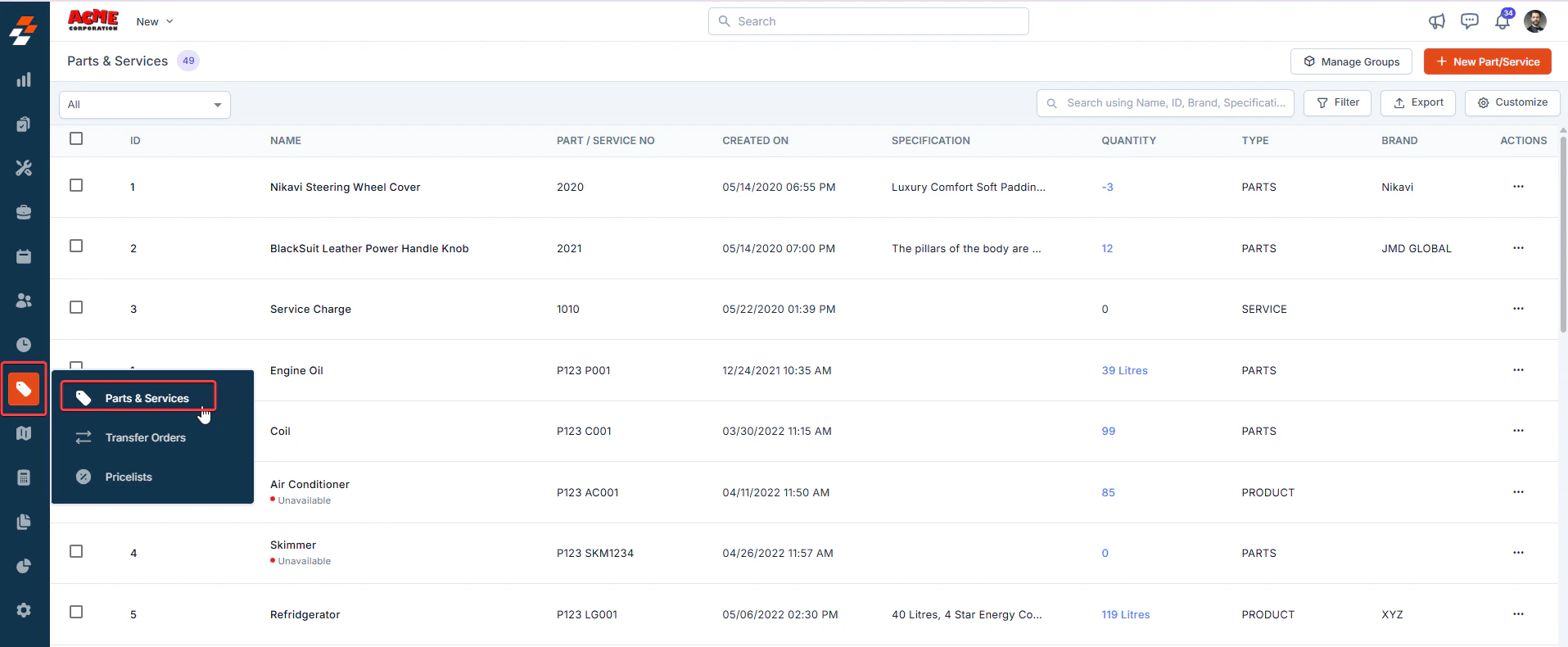 2. Click **Manage Group** at the top right of the page.
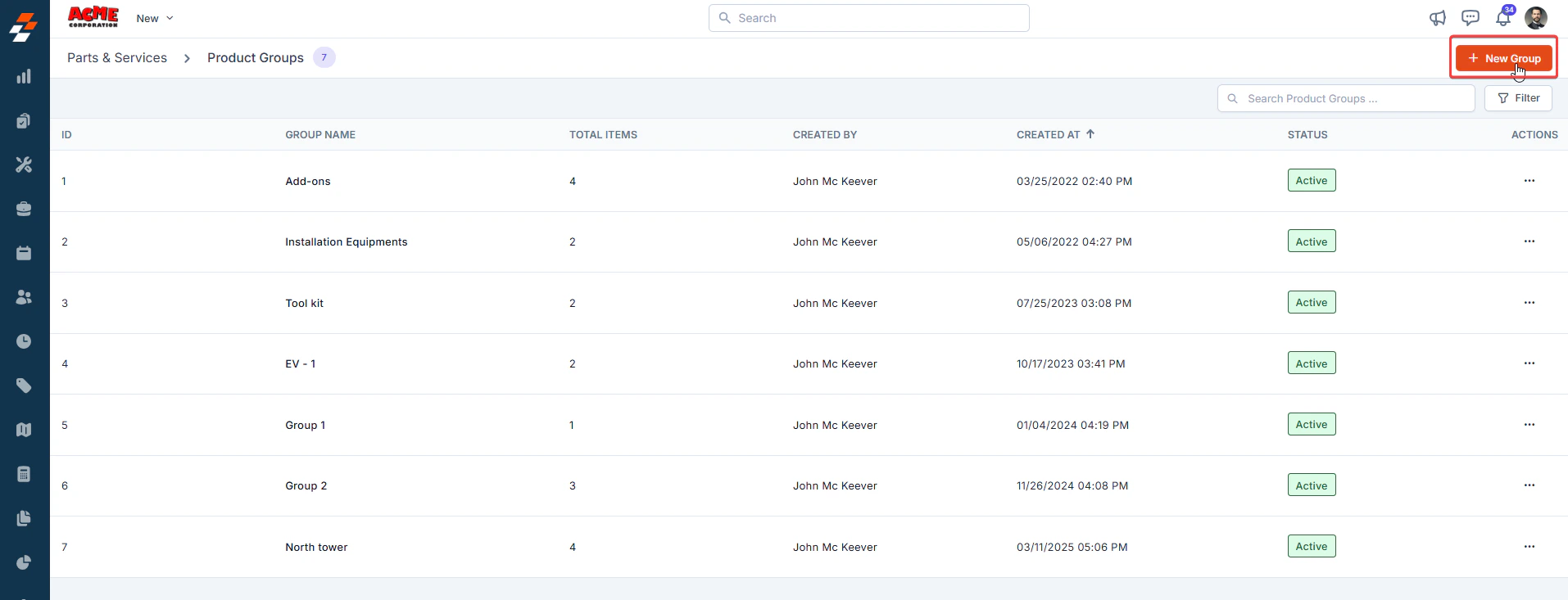 3. Click **+ New Group** to create a new group.
3. The **Product Group c**reation page appears. Enter a group **Name** (e.g., *Electrical Supplies*).
3. Click **+ New Group** to create a new group.
3. The **Product Group c**reation page appears. Enter a group **Name** (e.g., *Electrical Supplies*).
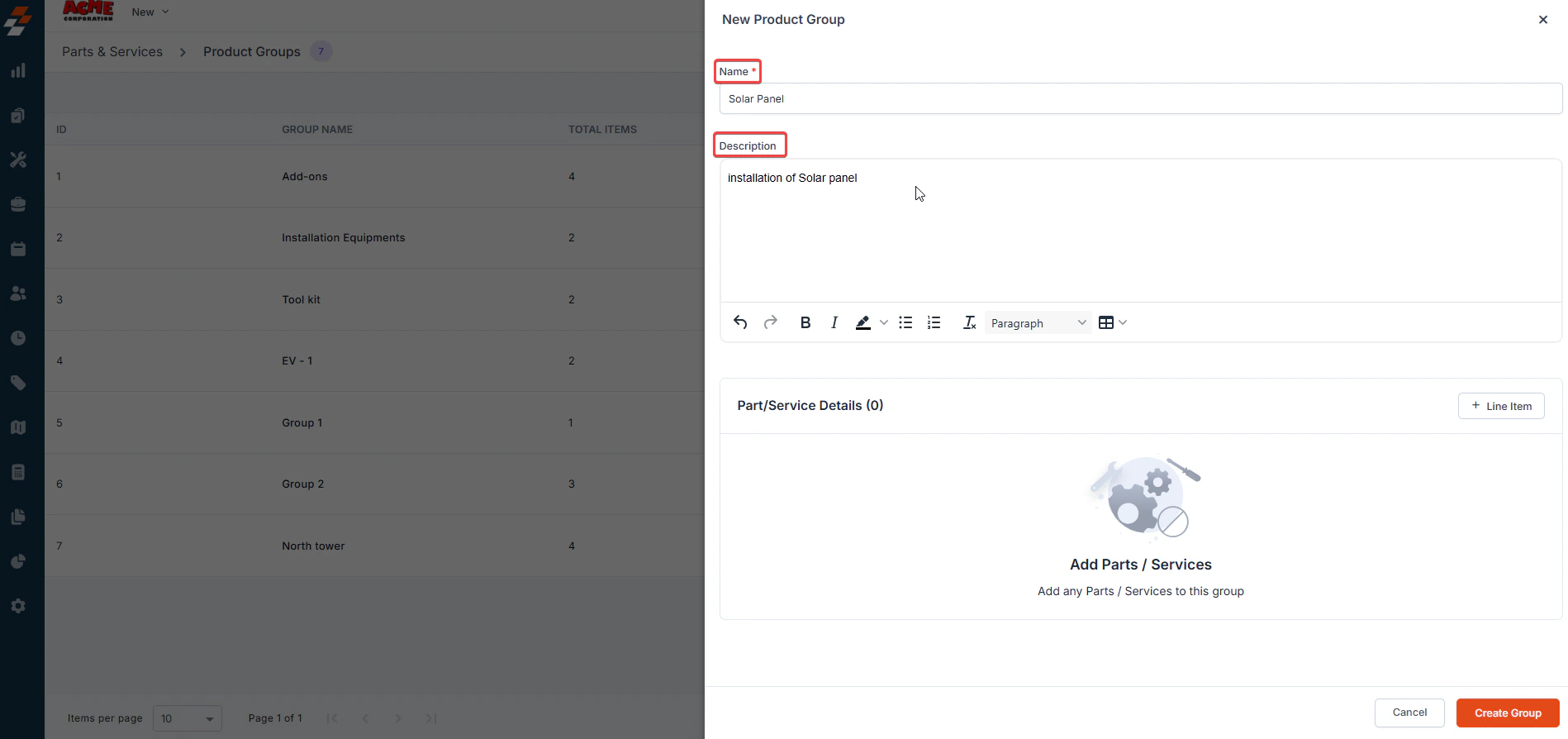 4. If the [Add-on](https://docs.zuper.co/Settings/Modules/Quotes-Invoices/Quotes-Invoices-Settings#add-ons) is enabled, you will be able to select the product group item to differentiate the Add-on product group.
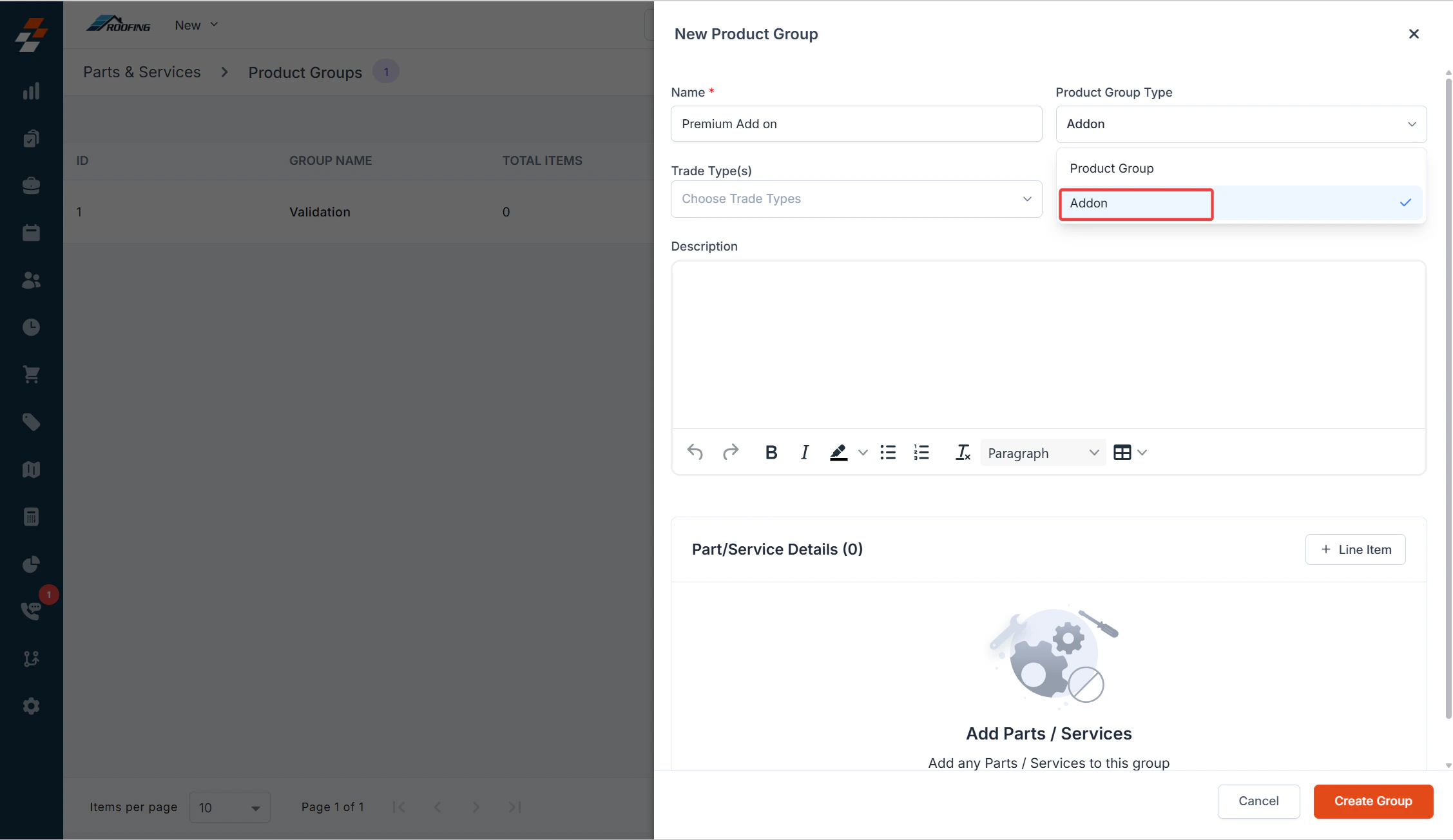 5. Provide a group **Description** (optional but recommended for clarity). 7. **Add Parts/Services:**
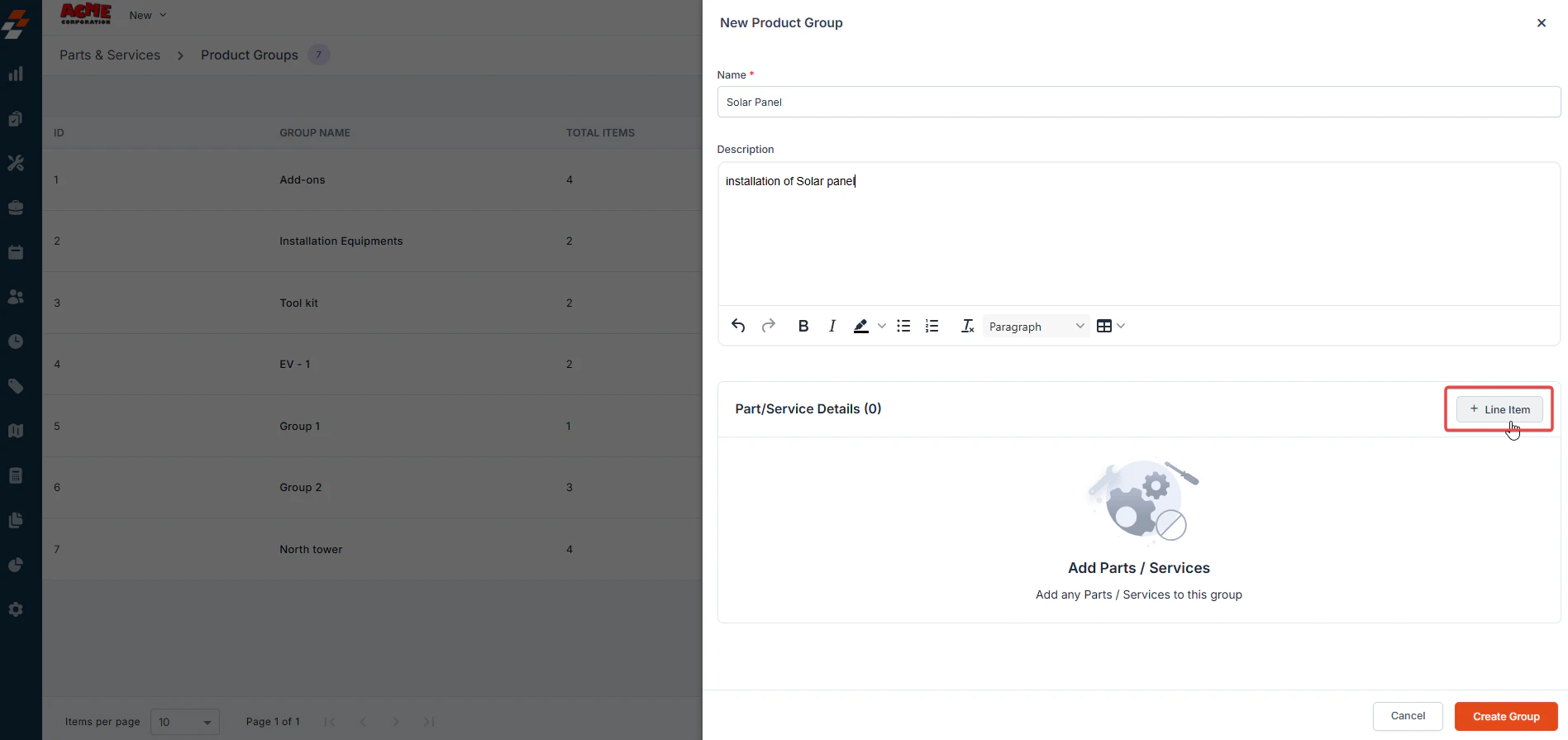
* Click **+ Line Item** in the **Part/Service Details** section.
5. Provide a group **Description** (optional but recommended for clarity). 7. **Add Parts/Services:**
* Click **+ Line Item** in the **Part/Service Details** section.
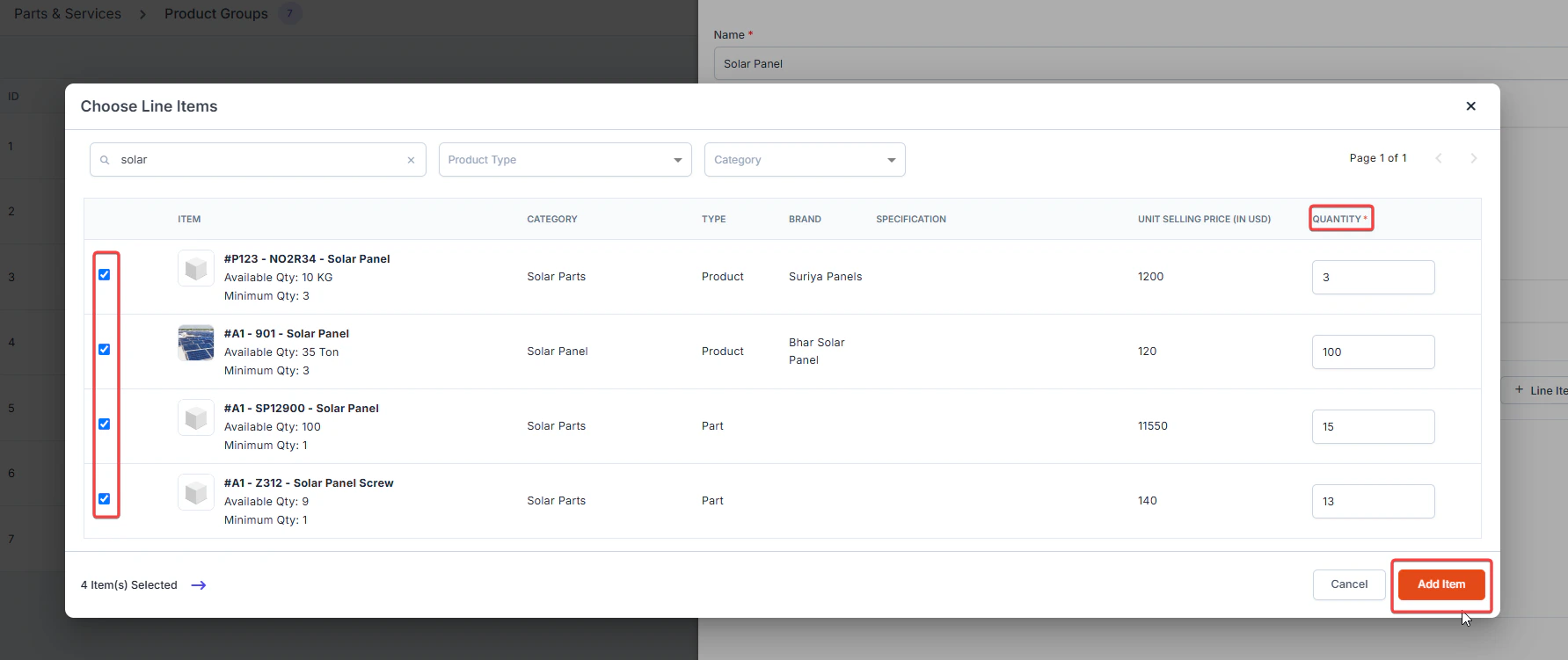
 * Select the items to include in this group and specify the item quantities.
* Click **Add Item** to confirm the selection.
* Select the items to include in this group and specify the item quantities.
* Click **Add Item** to confirm the selection.
 8. After adding the necessary items, click **Create Group**.
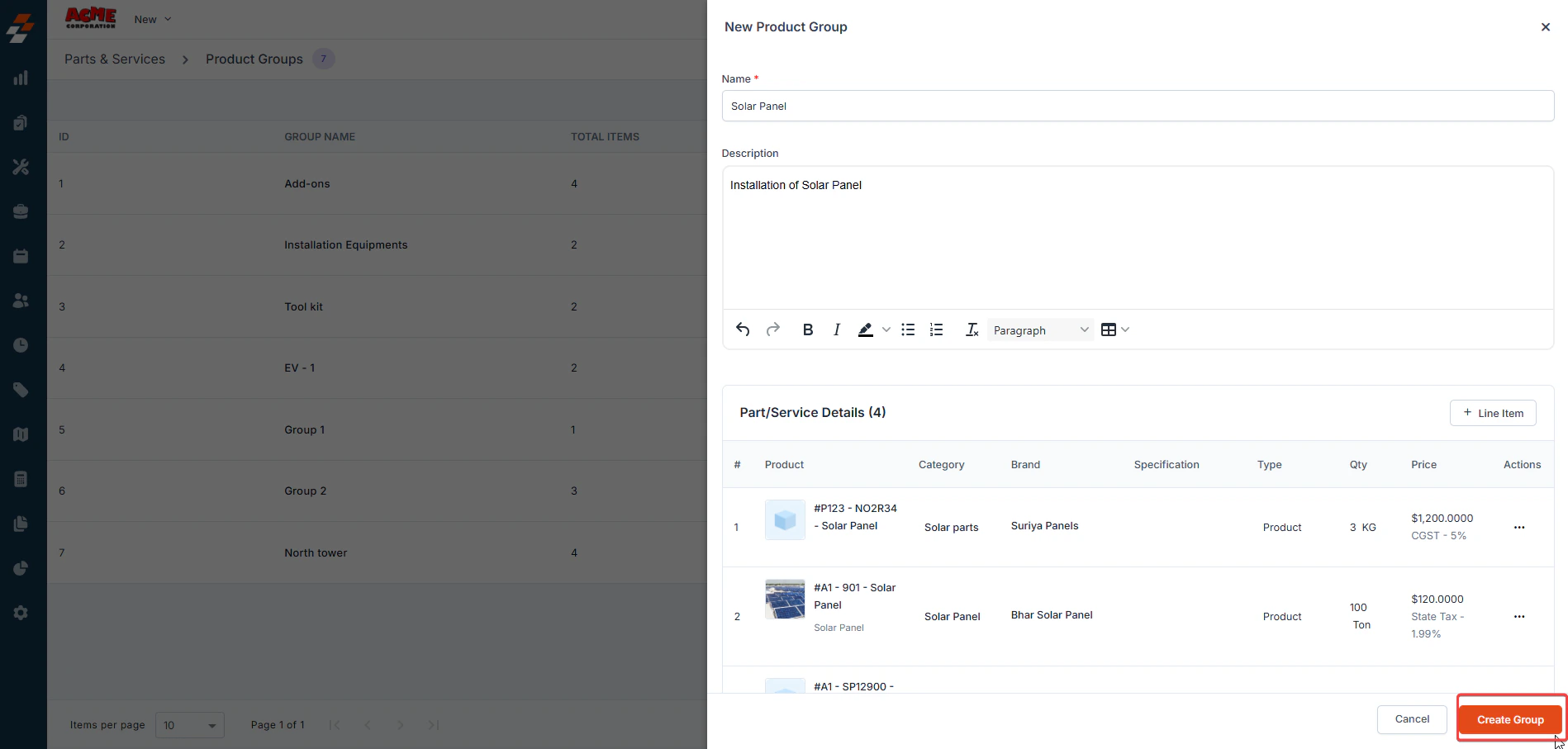 The **Product/Item Group** has now been successfully created.
### **Managing a Product/Item Group**
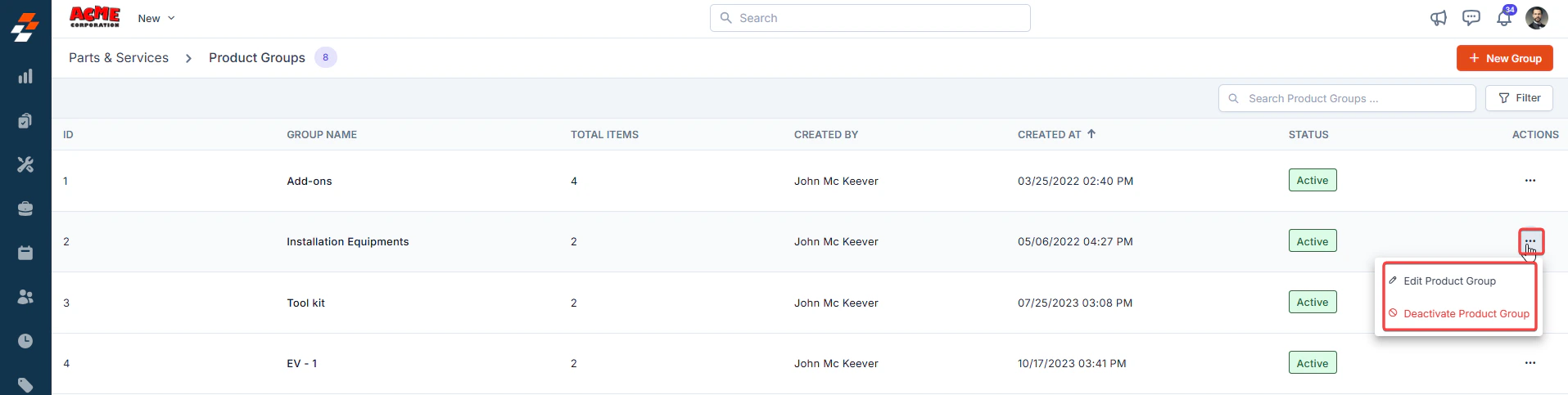
To **edit** or **deactivate** a **Product/Item Group**, follow these steps:
1. Navigate to the **Product/Item Group Listing** page.
2. Select the group you want to manage.
3. Click the **ellipsis icon** (three dots) next to the group name.
4. Choose one of the following options:
* **Edit Product Group** – Modify the group name, description, or included items.
* **Deactivate Product Group** – Remove the group from active use (this action can be reversed if needed).
The **Product/Item Group** has now been successfully created.
### **Managing a Product/Item Group**
To **edit** or **deactivate** a **Product/Item Group**, follow these steps:
1. Navigate to the **Product/Item Group Listing** page.
2. Select the group you want to manage.
3. Click the **ellipsis icon** (three dots) next to the group name.
4. Choose one of the following options:
* **Edit Product Group** – Modify the group name, description, or included items.
* **Deactivate Product Group** – Remove the group from active use (this action can be reversed if needed).