> ## Documentation Index
> Fetch the complete documentation index at: https://zuperinc-section23.mintlify.site/llms.txt
> Use this file to discover all available pages before exploring further.
# Create, edit, and delete a pricelist
The Pricelist feature in Zuper streamlines pricing processes, boosts customer satisfaction, and drives revenue growth by allowing businesses to update pricing efficiently and maintain consistency.
**Navigation**: *Inventory & Pricebook* *-> Pricelists* -> *+ Create Pricelist*
## Pinned filters
Zuper's Pricelists module lets you use pinned filters to streamline your filter experience. Pinned filters keep your most-used criteria readily accessible for quick application.
**Navigation**: *Pricelists ->Filters -> Pinned Filter*
Pin up to 3 filters in any module.
1. Select the **"Inventory & Pricebook**” module from the left navigation menu and choose "**Pricelists.**"
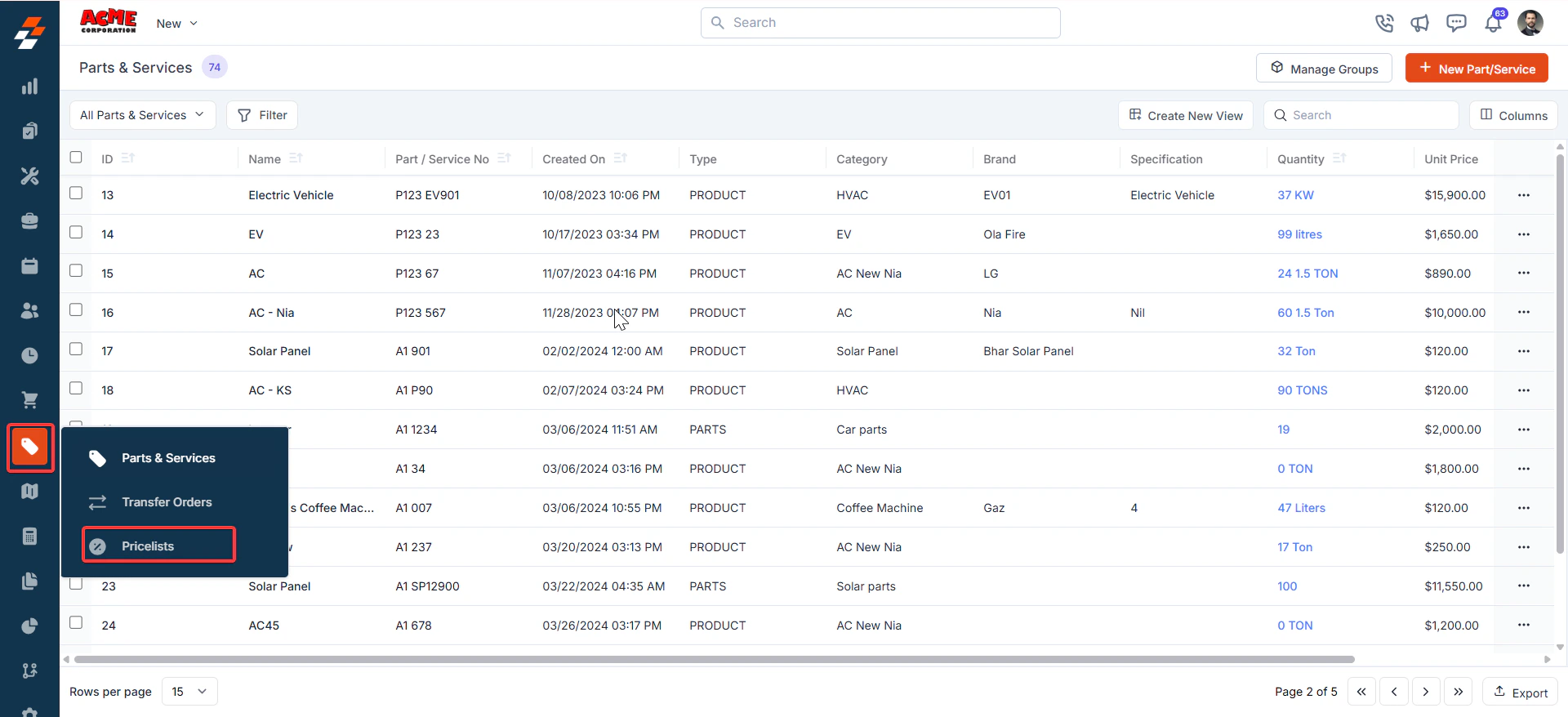 2. **Pin Filters for Quick Access**
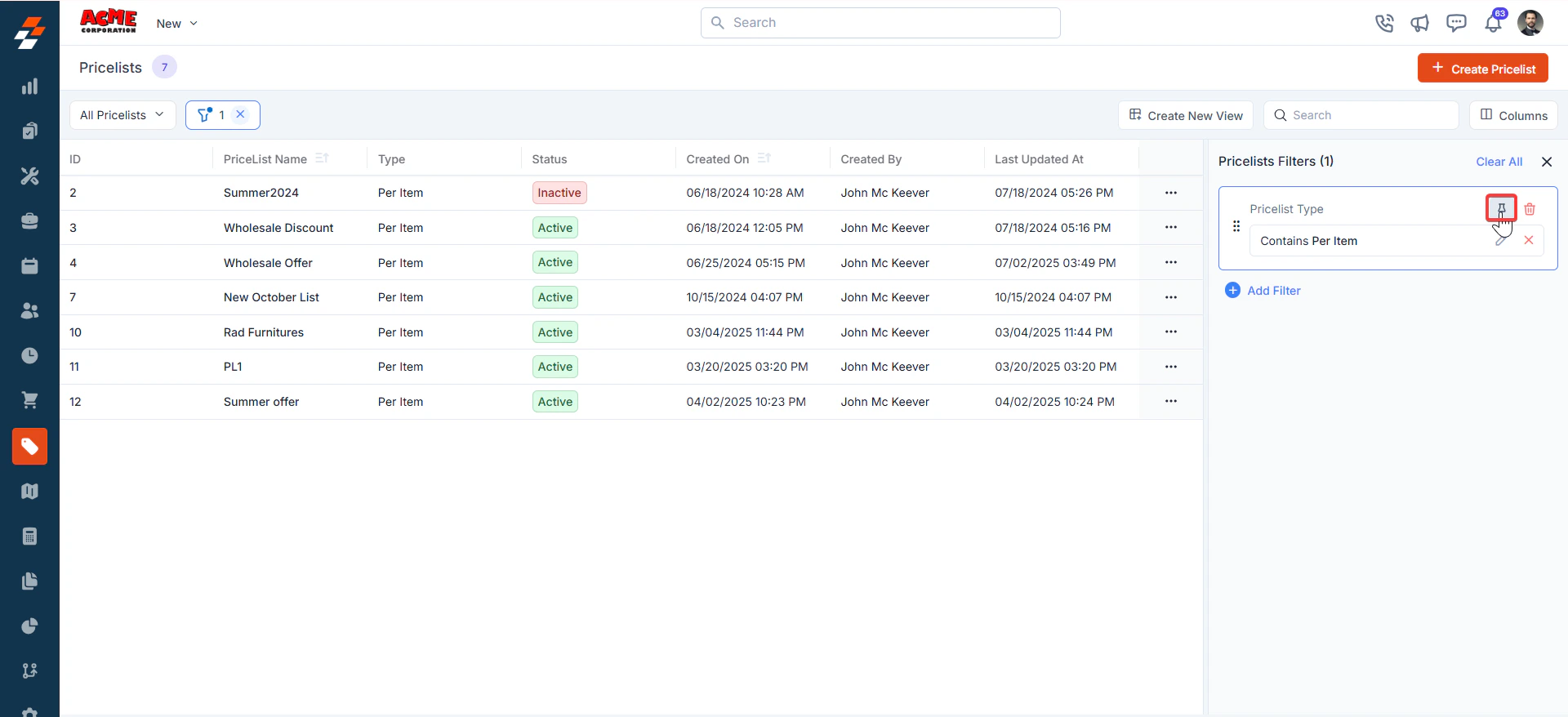
* Once your filters are set, click the **Pin Filters** button in the dialog box to save them as pinned.
* Pinned filters appear in the dialog box's "**Pinned Filters**" section, allowing you to apply them with one click in future sessions.
2. **Pin Filters for Quick Access**
* Once your filters are set, click the **Pin Filters** button in the dialog box to save them as pinned.
* Pinned filters appear in the dialog box's "**Pinned Filters**" section, allowing you to apply them with one click in future sessions.
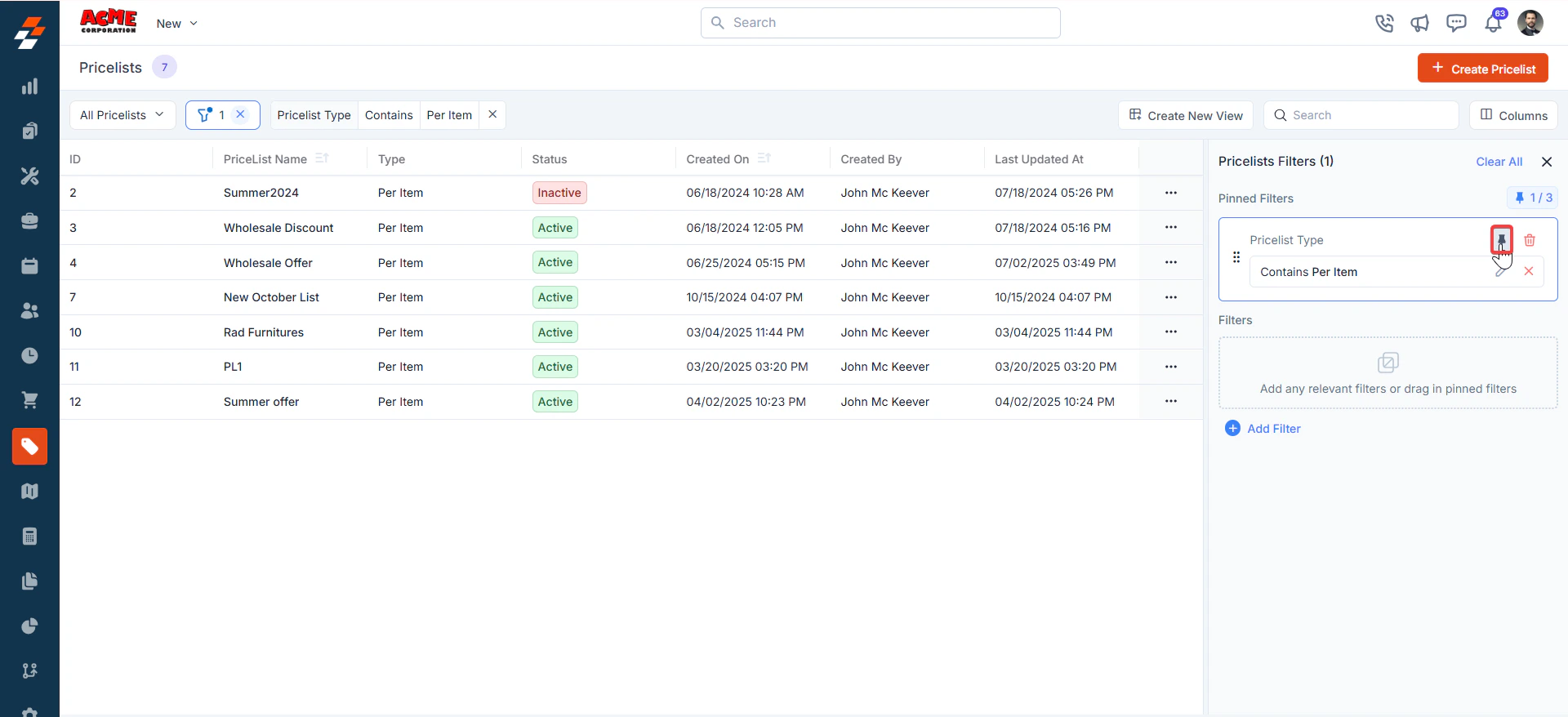
 3. To Unpin the filter:
* To unpin, select a pinned filter and click **Remove**.
* To apply pinned or default filters, open the dialog box and select them.
* Use **Clear All** to remove active filters.
3. To Unpin the filter:
* To unpin, select a pinned filter and click **Remove**.
* To apply pinned or default filters, open the dialog box and select them.
* Use **Clear All** to remove active filters.
 ## Listing Views
Customize the Transfer Orders listing by adding/removing or reordering columns, then Update View to overwrite or save it as a new view.
**Update View**
* Click Update View to modify the current view after changes.
**Save as a new view**
* Use the dropdown beside Update View → Save as new view.
**Create View dialog**
* Enter the View Name (mandatory), choose Share with (User/Team) and add users, toggle Visibility to all users, and click Create.
**Reset View**
* Click Reset View to restore the current view to the default.
**Permissions**
* Edit: Add/remove/reorder columns; save as new or overwrite existing views.
* View-only: Apply views but can’t edit; can Save as new view to copy without altering the original.
* Manage view: Rename, adjust Visibility (Only Me/User/Team or global toggle), Duplicate, or Delete (creator only; reverts to default/another saved view).
**Open transfer order details**
* After filtering, click a Transfer Order Number or Transfer Order ID to view and manage details.
## Listing Views
Customize the Transfer Orders listing by adding/removing or reordering columns, then Update View to overwrite or save it as a new view.
**Update View**
* Click Update View to modify the current view after changes.
**Save as a new view**
* Use the dropdown beside Update View → Save as new view.
**Create View dialog**
* Enter the View Name (mandatory), choose Share with (User/Team) and add users, toggle Visibility to all users, and click Create.
**Reset View**
* Click Reset View to restore the current view to the default.
**Permissions**
* Edit: Add/remove/reorder columns; save as new or overwrite existing views.
* View-only: Apply views but can’t edit; can Save as new view to copy without altering the original.
* Manage view: Rename, adjust Visibility (Only Me/User/Team or global toggle), Duplicate, or Delete (creator only; reverts to default/another saved view).
**Open transfer order details**
* After filtering, click a Transfer Order Number or Transfer Order ID to view and manage details.
 ## Create new pricelist
To create a new pricelist, follow these steps:
1. Select the **"Inventory & Pricebook**” module from the left navigation menu and choose "**Pricelists.**"
## Create new pricelist
To create a new pricelist, follow these steps:
1. Select the **"Inventory & Pricebook**” module from the left navigation menu and choose "**Pricelists.**"
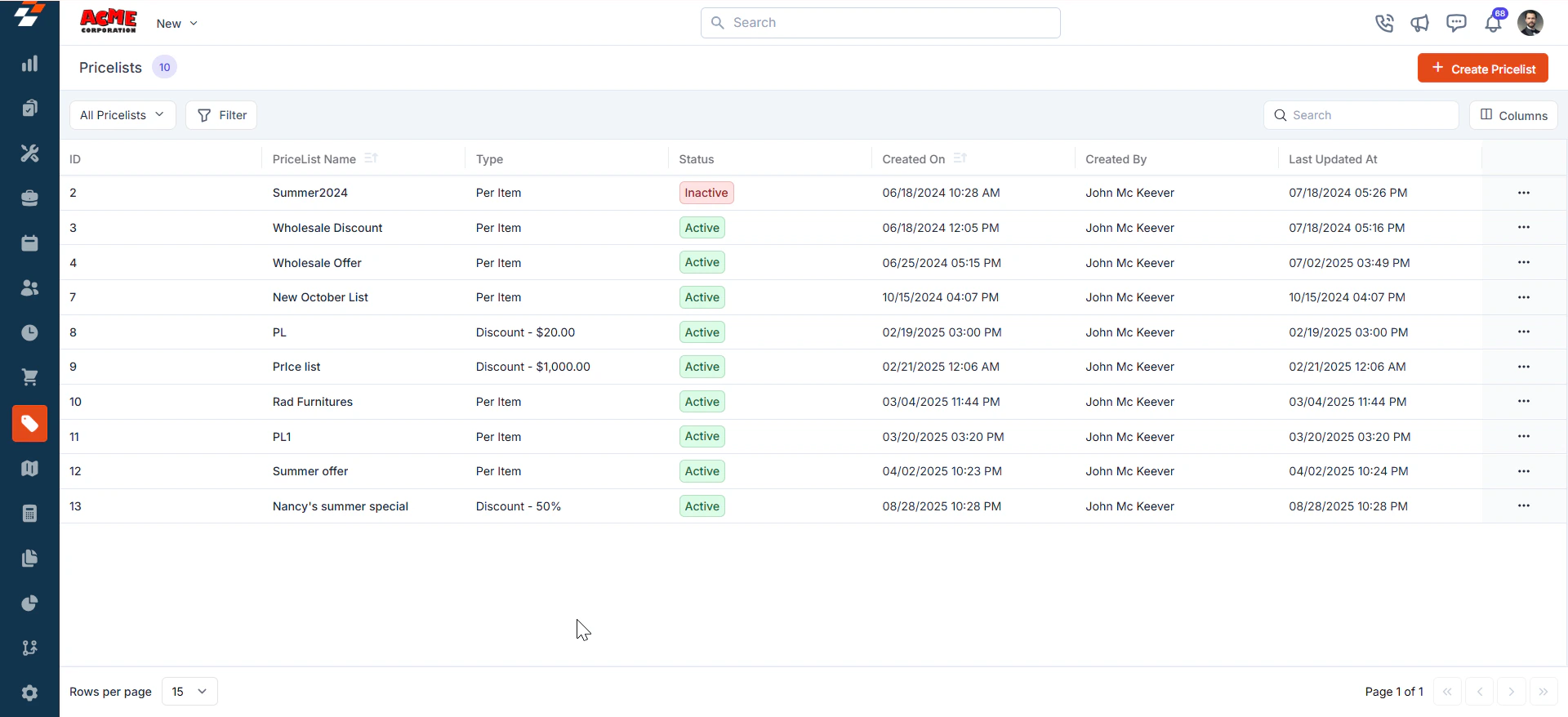
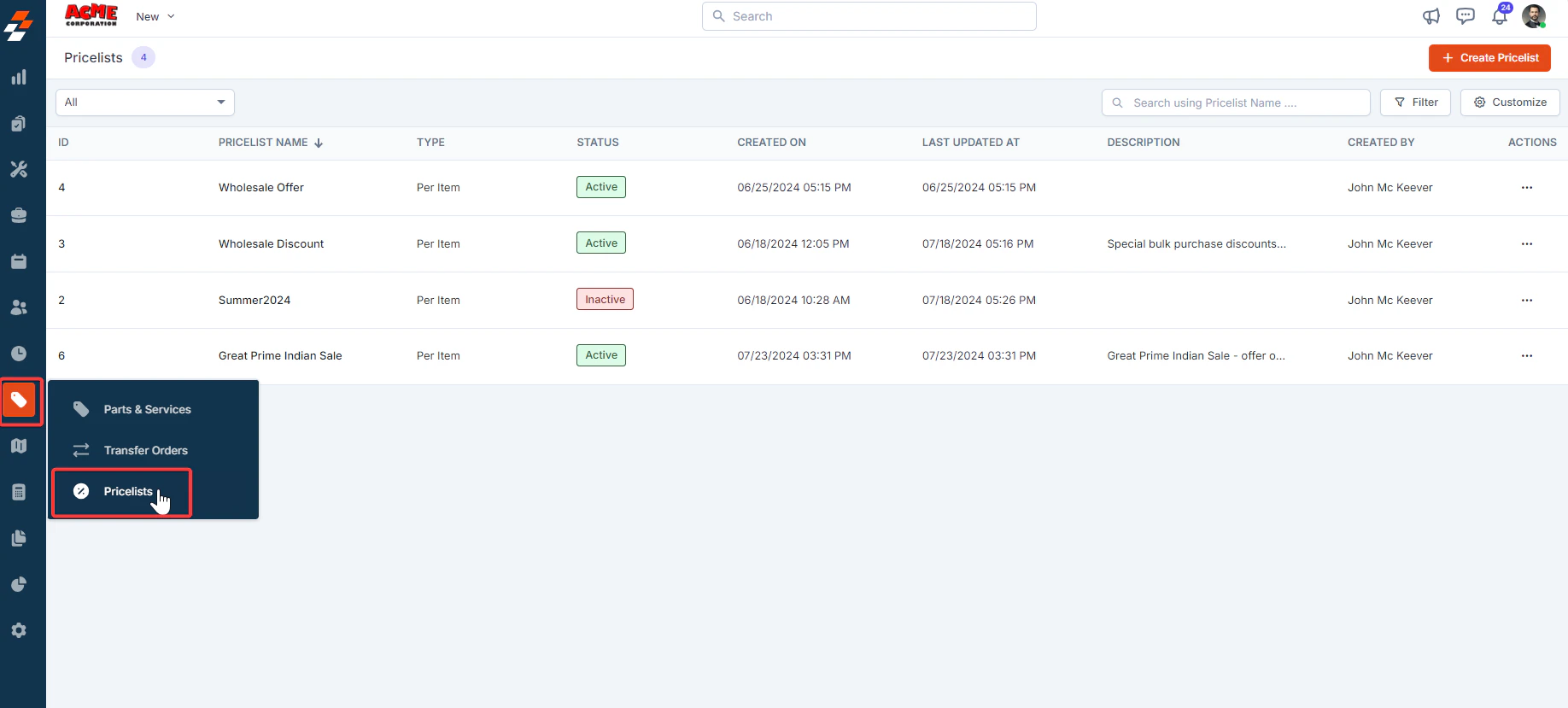 2. The Pricelists listing page opens.
3. Click the “**+ Create Pricelist**” button in the top-right corner of the page.
2. The Pricelists listing page opens.
3. Click the “**+ Create Pricelist**” button in the top-right corner of the page.
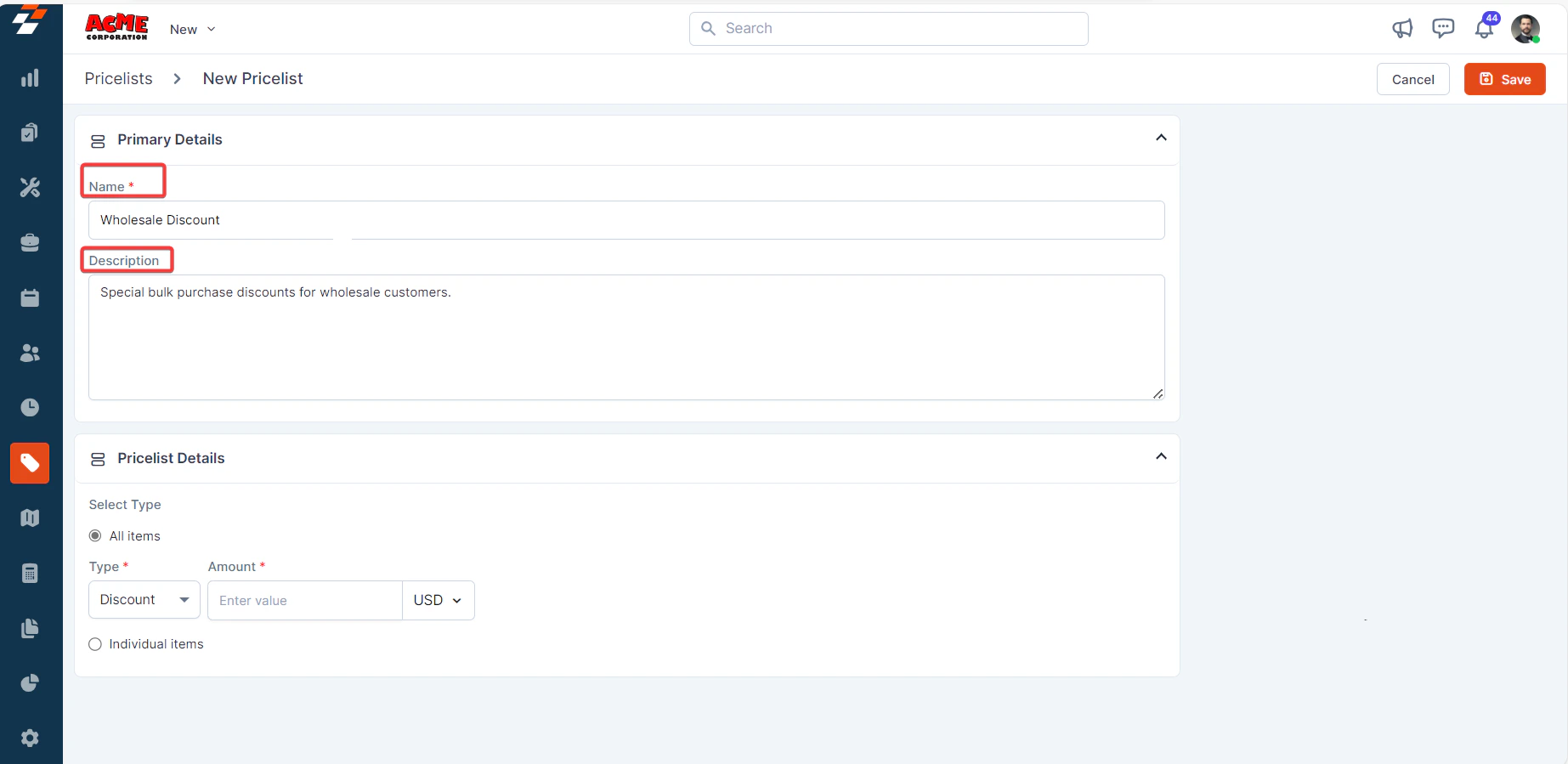
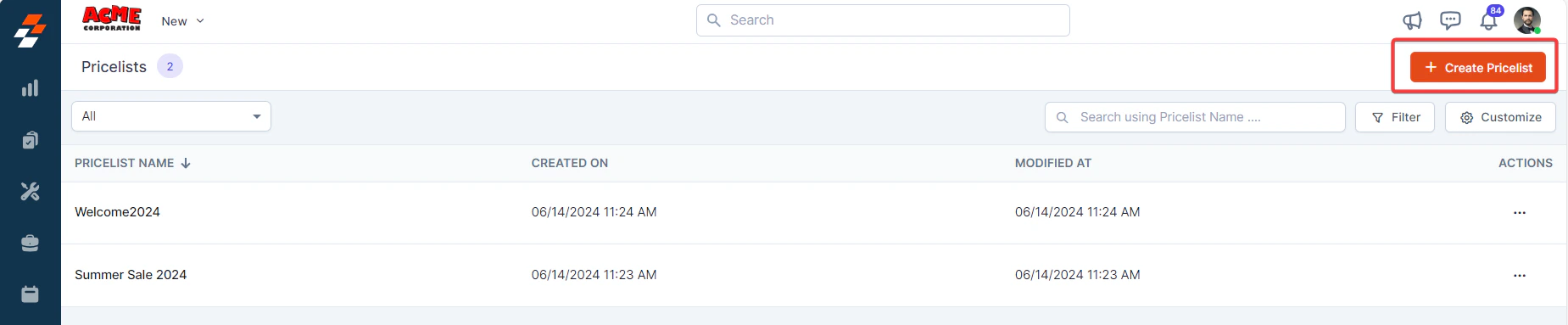 4. A new Pricelist creation page appears. Fill in the following sections:
#### **1. Primary Details section:**
1. **Name** (Mandatory): Enter a unique name for the pricelist.
2. **Description**: Add a brief description explaining the purpose or scope of the pricelist.
4. A new Pricelist creation page appears. Fill in the following sections:
#### **1. Primary Details section:**
1. **Name** (Mandatory): Enter a unique name for the pricelist.
2. **Description**: Add a brief description explaining the purpose or scope of the pricelist.
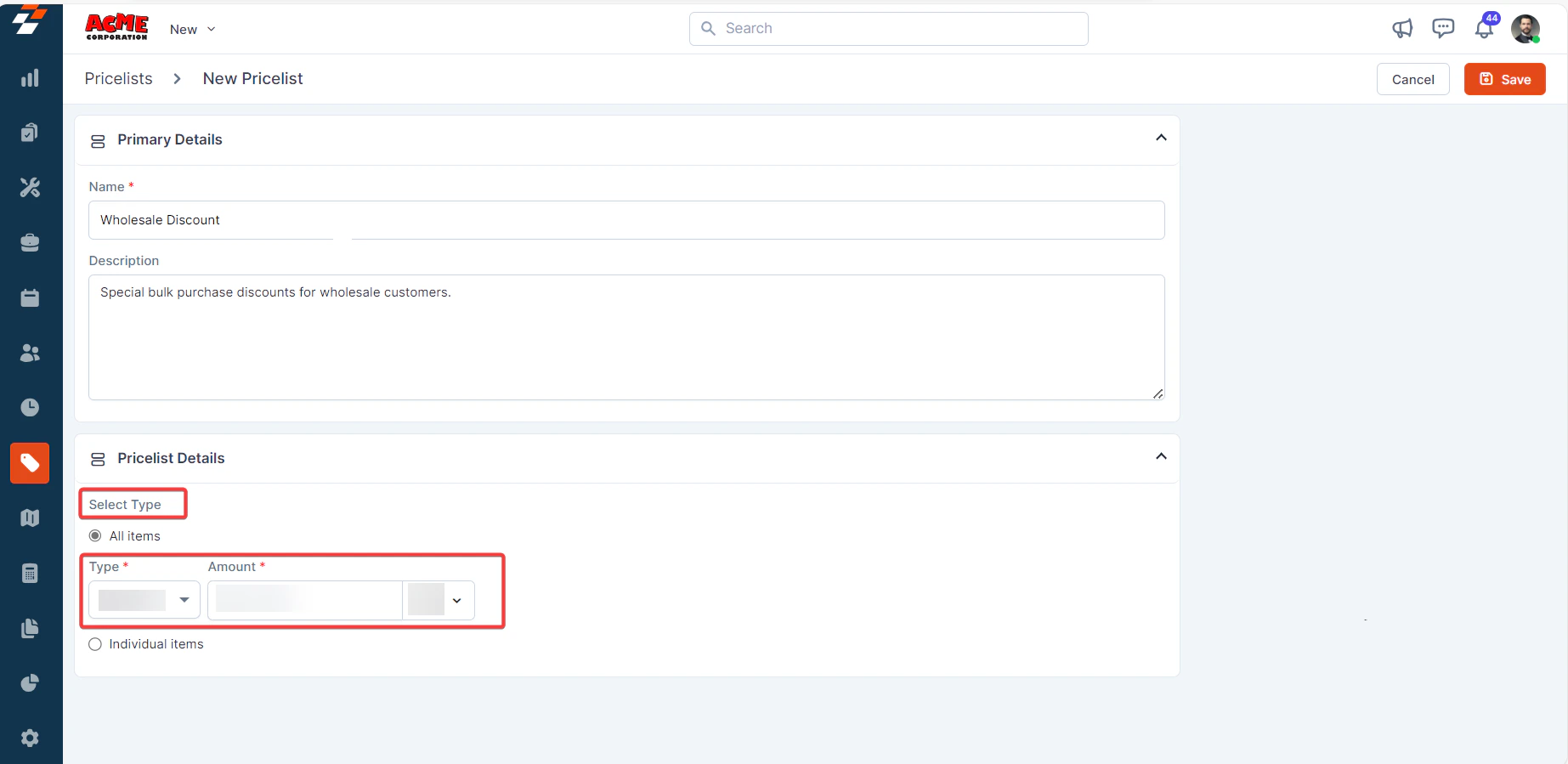
 #### **2. Pricelist Details section:**
Choose the type of item, either “**All items**” or “**Individual items.**”
Enter the following details:
* **Type** (Mandatory): Select either the “**Discount**” or “**Margin**” option.
**Note:** This selection applies to all parts and services when configured for all items.
* **Amount** (Mandatory): Enter the value.
* Choose “**USD**” or “**%**” from the drop-down menu.
#### **2. Pricelist Details section:**
Choose the type of item, either “**All items**” or “**Individual items.**”
Enter the following details:
* **Type** (Mandatory): Select either the “**Discount**” or “**Margin**” option.
**Note:** This selection applies to all parts and services when configured for all items.
* **Amount** (Mandatory): Enter the value.
* Choose “**USD**” or “**%**” from the drop-down menu.
 Enable the checkboxes to “**Enable Discount**” and/or “**Margin**”.
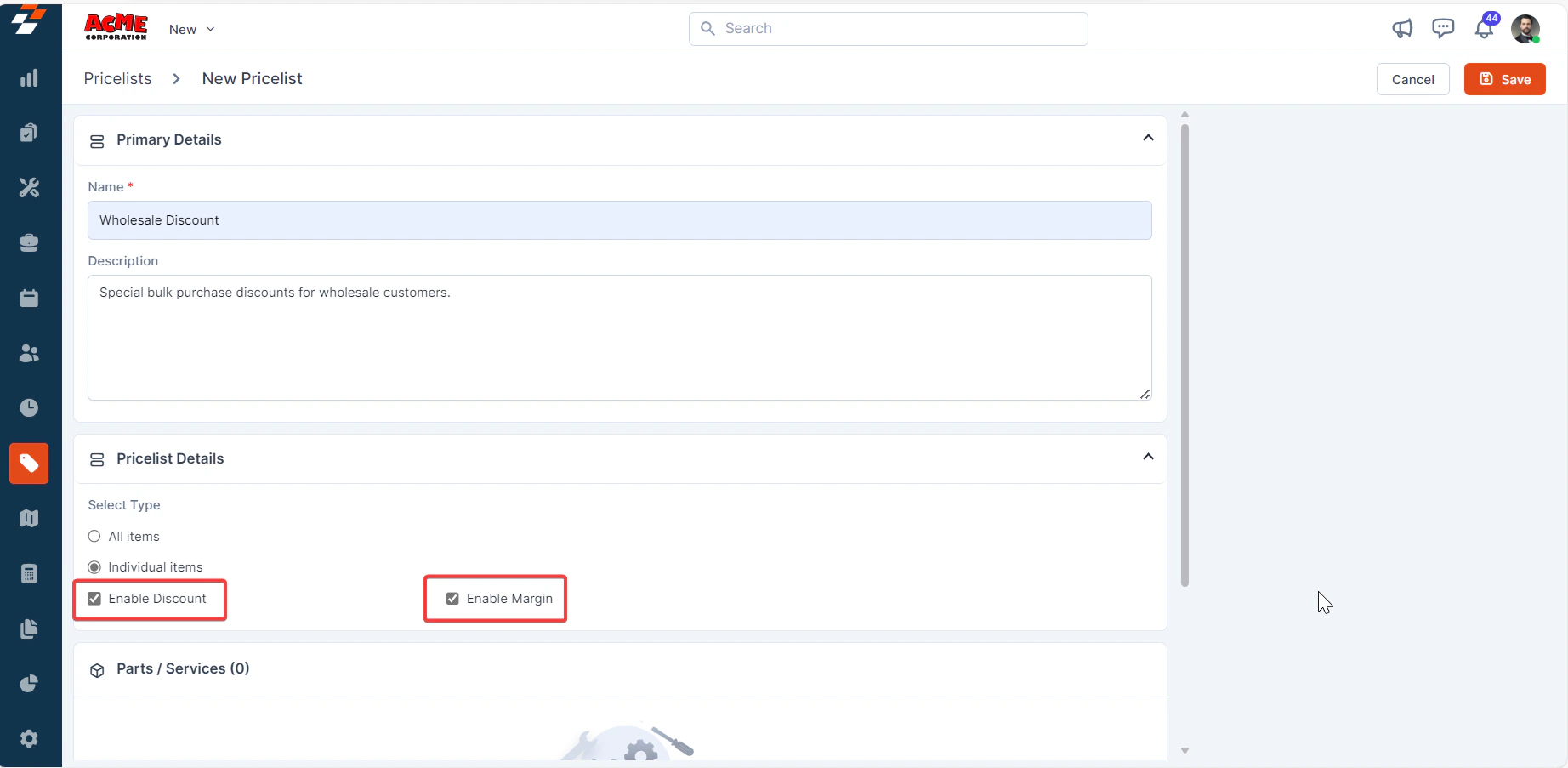 **Note:** You must activate the respective checkboxes during pricelist creation or editing to include a margin or discount in your pricing.
#### **3. Parts / Services section:**
1. Add the relevant parts and products by clicking the “**+ Add**” button.
**Note:** You must activate the respective checkboxes during pricelist creation or editing to include a margin or discount in your pricing.
#### **3. Parts / Services section:**
1. Add the relevant parts and products by clicking the “**+ Add**” button.
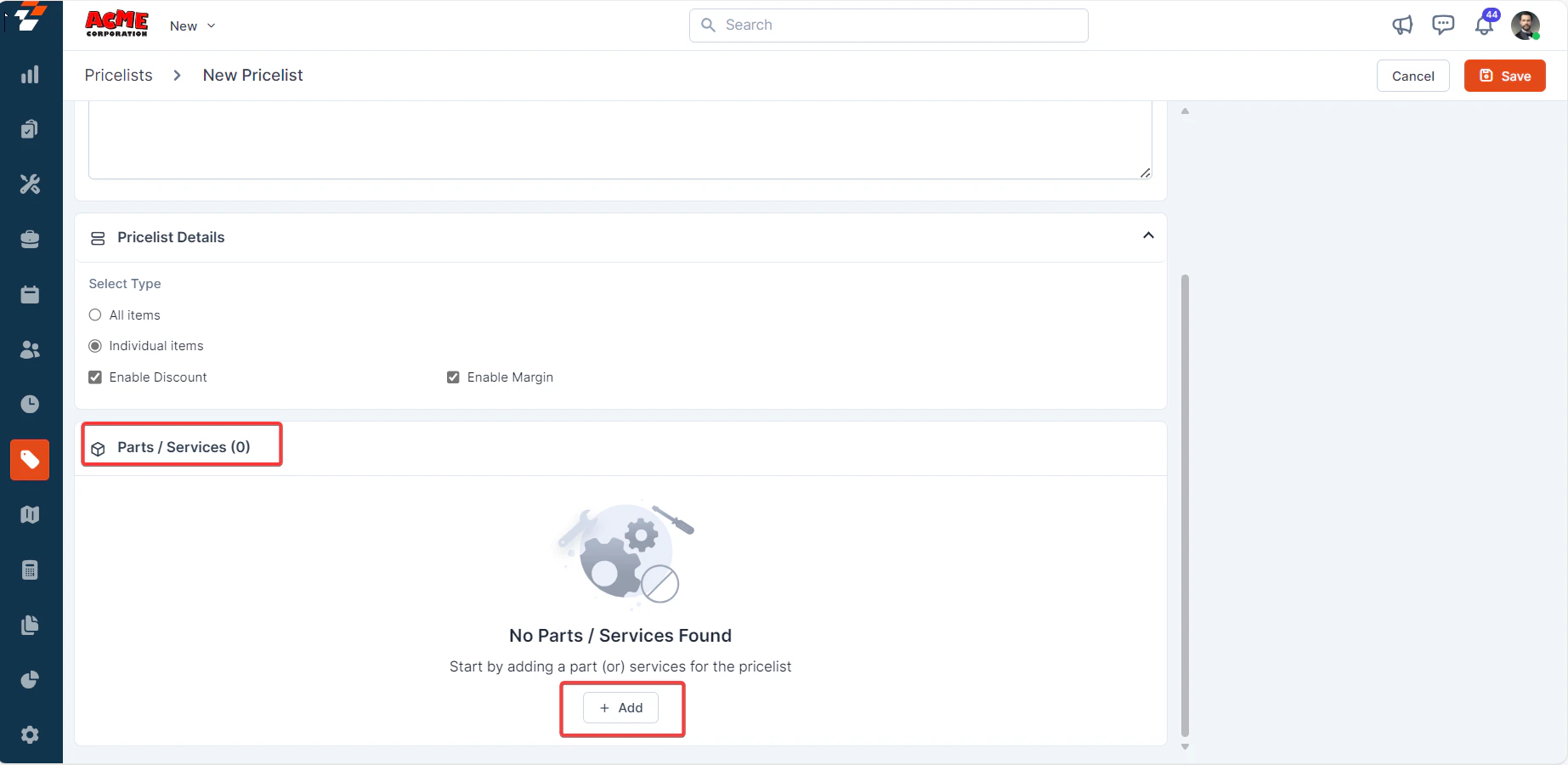 2. A dialog box with the existing parts and products will appear.
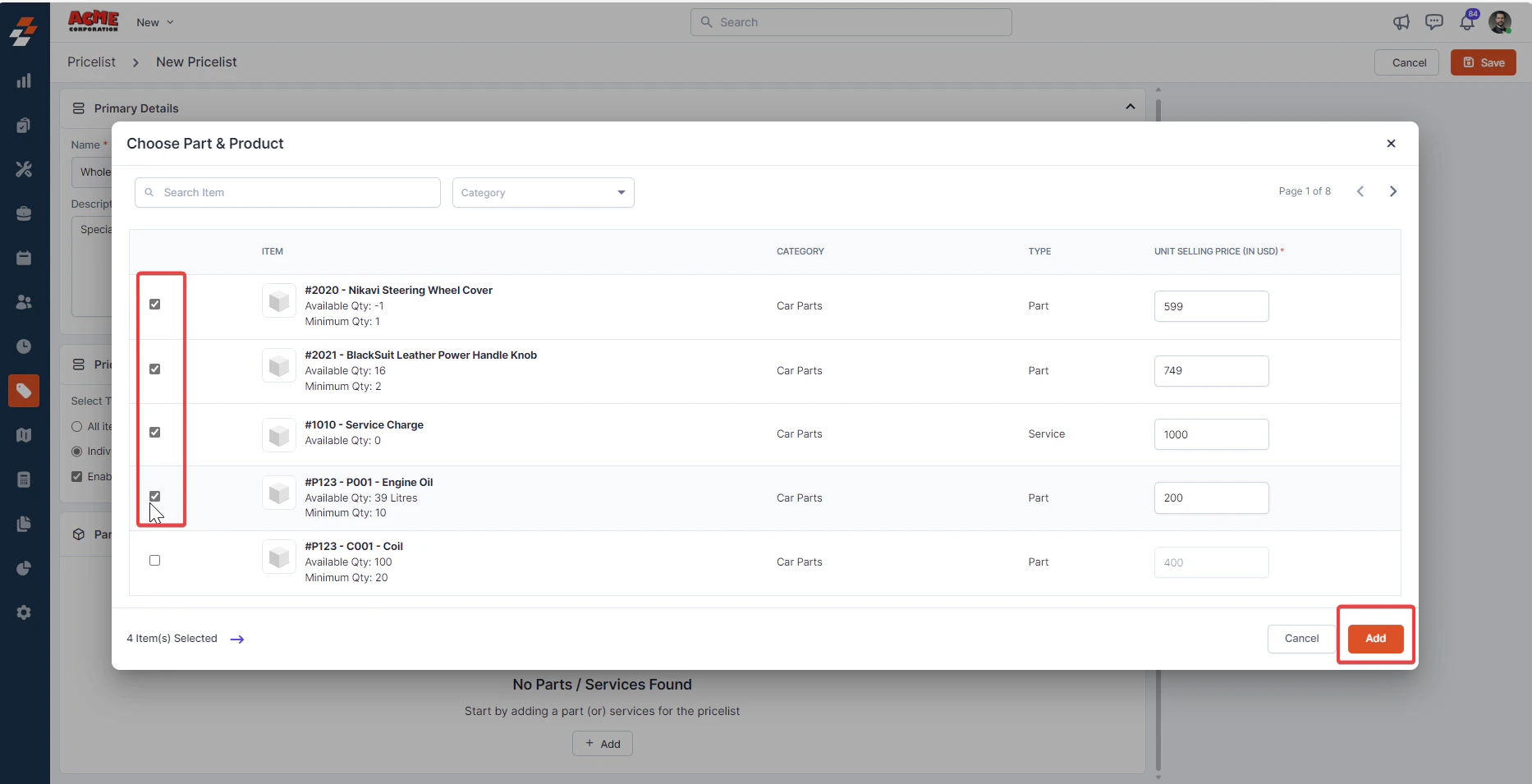
3. Select the part/product(s) and click the “**Add**” button.
2. A dialog box with the existing parts and products will appear.
3. Select the part/product(s) and click the “**Add**” button.
 4. You can specify either “*Margin*”, “*Discount*”, or “*Custom Rate*” for each item.
* **Margin**: An additional percentage or fixed amount added to the cost price of items to determine the unit selling price.
* **Discount**: A flat or percentage amount subtracted from the selling price you set in the master list for a part or service. The updated selling price, reflecting the applied discount, will be displayed accordingly in the Updated Price field.
* **Custom Rate**: A fixed rate or percentage applied to the item or service.
**Note:** Only one of these options, “*Margin*”, “*Discount*”, or “*Custom Rate*” can be selected for each item.
4. You can specify either “*Margin*”, “*Discount*”, or “*Custom Rate*” for each item.
* **Margin**: An additional percentage or fixed amount added to the cost price of items to determine the unit selling price.
* **Discount**: A flat or percentage amount subtracted from the selling price you set in the master list for a part or service. The updated selling price, reflecting the applied discount, will be displayed accordingly in the Updated Price field.
* **Custom Rate**: A fixed rate or percentage applied to the item or service.
**Note:** Only one of these options, “*Margin*”, “*Discount*”, or “*Custom Rate*” can be selected for each item.
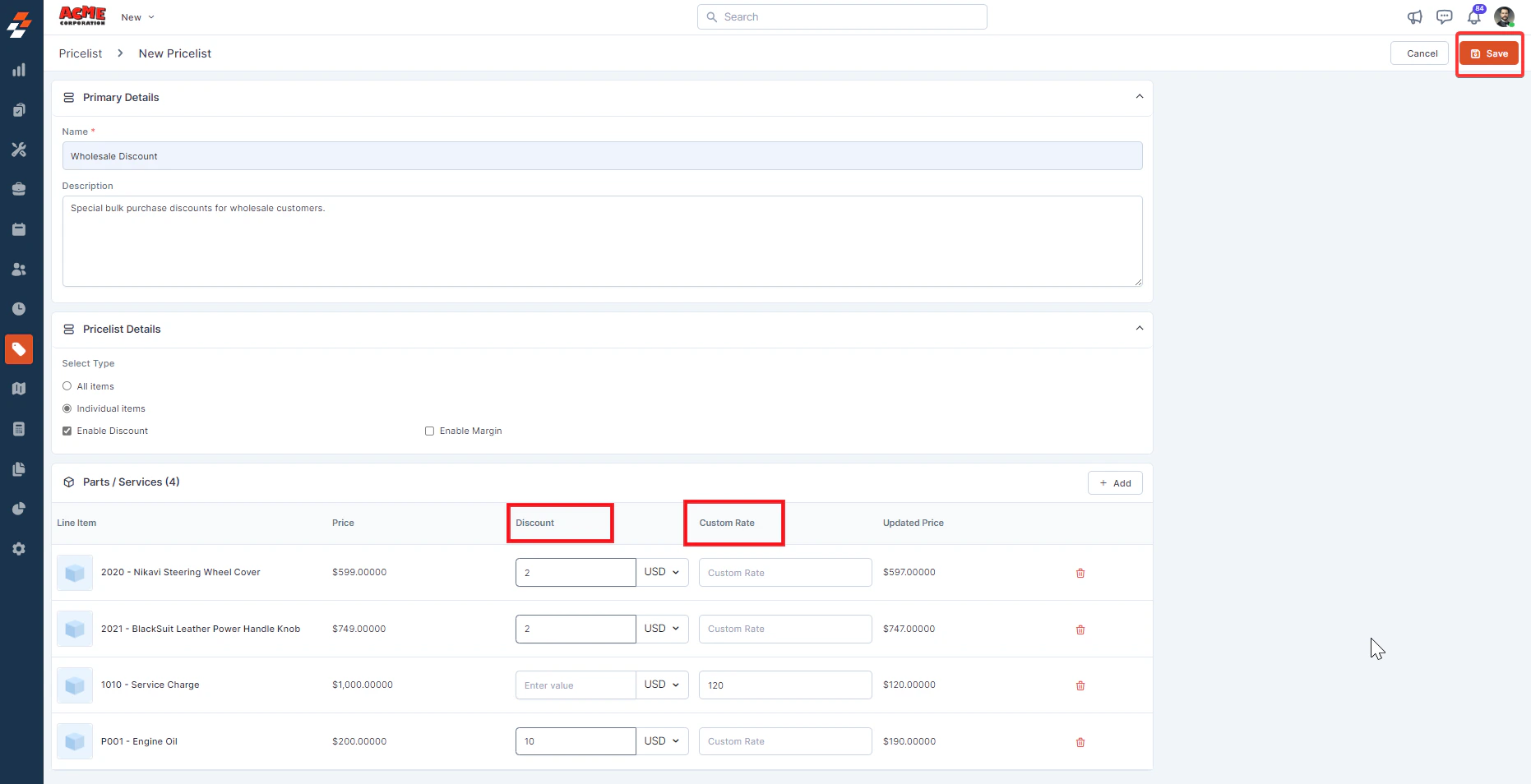 After providing all the required details, click the “**Save**” button at the top right corner.
A new Pricelist will be created successfully. You can add the newly created pricelist to specific customers, organizations, or individual transactions, such as Quotes, Invoices, Jobs, or Contracts.
### Edit a Pricelist
You can edit a pricelist from any one of the following pages:
1. From the Pricelists listing page
2. From the Pricelist details page
**From the Pricelists listing page**
To edit a pricelist from the Pricelists listing page, follow these steps:
1. Select the pricelist you want to edit on the listing page.
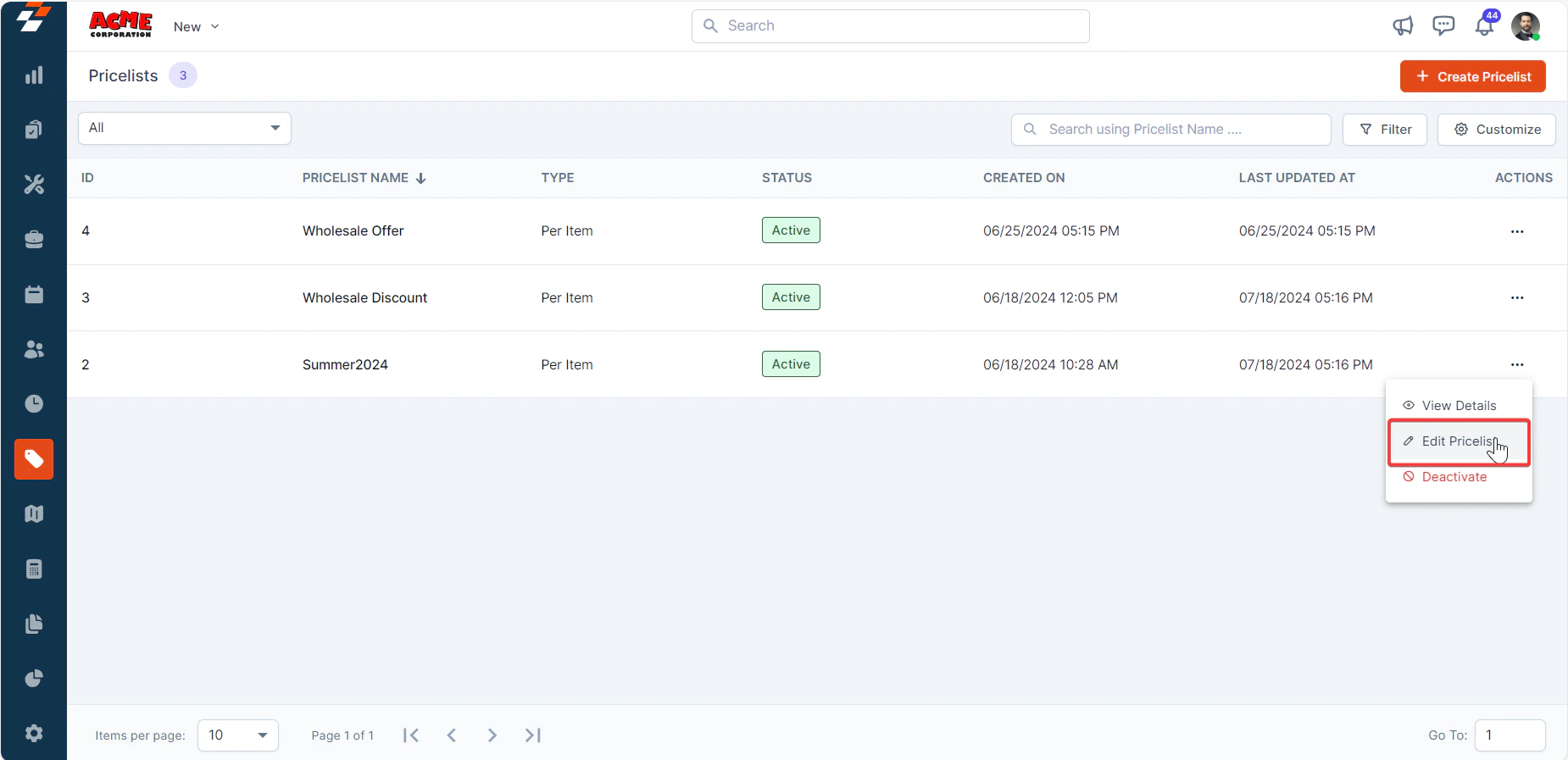
2. Click the “**Ellipsis**” icon under the “**Action**” column and select “**Edit Pricelist**”.
After providing all the required details, click the “**Save**” button at the top right corner.
A new Pricelist will be created successfully. You can add the newly created pricelist to specific customers, organizations, or individual transactions, such as Quotes, Invoices, Jobs, or Contracts.
### Edit a Pricelist
You can edit a pricelist from any one of the following pages:
1. From the Pricelists listing page
2. From the Pricelist details page
**From the Pricelists listing page**
To edit a pricelist from the Pricelists listing page, follow these steps:
1. Select the pricelist you want to edit on the listing page.
2. Click the “**Ellipsis**” icon under the “**Action**” column and select “**Edit Pricelist**”.
 3. Modify the necessary fields.
4. Click the “**Save**” button to update the pricelist.
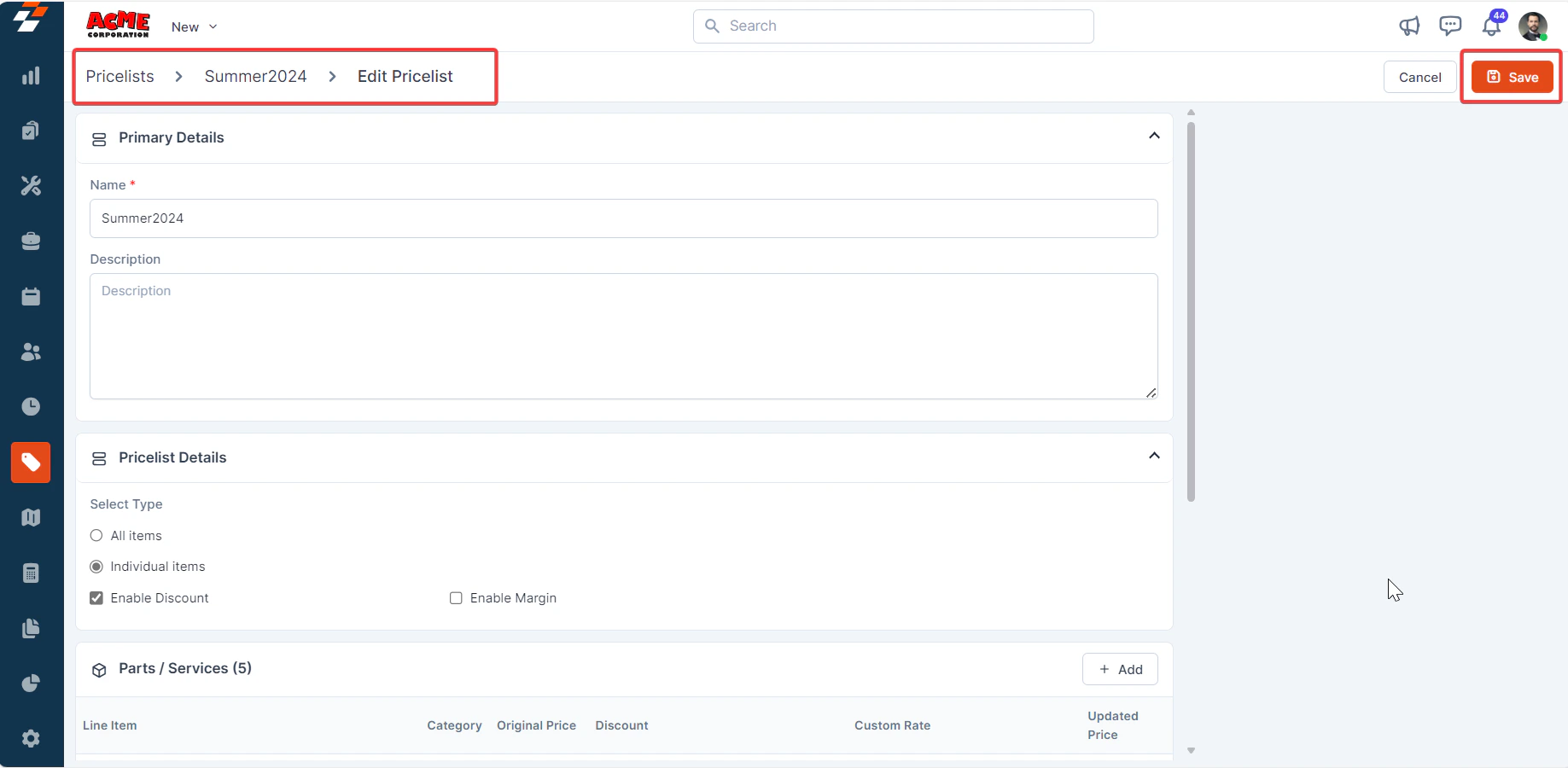
3. Modify the necessary fields.
4. Click the “**Save**” button to update the pricelist.
 **From the Pricelist details page**
You can view the pricelist details page directly after saving a pricelist or from the Pricelists listing page.
To edit a pricelist from the Pricelist details page, follow these steps:
1. Select the pricelist you want to edit.
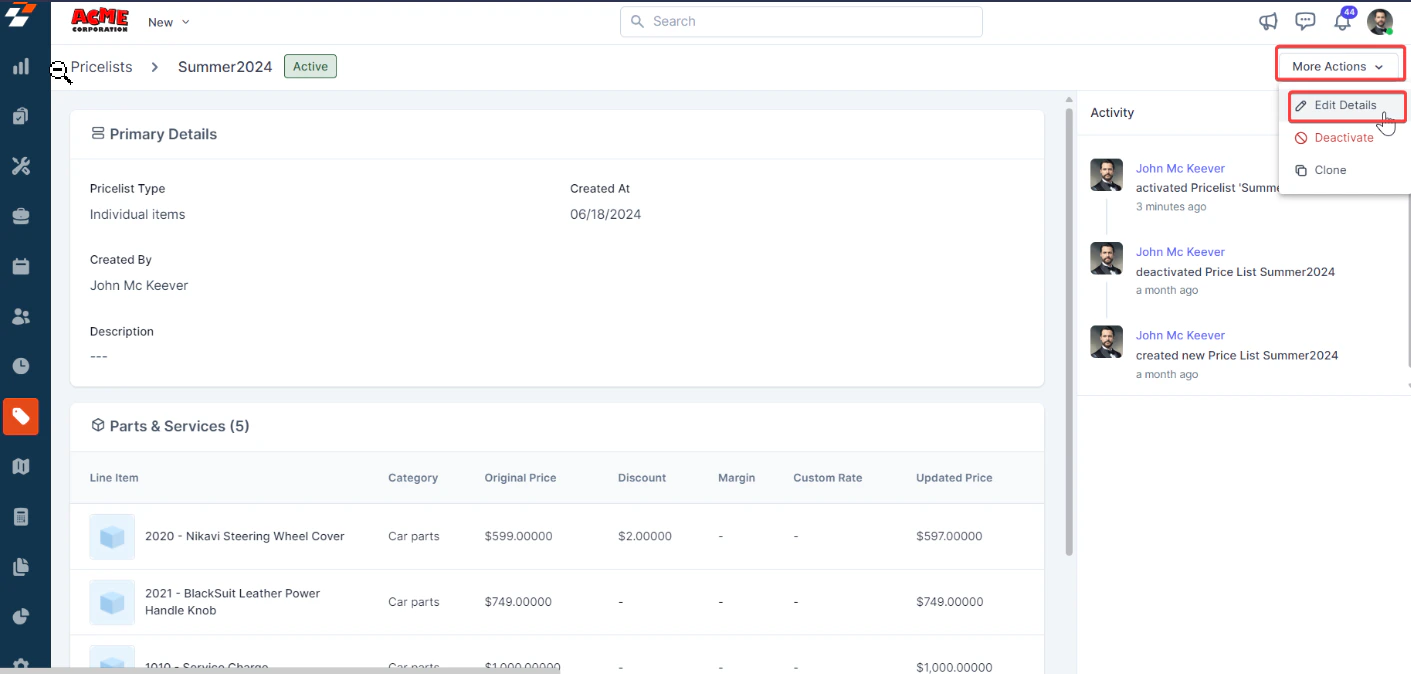
2. On the **Pricelist details** page, under “**More Actions,**” select “**Edit Details.**”
**From the Pricelist details page**
You can view the pricelist details page directly after saving a pricelist or from the Pricelists listing page.
To edit a pricelist from the Pricelist details page, follow these steps:
1. Select the pricelist you want to edit.
2. On the **Pricelist details** page, under “**More Actions,**” select “**Edit Details.**”
 3. Modify the necessary fields.
4. Click the “**Save**” button to update the pricelist.
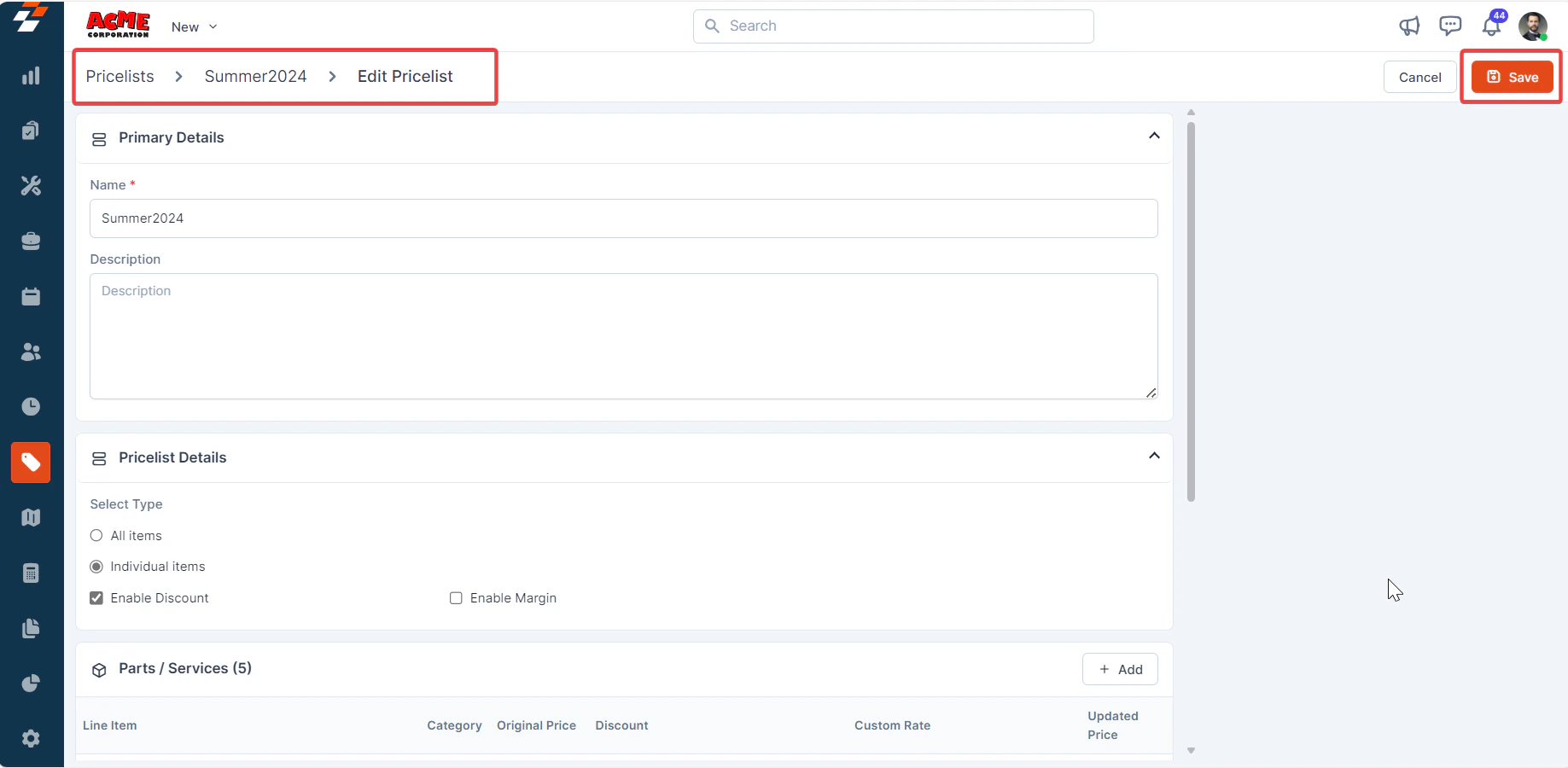
3. Modify the necessary fields.
4. Click the “**Save**” button to update the pricelist.
 ### Deactivate/Delete a Pricelist
You can deactivate/delete a pricelist from any one of the following pages:
1. From the Pricelists listing page
2. From the Pricelist details page
**To deactivate/delete a Pricelist:**
1. On the Pricelists listing page, select the pricelist you want to deactivate.
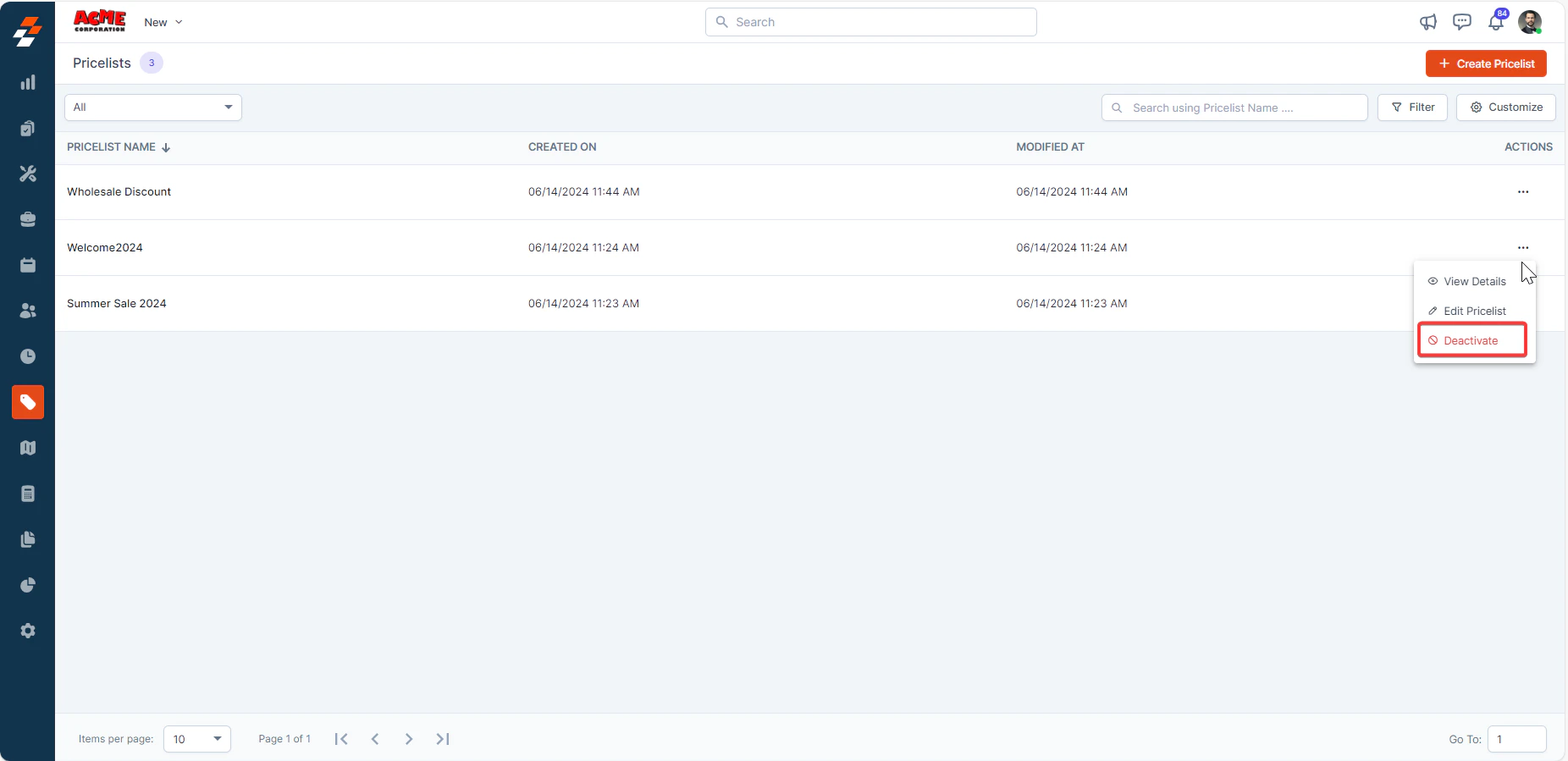
2. Click the “**Ellipsis**” icon under the “**Action**” column and select “**Deactivate**”.
### Deactivate/Delete a Pricelist
You can deactivate/delete a pricelist from any one of the following pages:
1. From the Pricelists listing page
2. From the Pricelist details page
**To deactivate/delete a Pricelist:**
1. On the Pricelists listing page, select the pricelist you want to deactivate.
2. Click the “**Ellipsis**” icon under the “**Action**” column and select “**Deactivate**”.
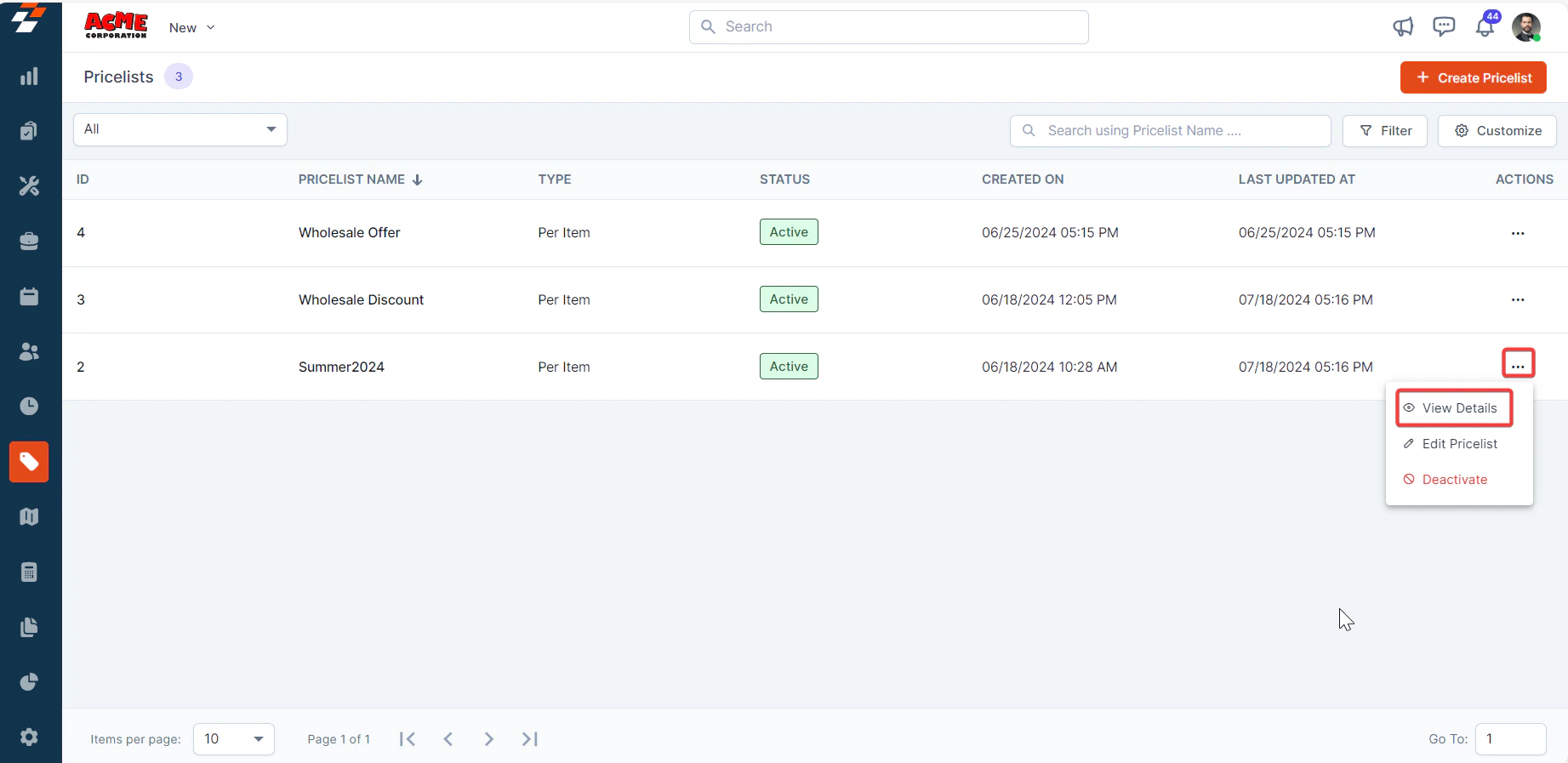
 3. Alternatively, you can click the “**Ellipsis**” icon under the “**Action**” column and select “**View Details**”.
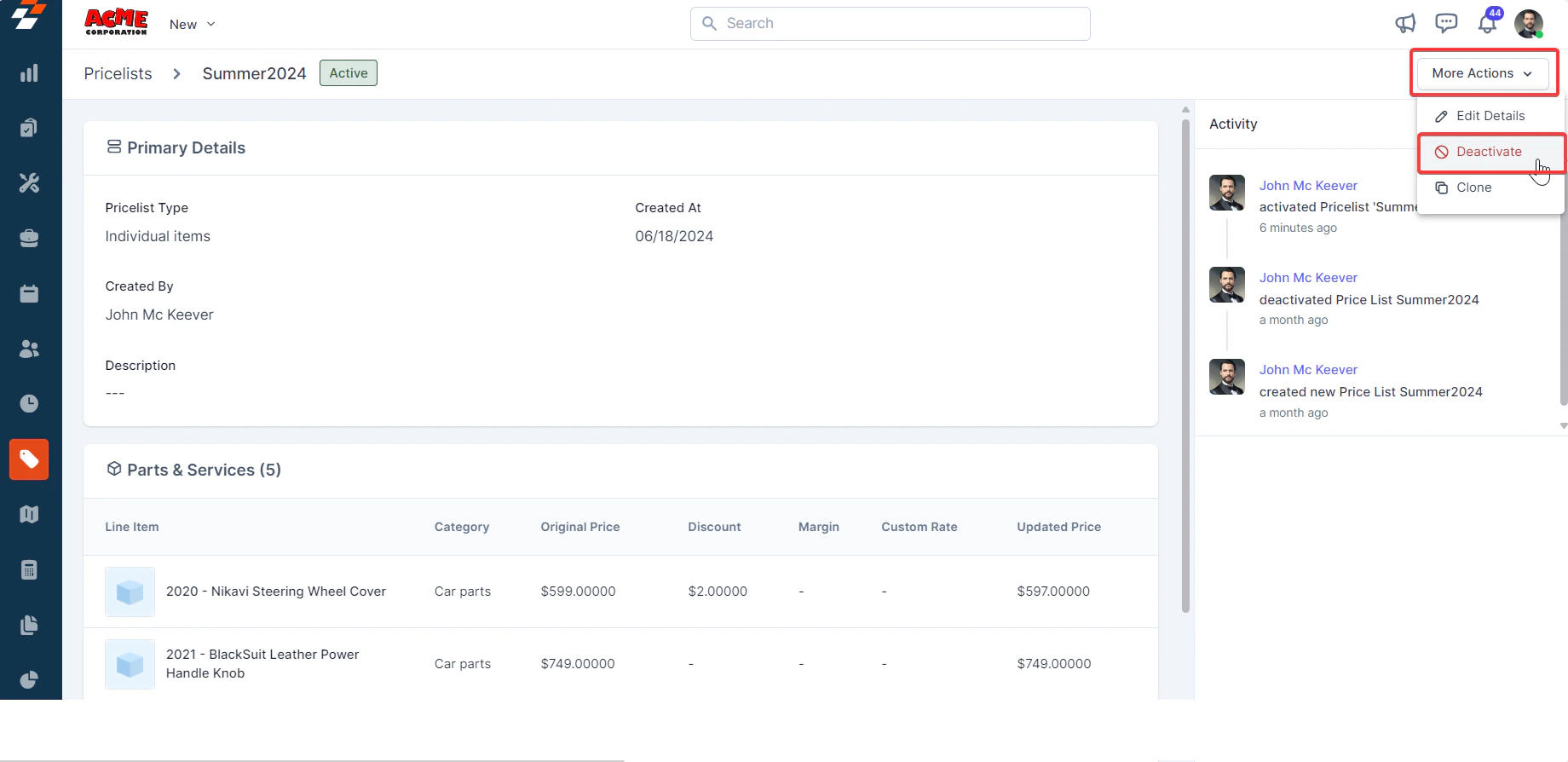
 4. On the **Pricelist details** page, under “**More Actions**”, select “**Deactivate**”.
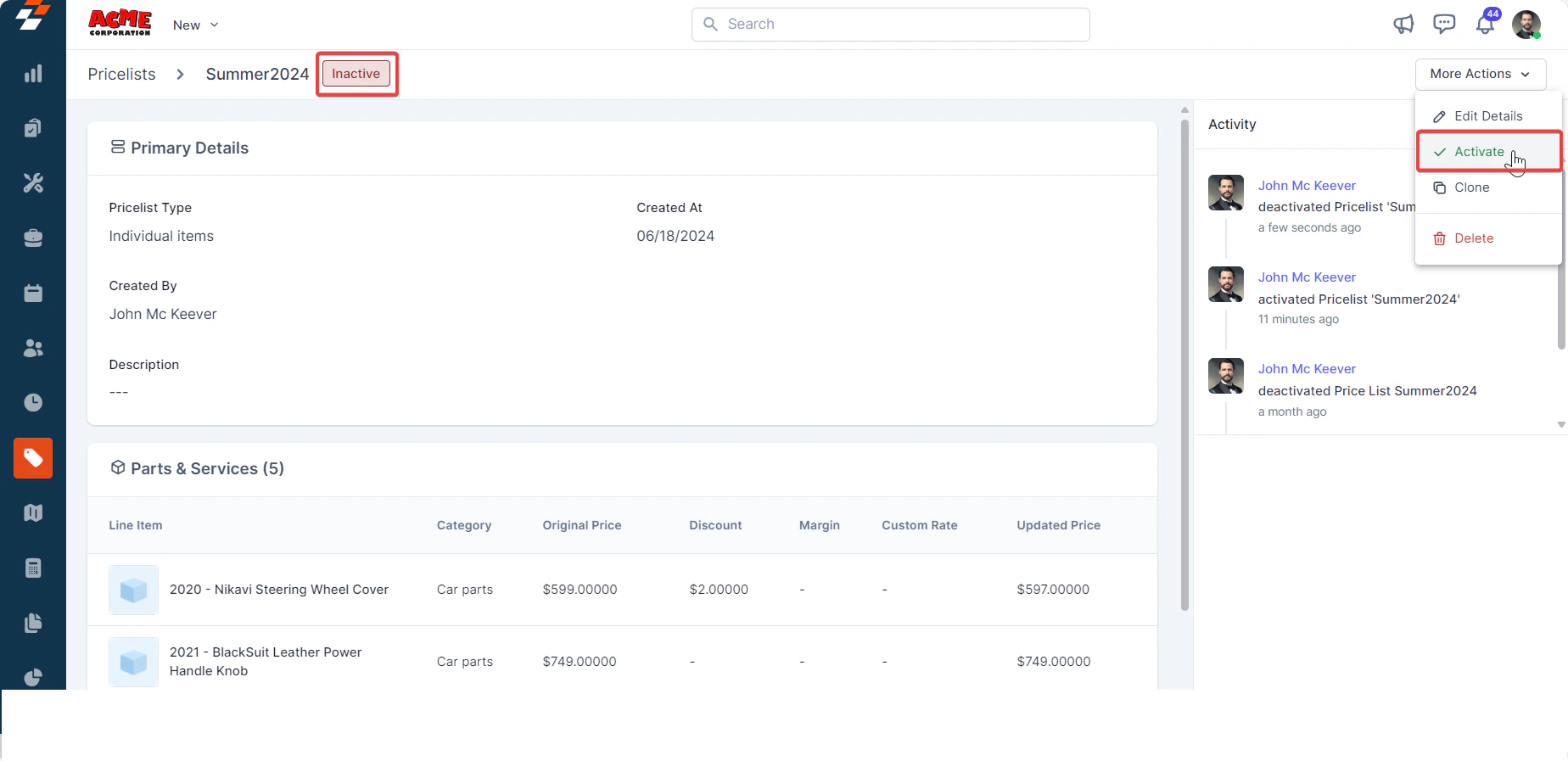
 5. The pricelist will be deactivated successfully. To reactivate it, click “**Activate**”.
 **Delete a Pricelist**
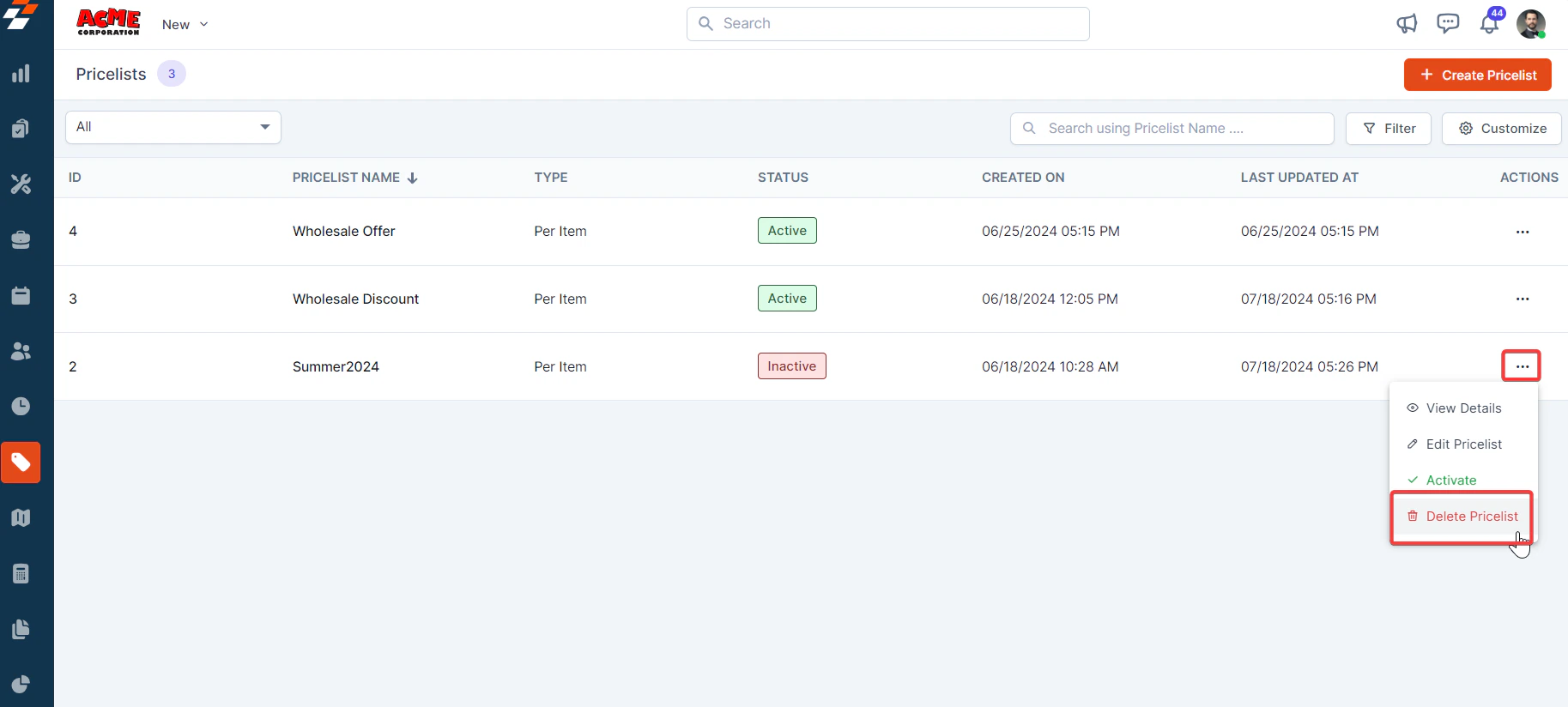
To delete a pricelist, you must first deactivate the specific pricelist. Only after deactivation can the pricelist be deleted.
1. On the **Pricelists listing** page, select “**Delete Pricelist**” under “**Action**” to delete the pricelist.
**Delete a Pricelist**
To delete a pricelist, you must first deactivate the specific pricelist. Only after deactivation can the pricelist be deleted.
1. On the **Pricelists listing** page, select “**Delete Pricelist**” under “**Action**” to delete the pricelist.
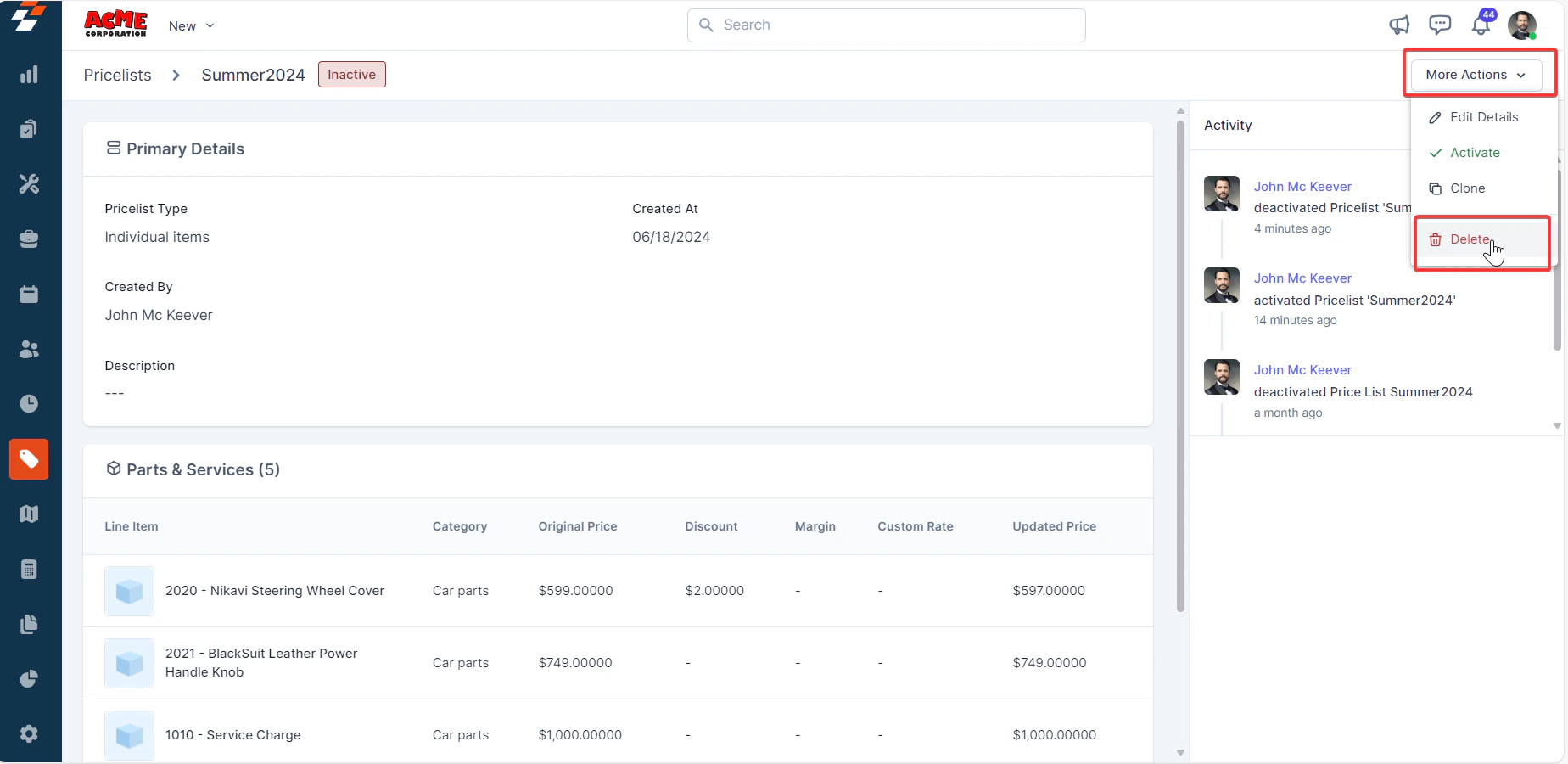
 2. Alternatively, you can delete the pricelist from the **Pricelist detail** page.
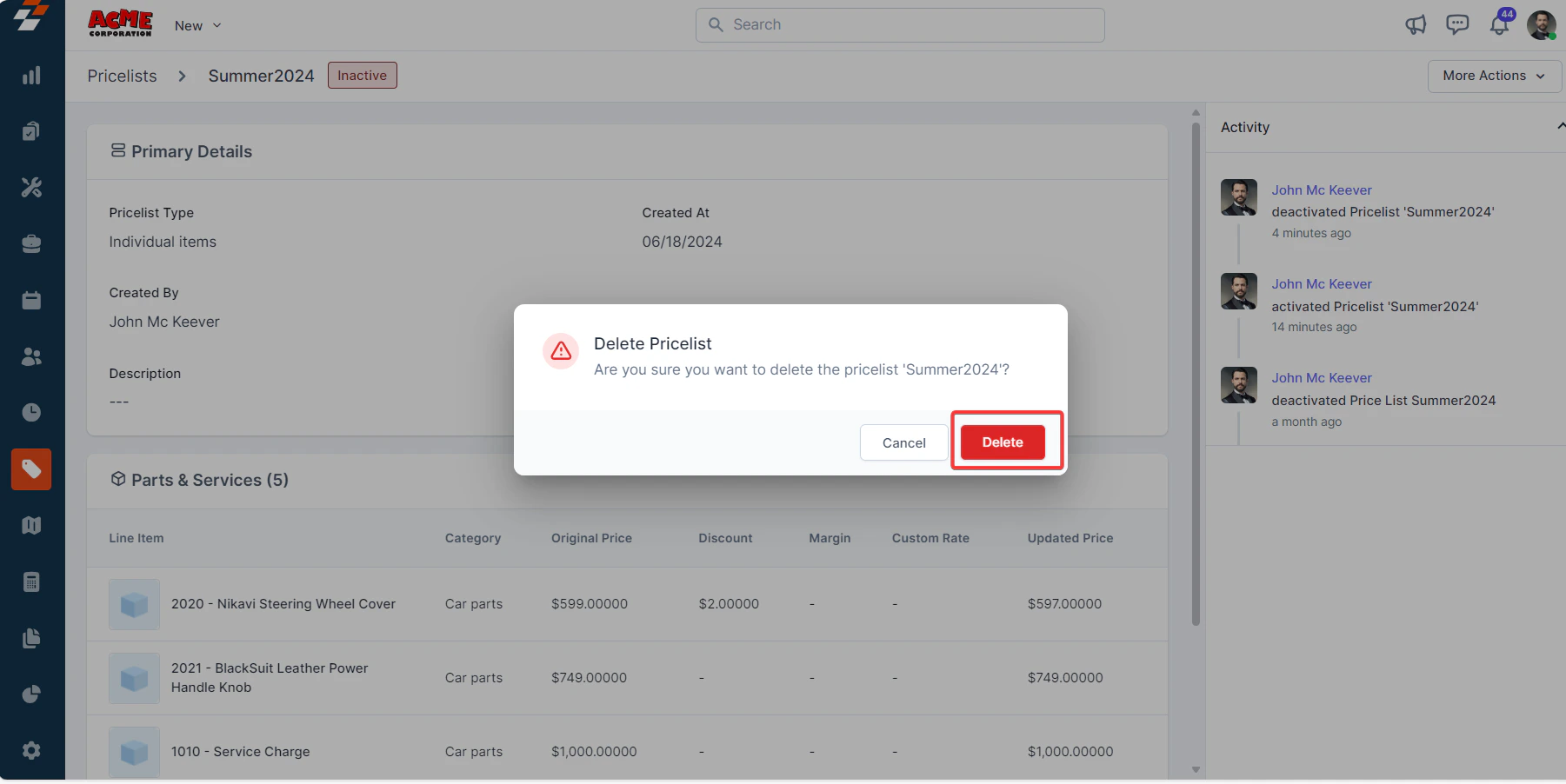
 3. A pop-up message will appear. Click the “**Delete**” button to delete the pricelist.
 So, that's it! Whether you're creating a pricelist, making updates, or deactivating and deleting a pricelist, these procedures facilitate streamlined pricelist management within the application, ultimately contributing to efficient operations and enhanced productivity.