> ## Documentation Index
> Fetch the complete documentation index at: https://zuperinc-section23.mintlify.site/llms.txt
> Use this file to discover all available pages before exploring further.
# Labor Service
In Zuper, the **Labor Service** type in the **Parts & Services** module is designed for **Time and Materials (T\&M)** based jobs, where the actual time logged by technicians on a specific service is counted as the **quantity** against that labor service. This method is widely used in commercial trade and service industries for jobs where the scope or duration may vary.
This ensures that both billing and cost tracking are based on real work performed rather than an estimated or fixed price.
**Note**: Use **labor services** when you want job charges to reflect actual technician time, rather than a fixed or quoted price.
**Things to know before creating a labor service**
* **No warehouse or location is required** since a Labor Service is not a physical item. The quantity is derived from the actual hours the technician spends on the service.
* **No purchase cost is required** because labor costs are automatically calculated based on each technician’s fully loaded hourly rate.
* Once a labor service is added to a job, its quantity auto-syncs are based on the technician’s time log.
* You **cannot update a Labor Service to another product type** (Parts, Services, or Products) and vice versa. This restriction ensures accurate cost and billing calculations.
## **Creating a Labor Service**
A Labor Service is created in Zuper just like you would create a part or product.
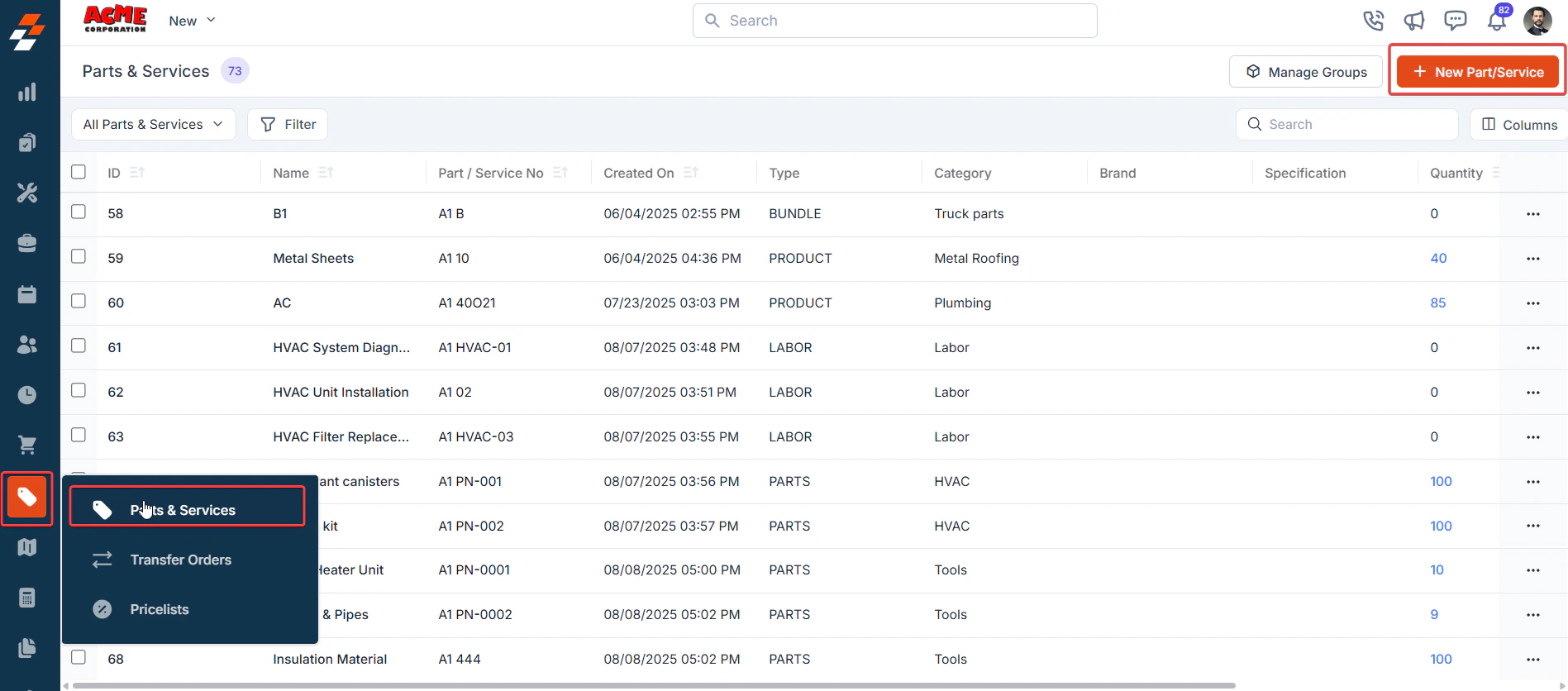
1. Click the **Inventory Management** module from the left navigation menu and select **Parts & Services**.
2. Click **+ New Part/Service**.
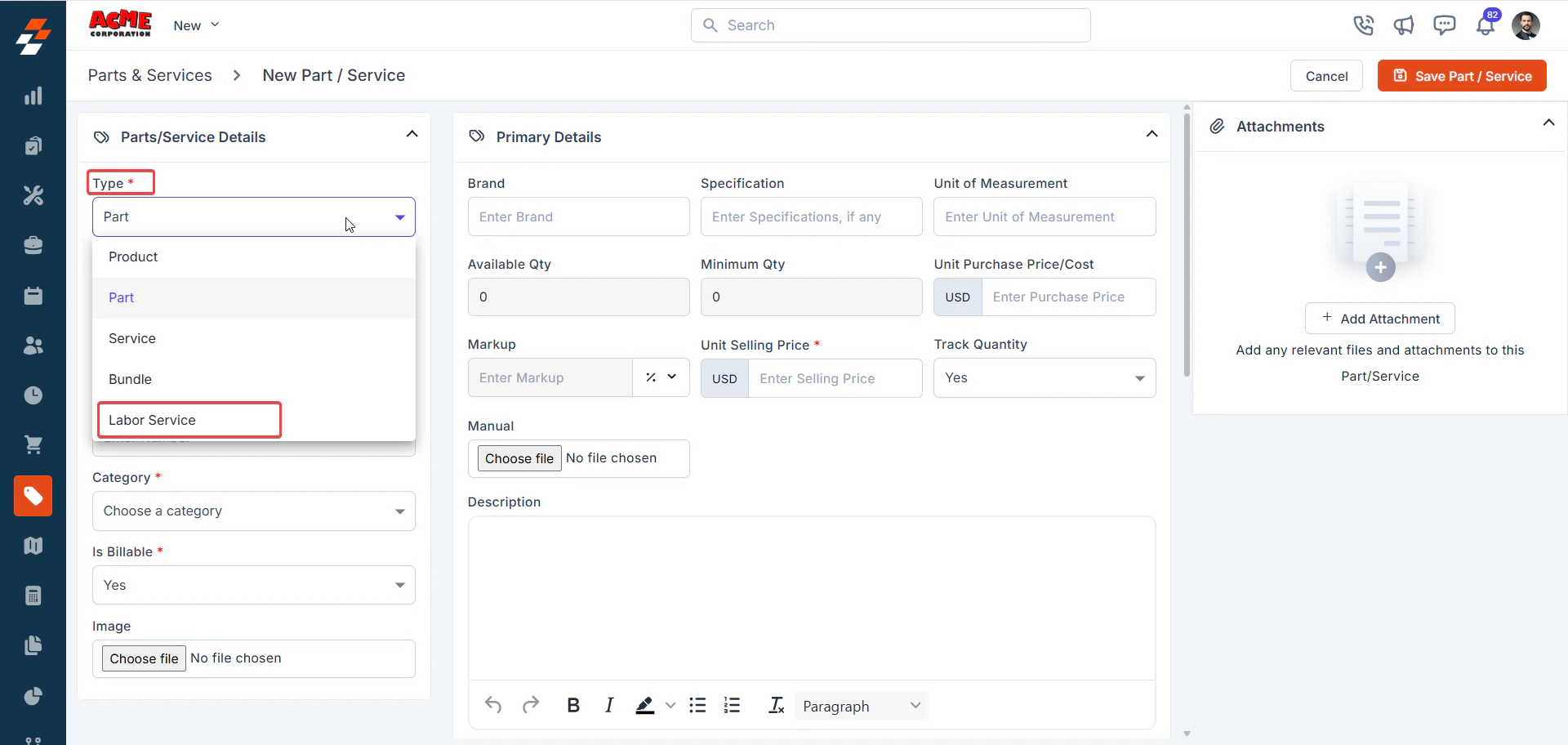
 3. In **Type**, select **Labor Service**.
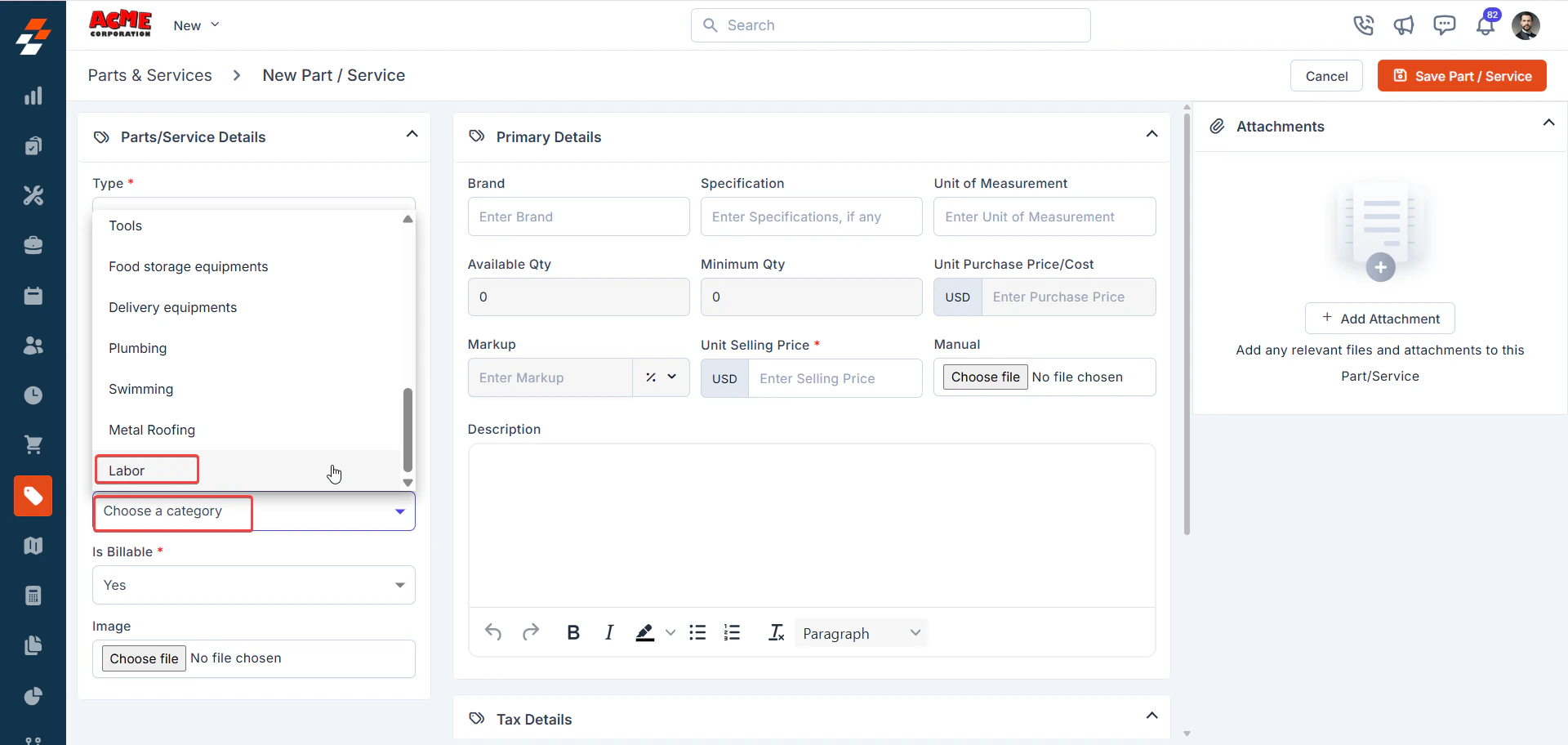
 4. Enter a **Service** name (for example, *Plumbing Repair Labor*).
5. Choose the category for service.
**Tip:** We recommend creating a dedicated **“Labor”** category to easily distinguish labor-related services from other parts or services. To create categories, go to **Settings > Parts and Services > Categories**.
4. Enter a **Service** name (for example, *Plumbing Repair Labor*).
5. Choose the category for service.
**Tip:** We recommend creating a dedicated **“Labor”** category to easily distinguish labor-related services from other parts or services. To create categories, go to **Settings > Parts and Services > Categories**.
 6. Specify the **Unit Selling Price** (per hour).
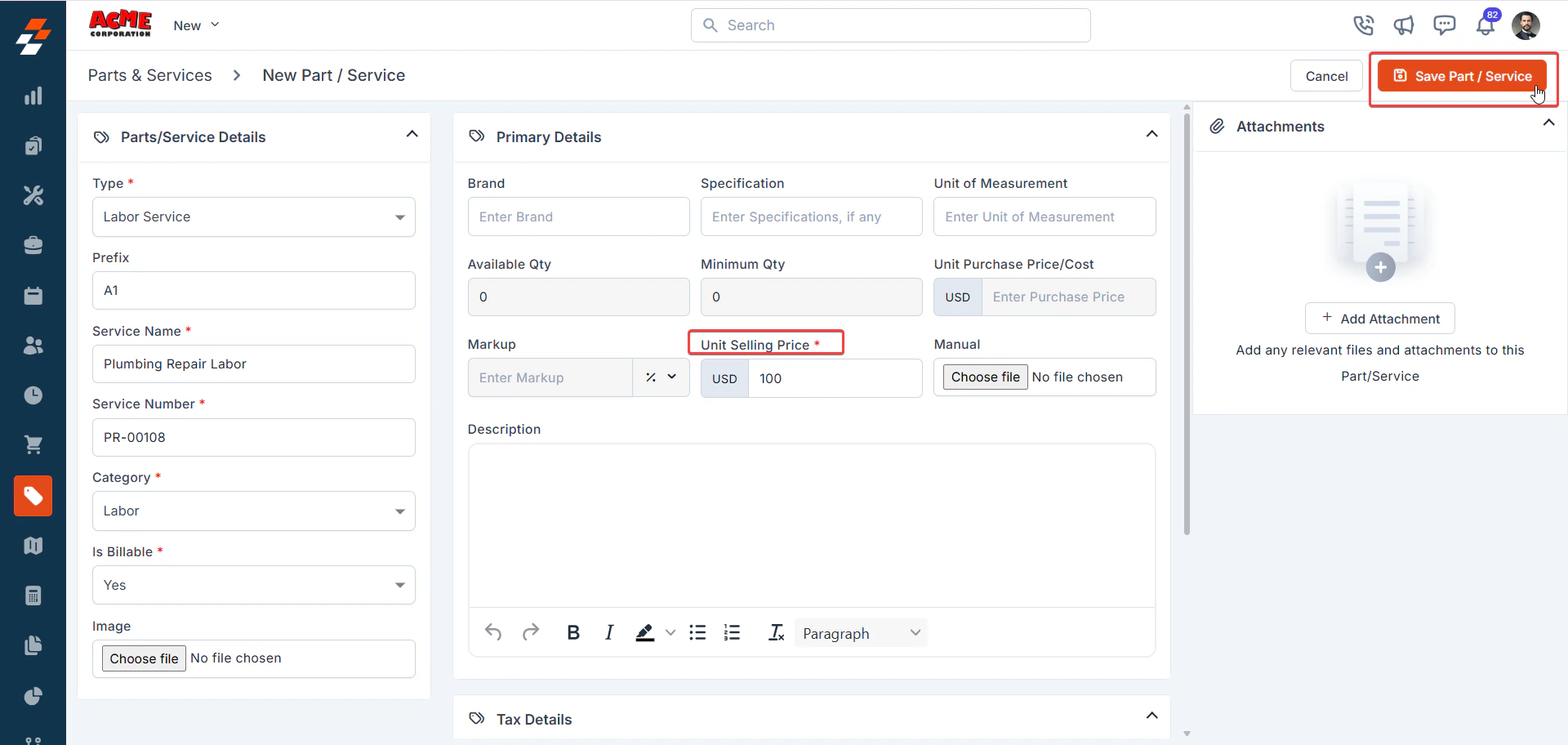 7. Click **Save Part/Service**.