> ## Documentation Index
> Fetch the complete documentation index at: https://zuperinc-section23.mintlify.site/llms.txt
> Use this file to discover all available pages before exploring further.
# Calculating Job Profitability for Time and Material Jobs
Time and Materials (T\&M) billing is a widely used method in the commercial trade and service industries. In this model, customers are billed based on the actual hours worked by technicians and the materials consumed, rather than a fixed price for the entire job.
Zuper’s **Job Costing** feature streamlines this process by enabling you to add **labor services** to jobs, track labor hours in real time, and automatically update labor service quantity based on total hours worked. Whether you're applying different pricing rules for overtime or ensuring every expense is accounted for.
We will walk you through adding a labor service to a job and gaining accurate visibility into job costs and profitability, helping you stay financially in control.\
\
**Prerequisite**
Ensure a **Labor Service** is created in the **Master Parts and Services** module. Refer to the [Create Labor Service](Job_Costing/Labor_Service) guide for instructions.
**Let’s add a labor service and calculate profitability!**
1. Open the relevant job in Zuper to access the **Job Details page** or create a new job from the **Job Creation** page.
2. On the **Job Details page**, go to the **Line Items** section and click the **Parts & Services** tab.
1. Click **+ Add** and select **Line Item**.
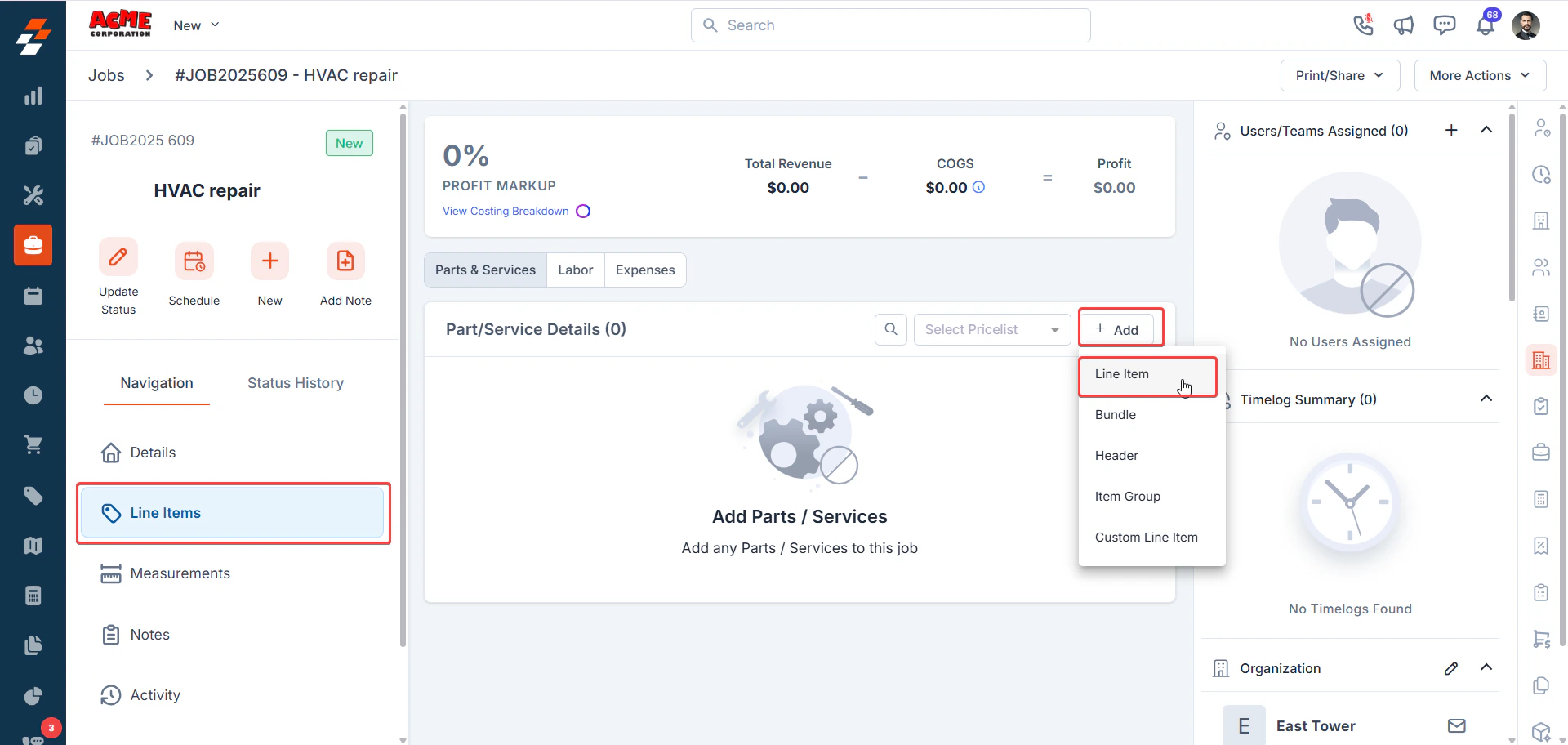 2. In the **Product Type** field, choose **Labor** **Service**.
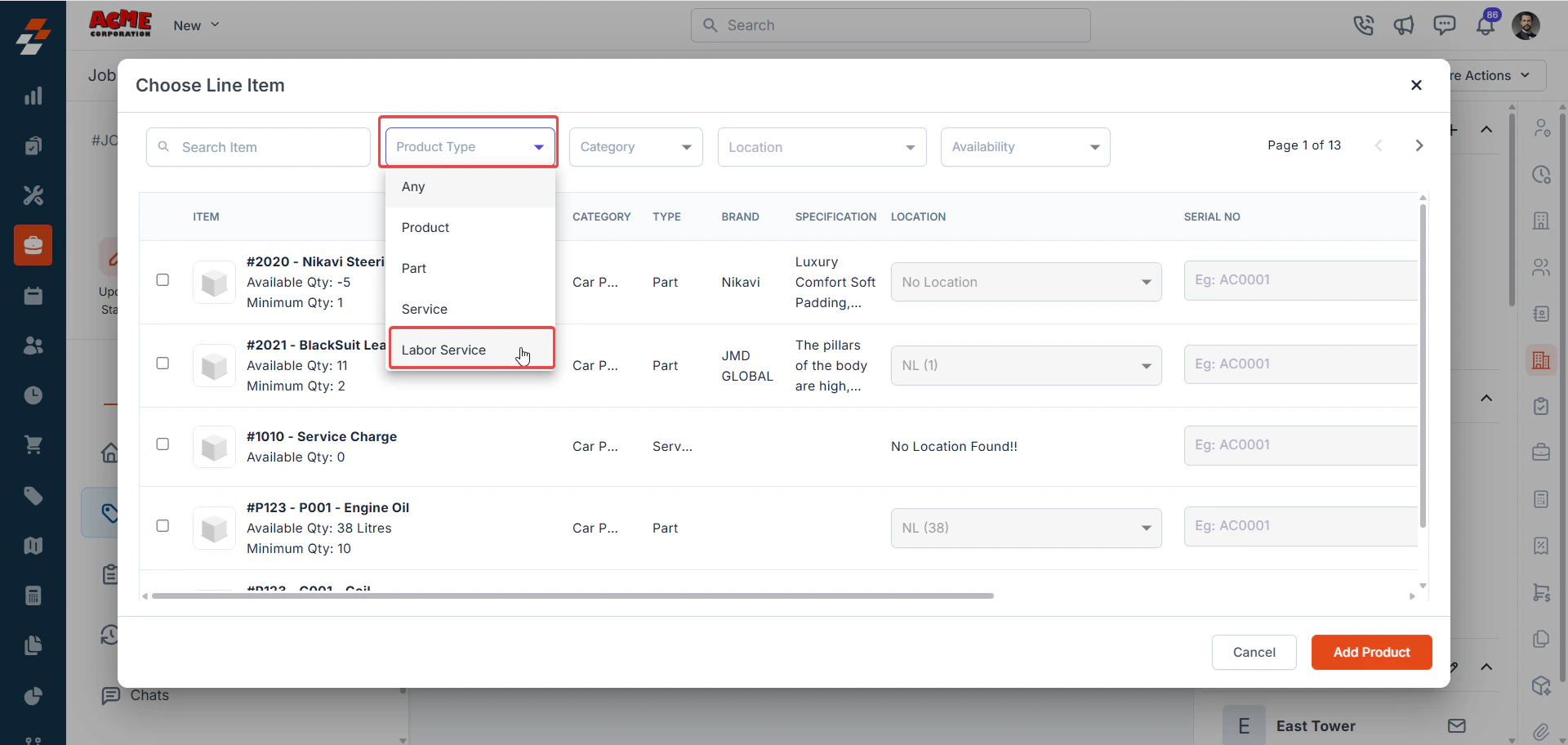 3. Pick an existing Labor Service (e.g., HVAC System Diagnostic Repair) from the list.
**Note**: The labor services available here depend on your configuration in the **Job Costing and Expense** settings > **Labor Type** section.
4. Click **Save** to add the labor service to the job.
3. Pick an existing Labor Service (e.g., HVAC System Diagnostic Repair) from the list.
**Note**: The labor services available here depend on your configuration in the **Job Costing and Expense** settings > **Labor Type** section.
4. Click **Save** to add the labor service to the job.
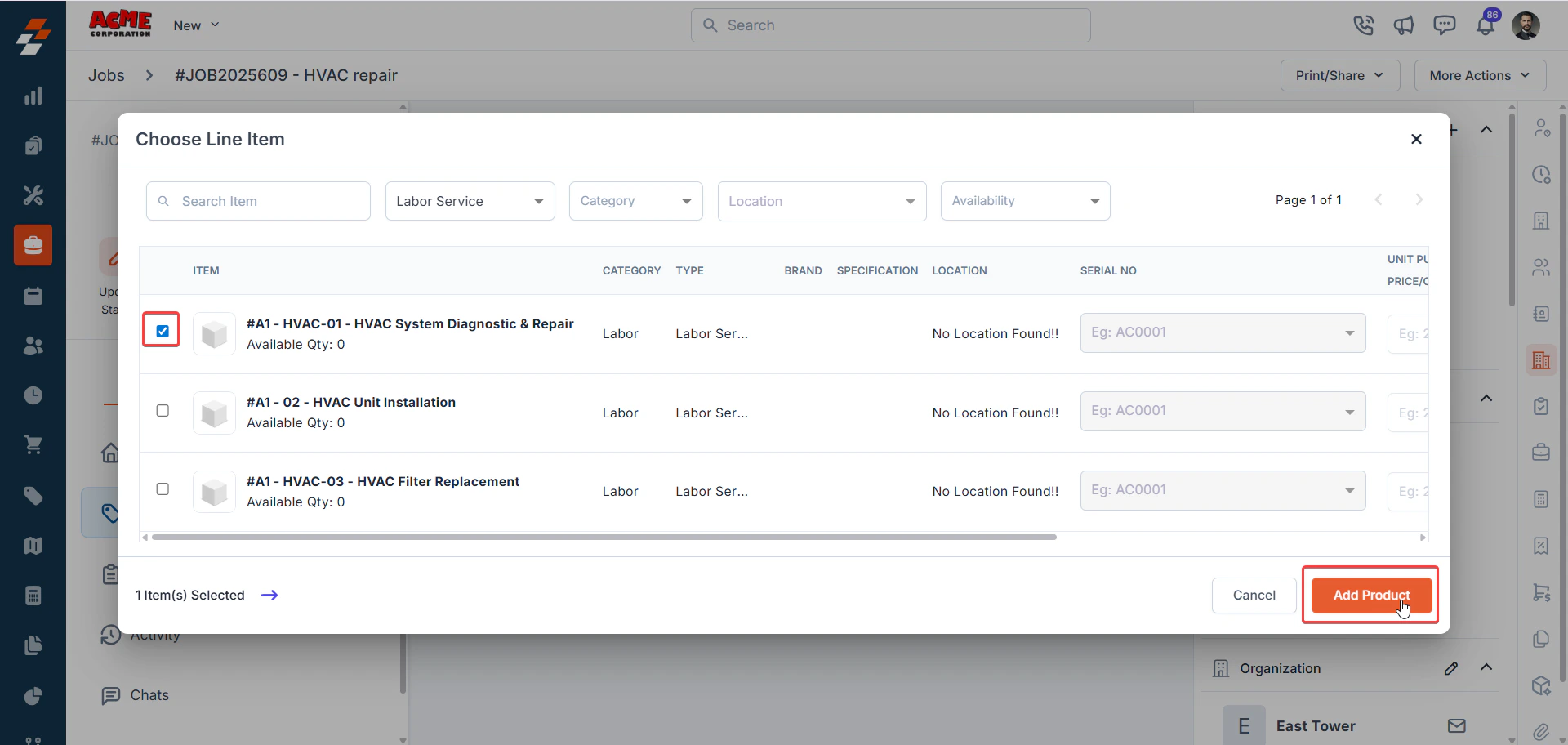 The ***Labor service quantity*** on the line will automatically update based on the actual hours clocked by technicians. For example, if technicians take 5 hours to complete the job, the quantity will automatically update to 5.
**Tip**: Need to adjust the labor service pricing for different work conditions like Overtime or Double Time? Click the **context menu (⋮)** next to the labor service, select **Edit**, and update the **Price Code**. Learn more about Price Codes in our Labor Codes guide.
The ***Labor service quantity*** on the line will automatically update based on the actual hours clocked by technicians. For example, if technicians take 5 hours to complete the job, the quantity will automatically update to 5.
**Tip**: Need to adjust the labor service pricing for different work conditions like Overtime or Double Time? Click the **context menu (⋮)** next to the labor service, select **Edit**, and update the **Price Code**. Learn more about Price Codes in our Labor Codes guide.
 5. Add any required parts or products to the job’s line items by clicking **+ Add** and selecting the relevant items.
6. Specify quantities and ensure the **Unit Purchase/Cost Price** and **Unit Selling Price** are set for accurate cost and revenue calculations.
5. Add any required parts or products to the job’s line items by clicking **+ Add** and selecting the relevant items.
6. Specify quantities and ensure the **Unit Purchase/Cost Price** and **Unit Selling Price** are set for accurate cost and revenue calculations.
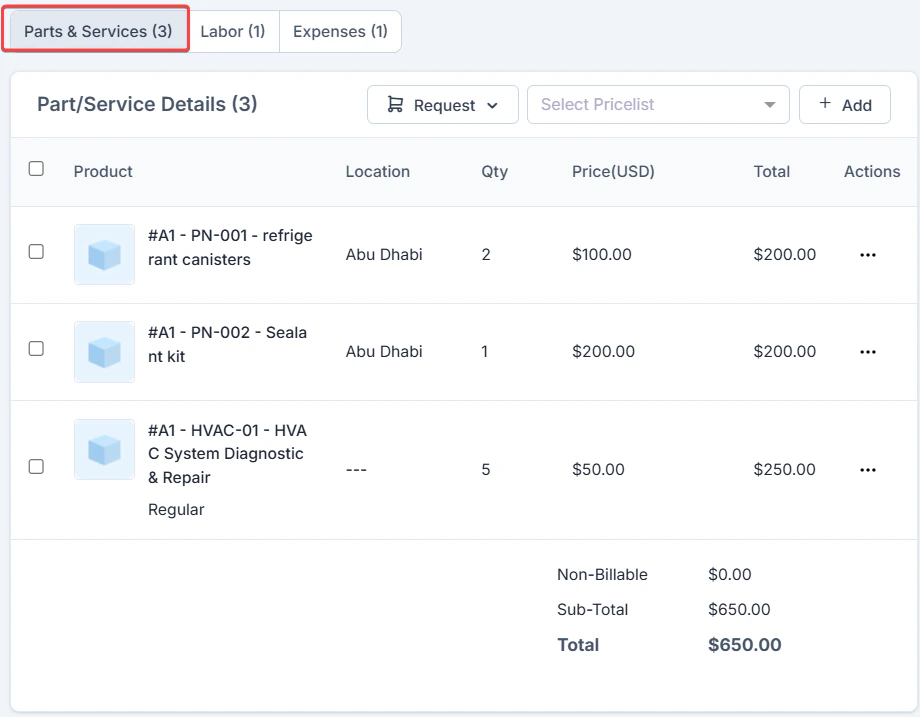 3. **Labor** tab: Displays the internal labor cost based on the actual time technicians spend on the job. This cost is calculated using each technician’s **fully loaded hourly rate**, the **number of hours worked**, and the **assigned Cost Code** (such as Regular, Overtime, Double Time, or Holiday).
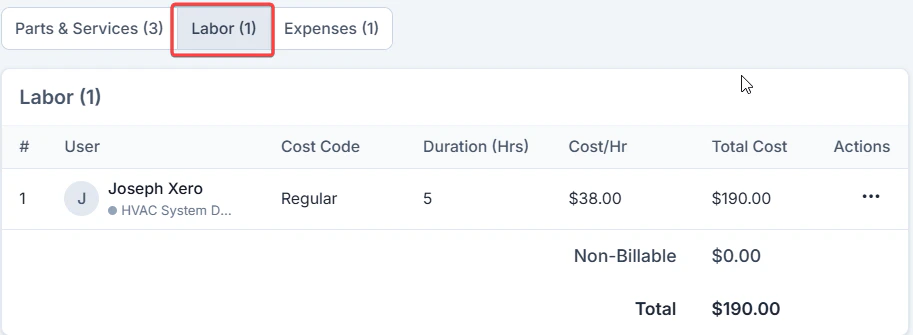 * If the [Timelogs](/Timesheets_Management/Timelogs/Overview) feature is enabled, Zuper automatically captures the time spent on the job. If Timelogs is disabled, you must **manually add time entries** by clicking **+ Add** in the Labor tab.
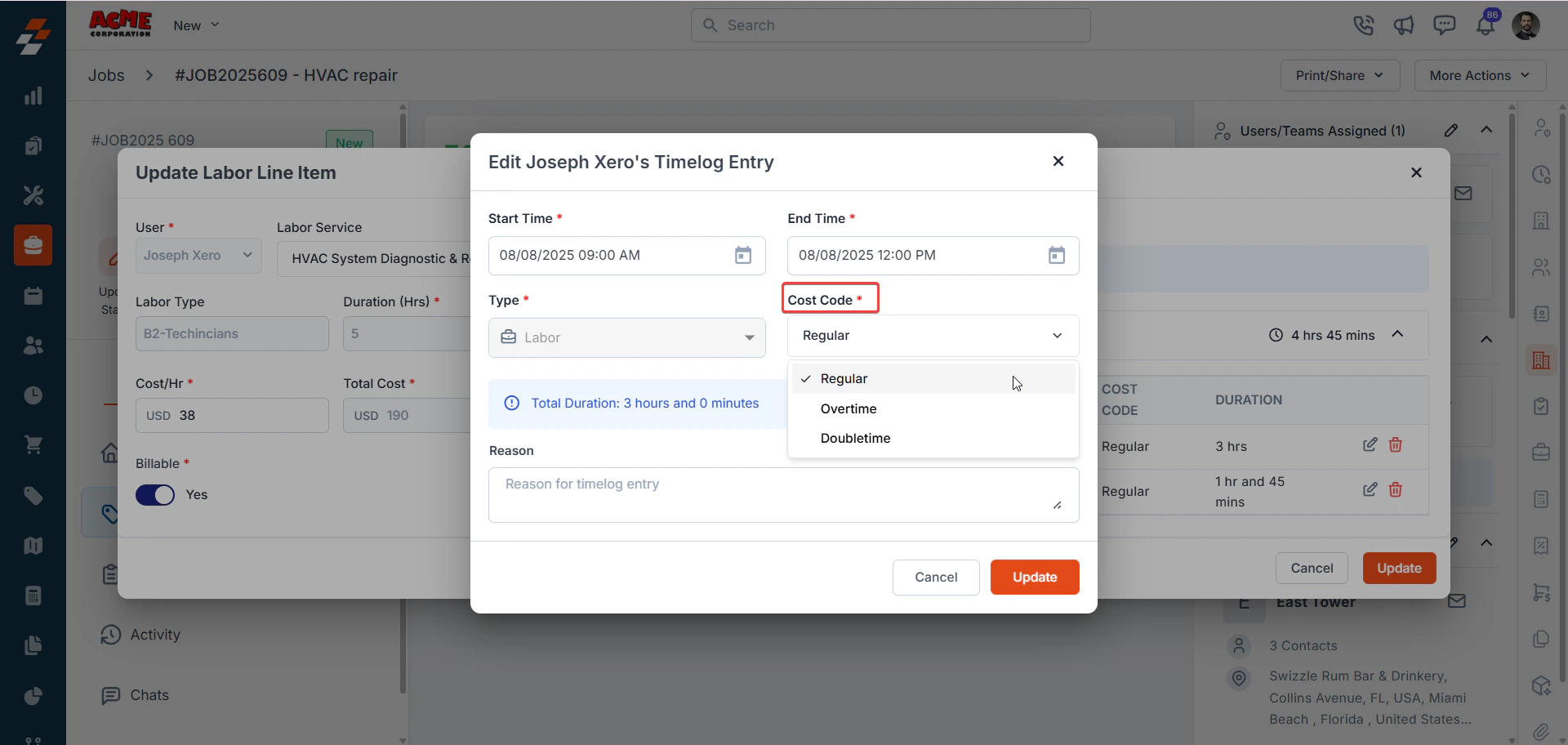
* You can also update the **Cost Code** for a technician by editing their time entry. When a Cost Code is changed, Zuper creates a new line item instead of modifying the existing one, which helps maintain a clear audit trail of labor cost changes.
* If the [Timelogs](/Timesheets_Management/Timelogs/Overview) feature is enabled, Zuper automatically captures the time spent on the job. If Timelogs is disabled, you must **manually add time entries** by clicking **+ Add** in the Labor tab.
* You can also update the **Cost Code** for a technician by editing their time entry. When a Cost Code is changed, Zuper creates a new line item instead of modifying the existing one, which helps maintain a clear audit trail of labor cost changes.
 **Note:** If your organization is using the **Timelog** feature, you **cannot delete a labor line item directly** if it was created through a time log. To remove such a labor line item, first delete all related time logs for that technician within the job, and then delete the labor line item. This ensures corrections can be made when a technician logs time against the wrong job.
If **Timelog** is **not enabled**, you can delete labor line items directly from the job.
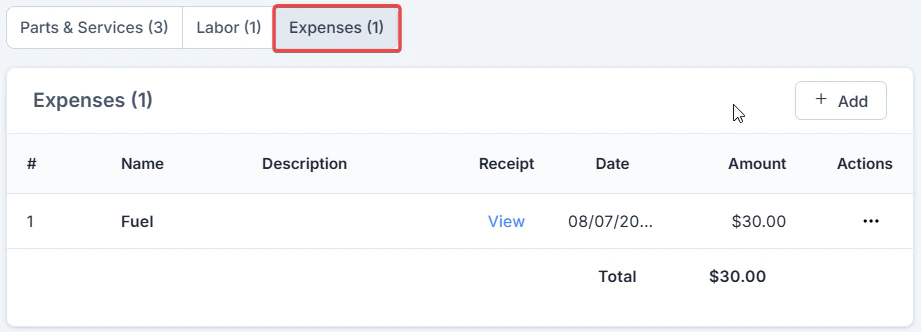
4. **Expenses** tab: Add job-related expenses (e.g., travel, fuel, or equipment rentals) in the **Expenses** tab. Accurate expense entries ensure your total job cost is complete. See our Job Expenses guide for more details.
**Note:** If your organization is using the **Timelog** feature, you **cannot delete a labor line item directly** if it was created through a time log. To remove such a labor line item, first delete all related time logs for that technician within the job, and then delete the labor line item. This ensures corrections can be made when a technician logs time against the wrong job.
If **Timelog** is **not enabled**, you can delete labor line items directly from the job.
4. **Expenses** tab: Add job-related expenses (e.g., travel, fuel, or equipment rentals) in the **Expenses** tab. Accurate expense entries ensure your total job cost is complete. See our Job Expenses guide for more details.
 **Review Job Profitability**
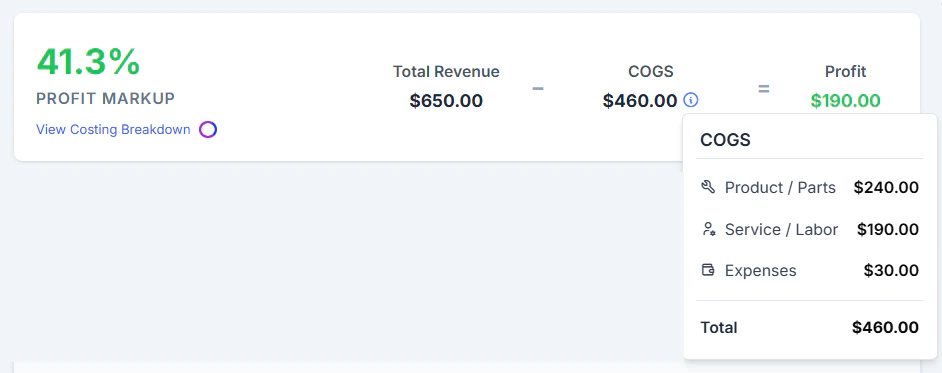
Once line items, labor hours, and expenses are added, Zuper calculates job costs and profitability automatically. Check the **Job Profitability Bar** at the top of the **Line Items** section on the **Job Detail** page.
**Review Job Profitability**
Once line items, labor hours, and expenses are added, Zuper calculates job costs and profitability automatically. Check the **Job Profitability Bar** at the top of the **Line Items** section on the **Job Detail** page.
 ***Note***: Visibility of cost breakdowns depends on your **Job Costing Permissions** settings. Refer to the Job Costing Permission section for more information.
Here’s a detailed breakdown of profitability for an HVAC repair job billed using the Time and Materials (T\&M) method in Zuper:
***Note***: Visibility of cost breakdowns depends on your **Job Costing Permissions** settings. Refer to the Job Costing Permission section for more information.
Here’s a detailed breakdown of profitability for an HVAC repair job billed using the Time and Materials (T\&M) method in Zuper:
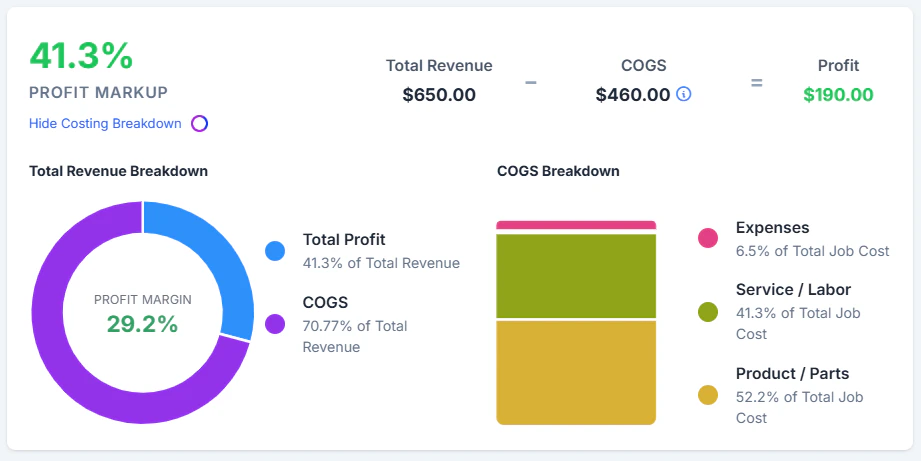 **Total Price (Revenue): +\$650**\
This includes labor and parts selling prices.
**Note:** The labor service quantity on the job line items is automatically updated to reflect the total hours worked by the technician (5 hours).
**COGS: -\$460**
| **Component** | **Details** | **Cost** |
| :------------------- | :---------------------------------------------------------------------------------------------------------------------------------------- | :--------- |
| **Parts & Services** | Refrigerant Canisters (2 × \$60) + Sealant Kit (1 × \$120) (These are the purchase costs for the parts and materials used in the repair) | **-\$240** |
| **Labor** | Technician **Joseph Xero** worked 5 hours at \$38/hour | **-\$190** |
| **Expense** | Travel-related fuel cost | **-\$30** |
| **COGS** | \$240 (Parts) + \$190 (Labor) + \$30 (Fuel) | **\$460** |
**Profit:**\
`$650` (revenue) − `$460` (total job cost in system) = `$190` (Overall profit for the HVAC repair job )
Profit Markup is `41.3%`.
**FAQs**
1. **When should I use 'Service' vs 'Labor Service' in Zuper?**
* Use **Service** when offering a **fixed-price service**. This means the customer is charged a predetermined selling price regardless of how much time or how many materials are used.
* Use **Labor Service** when billing the customer **based on actual time spent by the technician and the materials used** to complete the job. This method is ideal for **Time & Materials (T\&M)** billing.
2. **How is the quantity of a Labor Service determined?**
The quantity of a **Labor Service** is based on the actual hours clocked by the technician. If the **Timelogs** feature is enabled, Zuper automatically updates the quantity based on recorded hours. If disabled, manually enter the hours in the **Labor** tab.
3. **What if my organization does not use the Timelog feature?**\
If Timelog is not enabled, you can still track labor costs manually. In the **Labor** tab of the job, click **+ Add** to add a time entry for the technician. Enter the number of hours worked, select the appropriate **Cost Code**, and save. Zuper will calculate the labor cost based on the entered hours and the technician’s fully loaded hourly rate.
**Total Price (Revenue): +\$650**\
This includes labor and parts selling prices.
**Note:** The labor service quantity on the job line items is automatically updated to reflect the total hours worked by the technician (5 hours).
**COGS: -\$460**
| **Component** | **Details** | **Cost** |
| :------------------- | :---------------------------------------------------------------------------------------------------------------------------------------- | :--------- |
| **Parts & Services** | Refrigerant Canisters (2 × \$60) + Sealant Kit (1 × \$120) (These are the purchase costs for the parts and materials used in the repair) | **-\$240** |
| **Labor** | Technician **Joseph Xero** worked 5 hours at \$38/hour | **-\$190** |
| **Expense** | Travel-related fuel cost | **-\$30** |
| **COGS** | \$240 (Parts) + \$190 (Labor) + \$30 (Fuel) | **\$460** |
**Profit:**\
`$650` (revenue) − `$460` (total job cost in system) = `$190` (Overall profit for the HVAC repair job )
Profit Markup is `41.3%`.
**FAQs**
1. **When should I use 'Service' vs 'Labor Service' in Zuper?**
* Use **Service** when offering a **fixed-price service**. This means the customer is charged a predetermined selling price regardless of how much time or how many materials are used.
* Use **Labor Service** when billing the customer **based on actual time spent by the technician and the materials used** to complete the job. This method is ideal for **Time & Materials (T\&M)** billing.
2. **How is the quantity of a Labor Service determined?**
The quantity of a **Labor Service** is based on the actual hours clocked by the technician. If the **Timelogs** feature is enabled, Zuper automatically updates the quantity based on recorded hours. If disabled, manually enter the hours in the **Labor** tab.
3. **What if my organization does not use the Timelog feature?**\
If Timelog is not enabled, you can still track labor costs manually. In the **Labor** tab of the job, click **+ Add** to add a time entry for the technician. Enter the number of hours worked, select the appropriate **Cost Code**, and save. Zuper will calculate the labor cost based on the entered hours and the technician’s fully loaded hourly rate.