> ## Documentation Index
> Fetch the complete documentation index at: https://zuperinc-section23.mintlify.site/llms.txt
> Use this file to discover all available pages before exploring further.
# Creating a Material Request in Web
The Material Requests (MR) feature allows administrators to request parts and products on behalf of a **field technician** to ensure seamless job execution. When a technician encounters a missing or damaged part, an admin can raise a material request in the web application.
This process ensures efficient sourcing, approval, and fulfillment of necessary materials either by transferring parts/products from an existing warehouse or **purchasing** new items if they are unavailable.
In Zuper, you can create a material request from the following areas:
* **Material Request Listing** page
* **Jobs** → **Line Items** tab (on the left side of the **Job Details** page) → **Parts and Services** table
* **Quotes** → **Quote Details** page
**Note**: This feature is available only on select Zuper plans. To enable it for your account, please contact your account administrator or email us at [support@zuper.co](mailto:support@zuper.co)
# Creating a Material Request from the Listing Page
To create a new material request from the material request listing page, follow these steps:
**Navigation**: Purchasing Module -> Material Requests -> + New Material Request (on the right corner of the Material Request listing page)
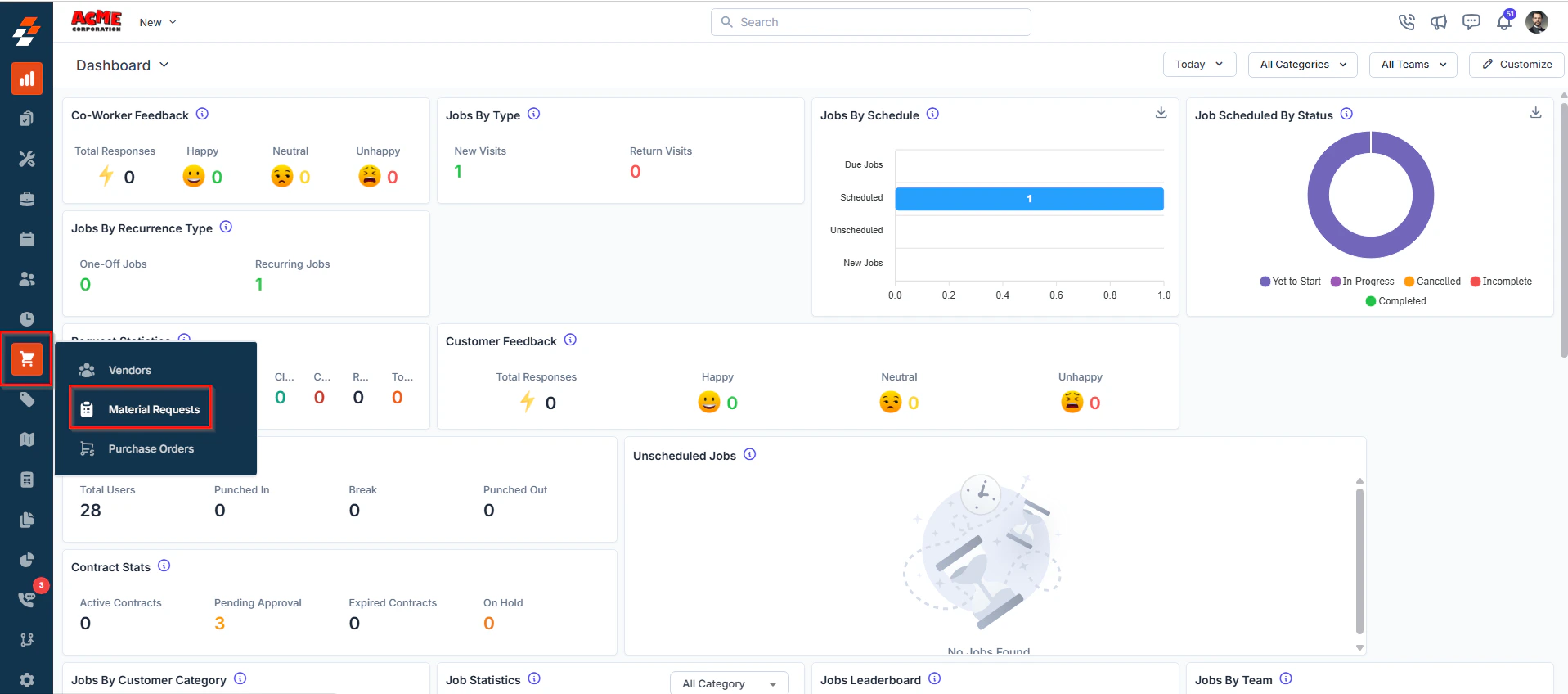
* Click the **Purchasing** module from the left navigation menu and select **Material Requests**.
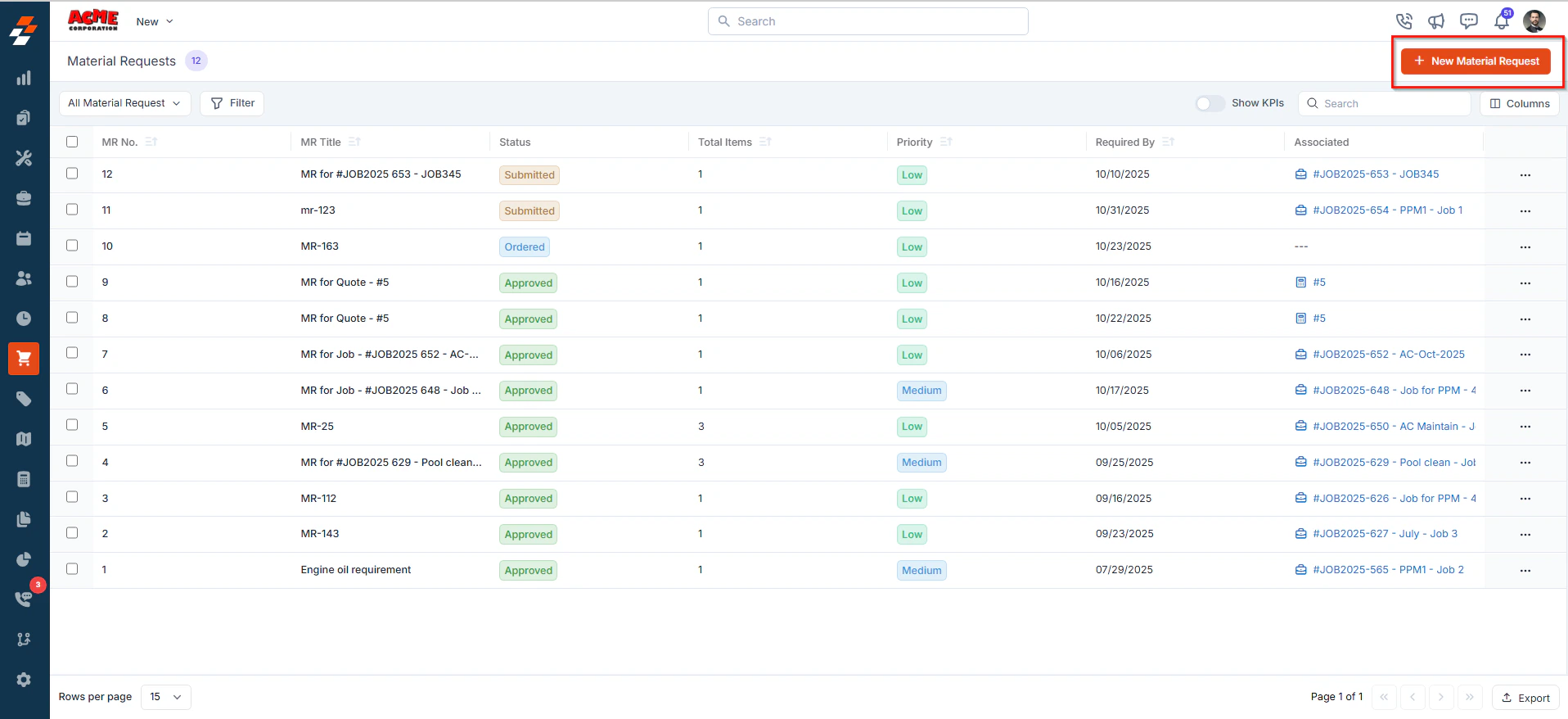
 * You will view a list of existing material requests with details such as: Material Request No., Material Request Title, Status, Total items, and more.
* Click the **+ New Material Request** button in the top right corner to create a new material request. A New Material Request creation page will open.
* You will view a list of existing material requests with details such as: Material Request No., Material Request Title, Status, Total items, and more.
* Click the **+ New Material Request** button in the top right corner to create a new material request. A New Material Request creation page will open.
 * Fill in the following sections to create a new material request.
## Primary Details
The **Primary Details** section captures all the essential information about the material request.
* **Material Request Title** – Enter a unique title for the material request.
* **Requested By** – This field is prefilled based on the account. However, you can select a different employee from the dropdown if needed.
* **Required By** – Select the date when the material is required.
**Note**: This date must be today or a future date.
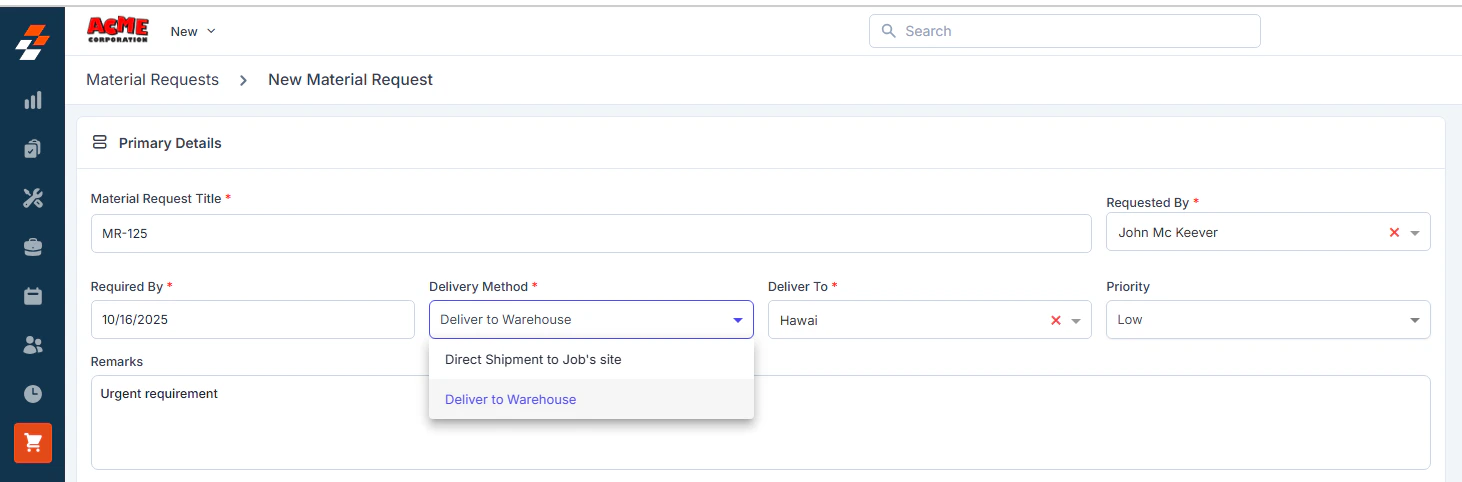
* **Delivery Method -** Select how the requested materials should be delivered.
1. **Direct Shipment to Job’s site** – Materials are shipped directly from the vendor to the customer’s job site or the field technician’s location.
2. **Deliver to Warehouse** – Materials are shipped to your organization’s designated warehouse. From there, they can be transferred to the required job site or assigned to specific jobs using Transfer Order.
When selecting this option, choose the Warehouse location from the **Delivery To** dropdown menu to ensure accurate routing and inventory tracking.
* **Priority** – Choose from **Low, Medium, High, or Urgent** to indicate the urgency.
* **Remarks** – Add additional instructions or notes related to the material request.
* Fill in the following sections to create a new material request.
## Primary Details
The **Primary Details** section captures all the essential information about the material request.
* **Material Request Title** – Enter a unique title for the material request.
* **Requested By** – This field is prefilled based on the account. However, you can select a different employee from the dropdown if needed.
* **Required By** – Select the date when the material is required.
**Note**: This date must be today or a future date.
* **Delivery Method -** Select how the requested materials should be delivered.
1. **Direct Shipment to Job’s site** – Materials are shipped directly from the vendor to the customer’s job site or the field technician’s location.
2. **Deliver to Warehouse** – Materials are shipped to your organization’s designated warehouse. From there, they can be transferred to the required job site or assigned to specific jobs using Transfer Order.
When selecting this option, choose the Warehouse location from the **Delivery To** dropdown menu to ensure accurate routing and inventory tracking.
* **Priority** – Choose from **Low, Medium, High, or Urgent** to indicate the urgency.
* **Remarks** – Add additional instructions or notes related to the material request.
 ## Parts & Products
This section allows you to add parts and products for the material request.
You can:
* Choose parts/products from the Inventory, or
* Add Custom Line Items that are specific to this material request.
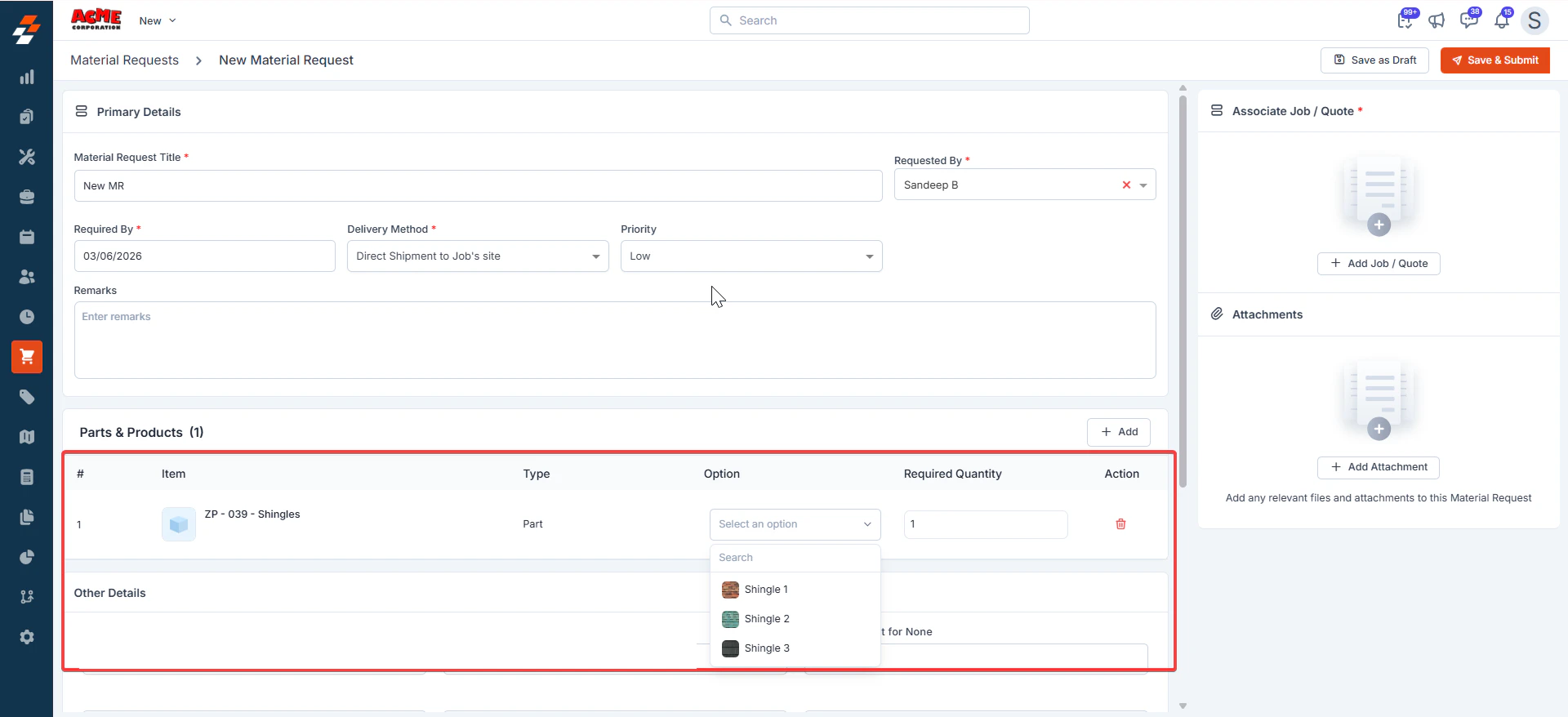
Request items with [Options](https://docs.zuper.co/Inventory_Management/Parts_Services/Create_New_Part_Service#3-options) (**Material Requests > New**).
## Parts & Products
This section allows you to add parts and products for the material request.
You can:
* Choose parts/products from the Inventory, or
* Add Custom Line Items that are specific to this material request.
Request items with [Options](https://docs.zuper.co/Inventory_Management/Parts_Services/Create_New_Part_Service#3-options) (**Material Requests > New**).
 **Note**: If the material request is associated with a job, a modal window will appear displaying the parts/products already linked to that job. You can select from the job’s existing items, modify quantities, or add/remove items as necessary.
Select parts or products directly from the organization’s inventory. This ensures that standard and pre-approved items are requested.
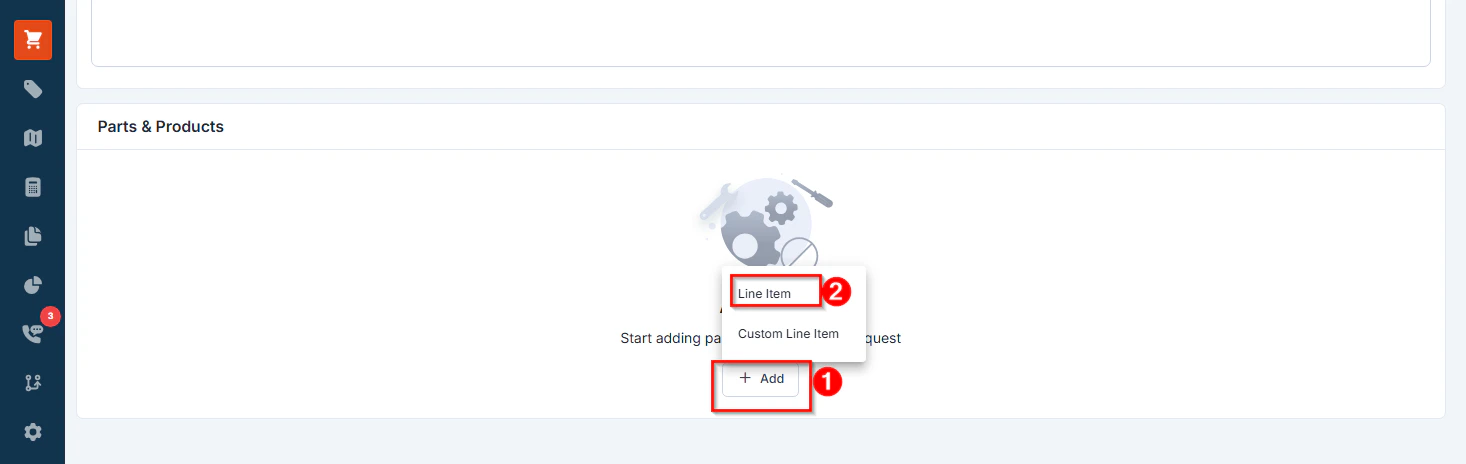
* Click +**Add** and select “**Line item**” to open the parts & products selection pop-up.
**Note**: If the material request is associated with a job, a modal window will appear displaying the parts/products already linked to that job. You can select from the job’s existing items, modify quantities, or add/remove items as necessary.
Select parts or products directly from the organization’s inventory. This ensures that standard and pre-approved items are requested.
* Click +**Add** and select “**Line item**” to open the parts & products selection pop-up.
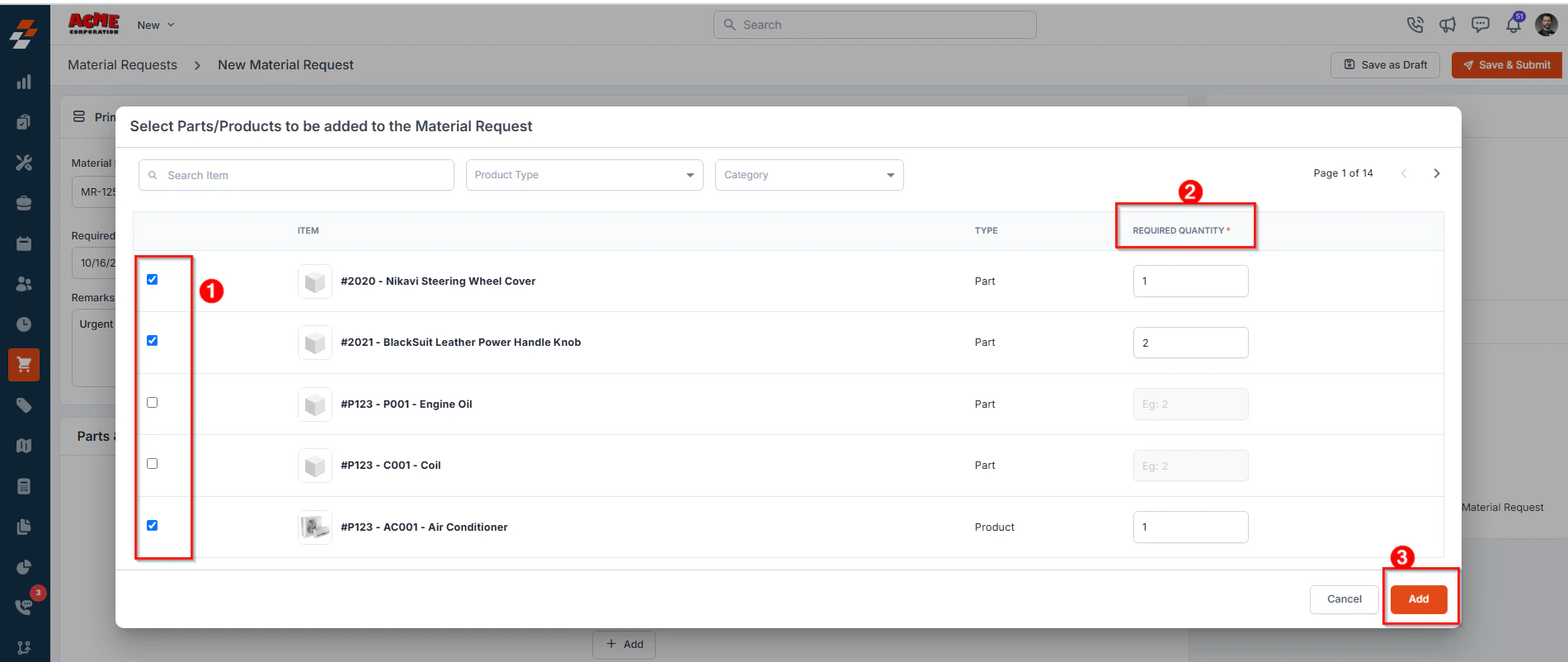
 * The pop-up displays a list of available parts & products across different warehouse locations.
* Select the required Parts/Products to be added for the material request.
* Enter the number of units needed under the “**Required** **Quantity**” field.
* Click **Add** to include it in the MR.
* The pop-up displays a list of available parts & products across different warehouse locations.
* Select the required Parts/Products to be added for the material request.
* Enter the number of units needed under the “**Required** **Quantity**” field.
* Click **Add** to include it in the MR.
 **Note**: If the required part/product is not in stock, you may need to initiate a purchase order to procure the items. For more details on how to create a purchase order, refer [Creating a Purchase Order](https://docs.zuper.co/Purchasing/Purchase-Orders/Creating-purchase-order) article.
Use this option to create and add custom items that are not listed in the inventory but are required specifically for this material request.
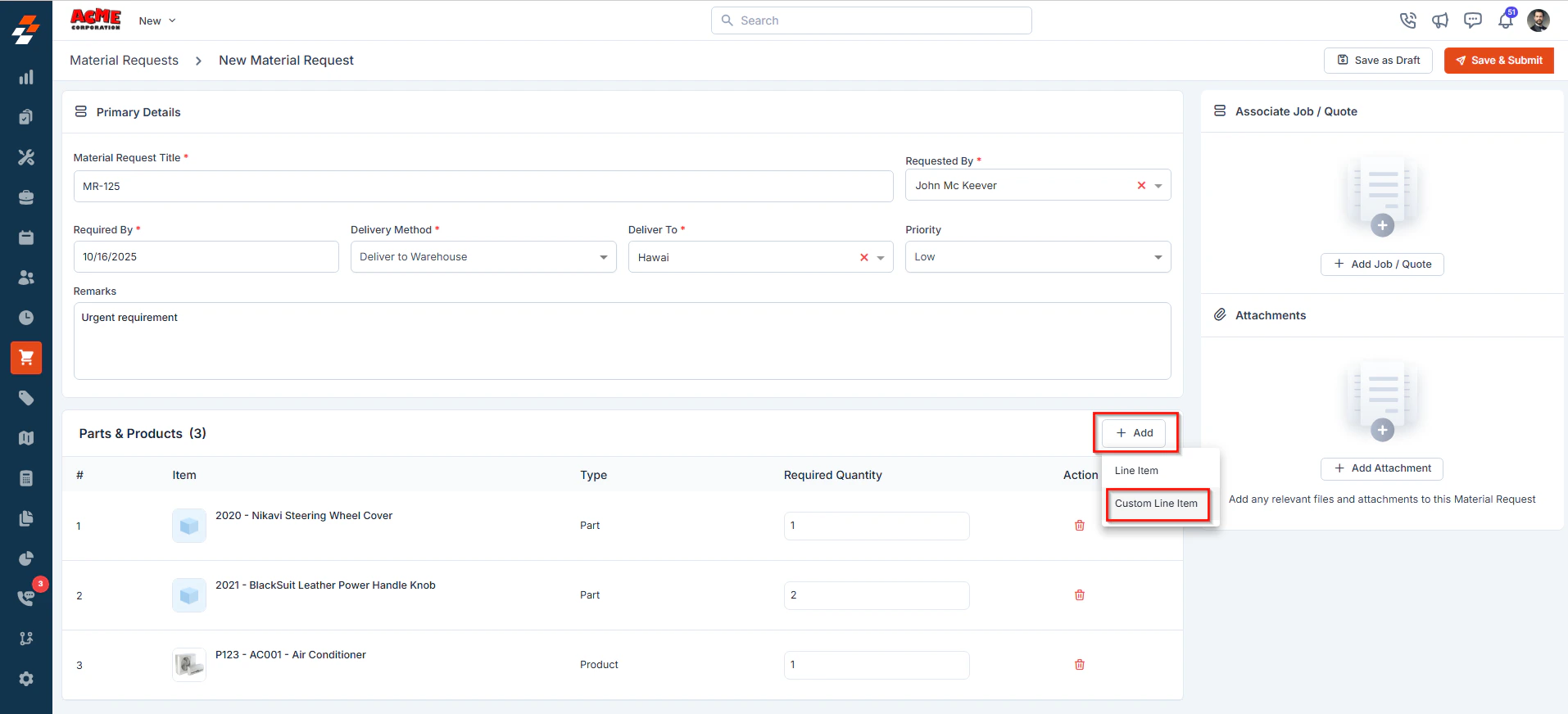
* In the Parts & Products section, click “**+ Add**” and select “**Custom Line Item**.”
**Note**: If the required part/product is not in stock, you may need to initiate a purchase order to procure the items. For more details on how to create a purchase order, refer [Creating a Purchase Order](https://docs.zuper.co/Purchasing/Purchase-Orders/Creating-purchase-order) article.
Use this option to create and add custom items that are not listed in the inventory but are required specifically for this material request.
* In the Parts & Products section, click “**+ Add**” and select “**Custom Line Item**.”
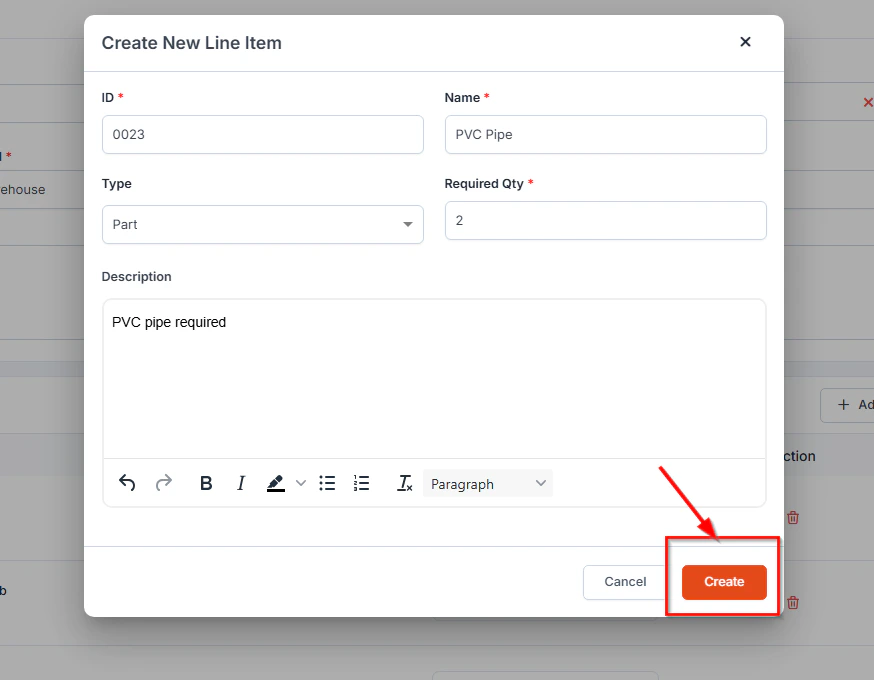
 * The Create New Line Item dialog box will open.
* Enter the following details:
**1. ID** - A unique identifier for the Material request item.
**2. Name** - The name or description of the part/product.
**3. Type** - Select whether the item is categorized as a **Part** or a **Product**.
**4. Required Quantity** - Specify the total number of units needed.
**5. Description** - Add any additional details about the item, such as specifications, model number, or special instructions, to provide clarity during procurement.
* Once all fields are completed, click **Create** to add the item to the material request.
* The Create New Line Item dialog box will open.
* Enter the following details:
**1. ID** - A unique identifier for the Material request item.
**2. Name** - The name or description of the part/product.
**3. Type** - Select whether the item is categorized as a **Part** or a **Product**.
**4. Required Quantity** - Specify the total number of units needed.
**5. Description** - Add any additional details about the item, such as specifications, model number, or special instructions, to provide clarity during procurement.
* Once all fields are completed, click **Create** to add the item to the material request.
 **Note**: Custom line items are specific to this MR only. They are not added to the inventory.
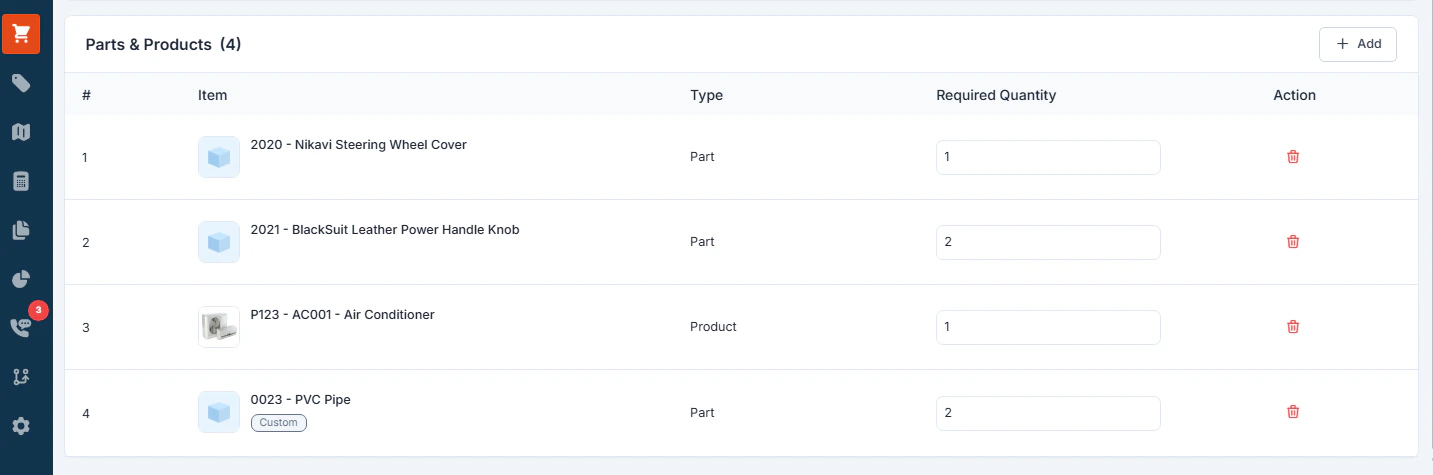
Once added, the selected parts/products will appear in the Parts & Products section of the material request creation page with the following columns:
* **Item**– Displays the name of the part or product and indicates whether it is a standard catalog product, custom product, or part.
* **Type**– The classification of the item (e.g., part or product).
* **Required Quantity** – The number of units needed.
* **Action** – Option to remove the selected part/product.
**Note**: Custom line items are specific to this MR only. They are not added to the inventory.
Once added, the selected parts/products will appear in the Parts & Products section of the material request creation page with the following columns:
* **Item**– Displays the name of the part or product and indicates whether it is a standard catalog product, custom product, or part.
* **Type**– The classification of the item (e.g., part or product).
* **Required Quantity** – The number of units needed.
* **Action** – Option to remove the selected part/product.
 ## Other Details
This section displays any **custom fields** that have been configured by your organization. These fields may capture additional MR specific data such as project codes, cost centers, priority levels, expected delivery timelines, or any other information required by your business process.
## Associate Job/Quote
You can associate the Material Request (MR) with either a Job or a Quote.
To do this:
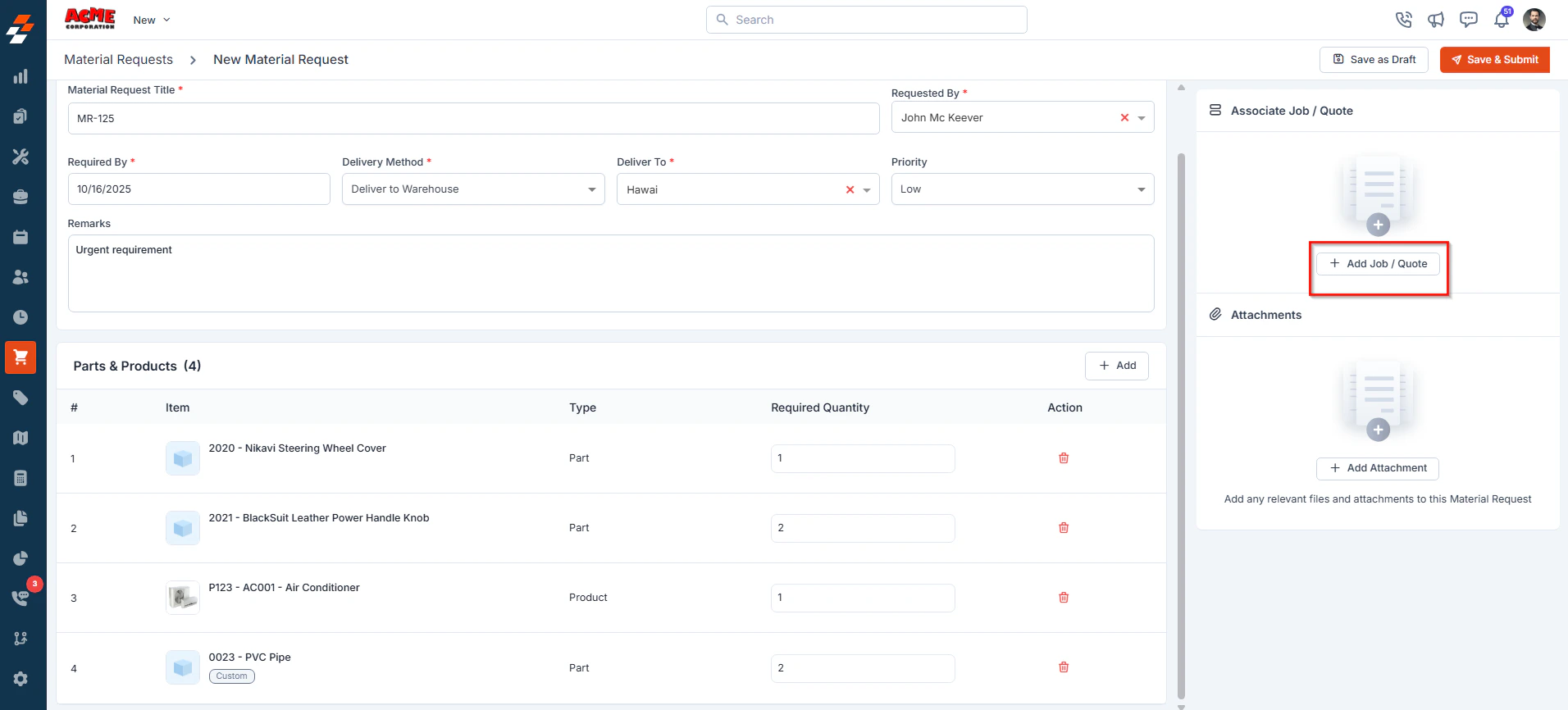
* Click “+ **Add Job/Quote**” in the Associations section.
## Other Details
This section displays any **custom fields** that have been configured by your organization. These fields may capture additional MR specific data such as project codes, cost centers, priority levels, expected delivery timelines, or any other information required by your business process.
## Associate Job/Quote
You can associate the Material Request (MR) with either a Job or a Quote.
To do this:
* Click “+ **Add Job/Quote**” in the Associations section.
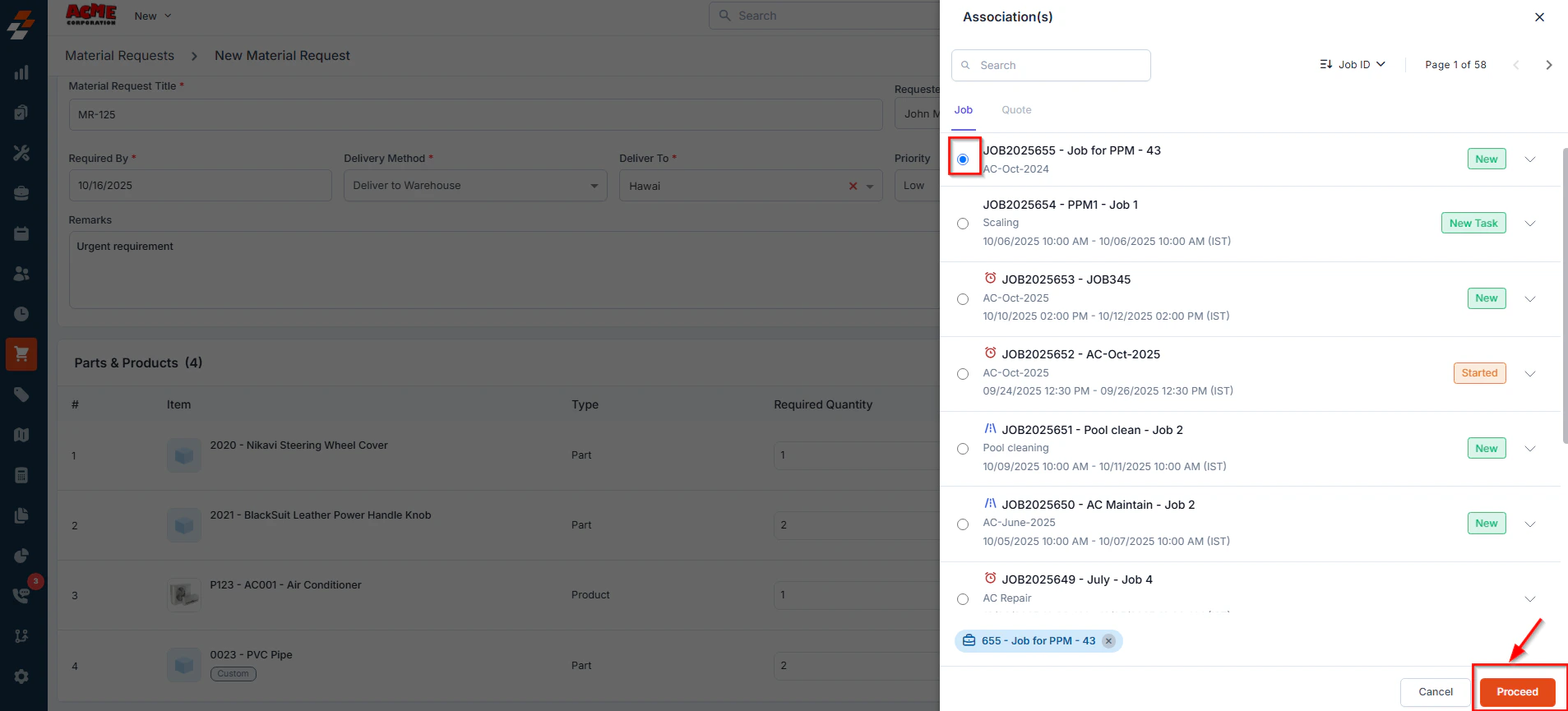
 * Select the appropriate Job or Quote from the list and click **Proceed** to associate it with the Material Request.
 Note: Associating a Job/quote with the material request helps track the purpose of the requested materials and streamlines your workflow by linking related records and products
## Attachments
This section allows you to upload supporting documents, such as images, videos, or invoices related to the material request.
To upload an attachment:
* Click “**+ Add Attachment**.”
Note: Associating a Job/quote with the material request helps track the purpose of the requested materials and streamlines your workflow by linking related records and products
## Attachments
This section allows you to upload supporting documents, such as images, videos, or invoices related to the material request.
To upload an attachment:
* Click “**+ Add Attachment**.”
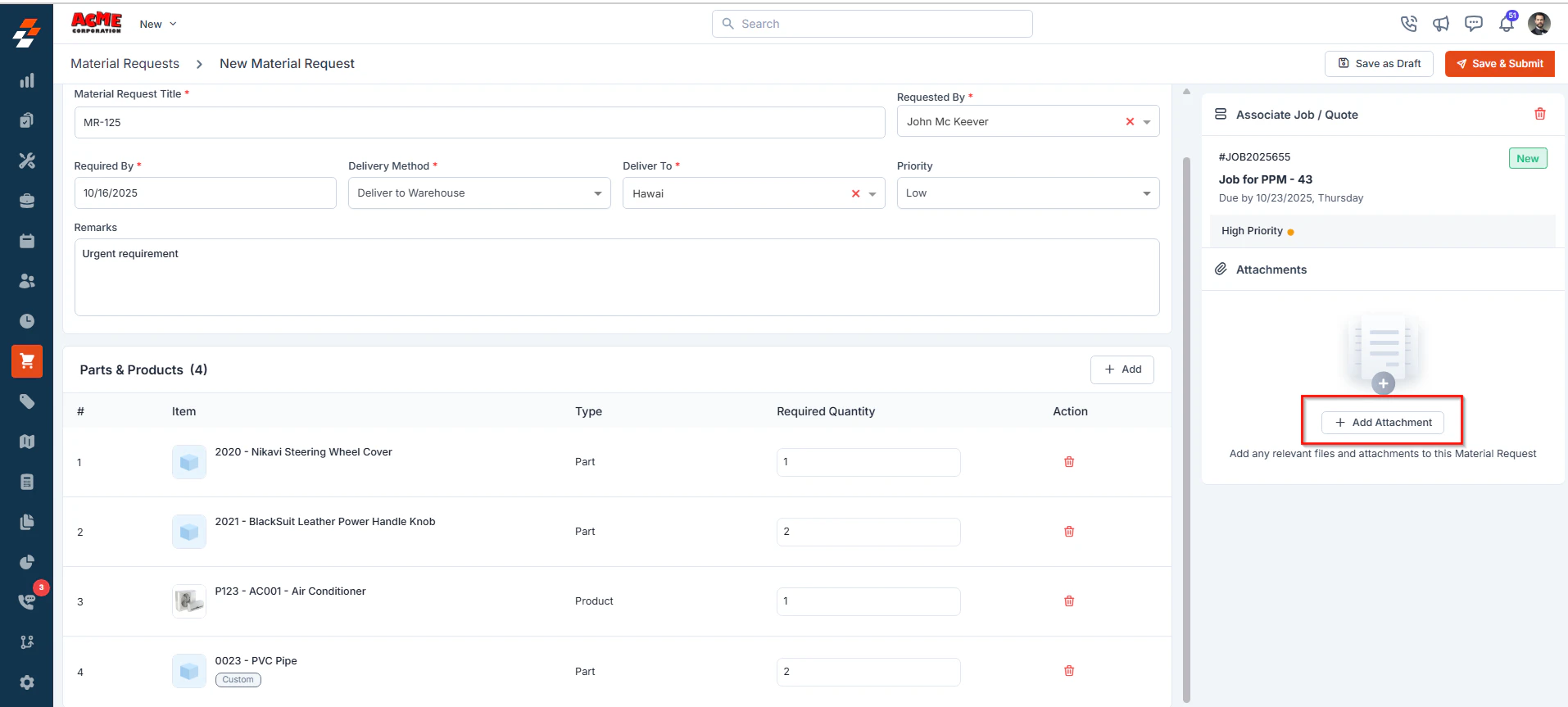 * Choose and upload the file from your computer.
* Once the file is uploaded, click “**Done**.”
* Choose and upload the file from your computer.
* Once the file is uploaded, click “**Done**.”
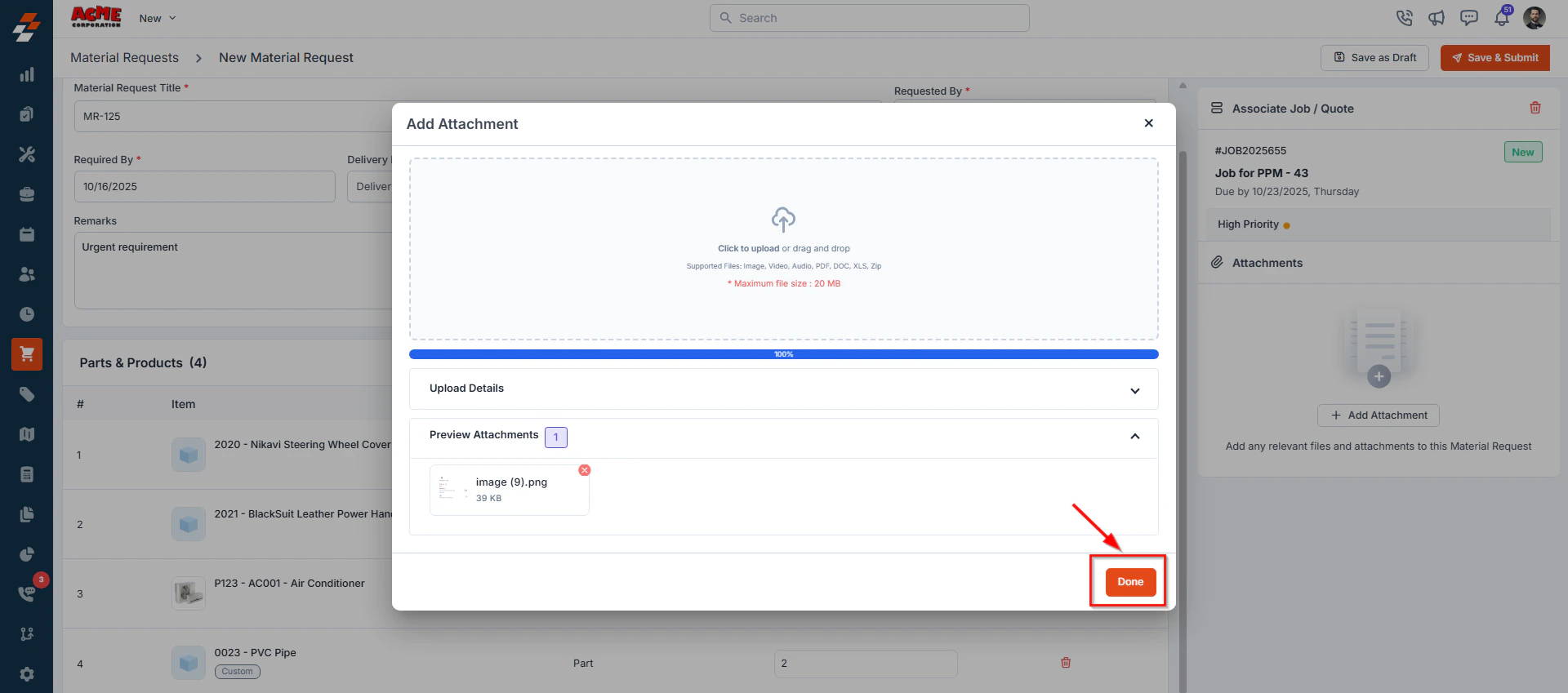 Tip: You can also download or remove attachments, as needed
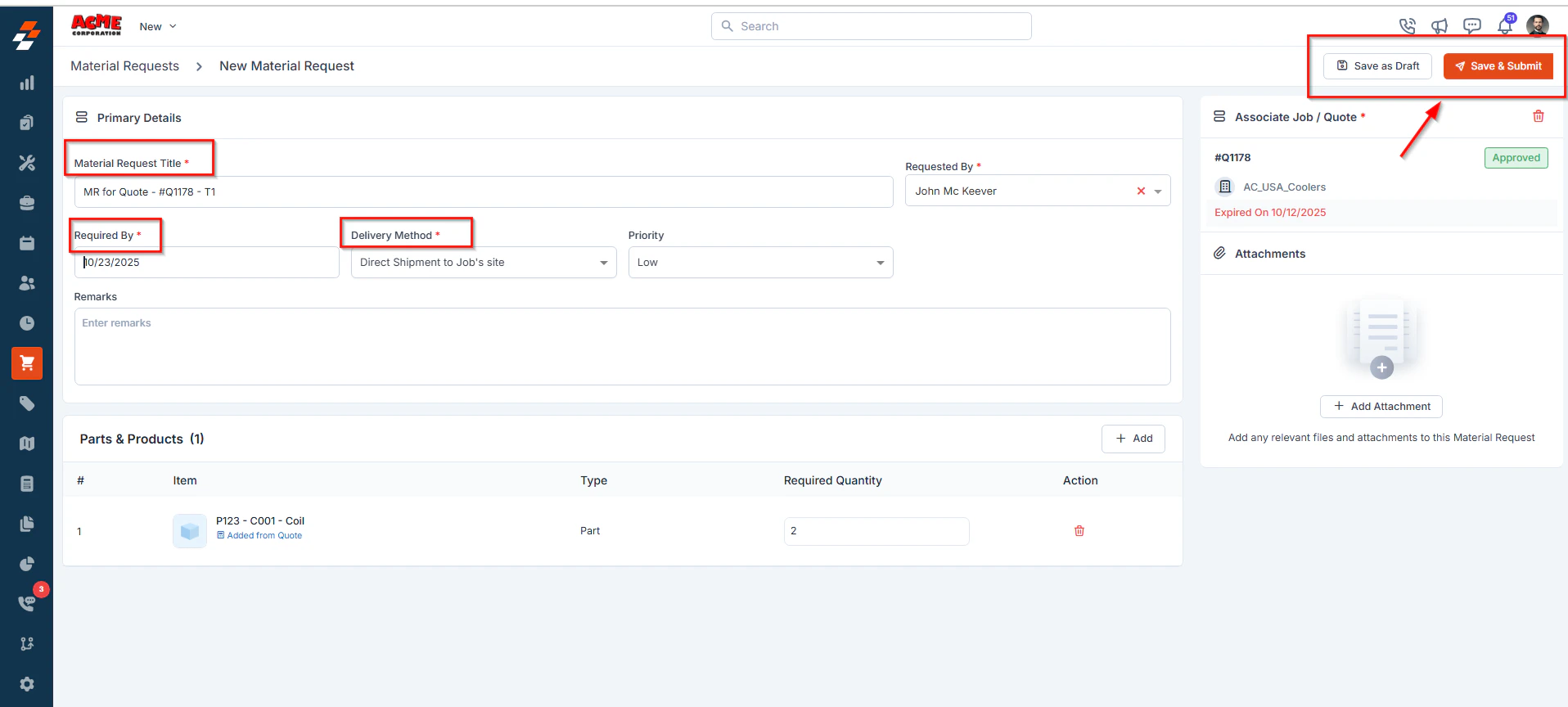
After completing all mandatory fields and verifying the details, choose one of the following actions at the top of the material request creation form.
1. **Save as Draft**: Save the MR without submitting. Useful if you need to review or complete it later.
2. **Save & Submit**: This option allows you to submit the Material Request (MR) for approval. Based on the configured workflow, the MR will then move to the next stage in the approval hierarchy for review.
Tip: You can also download or remove attachments, as needed
After completing all mandatory fields and verifying the details, choose one of the following actions at the top of the material request creation form.
1. **Save as Draft**: Save the MR without submitting. Useful if you need to review or complete it later.
2. **Save & Submit**: This option allows you to submit the Material Request (MR) for approval. Based on the configured workflow, the MR will then move to the next stage in the approval hierarchy for review.
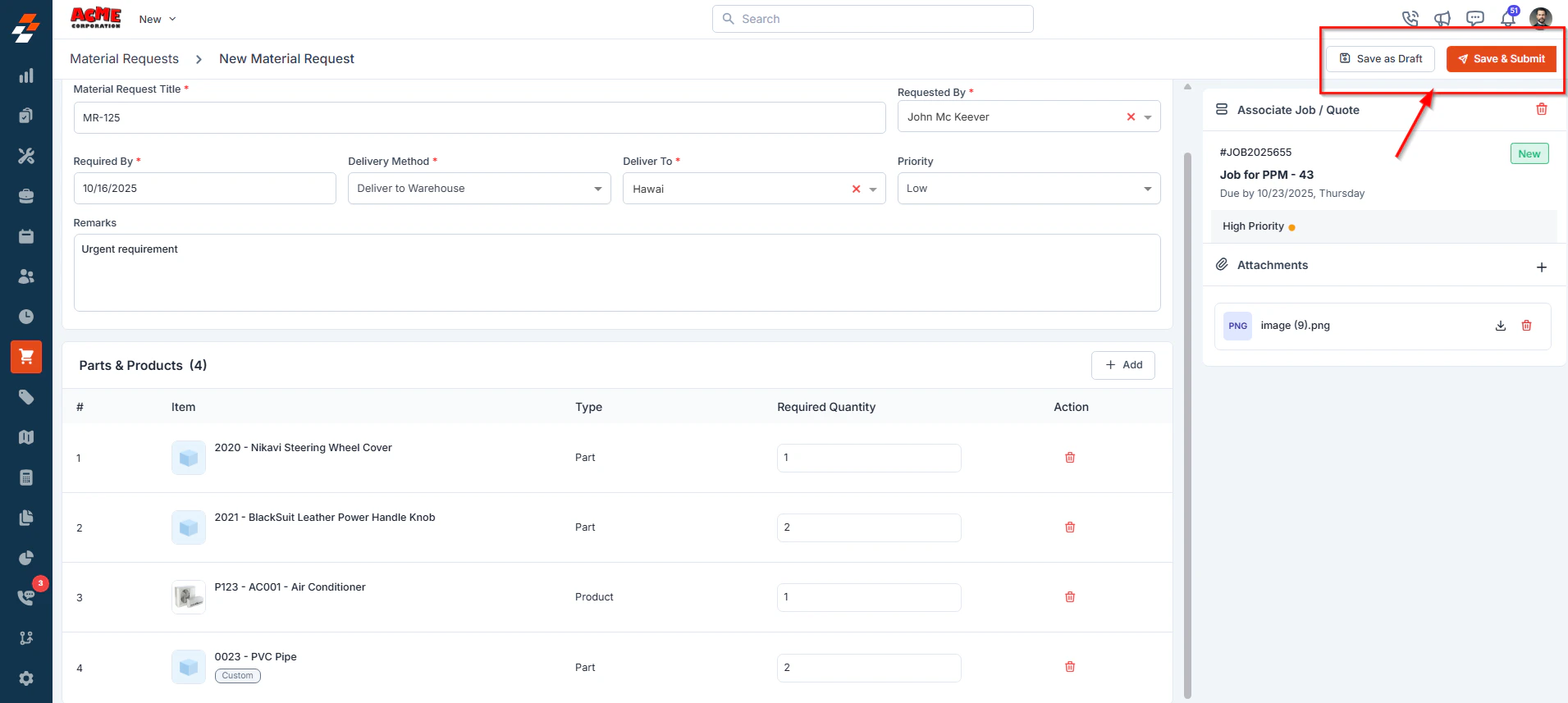 The new MR has been created successfully.
# Creating a Material Request from the Jobs Module
In Zuper, you can create a Material Request directly from an existing job when a technician requires additional parts or products to complete the job. This ensures that all requested materials are linked to the job, making tracking and fulfillment more efficient.
**Note:** A material request can be created only if the associated job has an item added under **Line Items → Part/Service Details**.
**Navigation**: Jobs -> Jobs listing page -> Select a Job -> Job Details Page -> Line Items -> Part/Service Details -> Click Request -> Select Material Request
**Steps to Create a Material Request:**
* From the left navigation menu, select the **Jobs** module.
The new MR has been created successfully.
# Creating a Material Request from the Jobs Module
In Zuper, you can create a Material Request directly from an existing job when a technician requires additional parts or products to complete the job. This ensures that all requested materials are linked to the job, making tracking and fulfillment more efficient.
**Note:** A material request can be created only if the associated job has an item added under **Line Items → Part/Service Details**.
**Navigation**: Jobs -> Jobs listing page -> Select a Job -> Job Details Page -> Line Items -> Part/Service Details -> Click Request -> Select Material Request
**Steps to Create a Material Request:**
* From the left navigation menu, select the **Jobs** module.
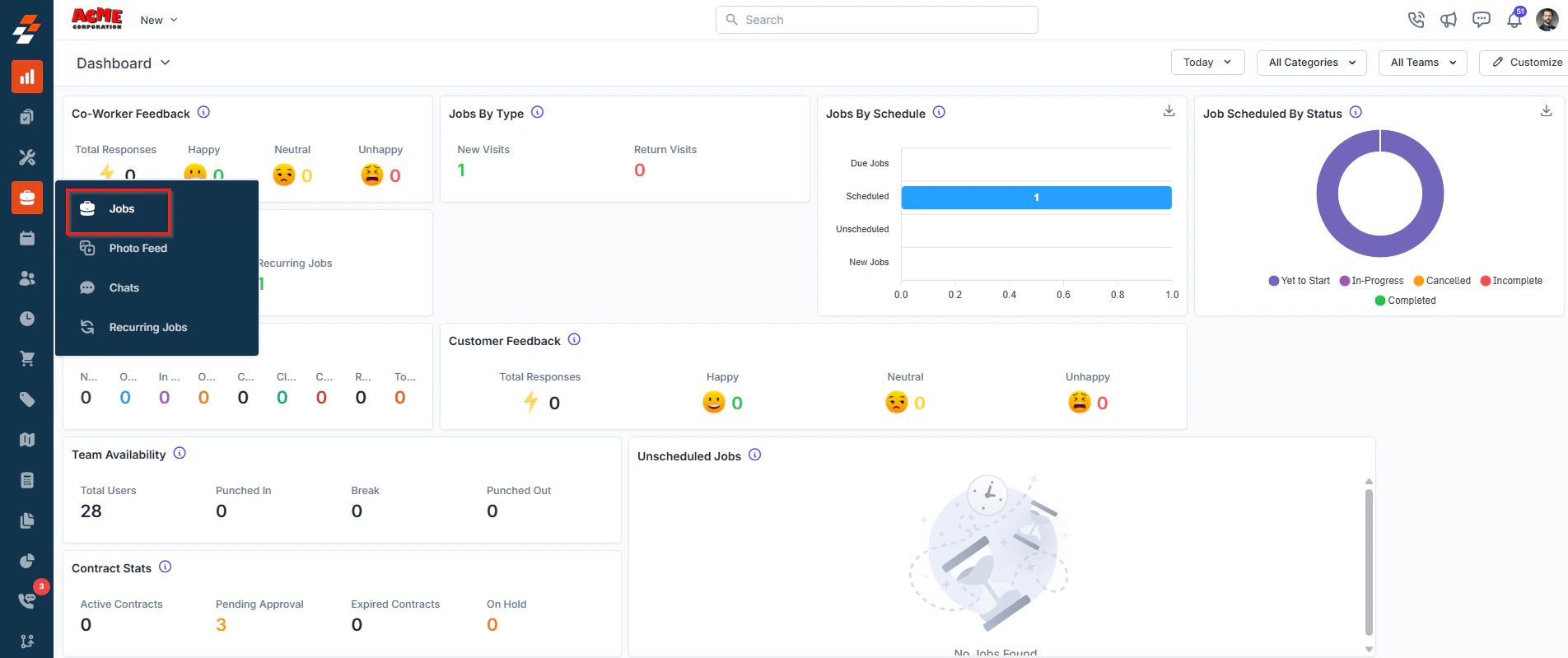 * On the **Jobs Listing Page**, locate and select the job for which you need to create a material request.
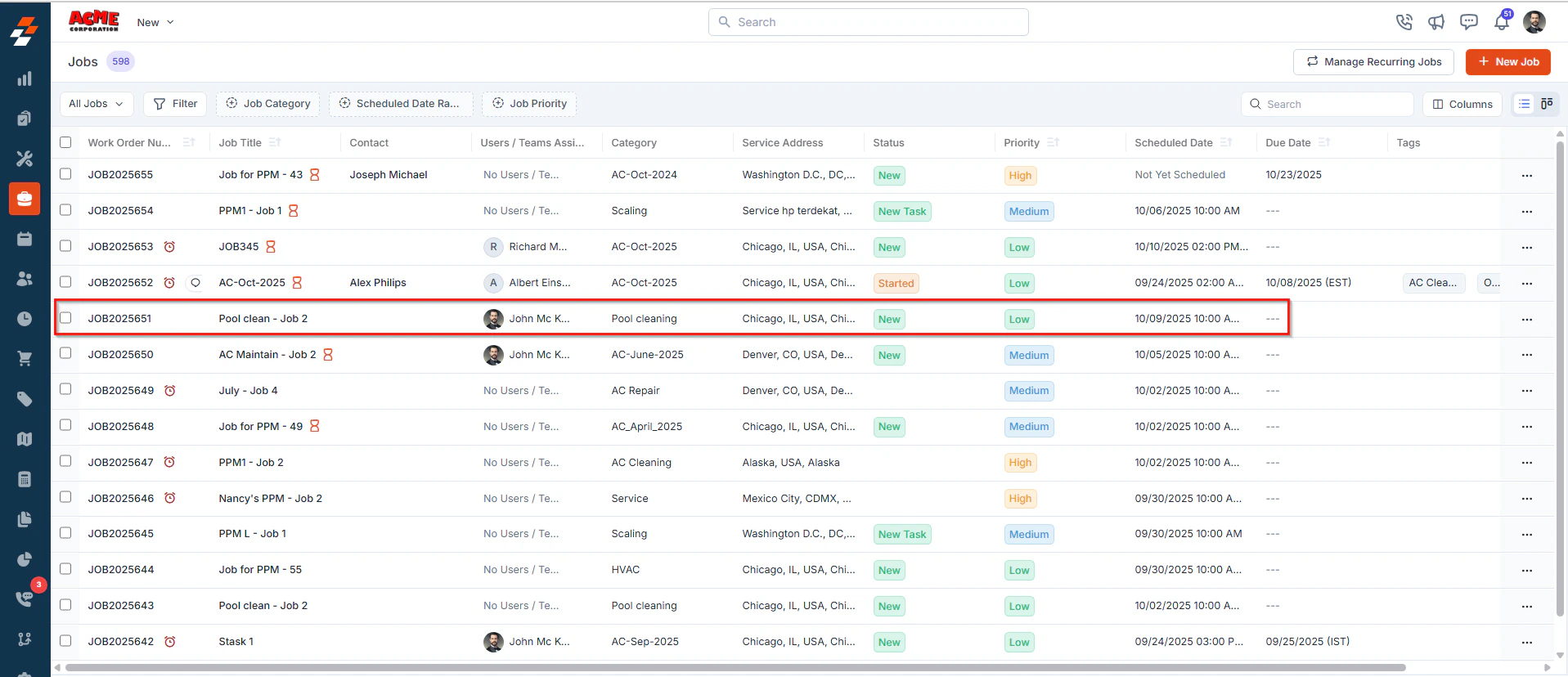 * The **Job Details Page** opens, displaying the job’s essential information.
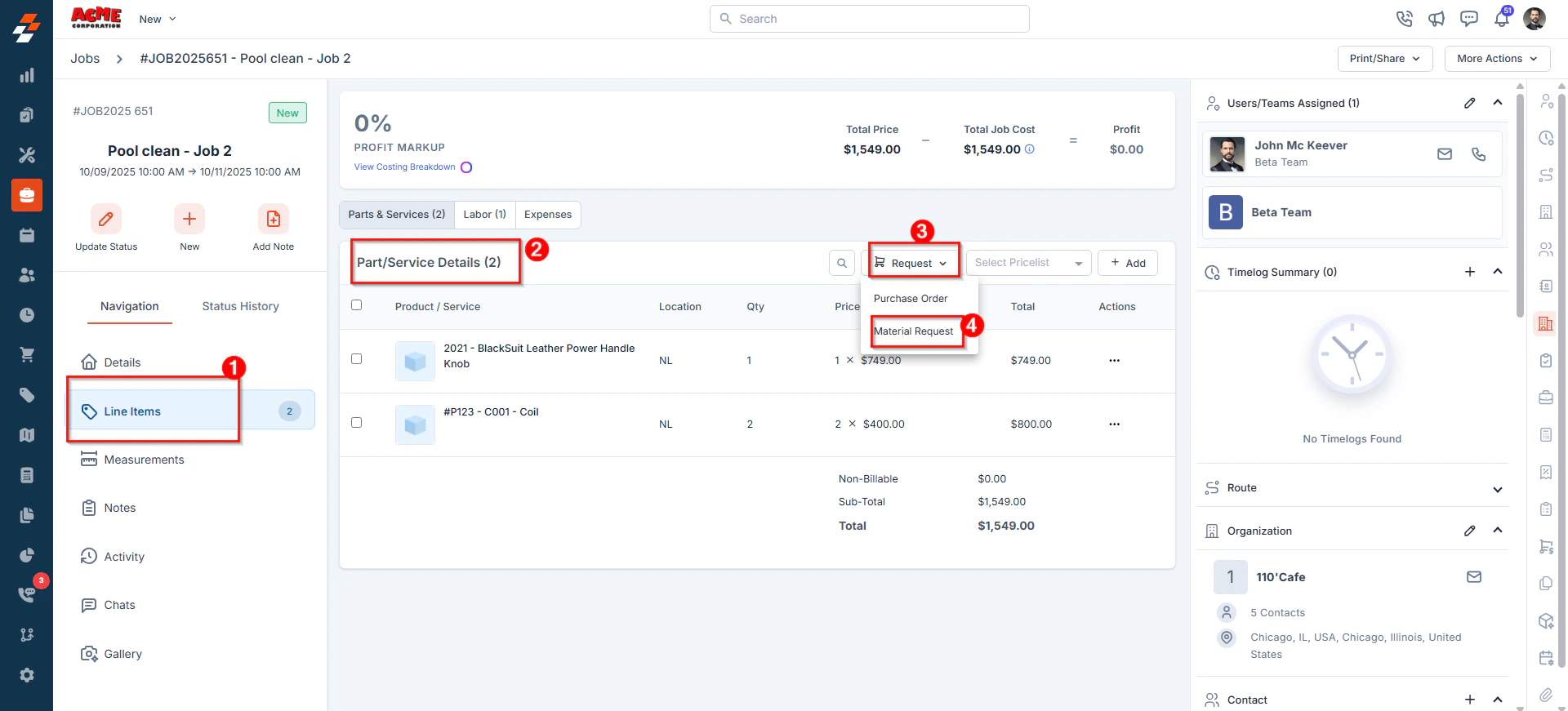
* Navigate to the **Line Items** section and scroll down to **Part/Service Details**.
* In the **Part/Service Details** section, click **Request** and select **Material Request** from the drop-down menu.
* The **Job Details Page** opens, displaying the job’s essential information.
* Navigate to the **Line Items** section and scroll down to **Part/Service Details**.
* In the **Part/Service Details** section, click **Request** and select **Material Request** from the drop-down menu.
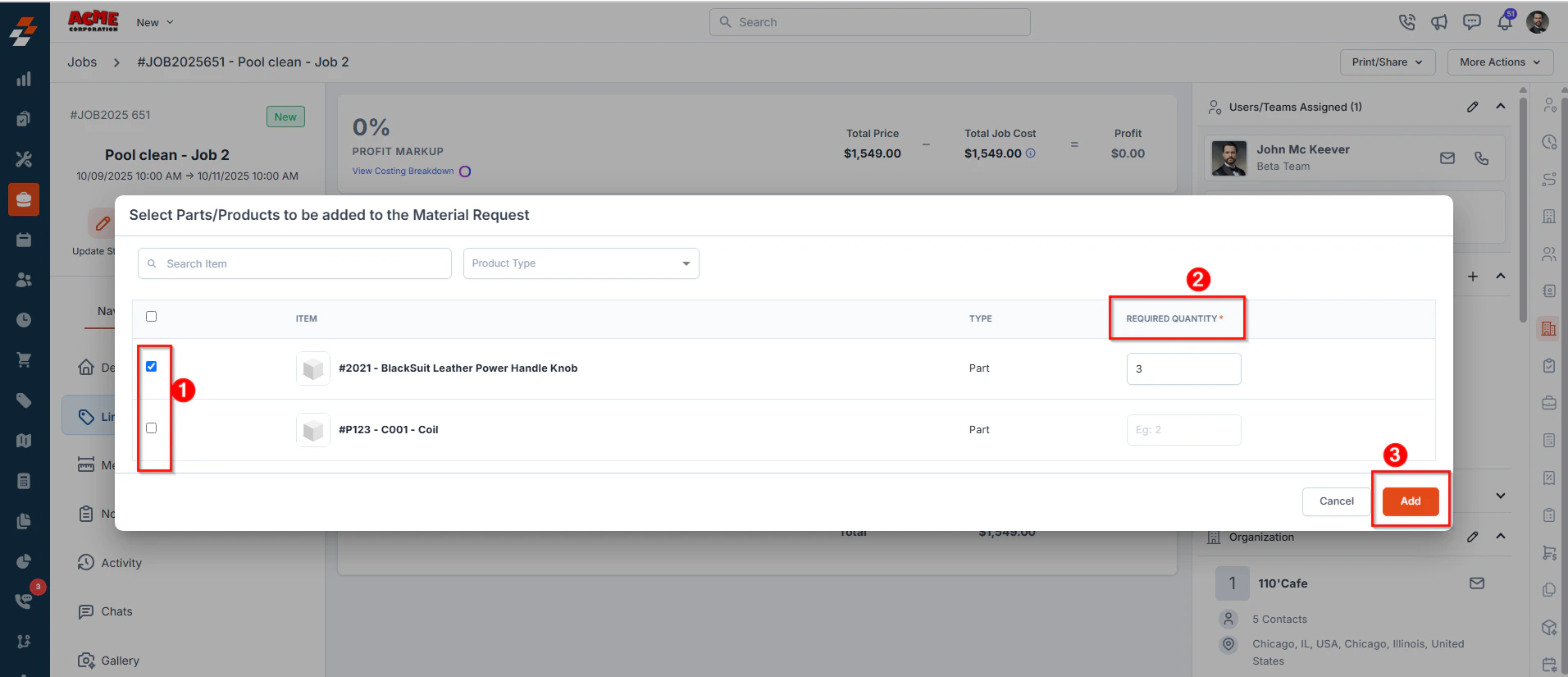
 * A modal window will appear, displaying the list of items associated with the job.
* Select the required item(s). The default quantity needed for the job is prefilled; however, you can update it in the **Required Quantity** field if necessary
* Click **Add**. A new Material Request creation page will open with prefilled data, including Material Request Title, Delivery Method, Parts & Products, and the Associated Job.
* A modal window will appear, displaying the list of items associated with the job.
* Select the required item(s). The default quantity needed for the job is prefilled; however, you can update it in the **Required Quantity** field if necessary
* Click **Add**. A new Material Request creation page will open with prefilled data, including Material Request Title, Delivery Method, Parts & Products, and the Associated Job.
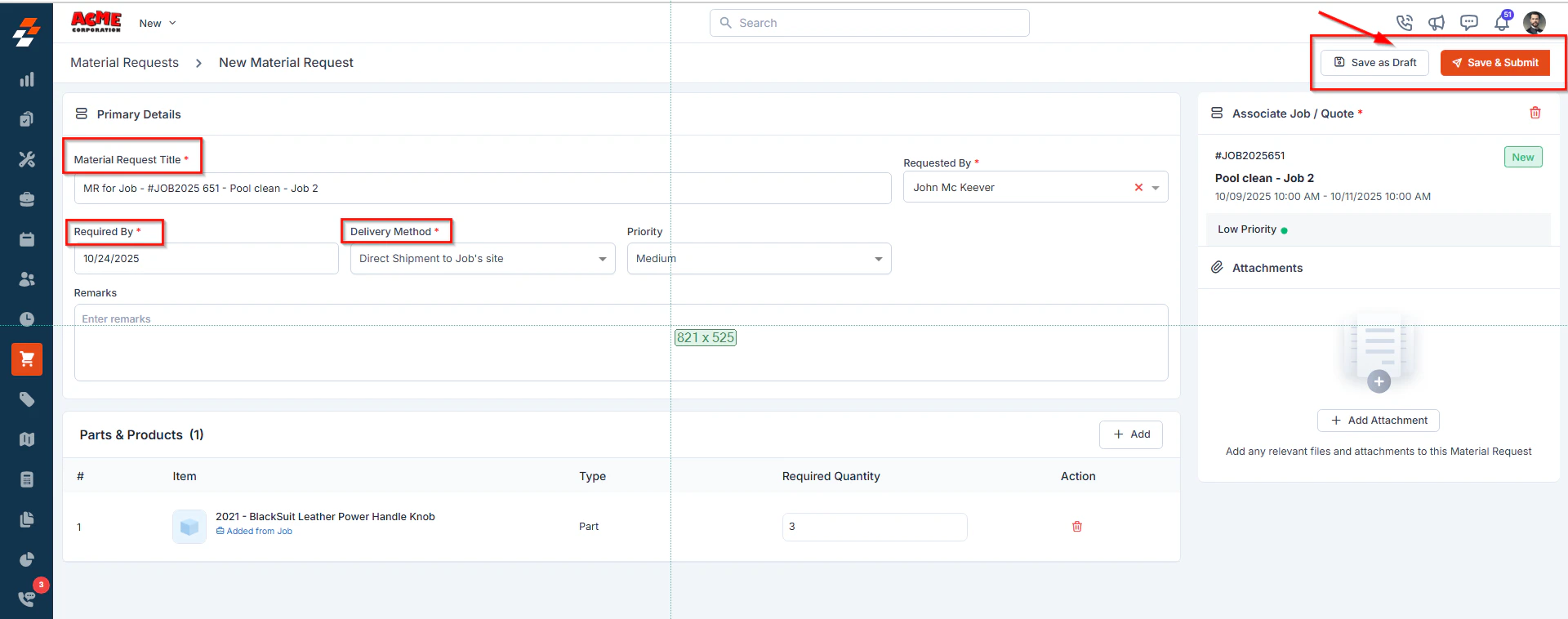
 Note: When a Material Request is created from the Jobs module, the system automatically links the request to the corresponding job to ensure accurate tracking.
* Request items with [Options](https://docs.zuper.co/Inventory_Management/Parts_Services/Create_New_Part_Service#3-options).
* Review the prefilled details, update any additional required fields, and click **Save as Draft** or **Save & Submit** to create the Material Request.
Note: When a Material Request is created from the Jobs module, the system automatically links the request to the corresponding job to ensure accurate tracking.
* Request items with [Options](https://docs.zuper.co/Inventory_Management/Parts_Services/Create_New_Part_Service#3-options).
* Review the prefilled details, update any additional required fields, and click **Save as Draft** or **Save & Submit** to create the Material Request.
 # Creating a Material Request from the Quotes Module
In Zuper, you can also create a Material Request directly from an existing quote when additional parts or products are required to fulfill customer requirements. This ensures that all requested materials are linked to the quote, providing clear visibility into procurement needs and streamlining the fulfillment process.
**Navigation**: Quotes -> Quotes Listing Page -> Select a Quote -> Quote Details Page -> On the right pane, locate the Material Request module -> Click “+” to create a new material request
**Steps to Create a Material Request:**
You can create a material request from the Quote Details page in two ways:
**1. From the top-right:**
* Navigate to the **Quotes Listing Page**.
# Creating a Material Request from the Quotes Module
In Zuper, you can also create a Material Request directly from an existing quote when additional parts or products are required to fulfill customer requirements. This ensures that all requested materials are linked to the quote, providing clear visibility into procurement needs and streamlining the fulfillment process.
**Navigation**: Quotes -> Quotes Listing Page -> Select a Quote -> Quote Details Page -> On the right pane, locate the Material Request module -> Click “+” to create a new material request
**Steps to Create a Material Request:**
You can create a material request from the Quote Details page in two ways:
**1. From the top-right:**
* Navigate to the **Quotes Listing Page**.
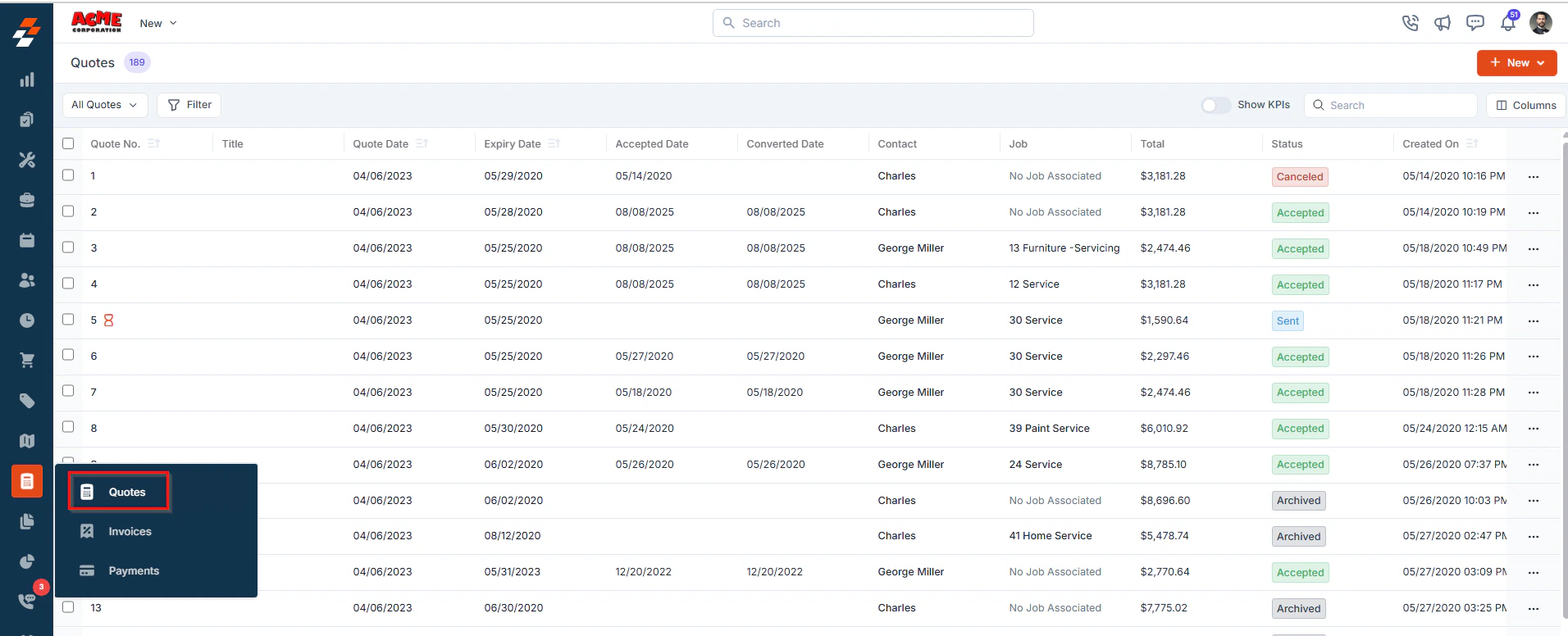 * Select the desired quote to open the **Quote Details Page**.
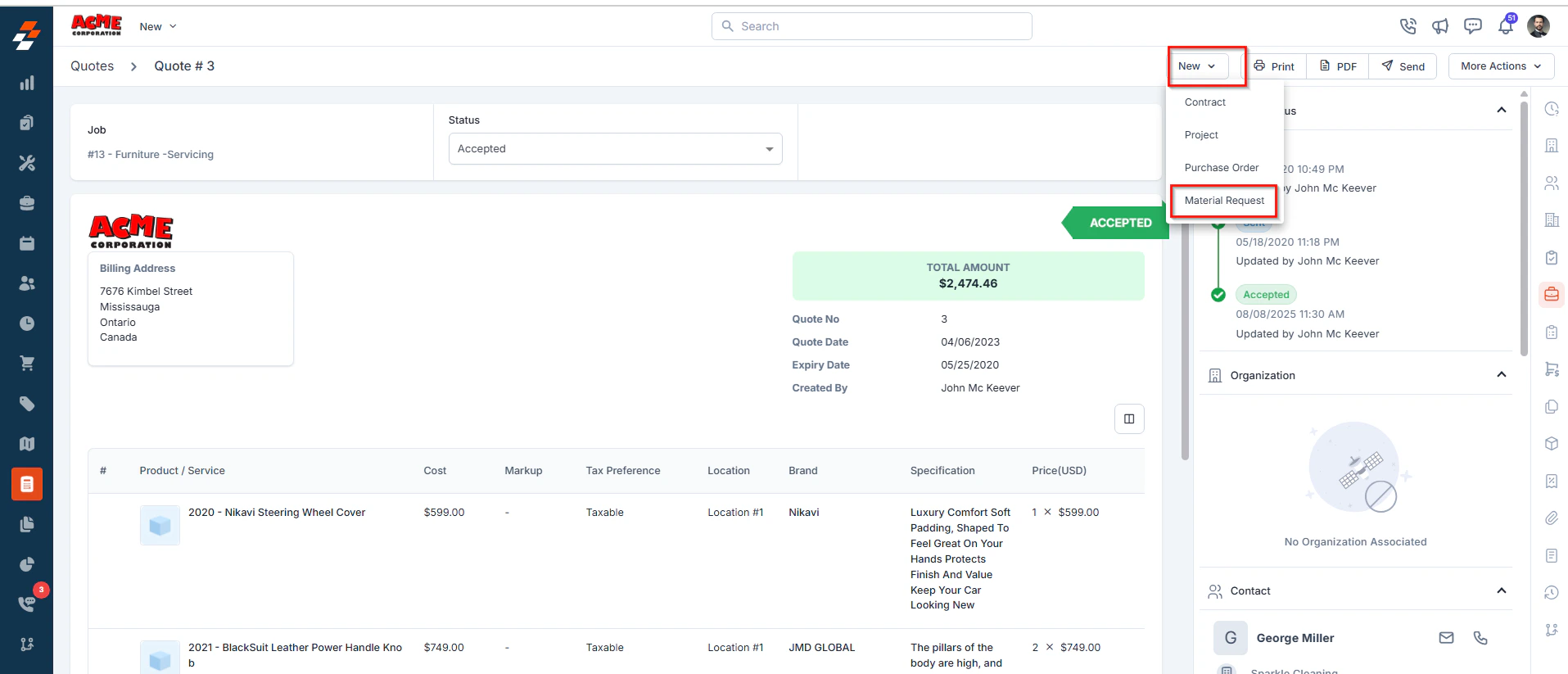
* Click **New** at the top right of the page and select **Material Reques**t from the dropdown menu to create a new material request.
* Select the desired quote to open the **Quote Details Page**.
* Click **New** at the top right of the page and select **Material Reques**t from the dropdown menu to create a new material request.
 **2. From the right panel:**
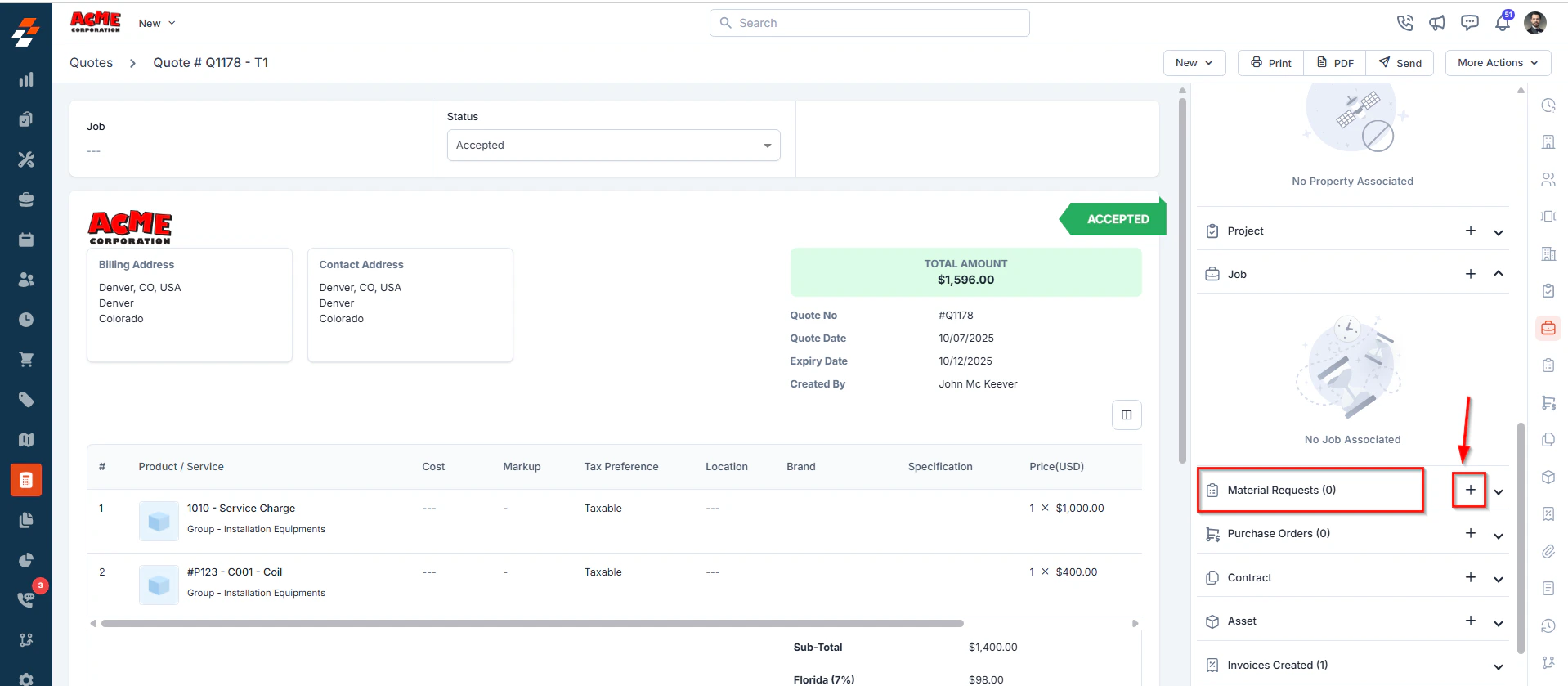
* In the right pane of the quote details page, locate the **Material Requests** module.
* Click the **“+”** icon to create a new material request.
**2. From the right panel:**
* In the right pane of the quote details page, locate the **Material Requests** module.
* Click the **“+”** icon to create a new material request.
 * A modal window will appear, displaying the list of quoted items.
* Select the required item(s) and specify the quantity in the **Required** **Quantity** field.
* A modal window will appear, displaying the list of quoted items.
* Select the required item(s) and specify the quantity in the **Required** **Quantity** field.
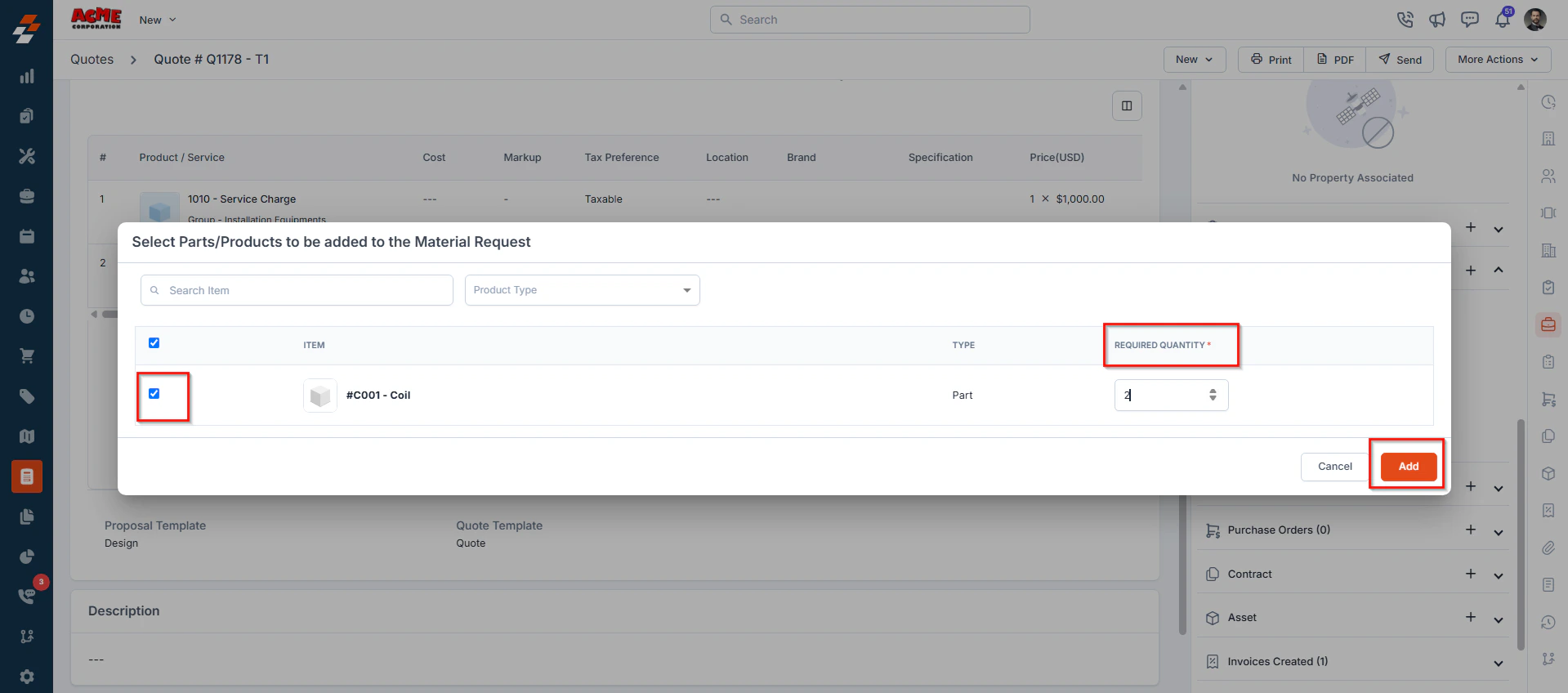 * Click **Add**. A new Material Request page will open with prefilled data, including Material Request Title, Delivery Method, Parts & Products, and the Associated Quote.
* Request items with [Options](https://docs.zuper.co/Inventory_Management/Parts_Services/Create_New_Part_Service#3-options).
**Note:** When creating a Material Request from the Quotes module, the system automatically links the request to the corresponding quote for accurate tracking.
* Review the prefilled details, complete any additional required fields, and click **Save** **as Draft** or **Save & Submit** to create the Material Request.
* Click **Add**. A new Material Request page will open with prefilled data, including Material Request Title, Delivery Method, Parts & Products, and the Associated Quote.
* Request items with [Options](https://docs.zuper.co/Inventory_Management/Parts_Services/Create_New_Part_Service#3-options).
**Note:** When creating a Material Request from the Quotes module, the system automatically links the request to the corresponding quote for accurate tracking.
* Review the prefilled details, complete any additional required fields, and click **Save** **as Draft** or **Save & Submit** to create the Material Request.