> ## Documentation Index
> Fetch the complete documentation index at: https://zuperinc-section23.mintlify.site/llms.txt
> Use this file to discover all available pages before exploring further.
# Scheduling a report
You've created a report to track job performance, team efficiency, or financial insights in Zuper. To keep the report up to date, you might find yourself manually running and exporting data multiple times a week. While doing this once a month might not seem like a hassle, the time spent refreshing reports can quickly add up as your business scales.
With **Scheduled Reports** in Zuper, you can eliminate the need for repetitive manual tasks. Instead of running reports manually each time, you can automate the process by setting up scheduled reports to generate and deliver insights at your preferred frequency, whether daily, weekly, or monthly. This ensures that stakeholders always receive the latest updates without any extra effort from your end.
**Follow the steps below to schedule a report:**
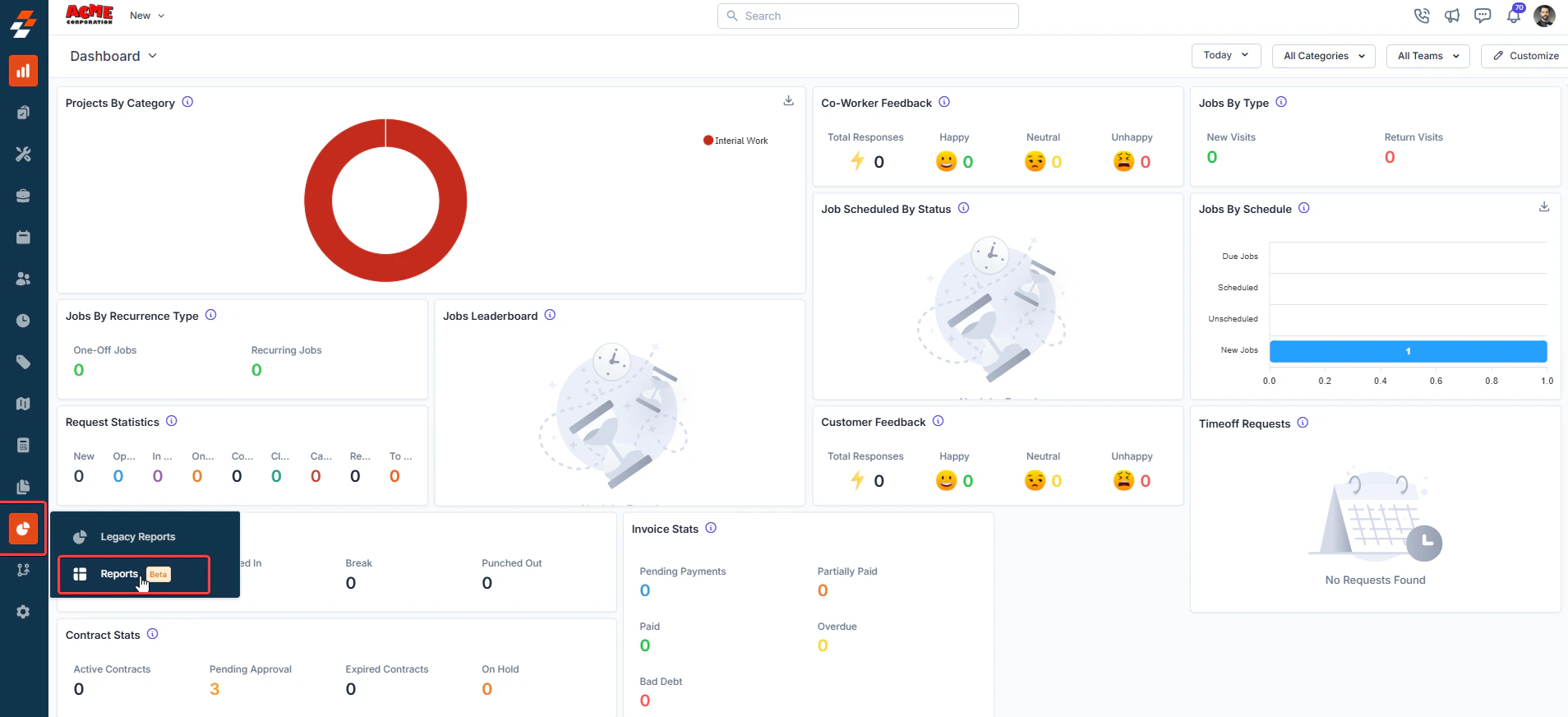
1. Click the “**Reports**” module from the left navigation menu and select "**Reports**" (beta). This will direct you to the **Reports** builder home page, where you can view all previously created reports.
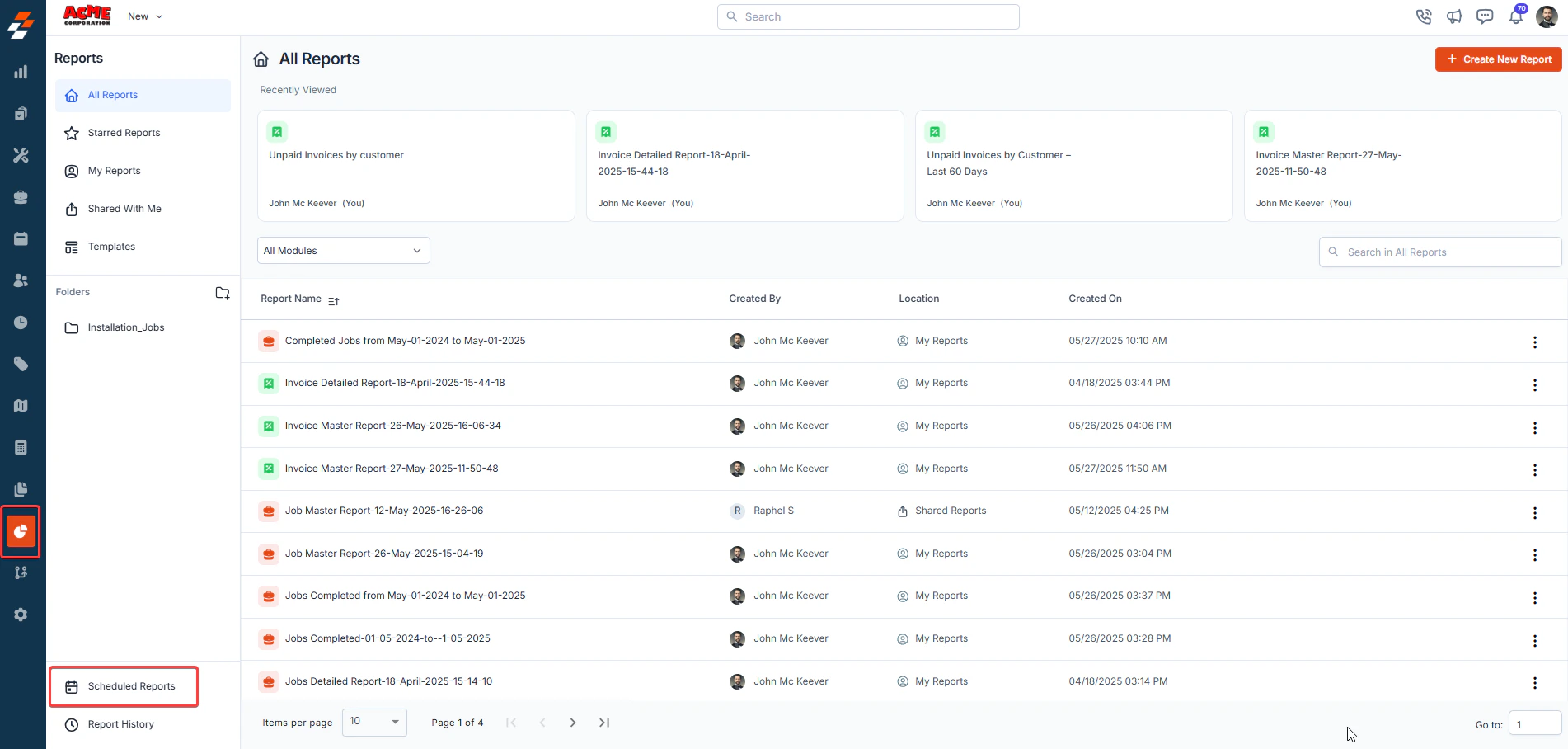
 2. Click the **Schedule Reports** from the left corner of the page.
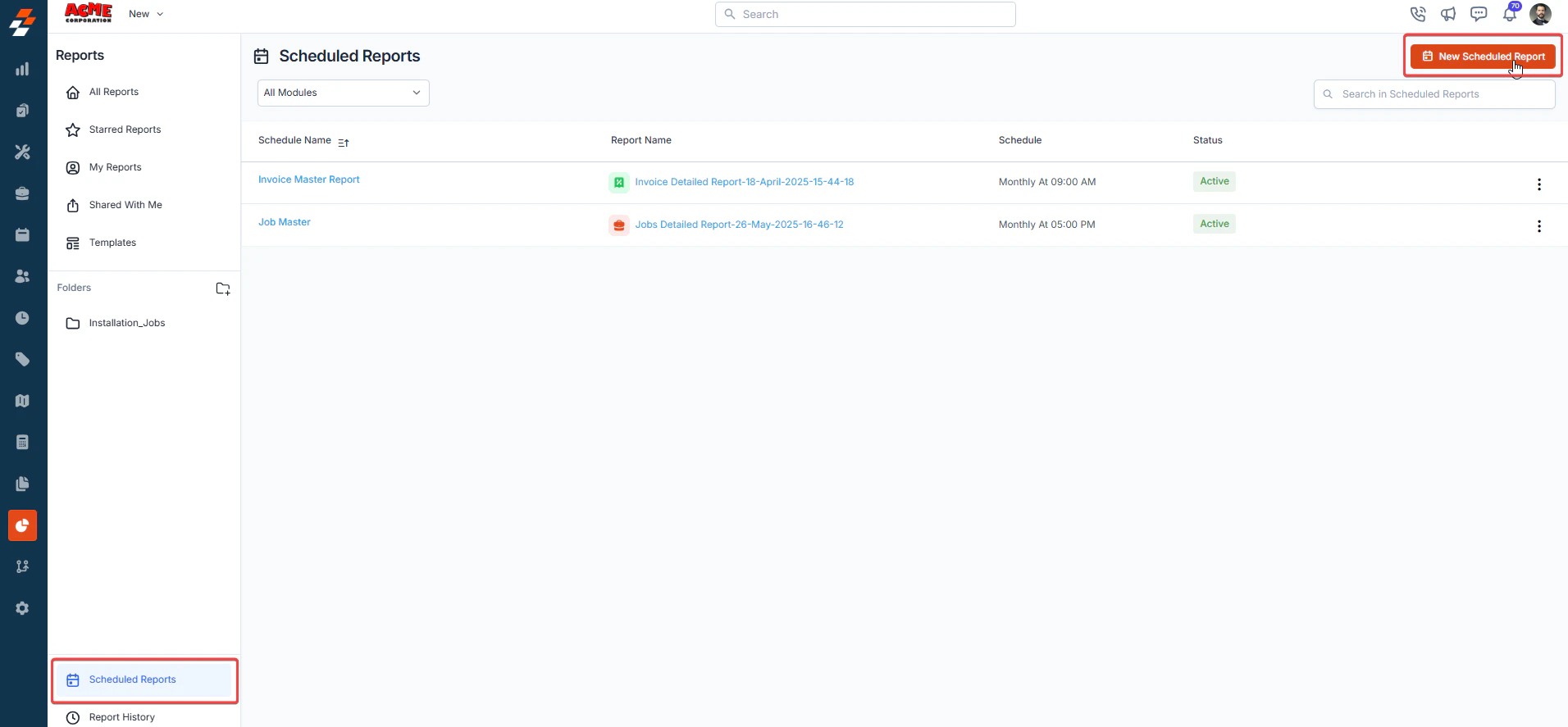
 3. Click **“+ New Schedule Report**”.
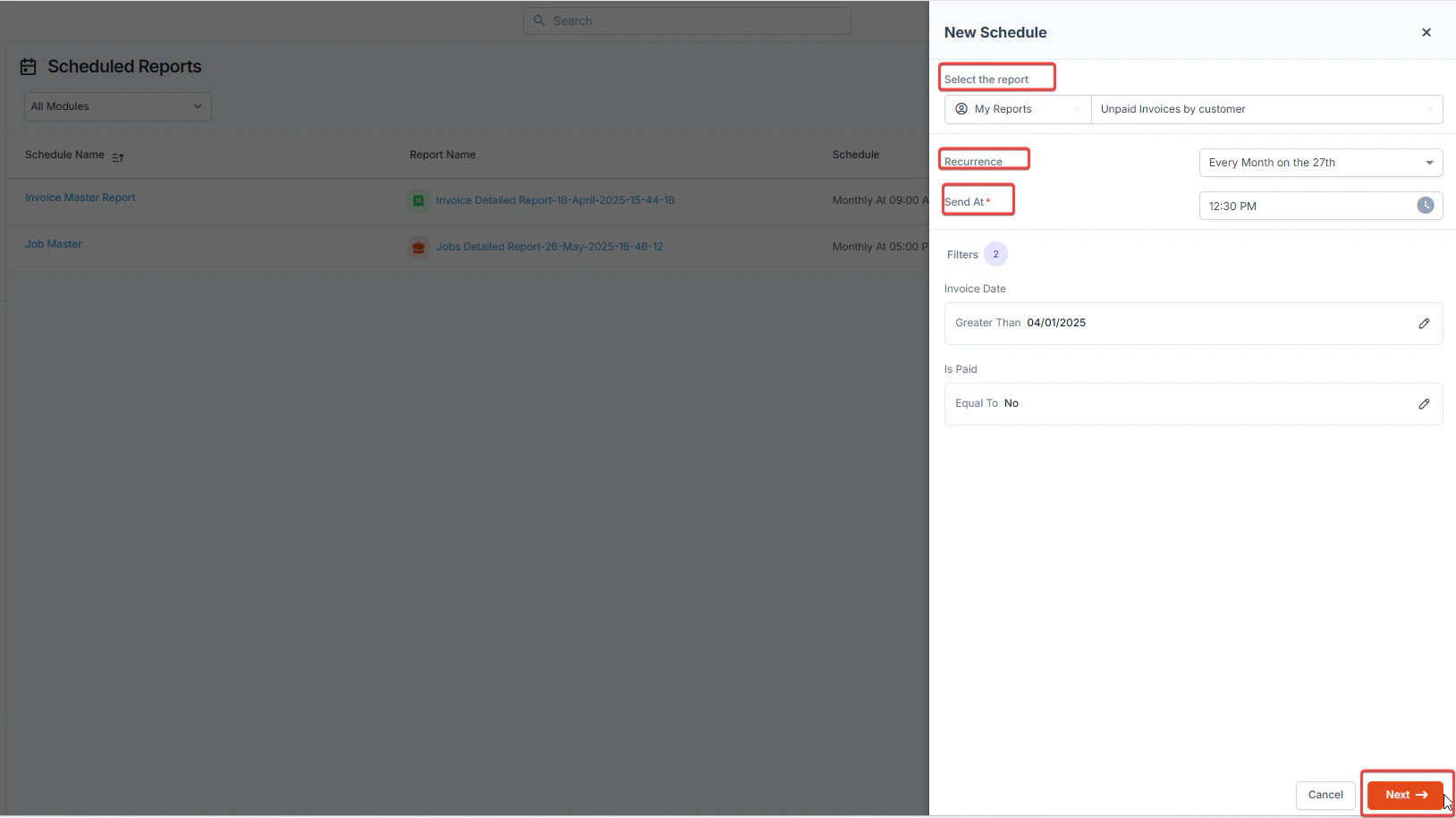
 4. In the **New Schedule** creation panel, select the folder where the report is stored.
5. Choose the specific report you want to schedule.
6. Specify the **recurrence frequency** (Daily, Weekly, or Monthly).
7. Set the **send timing** for when the report should be delivered.
8. Click **Next** to proceed.
4. In the **New Schedule** creation panel, select the folder where the report is stored.
5. Choose the specific report you want to schedule.
6. Specify the **recurrence frequency** (Daily, Weekly, or Monthly).
7. Set the **send timing** for when the report should be delivered.
8. Click **Next** to proceed.
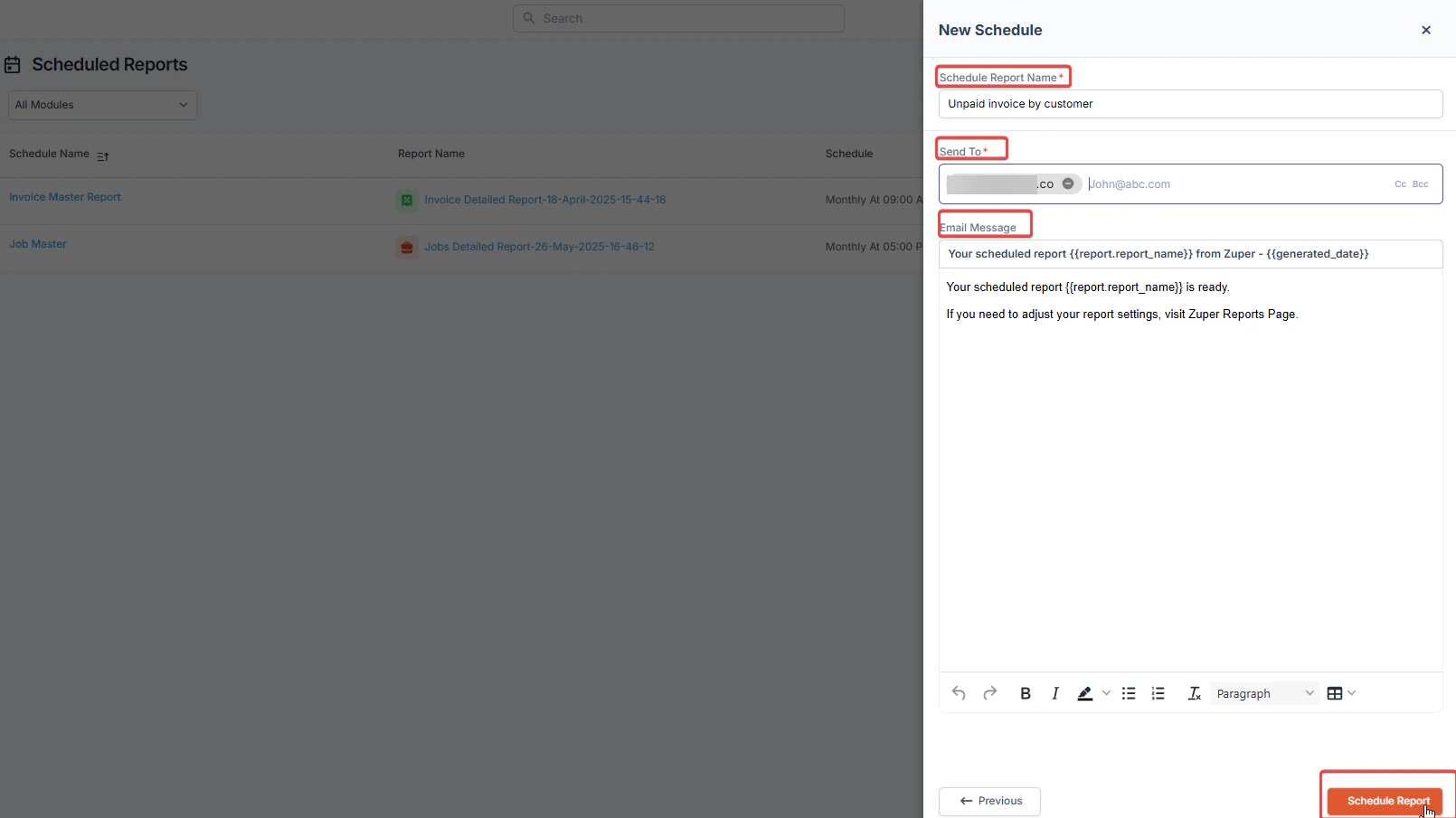
 9. Enter a **Schedule Report Name** for easy identification.
10. Enter the recipient's email addresses.
11. Compose the email message that will accompany the report.
12. Click **Schedule Report** to complete the setup.
9. Enter a **Schedule Report Name** for easy identification.
10. Enter the recipient's email addresses.
11. Compose the email message that will accompany the report.
12. Click **Schedule Report** to complete the setup.
 Once scheduled, Zuper will automatically generate and send the report to the designated recipients at the specified time, ensuring up-to-date insights without manual intervention.
### **Managing Scheduled Reports**
On the **Scheduled Reports** listing page, you can efficiently organize and refine your reports:
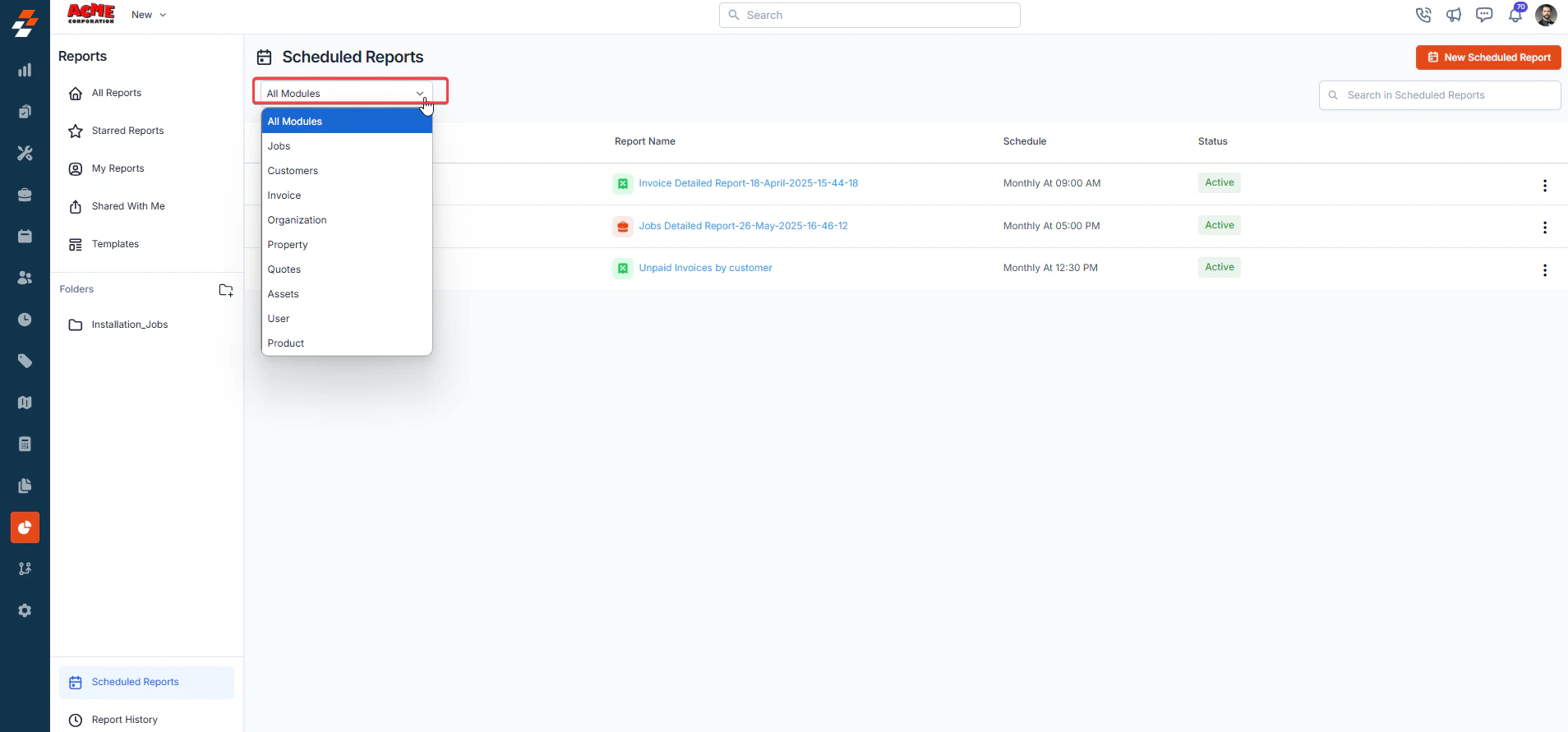
* **Module Filter:** Use the module dropdown to filter reports based on specific modules like **Customers, Jobs, or Invoices**.
Once scheduled, Zuper will automatically generate and send the report to the designated recipients at the specified time, ensuring up-to-date insights without manual intervention.
### **Managing Scheduled Reports**
On the **Scheduled Reports** listing page, you can efficiently organize and refine your reports:
* **Module Filter:** Use the module dropdown to filter reports based on specific modules like **Customers, Jobs, or Invoices**.
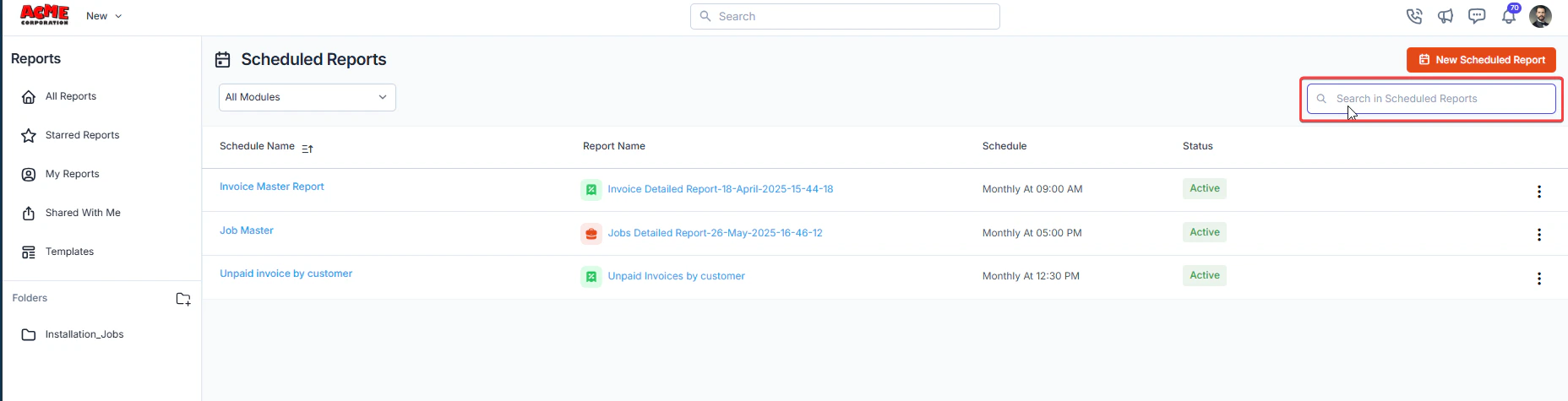
 * **Search Bar:** Quickly locate a specific report by entering its name in the search field.
 ## **Alternative Ways to Schedule Reports in Zuper**
Besides the primary scheduling method, Zuper offers two additional ways to schedule reports directly from different views:
### **1. Scheduling from the Reports Home page**
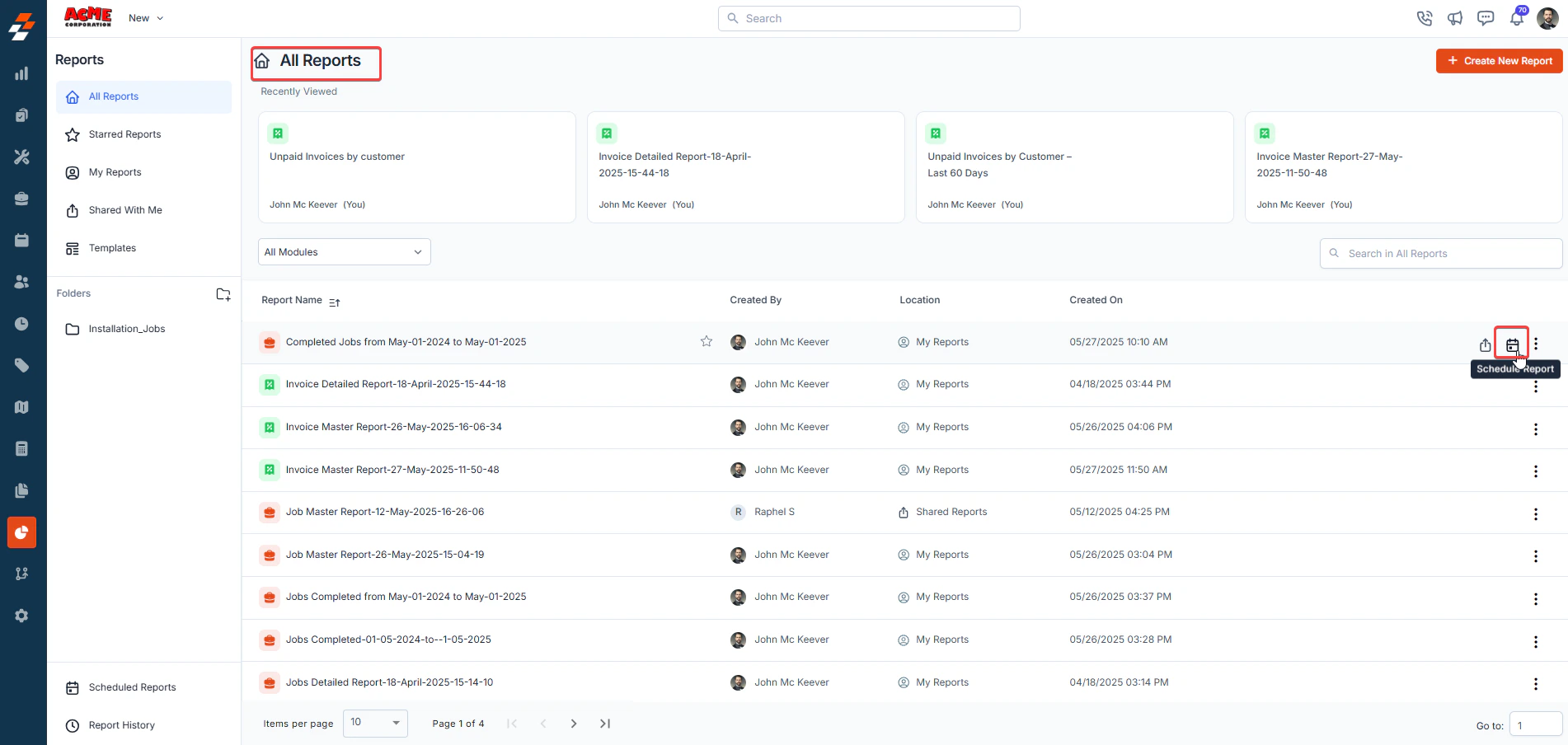
* Navigate to the **Reports** module and browse through the available reports.
* Hover over the report you want to schedule, and a **Schedule** icon will appear.
* Click the **Schedule** icon to open the **New Schedule** panel.
## **Alternative Ways to Schedule Reports in Zuper**
Besides the primary scheduling method, Zuper offers two additional ways to schedule reports directly from different views:
### **1. Scheduling from the Reports Home page**
* Navigate to the **Reports** module and browse through the available reports.
* Hover over the report you want to schedule, and a **Schedule** icon will appear.
* Click the **Schedule** icon to open the **New Schedule** panel.
 ### **2. Scheduling from the Report Details Page**
* Open the specific report you want to schedule.
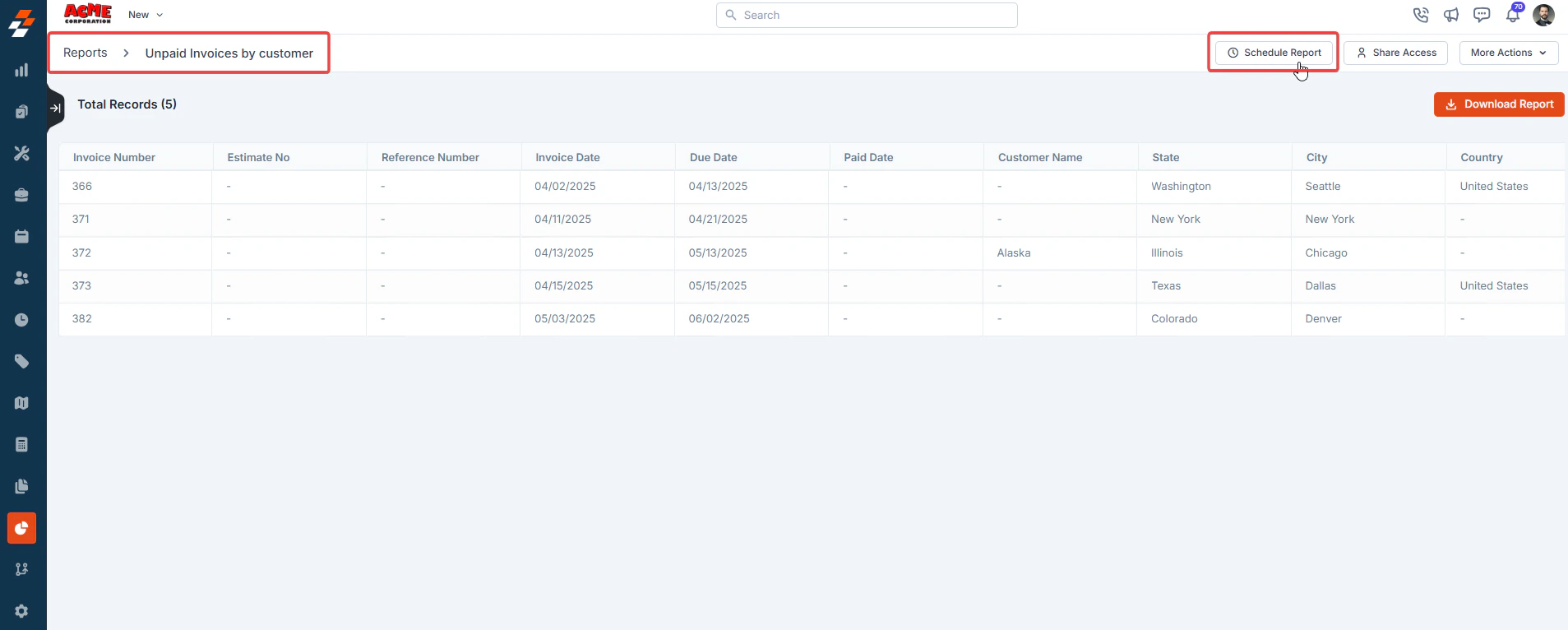
* On the **Report Details** page, click the **Schedule Report** button to set up an automated schedule.
### **2. Scheduling from the Report Details Page**
* Open the specific report you want to schedule.
* On the **Report Details** page, click the **Schedule Report** button to set up an automated schedule.