> ## Documentation Index
> Fetch the complete documentation index at: https://zuperinc-section23.mintlify.site/llms.txt
> Use this file to discover all available pages before exploring further.
# Email Templates
Email templates can automate communication for various workflows, such as job, quotes, or invoices.
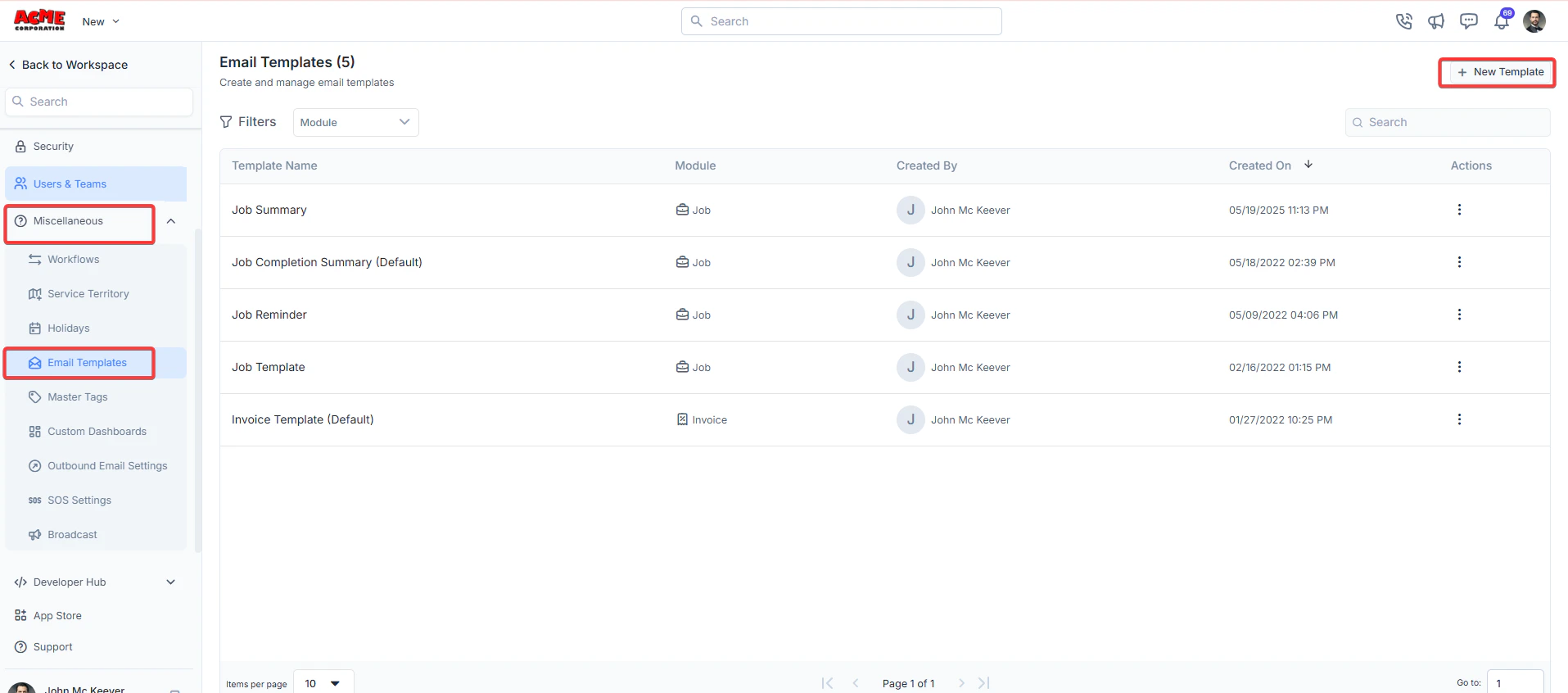
**Navigation**: *Settings -> Miscellaneous -> Email Templates*
1. From the settings, select “**Miscellaneous**." From the "**Email Templates**" section, choose “**+ New Template**."
 2. Enter the following details:
* **Name**: Enter a unique name for your email template.
* **Choose Template Module**: Select the module this template applies to from the dropdown
* **Email Template Description**: Add a brief description of the template's purpose, including any placeholders like \[#work\_order\_number] that will be dynamically replaced when the email is sent.
* **Email Subject**: Enter the subject of the email.
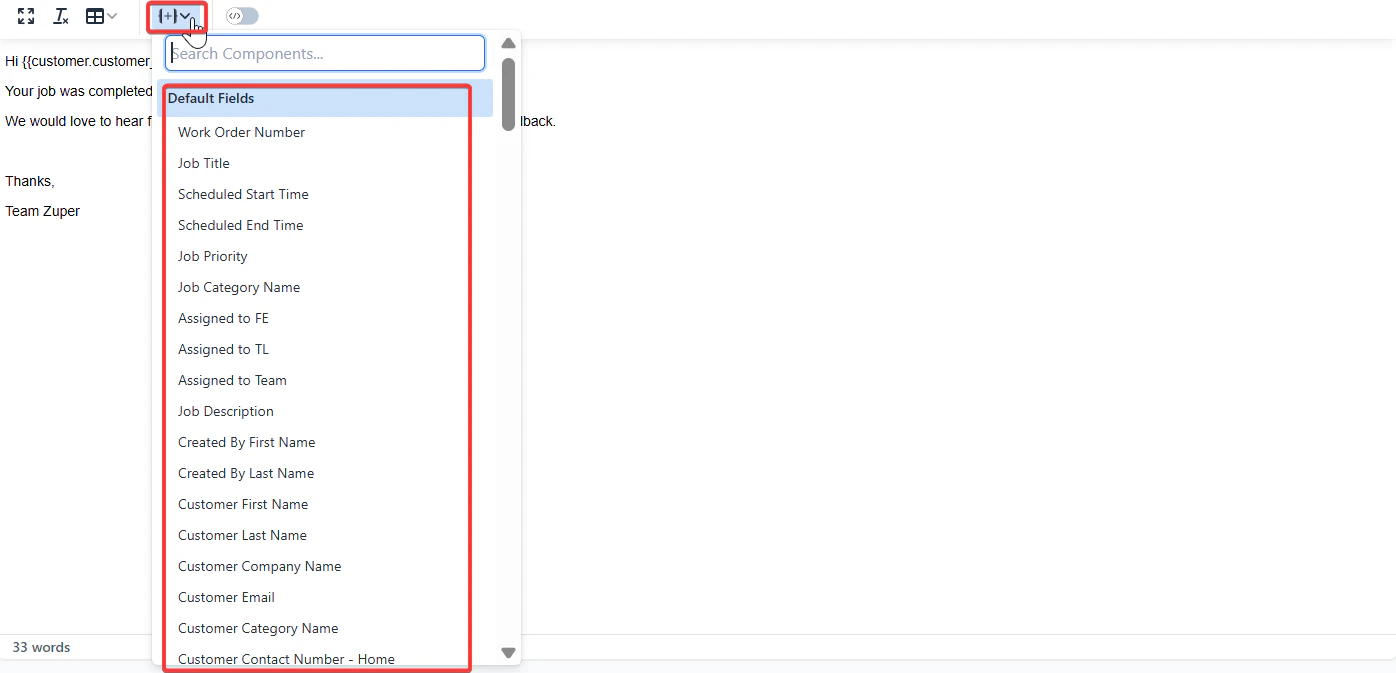
* **Template body**: Enter the template body. Use the available components.
2. Enter the following details:
* **Name**: Enter a unique name for your email template.
* **Choose Template Module**: Select the module this template applies to from the dropdown
* **Email Template Description**: Add a brief description of the template's purpose, including any placeholders like \[#work\_order\_number] that will be dynamically replaced when the email is sent.
* **Email Subject**: Enter the subject of the email.
* **Template body**: Enter the template body. Use the available components.
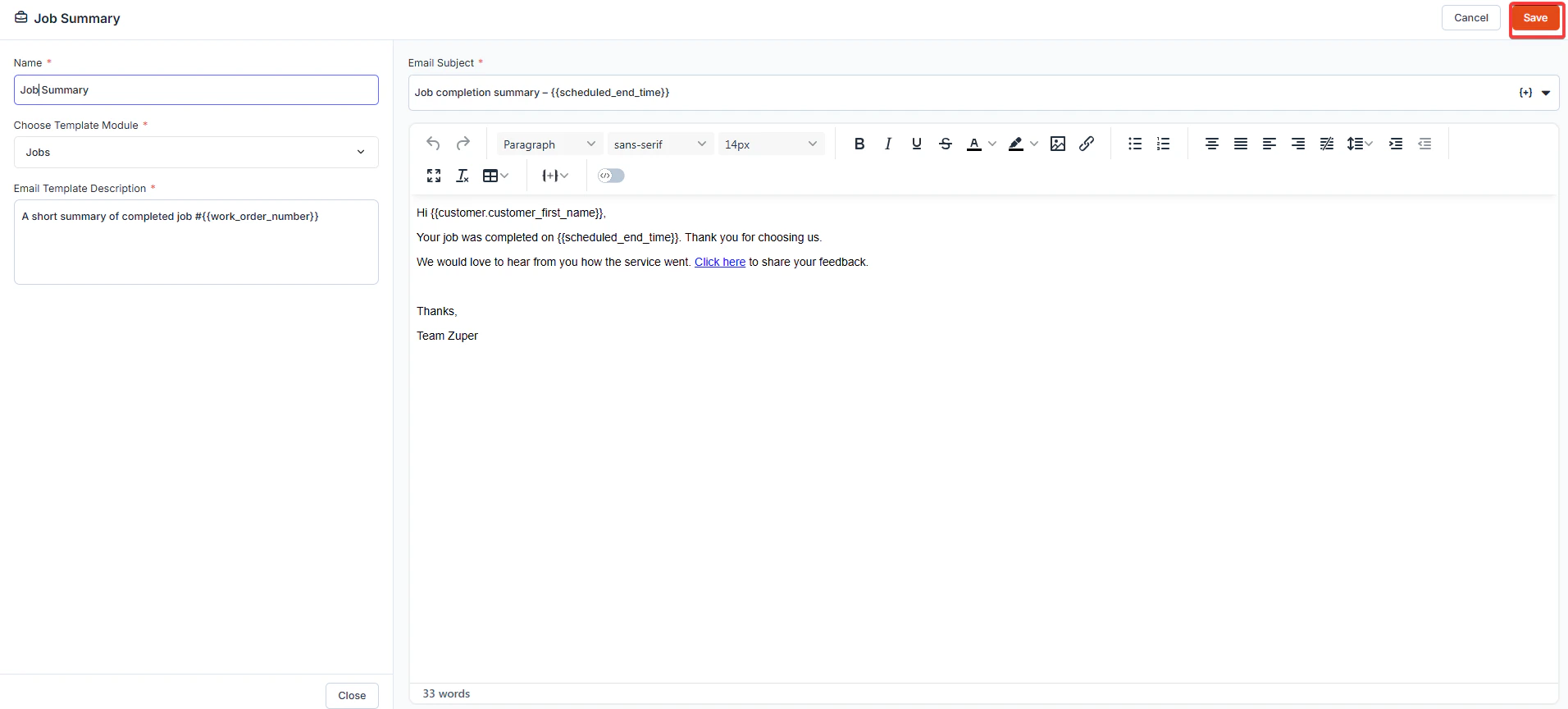 Click "**Save**" to save the email template.
**Best Practices**
* Use placeholders thoughtfully to ensure the email content is relevant and personalized.
* Test the template by triggering a sample email to verify that all placeholders are replaced correctly.
* You can edit or delete templates later by clicking the three-dot menu under the **Actions** column in the Email Templates list.
Click "**Save**" to save the email template.
**Best Practices**
* Use placeholders thoughtfully to ensure the email content is relevant and personalized.
* Test the template by triggering a sample email to verify that all placeholders are replaced correctly.
* You can edit or delete templates later by clicking the three-dot menu under the **Actions** column in the Email Templates list.