> ## Documentation Index
> Fetch the complete documentation index at: https://zuperinc-section23.mintlify.site/llms.txt
> Use this file to discover all available pages before exploring further.
# Configuring Job Checklist
A Job Checklist is a predefined list of questions, instructions, or tasks that technicians must complete while performing a job. It acts as a digital guide to ensure all critical steps are followed, data is captured accurately, and service quality remains consistent across every field visit.
In this article, you will learn how to configure a job checklist associated with specific job statuses or categories to streamline job execution and data collection.
**Navigation:** *Job Categories Listing → Select a Job Category → Job Category Statuses page → Checklist section → +Create*
# Accessing Job Checklists
To create or manage job checklists, follow these steps:
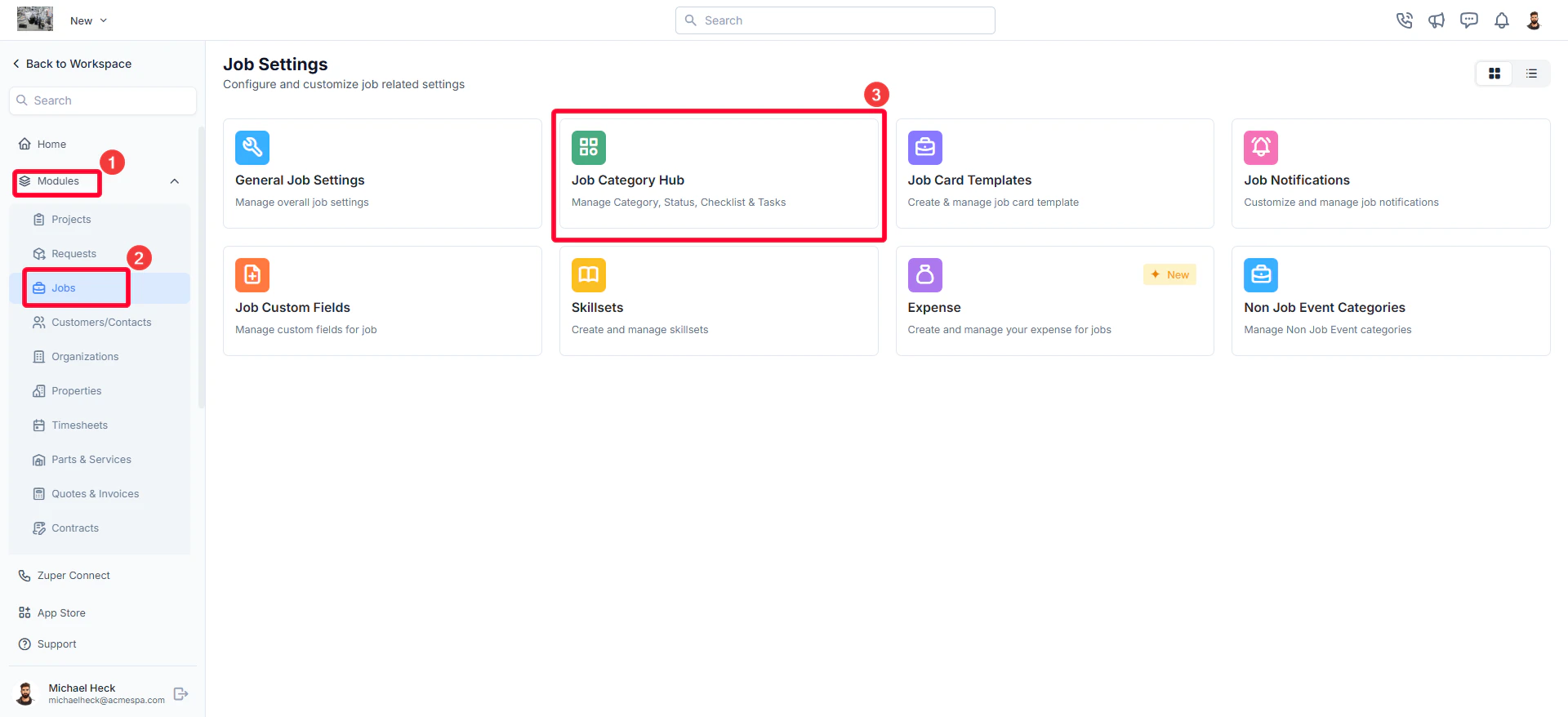
* Select the “**Settings**” module from the left navigation menu.
* Click “**Modules**” and choose “**Jobs**” to open the Job Settings page.
* Click **Job Category Hub** to view all configured job categories.
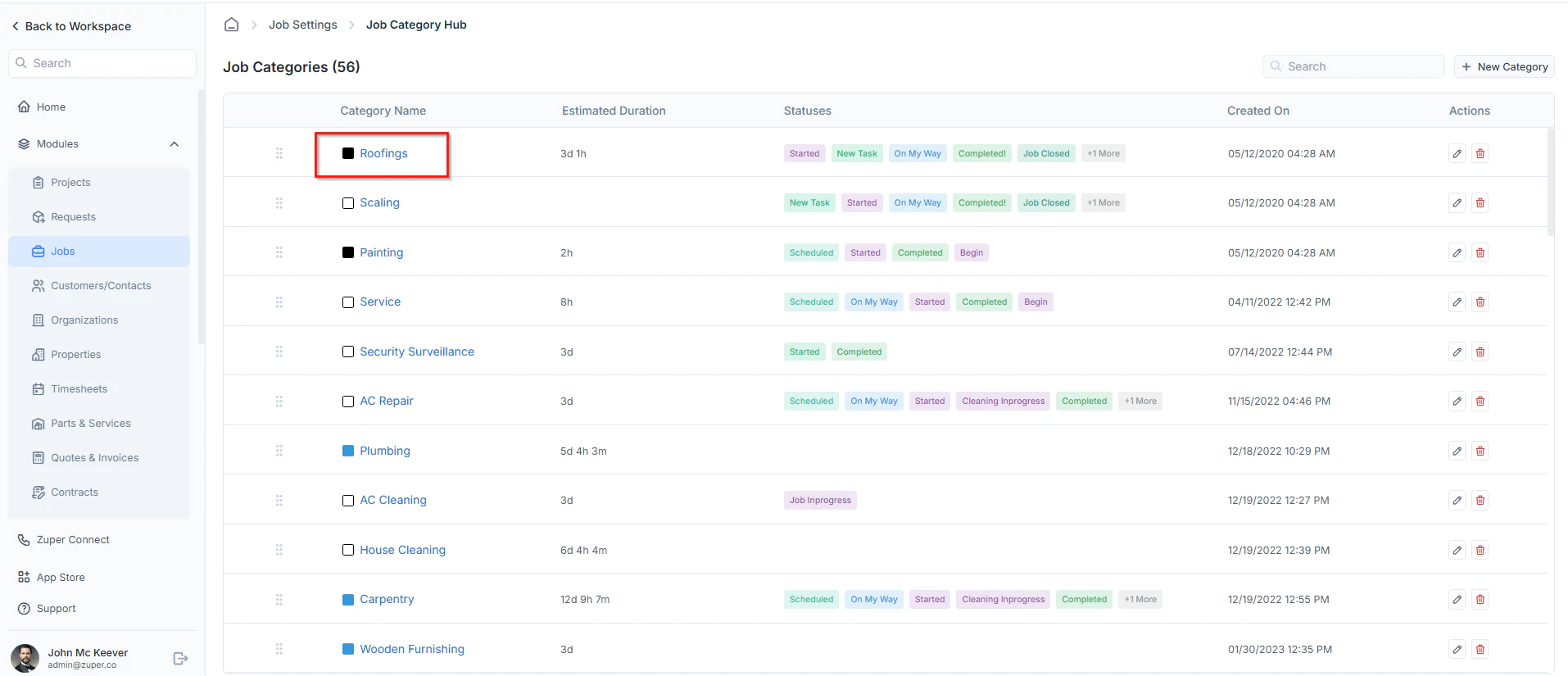
 * Choose the job category for which you want to create or manage a checklist. This opens the **Job Category Statuses** page.
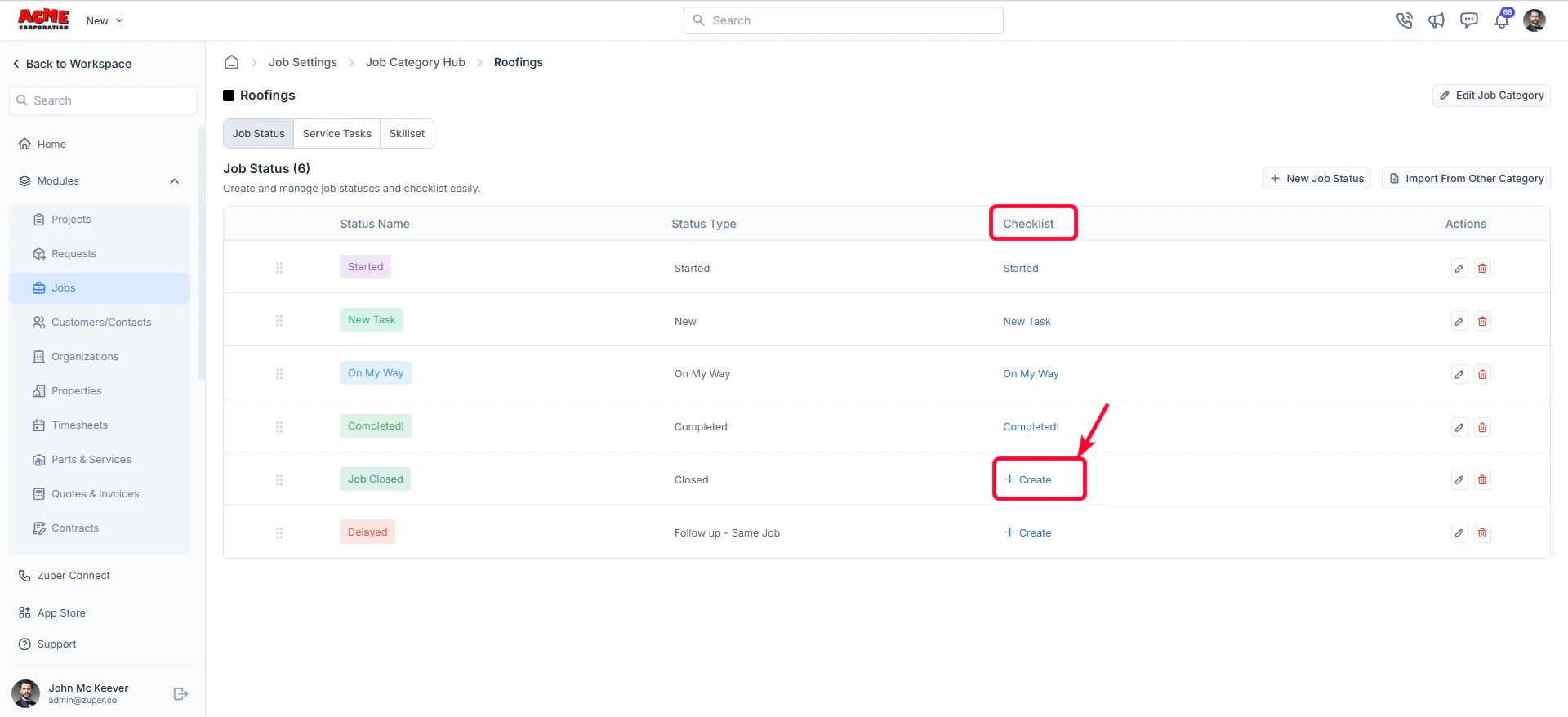
 * In the **Checklist** section, click **+Create** to add a new job checklist.
 # Create Checklist
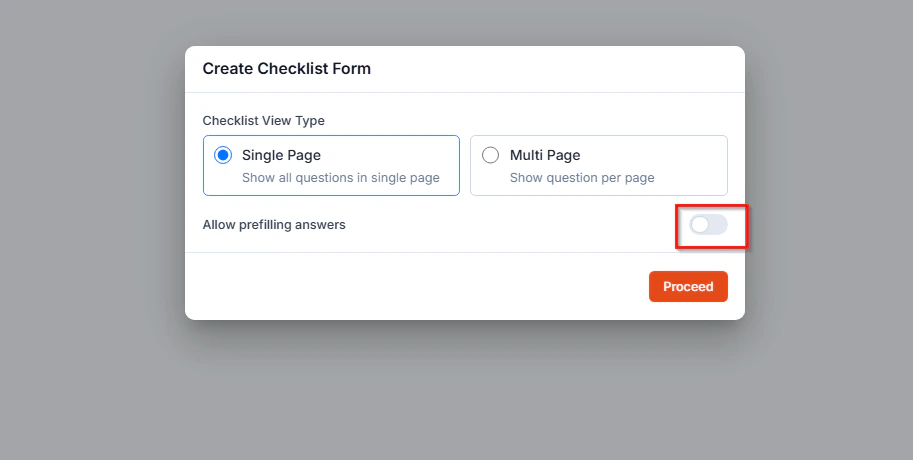
When creating a checklist, you can choose how it should appear to best suit your workflow. This determines how fields are displayed to technicians and ensures efficient data capture in the field. Once the checklist view type is selected, you can proceed to add and configure the required fields.
* **Single-Page View:** Displays all checklist fields on a single screen.
* **Multi-Page View:** Displays fields in separate pages for better organization.
**Allow Prefilling Answers**
Toggle ON **Allow Prefilling Answers** if you want technicians to view prefilled values when updating a job status.
# Create Checklist
When creating a checklist, you can choose how it should appear to best suit your workflow. This determines how fields are displayed to technicians and ensures efficient data capture in the field. Once the checklist view type is selected, you can proceed to add and configure the required fields.
* **Single-Page View:** Displays all checklist fields on a single screen.
* **Multi-Page View:** Displays fields in separate pages for better organization.
**Allow Prefilling Answers**
Toggle ON **Allow Prefilling Answers** if you want technicians to view prefilled values when updating a job status.
 ## Adding Fields to the Checklist
After selecting the checklist type, the **Checklist Builder** opens. You can add fields by dragging them from the right panel and dropping them into the left panel.
## Adding Fields to the Checklist
After selecting the checklist type, the **Checklist Builder** opens. You can add fields by dragging them from the right panel and dropping them into the left panel.
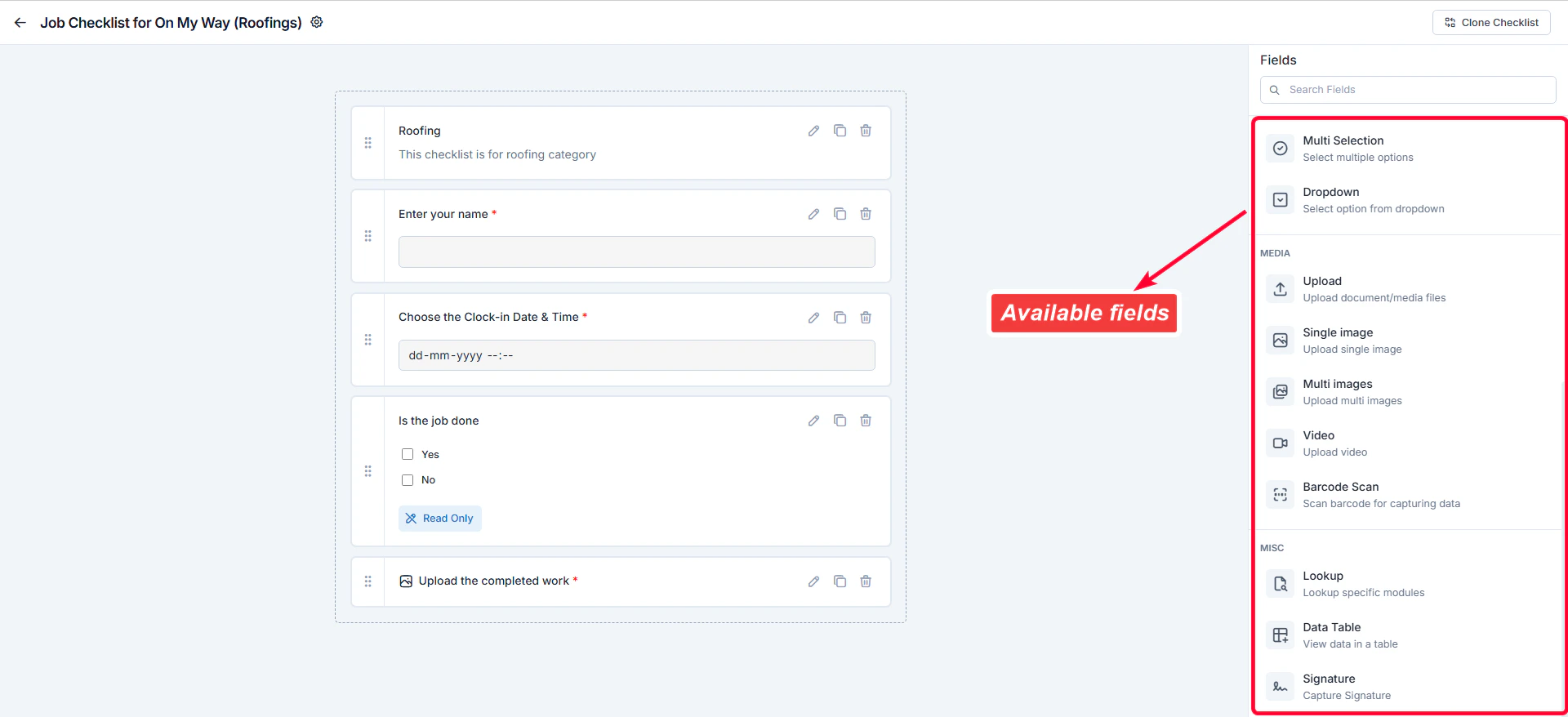 Each field type is designed to capture specific types of information, such as text, selections, media, or digital inputs.
**Available Field Categories and Field Type Descriptions**
| **Category** | **Field Type** | **Description** |
| :----------------------: | :------------------: | :---------------------------------------------------------------------------------------: |
| | **Section Header** | Adds a heading within the checklist to group related fields and organize the layout. |
| **Text** | **Single-Line Text** | Allows users to enter short, free-form text (e.g., customer name, part number). |
| | **Multi-Line Text** | Enables users to enter longer paragraphs or notes (e.g., issue description, comments). |
| **Date** | **Date** | Provides a calendar picker to select a specific date (e.g., inspection date). |
| | **Time** | Provides a clock input to select time (e.g., job start time). |
| | **Date & Time** | Combines date and time inputs for timestamped entries (e.g., check-in/out time). |
| **Selection** | **Single Selection** | Lets users choose one option from multiple predefined values (e.g., Yes/No). |
| | **Multi Selection** | Allows users to select more than one option (e.g., services performed: cleaning, repair). |
| | **Dropdown** | Displays a dropdown list of predefined options to select from. |
| **Media** | **Upload** | Lets users upload files such as PDFs, images, or documents. |
| | **Single Image** | Allows capturing or uploading one image related to the job. |
| | **Multiple Images** | Enables capturing or uploading multiple images (e.g., before and after photos). |
| | **Video** | Allows users to upload or capture a video clip for visual verification. |
| | **Barcode Scan** | Enables scanning barcodes or QR codes for assets or parts. |
| **Miscellaneous (Misc)** | **Lookup** | References data from other Zuper modules such as Products, Users, or Assets. |
| | **Data Table** | Creates a structured table with rows and columns to record multiple related data entries. |
| | **Signature** | Captures a digital signature from a technician or customer to confirm acknowledgment. |
## Configuring a Field New
When you drag and drop a field into the checklist, an **Edit Field panel** appears on the right side.\
You can define the field’s **information, configuration, and visibility preferences**.
Once configured, click **Save** to add the field to the checklist.
### Information
* **Field Name:** Enter the display name for the field.
* **Description:** Add helpful instructions or notes for the technician.
### Configuration
Define how the field behaves during checklist completion:
1. **Mark as Required Field**
This option makes a field **mandatory** during checklist completion.\
Technicians cannot submit the checklist until the required field is filled in.
**To configure:**
1. Toggle **Mark as Required Field** ON.
2. Click **Save** to apply.
> **Example:** For a “Customer Signature” field, enabling this ensures that technicians must collect a signature before job completion.
2. **Mark as Read Only**
This setting restricts technicians from editing the field while completing the checklist.\
Useful when you want to display reference data without allowing modification.
**To configure:**
1. Toggle **Mark as Read Only** ON.
2. Click **Save** to apply.
> **Example:** Use for auto-populated fields like “Job ID” or “Customer Name.”
3. **Update Field**
Automatically copies the entered field value to a linked custom field or standard field in the job record.\
This eliminates duplicate data entry and ensures synchronization between modules.
**To configure:**
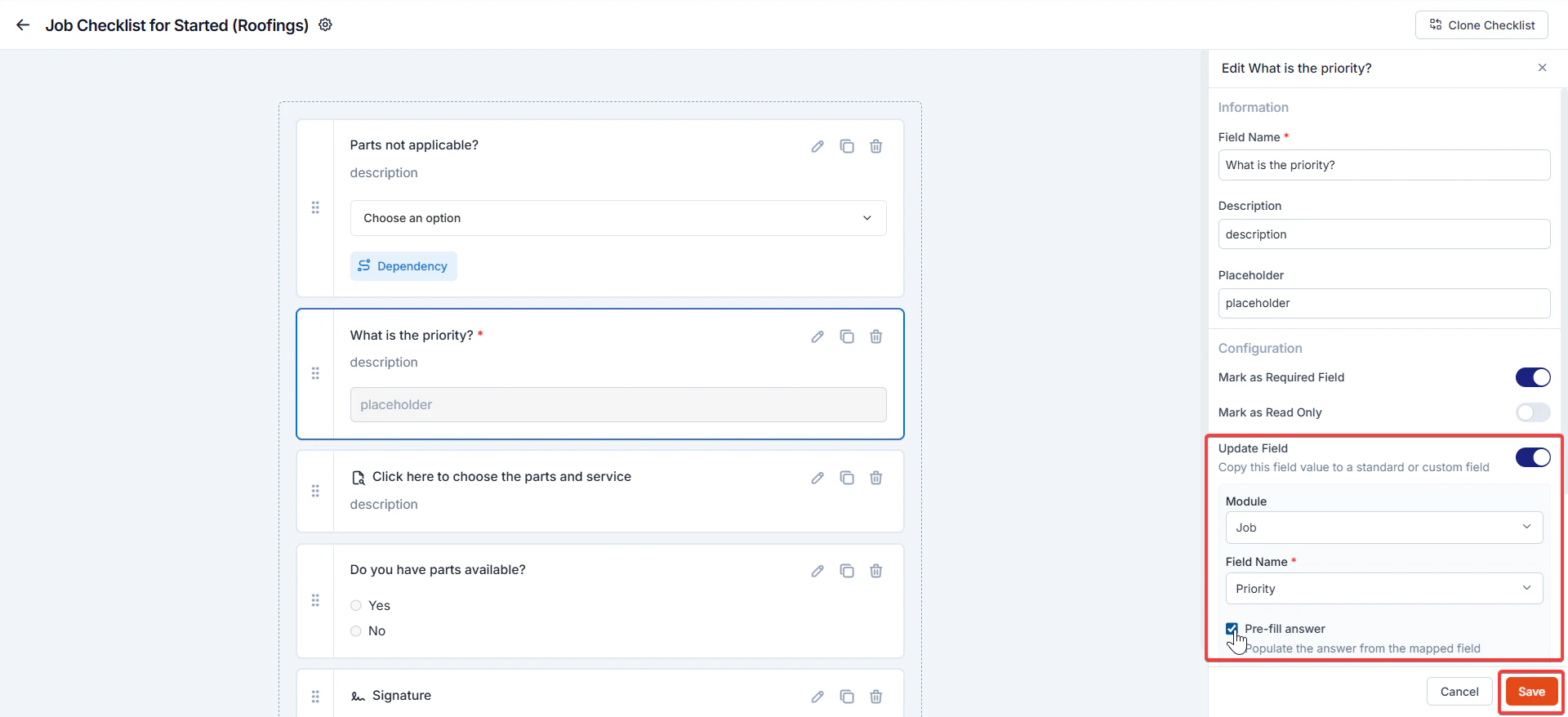
1. Toggle **Update Field** ON.
2. Choose the custom field /standard field you want to link.
3. You can choose the module as "**Job**" or "**Customer / Contact**."
4. **Pre-fill:** The Pre-fill answer capability automatically populates checklist questions with values from mapped standard or custom fields. This reduces manual data entry and ensures consistency between checklist responses and system records..
5. Click **Save** to apply.
Each field type is designed to capture specific types of information, such as text, selections, media, or digital inputs.
**Available Field Categories and Field Type Descriptions**
| **Category** | **Field Type** | **Description** |
| :----------------------: | :------------------: | :---------------------------------------------------------------------------------------: |
| | **Section Header** | Adds a heading within the checklist to group related fields and organize the layout. |
| **Text** | **Single-Line Text** | Allows users to enter short, free-form text (e.g., customer name, part number). |
| | **Multi-Line Text** | Enables users to enter longer paragraphs or notes (e.g., issue description, comments). |
| **Date** | **Date** | Provides a calendar picker to select a specific date (e.g., inspection date). |
| | **Time** | Provides a clock input to select time (e.g., job start time). |
| | **Date & Time** | Combines date and time inputs for timestamped entries (e.g., check-in/out time). |
| **Selection** | **Single Selection** | Lets users choose one option from multiple predefined values (e.g., Yes/No). |
| | **Multi Selection** | Allows users to select more than one option (e.g., services performed: cleaning, repair). |
| | **Dropdown** | Displays a dropdown list of predefined options to select from. |
| **Media** | **Upload** | Lets users upload files such as PDFs, images, or documents. |
| | **Single Image** | Allows capturing or uploading one image related to the job. |
| | **Multiple Images** | Enables capturing or uploading multiple images (e.g., before and after photos). |
| | **Video** | Allows users to upload or capture a video clip for visual verification. |
| | **Barcode Scan** | Enables scanning barcodes or QR codes for assets or parts. |
| **Miscellaneous (Misc)** | **Lookup** | References data from other Zuper modules such as Products, Users, or Assets. |
| | **Data Table** | Creates a structured table with rows and columns to record multiple related data entries. |
| | **Signature** | Captures a digital signature from a technician or customer to confirm acknowledgment. |
## Configuring a Field New
When you drag and drop a field into the checklist, an **Edit Field panel** appears on the right side.\
You can define the field’s **information, configuration, and visibility preferences**.
Once configured, click **Save** to add the field to the checklist.
### Information
* **Field Name:** Enter the display name for the field.
* **Description:** Add helpful instructions or notes for the technician.
### Configuration
Define how the field behaves during checklist completion:
1. **Mark as Required Field**
This option makes a field **mandatory** during checklist completion.\
Technicians cannot submit the checklist until the required field is filled in.
**To configure:**
1. Toggle **Mark as Required Field** ON.
2. Click **Save** to apply.
> **Example:** For a “Customer Signature” field, enabling this ensures that technicians must collect a signature before job completion.
2. **Mark as Read Only**
This setting restricts technicians from editing the field while completing the checklist.\
Useful when you want to display reference data without allowing modification.
**To configure:**
1. Toggle **Mark as Read Only** ON.
2. Click **Save** to apply.
> **Example:** Use for auto-populated fields like “Job ID” or “Customer Name.”
3. **Update Field**
Automatically copies the entered field value to a linked custom field or standard field in the job record.\
This eliminates duplicate data entry and ensures synchronization between modules.
**To configure:**
1. Toggle **Update Field** ON.
2. Choose the custom field /standard field you want to link.
3. You can choose the module as "**Job**" or "**Customer / Contact**."
4. **Pre-fill:** The Pre-fill answer capability automatically populates checklist questions with values from mapped standard or custom fields. This reduces manual data entry and ensures consistency between checklist responses and system records..
5. Click **Save** to apply.
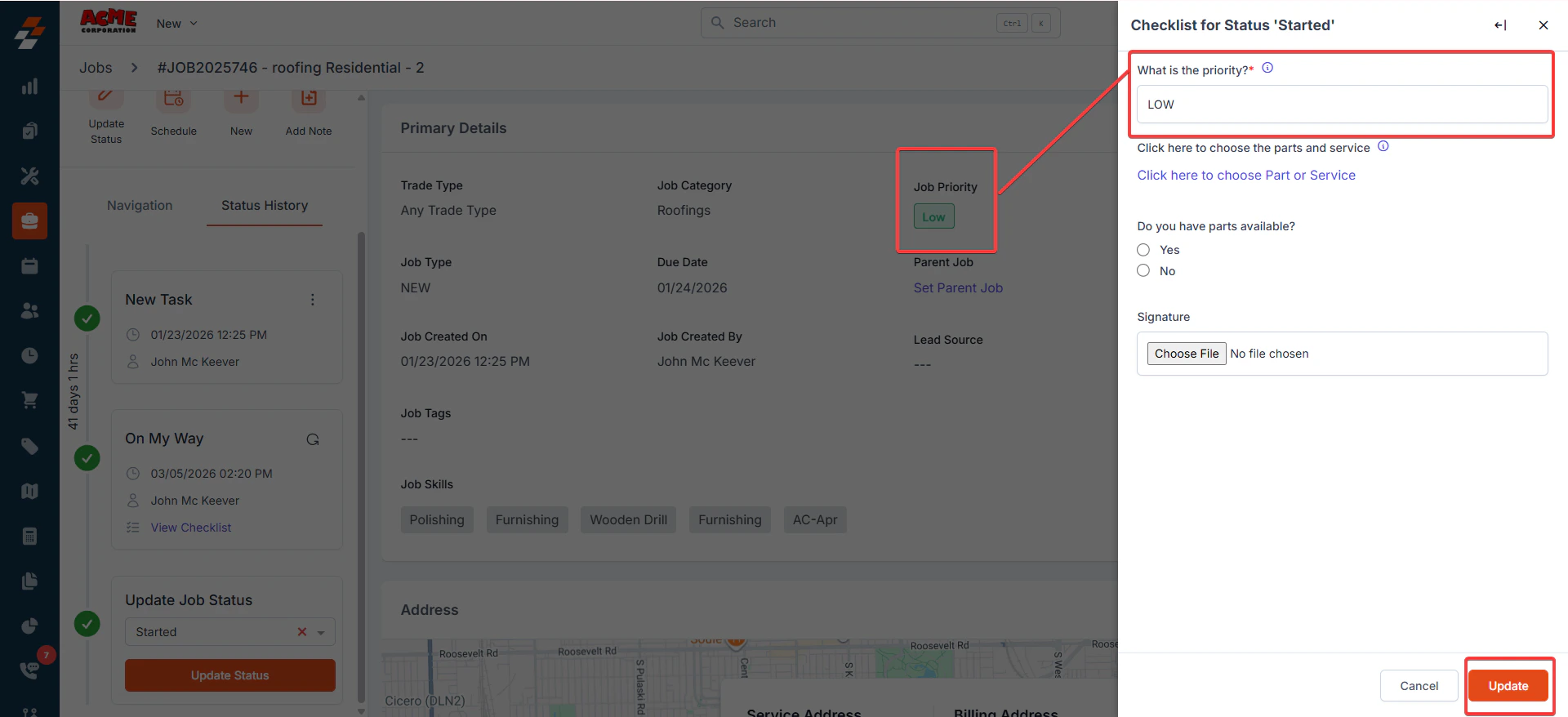
 > **Example:** Prefill: A “**Priority**” field from the Jobs Module is prefilled automatically in the checklist.
**Priority order when determining what value to show**:
1. Existing checklist answer (always takes precedence).
2. Field-based pre-fill (from mapped Job/Contact field).
3. Default value (fallback if no mapped value exists).
* Impact after filling the checklist
Once the job checklist is filled, the prefill option autofills the actual value from the Job / Customer-Contact default or custom field.
> **Example:** Prefill: A “**Priority**” field from the Jobs Module is prefilled automatically in the checklist.
**Priority order when determining what value to show**:
1. Existing checklist answer (always takes precedence).
2. Field-based pre-fill (from mapped Job/Contact field).
3. Default value (fallback if no mapped value exists).
* Impact after filling the checklist
Once the job checklist is filled, the prefill option autofills the actual value from the Job / Customer-Contact default or custom field.
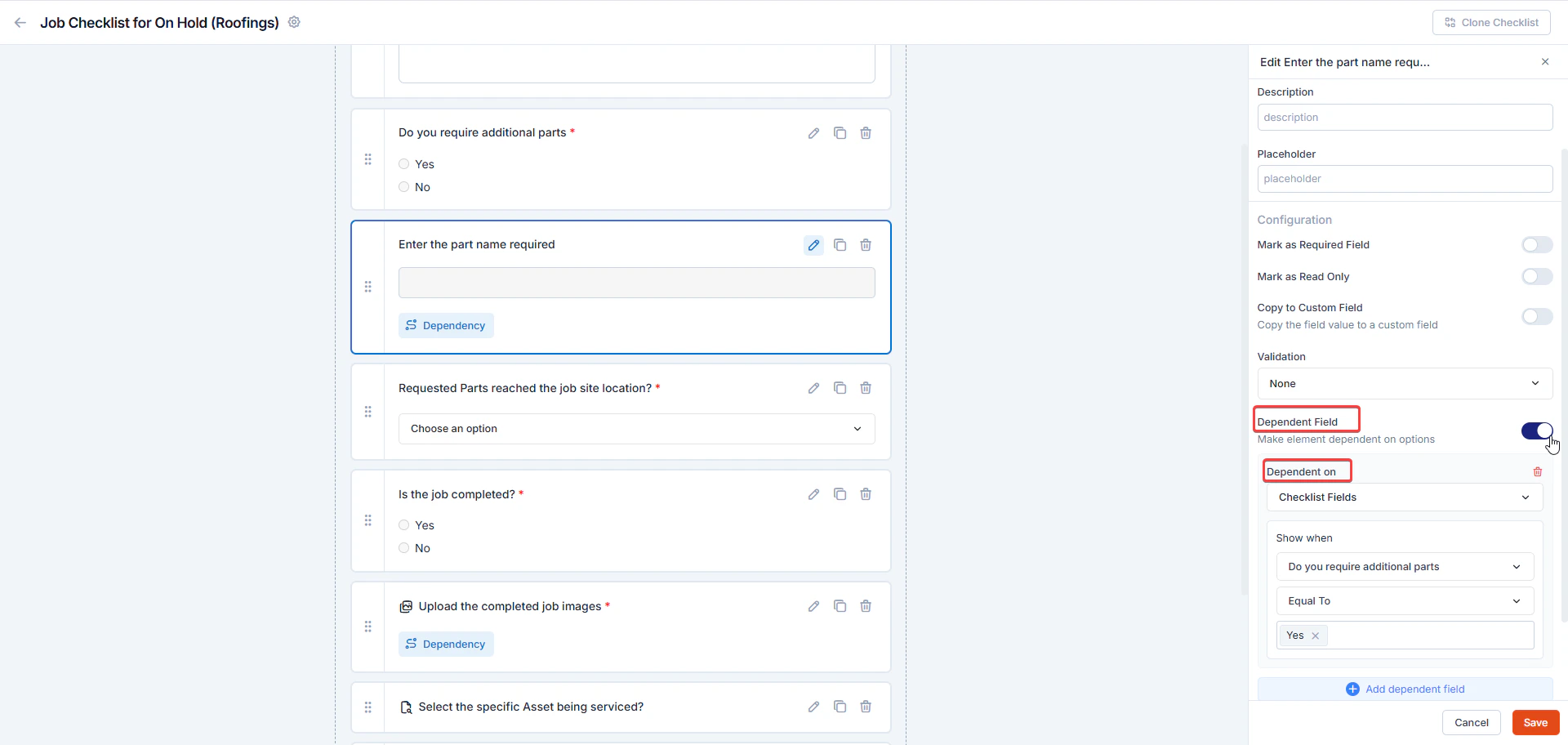
 4. **Dependent Field (Make Element Dependent on Options)**
Use **conditional display** to automatically show fields based on values selected in other fields. This keeps your checklists focused, context-aware, and free from irrelevant questions for technicians.
**Note**: The **Dependent Field** option appears only when a **Selection Field** (Single Selection, Multi Selection, or Dropdown) with configured options is present in the checklist.
**To configure the dependency fields:**
1. Select the field you want to set as dependent (e.g., *Enter Part Name* (Single Line Text)), then click the Edit icon.
2. Toggle **Dependent Field** to **ON**.
3. Under **Dependent On**, choose whether the dependency is based on **Checklist Fields** or **Custom Fields**.
4. In **Show when**:
* **Trigger Field**: Choose the parent field (e.g., *Do you require additional parts (Single Selection*). \
Zuper automatically displays only the fields linked to the same **Job Category** as the checklist. This ensures that you can select only the relevant checklist fields or custom fields associated with that category.
* **Condition Operator**: Choose the operator (*Equal To, Contains, Not Equal To*, etc.).
* **Value**(s): Pick one or more values that will make the dependent field appear.\
For example, if a technician selects Yes under *Do you require additional parts?*, the fields *Enter Part Name* and *Enter Description* appear automatically.
**Note**: For a *Multi Selection* parent field, you can choose one or more values. If the user selects any one of these values, the dependent (child) field will appear.Under **Show When**, select the controlling field (e.g., *Do you require additional parts?*).
5. To add another dependency, click **Add dependent field**, and choose whether conditions should use **AND** (all conditions must be true) or **OR** (any condition may be true). Define the condition (e.g., *is equal to Yes*).
4. **Dependent Field (Make Element Dependent on Options)**
Use **conditional display** to automatically show fields based on values selected in other fields. This keeps your checklists focused, context-aware, and free from irrelevant questions for technicians.
**Note**: The **Dependent Field** option appears only when a **Selection Field** (Single Selection, Multi Selection, or Dropdown) with configured options is present in the checklist.
**To configure the dependency fields:**
1. Select the field you want to set as dependent (e.g., *Enter Part Name* (Single Line Text)), then click the Edit icon.
2. Toggle **Dependent Field** to **ON**.
3. Under **Dependent On**, choose whether the dependency is based on **Checklist Fields** or **Custom Fields**.
4. In **Show when**:
* **Trigger Field**: Choose the parent field (e.g., *Do you require additional parts (Single Selection*). \
Zuper automatically displays only the fields linked to the same **Job Category** as the checklist. This ensures that you can select only the relevant checklist fields or custom fields associated with that category.
* **Condition Operator**: Choose the operator (*Equal To, Contains, Not Equal To*, etc.).
* **Value**(s): Pick one or more values that will make the dependent field appear.\
For example, if a technician selects Yes under *Do you require additional parts?*, the fields *Enter Part Name* and *Enter Description* appear automatically.
**Note**: For a *Multi Selection* parent field, you can choose one or more values. If the user selects any one of these values, the dependent (child) field will appear.Under **Show When**, select the controlling field (e.g., *Do you require additional parts?*).
5. To add another dependency, click **Add dependent field**, and choose whether conditions should use **AND** (all conditions must be true) or **OR** (any condition may be true). Define the condition (e.g., *is equal to Yes*).
 6. Click **Save** to apply the configuration.
### Visibility
Control who can view or edit a field:
* **Mark as Hidden Field:** Hide the field from all users.
* **Hide to FE/Technician:** Hide the field only from field technicians on the mobile app.
## Advanced Field Configurations
In addition to the general field settings, Zuper allows you to configure advanced options for specific field types.\
These configurations help ensure accurate data capture, enforce validation, and maintain the authenticity of field submissions.\
Depending on the field category you select (Selection or Media), the available configuration options may vary.
### A. Selection Field Configurations
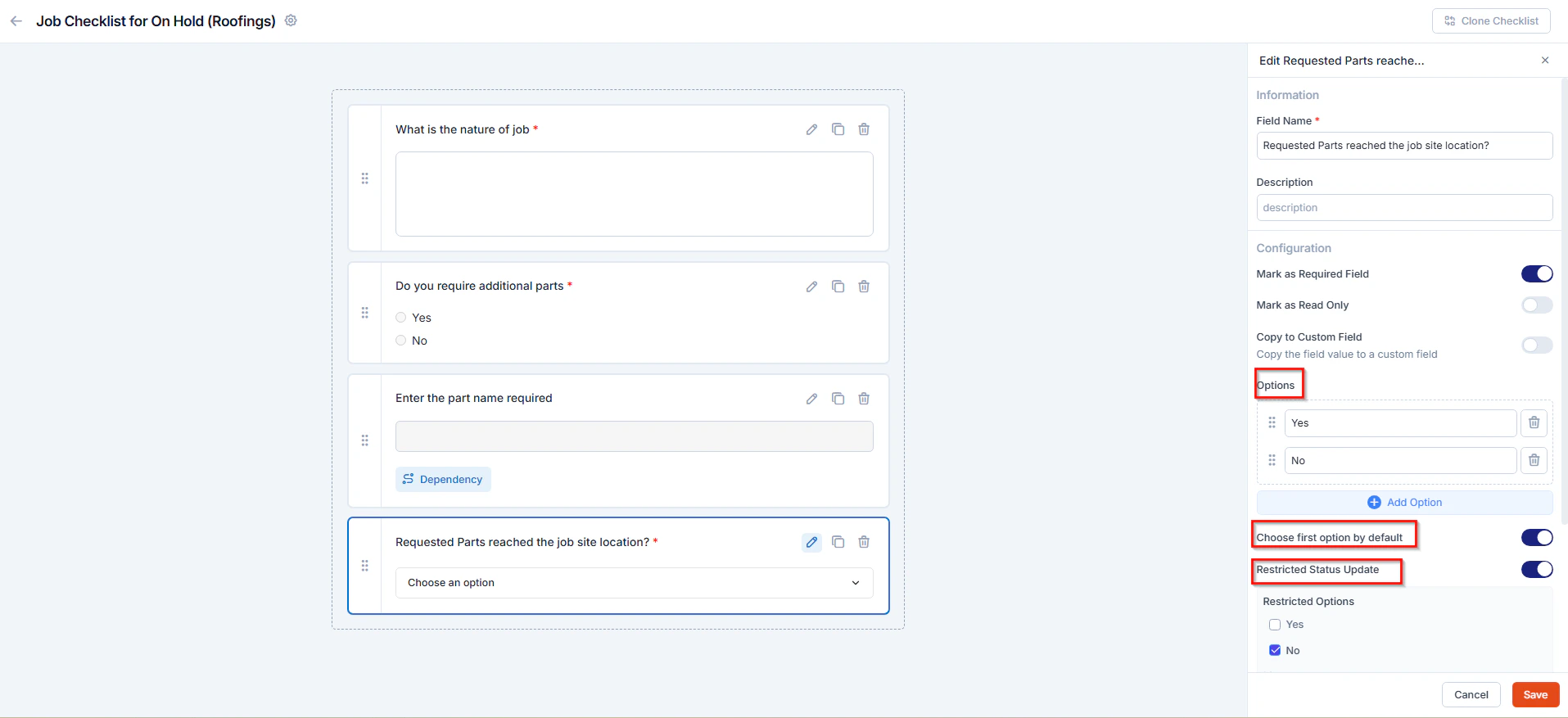
For **Selection fields** (Dropdown, Single Selection, and Multi Selection), you can configure options, apply restrictions, and set dependencies to control how technicians interact with the checklist.
**Navigation**: Go to the **Selection field category** and choose either **Single Selection**, **Multi Selection**, or **Dropdown** to configure the field.
**1. Options**
Define the list of choices that will appear in the selection field.
**To configure:**
1. In the **Options** section, click **Add Option** to create new choices.
2. Enter the option names (e.g., *Accurate*, *Not Accurate*, *Requested*).
3. Use the **trash icon** to delete any unwanted option.
4. Drag and drop options to reorder them.
5. Click **Save** to apply the changes.
> **Example:** A dropdown field titled *Parts Condition* can include options such as *Good*, *Damaged*, and *Replaced*.
**2. Choose First Option by Default (Dropdown Only)**
Automatically selects the first dropdown value when the checklist loads. This helps standardize default responses.
**To configure:**
1. Toggle **Choose First Option by Default** ON.
2. Ensure your preferred value is listed first in the options.
3. Click **Save** to apply.
> **Example:** In a field titled *Inspection Type*, setting *Routine Check* as the first option makes it the default selection.
**3. Restricted Status Update**
Restricts technicians from changing the job status if certain checklist conditions are not satisfied.
**To configure:**
1. Toggle **Restricted Status Update** ON.
2. Define the field condition that should block the job status update.
3. Click **Save** to apply.
> **Example:** If the technician selects *No* for “Are all parts delivered?”, the system can prevent the job from moving to *In Progress* until all parts are confirmed.
6. Click **Save** to apply the configuration.
### Visibility
Control who can view or edit a field:
* **Mark as Hidden Field:** Hide the field from all users.
* **Hide to FE/Technician:** Hide the field only from field technicians on the mobile app.
## Advanced Field Configurations
In addition to the general field settings, Zuper allows you to configure advanced options for specific field types.\
These configurations help ensure accurate data capture, enforce validation, and maintain the authenticity of field submissions.\
Depending on the field category you select (Selection or Media), the available configuration options may vary.
### A. Selection Field Configurations
For **Selection fields** (Dropdown, Single Selection, and Multi Selection), you can configure options, apply restrictions, and set dependencies to control how technicians interact with the checklist.
**Navigation**: Go to the **Selection field category** and choose either **Single Selection**, **Multi Selection**, or **Dropdown** to configure the field.
**1. Options**
Define the list of choices that will appear in the selection field.
**To configure:**
1. In the **Options** section, click **Add Option** to create new choices.
2. Enter the option names (e.g., *Accurate*, *Not Accurate*, *Requested*).
3. Use the **trash icon** to delete any unwanted option.
4. Drag and drop options to reorder them.
5. Click **Save** to apply the changes.
> **Example:** A dropdown field titled *Parts Condition* can include options such as *Good*, *Damaged*, and *Replaced*.
**2. Choose First Option by Default (Dropdown Only)**
Automatically selects the first dropdown value when the checklist loads. This helps standardize default responses.
**To configure:**
1. Toggle **Choose First Option by Default** ON.
2. Ensure your preferred value is listed first in the options.
3. Click **Save** to apply.
> **Example:** In a field titled *Inspection Type*, setting *Routine Check* as the first option makes it the default selection.
**3. Restricted Status Update**
Restricts technicians from changing the job status if certain checklist conditions are not satisfied.
**To configure:**
1. Toggle **Restricted Status Update** ON.
2. Define the field condition that should block the job status update.
3. Click **Save** to apply.
> **Example:** If the technician selects *No* for “Are all parts delivered?”, the system can prevent the job from moving to *In Progress* until all parts are confirmed.
 ### B. Media Field Configurations
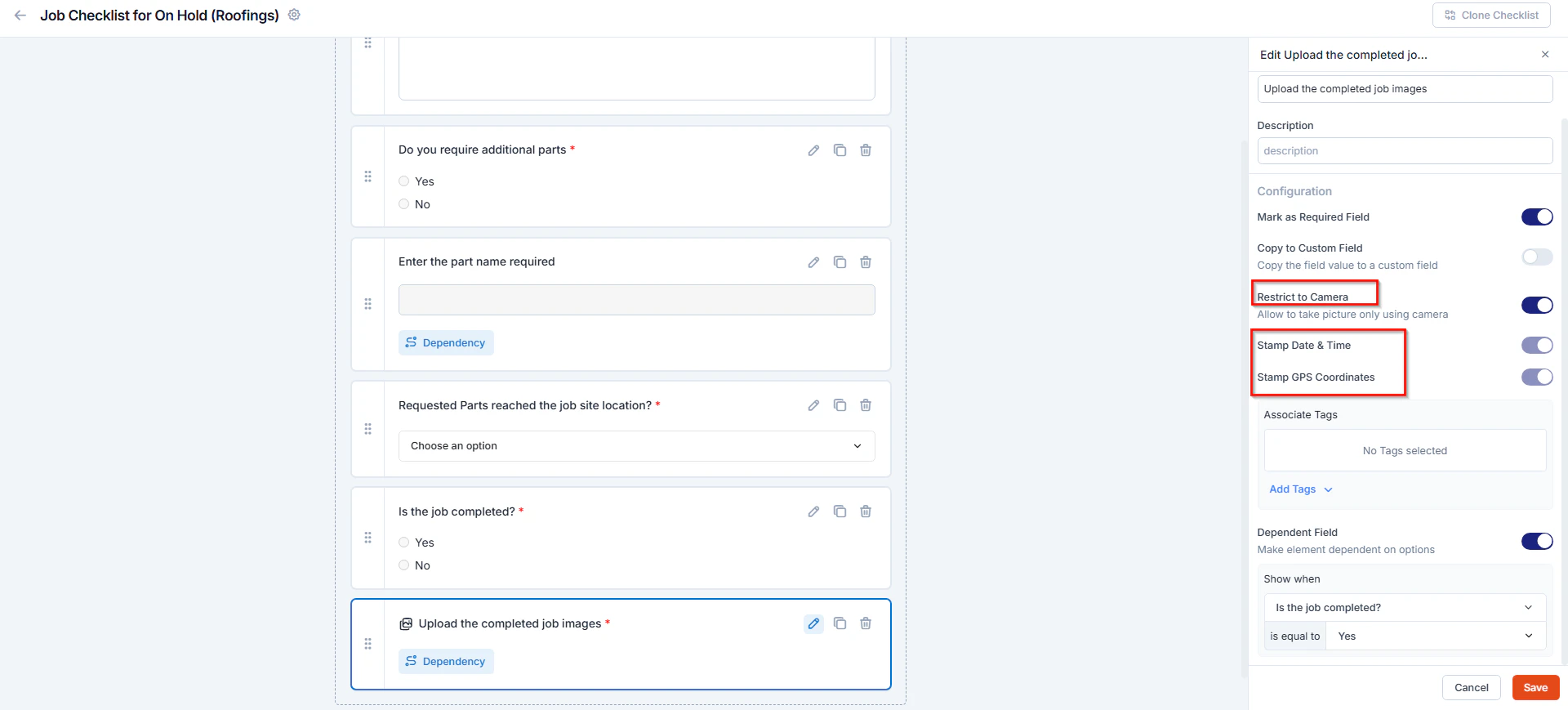
For **Media fields** (Single Image and Multi Images), you can apply additional validation settings to ensure the authenticity and reliability of the photos submitted from the field.
**Navigation**: Go to the **Media field category** and select **Single Image** or **Multi Images** to configure the field.
**1. Restrict to Camera**
Prevents technicians from uploading existing or gallery images, allowing only live photos captured directly from the mobile camera.
**To configure:**
1. Drag and drop a **Single Image** or **Multi Images** field.
2. In the **Configuration** section, toggle **Restrict to Camera** ON.
3. Click **Save** to apply.
> **Example:** When a technician must upload an image of an installed part, *Restrict to Camera* ensures it’s captured live from the site.
**2. Stamp Date & Time and Stamp GPS Coordinates**
These options automatically capture the **date, time, and GPS coordinates** when an image is taken or uploaded.\
They help verify when and where the photo was captured, ensuring data authenticity and audit accuracy.
By default, both **Stamp Date & Time** and **Stamp GPS Coordinates** are enabled.\
You can also **associate tags** with the image using the **+Add Tags** button to help categorize or identify photos more efficiently.
> **Example:**\
> When a technician captures an installation photo, the system automatically records the timestamp and GPS coordinates, confirming that the image was taken at the customer’s site during the job.
### B. Media Field Configurations
For **Media fields** (Single Image and Multi Images), you can apply additional validation settings to ensure the authenticity and reliability of the photos submitted from the field.
**Navigation**: Go to the **Media field category** and select **Single Image** or **Multi Images** to configure the field.
**1. Restrict to Camera**
Prevents technicians from uploading existing or gallery images, allowing only live photos captured directly from the mobile camera.
**To configure:**
1. Drag and drop a **Single Image** or **Multi Images** field.
2. In the **Configuration** section, toggle **Restrict to Camera** ON.
3. Click **Save** to apply.
> **Example:** When a technician must upload an image of an installed part, *Restrict to Camera* ensures it’s captured live from the site.
**2. Stamp Date & Time and Stamp GPS Coordinates**
These options automatically capture the **date, time, and GPS coordinates** when an image is taken or uploaded.\
They help verify when and where the photo was captured, ensuring data authenticity and audit accuracy.
By default, both **Stamp Date & Time** and **Stamp GPS Coordinates** are enabled.\
You can also **associate tags** with the image using the **+Add Tags** button to help categorize or identify photos more efficiently.
> **Example:**\
> When a technician captures an installation photo, the system automatically records the timestamp and GPS coordinates, confirming that the image was taken at the customer’s site during the job.
 ### C. Misc Field Configurations
For Miscellaneous fields (Lookup, Data Table, and Signature), Zuper provides additional configuration options to help capture reference data, structured records, and approvals efficiently. These settings ensure that field data is validated, traceable, and linked to other Zuper entities when needed.
**Navigation**: Go to the **Misc** field category and select **Lookup**, **Data Table**, or **Signature** to configure the field.
1. **Lookup Field**
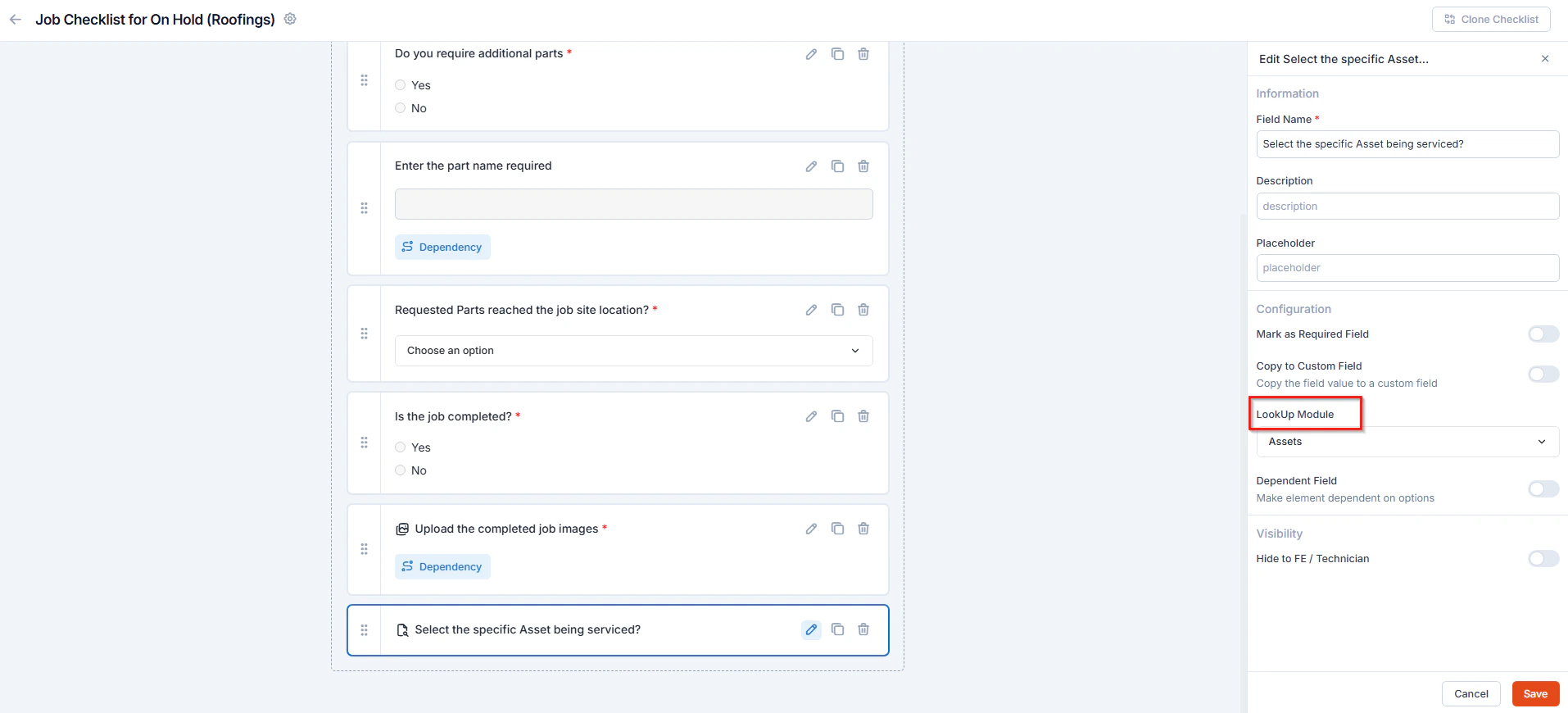
The Lookup field allows you to reference existing records from other Zuper modules, such as **Products**, **Users**, or **Assets**, directly within the checklist.\
This helps technicians quickly link related entities without switching modules.
**To configure:**
1. Drag and drop the **Lookup** field into the checklist.
2. Under the **Lookup module**, choose the module you want to reference (e.g., Products, Products added in job, Users, Assets).
3. Click **Save** to apply.
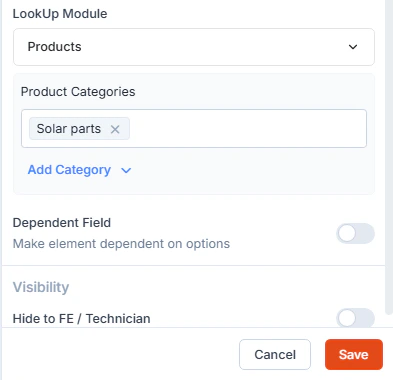
1) For Products: Enables selection from existing product categories.
### C. Misc Field Configurations
For Miscellaneous fields (Lookup, Data Table, and Signature), Zuper provides additional configuration options to help capture reference data, structured records, and approvals efficiently. These settings ensure that field data is validated, traceable, and linked to other Zuper entities when needed.
**Navigation**: Go to the **Misc** field category and select **Lookup**, **Data Table**, or **Signature** to configure the field.
1. **Lookup Field**
The Lookup field allows you to reference existing records from other Zuper modules, such as **Products**, **Users**, or **Assets**, directly within the checklist.\
This helps technicians quickly link related entities without switching modules.
**To configure:**
1. Drag and drop the **Lookup** field into the checklist.
2. Under the **Lookup module**, choose the module you want to reference (e.g., Products, Products added in job, Users, Assets).
3. Click **Save** to apply.
1) For Products: Enables selection from existing product categories.
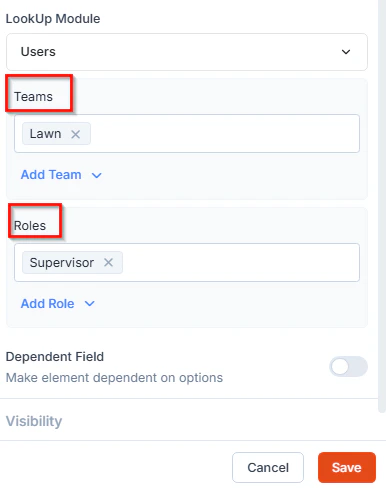
 2. For Users: You can filter results by Teams or Roles for targeted user selection.
 3. For Assets: Allows linking existing assets related to the job or customer.
> **Example:** In an equipment maintenance checklist, a technician can use the Lookup field to select the specific **Asset** being serviced, ensuring accurate tracking of maintenance history.
3. For Assets: Allows linking existing assets related to the job or customer.
> **Example:** In an equipment maintenance checklist, a technician can use the Lookup field to select the specific **Asset** being serviced, ensuring accurate tracking of maintenance history.
 2. **Data table Field**
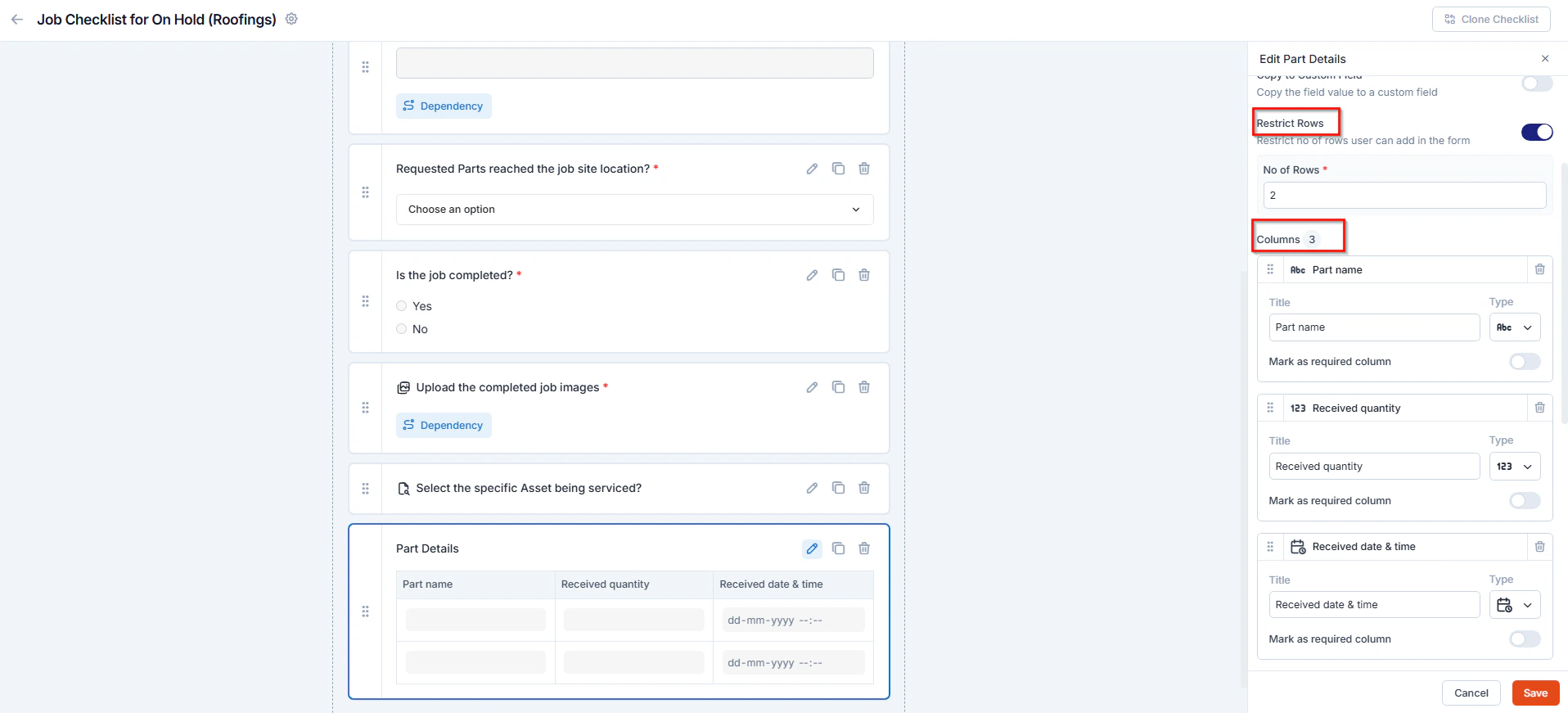
Data table field enables structured data entry in rows and columns, ideal for recording multiple readings or material lists.
To configure:
1. Drag and drop the **Data Table** field into the checklist.
2. Toggle ON **Restrict Rows** to limit the number of rows users can add.
3. Under **Columns**, define each column header (for example, *Part Name*, *Quantity*, *Unit Price*).
4. **Select the appropriate data type** for each column, such as **Text, Number, Date, or Multi-Line**, based on the type of information you want to capture.
* You can also **enable or disable** the **“Mark as Required Column”** option for each column as needed.
5. Under **Default Rows**, add or delete rows as required.
6. Click **Save** to apply.
2. **Data table Field**
Data table field enables structured data entry in rows and columns, ideal for recording multiple readings or material lists.
To configure:
1. Drag and drop the **Data Table** field into the checklist.
2. Toggle ON **Restrict Rows** to limit the number of rows users can add.
3. Under **Columns**, define each column header (for example, *Part Name*, *Quantity*, *Unit Price*).
4. **Select the appropriate data type** for each column, such as **Text, Number, Date, or Multi-Line**, based on the type of information you want to capture.
* You can also **enable or disable** the **“Mark as Required Column”** option for each column as needed.
5. Under **Default Rows**, add or delete rows as required.
6. Click **Save** to apply.
 3. **Signature Field**
The Signature field captures a **digital signature** from the technician or customer to confirm acknowledgment, completion, or approval of the job.\
This ensures compliance and provides a verifiable audit trail for field submissions.
**To configure:**
1. Drag and drop the **Signature** field into the checklist.
2. Specify whether the signature is required from the **Technician** or **Customer**.
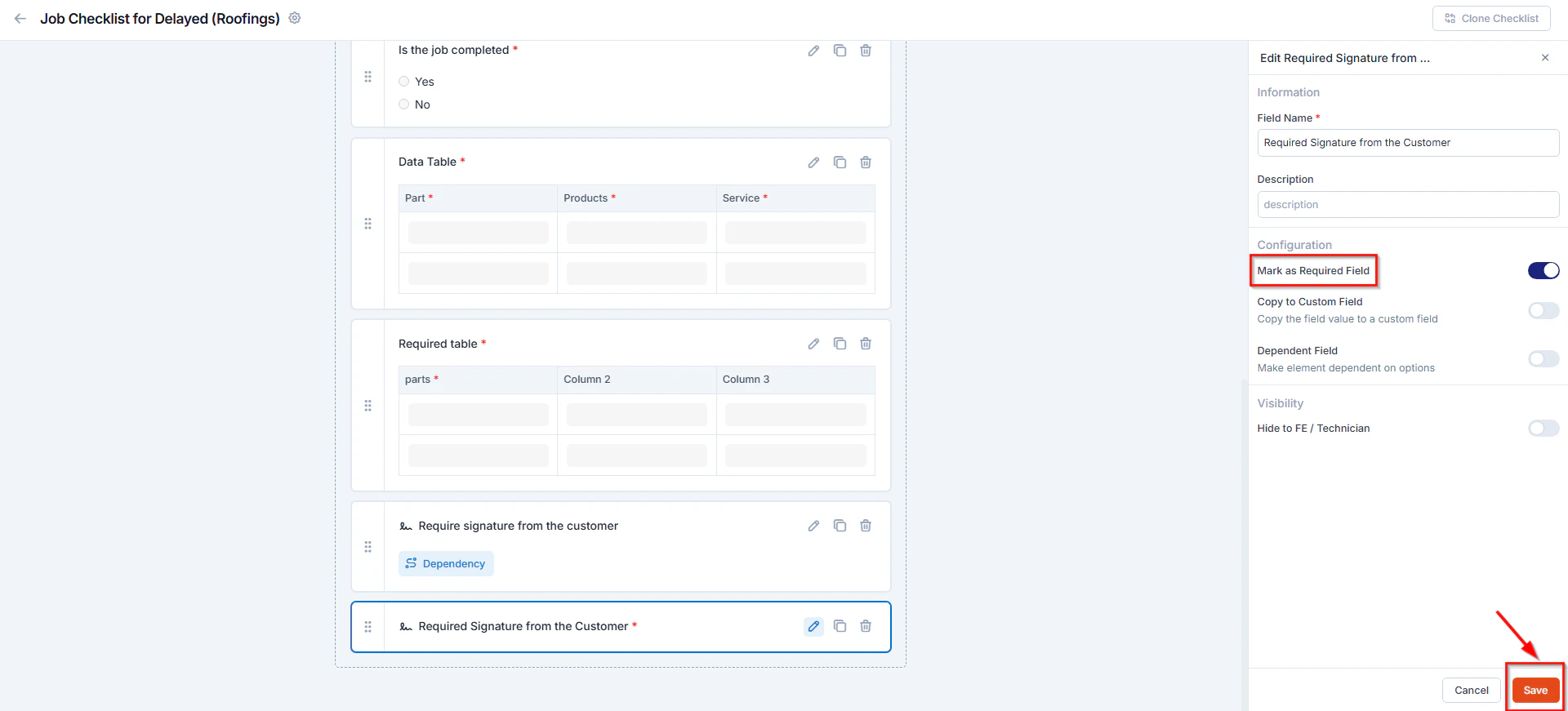
3. Toggle **Mark as Required Field** ON if the signature must be provided before job completion.
4. Click **Save** to apply.
> **Example:** Adding a *Customer Signature* field at the end of a checklist ensures that the customer has reviewed and approved the completed work before closing the job.
3. **Signature Field**
The Signature field captures a **digital signature** from the technician or customer to confirm acknowledgment, completion, or approval of the job.\
This ensures compliance and provides a verifiable audit trail for field submissions.
**To configure:**
1. Drag and drop the **Signature** field into the checklist.
2. Specify whether the signature is required from the **Technician** or **Customer**.
3. Toggle **Mark as Required Field** ON if the signature must be provided before job completion.
4. Click **Save** to apply.
> **Example:** Adding a *Customer Signature* field at the end of a checklist ensures that the customer has reviewed and approved the completed work before closing the job.
 # **Managing Checklists**
Once the job checklist has been created, you can edit, duplicate, or delete job checklists as needed.
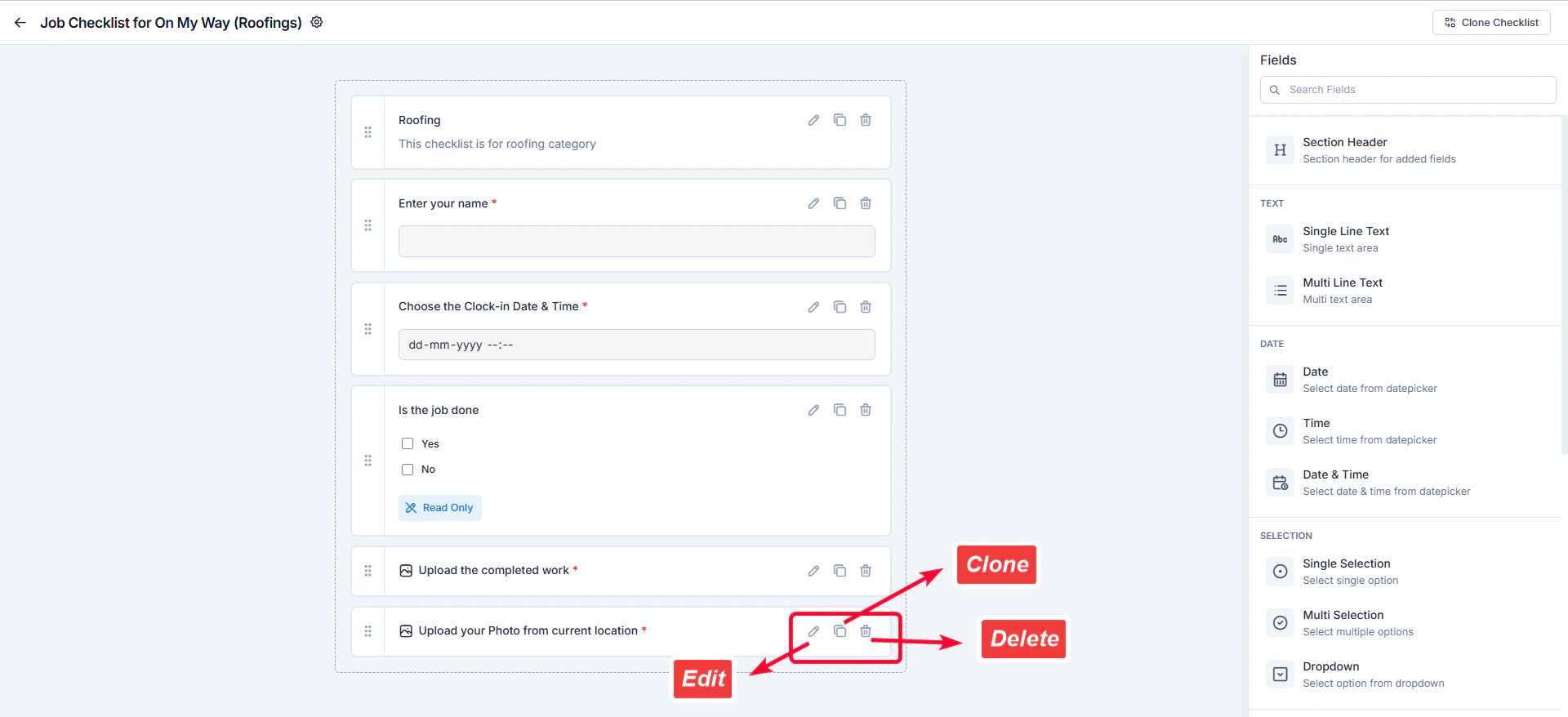
* **Edit a Checklist:**\
Click the **Edit** icon next to the checklist to modify its fields or settings.
* **Duplicate a Checklist:**\
Click the **Clone** icon to create a copy of an existing checklist. Rename and edit it as required.
* **Delete a Checklist:**\
Click the **Delete** icon to remove a checklist that is no longer needed.
# **Managing Checklists**
Once the job checklist has been created, you can edit, duplicate, or delete job checklists as needed.
* **Edit a Checklist:**\
Click the **Edit** icon next to the checklist to modify its fields or settings.
* **Duplicate a Checklist:**\
Click the **Clone** icon to create a copy of an existing checklist. Rename and edit it as required.
* **Delete a Checklist:**\
Click the **Delete** icon to remove a checklist that is no longer needed.
 Once configured, these checklists ensure consistency in field operations, enforce compliance, and simplify job verification for technicians and managers.