> ## Documentation Index
> Fetch the complete documentation index at: https://zuperinc-section23.mintlify.site/llms.txt
> Use this file to discover all available pages before exploring further.
# Configuring Skillsets
Skillsets in Zuper allow businesses to define and manage the skills required for various jobs. Skillset can also be assigned to a User or a Job Category. Assigning skillsets helps in job scheduling by ensuring that the right field technicians with the necessary expertise are assigned to specific tasks.
This guide provides a detailed walkthrough on how to create, edit, and manage skills to streamline job allocation and ensure service quality.
**Navigation**: \_Settings -> Modules -> Jobs -> Skillsets \_
## Navigating to job skillsets
To configure skillsets, follow these steps:
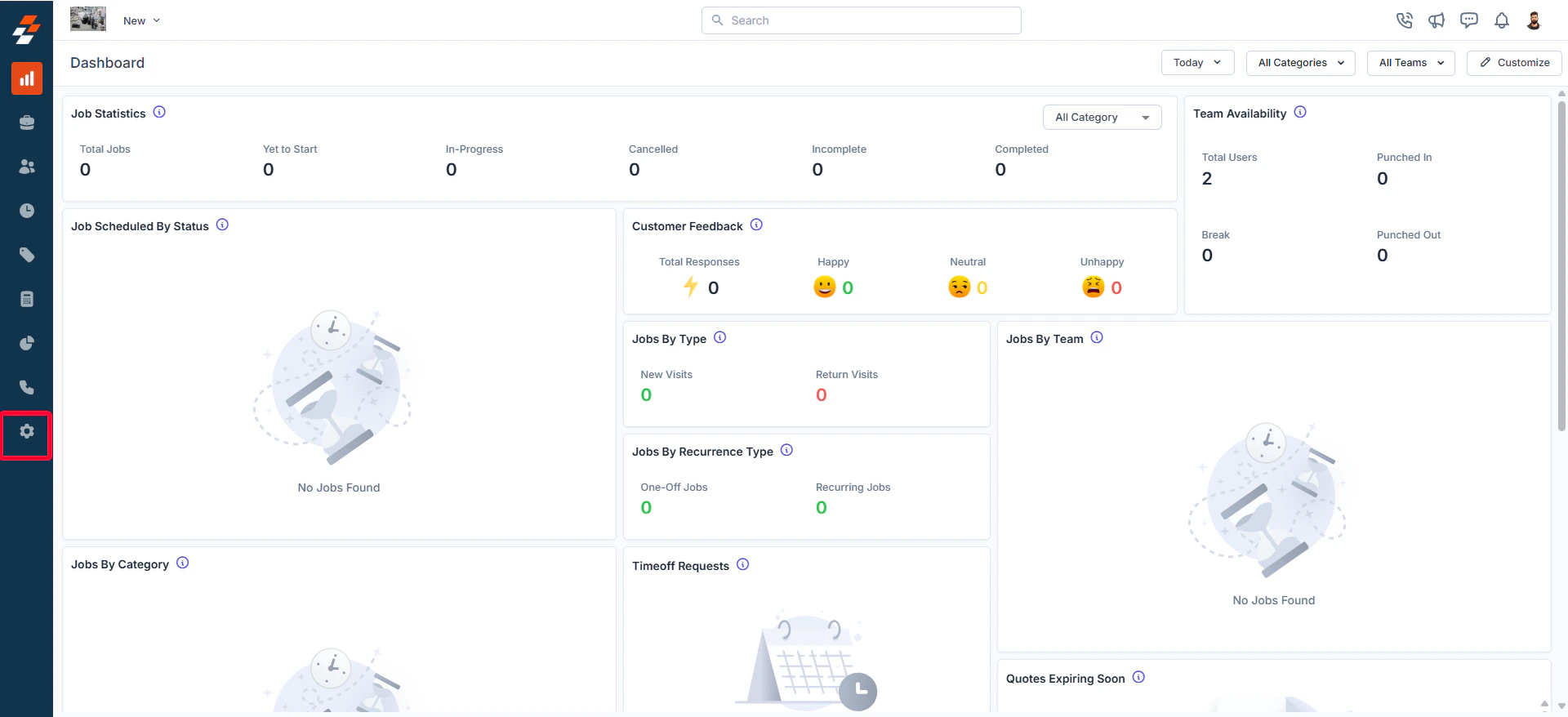
* Select the "**Settings**" module from the left navigation menu.
 * Click "**Modules"** and select "**Jobs"** to open the **Job Settings** page.
* Choose "**Skillsets**."
* Click "**Modules"** and select "**Jobs"** to open the **Job Settings** page.
* Choose "**Skillsets**."
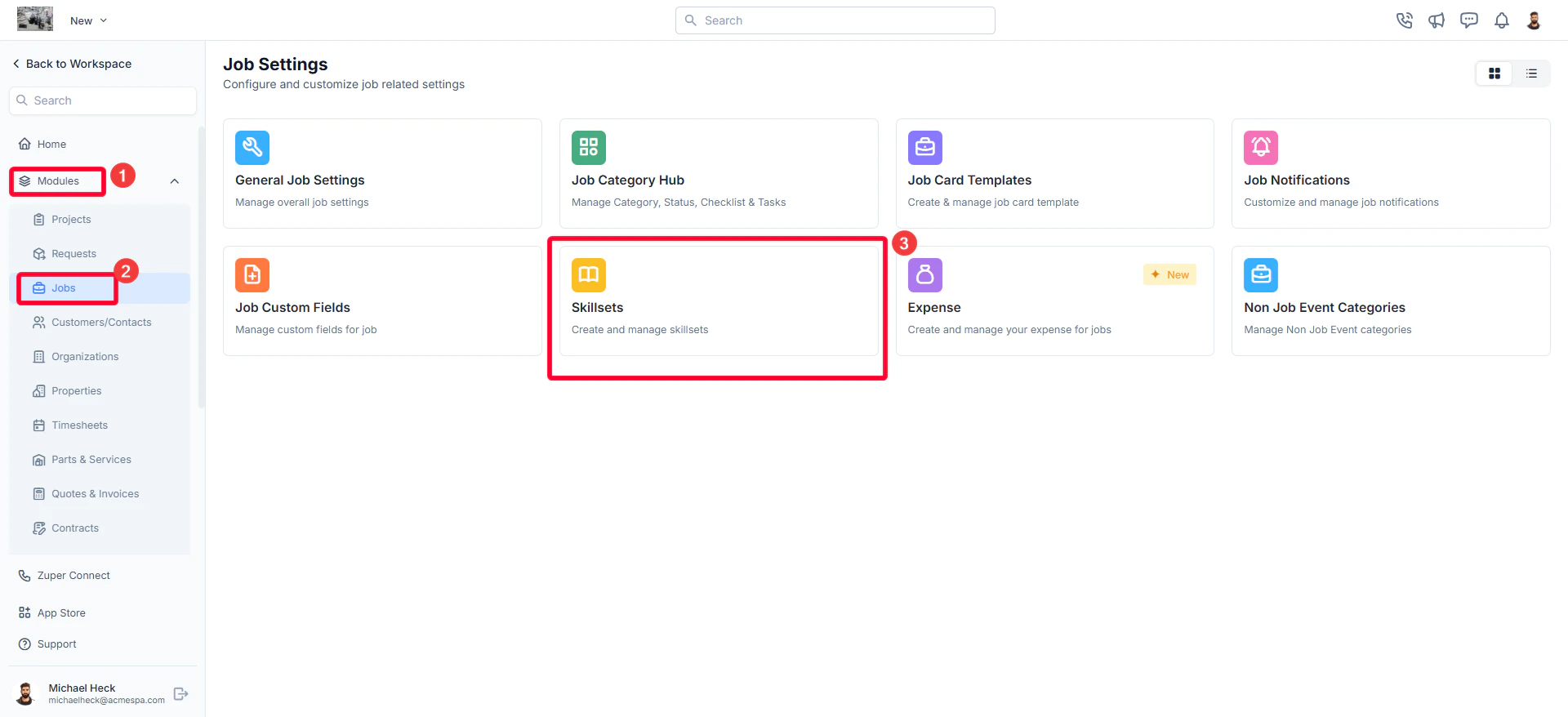 * The skillsets listing page will appear, displaying all existing skills for job and team needs.
## Creating a new skillset
To add a new skill:
* On the skillsets listing page, click "**+ New Skill**."
* The skillsets listing page will appear, displaying all existing skills for job and team needs.
## Creating a new skillset
To add a new skill:
* On the skillsets listing page, click "**+ New Skill**."
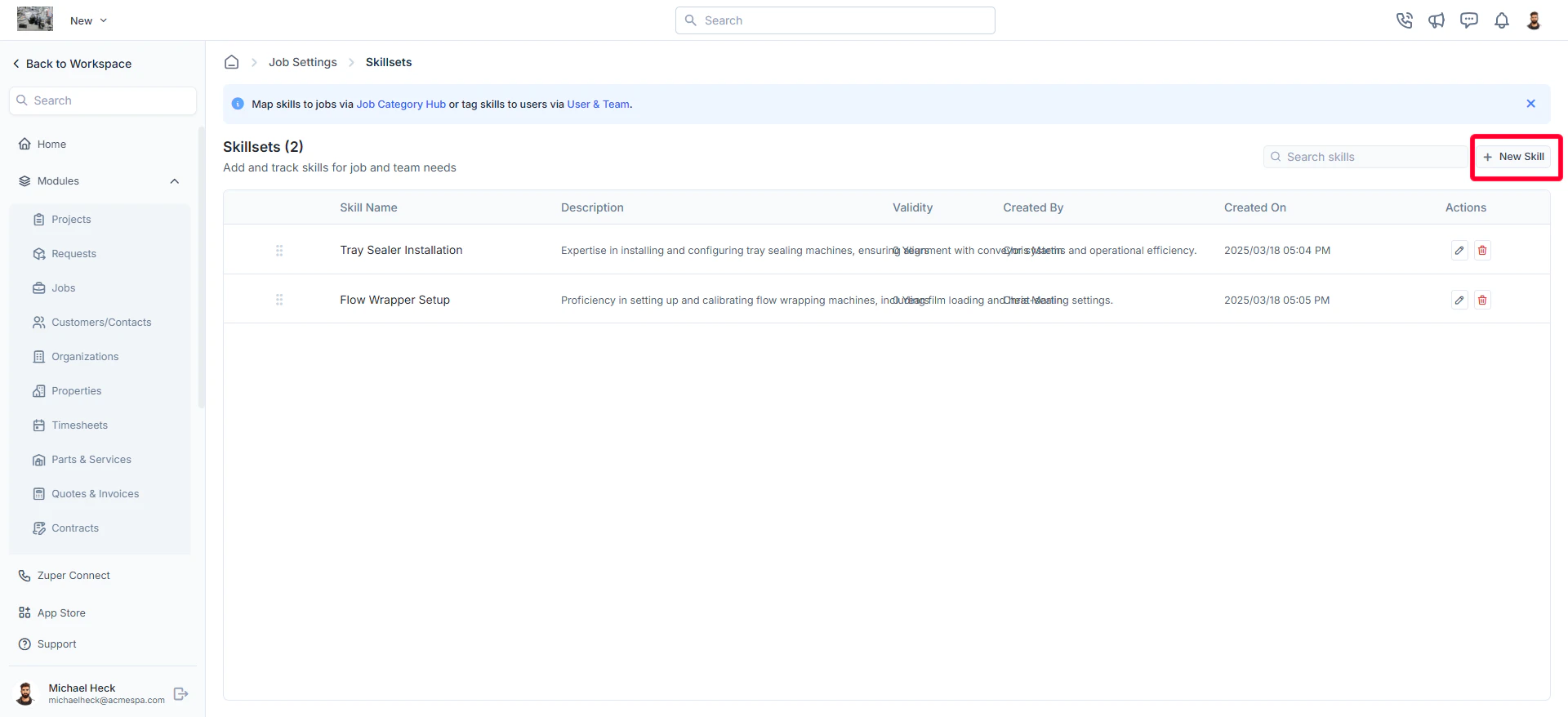 * A **Create New Skill** dialog box will appear.
* Enter the required details:
1. **Skill Name** *(Mandatory)*: Enter a descriptive name for the skill (e.g., Electrical Repair, HVAC Maintenance).
2. **Skill Validity (Years)**: Specify how long the skill remains valid before requiring renewal (e.g., 2 years).
3. **Skill Description** *(Mandatory)*: Provide a brief description of the skill, including its purpose and usage.
* Click "**Create"** to save the new skill.
* A **Create New Skill** dialog box will appear.
* Enter the required details:
1. **Skill Name** *(Mandatory)*: Enter a descriptive name for the skill (e.g., Electrical Repair, HVAC Maintenance).
2. **Skill Validity (Years)**: Specify how long the skill remains valid before requiring renewal (e.g., 2 years).
3. **Skill Description** *(Mandatory)*: Provide a brief description of the skill, including its purpose and usage.
* Click "**Create"** to save the new skill.
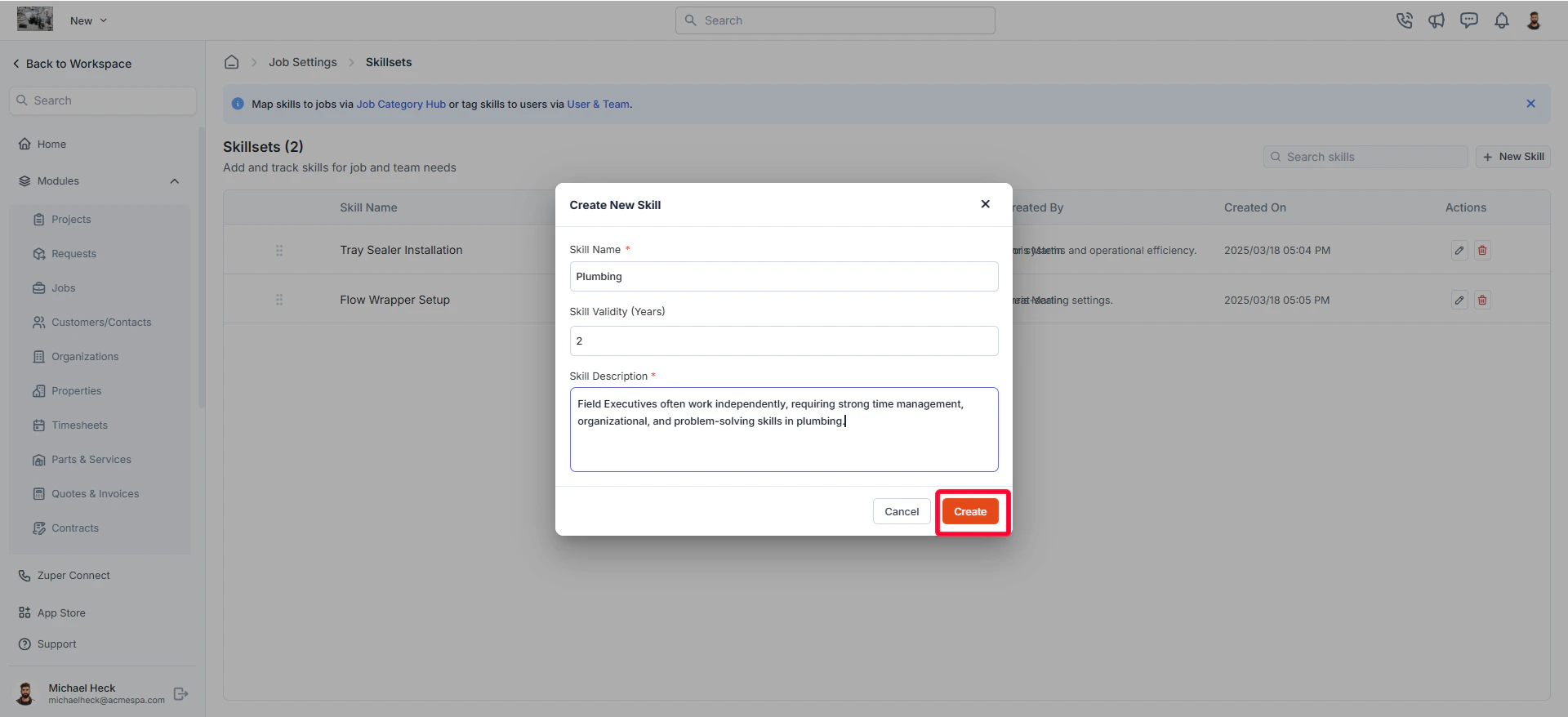 Once created, the skill will appear in the listing page with details such as:
1. **Skill Name**
2. **Skill Description**
3. **Skill Validity**
4. **Created By** (User who created the skill)
5. **Created On** (Date & time of creation)
## Editing a skillset
To modify an existing skill:
* On the skillsets listing page, click the pencil icon next to the skill you want to update.
Once created, the skill will appear in the listing page with details such as:
1. **Skill Name**
2. **Skill Description**
3. **Skill Validity**
4. **Created By** (User who created the skill)
5. **Created On** (Date & time of creation)
## Editing a skillset
To modify an existing skill:
* On the skillsets listing page, click the pencil icon next to the skill you want to update.
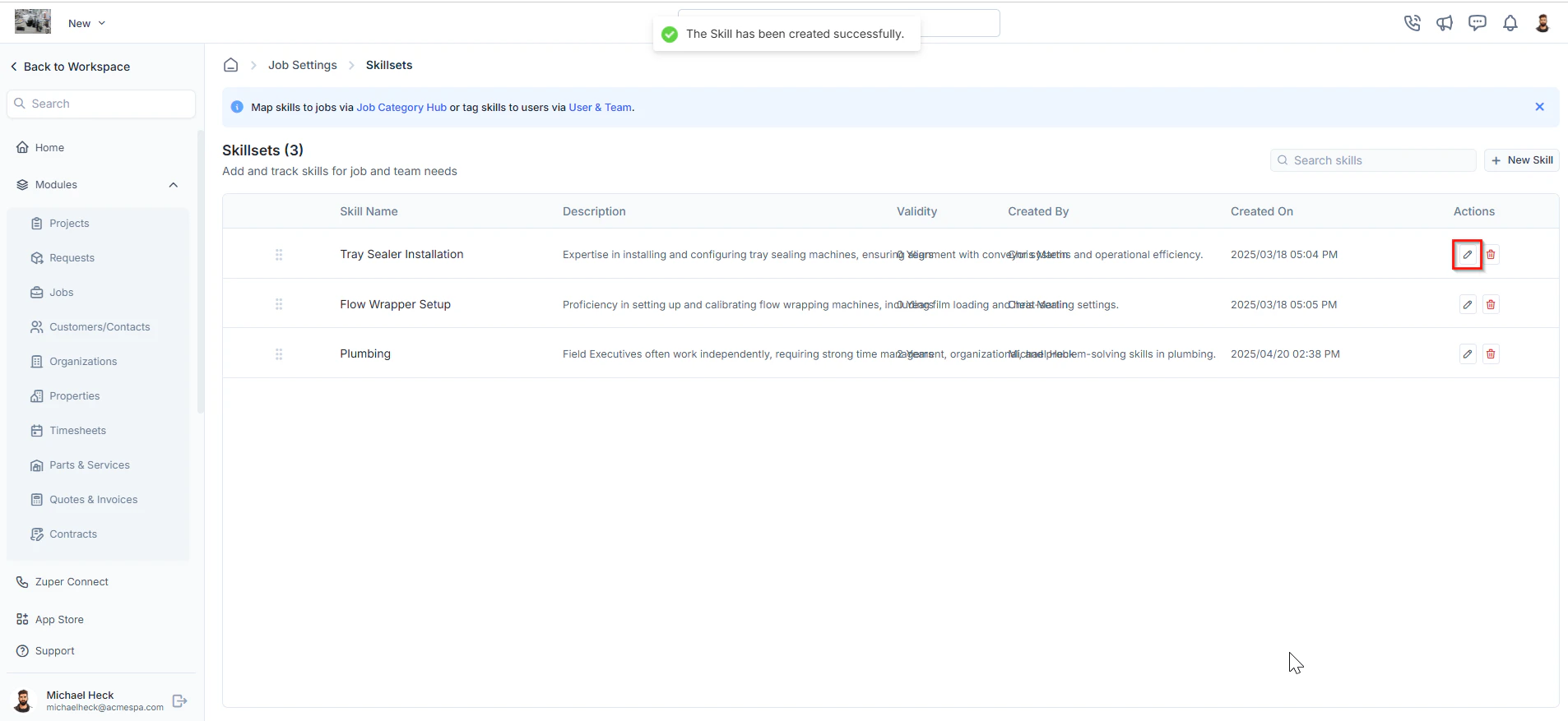 * The **Edit Skill** dialog box will open.
* Make the necessary changes.
* Click "**Update"** to save the changes.
## Deleting a skillset
To remove a skill permanently:
* On the skillsets listing page, click the delete icon next to the skill you want to remove.
* The **Edit Skill** dialog box will open.
* Make the necessary changes.
* Click "**Update"** to save the changes.
## Deleting a skillset
To remove a skill permanently:
* On the skillsets listing page, click the delete icon next to the skill you want to remove.
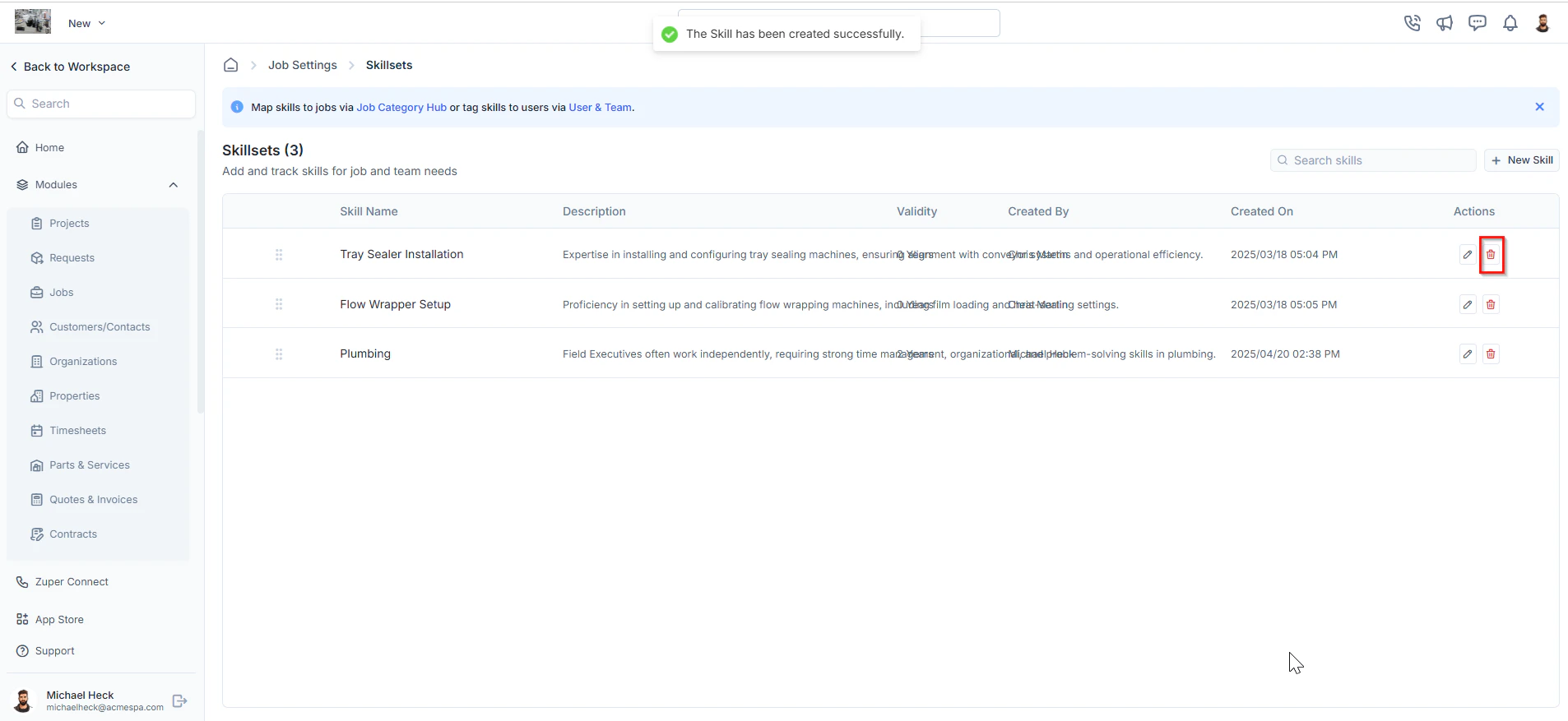 * A confirmation dialog box will appear.
* Click "**Delete"** to confirm and permanently remove the skill.
* A confirmation dialog box will appear.
* Click "**Delete"** to confirm and permanently remove the skill.