> ## Documentation Index
> Fetch the complete documentation index at: https://zuperinc-section23.mintlify.site/llms.txt
> Use this file to discover all available pages before exploring further.
# Configuring Measurements
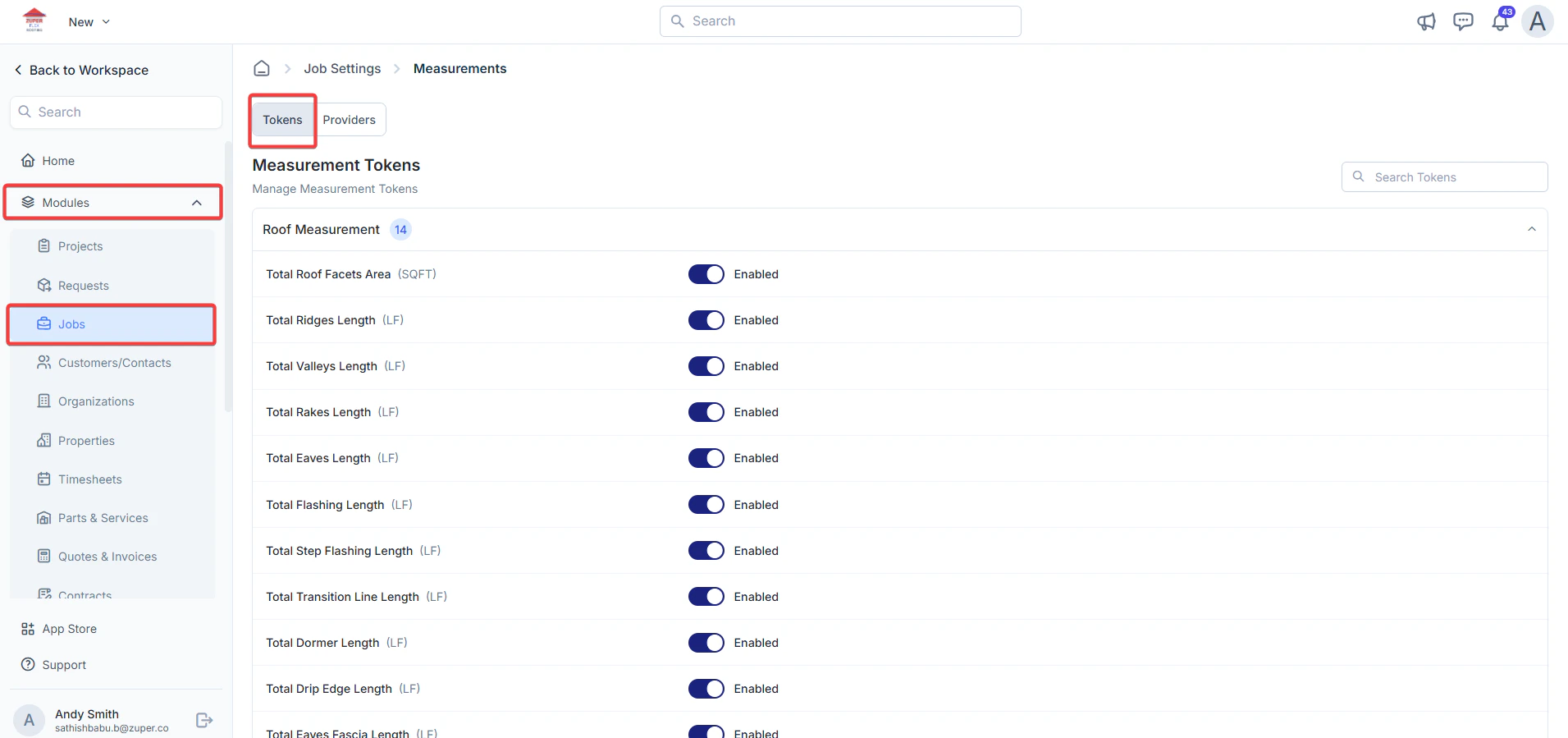
Measurement tokens define the specific data points (e.g., lengths, areas) that Zuper pulls from external providers. You can enable or disable these to tailor what appears in your job details page.
1. Go to **Job Settings > Measurements > Tokens**.
2. Under **Measurement Tokens**, you'll see a list categorized by type (e.g., Roof Measurement).
3. For each token, toggle the switch to enable or disable the applicable tokens.
4. Search for specific tokens using the search bar.
5. Changes are saved automatically.
 ## Custom Tokens
Measurement tokens in Zuper allow you to track and quantify job-specific items, such as materials or dimensions, directly within your job estimates and reports. Custom tokens give you flexibility to tailor these to your business needs, like adding roofing-specific items.
### Adding custom category
1. Go to **Job Settings > Measurements > Tokens**.
2. Under **Tokens**, click **+Add Category**.
## Custom Tokens
Measurement tokens in Zuper allow you to track and quantify job-specific items, such as materials or dimensions, directly within your job estimates and reports. Custom tokens give you flexibility to tailor these to your business needs, like adding roofing-specific items.
### Adding custom category
1. Go to **Job Settings > Measurements > Tokens**.
2. Under **Tokens**, click **+Add Category**.
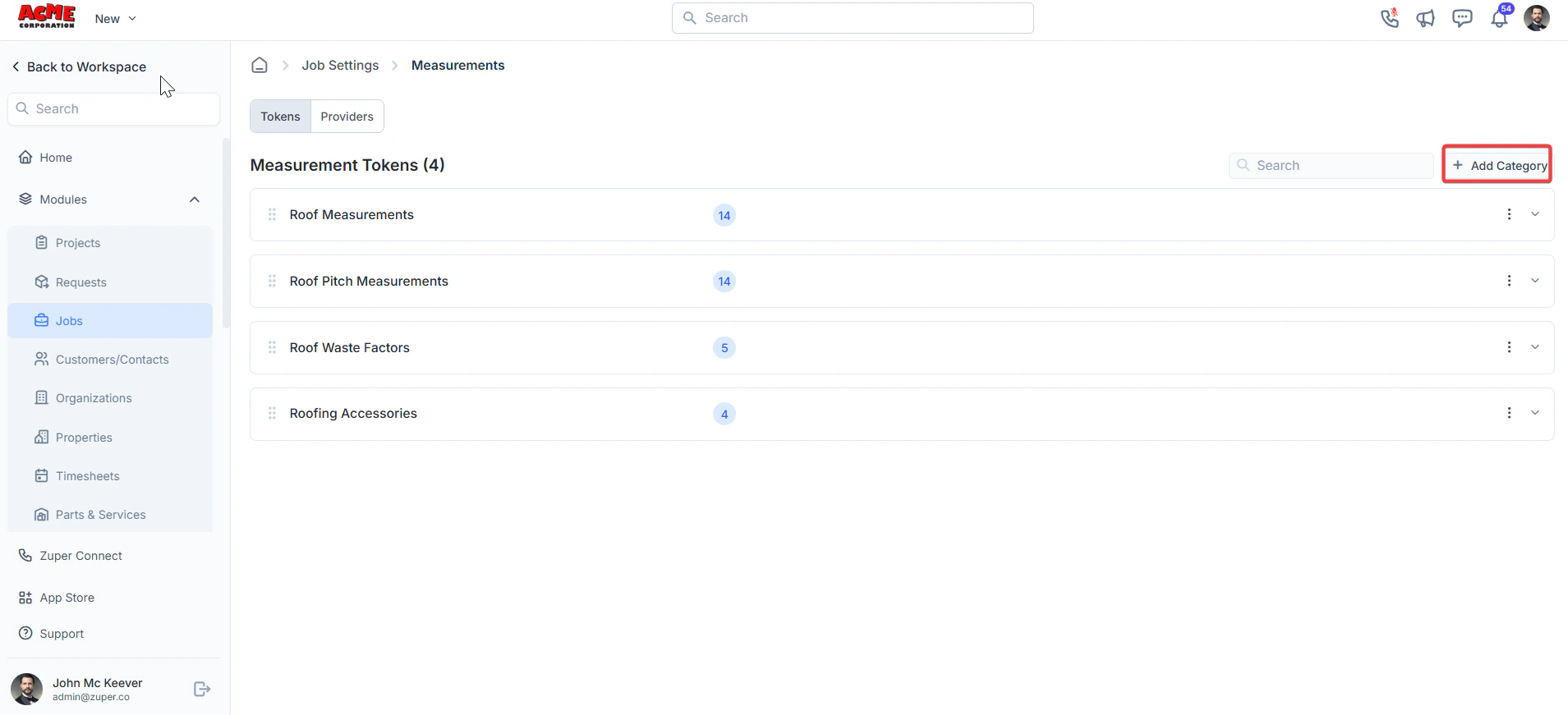 3. Enter the **Category Name**. Click **Create** to create the new category.
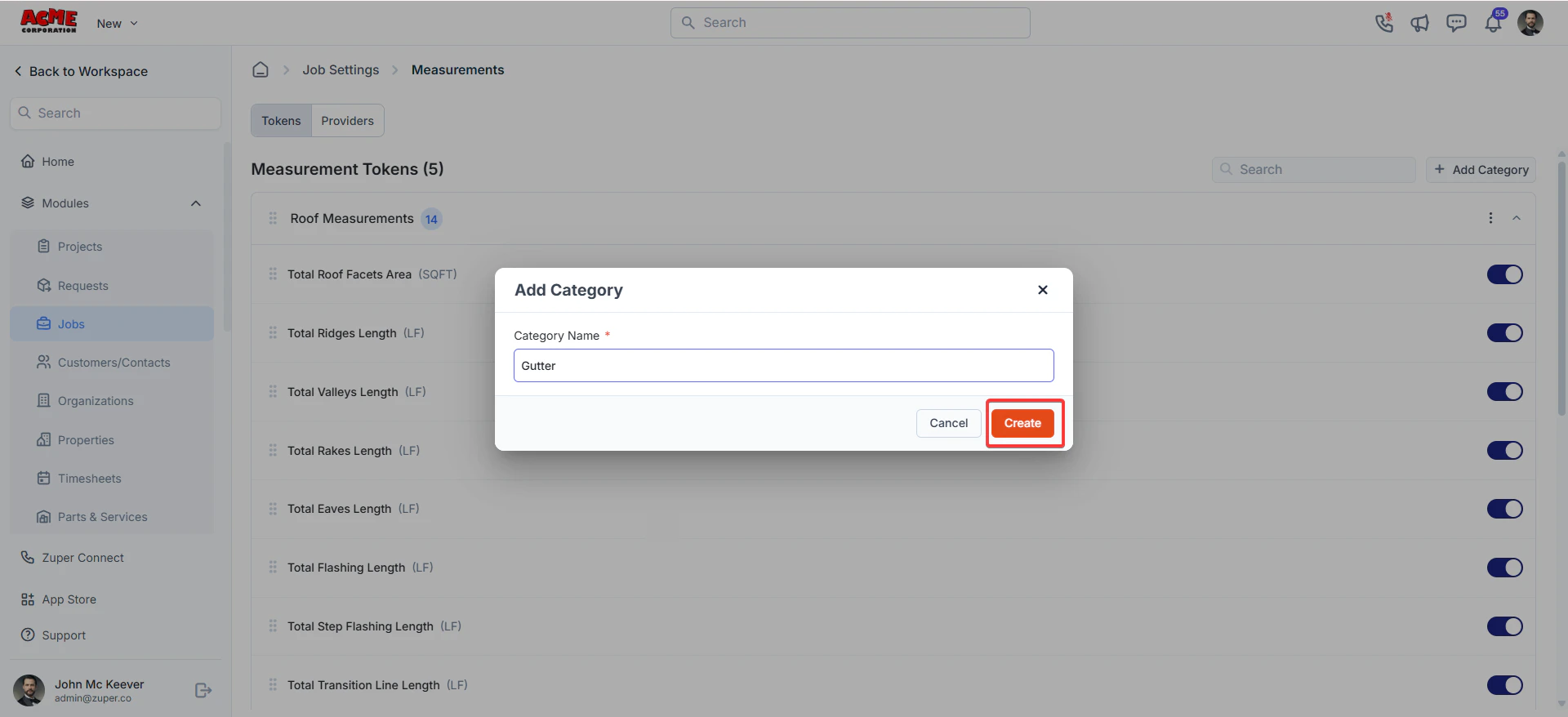 4. The category is created successfully.
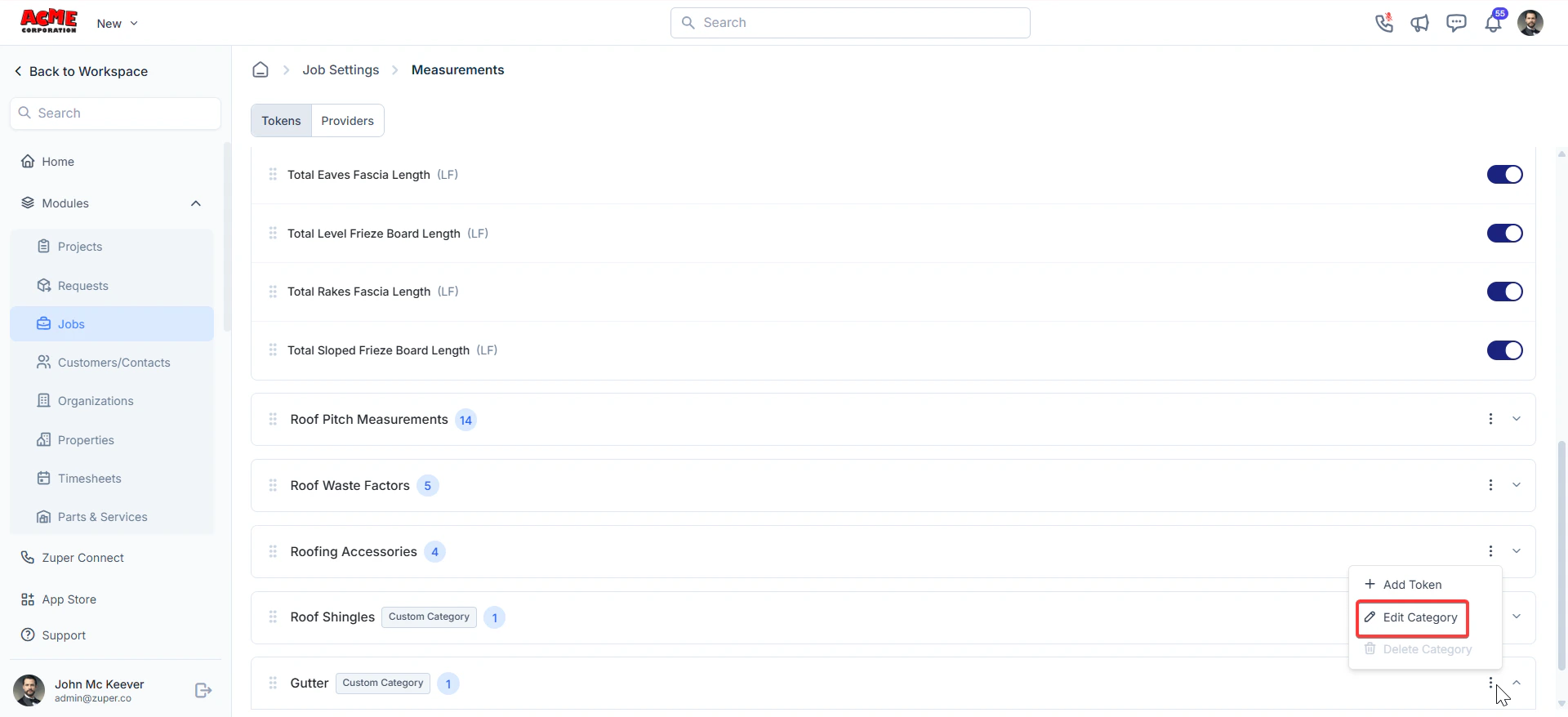
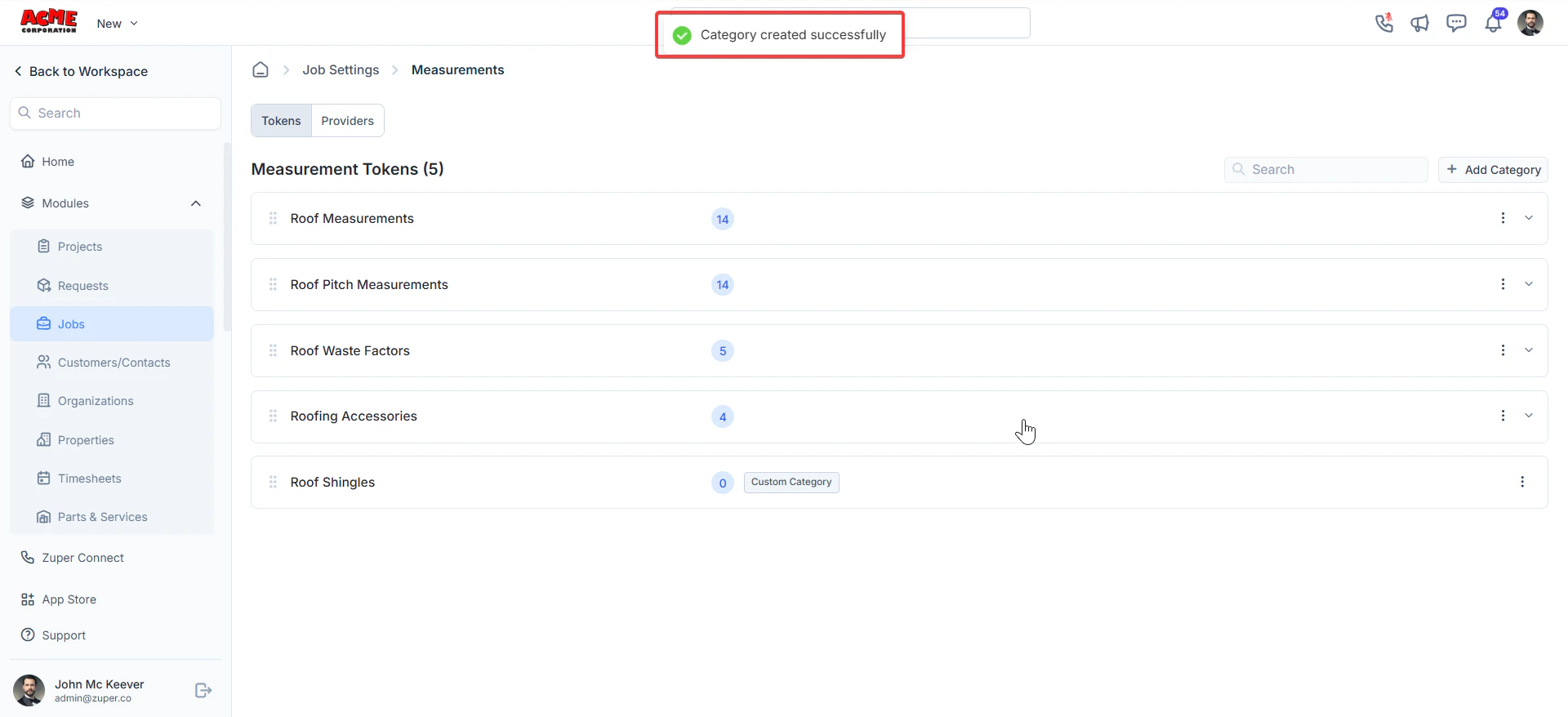 5. Click the "**Ellipsis**" icon and click **Edit Category** to modify the custom token details.
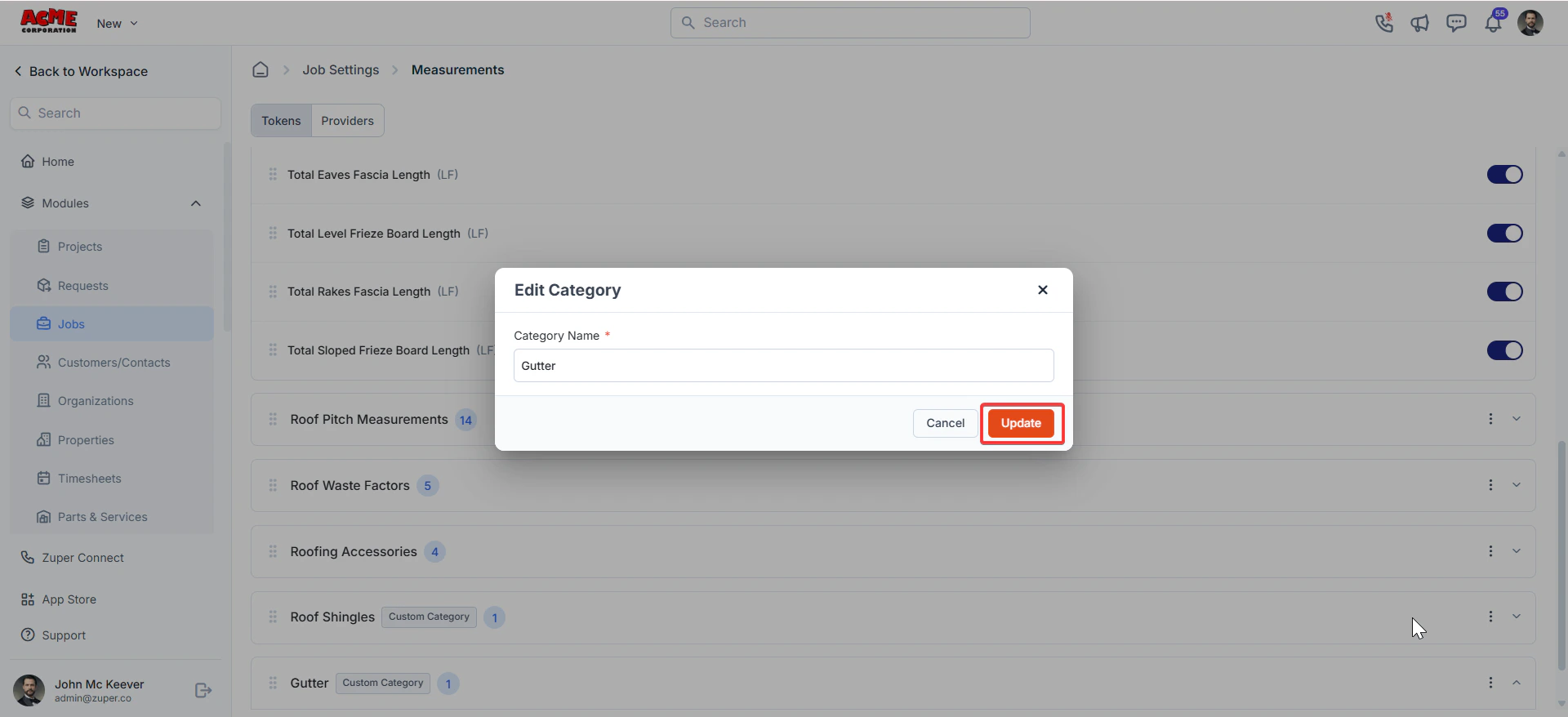
 6. Modify a category name and click **Update**.
 Note: The Delete category option is available only when no custom tokens exist.
### Adding custom tokens
The custom tokens for measurements are customizable data fields used to track and quantify specific job-related items, such as materials, dimensions.
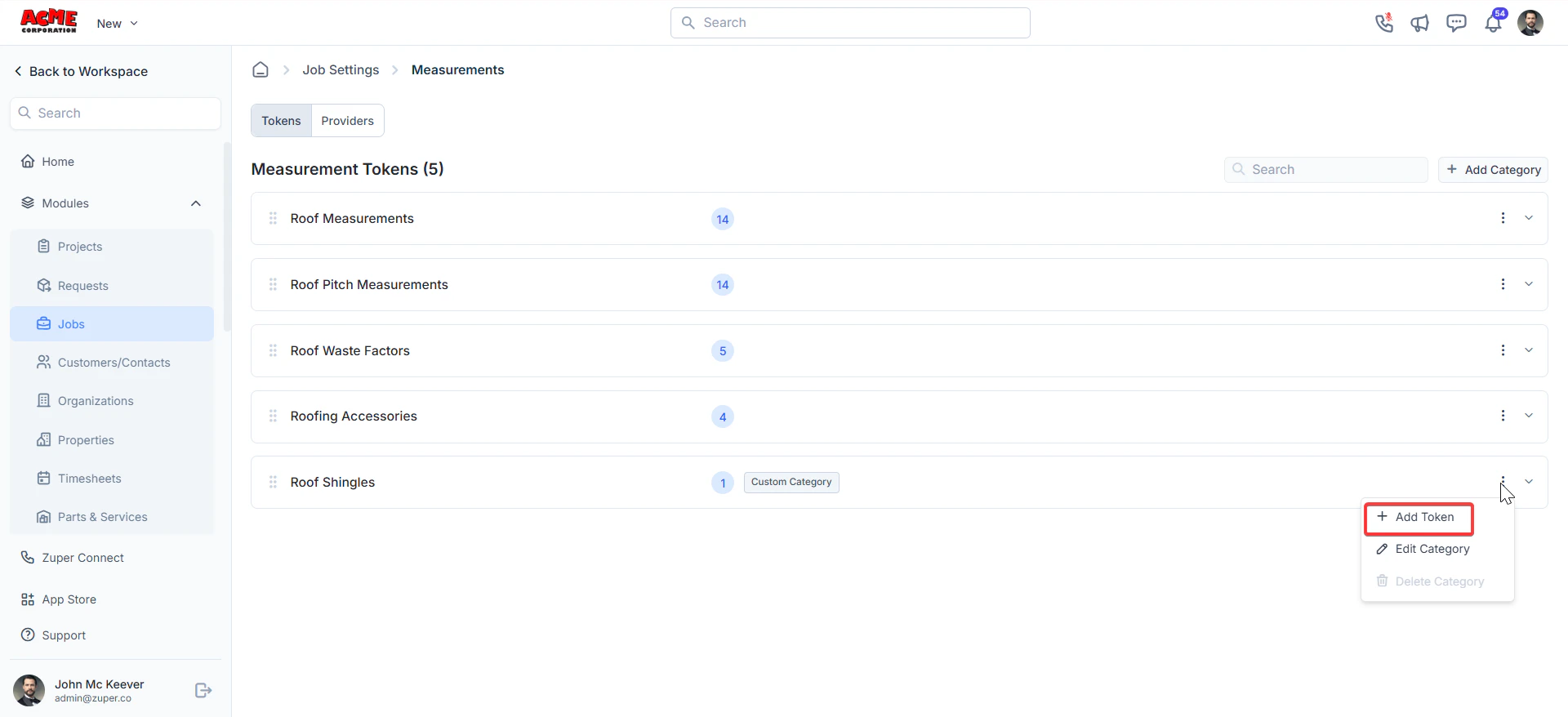
1. Click the "**Ellipsis**" icon and click **+Add Token** to add the custom measurement tokens.
Note: The Delete category option is available only when no custom tokens exist.
### Adding custom tokens
The custom tokens for measurements are customizable data fields used to track and quantify specific job-related items, such as materials, dimensions.
1. Click the "**Ellipsis**" icon and click **+Add Token** to add the custom measurement tokens.
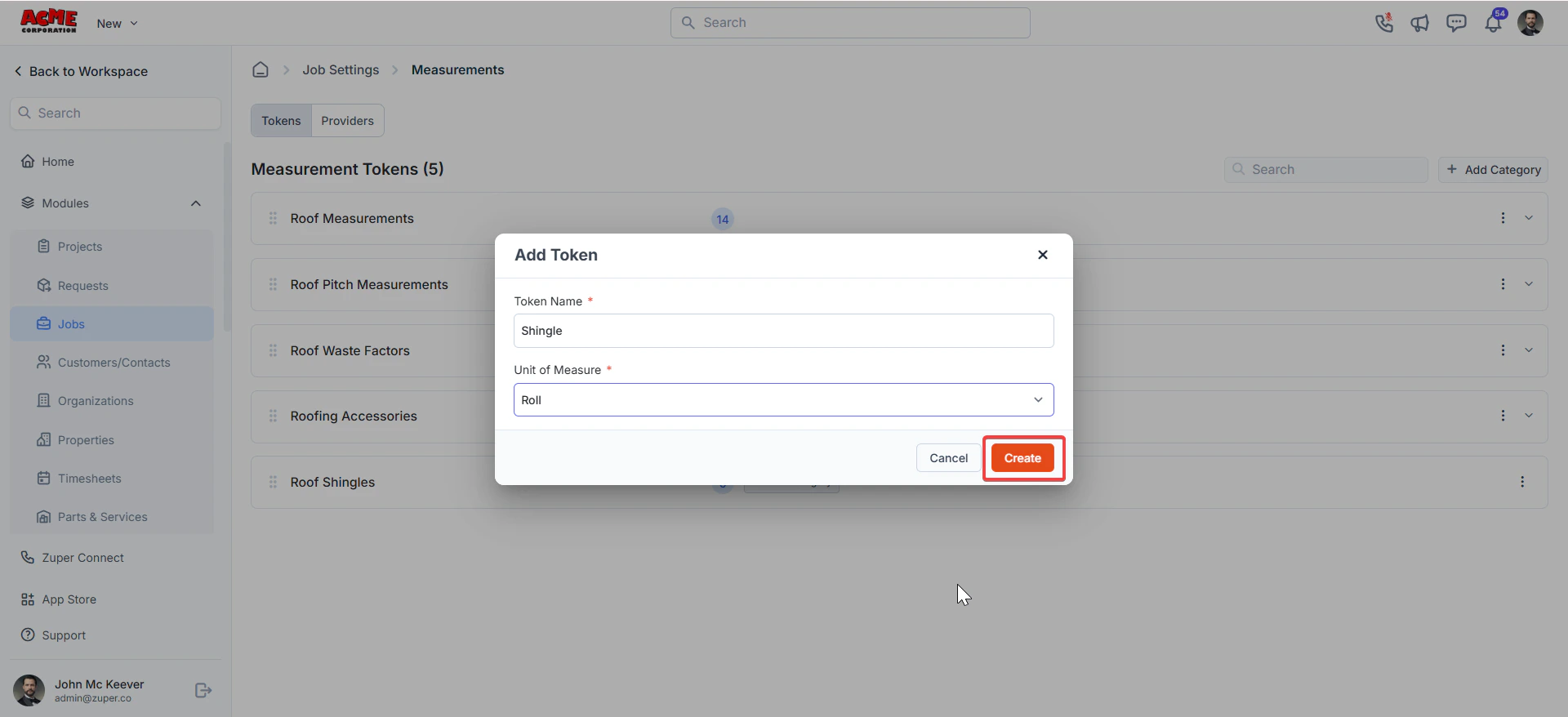
 2. An "**Add Token**" dialog box appears. Enter the token name and unit of measure. Click **Create** to create the custom token.
 3. The token is created successfully.
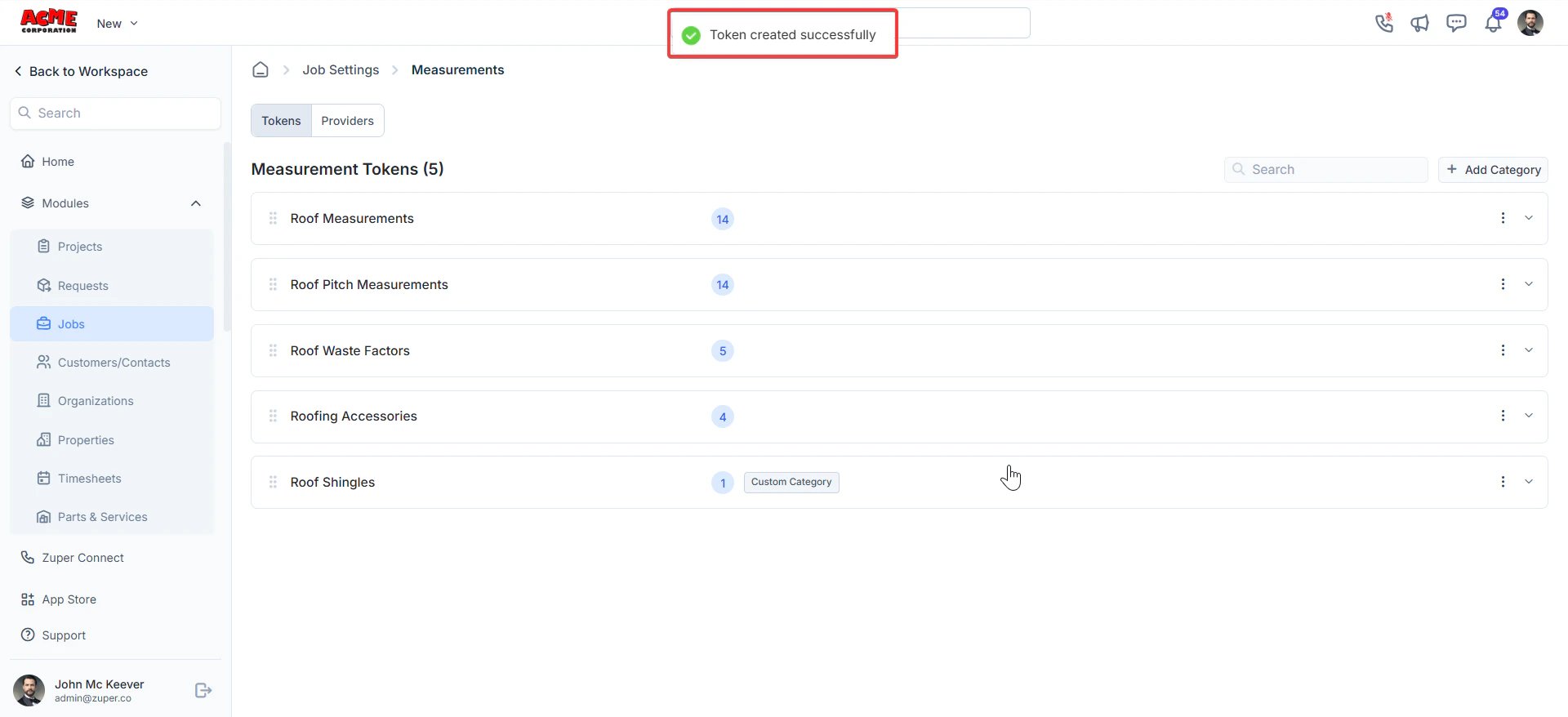 4. Click the "**Ellipsis**" icon and click the "**Edit**" icon to modify the token details.
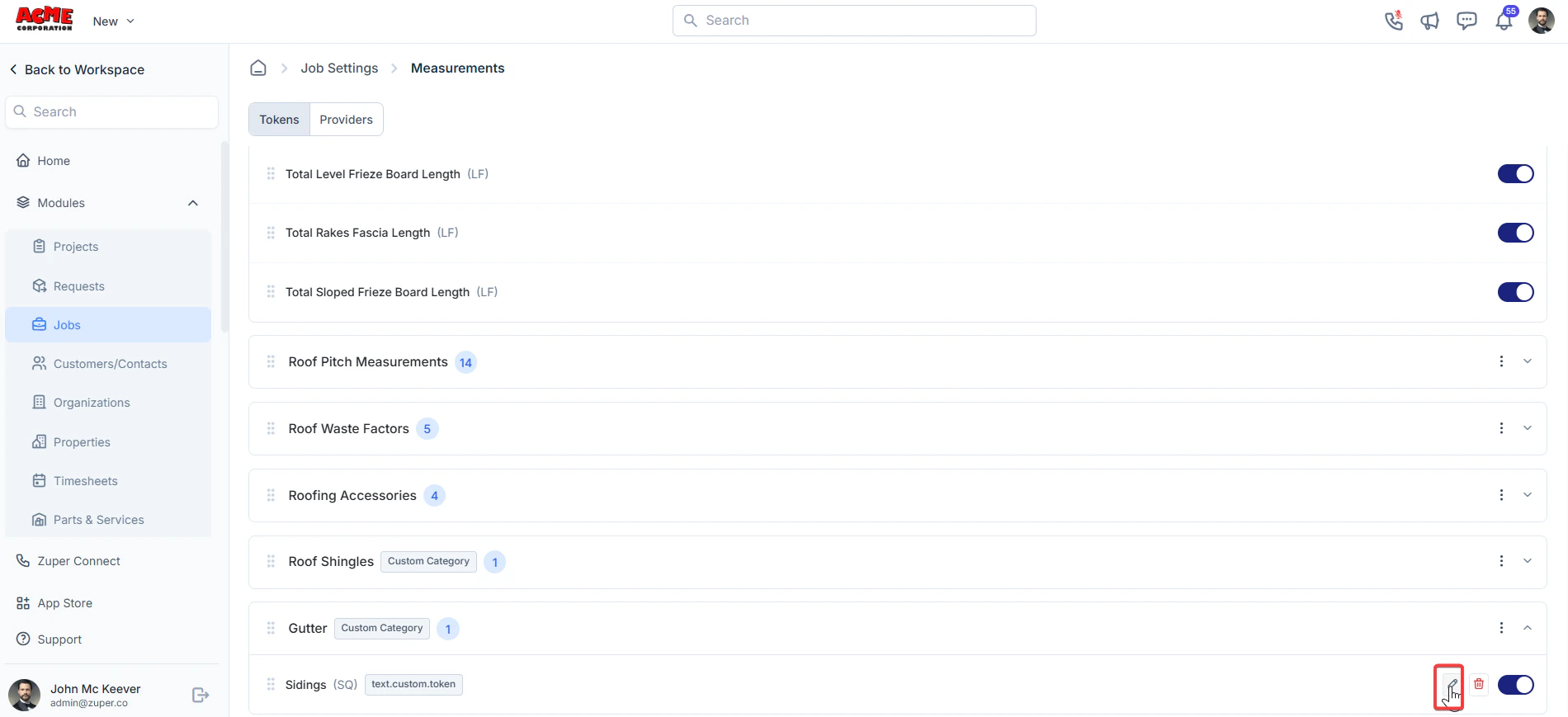 5. Click the "**Delete**" icon to delete the token.
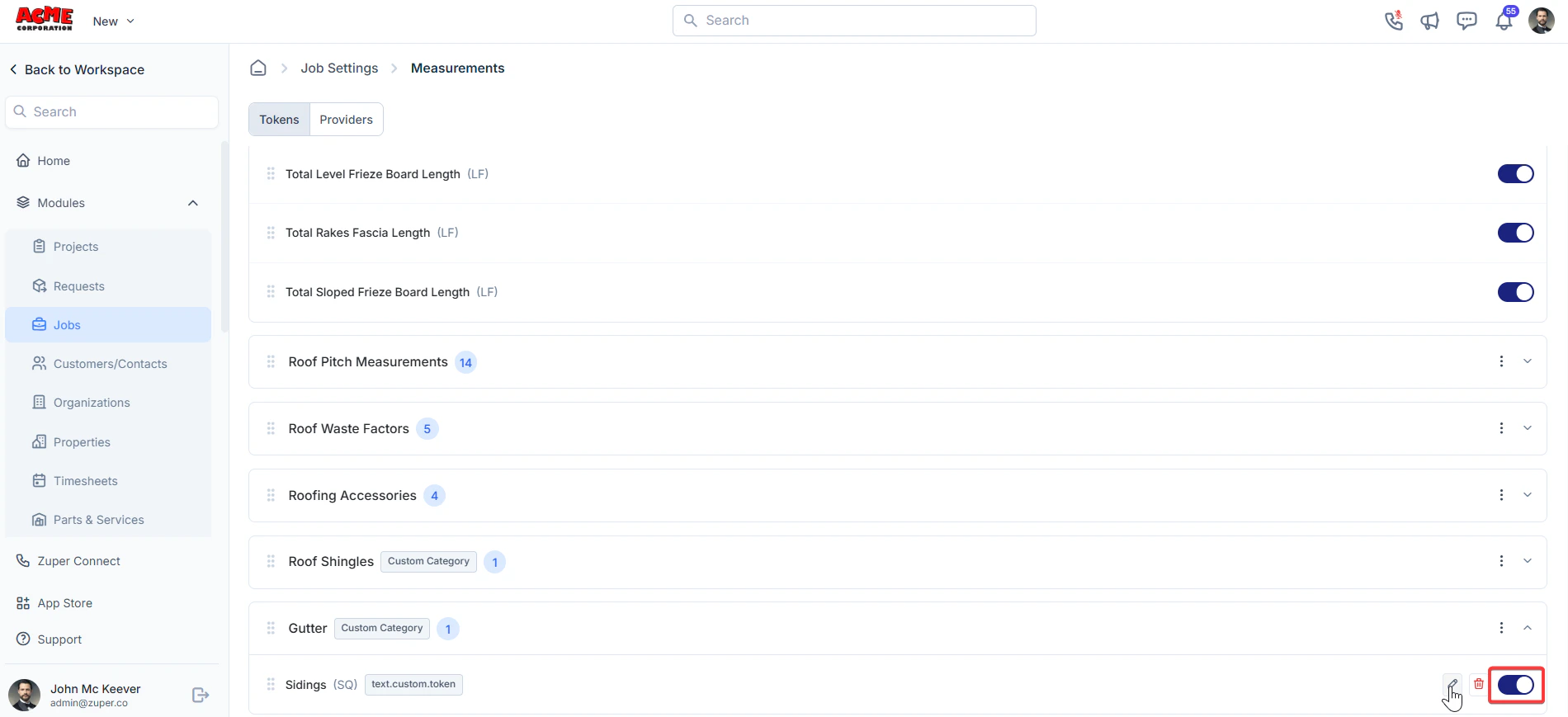
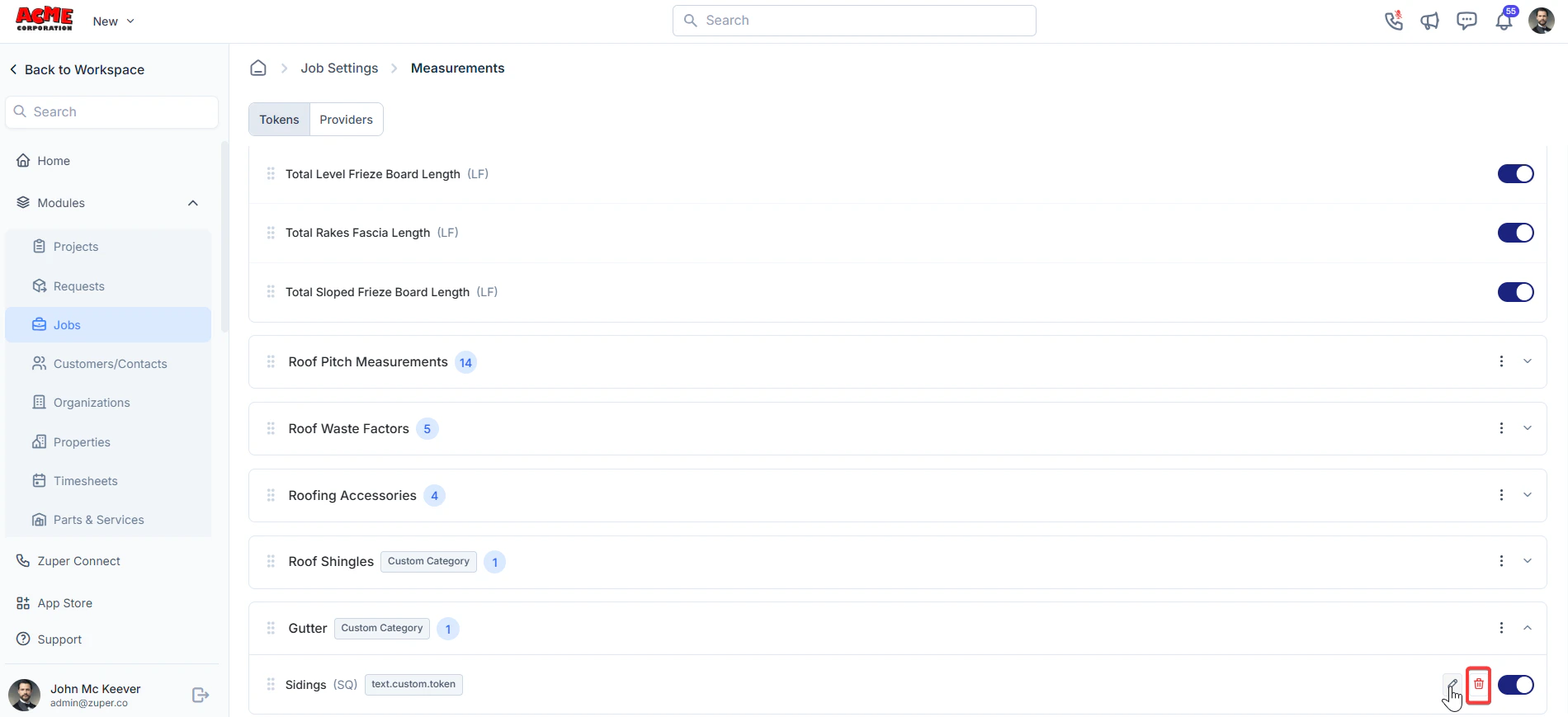 6. You can "**Toggle off**" to disable the token.
 ## **Connecting to Measurement Providers**
Zuper supports integrations with leading roof measurement services to fetch data like aerial-derived roof specs, 3D visualisations, and high-precision reports.
1. Navigate to **Job Settings > Measurements > Providers**.
2. You'll see a list of available providers: The providers will have a list of measurement providers. Click “**Hover**.”
3. Click “**Connect**” to redirect to the Zuper App Store. Follow the steps to authenticate and link your account.
## **Connecting to Measurement Providers**
Zuper supports integrations with leading roof measurement services to fetch data like aerial-derived roof specs, 3D visualisations, and high-precision reports.
1. Navigate to **Job Settings > Measurements > Providers**.
2. You'll see a list of available providers: The providers will have a list of measurement providers. Click “**Hover**.”
3. Click “**Connect**” to redirect to the Zuper App Store. Follow the steps to authenticate and link your account.
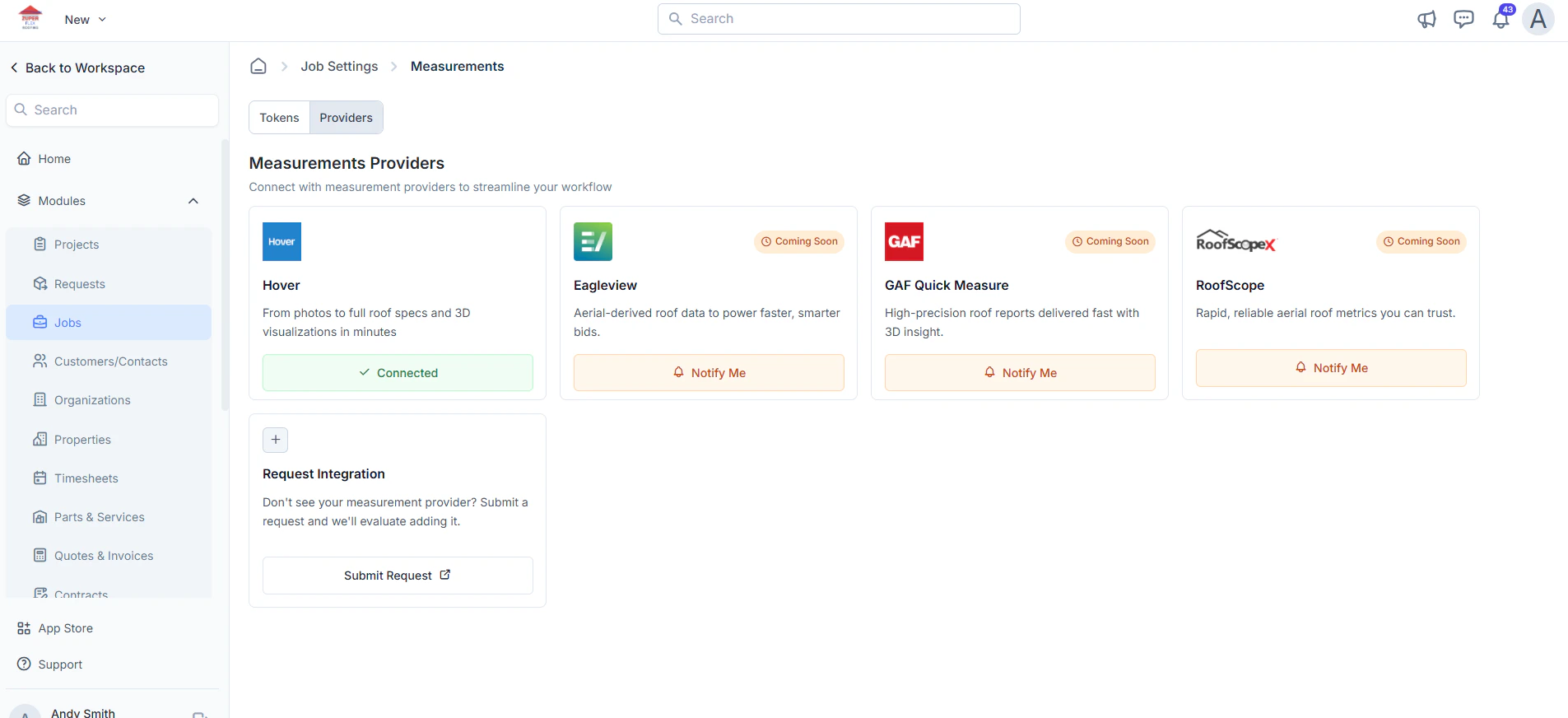 4. Click “**Notify Me**” to get notified when apps from other providers are launched.
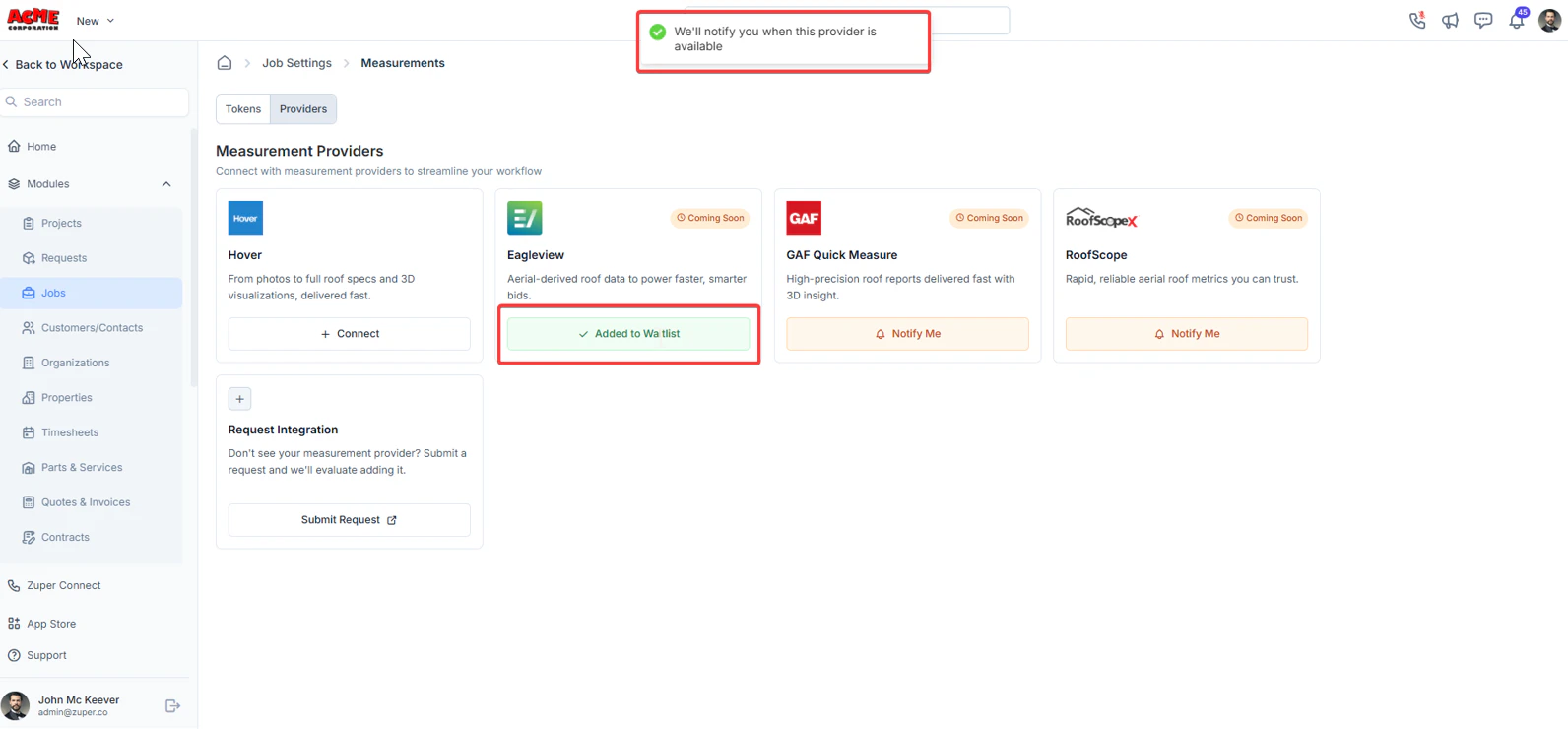 * If your preferred provider isn't listed, scroll to **Request Integration**. To submit the request, you must fill out the form.
* Enter details about the provider.
* Click **Submit Request** for evaluation by the Zuper team.
* If your preferred provider isn't listed, scroll to **Request Integration**. To submit the request, you must fill out the form.
* Enter details about the provider.
* Click **Submit Request** for evaluation by the Zuper team.