> ## Documentation Index
> Fetch the complete documentation index at: https://zuperinc-section23.mintlify.site/llms.txt
> Use this file to discover all available pages before exploring further.
# Configuring Non Job Event
A non-job event is any activity that a field technician or other employees engage in unrelated to a specific job or work order.
**Navigation**: *Settings -> Modules -> Jobs -> Non Job Event Categories*
## Creating a new non-job event
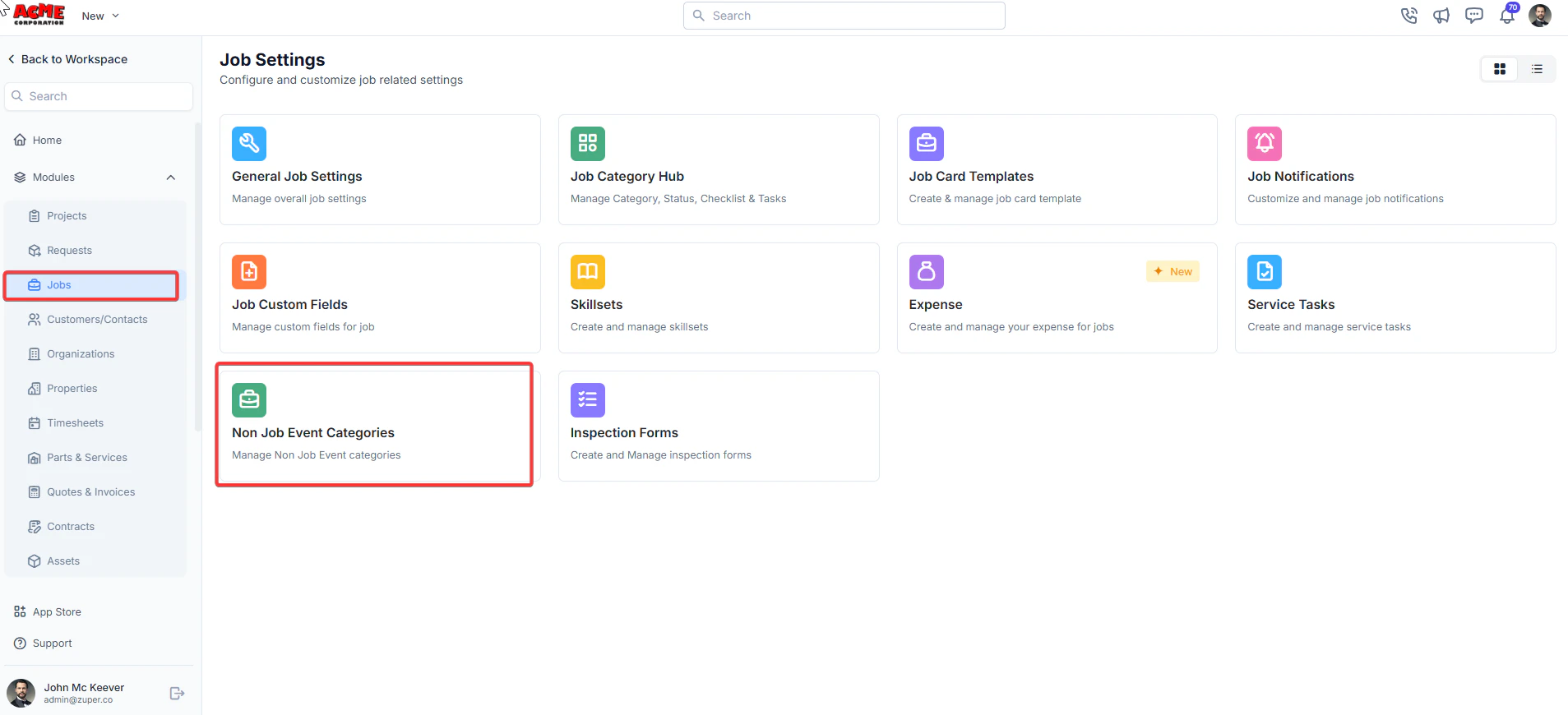
1. Select the “**Settings**” module from the left navigation menu. Under “**Modules**,” choose “**Jobs**,” and select “**Non-Job Event Categories**" on the Job Settings page.
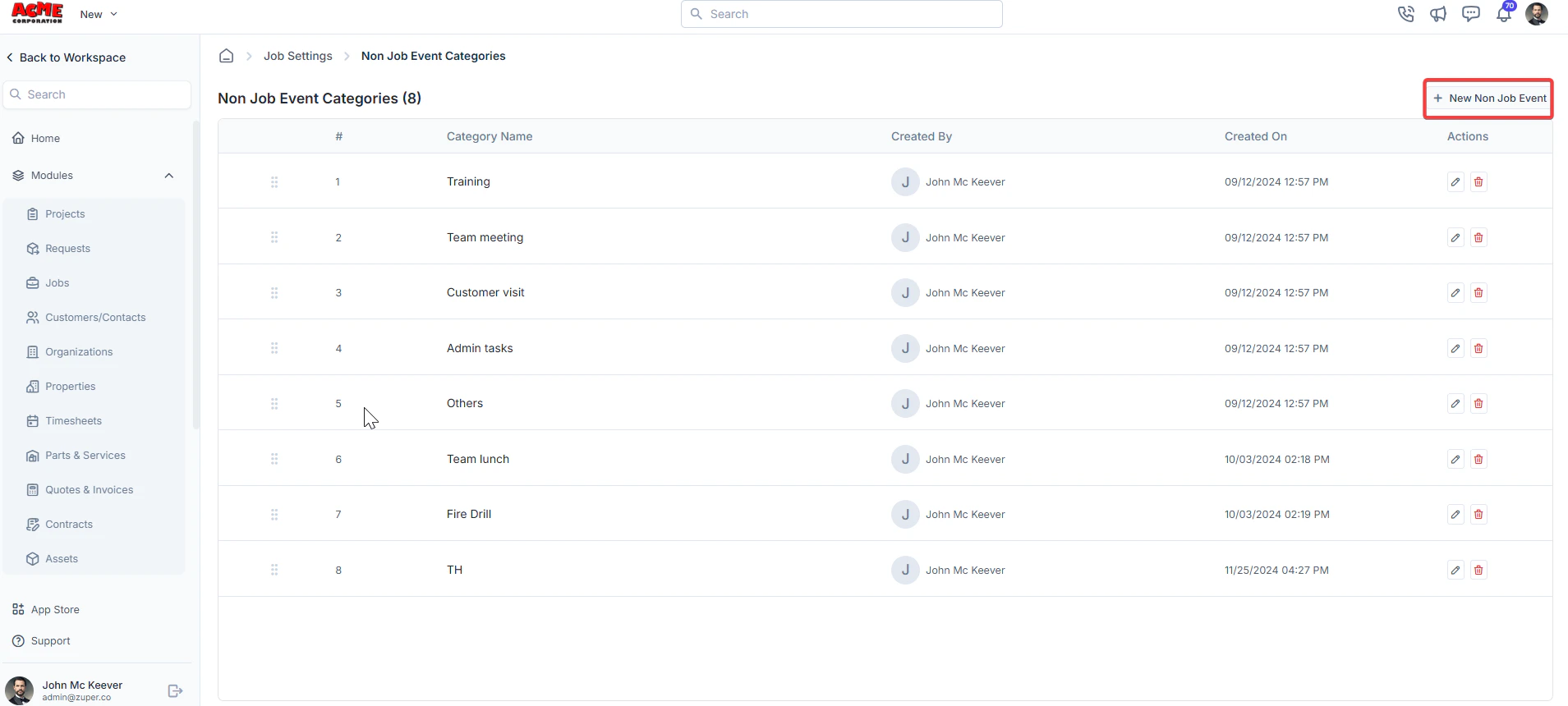
 2. Click "**+ New Non Job Event**" to create the new category.
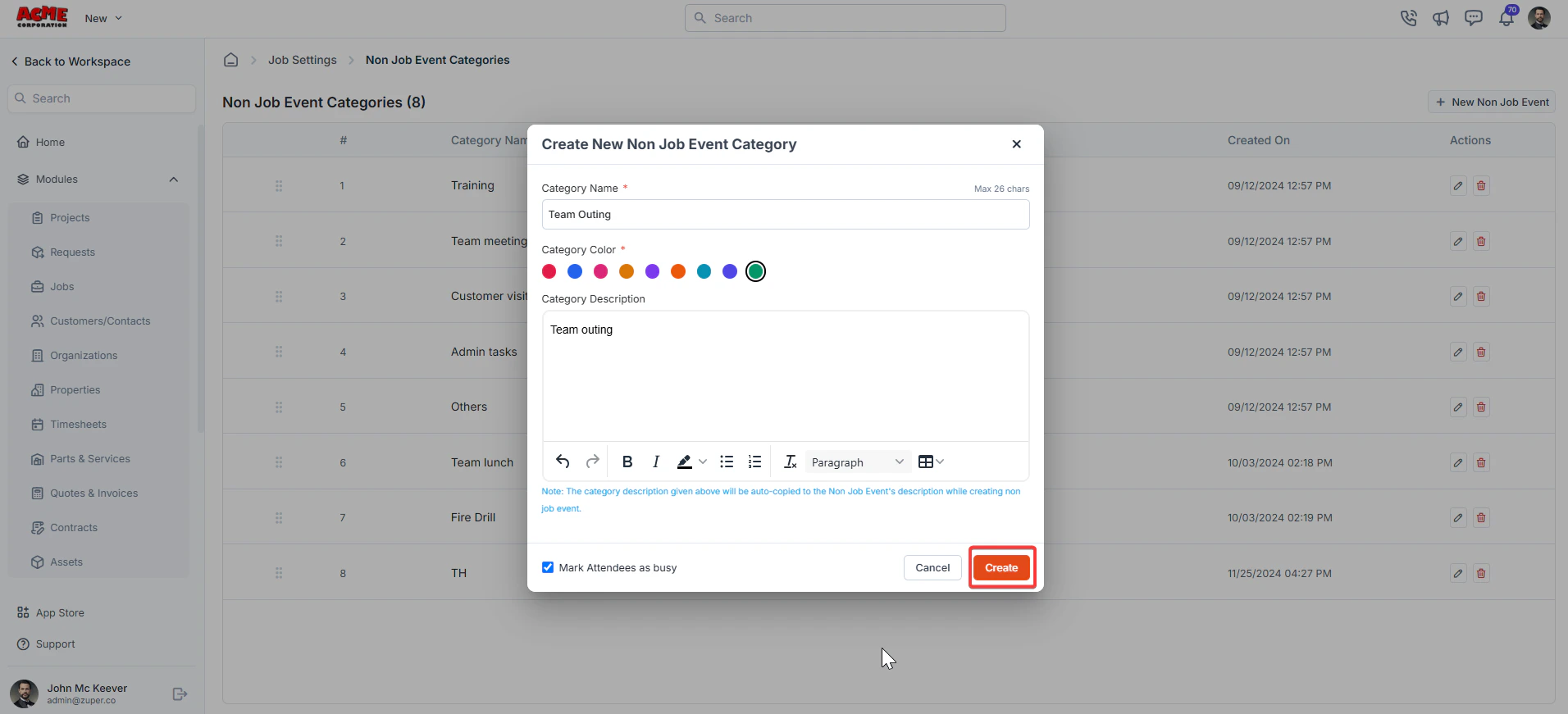
 3. Enter the following details:
* **Category Name**: Enter the category name.
* **Category Color**: Choose the non-job event category color.
* **Category Description**: Enter the description.
**Note**: Check the "**Mark Attendees as busy**" checkbox to block the calendar.
3. Enter the following details:
* **Category Name**: Enter the category name.
* **Category Color**: Choose the non-job event category color.
* **Category Description**: Enter the description.
**Note**: Check the "**Mark Attendees as busy**" checkbox to block the calendar.
 Creating these events informs dispatchers that the technician is unavailable for job assignments during this period, enabling better scheduling and resource management.
## Editing a non-job event category
To modify an existing event category:
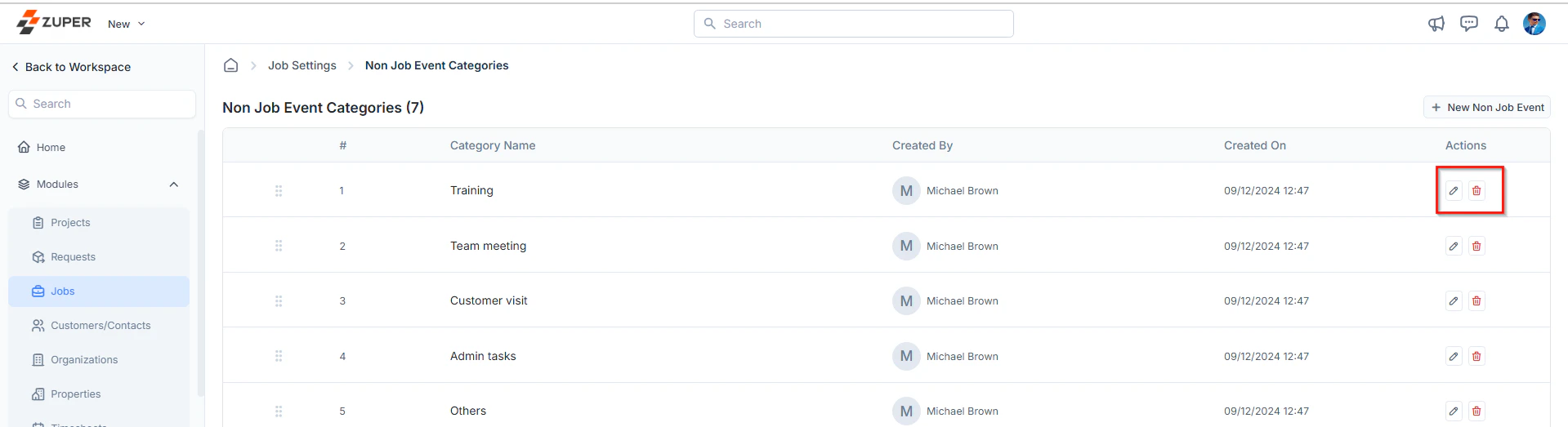
* On the non-job event categories listing page, click the edit icon under Actions next to the specific event that you want to update.
* Modify the necessary details in the Edit Non Job Event Category dialog box.
* Click **Update** to save the changes.
## Deleting a non-job event category
To delete a non-job event category:
* On the non-job event categories listing page, click the delete icon under Actions next to the specific event that you want to delete.
* A confirmation dialog box will appear.
* Click **Delete** to remove the category permanently.
Creating these events informs dispatchers that the technician is unavailable for job assignments during this period, enabling better scheduling and resource management.
## Editing a non-job event category
To modify an existing event category:
* On the non-job event categories listing page, click the edit icon under Actions next to the specific event that you want to update.
* Modify the necessary details in the Edit Non Job Event Category dialog box.
* Click **Update** to save the changes.
## Deleting a non-job event category
To delete a non-job event category:
* On the non-job event categories listing page, click the delete icon under Actions next to the specific event that you want to delete.
* A confirmation dialog box will appear.
* Click **Delete** to remove the category permanently.