> ## Documentation Index
> Fetch the complete documentation index at: https://zuperinc-section23.mintlify.site/llms.txt
> Use this file to discover all available pages before exploring further.
# Configuring Service Tasks
Service tasks in Zuper define specific job-related activities that field technicians must complete. These tasks standardize job execution, improve service efficiency, and help businesses track task completion.
This guide provides a detailed walkthrough for creating, editing, and managing service tasks, ensuring that predefined procedures are followed during job execution.
**Navigation**: Settings -> Modules -> Jobs -> Service Tasks
## Navigating to job service tasks
To configure service tasks, follow these steps:
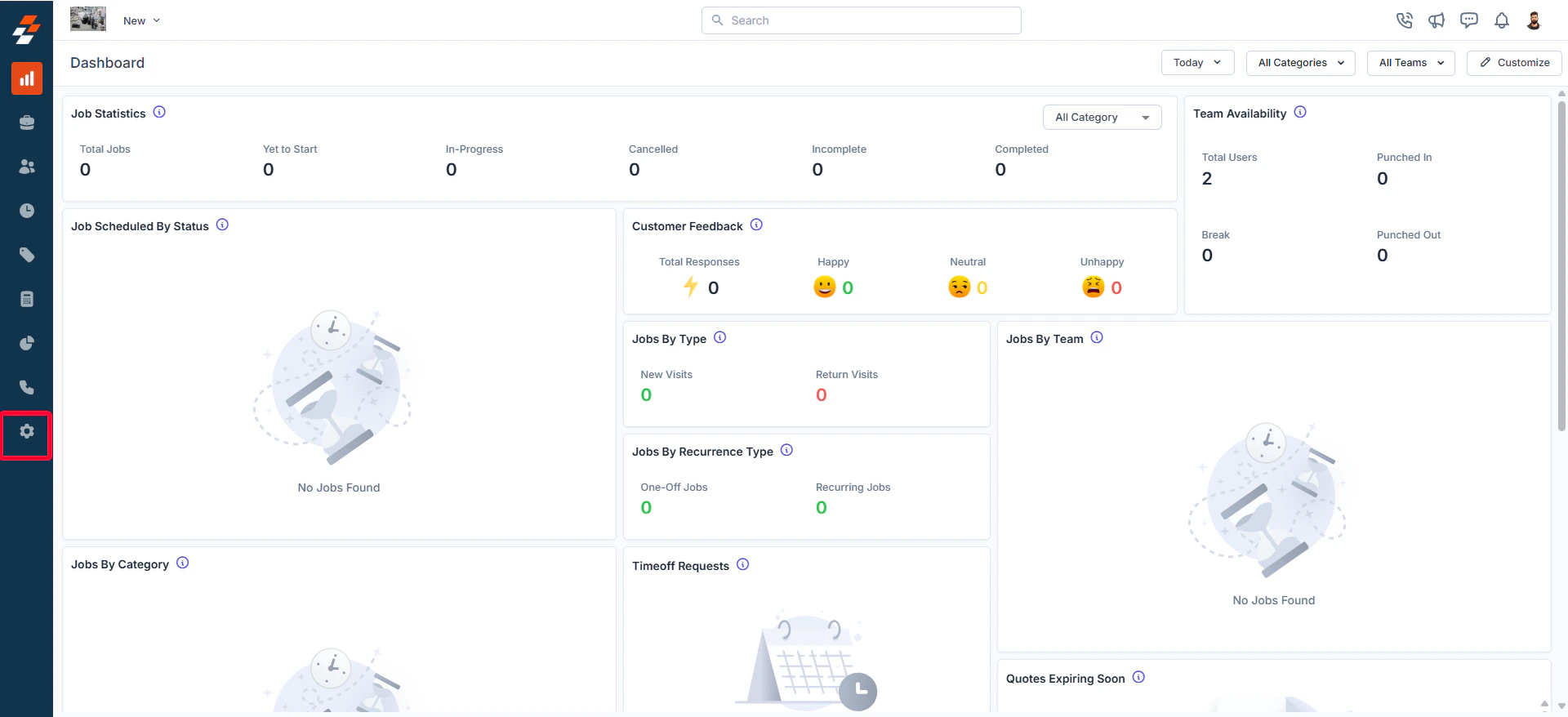
* Select the "**Settings**" module from the left navigation menu.
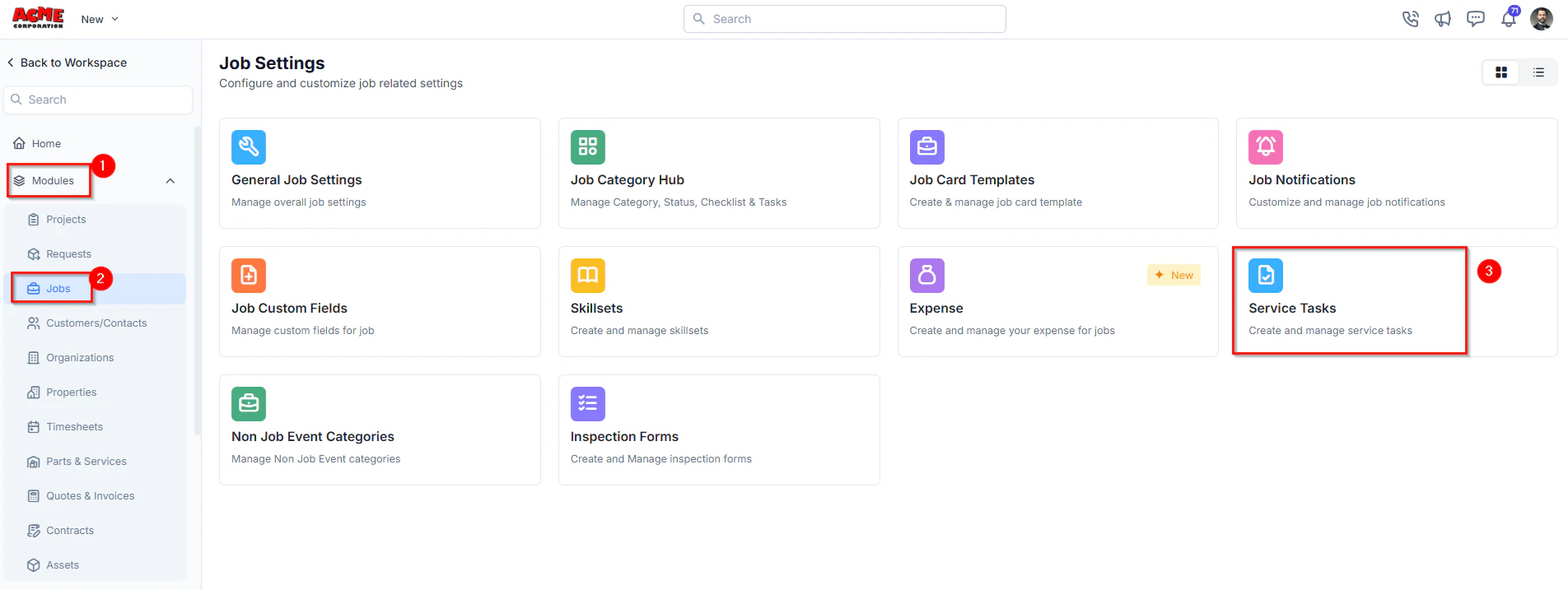
 * Click **Modules** and choose **Jobs** to open the Job Settings page.
* Click on **Service Tasks**.
* Click **Modules** and choose **Jobs** to open the Job Settings page.
* Click on **Service Tasks**.
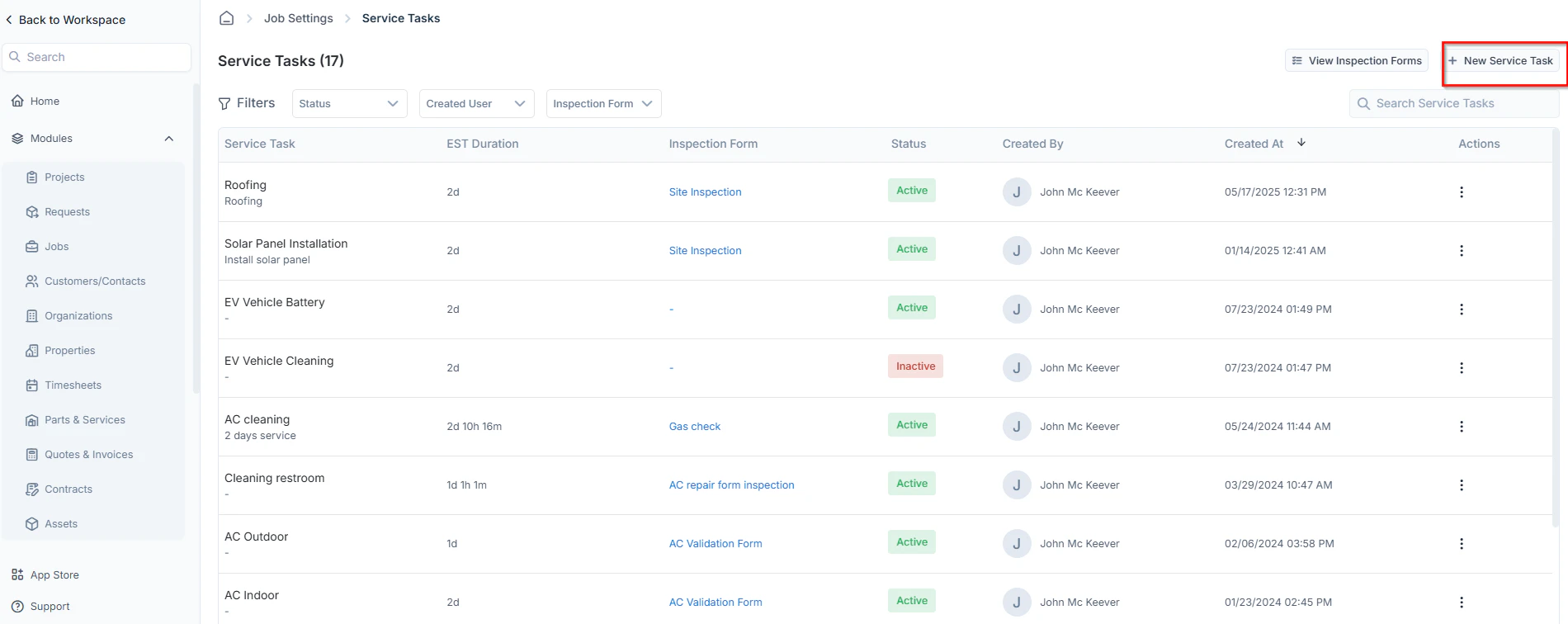
 * The service tasks listing page will appear, displaying all existing service tasks available for job assignments and team operations.
**Note:** You can filter service tasks based on: **Status** (Active/Inactive), **User** (Task creator), and **Inspection Form** (Tasks linked to an inspection form)
# Creating a new service task
To create a new service task:
* On the service tasks listing page, click **+ New Service Task**.
* The service tasks listing page will appear, displaying all existing service tasks available for job assignments and team operations.
**Note:** You can filter service tasks based on: **Status** (Active/Inactive), **User** (Task creator), and **Inspection Form** (Tasks linked to an inspection form)
# Creating a new service task
To create a new service task:
* On the service tasks listing page, click **+ New Service Task**.
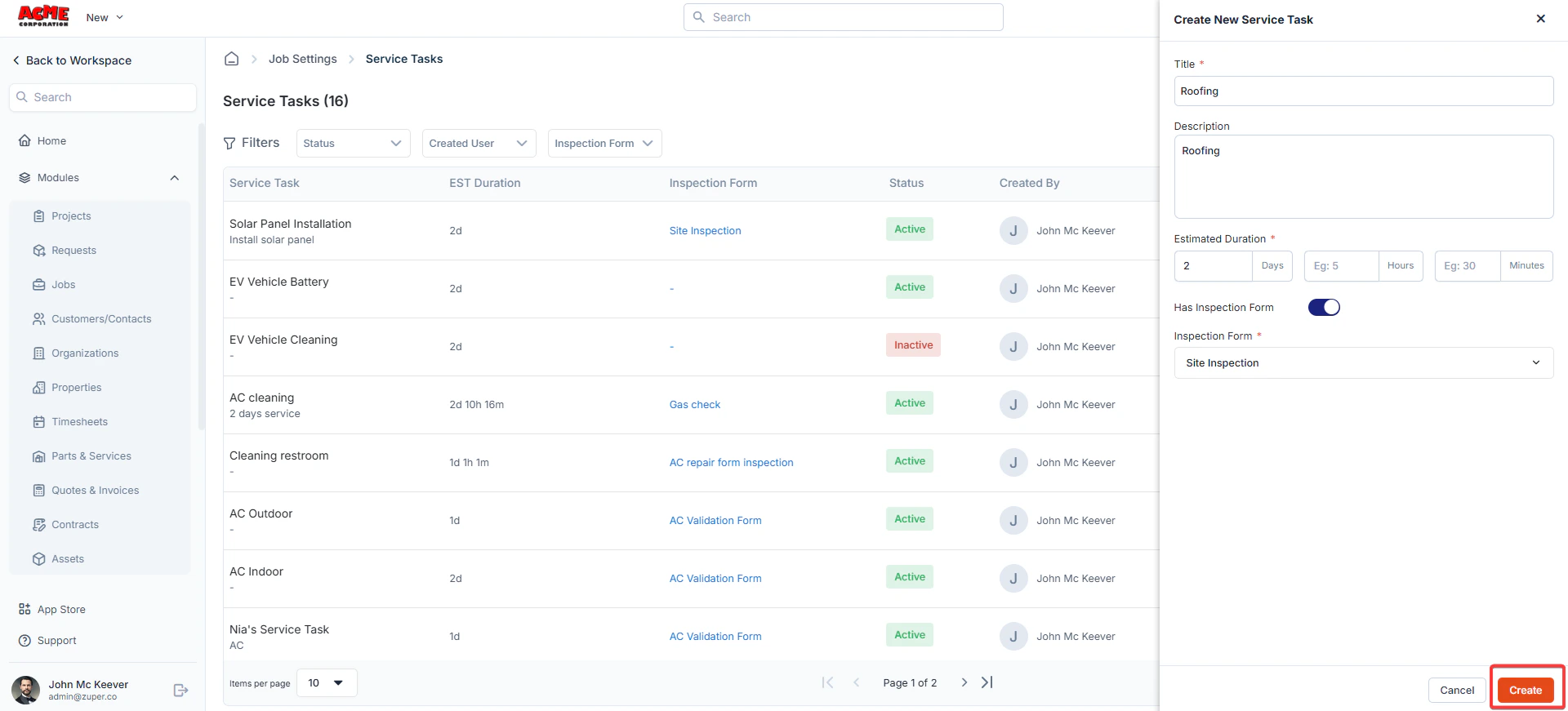
 * A **Create New Service Task** dialog box will appear.
* Enter the required details:
1. **Title** *(Mandatory)*: Enter a title for the service task (e.g., AC Filter Replacement, Electrical Inspection).
2. **Description**: Provide a brief explanation of the task and its purpose.
3. **Estimated Duration** *(Mandatory)*: Specify the estimated completion time of this service task in **days, hours, and minutes**.
4. **Has Inspection Form**: Enable this option if the service task requires an **inspection form**. If enabled, select the appropriate form from the dropdown list.
* Click **Create** to save the new service task.
* A **Create New Service Task** dialog box will appear.
* Enter the required details:
1. **Title** *(Mandatory)*: Enter a title for the service task (e.g., AC Filter Replacement, Electrical Inspection).
2. **Description**: Provide a brief explanation of the task and its purpose.
3. **Estimated Duration** *(Mandatory)*: Specify the estimated completion time of this service task in **days, hours, and minutes**.
4. **Has Inspection Form**: Enable this option if the service task requires an **inspection form**. If enabled, select the appropriate form from the dropdown list.
* Click **Create** to save the new service task.
 ## Editing a service task
To modify an existing service task:
* On the service tasks listing page, click the kebab icon under **Actions** next to the specific task.
* Select **Edit Task**.
## Editing a service task
To modify an existing service task:
* On the service tasks listing page, click the kebab icon under **Actions** next to the specific task.
* Select **Edit Task**.
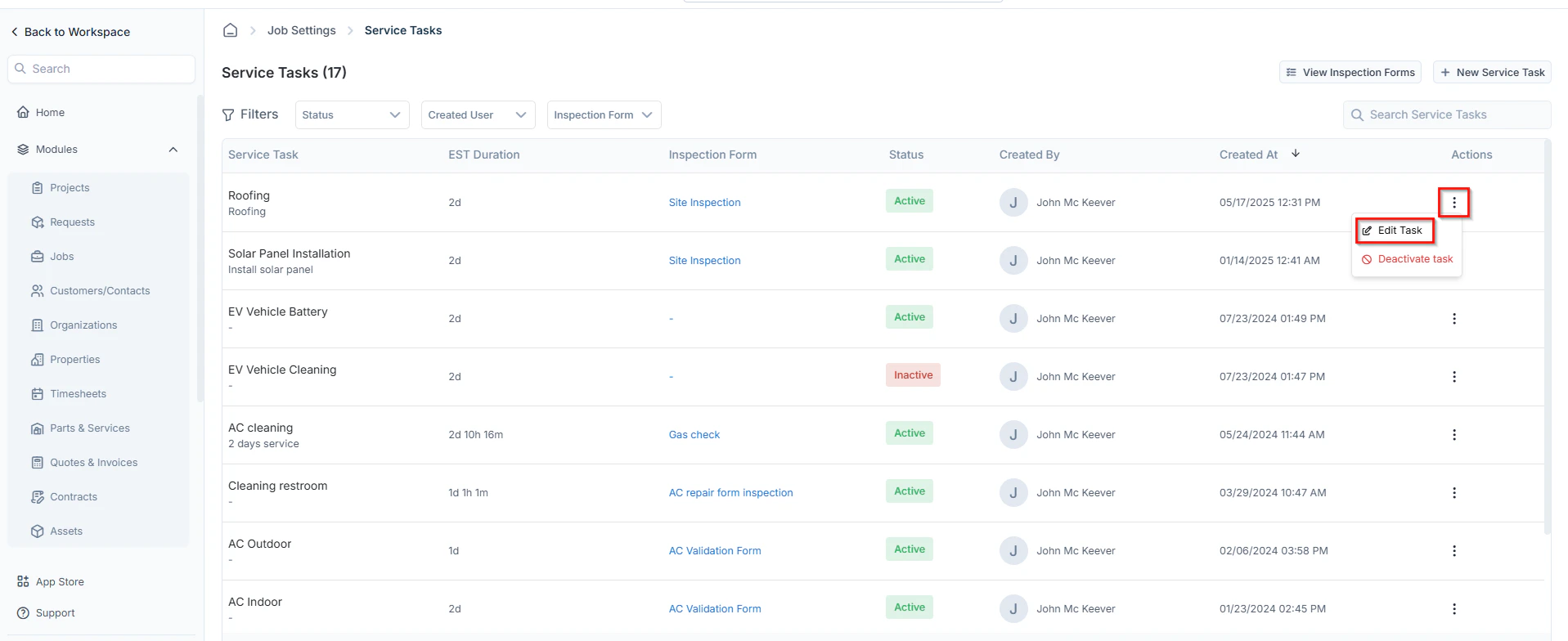 * Update the necessary details.
* Click **Update** to save the changes.
## Deactivating a service task
To deactivate a service task:
* On the service tasks listing page, click the kebab iconunder **Actions** next to the specific task.
* Select **Deactivate Task**.
* Update the necessary details.
* Click **Update** to save the changes.
## Deactivating a service task
To deactivate a service task:
* On the service tasks listing page, click the kebab iconunder **Actions** next to the specific task.
* Select **Deactivate Task**.
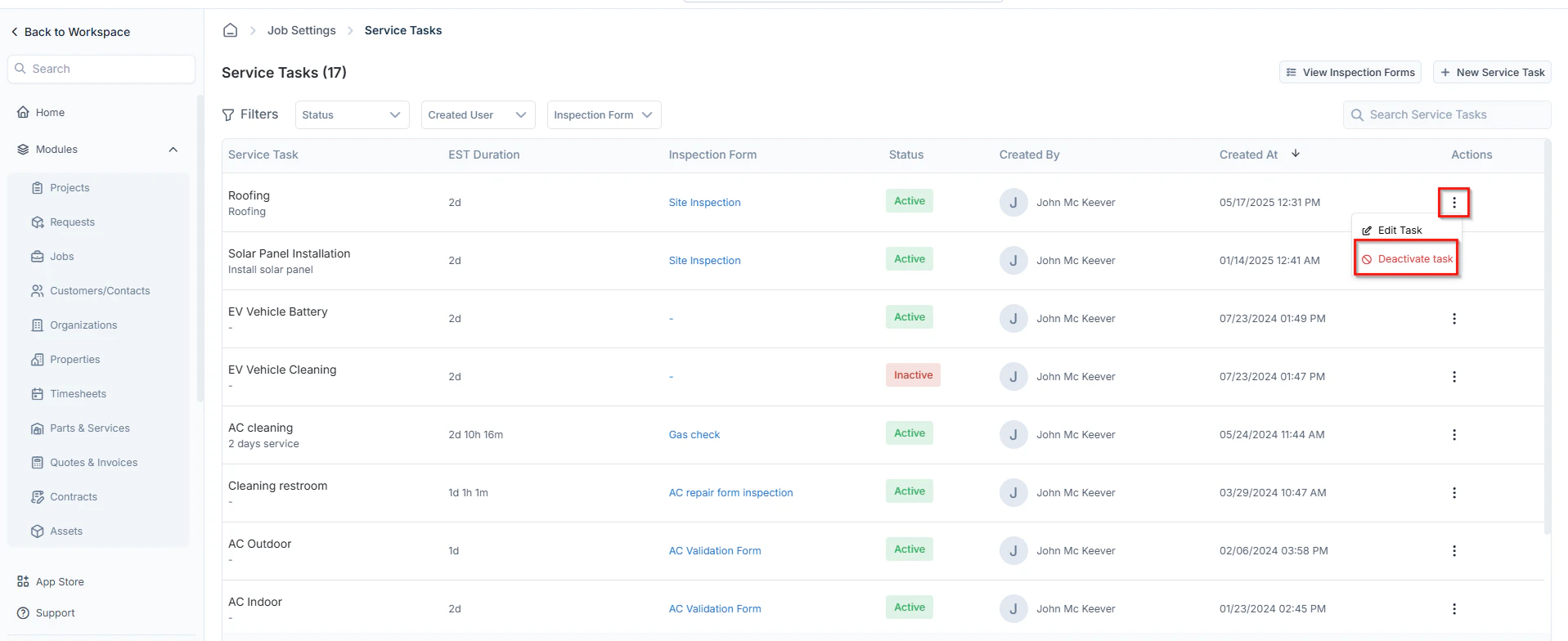 * A confirmation dialog box will appear.
* Click **Deactivate** to disable the task.
**Note:** Deactivated tasks can be reactivated if required.
## Deleting a service task
**Important:** A service task must be **deactivated** before it can be deleted.
To delete a service task:
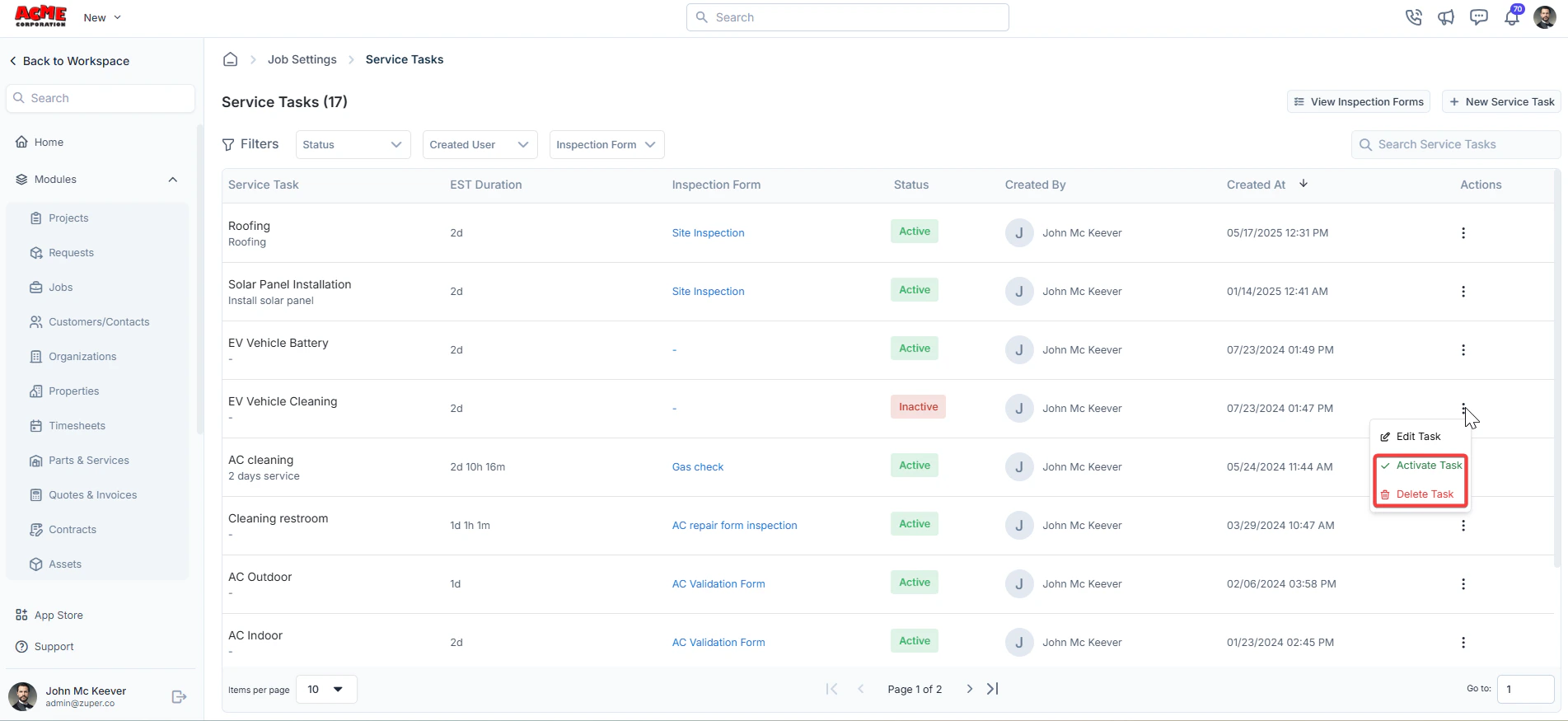
* On the service tasks listing page, click the kebab icon under **Actions** next to the Inactive task.
* Select **Delete Task**.
* A confirmation dialog box will appear.
* Click **Delete Task** to remove the task permanently. You can also **activate** the task again, if needed.
* A confirmation dialog box will appear.
* Click **Deactivate** to disable the task.
**Note:** Deactivated tasks can be reactivated if required.
## Deleting a service task
**Important:** A service task must be **deactivated** before it can be deleted.
To delete a service task:
* On the service tasks listing page, click the kebab icon under **Actions** next to the Inactive task.
* Select **Delete Task**.
* A confirmation dialog box will appear.
* Click **Delete Task** to remove the task permanently. You can also **activate** the task again, if needed.