> ## Documentation Index
> Fetch the complete documentation index at: https://zuperinc-section23.mintlify.site/llms.txt
> Use this file to discover all available pages before exploring further.
# Configuring Job Notifications
Job notifications in Zuper help ensure seamless communication and timely updates regarding job schedules, delays, and status changes. By configuring job notifications, users can set up reminders, alerts, and status updates to keep field technicians, team leaders, and other stakeholders informed in real-time.
This guide provides a detailed walkthrough on how to configure and manage job notifications effectively.
**Navigation**: Settings -> Modules -> Jobs -> Job Notifications
## Navigating to job notifications
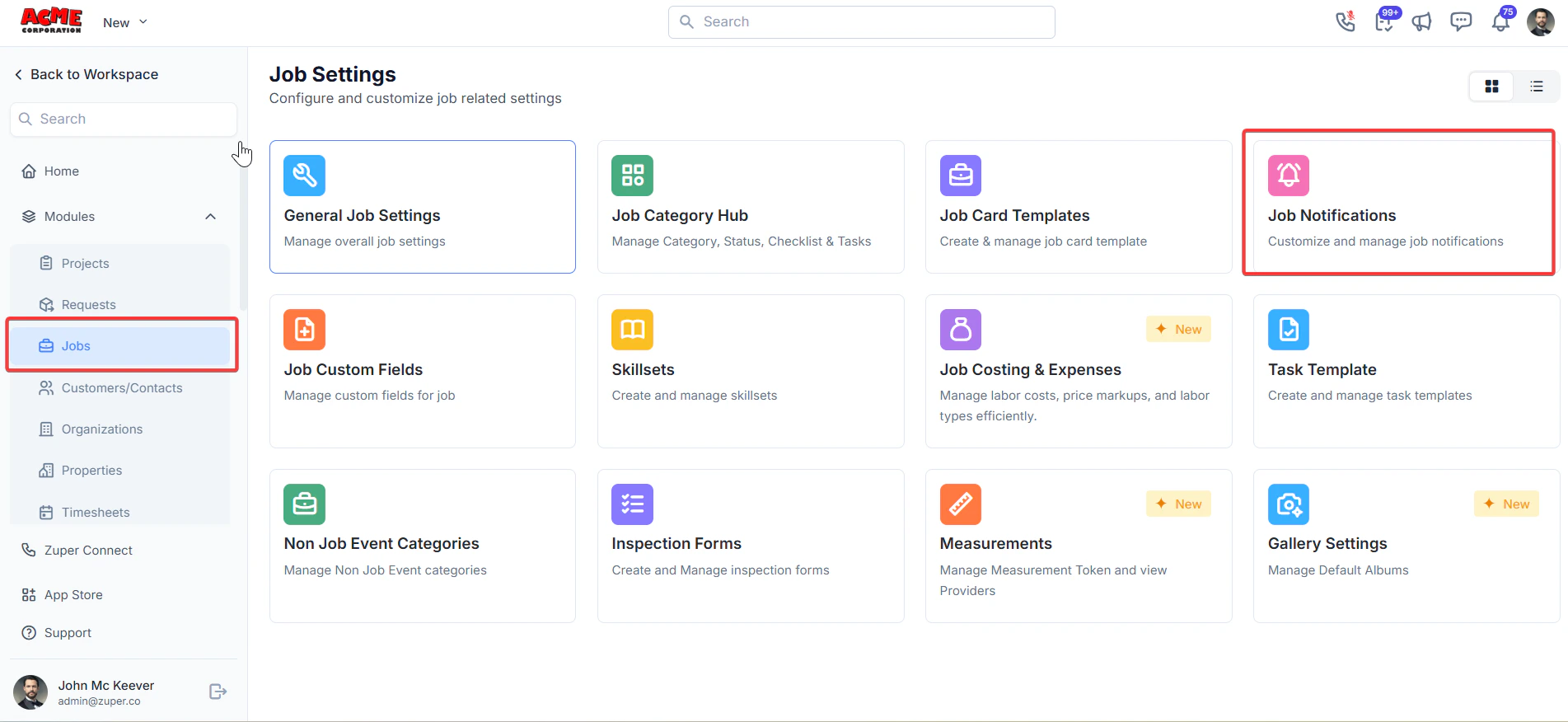
* Select the "**Settings"** module from the left navigation menu.
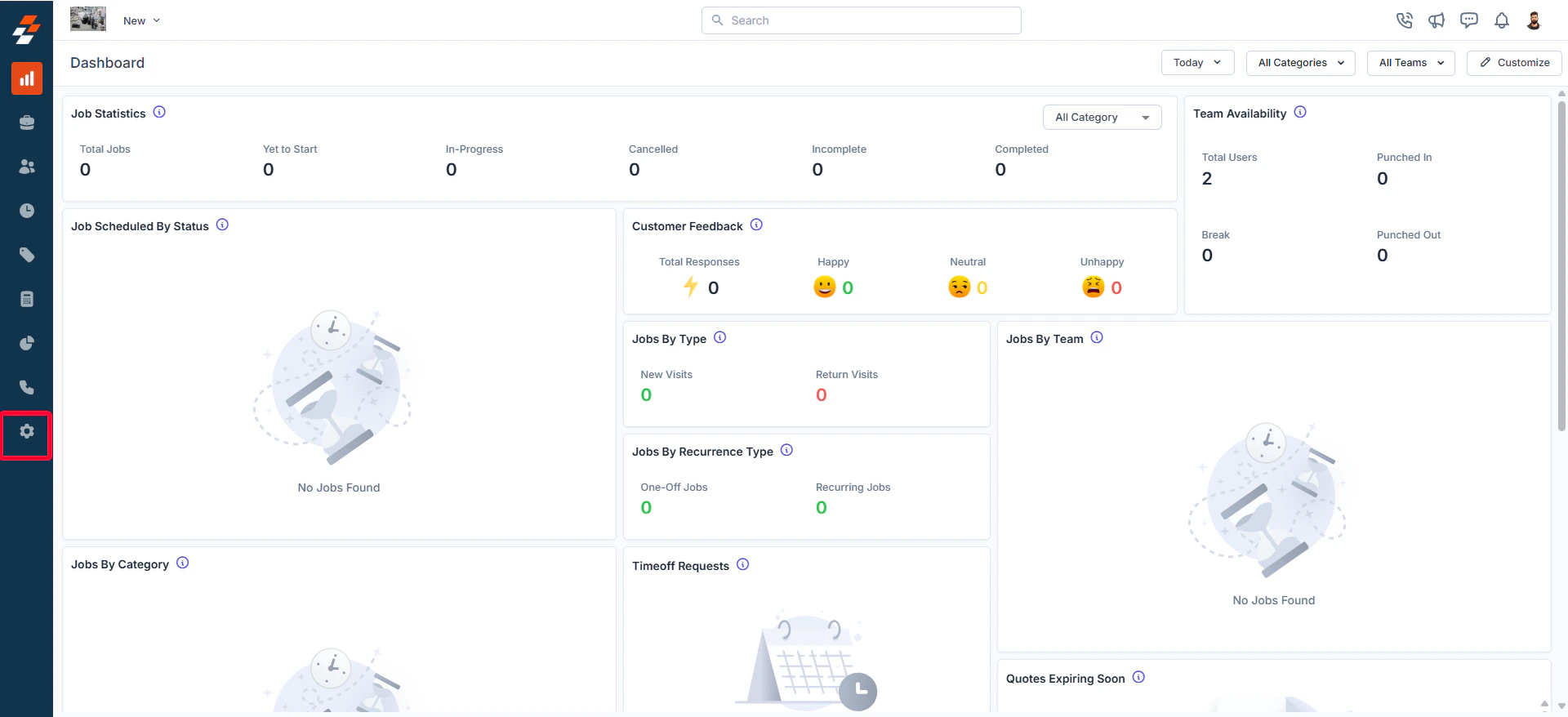 * Click **Modules** and select **Jobs** to open the **Job Settings** page.
* Choose **Job Notifications**.
* Click **Modules** and select **Jobs** to open the **Job Settings** page.
* Choose **Job Notifications**.
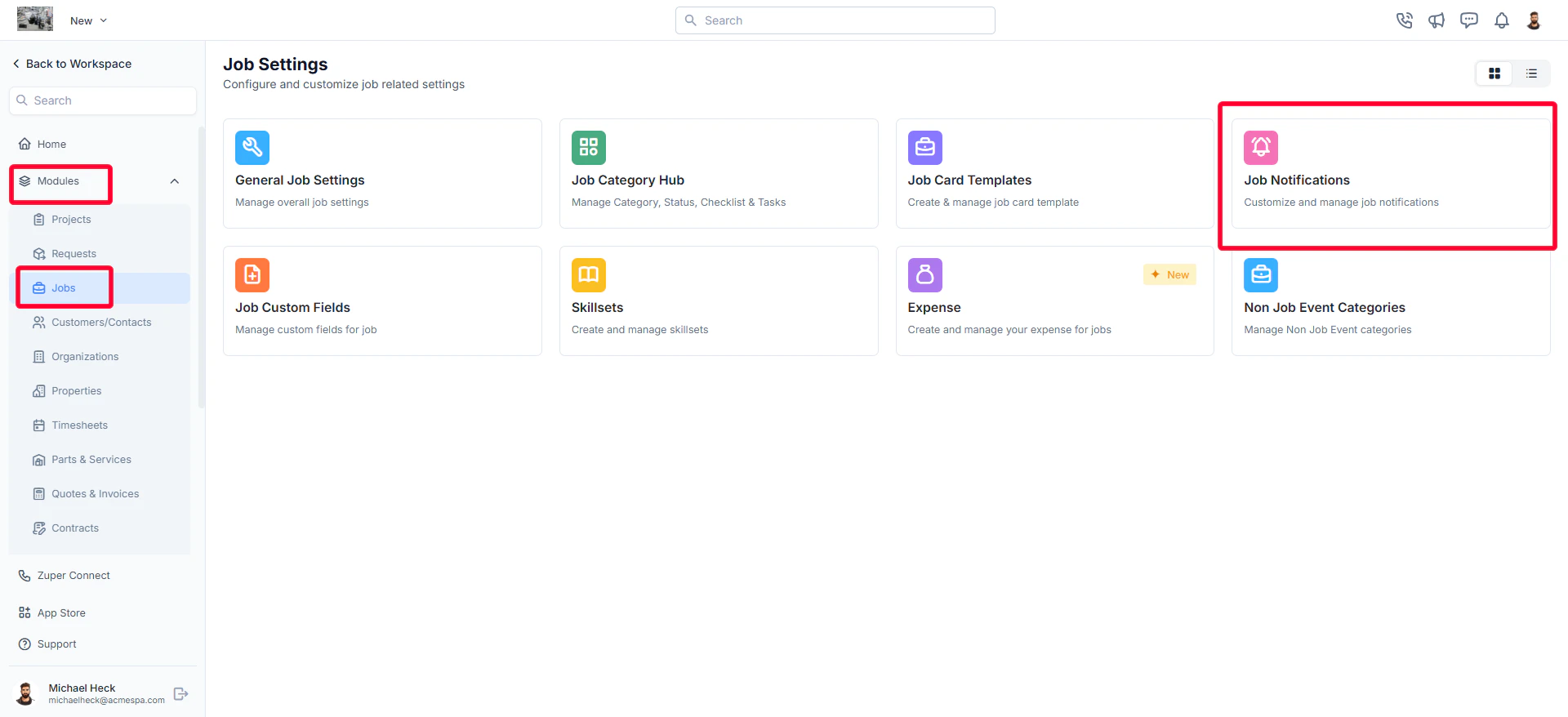 * The **Job Notifications Page** will appear, displaying all existing notifications, including **Job Reminders**, **Job Delay Alerts**, and **Job Status Alerts**.
## Job Reminders
## Creating a new job reminder
To create a job reminder:
* On the job notifications listing page, click **+ New Job Reminder** next to the **Job Reminder** section.
* The **Job Notifications Page** will appear, displaying all existing notifications, including **Job Reminders**, **Job Delay Alerts**, and **Job Status Alerts**.
## Job Reminders
## Creating a new job reminder
To create a job reminder:
* On the job notifications listing page, click **+ New Job Reminder** next to the **Job Reminder** section.
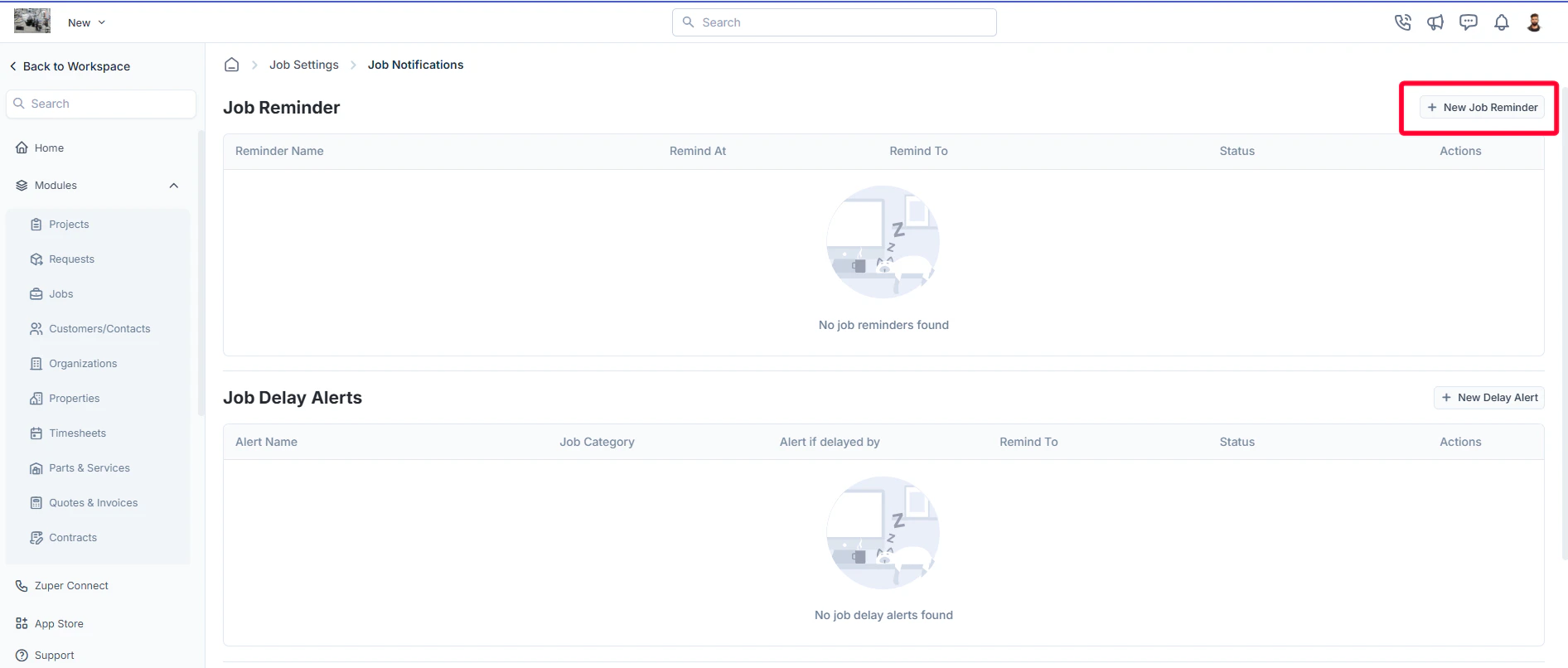 * A **New Job Reminder** dialog box appears.
* Fill in the following details:
1. **Reminder Name** (*Required*): Enter a name for the reminder.
2. **Job Category**: Select job categories from the dropdown menu.
3. **Notification Type** (*Required*): Choose from Push Notification, SMS, or Email.
4. **Send Reminder To** (*Required*): Select the recipients from options such as:
* All assigned users
* Only assigned team members
* Only assigned field technicians
* Assigned field technician’s team leaders
* Selected users
* Selected teams
5. **Remind Type** (*Required*): Choose from options like:
* Scheduled Start Time
* Relative to Start Time
* Relative to End Time
* Relative to Due Date
6. **Remind Before/Remind At**: Enter the timing or days for the reminder.
7. **Alert Template/SMS Body/Email Body** (*Required*): Compose the message using available components.
8. Click **Save Reminder** to finalize.
* A **New Job Reminder** dialog box appears.
* Fill in the following details:
1. **Reminder Name** (*Required*): Enter a name for the reminder.
2. **Job Category**: Select job categories from the dropdown menu.
3. **Notification Type** (*Required*): Choose from Push Notification, SMS, or Email.
4. **Send Reminder To** (*Required*): Select the recipients from options such as:
* All assigned users
* Only assigned team members
* Only assigned field technicians
* Assigned field technician’s team leaders
* Selected users
* Selected teams
5. **Remind Type** (*Required*): Choose from options like:
* Scheduled Start Time
* Relative to Start Time
* Relative to End Time
* Relative to Due Date
6. **Remind Before/Remind At**: Enter the timing or days for the reminder.
7. **Alert Template/SMS Body/Email Body** (*Required*): Compose the message using available components.
8. Click **Save Reminder** to finalize.
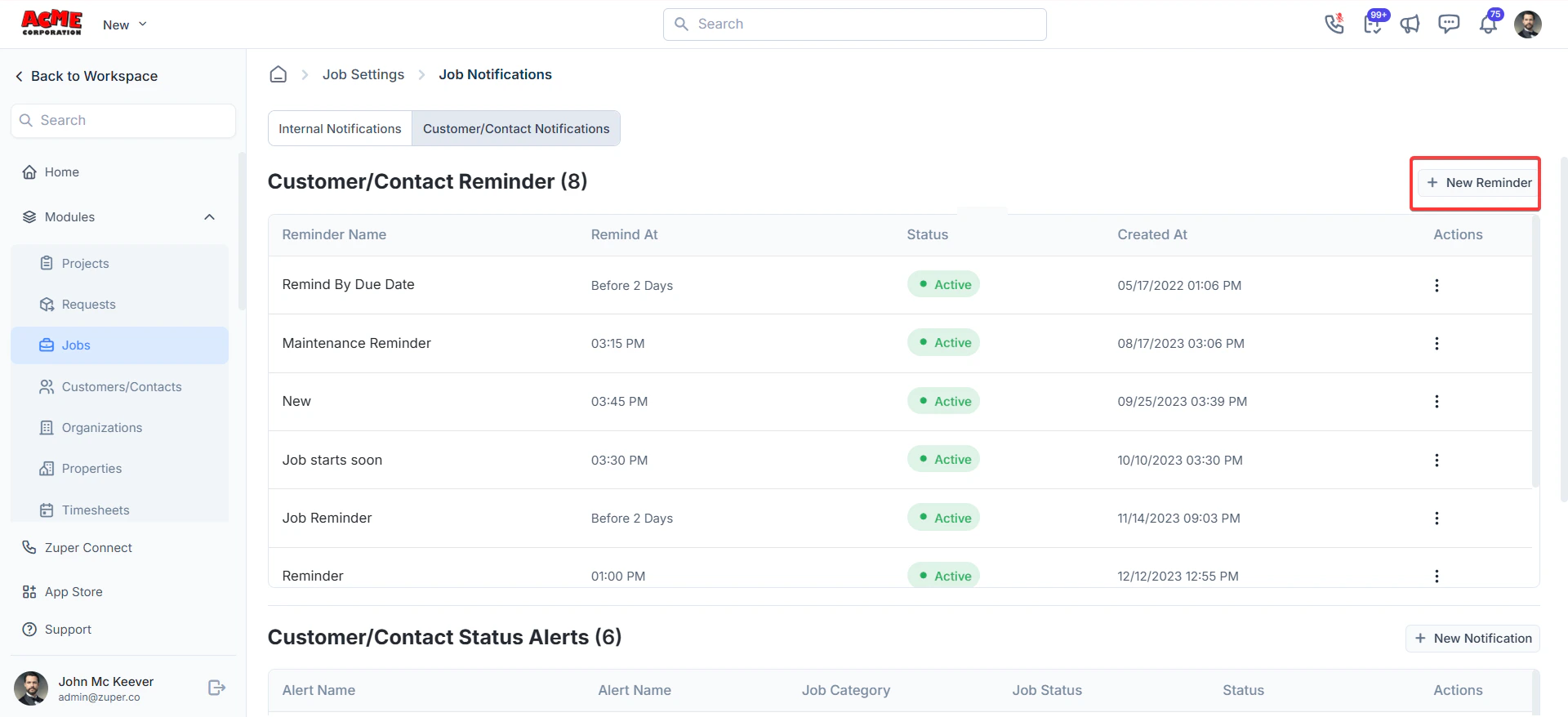
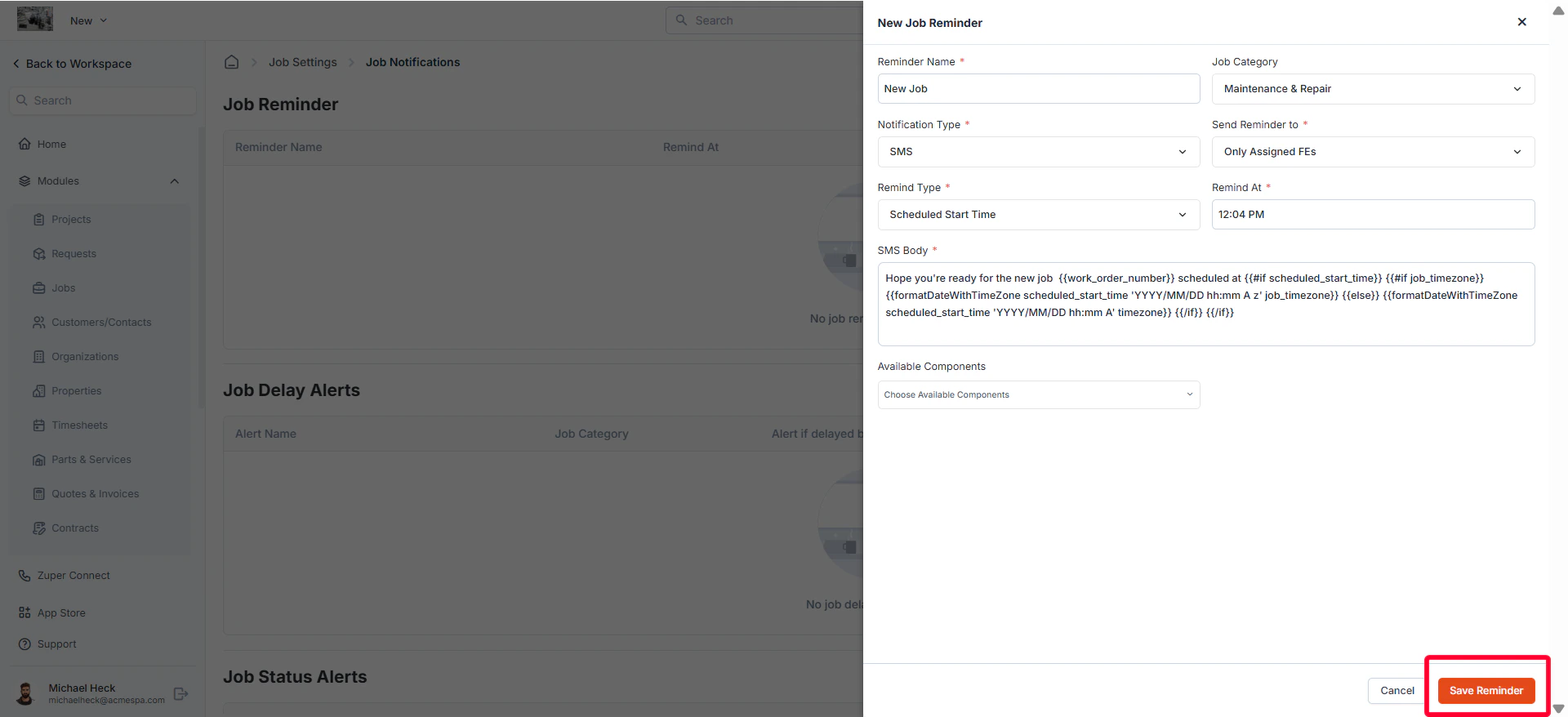 The job reminder will be listed with details such as Reminder Name, Remind At, Remind To, and Status (Active/Inactive).
### Editing a job reminder
After creating a job reminder, you can edit, delete, or deactivate it. To update a job reminder's details, follow these steps:
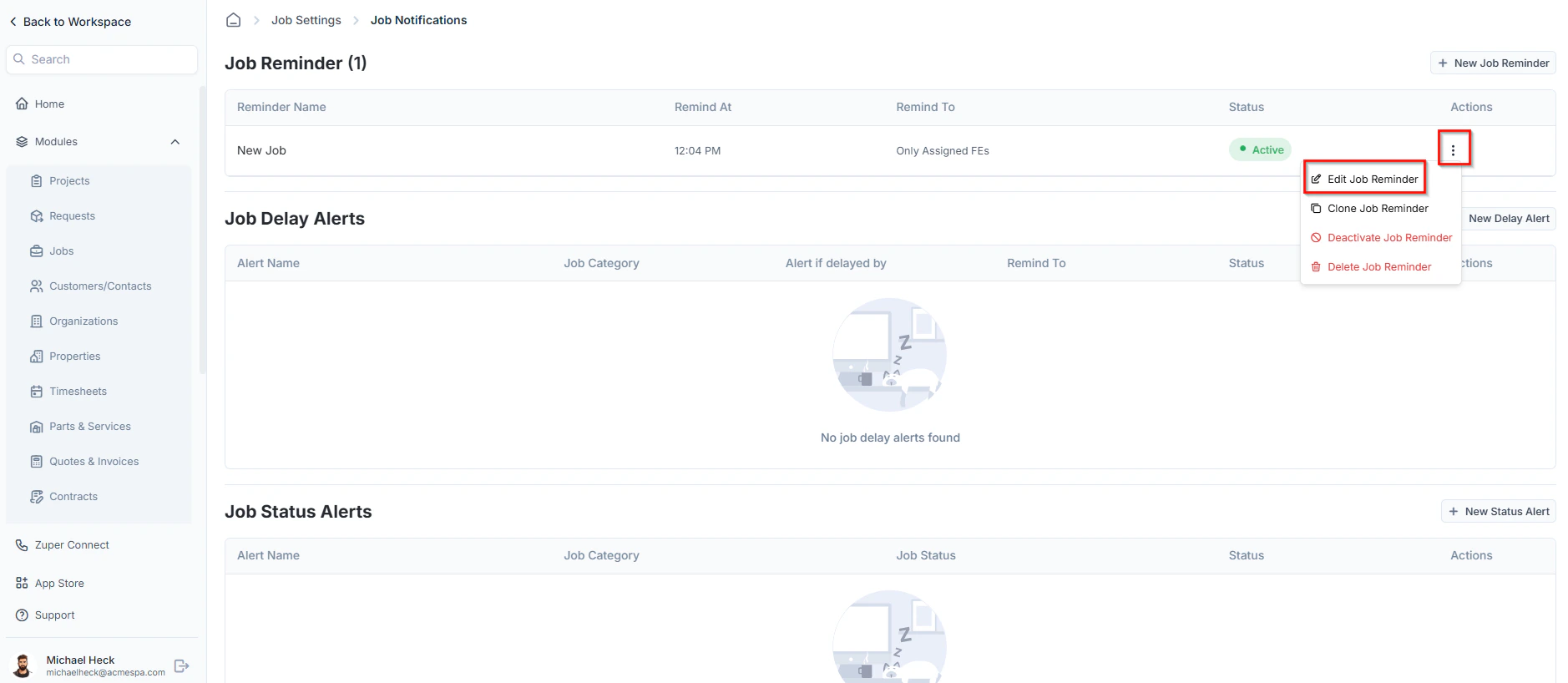
* On the job reminders listing page, click the icon under **Actions** and select **Edit Job Reminder** next to the specific reminder.
The job reminder will be listed with details such as Reminder Name, Remind At, Remind To, and Status (Active/Inactive).
### Editing a job reminder
After creating a job reminder, you can edit, delete, or deactivate it. To update a job reminder's details, follow these steps:
* On the job reminders listing page, click the icon under **Actions** and select **Edit Job Reminder** next to the specific reminder.
 * Modify the necessary details.
* Click **Update Reminder** to save changes.
### Clone job reminder
If you'd like to create a new job reminder based on an existing one, you can quickly do so using the **Clone Job Reminder** option. Follow these steps:
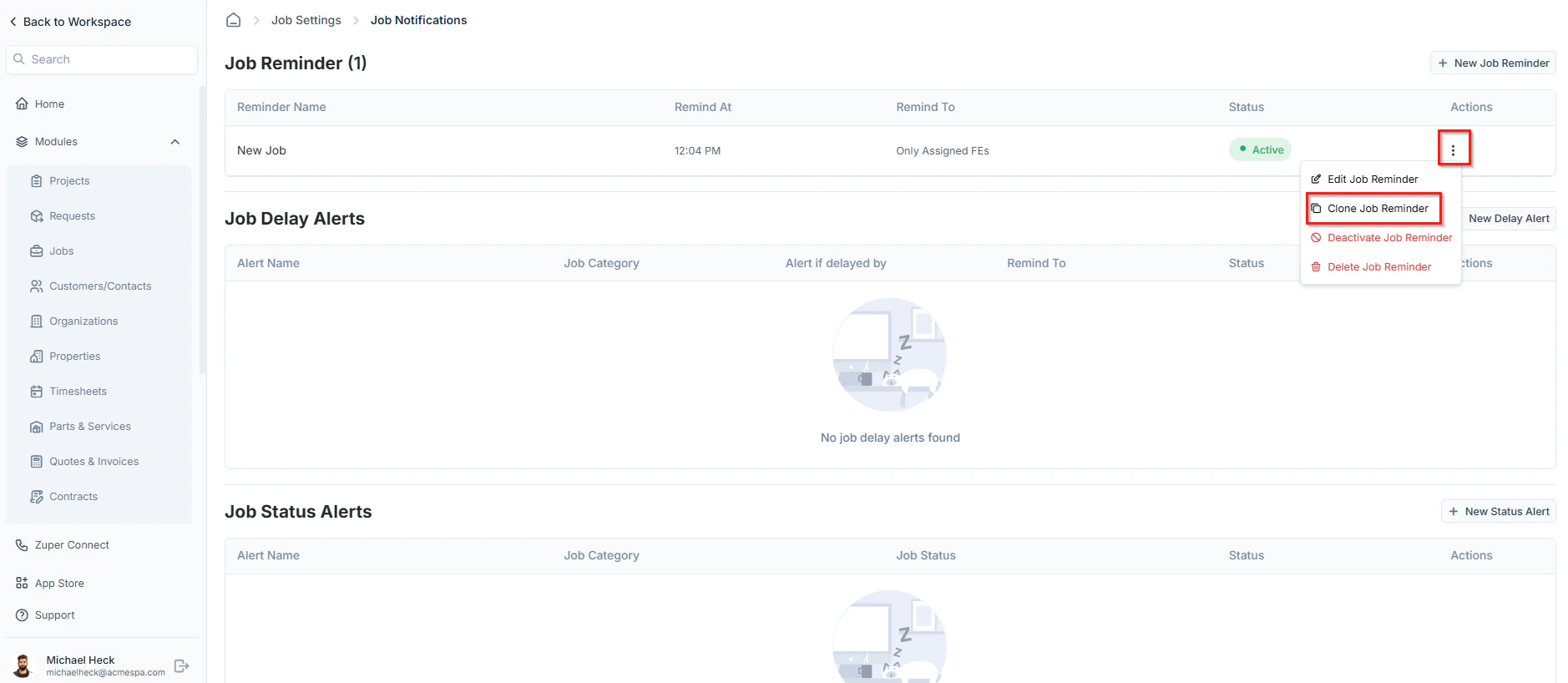
* On the job reminders listing page, click the icon under **Actions** and select **Clone Job Reminder**.
* Modify the necessary details.
* Click **Update Reminder** to save changes.
### Clone job reminder
If you'd like to create a new job reminder based on an existing one, you can quickly do so using the **Clone Job Reminder** option. Follow these steps:
* On the job reminders listing page, click the icon under **Actions** and select **Clone Job Reminder**.
 * The **Clone Job Reminder** dialog appears with existing details.
* Update the necessary fields and click **Clone Reminder**.
### Deactivate/Activate job reminder
To deactivate or activate an existing job reminder:
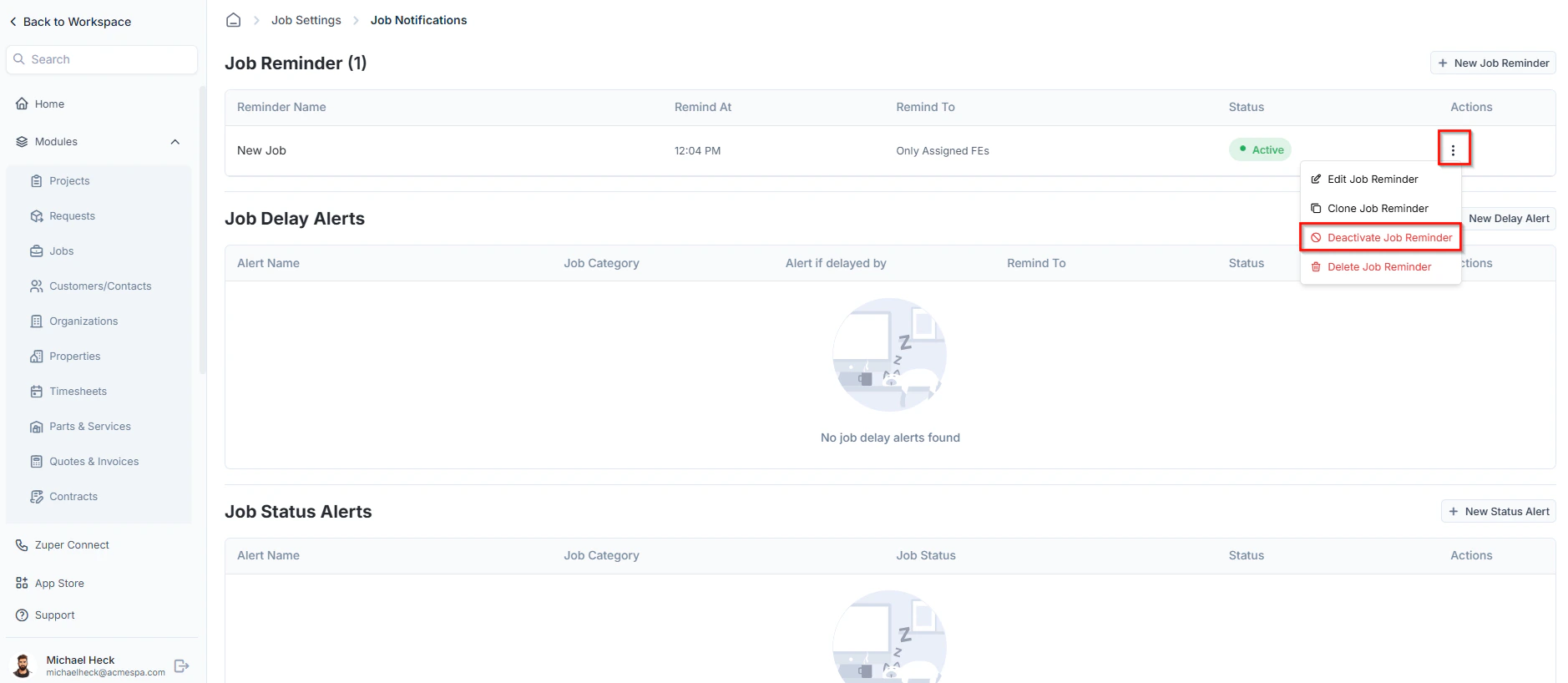
* On the job reminders listing page, click the icon under **Actions** and select **Deactivate/Activate Job Reminder**
* The **Clone Job Reminder** dialog appears with existing details.
* Update the necessary fields and click **Clone Reminder**.
### Deactivate/Activate job reminder
To deactivate or activate an existing job reminder:
* On the job reminders listing page, click the icon under **Actions** and select **Deactivate/Activate Job Reminder**
 * A confirmation dialog box will appear.
* Click **Deactivate** or **Activate** to confirm your changes.
### Delete job reminder
To delete an existing job reminder:
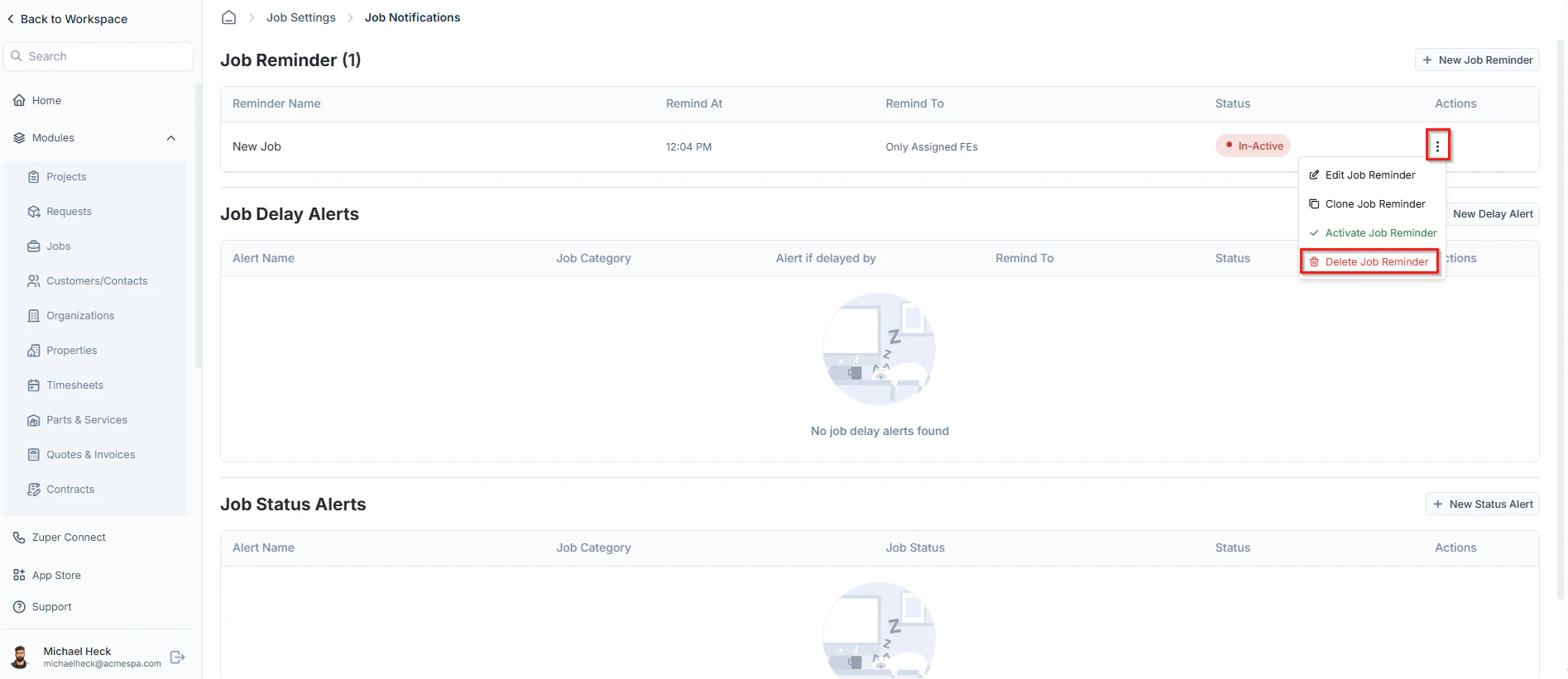
* On the job reminders listing page, click the icon under **Actions** and select **Delete Job Reminder** next to the specific reminder that you want to delete.
* A confirmation dialog box will appear.
* Click **Deactivate** or **Activate** to confirm your changes.
### Delete job reminder
To delete an existing job reminder:
* On the job reminders listing page, click the icon under **Actions** and select **Delete Job Reminder** next to the specific reminder that you want to delete.
 * A confirmation dialog box will appear.
* Click **Delete** to permanently remove the job reminder.
## Job Delay Alerts
### Creating a new job delay alert
To create a new job delay alert:
* On the job notifications listing page, click **+ New Delay Alert** next to the **Job Delay Alerts** section.
* A confirmation dialog box will appear.
* Click **Delete** to permanently remove the job reminder.
## Job Delay Alerts
### Creating a new job delay alert
To create a new job delay alert:
* On the job notifications listing page, click **+ New Delay Alert** next to the **Job Delay Alerts** section.
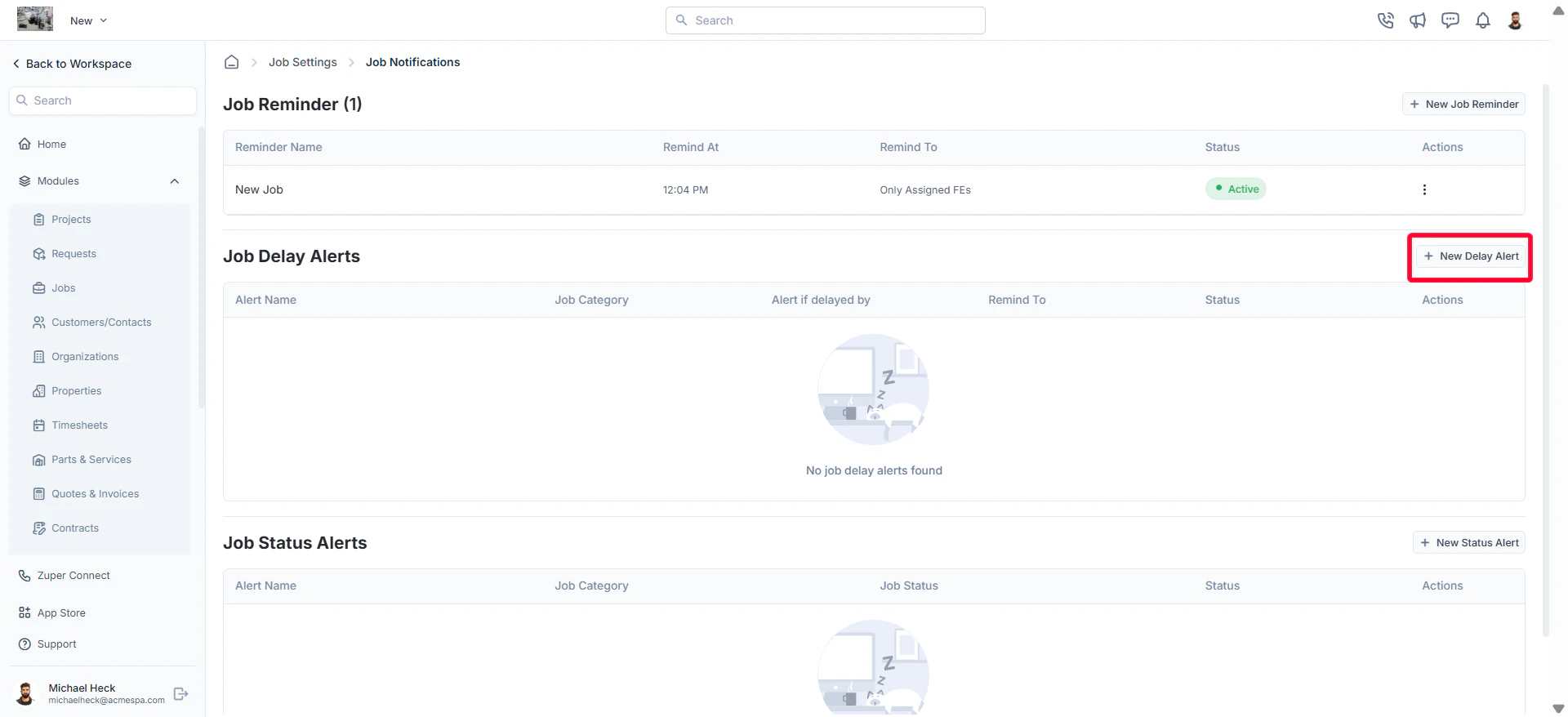 * A **New Job Delay Alert** dialog appears.
* Fill in the following details:
* **Alert Name** (*Required*): Enter a name for the alert.
* **Notification Type** (*Required*): Choose from Push Notification, SMS, or Email.
* **Delay Alert Type** (*Required*): Select from:
1. Based on Job Start Time
2. Based on Job End Time
3. Based on Job Due Date
4. Based on Status (Requires selecting "From Job Status" and "To Job Status")
* **Alert If Job Delayed By**: Specify time or days.
* **Send Reminder To** (*Required*): Select recipients as described in job reminders.
* **Flag Job as Delayed?**: Check/uncheck the box as needed.
**Note**: icon will indicate the delay in the jobs modules.
* **Alert Template/SMS Body/Email Body** (*Required*): Compose the message.
* Click **Save Alert**.
* A **New Job Delay Alert** dialog appears.
* Fill in the following details:
* **Alert Name** (*Required*): Enter a name for the alert.
* **Notification Type** (*Required*): Choose from Push Notification, SMS, or Email.
* **Delay Alert Type** (*Required*): Select from:
1. Based on Job Start Time
2. Based on Job End Time
3. Based on Job Due Date
4. Based on Status (Requires selecting "From Job Status" and "To Job Status")
* **Alert If Job Delayed By**: Specify time or days.
* **Send Reminder To** (*Required*): Select recipients as described in job reminders.
* **Flag Job as Delayed?**: Check/uncheck the box as needed.
**Note**: icon will indicate the delay in the jobs modules.
* **Alert Template/SMS Body/Email Body** (*Required*): Compose the message.
* Click **Save Alert**.
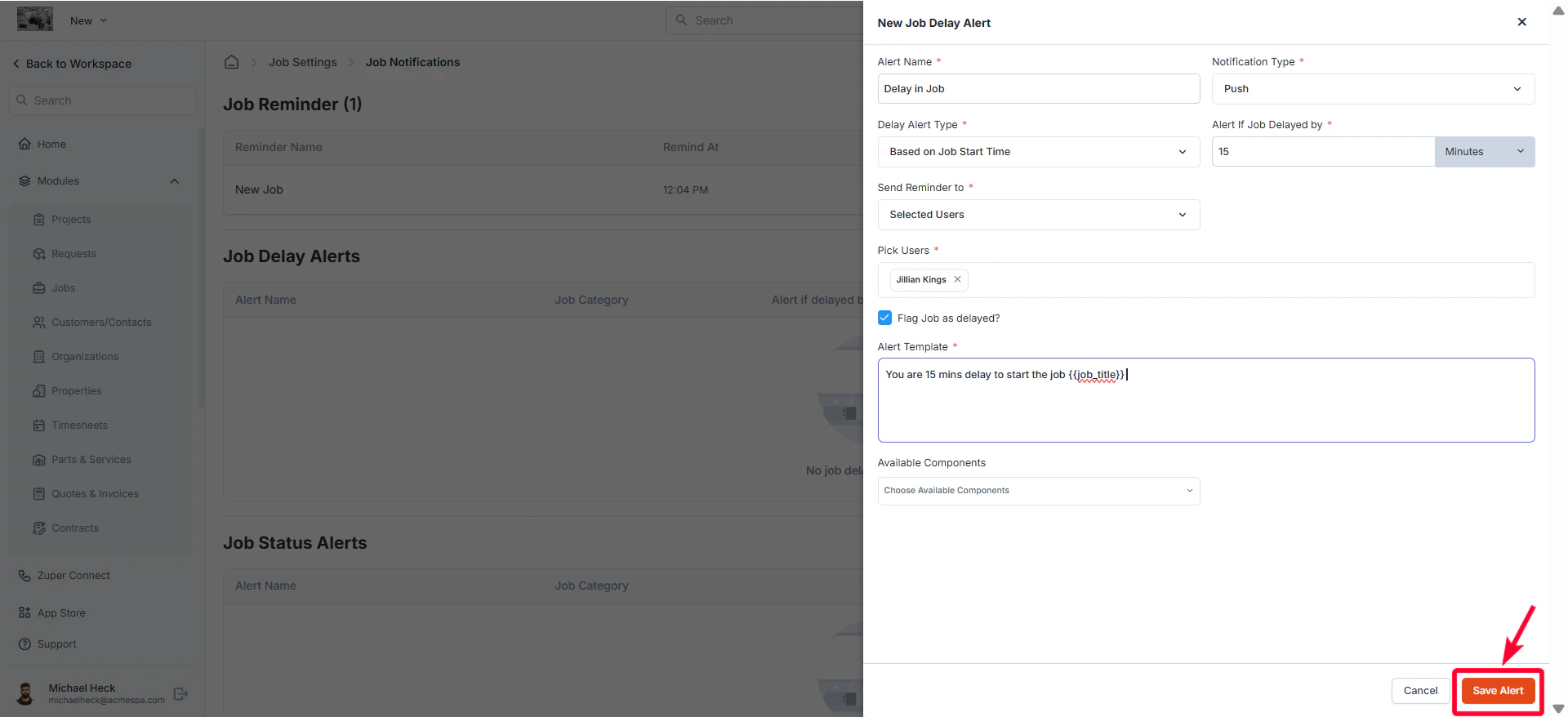 The job delay alert is added with details such as Alert Name, Job Category, Alert If Delayed By, Remind To, and Status (Active/Inactive).
### Editing a Job Delay Alert
* On the job delay alerts listing page, click theicon under **Actions** and select **Edit Delay Alert**.
* Modify necessary details.
* Click **Update Alert** to save changes.
### Clone Job Delay Alert
* On the job delay alerts listing page, click the **icon** under **Actions** and select **Clone Delay Alert**.
* The **Clone Job Delay Alert** dialog appears with existing details.
* Update the necessary fields as needed.
* Click **Clone Alert** to clone the alert.
### Deactivate/Activate Job Delay Alert
To deactivate or activate an existing job delay alert:
* On the job delay alerts listing page, click the icon under **Actions** and select **Deactivate/Activate Delay Alert** next to the specific alert that you want to deactivate or activate.
* A confirmation dialog box will appear.
* Click **Deactivate** or **Activate** to confirm your changes.
### Delete Job Delay Alert
To delete an existing job delay alert:
* On the job delay alerts listing page, click the icon under Actions and select **Delete Delay Alert** next to the specific delay alert that you want to delete.
* A confirmation dialog box will appear.
* Click **Delete** to permanently remove the job delay alert.
## Job Status Alerts
### Creating a new Job Status Alert
* On the job notifications listing page, click **+ New Status Alert** next to the **Job Status Alerts** section.
The job delay alert is added with details such as Alert Name, Job Category, Alert If Delayed By, Remind To, and Status (Active/Inactive).
### Editing a Job Delay Alert
* On the job delay alerts listing page, click theicon under **Actions** and select **Edit Delay Alert**.
* Modify necessary details.
* Click **Update Alert** to save changes.
### Clone Job Delay Alert
* On the job delay alerts listing page, click the **icon** under **Actions** and select **Clone Delay Alert**.
* The **Clone Job Delay Alert** dialog appears with existing details.
* Update the necessary fields as needed.
* Click **Clone Alert** to clone the alert.
### Deactivate/Activate Job Delay Alert
To deactivate or activate an existing job delay alert:
* On the job delay alerts listing page, click the icon under **Actions** and select **Deactivate/Activate Delay Alert** next to the specific alert that you want to deactivate or activate.
* A confirmation dialog box will appear.
* Click **Deactivate** or **Activate** to confirm your changes.
### Delete Job Delay Alert
To delete an existing job delay alert:
* On the job delay alerts listing page, click the icon under Actions and select **Delete Delay Alert** next to the specific delay alert that you want to delete.
* A confirmation dialog box will appear.
* Click **Delete** to permanently remove the job delay alert.
## Job Status Alerts
### Creating a new Job Status Alert
* On the job notifications listing page, click **+ New Status Alert** next to the **Job Status Alerts** section.
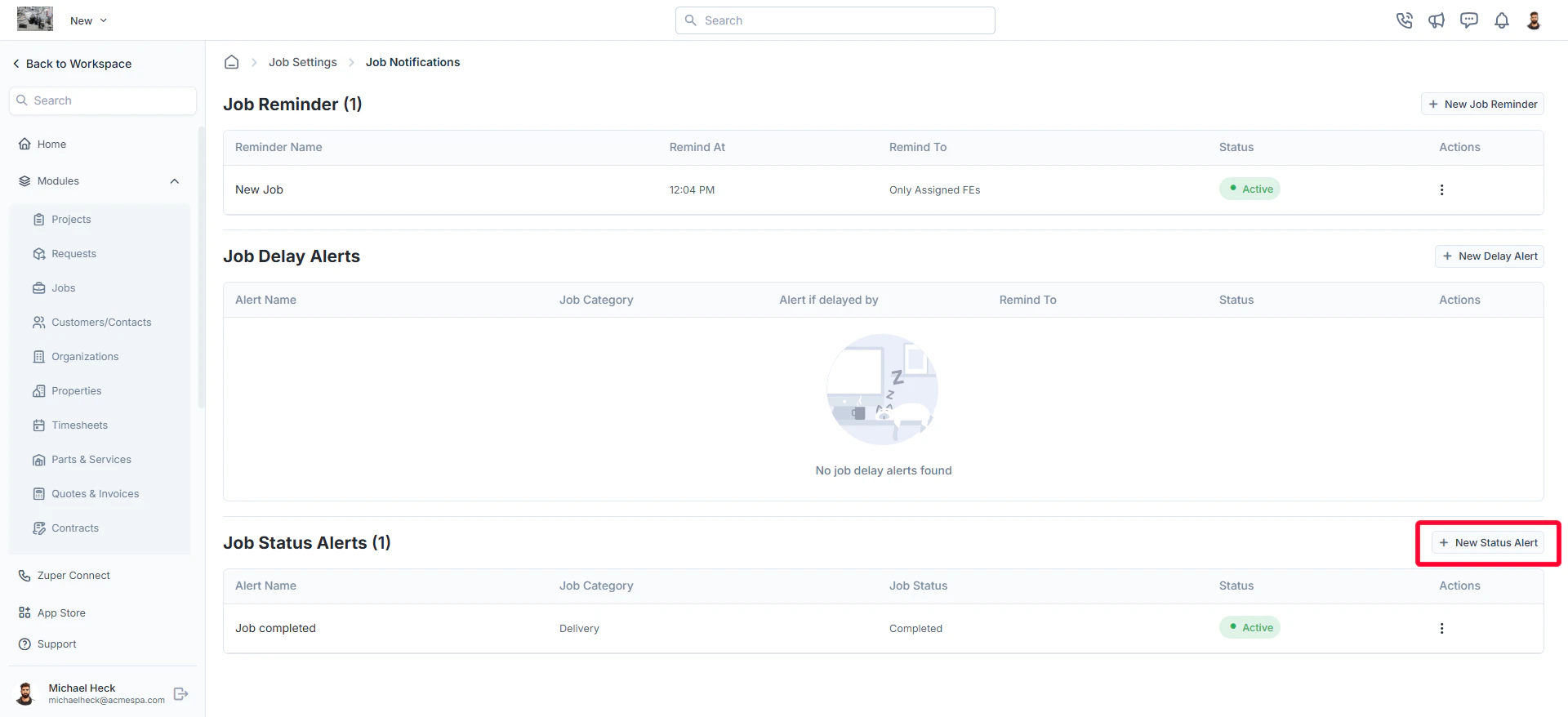 * A **New Job Status Alert** dialog box appears.
* Fill in the following details:
1. **Alert Name**(*Required*): Enter a name for the alert.
2. **Notification Type**(*Required*): Choose from Push Notification, SMS, or Email.
3. **Send Reminder To**(*Required*): Select recipients as described in job reminders.
4. **Job Category**: Choose from the dropdown menu.
5. **Job Status**: Select a status.
6. **Alert Template/SMS Body/Email Body**(*Required*): Compose the message.
* Click **Save Notification**.
* A **New Job Status Alert** dialog box appears.
* Fill in the following details:
1. **Alert Name**(*Required*): Enter a name for the alert.
2. **Notification Type**(*Required*): Choose from Push Notification, SMS, or Email.
3. **Send Reminder To**(*Required*): Select recipients as described in job reminders.
4. **Job Category**: Choose from the dropdown menu.
5. **Job Status**: Select a status.
6. **Alert Template/SMS Body/Email Body**(*Required*): Compose the message.
* Click **Save Notification**.
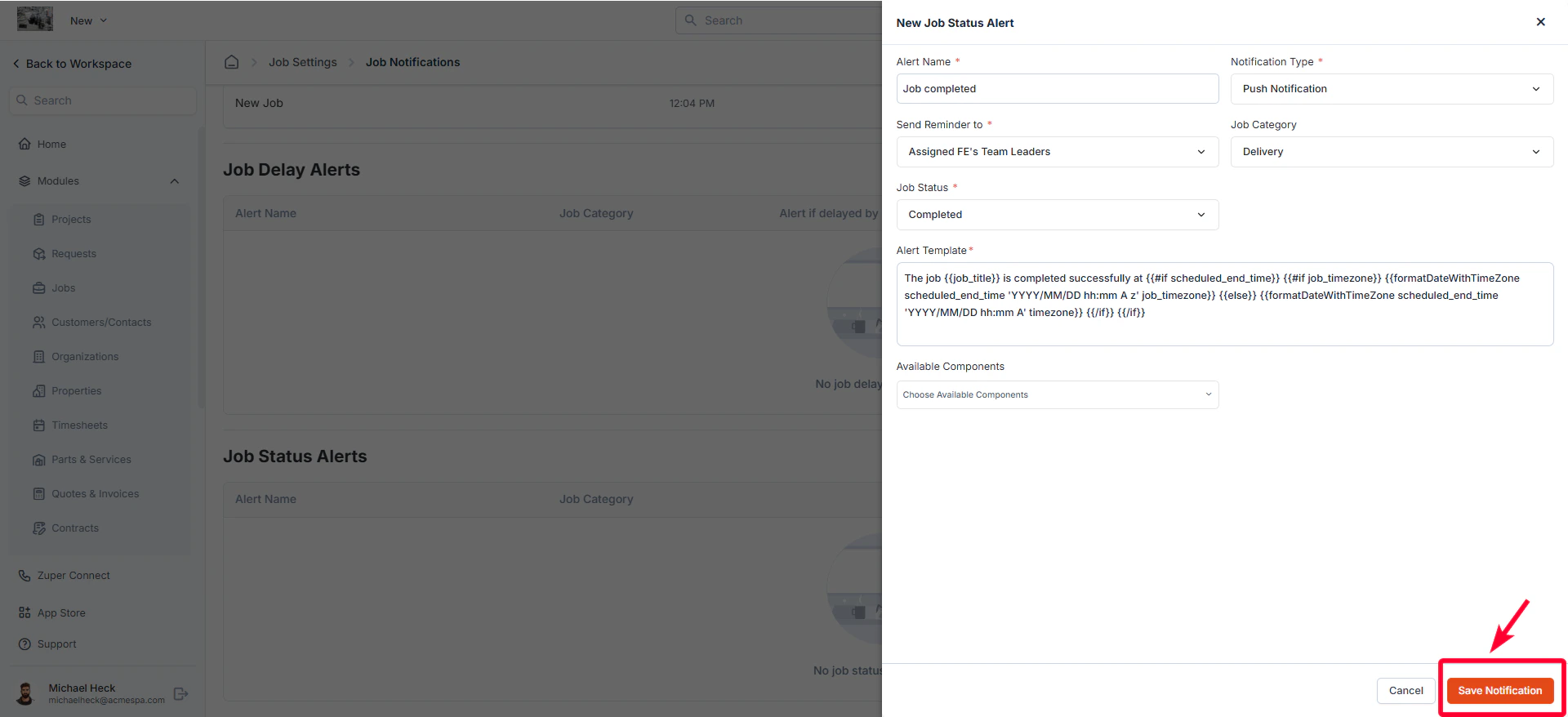 The job status alert is added with details such as Alert Name, Job Category, Job Status, and Status (Active/Inactive).
### Editing a Job Status Alert
* On the job status alerts listing page, click the icon under **Actions** and select "**Edit Status Alert**" next to the specific job status alert.
The job status alert is added with details such as Alert Name, Job Category, Job Status, and Status (Active/Inactive).
### Editing a Job Status Alert
* On the job status alerts listing page, click the icon under **Actions** and select "**Edit Status Alert**" next to the specific job status alert.
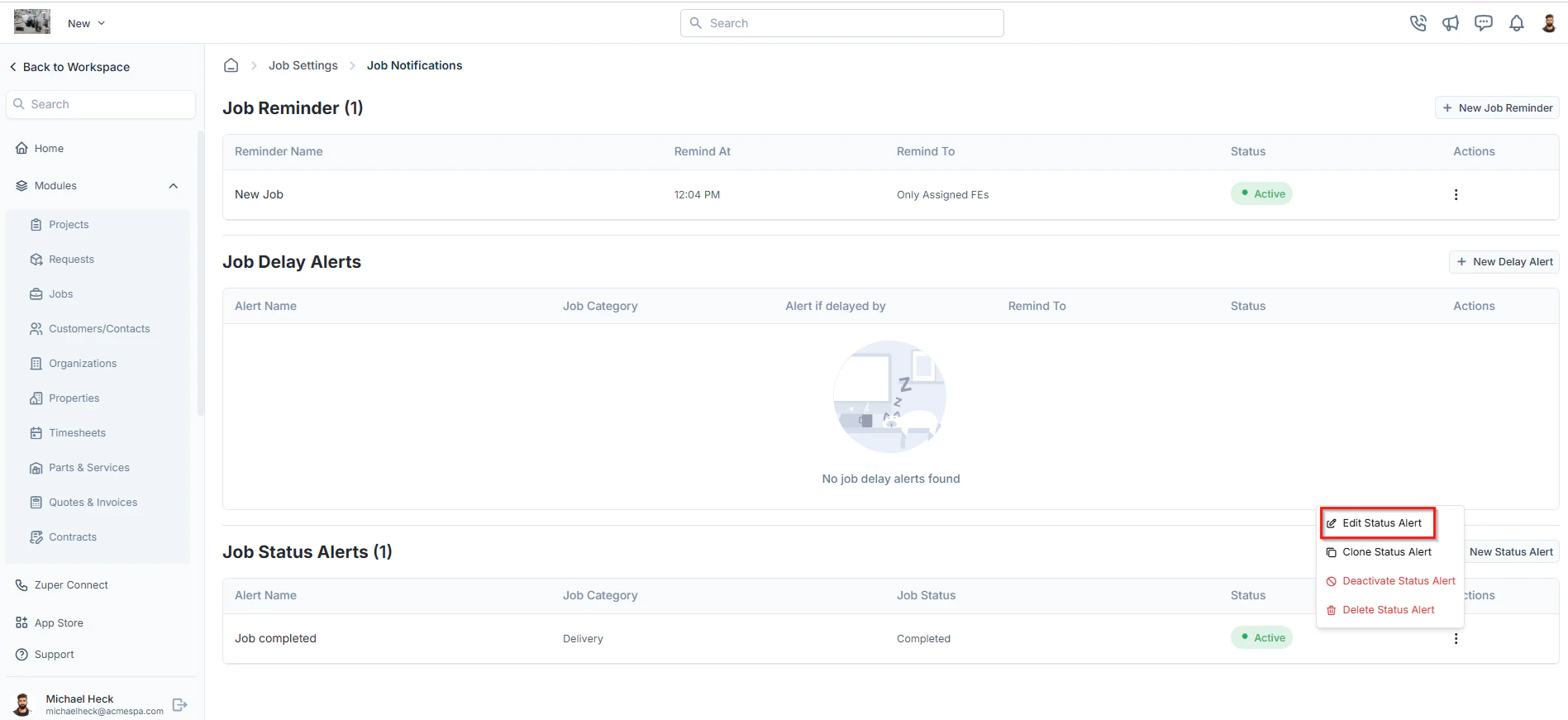 * The Edit Job Status Alert will open.
* Make the necessary changes.
* Click **Update Notification** to save the changes.
### Clone Job Status Alert
To clone an existing job status alert:
* On the job status alerts listing page, click the icon under **Actions** and select "**Clone Status Alert"** next to the specific alert that you want to clone.
* The Edit Job Status Alert will open.
* Make the necessary changes.
* Click **Update Notification** to save the changes.
### Clone Job Status Alert
To clone an existing job status alert:
* On the job status alerts listing page, click the icon under **Actions** and select "**Clone Status Alert"** next to the specific alert that you want to clone.
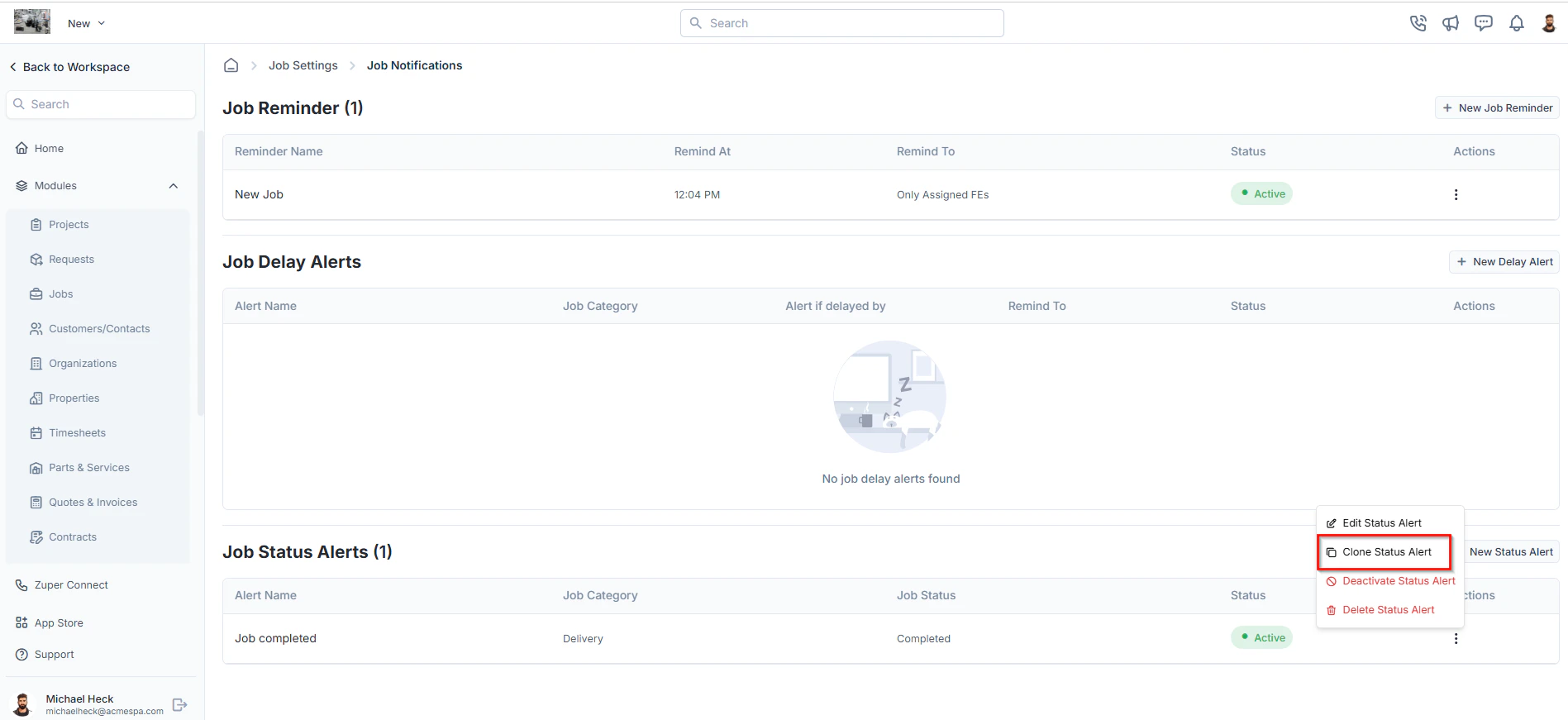 * The Clone Job Status Alert dialog box will open with existing alert details.
* Update the necessary changes as needed
* Click **Clone Notification** to clone the alert.
### Deactivate/Activate Job Status Alert
To deactivate or activate an existing job status alert:
* On the job status alerts listing page, click the icon under **Actions** and select **Deactivate/Activate Status Alert** next to the specific alert that you want to deactivate or activate.
* The Clone Job Status Alert dialog box will open with existing alert details.
* Update the necessary changes as needed
* Click **Clone Notification** to clone the alert.
### Deactivate/Activate Job Status Alert
To deactivate or activate an existing job status alert:
* On the job status alerts listing page, click the icon under **Actions** and select **Deactivate/Activate Status Alert** next to the specific alert that you want to deactivate or activate.
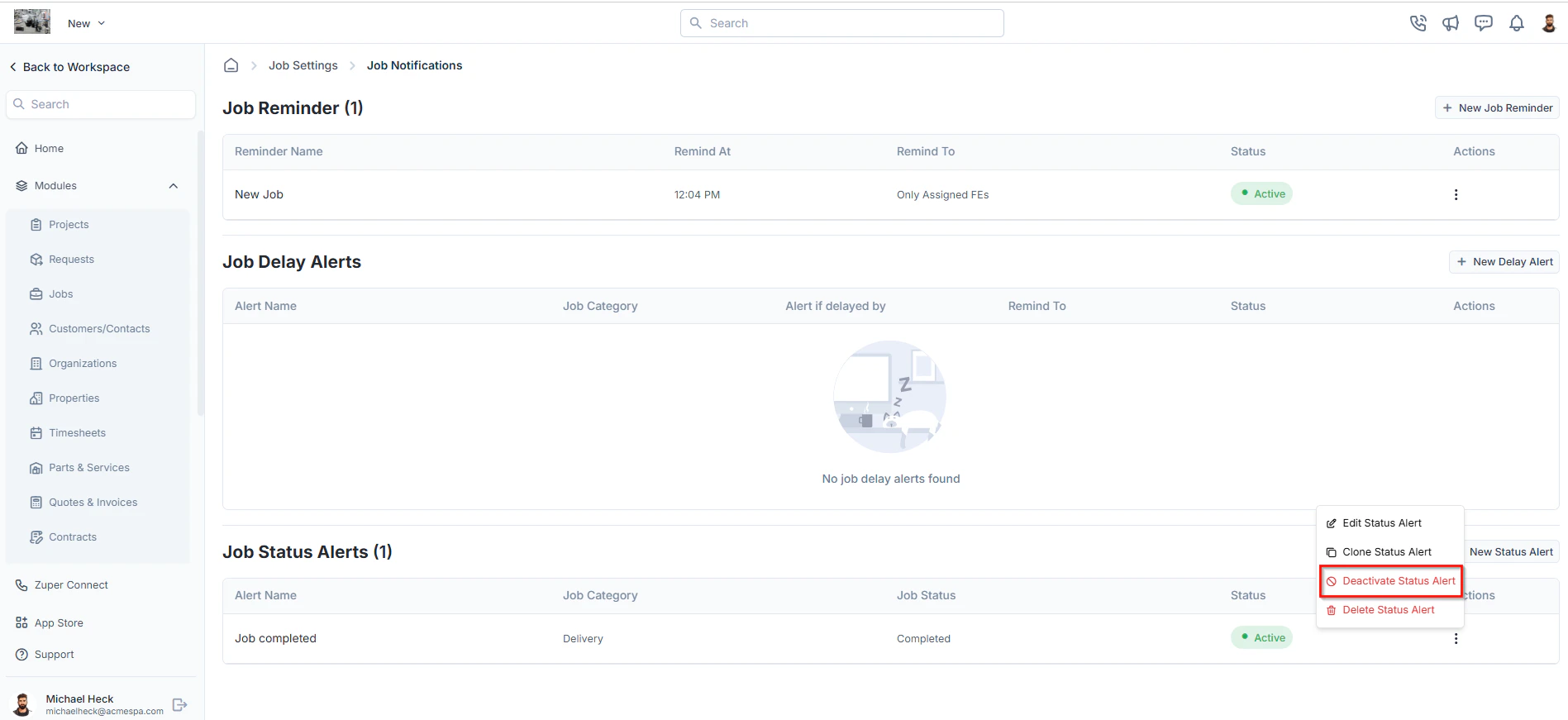 * A confirmation dialog box will appear.
* Click **Deactivate** or **Activate** to confirm your changes.
### Delete Job Status Alert
To delete an existing job status alert:
* On the job status alerts listing page, click the icon under **Actions** and select "**Delete Status Alert**" next to the specific status alert that you want to delete.
* A confirmation dialog box will appear.
* Click **Deactivate** or **Activate** to confirm your changes.
### Delete Job Status Alert
To delete an existing job status alert:
* On the job status alerts listing page, click the icon under **Actions** and select "**Delete Status Alert**" next to the specific status alert that you want to delete.
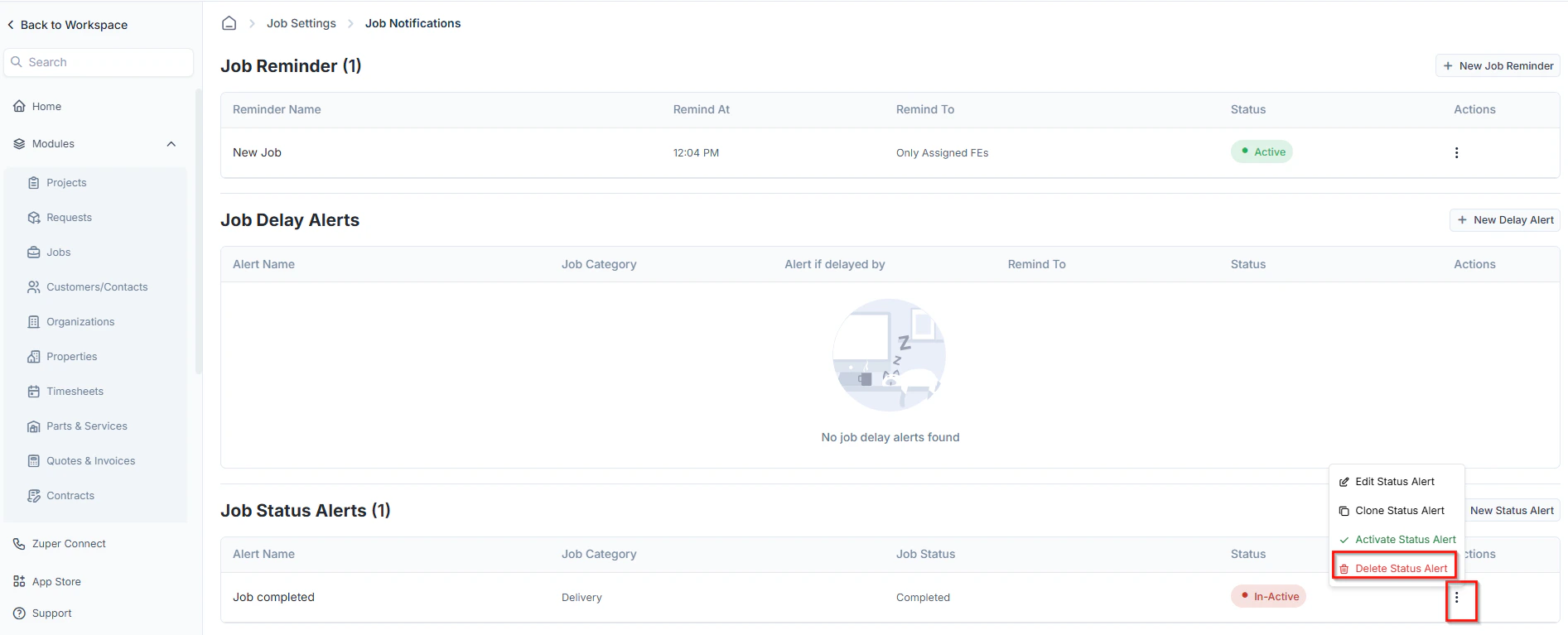 * A confirmation dialog box will appear.
* Click **Delete** to permanently remove the job status alert.
## **Customer / contact reminder**
**Navigation**: *Settings -> Modules -> Customer-Contact -> Customer-Contact Custom Notifications*
1. Select the “**Settings**” module from the left panel. Under the “**Modules**,” click “**Customer/Contact Notifications**.”
* A confirmation dialog box will appear.
* Click **Delete** to permanently remove the job status alert.
## **Customer / contact reminder**
**Navigation**: *Settings -> Modules -> Customer-Contact -> Customer-Contact Custom Notifications*
1. Select the “**Settings**” module from the left panel. Under the “**Modules**,” click “**Customer/Contact Notifications**.”
 2. Click “**+ New Reminder**.”
 3. Fill in the reminder details
* Reminder Name: Enter a name for the reminder.
* Job Category: Select the job category.
* Notification Type: Choose the type of notification.
* Remind Type: Select the reminder type.
* Remind At / Before: Set a specific time for the reminder.
* SMS / Email Body: Enter the message content. Use the Available Components dropdown to insert dynamic fields, such as customer fields or job details (e.g., "The scheduled job starts at...").
* Notify for Unassigned Jobs: Check this box to receive a reminder to apply.
3. Fill in the reminder details
* Reminder Name: Enter a name for the reminder.
* Job Category: Select the job category.
* Notification Type: Choose the type of notification.
* Remind Type: Select the reminder type.
* Remind At / Before: Set a specific time for the reminder.
* SMS / Email Body: Enter the message content. Use the Available Components dropdown to insert dynamic fields, such as customer fields or job details (e.g., "The scheduled job starts at...").
* Notify for Unassigned Jobs: Check this box to receive a reminder to apply.
 Click “**Save Reminder**” to save the reminder.
 ## **Customer /Contact Status Alerts**
1. Select the “**Settings**” module from the left panel. Under the “**Modules**,” click “**Customer/Contact Notifications**.”
2. Click “**+ New Notification**.”
3. Enter/Select the details:
* Notification Name: Enter a descriptive name for the alert.
* Notification Type: Select the type of notification. Choose the type of notification.
* Job Category: Select the relevant job category.
* Job Status: Choose the status that will trigger the notification.
* SMS /Email Body: Enter the message to be sent. You can use dynamic components to personalize the message.
* Use the Available Components dropdown to insert dynamic fields, such as customer fields or job details.
Click “**Save Notification**” to set the notification.
Click “**Save Reminder**” to save the alert.
## **Customer /Contact Status Alerts**
1. Select the “**Settings**” module from the left panel. Under the “**Modules**,” click “**Customer/Contact Notifications**.”
2. Click “**+ New Notification**.”
3. Enter/Select the details:
* Notification Name: Enter a descriptive name for the alert.
* Notification Type: Select the type of notification. Choose the type of notification.
* Job Category: Select the relevant job category.
* Job Status: Choose the status that will trigger the notification.
* SMS /Email Body: Enter the message to be sent. You can use dynamic components to personalize the message.
* Use the Available Components dropdown to insert dynamic fields, such as customer fields or job details.
Click “**Save Notification**” to set the notification.
Click “**Save Reminder**” to save the alert.