> ## Documentation Index
> Fetch the complete documentation index at: https://zuperinc-section23.mintlify.site/llms.txt
> Use this file to discover all available pages before exploring further.
# Password Policy
Zuper allows administrators to define a password policy for their organization to ensure enhanced security. By setting a firm password policy, you can encourage users to create robust passwords that protect sensitive data and maintain the integrity of your workspace.
**Navigation**: *Settings -> Security - > Password Policy*
## **Prerequisites**
* You must have administrative access to the Zuper platform.
* Ensure you are logged into your Zuper account with the appropriate permissions.
## **Navigate to the Security Settings**
* Log in to your Zuper account.
* Select the “**Security**” module from the left-hand navigation menu.
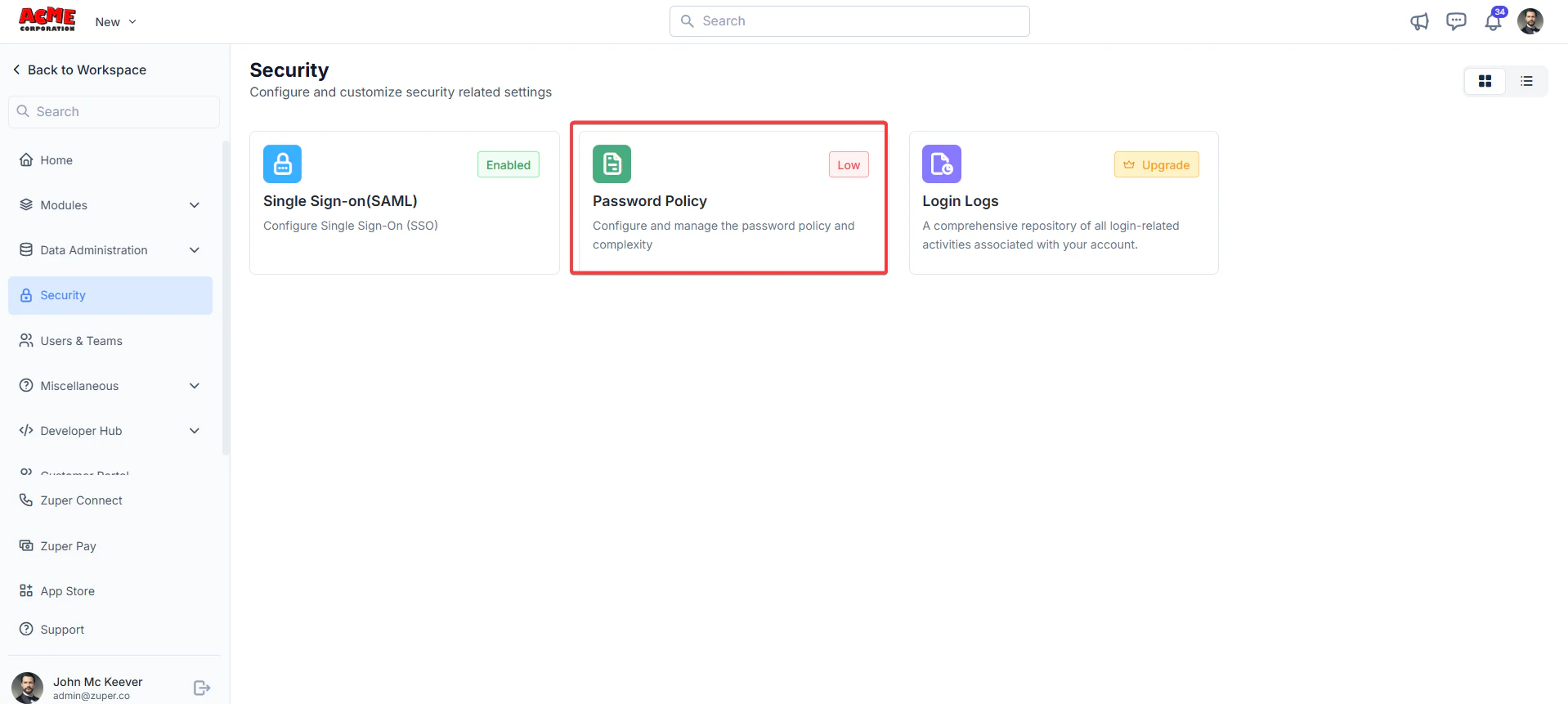
* In the Security module, click **Password Policy**. This section allows you to define the rules for password creation within your organization.
 ## **Configure Password Complexity**
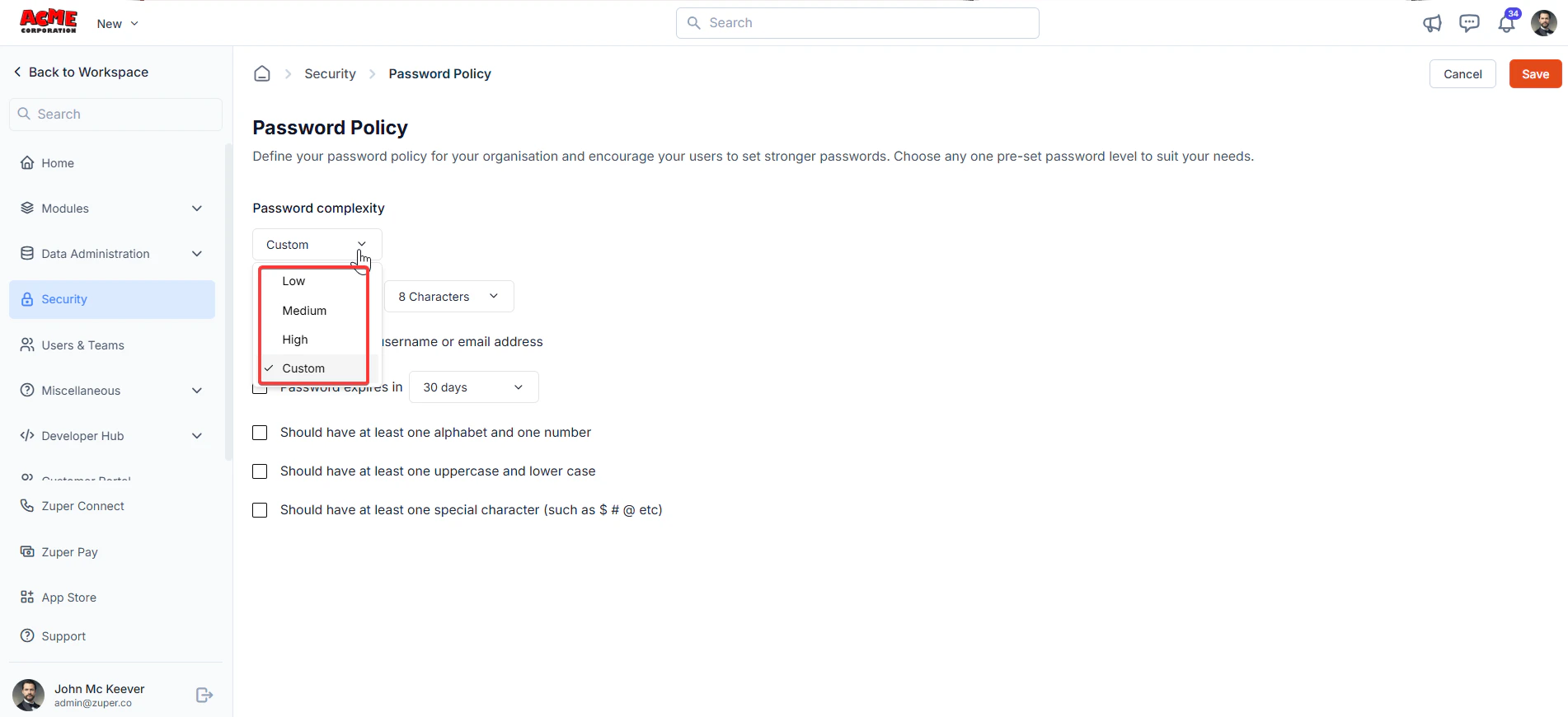
* In the Password Policy section, you can see a dropdown labelled Password complexity. You can set the complexity to Low, Medium, or High. If you select Custom, you can define specific requirements for passwords.
## **Configure Password Complexity**
* In the Password Policy section, you can see a dropdown labelled Password complexity. You can set the complexity to Low, Medium, or High. If you select Custom, you can define specific requirements for passwords.
 3. Below the dropdown, there are several options to customize the password policy. Check the boxes for the rules you want to enforce:
* **Minimum length**: Set the minimum number of characters required for a password. For example, you can set it to **8 characters** (recommended for better security).
* **Cannot contain the username or email address**: Enable this option to prevent users from including their username or email address in their password, reducing the risk of predictable passwords.
* **Password expires in**: Specify a duration after which passwords will expire, prompting users to create a new one. For example, set it to **30 days**.
* **Should have at least one alphabet and number**: Enable this to ensure passwords include a mix of letters and numbers.
* **Should have at least one uppercase and lowercase**: Enable this to require both uppercase and lowercase letters in passwords.
* **Should have at least one special character (such as # \$ @, etc)**: Enable this to mandate the inclusion of special characters for added complexity.
3. Below the dropdown, there are several options to customize the password policy. Check the boxes for the rules you want to enforce:
* **Minimum length**: Set the minimum number of characters required for a password. For example, you can set it to **8 characters** (recommended for better security).
* **Cannot contain the username or email address**: Enable this option to prevent users from including their username or email address in their password, reducing the risk of predictable passwords.
* **Password expires in**: Specify a duration after which passwords will expire, prompting users to create a new one. For example, set it to **30 days**.
* **Should have at least one alphabet and number**: Enable this to ensure passwords include a mix of letters and numbers.
* **Should have at least one uppercase and lowercase**: Enable this to require both uppercase and lowercase letters in passwords.
* **Should have at least one special character (such as # \$ @, etc)**: Enable this to mandate the inclusion of special characters for added complexity.
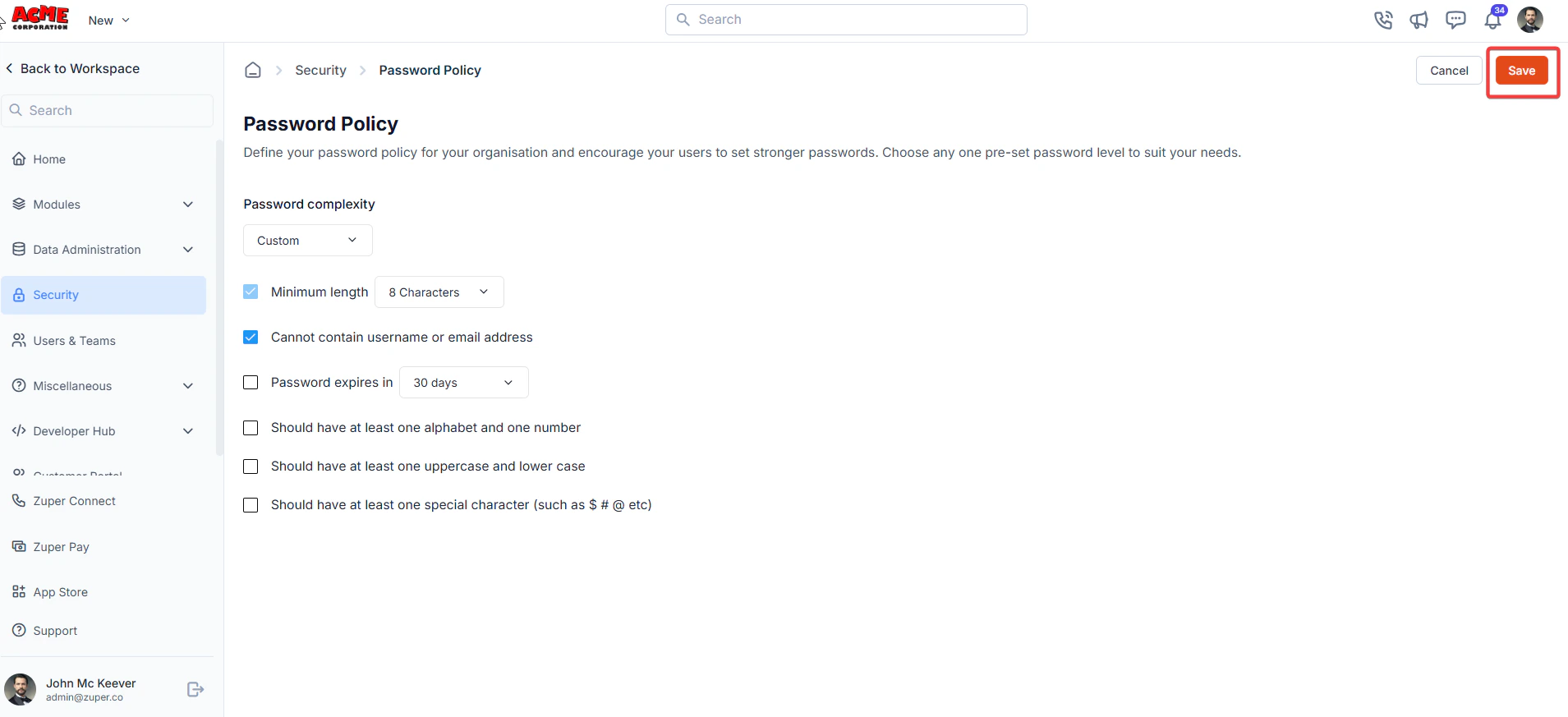 After configuring the settings, click the **Save** button at the top right of the screen to apply the new password policy.
**Best Practices for a Strong Password Policy**
* **Set a Reasonable Minimum Length**: A minimum of 8 characters is a good starting point, but consider increasing it to 12 or more for higher security.
* **Enforce Variety**: Requiring a mix of uppercase, lowercase, numbers, and special characters makes passwords harder to crack.
* **Avoid Predictable Information**: Preventing the use of usernames or email addresses in passwords reduces the risk of guessable passwords.
* **Regular Password Expiry**: Setting an expiration period (e.g., 30 or 90 days) ensures users update their passwords periodically, reducing the risk of compromised credentials.
* **Educate Users**: Inform your team about the importance of creating strong, unique passwords and avoiding reuse across different platforms.
**Troubleshooting**
* **Users Unable to Set Passwords**: If users encounter issues while setting passwords, ensure they follow the defined policy (e.g., meeting the minimum length or including required characters).
* **Policy Not Applied**: If the new policy doesn’t take effect, double-check that you clicked **Save** after making changes. You may also need to log out and log back in to see the updated settings.
* **Forgotten Passwords**: If a user forgets their password, they can use the “Forgot Password” option on the login page to reset it, provided this feature is enabled in your Zuper workspace.
After configuring the settings, click the **Save** button at the top right of the screen to apply the new password policy.
**Best Practices for a Strong Password Policy**
* **Set a Reasonable Minimum Length**: A minimum of 8 characters is a good starting point, but consider increasing it to 12 or more for higher security.
* **Enforce Variety**: Requiring a mix of uppercase, lowercase, numbers, and special characters makes passwords harder to crack.
* **Avoid Predictable Information**: Preventing the use of usernames or email addresses in passwords reduces the risk of guessable passwords.
* **Regular Password Expiry**: Setting an expiration period (e.g., 30 or 90 days) ensures users update their passwords periodically, reducing the risk of compromised credentials.
* **Educate Users**: Inform your team about the importance of creating strong, unique passwords and avoiding reuse across different platforms.
**Troubleshooting**
* **Users Unable to Set Passwords**: If users encounter issues while setting passwords, ensure they follow the defined policy (e.g., meeting the minimum length or including required characters).
* **Policy Not Applied**: If the new policy doesn’t take effect, double-check that you clicked **Save** after making changes. You may also need to log out and log back in to see the updated settings.
* **Forgotten Passwords**: If a user forgets their password, they can use the “Forgot Password” option on the login page to reset it, provided this feature is enabled in your Zuper workspace.