> ## Documentation Index
> Fetch the complete documentation index at: https://zuperinc-section23.mintlify.site/llms.txt
> Use this file to discover all available pages before exploring further.
# Timesheets
The timesheets module in Zuper is designed to help track and manage field technicians' work hours accurately and efficiently. This allows you to confirm when a technician reached the location and whether they navigated to the correct place.
The admins can create manual time entries, export timesheet reports, and manage approvals, locations, enrolments, and more within the timesheet module.
## Creating manual time entry
**Navigation:** *Timesheet* --> *+ New Entry*
To create a manual time entry, follow these steps:
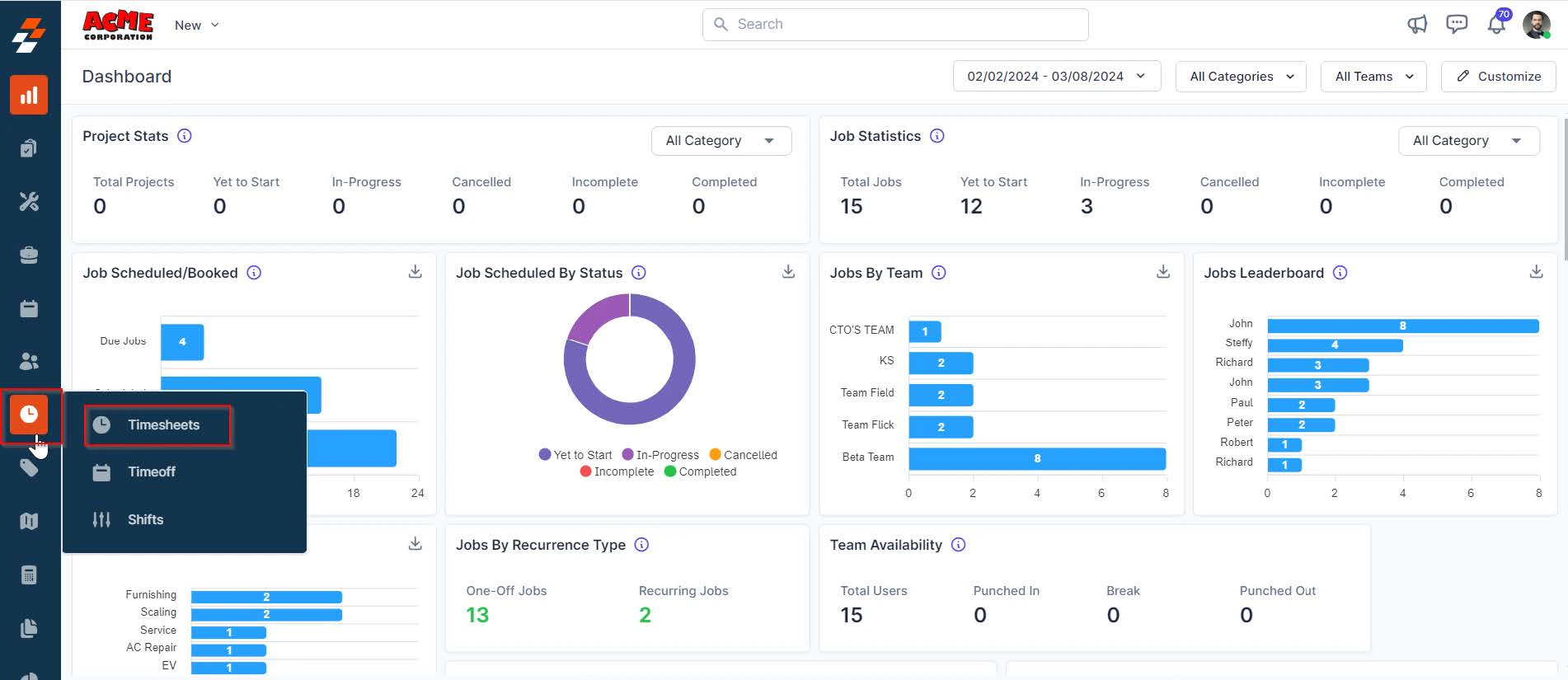
1. Select the "**Timesheet**" module from the left navigation menu and choose "**Timesheets**."
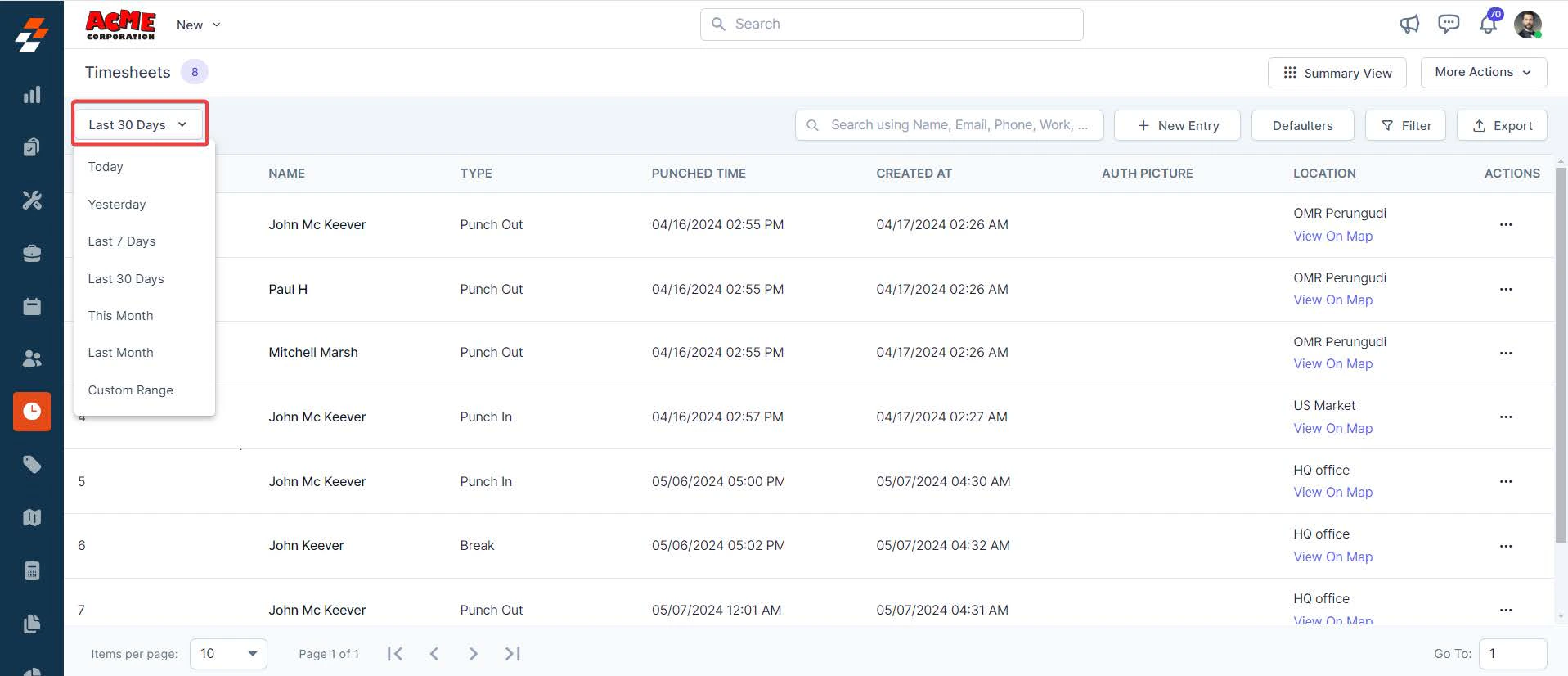
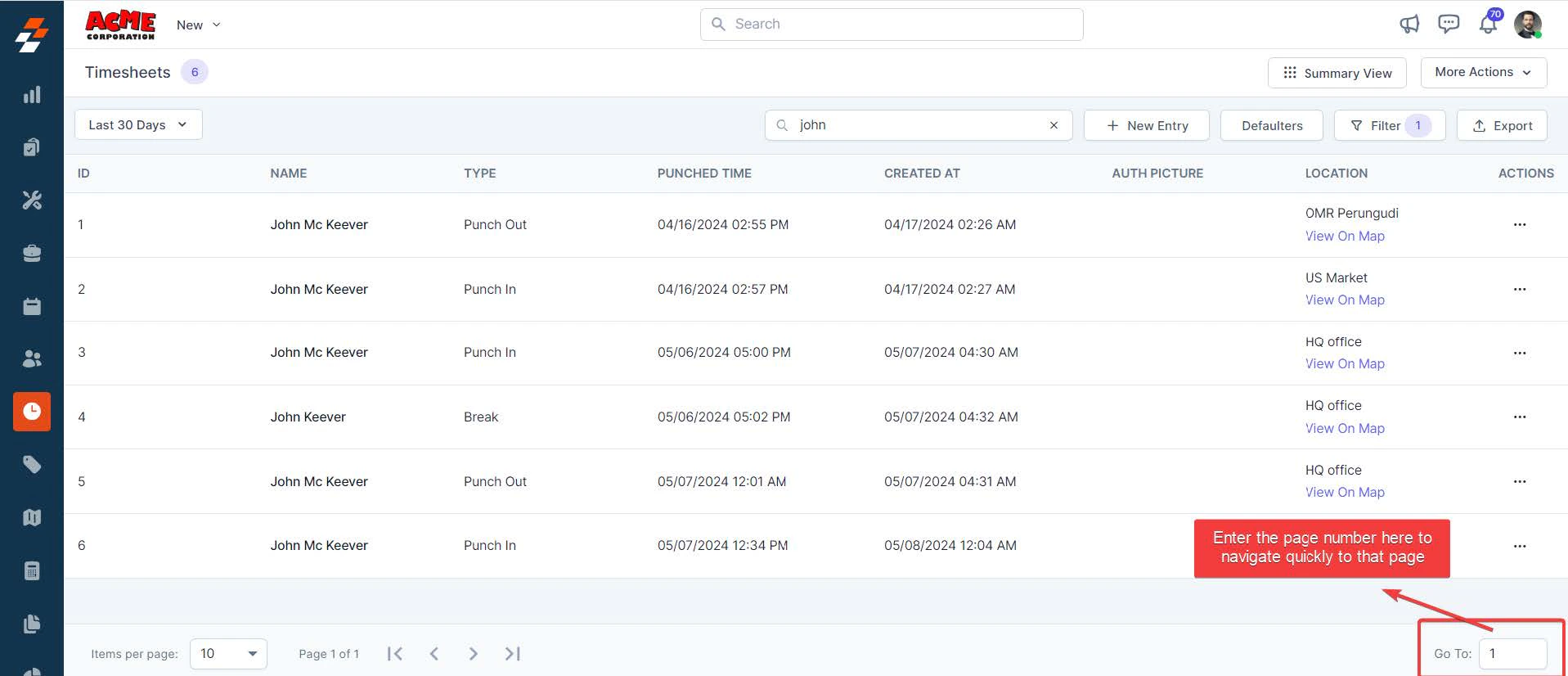
 2. By default, the list view displays attendance details for all field technicians, including the authentication picture and activity location, based on the selected date on the left.
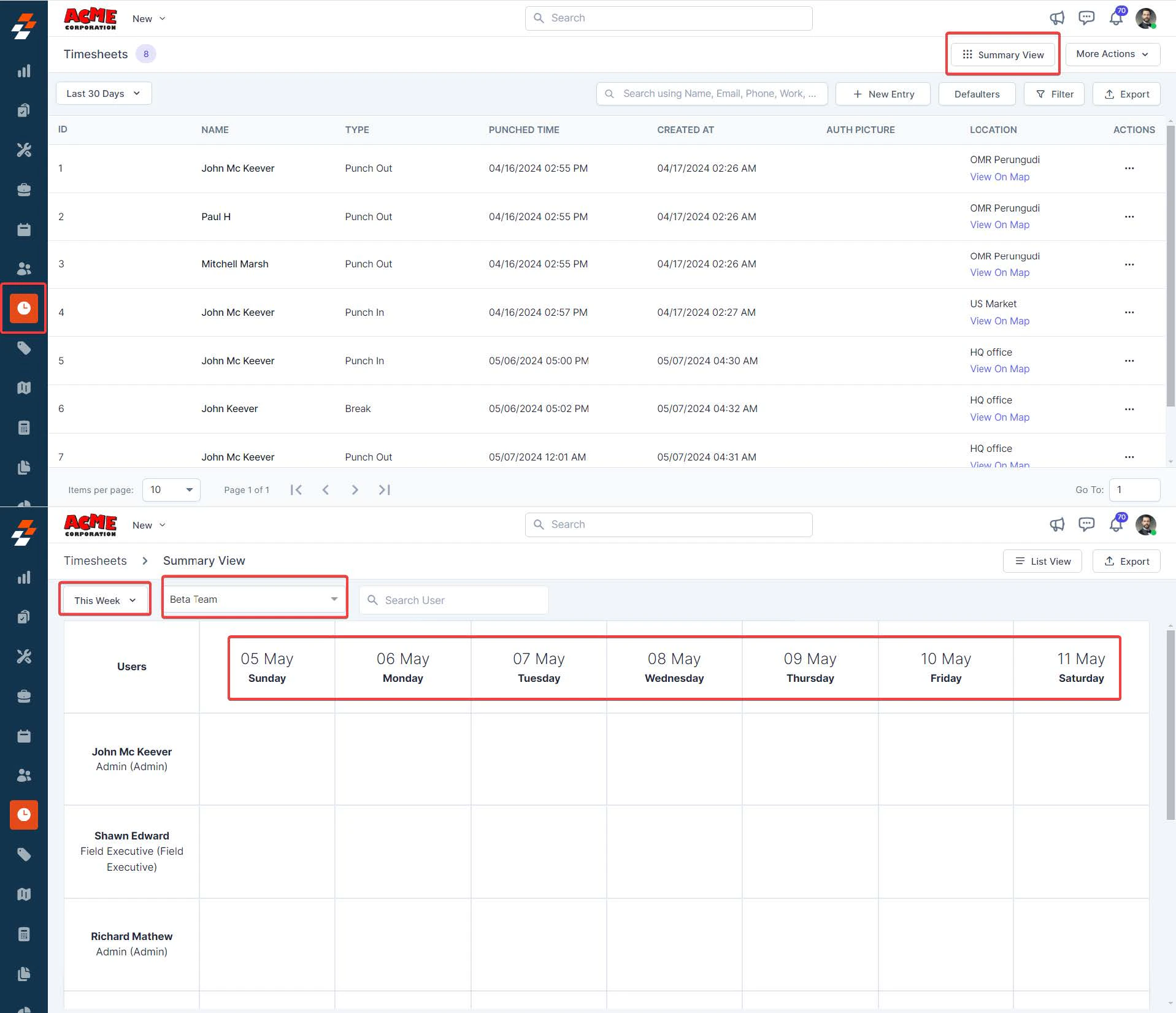
 3. Alternatively, you can switch to the summary view, which allows you to view attendance details for the selected team's users for up to seven days, as shown below:
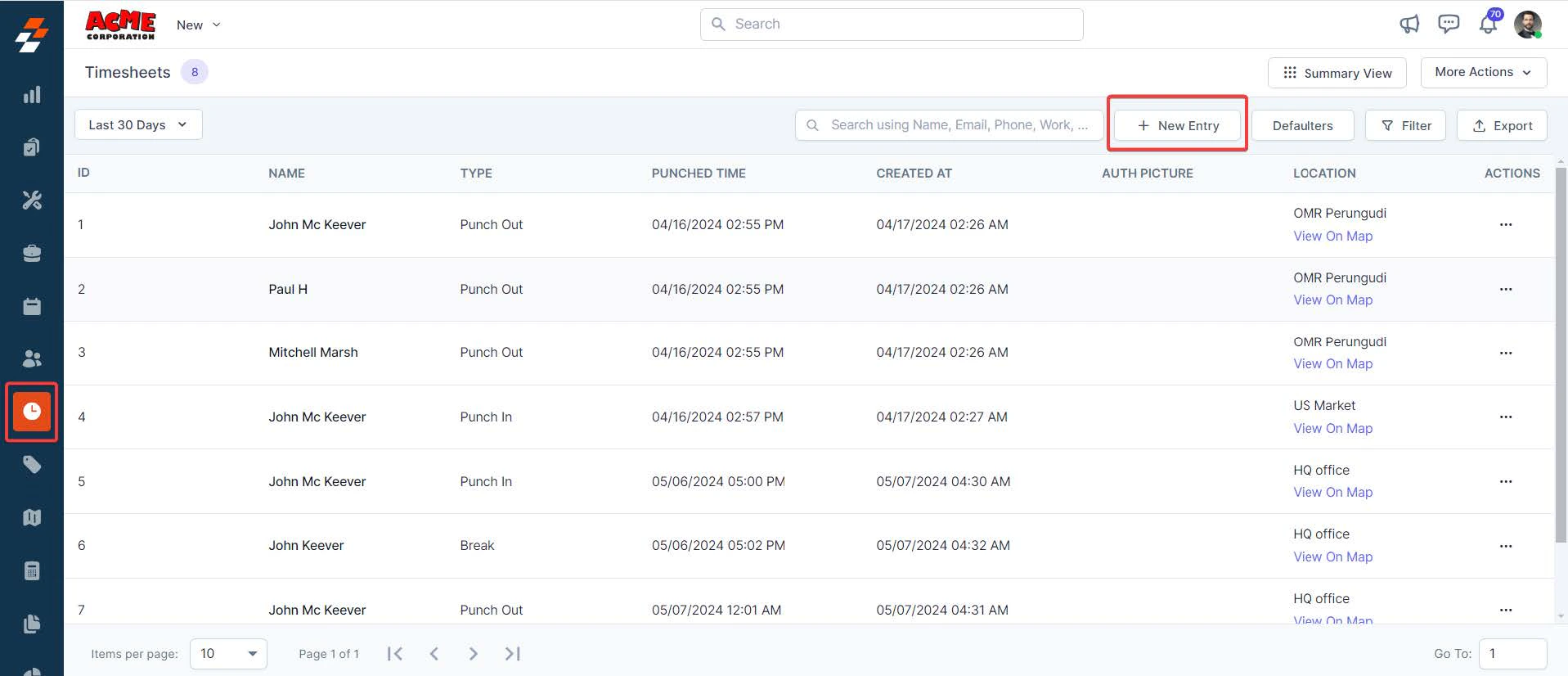
 4. However, to create a manual timesheet entry, return to the list view and click the "**+ New Entry**" button on the top right. A dialog box appears to create a new timesheet.
 Fill in the following details in the pop-up and click "**Create**."
* **Type of Entry**(*Mandatory*): Select the appropriate type of entry (Punch In, Take Break, Resume Work, Punch Out).
* **Location**(*Mandatory*): Choose the predefined location from Zuper.
* **Date:** Pick the Date using the date picker.
* **Time:** Specify the time for the entry.
* **Assign Users**(*Mandatory*): Select the field technician to add the entry.
Fill in the following details in the pop-up and click "**Create**."
* **Type of Entry**(*Mandatory*): Select the appropriate type of entry (Punch In, Take Break, Resume Work, Punch Out).
* **Location**(*Mandatory*): Choose the predefined location from Zuper.
* **Date:** Pick the Date using the date picker.
* **Time:** Specify the time for the entry.
* **Assign Users**(*Mandatory*): Select the field technician to add the entry.
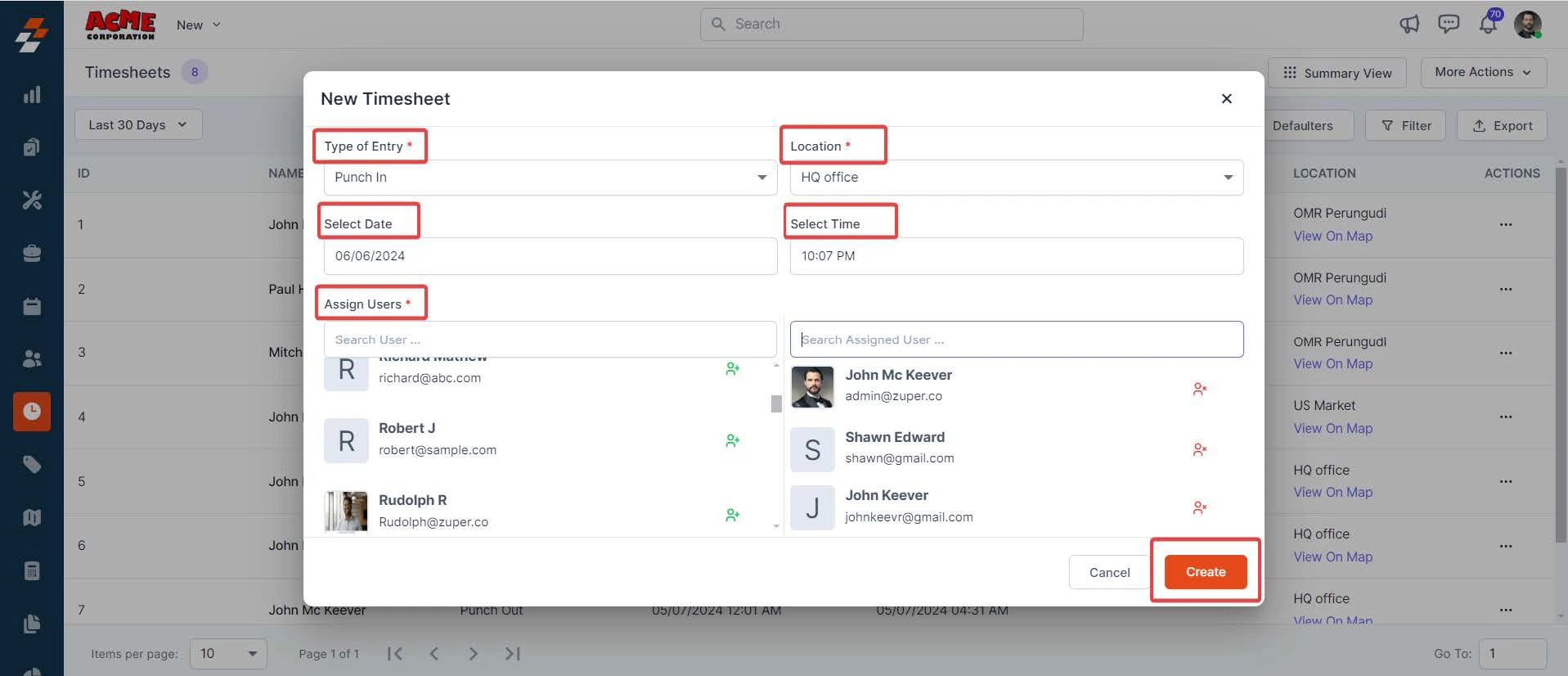 5. The timesheet is successfully created for the user(s).
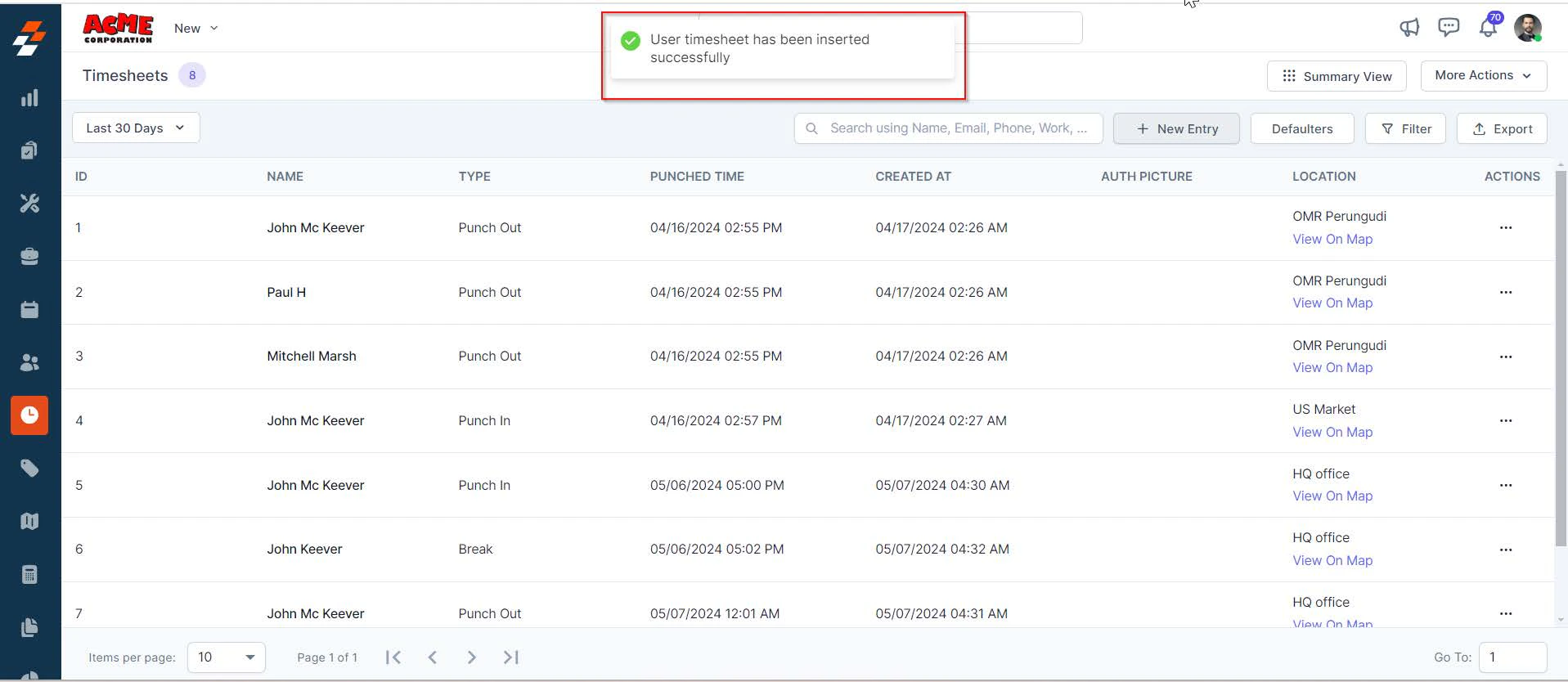 5. After creating the timesheets, you can view details and edit or delete them. To do so, click the "**Ellipsis**" icon under Actions and choose "**View Details**," "**Edit Timesheet**," or "**Delete Timesheet**" as needed.
Note: When you edit the user's timesheet, you can only update the date and time of entry as shown below.
## Exporting timesheet reports
**Navigation:** *Timesheets* --> *Export*
You can preview and download the timesheet master report as an Excel file.
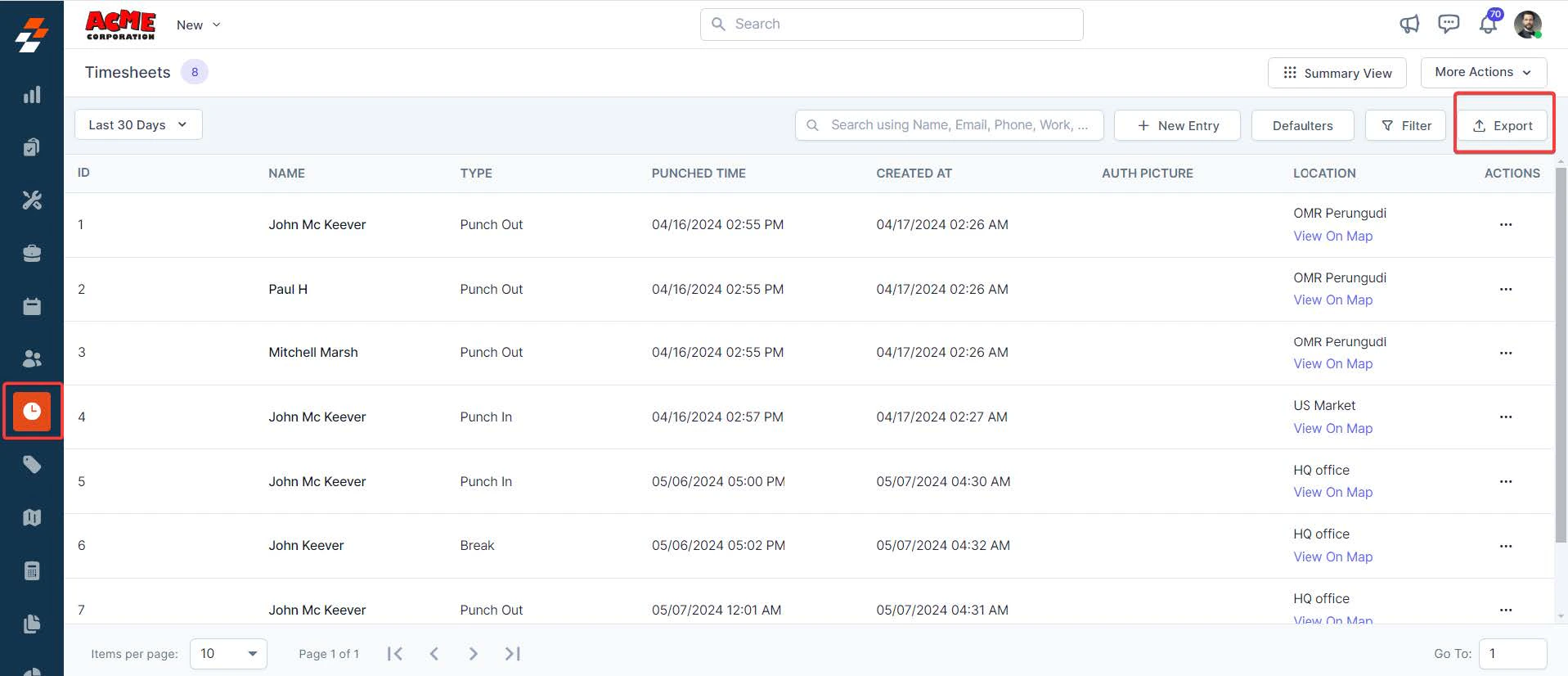
1. Click the "**Export**" button at the top right. You will be redirected to the reports page.
5. After creating the timesheets, you can view details and edit or delete them. To do so, click the "**Ellipsis**" icon under Actions and choose "**View Details**," "**Edit Timesheet**," or "**Delete Timesheet**" as needed.
Note: When you edit the user's timesheet, you can only update the date and time of entry as shown below.
## Exporting timesheet reports
**Navigation:** *Timesheets* --> *Export*
You can preview and download the timesheet master report as an Excel file.
1. Click the "**Export**" button at the top right. You will be redirected to the reports page.
 2. Use the date picker to select the preferred start and end dates and, if necessary, use the "**Advanced Filter**" option to filter specific entries based on type, team, and location.
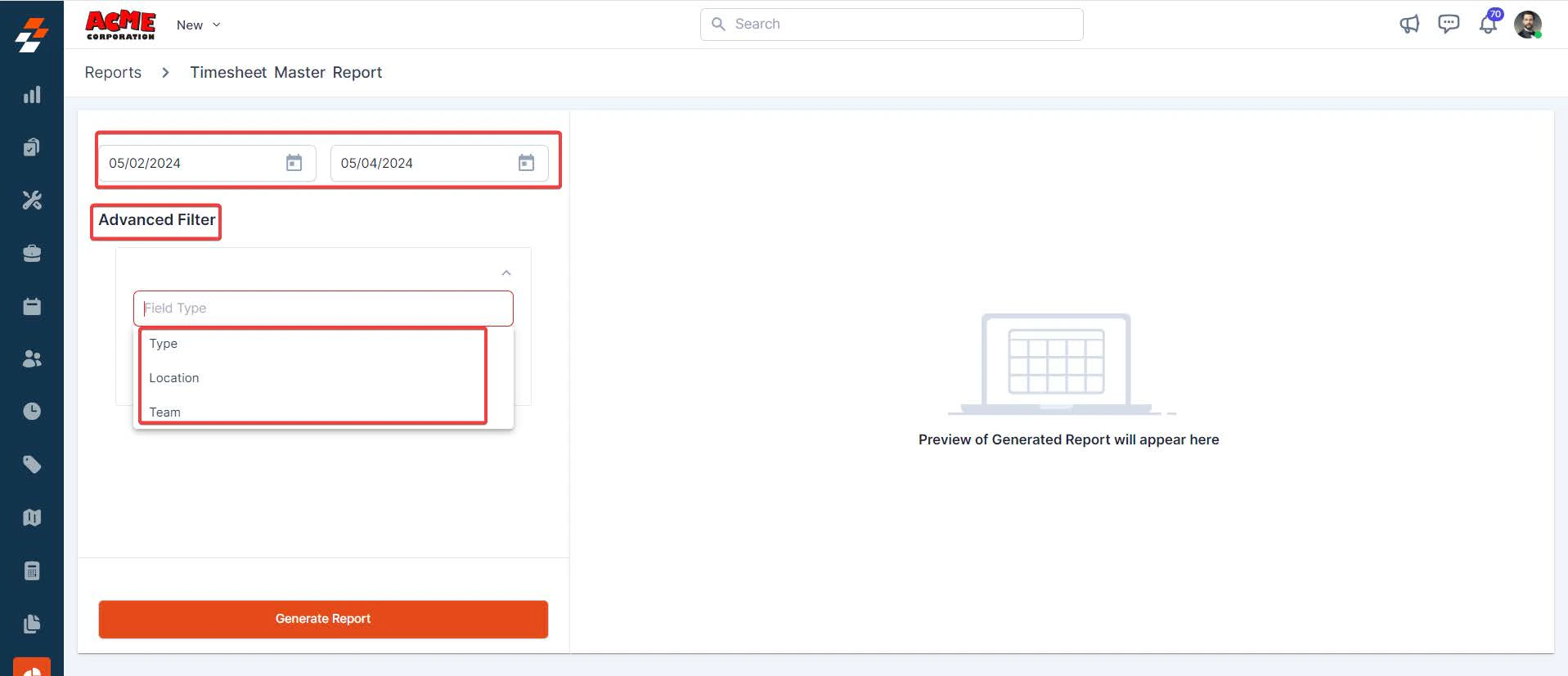 3. Once you have set the preferred date range and applied filters, click "**Generate Report**." A preview of the report will be generated on the right.
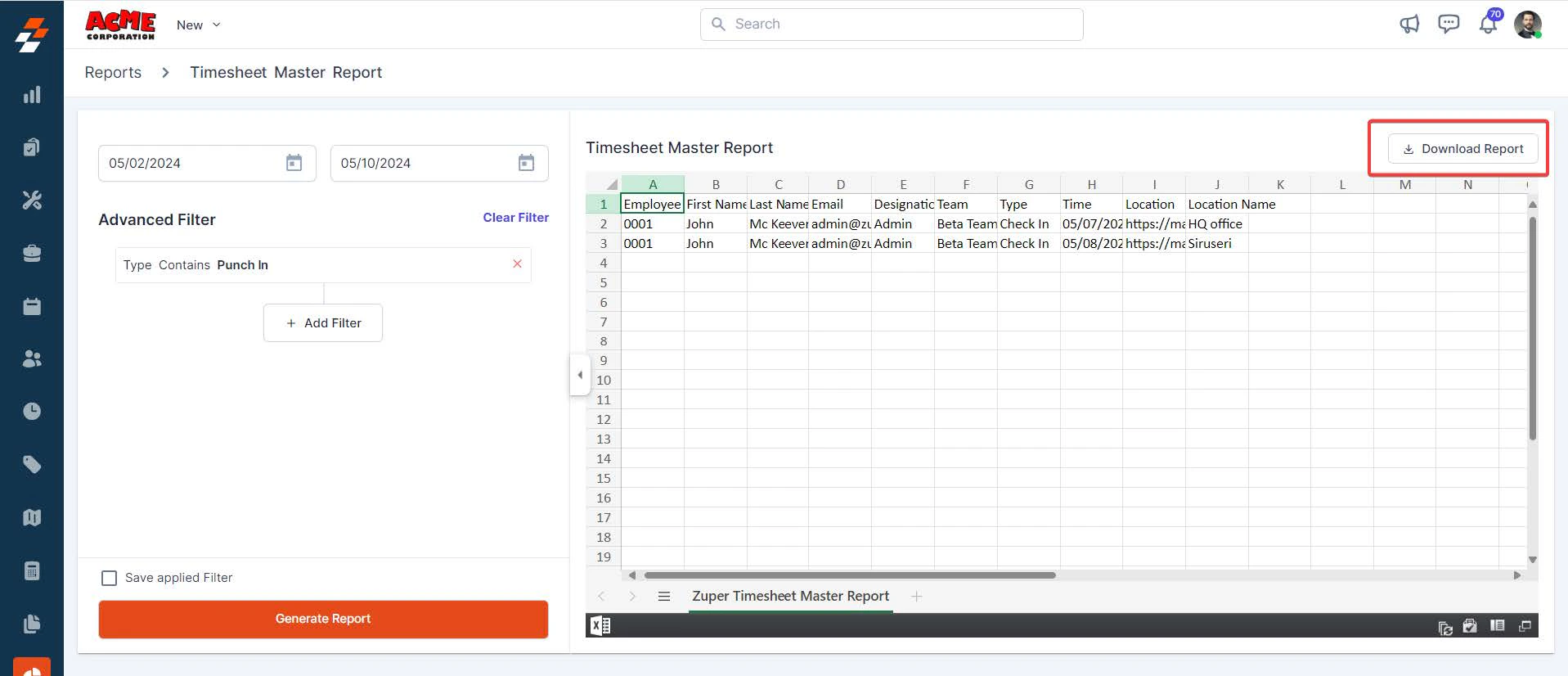
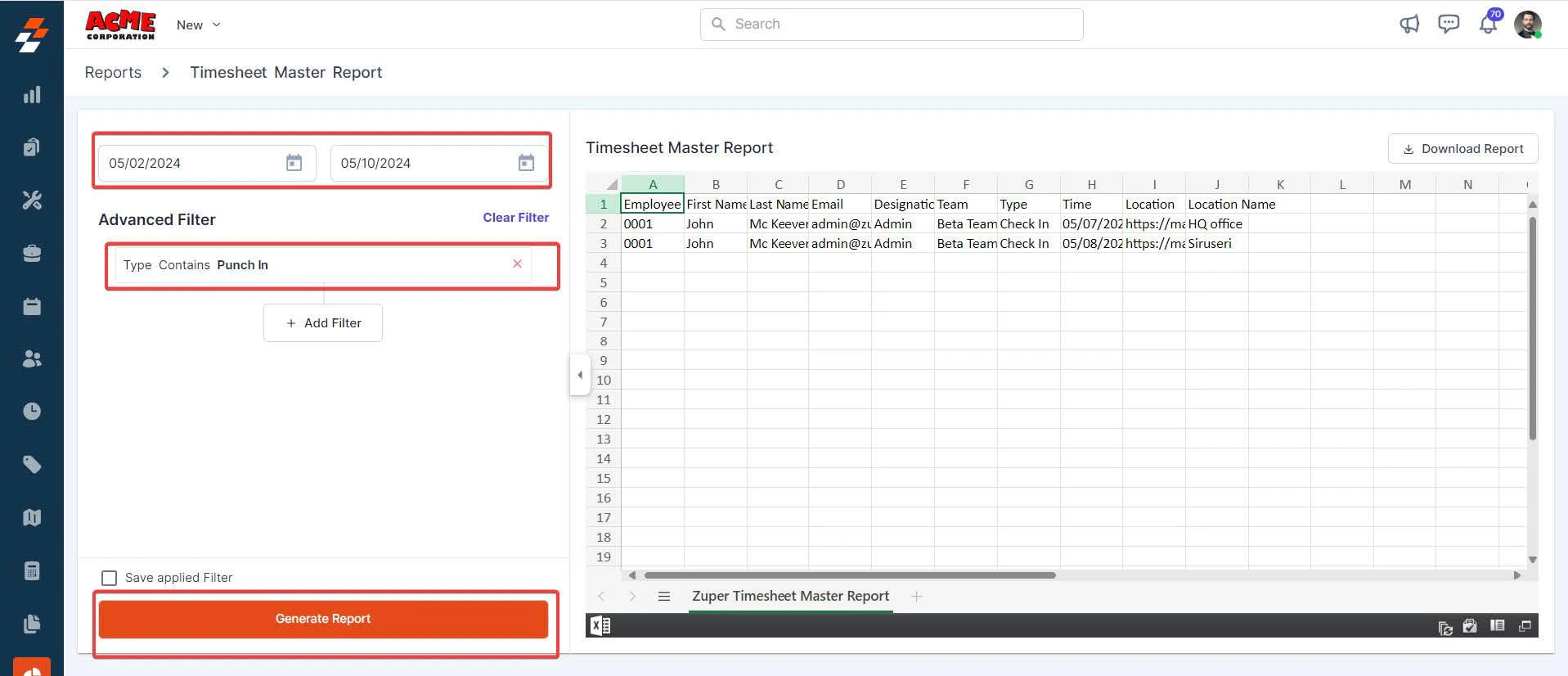 4. Click "**Download Report**" at the top right of the preview. The report will be exported successfully to your computer as an Excel file.
 ## Manage timesheet approvals
**Navigation:** *Timesheets*--> *More Actions*--> Timesheet Approval
Timesheet approval in the timesheets module allows you to review and either approve or reject timesheet approval requests submitted by the user(s). Additionally, you can create a new timesheet directly from here.
### View timesheet approval request
To view and approve/reject timesheet approval requests submitted by the user(s), follow these steps:
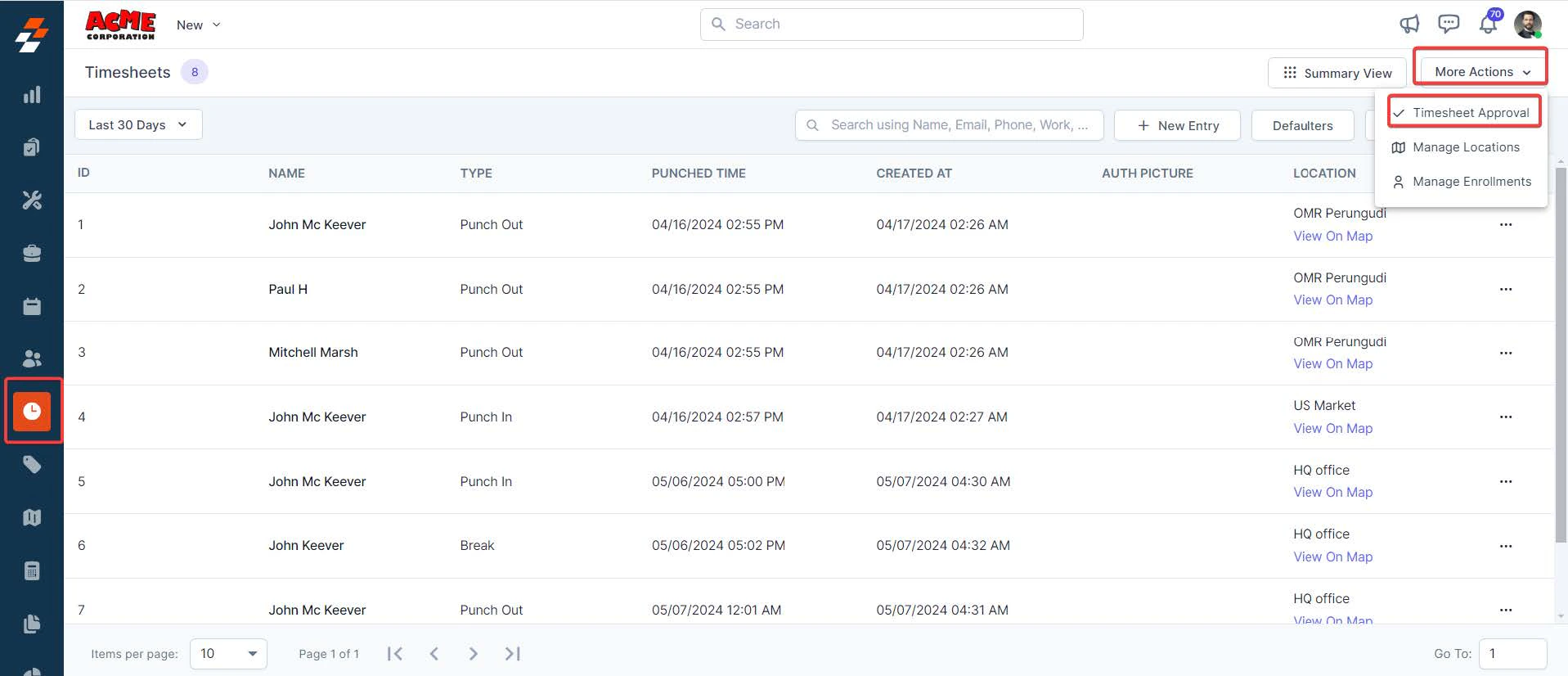
1. Select "**Timesheets Approval**" under More Actions in the Timesheets module.
## Manage timesheet approvals
**Navigation:** *Timesheets*--> *More Actions*--> Timesheet Approval
Timesheet approval in the timesheets module allows you to review and either approve or reject timesheet approval requests submitted by the user(s). Additionally, you can create a new timesheet directly from here.
### View timesheet approval request
To view and approve/reject timesheet approval requests submitted by the user(s), follow these steps:
1. Select "**Timesheets Approval**" under More Actions in the Timesheets module.
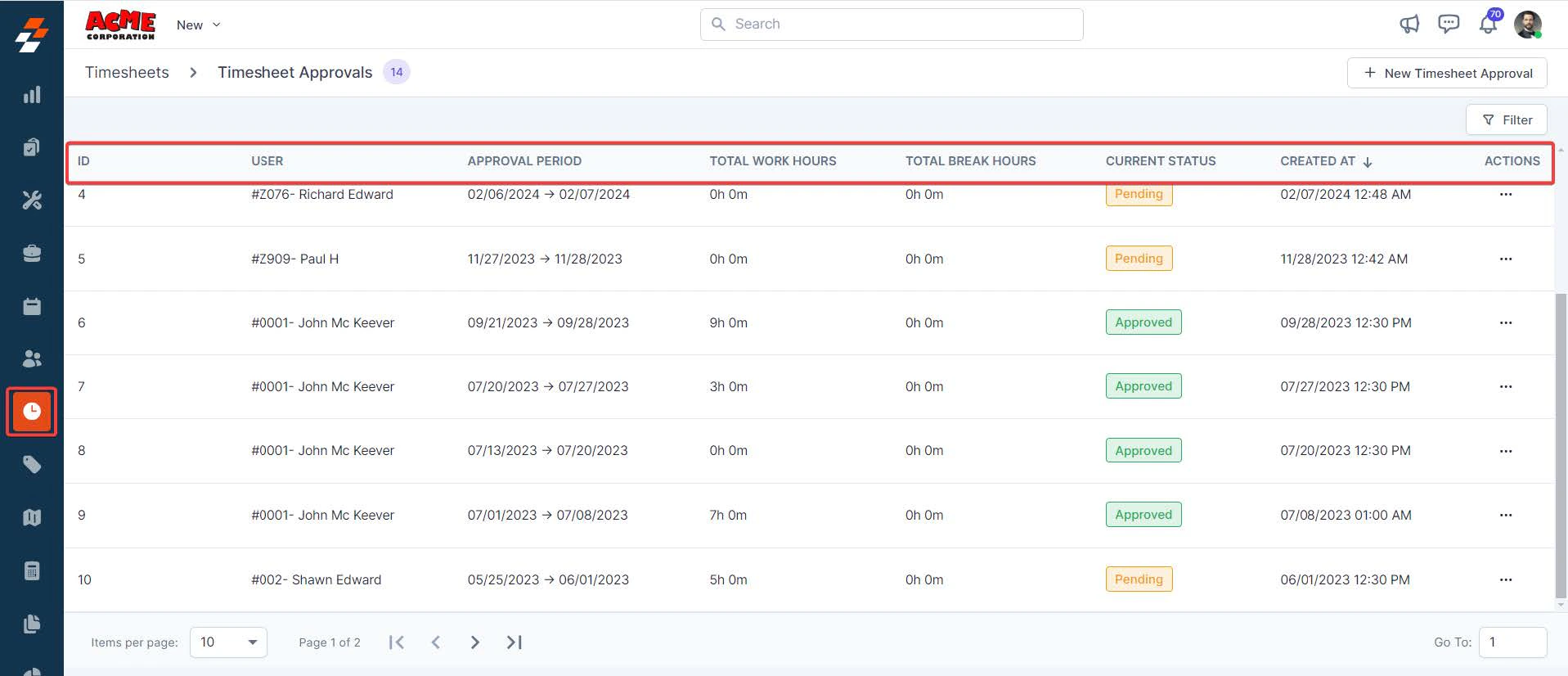
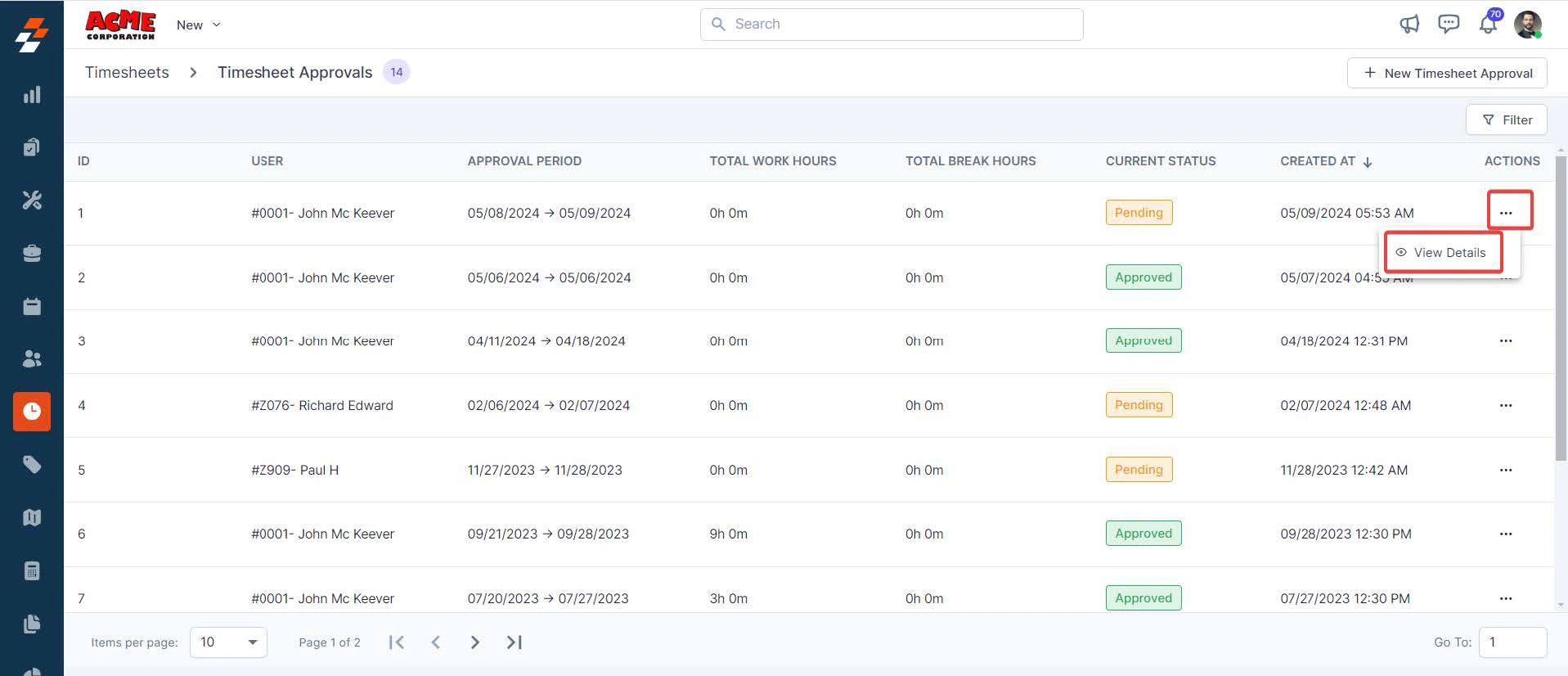
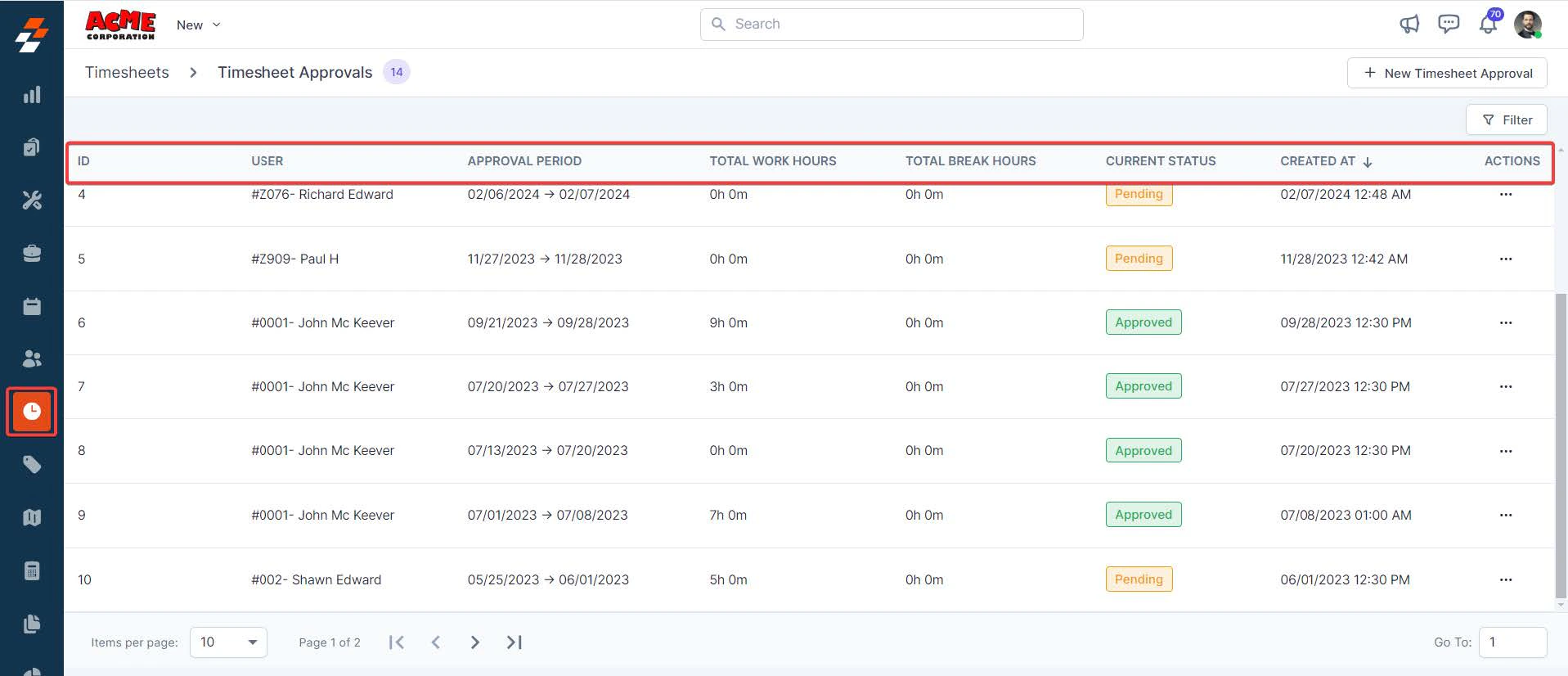
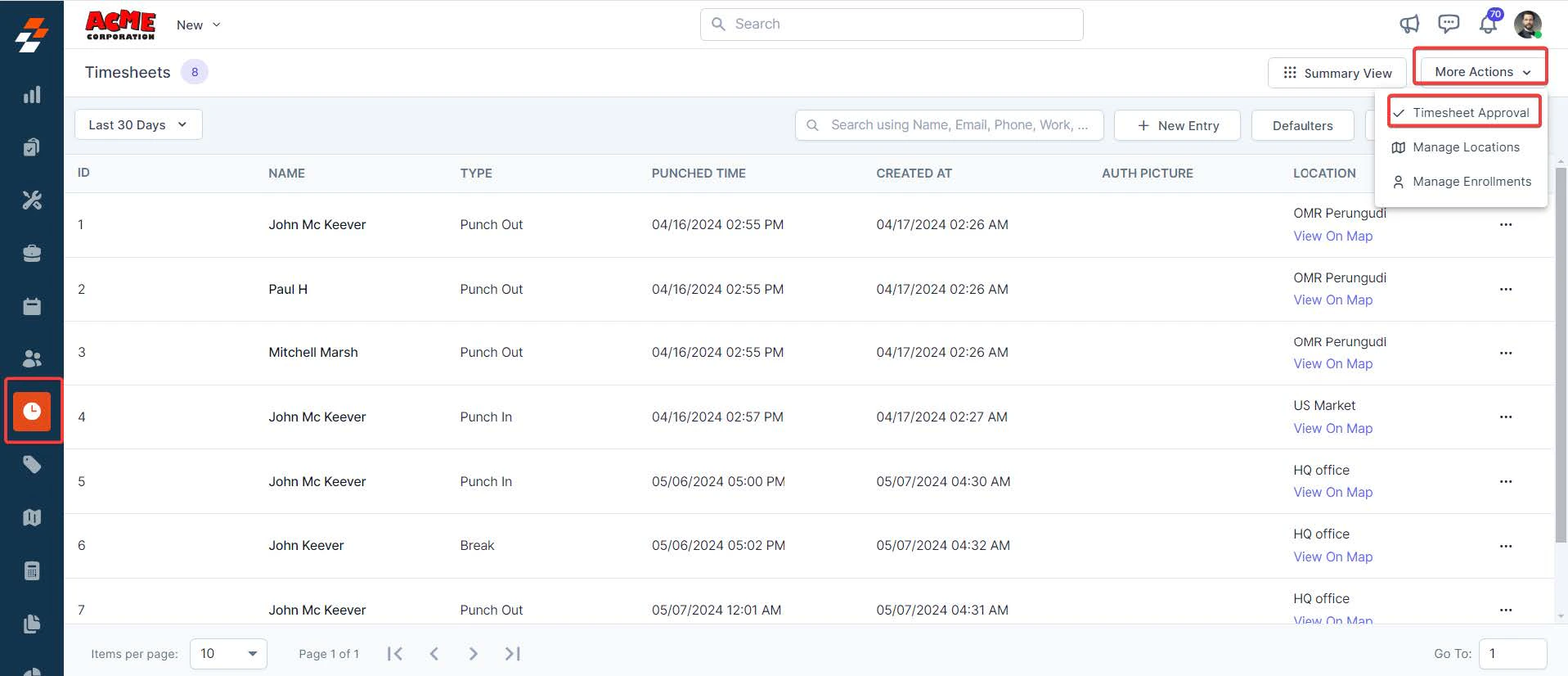 2. You can view the timesheet approval request submitted by a user(s), which includes details such as *approval period, total work hours, total break hours, current status*, and more.
 3. To approve or reject the pending timesheet request submitted by the user, click the "**Ellipsis**" icon under Actions and select "**View Details**."
 You can view the detailed information, including:
* **Total Work Hours:** The total time worked by a user.
* **Shift Hours:** The duration of the assigned shift.
* **Work Hours:** The actual working time of an employee.
* **Total Break Hours:** The cumulative duration of breaks taken.
* **Overtime Hours:** The additional working time beyond regular hours.
* **Time Off Hours:** The duration of time taken off from work.
You can view the detailed information, including:
* **Total Work Hours:** The total time worked by a user.
* **Shift Hours:** The duration of the assigned shift.
* **Work Hours:** The actual working time of an employee.
* **Total Break Hours:** The cumulative duration of breaks taken.
* **Overtime Hours:** The additional working time beyond regular hours.
* **Time Off Hours:** The duration of time taken off from work.
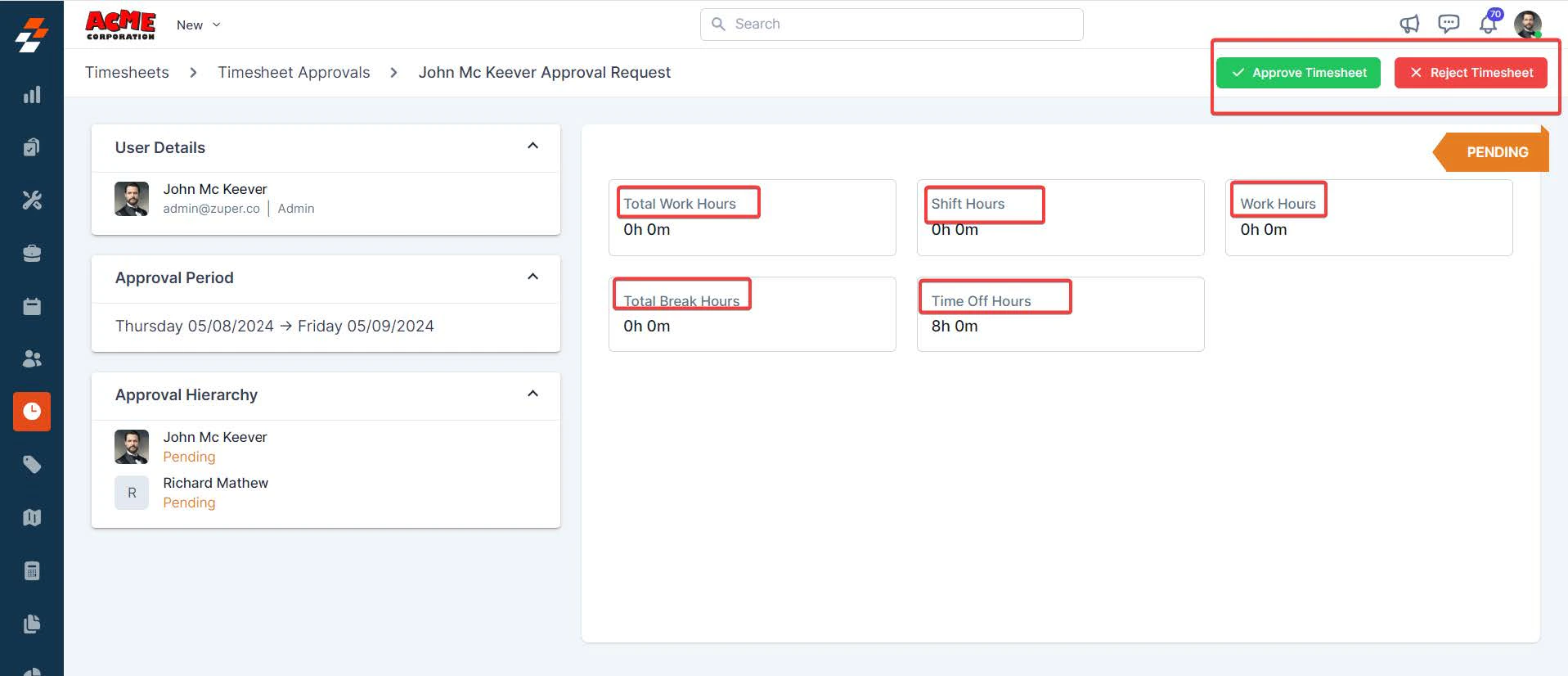 Based on this information, you can either approve or reject the timesheet approval request submitted by the user.
**Note:** The total work hours are calculated using the **Work Hours + Overtime Hours summation**.
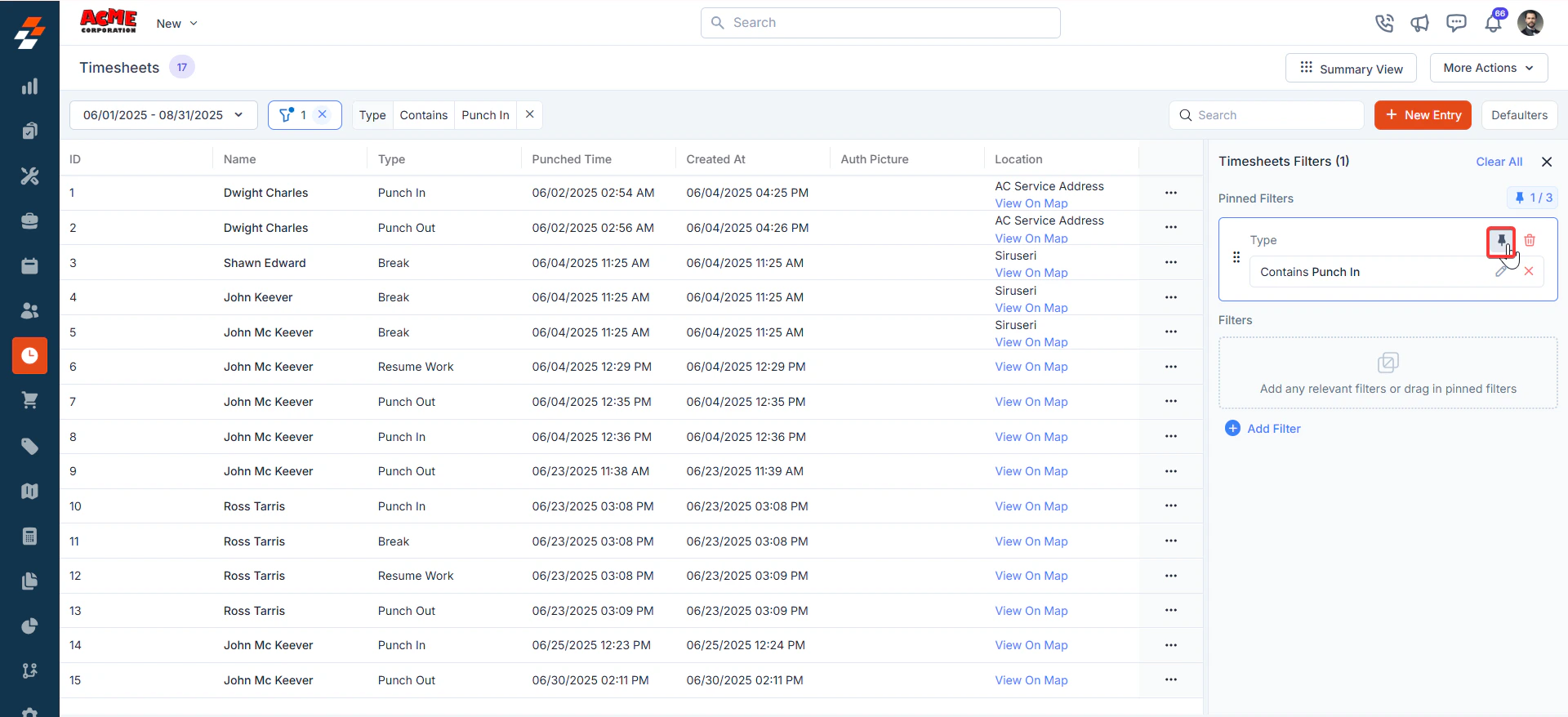
## Pinned filters
Zuper's Timesheets module lets you use pinned filters to streamline your filter experience. Pinned filters keep your most-used criteria readily accessible for quick application.
Pin up to 3 filters in any module.
Navigation: *Timesheets --> Filters -->Pinned Filter*
1. Select the “**Timesheets**” module from the left navigation menu.
Based on this information, you can either approve or reject the timesheet approval request submitted by the user.
**Note:** The total work hours are calculated using the **Work Hours + Overtime Hours summation**.
## Pinned filters
Zuper's Timesheets module lets you use pinned filters to streamline your filter experience. Pinned filters keep your most-used criteria readily accessible for quick application.
Pin up to 3 filters in any module.
Navigation: *Timesheets --> Filters -->Pinned Filter*
1. Select the “**Timesheets**” module from the left navigation menu.
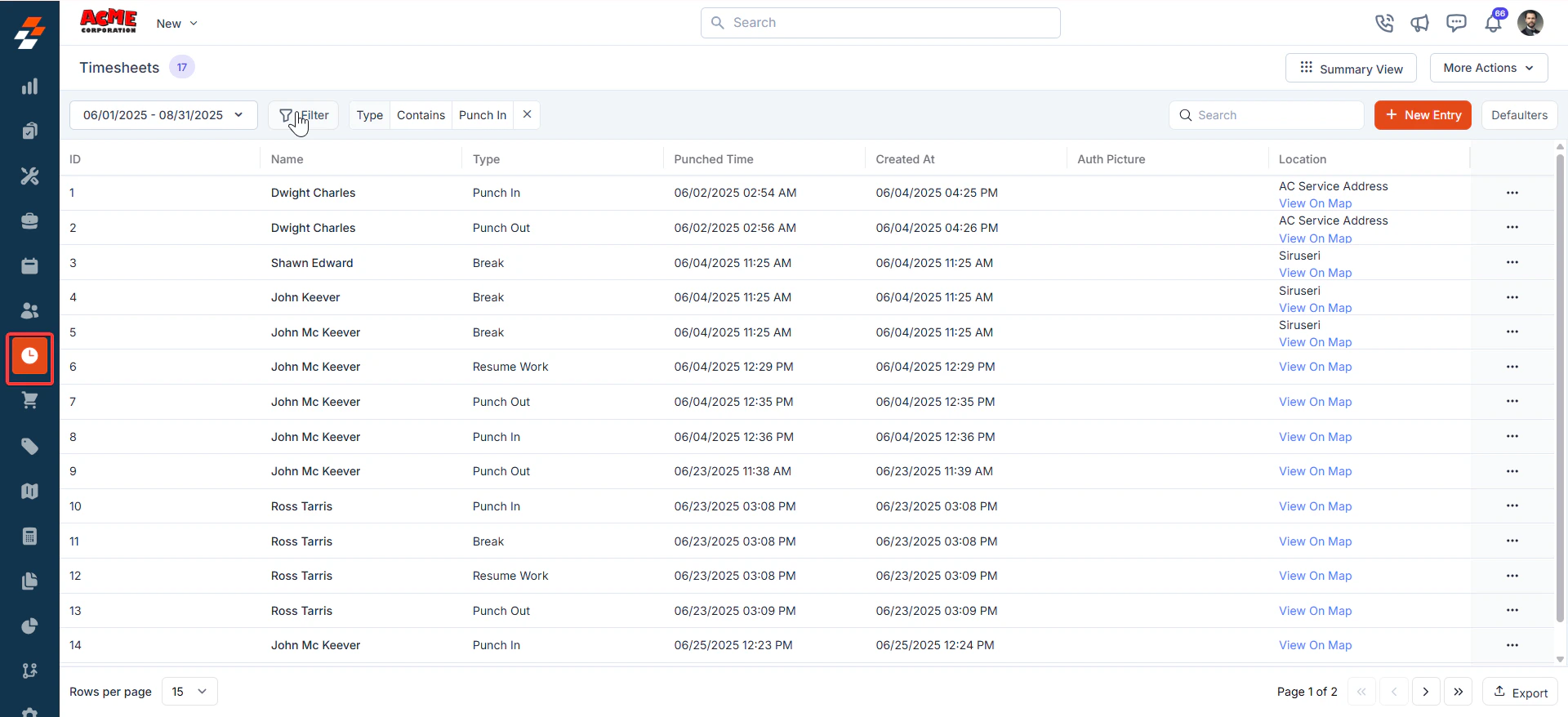 2. **Pin Filters for Quick Access**
* Once your filters are set, click the **Pin Filters** button in the dialog box to save them as pinned.
* Pinned filters appear in the dialog box's "**Pinned Filters**" section, allowing you to apply them with one click in future sessions.
2. **Pin Filters for Quick Access**
* Once your filters are set, click the **Pin Filters** button in the dialog box to save them as pinned.
* Pinned filters appear in the dialog box's "**Pinned Filters**" section, allowing you to apply them with one click in future sessions.
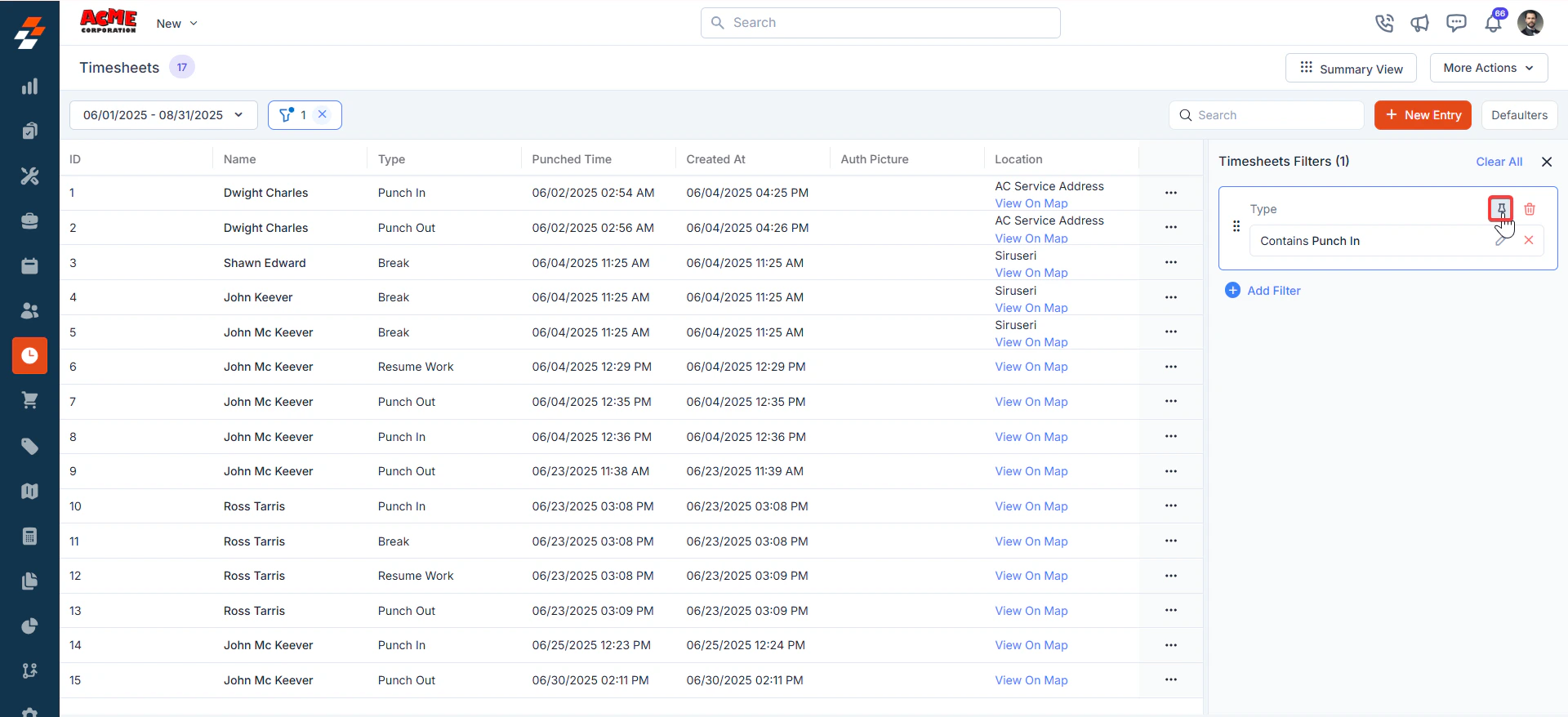 3. To **Unpin** the filter:
* To unpin, select a pinned filter and click **Remove**.
* To apply pinned or default filters, open the dialog box and select them.
* Use **Clear All** to remove active filters.
3. To **Unpin** the filter:
* To unpin, select a pinned filter and click **Remove**.
* To apply pinned or default filters, open the dialog box and select them.
* Use **Clear All** to remove active filters.
 ## Create new timesheets for approval
To create a new timesheet approval, follow these steps:
1. Select "**Timesheet Approval**" under More Actions on the Timesheet listing page.
## Create new timesheets for approval
To create a new timesheet approval, follow these steps:
1. Select "**Timesheet Approval**" under More Actions on the Timesheet listing page.
 2. You can view the timesheet approval request submitted by the user(s), which includes details such as *approval period, total work hours, total break hours, current status*, and more.
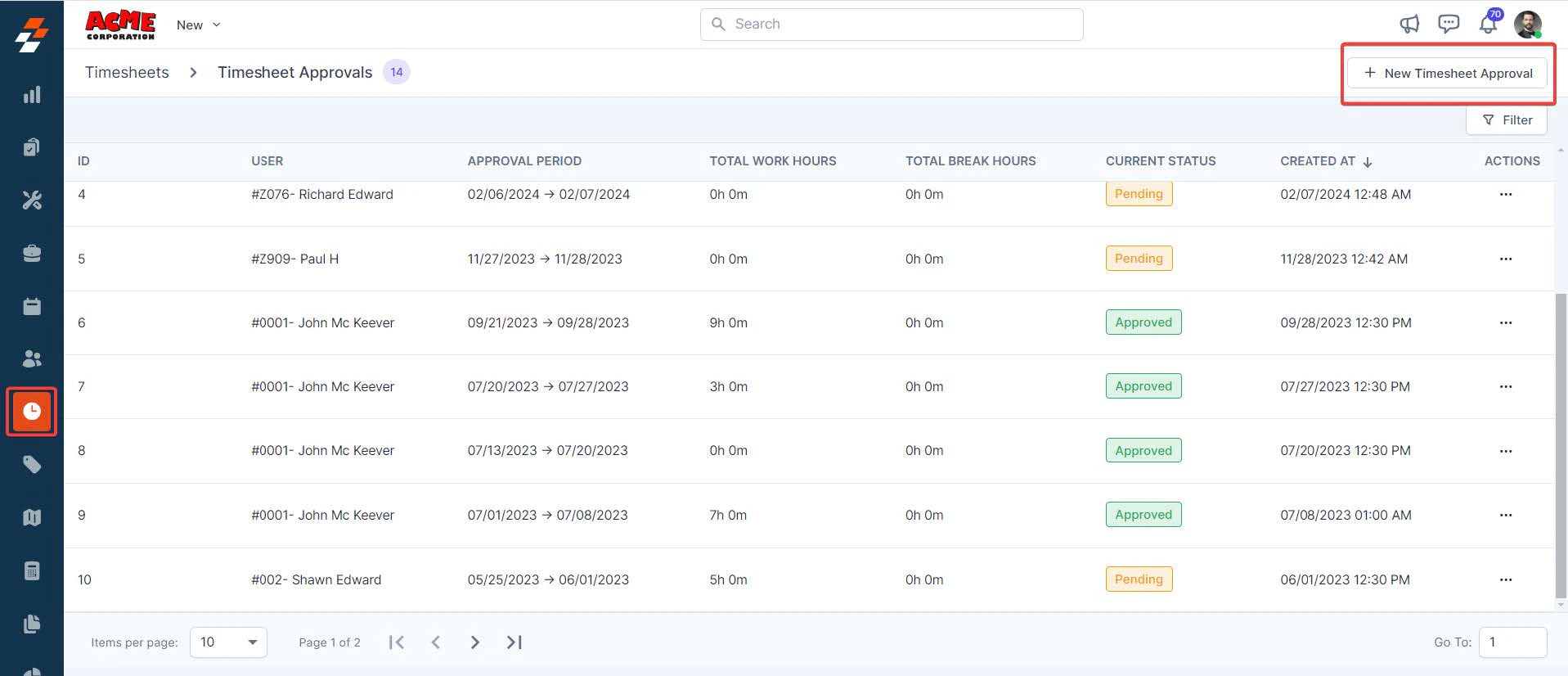
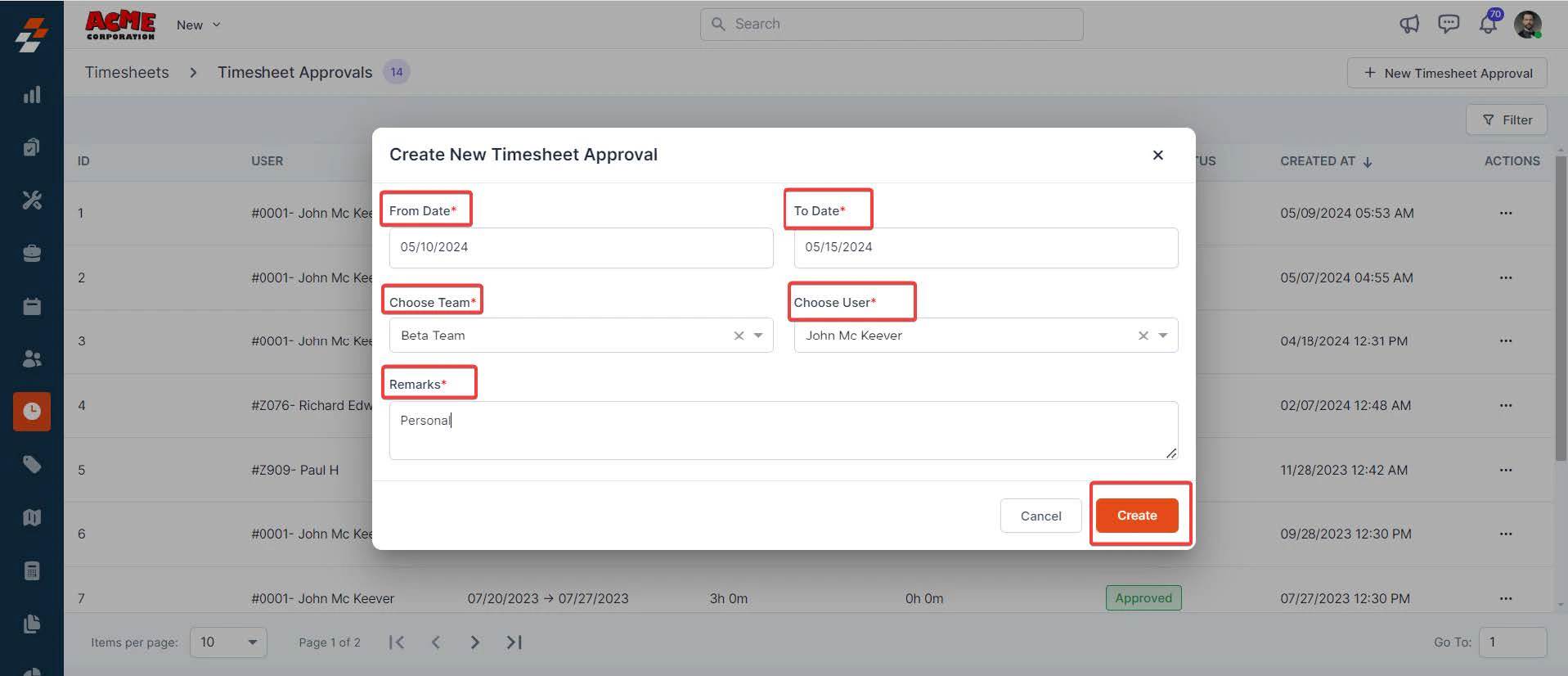
 3. Click "**+ New Timesheet Approval**" at the top right corner to create a new timesheet approval. A small dialog box appears.
 In the pop-up, enter the following details and click "**Create**" to submit a new timesheet approval.
* **From Date**\*: Select the start date for the timesheet.
* **To Date\***: Choose the end date for the timesheet.
* **Choose a team\***: Select the team to which the user belongs.
* **Choose user\***: Based on the selected team, choose the user whose timesheet requires approval.
* **Remarks\***: Add remarks related to the timesheet approval.
In the pop-up, enter the following details and click "**Create**" to submit a new timesheet approval.
* **From Date**\*: Select the start date for the timesheet.
* **To Date\***: Choose the end date for the timesheet.
* **Choose a team\***: Select the team to which the user belongs.
* **Choose user\***: Based on the selected team, choose the user whose timesheet requires approval.
* **Remarks\***: Add remarks related to the timesheet approval.
 ### Manage locations
**Navigation:** *Timesheets* --> *More Actions*--> *Manage Locations*
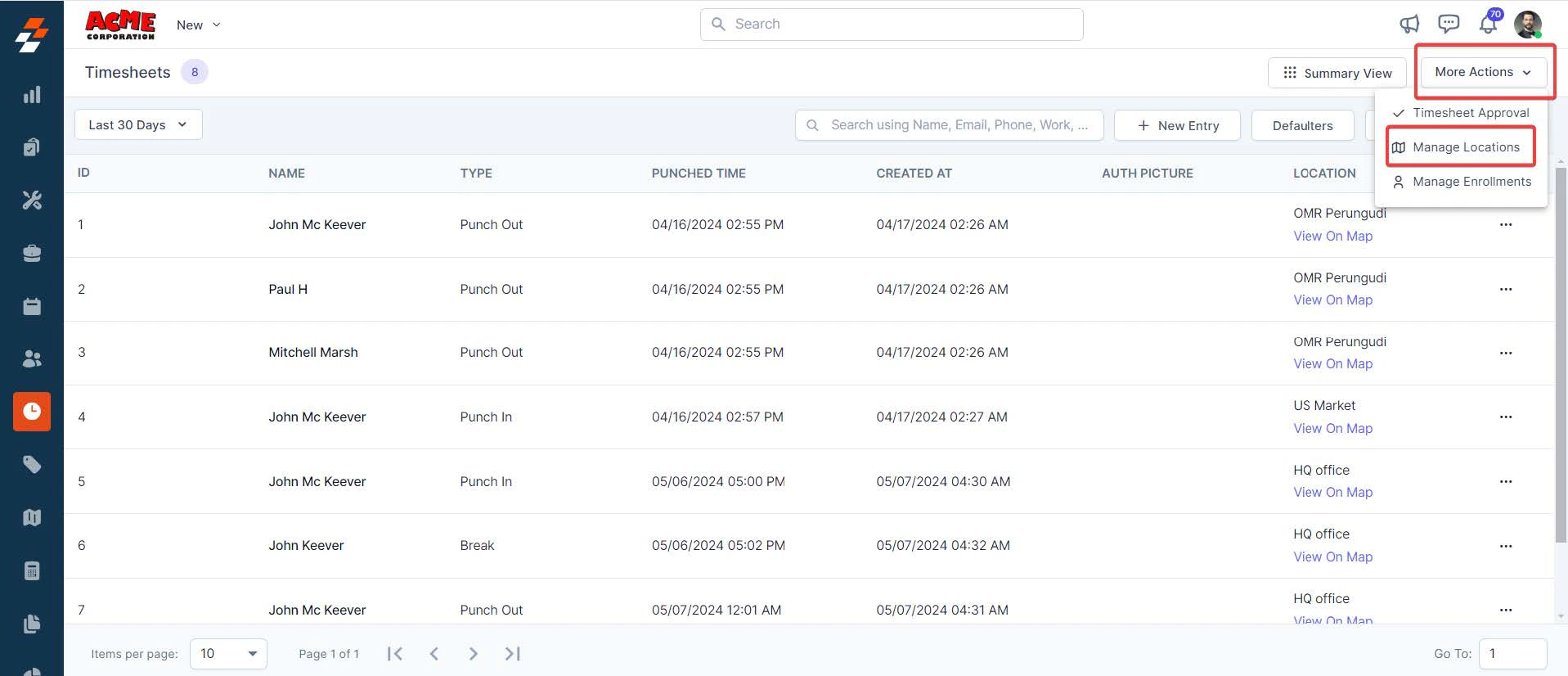
Manage Locations in the Timesheets module allows you to view existing and create new locations where employees can record their work hours or activities.
1. Select "**Manage Locations**" under More Actions on the Timesheets listing page.
### Manage locations
**Navigation:** *Timesheets* --> *More Actions*--> *Manage Locations*
Manage Locations in the Timesheets module allows you to view existing and create new locations where employees can record their work hours or activities.
1. Select "**Manage Locations**" under More Actions on the Timesheets listing page.
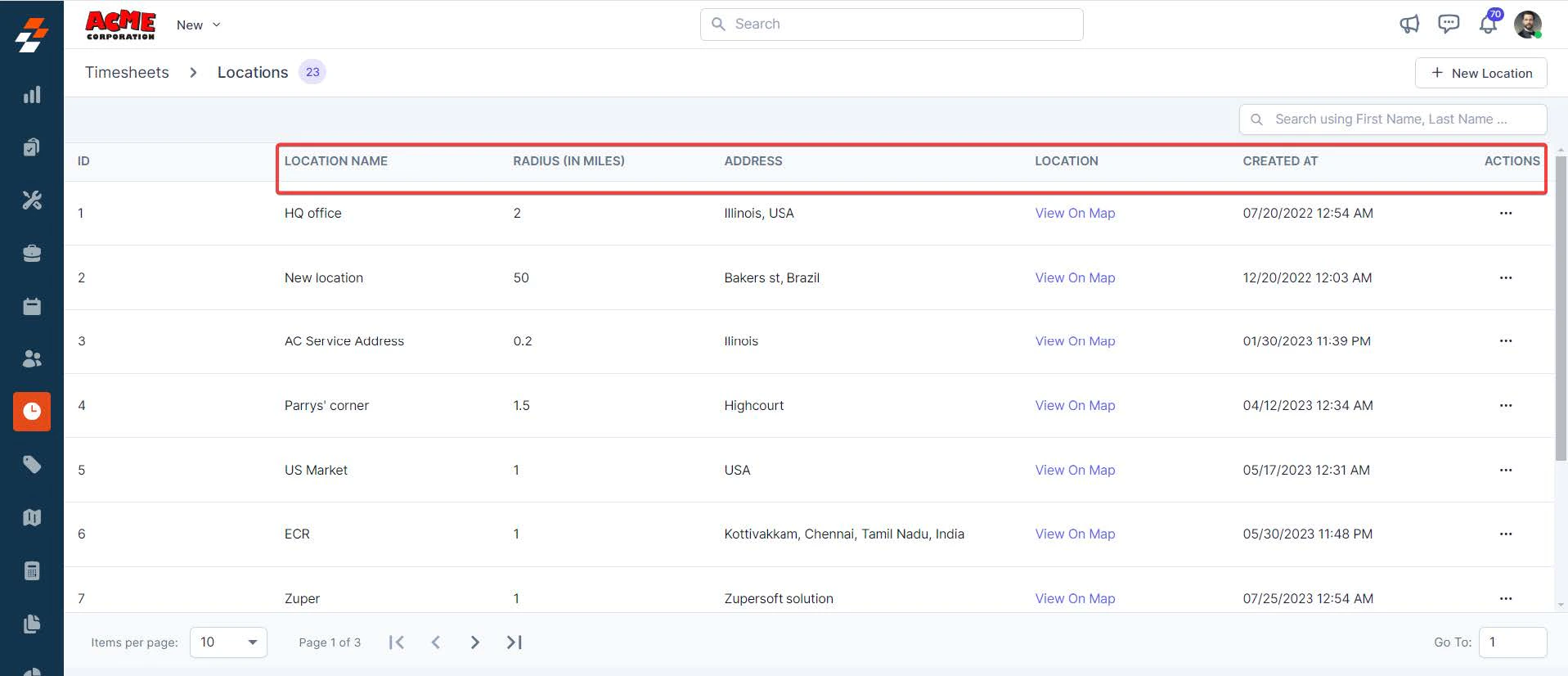
 2. The Locations listing page shows the *location names, radius in miles, location*, and more.
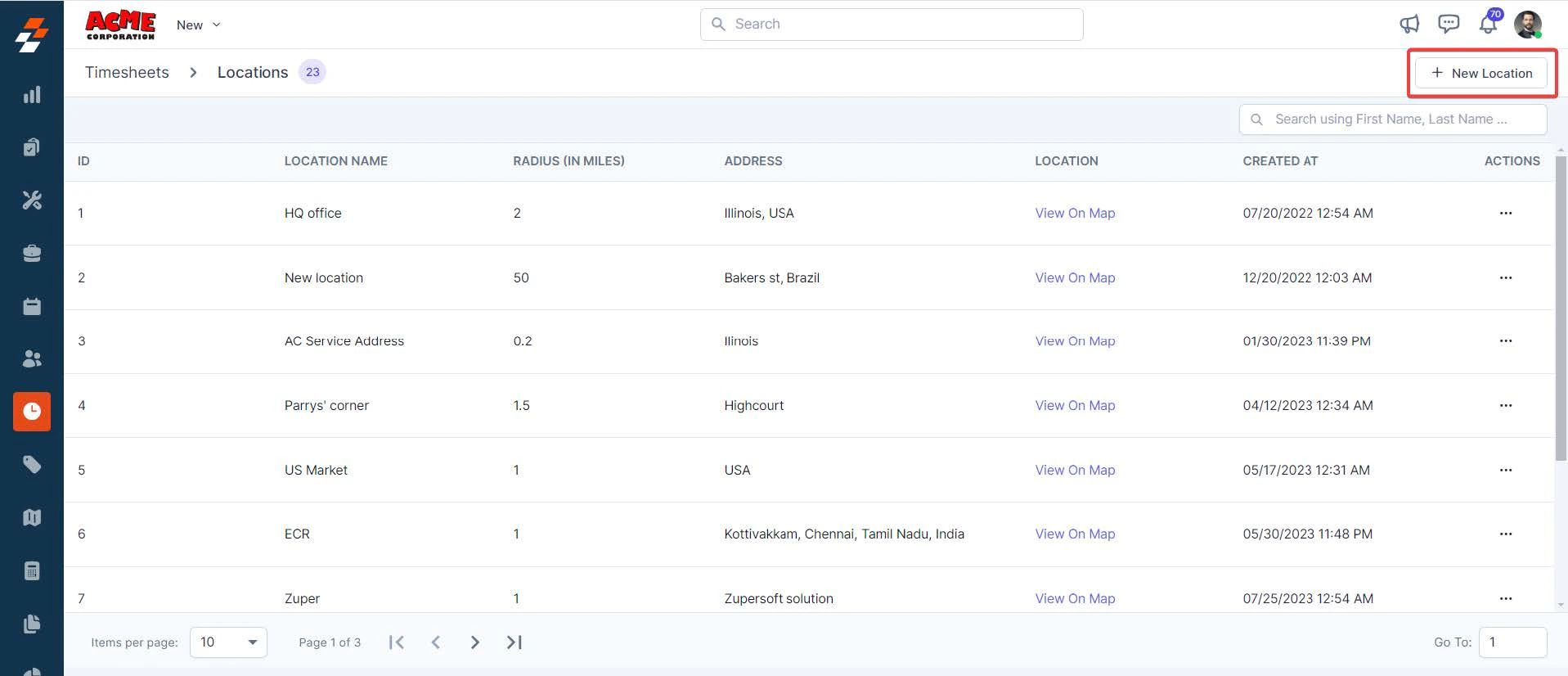
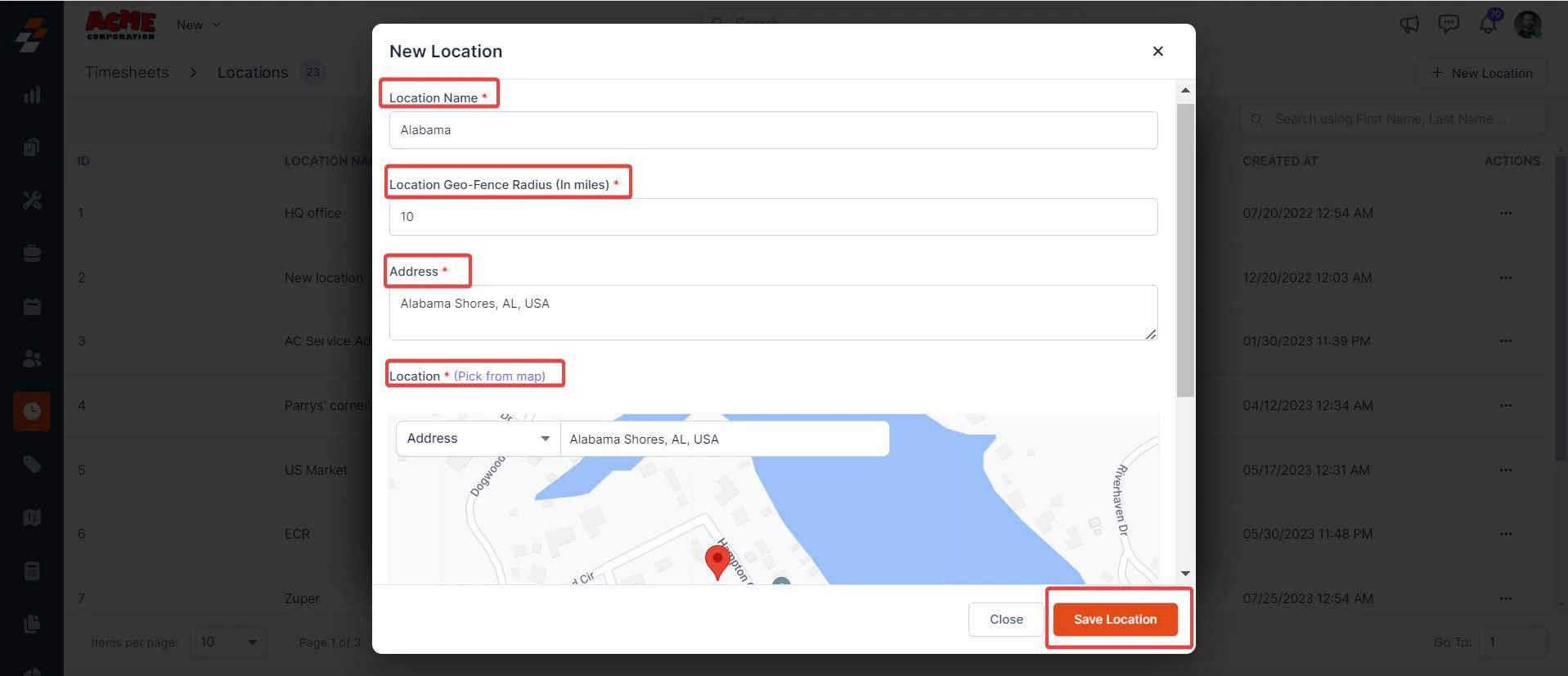
 3. To create a new location, click "**+ New Location**" at the top right corner of the page. A dialog box appears.
 4. Enter the following details in the pop-up and click the "**Save Location**" button to add a new location.
* **Location Name**\*: Enter the location name.
* **Location Geo-Fence Radius (in miles)**\*: The exact geo-fence radius of the location.
* **Address\***: Enter the address details.
* **Location\***: Use this option to pick the area from the map.
\* represents the mandatory fields.
4. Enter the following details in the pop-up and click the "**Save Location**" button to add a new location.
* **Location Name**\*: Enter the location name.
* **Location Geo-Fence Radius (in miles)**\*: The exact geo-fence radius of the location.
* **Address\***: Enter the address details.
* **Location\***: Use this option to pick the area from the map.
\* represents the mandatory fields.
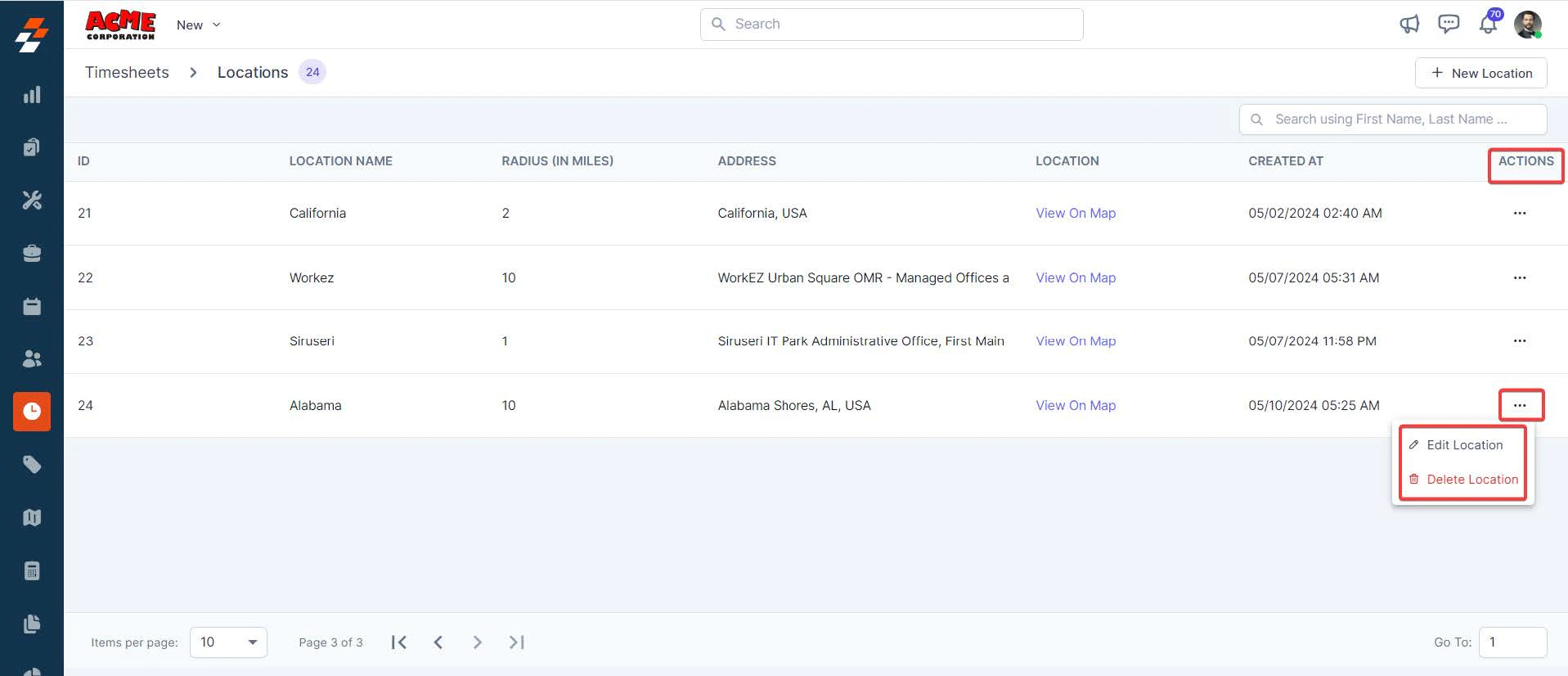
 Once the location has been created, you can edit or delete it. To do so, click the "**ellipsis**" icon under Actions and choose "**Edit Location**" or "**Delete Location**" as needed.
 ### Manage enrollments - Facial Authentication
Managing enrollments in the timesheet module lets you view existing enrollments and create new ones for the user. Based on this enrollments, the facial authentication (Bio Metric) will work for punch-in or punch-out, break, or resume. Even a user status update using facial authentication works based on this (if [facial authentication](https://docs.zuper.co/Settings/Modules/Timesheets/Timesheets_Settings#timesheet-settings) option is enabled in settings).
**Navigation**: *Timesheet* --> *More Actions* --> *Manage Enrollments*
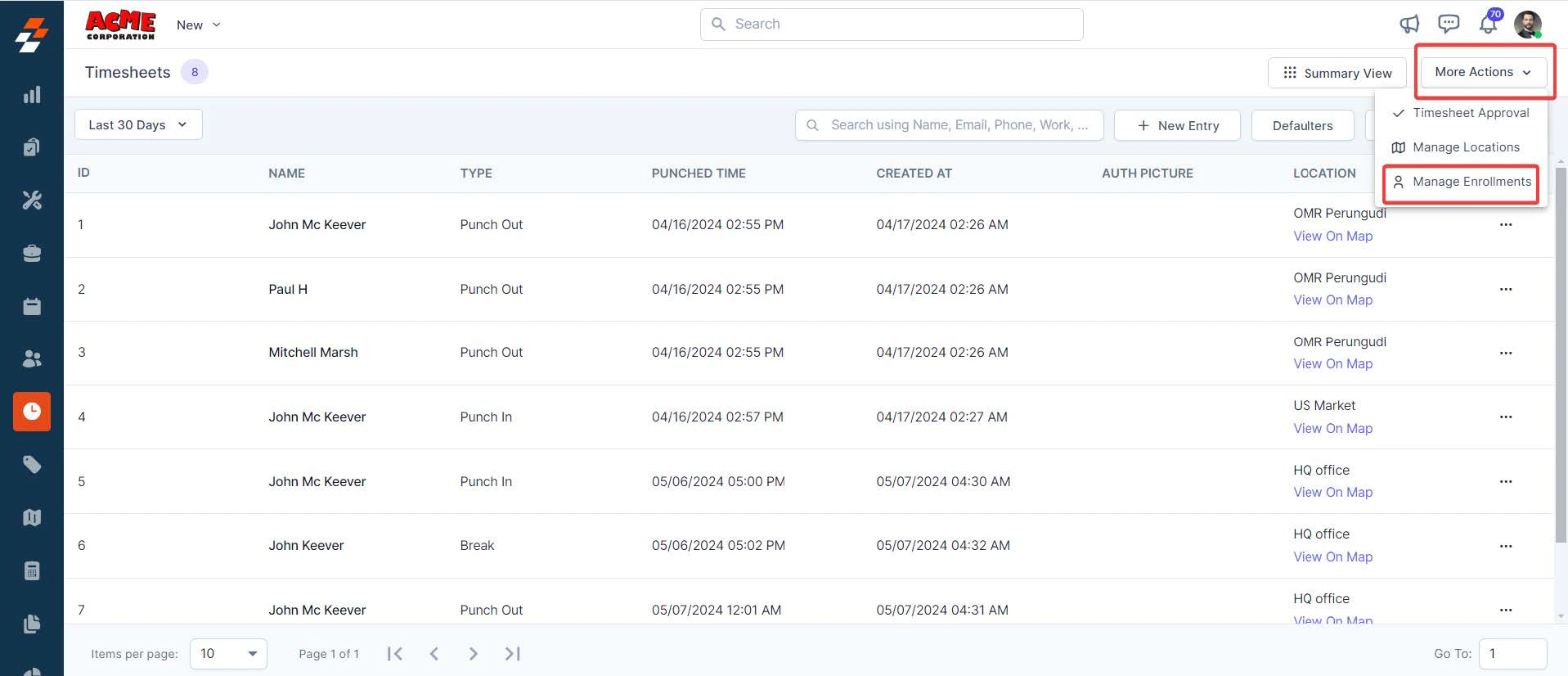
1. Select "**Manage Enrollments**" under More Actions on the Timesheets listing page.
### Manage enrollments - Facial Authentication
Managing enrollments in the timesheet module lets you view existing enrollments and create new ones for the user. Based on this enrollments, the facial authentication (Bio Metric) will work for punch-in or punch-out, break, or resume. Even a user status update using facial authentication works based on this (if [facial authentication](https://docs.zuper.co/Settings/Modules/Timesheets/Timesheets_Settings#timesheet-settings) option is enabled in settings).
**Navigation**: *Timesheet* --> *More Actions* --> *Manage Enrollments*
1. Select "**Manage Enrollments**" under More Actions on the Timesheets listing page.
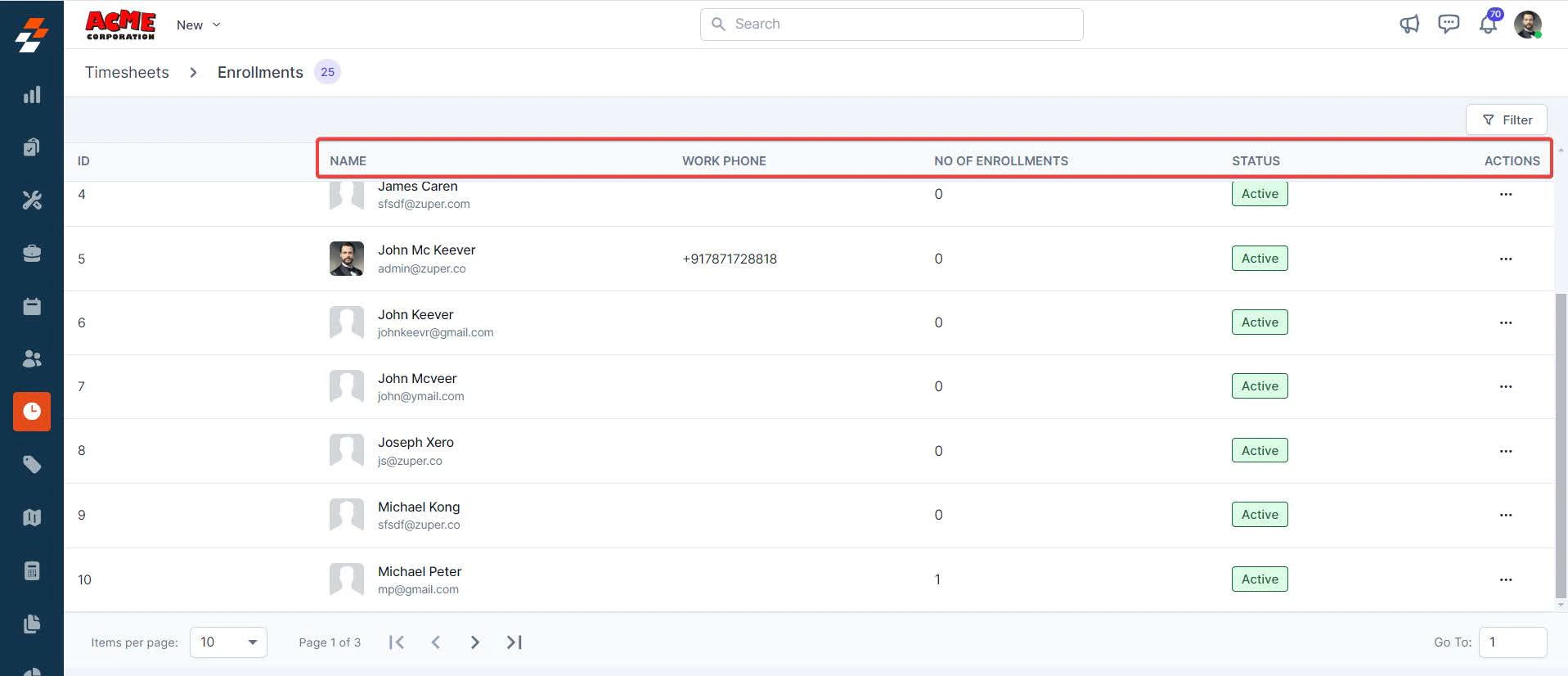
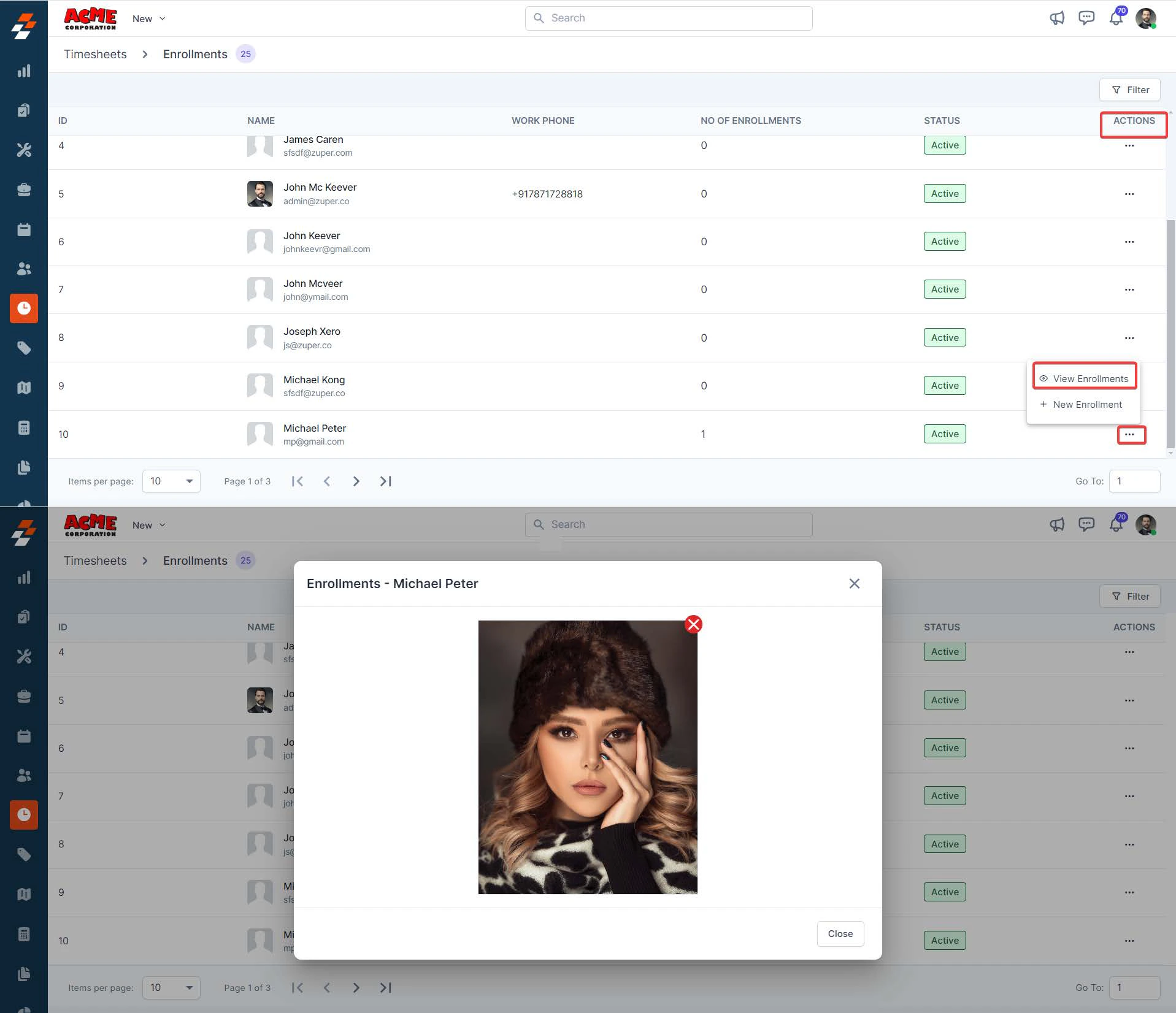
 2. You can view the *user's name, work phone number, number of enrollments attached*, and more.
 3. To view the enrollments attached to the user, click the "**Ellipsis**" icon under Actions and choose "**View Enrollments**."
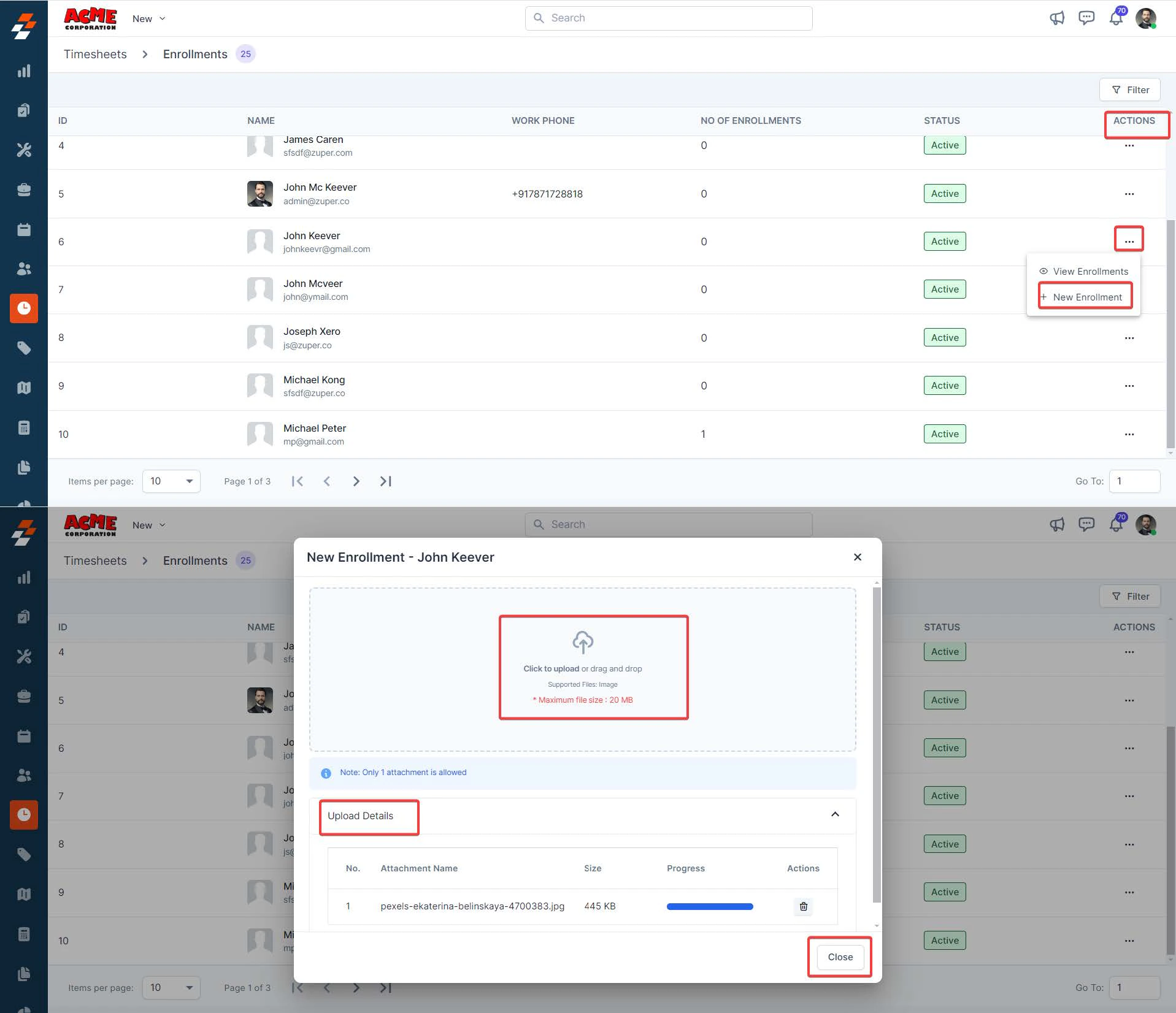
 4. To upload a new enrollment to the user, click the "**Ellipsis**" icon under Actions and choose "**+ New Enrollment**."
**Note:** You can only attach one image with a maximum file size of 20 MB
4. To upload a new enrollment to the user, click the "**Ellipsis**" icon under Actions and choose "**+ New Enrollment**."
**Note:** You can only attach one image with a maximum file size of 20 MB
 ## Quick Actions
From the Timesheets listing page, you can also perform quick actions such as *viewing defaulters, applying filters, searching for users*, and more.
## View defaulters
The defaulters are the users who have failed to submit their timesheets or have discrepancies in their recorded working hours compared to the expected or required hours. To view the defaulters, follow these steps:
1. Click the "**Timesheets**" module from the left navigation menu and select "**Timesheets**."
## Quick Actions
From the Timesheets listing page, you can also perform quick actions such as *viewing defaulters, applying filters, searching for users*, and more.
## View defaulters
The defaulters are the users who have failed to submit their timesheets or have discrepancies in their recorded working hours compared to the expected or required hours. To view the defaulters, follow these steps:
1. Click the "**Timesheets**" module from the left navigation menu and select "**Timesheets**."
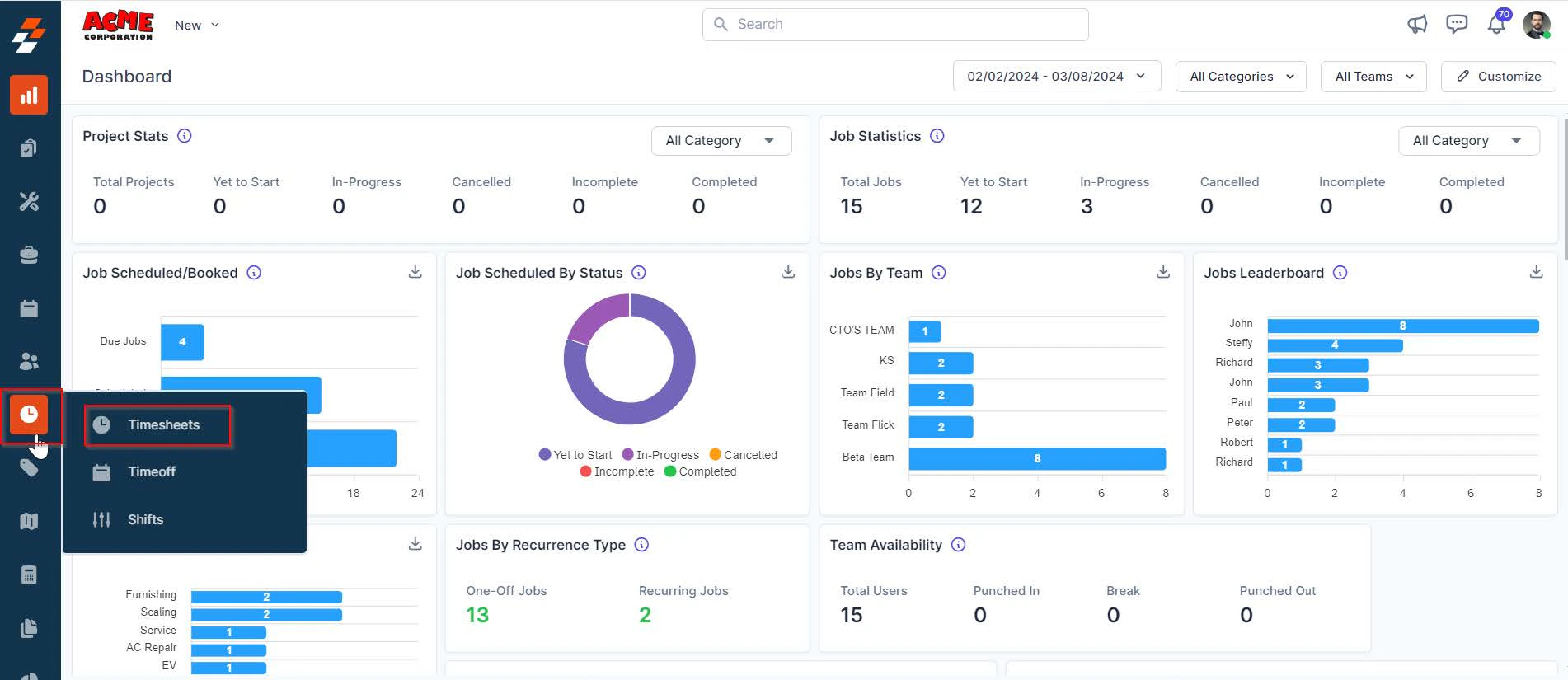 2. By default, the list view displays attendance details of all users, including the authentication picture and the location where the activity was conducted, based on the selected date on the left.
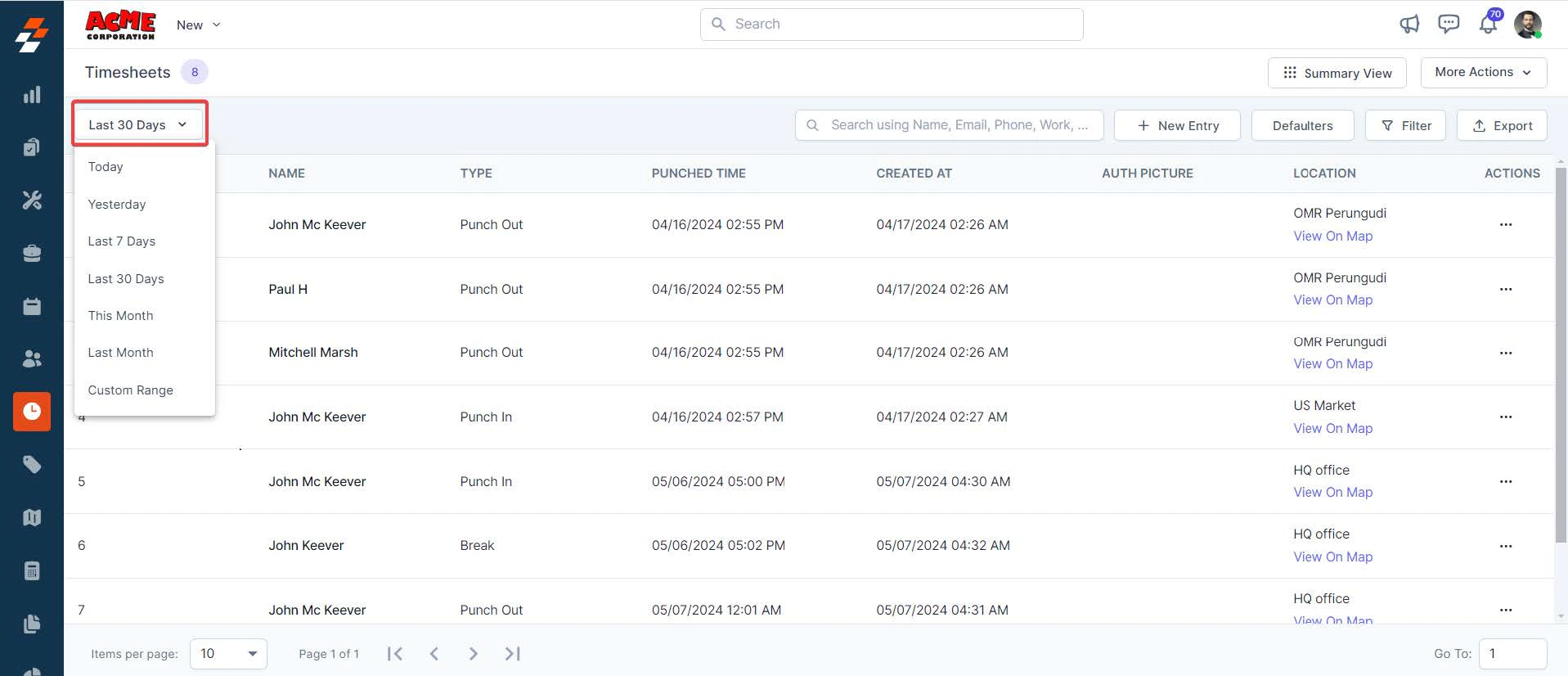 To view defaulters, click the **'Defaulters**' button at the top right for the selected date.
 The timesheet feature reduces administrative overhead and minimizes errors. This tool also allows for better resource planning and helps ensure compliance with labor regulations. Overall, Timesheets in Zuper enhance operational efficiency and provide valuable insights into workforce management.