> ## Documentation Index
> Fetch the complete documentation index at: https://zuperinc-section23.mintlify.site/llms.txt
> Use this file to discover all available pages before exploring further.
# Jobs Gallery
> The new Job Gallery feature on the Job Details page brings all your job-related media into one seamless, unified view.
The **Gallery** feature in Zuper provides a centralized, visual workspace for managing all job-related media. Instead of navigating through multiple sections such as Checklists, Notes, or Attachments, users can now view every photo and video associated with a job in one organized location.
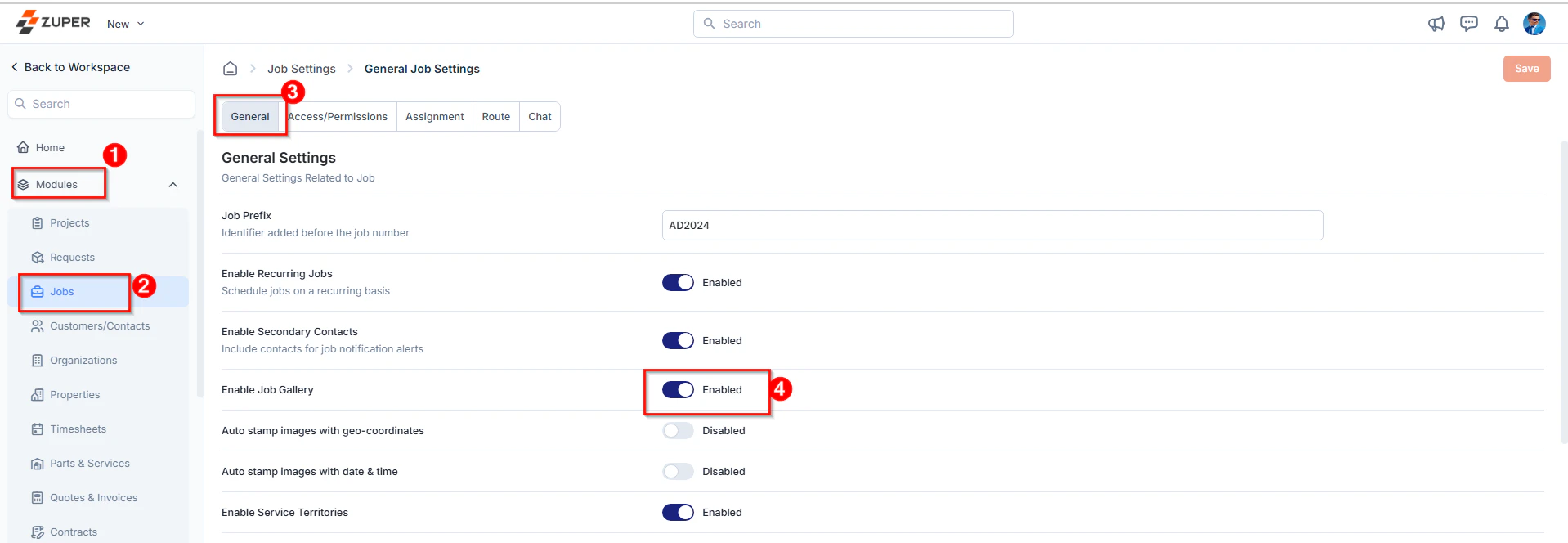
**Prerequisite**: Ensure that the “**Enable Job Gallery**” setting is toggled On in the Job Settings under the General tab. You can access this by navigating to **Settings** from the left navigation menu, then selecting **Modules** > **Jobs** > **General Job Settings**.
 ## Master Tags
Before exploring the Gallery feature in the Job Details page, it’s important to set up Master Tags to keep the Job Gallery structured, searchable, and easy to navigate.
Without standardized tags, the Gallery can become cluttered and hard to manage. Master Tags ensure consistent labeling, cleaner organization, and easier filtering- making it simple for teams to find the images they need.
### Creating Master Tags
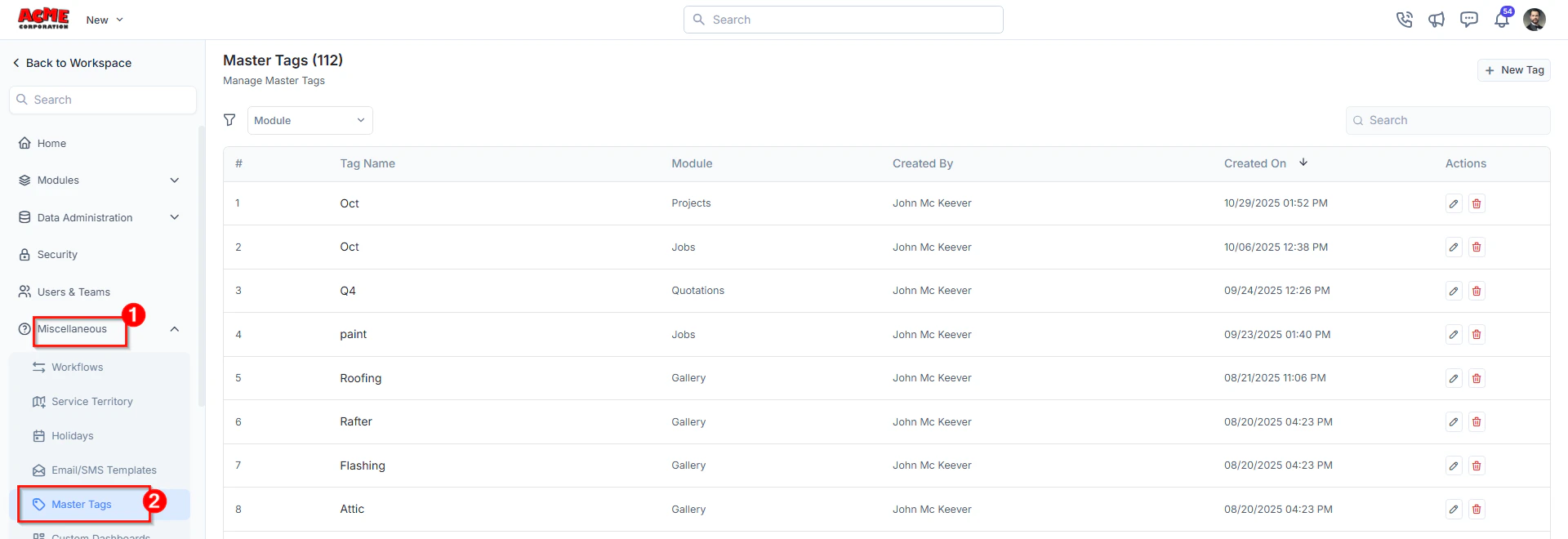
1. Navigate to the **Settings** module from the left navigation menu.
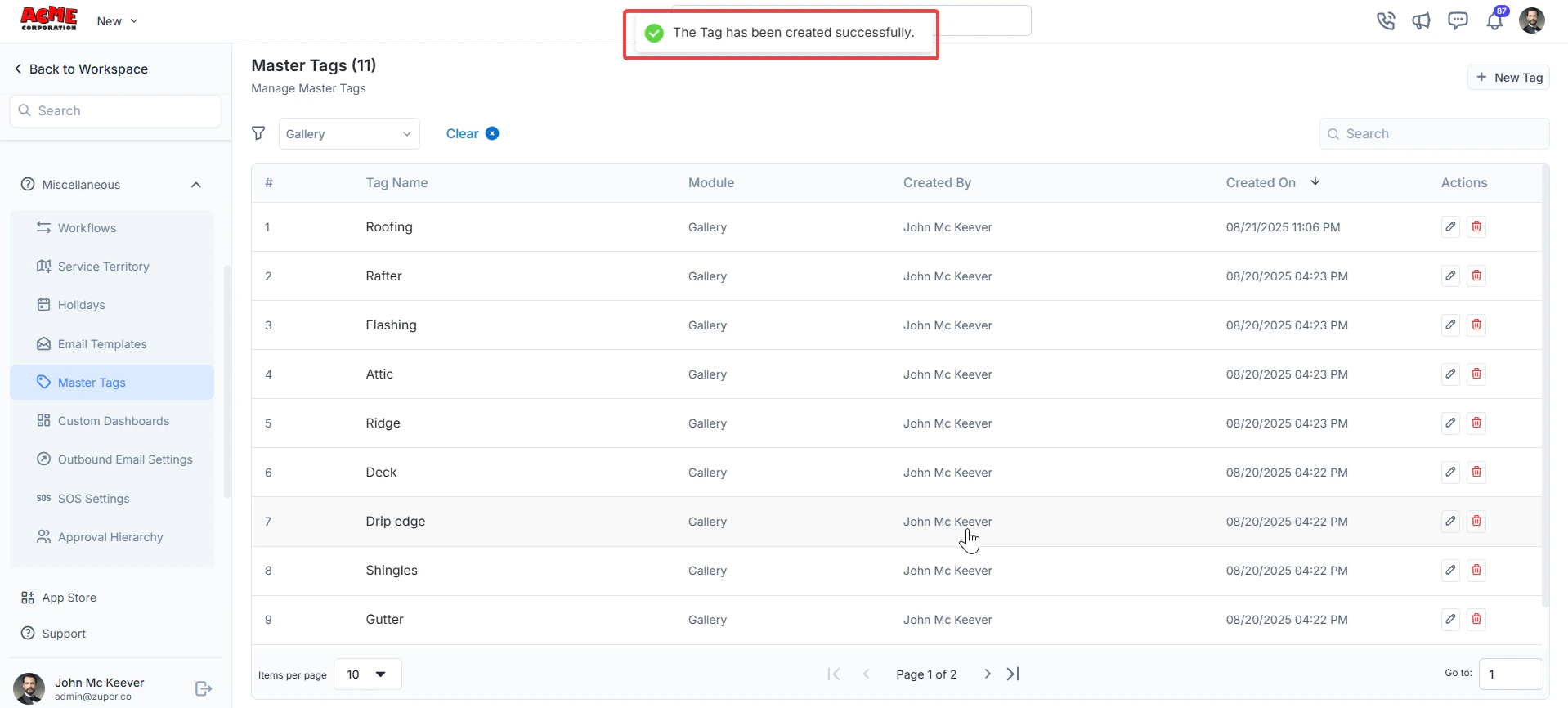
2. Click **Miscellaneous** and select **Master Tags**. The Master Tags listing page appears, displaying existing tags along with the modules they are associated with.
## Master Tags
Before exploring the Gallery feature in the Job Details page, it’s important to set up Master Tags to keep the Job Gallery structured, searchable, and easy to navigate.
Without standardized tags, the Gallery can become cluttered and hard to manage. Master Tags ensure consistent labeling, cleaner organization, and easier filtering- making it simple for teams to find the images they need.
### Creating Master Tags
1. Navigate to the **Settings** module from the left navigation menu.
2. Click **Miscellaneous** and select **Master Tags**. The Master Tags listing page appears, displaying existing tags along with the modules they are associated with.
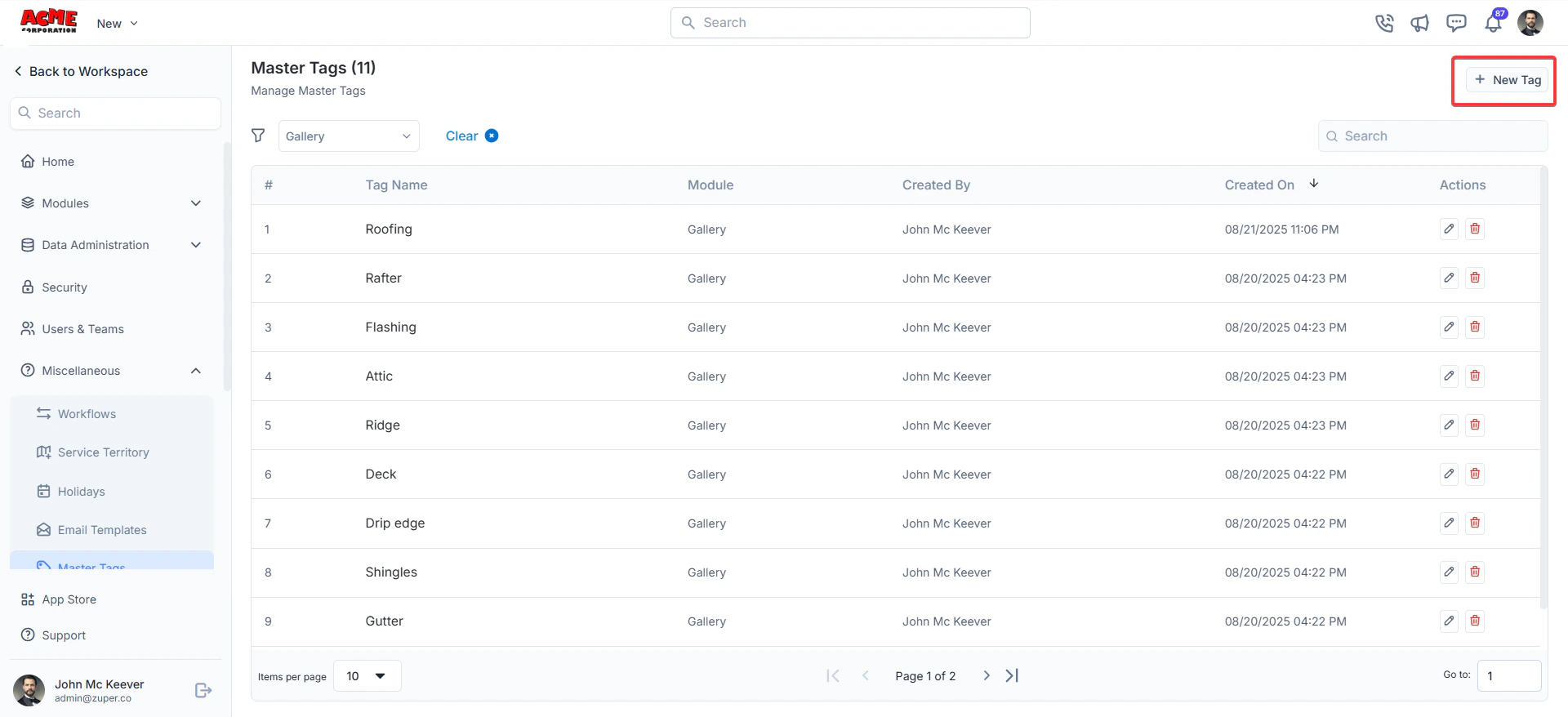
 3. Click **+ New Tag** to create a new tag.
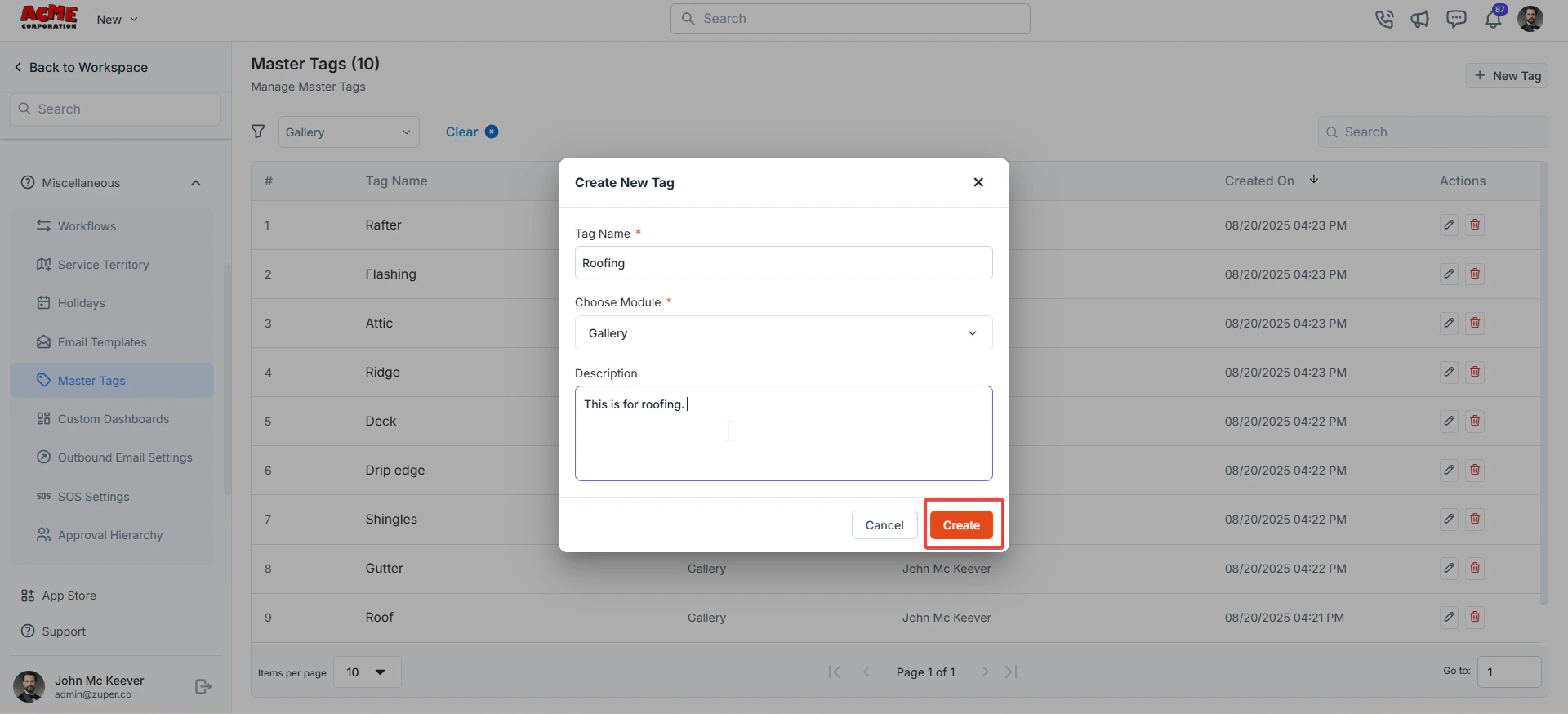
 4. Enter the following details:
* **Tag Name:** Provide a unique tag name. *(Mandatory)*
* **Choose Module:** Select **Gallery** from the dropdown. *(Mandatory)*
* **Description:** (Optional) Add a brief description for reference.
5. Click **Create** to add the tag.
4. Enter the following details:
* **Tag Name:** Provide a unique tag name. *(Mandatory)*
* **Choose Module:** Select **Gallery** from the dropdown. *(Mandatory)*
* **Description:** (Optional) Add a brief description for reference.
5. Click **Create** to add the tag.
 3. The tag is created successfully. Once created, the tag becomes available for use in the Job Gallery across the web and mobile apps.
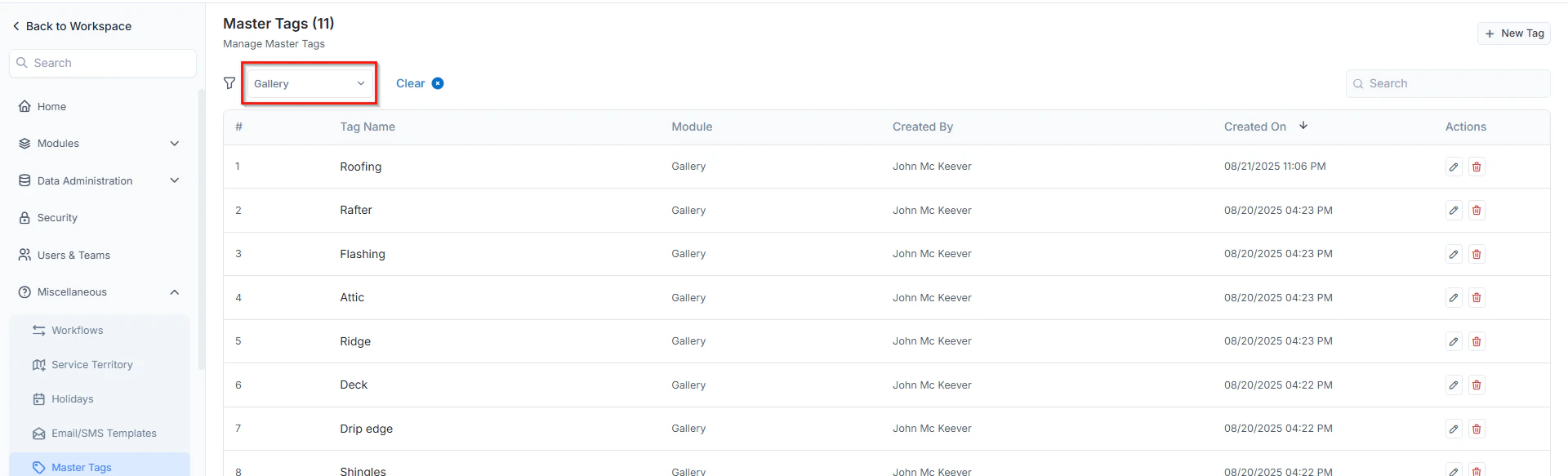
 Tip: On the Master Tags listing page, use filters to quickly view only the tags associated with the Gallery module. Click Clear anytime to remove the filter and view all tags.
 # Explore Job Gallery - Web
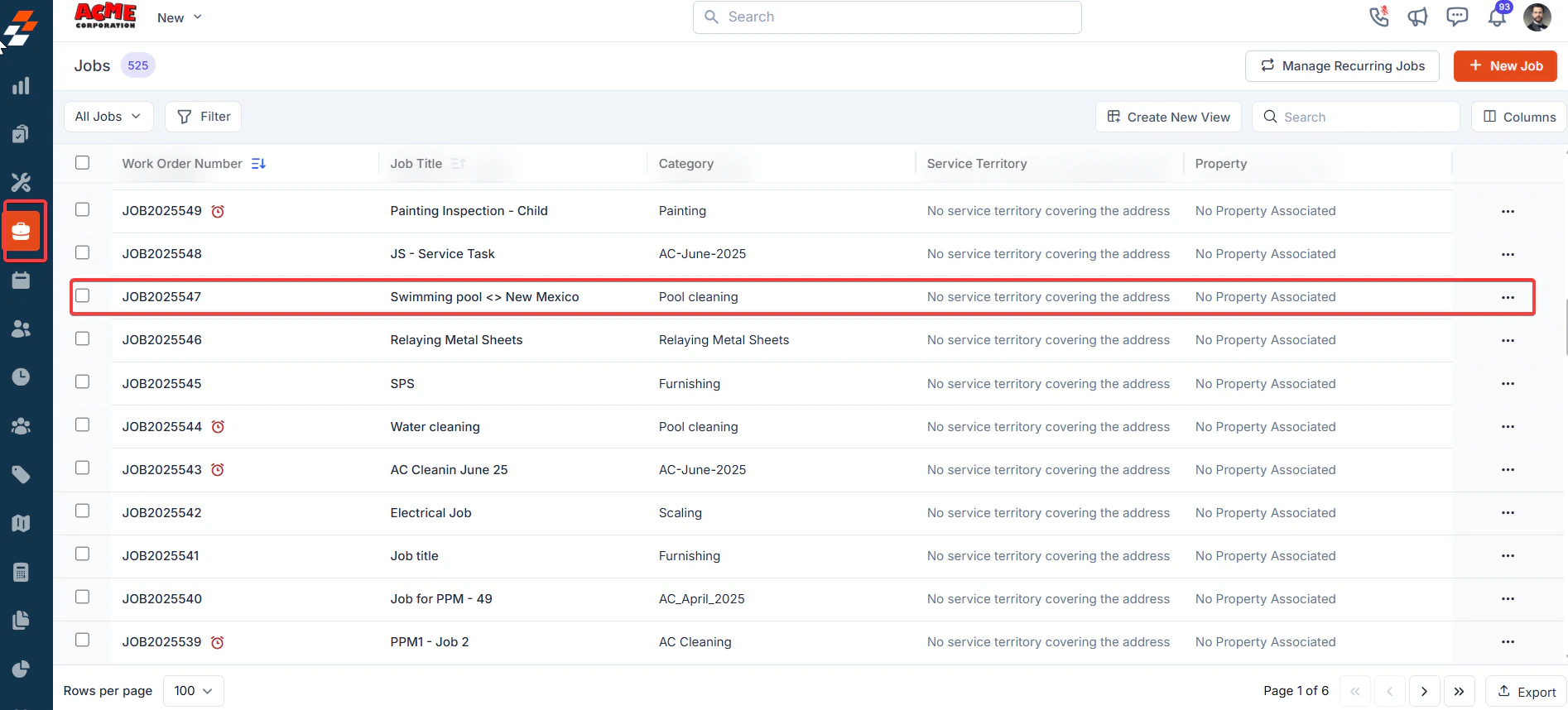
1. Select the “**Jobs**” module from the left navigation menu and click any jobs to view the details page.
# Explore Job Gallery - Web
1. Select the “**Jobs**” module from the left navigation menu and click any jobs to view the details page.
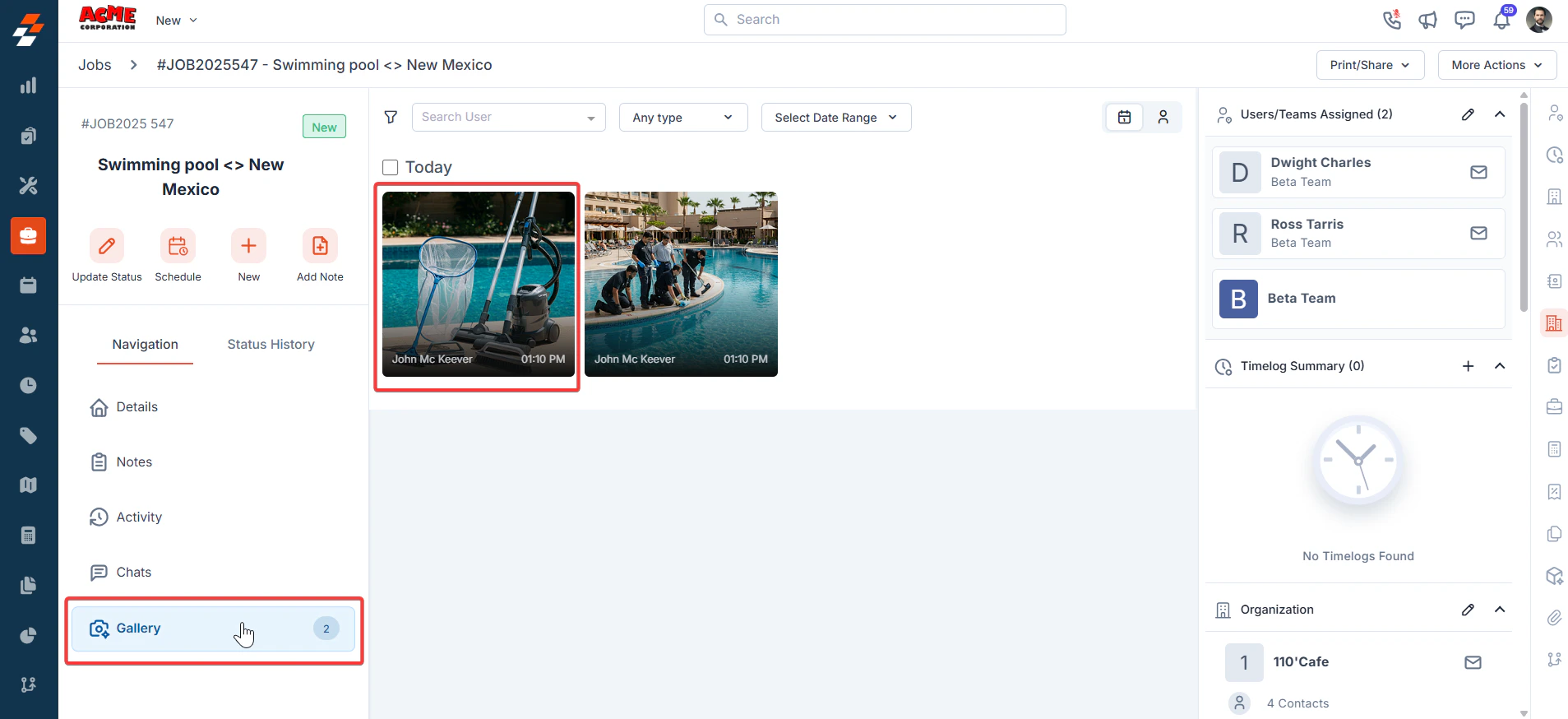
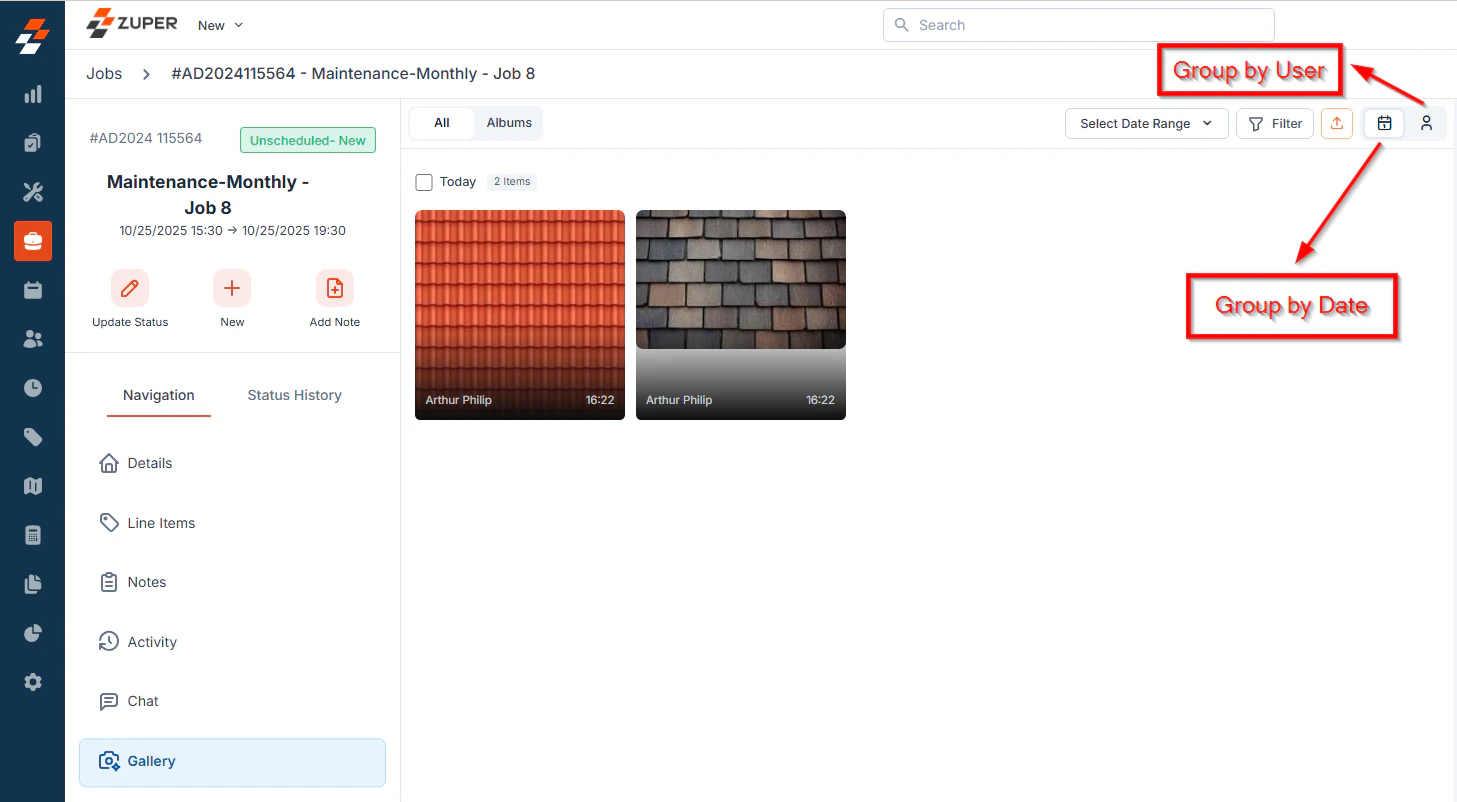
 2. Under Navigation, click the **Gallery** tab to view all media in a grid layout.
 ## Available Actions within the Gallery
The **Gallery** feature allows you to view, organize, and manage all media associated with a job. You can filter, download, group, and update media details for better organization and accessibility.
### Filtering Media
You can refine the media displayed using filters:
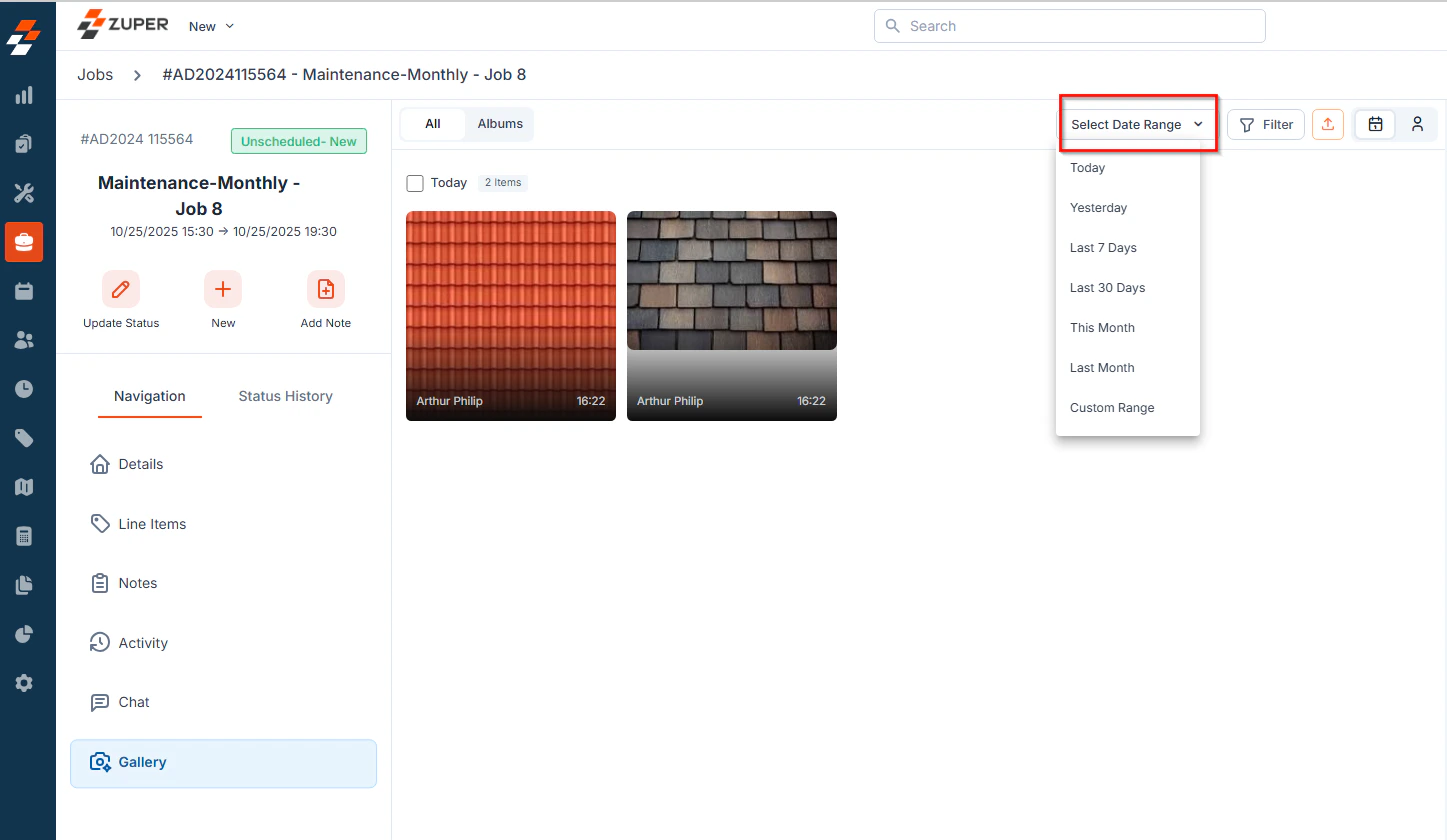
* **Select Date Range** – filter media by a specific date range.
## Available Actions within the Gallery
The **Gallery** feature allows you to view, organize, and manage all media associated with a job. You can filter, download, group, and update media details for better organization and accessibility.
### Filtering Media
You can refine the media displayed using filters:
* **Select Date Range** – filter media by a specific date range.
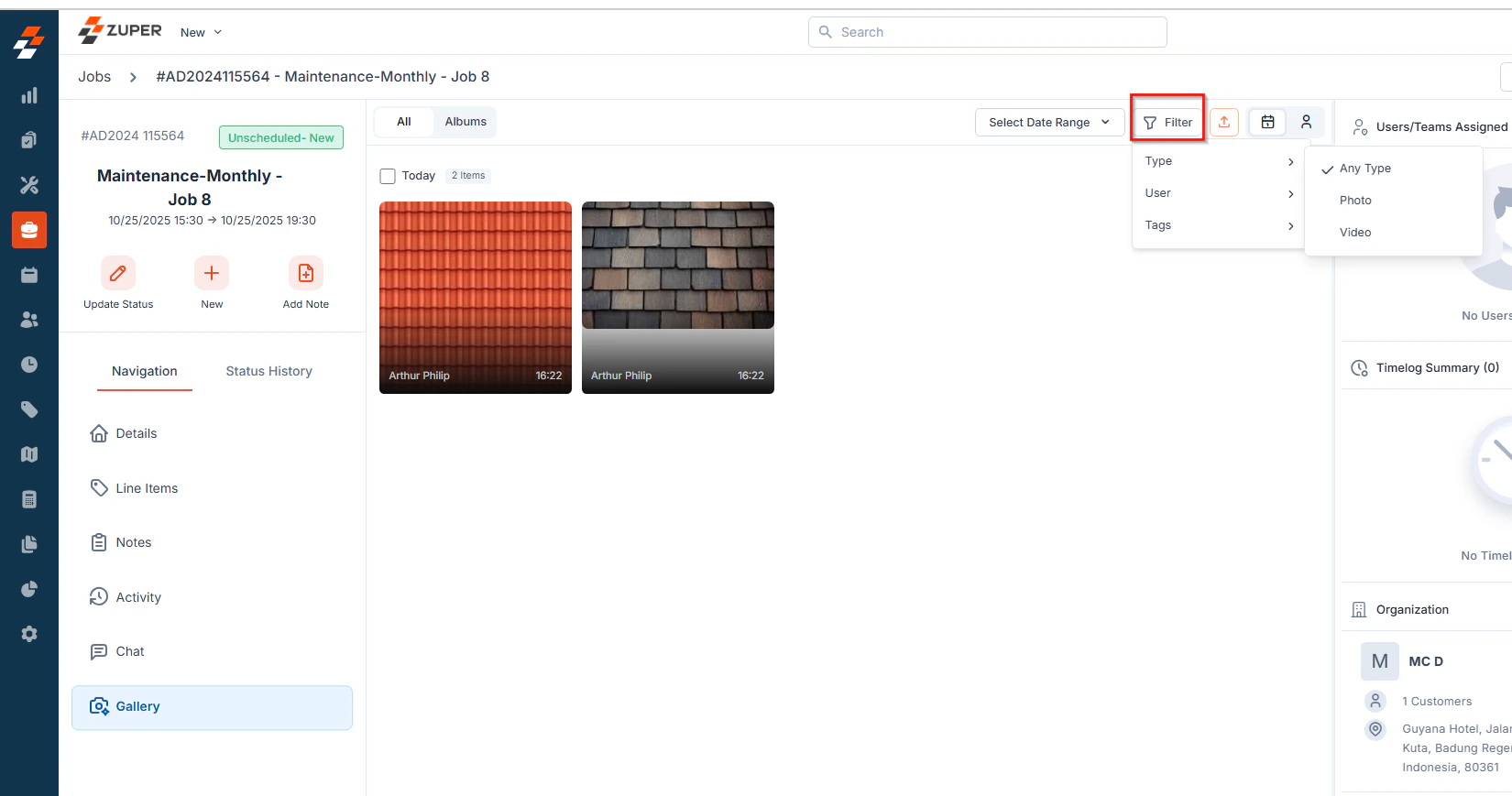
 * **Filter icon** – refine media further by:
1. **Type** – Photo, Video, or Any Type.
2. **User** – media uploaded by specific users.
3. **Tags** – filter media by assigned tags.
* **Filter icon** – refine media further by:
1. **Type** – Photo, Video, or Any Type.
2. **User** – media uploaded by specific users.
3. **Tags** – filter media by assigned tags.
 ### Downloading Media
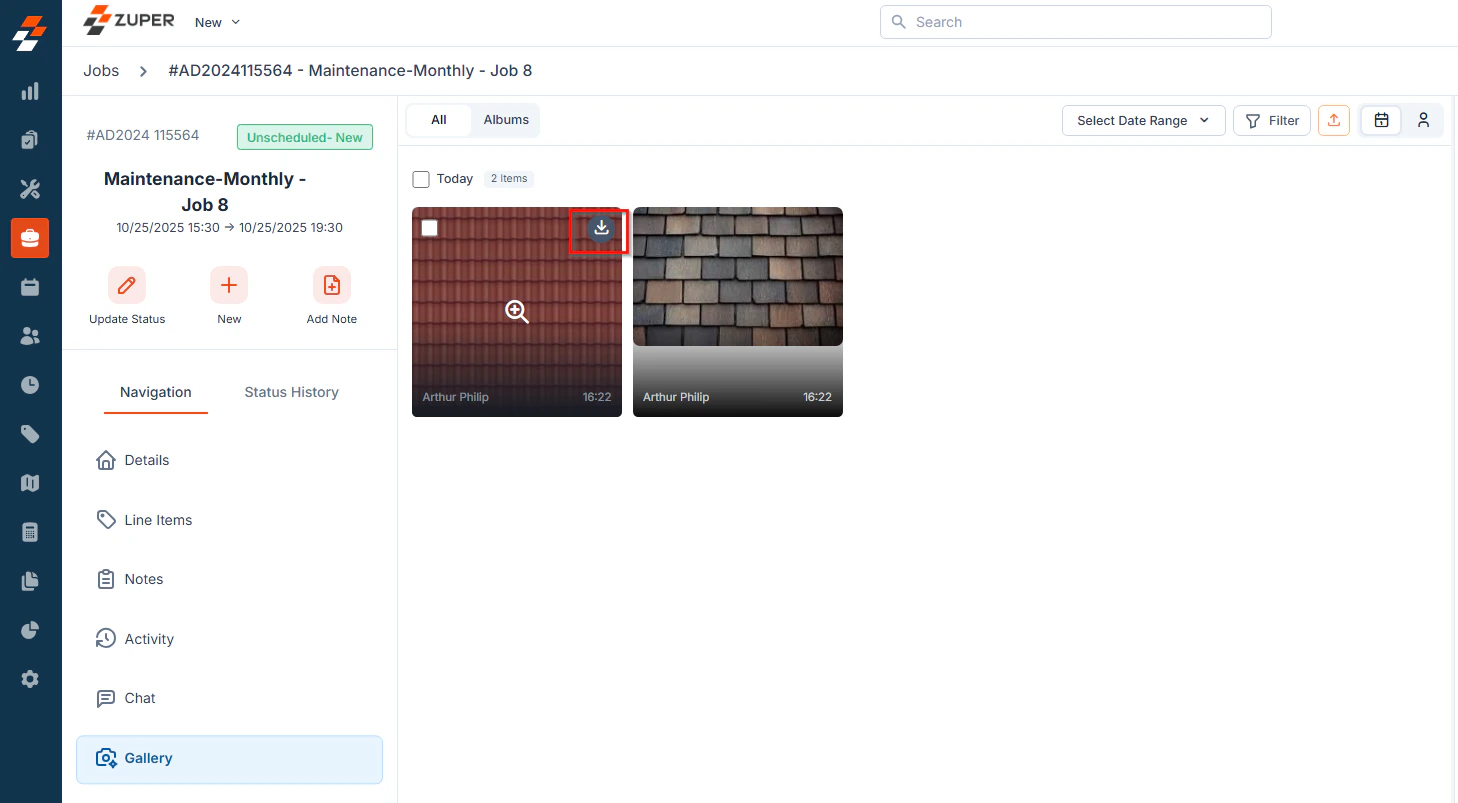
* **Single Image Download:** Click the **Download** icon on an individual image.
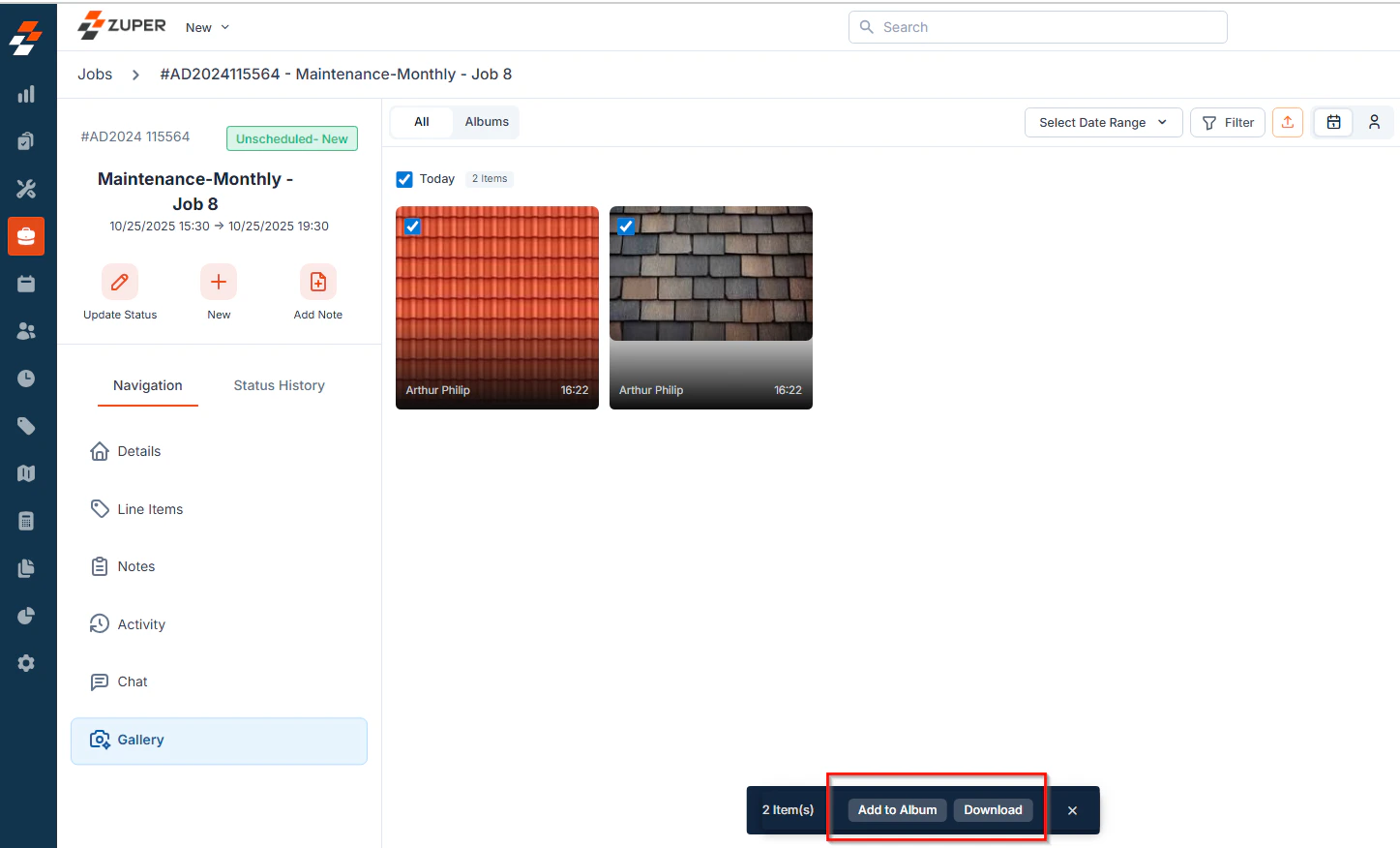
* **Multiple Image Download:** Select multiple images and click the **Download** button from the bottom bar.
### Downloading Media
* **Single Image Download:** Click the **Download** icon on an individual image.
* **Multiple Image Download:** Select multiple images and click the **Download** button from the bottom bar.
 ### Adding Media to an Album
* Select one or more images and click **Add to Album** from the bottom bar to organize media into albums.
### Adding Media to an Album
* Select one or more images and click **Add to Album** from the bottom bar to organize media into albums.
 ### Grouping Media
You can group media by:
* **Date** – view media based on the upload date.
* **User** – view media uploaded by specific users.
### Grouping Media
You can group media by:
* **Date** – view media based on the upload date.
* **User** – view media uploaded by specific users.
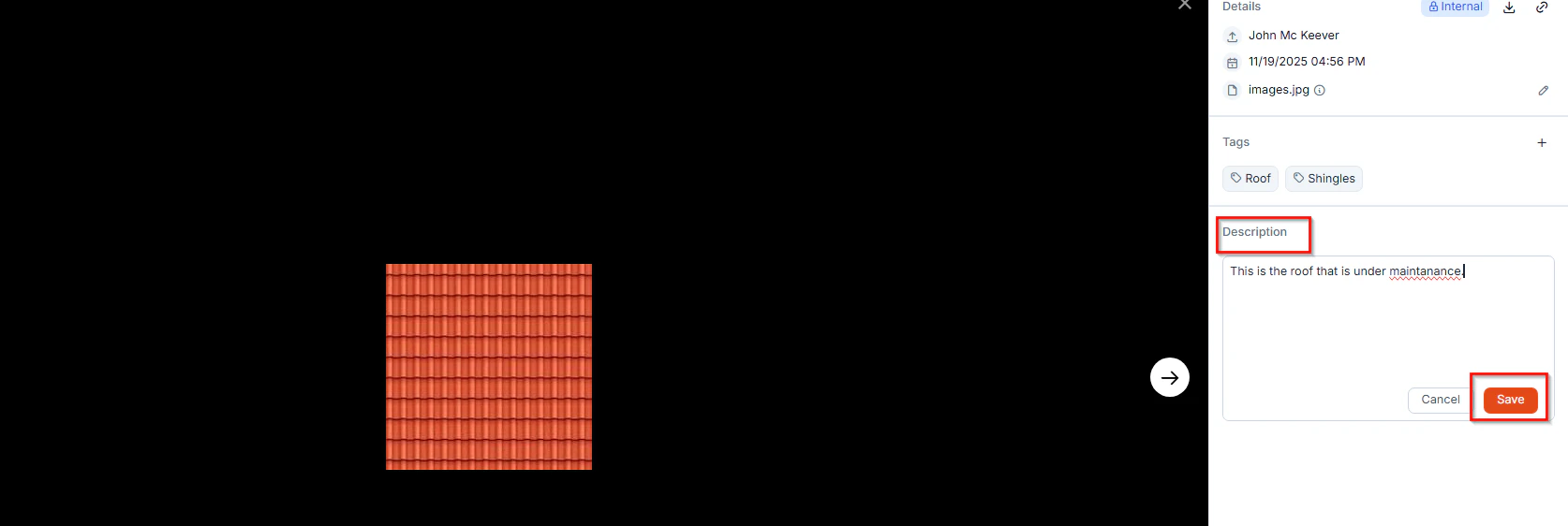
 ### Viewing and Updating Media Details
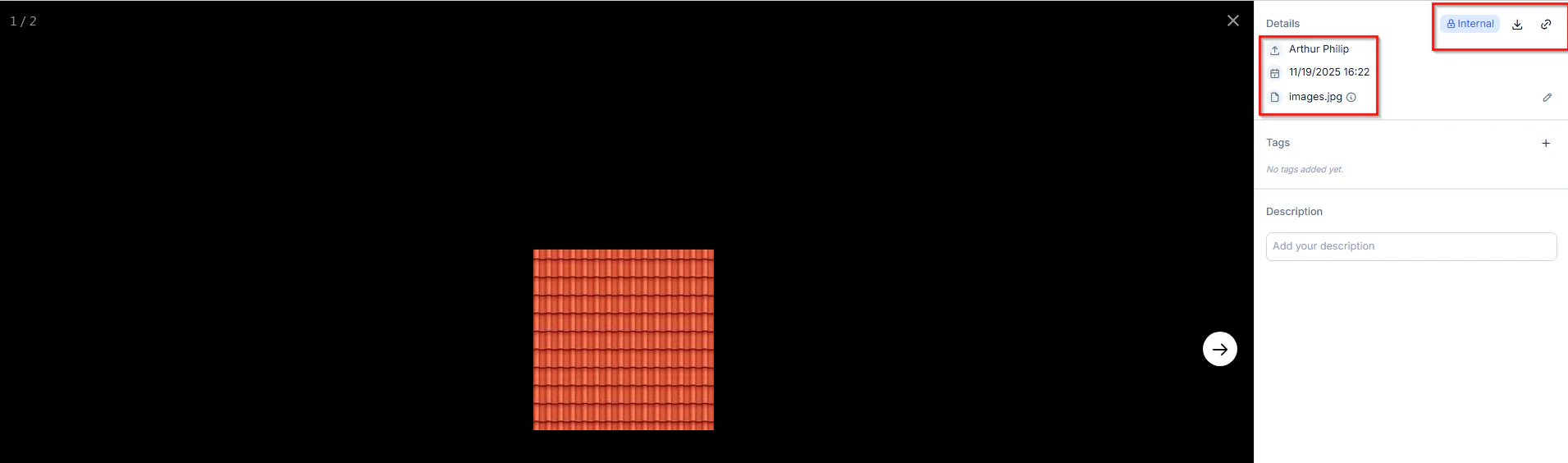
Click an image to view and update the following details:
* **Uploaded by** – see who added the media.
* **Date & Time** – view when the media was uploaded.
* **Media Name** – view the name of the media file.
* **Visibility** – set as Internal or Public.
* **Copy Link** – copy the media link.
* **Tags & Description** – add or update tags and description.
### Viewing and Updating Media Details
Click an image to view and update the following details:
* **Uploaded by** – see who added the media.
* **Date & Time** – view when the media was uploaded.
* **Media Name** – view the name of the media file.
* **Visibility** – set as Internal or Public.
* **Copy Link** – copy the media link.
* **Tags & Description** – add or update tags and description.
 **Steps to add tags & description**
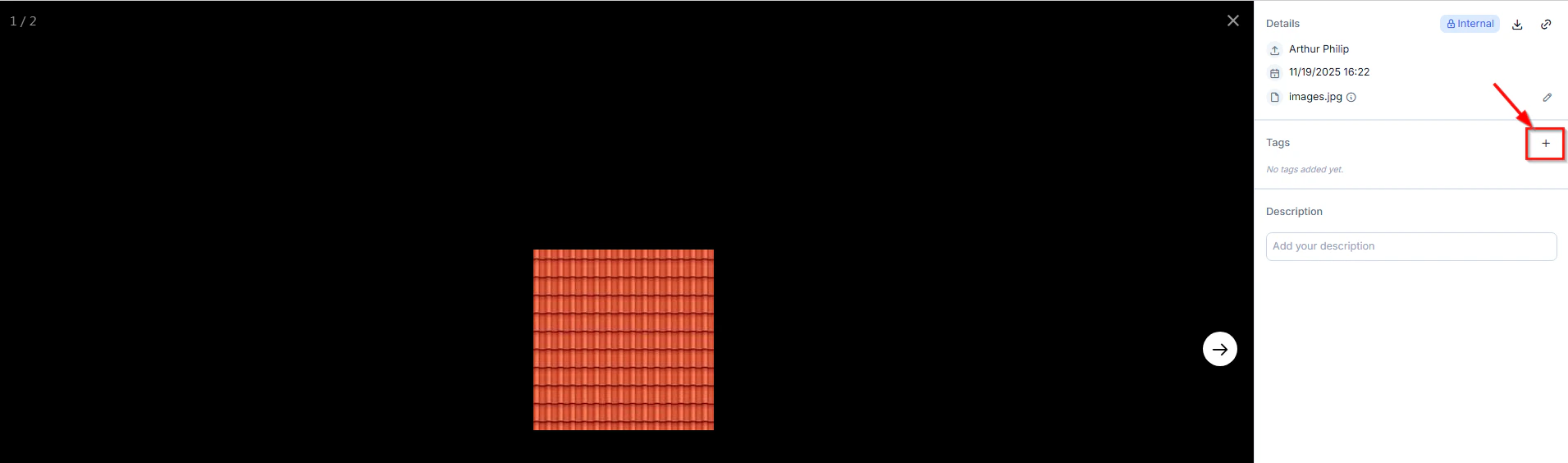
* Under Tags, click the + icon to add tags. An **Update Tags** dialog box appears.
**Steps to add tags & description**
* Under Tags, click the + icon to add tags. An **Update Tags** dialog box appears.
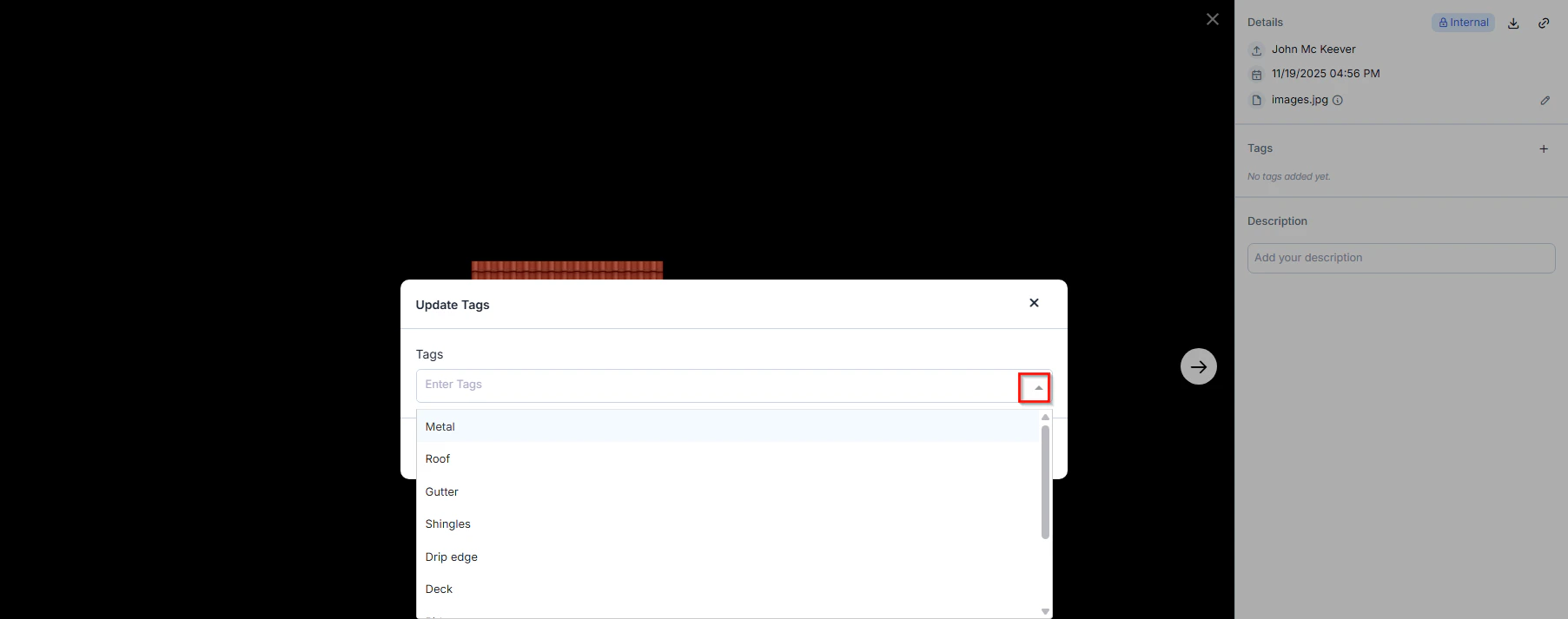
 * Choose the tags from the dropdown menu and click **Update** to add them. To know how to configure tags, see [above](https://docs.zuper.co/Work_Order_Management/Jobs/Jobs_gallery#creating-master-tags).
 * Under Description, add your description or click the edit icon to update the existing description as needed, and click “**Save**.”
 # Explore Jobs Gallery-Mobile
The **Job Gallery** in the Zuper mobile app allows field technicians to capture, upload, view, and manage all photos and videos associated with a job. This centralized view ensures that technicians can document job progress accurately and apply tags for easy filtering and retrieval.
## Accessing the Job Gallery
1. Open the **Zuper Field Service App** on your mobile device.
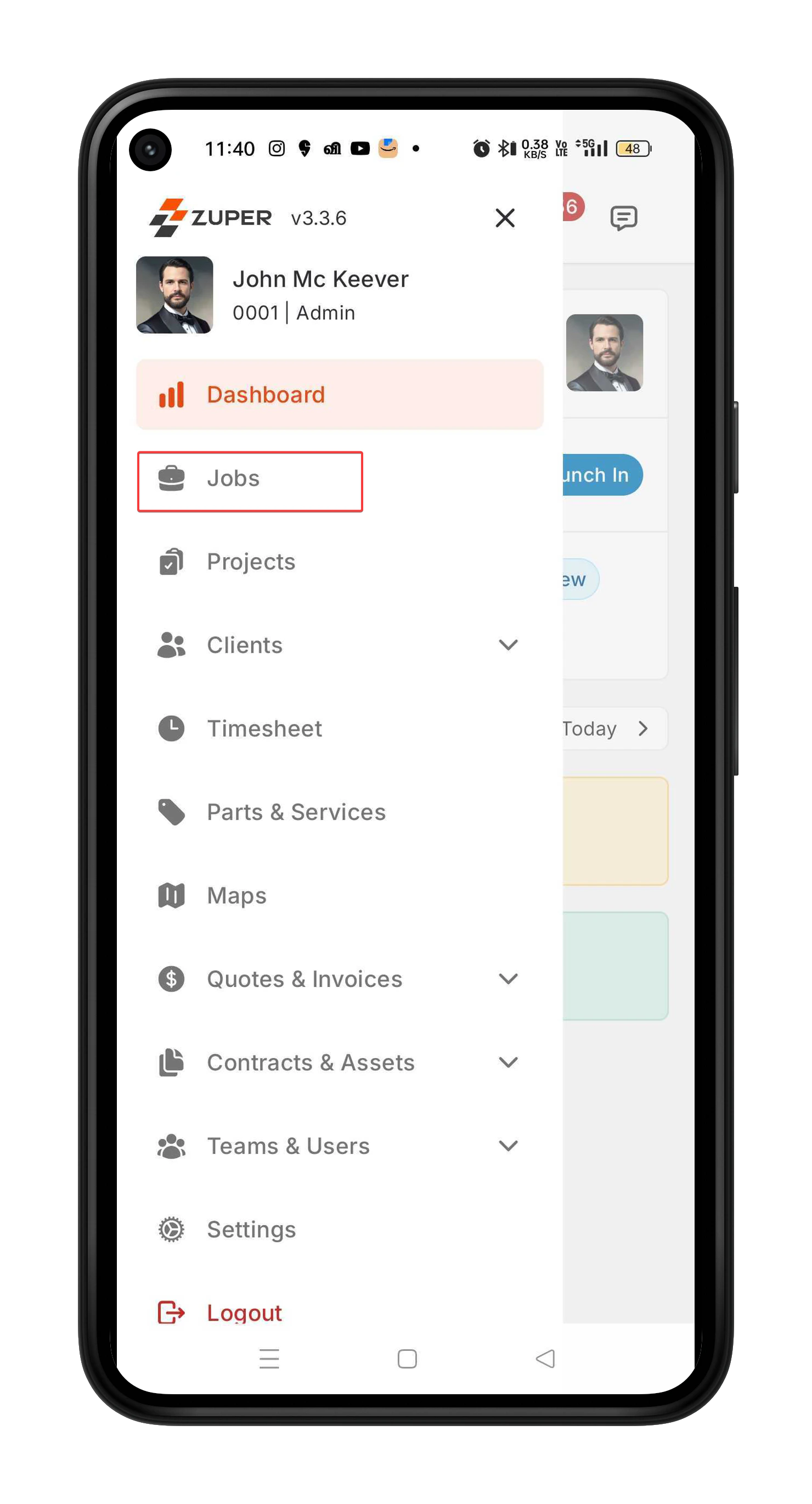
2. Select the Jobs module from the hamburger menu.
# Explore Jobs Gallery-Mobile
The **Job Gallery** in the Zuper mobile app allows field technicians to capture, upload, view, and manage all photos and videos associated with a job. This centralized view ensures that technicians can document job progress accurately and apply tags for easy filtering and retrieval.
## Accessing the Job Gallery
1. Open the **Zuper Field Service App** on your mobile device.
2. Select the Jobs module from the hamburger menu.
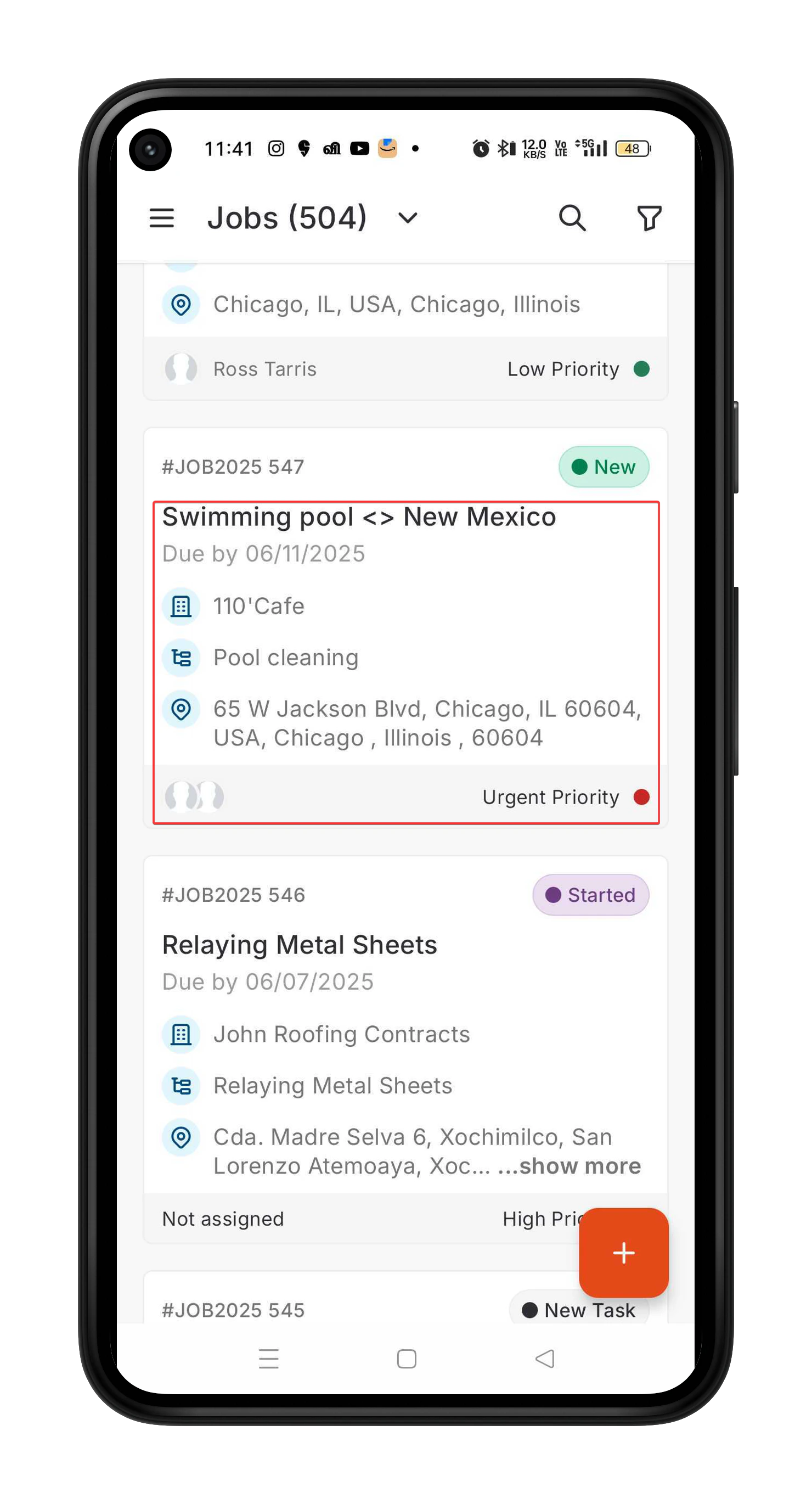
 2. Choose any one of the jobs from the job listing page to view its details.
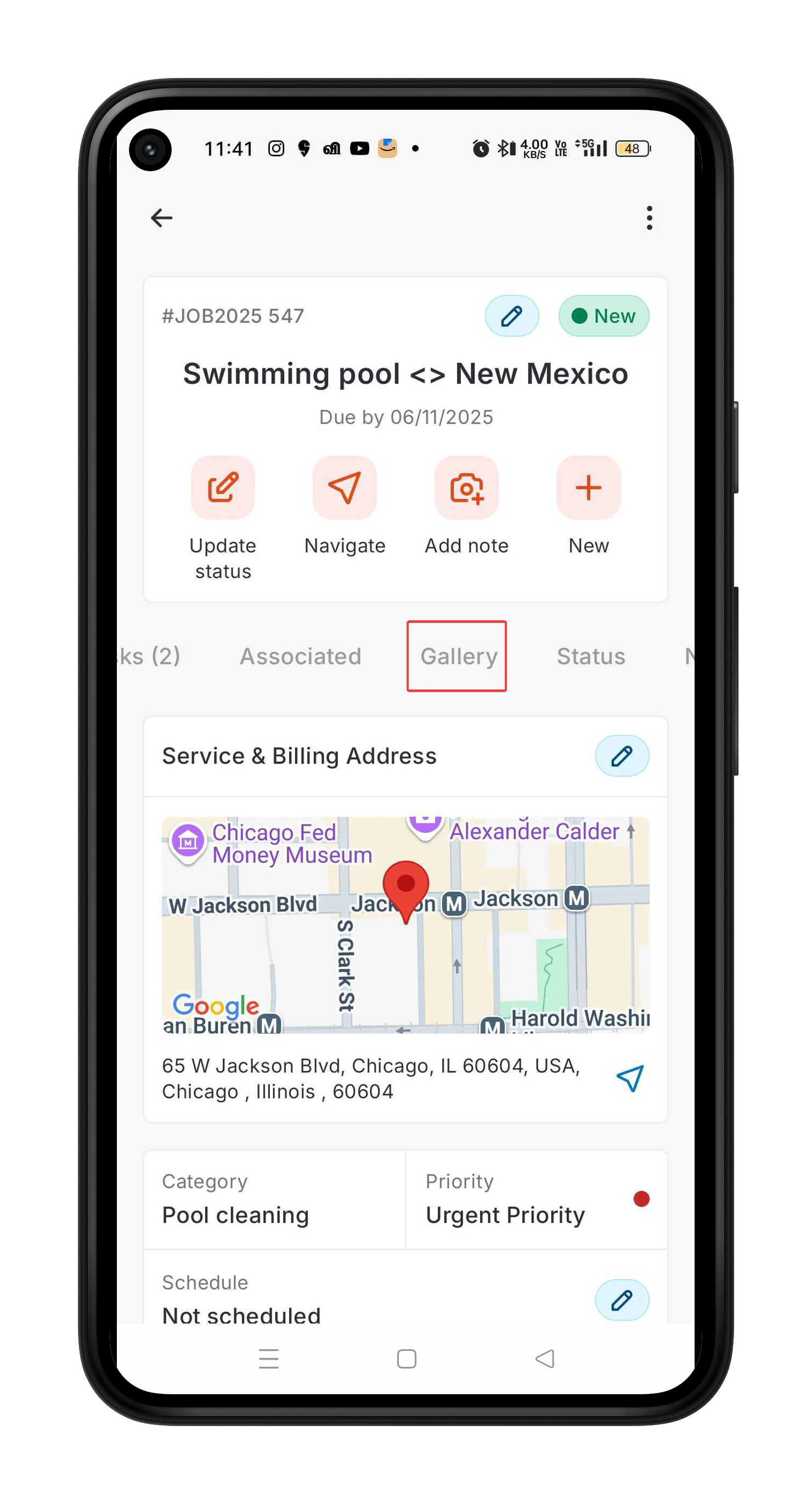
 3. Tap the **Gallery** tab.
 4. The Gallery displays all images and videos previously added to the job.
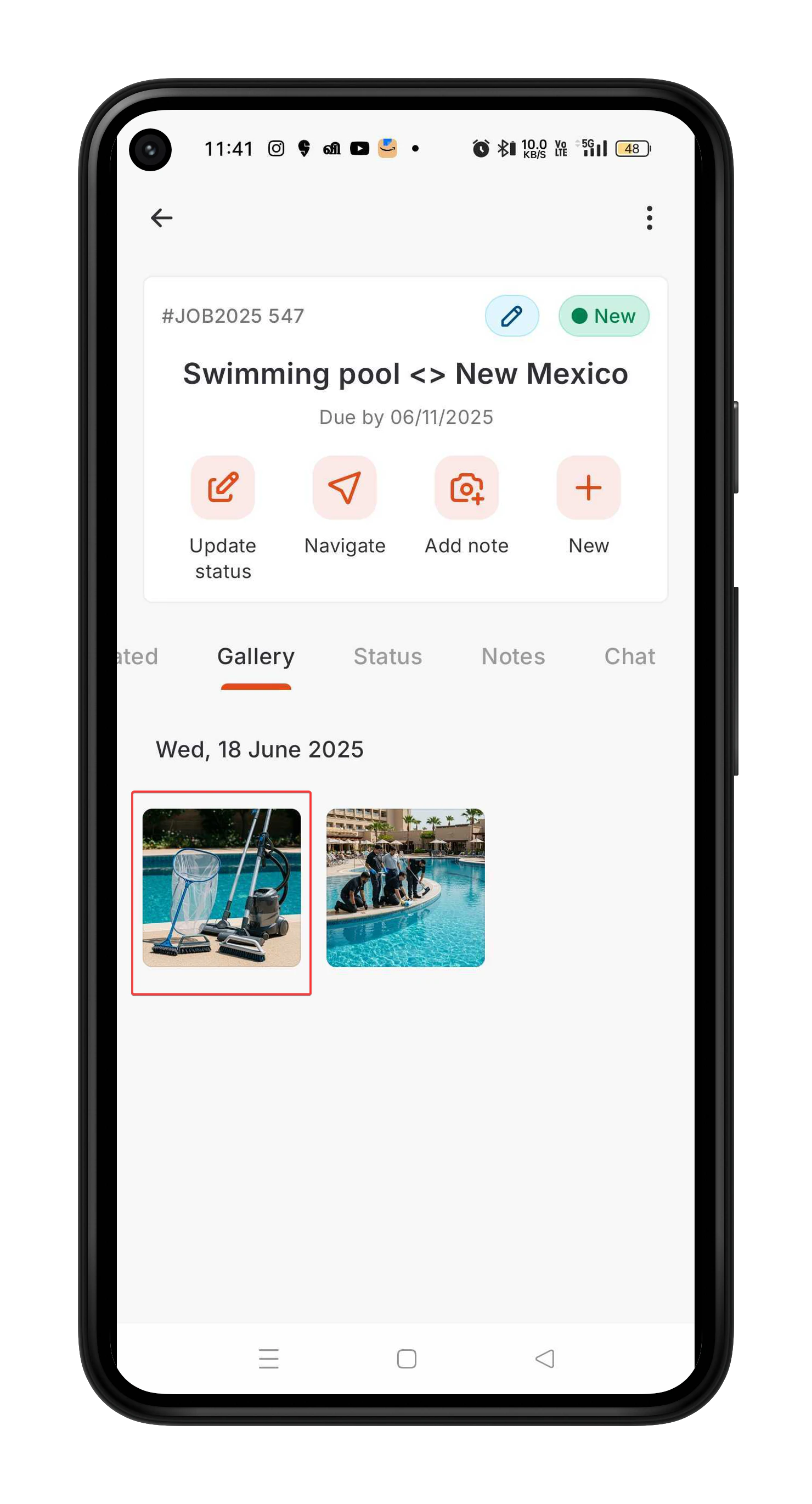 ## Viewing Details
1. Tap any image or video in the Gallery grid to open it in full-screen view.
2. The selected media opens along with its associated details.
3. If required, you can add or update the **Description** and **Tags**, then tap **Save**.
## Viewing Details
1. Tap any image or video in the Gallery grid to open it in full-screen view.
2. The selected media opens along with its associated details.
3. If required, you can add or update the **Description** and **Tags**, then tap **Save**.
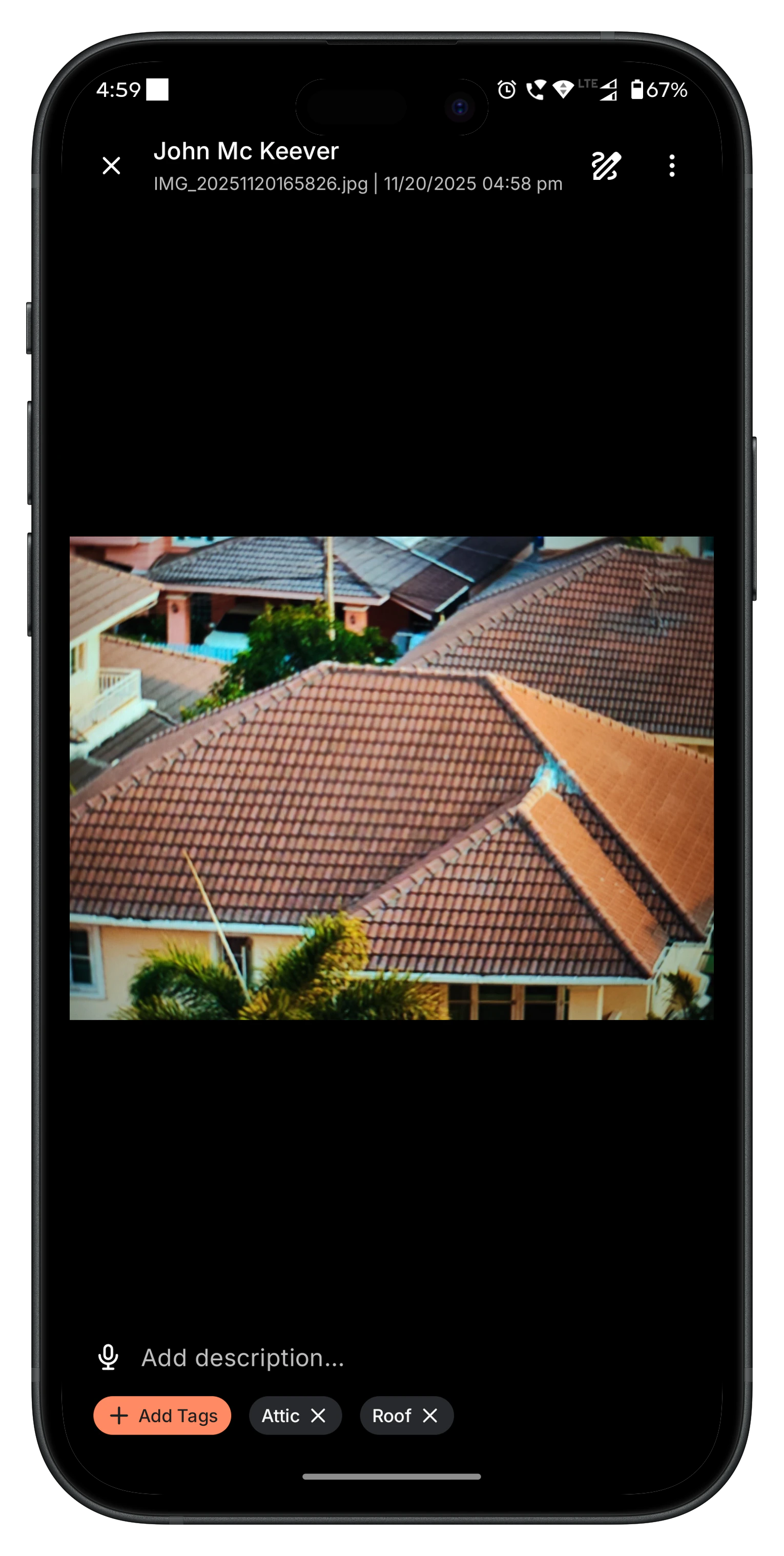 Note: Tags can be added or updated **only for images**, not for videos.
## Capturing or Uploading Images
You can add new images/videos to the job using two methods:
### 1. Capture a Photo/Video Using a Camera
* In the **Job’s** **Gallery** tab, tap the **Camera** icon to open the Zuper Camera Component.
Note: Tags can be added or updated **only for images**, not for videos.
## Capturing or Uploading Images
You can add new images/videos to the job using two methods:
### 1. Capture a Photo/Video Using a Camera
* In the **Job’s** **Gallery** tab, tap the **Camera** icon to open the Zuper Camera Component.
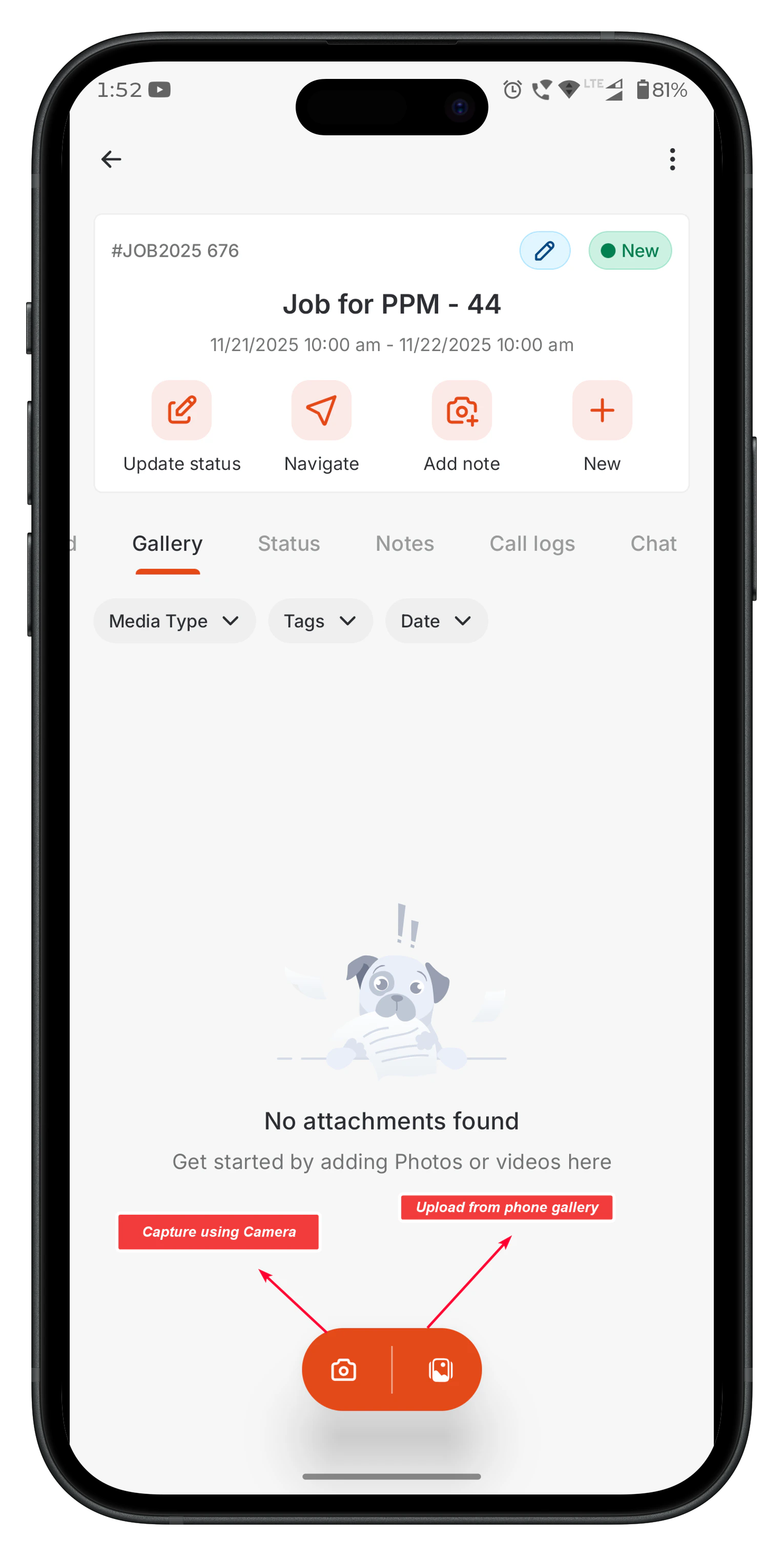 * Take a photo or record a video. Adjust camera settings (e.g., flash, zoom) for optimal image quality.
* Tap the **Tag** icon (if required) to apply tags before saving.
* Take a photo or record a video. Adjust camera settings (e.g., flash, zoom) for optimal image quality.
* Tap the **Tag** icon (if required) to apply tags before saving.
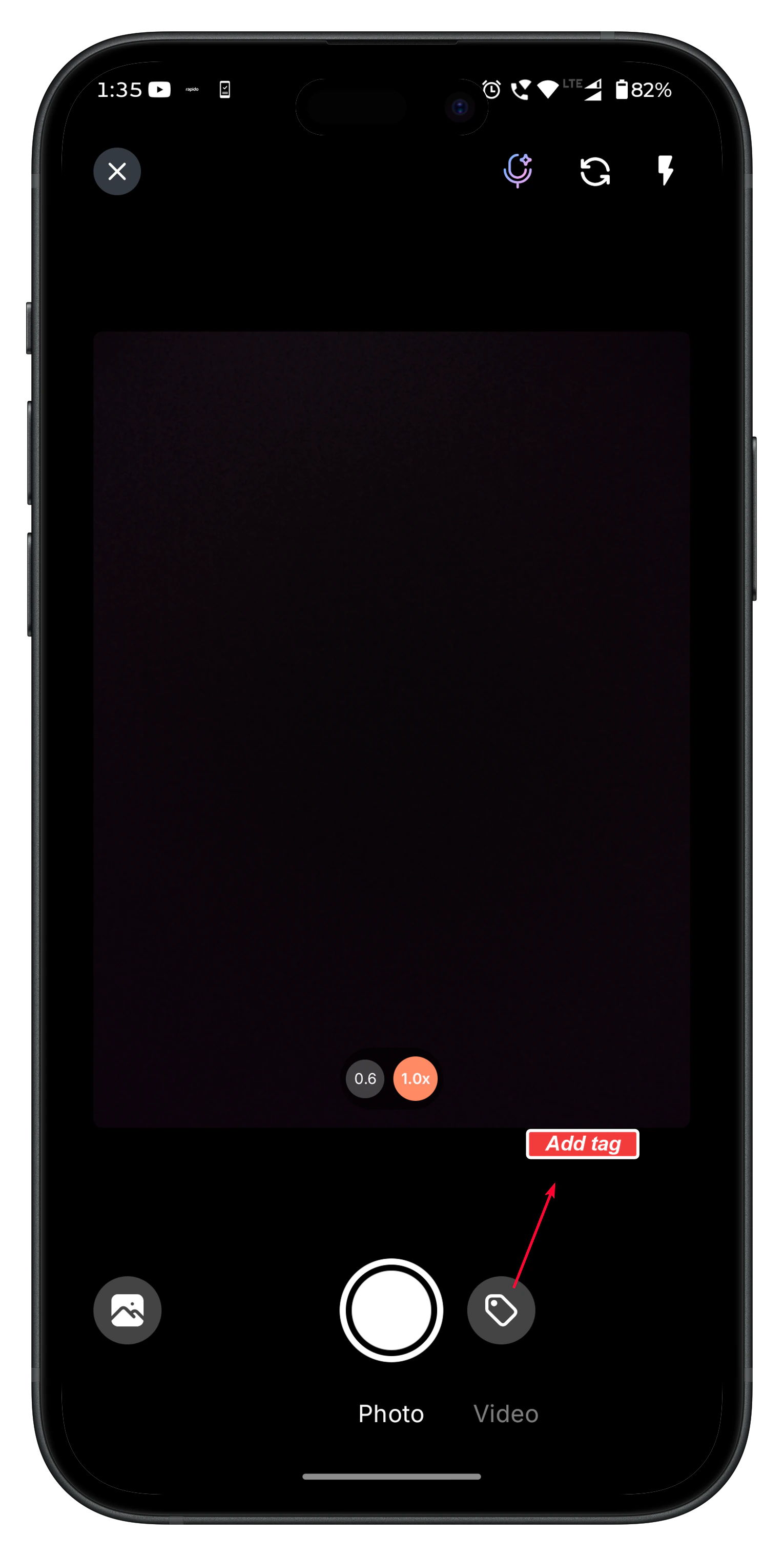 * Tap **Save**.\
The media is added directly to the Job Gallery.
### 2. Upload from Device
* In the Job’s Gallery tab, tap the **Upload** icon to browse your phone’s storage.
* Choose one or more images/videos.
* Add tags (optional) and tap **Save**.
All uploaded images (online or offline) appear in the Gallery. Offline uploads display a small icon on the top-left corner until synced.
## Adding Tags to Images
Tags help organize and categorize job images for faster searchability.
You can add tags:
* **Before capturing an image** (via the Tag icon on the camera screen)
* **After capturing/uploading**, from the image preview.
* Tap **Save**.\
The media is added directly to the Job Gallery.
### 2. Upload from Device
* In the Job’s Gallery tab, tap the **Upload** icon to browse your phone’s storage.
* Choose one or more images/videos.
* Add tags (optional) and tap **Save**.
All uploaded images (online or offline) appear in the Gallery. Offline uploads display a small icon on the top-left corner until synced.
## Adding Tags to Images
Tags help organize and categorize job images for faster searchability.
You can add tags:
* **Before capturing an image** (via the Tag icon on the camera screen)
* **After capturing/uploading**, from the image preview.
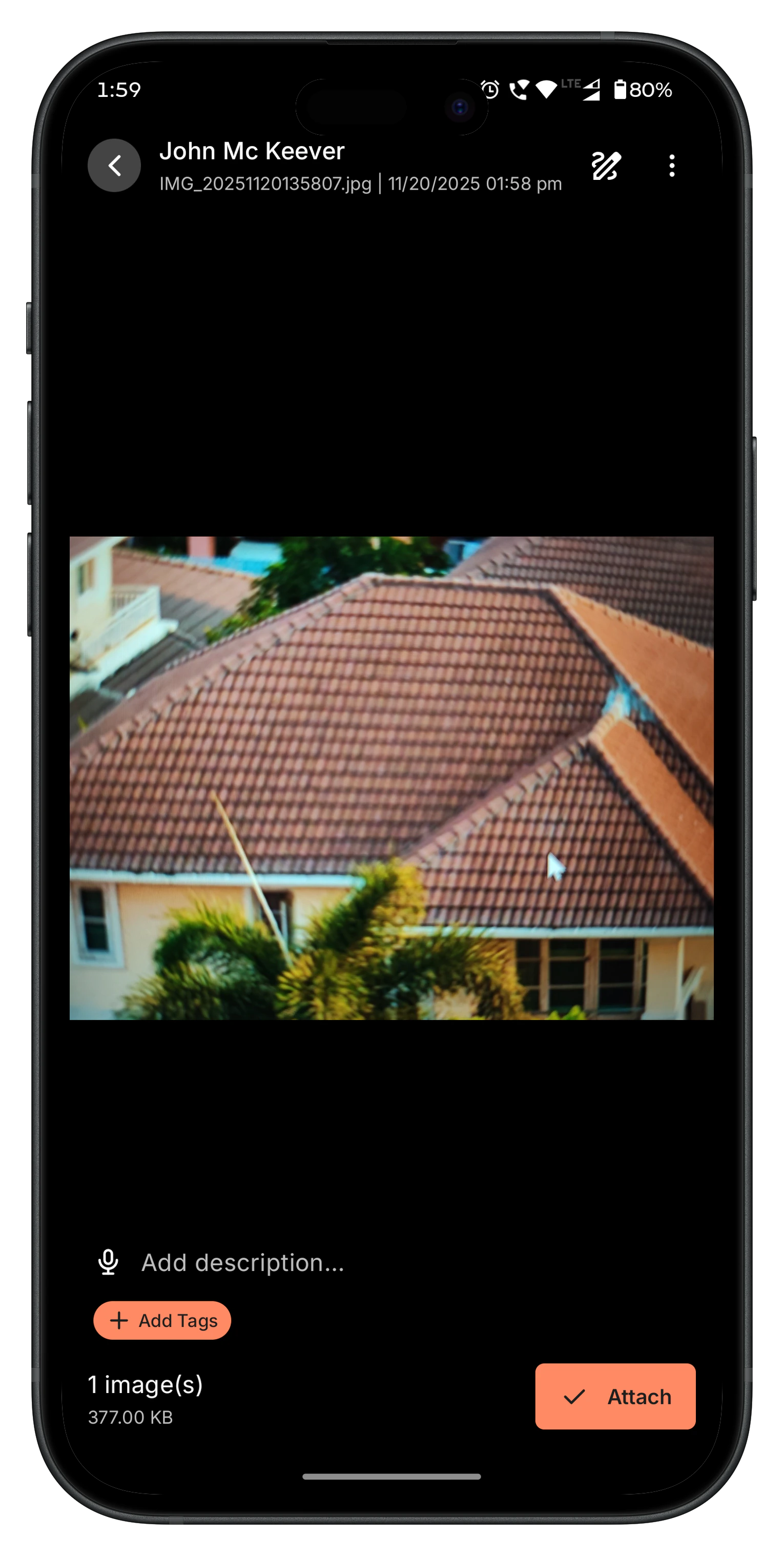 * **From the Gallery**, when viewing the image in full screen.
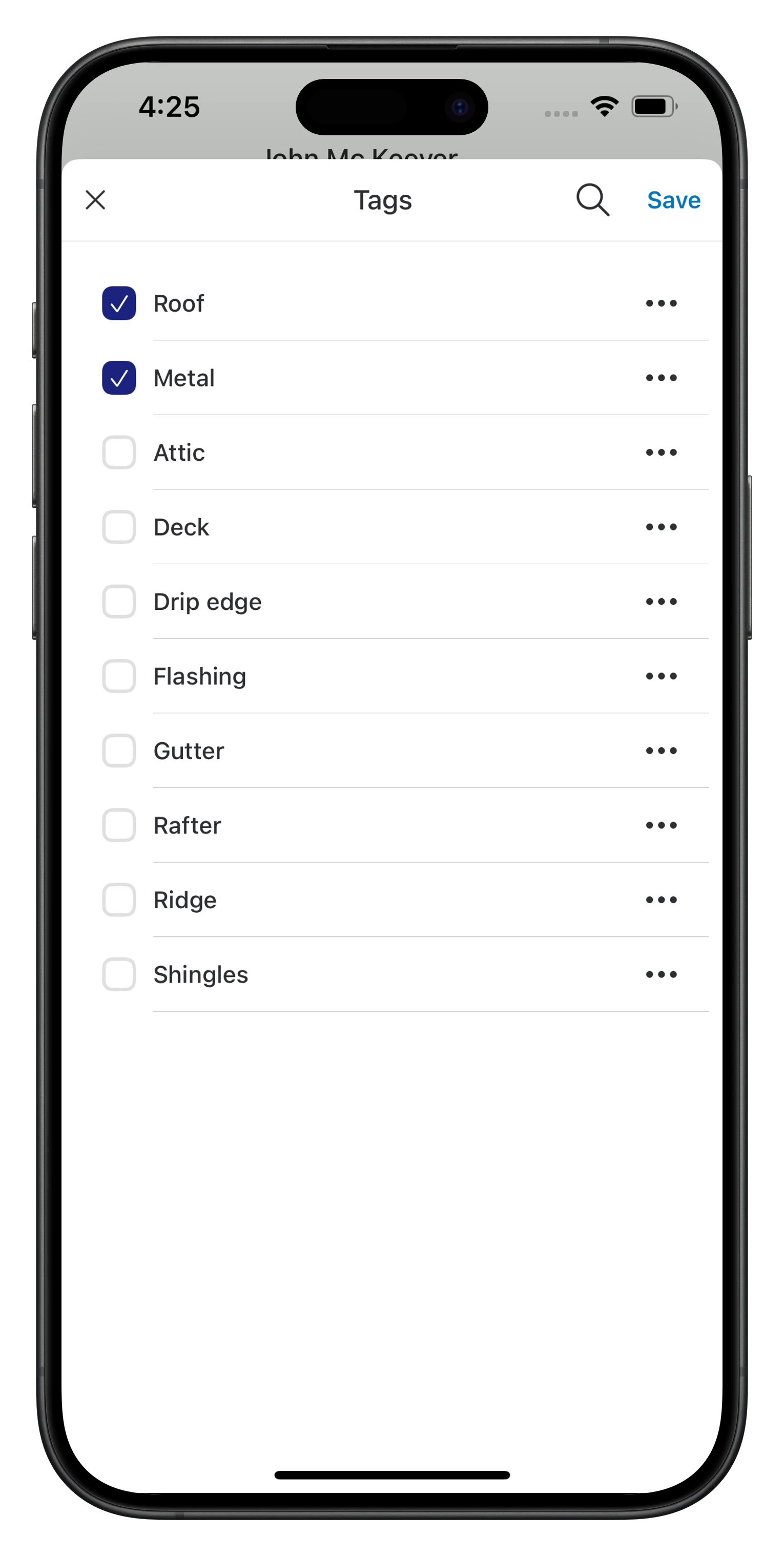 **Role-Based Tag Permissions**
| **Role** | **Associate Existing Tag** | **Create Tag** | **Edit Tag** | **Delete Tag** |
| :------------------ | :------------------------- | :------------- | :----------- | :------------- |
| **Admin** | ✅ | ✅ | ✅ | ✅ |
| **Team Lead** | ✅ | ✅ | ✅ | ✅ |
| **Field Executive** | ✅ | ❌ | ❌ | ❌ |
## Filtering Media in the Job Gallery
The Job Gallery provides multiple filter options to help you quickly locate specific photos or videos associated with the job. You can apply one or more filters at the same time to refine the results.
**1. Filter by Media Type**
Use this filter to control the type of media displayed in the Gallery grid:
* **All Media** – Shows both photos and videos.
* **Photo** – Displays only image files captured or uploaded for the job.
* **Video** – Displays only video files added to the job.
**Role-Based Tag Permissions**
| **Role** | **Associate Existing Tag** | **Create Tag** | **Edit Tag** | **Delete Tag** |
| :------------------ | :------------------------- | :------------- | :----------- | :------------- |
| **Admin** | ✅ | ✅ | ✅ | ✅ |
| **Team Lead** | ✅ | ✅ | ✅ | ✅ |
| **Field Executive** | ✅ | ❌ | ❌ | ❌ |
## Filtering Media in the Job Gallery
The Job Gallery provides multiple filter options to help you quickly locate specific photos or videos associated with the job. You can apply one or more filters at the same time to refine the results.
**1. Filter by Media Type**
Use this filter to control the type of media displayed in the Gallery grid:
* **All Media** – Shows both photos and videos.
* **Photo** – Displays only image files captured or uploaded for the job.
* **Video** – Displays only video files added to the job.
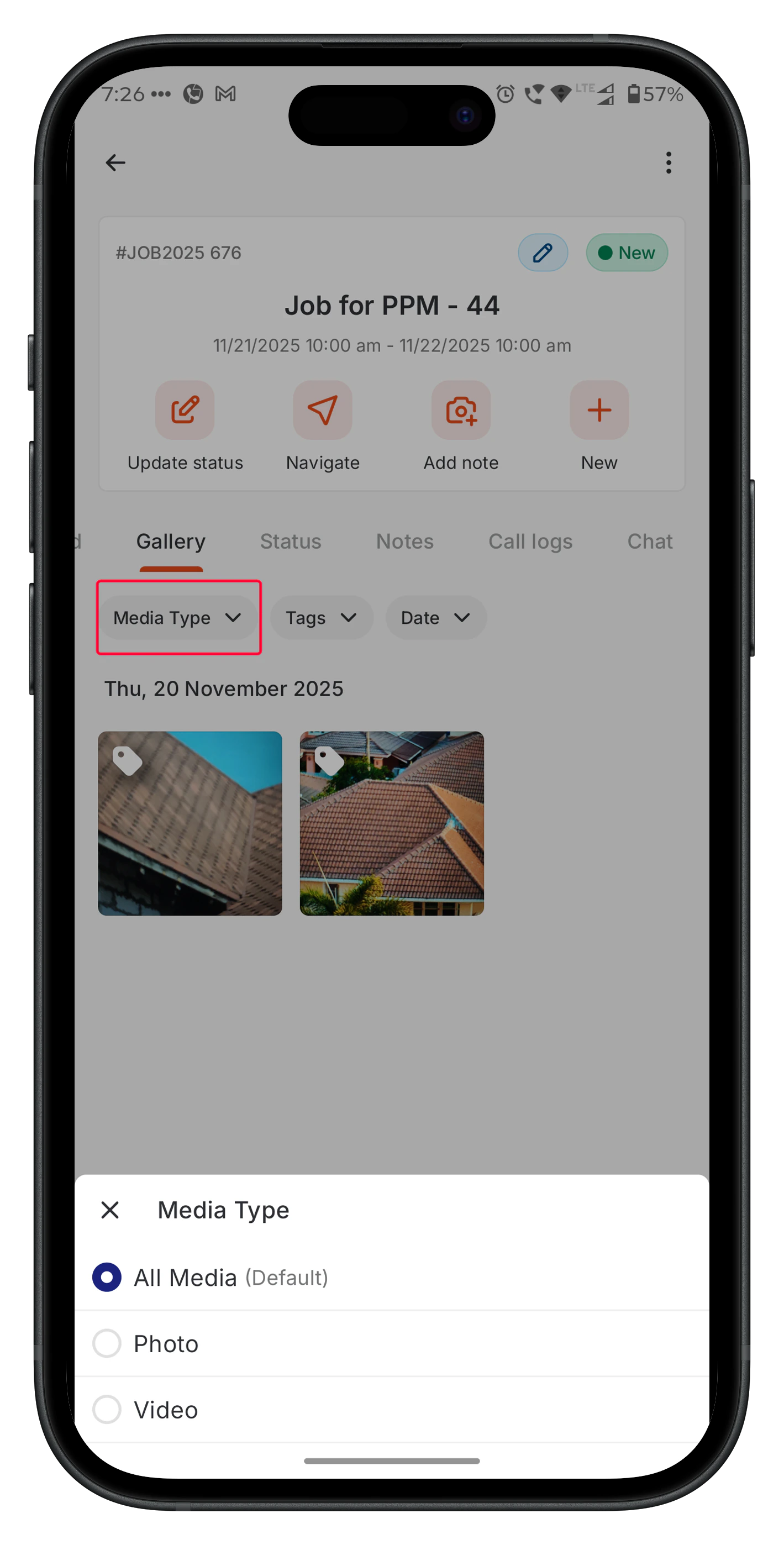 This filter is helpful when you want to focus on visual documentation (photos) or review recorded walkthroughs or evidence (videos).
**2. Filter by Tags**
Tags help categorize images based on location, task, project, or custom labels added by the technician or admin.
* The filter panel displays all tags used within this specific job.
* You can select **one or multiple tags** to narrow down the media list.
This filter is helpful when you want to focus on visual documentation (photos) or review recorded walkthroughs or evidence (videos).
**2. Filter by Tags**
Tags help categorize images based on location, task, project, or custom labels added by the technician or admin.
* The filter panel displays all tags used within this specific job.
* You can select **one or multiple tags** to narrow down the media list.
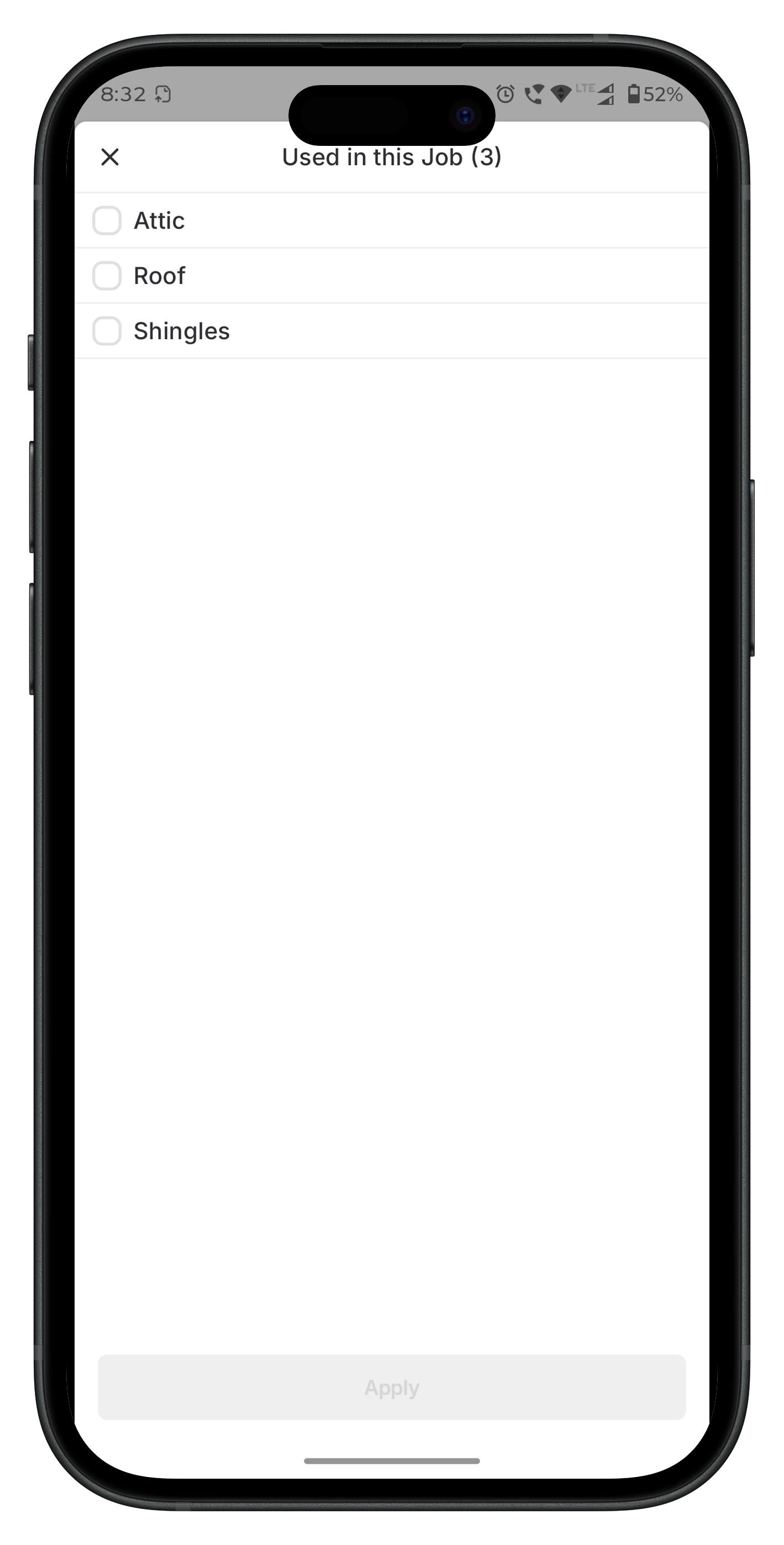 * Only media items associated with the selected tags will be shown in the Gallery.
This is especially useful when searching for images such as **before/after**, **installation**, **inspection**, or **site-specific** photos.
**3. Filter by Date**
Use the Date filter to view media captured or uploaded within a specific timeframe. Available options include:
* **All**
* **Today**
* **Yesterday**
* **Last 7 Days**
* **Last 30 Days**
* **This Month**
* **Last Month**
* **Custom Date Range** – Select a start and end date based on your requirement.
* Only media items associated with the selected tags will be shown in the Gallery.
This is especially useful when searching for images such as **before/after**, **installation**, **inspection**, or **site-specific** photos.
**3. Filter by Date**
Use the Date filter to view media captured or uploaded within a specific timeframe. Available options include:
* **All**
* **Today**
* **Yesterday**
* **Last 7 Days**
* **Last 30 Days**
* **This Month**
* **Last Month**
* **Custom Date Range** – Select a start and end date based on your requirement.
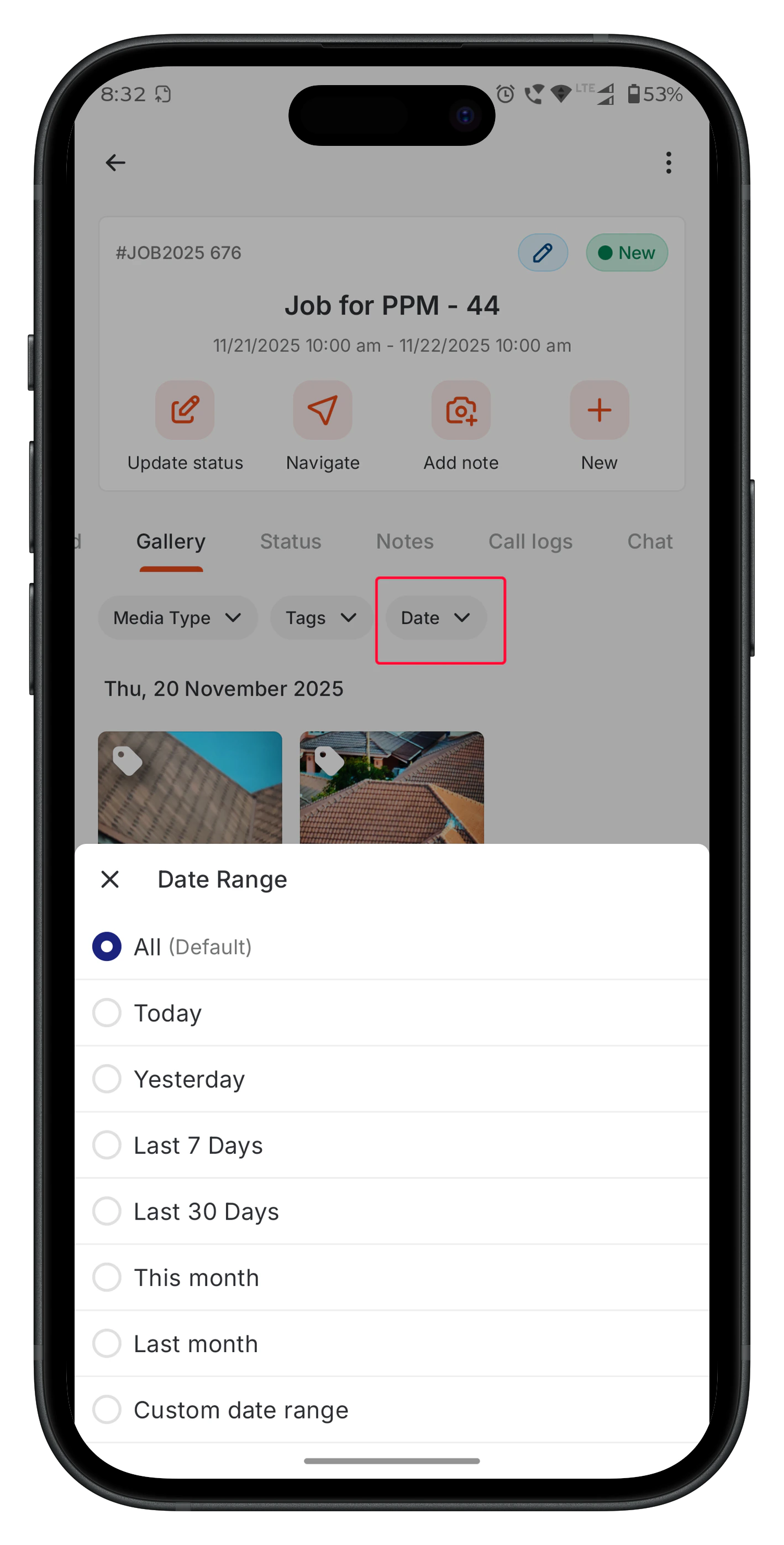 This filter helps technicians quickly retrieve images based on when the work was performed or documented.
**Filtered results update instantly**, ensuring you can efficiently locate the most relevant photos or videos during job execution, reporting, or customer interactions.
## **Pick from Zuper Gallery**
The **Pick from Zuper Gallery** option allows technicians to reuse existing media already available in their Zuper Gallery.
This is especially useful when adding images to:
* Checklist items
* Notes
* Inspection forms
Instead of capturing a new image, tap **Pick from Zuper Gallery**, select an existing photo, apply tags if needed, and save.
## Key Highlights
* Images captured from checklists, inspection forms, notes, or direct upload (online/offline) appear automatically in the Job Gallery.
* Tags are currently supported **only for images**.
* The Zuper Camera Component provides a unified tagging and preview experience across Gallery and Notes.
* Multiple tags can be applied to a single image for highly accurate categorization.
## FAQs
**Q**: Why don’t I see the Gallery tab?
**A**: Ensure you enable it under Settings > Organization Settings > Job Settings > Enable Job Gallery.
**Q**: Can I edit or delete files in the Gallery?
**A**: You can view, filter, edit, and download files directly from the Gallery. However, deleting files from the Gallery is not supported.
**Q**: What file types are supported?
**A**: The Gallery shows standard media like JPG, PNG, and MP4. Other files (e.g., PDFs) stay in their original sections.
**Q**: Can I tag images after uploading them to the Gallery?
**A**: Yes, Admins can edit tags for images in the Gallery by tapping the Tag Icon on the image thumbnail and accessing the Tag Management. Note that Field Executives can only reassign existing tags.
**Q**: How many tags can I apply to a single image?
**A**: There is no strict limit, but aim for 3–5 relevant tags per image for usability to maintain clarity and avoid clutter.
The Image Tags feature in the Zuper Mobile Gallery transforms how field technicians and Admins capture, organize, and retrieve job-related images. This feature enhances documentation, streamlines workflows, and improves collaboration by enabling contextual tagging and role-based management.
This filter helps technicians quickly retrieve images based on when the work was performed or documented.
**Filtered results update instantly**, ensuring you can efficiently locate the most relevant photos or videos during job execution, reporting, or customer interactions.
## **Pick from Zuper Gallery**
The **Pick from Zuper Gallery** option allows technicians to reuse existing media already available in their Zuper Gallery.
This is especially useful when adding images to:
* Checklist items
* Notes
* Inspection forms
Instead of capturing a new image, tap **Pick from Zuper Gallery**, select an existing photo, apply tags if needed, and save.
## Key Highlights
* Images captured from checklists, inspection forms, notes, or direct upload (online/offline) appear automatically in the Job Gallery.
* Tags are currently supported **only for images**.
* The Zuper Camera Component provides a unified tagging and preview experience across Gallery and Notes.
* Multiple tags can be applied to a single image for highly accurate categorization.
## FAQs
**Q**: Why don’t I see the Gallery tab?
**A**: Ensure you enable it under Settings > Organization Settings > Job Settings > Enable Job Gallery.
**Q**: Can I edit or delete files in the Gallery?
**A**: You can view, filter, edit, and download files directly from the Gallery. However, deleting files from the Gallery is not supported.
**Q**: What file types are supported?
**A**: The Gallery shows standard media like JPG, PNG, and MP4. Other files (e.g., PDFs) stay in their original sections.
**Q**: Can I tag images after uploading them to the Gallery?
**A**: Yes, Admins can edit tags for images in the Gallery by tapping the Tag Icon on the image thumbnail and accessing the Tag Management. Note that Field Executives can only reassign existing tags.
**Q**: How many tags can I apply to a single image?
**A**: There is no strict limit, but aim for 3–5 relevant tags per image for usability to maintain clarity and avoid clutter.
The Image Tags feature in the Zuper Mobile Gallery transforms how field technicians and Admins capture, organize, and retrieve job-related images. This feature enhances documentation, streamlines workflows, and improves collaboration by enabling contextual tagging and role-based management.