> ## Documentation Index
> Fetch the complete documentation index at: https://zuperinc-section23.mintlify.site/llms.txt
> Use this file to discover all available pages before exploring further.
# Managing job timelogs
You can view the time logs of all users/technicians who have worked on a job, providing a detailed record of each user’s labor hours, travel time, and breaks spent on assigned tasks. This view helps track the time spent at each job stage and provides a clear picture of the total time logged. You can also manually add, edit, or delete time log entries for users/technicians who missed clocking in or out.
1. From the Job details page, locate and click on the **Timelog Summary** section.
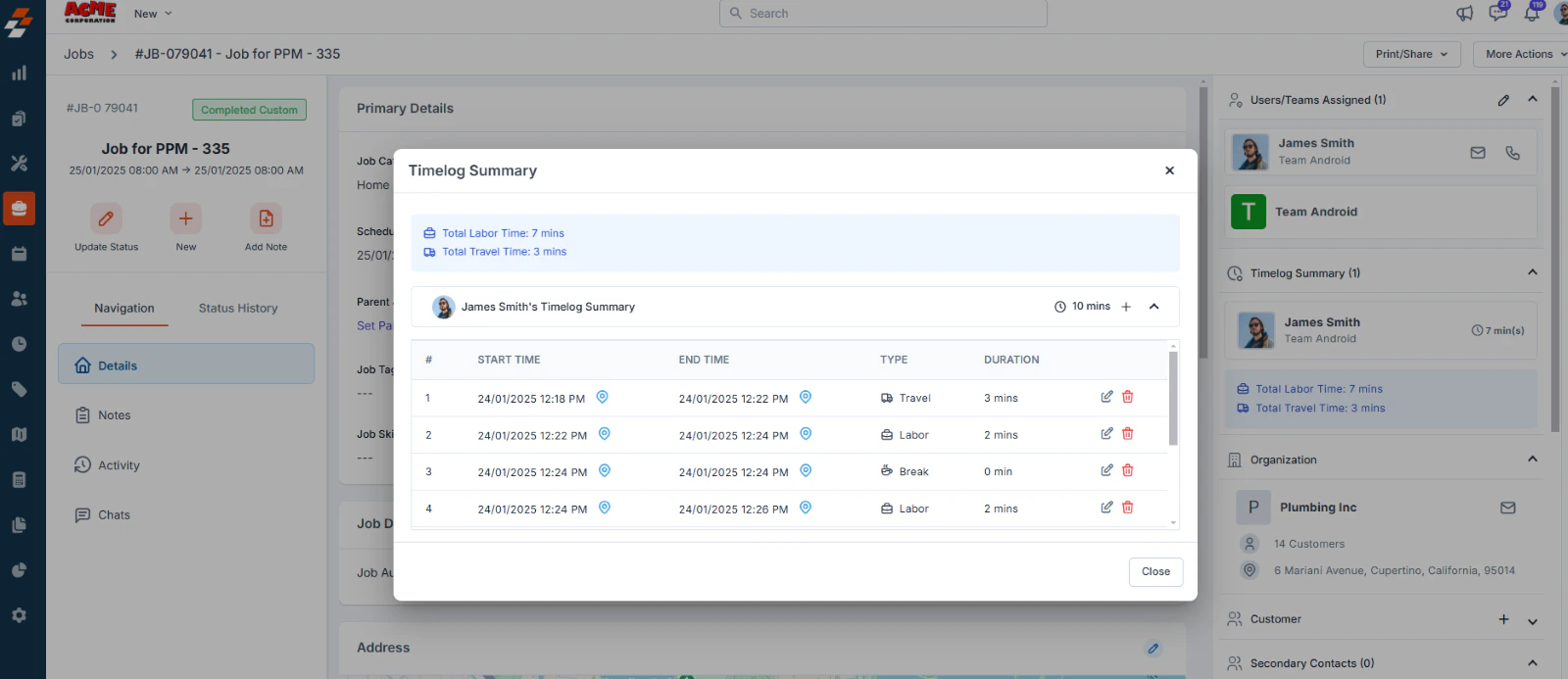
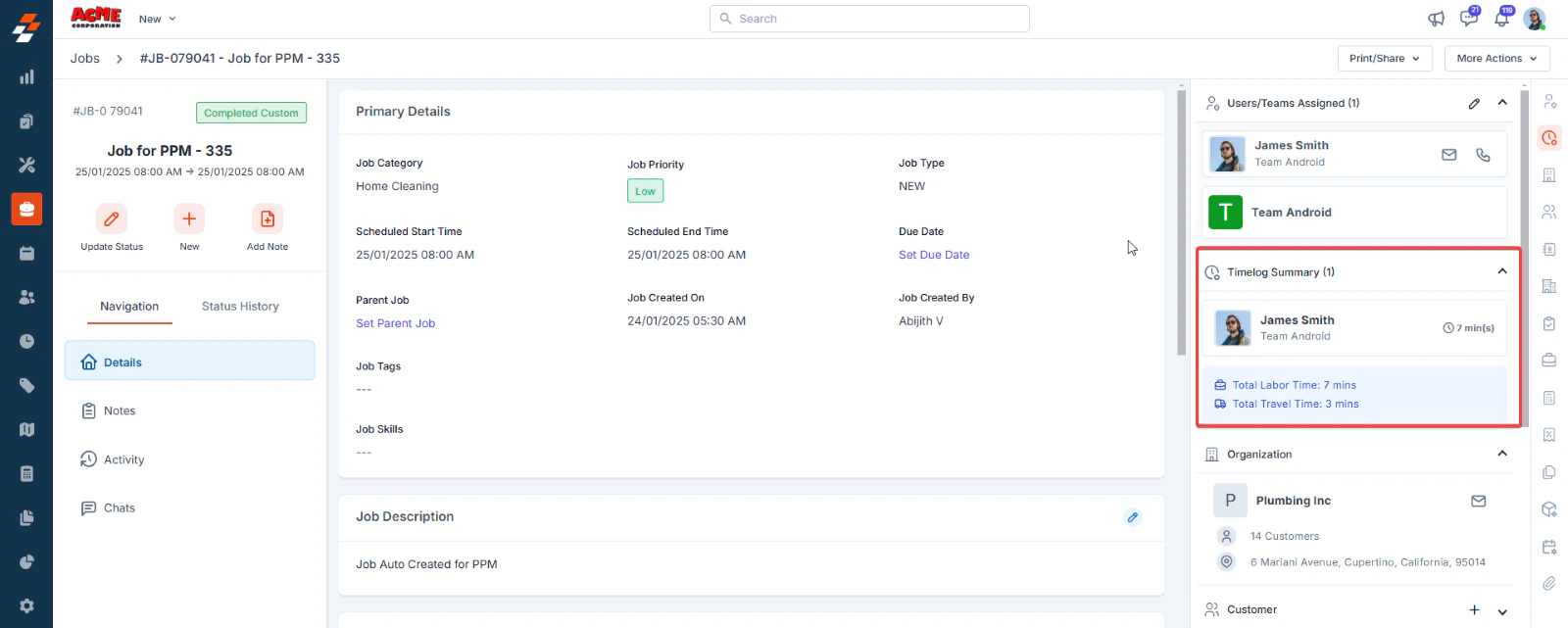 2. This section will display a table with the following information:
* **Start Time**: The exact time when the activity began.
* **End Time**: The exact time when the activity ended.
* **Type**: This indicates the type of activity logged (e.g., Travel, Labor, Break, Pause).
* **Duration**: The total time spent on each specific activity.
2. This section will display a table with the following information:
* **Start Time**: The exact time when the activity began.
* **End Time**: The exact time when the activity ended.
* **Type**: This indicates the type of activity logged (e.g., Travel, Labor, Break, Pause).
* **Duration**: The total time spent on each specific activity.
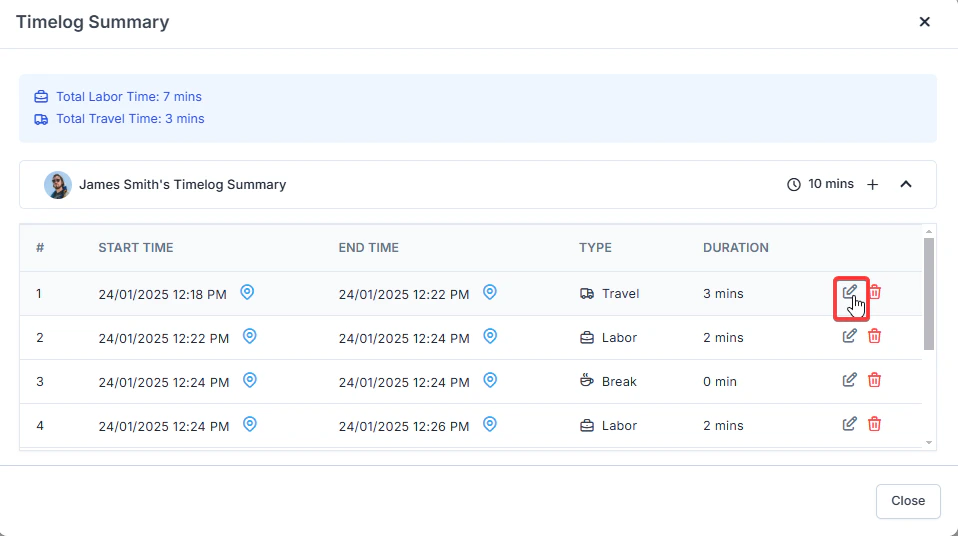
 3. If you want to modify specific information about your logged time, click the **Edit** icon next to the entry.
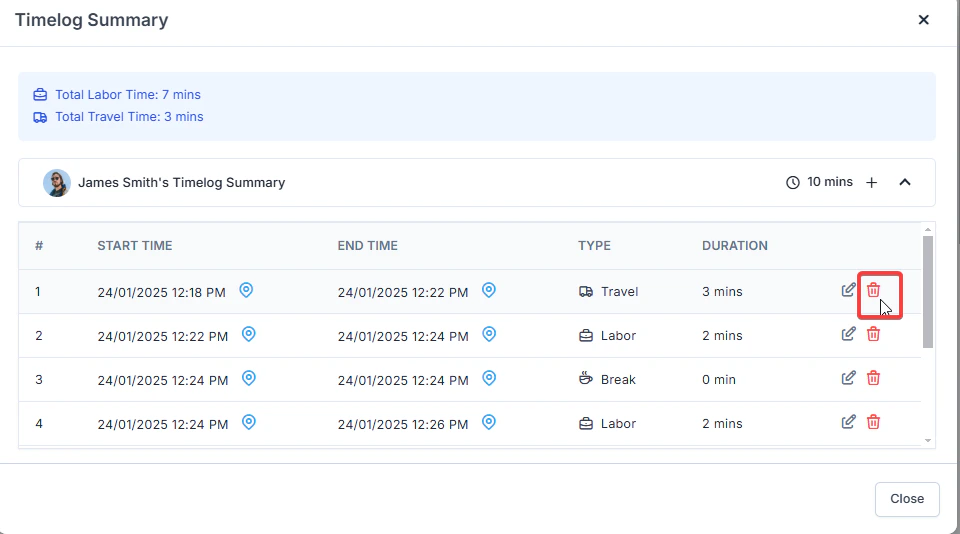
 4. To remove an entry, click the **Trash** icon.
 5. You can manually add new travel or labor time entries by clicking the "**Add**" button.
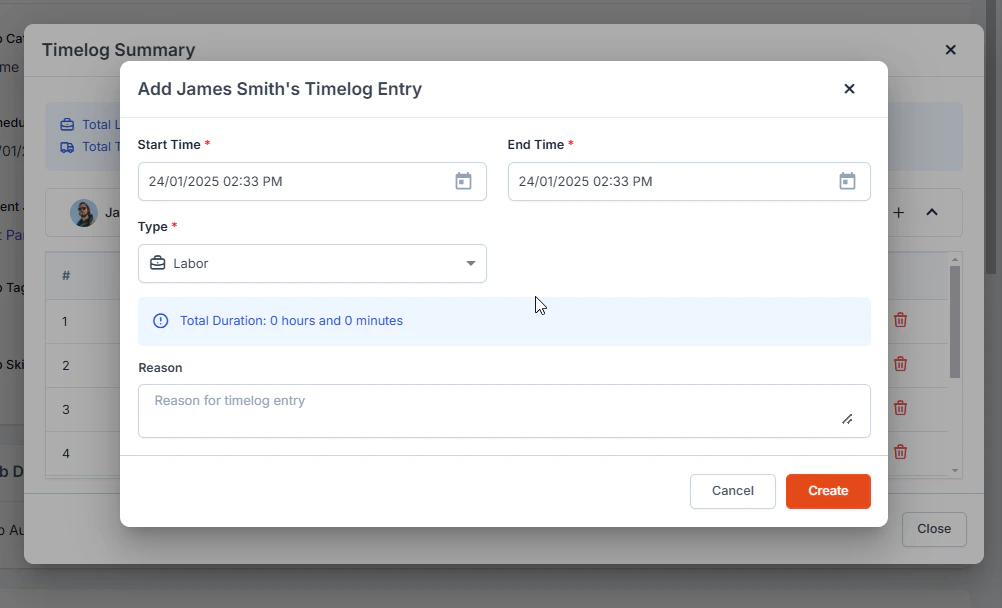 The summary will display the total labor and travel time, allowing you to track the overall time spent on each task.
## Report on job timelog
You can generate and download the Timelog Report by navigating to **Reports** > **Job Timelog Report**. This report provides detailed insights into the time tracked for each job performed. It includes essential information such as *Job Title*, *Category*, *Customer Details*, *Clock In/Out Times*, *Time Spent* (in minutes and hours), *Start* and *End Times*, *Hourly Charges*, *Amount*, and more. Additionally, the ***Job Timelog Report*** now includes the Type of Timelog entries—such as Travel, Labor, and Break for better tracking of job activities.
The summary will display the total labor and travel time, allowing you to track the overall time spent on each task.
## Report on job timelog
You can generate and download the Timelog Report by navigating to **Reports** > **Job Timelog Report**. This report provides detailed insights into the time tracked for each job performed. It includes essential information such as *Job Title*, *Category*, *Customer Details*, *Clock In/Out Times*, *Time Spent* (in minutes and hours), *Start* and *End Times*, *Hourly Charges*, *Amount*, and more. Additionally, the ***Job Timelog Report*** now includes the Type of Timelog entries—such as Travel, Labor, and Break for better tracking of job activities.
