> ## Documentation Index
> Fetch the complete documentation index at: https://zuperinc-section23.mintlify.site/llms.txt
> Use this file to discover all available pages before exploring further.
# Notes and chats
### Notes
The Notes section in Zuper Jobs allows you to add, format, manage, and collaborate on notes directly within a job record. You can capture field observations, maintenance summaries, instructions, and more. All stored alongside the job for full context and traceability.
Notes support rich text formatting, voice-to-text input, file attachments, linked records, and privacy controls. This article walks you through every feature of the new Notes experience.
## Accessing notes on a Job
1. Click “**Notes**” on the left panel to add the notes. You can use the rich text editor to enter the note details.
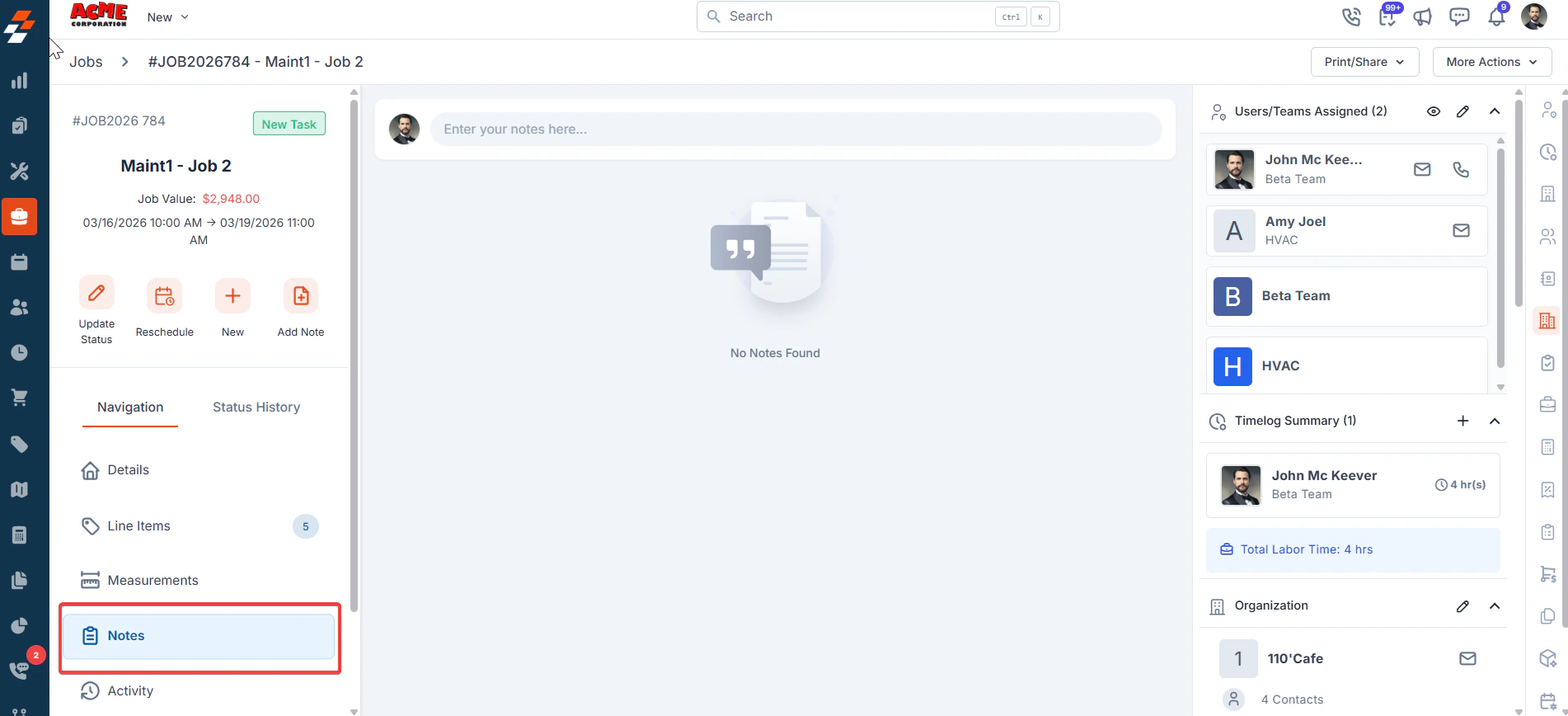 2. Click the '**Enter your notes here**...' text field at the top of the Notes area and add the Notes. This opens the New Note editor dialog.
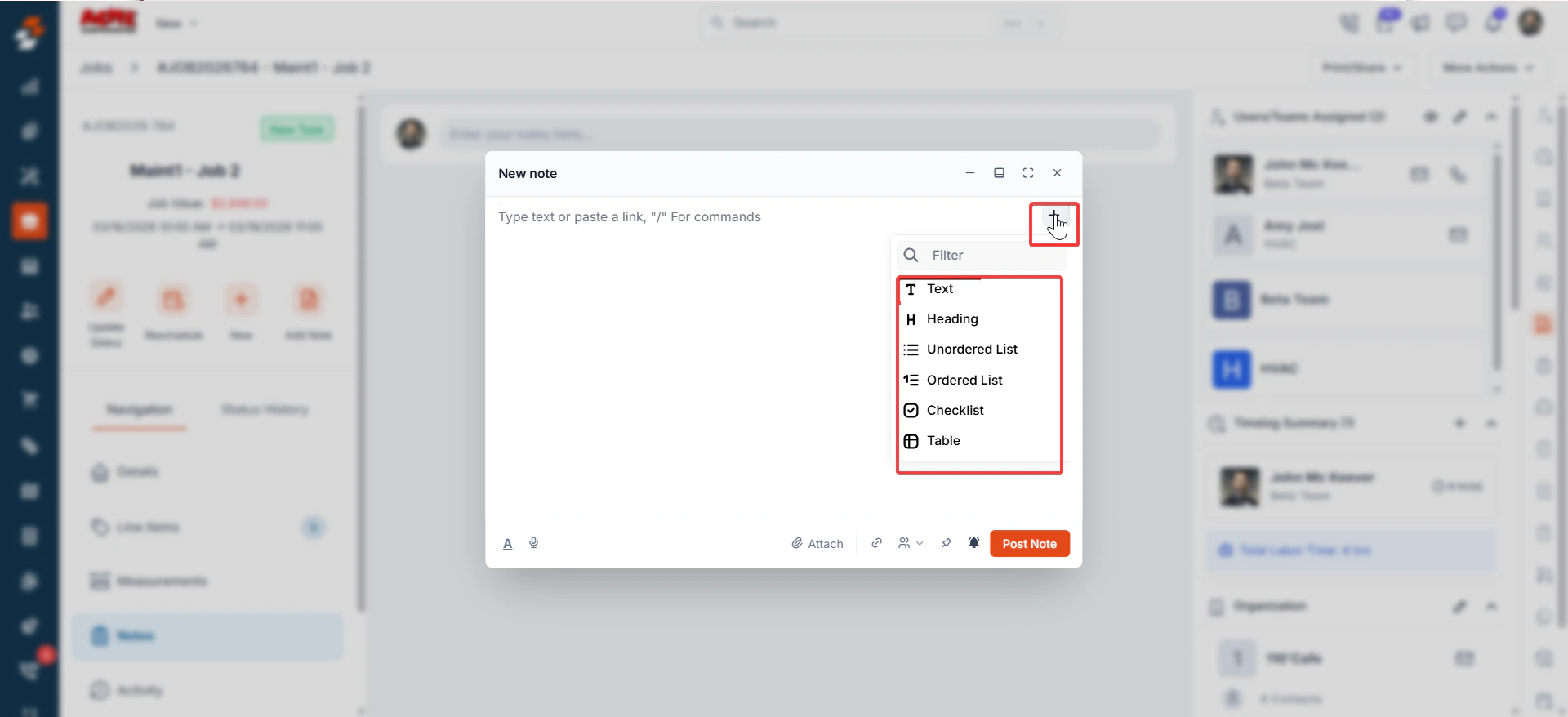
Click "**+**" button to choose the available content types:
**Text**
Inserts a standard paragraph block. Use this for general descriptions, instructions, or any freeform content.
**Heading**
Inserts a large heading block. Useful for organizing notes with clear section titles (e.g., 'Maintenance', 'Findings', 'Next Steps').
**Unordered List**
Inserts a bulleted list. Use this for items that don't need a specific order — such as a list of parts checked or observations made.
**Ordered List**
Inserts a numbered list. Use this for step-by-step instructions or prioritized action items.
**Checklist**
Inserts a checklist with checkboxes. Ideal for to-do items, pre-service checklists, or task tracking within a note.
**Table**
Inserts a structured table. Use this to organize data in rows and columns, such as measurements, equipment specs, or comparison data.
2. Click the '**Enter your notes here**...' text field at the top of the Notes area and add the Notes. This opens the New Note editor dialog.
Click "**+**" button to choose the available content types:
**Text**
Inserts a standard paragraph block. Use this for general descriptions, instructions, or any freeform content.
**Heading**
Inserts a large heading block. Useful for organizing notes with clear section titles (e.g., 'Maintenance', 'Findings', 'Next Steps').
**Unordered List**
Inserts a bulleted list. Use this for items that don't need a specific order — such as a list of parts checked or observations made.
**Ordered List**
Inserts a numbered list. Use this for step-by-step instructions or prioritized action items.
**Checklist**
Inserts a checklist with checkboxes. Ideal for to-do items, pre-service checklists, or task tracking within a note.
**Table**
Inserts a structured table. Use this to organize data in rows and columns, such as measurements, equipment specs, or comparison data.
 **Note**: You can also type '/' directly in the note editor to trigger the content type command menu without using the + button.
## Block-Level actions (convert, move, delete)
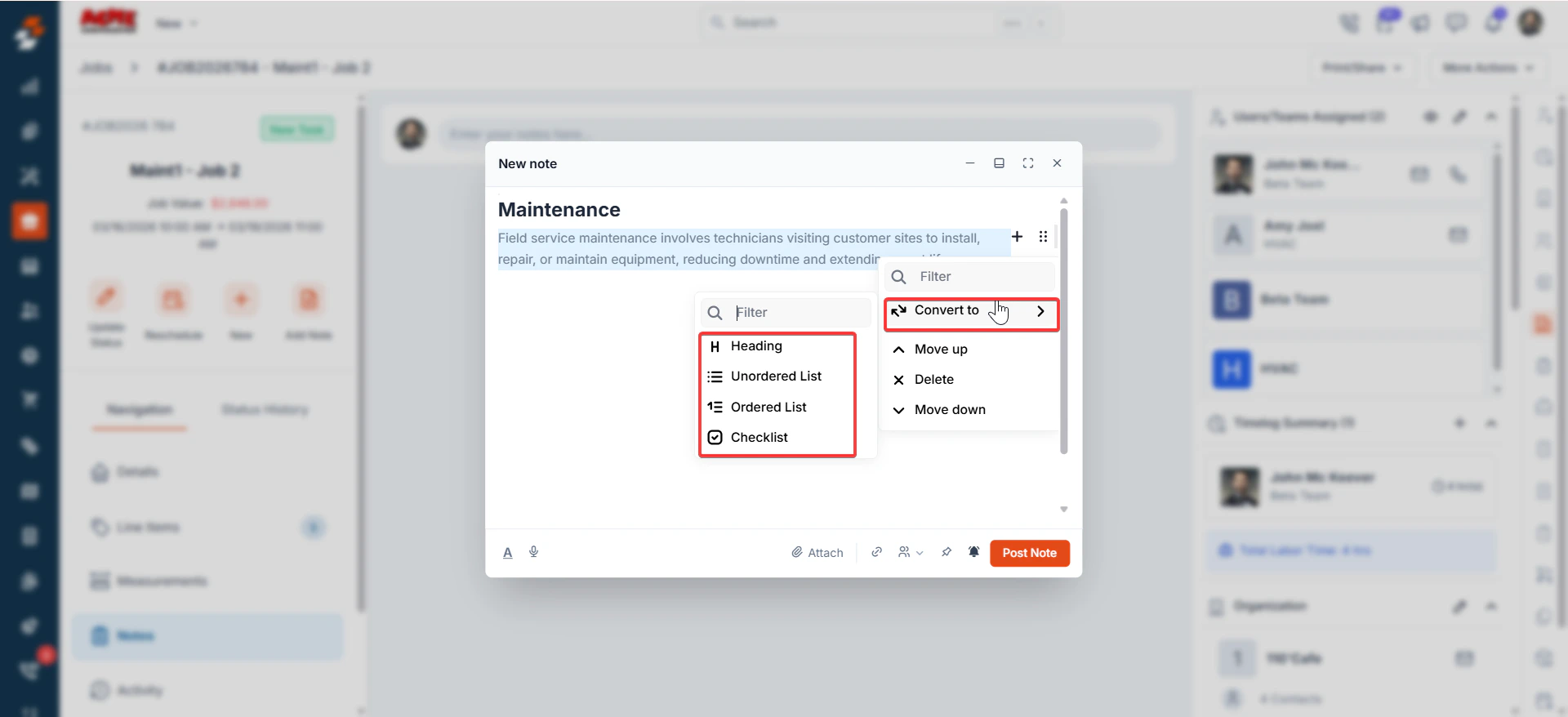
Once a content block has been added, hover over it to reveal two action icons on the right:
**Adds a new block immediately after this one** — + (Plus icon)
**Opens a context menu with the following actions** — (Drag/Options icon)
* **Convert to** — Changes the block type (e.g., from Text to Heading, or from Unordered List to Checklist). A submenu shows the available target types.
* **Move up** — Moves the current block one position up in the note.
* **Delete** — Removes the block from the note.
* **Move down** — Moves the current block one position down in the note.
**Note**: You can also type '/' directly in the note editor to trigger the content type command menu without using the + button.
## Block-Level actions (convert, move, delete)
Once a content block has been added, hover over it to reveal two action icons on the right:
**Adds a new block immediately after this one** — + (Plus icon)
**Opens a context menu with the following actions** — (Drag/Options icon)
* **Convert to** — Changes the block type (e.g., from Text to Heading, or from Unordered List to Checklist). A submenu shows the available target types.
* **Move up** — Moves the current block one position up in the note.
* **Delete** — Removes the block from the note.
* **Move down** — Moves the current block one position down in the note.
 ## Inline text formatting
When you select text within any block, a formatting toolbar appears with the following options:
* B — Bold
* I — Italic
* U — Underline
* S — Strikethrough
* Link icon — Insert a hyperlink
* Unordered list toggle
* Ordered list toggle
These options let you style individual words or phrases within a block, independent of the block type.
## Inline text formatting
When you select text within any block, a formatting toolbar appears with the following options:
* B — Bold
* I — Italic
* U — Underline
* S — Strikethrough
* Link icon — Insert a hyperlink
* Unordered list toggle
* Ordered list toggle
These options let you style individual words or phrases within a block, independent of the block type.
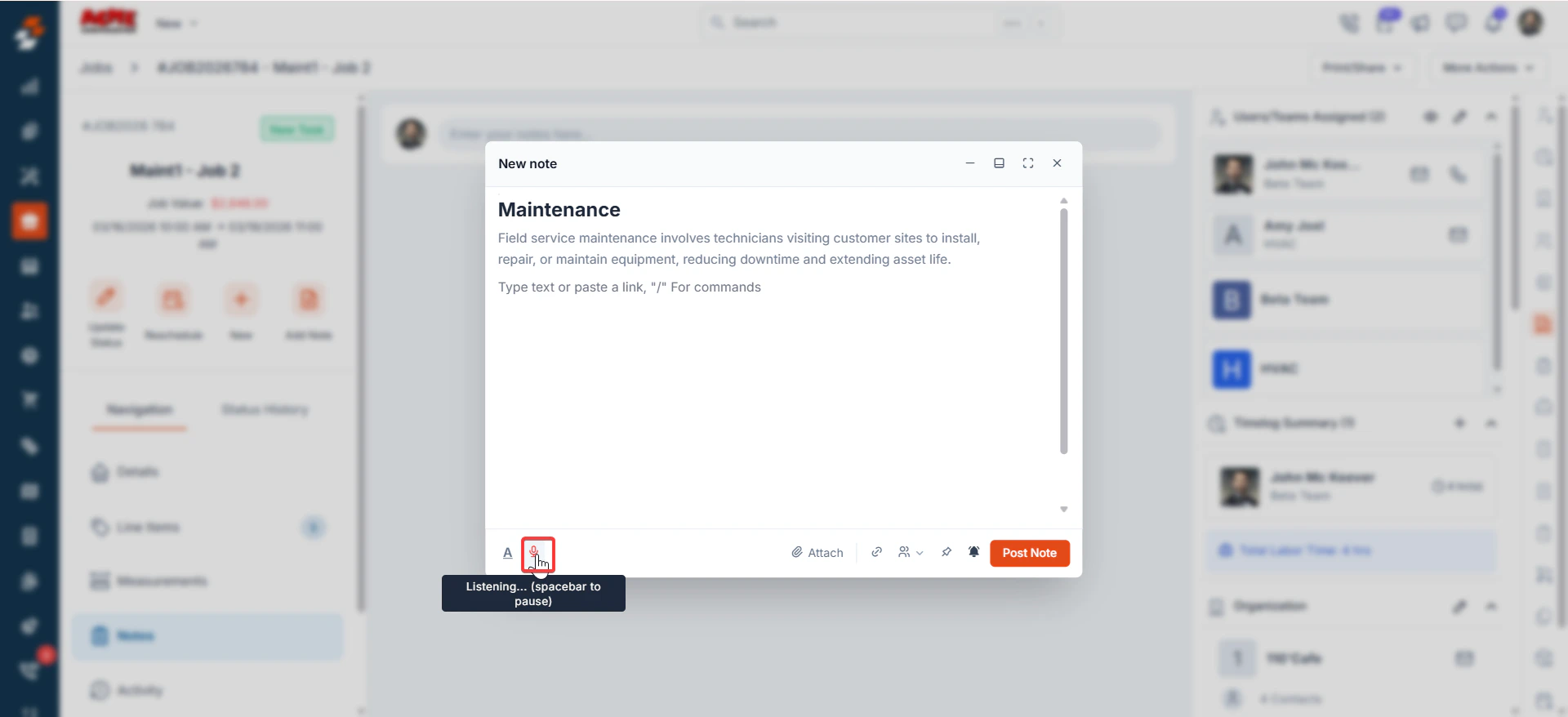
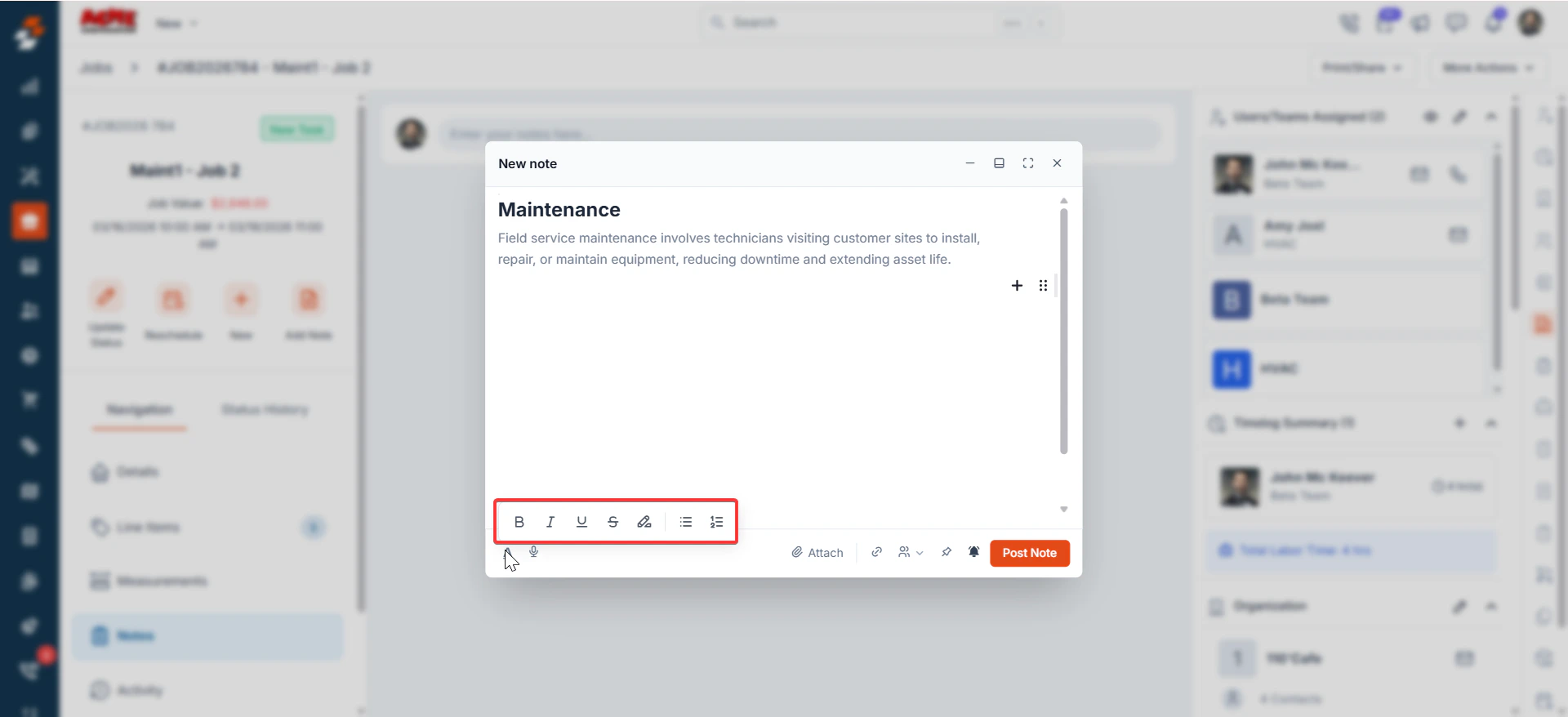 * The note editor includes a built-in voice-to-text feature, allowing you to dictate notes hands-free. This is ideal for field technicians.
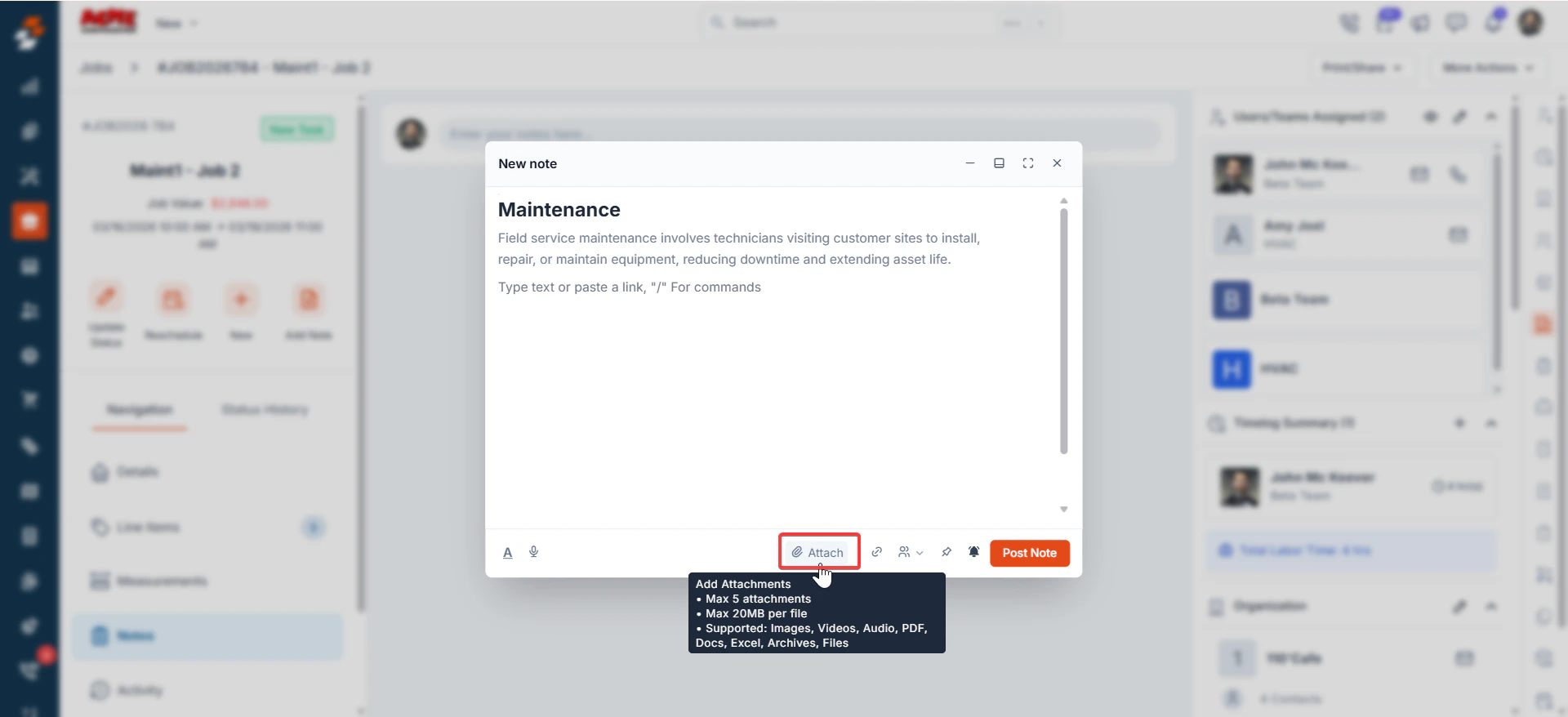
 * You can attach supporting files directly to a note before posting it.
A file picker dialog will open. The following constraints apply:
* Maximum 5 attachments per note
* Maximum 20 MB per file
* Supported file types: Images, Videos, Audio, PDF, Docs, Excel, Archives, and other Files
* You can attach supporting files directly to a note before posting it.
A file picker dialog will open. The following constraints apply:
* Maximum 5 attachments per note
* Maximum 20 MB per file
* Supported file types: Images, Videos, Audio, PDF, Docs, Excel, Archives, and other Files
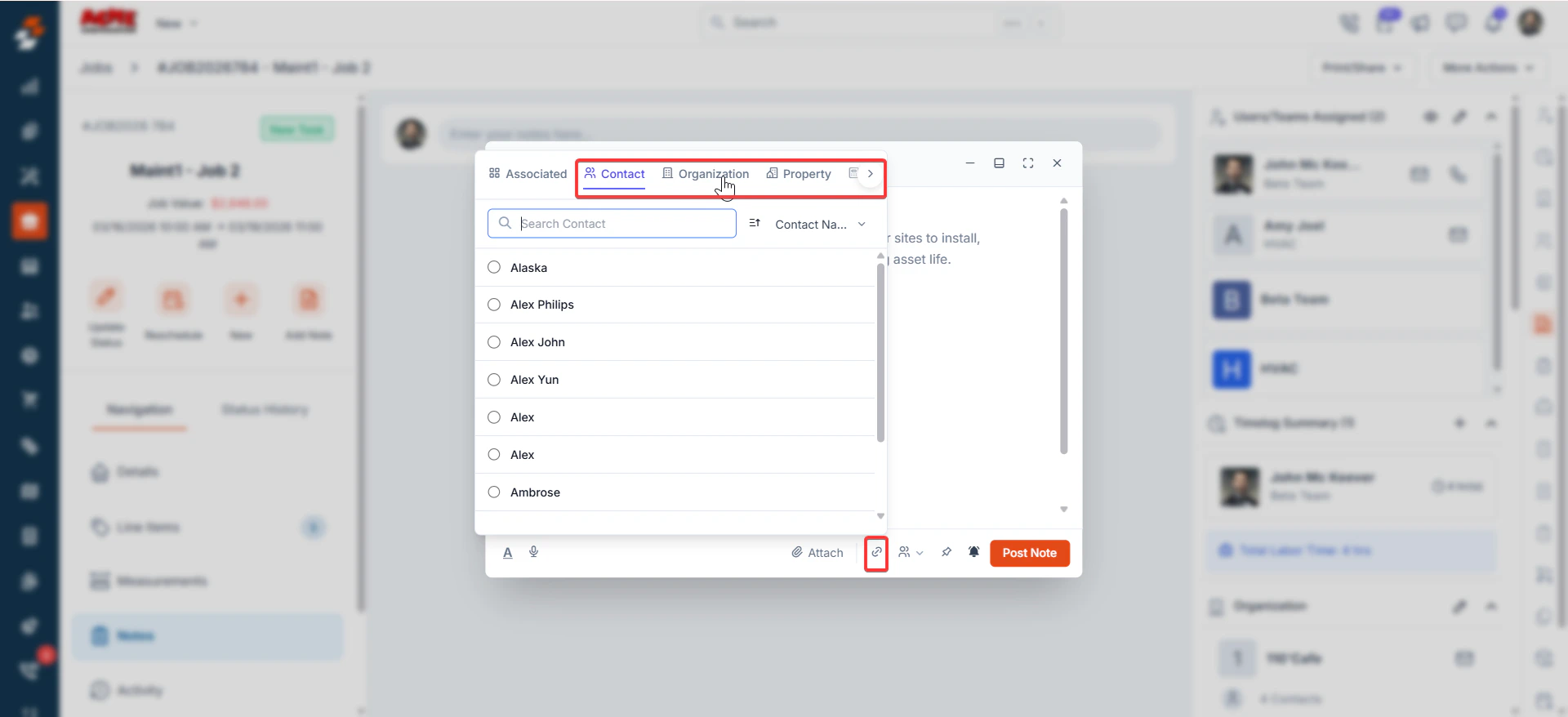
 Notes can be associated with specific contacts, organizations, properties, quotes, invoices, contracts, assets, or projects within Zuper. Use the link icon in the bottom toolbar to open the record linking panel.
 ## Pin notes
Pinned notes are displayed at the top of the Notes list, regardless of sort order. This is useful for keeping critical information, such as access instructions or safety notices, always visible.
To pin a note, click the three-dot (⋮) menu on the posted note and select Pin Note. To unpin, click the same menu and select Unpin Note.
## Pin notes
Pinned notes are displayed at the top of the Notes list, regardless of sort order. This is useful for keeping critical information, such as access instructions or safety notices, always visible.
To pin a note, click the three-dot (⋮) menu on the posted note and select Pin Note. To unpin, click the same menu and select Unpin Note.
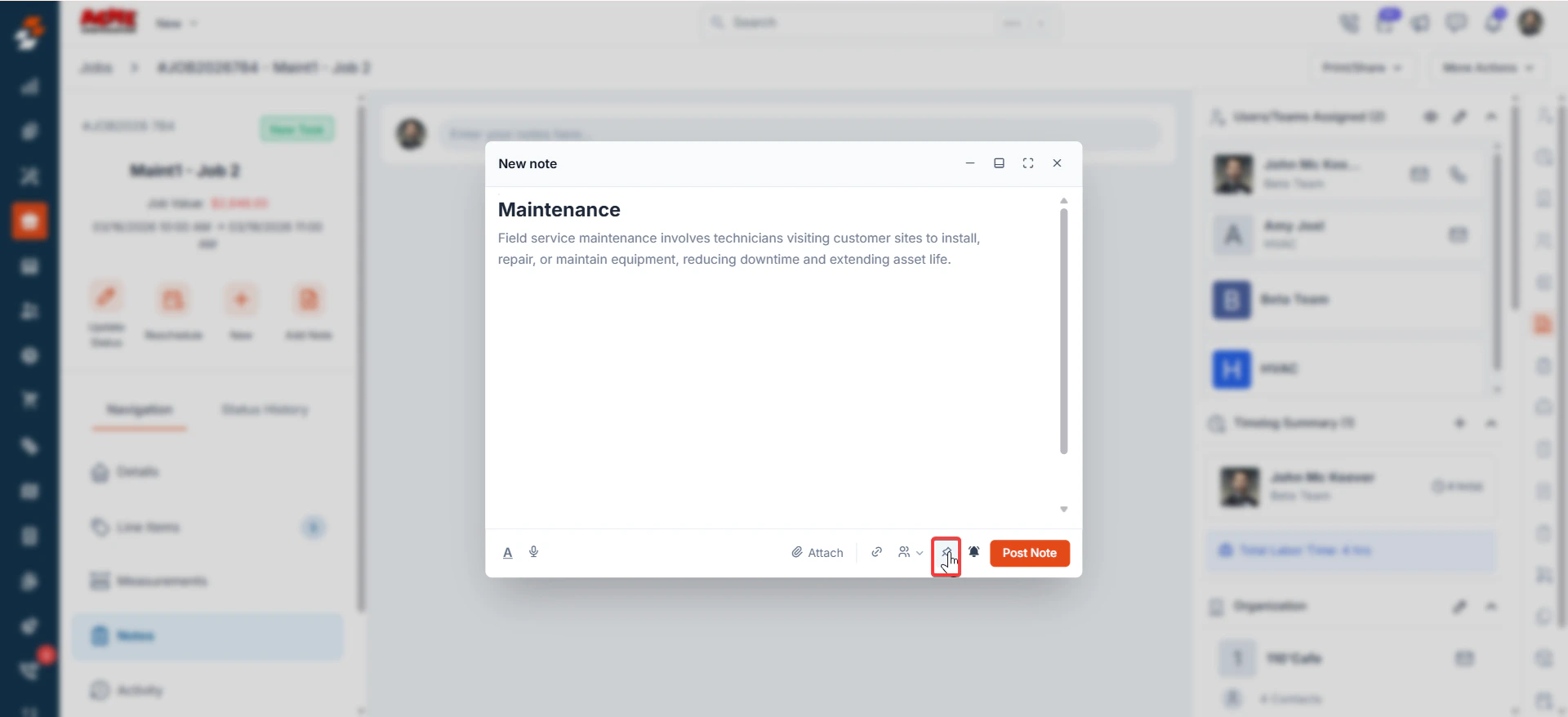 You can control whether you receive notifications for activity on a note before posting it.
Click the bell icon in the bottom toolbar of the note editor to toggle notifications on or off. When enabled, you will receive notifications when others reply to or update the note.
You can control whether you receive notifications for activity on a note before posting it.
Click the bell icon in the bottom toolbar of the note editor to toggle notifications on or off. When enabled, you will receive notifications when others reply to or update the note.
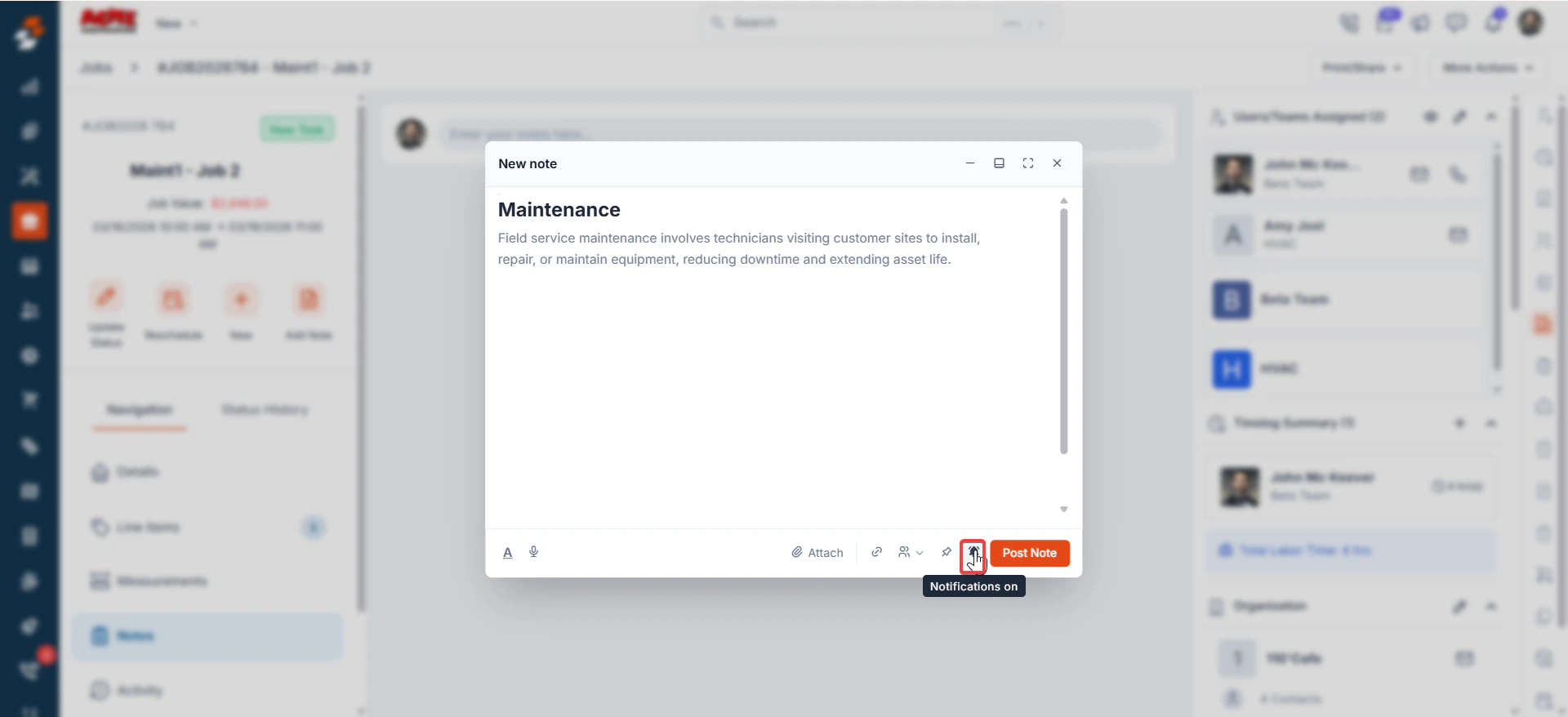 Once you have finished composing your note and configuring any attachments, links, or notification preferences, click the Post Note button.
The note will be saved and appear in the All Notes list under the job, along with the author's name, timestamp, and note content.
Once you have finished composing your note and configuring any attachments, links, or notification preferences, click the Post Note button.
The note will be saved and appear in the All Notes list under the job, along with the author's name, timestamp, and note content.
 ## Privacy
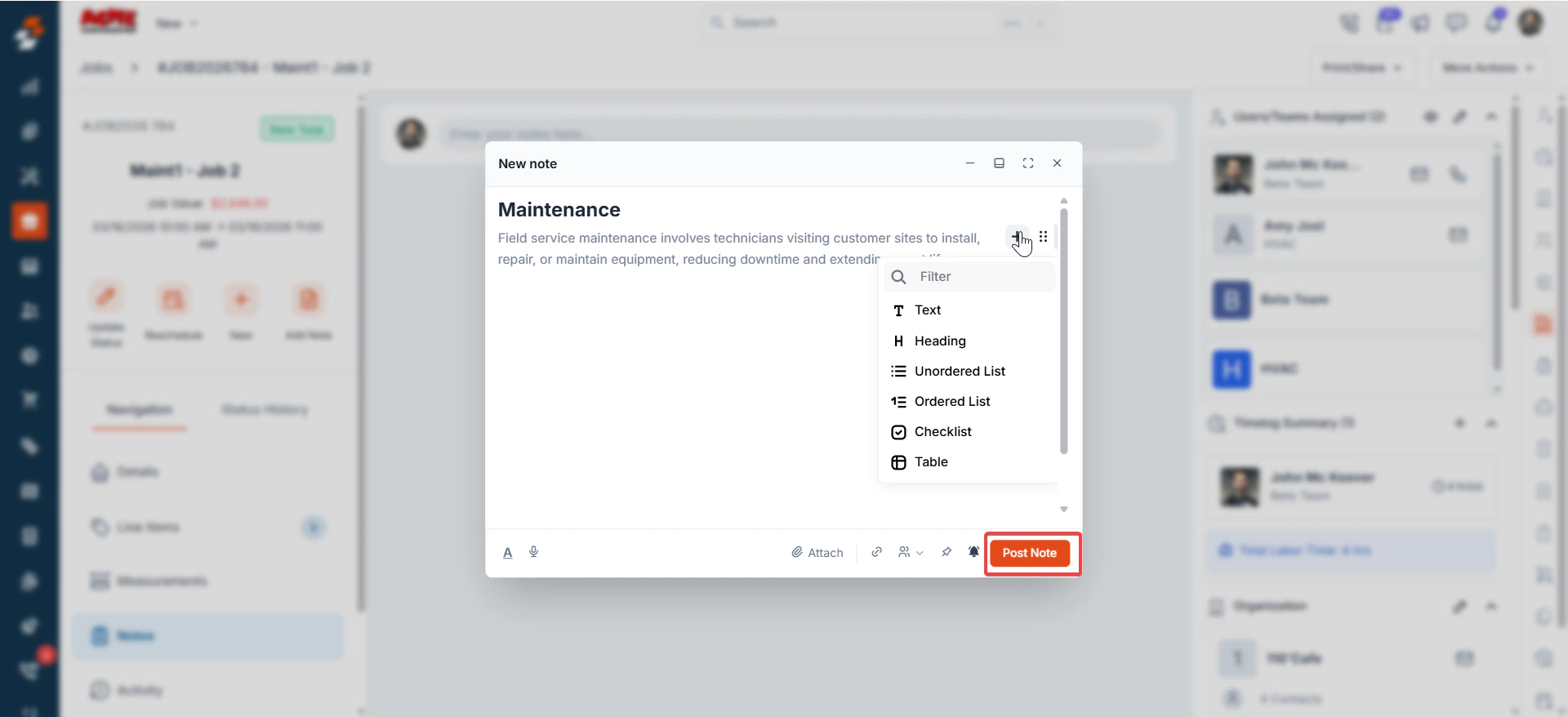
* Control who can see the note. Three privacy levels are available:
| Visibility Option | Description |
| :---------------- | :---------------------------------------------------------------- |
| Public | Visible to all users with access to the job |
| Only Me | Visible only to the note author |
| Backoffice Only | Visible only to internal back-office users, not field technicians |
## Privacy
* Control who can see the note. Three privacy levels are available:
| Visibility Option | Description |
| :---------------- | :---------------------------------------------------------------- |
| Public | Visible to all users with access to the job |
| Only Me | Visible only to the note author |
| Backoffice Only | Visible only to internal back-office users, not field technicians |
 ## Edit note
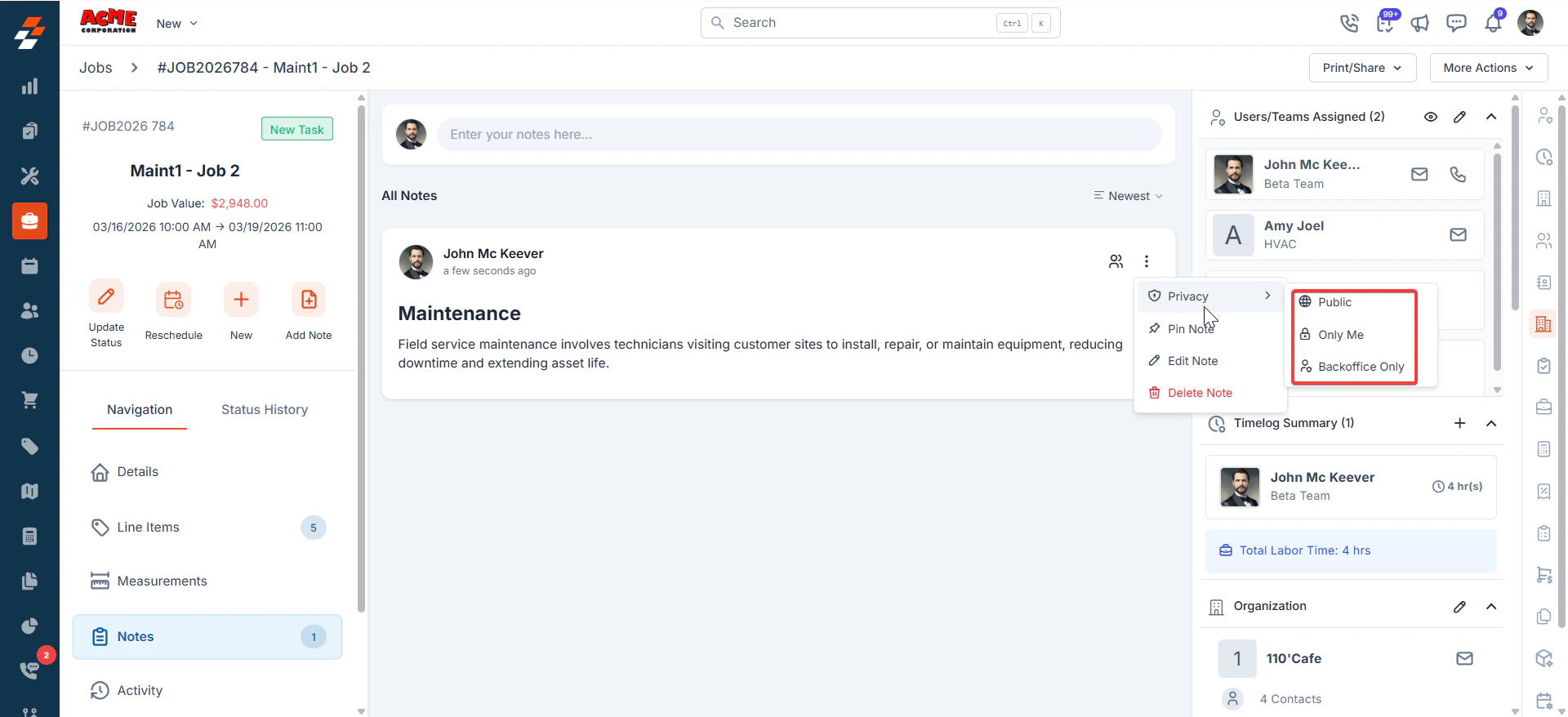
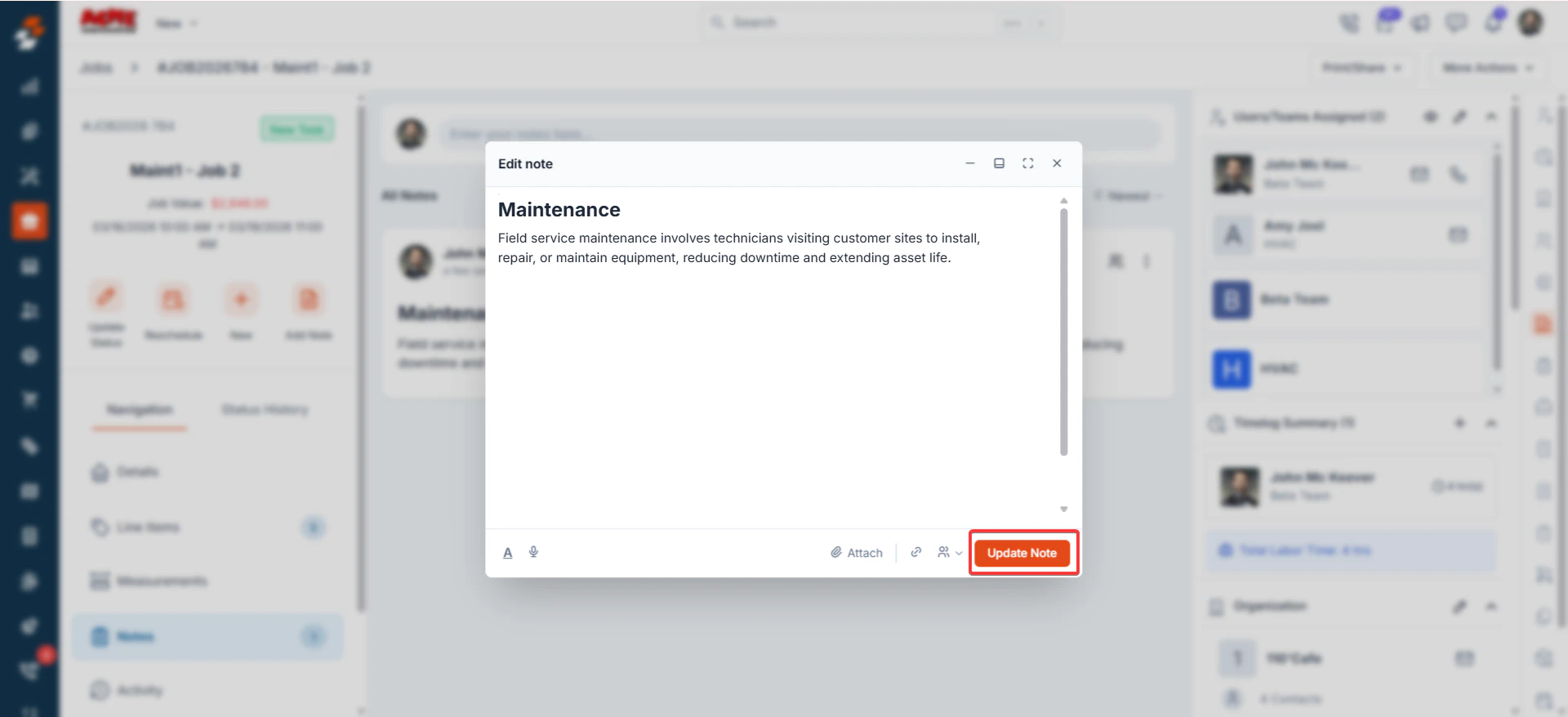
Opens the note in the Edit Note dialog, where you can modify the content, attachments, and linked records. Click Update Note to save your changes. Edited notes are marked with '(edited)' next to the timestamp.
## Edit note
Opens the note in the Edit Note dialog, where you can modify the content, attachments, and linked records. Click Update Note to save your changes. Edited notes are marked with '(edited)' next to the timestamp.
 ## Delete note
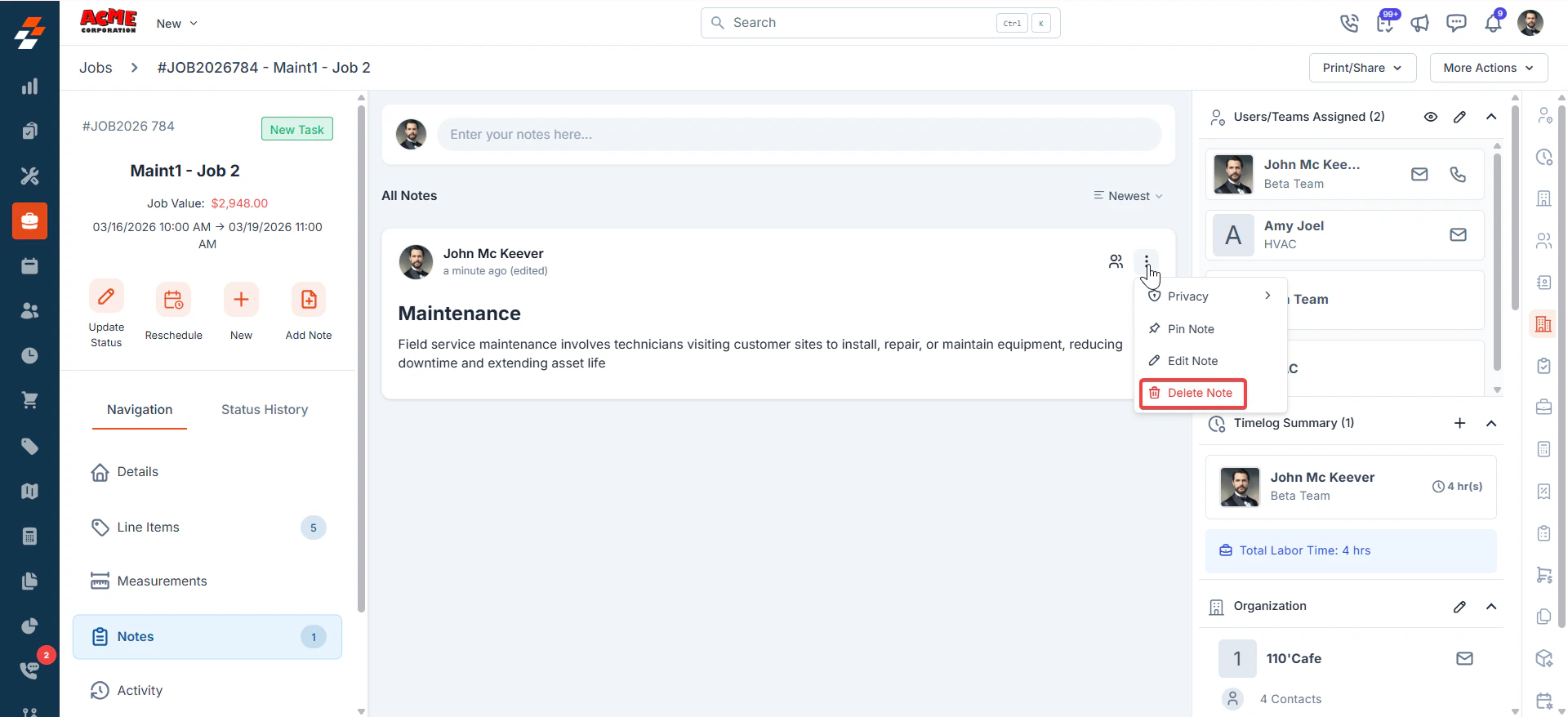
Removes the note from the job. A confirmation dialog will appear asking, 'Are you sure to delete the note?' Click Delete to confirm.
## Delete note
Removes the note from the job. A confirmation dialog will appear asking, 'Are you sure to delete the note?' Click Delete to confirm.
 ## View note timestamp by hovering
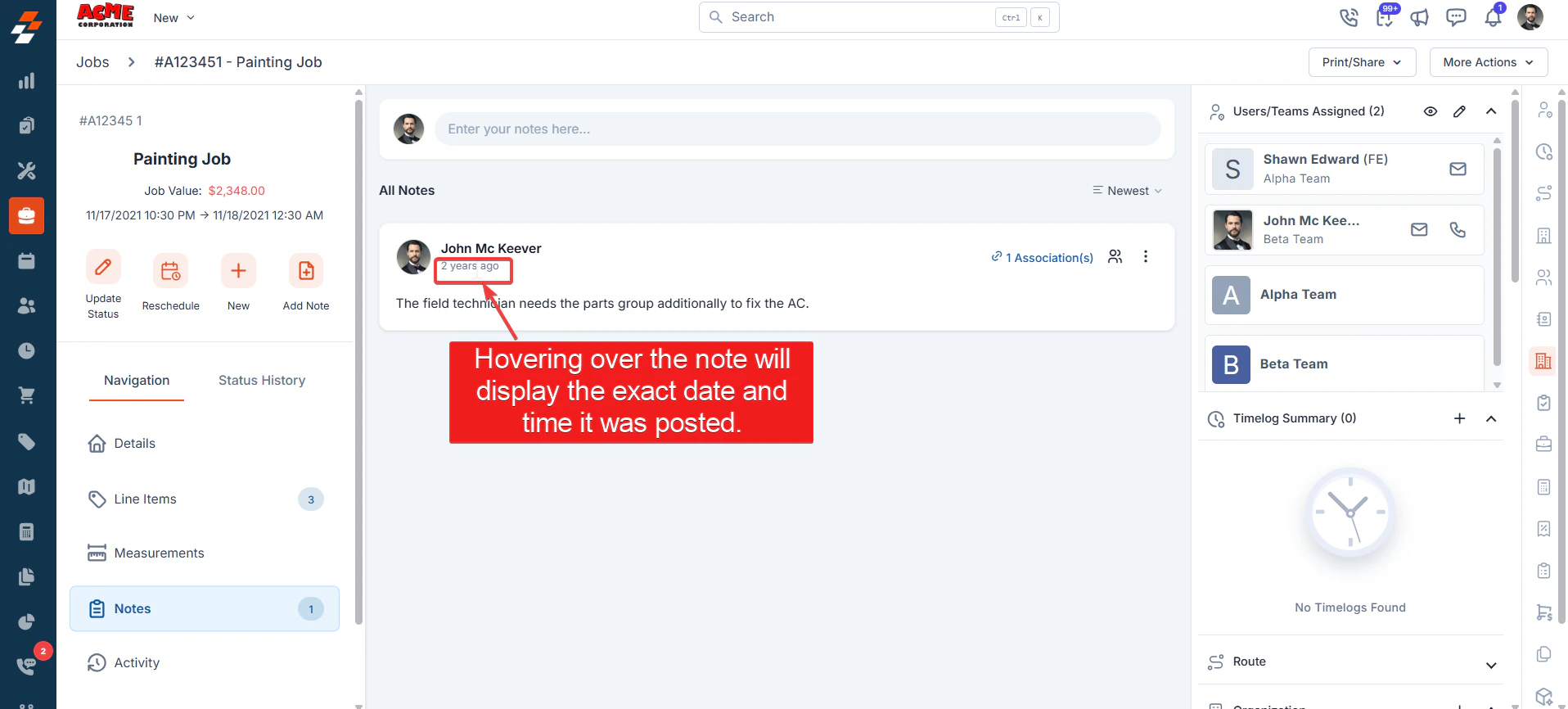
To view the exact date and time a note was posted, please feel free to hover over it.
## View note timestamp by hovering
To view the exact date and time a note was posted, please feel free to hover over it.
 ## Chats
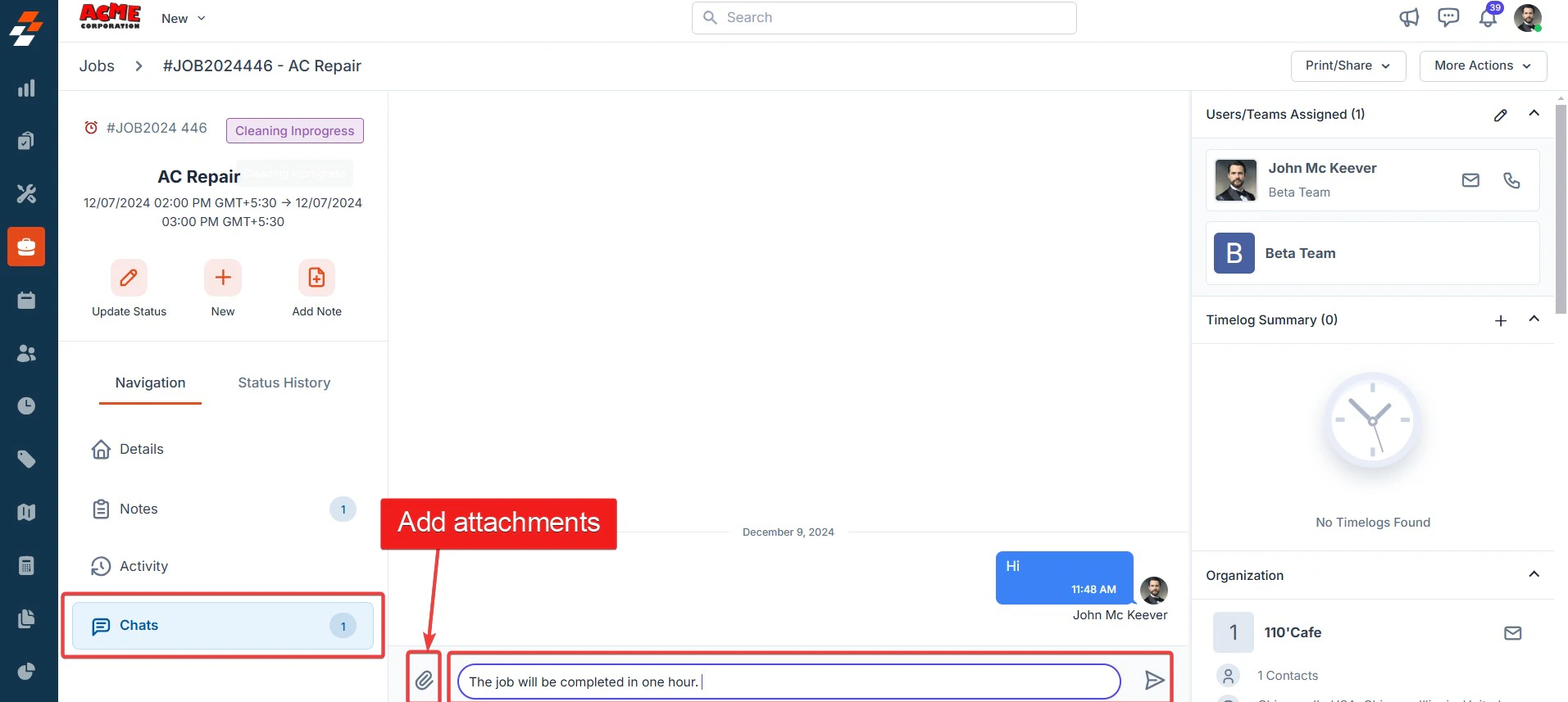
The chats feature enables real-time chat communication within the job. The back-office team and the field executives can converse without leaving the Zuper app. The chats section also allows you to add attachments such as images or documents.\
A new chat experience is available for customers on the **Premium plan**. To learn more about the enhanced chat functionality, click [here](/Chat/quickstart-guide).
## Chats
The chats feature enables real-time chat communication within the job. The back-office team and the field executives can converse without leaving the Zuper app. The chats section also allows you to add attachments such as images or documents.\
A new chat experience is available for customers on the **Premium plan**. To learn more about the enhanced chat functionality, click [here](/Chat/quickstart-guide).