> ## Documentation Index
> Fetch the complete documentation index at: https://zuperinc-section23.mintlify.site/llms.txt
> Use this file to discover all available pages before exploring further.
# Automatic Payments
Keeping track of payments can be time-consuming, especially when managing multiple invoices and due dates. With **Automatic Payments** in Zuper, you no longer have to worry about manually processing the transactions. Payments are handled seamlessly, ensuring timely and hassle-free transactions.
Whether you're managing service contracts, subscriptions, or routine invoices, Zuper ensures payments are processed on time, reducing delays and preventing missed payments.
When Automatic Payments are enabled, customers who have a saved payment method in Zuper will be charged automatically based on their billing cycle.
### Pre-requisites
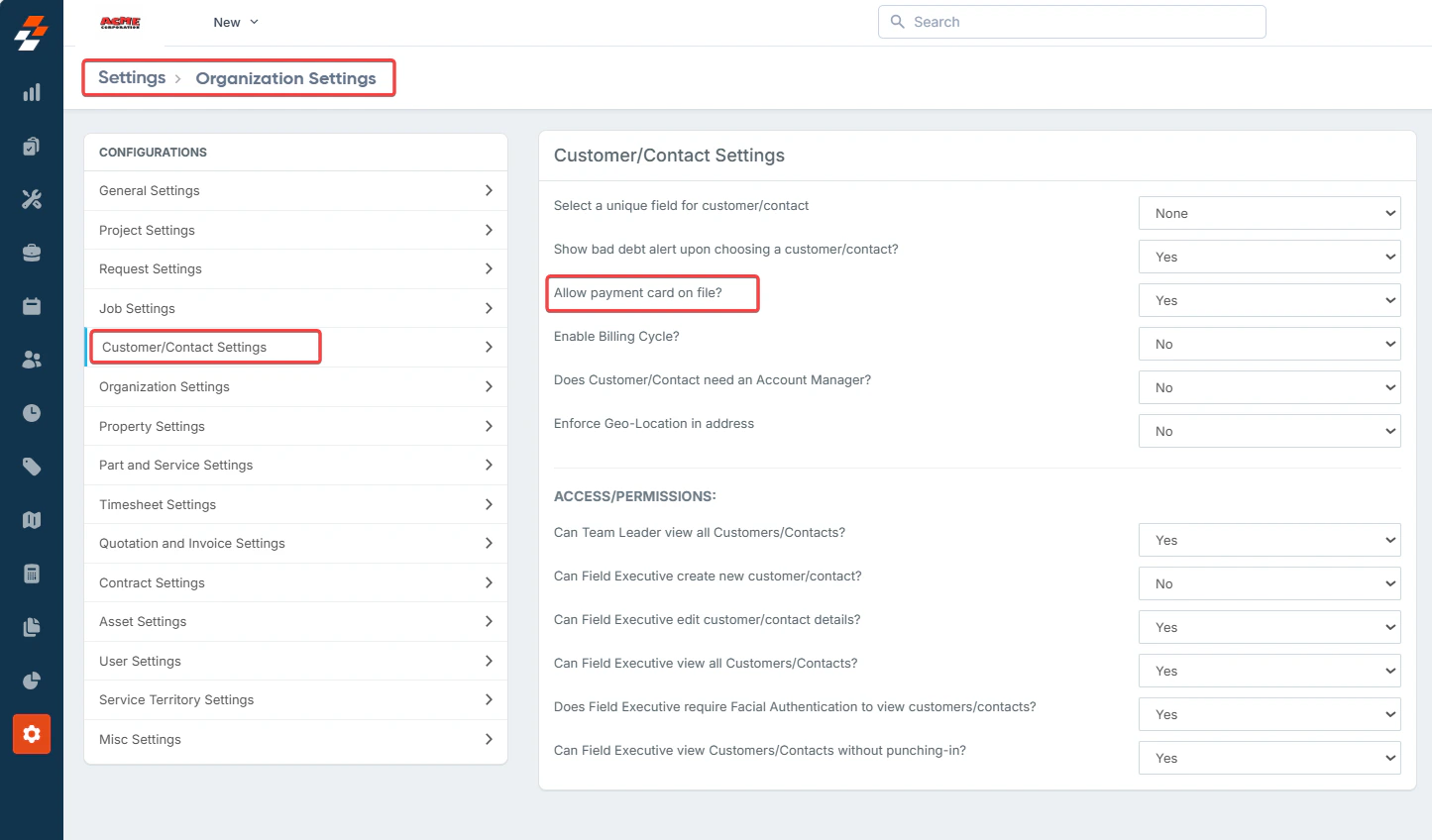
* Ensure the **"Allow Payment Card on File"** option is set to **"Yes"** in the **Customer/Contact Settings** under **Organization Settings**. This setting enables card information to be saved to the respective customer’s details page.
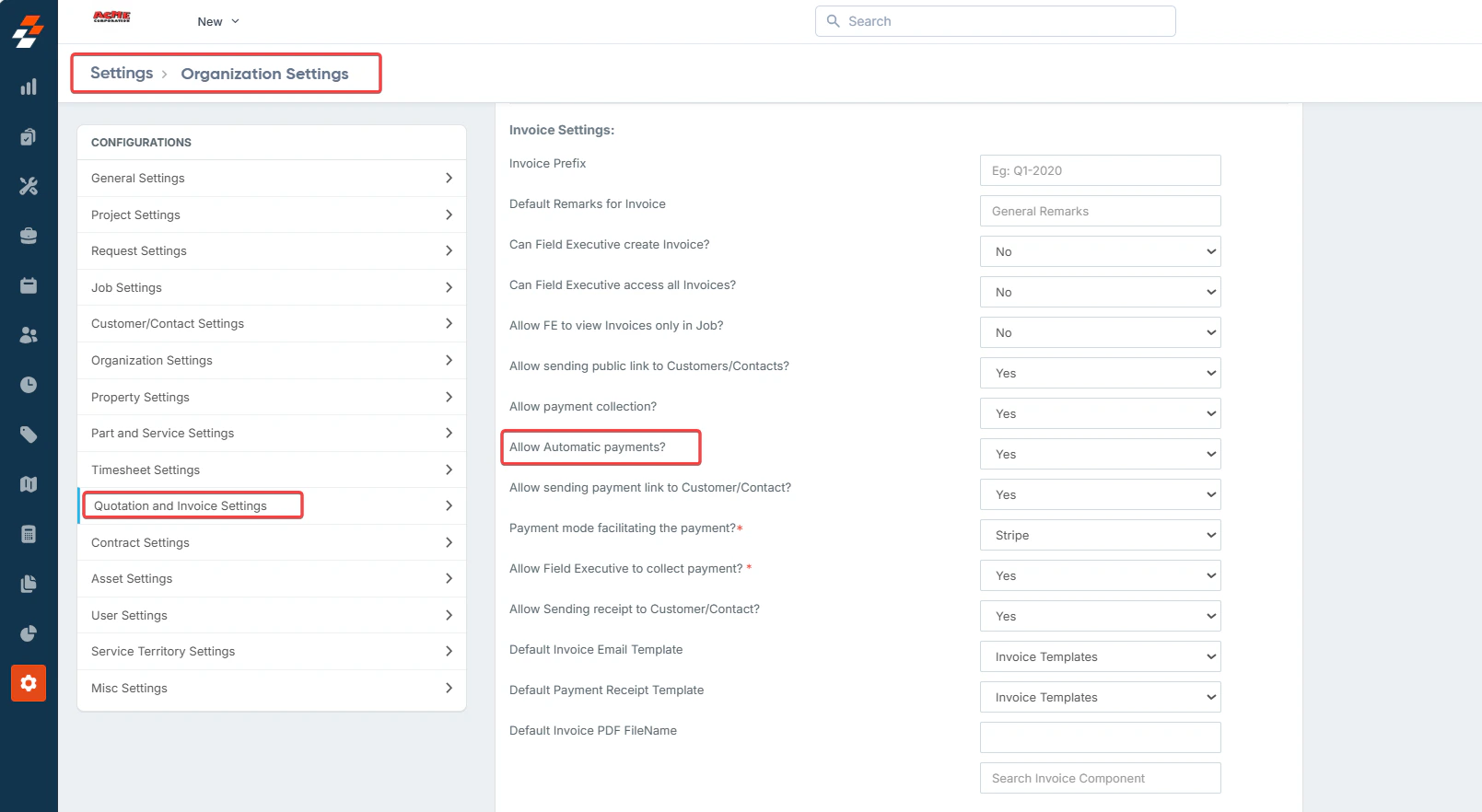
 * Ensure the **"Enable Automatic Payment"** option in the **Quotes and Invoices** section on the **Settings** page is set to **"Yes"**. Once enabled, the **"Charge Card On"** field will appear in the **Payment Settings** for customers, allowing you to specify when the payment should be processed.\\
 ### **Adding a customer’s payment details**
If you want to enable automatic payments for your customers, we recommend saving the customer’s card information to their details page in Zuper.
There are three ways to capture their information:
1. Payment details are saved when a customer makes a payment on an **invoice **or**deposit** .
2. If the customer opts to save their card information for future use while connecting to **Stripe**, their payment details are automatically saved.
3. You can manually add card details to the customer's profile.
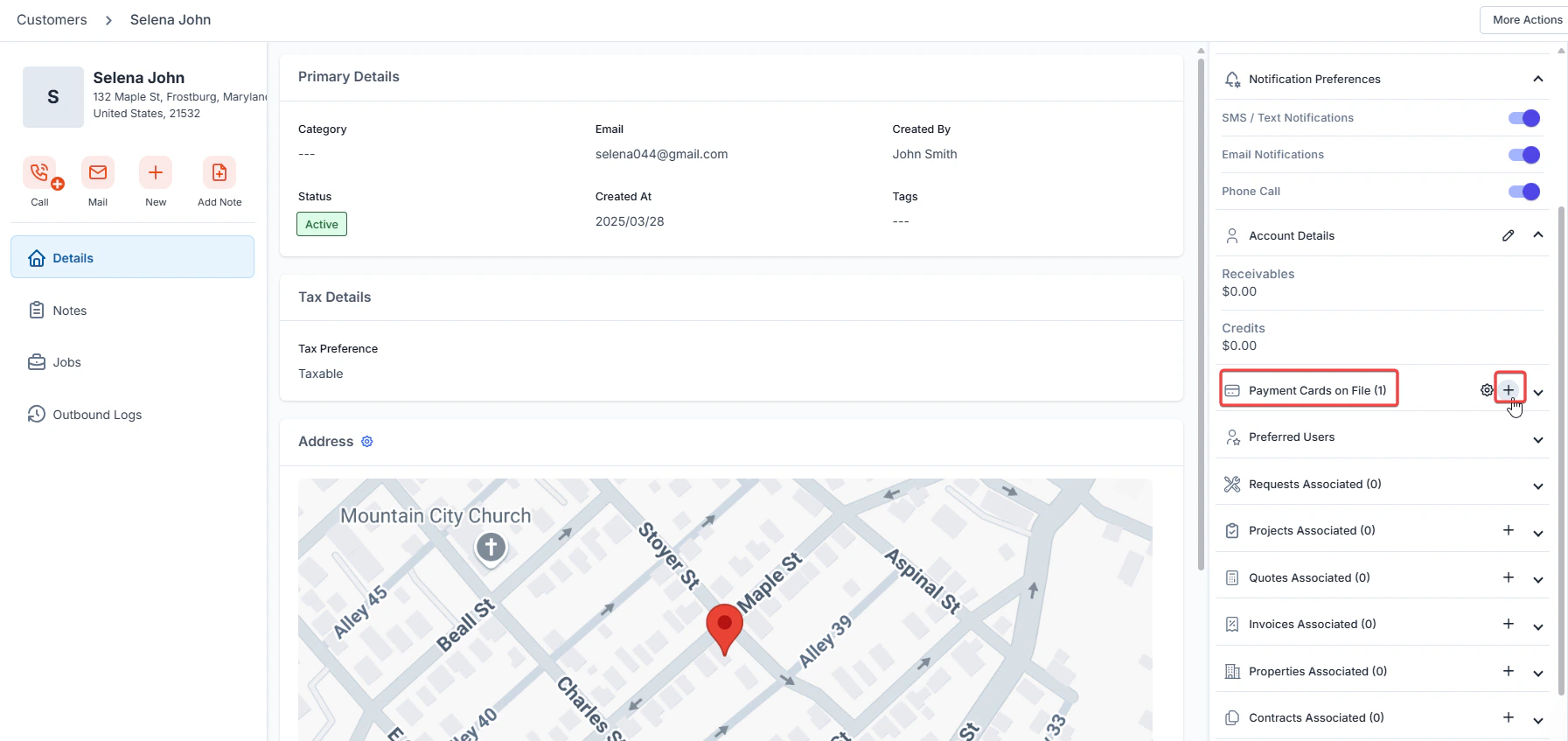
**To add payment details manually, follow the steps below:**
1. Navigate to the respective customer’s details page.
2. Locate the **Payment Card in the file** section.
3. Click the “**+**” icon.\\
### **Adding a customer’s payment details**
If you want to enable automatic payments for your customers, we recommend saving the customer’s card information to their details page in Zuper.
There are three ways to capture their information:
1. Payment details are saved when a customer makes a payment on an **invoice **or**deposit** .
2. If the customer opts to save their card information for future use while connecting to **Stripe**, their payment details are automatically saved.
3. You can manually add card details to the customer's profile.
**To add payment details manually, follow the steps below:**
1. Navigate to the respective customer’s details page.
2. Locate the **Payment Card in the file** section.
3. Click the “**+**” icon.\\
 4. Enter the **card details** manually or use **Secure 1-Click Checkout with Link** for a seamless process. To know more, see [Saving a customer's payment method](/Zuper-pay/Card-on-File).
### **Enabling automatic payment to the customer**
Once a customer’s payment details are saved, you can configure **Automatic Payments** to ensure their invoices are charged on time.
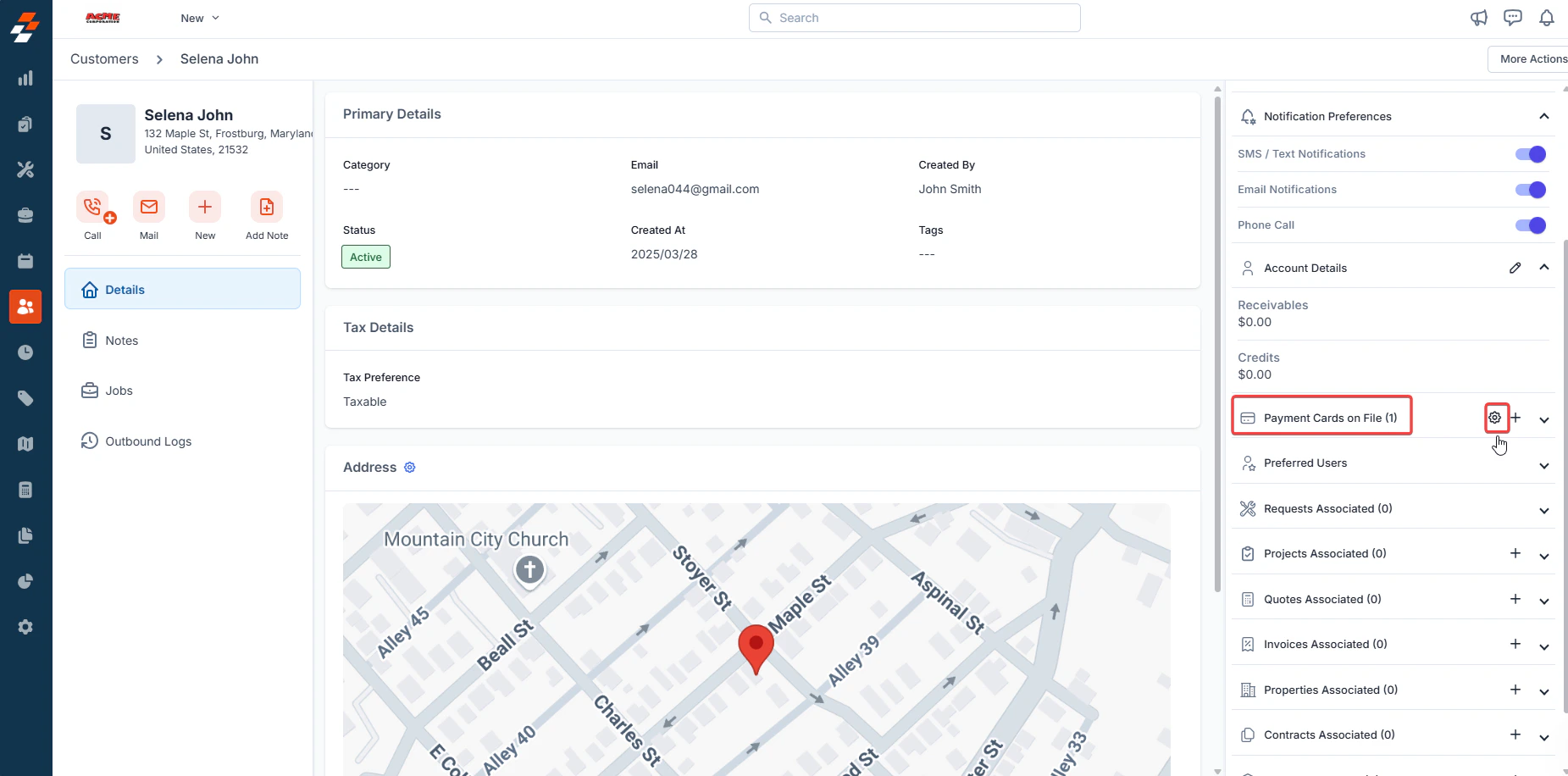
1. Navigate to the respective customer’s details page
2. Locate the **Payment Card in the file** section.
3. Click the **gear icon** to access **Payment Settings**.\\
4. Enter the **card details** manually or use **Secure 1-Click Checkout with Link** for a seamless process. To know more, see [Saving a customer's payment method](/Zuper-pay/Card-on-File).
### **Enabling automatic payment to the customer**
Once a customer’s payment details are saved, you can configure **Automatic Payments** to ensure their invoices are charged on time.
1. Navigate to the respective customer’s details page
2. Locate the **Payment Card in the file** section.
3. Click the **gear icon** to access **Payment Settings**.\\
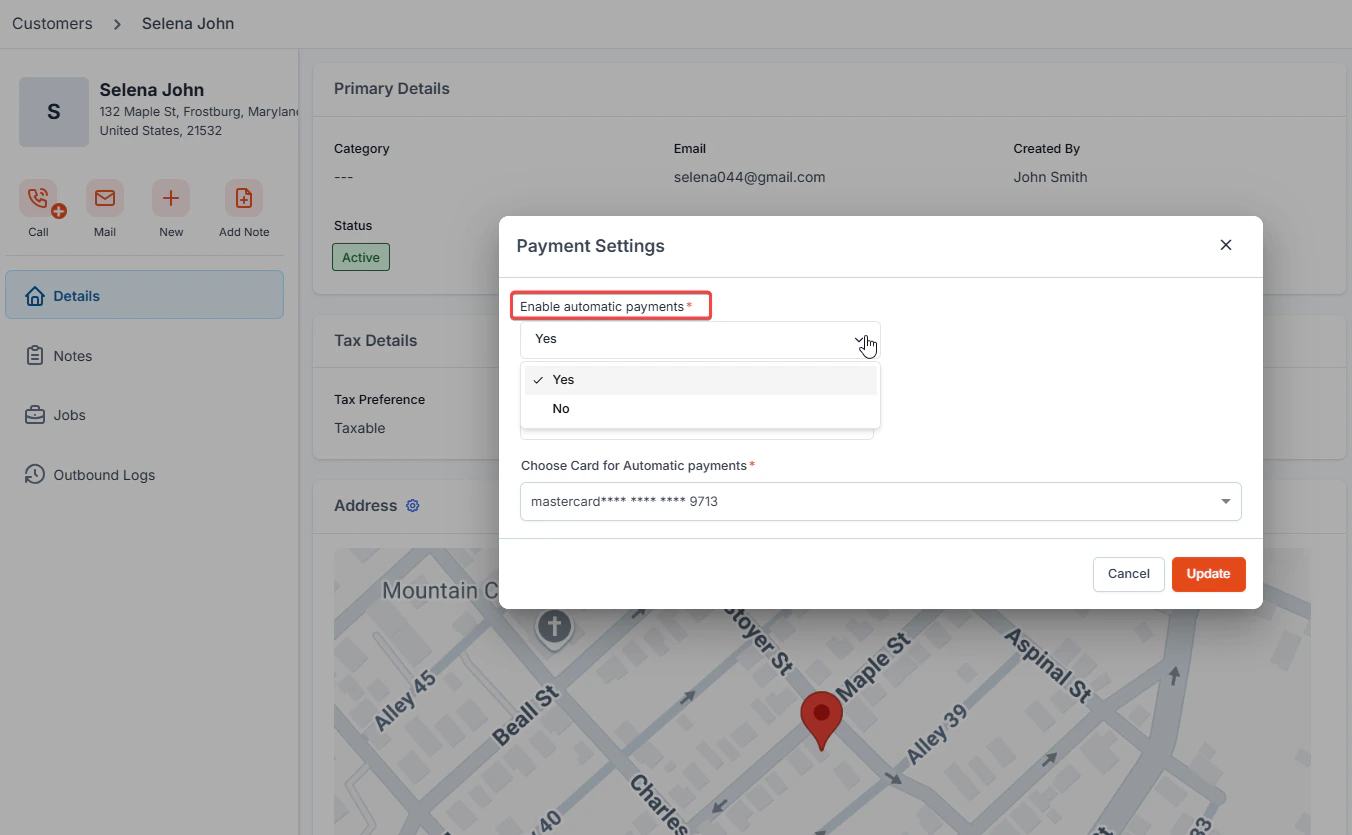
 4. In the **Payment Settings** dialog box, configure the following options:
* Set the **Enable Automatic payments** option to **Yes**.
4. In the **Payment Settings** dialog box, configure the following options:
* Set the **Enable Automatic payments** option to **Yes**.
 * Choose when the **Charge Card On** trigger should activate, allowing payments to be automatically deducted. The available options are:
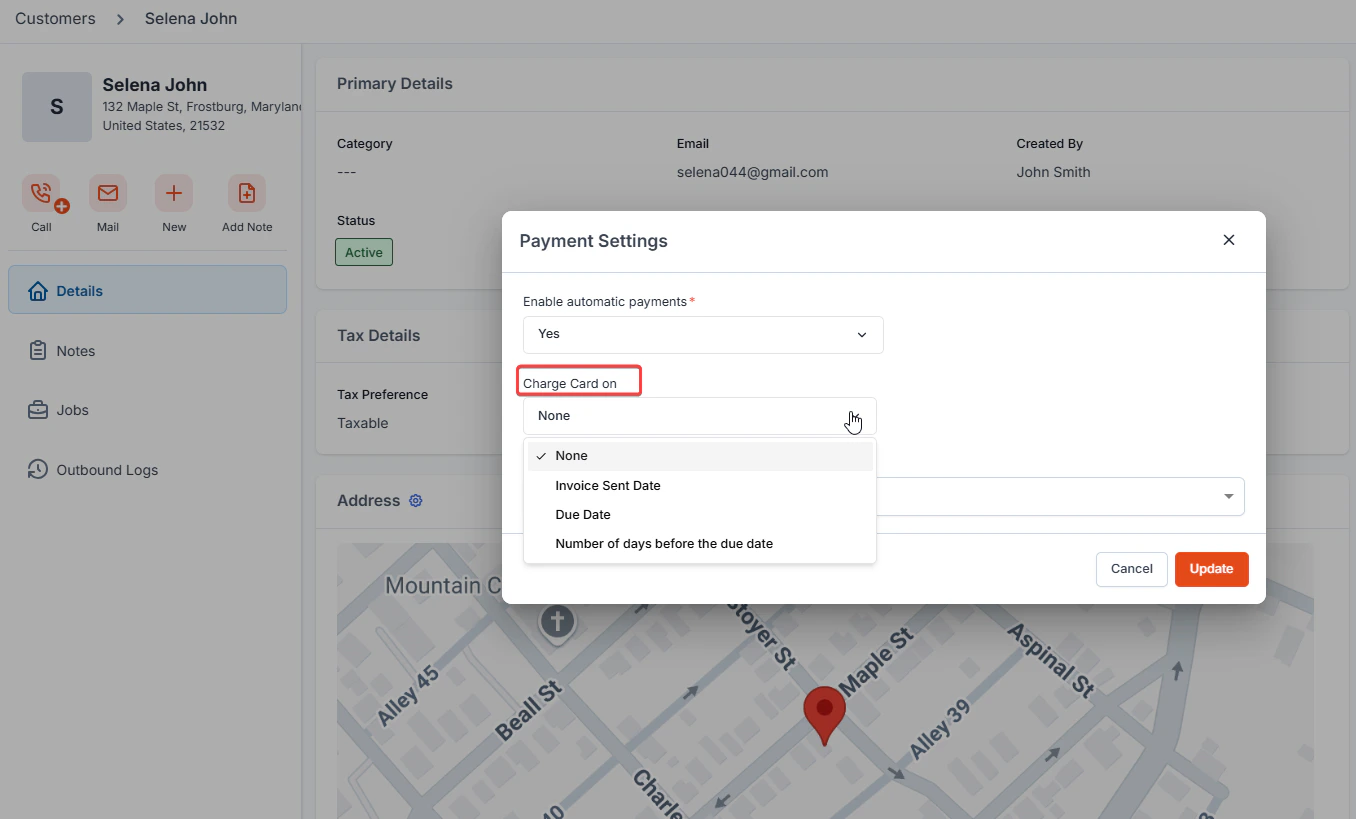 * **Invoice Sent Date** – The card is charged immediately when the invoice is sent.
* **Invoice Due Date** – The card is charged on the invoice due date.
* **Number of Days Before the Due Date** – The card is charged a set number of days before the due date (you must specify the number of days).
* **None** – The card is not charged automatically. You can collect payments manually using the saved card information.
1. Select the **payment method** (card or bank account) from which the payment will be deducted.
2. Click "**Update**".
* **Invoice Sent Date** – The card is charged immediately when the invoice is sent.
* **Invoice Due Date** – The card is charged on the invoice due date.
* **Number of Days Before the Due Date** – The card is charged a set number of days before the due date (you must specify the number of days).
* **None** – The card is not charged automatically. You can collect payments manually using the saved card information.
1. Select the **payment method** (card or bank account) from which the payment will be deducted.
2. Click "**Update**".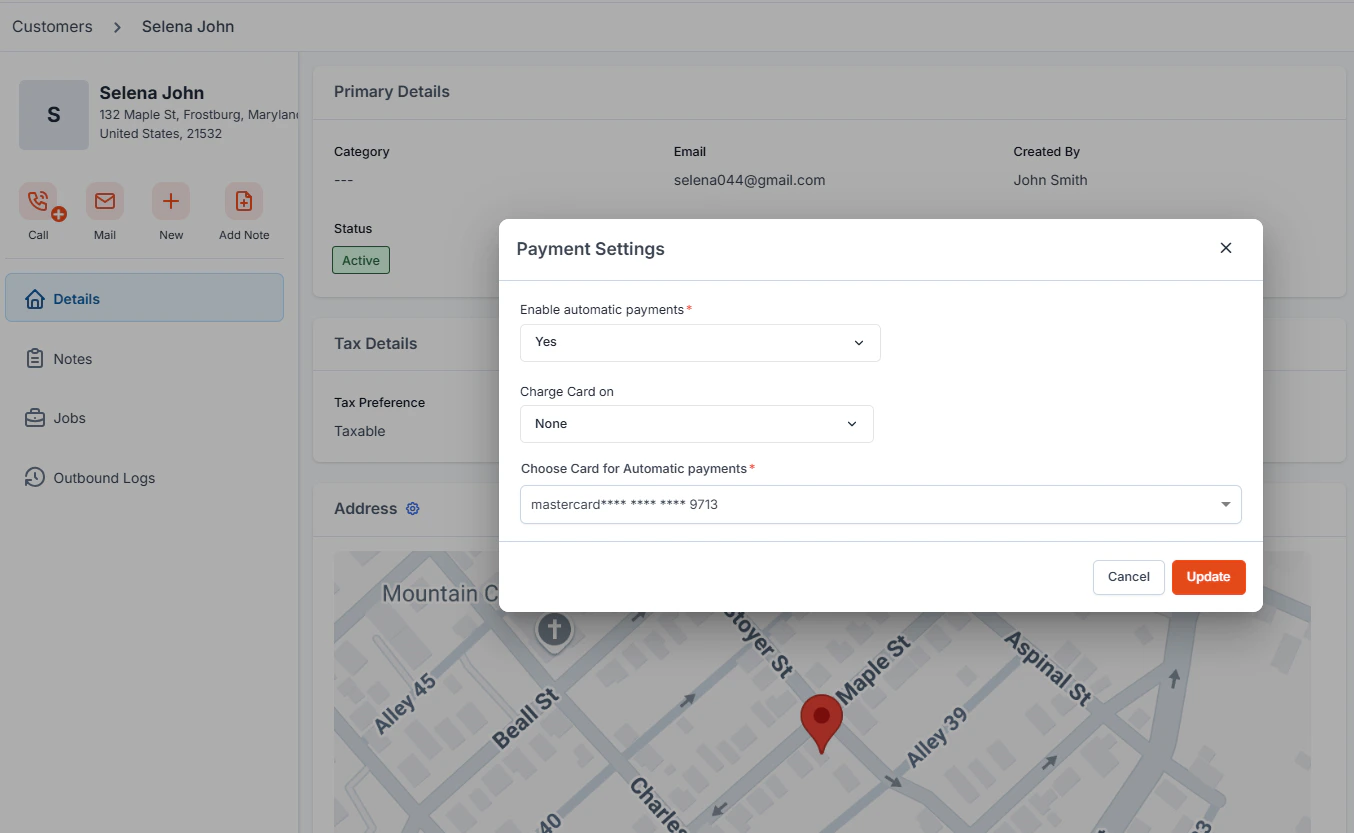 ### When is the payment automatically charged from the card on file?
Once a customer’s payment details are saved, Zuper automatically charges the saved card based on the value specified in the **Charge Card On**.
Payments are automatically processed based on the value specified in the **Charge Card On**:
* **Invoice Sent Date**:
* **Invoice Due Date**:
* **Number of Days before the due date**:
By automating payments, businesses can avoid late payments, reduce manual follow-ups, and ensure a smoother billing experience for both customers and service providers.
### **Managing automatic payment settings in Invoices and Service Contracts**
The **Automatic Payment** feature allows payments to be automatically collected using a customer’s saved payment method. However, you can enable or disable Automatic payments at both the **invoice** and **service contract** levels, providing flexibility in payment collection.
***Automatic payments in Invoices***
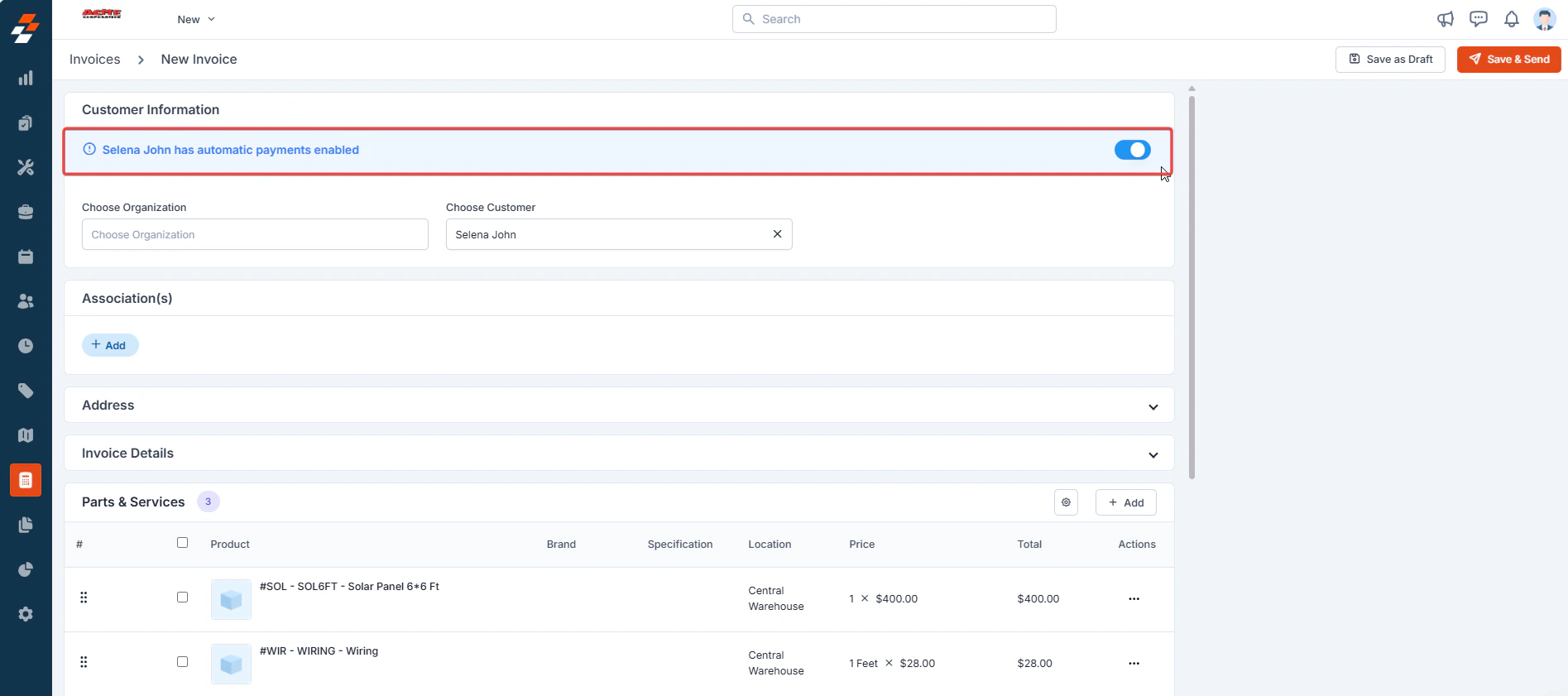
When creating an invoice, an **Automatic payments** toggle will appear if **Automatic Payments** is enabled for the customer. If the toggle is turned **on**, the system will automatically charge from the customer’s saved payment method based on the configuration set in **Charge Card On**. If you do not want a specific invoice to be auto-charged, you can **manually disable** the Automatic payments toggle before finalizing the invoice.
### When is the payment automatically charged from the card on file?
Once a customer’s payment details are saved, Zuper automatically charges the saved card based on the value specified in the **Charge Card On**.
Payments are automatically processed based on the value specified in the **Charge Card On**:
* **Invoice Sent Date**:
* **Invoice Due Date**:
* **Number of Days before the due date**:
By automating payments, businesses can avoid late payments, reduce manual follow-ups, and ensure a smoother billing experience for both customers and service providers.
### **Managing automatic payment settings in Invoices and Service Contracts**
The **Automatic Payment** feature allows payments to be automatically collected using a customer’s saved payment method. However, you can enable or disable Automatic payments at both the **invoice** and **service contract** levels, providing flexibility in payment collection.
***Automatic payments in Invoices***
When creating an invoice, an **Automatic payments** toggle will appear if **Automatic Payments** is enabled for the customer. If the toggle is turned **on**, the system will automatically charge from the customer’s saved payment method based on the configuration set in **Charge Card On**. If you do not want a specific invoice to be auto-charged, you can **manually disable** the Automatic payments toggle before finalizing the invoice.
 ***Automatic payments in Service Contracts***
When creating a service contract, an **Enable automatic payments** field appears if **Automatic Payments** are enabled for the customer. If the field is set to *Yes*, the system will automatically charge from the customer’s saved payment method based on the configuration set in Charge Card On. If you do not want a specific service contract to be auto-charged, you can manually set to **No** the **Enable automatic payments** field.
***Automatic payments in Service Contracts***
When creating a service contract, an **Enable automatic payments** field appears if **Automatic Payments** are enabled for the customer. If the field is set to *Yes*, the system will automatically charge from the customer’s saved payment method based on the configuration set in Charge Card On. If you do not want a specific service contract to be auto-charged, you can manually set to **No** the **Enable automatic payments** field.  This provides control over individual transactions, allowing you to process payments manually when needed.
### FAQs
**1. Can I disable automatic payments for a specific customer?**
Yes. If you do not want a particular customer to be auto-charged, do not save a payment method for them or set **Enable automatic payments** to *No* in their Payment Settings.
**2. How will I know if an invoice has been auto-charged?**
The invoice email footer will state that the due amount will be automatically charged on a specific date. You can also verify this in the invoice details and transaction history in Zuper.
**3. What happens if an automatic payment fails?**
If an automatic payment fails, Zuper notifies the back-office manager with details such as the customer's name, invoice number, transaction ID, auto-charged amount, and the last four digits of the card. The customer also receives an email notification stating the reason for the failure and a **Pay Now** option to complete the payment manually.
This provides control over individual transactions, allowing you to process payments manually when needed.
### FAQs
**1. Can I disable automatic payments for a specific customer?**
Yes. If you do not want a particular customer to be auto-charged, do not save a payment method for them or set **Enable automatic payments** to *No* in their Payment Settings.
**2. How will I know if an invoice has been auto-charged?**
The invoice email footer will state that the due amount will be automatically charged on a specific date. You can also verify this in the invoice details and transaction history in Zuper.
**3. What happens if an automatic payment fails?**
If an automatic payment fails, Zuper notifies the back-office manager with details such as the customer's name, invoice number, transaction ID, auto-charged amount, and the last four digits of the card. The customer also receives an email notification stating the reason for the failure and a **Pay Now** option to complete the payment manually.