> ## Documentation Index
> Fetch the complete documentation index at: https://zuperinc-section23.mintlify.site/llms.txt
> Use this file to discover all available pages before exploring further.
# E-Check Deposit on Mobile
The E-Check feature in Zuper Pay enables you to collect and deposit customer check payments digitally, eliminating the need for physical bank visits. By capturing check images with your device, you can process deposits quickly and securely while tracking payments within the Zuper platform.
**Note:** The E-Check feature is available only on the Zuper mobile application.
## **Mobile Check Deposit Video Tutorial**
If you're depositing your first check, start with this short video! 👇
## **How to Deposit an E-Check**
Follow these steps to deposit a check:
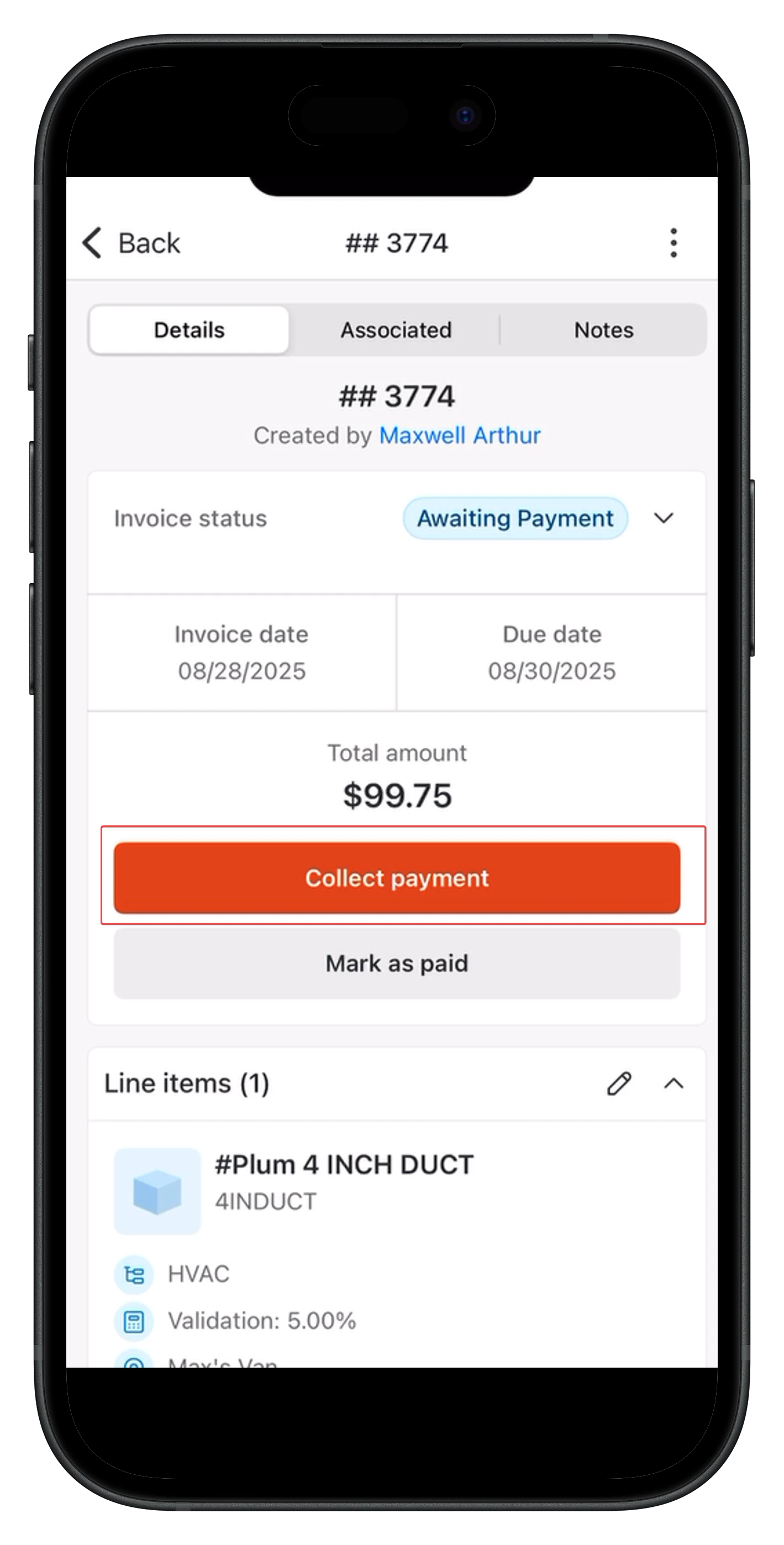
1. Navigate to the relevant Invoice or quote and click **Collect Payment**.
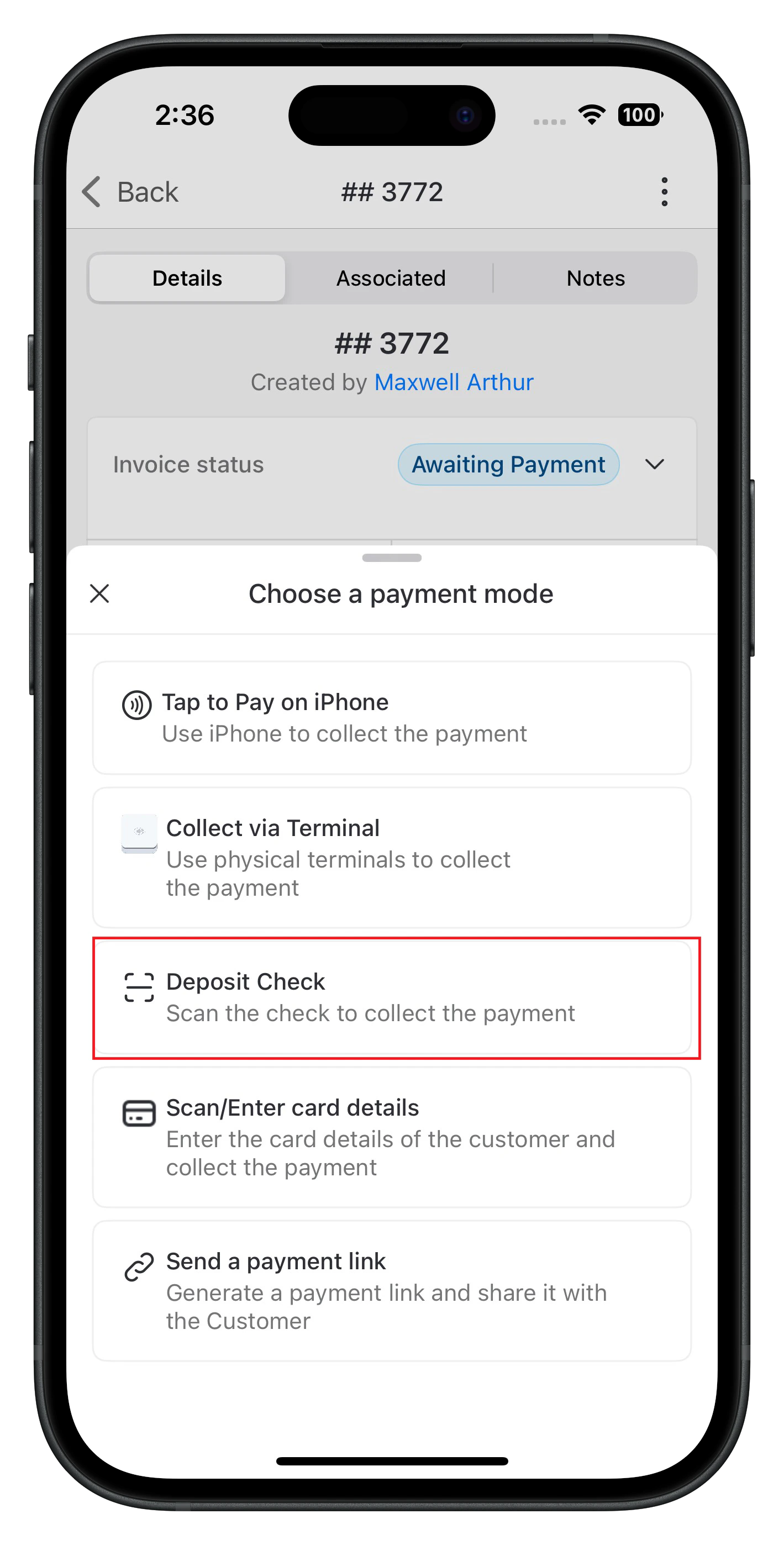
 2. Choose **Deposit Check**.
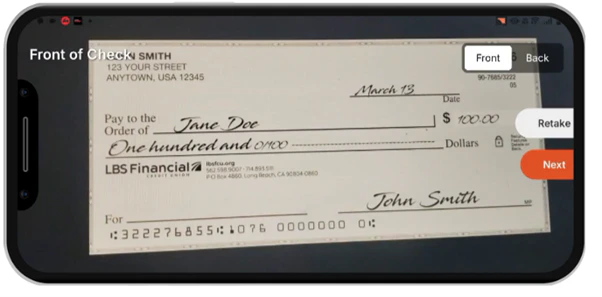
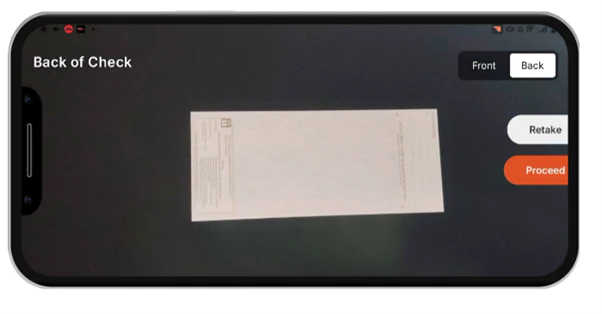
 3. Your device’s camera will open automatically. Capture:
* A clear landscape photo of the **front** of the check.
3. Your device’s camera will open automatically. Capture:
* A clear landscape photo of the **front** of the check.
 * A clear landscape photo of the **front** of the check.
 **Note**: A charge of \$0.75 will apply if the images are blurry or unclear.
4. The due amount fills in automatically. You can edit the amount if needed.
**Note**: If you’re depositing against a quote, you *cannot* edit the amount.
5. Enter the **Check Number**.
6. Click **Proceed**. Note that a \$1.00 processing fee applies per transaction. If the check bounces, a \$20 fee will be charged (similar to traditional banks).
7. After you proceed, a confirmation message will appear stating, **“Check deposited successfully.”**
### **How to View Payment Details**
After a successful deposit, you can view payment details under:
* **Payment Transactions** → **Associated** tab.
This section provides a comprehensive record of all payments collected for the related transaction.
**Note**: A charge of \$0.75 will apply if the images are blurry or unclear.
4. The due amount fills in automatically. You can edit the amount if needed.
**Note**: If you’re depositing against a quote, you *cannot* edit the amount.
5. Enter the **Check Number**.
6. Click **Proceed**. Note that a \$1.00 processing fee applies per transaction. If the check bounces, a \$20 fee will be charged (similar to traditional banks).
7. After you proceed, a confirmation message will appear stating, **“Check deposited successfully.”**
### **How to View Payment Details**
After a successful deposit, you can view payment details under:
* **Payment Transactions** → **Associated** tab.
This section provides a comprehensive record of all payments collected for the related transaction.