> ## Documentation Index
> Fetch the complete documentation index at: https://zuperinc-section23.mintlify.site/llms.txt
> Use this file to discover all available pages before exploring further.
# Issuing refunds
Sometimes, things don’t go as planned, and you need to issue a refund. It happens! Whether a customer overpaid, canceled a service, or changed their mind, Zuper makes it easy to process refunds for payments made through Zuper Pay.
Refunds typically take 5 to 10 business days, and the funds are returned to the original payment method used for the transaction. Let’s walk through how to issue a refund and what to expect.
### How refunds work in Zuper
Zuper Pay handles all transactions directly, so the refund option is only available for payments processed through Zuper Pay. If a customer paid by cash, check, or another method outside of Zuper, you’ll need to process the refund manually. After issuing the manual refund, you can void the transaction in Zuper, as the refund settlement happens outside the system.
### Issuing a refund in Zuper
Refunds can be issued from the payment details dialog box. You can navigate to this dialog box in one of the following ways:
* **From the Customer’s Payment Transaction section**: Click the payment method label to open the payment details.
* **From an invoice**: Click the payment method label in the latest payment history section to open the payment details.
* **From the Payment listing page**: Locate the payment or deposit you want to refund. Click the **context menu** and select **View Details** to open the payment record.
**To issue a refund:**
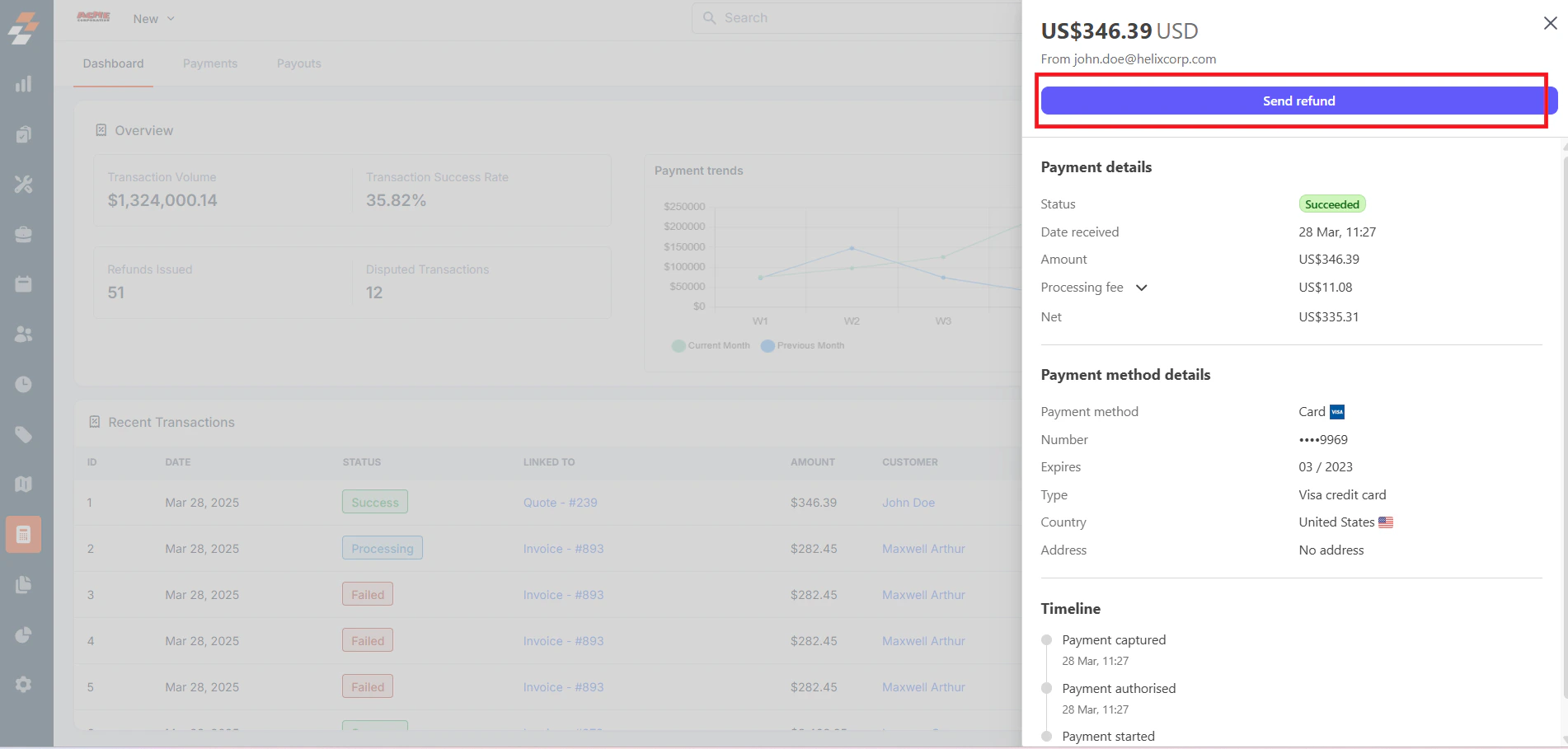
1. On the **Payment details** dialog box, click **Send Refund** to start the refund process.
 2. A refund dialog box will appear, and the full payment amount will be automatically populated in the **Refund Amount** field.
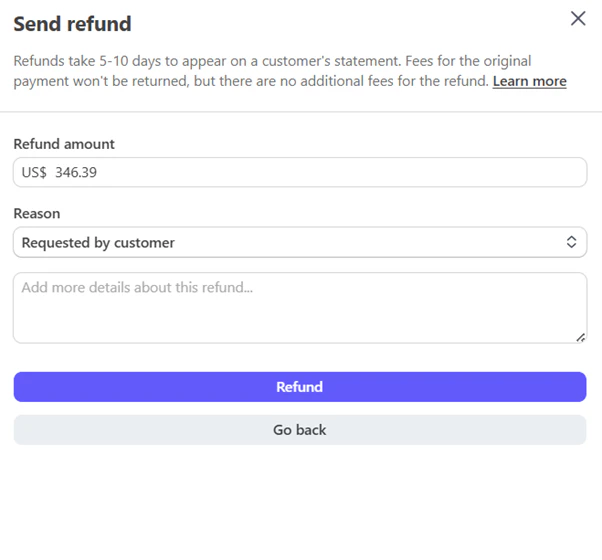 3. If you’re issuing a partial refund, enter the amount you want to refund.
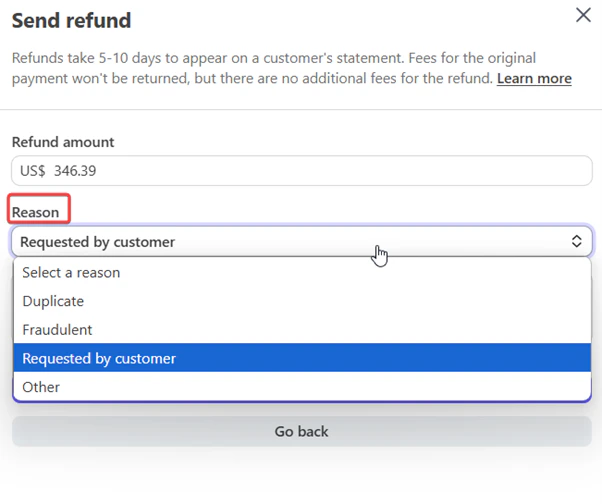
4. Choose a **reason** for the refund from the dropdown list.
3. If you’re issuing a partial refund, enter the amount you want to refund.
4. Choose a **reason** for the refund from the dropdown list.
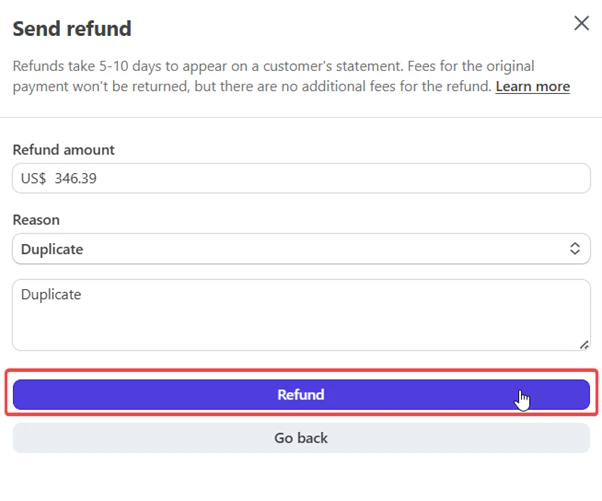
 5. Click **Refund**. The refund will be processed, and the customer will receive the money within 5 to 10 business days. Once issued, a refund cannot be canceled.
 **Note:** There are no fees for issuing refunds. However, the payment processing and currency conversion fees from the original charge will NOT be refunded.
#### Invoice Refund status
When you process a refund in Zuper, the invoice status updates automatically based on the amount refunded:
* **Partial Refund:** If you refund only part of the payment, the invoice status will change to **Partially Paid**.
* **Full Refund:** If you refund the entire amount, the invoice status will be updated to **Sent**.
Additionally, the **Payment History** section will label the refunded transaction as **"Refunded"** or **"Partially Refunded"**, depending on the amount.
**Note:** The invoice or quote will also reflect the adjusted balance.
**Note:** There are no fees for issuing refunds. However, the payment processing and currency conversion fees from the original charge will NOT be refunded.
#### Invoice Refund status
When you process a refund in Zuper, the invoice status updates automatically based on the amount refunded:
* **Partial Refund:** If you refund only part of the payment, the invoice status will change to **Partially Paid**.
* **Full Refund:** If you refund the entire amount, the invoice status will be updated to **Sent**.
Additionally, the **Payment History** section will label the refunded transaction as **"Refunded"** or **"Partially Refunded"**, depending on the amount.
**Note:** The invoice or quote will also reflect the adjusted balance.