> ## Documentation Index
> Fetch the complete documentation index at: https://zuperinc-section23.mintlify.site/llms.txt
> Use this file to discover all available pages before exploring further.
# Zuper Pay Reports
1. Select the "**Accounting**" module from the left navigation menu and choose the "**Payments**" module.
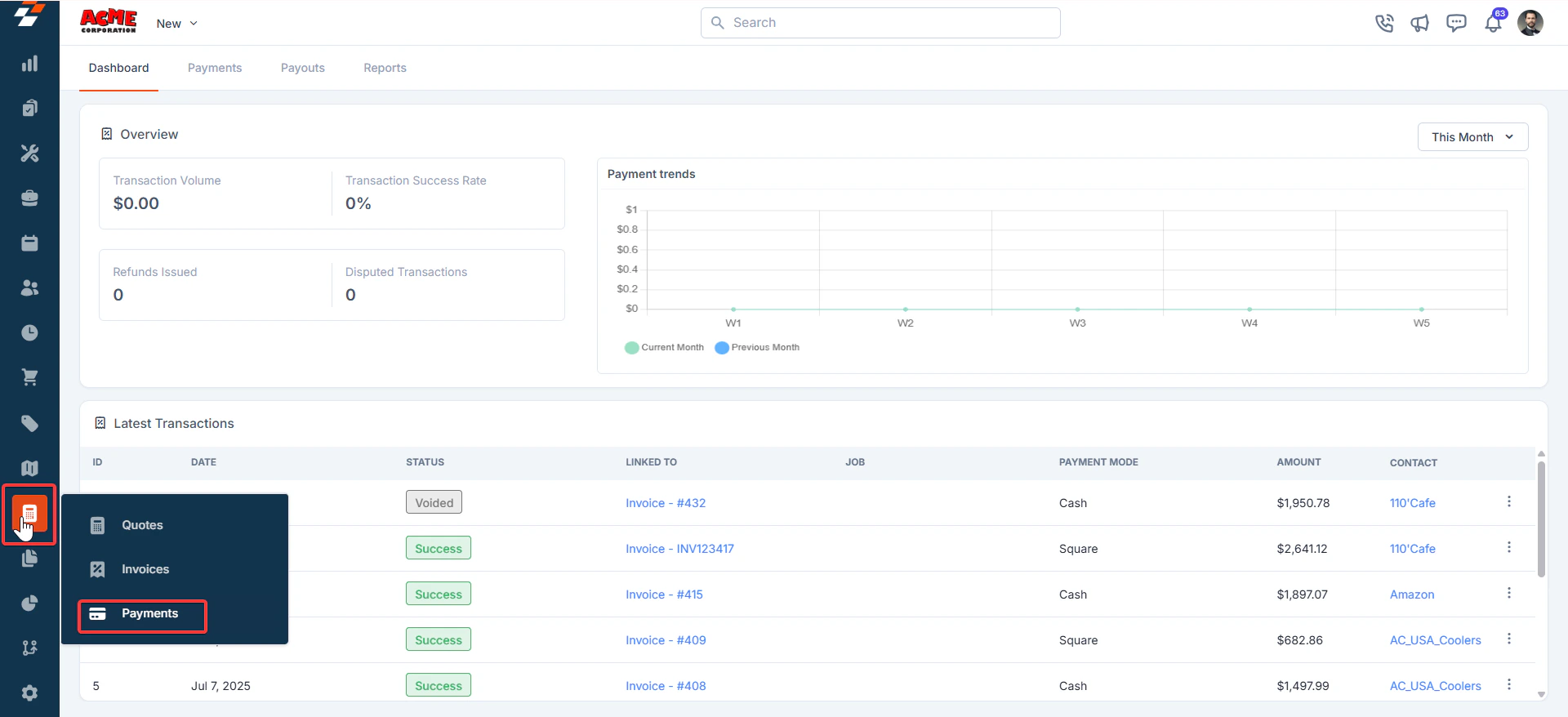 2. Click the Reports tab. You will see the list of available reports:
* **Payment Summary Report**
* **Payment Detail Report**
* **Payment Method Report**
* **Refund Report**
* **Chargeback Report**
* **Payout Reconciliation Report**
## **Types of Reports**
### **1. Payment Summary Report**
This report provides an **overview of payments** within a selected date range.
* **Use Case:** Perfect for high-level business reporting and quick insights into overall payment activity.
* **Steps to Generate:**
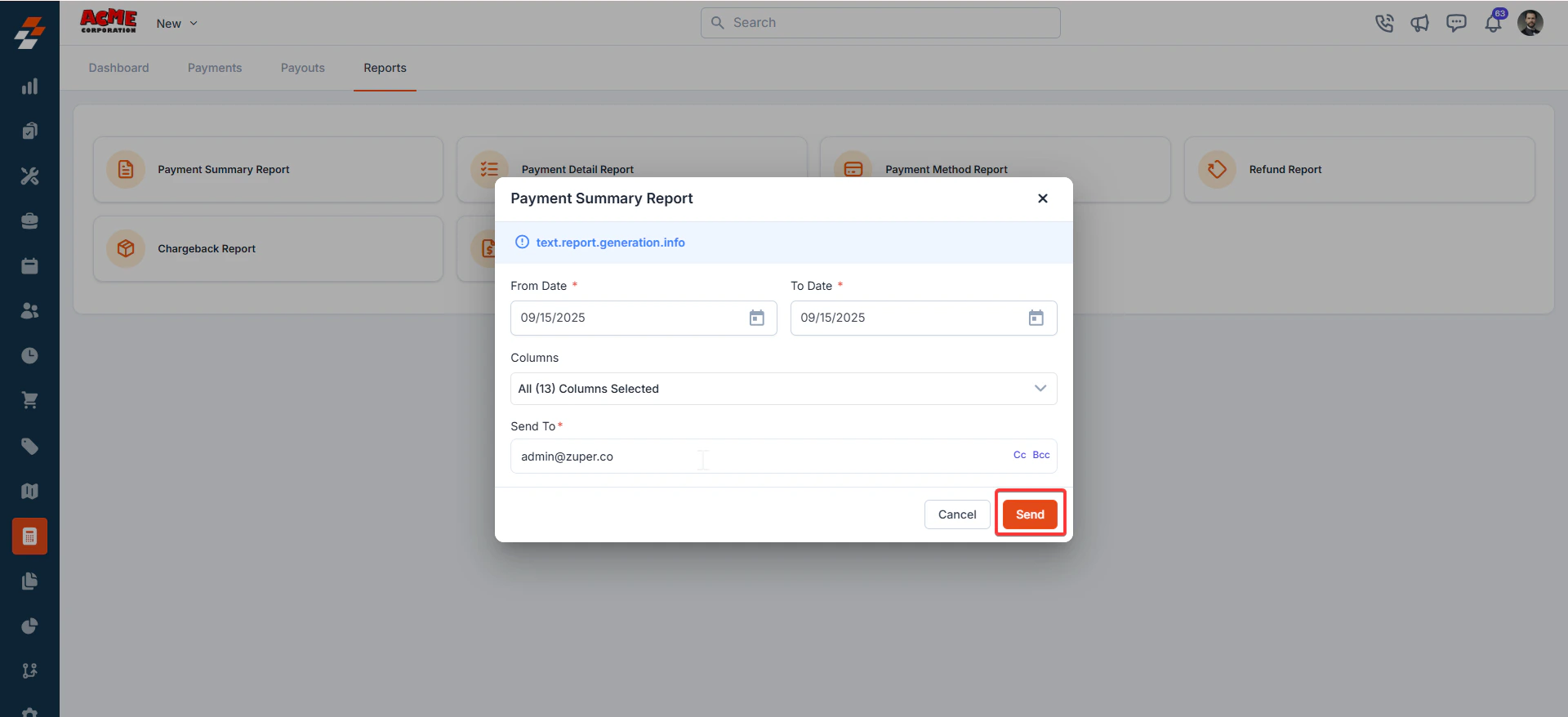
1. Click **Payment Summary Report**.
2. Click the Reports tab. You will see the list of available reports:
* **Payment Summary Report**
* **Payment Detail Report**
* **Payment Method Report**
* **Refund Report**
* **Chargeback Report**
* **Payout Reconciliation Report**
## **Types of Reports**
### **1. Payment Summary Report**
This report provides an **overview of payments** within a selected date range.
* **Use Case:** Perfect for high-level business reporting and quick insights into overall payment activity.
* **Steps to Generate:**
1. Click **Payment Summary Report**.
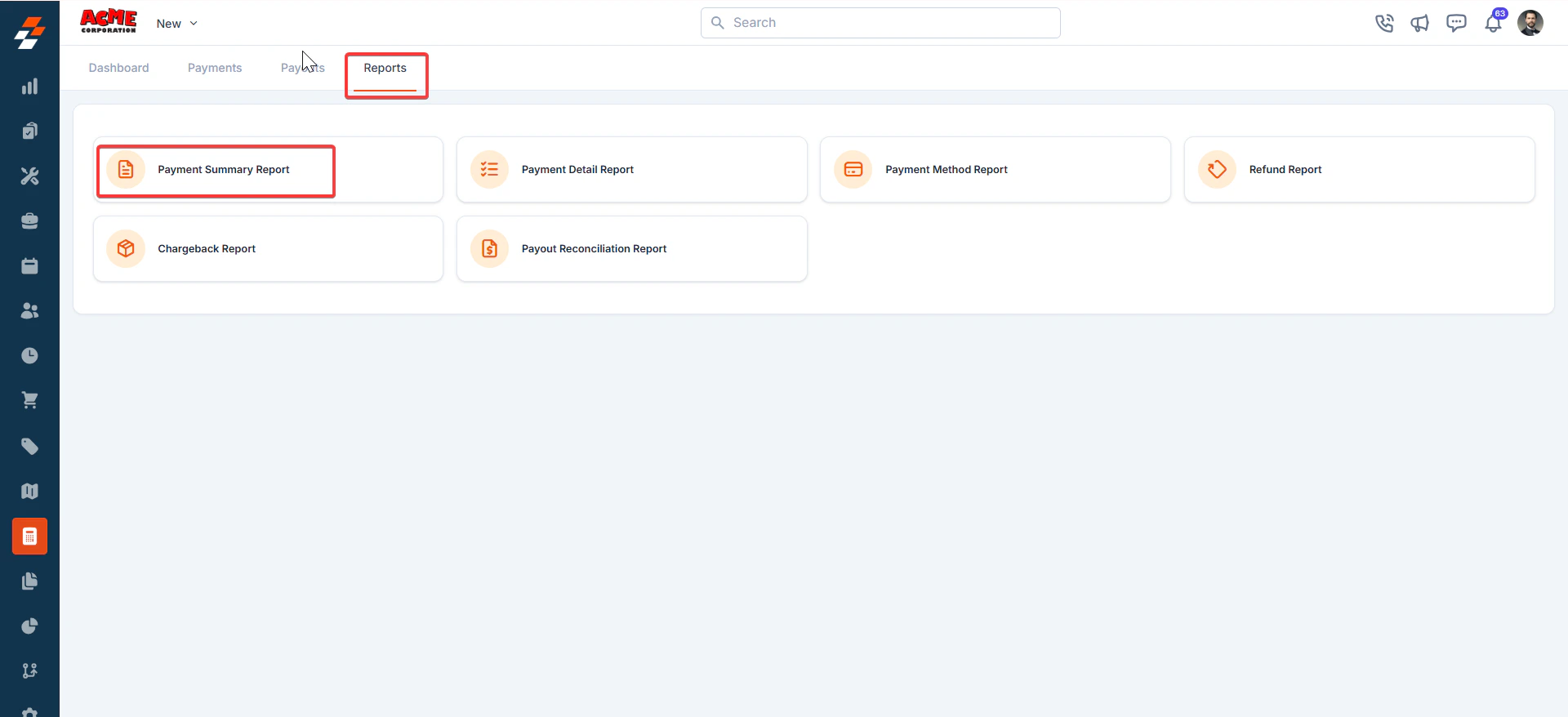 2\. Select **From Date** and **To Date**.
3\. Choose the columns you want to include (all by default).
4\. Enter the recipient email under **Send To**.
5\. Click **Send**.
2\. Select **From Date** and **To Date**.
3\. Choose the columns you want to include (all by default).
4\. Enter the recipient email under **Send To**.
5\. Click **Send**.
 ***
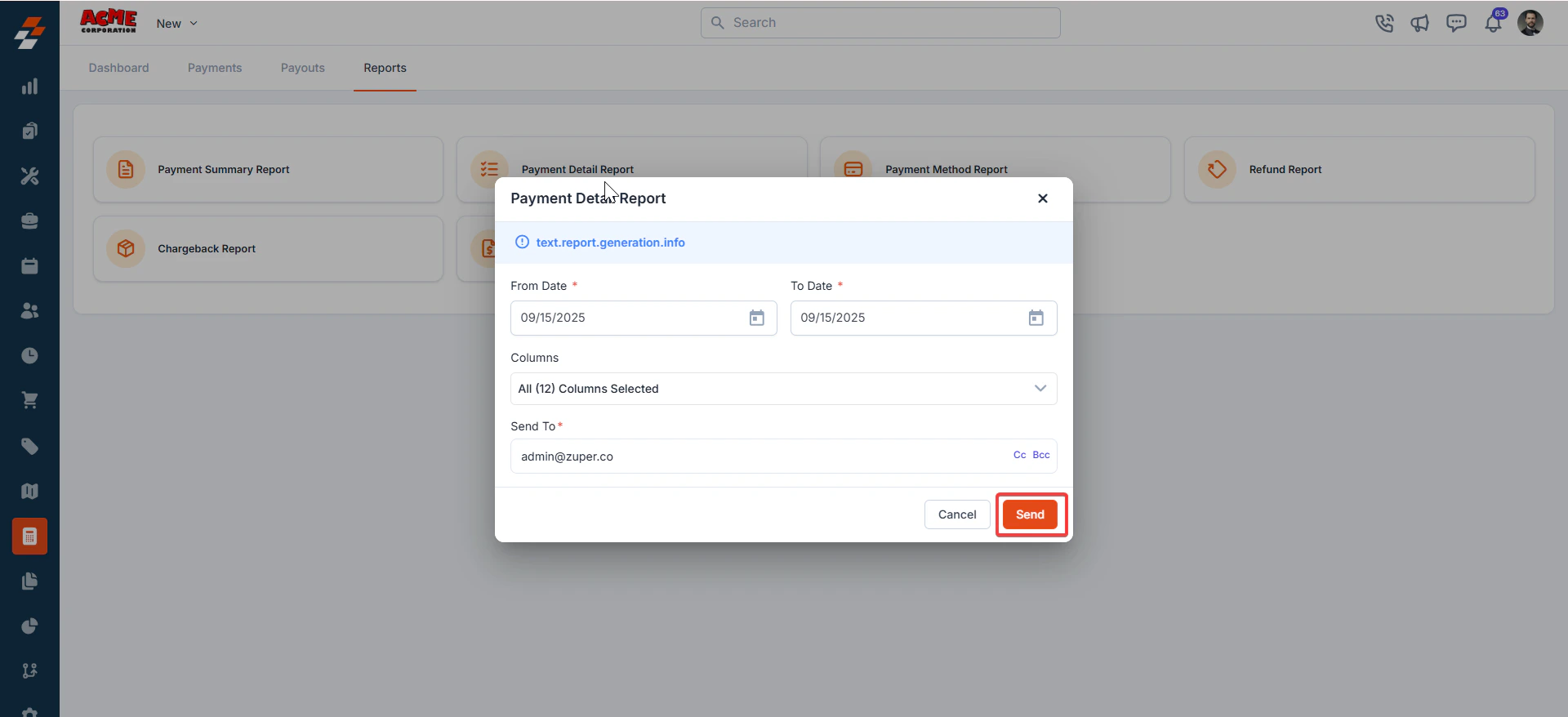
### **2. Payment Detail Report**
This report shows **granular transaction details**, including customer-specific data.
* **Use Case:** Ideal for auditing individual transactions or customer queries.
* **Steps to Generate:**
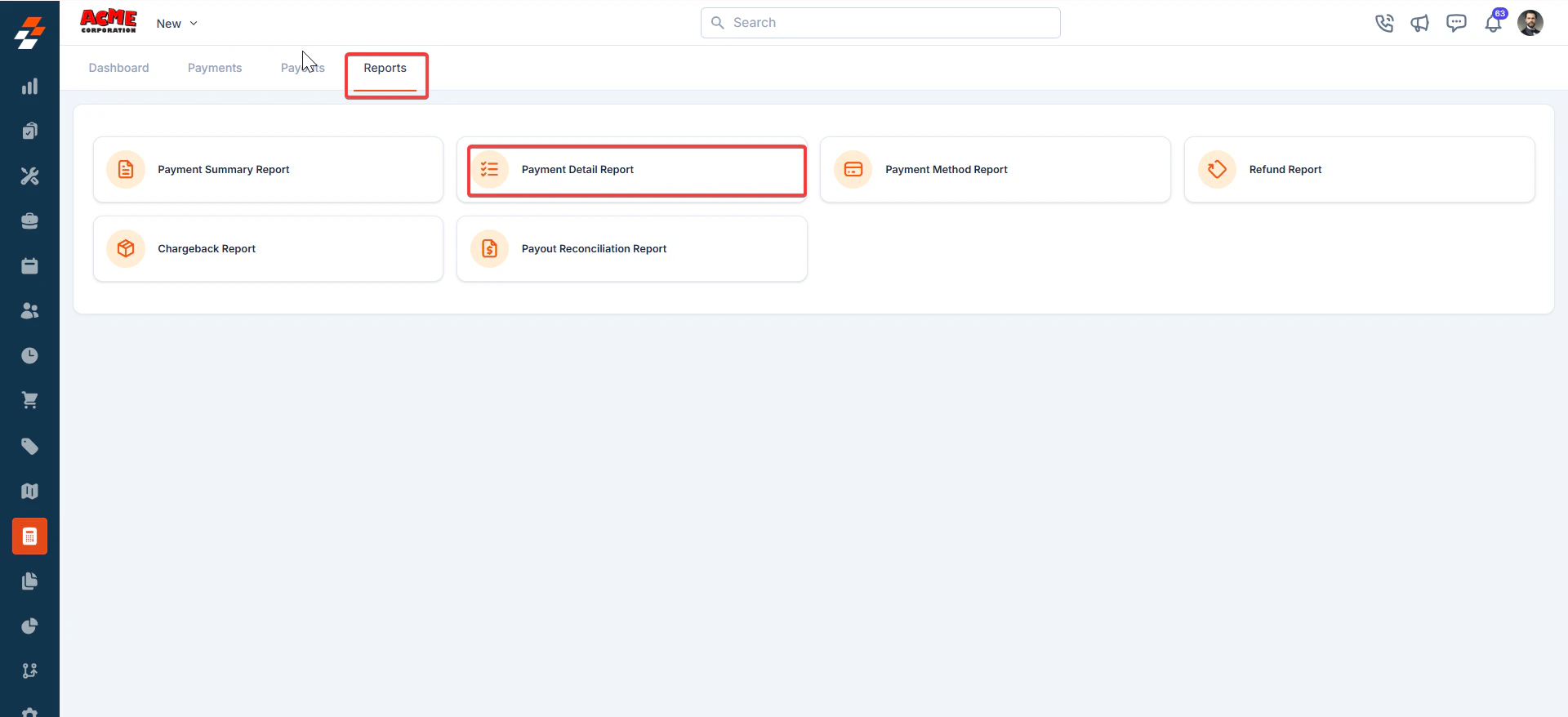
1. Click **Payment Detail Report**.
***
### **2. Payment Detail Report**
This report shows **granular transaction details**, including customer-specific data.
* **Use Case:** Ideal for auditing individual transactions or customer queries.
* **Steps to Generate:**
1. Click **Payment Detail Report**.
 2\. Set the **date range**.
3\. Choose your columns (default: all selected).
4\. Enter the email address where the report should be sent.
5\. Click **Send**.
2\. Set the **date range**.
3\. Choose your columns (default: all selected).
4\. Enter the email address where the report should be sent.
5\. Click **Send**.
 ### **3. Payment Method Report**
This report organizes transactions based on **payment methods** such as credit card, bank transfer, or wallet.
* **Use Case:** Great for analyzing customer preferences and optimizing payment options.
* **Steps to Generate:**
1. Click **Payment Method Report**.
### **3. Payment Method Report**
This report organizes transactions based on **payment methods** such as credit card, bank transfer, or wallet.
* **Use Case:** Great for analyzing customer preferences and optimizing payment options.
* **Steps to Generate:**
1. Click **Payment Method Report**.
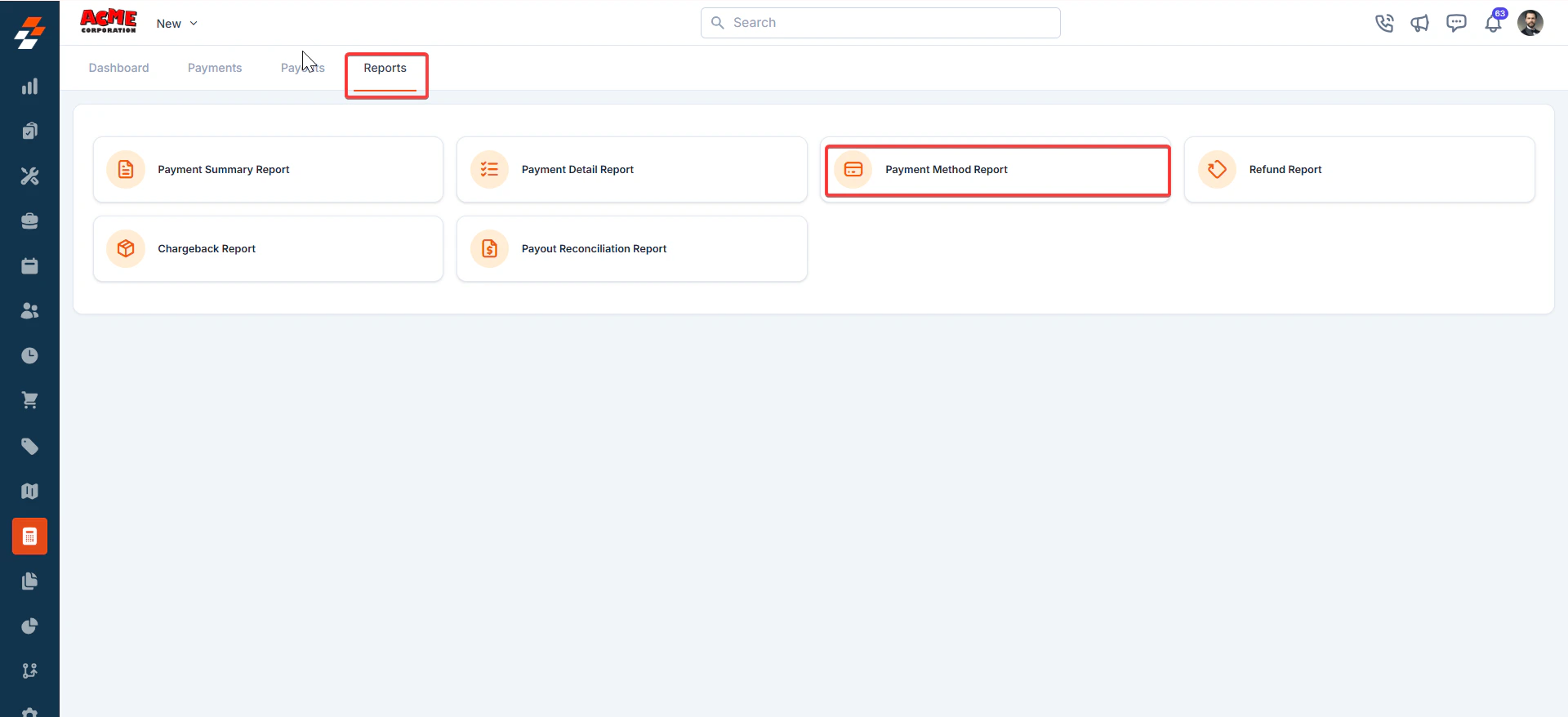 2\. Select the **date range**.
3\. Choose preferred columns.
4\. Provide the recipient’s email address.
5\. Click **Send**.
2\. Select the **date range**.
3\. Choose preferred columns.
4\. Provide the recipient’s email address.
5\. Click **Send**.
 ### **4. Refund Report**
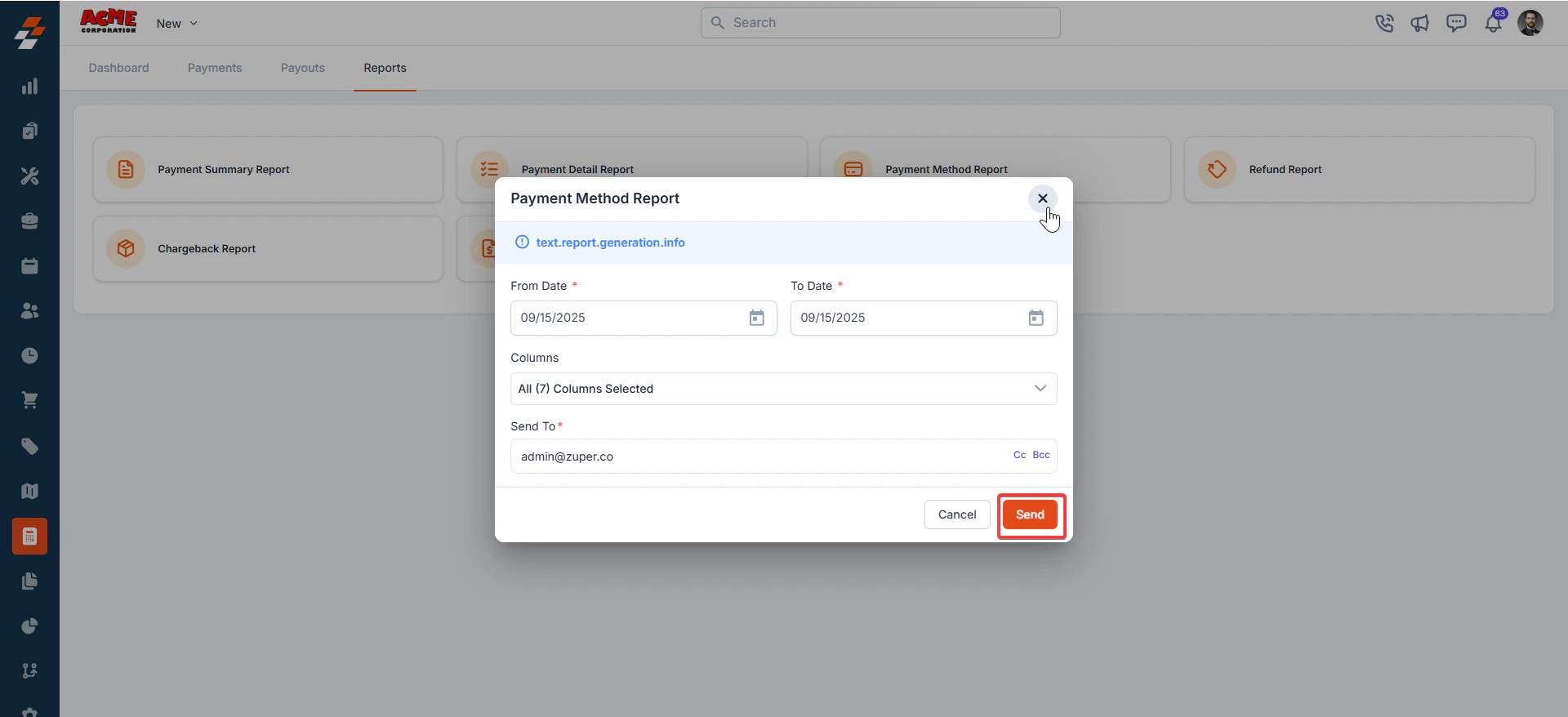
This report provides details of all **refund transactions** processed within a specific timeframe.
* **Use Case:** Useful for customer support teams handling refund-related inquiries.
* **Steps to Generate:**
1. Select **Refund Report**.
### **4. Refund Report**
This report provides details of all **refund transactions** processed within a specific timeframe.
* **Use Case:** Useful for customer support teams handling refund-related inquiries.
* **Steps to Generate:**
1. Select **Refund Report**.
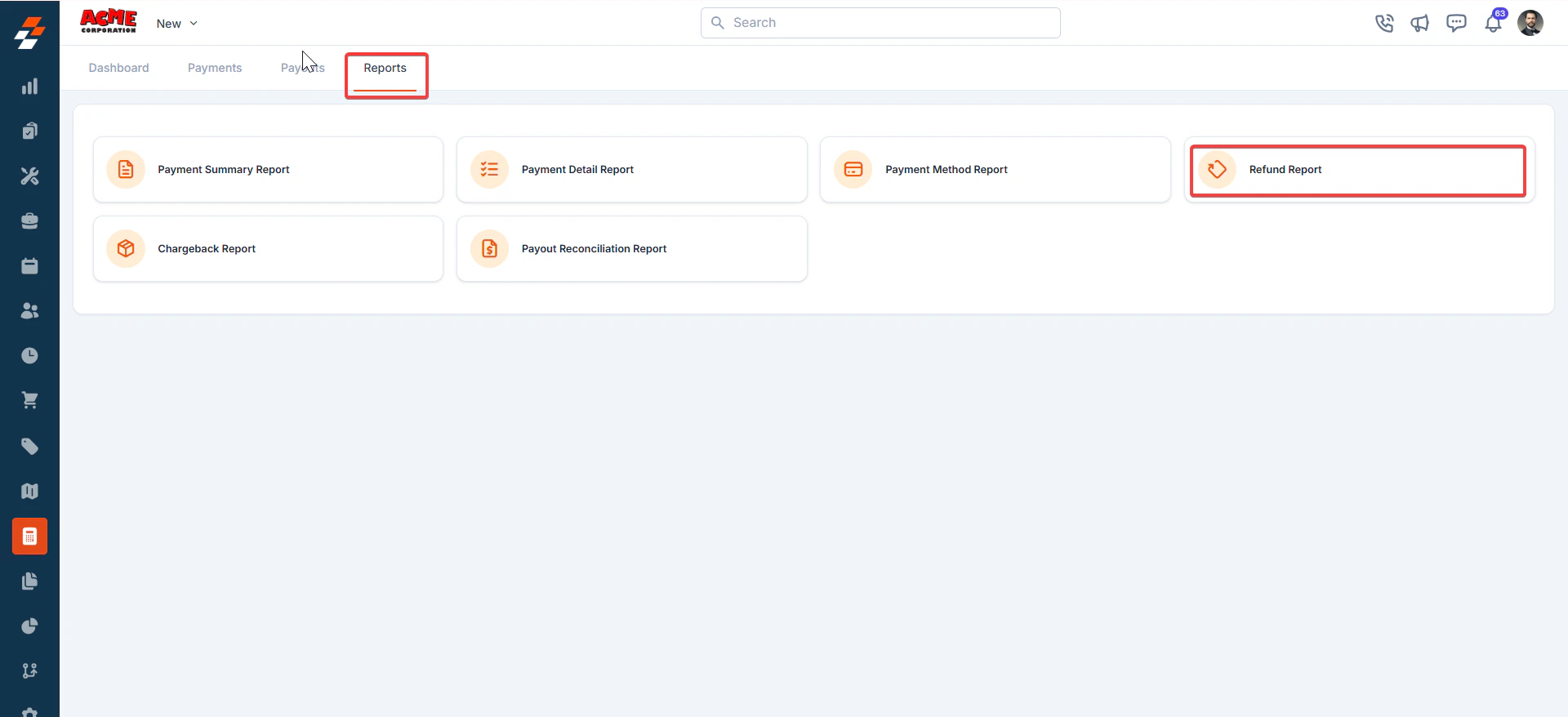 2\. Set the **From Date** and **To Date**.
3\. Select columns to include.
4\. Enter the report recipient’s email.
5\. Click **Send**.
2\. Set the **From Date** and **To Date**.
3\. Select columns to include.
4\. Enter the report recipient’s email.
5\. Click **Send**.
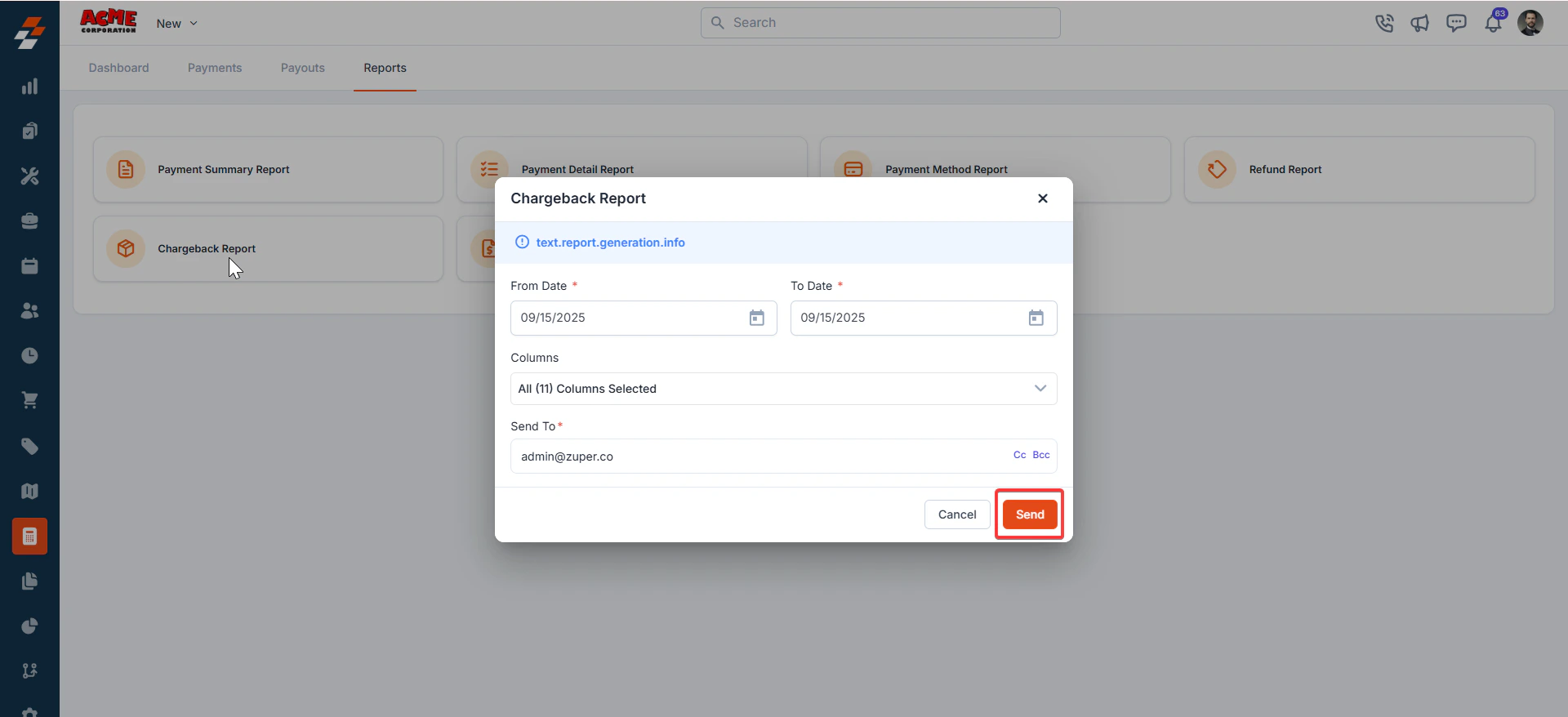 ### **5. Chargeback Report**
This report captures all **chargeback transactions**, allowing you to review disputes efficiently.
* **Use Case:** Essential for finance and risk teams monitoring disputes.
* **Steps to Generate:**
1. Open **Chargeback Report**.
### **5. Chargeback Report**
This report captures all **chargeback transactions**, allowing you to review disputes efficiently.
* **Use Case:** Essential for finance and risk teams monitoring disputes.
* **Steps to Generate:**
1. Open **Chargeback Report**.
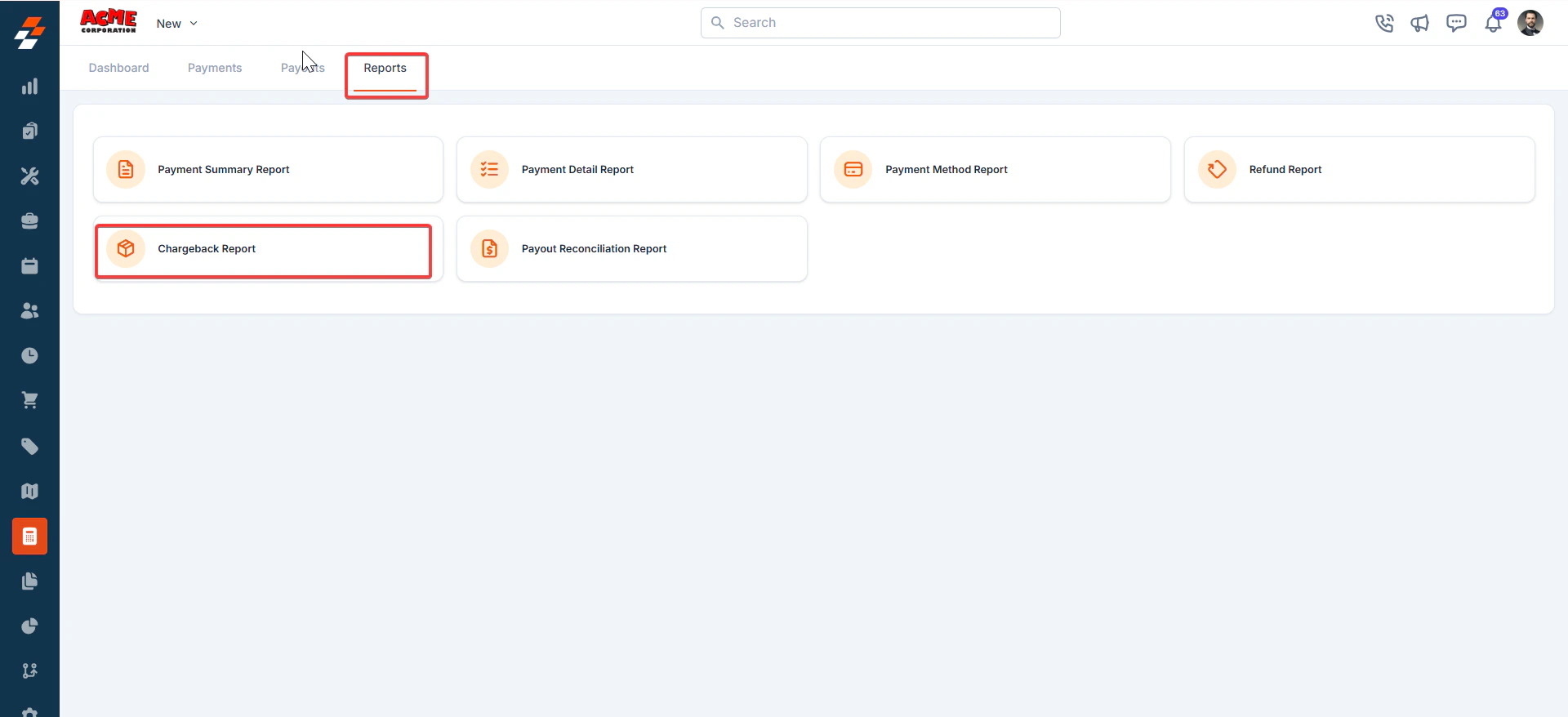 2\. Choose the date range.
3\. Select relevant columns.
4\. Enter the email address for delivery.
5\. Click **Send**.
### **6. Payout Reconciliation Report**
This report reconciles payments against payouts, helping you verify that expected amounts have been deposited.
* **Use Case:** A must-have for finance teams ensuring accuracy between system records and bank payouts.
* **Steps to Generate:**
1. Select **Payout Reconciliation Report**.
2\. Choose the date range.
3\. Select relevant columns.
4\. Enter the email address for delivery.
5\. Click **Send**.
### **6. Payout Reconciliation Report**
This report reconciles payments against payouts, helping you verify that expected amounts have been deposited.
* **Use Case:** A must-have for finance teams ensuring accuracy between system records and bank payouts.
* **Steps to Generate:**
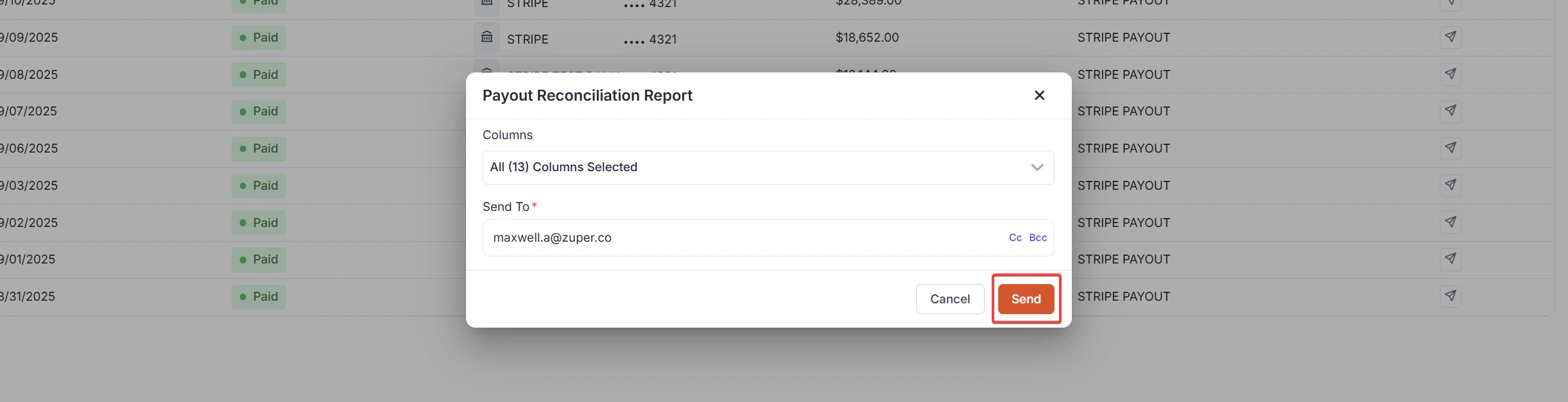
1. Select **Payout Reconciliation Report**.
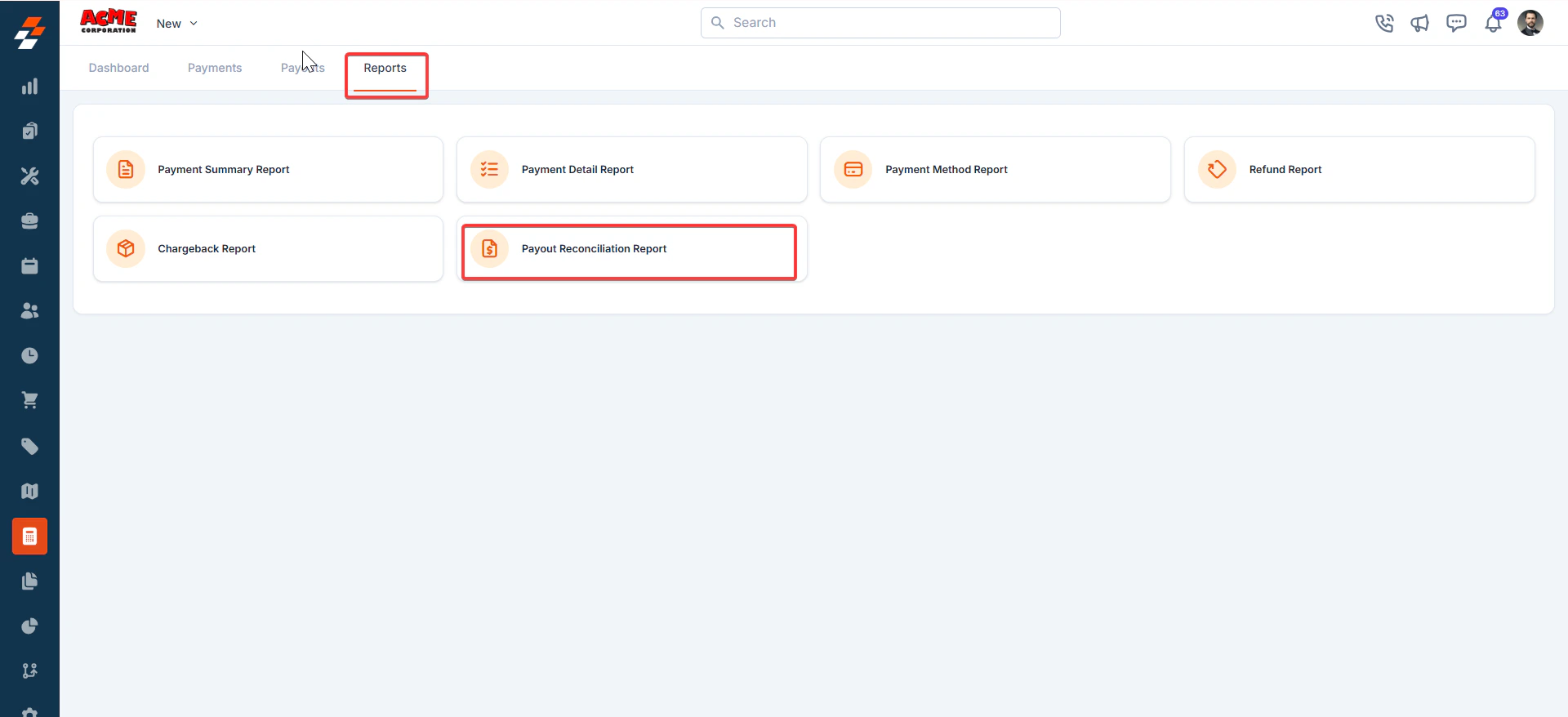 2\. (Optional) Adjust columns.
3\. Enter the recipient email.
4\. Click **Send**.
2\. (Optional) Adjust columns.
3\. Enter the recipient email.
4\. Click **Send**.
 With Zuper Pay’s reporting features, managing your payments, refunds, and reconciliations is seamless and efficient.