> ## Documentation Index
> Fetch the complete documentation index at: https://zuperinc-section23.mintlify.site/llms.txt
> Use this file to discover all available pages before exploring further.
# M2 Reader
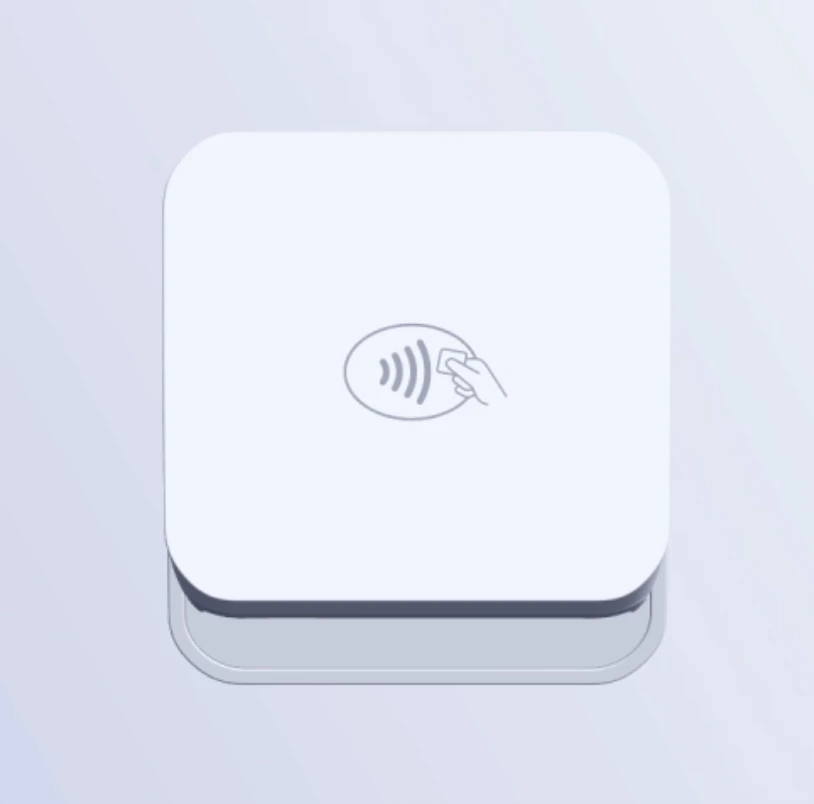
The **M2** Payment Reader is an exclusive device that pairs seamlessly with the Zuper mobile app, enabling your field technicians to accept in-person payments with ease.
Whether you’re collecting **deposits on quotes** or processing **invoice payments**, this intuitive device ensures a smooth and secure card-present transaction experience. With support for multiple payment methods, including credit and debit cards (Swipe, Tap, Dip), customers can choose the payment method that suits them best.
Beyond convenience, the **Zuper Payment Reader** also helps businesses save on transaction costs. Since it supports card-present transactions, it offers lower processing fees compared to online or manually entered payments, making it a cost-effective solution for businesses of all sizes. With its seamless integration, fast processing, and secure encryption, the Zuper Payment Reader enhances both business efficiency and customer satisfaction, ensuring a frictionless payment experience every time.
**Note**: The Zuper Payment Reader is currently available only in the United States.
 ## How to order a M2 Payment Reader
To order your M2 Payment Reader, please contact our Support team. You can request an M2 Payment Reader, and Zuper will take care of the ordering and shipping for you. You will receive a notification once your payment reader has been shipped and is ready for use.
### Setting up your Payment Reader
Once your M2 payment reader arrives, set it up with your mobile device to begin collecting payments in person.
**When you first receive your payment reader:**
* Fully charge the device using the provided charging cable.
* Ensure that the payment reader is up to date.
## How to order a M2 Payment Reader
To order your M2 Payment Reader, please contact our Support team. You can request an M2 Payment Reader, and Zuper will take care of the ordering and shipping for you. You will receive a notification once your payment reader has been shipped and is ready for use.
### Setting up your Payment Reader
Once your M2 payment reader arrives, set it up with your mobile device to begin collecting payments in person.
**When you first receive your payment reader:**
* Fully charge the device using the provided charging cable.
* Ensure that the payment reader is up to date.
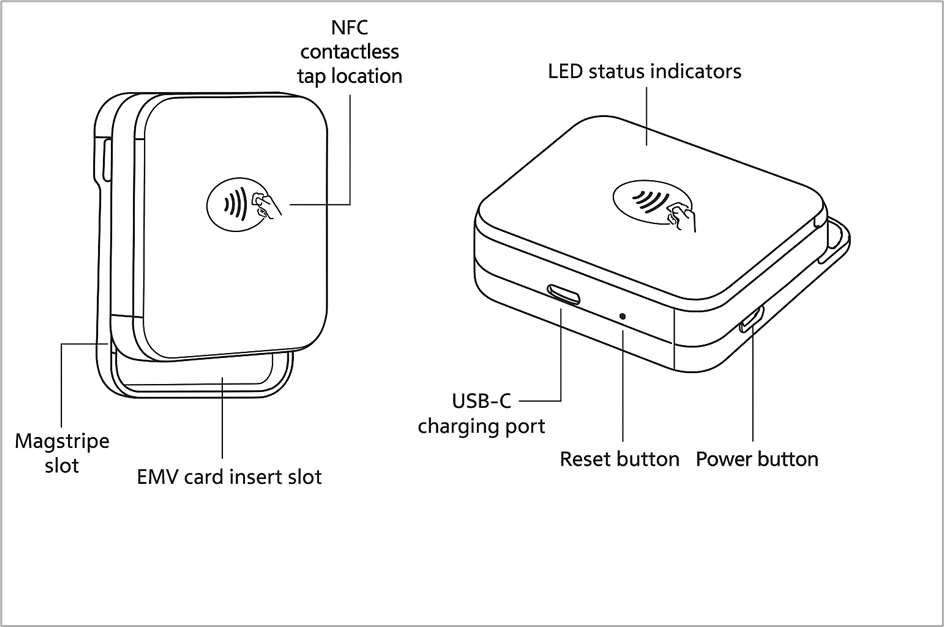 To use the Zuper M2 Payment Reader, make sure Bluetooth is enabled on your mobile device and follow the pairing instructions below:
1. **Turn on the payment reader**: Press the power button located on the right side of the device.
2. **Enable the necessary settings on your mobile device**:
* Enable Bluetooth
**Note**: After enabling Bluetooth on your device, the payment reader will appear as a payment method in the app. However, additional setup is required for the first use.
* Allow location access for the Zuper app:
* For **Apple devices**, go to **Settings** > **Privacy & Security** > **Location Services**, and enable location for the Zuper app.
* For **Android devices**, go to **Settings** > **Apps** > **Zuper**, and grant permission for "Location" and "Nearby Devices."
**Note**: You must **input a location** for the Tap to Pay and terminal payment functionalities to work properly. Please ensure that a valid location is configured in the Zuper app. For more details, refer to this [article](https://docs.zuper.co/Zuper-pay/Settings#terminal-management).
3. **Pair your payment reader**:
* Navigate to an invoice that is either awaiting payment or past due and select **Collect Payment**.
* Choose **Collect via Terminal** as your payment method. Your device will begin searching for the payment reader automatically.
* Select **Pair** to link the payment reader with your mobile device. The device will update automatically, which may take around 15 seconds.
**Note**: Pairing the payment reader during the initial setup is recommended to ensure the update is completed before you start collecting payments.
### Collecting payments using the Payment Reader
Once your payment reader is set up, you can collect payments directly from invoices or deposits on quotes:
1. In the Zuper app, select **Collect Payment** or **Collect Deposit** for an invoice or quote.
2. Choose **Collect via Terminal** as your payment method.
3. When prompted, turn on your payment reader.
4. Once connected, swipe, tap, or insert the customer’s card to complete the transaction.
### Payment Reader updates
Zuper Payments is powered by Stripe, which manages software updates for the Zuper Pay Reader. The device will automatically receive updates from Stripe when not in use, typically around midnight in your time zone.
To ensure your payment reader stays up to date, leave it plugged in overnight. If it is unplugged, the update will occur the next time you turn the device on. You can manually check for updates by rebooting the payment reader.
To use the Zuper M2 Payment Reader, make sure Bluetooth is enabled on your mobile device and follow the pairing instructions below:
1. **Turn on the payment reader**: Press the power button located on the right side of the device.
2. **Enable the necessary settings on your mobile device**:
* Enable Bluetooth
**Note**: After enabling Bluetooth on your device, the payment reader will appear as a payment method in the app. However, additional setup is required for the first use.
* Allow location access for the Zuper app:
* For **Apple devices**, go to **Settings** > **Privacy & Security** > **Location Services**, and enable location for the Zuper app.
* For **Android devices**, go to **Settings** > **Apps** > **Zuper**, and grant permission for "Location" and "Nearby Devices."
**Note**: You must **input a location** for the Tap to Pay and terminal payment functionalities to work properly. Please ensure that a valid location is configured in the Zuper app. For more details, refer to this [article](https://docs.zuper.co/Zuper-pay/Settings#terminal-management).
3. **Pair your payment reader**:
* Navigate to an invoice that is either awaiting payment or past due and select **Collect Payment**.
* Choose **Collect via Terminal** as your payment method. Your device will begin searching for the payment reader automatically.
* Select **Pair** to link the payment reader with your mobile device. The device will update automatically, which may take around 15 seconds.
**Note**: Pairing the payment reader during the initial setup is recommended to ensure the update is completed before you start collecting payments.
### Collecting payments using the Payment Reader
Once your payment reader is set up, you can collect payments directly from invoices or deposits on quotes:
1. In the Zuper app, select **Collect Payment** or **Collect Deposit** for an invoice or quote.
2. Choose **Collect via Terminal** as your payment method.
3. When prompted, turn on your payment reader.
4. Once connected, swipe, tap, or insert the customer’s card to complete the transaction.
### Payment Reader updates
Zuper Payments is powered by Stripe, which manages software updates for the Zuper Pay Reader. The device will automatically receive updates from Stripe when not in use, typically around midnight in your time zone.
To ensure your payment reader stays up to date, leave it plugged in overnight. If it is unplugged, the update will occur the next time you turn the device on. You can manually check for updates by rebooting the payment reader.