> ## Documentation Index
> Fetch the complete documentation index at: https://zuperinc-section23.mintlify.site/llms.txt
> Use this file to discover all available pages before exploring further.
# AI Take and Talk
> Powered by AI, this feature allows users to capture a photo and add a voice description that’s instantly transcribed and tagged with the image.
Zuper’s mobile app now features a new “**Take and Talk**” mode within the photo option in the Notes section. This functionality allows users to **capture a photo and immediately** **provide a description using voice input,** which is automatically **transcribed and saved along with the image**, making it tagged to the picture taken. This ensures that both visual and contextual details are captured in one seamless step.
**Note:** This feature is available only on select Zuper plans. To enable it for your account, please contact your account administrator or email us at [support@zuper.co](mailto:support@zuper.co)
While this feature improves job site documentation by making it faster, easier, and more accurate, it also offers significant advantages for field technicians:
* **Increased efficiency**: Technicians can use it when multiple pictures need to be taken, and context needs to be added for each picture in real time without needing to stop and type.
* **Better accuracy**: Voice descriptions are transcribed instantly, reducing the risk of missing or unclear information.
* **Hands-free convenience**: Ideal for use in environments where technicians are wearing gloves or working hands-on.
* **Enhanced clarity for office teams**: Photos paired with transcribed context provide better visibility for the back office or supervisors when reviewing, quoting, or approving work.
This step-by-step instruction will guide you through using the “**Take and Talk**” mode in the Zuper mobile app:
## How to Use Take and Talk Mode
To use this feature in the Zuper mobile app, follow these steps:
1. Open the Zuper mobile app.
2. Navigate to the job where you want to add a note.
3. Tap the **Add note** tab within the job details screen. The camera will open automatically.
4. Tap the **Photo** section and activate **Take and Talk mode** by tapping the icon at the top right of the photo section.
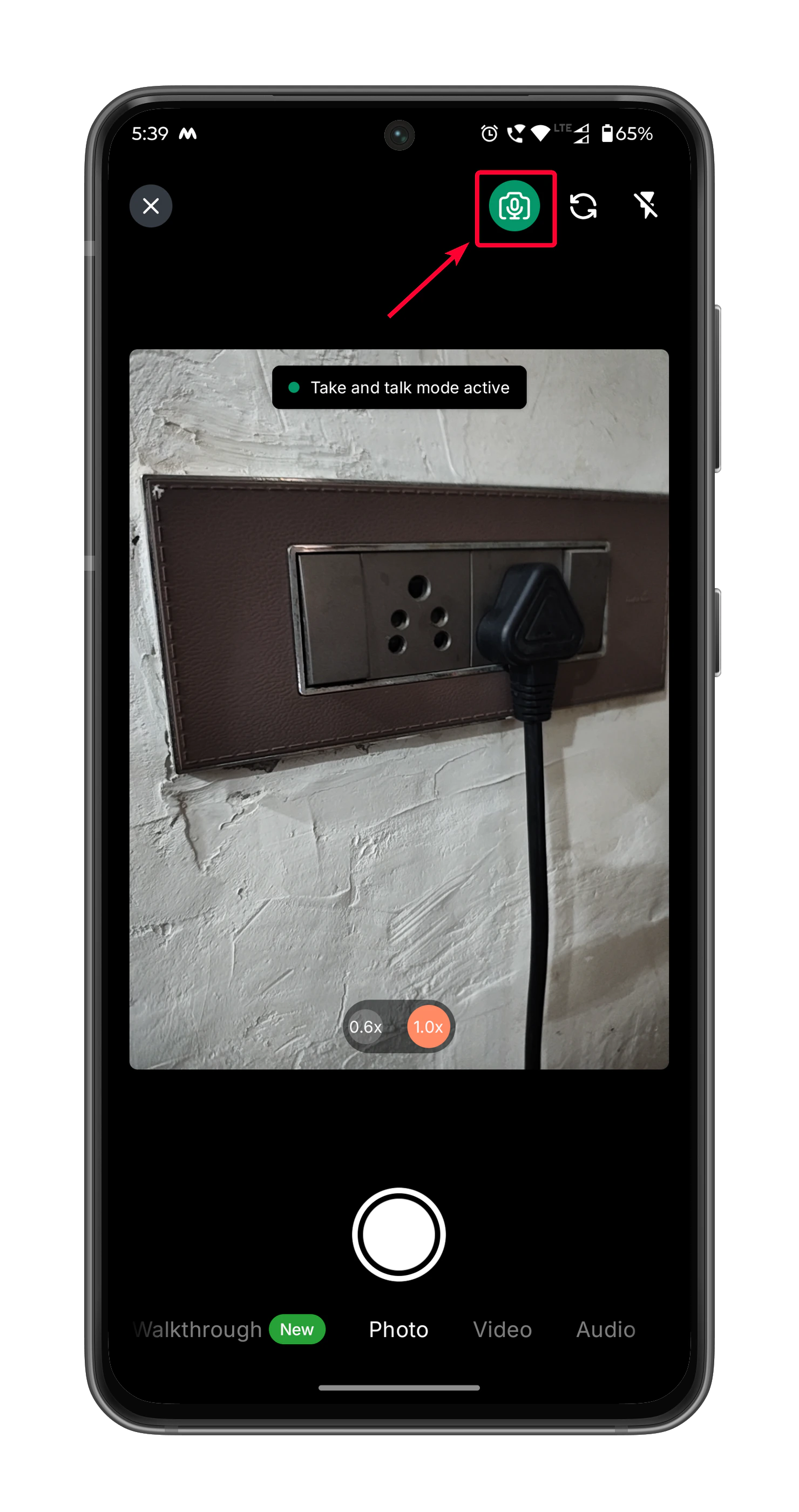 5. Once **Take and Talk mode is active**, capture a clear photo of the subject (e.g., completed work, issue, or equipment).
6. After taking the photo, you’ll be immediately prompted to begin speaking. Your voice input will be automatically transcribed and tagged as a description of the image.
5. Once **Take and Talk mode is active**, capture a clear photo of the subject (e.g., completed work, issue, or equipment).
6. After taking the photo, you’ll be immediately prompted to begin speaking. Your voice input will be automatically transcribed and tagged as a description of the image.
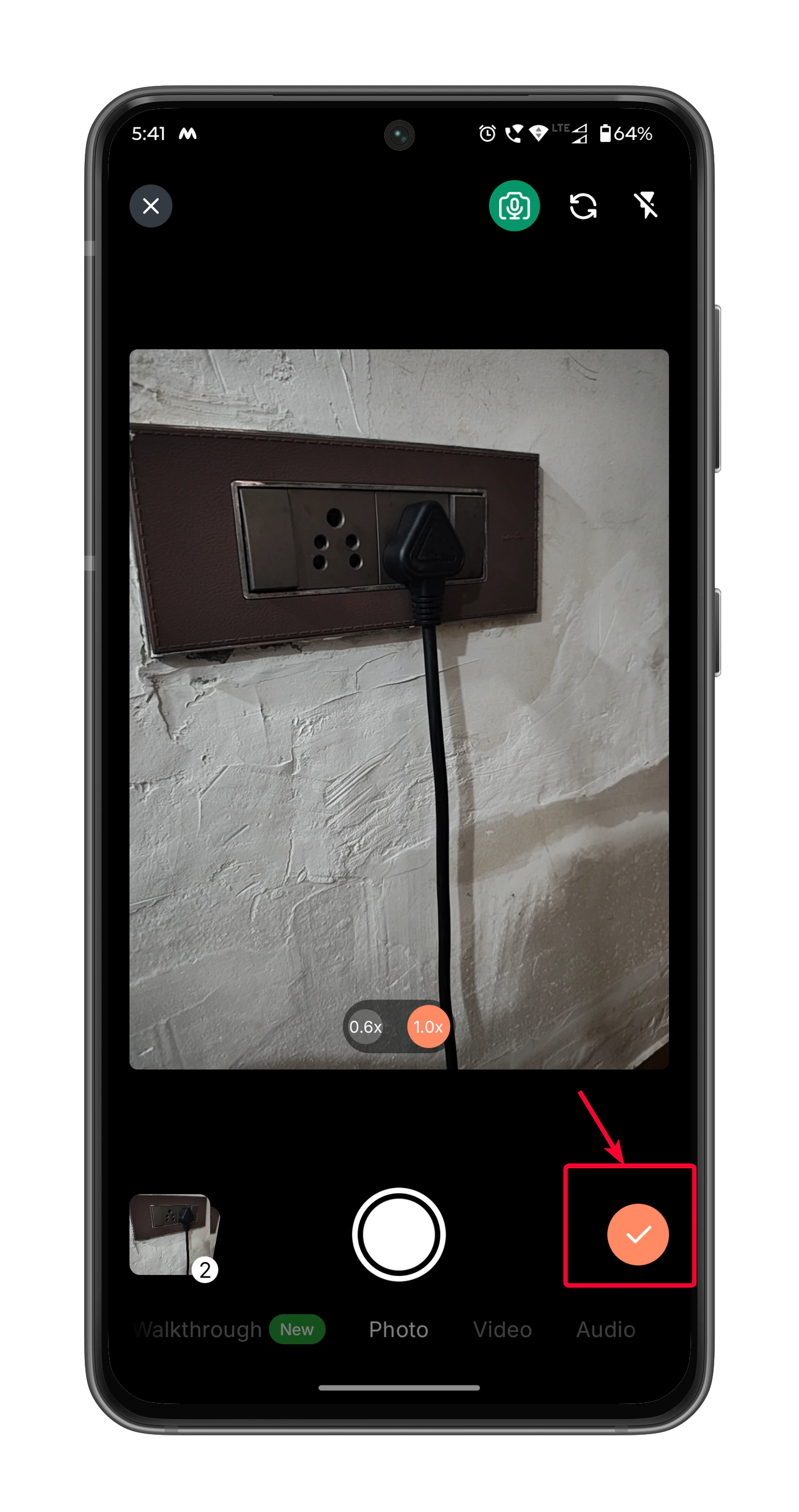
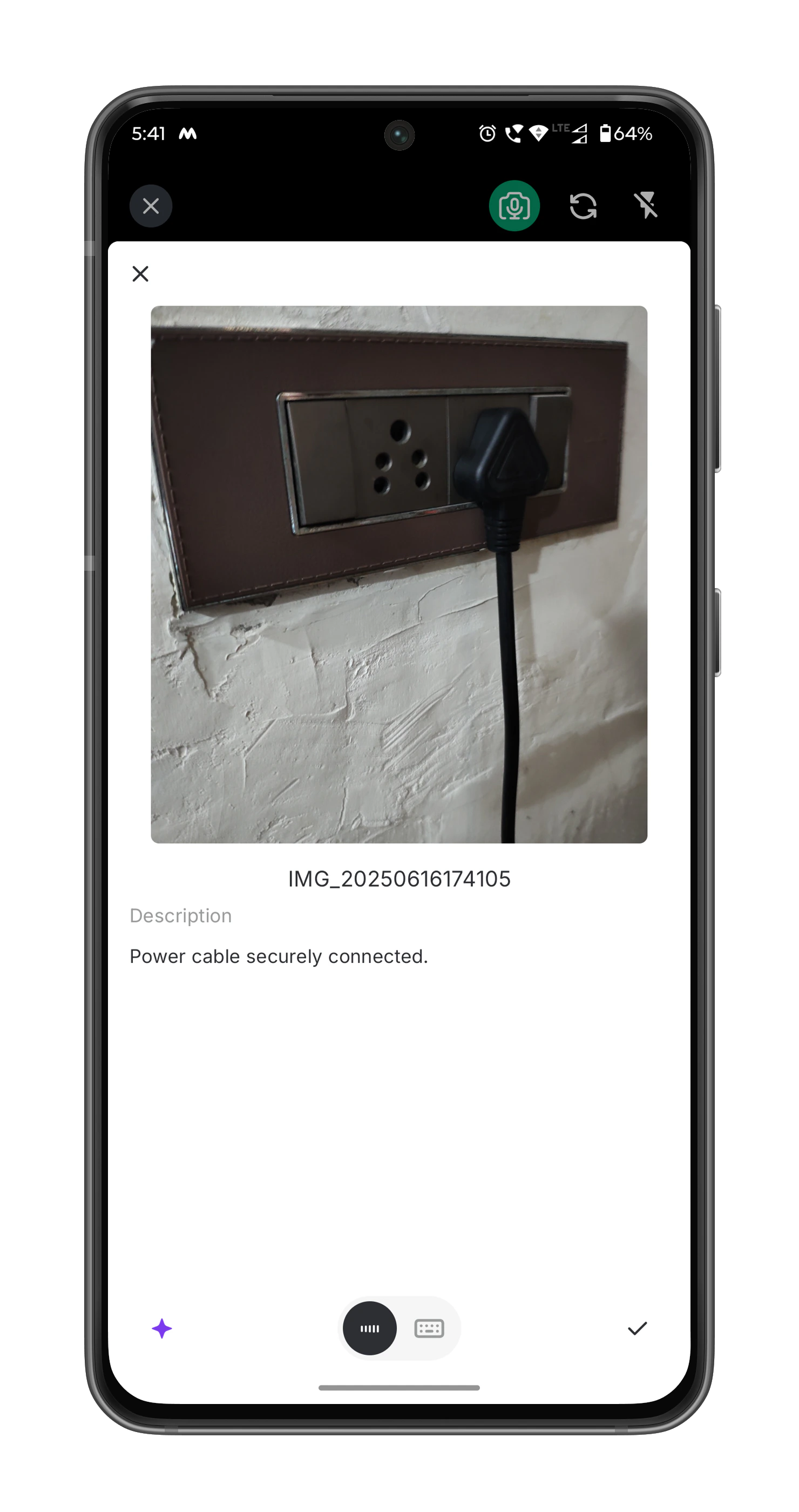 7. Tap the (tick) icon to proceed.
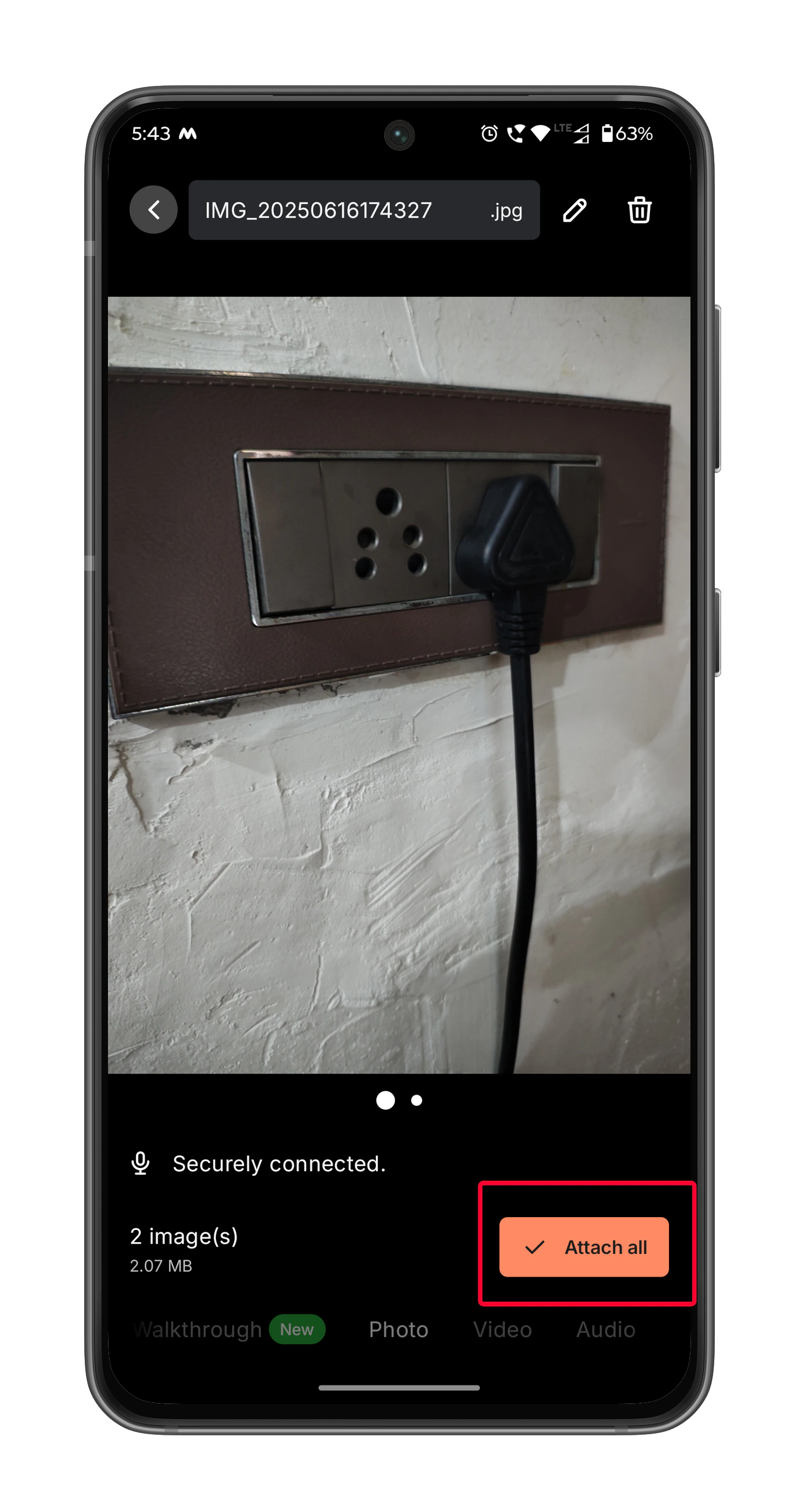
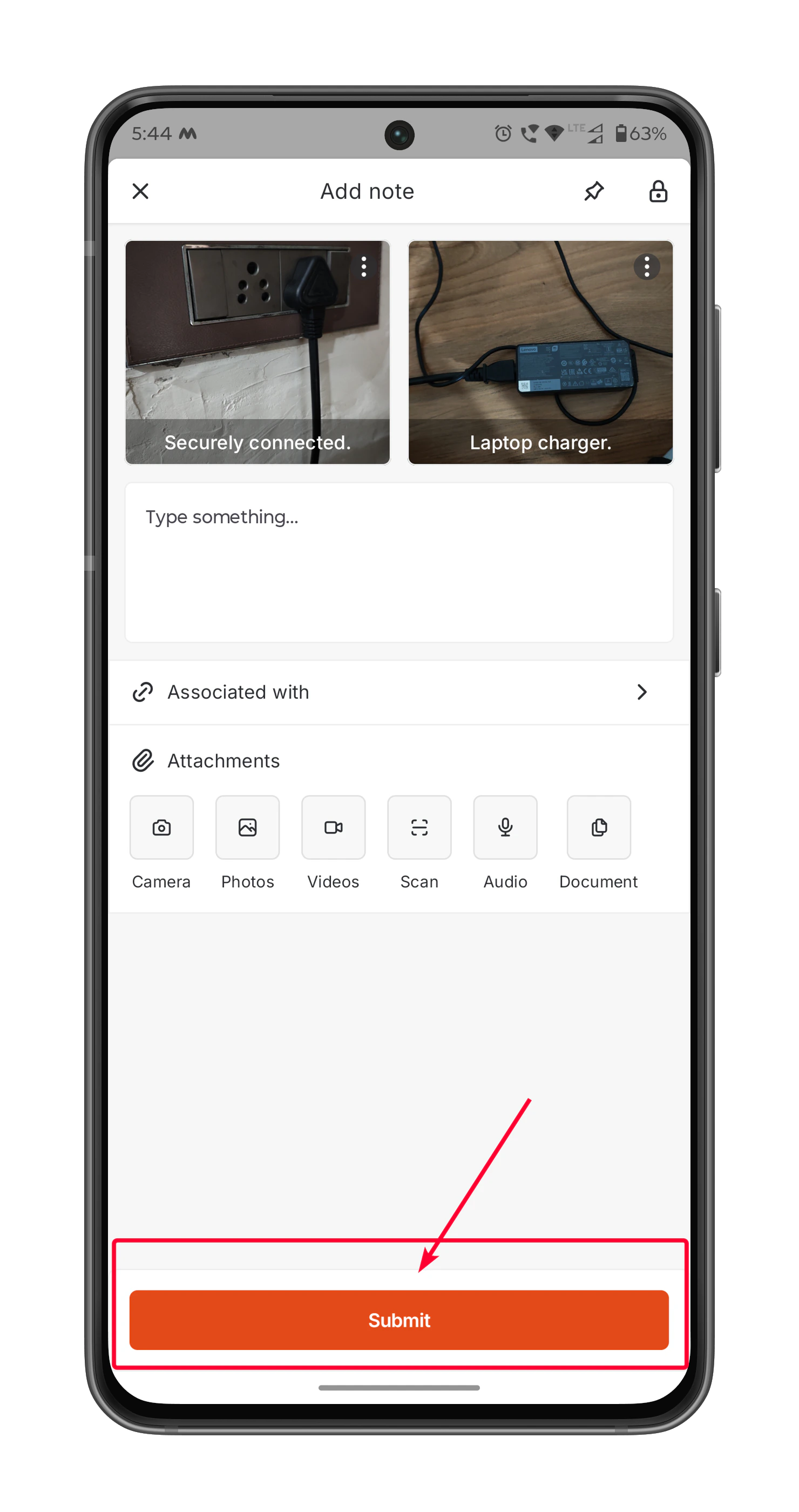
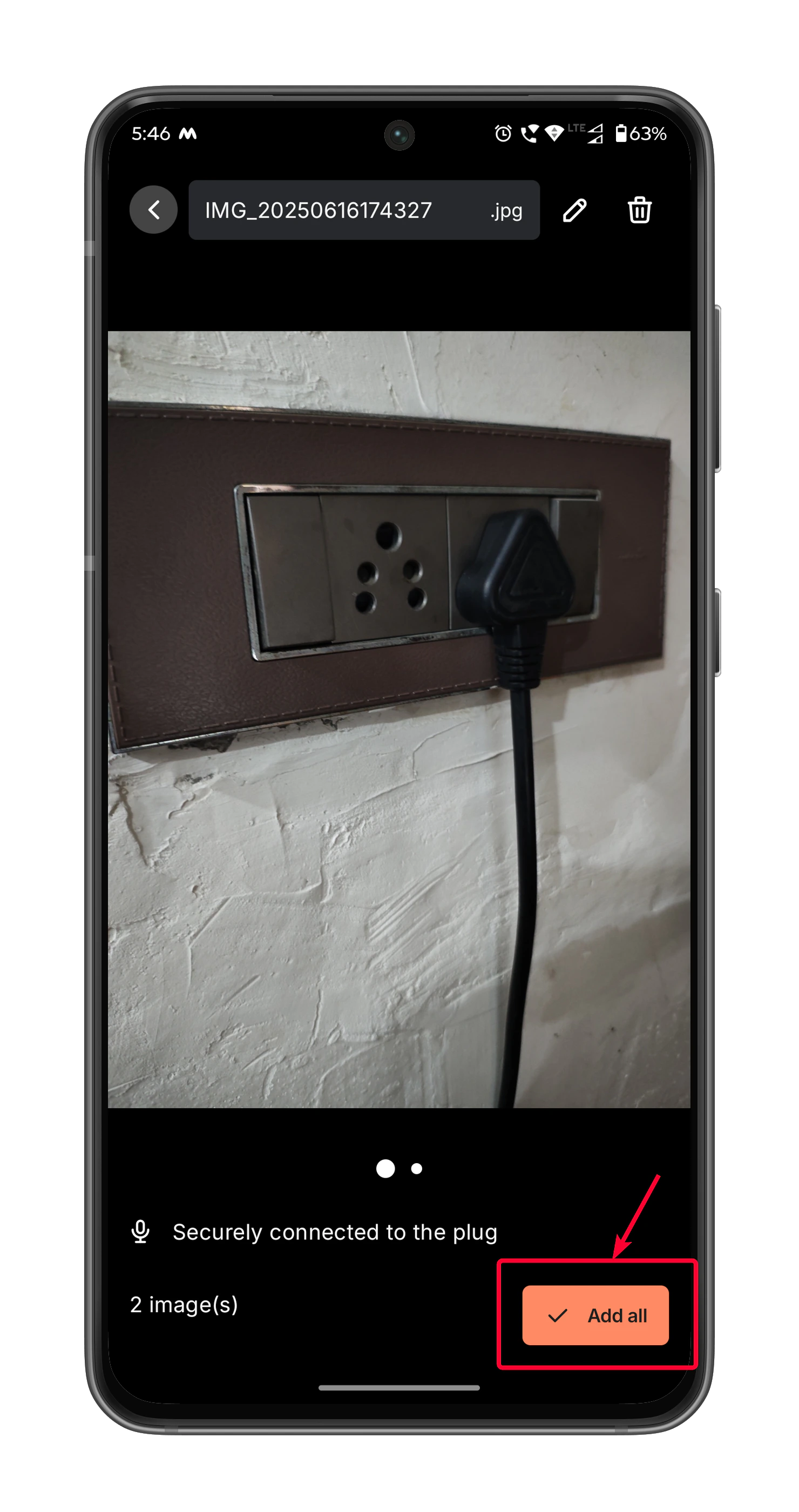
 8. Review the description tagged to the captured image, then click **Attach** to add the image with its description to the note.
 9. Click **Submit** to save the note.
 ### **Edit Description**
You can edit the description either before or after saving it using the **microphone input** or **manual editing** options.
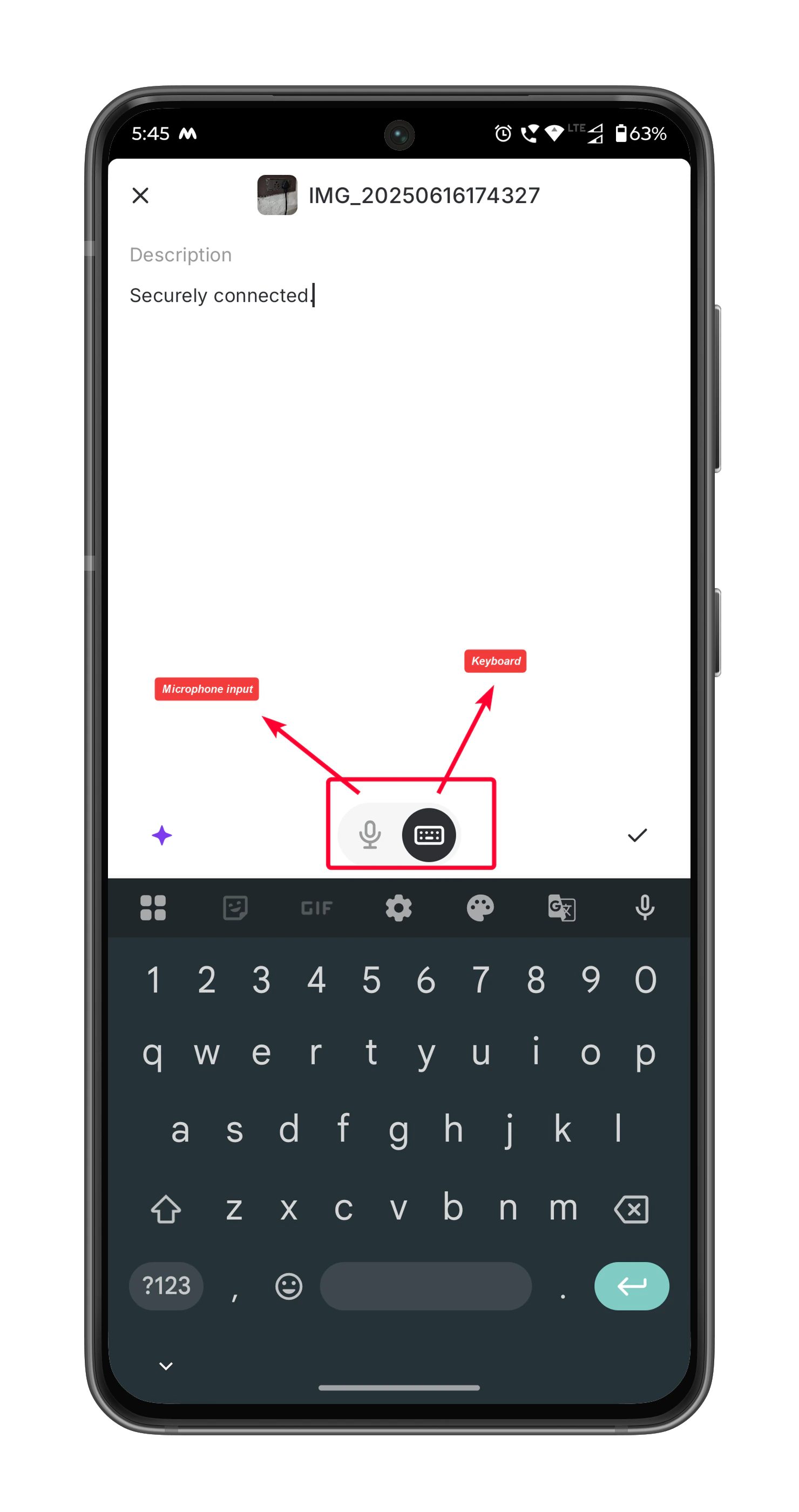
To edit the description before saving, **tap the transcribed text** tagged to the image during the review step.
### **Edit Description**
You can edit the description either before or after saving it using the **microphone input** or **manual editing** options.
To edit the description before saving, **tap the transcribed text** tagged to the image during the review step.
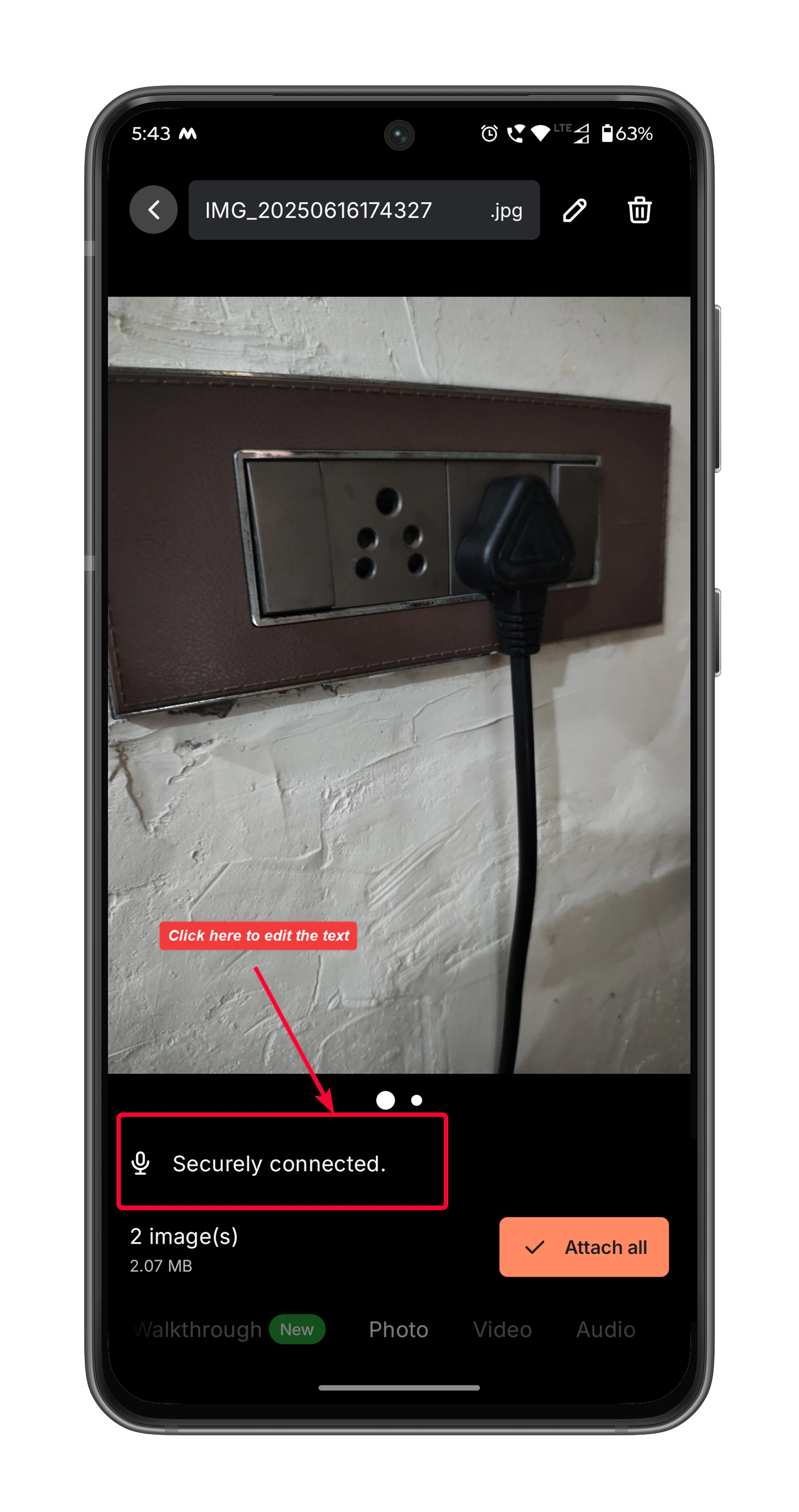 You have two editing options:
* **Microphone Input**\
Tap the microphone icon to add additional voice input. The new input will be transcribed and automatically appended to the existing description.
* **Manual Editing**\
Tap inside the text field to manually modify the transcribed content using the on-screen keyboard. You can correct, add, or remove text as needed.
You have two editing options:
* **Microphone Input**\
Tap the microphone icon to add additional voice input. The new input will be transcribed and automatically appended to the existing description.
* **Manual Editing**\
Tap inside the text field to manually modify the transcribed content using the on-screen keyboard. You can correct, add, or remove text as needed.
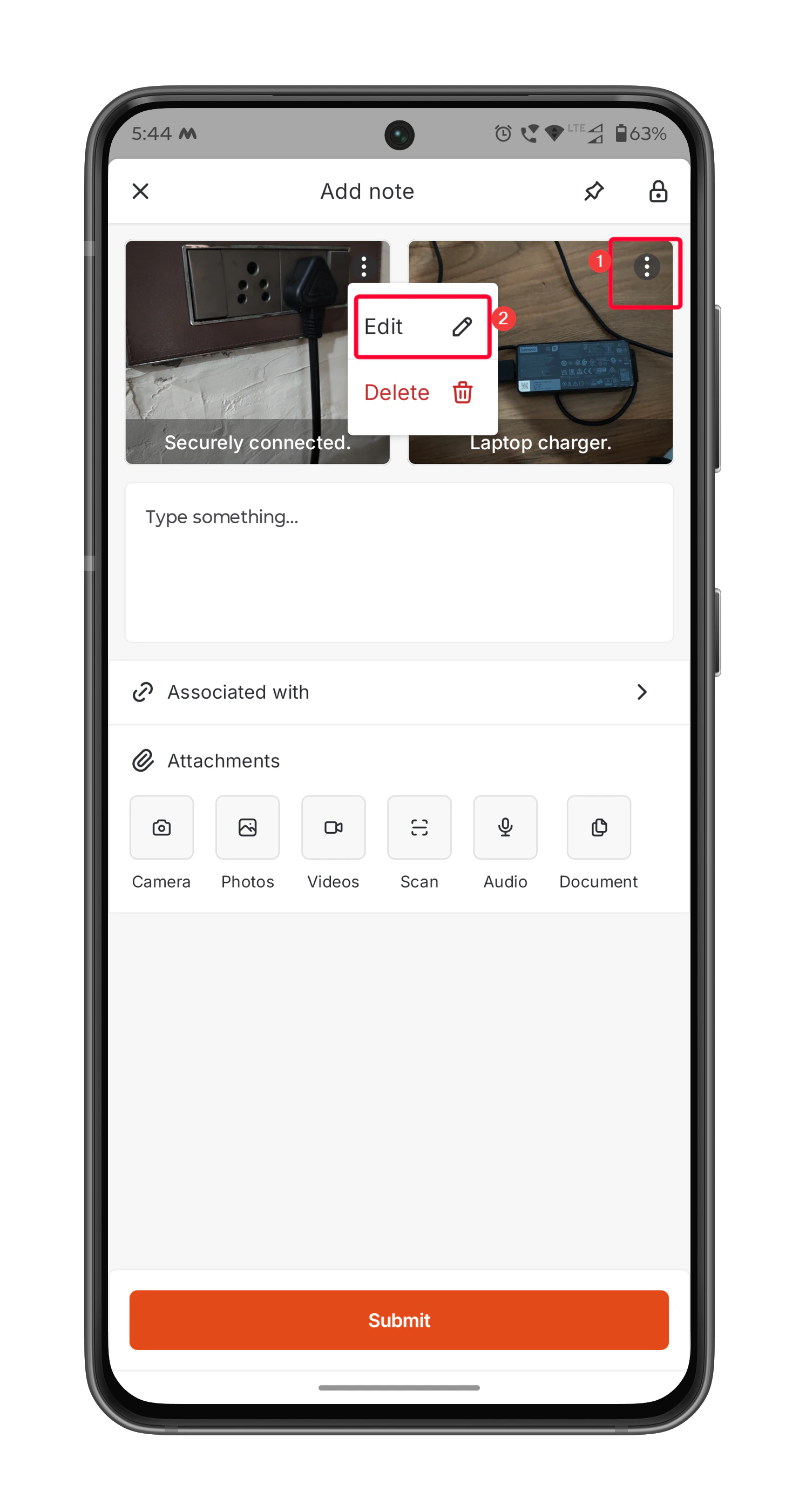
 If you need to make changes after the note has been saved:
1. On the **Add Note** page, locate the note you want to edit.
2. Tap the (Kebab icon) on the image.
3. Select **Edit** from the menu.
If you need to make changes after the note has been saved:
1. On the **Add Note** page, locate the note you want to edit.
2. Tap the (Kebab icon) on the image.
3. Select **Edit** from the menu.
 4. Make the necessary changes using **microphone input** or **manual editing** options, then click **Add** to update the note.
 ### **Refine Description with AI Capabilities**
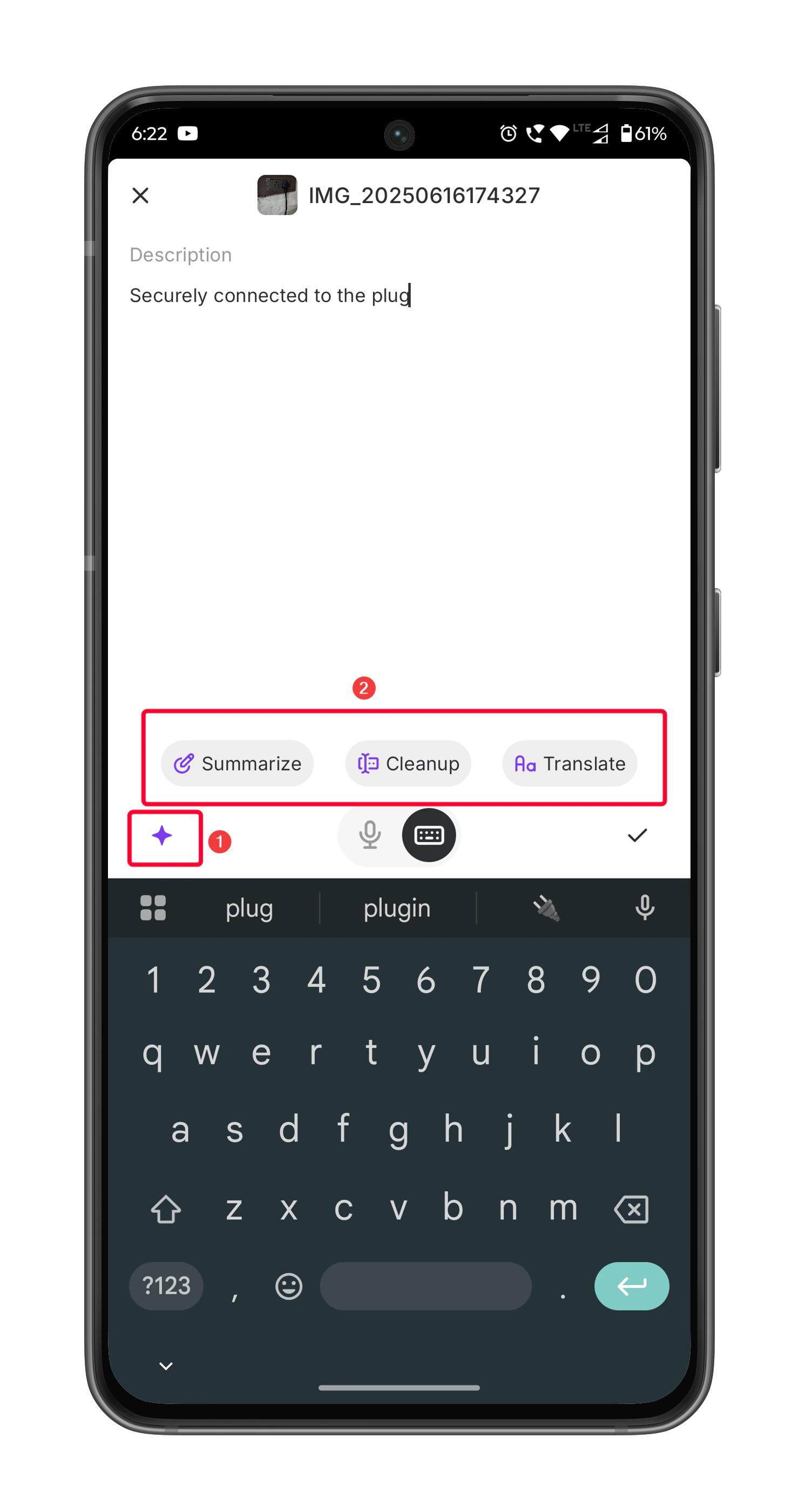
Zuper also offers AI-powered tools to further enhance your notes. These features help improve clarity, correctness, and accessibility:
### **Refine Description with AI Capabilities**
Zuper also offers AI-powered tools to further enhance your notes. These features help improve clarity, correctness, and accessibility:
 * **Summarize**\
Condenses long descriptions into a clear, concise summary, making notes easier to read and understand.
* **Clean Up**\
Automatically corrects grammar, spelling, punctuation, and sentence structure for professional, polished content.
* **Translate**\
Instantly translates notes into any of 17 supported languages, including Dutch, French, Slovenian, and Spanish—broadening accessibility for global teams.
* **Summarize**\
Condenses long descriptions into a clear, concise summary, making notes easier to read and understand.
* **Clean Up**\
Automatically corrects grammar, spelling, punctuation, and sentence structure for professional, polished content.
* **Translate**\
Instantly translates notes into any of 17 supported languages, including Dutch, French, Slovenian, and Spanish—broadening accessibility for global teams.