> ## Documentation Index
> Fetch the complete documentation index at: https://zuperinc-section23.mintlify.site/llms.txt
> Use this file to discover all available pages before exploring further.
# AI Call Summary
Zuper Connect introduces a powerful new capability called AI Call Summary. This feature leverages Zuper AI to automatically generate a **detailed summary of any recorded call**, including key discussion points and **actionable next steps**. It also performs a **sentiment analysis** to help you quickly determine whether the tone of the call was positive, negative, or neutral.
Once the summary is generated, it will appear directly within the **conversation thread**.
**Note:** This feature is available only on select Zuper plans. To enable it for your account, please contact your account administrator or email us at [support@zuper.co](mailto:support@zuper.co)
# Accessing the AI Call Summary
To view an AI-generated call summary:
* From the **left navigation menu**, click **Zuper Connect**.
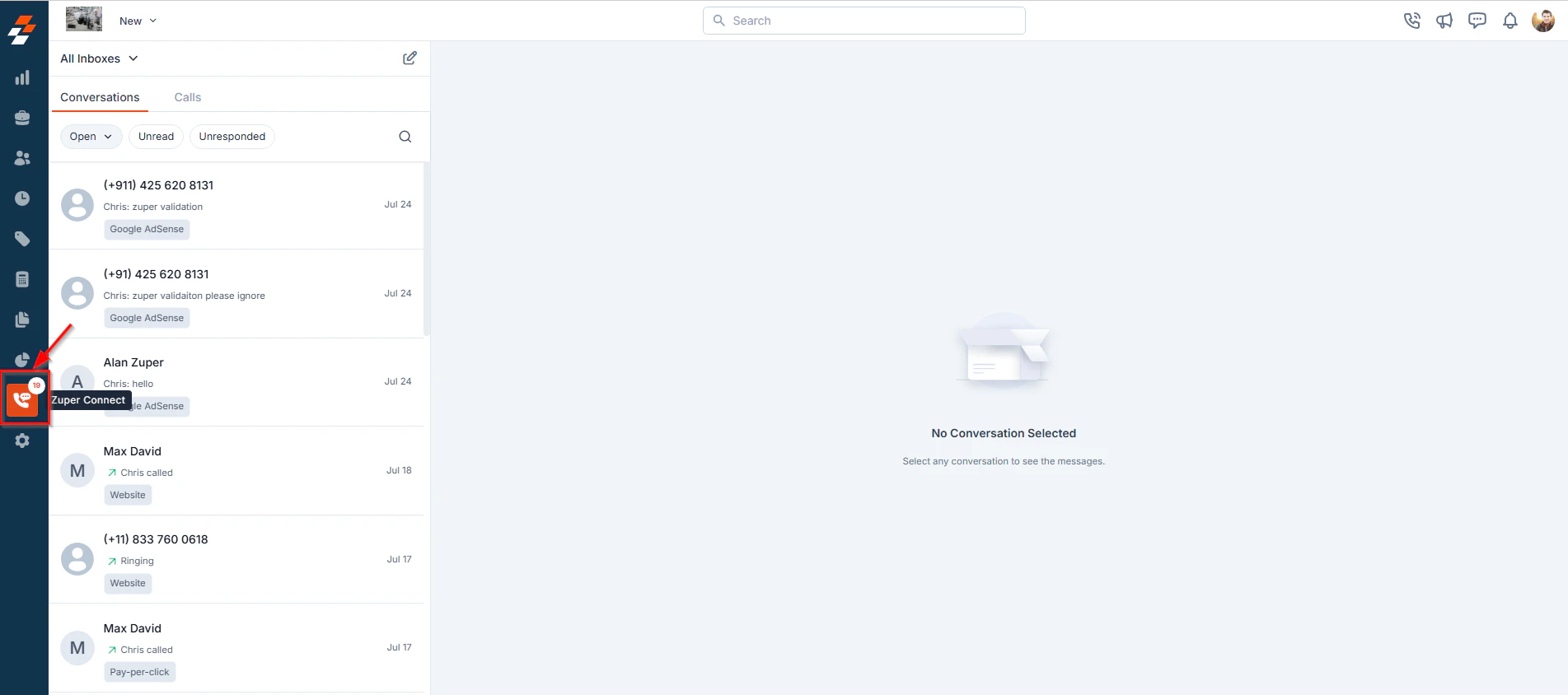 * You will be directed to the **Conversations Listing** page.
* Click on a conversation from the **Conversations Listing** page to open a **Conversation Thread** view.
* You will be directed to the **Conversations Listing** page.
* Click on a conversation from the **Conversations Listing** page to open a **Conversation Thread** view.
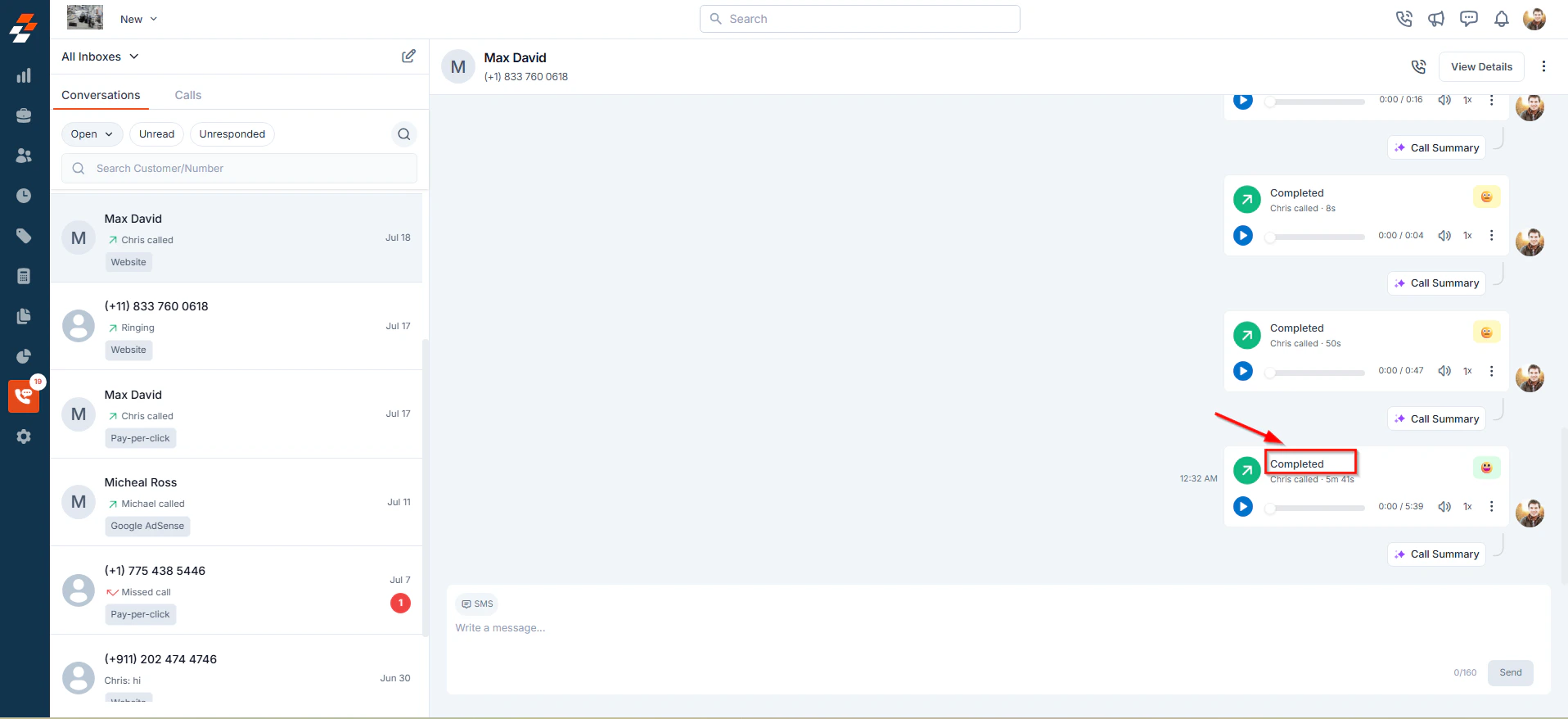
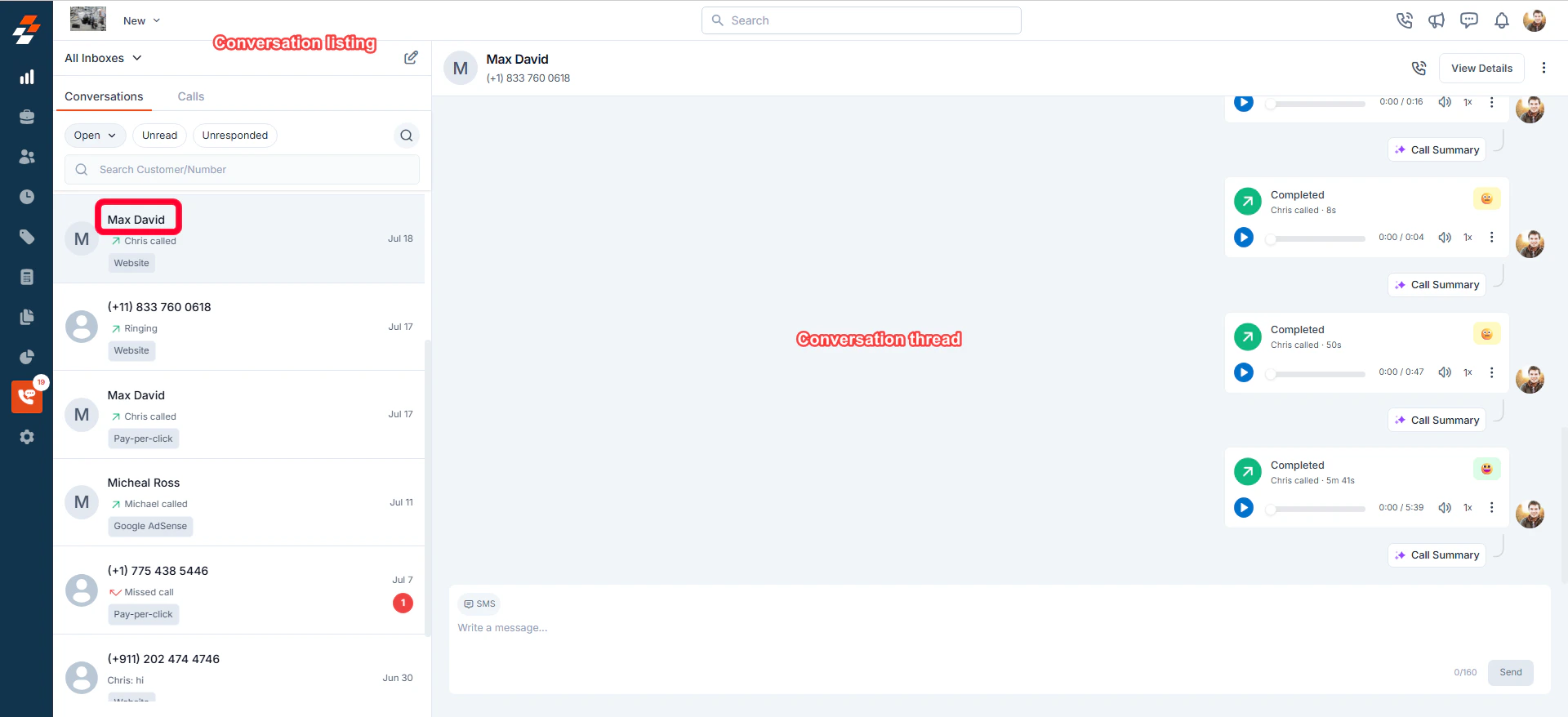 * You can see a chronological history of all interactions related to that conversation, including Incoming/Outgoing calls, Messages, delivery status & duration of each call.
If a call was recorded, the **call recording** will be available within the thread—along with the **AI-generated Call Summary**, which appears directly beneath the recording.
* You can see a chronological history of all interactions related to that conversation, including Incoming/Outgoing calls, Messages, delivery status & duration of each call.
If a call was recorded, the **call recording** will be available within the thread—along with the **AI-generated Call Summary**, which appears directly beneath the recording.
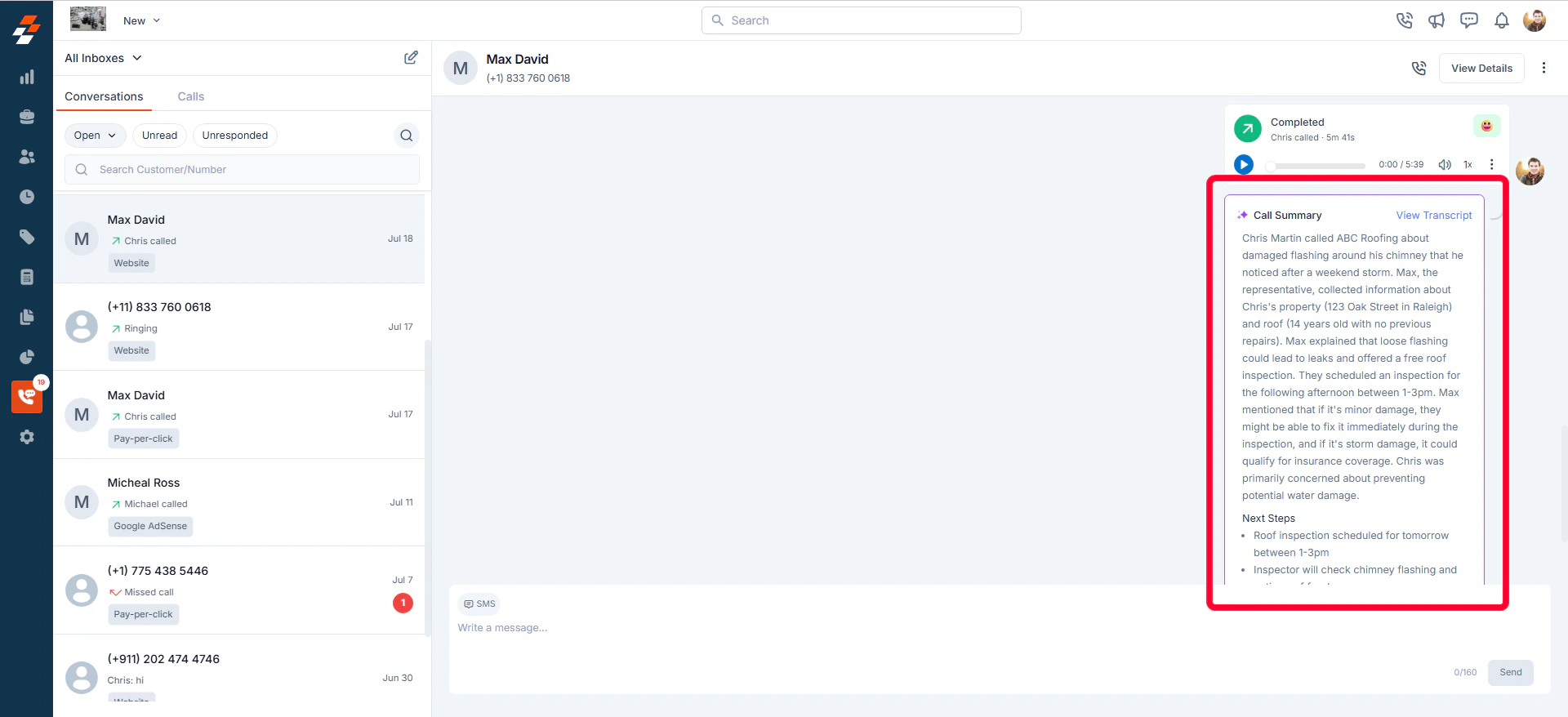
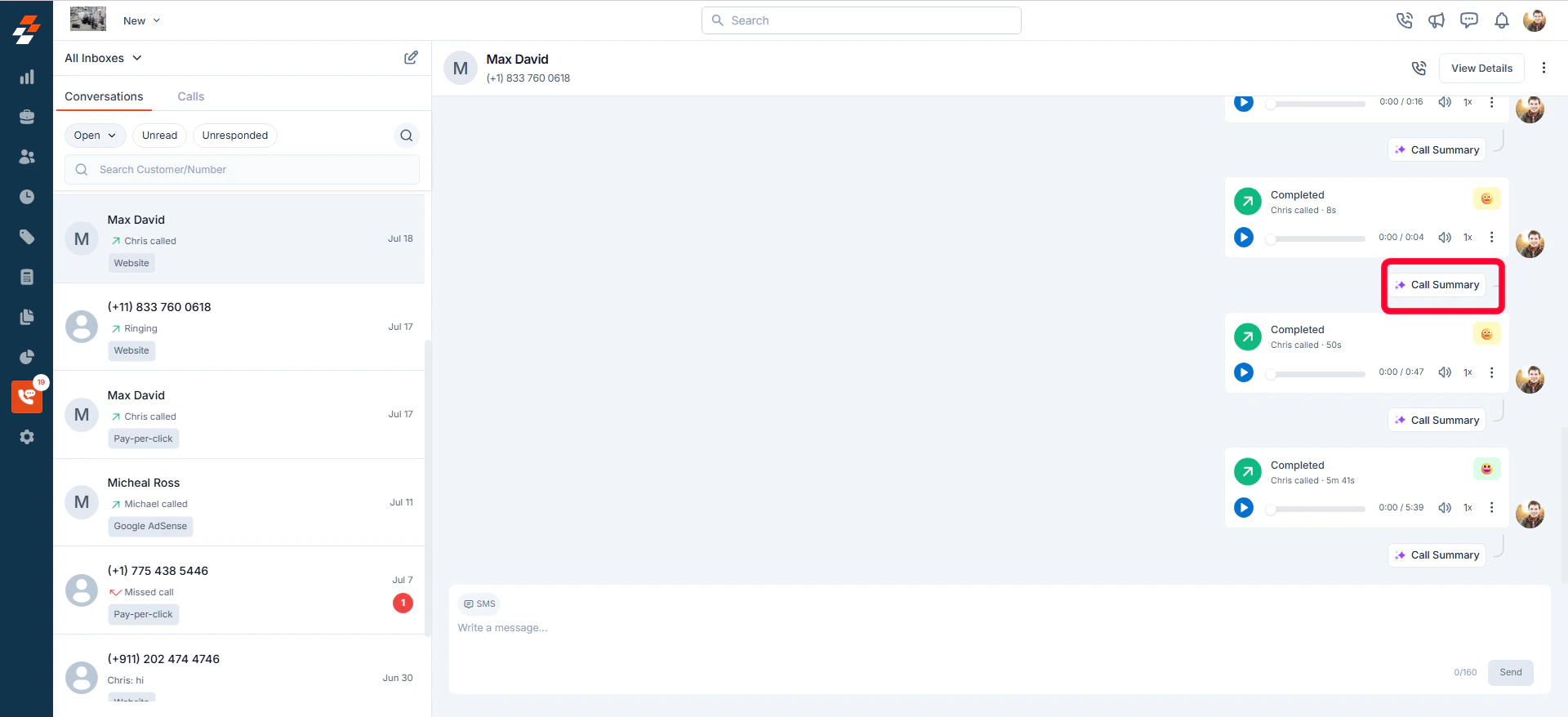 * Click the **Call Summary** to expand and view the summarized call and any suggested follow-up actions.
 This view gives you a quick, high-level overview of all communication activity for that conversation.
## Alternate Way to View Call Summary
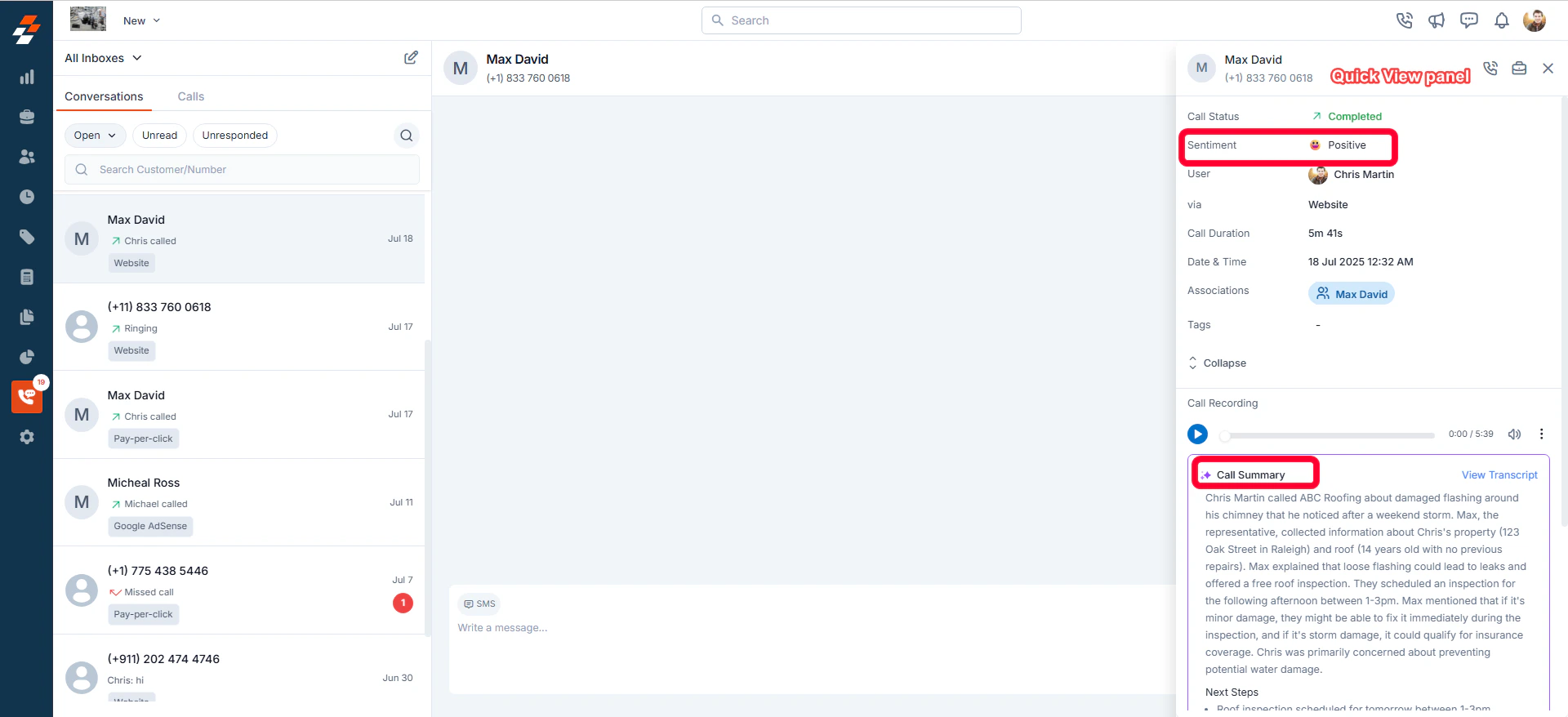
You can also view the AI-generated call summary from the call's Quick View panel for deeper insights into the conversation.
* Click on the call entry within the conversation thread.
This view gives you a quick, high-level overview of all communication activity for that conversation.
## Alternate Way to View Call Summary
You can also view the AI-generated call summary from the call's Quick View panel for deeper insights into the conversation.
* Click on the call entry within the conversation thread.
 * This opens a Quick View panel, where you’ll find the Call Summary section powered by Zuper AI, along with sentiment analysis of the conversation.
 # What is Included in the AI Call Summary?
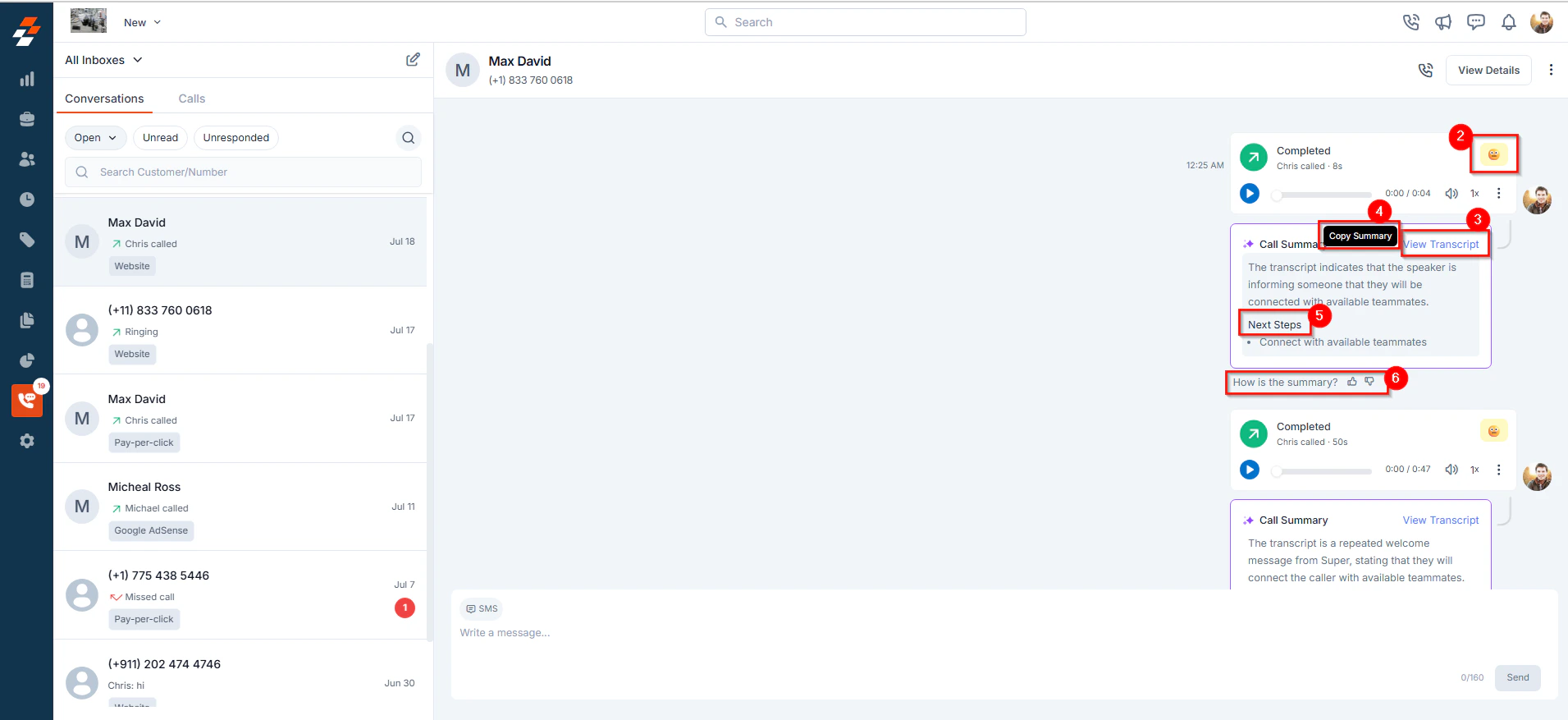
For every recorded call, Zuper AI automatically generates a call summary that includes:
1. A concise summary of the conversation (up to 5000 characters)
2. Sentiment Analysis indicating whether the overall tone of the call was **Positive**, **Negative**, or **Neutral**.
3. An option to “**View Transcript**” for more detailed context.
4. The ability to hover and copy the summary for reuse.
5. Next steps or follow-up actions intelligently inferred by Zuper AI.
6. A feedback prompt—“**How is the summary?**”—to help us continuously improve the feature.
# What is Included in the AI Call Summary?
For every recorded call, Zuper AI automatically generates a call summary that includes:
1. A concise summary of the conversation (up to 5000 characters)
2. Sentiment Analysis indicating whether the overall tone of the call was **Positive**, **Negative**, or **Neutral**.
3. An option to “**View Transcript**” for more detailed context.
4. The ability to hover and copy the summary for reuse.
5. Next steps or follow-up actions intelligently inferred by Zuper AI.
6. A feedback prompt—“**How is the summary?**”—to help us continuously improve the feature.
 **Note:** Call summaries are generated **only for recorded calls**. If a call is not recorded, a summary will not be available.
By enabling AI Call Summary in Zuper Connect, you can improve response time, follow up efficiently, and ensure nothing gets missed during customer interactions. Let Zuper AI do the listening, so your team can focus on the doing!
**Frequently Asked Questions**
1. **Will sensitive information be included in the AI summary?**
No. Sensitive details such as PINs, passwords, and private financial information are automatically excluded from the summary.
2. **Which languages are supported for call summaries?**
Currently, **call summaries are supported in English only.**
3. **Will every call have a summary?**
No. Only **recorded calls** are eligible for AI-generated summaries.
4. **What does the call summary include?**
The summary contains two main parts:
* **Generic Call Summary** – A brief of the conversation between the two speakers.
* **Next Steps** – AI-suggested follow-ups or actions based on the discussion.
For example, if a customer asks for an installation schedule, Zuper AI may suggest creating a job or assigning a technician as the next step.
***
**Note:** Call summaries are generated **only for recorded calls**. If a call is not recorded, a summary will not be available.
By enabling AI Call Summary in Zuper Connect, you can improve response time, follow up efficiently, and ensure nothing gets missed during customer interactions. Let Zuper AI do the listening, so your team can focus on the doing!
**Frequently Asked Questions**
1. **Will sensitive information be included in the AI summary?**
No. Sensitive details such as PINs, passwords, and private financial information are automatically excluded from the summary.
2. **Which languages are supported for call summaries?**
Currently, **call summaries are supported in English only.**
3. **Will every call have a summary?**
No. Only **recorded calls** are eligible for AI-generated summaries.
4. **What does the call summary include?**
The summary contains two main parts:
* **Generic Call Summary** – A brief of the conversation between the two speakers.
* **Next Steps** – AI-suggested follow-ups or actions based on the discussion.
For example, if a customer asks for an installation schedule, Zuper AI may suggest creating a job or assigning a technician as the next step.
***