> ## Documentation Index
> Fetch the complete documentation index at: https://zuperinc-section23.mintlify.site/llms.txt
> Use this file to discover all available pages before exploring further.
# Getting a new Phone number
Zuper Connect simplifies business communication by providing dedicated phone numbers for seamless interactions with customers and team members. Whether you need a ***local number*** to establish a regional presence or a ***toll-free number*** for customer convenience, Zuper makes it easy to set up a phone number that meets your business needs.
In this article, you will learn how to get a new Zuper phone number for your business, ensuring smooth and professional communication with your stakeholders. Follow these steps to get started and customize your settings to match your preferences.
## Accessing Phone number settings
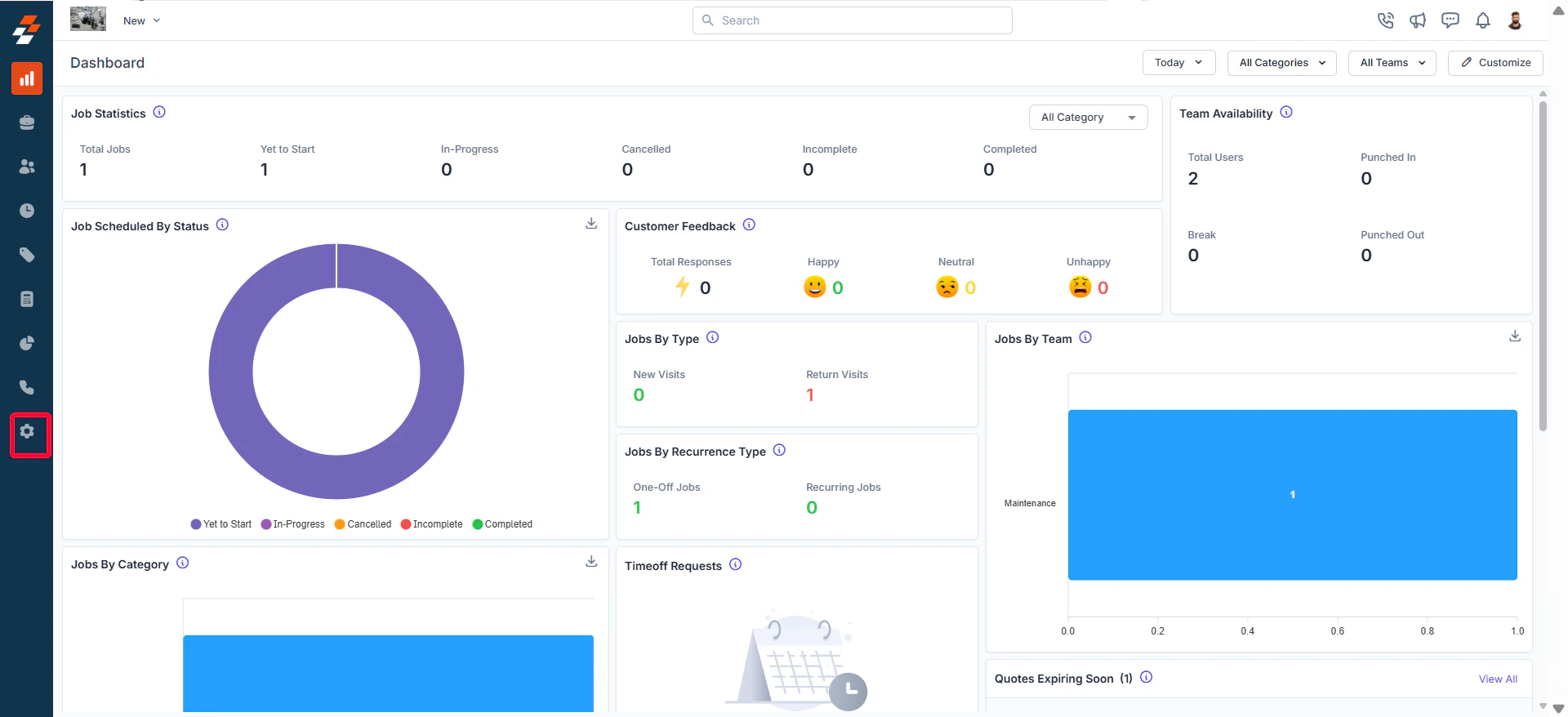
* Select the “**Settings**” module from the left navigation menu.
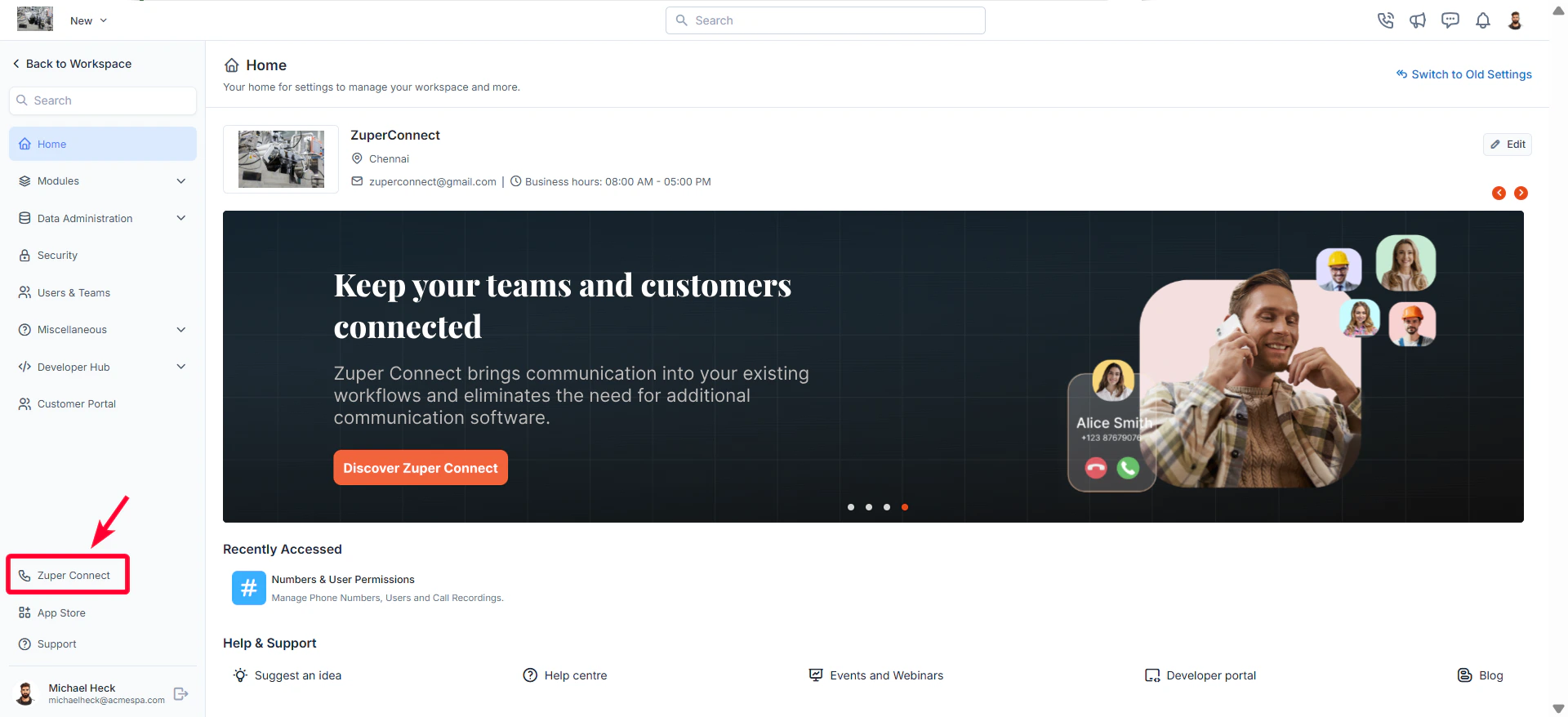
 * On the settings page, click “**Zuper Connect**." The Zuper Connect settings page will appear.
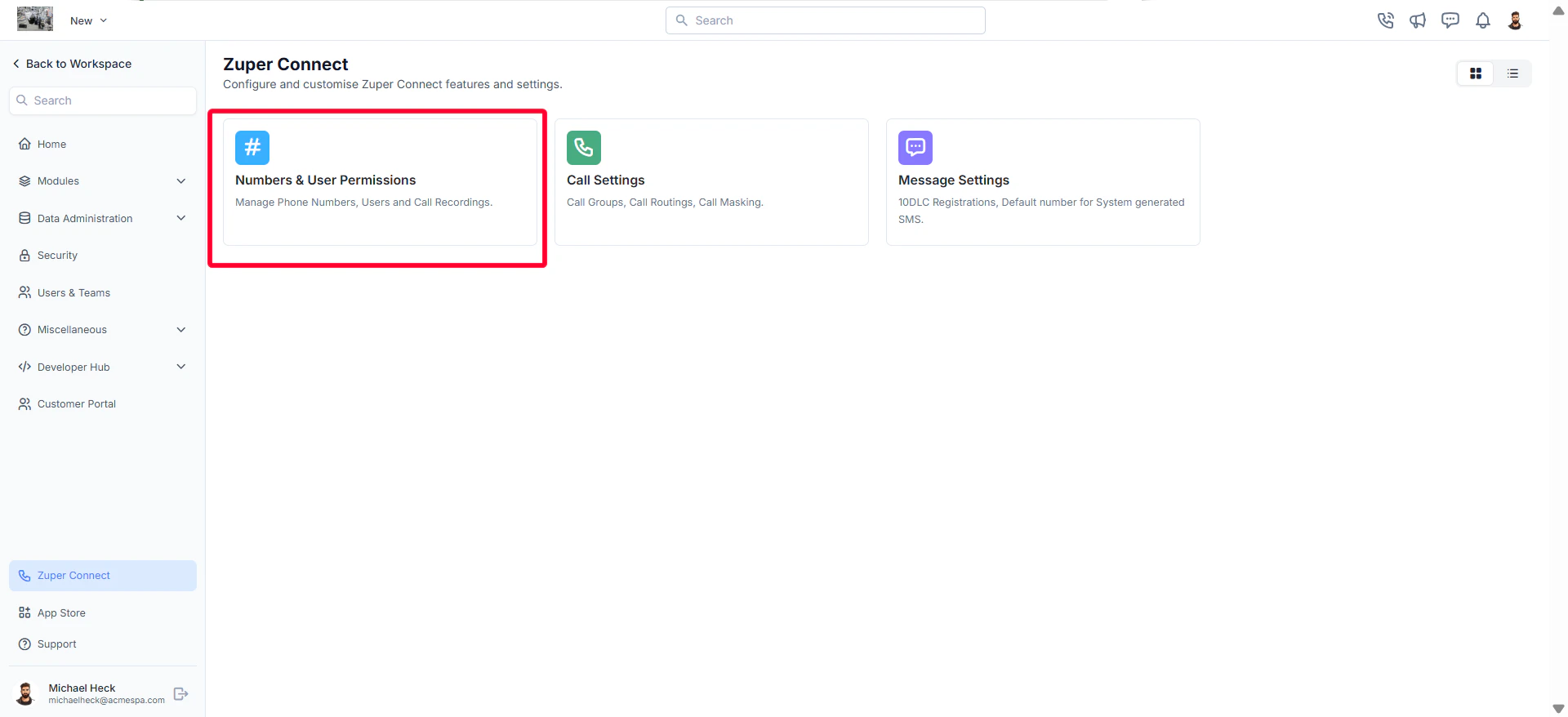
 * Select “**Numbers & User Permissions**.” By default, you will land on the Phone Numbers listing page.
 ## Adding a new Zuper phone number
To add a new Zuper phone number,
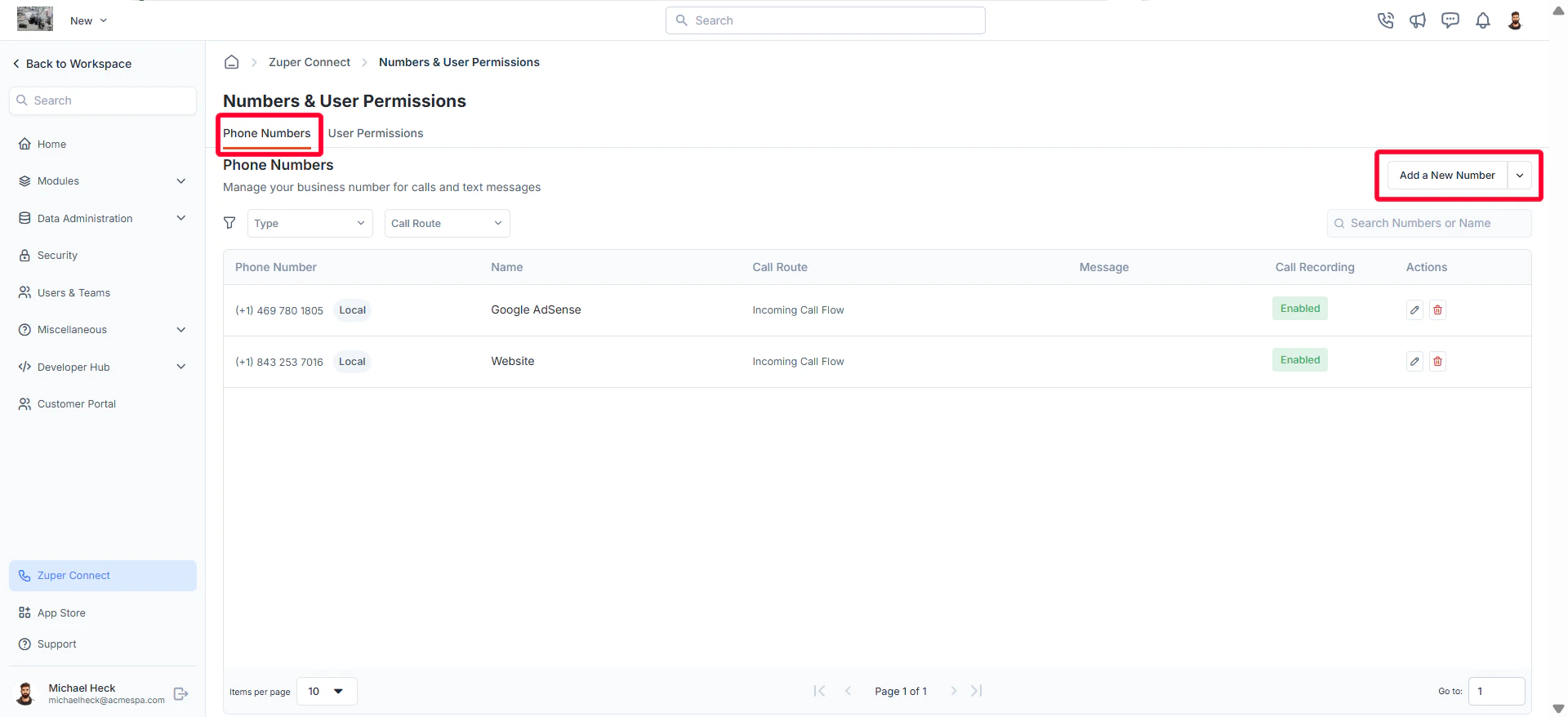
* Click the “**Add a New Number**” button at the top right corner of the page. A dialog box will appear.
## Adding a new Zuper phone number
To add a new Zuper phone number,
* Click the “**Add a New Number**” button at the top right corner of the page. A dialog box will appear.
 * Choose your number type. Based on your selection, a number will be generated below.
1. **Local Number**: A region-specific number that helps establish a local presence and build customer trust.
2. **Toll-Free Number:** A cost-free number for customers, ideal for businesses with a nationwide reach.
* If you wish to change the number, click “**Change**.” A new dialog box will open, allowing you to choose a preferred number by ***city***, ***area code***, or ***specific digits***. Click “**Get Number”** to confirm.
* Choose your number type. Based on your selection, a number will be generated below.
1. **Local Number**: A region-specific number that helps establish a local presence and build customer trust.
2. **Toll-Free Number:** A cost-free number for customers, ideal for businesses with a nationwide reach.
* If you wish to change the number, click “**Change**.” A new dialog box will open, allowing you to choose a preferred number by ***city***, ***area code***, or ***specific digits***. Click “**Get Number”** to confirm.
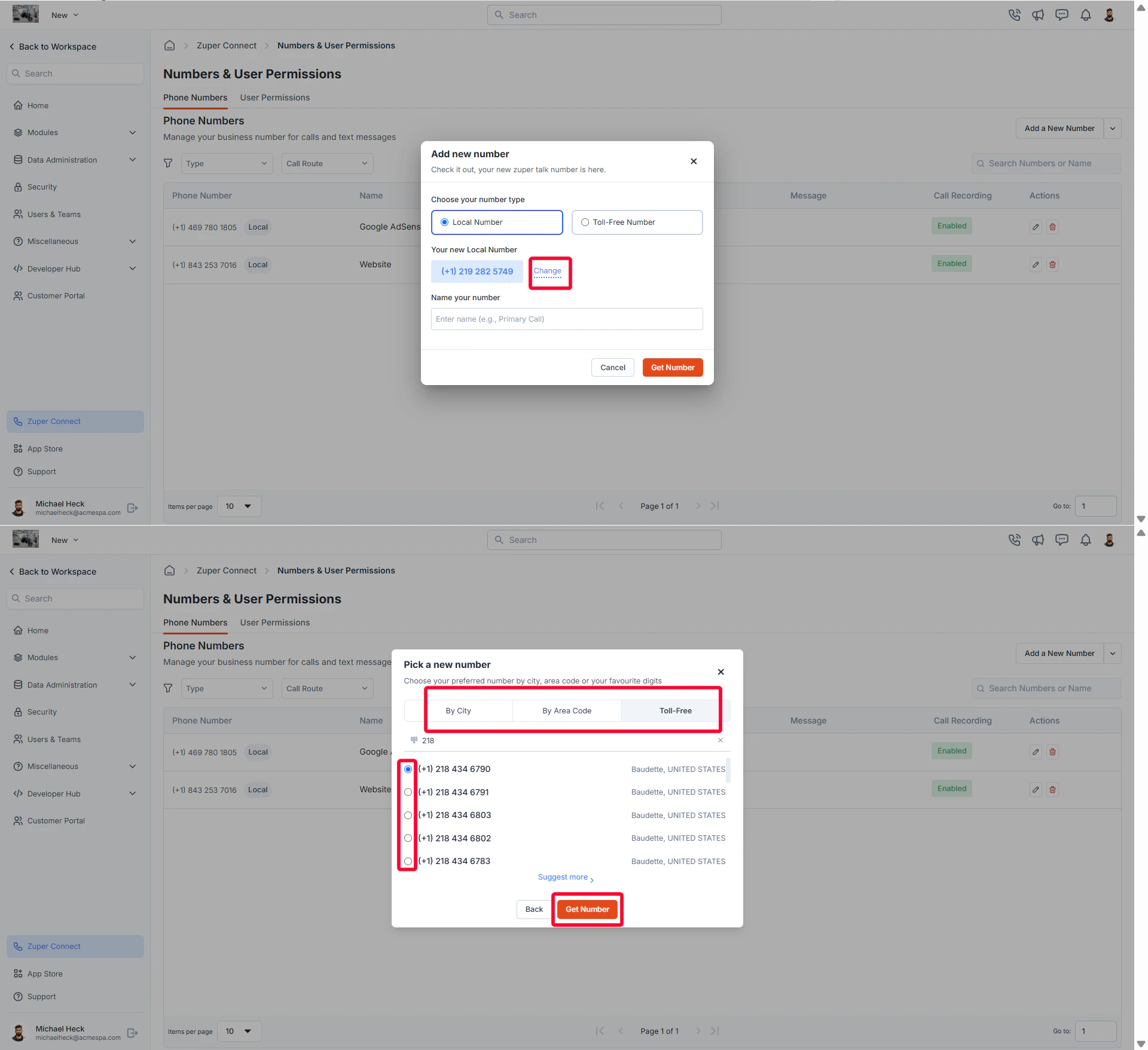 **Note**: If you’d like more options, click **Suggest More** to display additional numbers.
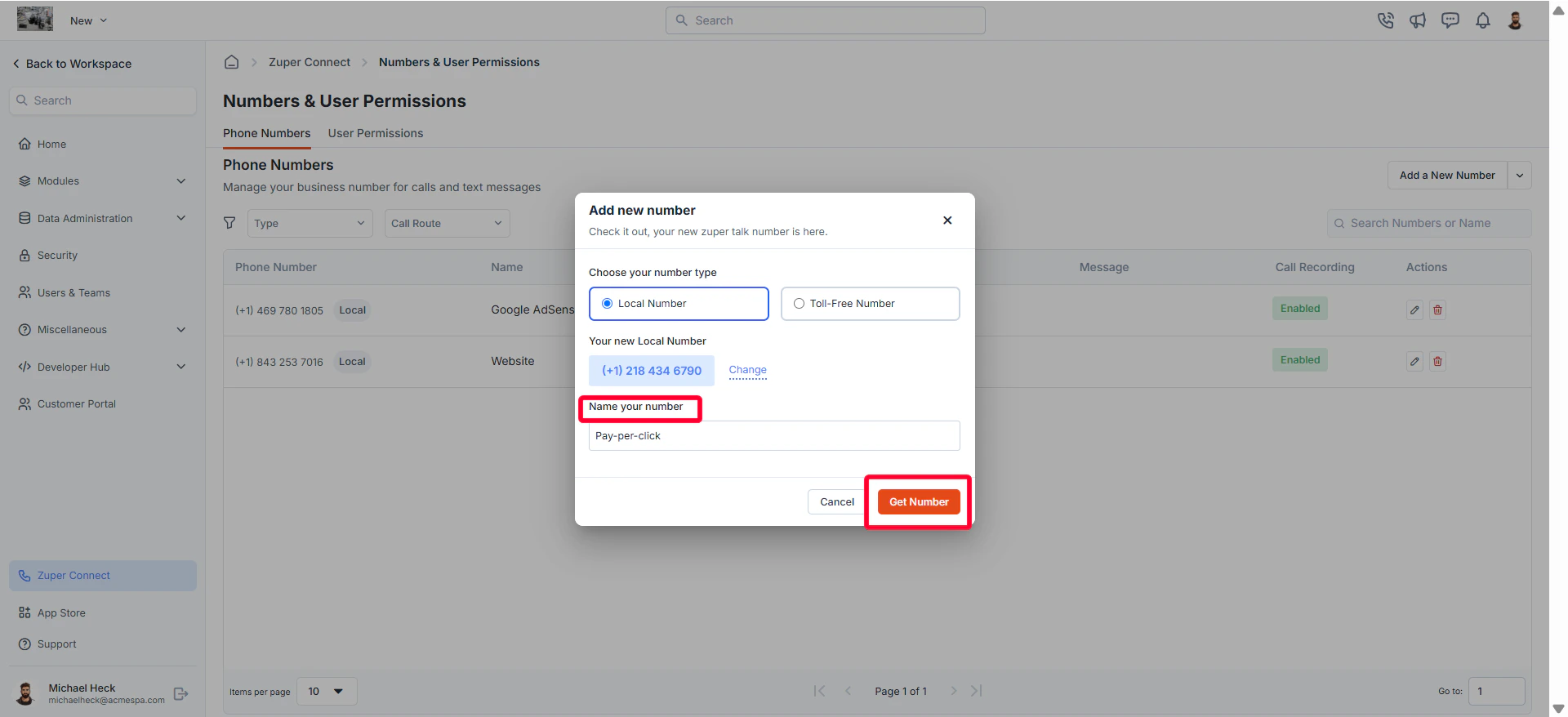
* Enter a name for the number and click the “**Get Number**” button to finalize your selection. Your new number is now ready.
**Note**: If you’d like more options, click **Suggest More** to display additional numbers.
* Enter a name for the number and click the “**Get Number**” button to finalize your selection. Your new number is now ready.
 ### Set up call routing
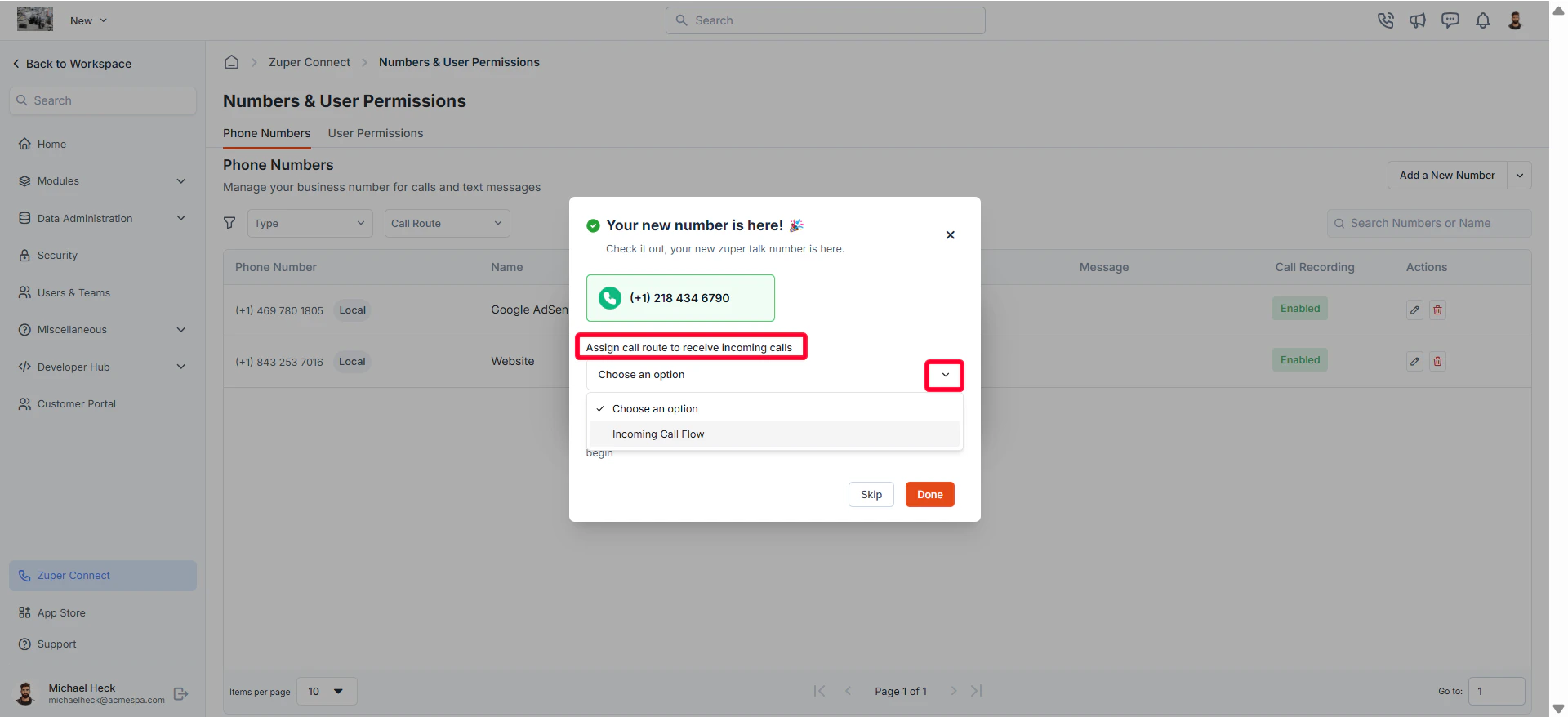
After getting a new number, you can assign a call route to handle incoming calls. All calls directed to this number will follow the assigned routing flow.
* Select a call route from the drop-down menu. (For more details, see [How to create a call routing](https://docs.zuper.co/Zuper_Connect/Setup-Zuper-Connect/call_routing).)
### Set up call routing
After getting a new number, you can assign a call route to handle incoming calls. All calls directed to this number will follow the assigned routing flow.
* Select a call route from the drop-down menu. (For more details, see [How to create a call routing](https://docs.zuper.co/Zuper_Connect/Setup-Zuper-Connect/call_routing).)
 * Enable or disable **Auto Call Recording** as needed.
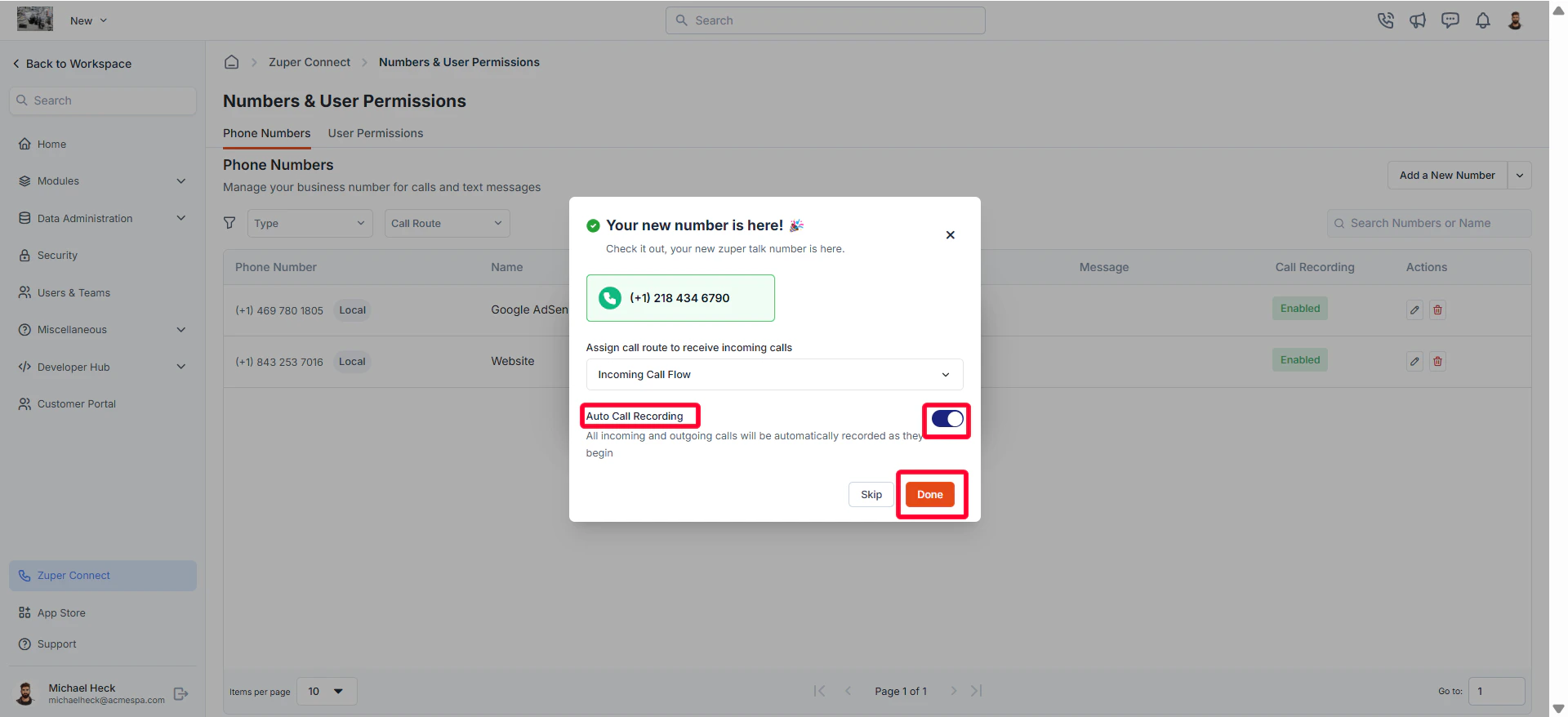 **Note:** When the call recording feature is enabled in your settings, all calls to this number will be recorded automatically. If recording is paused during an active call, it cannot be resumed for that session. Recorded calls are securely stored and can be accessed based on your purchased license.
### Call Recording Announcement (Auto-play)
You can choose to automatically announce when a call is being recorded. This helps ensure transparency with customers.
**To enable the call recording announcement:**
1. Navigate to **Settings** → **Zuper Connect** → **Call Settings** → **General Settings**.
2. Locate the option **Recording Announcement (Auto-play)**.
3. Toggle the setting to **Enable**.
**Note:** When the call recording feature is enabled in your settings, all calls to this number will be recorded automatically. If recording is paused during an active call, it cannot be resumed for that session. Recorded calls are securely stored and can be accessed based on your purchased license.
### Call Recording Announcement (Auto-play)
You can choose to automatically announce when a call is being recorded. This helps ensure transparency with customers.
**To enable the call recording announcement:**
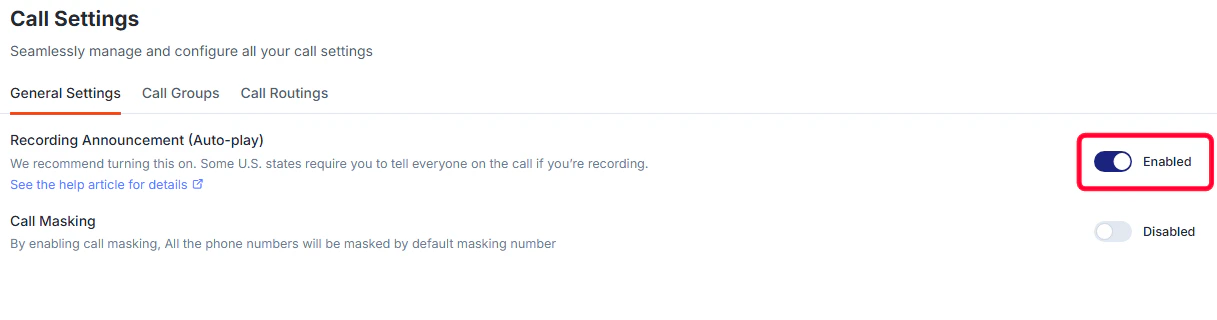
1. Navigate to **Settings** → **Zuper Connect** → **Call Settings** → **General Settings**.
2. Locate the option **Recording Announcement (Auto-play)**.
3. Toggle the setting to **Enable**.
 **When enabled:**
* At the start of every recorded call, Zuper will automatically play an announcement informing the other party that the call is being recorded.
* This ensures compliance with communication guidelines and provides transparency to participants.
**When disabled:**
* No announcement will be auto-played. The call will still be recorded (if recording is active), but the participants will not hear an automated notification.
**Recommendation:** Keep this setting enabled, as certain U.S. states require notifying all participants when a call is being recorded. For more details on the states that require notification, click [here](https://docs.zuper.co/Zuper_Connect/Setup-Zuper-Connect/getting_zuper_phone_number#faqs)
## Edit a Phone Number
* On the **Phone Numbers** listing page, click the icon next to the phone number you want to update.
**When enabled:**
* At the start of every recorded call, Zuper will automatically play an announcement informing the other party that the call is being recorded.
* This ensures compliance with communication guidelines and provides transparency to participants.
**When disabled:**
* No announcement will be auto-played. The call will still be recorded (if recording is active), but the participants will not hear an automated notification.
**Recommendation:** Keep this setting enabled, as certain U.S. states require notifying all participants when a call is being recorded. For more details on the states that require notification, click [here](https://docs.zuper.co/Zuper_Connect/Setup-Zuper-Connect/getting_zuper_phone_number#faqs)
## Edit a Phone Number
* On the **Phone Numbers** listing page, click the icon next to the phone number you want to update.
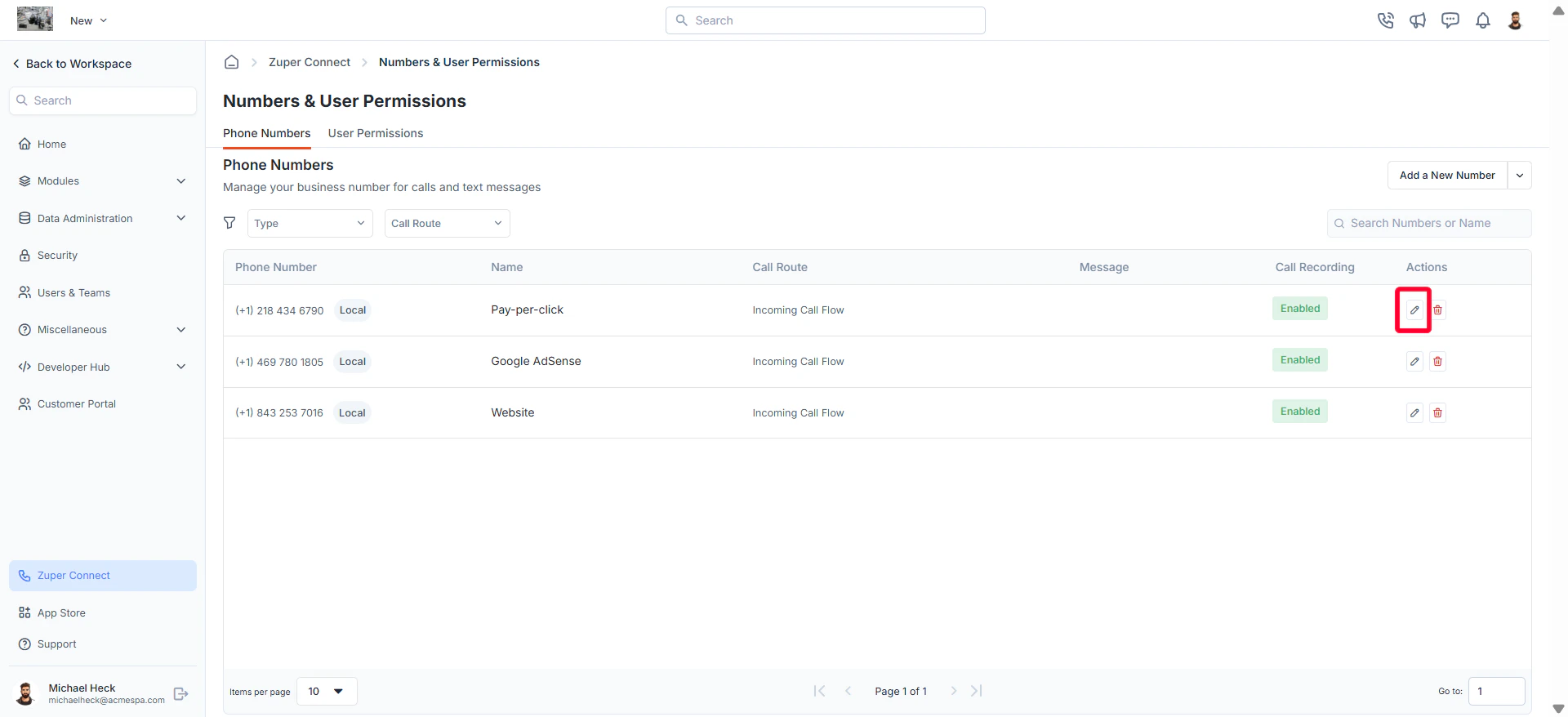 Tip: Use filters to sort phone numbers by **Type (Local/Toll-Free)** or **Call Route Name**, or use the **Search Bar** to quickly find and manage specific numbers.
* The **Update Number** dialog box opens.
* Modify the following details as needed and click **Save** to apply your changes.
1. **Name** assigned to the number.
2. Call route.
3. **Auto Call Recording** (enable/disable).
Tip: Use filters to sort phone numbers by **Type (Local/Toll-Free)** or **Call Route Name**, or use the **Search Bar** to quickly find and manage specific numbers.
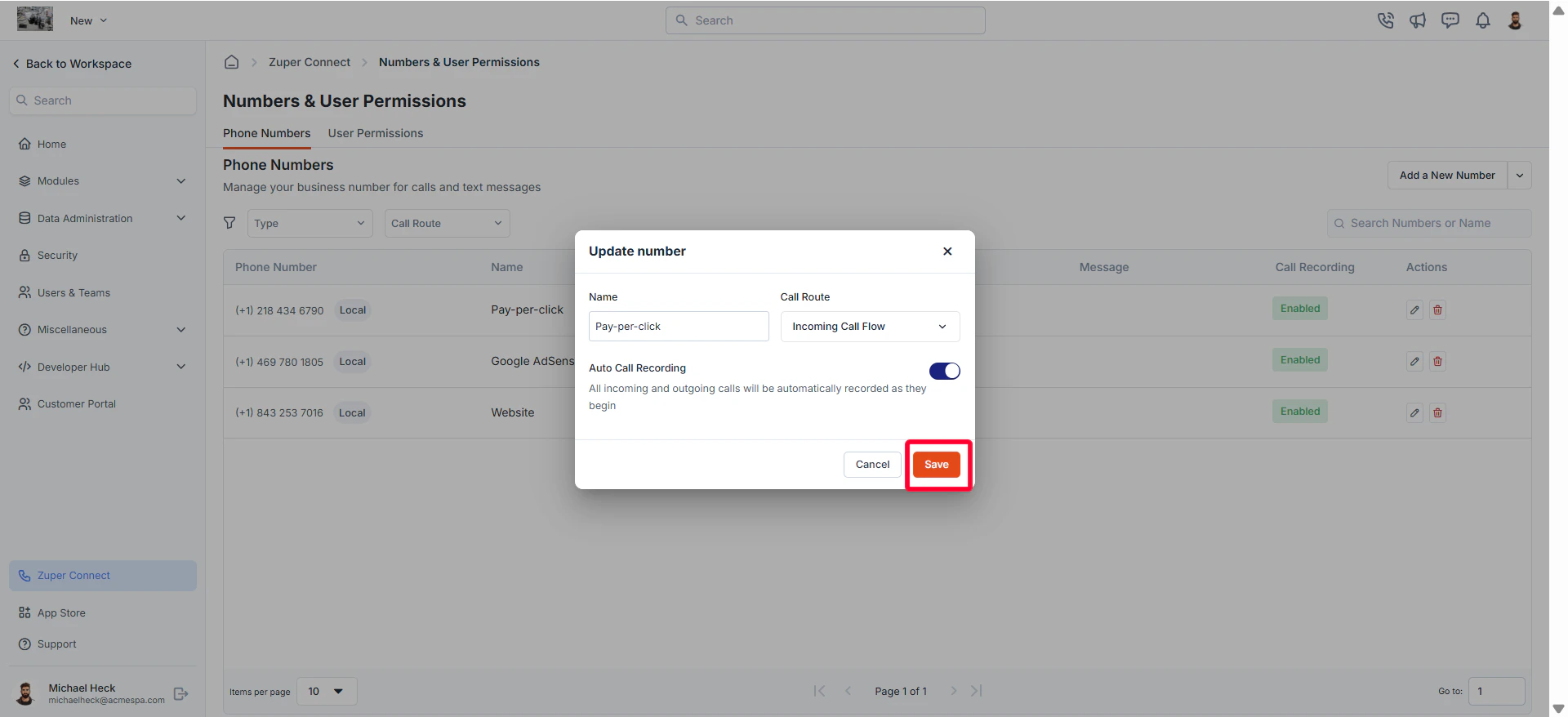
* The **Update Number** dialog box opens.
* Modify the following details as needed and click **Save** to apply your changes.
1. **Name** assigned to the number.
2. Call route.
3. **Auto Call Recording** (enable/disable).
 **Note:** The phone number itself cannot be changed.
## Delete a Phone Number
* On the **Phone Numbers** listing page, click the icon next to the phone number you want to delete.
**Note:** The phone number itself cannot be changed.
## Delete a Phone Number
* On the **Phone Numbers** listing page, click the icon next to the phone number you want to delete.
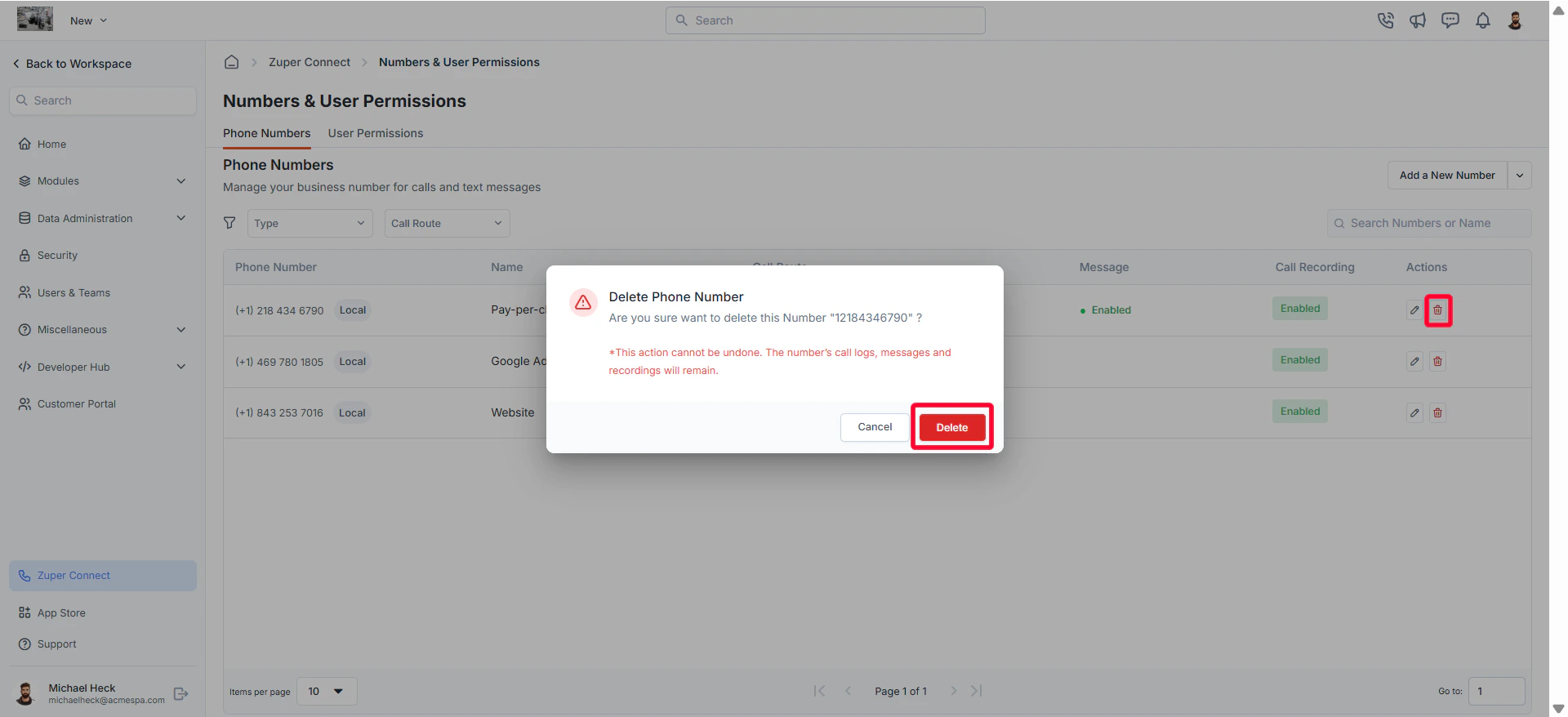 * A confirmation dialog box appears.
* Click **Delete** to delete the phone number.
**Note**: Deleting a phone number will **not** remove its call logs, messages, or recordings—they will remain accessible.
## FAQs
1. When do I need to tell callers that a call is being recorded?
In several U.S. states, you must tell **everyone on the call** if you’re recording. The safest practice is to play a short announcement (or a periodic beep) on **every** recorded call, especially when people may be in different states.
**States where you should always tell everyone on the call**\
These states generally require that **everyone on the call** knows about (and agrees to) a **telephone** recording:
* **California**
* **Connecticut** (for telephone calls)
* **Florida**
* **Illinois**
* **Maryland**
* **Massachusetts**
* **Montana**
* **Nevada** (for phone calls)
* **New Hampshire**
* **Pennsylvania**
* **Washington**
**Note:**
* **Delaware** and **Michigan** have nuances that make rules less clear. Many businesses play it safe and **tell everyone** on the call.
* If callers are in **different states**, the stricter state’s rule can apply. Announcing at the start is the lowest-risk approach.
What counts as “telling everyone”?
* A **clear message at the start**: “This call is being recorded.”
* Some teams also play a **beep tone** during the call as an extra signal.
* If the caller **stays on the line** after the message, many places treat that as an agreement. (Rules vary, announcing up front is the safest.)
Quick recommendations
1. Enable **“Recording Announcement (Auto-play)”** for all recorded lines.
2. Keep the wording simple: **“This call is being recorded.”**
3. Keep basic **logs** showing that the notice played.
* A confirmation dialog box appears.
* Click **Delete** to delete the phone number.
**Note**: Deleting a phone number will **not** remove its call logs, messages, or recordings—they will remain accessible.
## FAQs
1. When do I need to tell callers that a call is being recorded?
In several U.S. states, you must tell **everyone on the call** if you’re recording. The safest practice is to play a short announcement (or a periodic beep) on **every** recorded call, especially when people may be in different states.
**States where you should always tell everyone on the call**\
These states generally require that **everyone on the call** knows about (and agrees to) a **telephone** recording:
* **California**
* **Connecticut** (for telephone calls)
* **Florida**
* **Illinois**
* **Maryland**
* **Massachusetts**
* **Montana**
* **Nevada** (for phone calls)
* **New Hampshire**
* **Pennsylvania**
* **Washington**
**Note:**
* **Delaware** and **Michigan** have nuances that make rules less clear. Many businesses play it safe and **tell everyone** on the call.
* If callers are in **different states**, the stricter state’s rule can apply. Announcing at the start is the lowest-risk approach.
What counts as “telling everyone”?
* A **clear message at the start**: “This call is being recorded.”
* Some teams also play a **beep tone** during the call as an extra signal.
* If the caller **stays on the line** after the message, many places treat that as an agreement. (Rules vary, announcing up front is the safest.)
Quick recommendations
1. Enable **“Recording Announcement (Auto-play)”** for all recorded lines.
2. Keep the wording simple: **“This call is being recorded.”**
3. Keep basic **logs** showing that the notice played.